Icon

How to Create a Branch and Publish a Release on GitHub

Learn how to create a new branch, add release notes, set a tag, and successfully publish a new release in your GitHub repository.

By Matt

This guide demonstrates how to create a new branch and publish a release in a GitHub repository. Following these steps helps you manage project versions effectively and ensures that new features or patches are properly packaged for users.

This workflow is applicable to developers and repository maintainers who need to version their software and distribute updates.

Access Your Repository
1
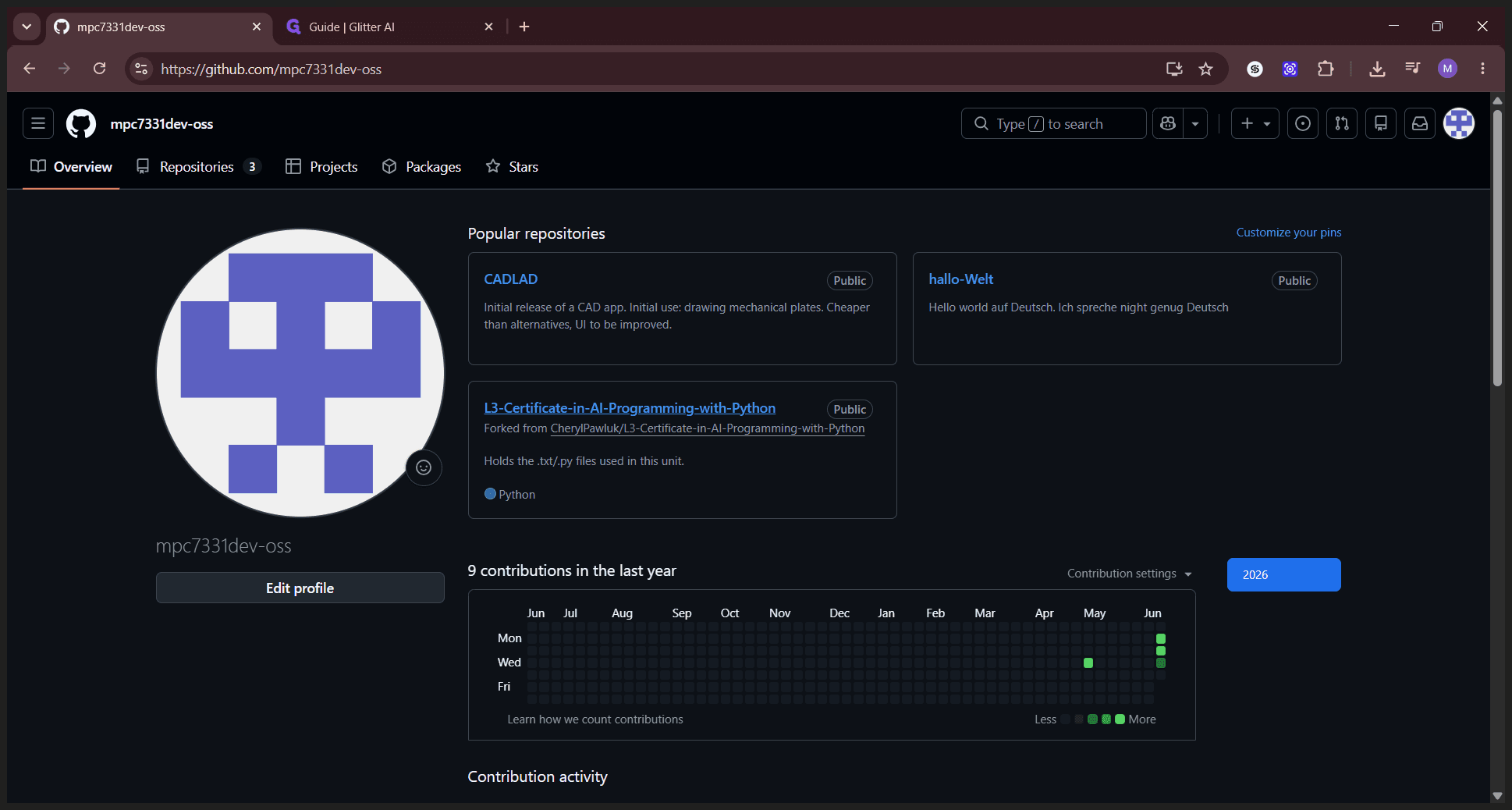
Select the repository where you want to create the release from your GitHub dashboard.
Step #1: Select the repository where you want to create the release from your GitHub dashboard.

Create a New Branch

Before publishing, you may want to cut a specific release branch.
2
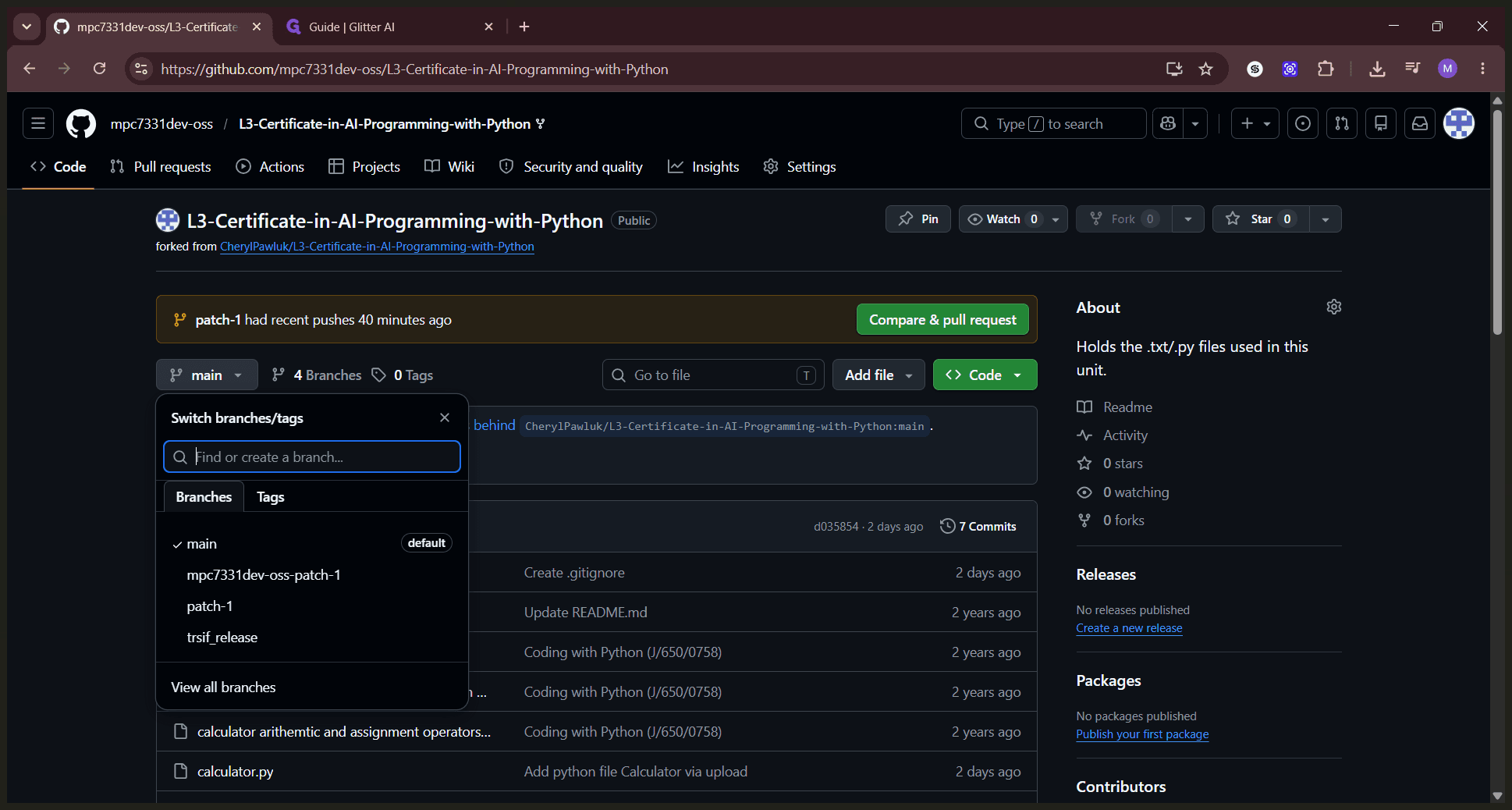
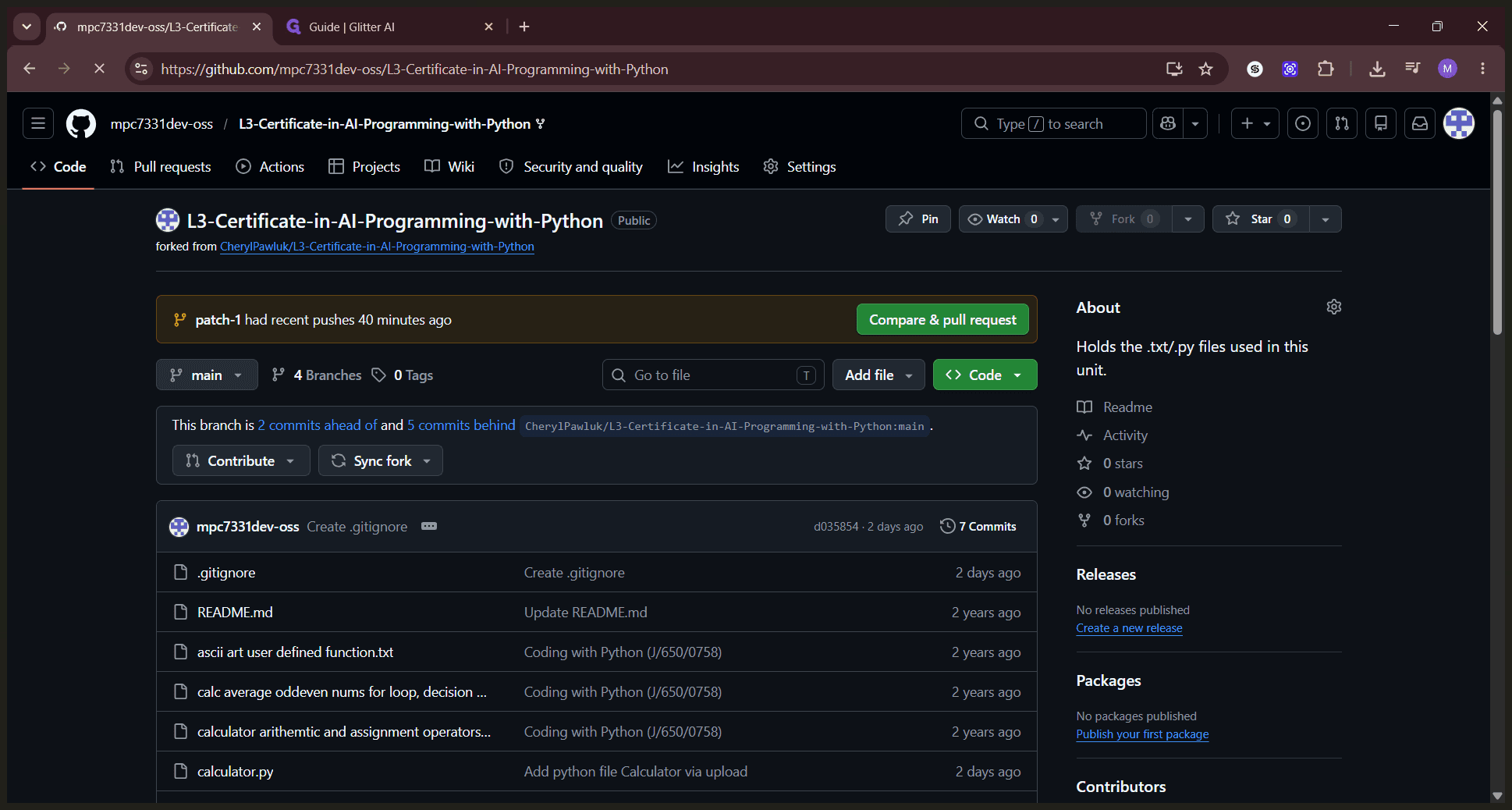
Click the branch selector dropdown, which currently displays main.
Step #2: Click the branch selector dropdown, which currently displays main.
3
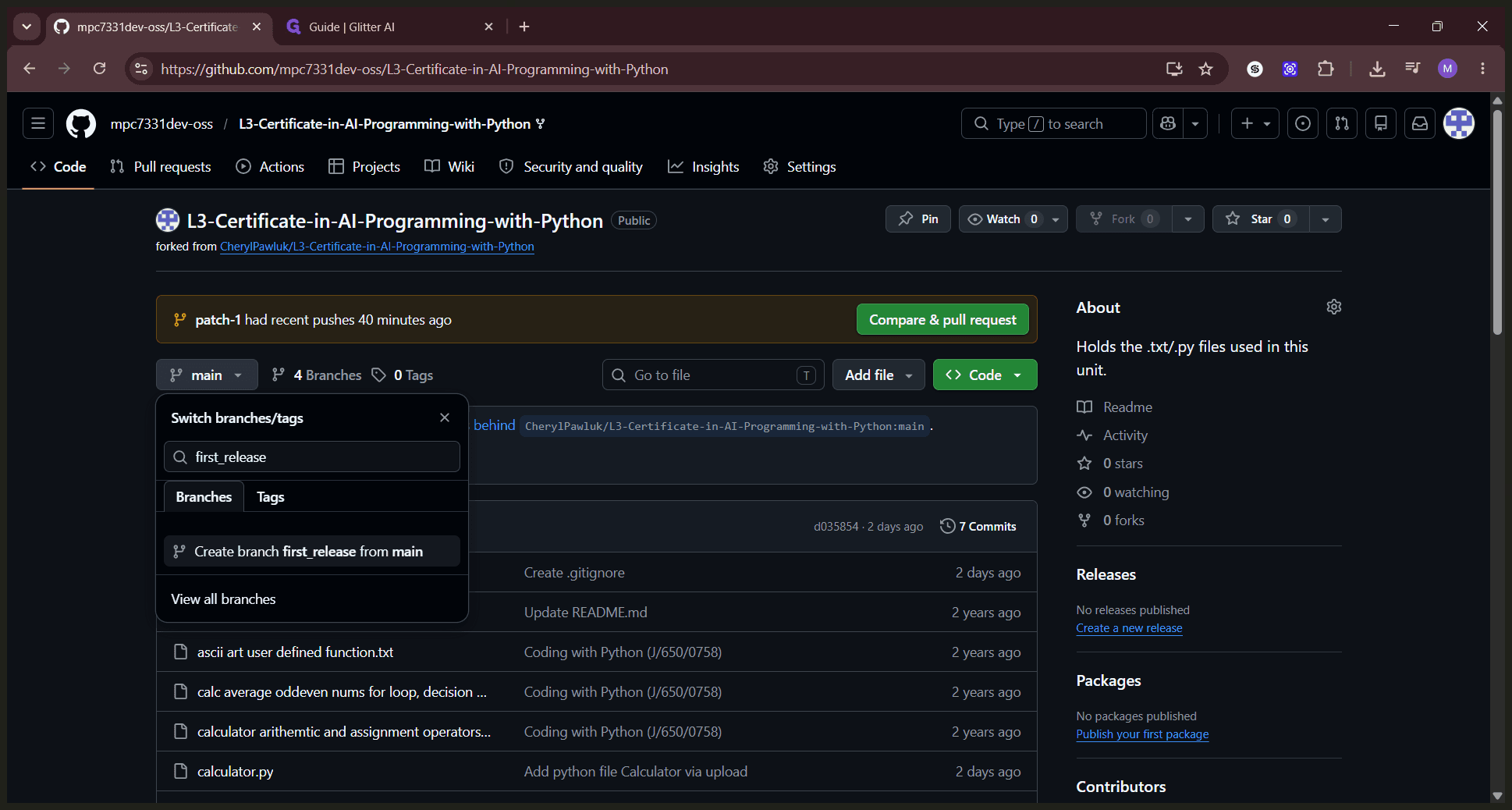
In the search field, type a name for your new branch (for example, first_release).
Step #3: In the search field, type a name for your new branch (for example, first_release).
4
Click Create branch first_release from main to switch to the newly created branch.
Step #4: Click Create branch first_release from main to switch to the newly created branch.

Draft the Release

5
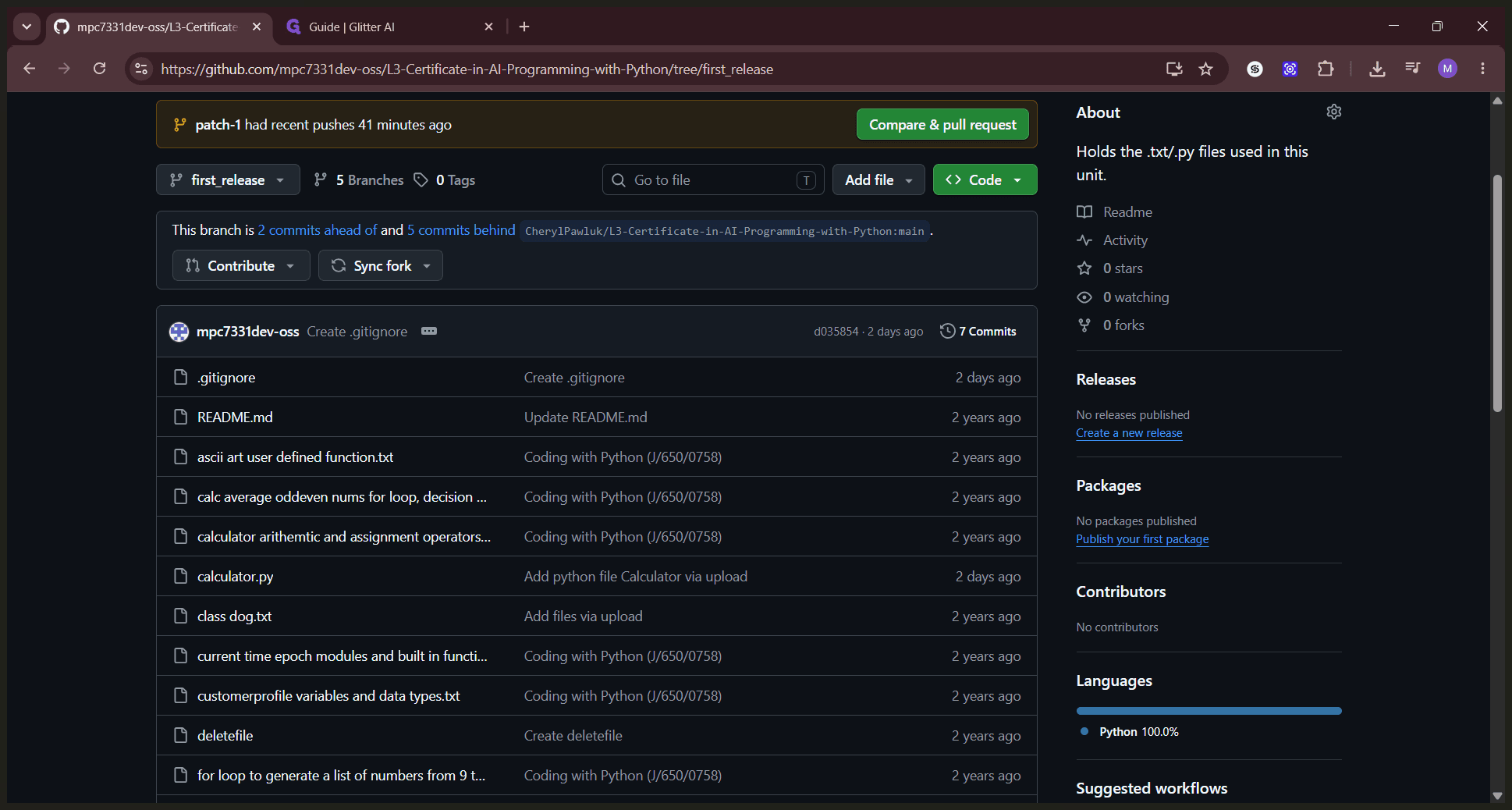
Click Create a new release located in the right sidebar of the repository page.
Step #5: Click Create a new release located in the right sidebar of the repository page.
6
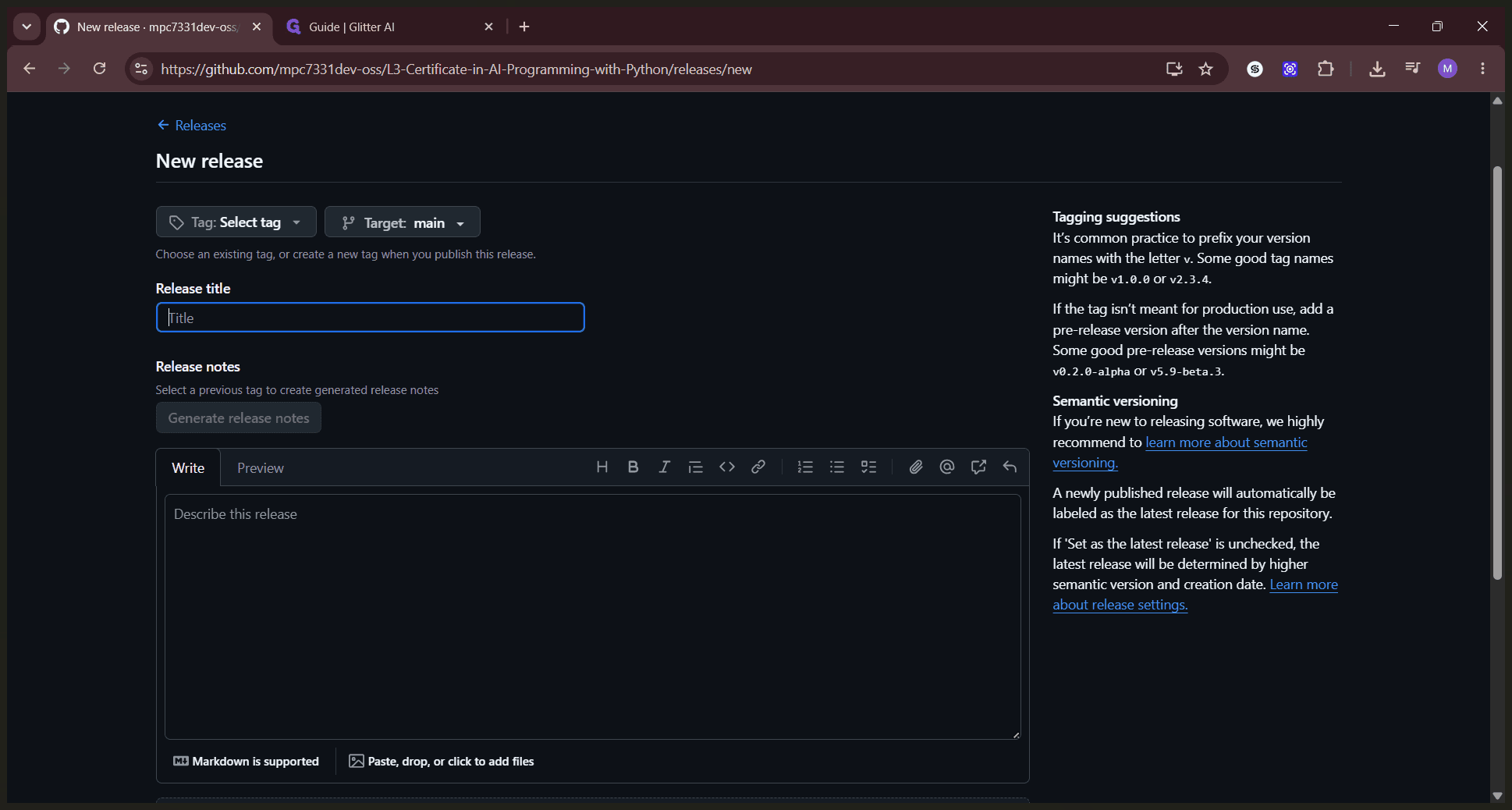
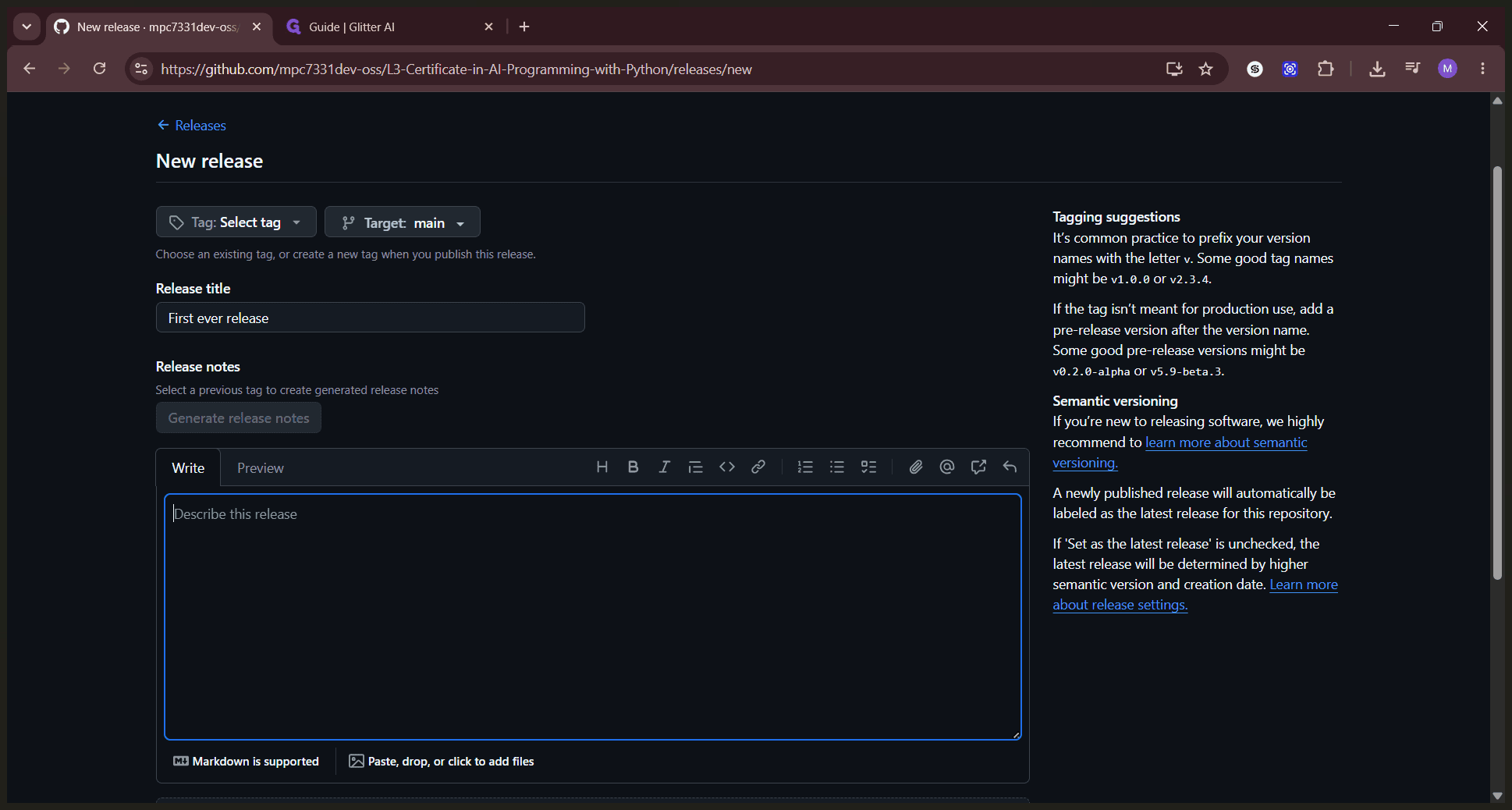
Enter a descriptive title for your release in the Release title field.
Step #6: Enter a descriptive title for your release in the Release title field.
7
Add details about the update in the Describe this release text box.
Step #7: Add details about the update in the Describe this release text box.

Select a Tag and Publish

8
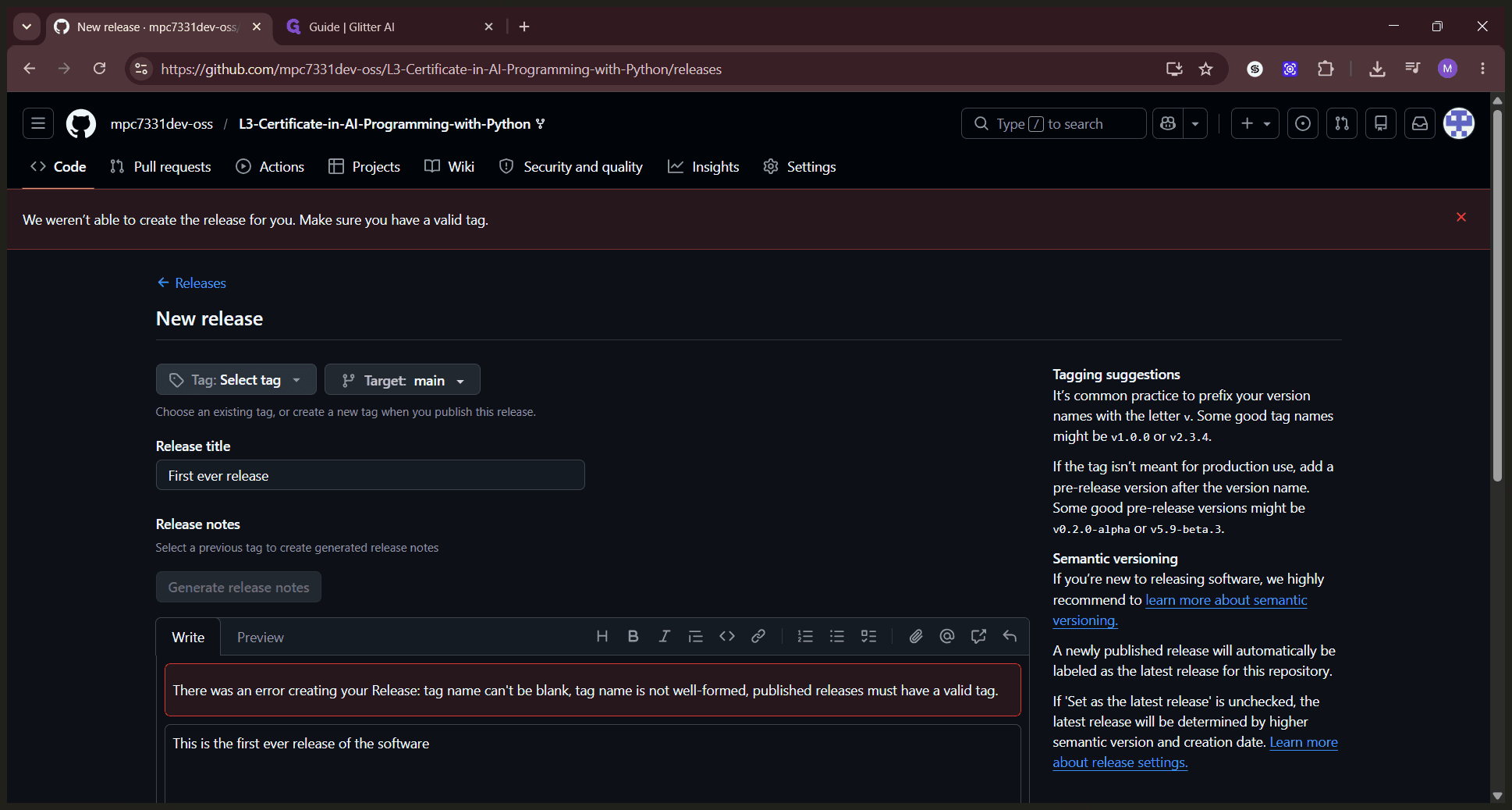
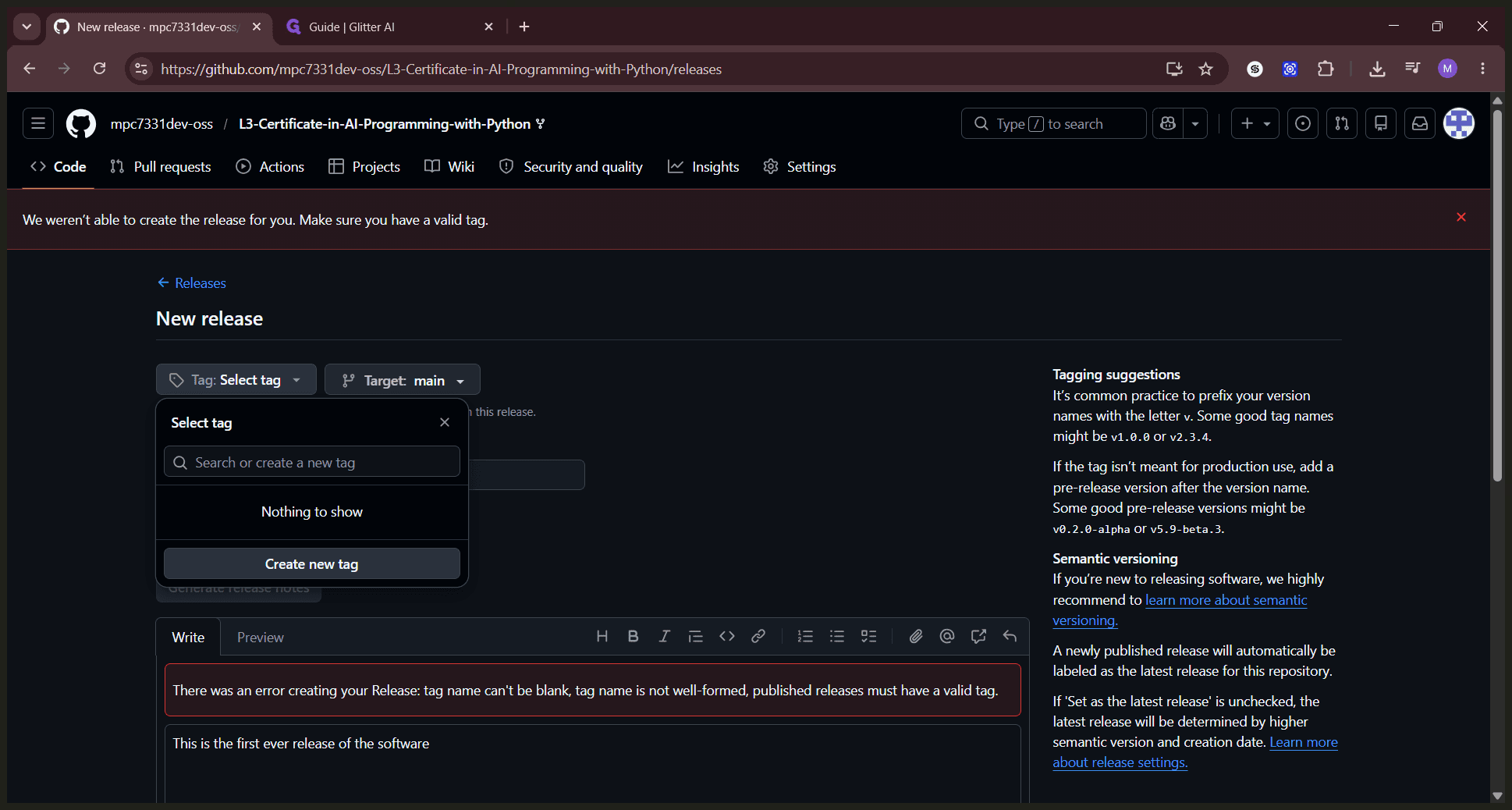
Click the Choose a tag dropdown menu.
Step #8: Click the Choose a tag dropdown menu.
9
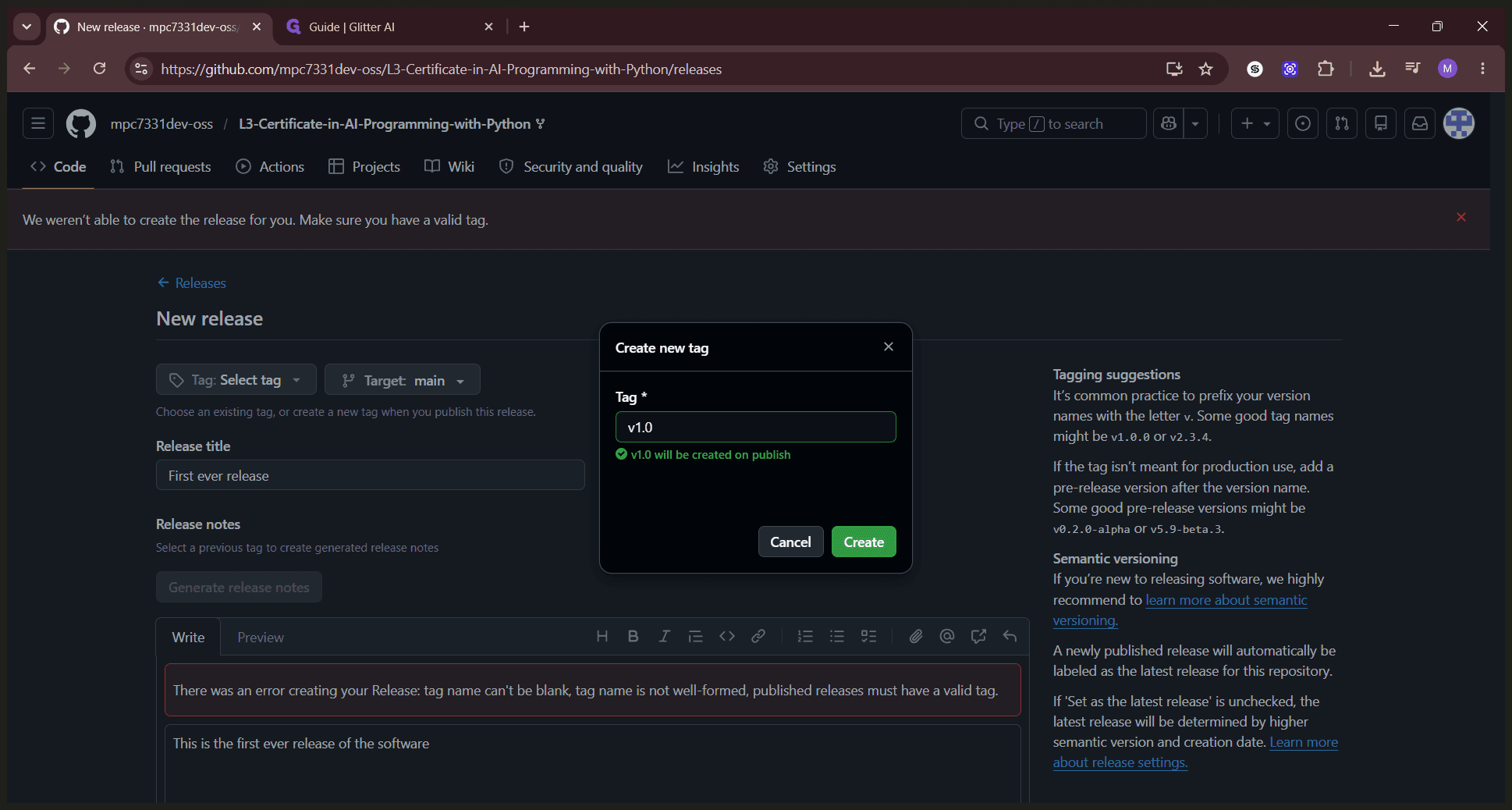
Type in a version number (like v1.0) and select Create new tag.
Step #9: Type in a version number (like v1.0) and select Create new tag.
10
Click Create to confirm the new tag.
Step #10: Click Create to confirm the new tag.
11
Review your details and click Publish release to make it live.
Step #11: Review your details and click Publish release to make it live.

Term

Definition

Repository

A storage location for software packages, often containing multiple versions of code and files.

Branch

An independent line of development in a project, allowing you to isolate your work from the main codebase.

Release

A specific version of a project distributed to users, often bundled with release notes and compiled binaries.

Tag

A reference to a specific point in Git history, commonly used to mark release points (e.g., v1.0).