Set Up a Community Profile and Create Opportunities

Learn how to quickly create your Kolabing community profile and set up your first collaboration opportunity to attract business partnerships.

By Paige Tyson

This guide walks you through setting up a Community profile and creating your first collaboration opportunity (Kolab) on the app. By completing this workflow, you can establish your presence and begin sourcing relevant business partnerships for your upcoming events.

This process is intended for community organizers, network leaders, and influencers during their initial onboarding. You will use these steps anytime you are launching a new community entity or publishing a new campaign requirement.

Setting Up Your Community Profile

The onboarding flow requires standard details about your community to ensure you are matched with the right businesses and sponsors.
1
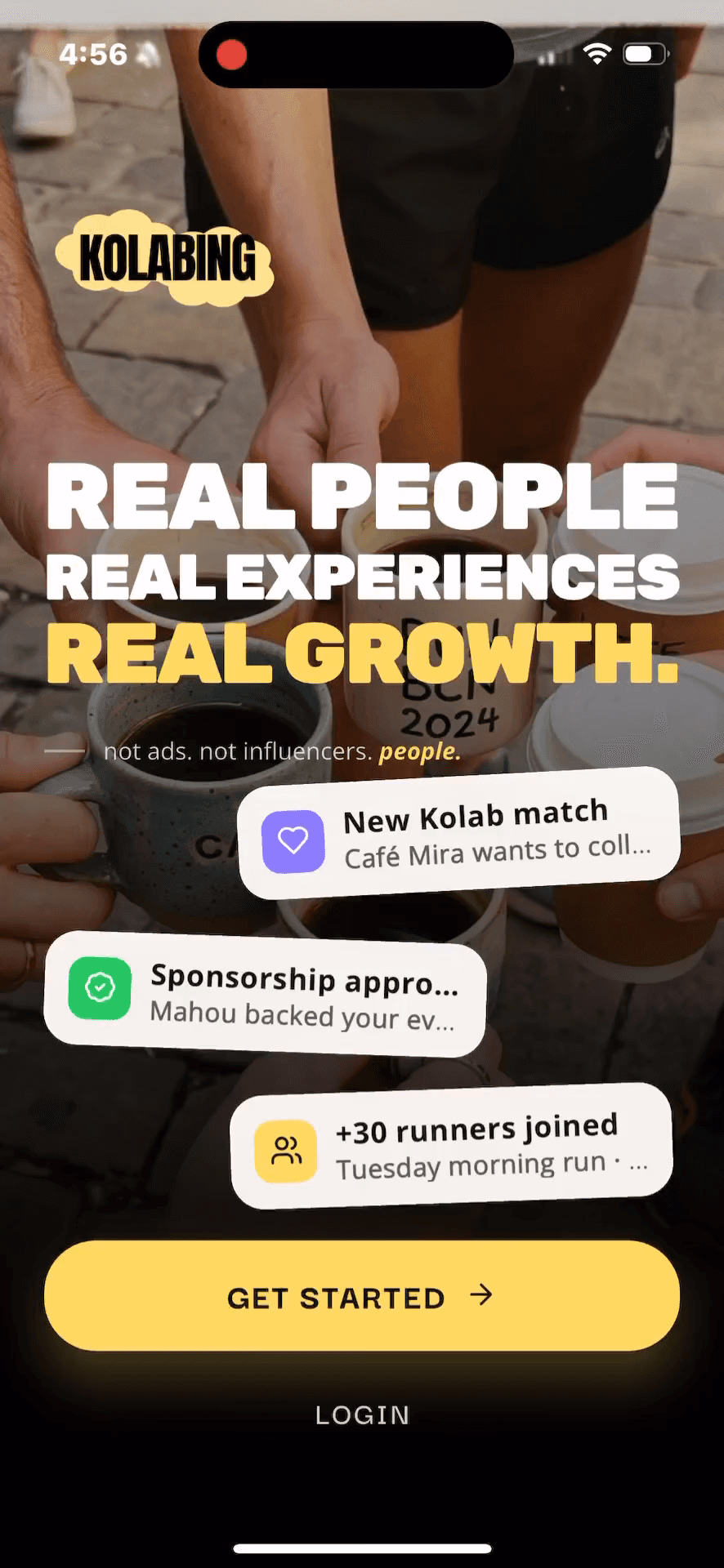
Tap GET STARTED to begin the onboarding process.
Step #1: Tap GET STARTED to begin the onboarding process.
2
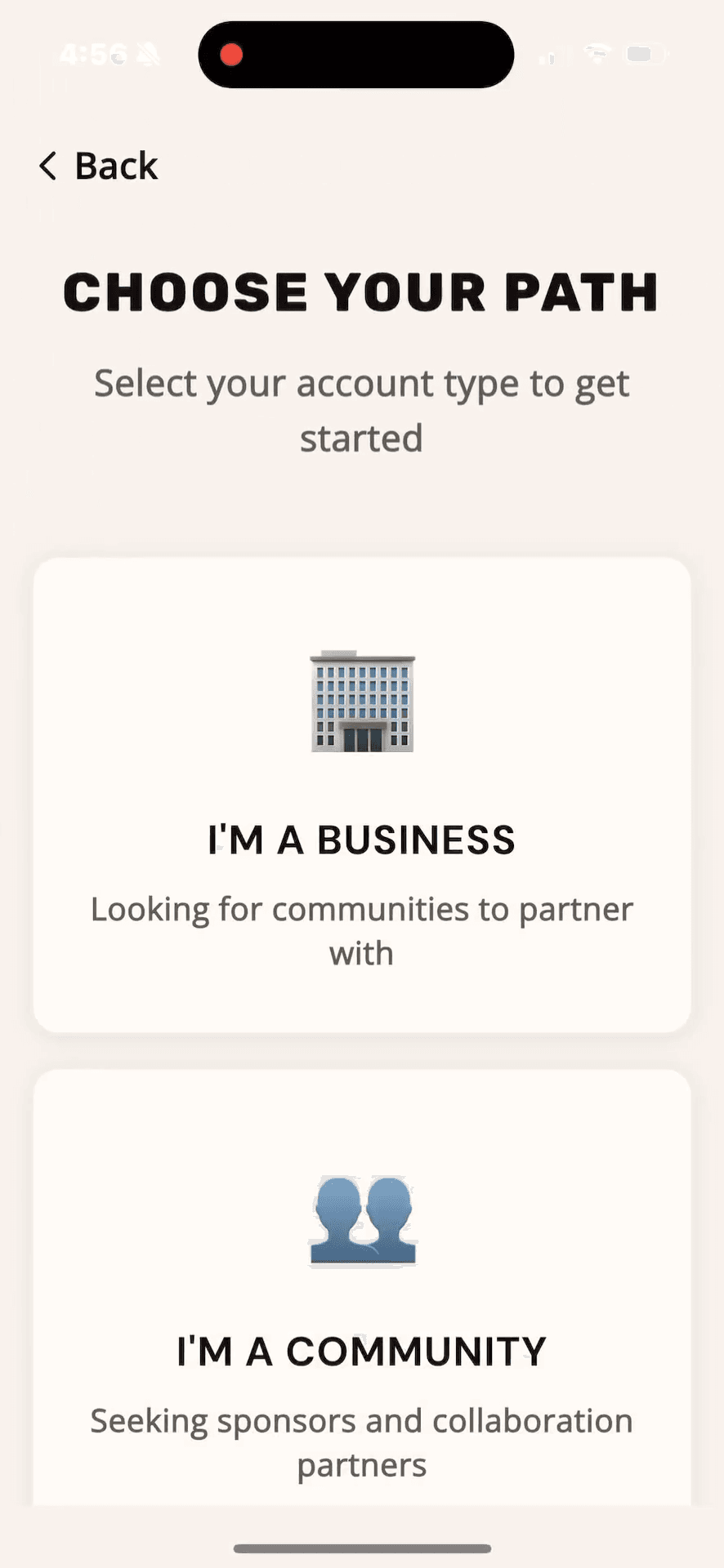
Select YOUR SPECIFIC PATH to set up a partner-seeking profile.
Step #2: Select YOUR SPECIFIC PATH to set up a partner-seeking profile.
3
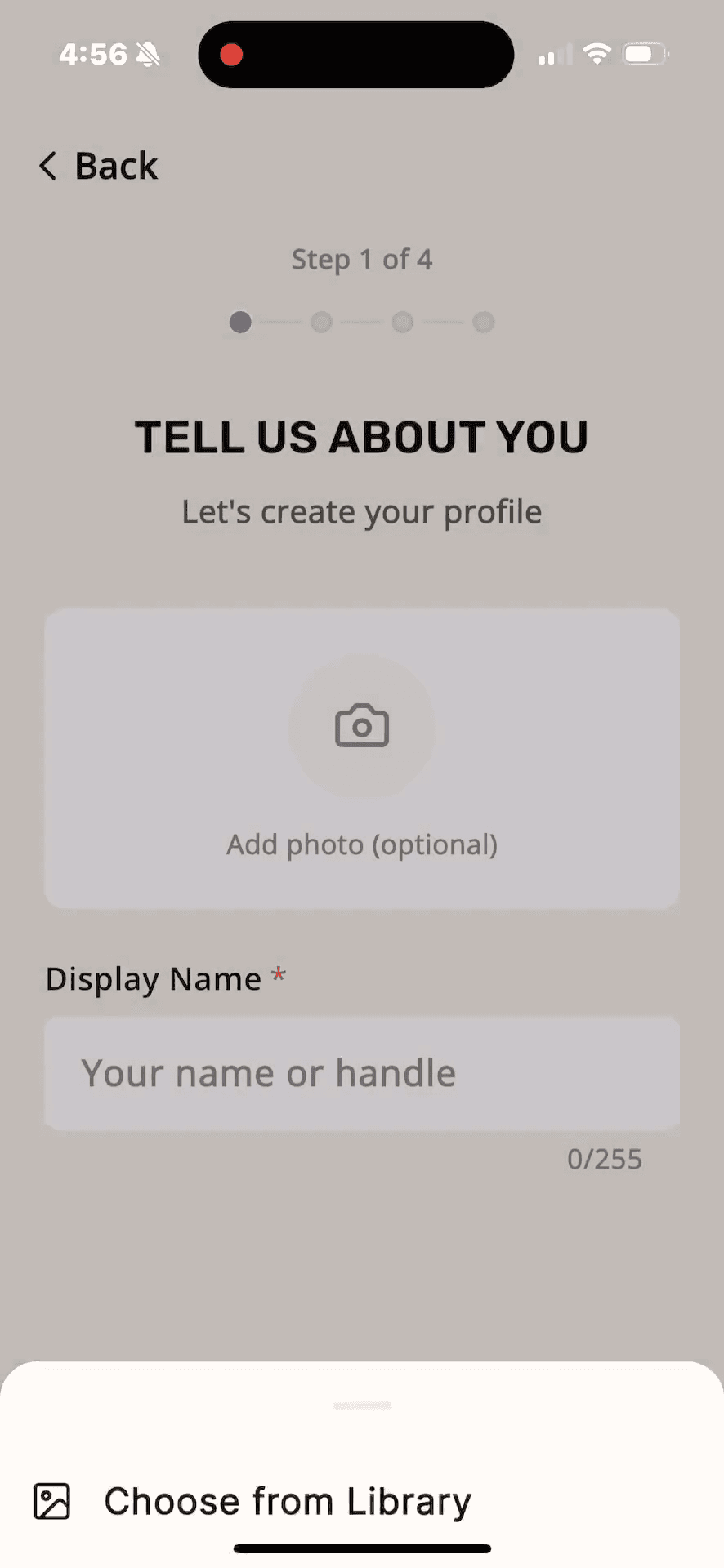
Enter your display name or handle in the designated text field.
Step #3: Enter your display name or handle in the designated text field.
4
Tap CONTINUE to proceed to the category selection.
Step #4: Tap CONTINUE to proceed to the category selection.
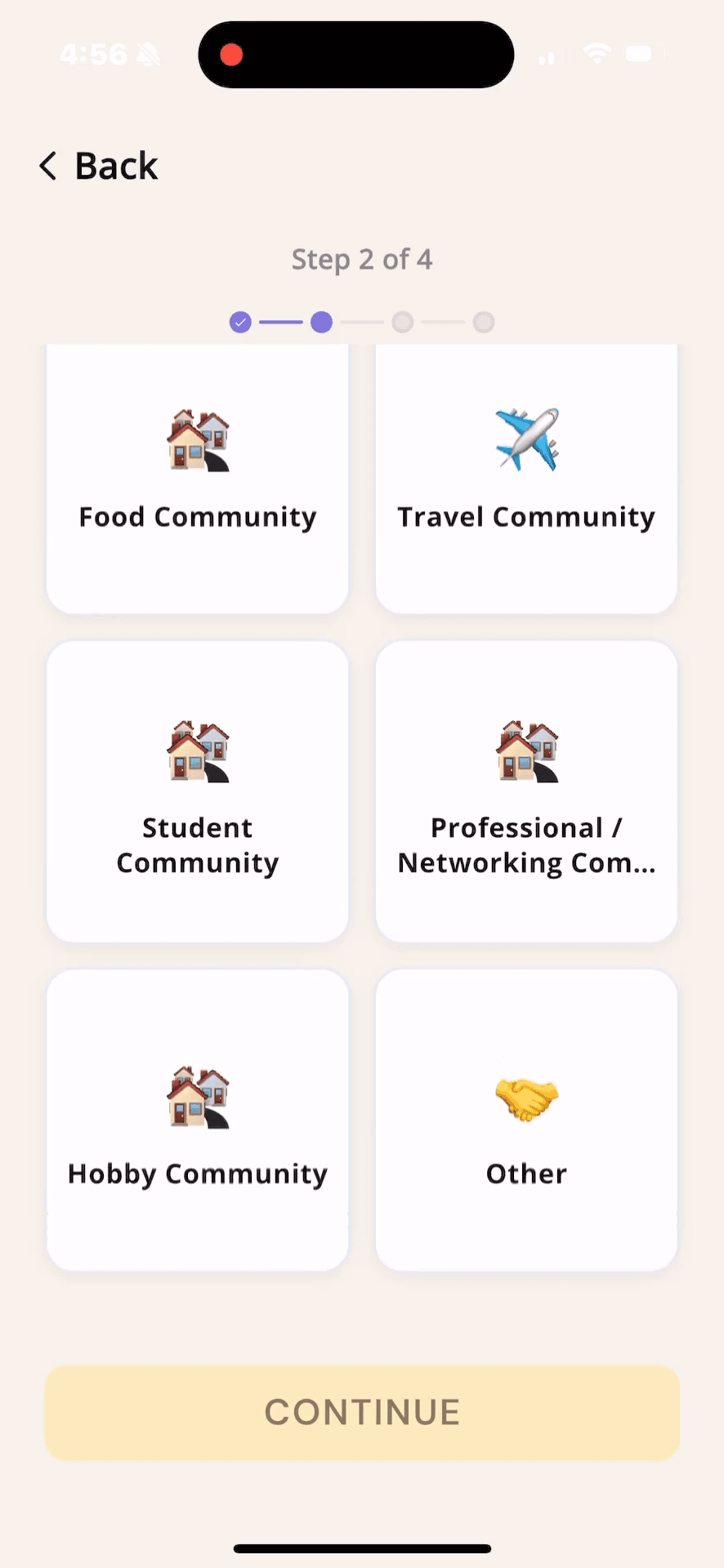
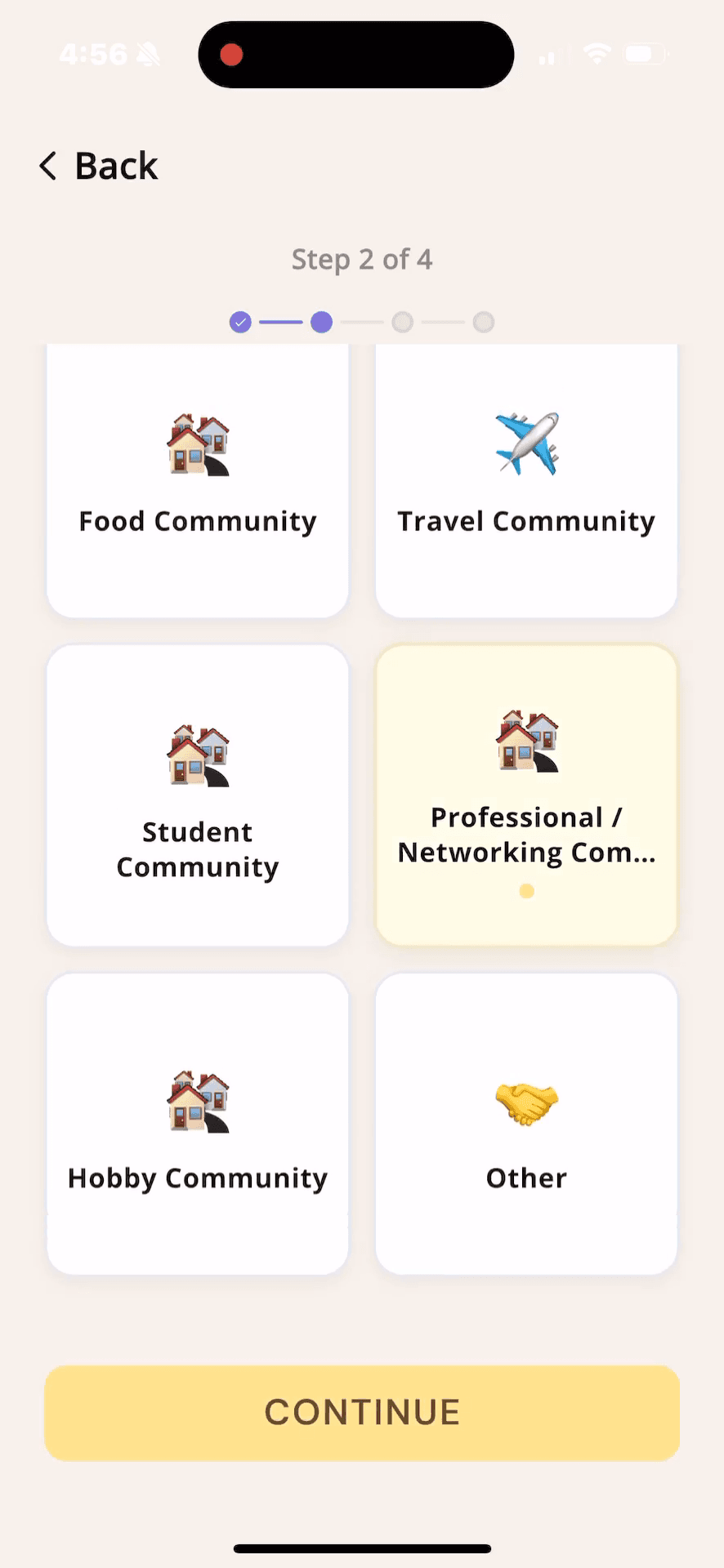
5
Select your primary community category, such as the Professional / Networking Community tile.
Step #5: Select your primary community category, such as the Professional / Networking Community tile.
6
Tap CONTINUE.
Step #6: Tap CONTINUE.
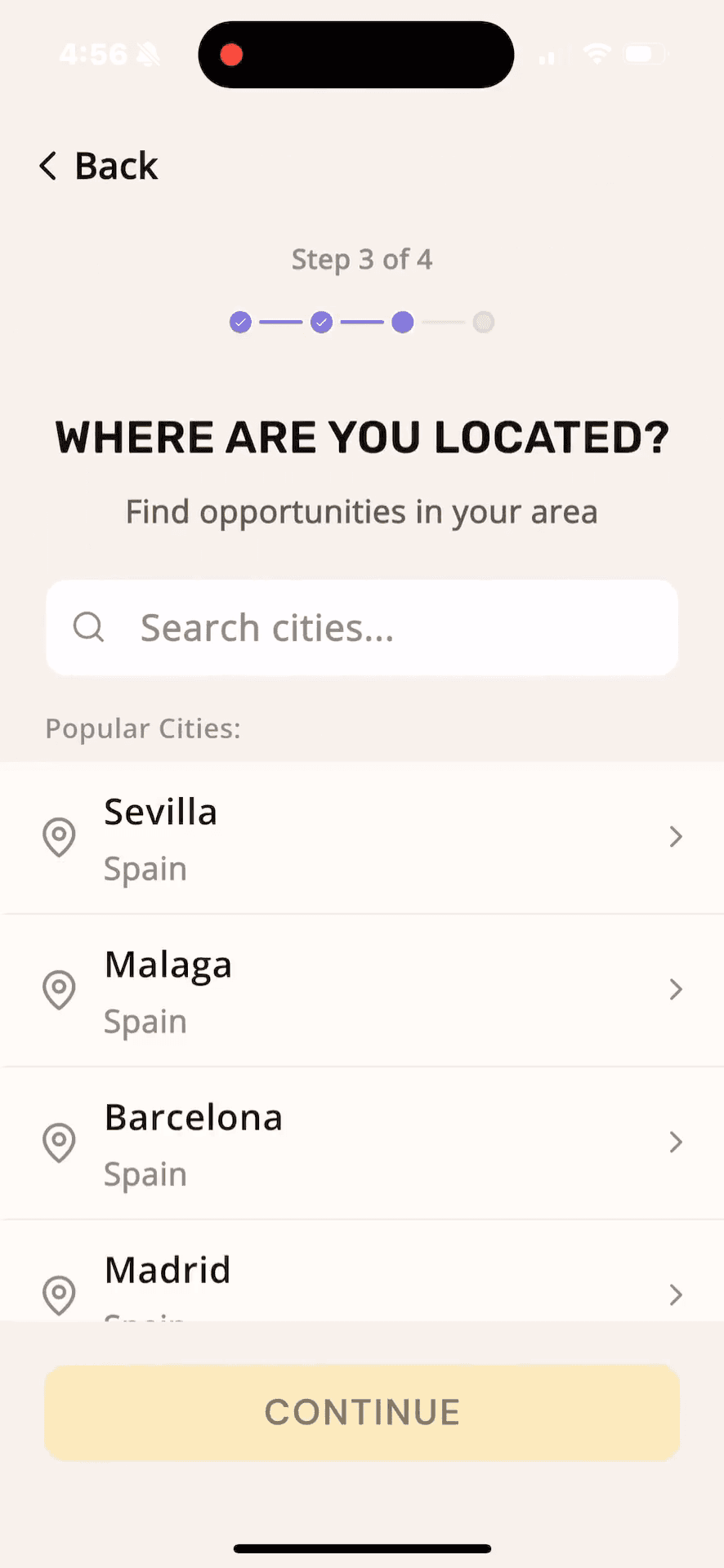
7
Search for and select your primary operating city (e.g., Barcelona).
Step #7: Search for and select your primary operating city (e.g., Barcelona).
8
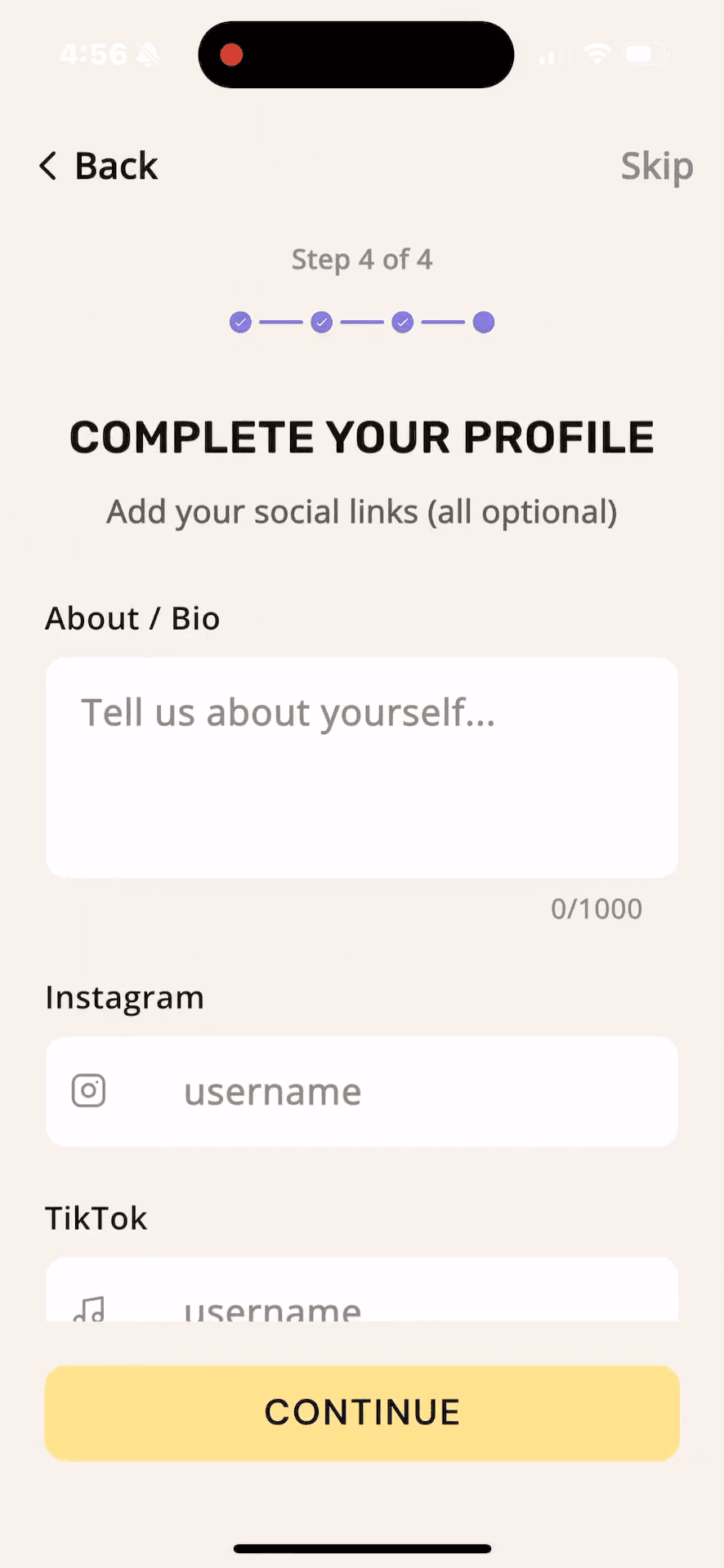
Enter a brief overview of your community in the About / Bio field.
Step #8: Enter a brief overview of your community in the About / Bio field.
9
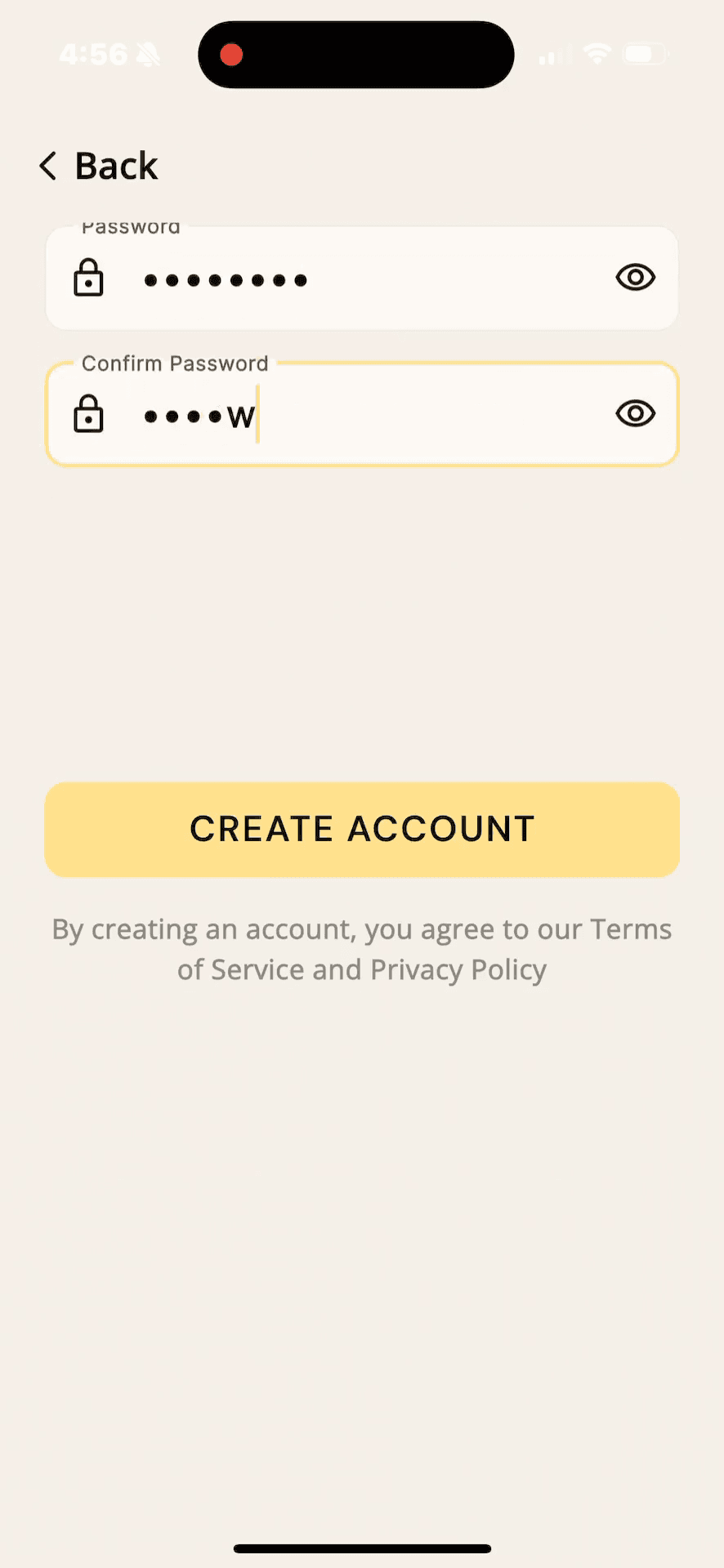
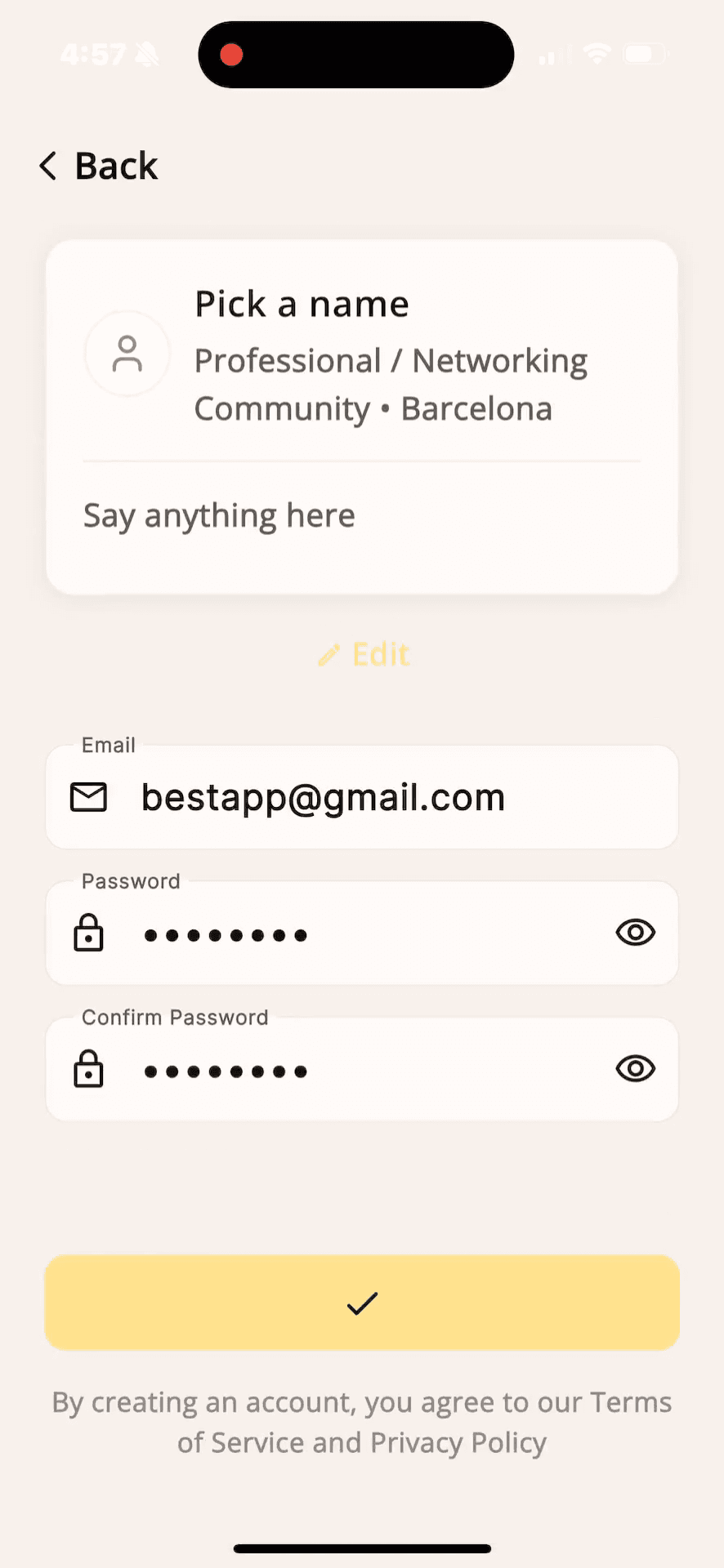
Enter your email address and securely confirm a password in the respective fields.
10
Tap CREATE ACCOUNT to finalize your registration.
Step #10: Tap CREATE ACCOUNT to finalize your registration.
11
Tap Allow to enable necessary device permissions like notifications.
Step #11: Tap Allow to enable necessary device permissions like notifications.

Creating Your First Kolab

A Kolab is an opportunity listing where you define what your event or community needs from business partners.
12
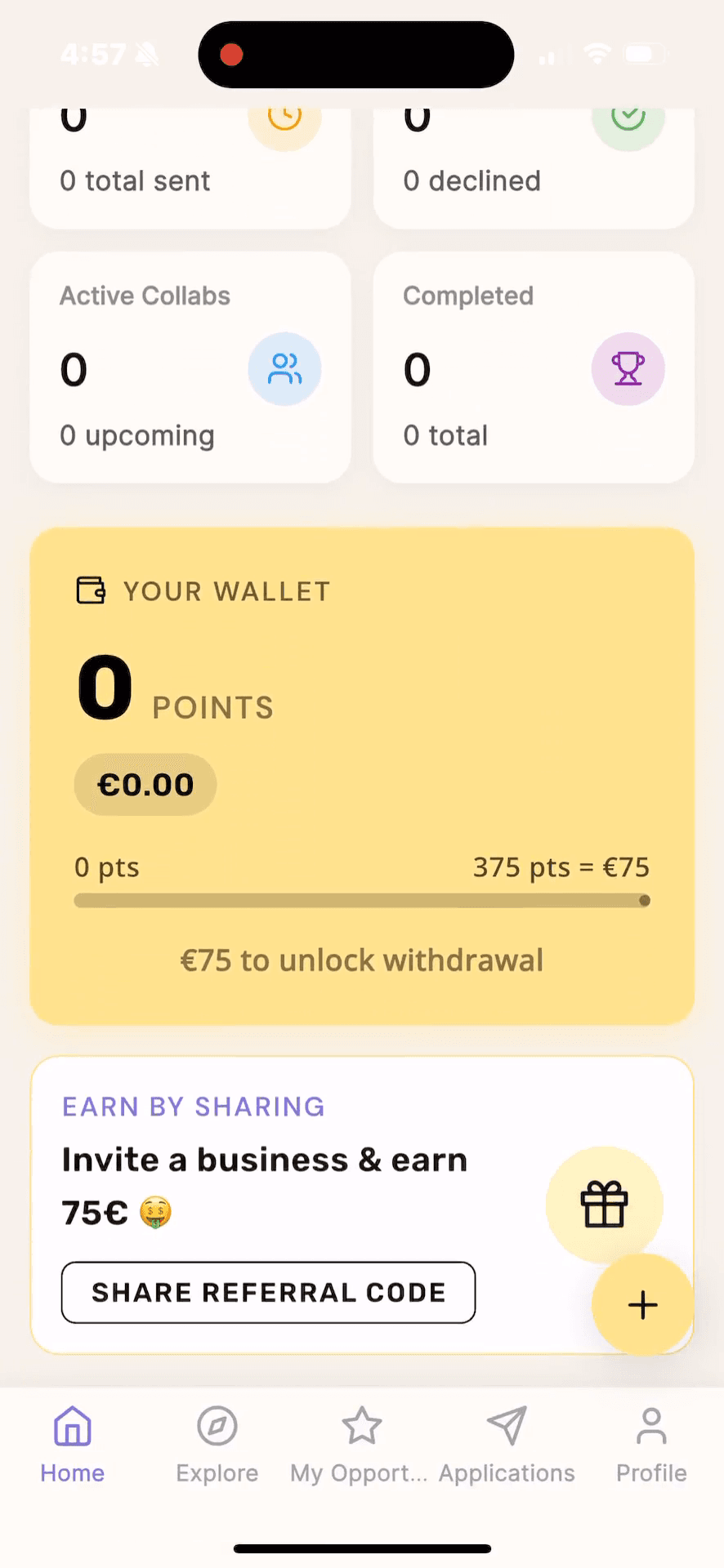
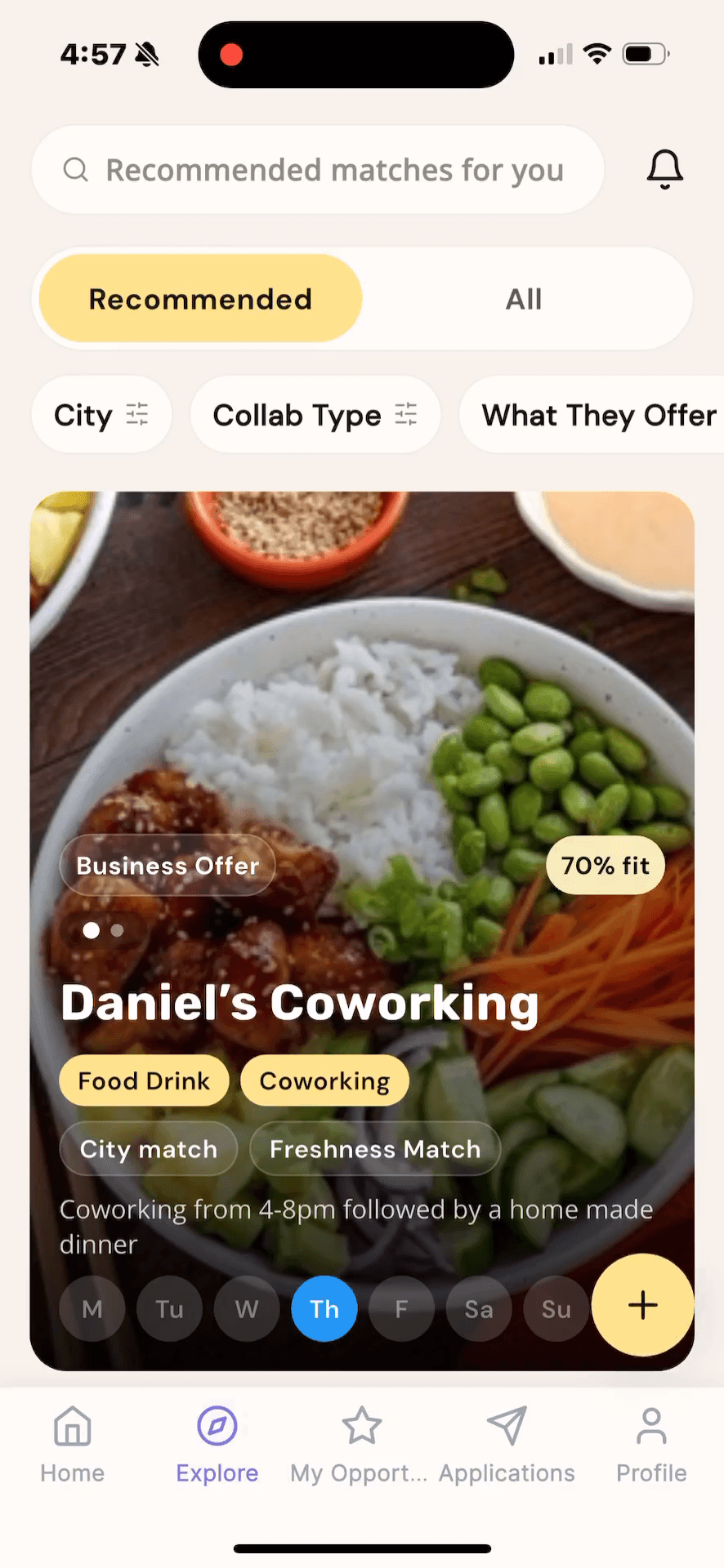
Tap My Opportunities in the bottom navigation bar.
Step #12: Tap My Opportunities in the bottom navigation bar.
13
Tap the yellow + button in the bottom right corner to start a new Kolab draft.
Step #13: Tap the yellow + button in the bottom right corner to start a new Kolab draft.
14
Enter a clear, descriptive title and write out the full details of your opportunity.
15
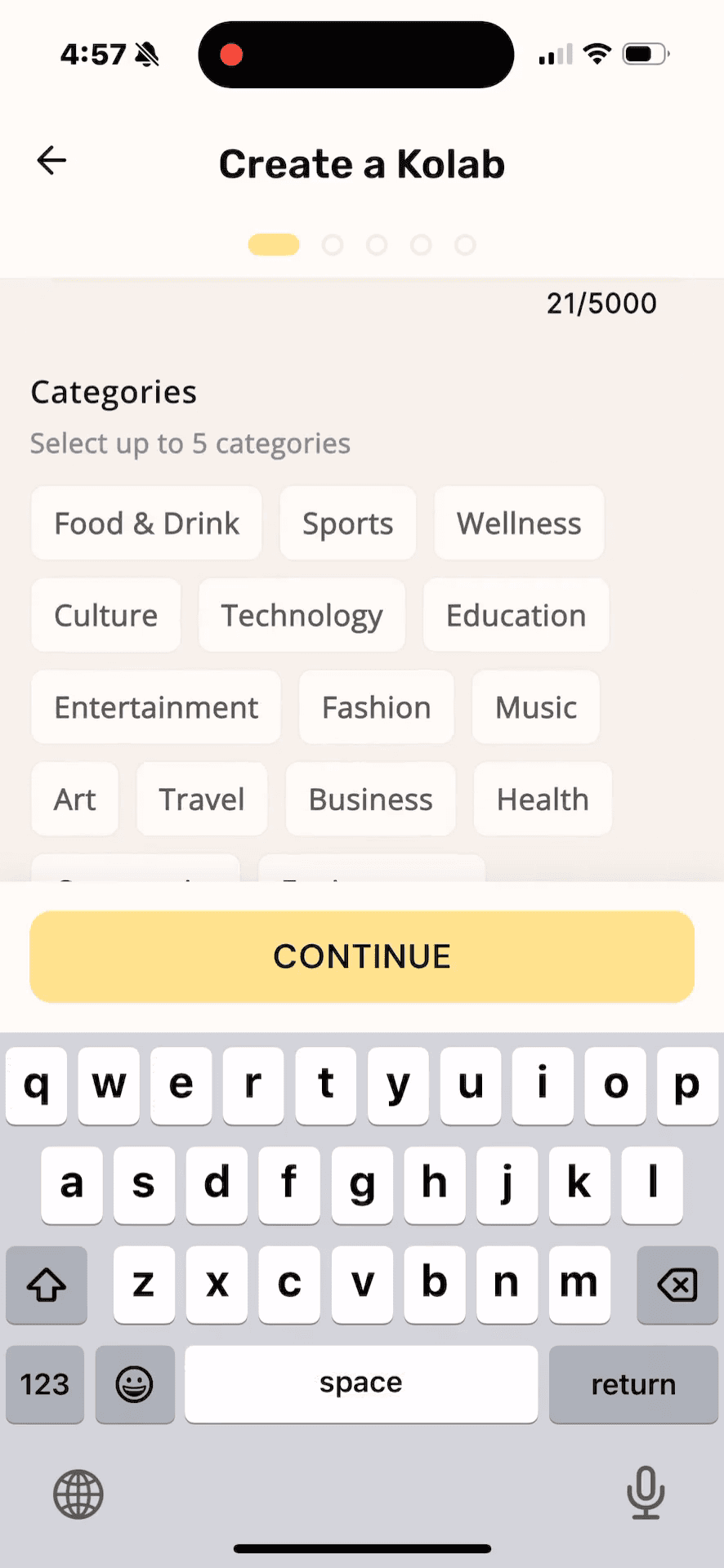
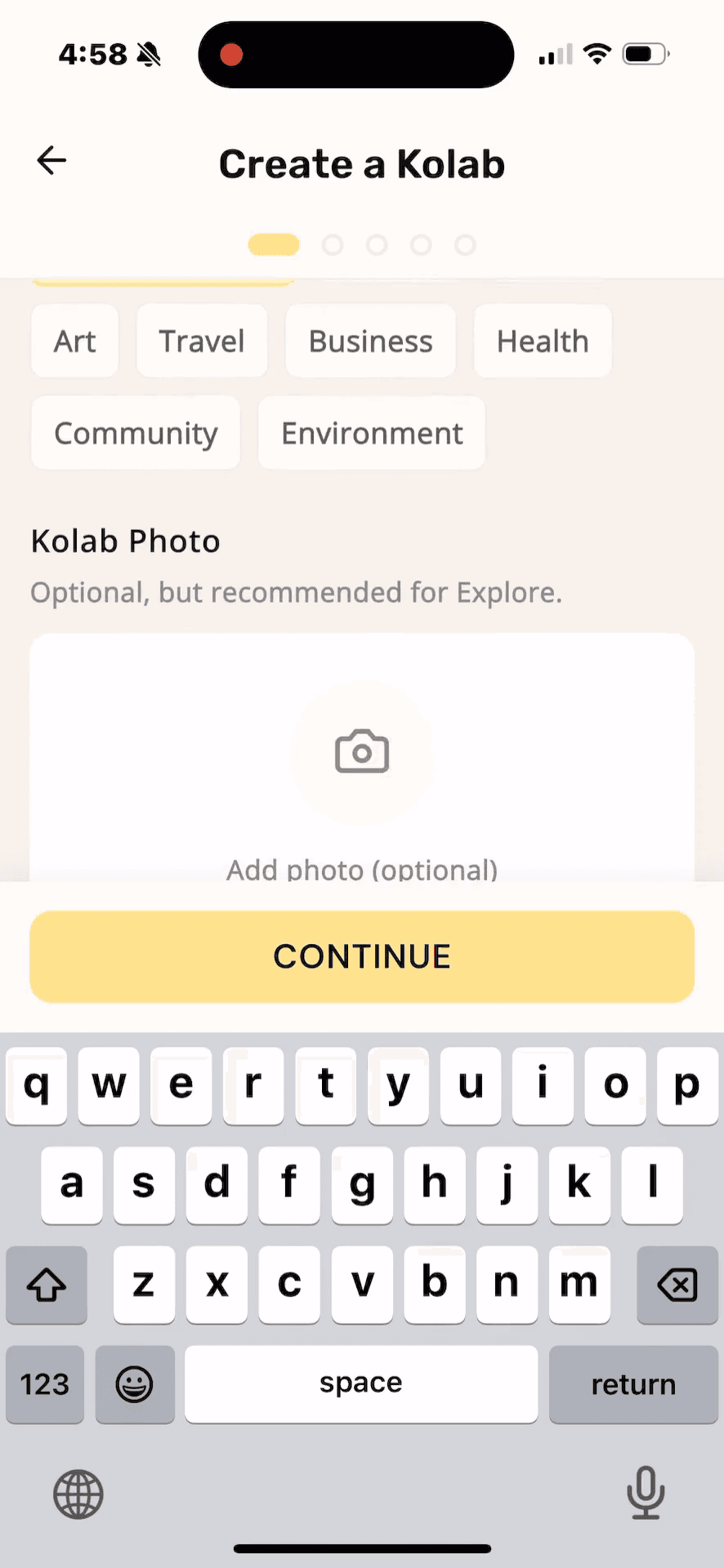
Select the most relevant categories for your event, such as Food & Drink or Entertainment.
Step #15: Select the most relevant categories for your event, such as Food & Drink or Entertainment.
16
Tap Continue to move to the requirements step.
Step #16: Tap Continue to move to the requirements step.
17
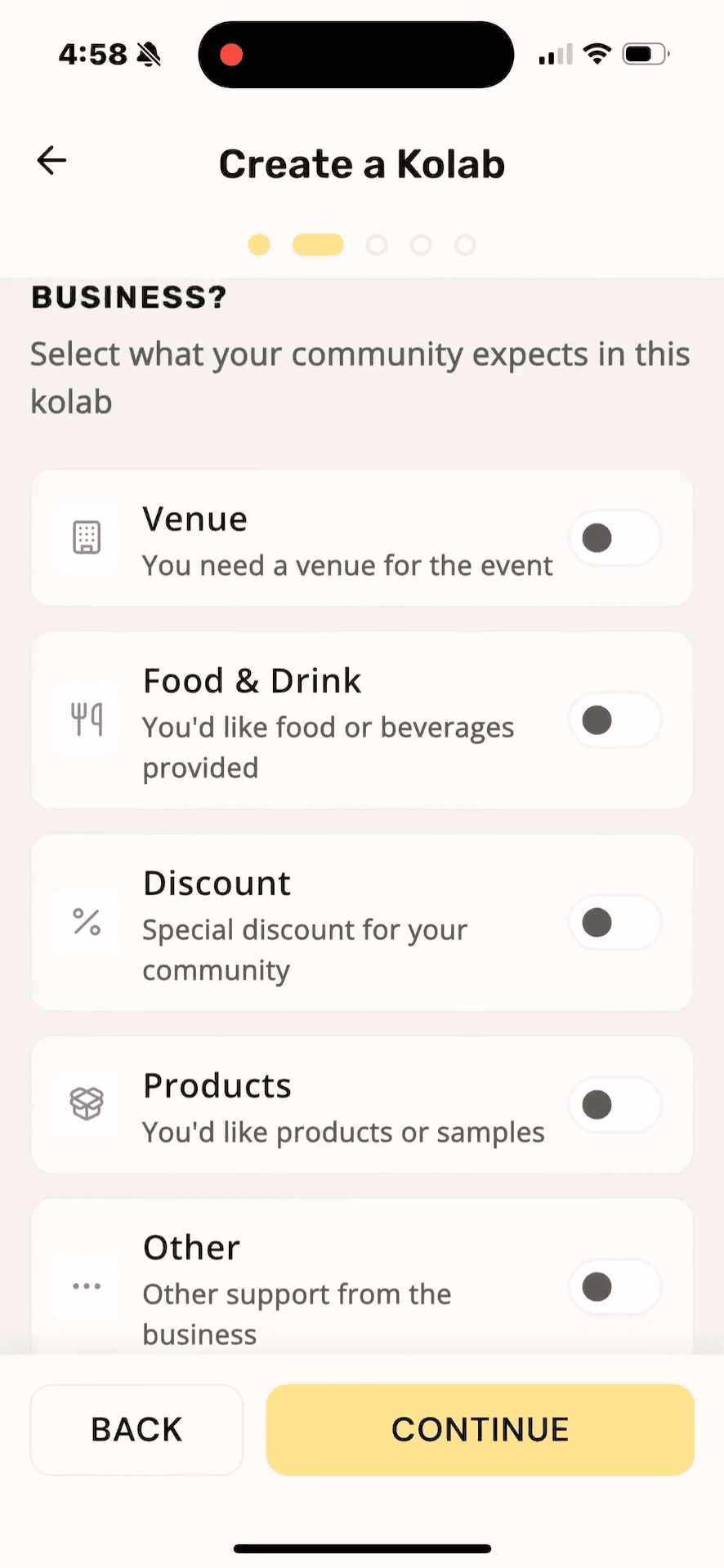
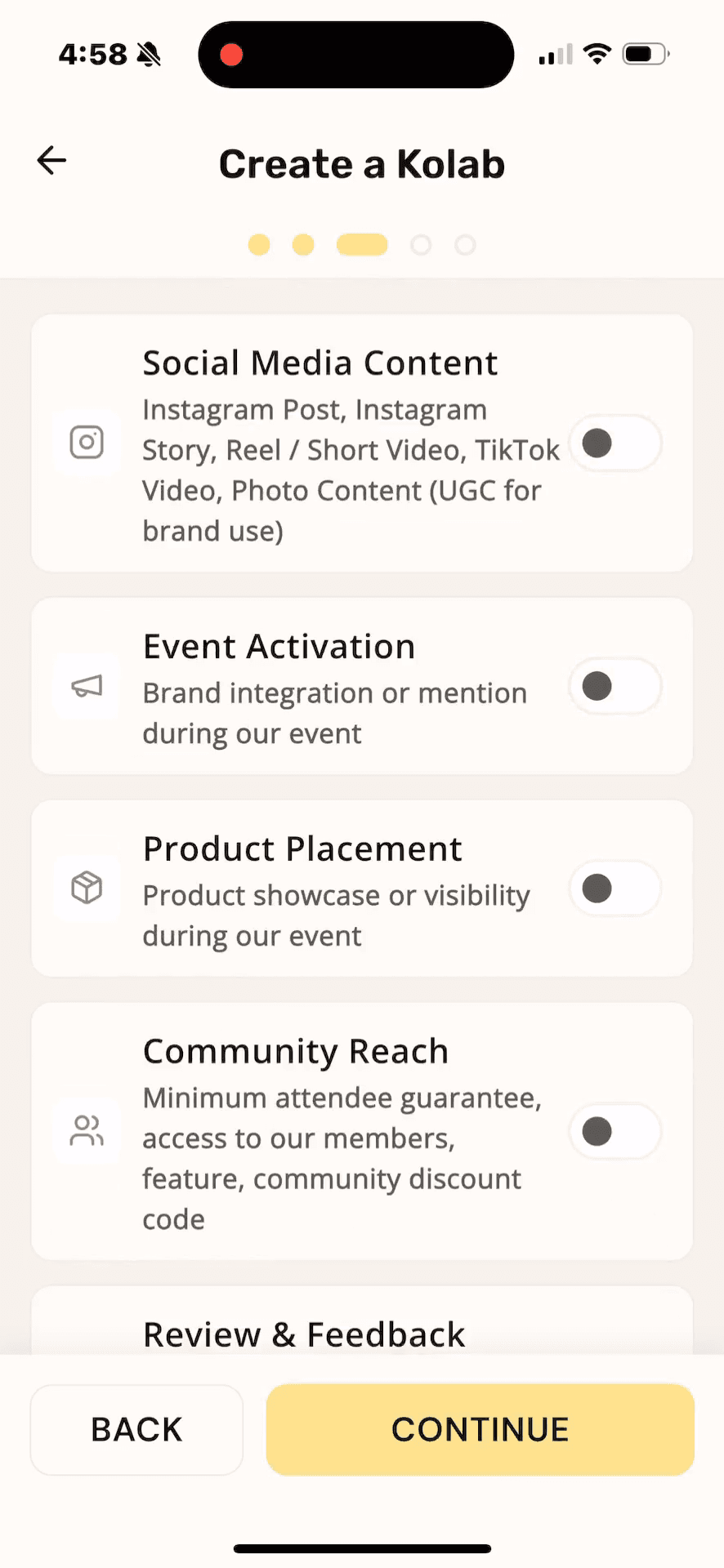
Toggle on the specific elements you need a business partner to provide, such as Venue, Food & Drink, and Event Activation.
Step #17: Toggle on the specific elements you need a business partner to provide, such as Venue, Food & Drink, and Event Activation.
18
Tap Continue.
Step #18: Tap Continue.
19
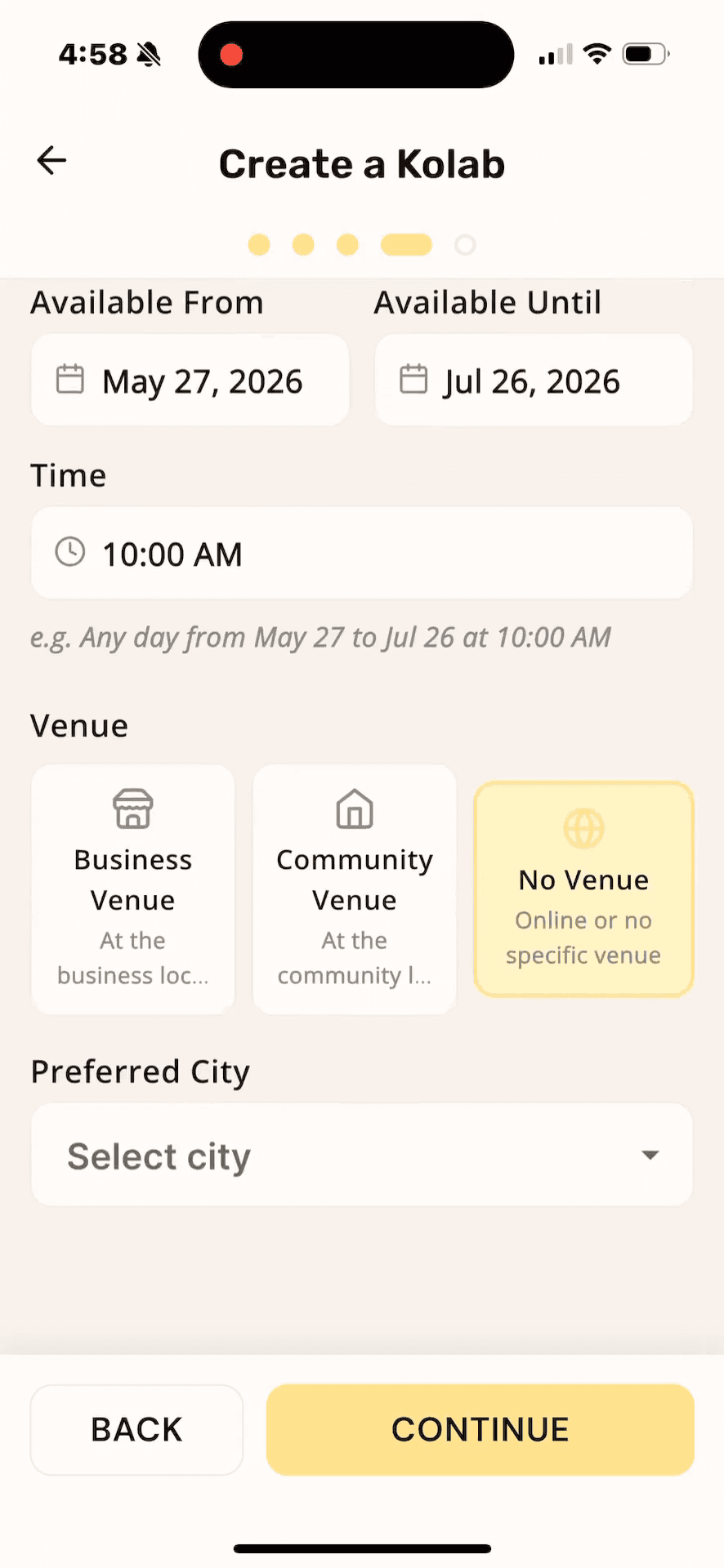
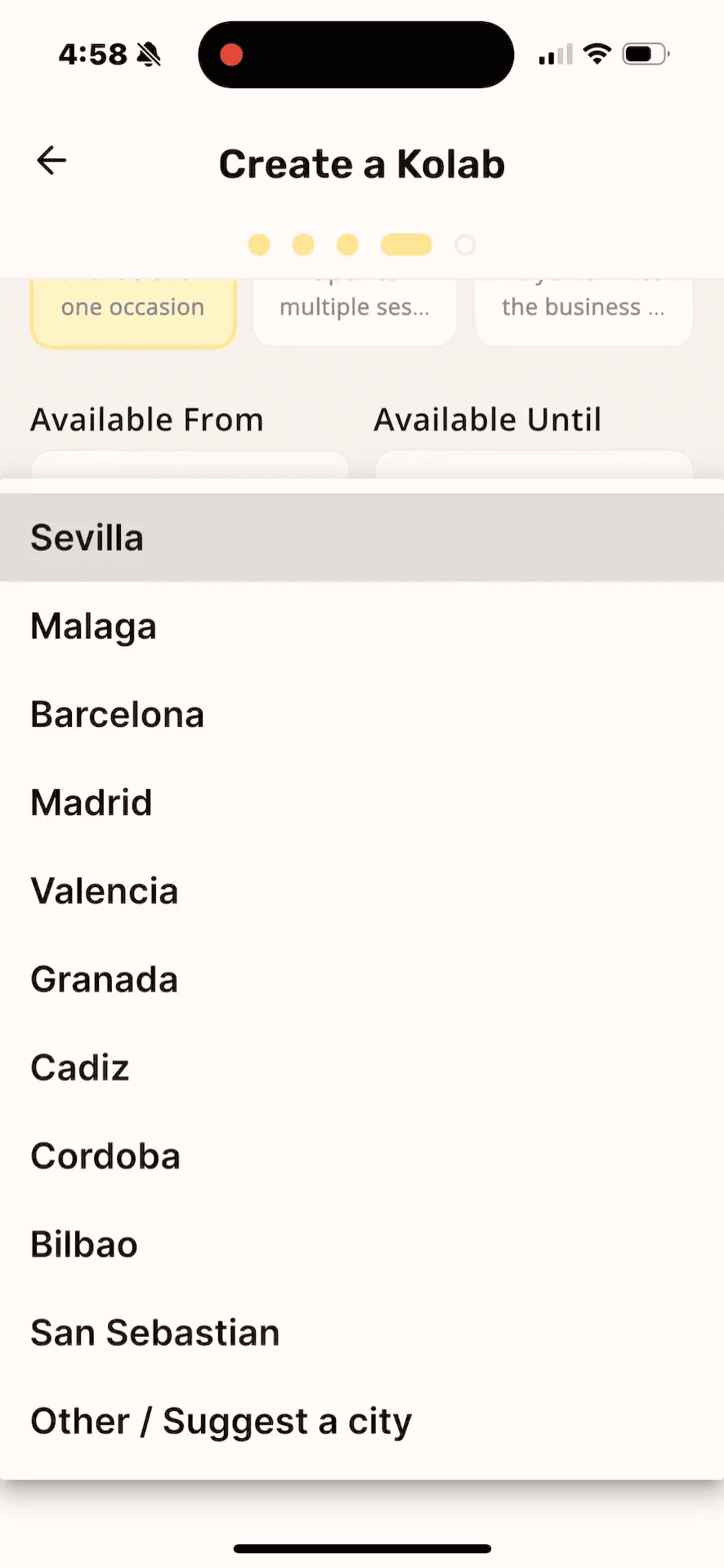
Select your Preferred City from the dropdown menu to geo-target the opportunity.
Step #19: Select your Preferred City from the dropdown menu to geo-target the opportunity.
20
Tap Continue to finalize your draft.
Step #20: Tap Continue to finalize your draft.
21
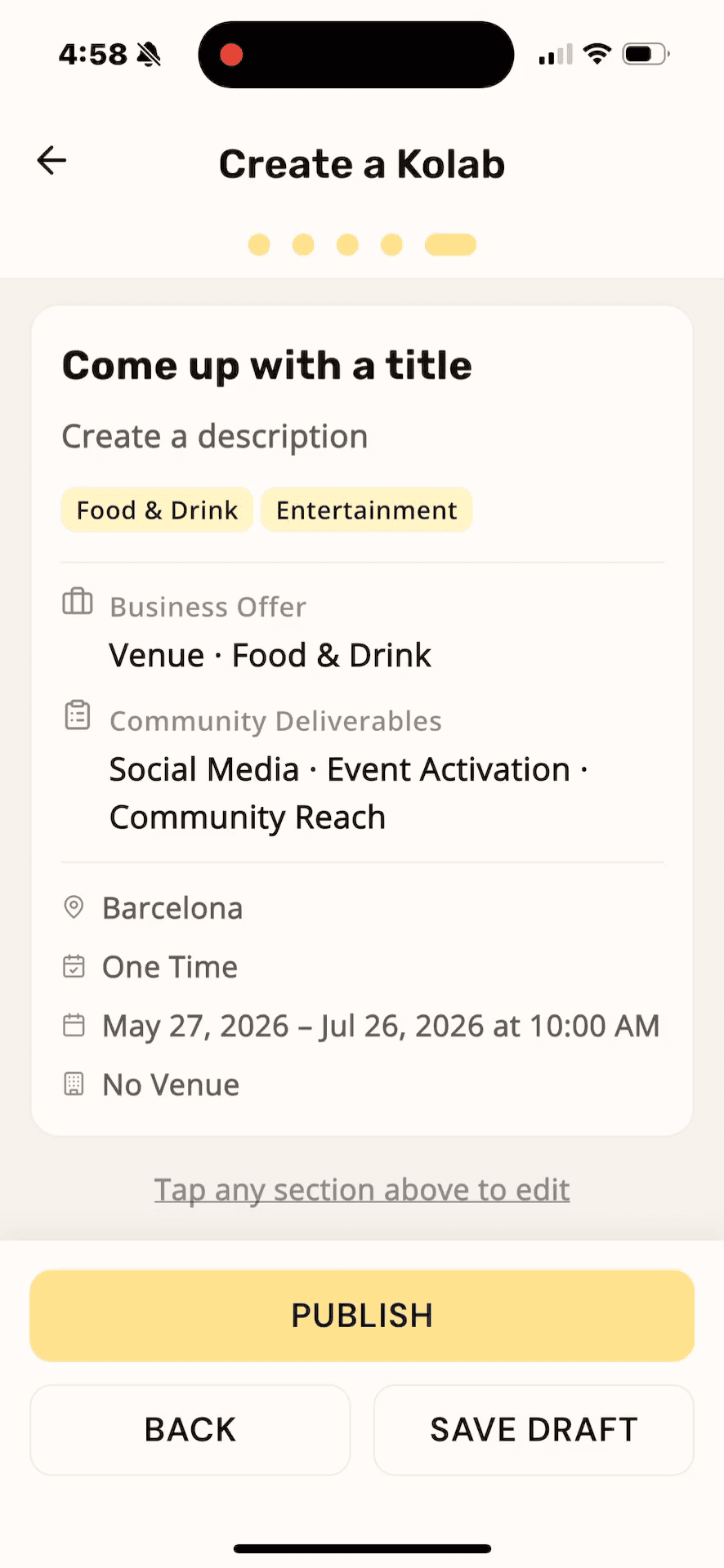
Tap Save Draft if you aren't ready to publish the opportunity immediately.
Step #21: Tap Save Draft if you aren't ready to publish the opportunity immediately.
22
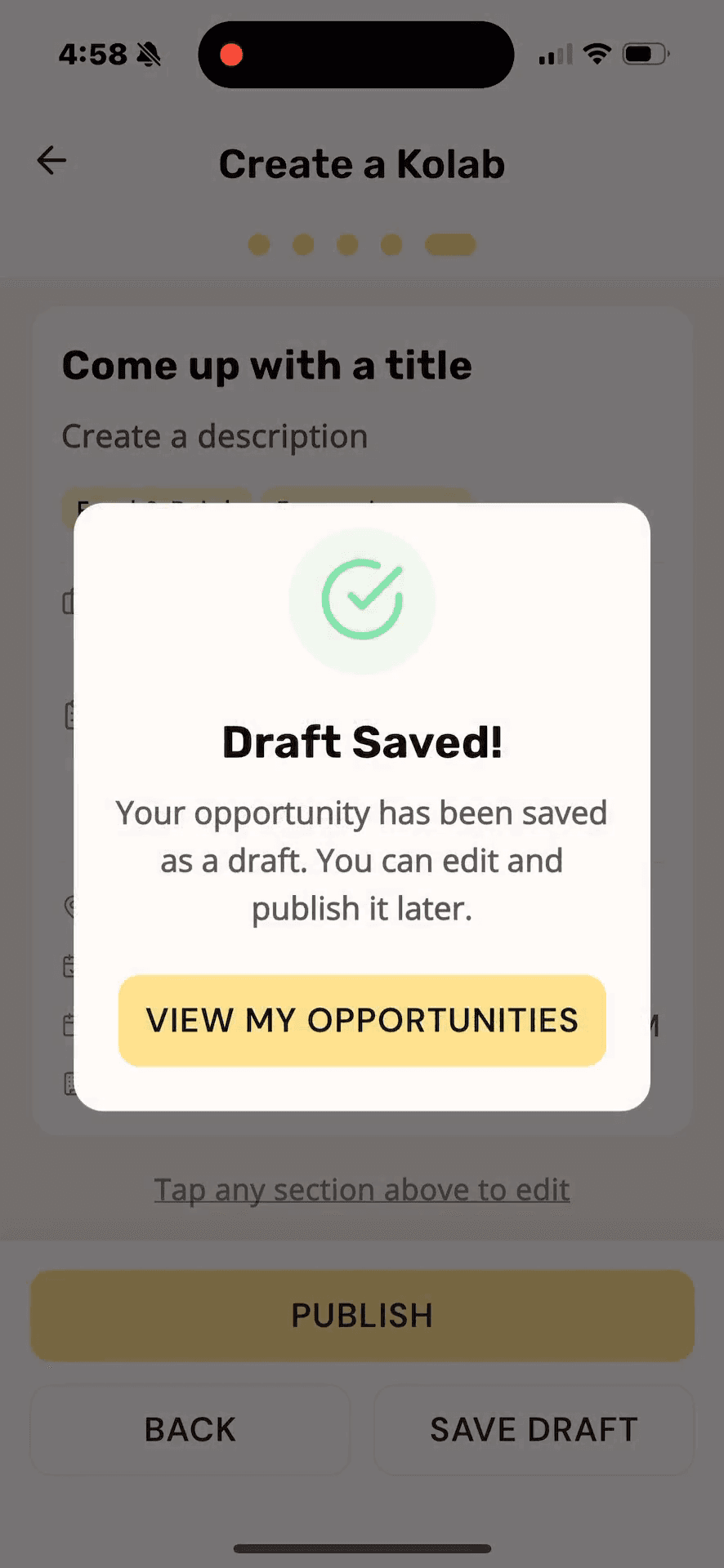
Tap View My Opportunities on the confirmation popup to return to your pipeline.
Step #22: Tap View My Opportunities on the confirmation popup to return to your pipeline.

Managing Your Opportunities

Your dashboard provides several views to help you manage Kolabs at different stages of their lifecycle.
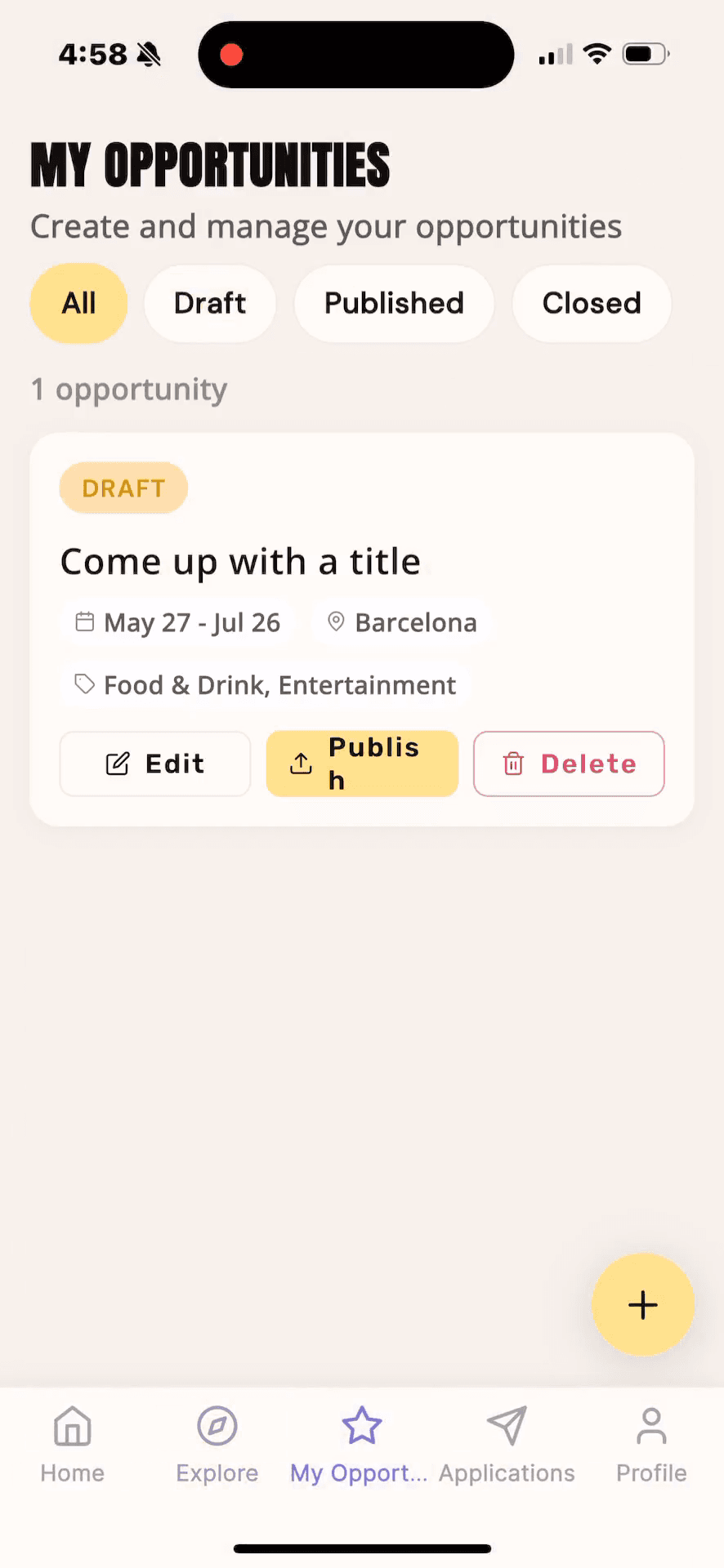
23
Use the top navigation menu in the My Opportunities section to filter your pipeline by status.
Step #23: Use the top navigation menu in the My Opportunities section to filter your pipeline by status.

Opportunity Status

What it means

Common Actions

Draft

Opportunities you are still building and haven't made public.

Edit descriptions, adjust toggles, or publish to the network.

Published

Live opportunities that businesses can see and apply to.

Review incoming applications and engage with interested partners.

Closed

Past opportunities that have concluded or are no longer accepting applicants.

Duplicate for future recurring events or reference past partnerships.

24
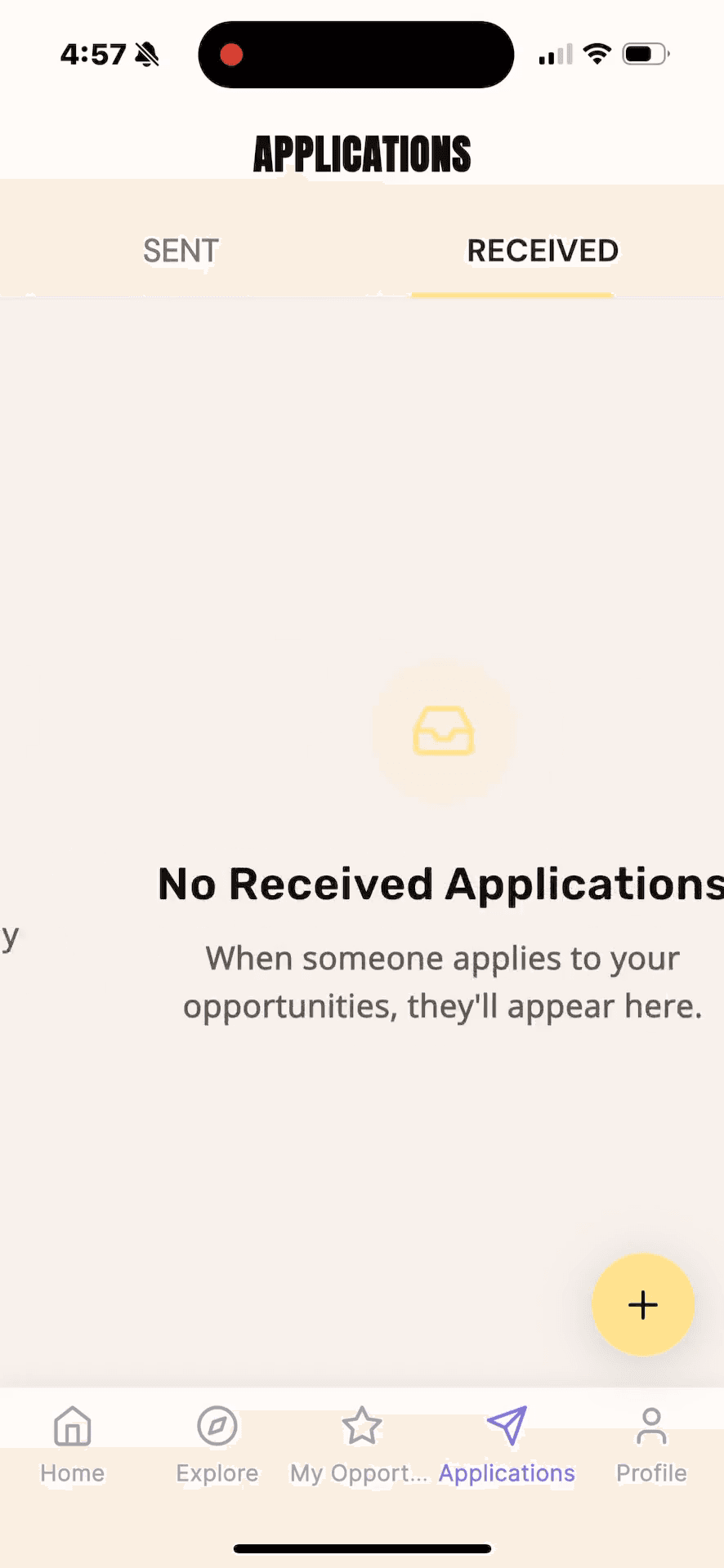
When your opportunity is live, tap the Received tab under Applications to evaluate inbound partnership requests.
Step #24: When your opportunity is live, tap the Received tab under Applications to evaluate inbound partnership requests.

FAQ

Q: Can I request multiple types of support from a single business partner?

A: Yes. During the setup process, you can toggle on multiple requirements simultaneously (e.g., Venue and Food & Drink). This signals to businesses that you are looking for a comprehensive partnership.

Q: Do I have to publish my Kolab immediately?

A: No. As demonstrated in the guide, you can use the "Save Draft" option. The opportunity will sit in your Drafts tab until you are completely ready to push it live.

Glossary

Term

Definition

Kolab

A collaborative opportunity or campaign listing seeking business partnerships.

Event Activation

A partnership requirement where a brand provides interactive experiences, displays, or setups at a community event.

Community Profile

An account mode tailored for organizers, influencers, or groups specifically looking to attract business sponsors and services.