Create Consent Forms in PowerSchool
Learn how to create, complete, and publish consent forms to the parent portal in PowerSchool SIS.
By Cindy Warner-Dobrowski
Create and publish student consent forms in PowerSchool so parents can review and sign required authorizations directly through the parent portal.
Accessing Forms & Letters
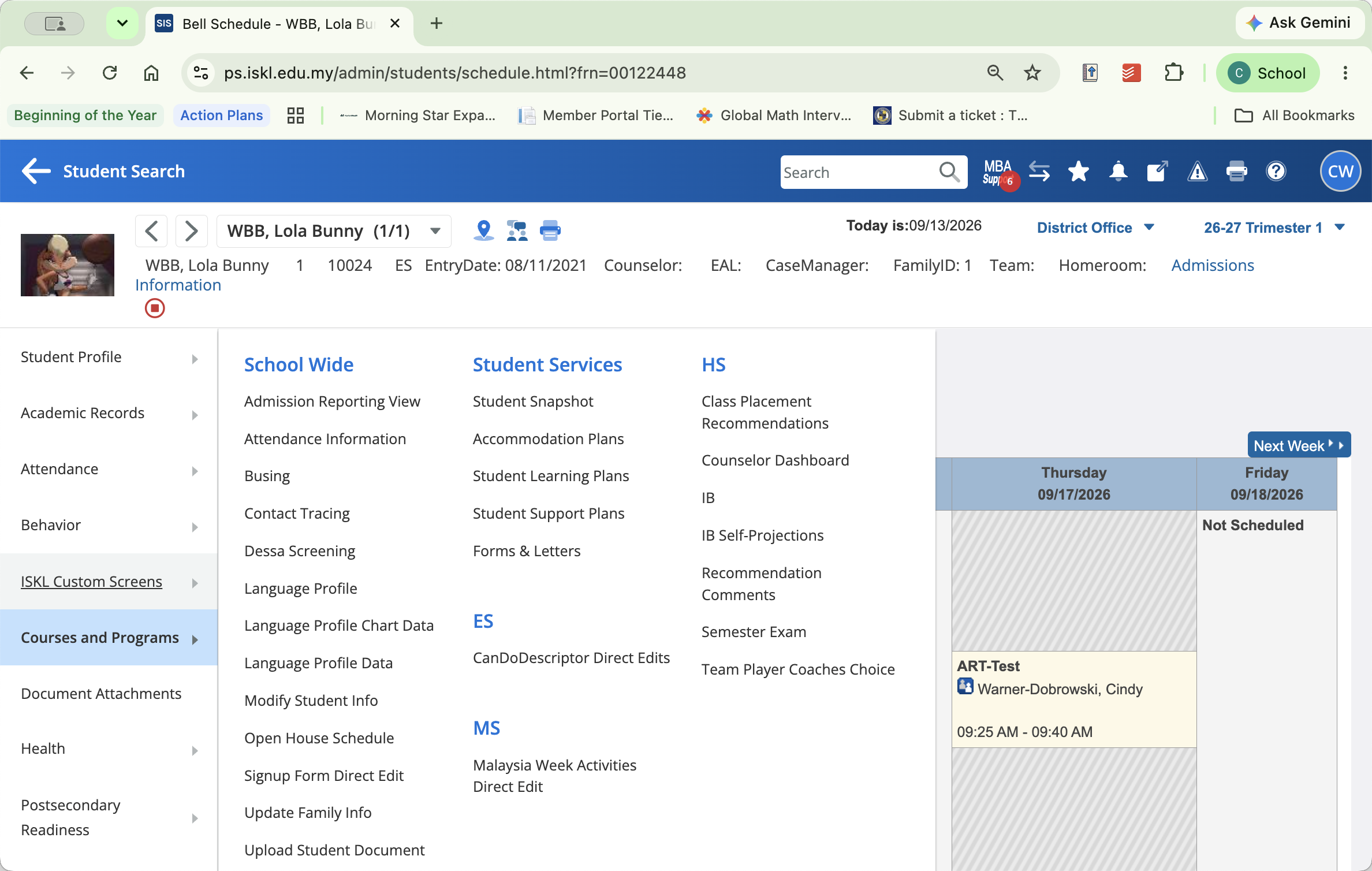
Navigate to the student's record to access custom screens.
1
Click on ISKL Custom Screens in the left navigation sidebar.
2
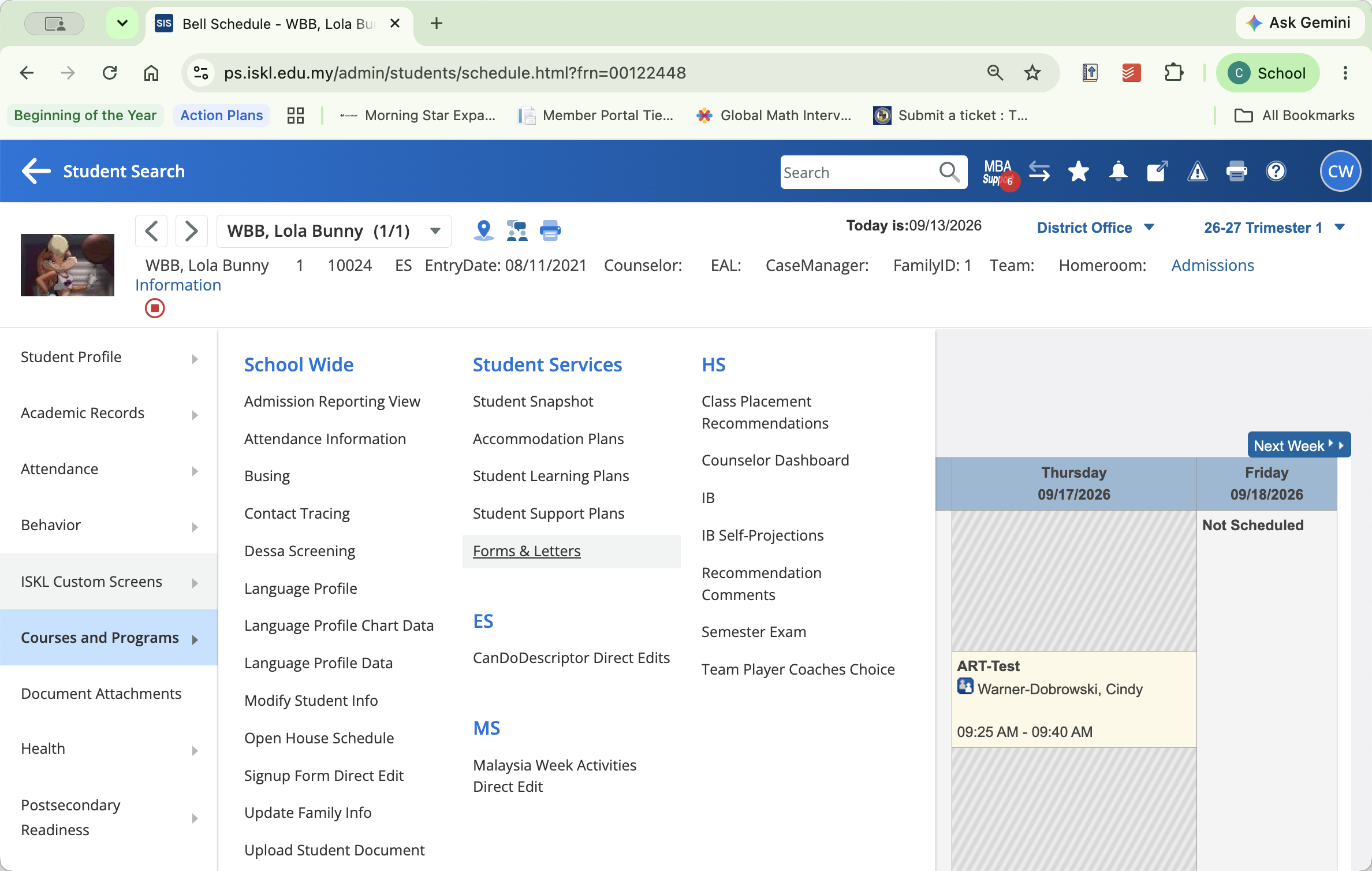
Click on Forms & Letters under the Student Services section.
Creating and Completing the Form
Select the required consent form from the available templates and enter the relevant student and service details.
3
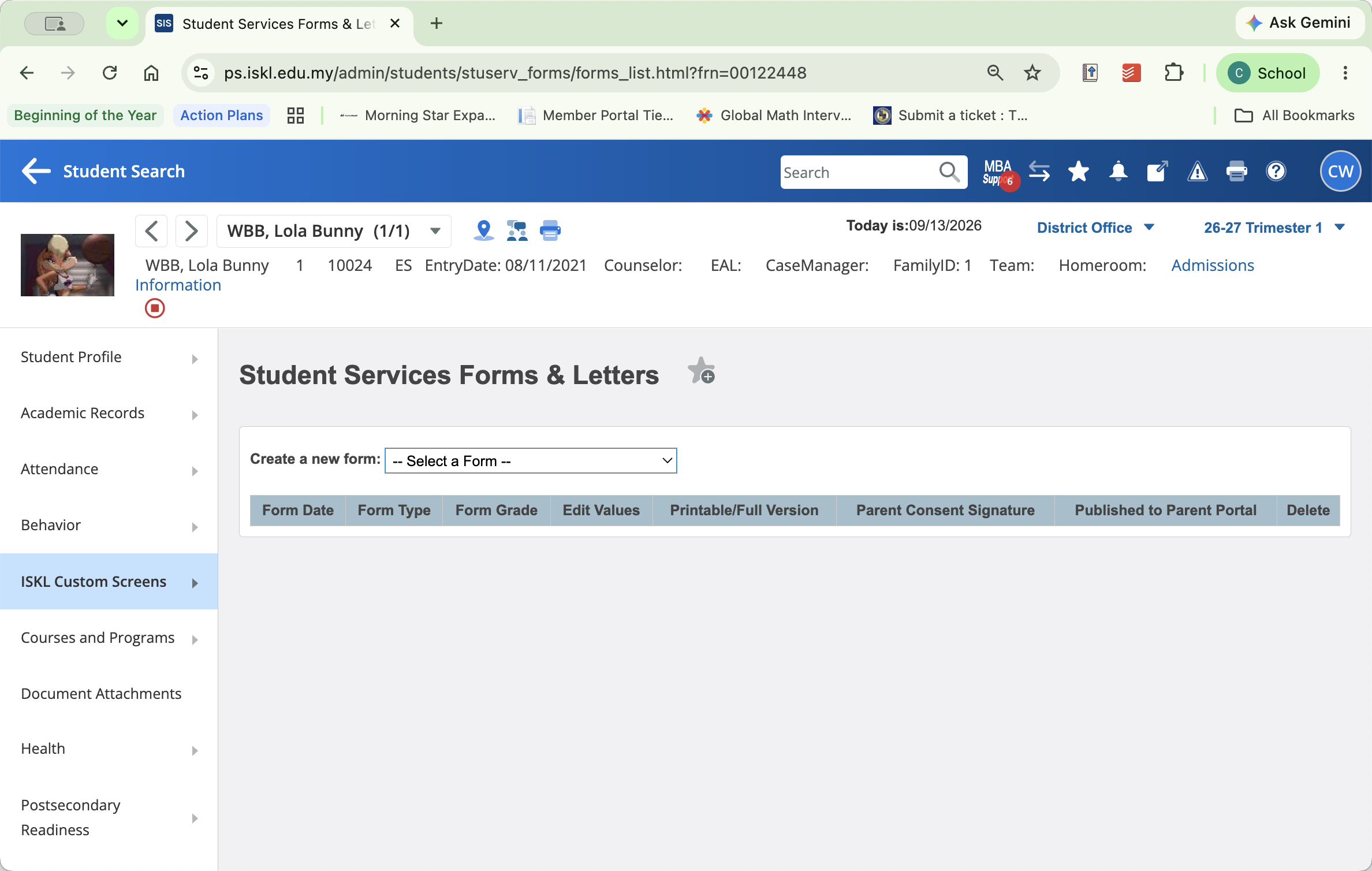
Click the -- Select a Form -- dropdown menu under Create a new form: and select the consent form.
4
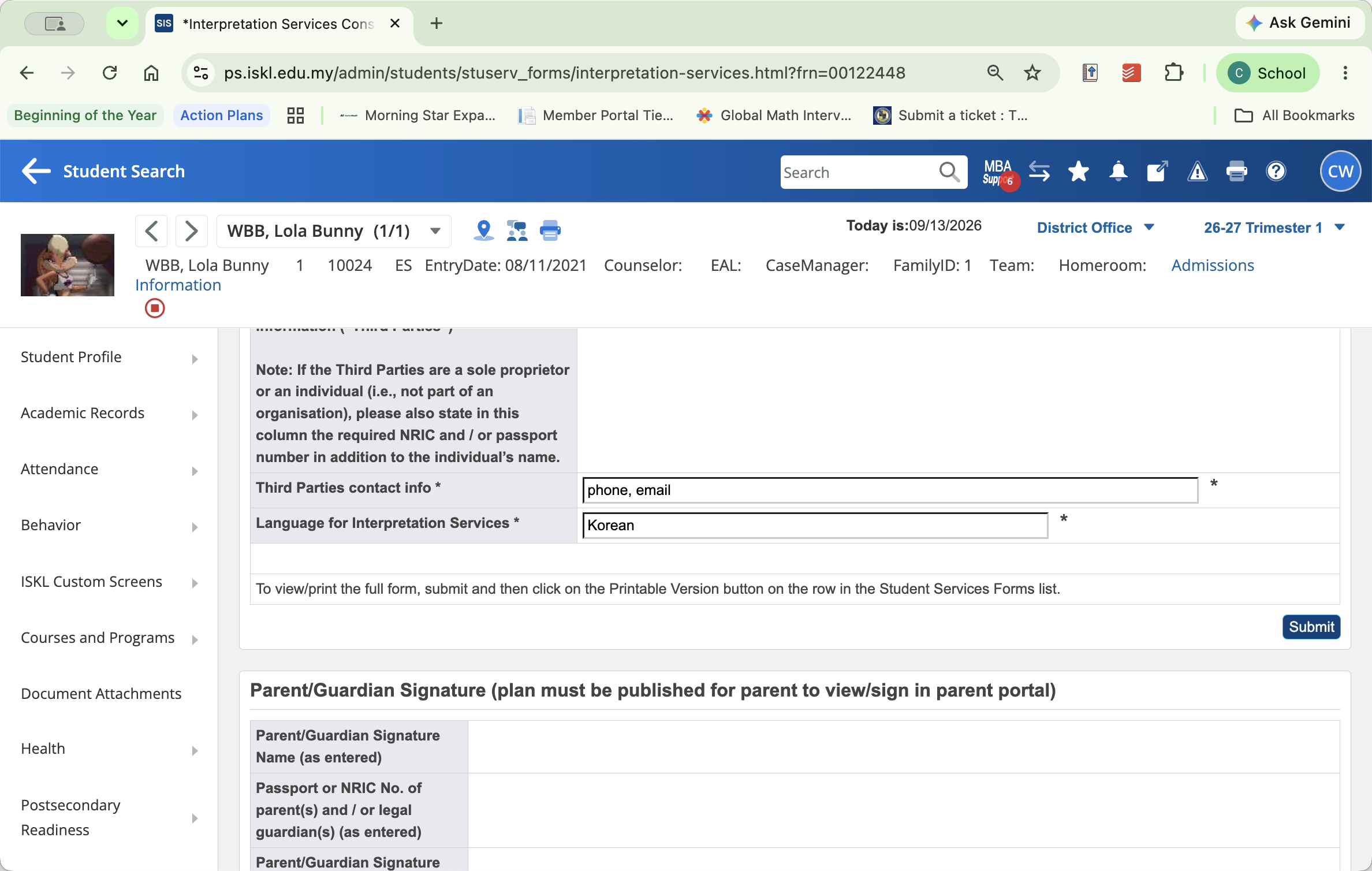
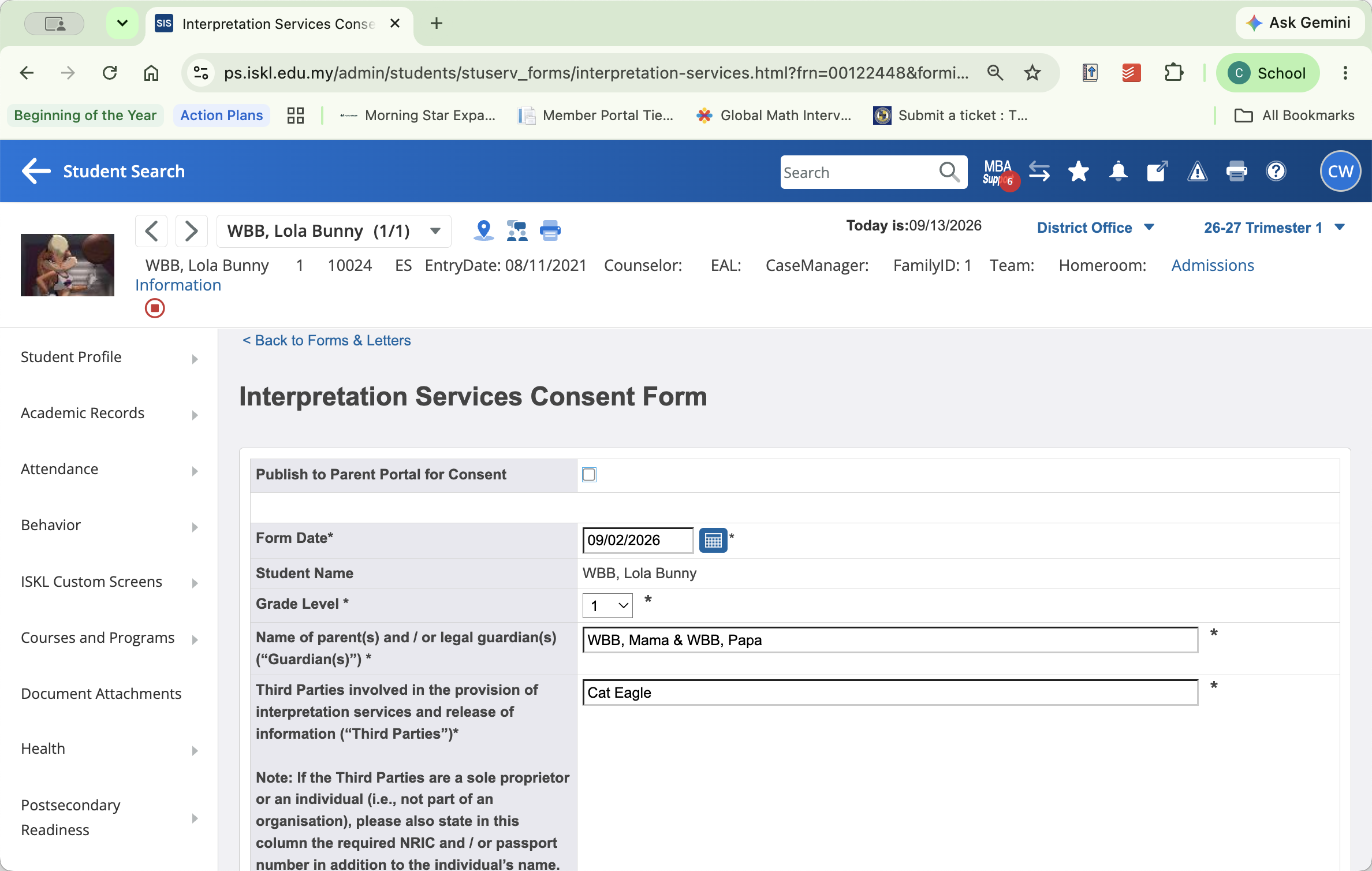
Fill out all of the fields and click on Submit to save the form entry.
Publishing to the Parent Portal
5
Click the Publish to Parent Portal for Consent checkbox and then click Submit to save and publish the form to the Parent Portal.
Q: How do parents view and sign the consent form?
A: Check the Publish to Parent Portal for Consent box and submit the form. This makes the document visible in the parent portal for parents to review and sign electronically.
Q: Where are parent signature confirmations recorded?
A: Once a parent signs the form in the portal, the signature details automatically populate in the parent consent signature field on the form record.