Create a New Contact Person or a New Solicitor Practice

Learn how to capture new solicitor contacts and log incoming CRM referrals directly from your Zoho Mail inbox.

By Carmel Coman

This guide demonstrates how to create a new contact and process a referral directly within Zoho Mail when receiving an inquiry from a new solicitor or an unrecognized contact at an existing practice. By linking these records right from the inbox, you ensure accurate data capture in your CRM without switching tabs.

This process is intended for administration or intake staff handling incoming referral emails who need to capture new contact details and log new litigation pipeline requests.

Create the contact record

When an email arrives from an unrecognized sender, the system will not automatically attach it to a contact. You must establish the contact profile first.
1
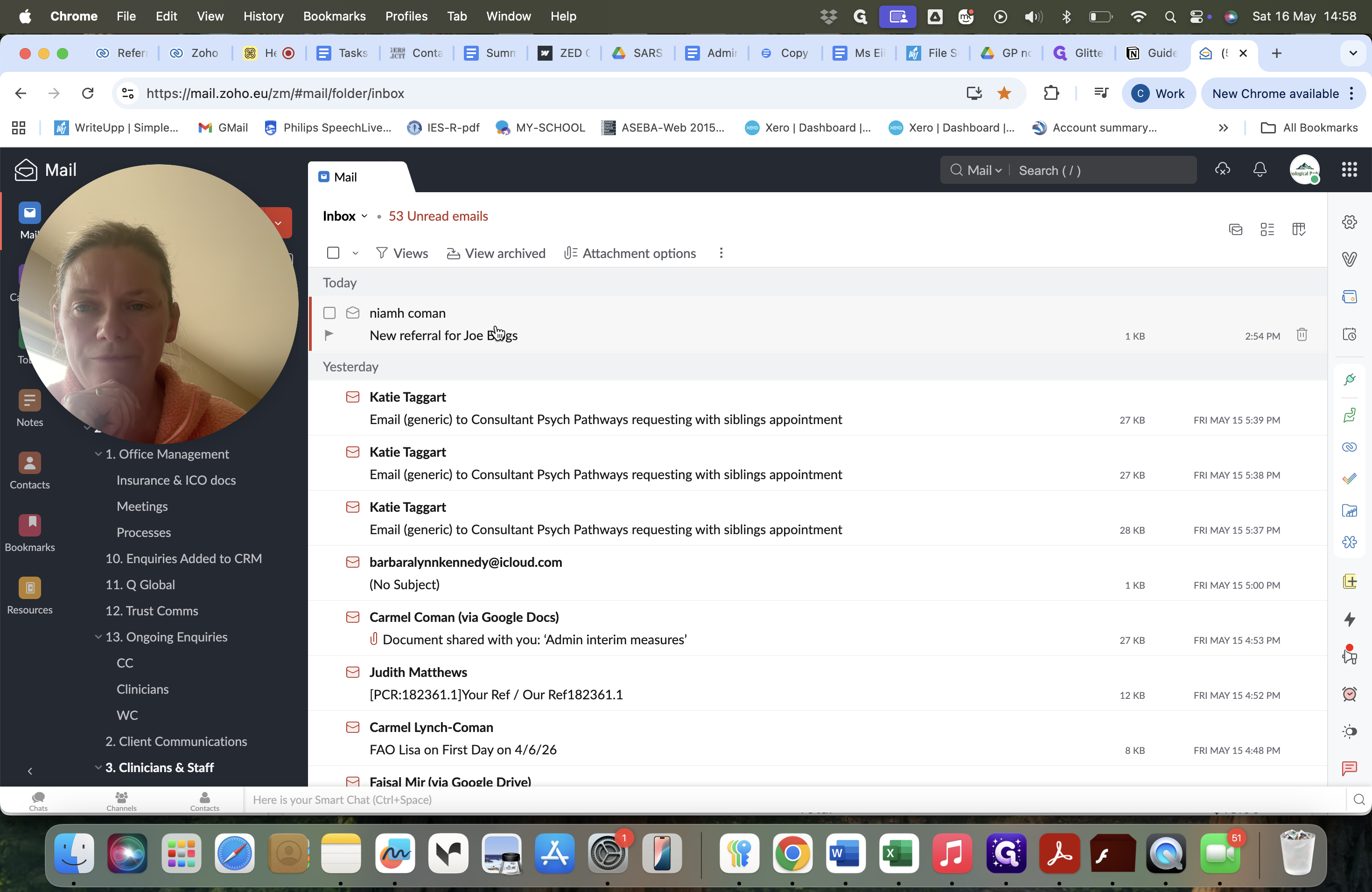
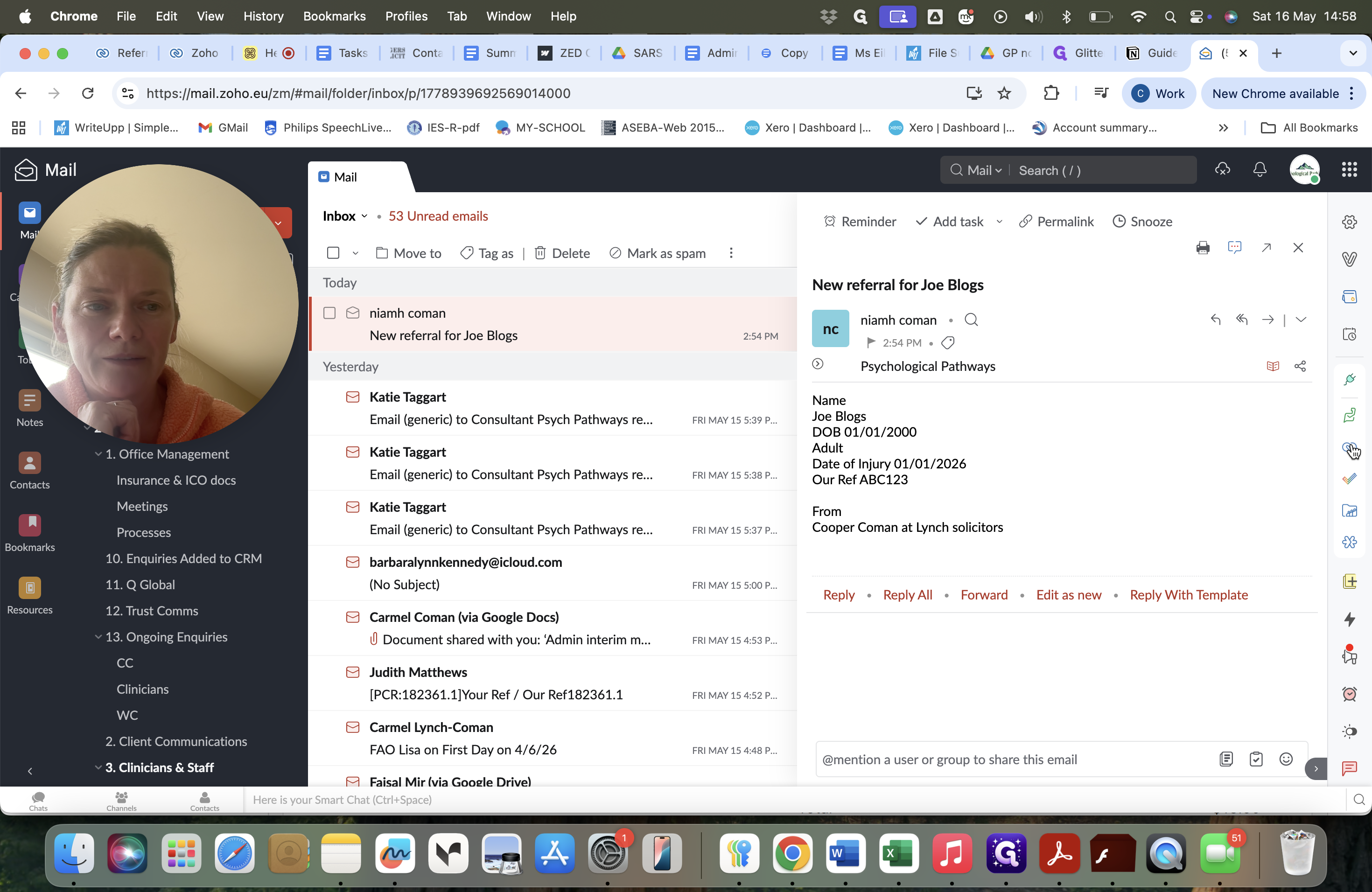
Click on the unread referral email in your Zoho Mail inbox.
Step #1: Click on the unread referral email in your Zoho Mail inbox.
2
Click the Zoho CRM icon in the right-hand panel to open the integration sidebar.
Step #2: Click the Zoho CRM icon in the right-hand panel to open the integration sidebar.
3
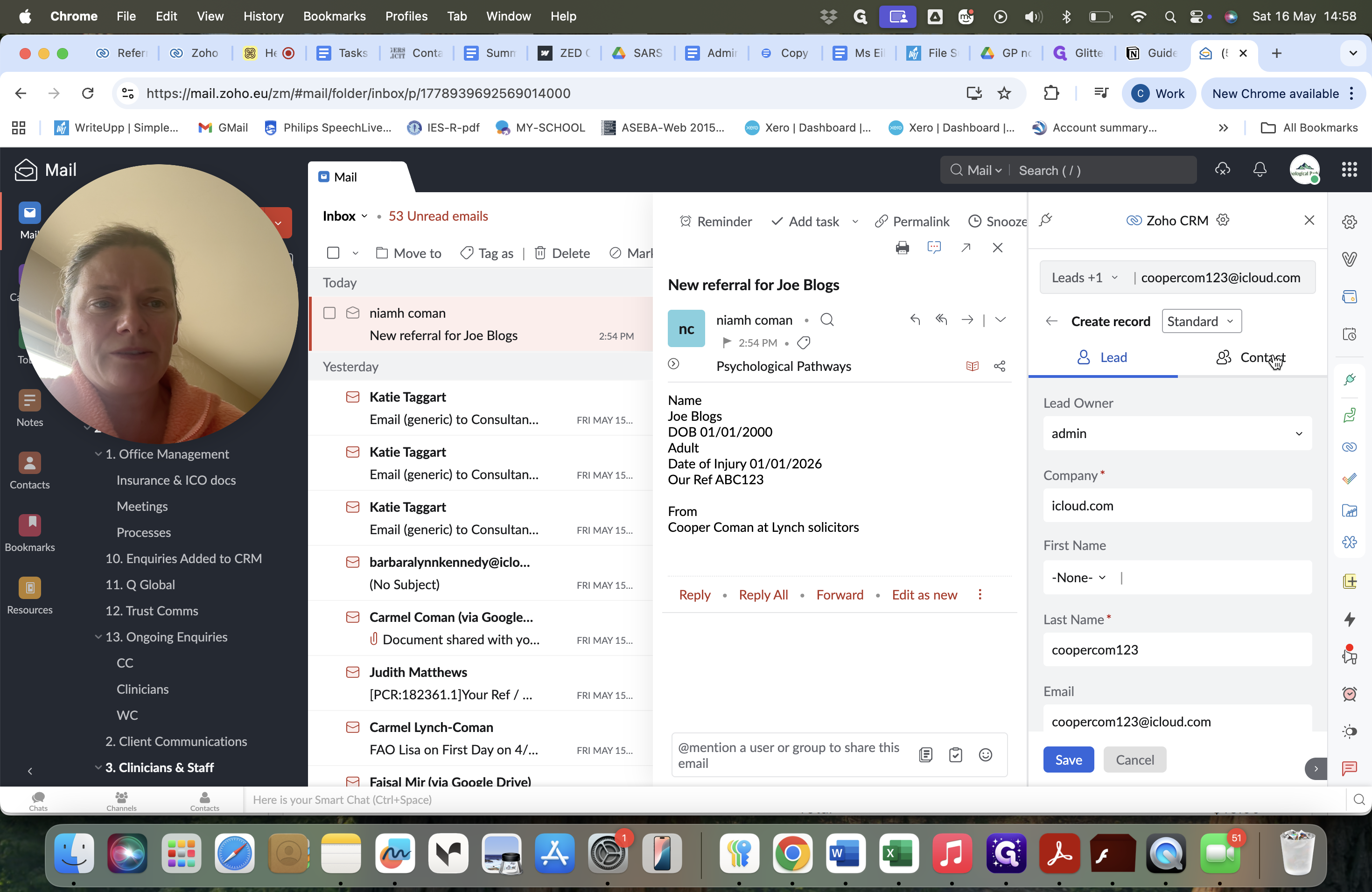
Select the Contact tab at the top of the Create record form.
Step #3: Select the Contact tab at the top of the Create record form.
4
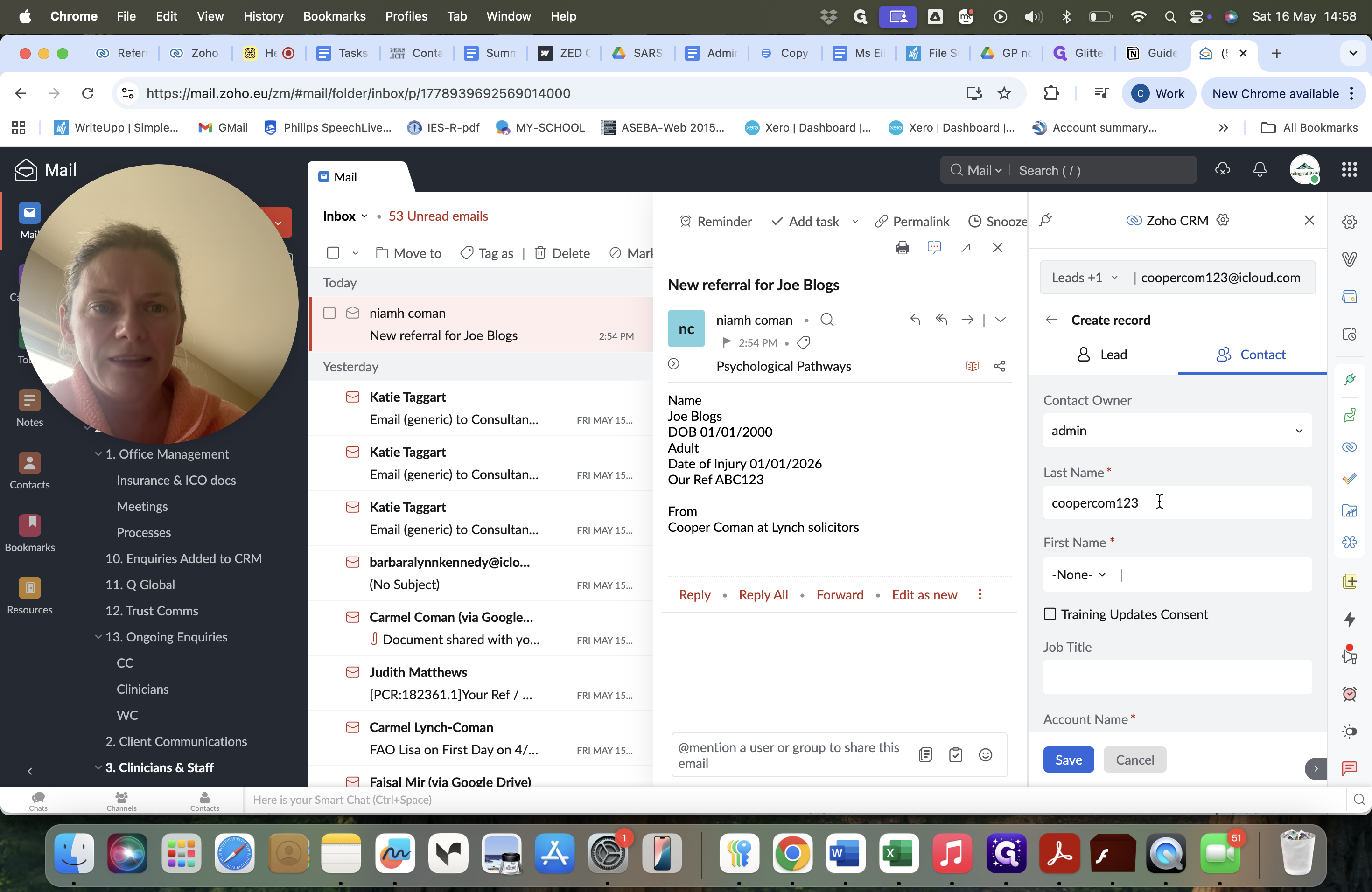
Drag text from the email body or type the contact's last name into the Last Name field.
Step #4: Drag text from the email body or type the contact's last name into the Last Name field.
5
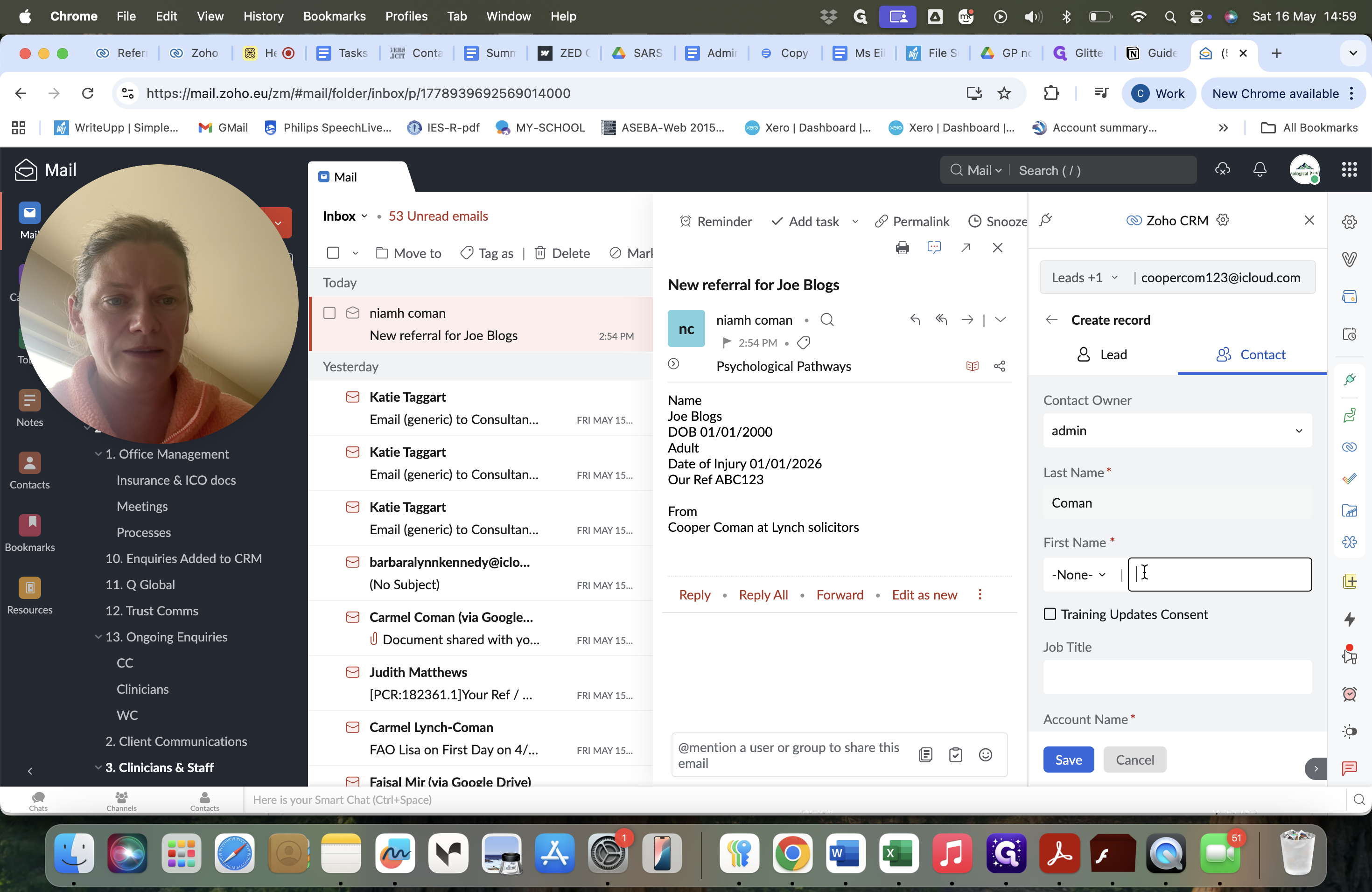
Enter the contact's first name into the First Name field.
Step #5: Enter the contact's first name into the First Name field.
6
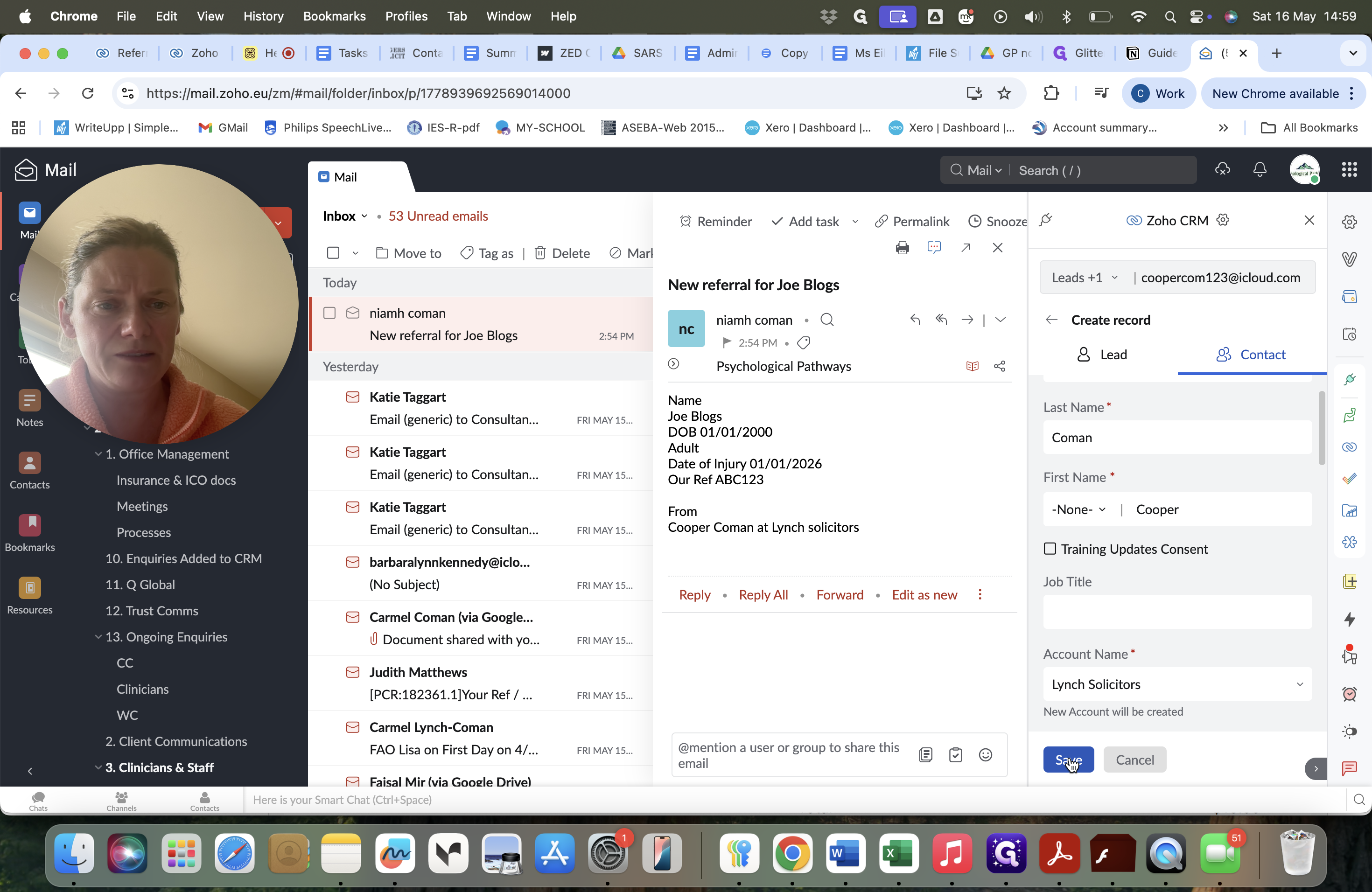
Type the solicitor practice into the Account Name field.
7
Review the remaining auto-populated fields, then click Save at the bottom of the form.
Step #7: Review the remaining auto-populated fields, then click Save at the bottom of the form.
8
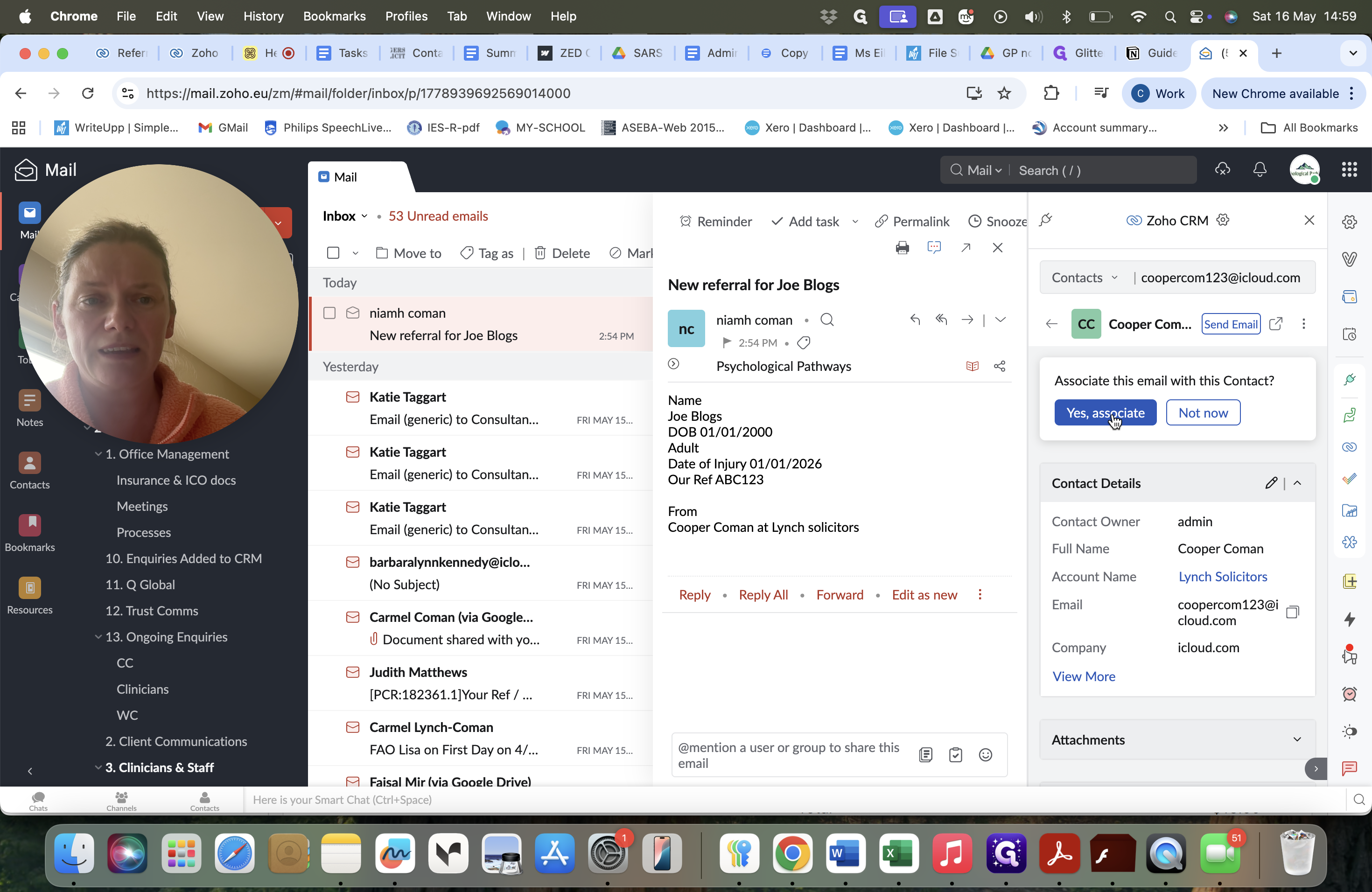
Click Yes, associate to link the current email to this newly created contact record.
Step #8: Click Yes, associate to link the current email to this newly created contact record.

Add the associated referral

Once the contact and account are linked, you can log the specific referral details. Since you just linked the contact, much of the account information will auto-populate.
9
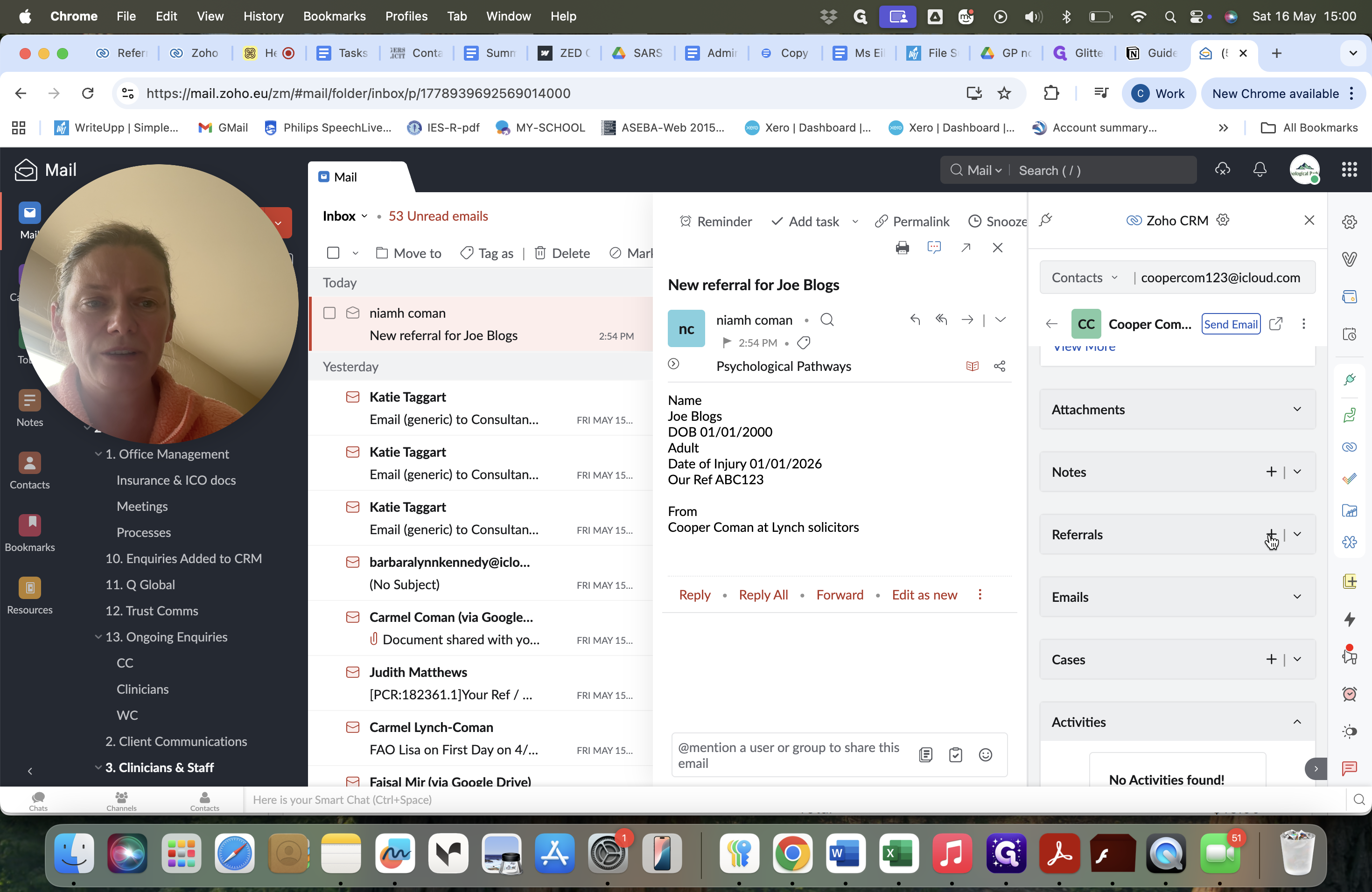
Scroll down to the Referrals section in the CRM panel and click the + (Add) button.
Step #9: Scroll down to the Referrals section in the CRM panel and click the + (Add) button.
10
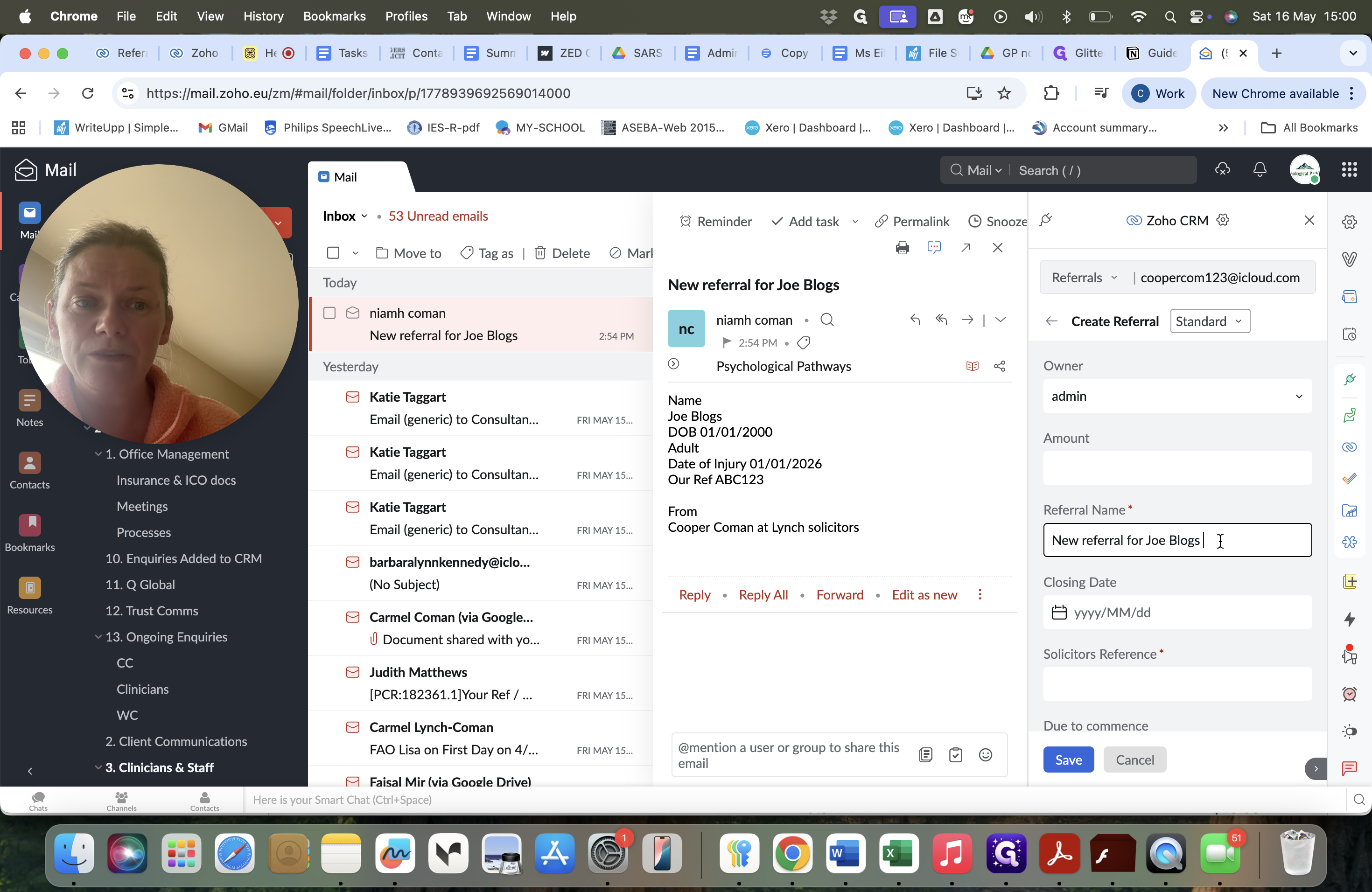
Enter the Referral Name by dragging the email subject line or typing it manually.
Step #10: Enter the Referral Name by dragging the email subject line or typing it manually.
11
Type the client's name into the client field.
12
Highlight and copy (Cmd + C) the solicitor's reference directly from the email body.
13
Paste (Cmd + V) the copied text into the Solicitors Reference field.
14
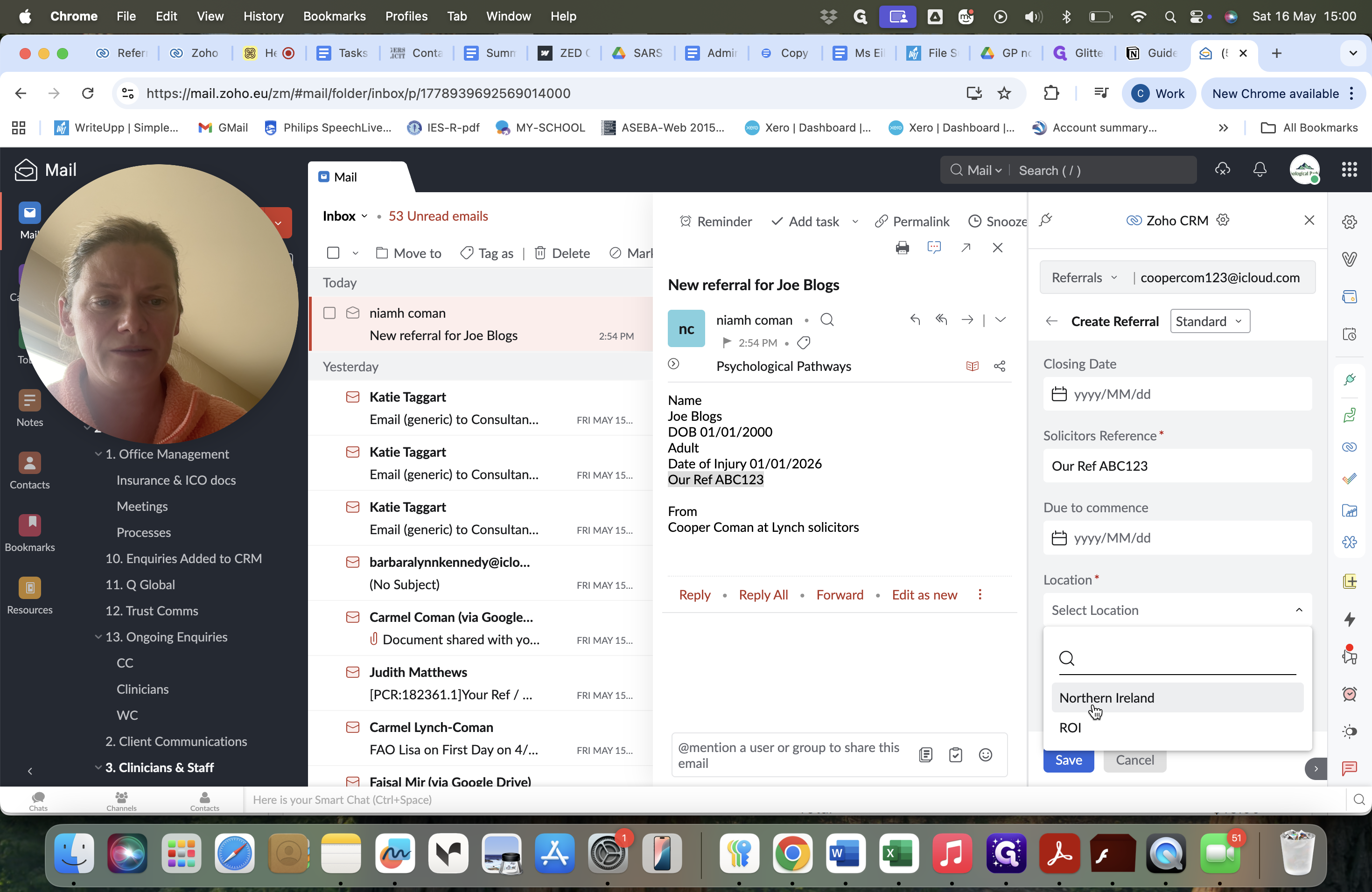
Open the Location dropdown and select the appropriate region, such as Northern Ireland.
Step #14: Open the Location dropdown and select the appropriate region, such as Northern Ireland.
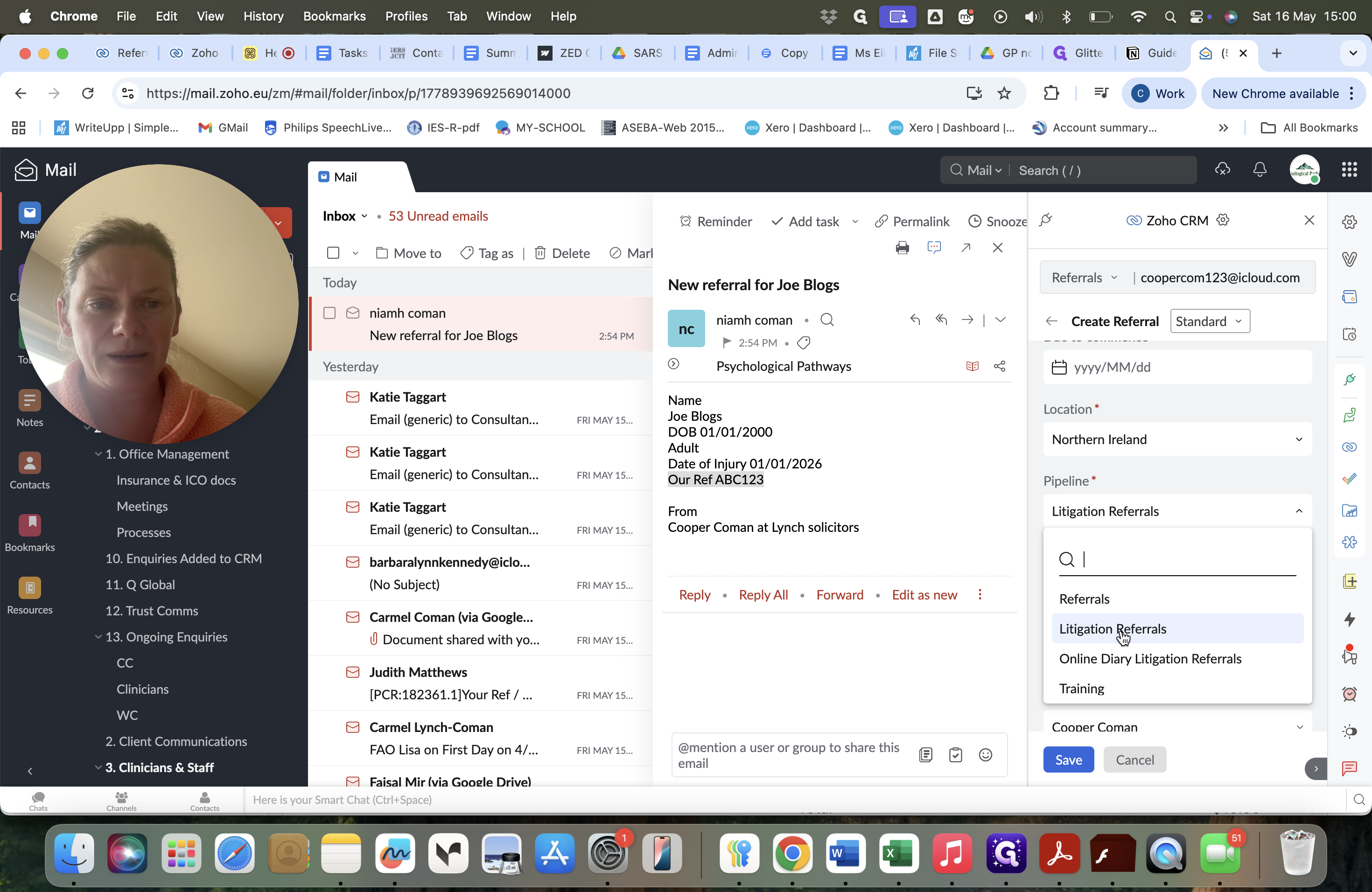
15
Open the Pipeline dropdown and select Litigation Referrals.
Step #15: Open the Pipeline dropdown and select Litigation Referrals.
16
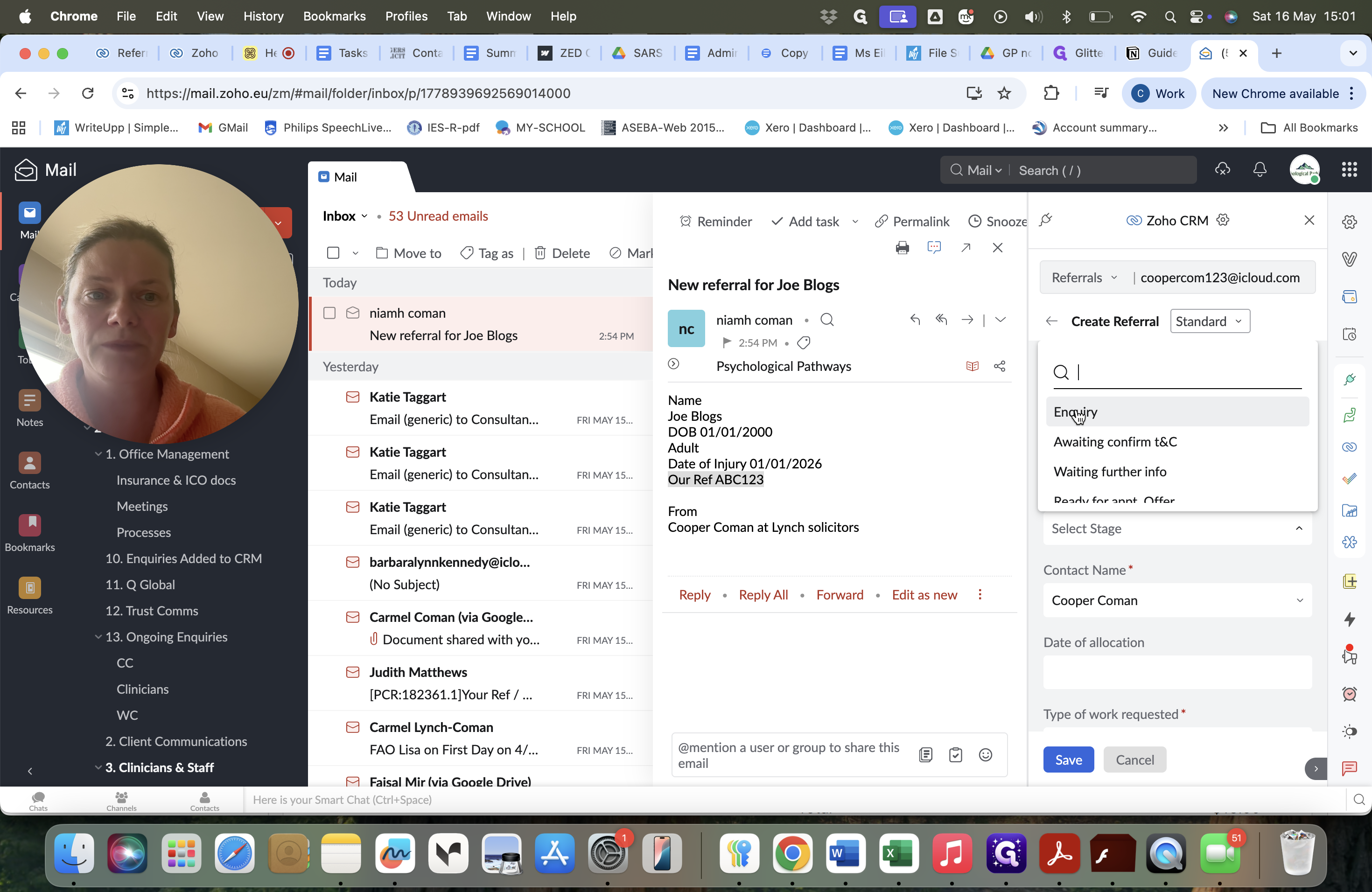
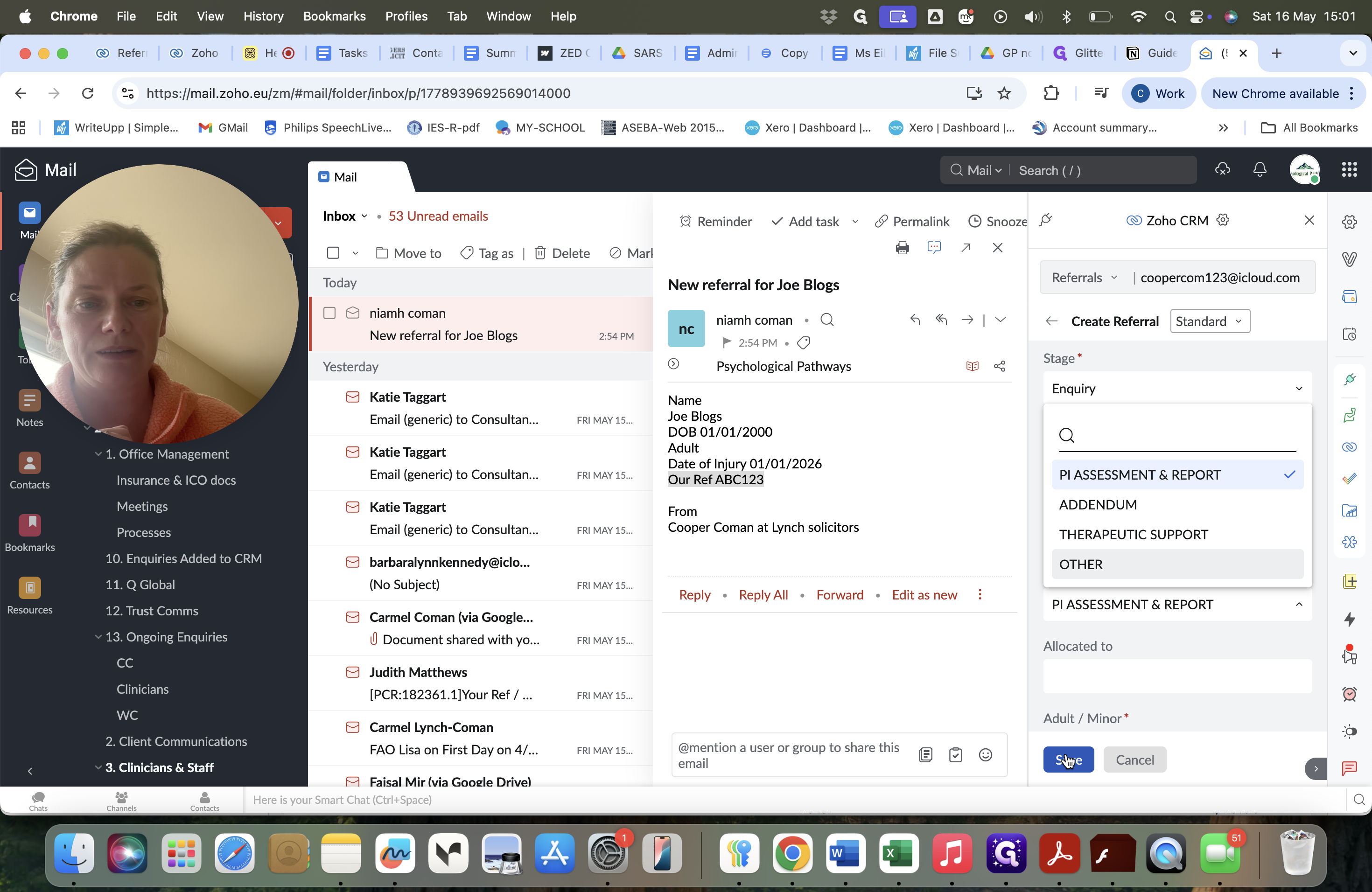
Open the Select Stage dropdown and choose Enquiry.
Step #16: Open the Select Stage dropdown and choose Enquiry.
17
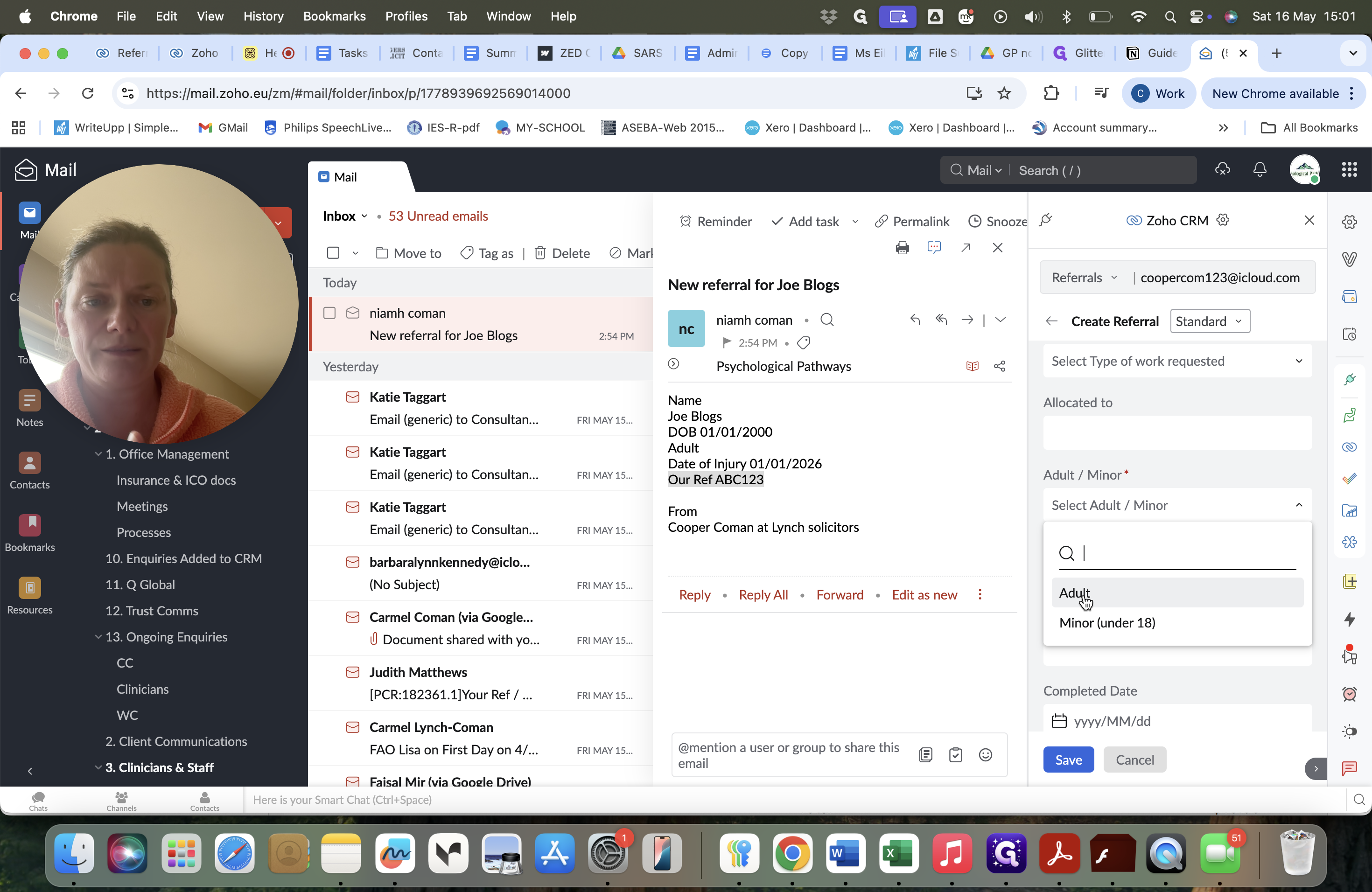
Open the Adult / Minor dropdown and choose the applicable status.
Step #17: Open the Adult / Minor dropdown and choose the applicable status.
18
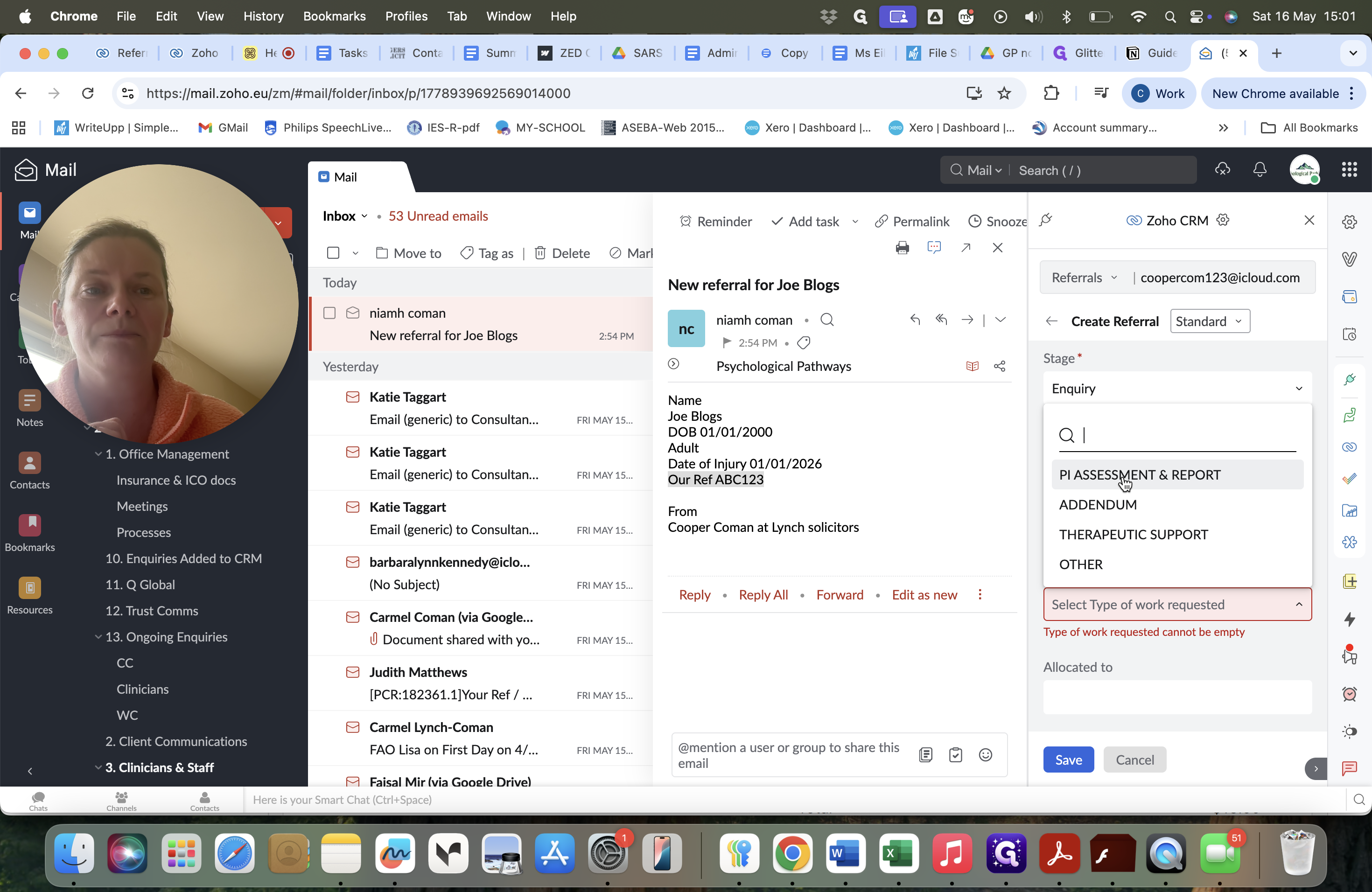
Open the Type of work requested dropdown and select the required service, such as PI ASSESSMENT & REPORT.
Step #18: Open the Type of work requested dropdown and select the required service, such as PI ASSESSMENT & REPORT.
19
Click Save to finalize the referral and push it directly into your active pipeline.
Step #19: Click Save to finalize the referral and push it directly into your active pipeline.

Verify the pipeline entry

20
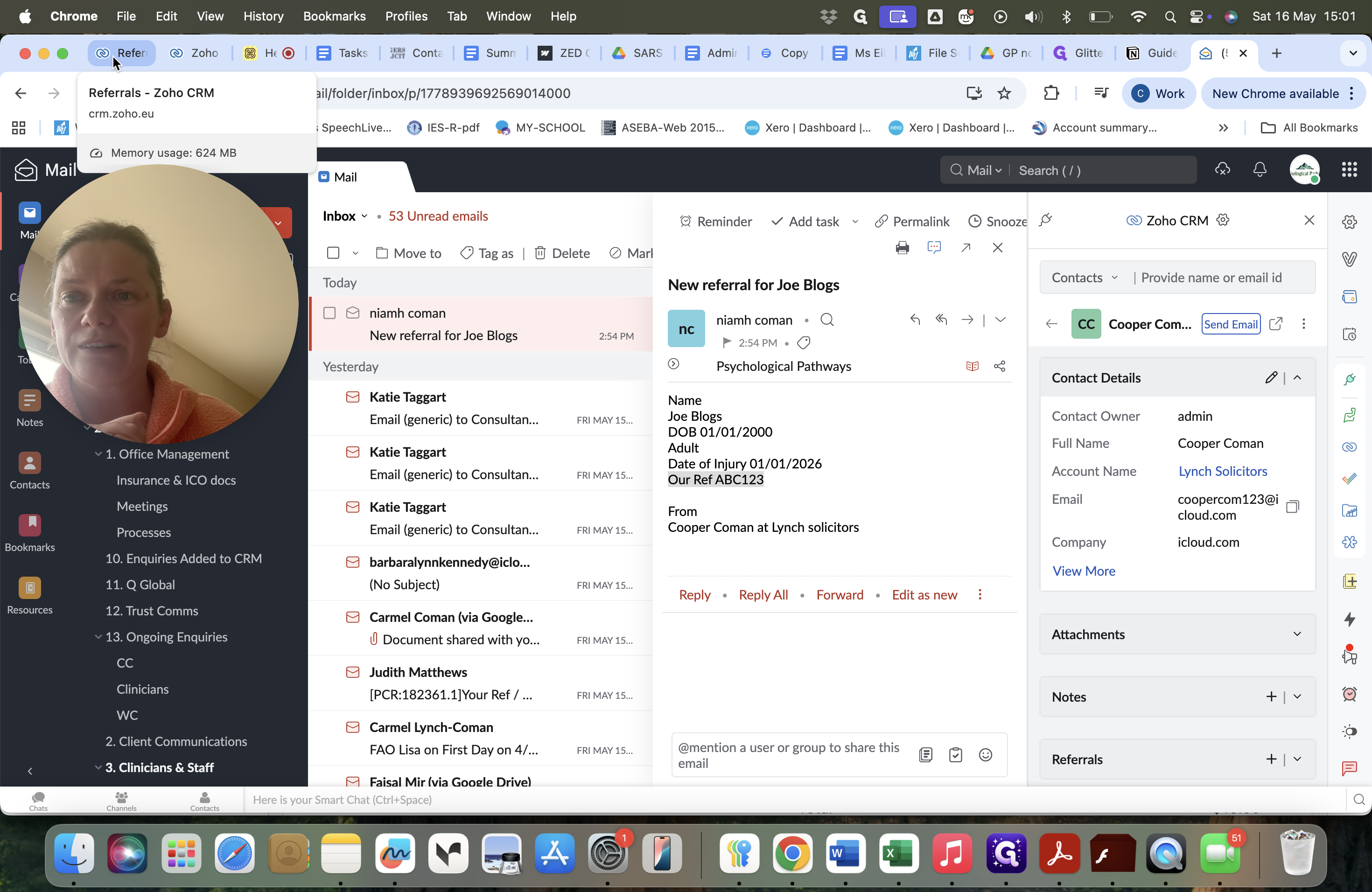
Open your Zoho CRM browser tab.
Step #20: Open your Zoho CRM browser tab.
21
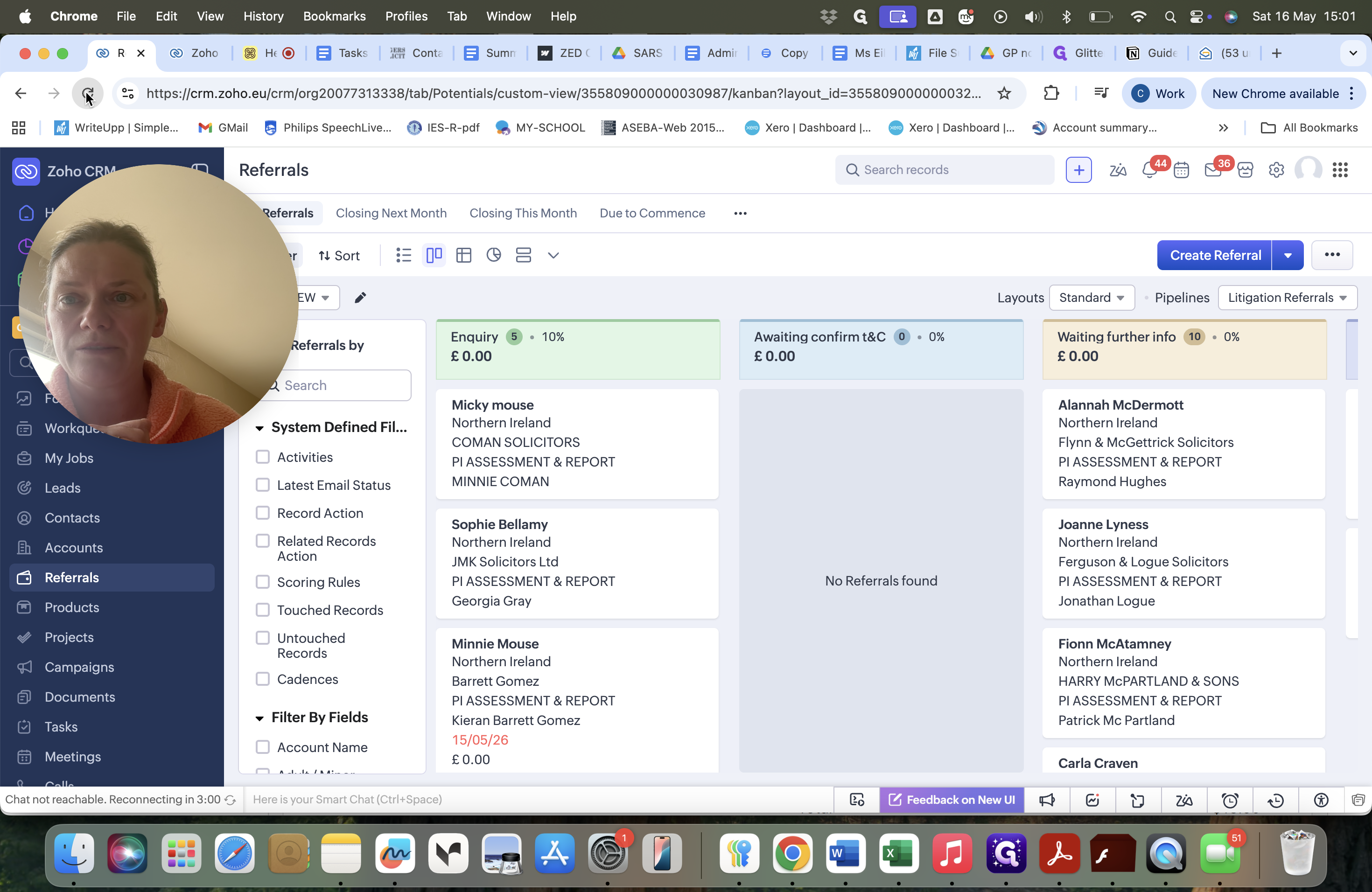
Refresh the page to view the new referral sitting in your Enquiry pipeline stage.
Step #21: Refresh the page to view the new referral sitting in your Enquiry pipeline stage.

FAQ

Q: What if I get a "No records found" message when typing the solicitor practice?

A: This is completely normal when dealing with a new solicitor practice that hasn't been added to your CRM yet. Simply type out the full name of the practice to establish the new record.

Q: Why do I need to click "Yes, associate" after saving the contact?

A: Associating the email ensures that the system links the specific communication chain to the newly created contact, setting the foundation for auto-populating fields when you proceed to create the referral.

Create a New Contact Person or a New Solicitor Practice