
Create Custom Ticket Queries in SAP C4C
Learn how to create, filter, and save custom ticket views in SAP Cloud for Customer (C4C) to track created and completed tickets by date and assigned rep.
This guide explains how to create and save custom ticket queries in SAP Cloud for Customer (C4C). By following these steps, you can build reusable views to quickly track created and completed tickets by specific date ranges and assigned agents.
This process applies to customer service managers and agents who need to monitor ticket volume and agent performance in their specific SAP C4C inboxes. Use these customized views during daily or weekly reporting workflows to streamline inbox management.
Accessing Your Inbox Filters
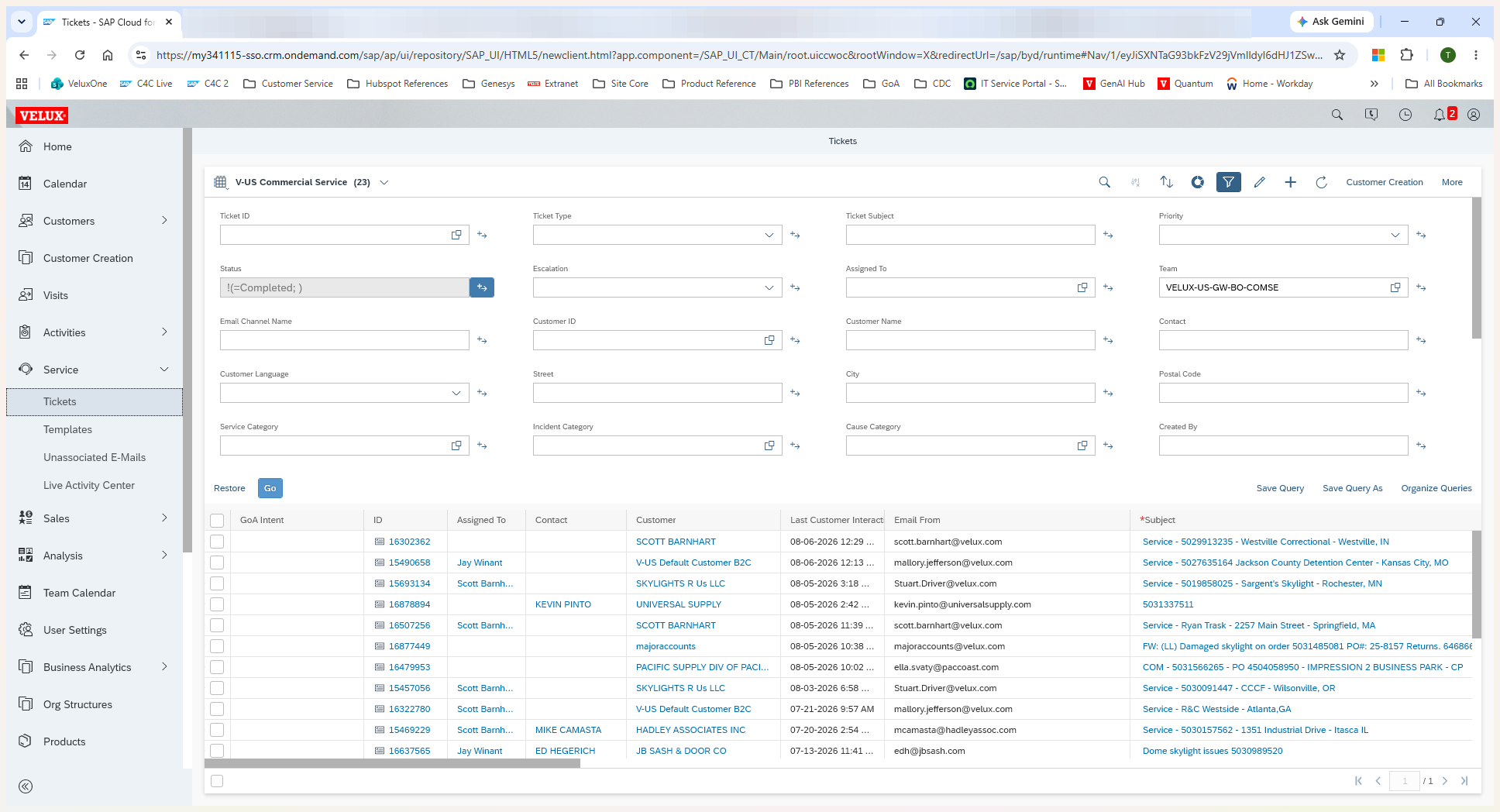
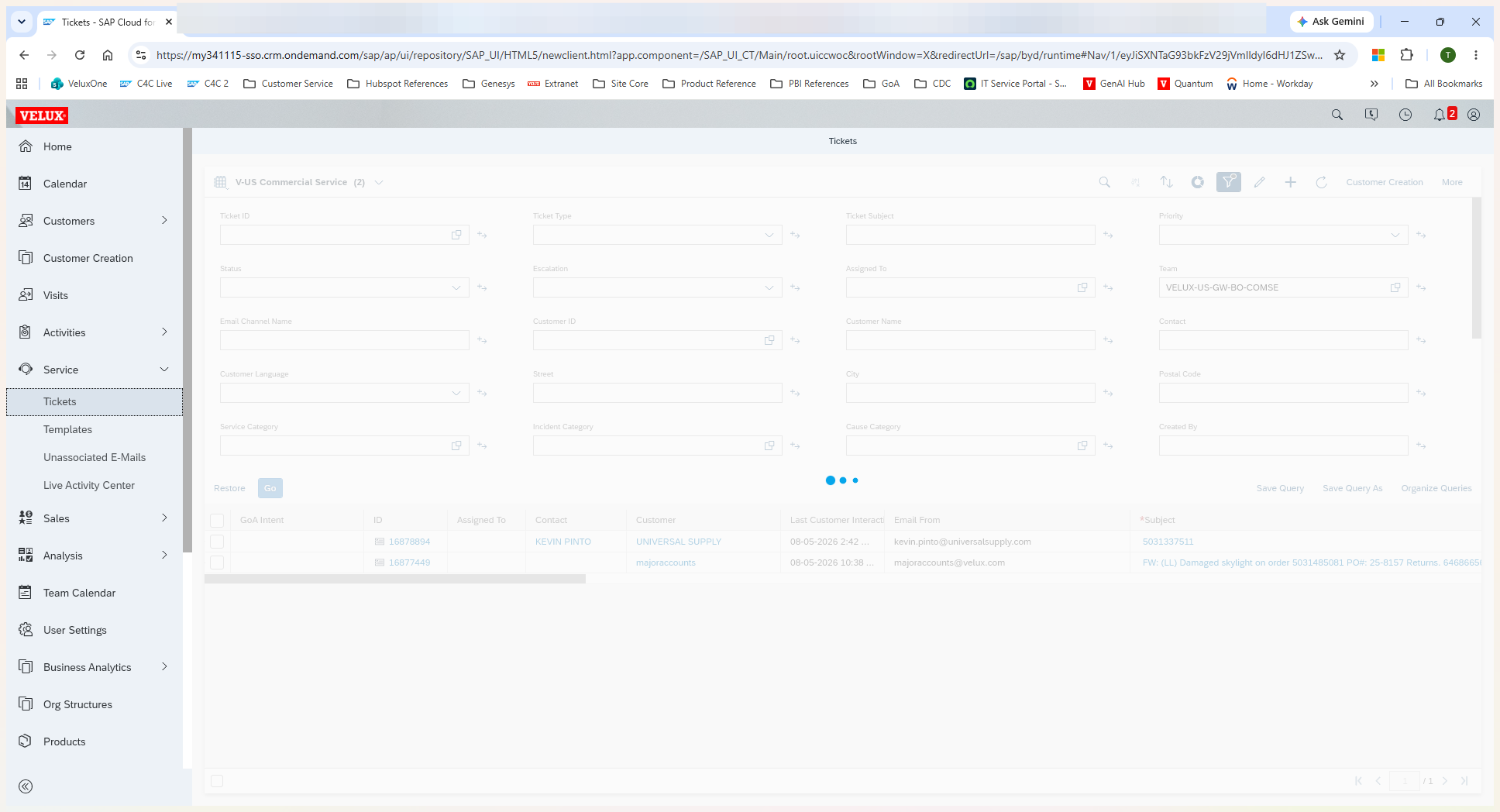
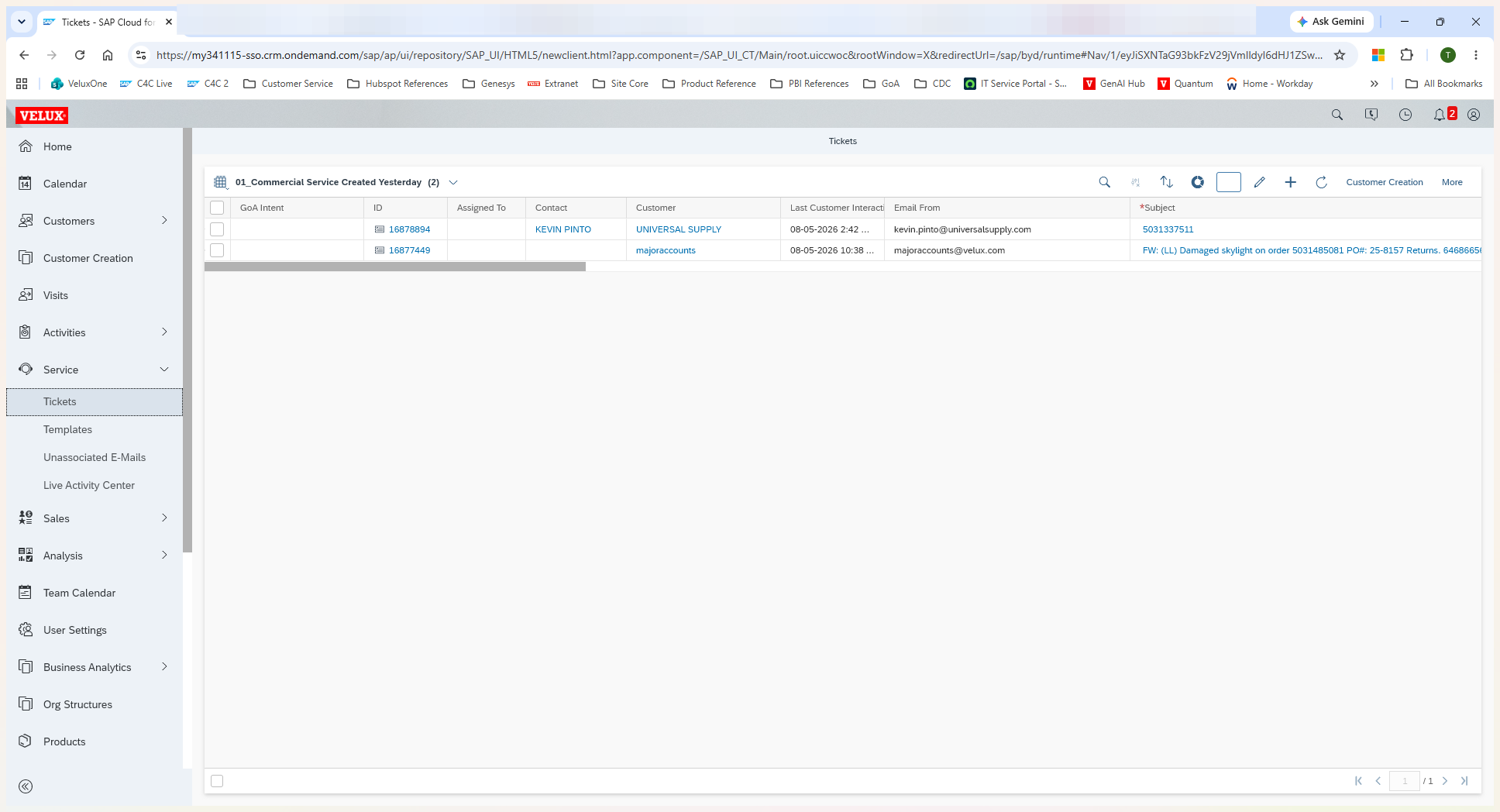
To build a custom query, start by navigating to the relevant support inbox.
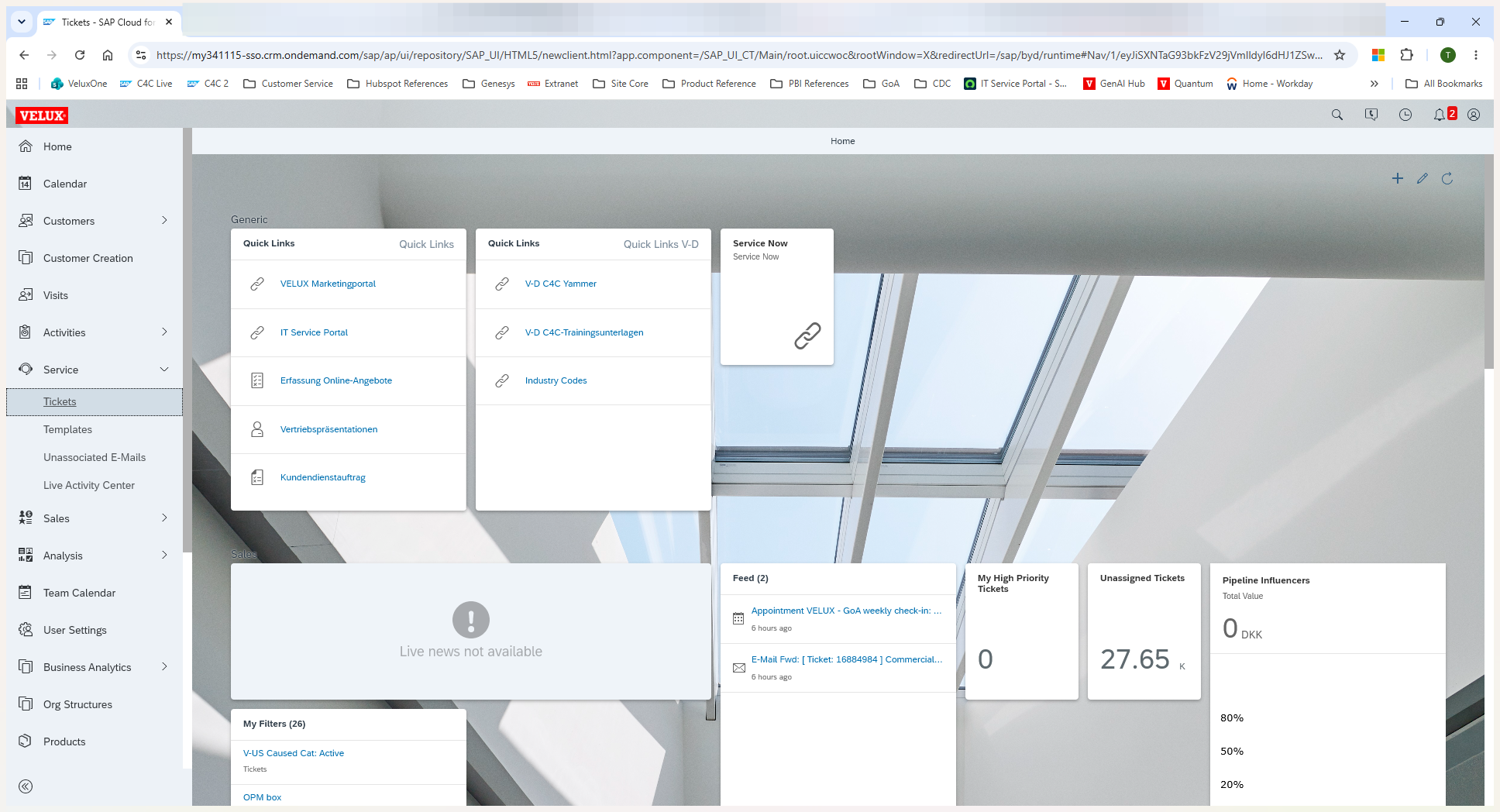
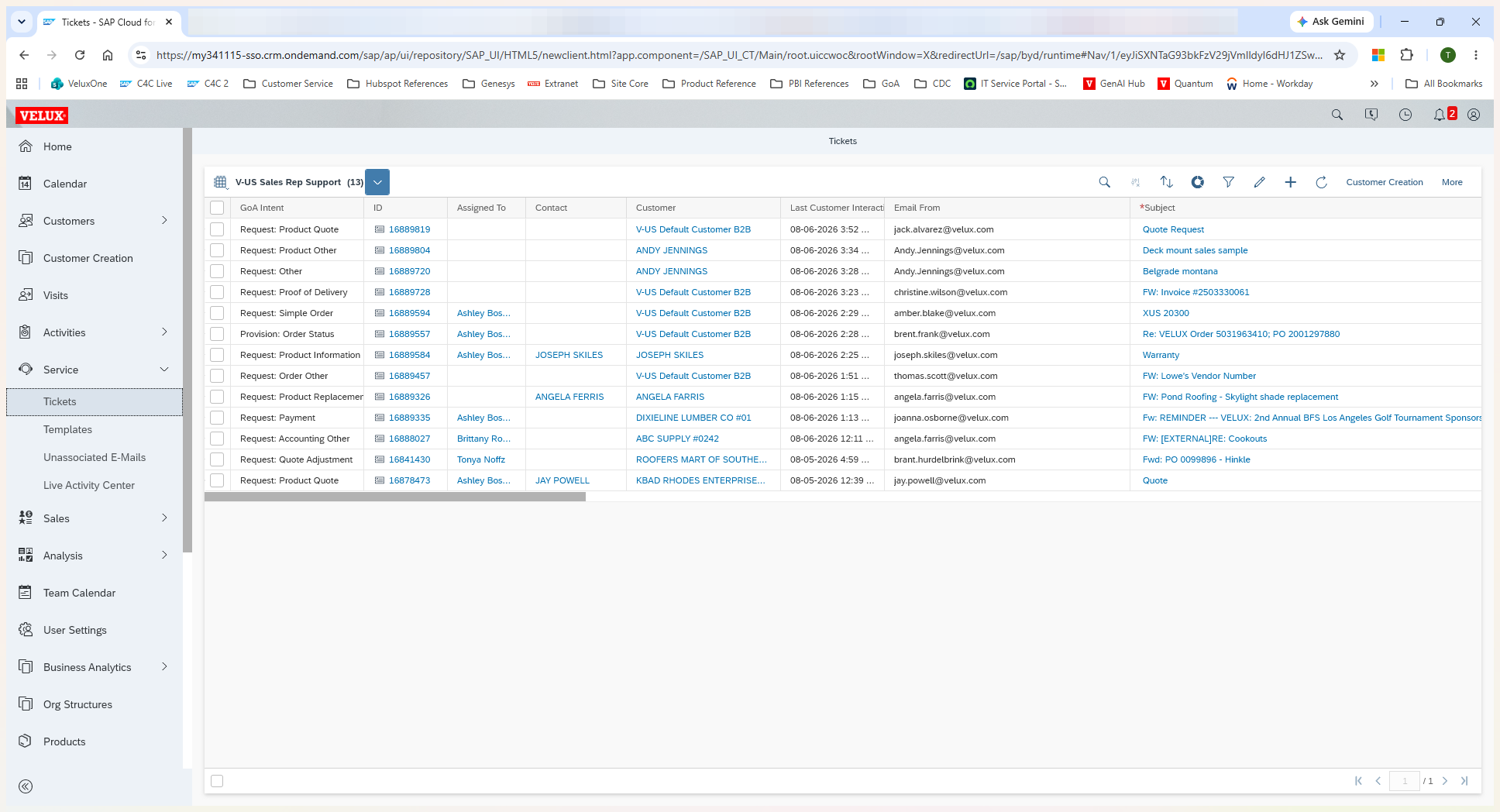
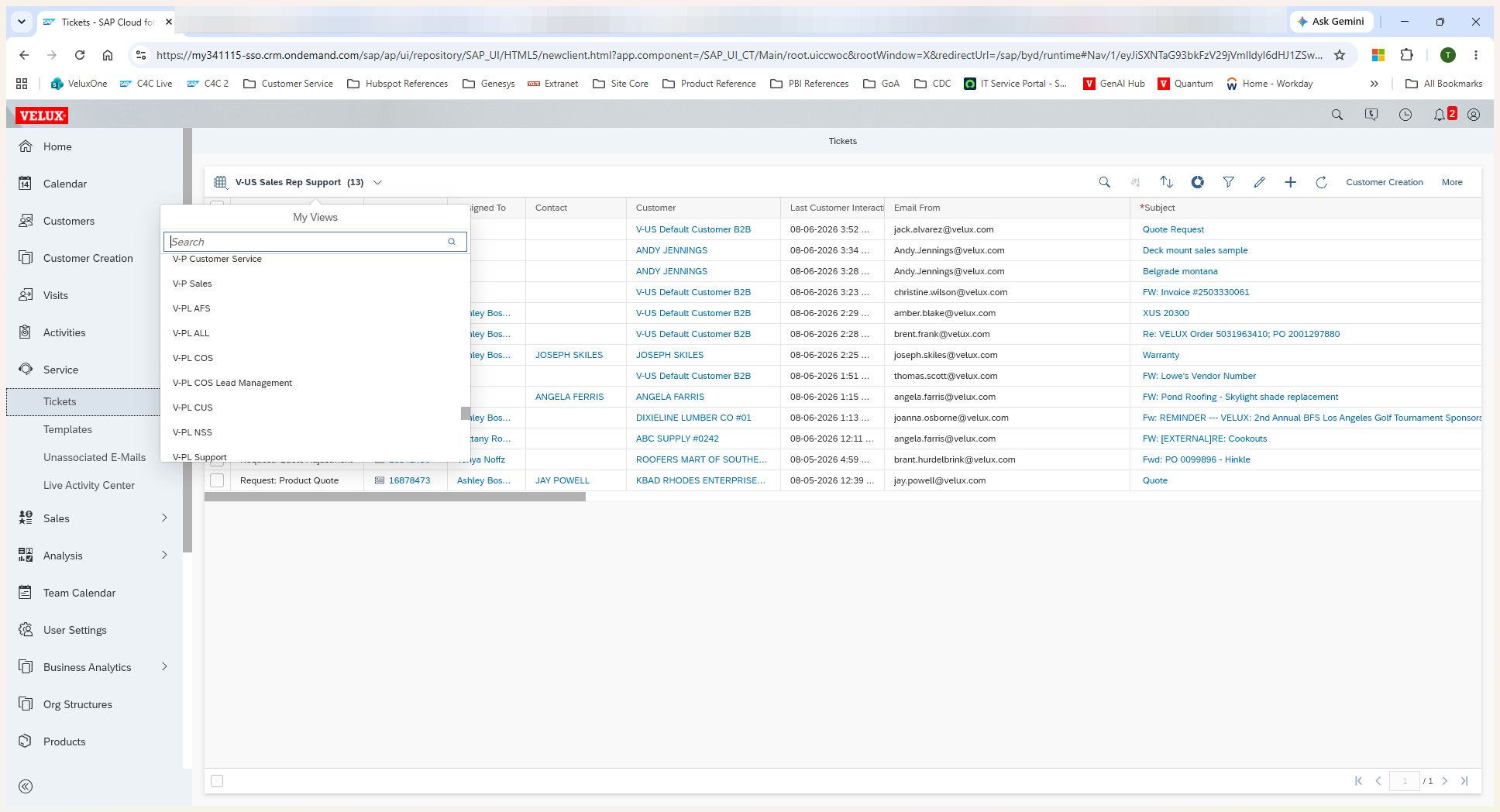
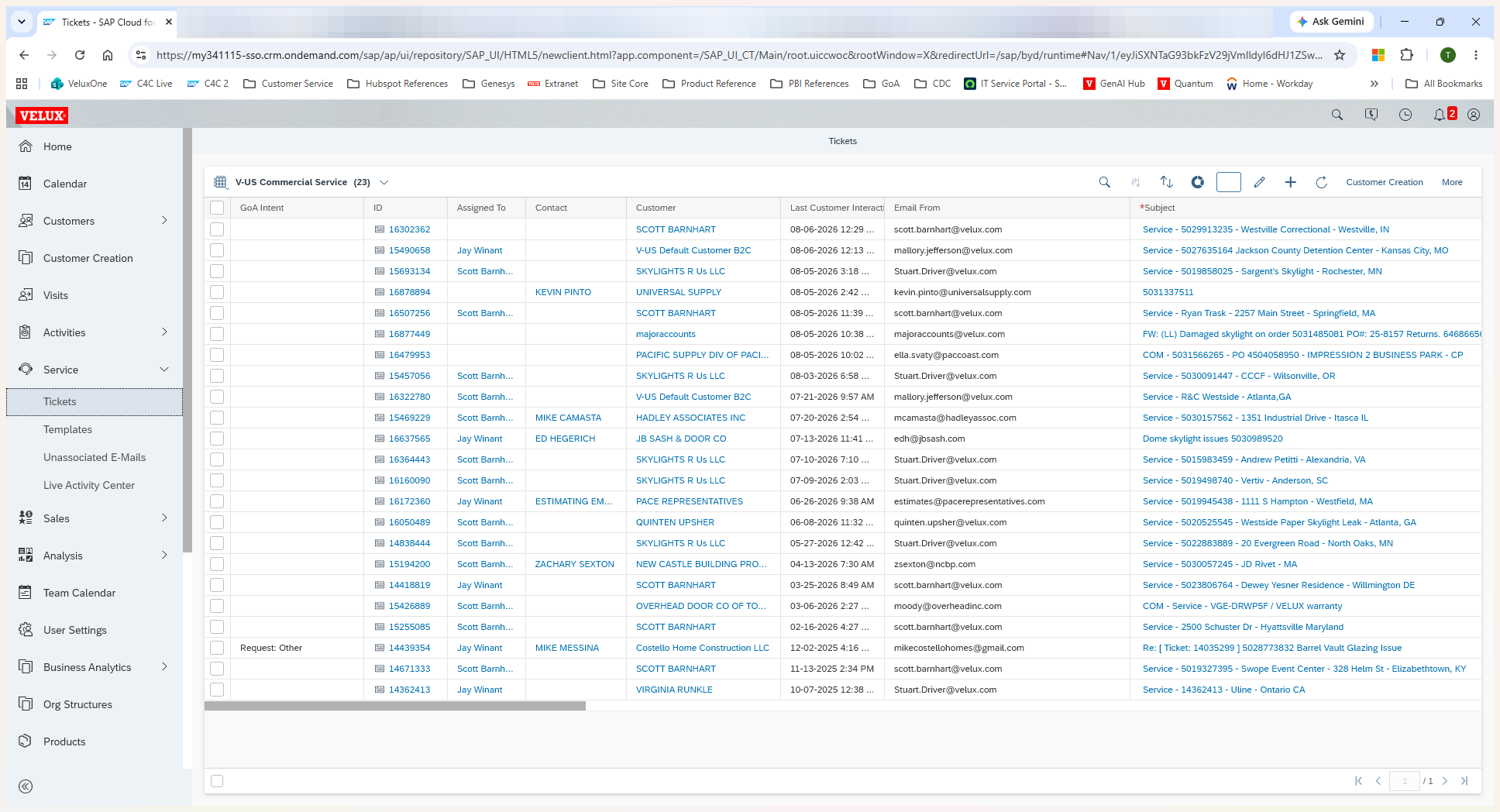
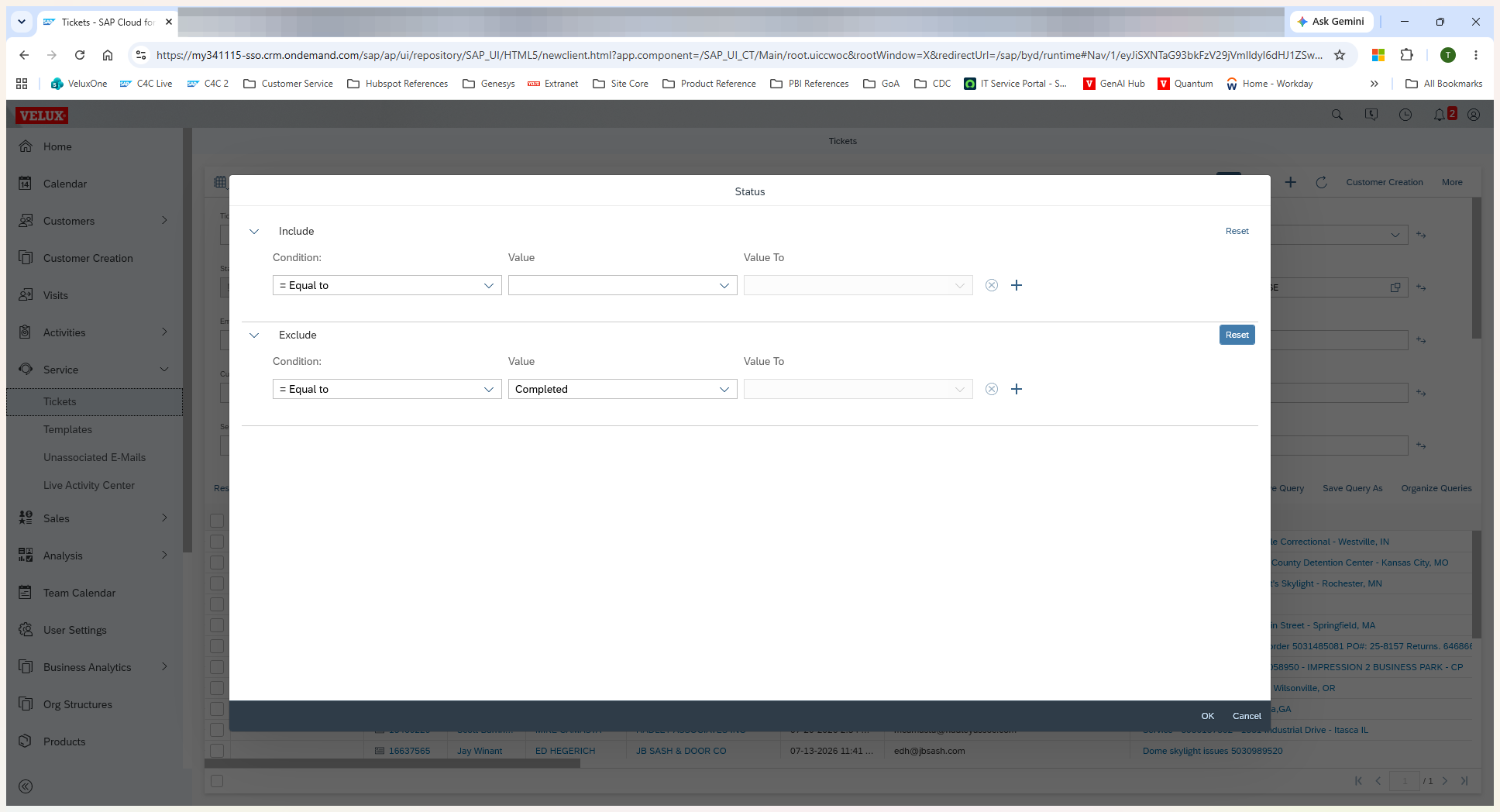
Clearing Default Status Filters
If you want to view the total volume of tickets received or resolved, clear any default status exclusions first so your count is completely accurate.
Common Filter Configurations
Depending on your goal, you will configure different parameters in the filter panel. Below are the most common configurations used to analyze ticket volume:
Query Goal | Field to Use | Filter Configuration |
|---|---|---|
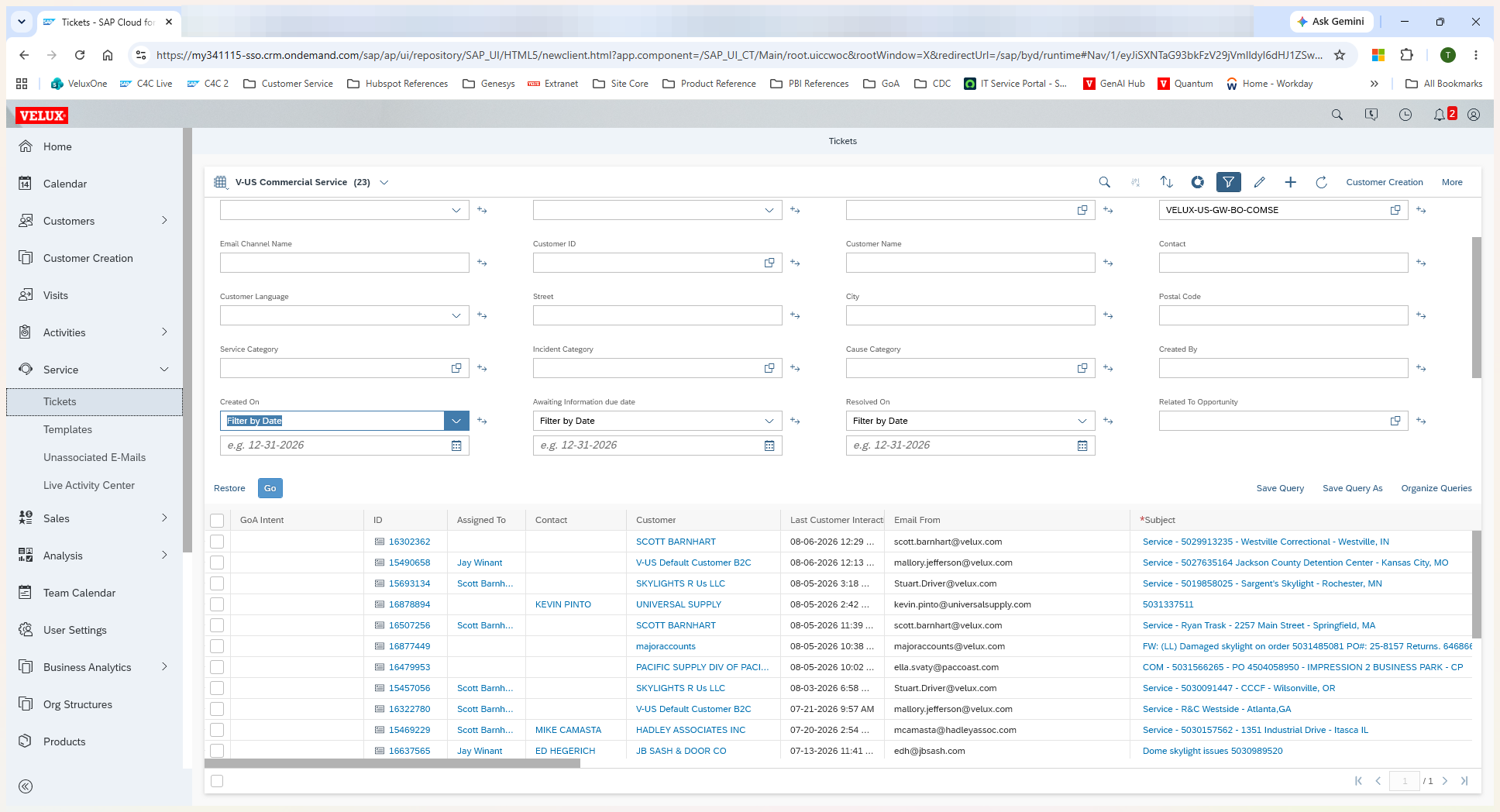
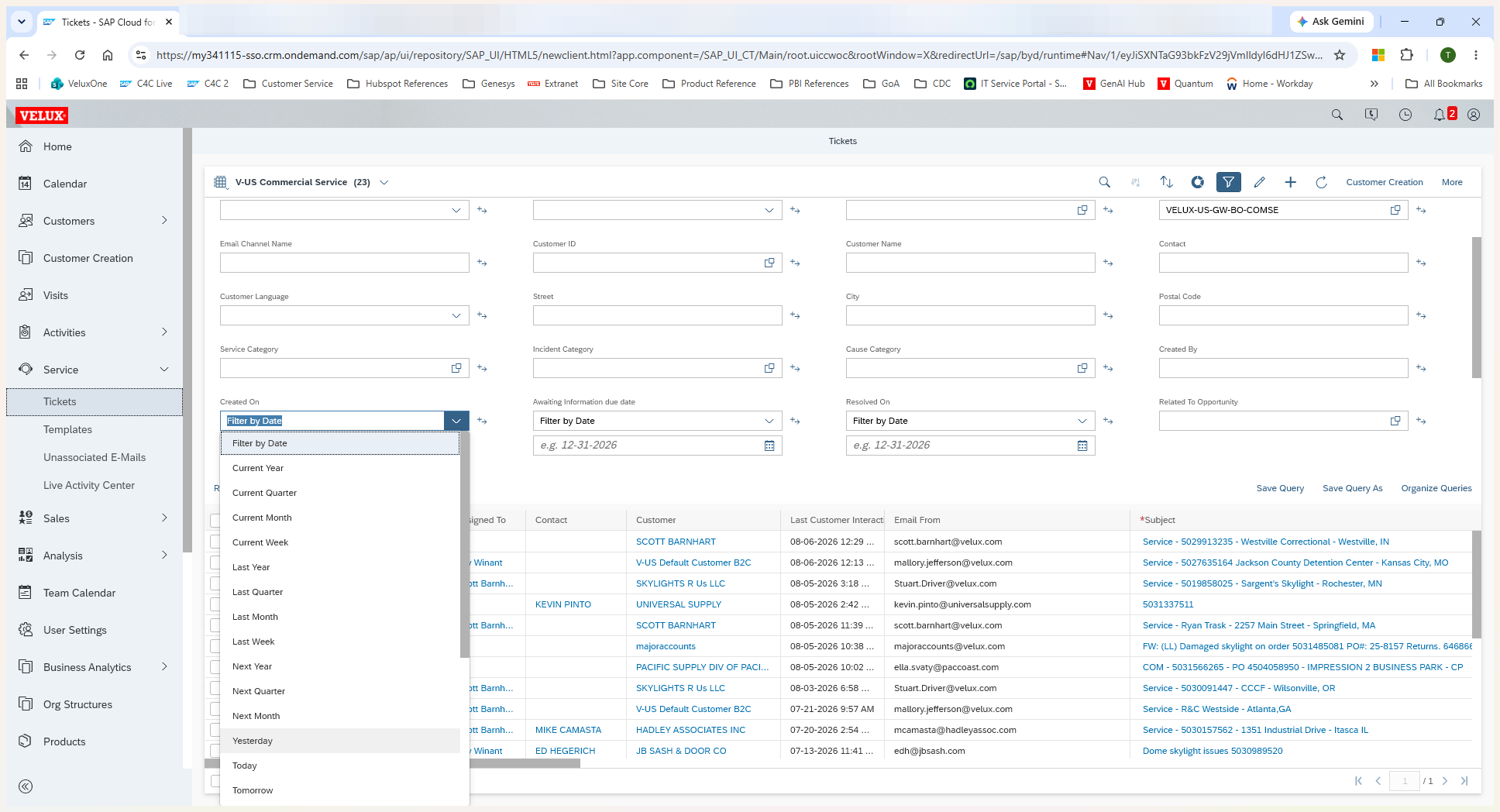
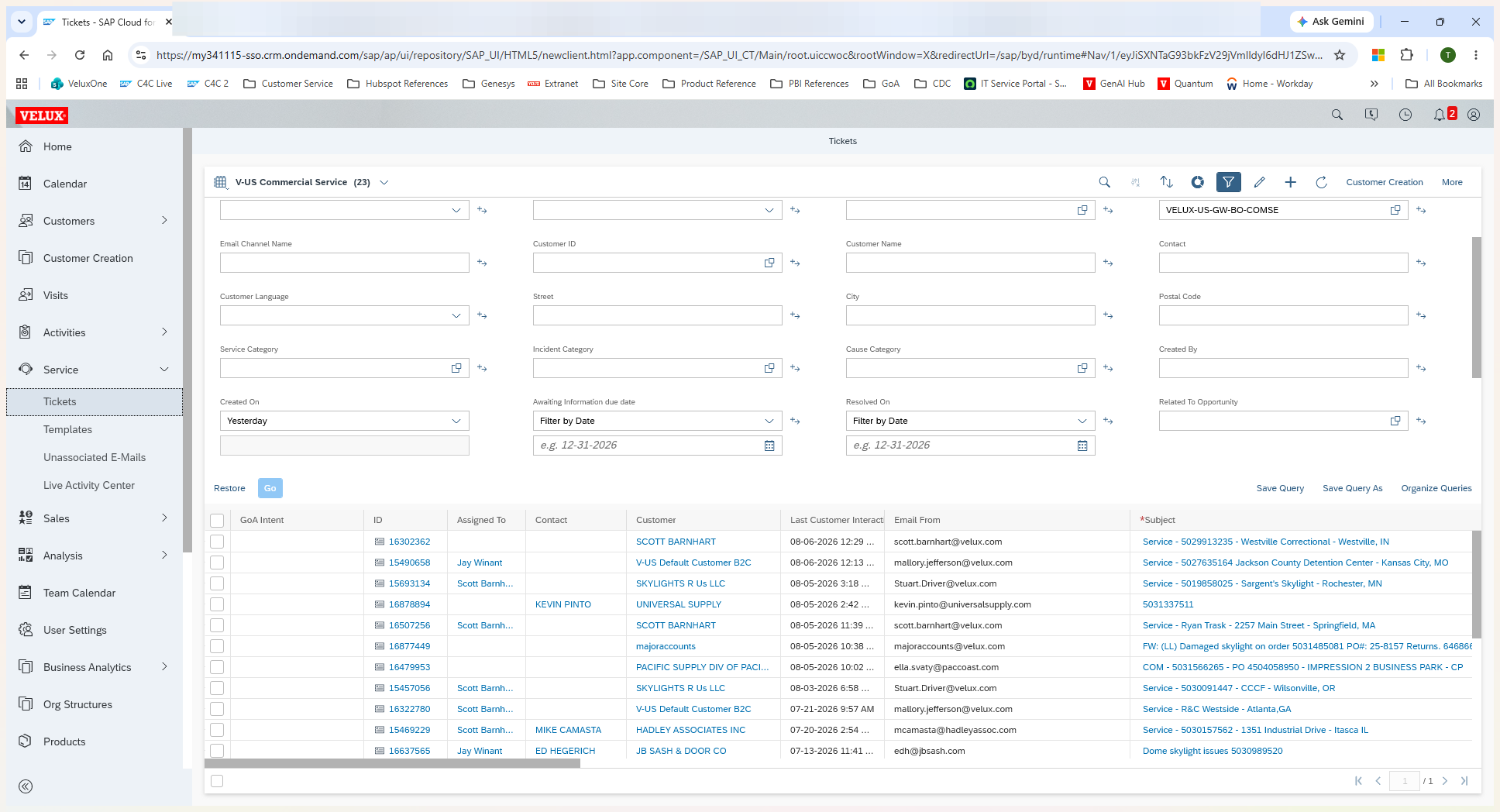
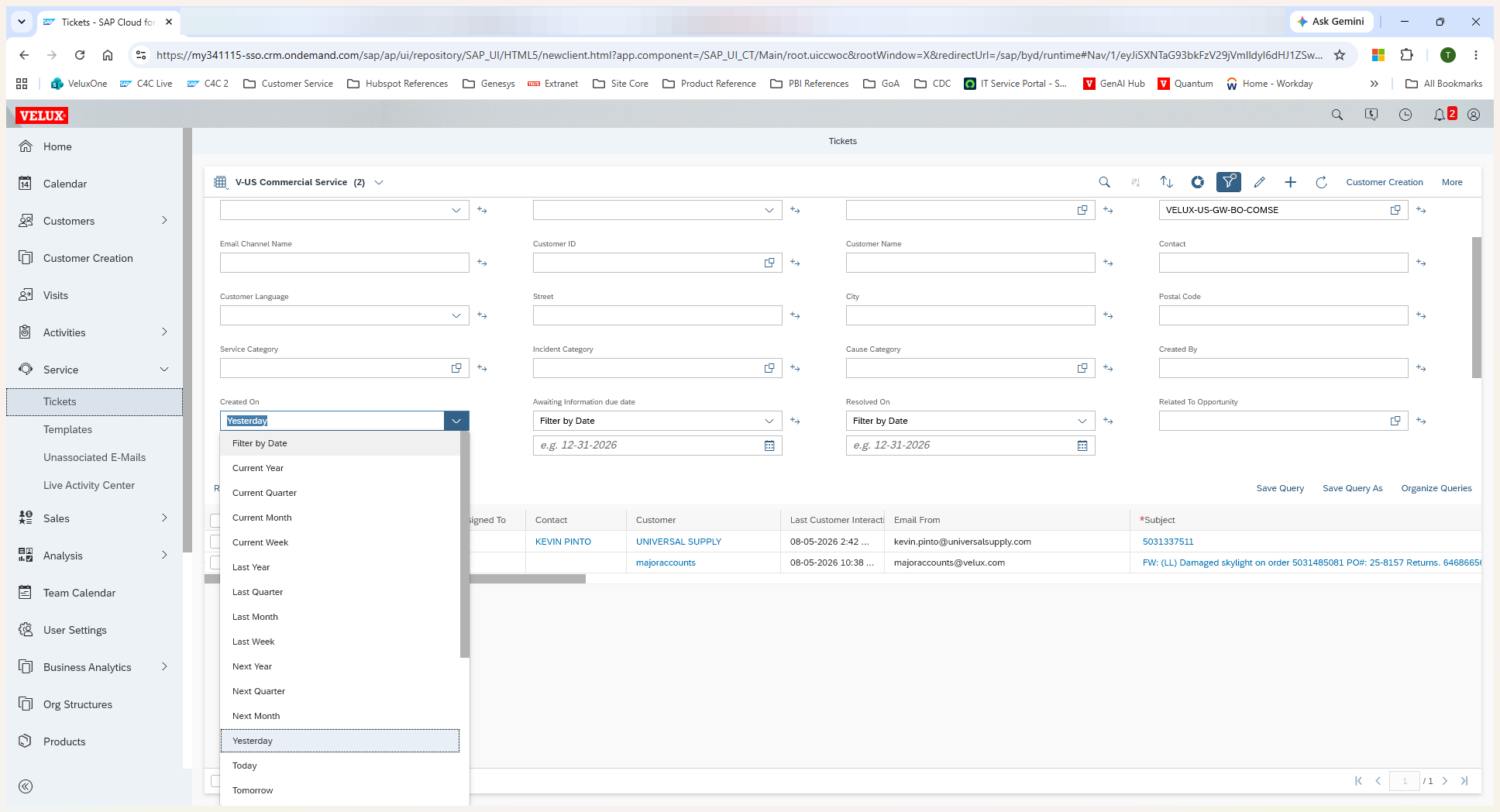
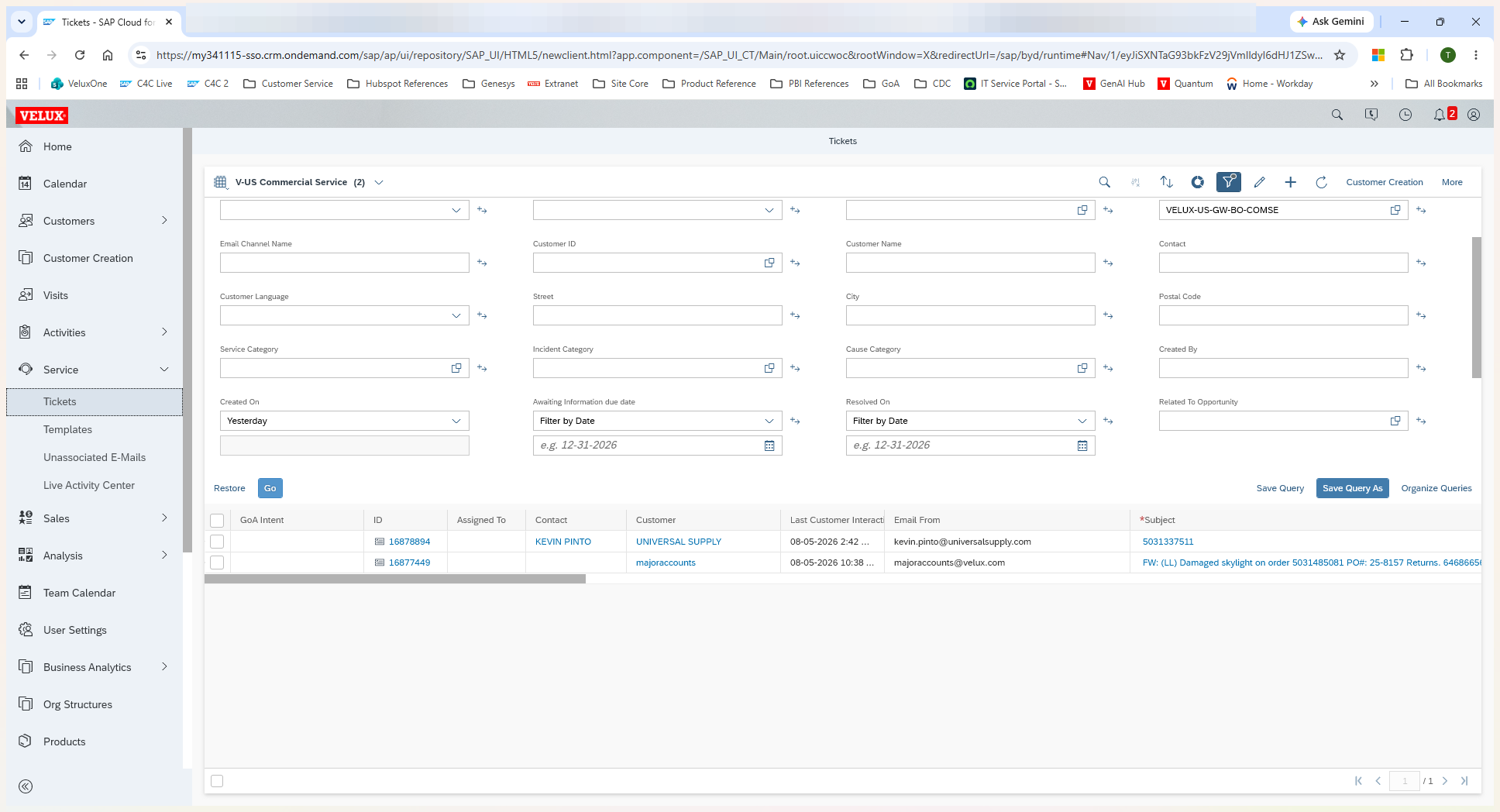
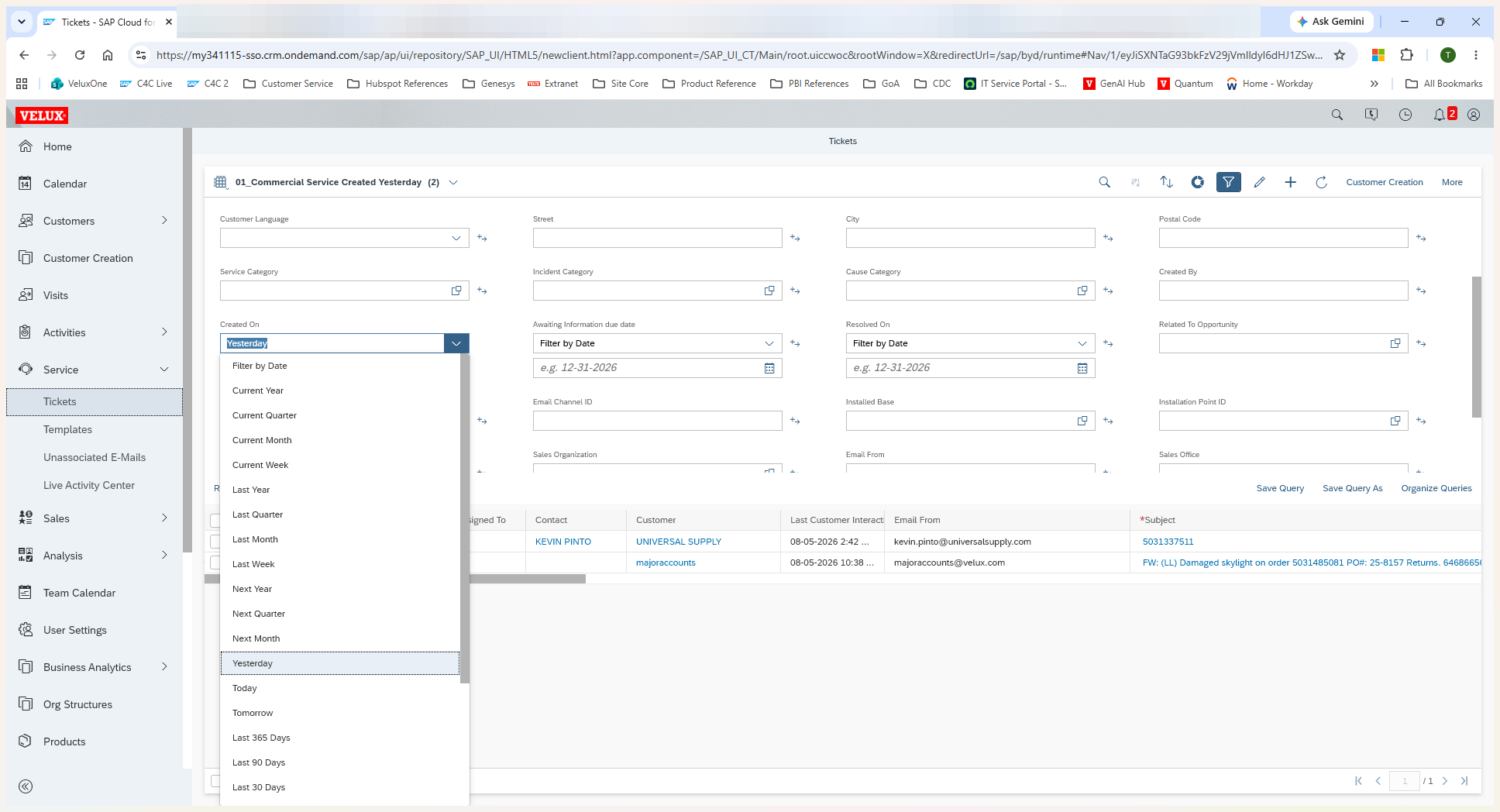
Daily New Tickets | Created On | Select Yesterday from the preset dropdown menu. |
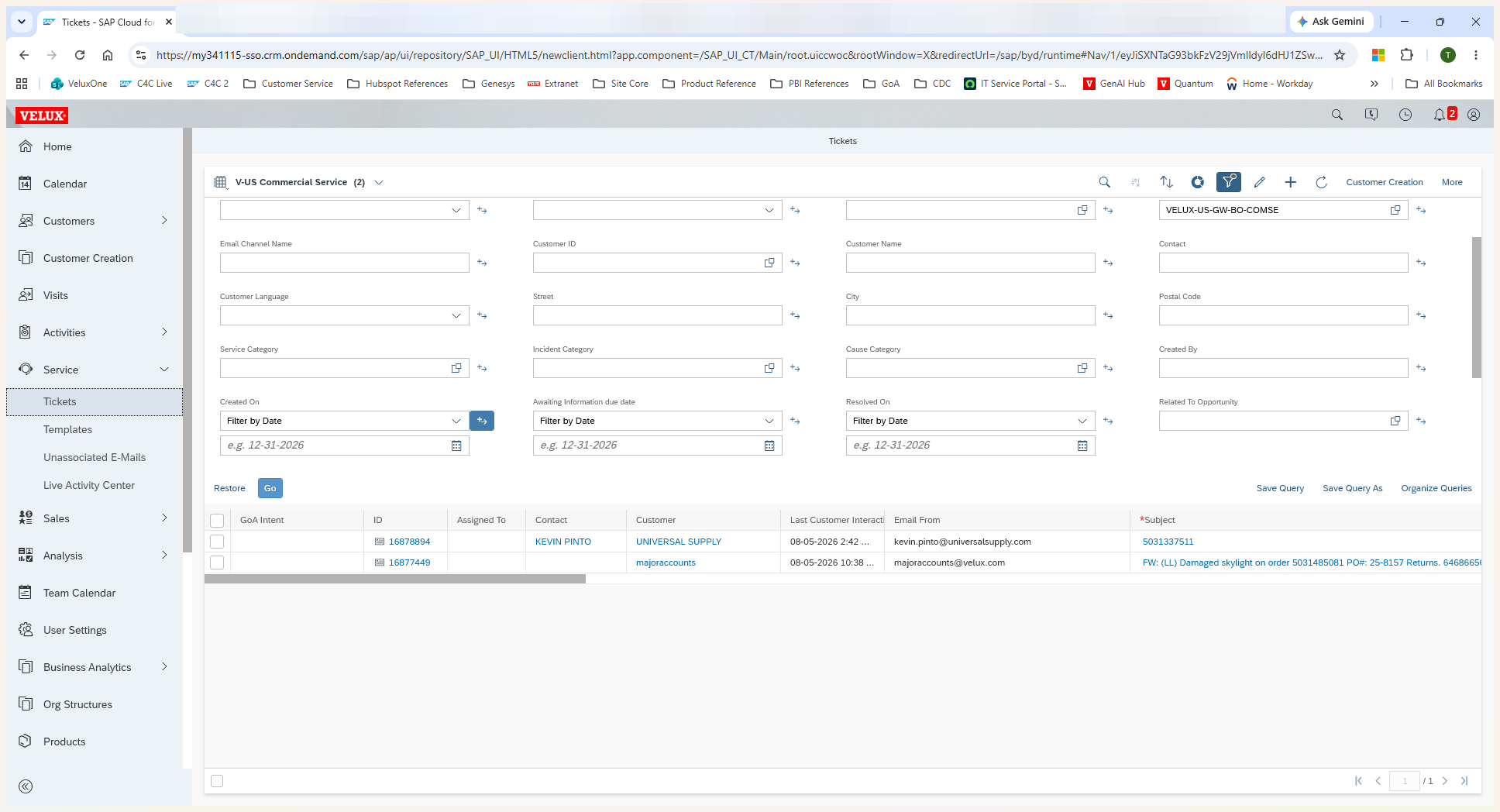
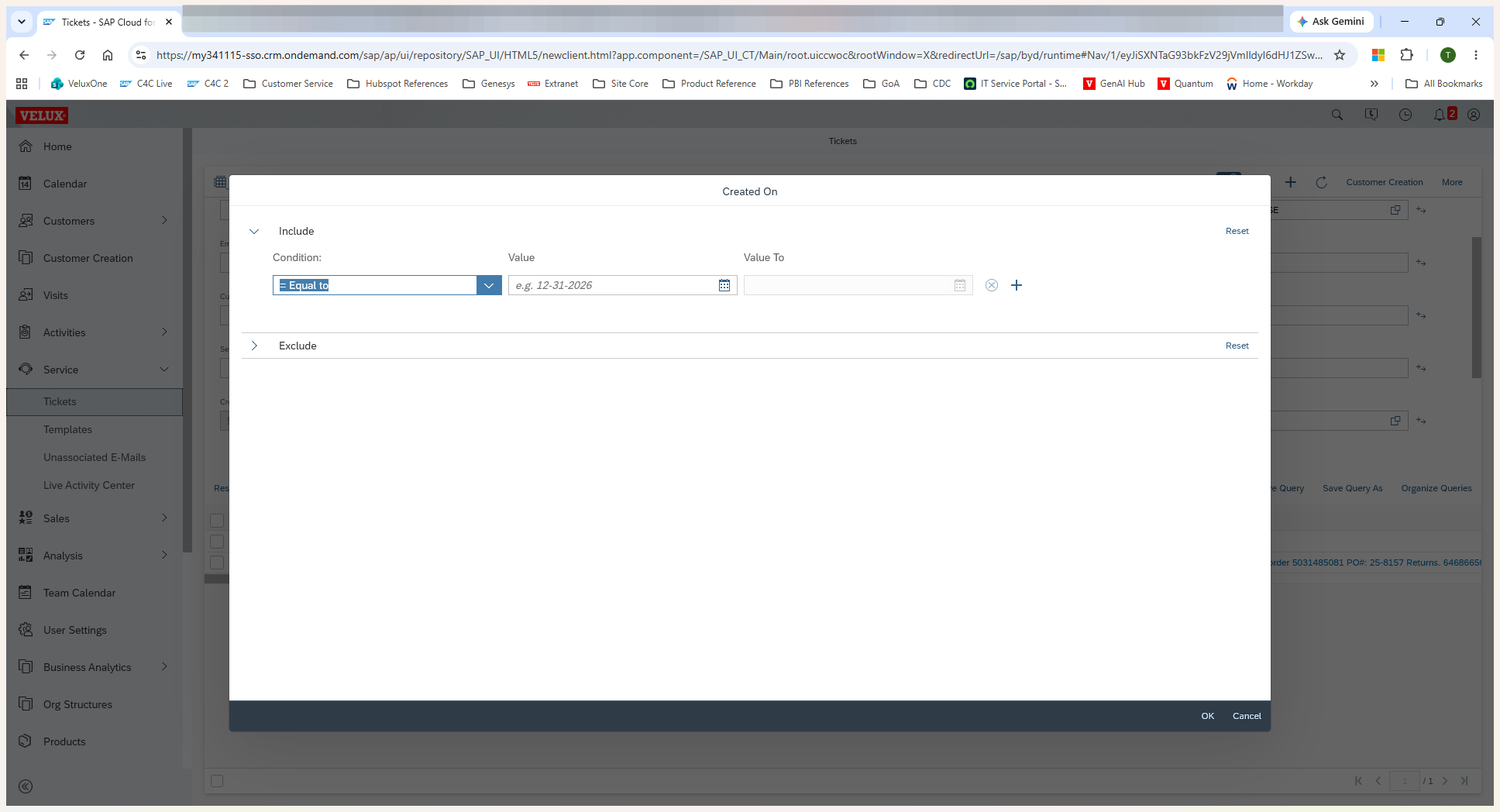
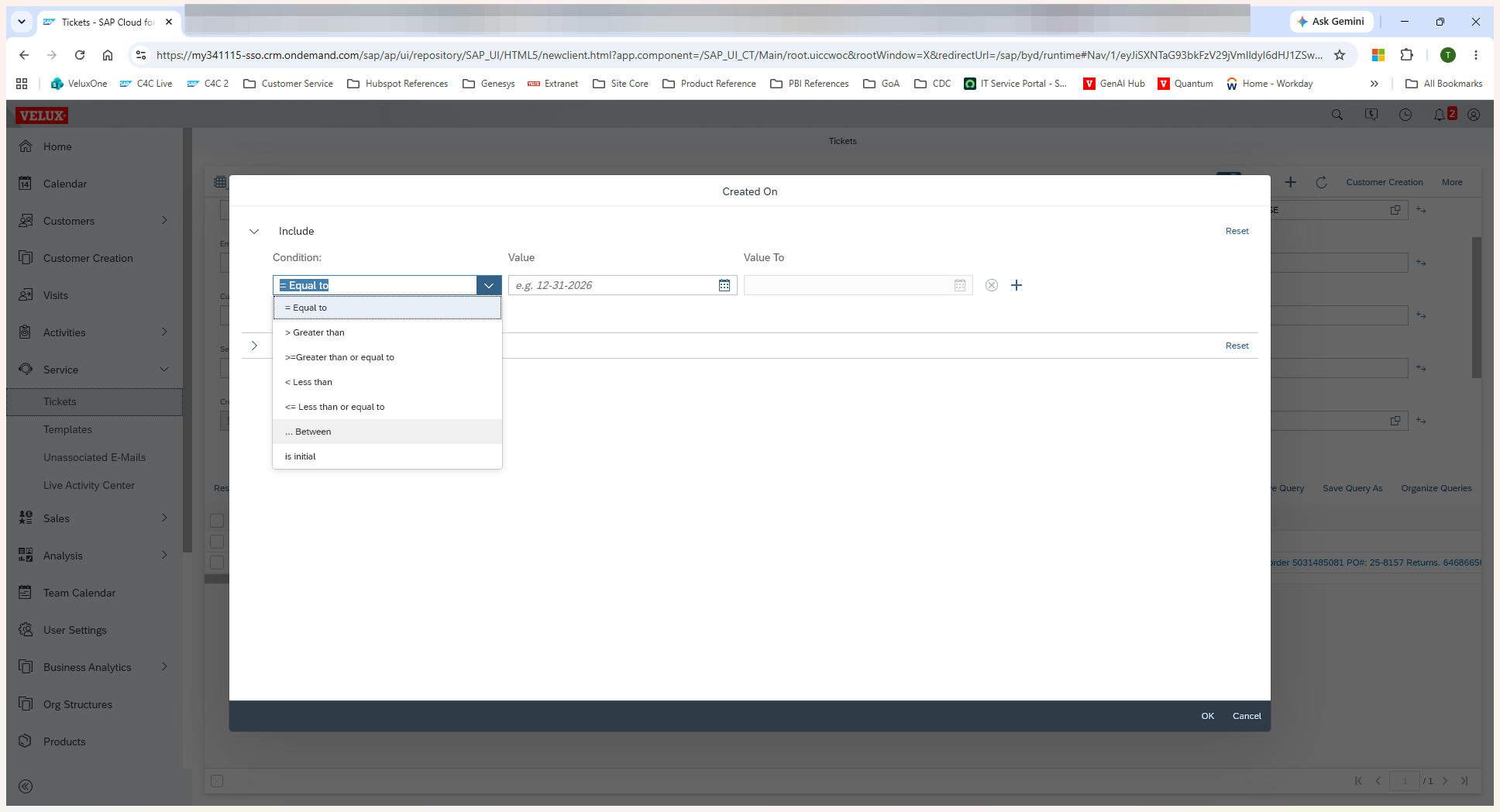
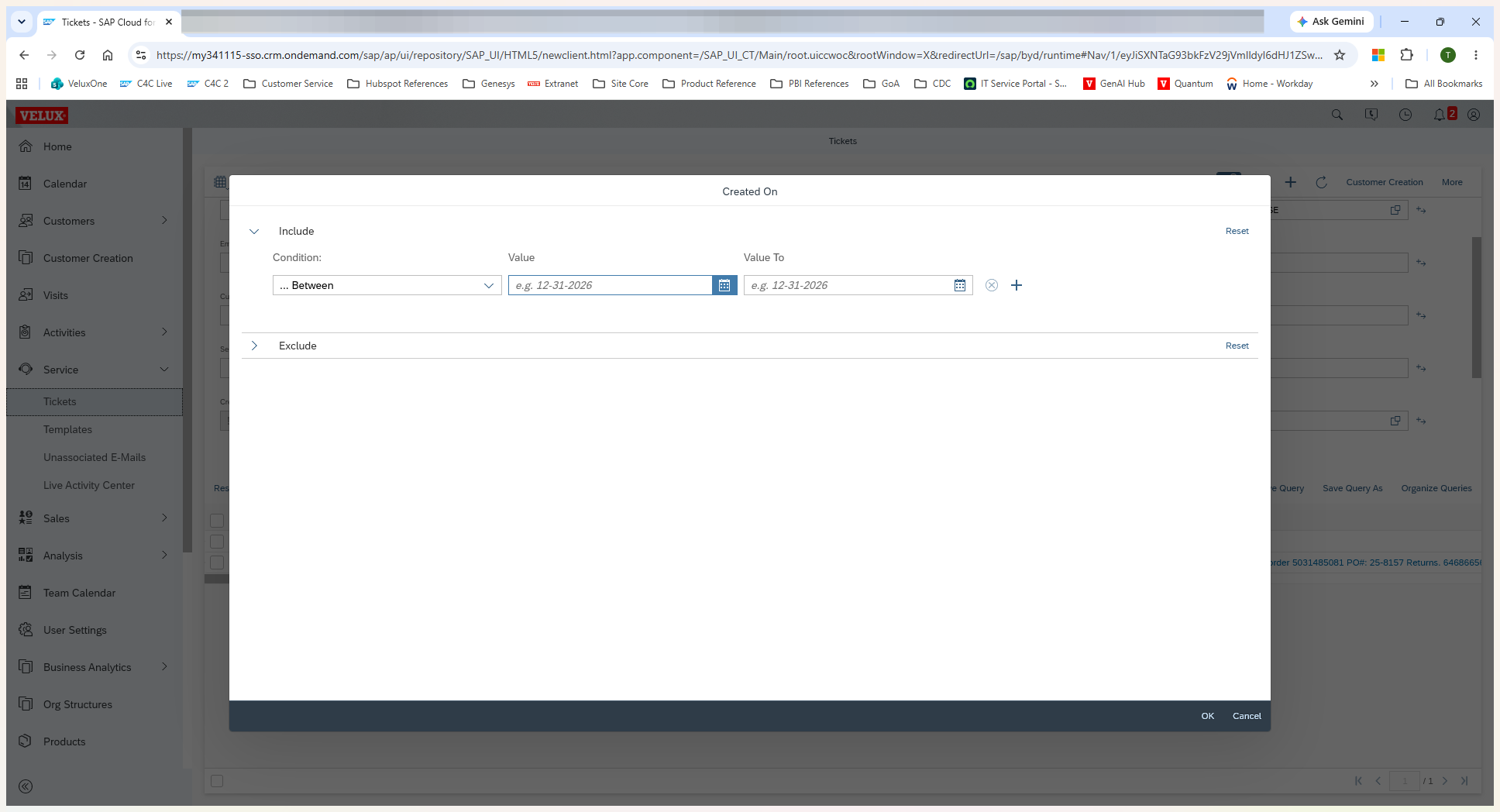
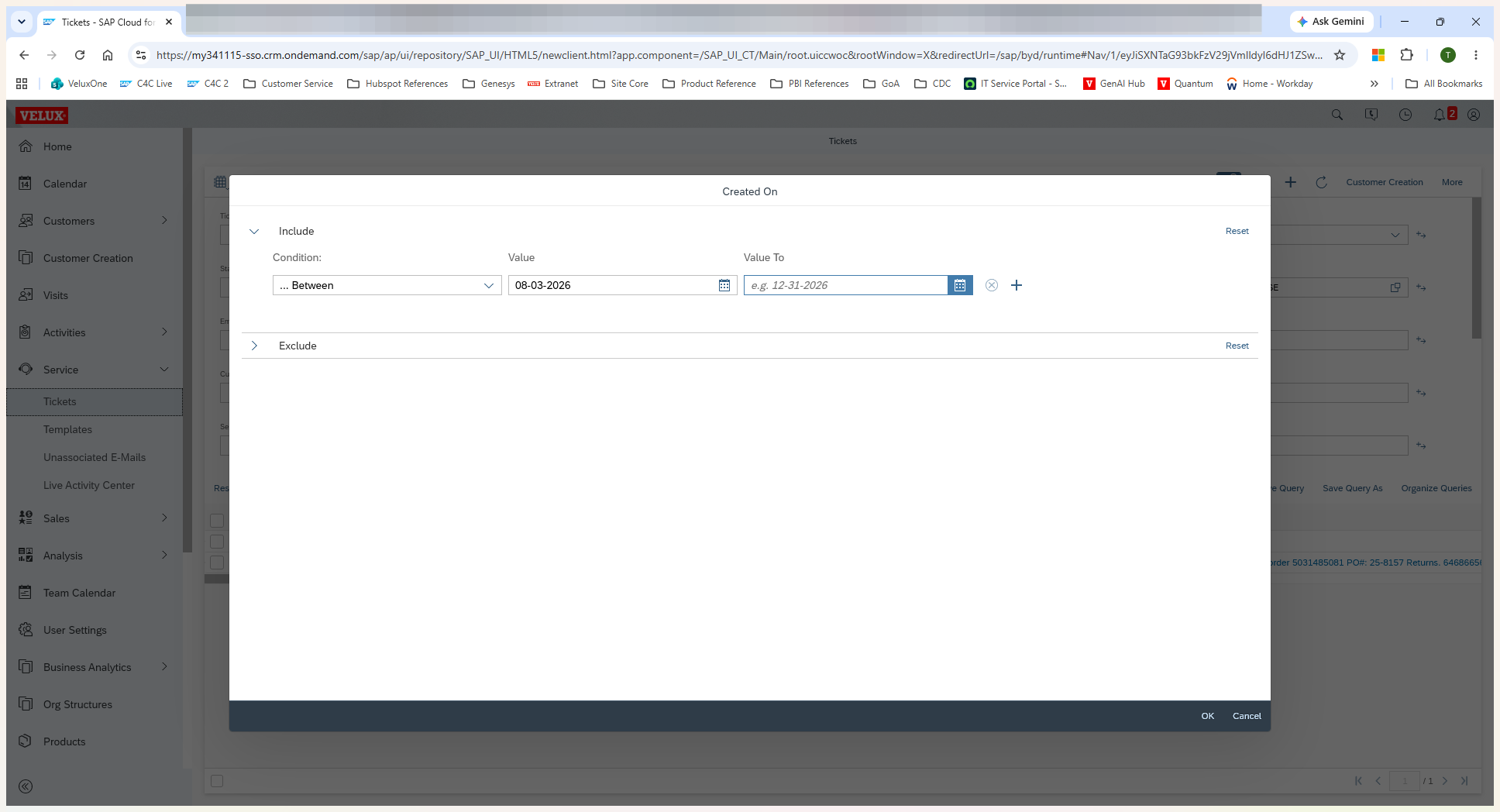
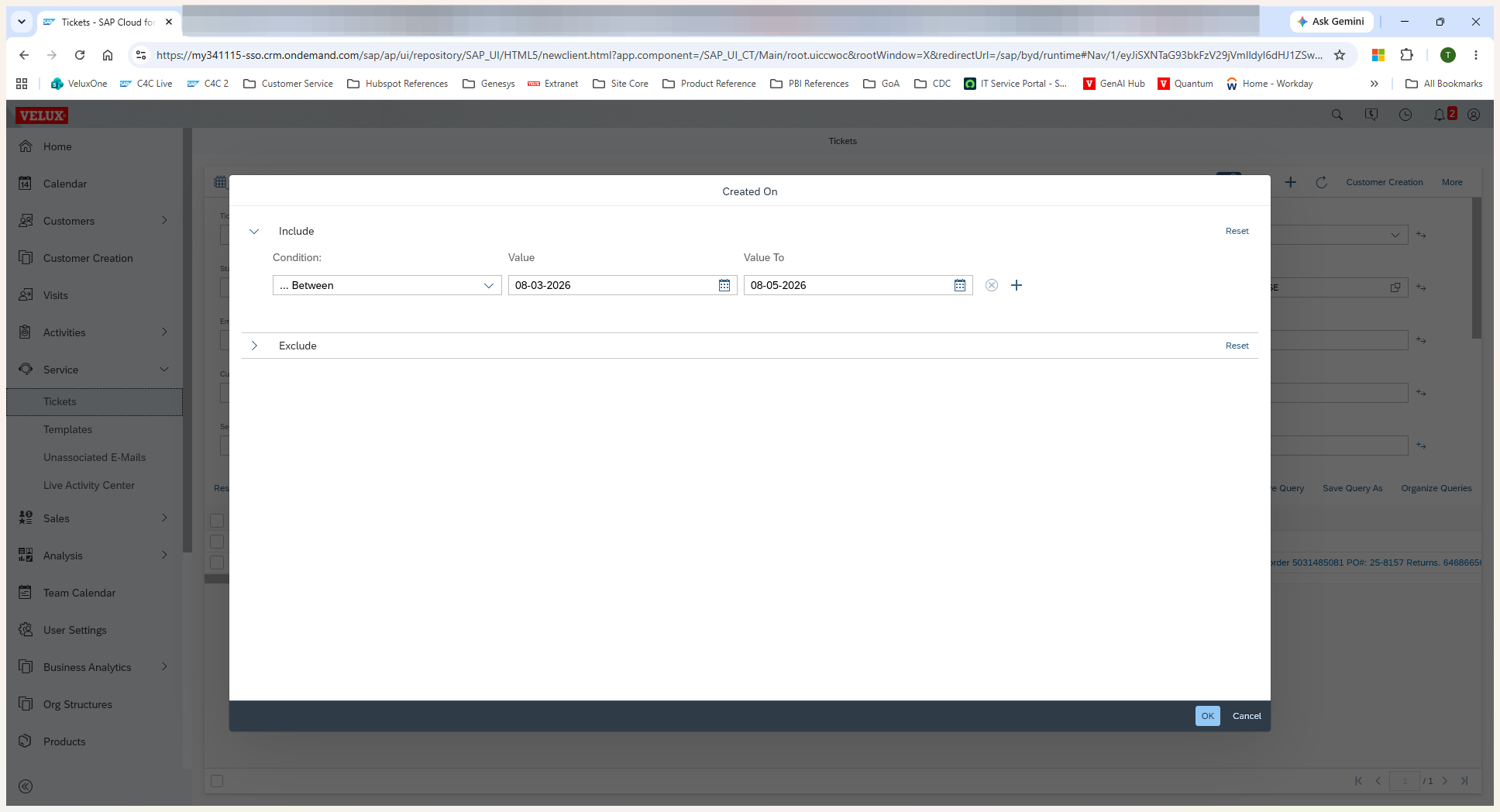
Ad-Hoc Volume Search | Created On | Select Filter by Date, click +, change condition to Between, and set a start and end date. |
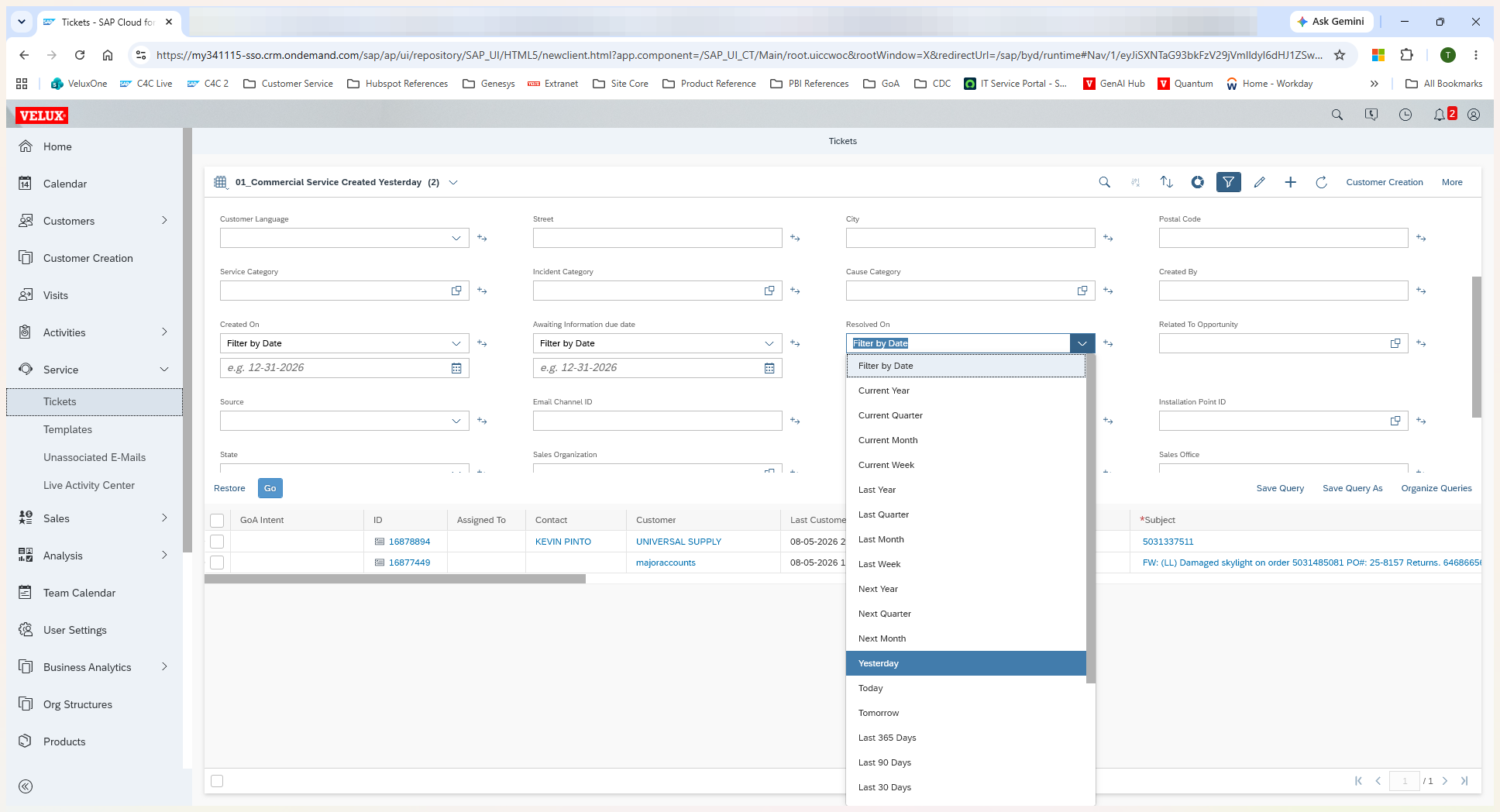
Daily Completed Tickets | Resolved On | Select Yesterday from the preset dropdown menu. |
Agent Performance | Assigned To | Type the specific agent's name into the field. |
Using a Preset Date Range
Using a Custom Date Range
Saving Your View
Once your filters are set up for a view you'll check routinely (like daily reporting), save it so you don't have to rebuild it every time.
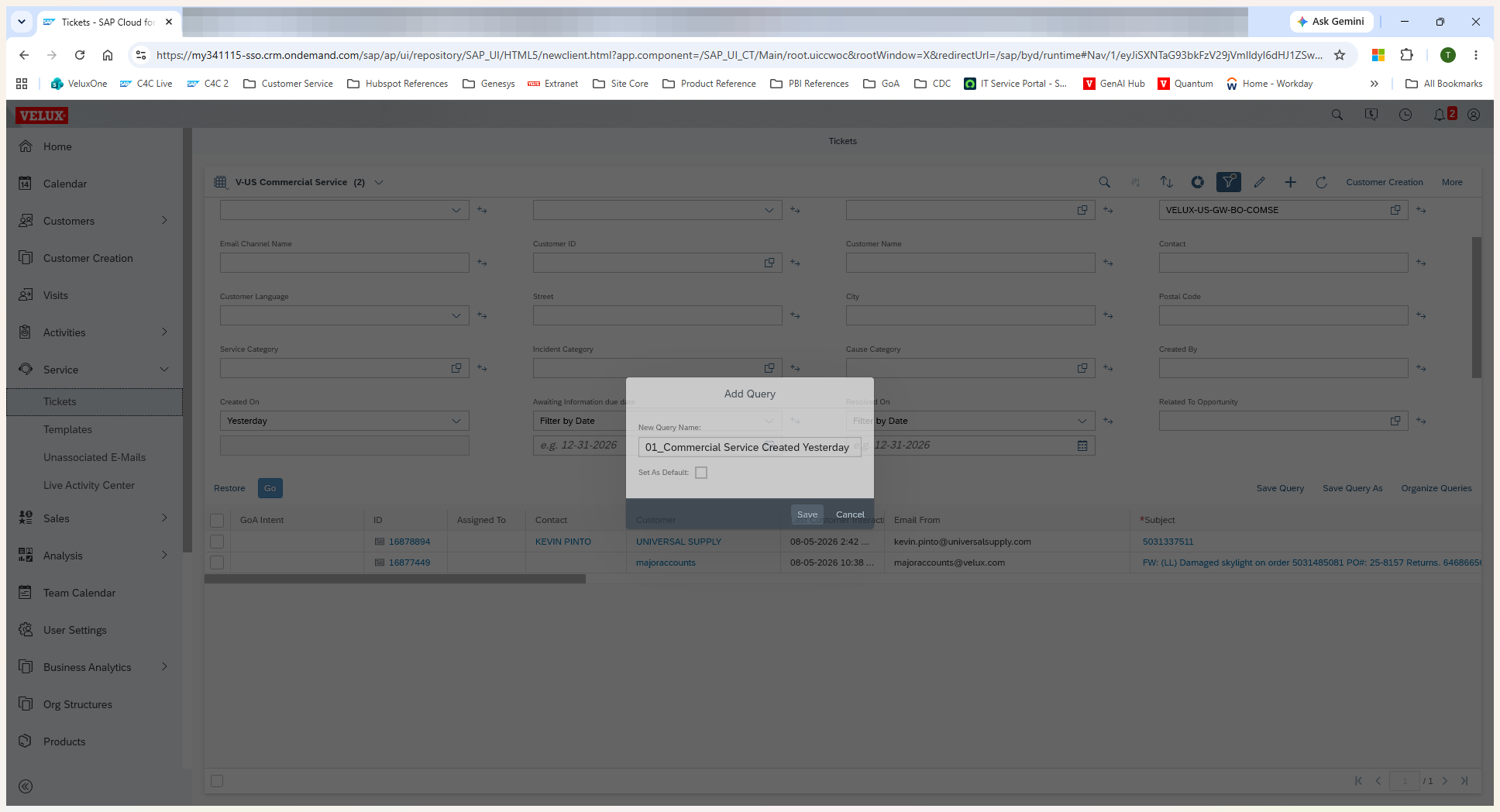
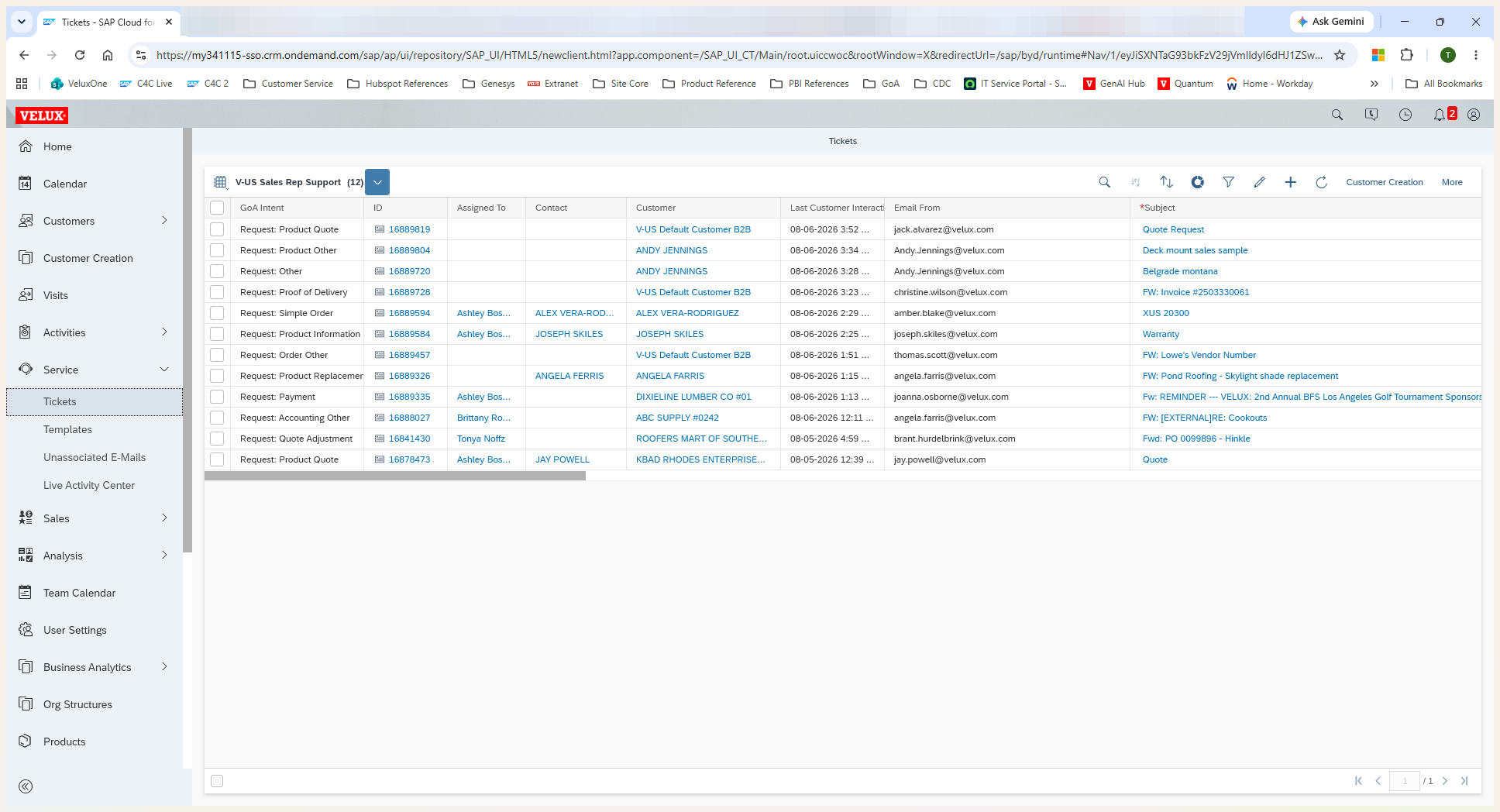
Your screen will refresh to your default view. You can now access your newly saved query.
Filtering for Completed Tickets and Reps
If you want to create a separate view focused on resolved tickets or specific agents, simply replicate the previous steps using different field parameters.
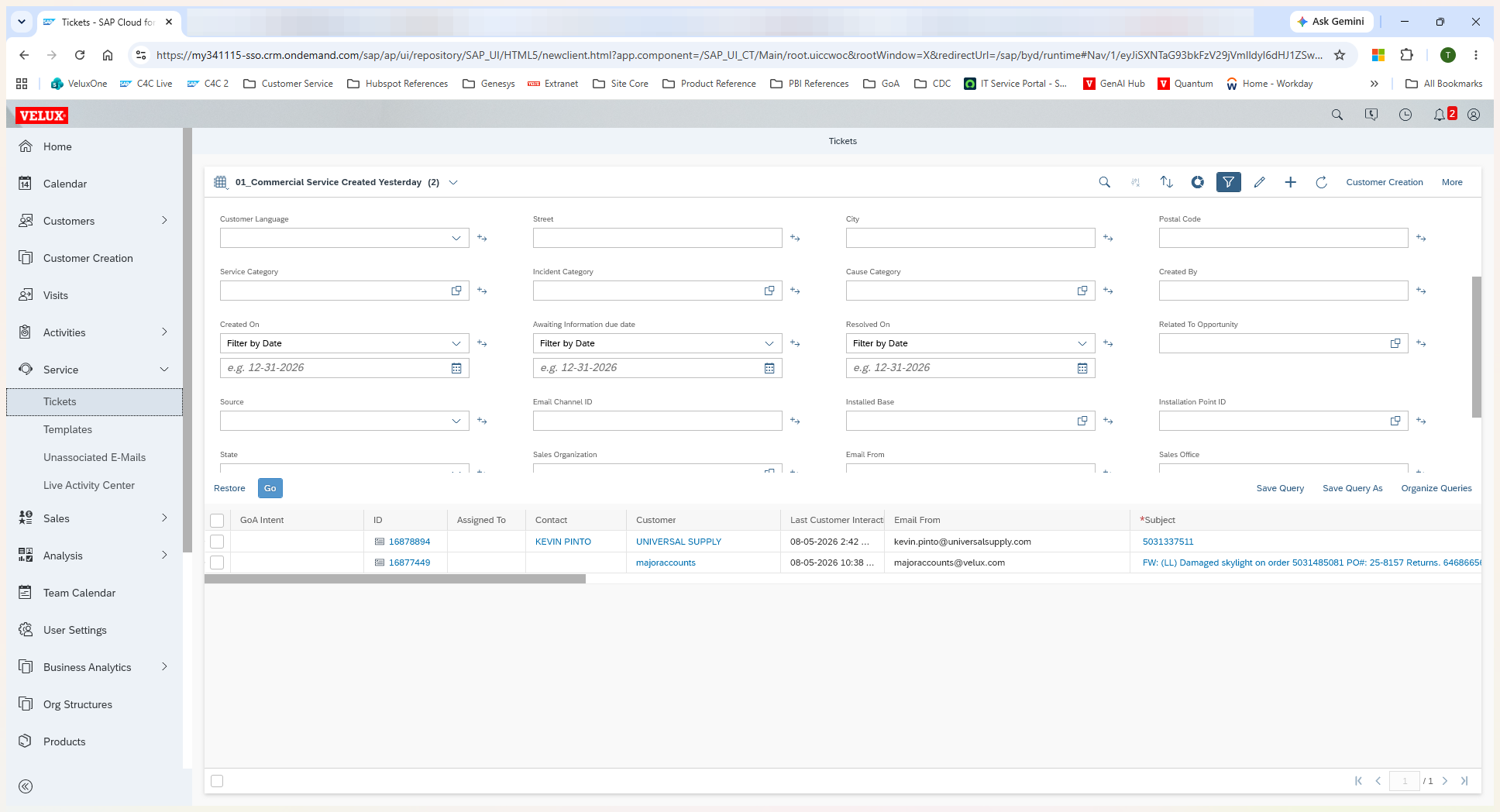
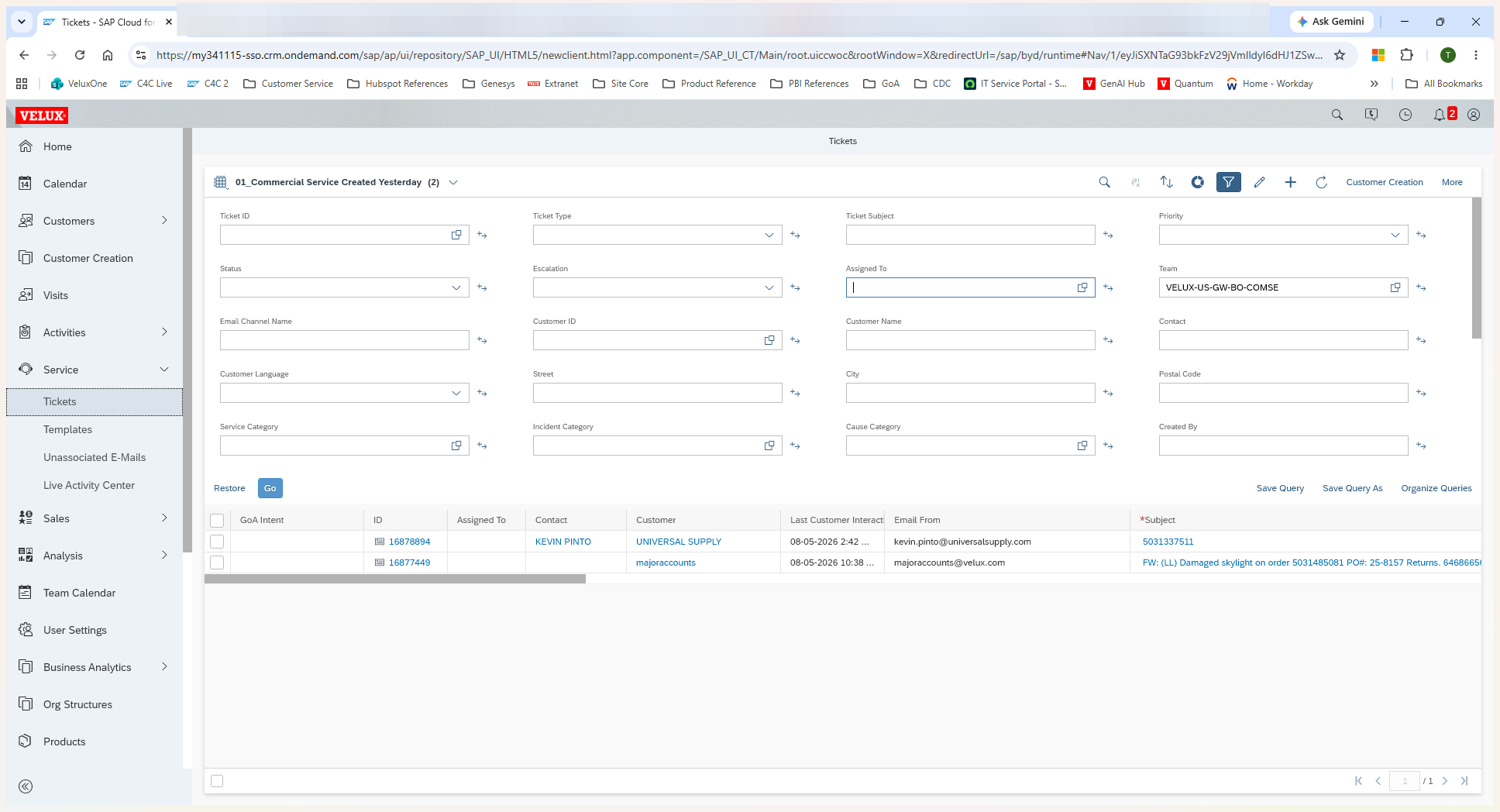
When finished, use the Save Query As option again to save this specific permutation for future use.
Q: How can I ensure my custom views appear at the top of my list?
A: When saving a query, prefix the name with a number (e.g., "01_Commercial Service Created Yesterday"). This forces the system to sort it alphabetically to the top of your dropdown menu.
Q: Why do I need to reset the Status filter when searching for created tickets?
A: Resetting the Status filter removes any default exclusion or inclusion rules. This ensures your query captures the true total number of tickets received during a timeframe, regardless of whether they are currently open, pending, or completed.
Term | Definition |
|---|---|
C4C (Cloud for Customer) | SAP's cloud-based customer relationship management platform used for handling service and sales activities. |
Query / View | A customized layout of filtered data within the system that you can save and return to later without rebuilding the parameters. |
Resolved On | A system date field that records the exact day a service ticket was officially marked as completed or closed. |