Updating Client Invoice Log | Square + Coda

Learn how to review a client's scope of work in Notion, generate a new invoice using Square, and record the billed services in your database.

By M Riley Marketing

This guide demonstrates how to accurately create a client invoice in Square and record it within a Notion database. Completing this process ensures that clients are billed correctly according to their scope of work and maintains an organized invoicing history.

This guide is intended for freelancers, account managers, and billing specialists. It should be used at the end of a billing cycle or when setting up an invoice for new monthly services.

Before generating a new invoice, verify the client's current monthly fees and agreed-upon services so you bill the correct amount.

1. Review the Client Scope in Notion
1
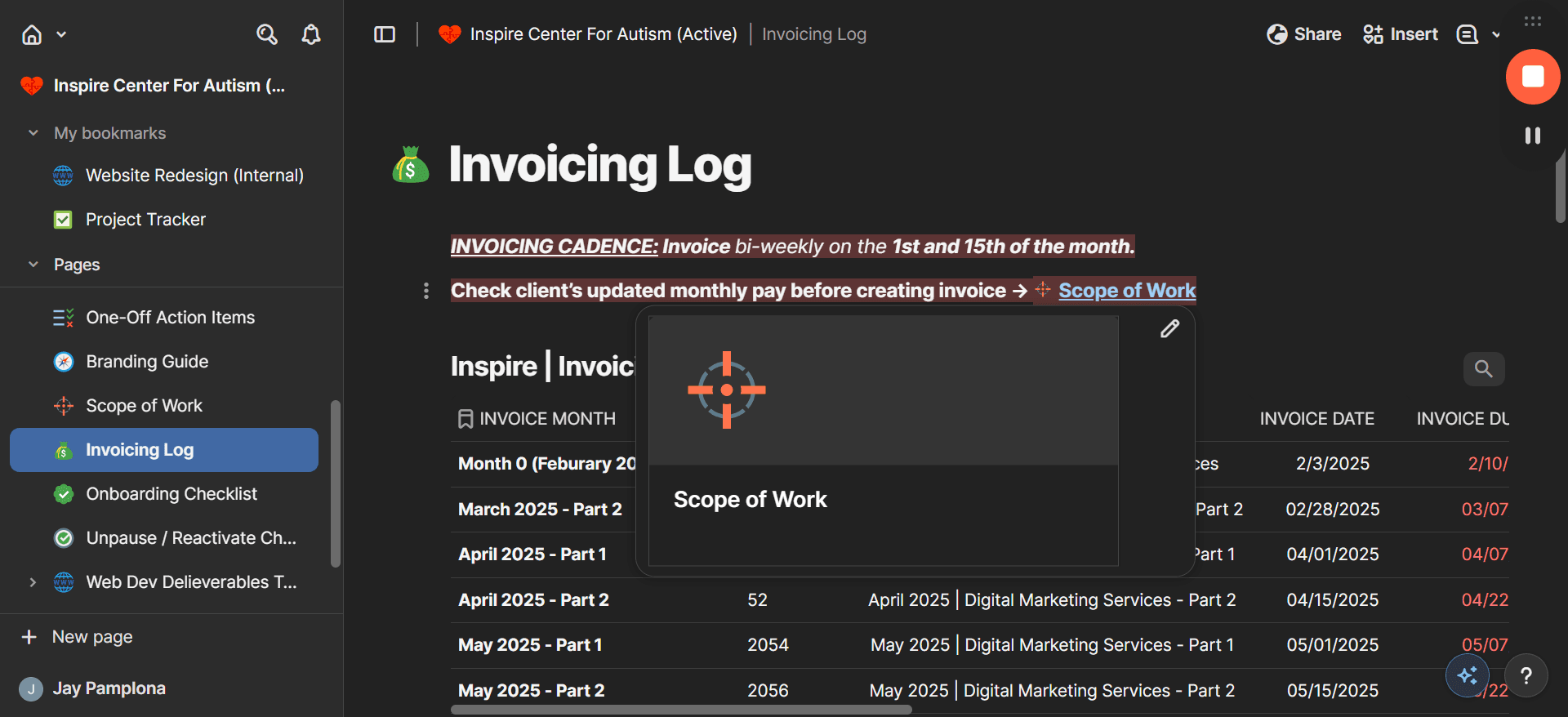
Open your Coda workspace and click Invoicing Log to locate the client's tracking page.
Step #1: Open your Coda workspace and click Invoicing Log to locate the client's tracking page.
2
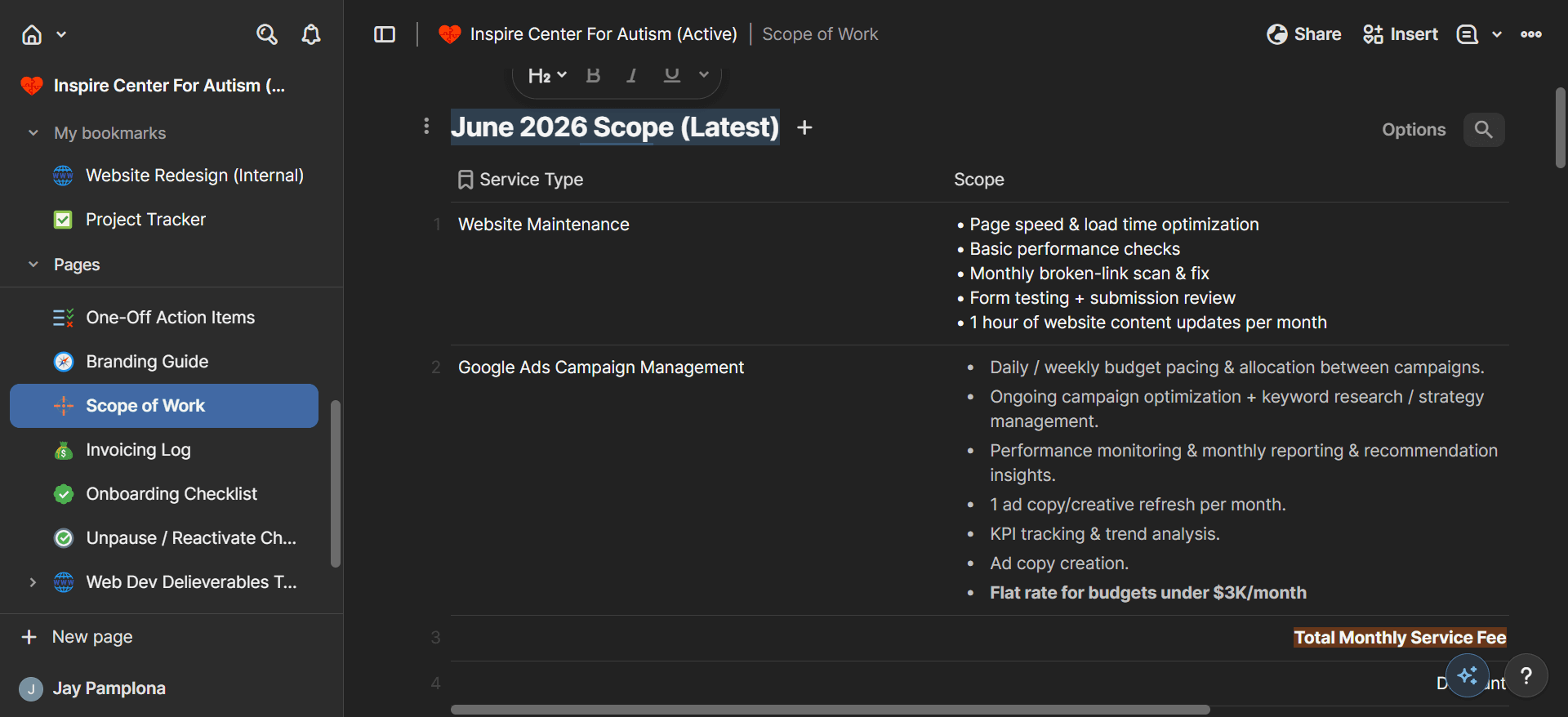
Click the active Scope of Work document (for example, "June 2026 Scope") to review the line items.
Step #2: Click the active Scope of Work document (for example, "June 2026 Scope") to review the line items.
3
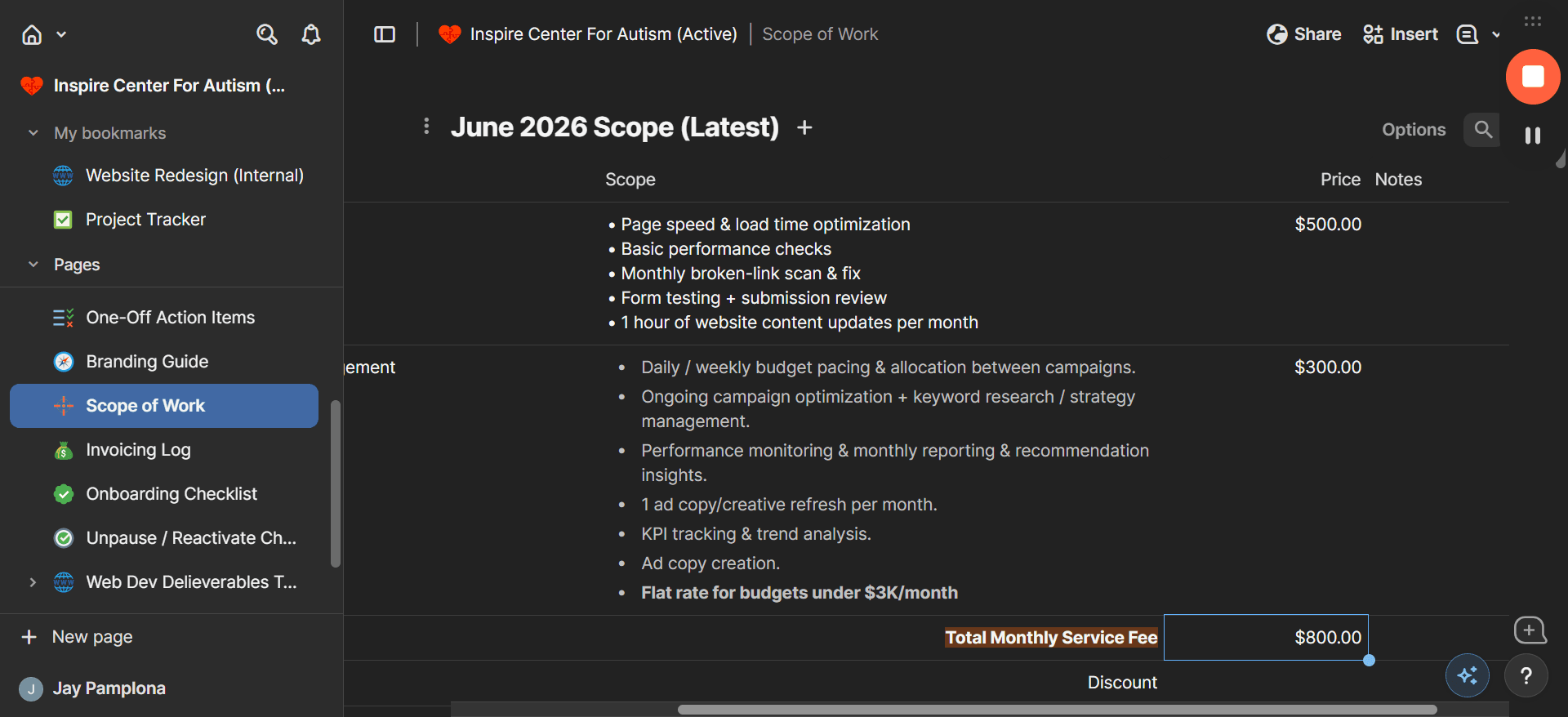
Note the total monthly service fee to ensure you bill the correct amount.
Step #3: Note the total monthly service fee to ensure you bill the correct amount.

2. Create the Invoice in Square

4
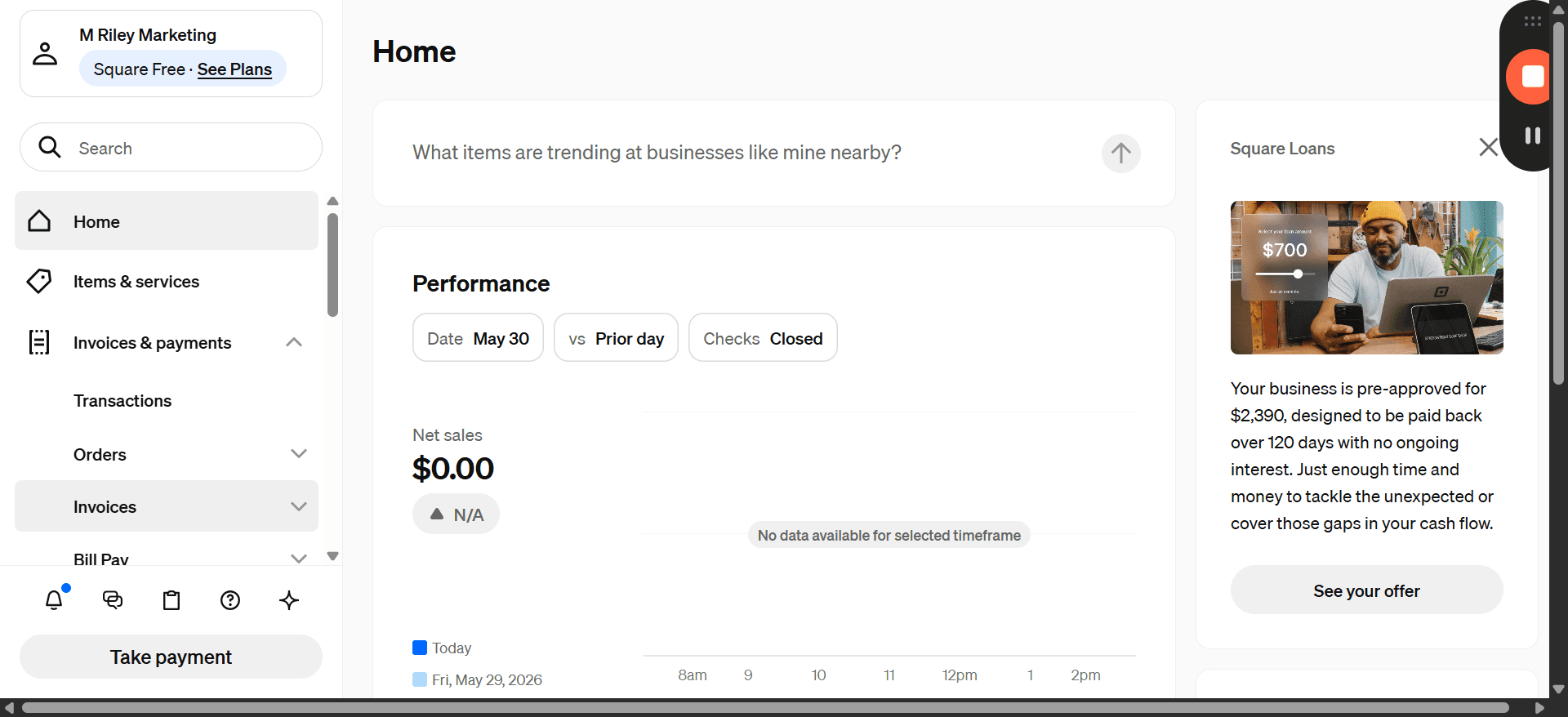
Log in to your Square dashboard and click Invoices & payments in the left-hand navigation menu.
Step #4: Log in to your Square dashboard and click Invoices & payments in the left-hand navigation menu.
5
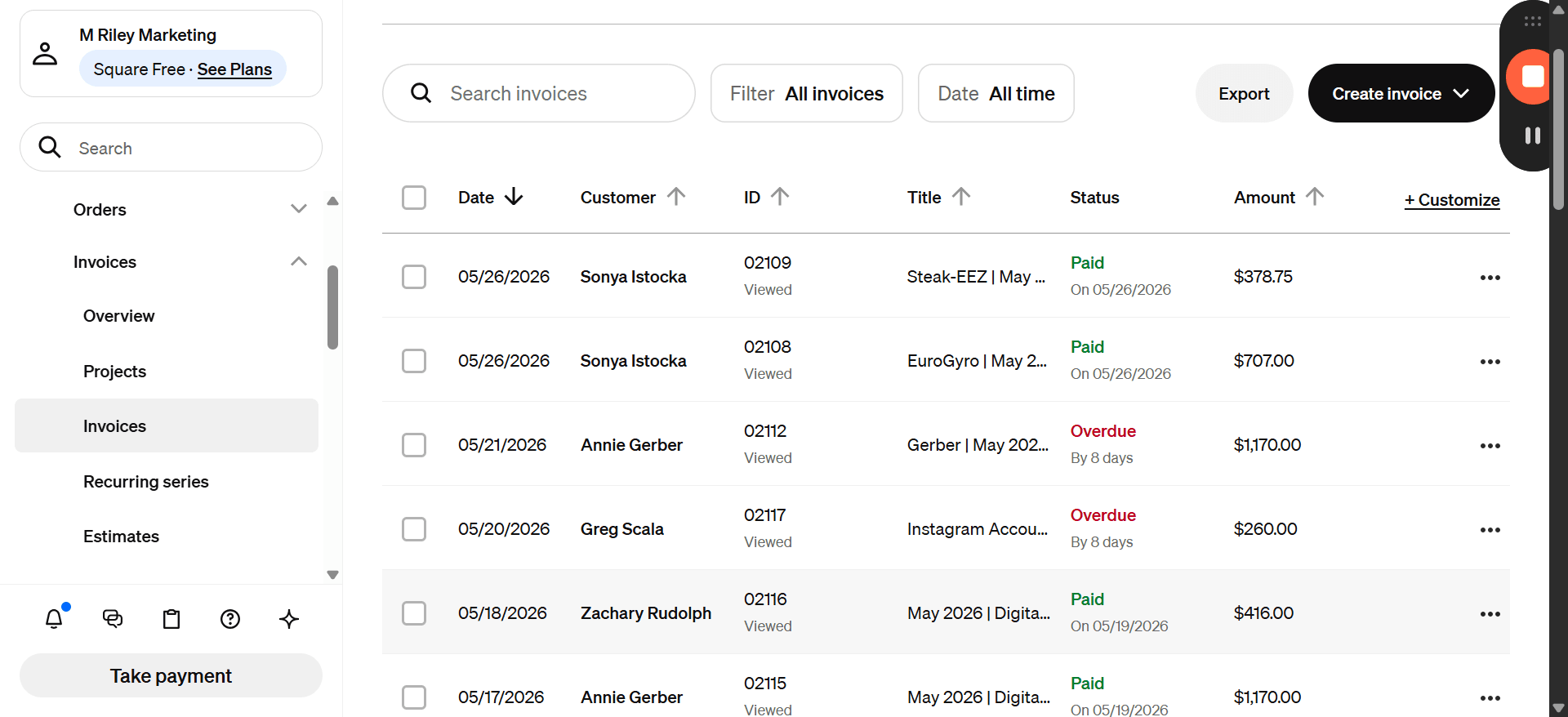
Click Create invoice in the top right corner of the invoice management dashboard.
Step #5: Click Create invoice in the top right corner of the invoice management dashboard.
6
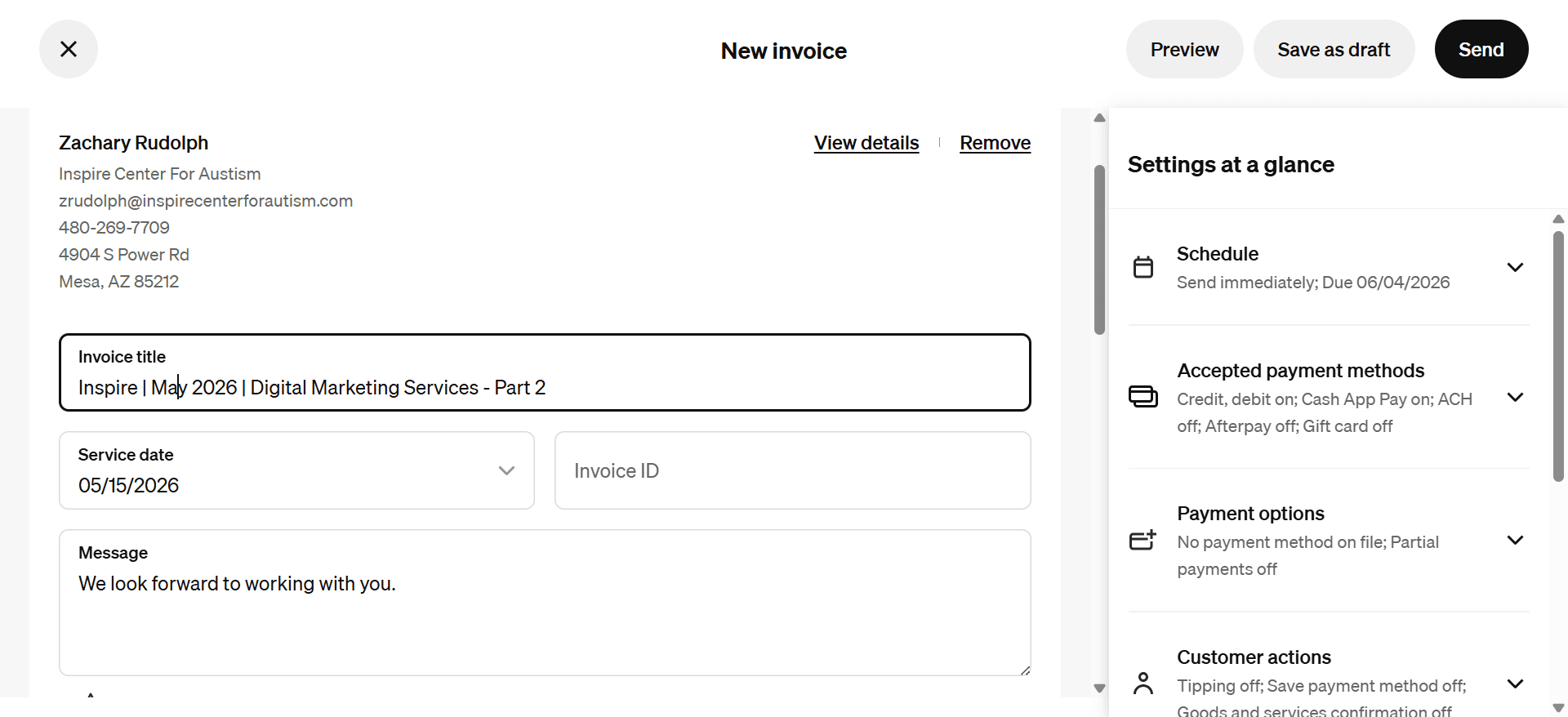
Click the Invoice title text field.
Step #6: Click the Invoice title text field.
7
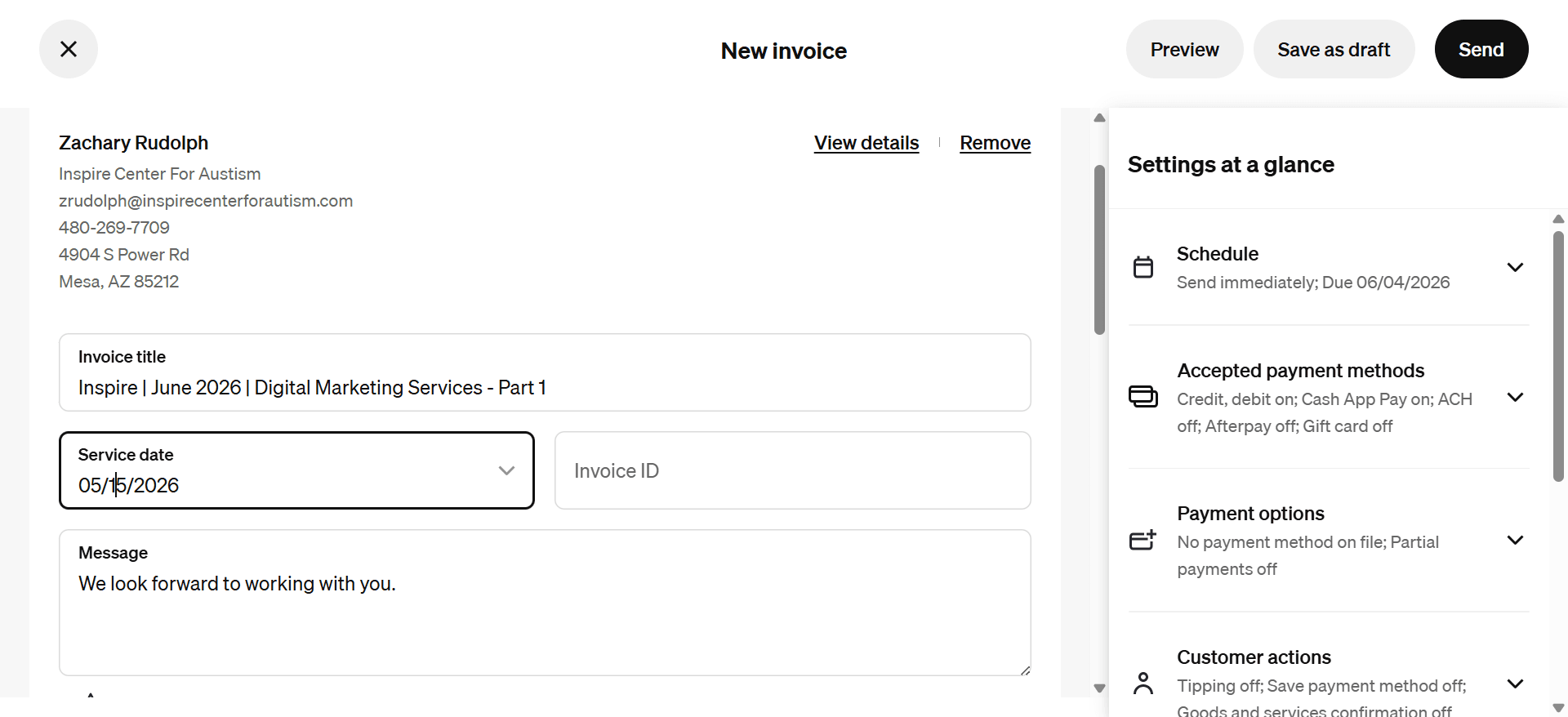
Type a clear, standardized invoice title that includes the client name, billing period, and service type (e.g., Inspire | June 2026 | Digital Marketing Services).
8
Click the Service date input field.
Step #8: Click the Service date input field.
9
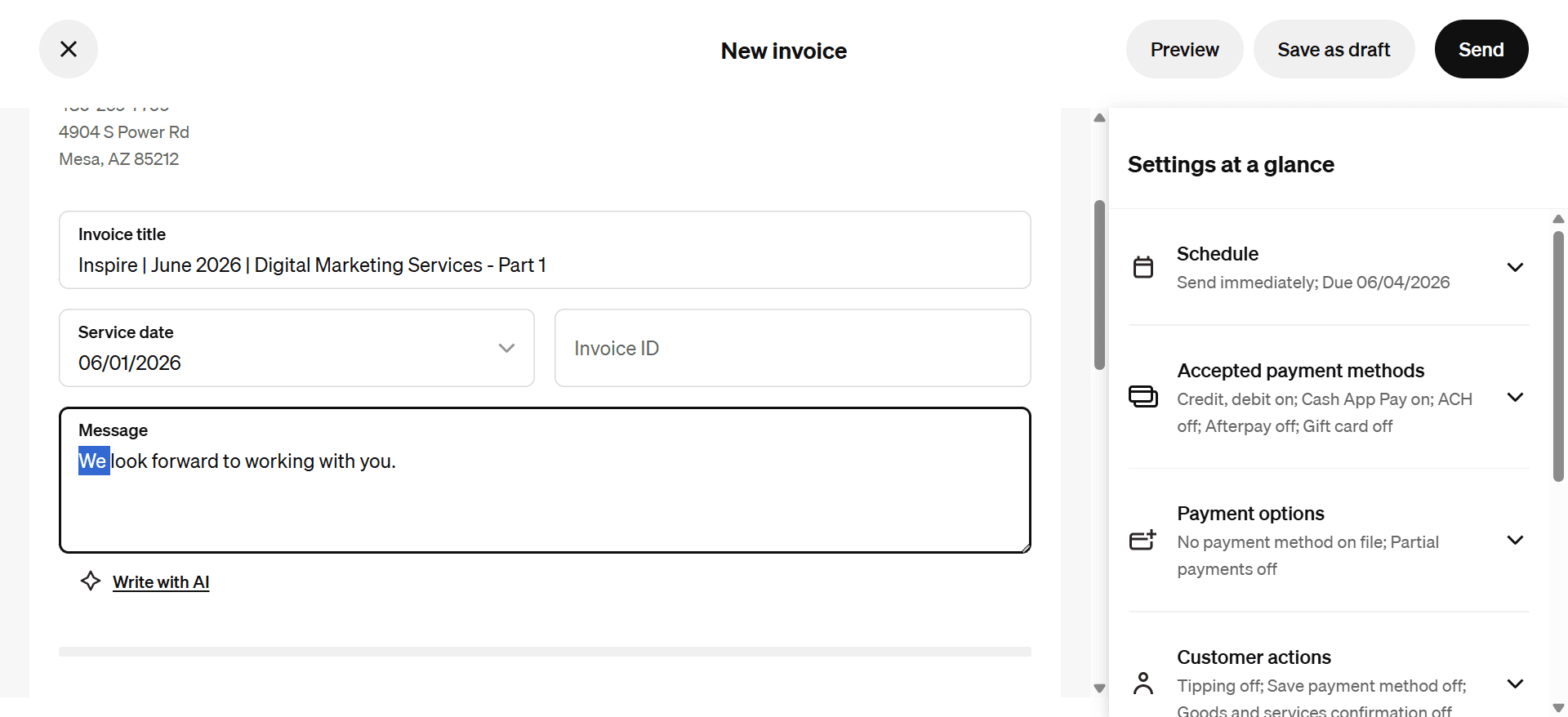
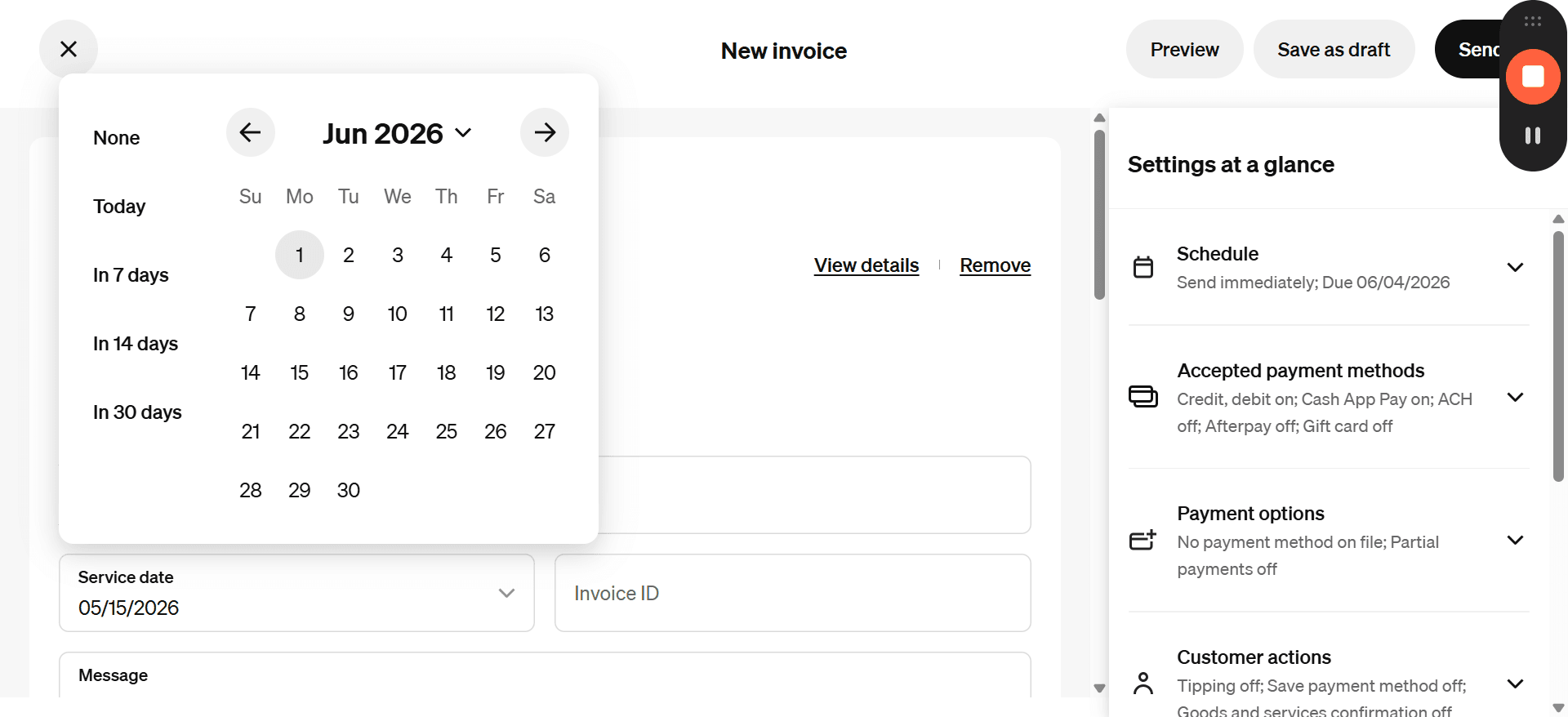
Select the appropriate service date from the calendar drop-down menu. Always put 1st for the first billing of the month and 15th for the 2nd billing of the month.
Step #9: Select the appropriate service date from the calendar drop-down menu. Always put 1st for the first billing of the month and 15th for the 2nd billing of the month.
10
Click the message input area, located below the service line items, to draft an introductory note.
Step #10: Click the message input area, located below the service line items, to draft an introductory note.
11
Type a personalized greeting for your client, such as Dear Zachary,, followed by your standard invoice message.

3. Log the Invoice in Notion

12
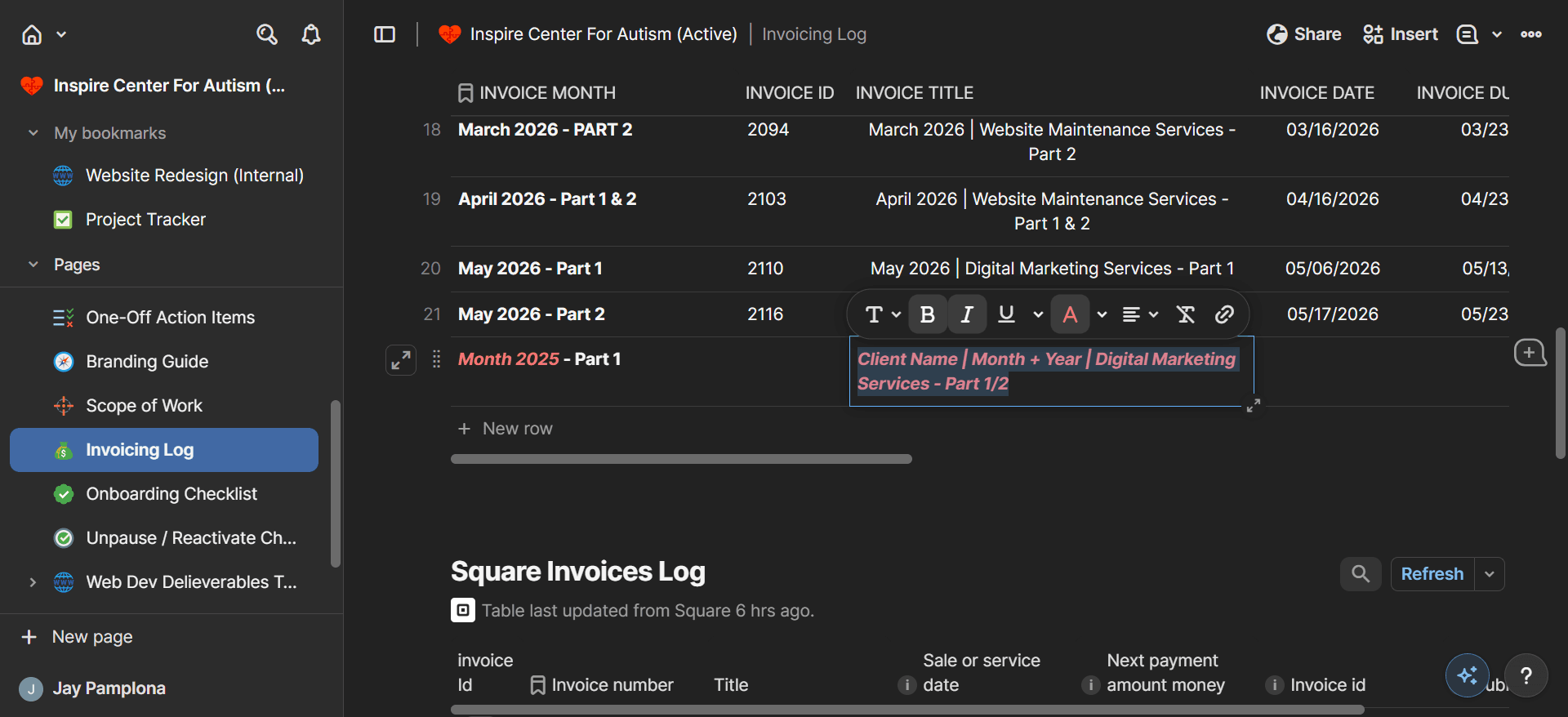
Return to your Notion workspace and add a new row in the Invoicing Log table. Fill out the Client Name, Month, Year, and Service Title to keep your records up to date.
Step #12: Return to your Notion workspace and add a new row in the Invoicing Log table. Fill out the Client Name, Month, Year, and Service Title to keep your records up to date.

Term

Definition

Scope of Work

A document that outlines the specific services, tasks, and costs agreed upon between a business and a client.

Invoicing Log

A tracking database used to record when invoices are sent, their associated service periods, and current payment statuses.

Updating Client Invoice Log | Square + Coda