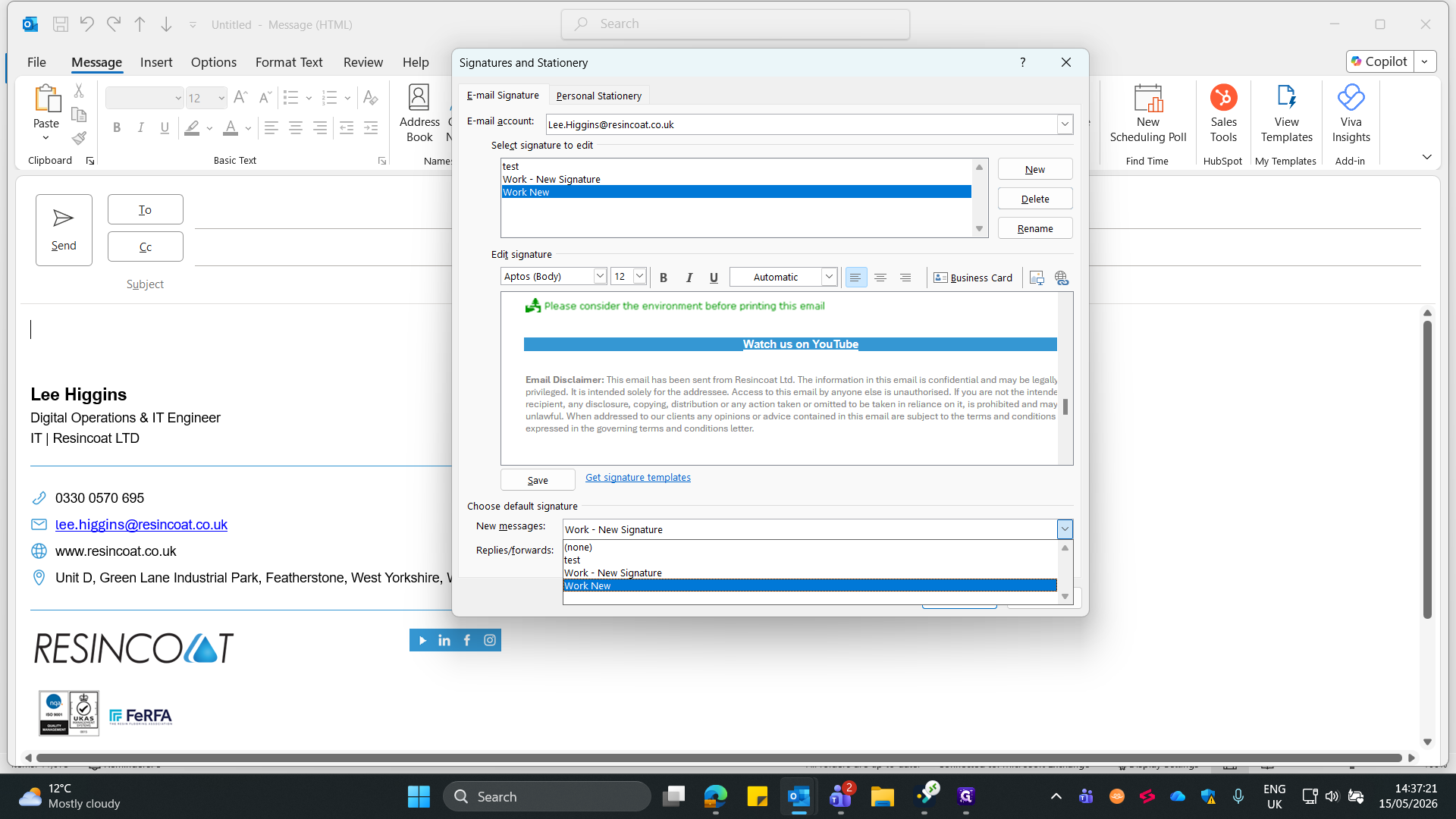
How to Create a New Email Signature in Outlook
Learn how to quickly create, configure, and apply a new email signature in Microsoft Outlook using content copied from an existing email thread.
This guide shows you how to quickly create a new email signature in Microsoft Outlook by copying an existing signature from an email thread. Doing this saves time and ensures your formatting and branding remain consistent.
This process applies to any Microsoft Outlook desktop user looking to manage their signatures, update their contact information, or set up a new standardized signature across their communications.
Copy an Existing Signature
Ctrl + C to copy it to your clipboard.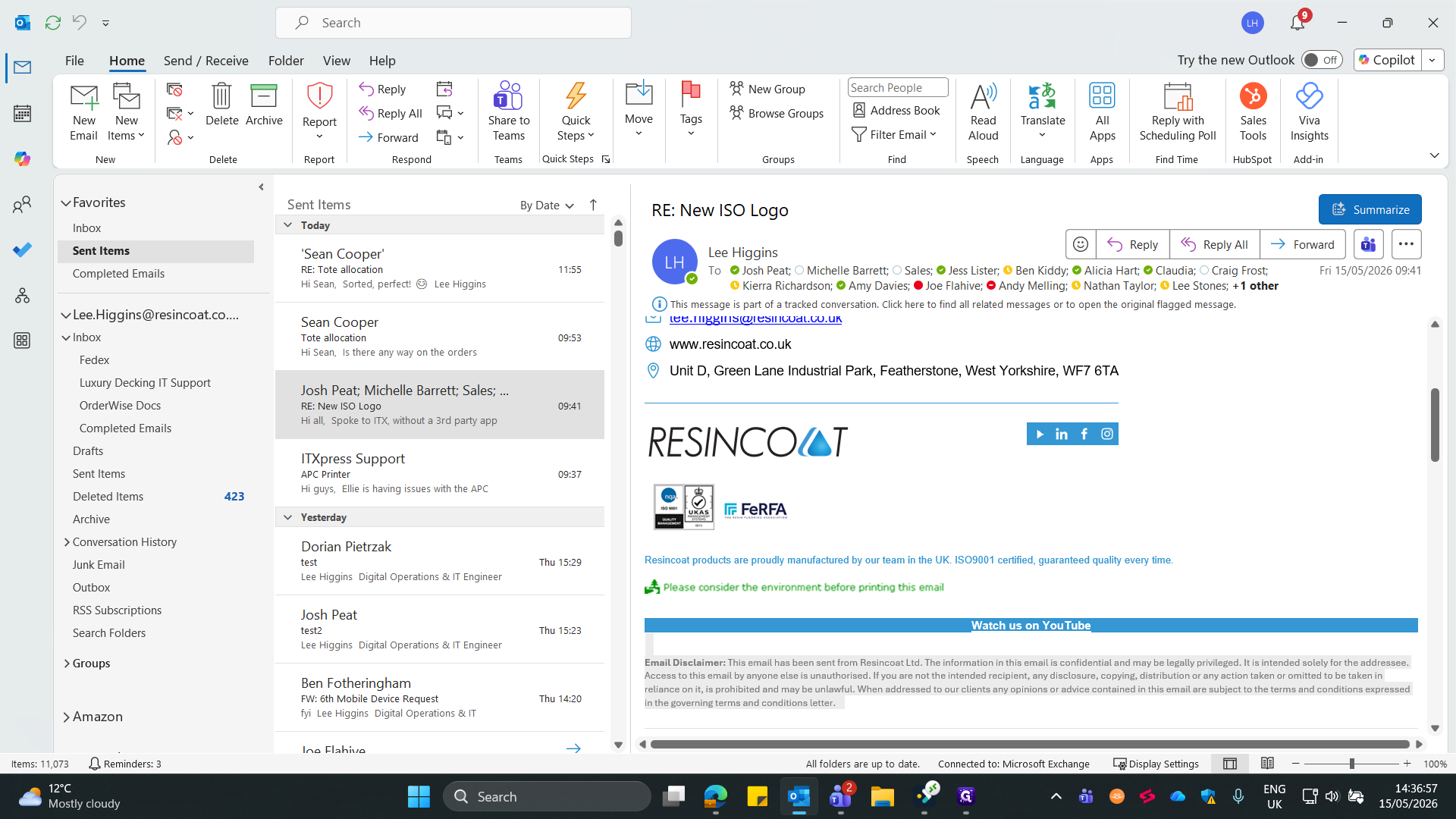
Create and Configure the New Signature
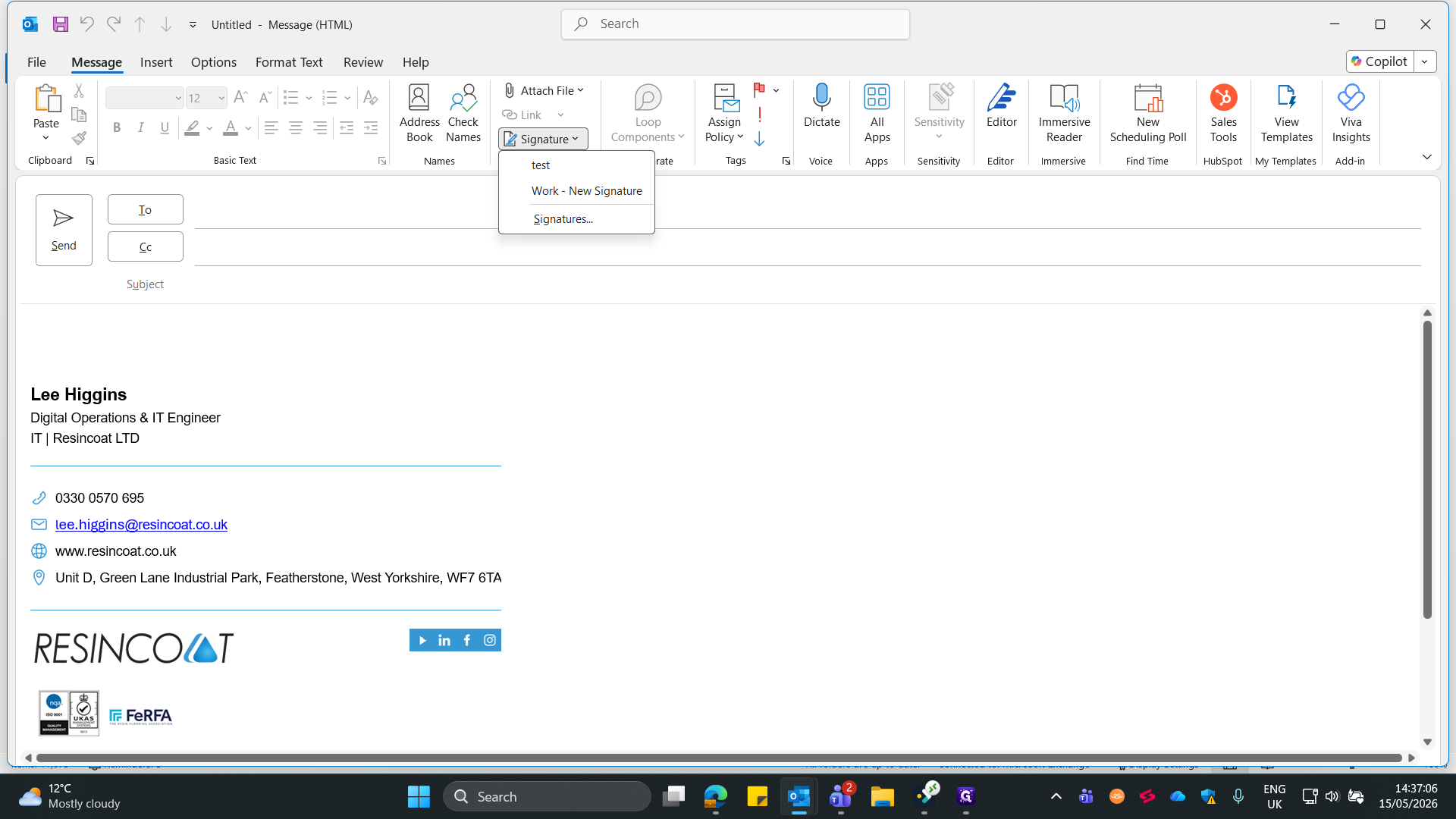
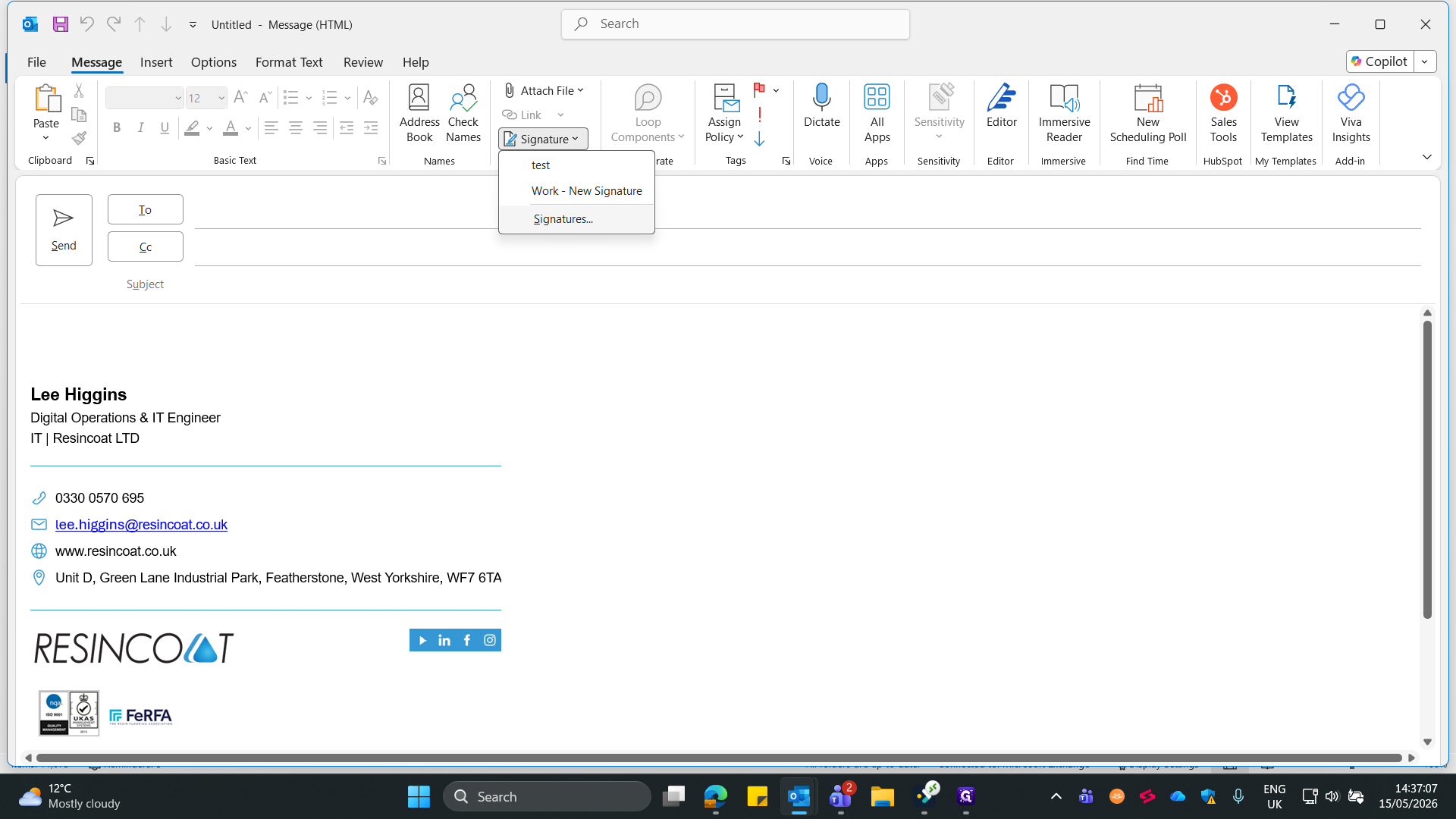
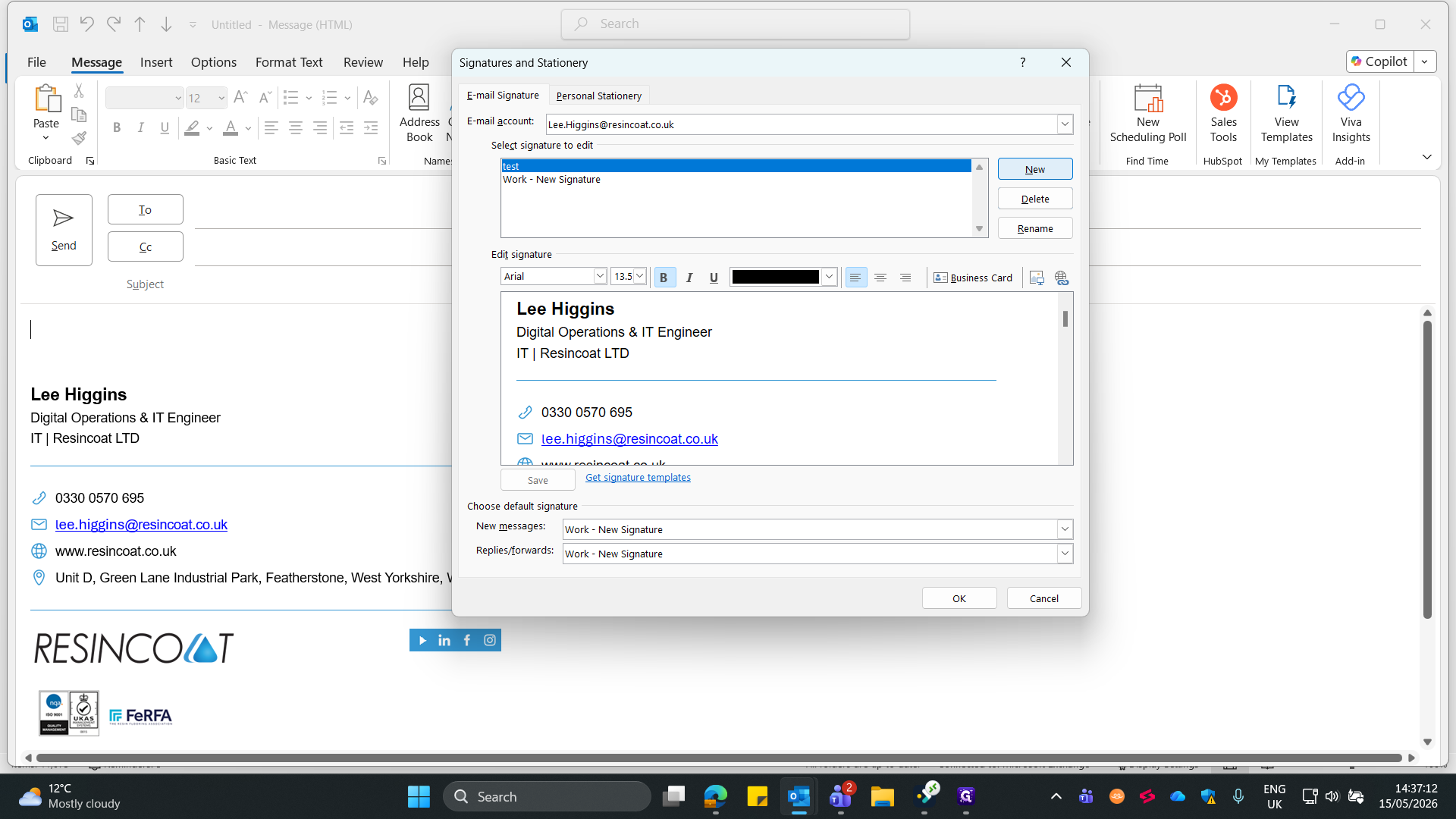
Ctrl + V to paste the content you copied earlier.Configure Default Settings
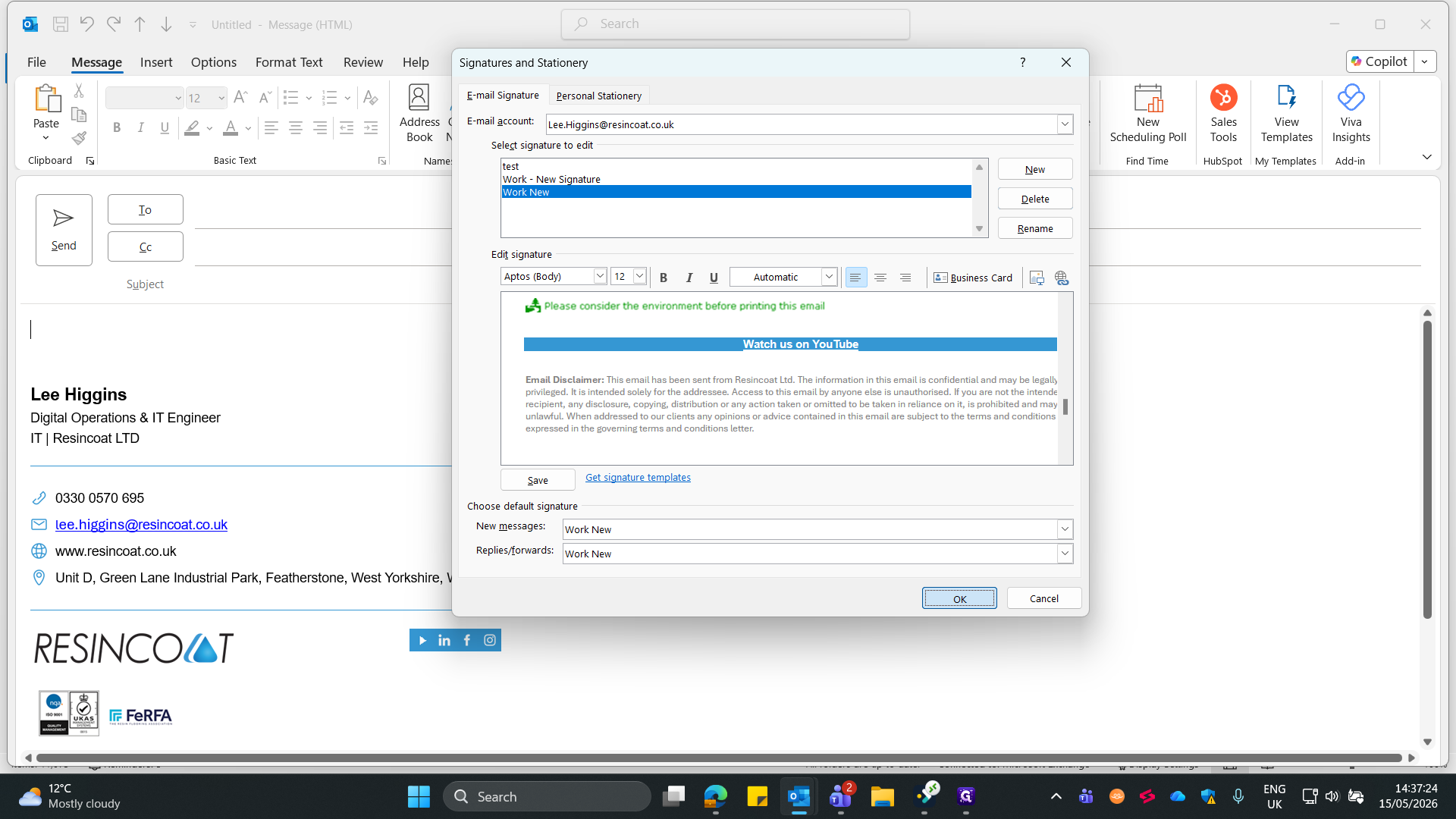
You can set Outlook to automatically append your signature depending on the type of email you are sending.
Setting | What it does | When to use |
|---|---|---|
New messages | Automatically applies the selected signature to every new email you compose. | Use for your primary, fully detailed professional signature. |
Replies/forwards | Automatically applies the signature when responding to or forwarding an email. | Use for a shorter, less cluttered version of your signature. |