Create a Recurring Service Audience
Learn how to build a targeted recurring service audience using membership filters and exclusion rules for scheduled and completed appointments.
This guide explains how to build a targeted audience list based on recurring service memberships. Completing this process allows you to prepare precise contact lists for routine maintenance and service outreach.
This workflow is designed for marketing and operations teams who manage outbound campaigns. It is typically used when preparing monthly contact lists for routine service scheduling to ensure customers are not double-booked or contacted unnecessarily.
Create a new audience by following these initial setup steps:
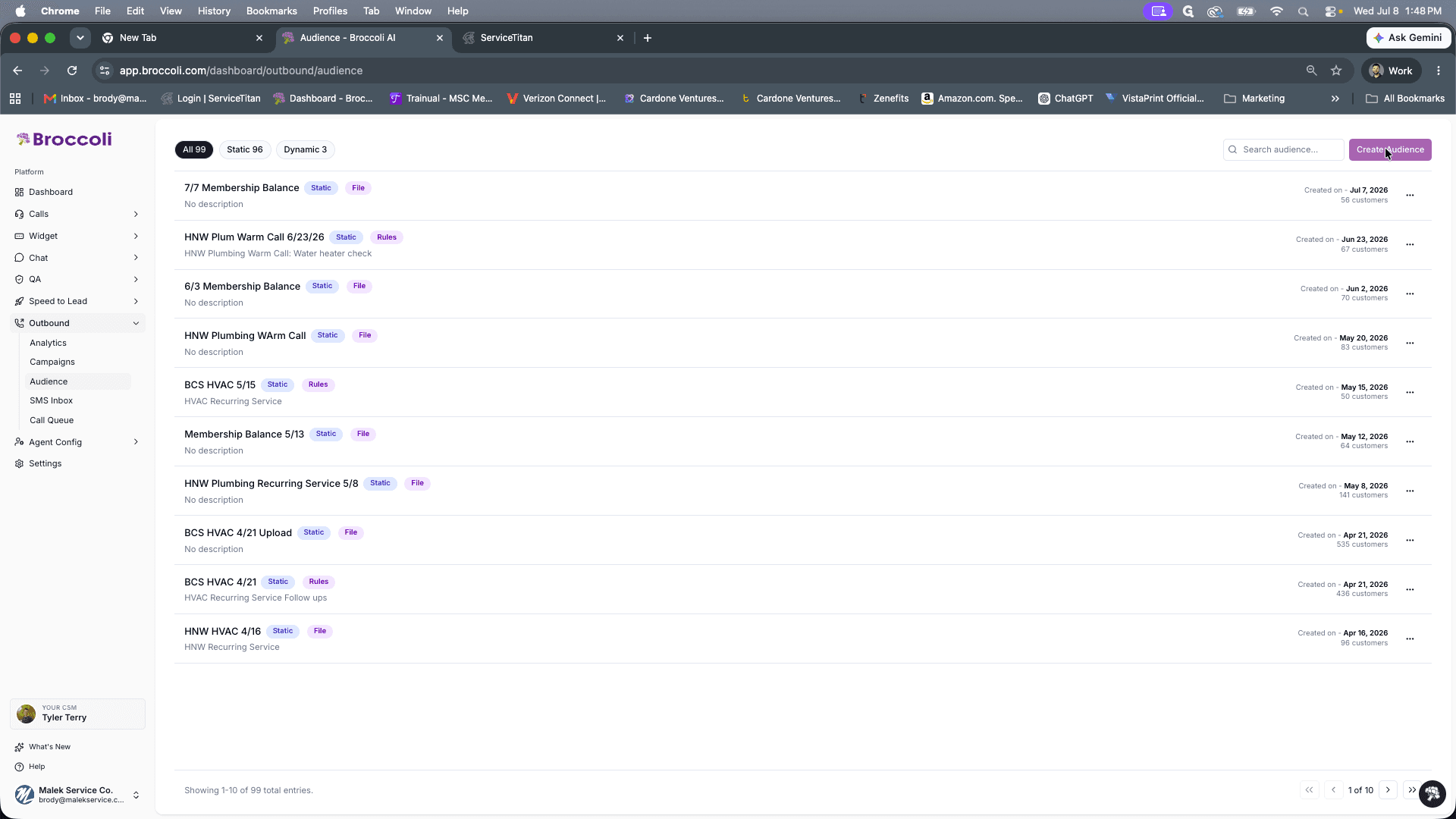
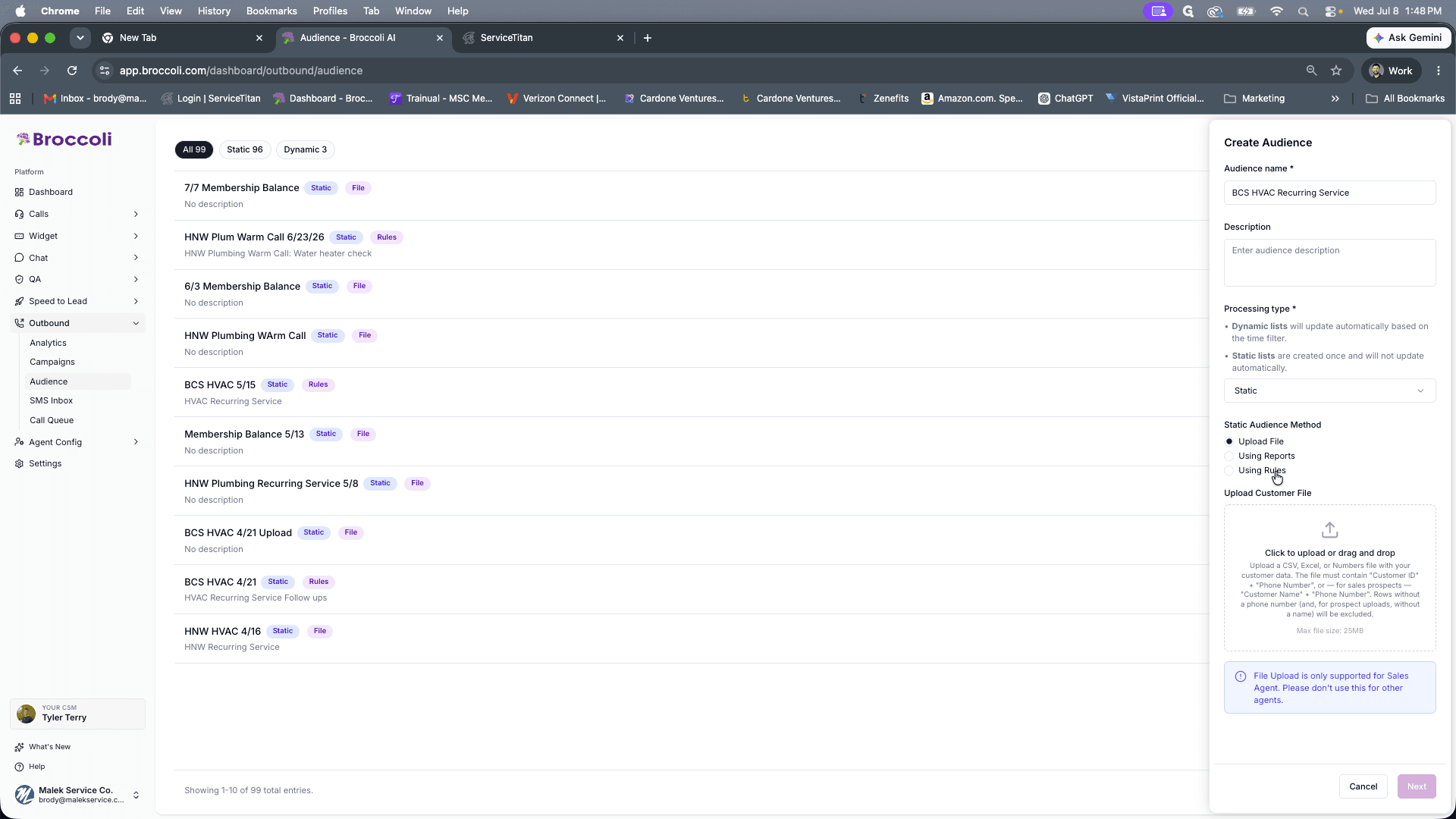
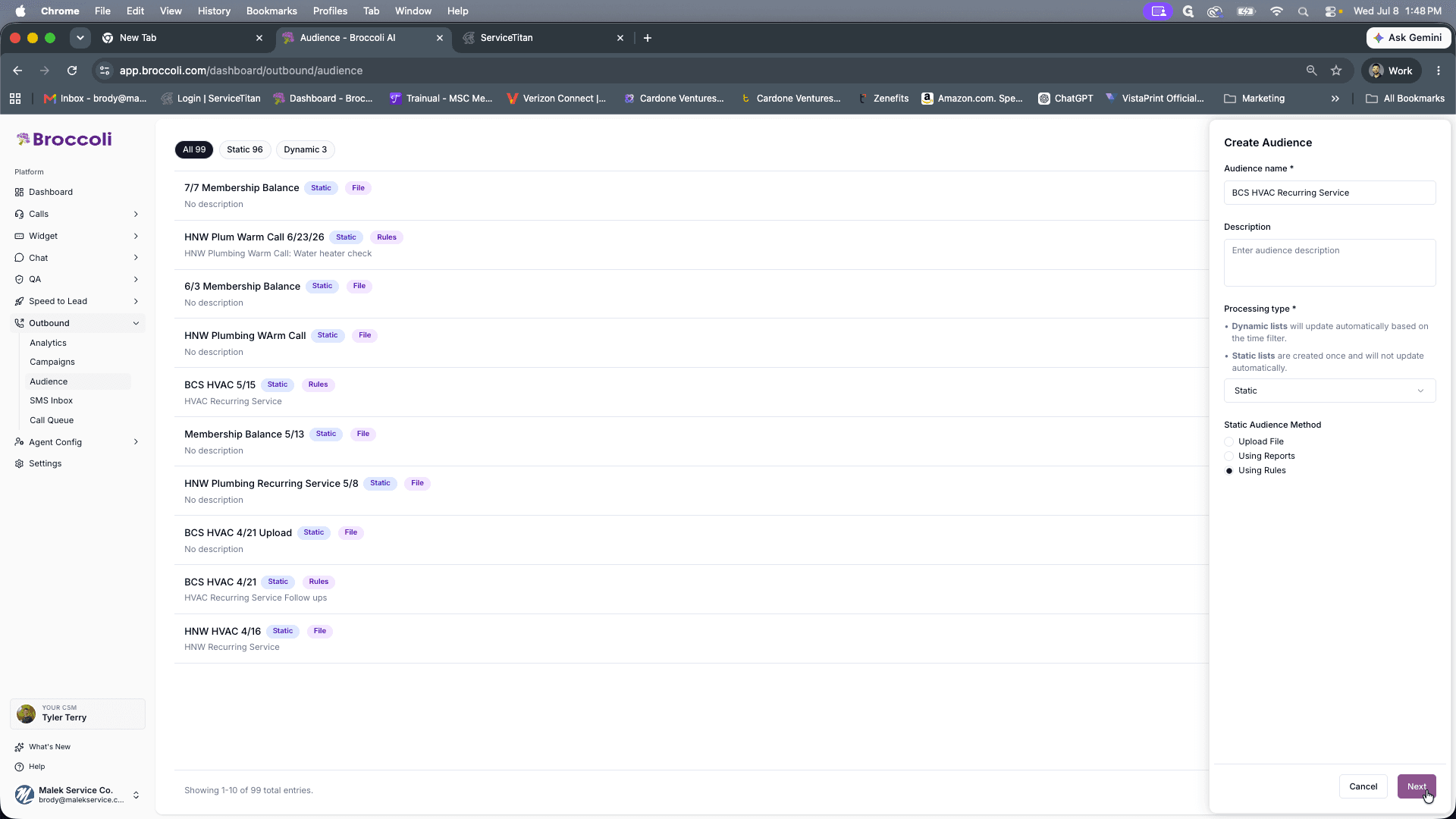
Configure Audience Rules
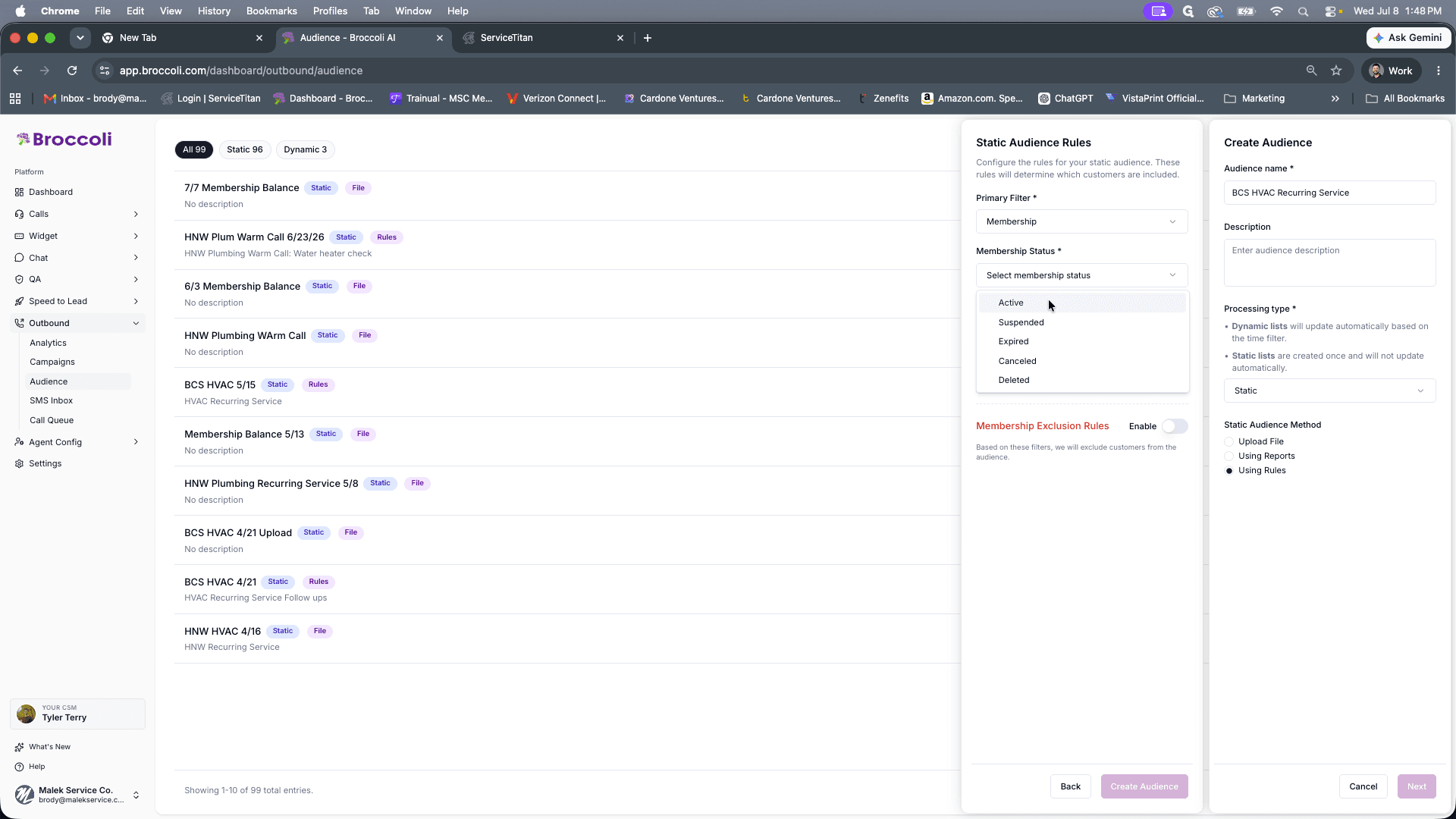
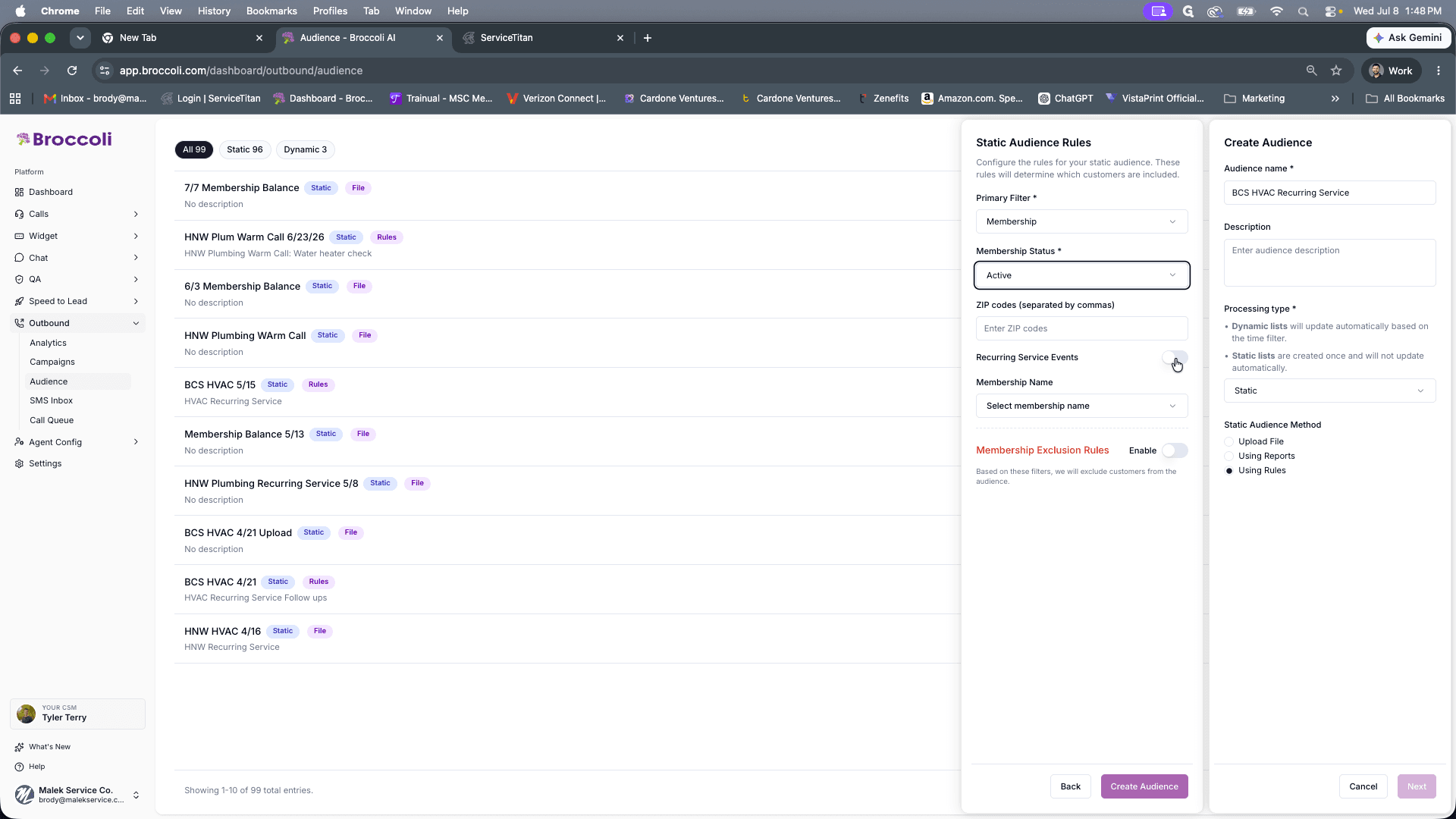
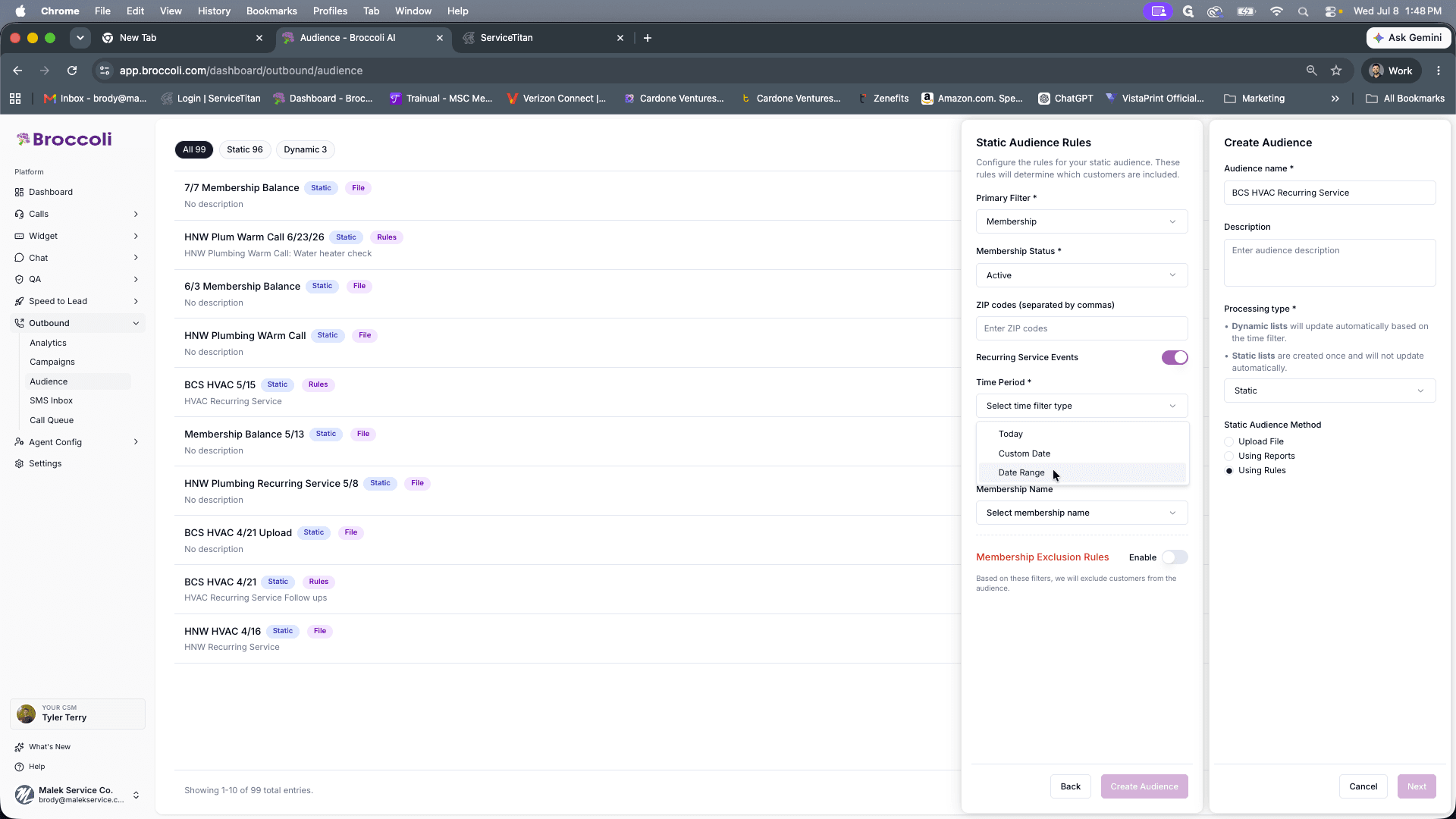
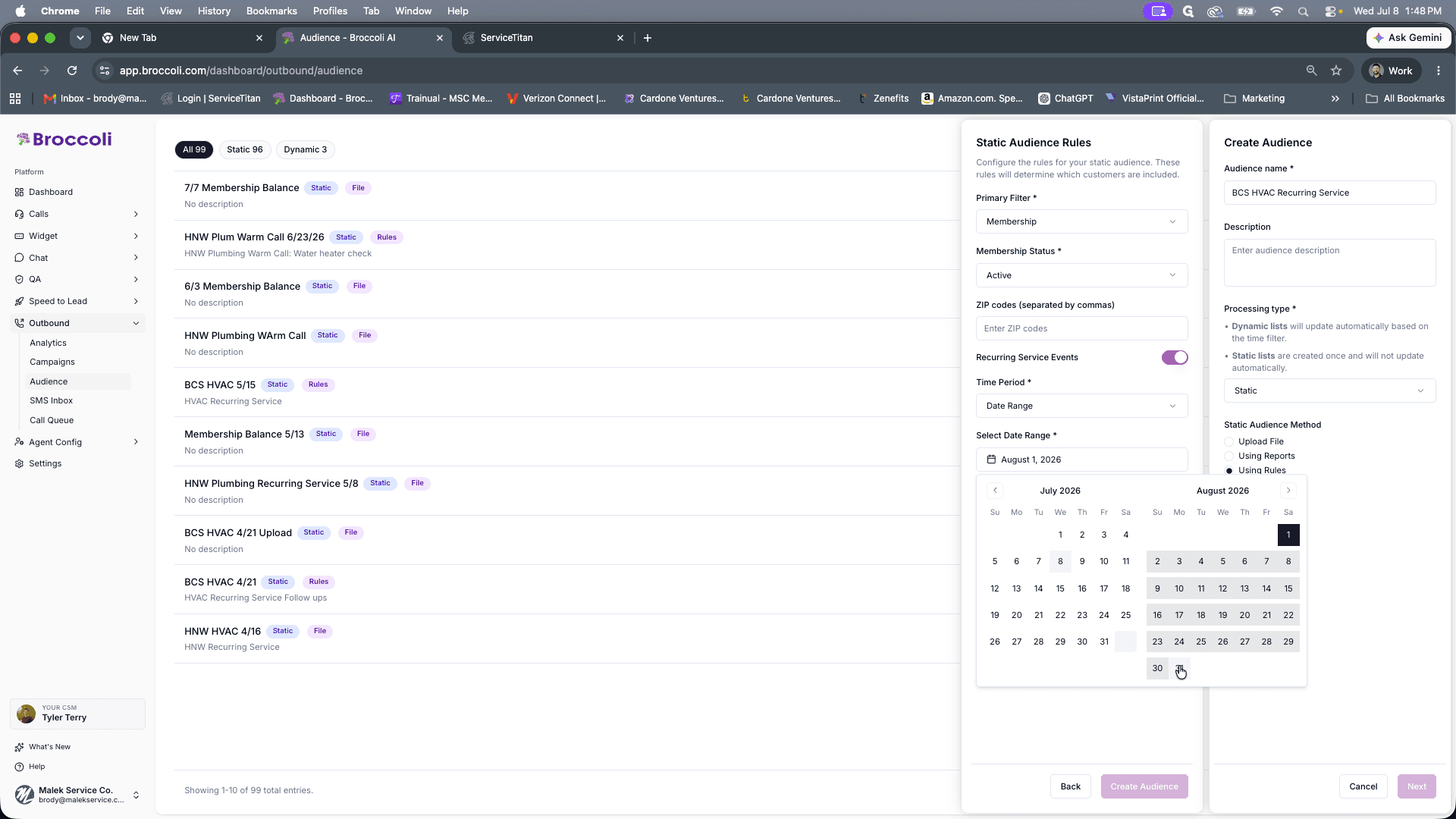
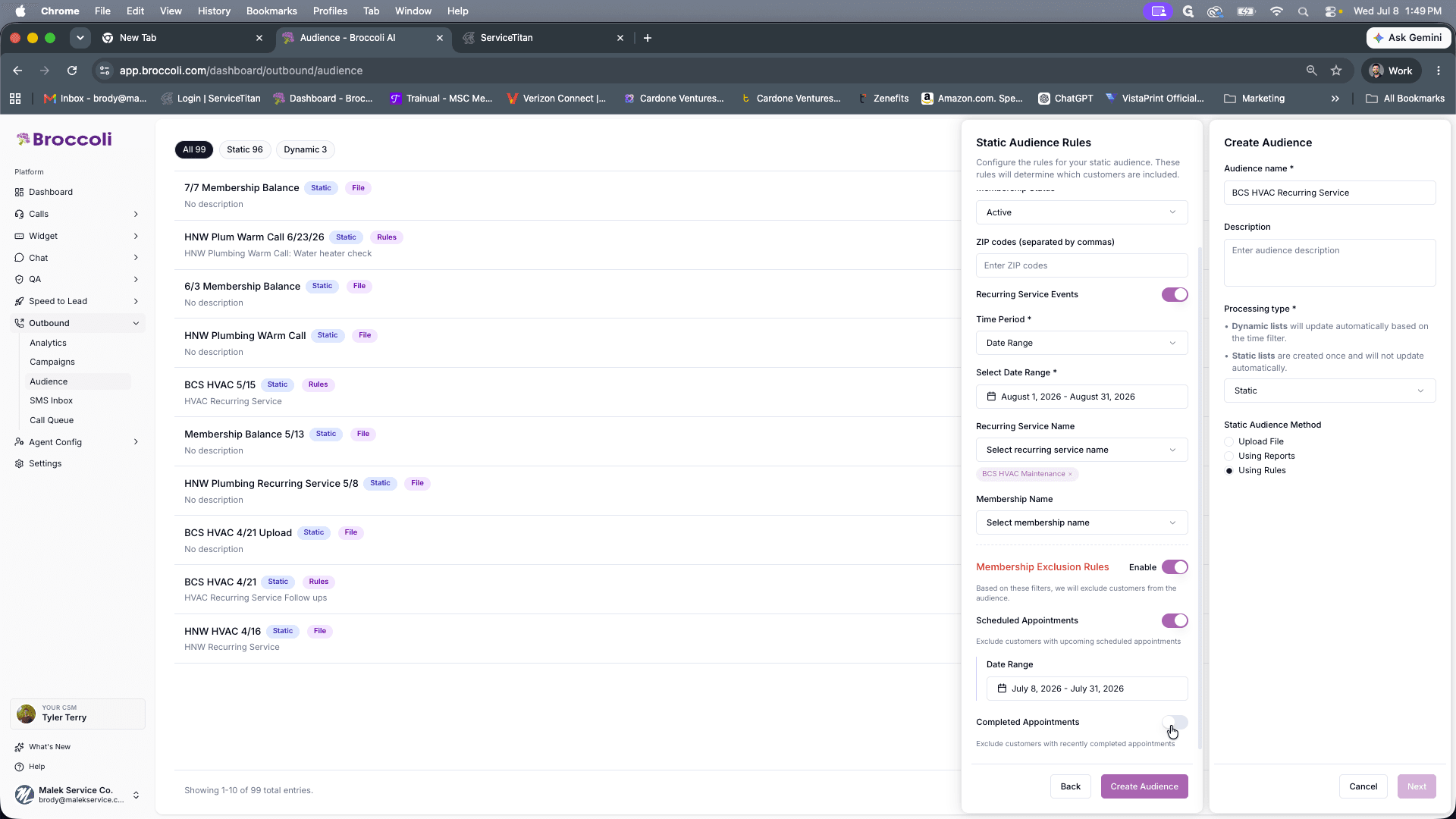
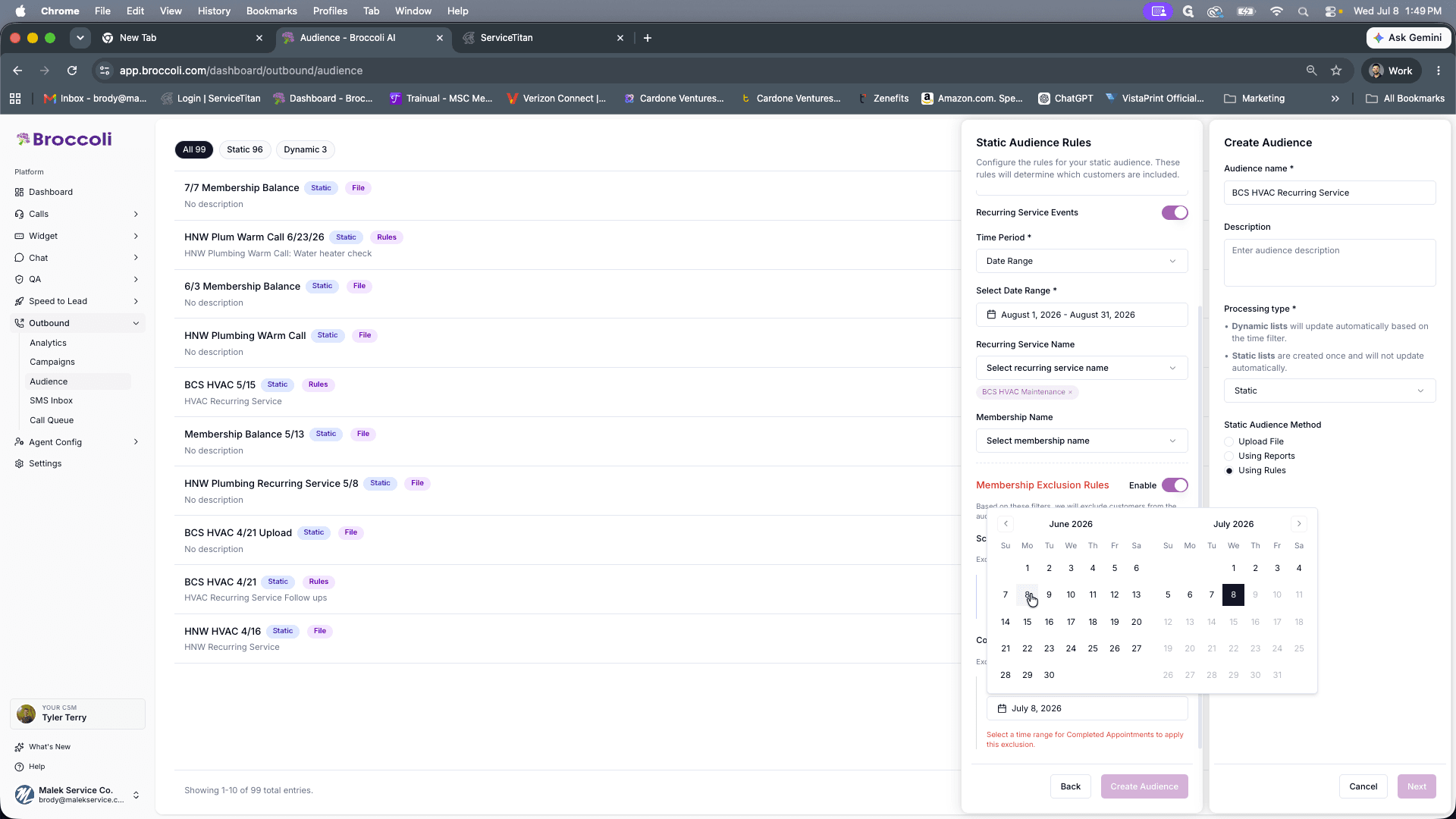
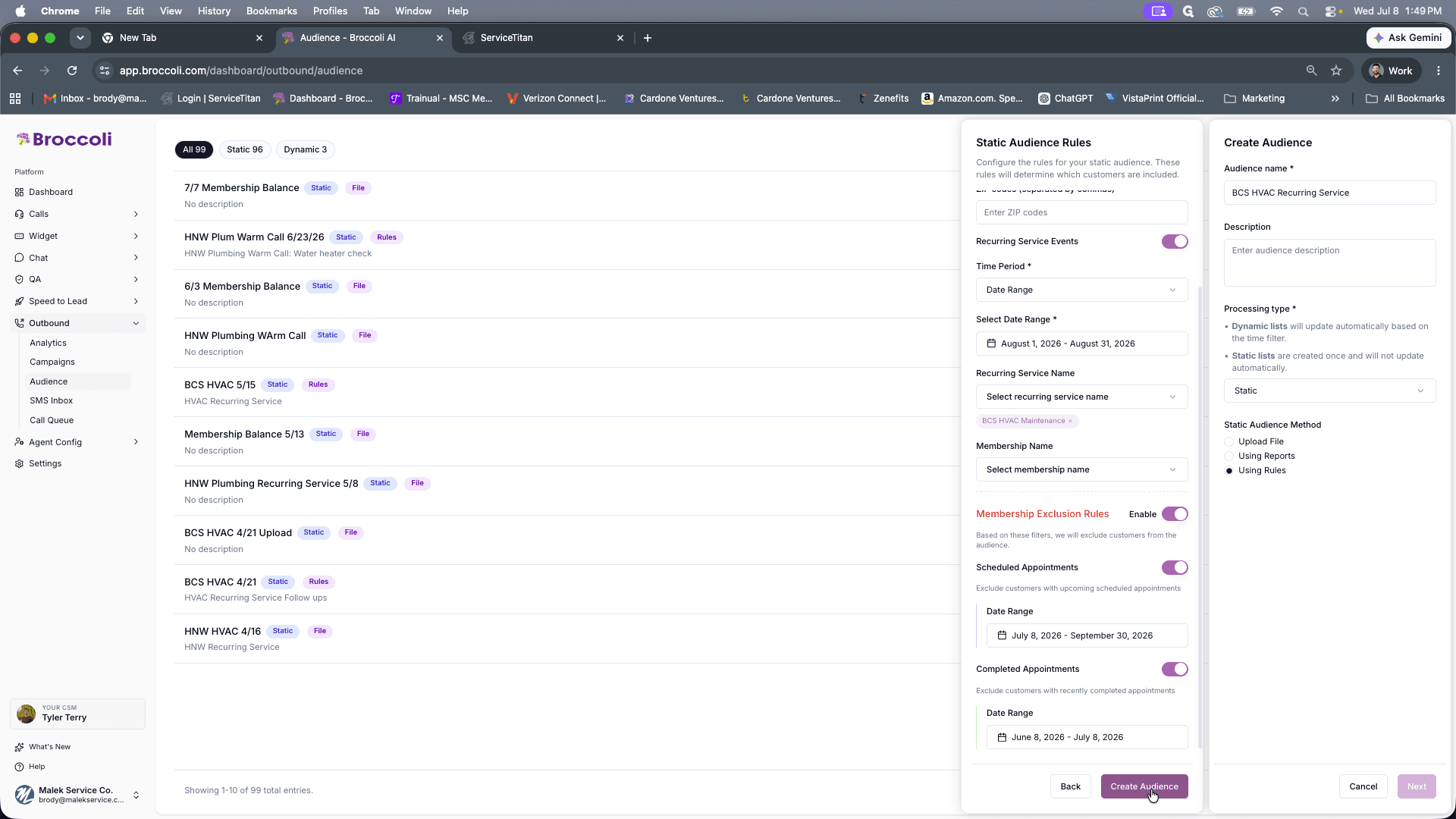
When building your audience query, you will combine inclusion rules to target specific members and exclusion rules to filter out customers who already have appointments. Use the table below as a reference for how you will structure your query:
Rule Category | Filter Type | Value Selection |
|---|---|---|
Primary Filter | Membership | Active |
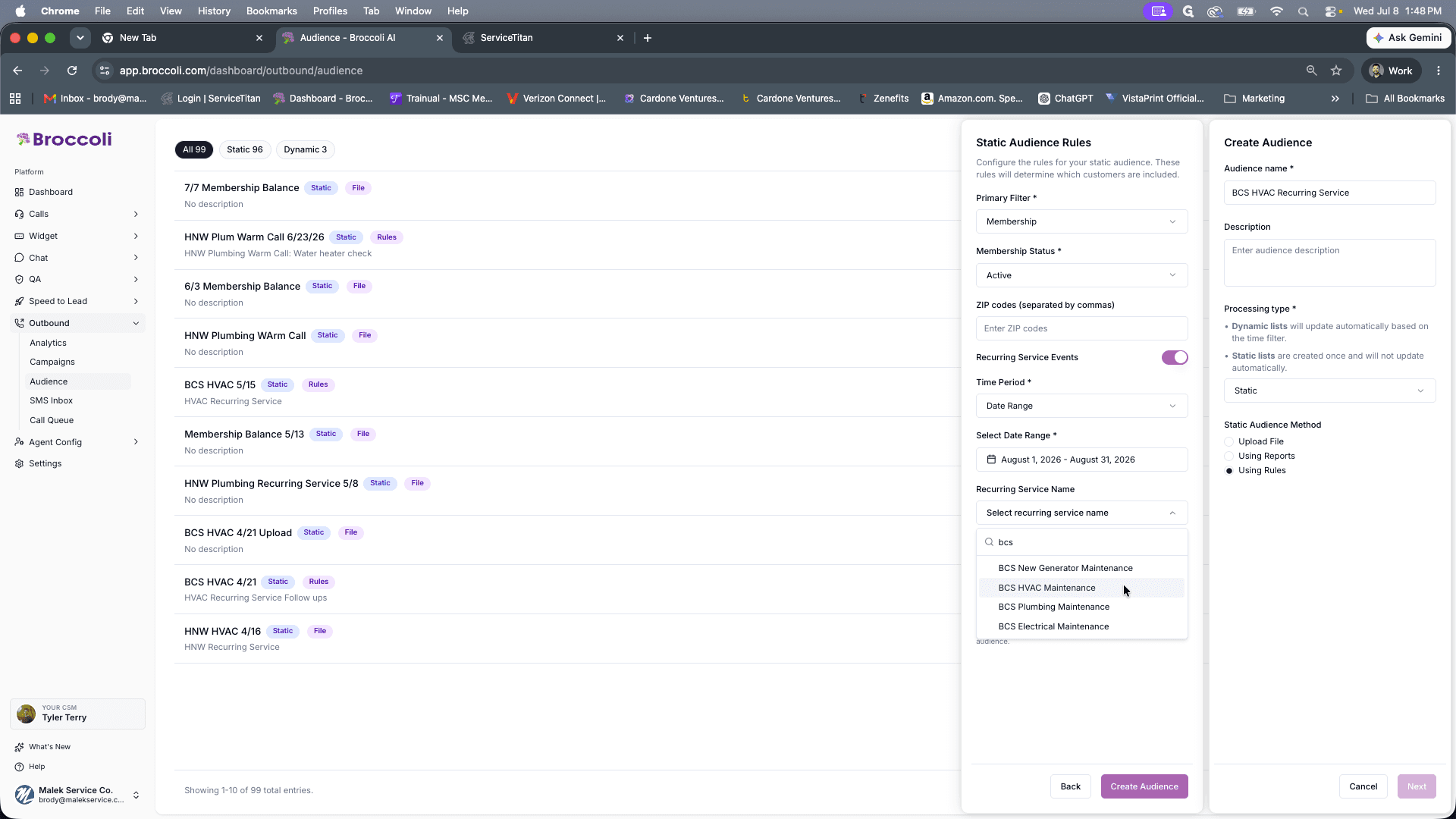
Inclusion | Recurring Service Events | Target Month (e.g., August) |
Inclusion | Recurring Service Name | Target Service (e.g., BCS HVAC Maintenance) |
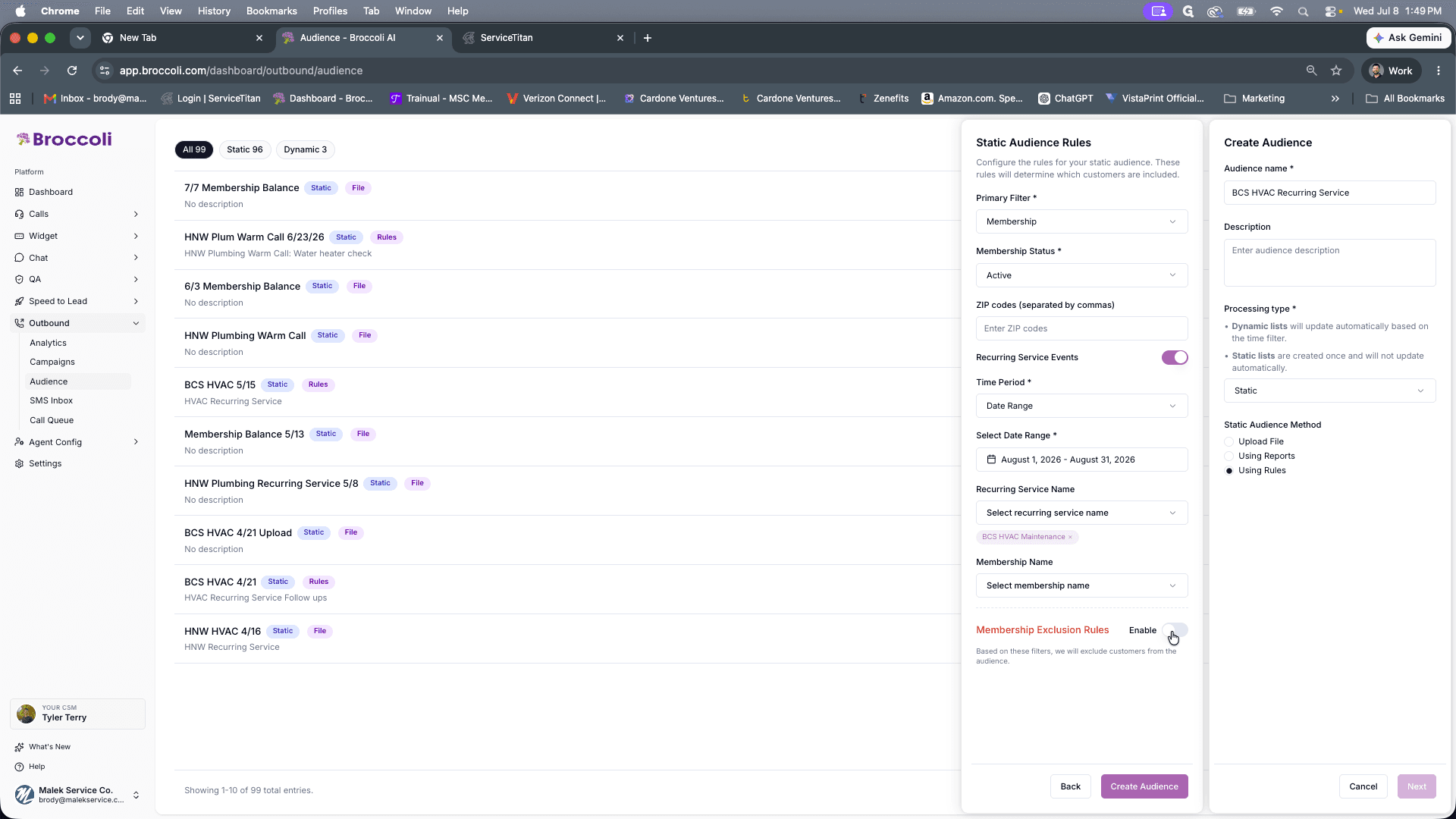
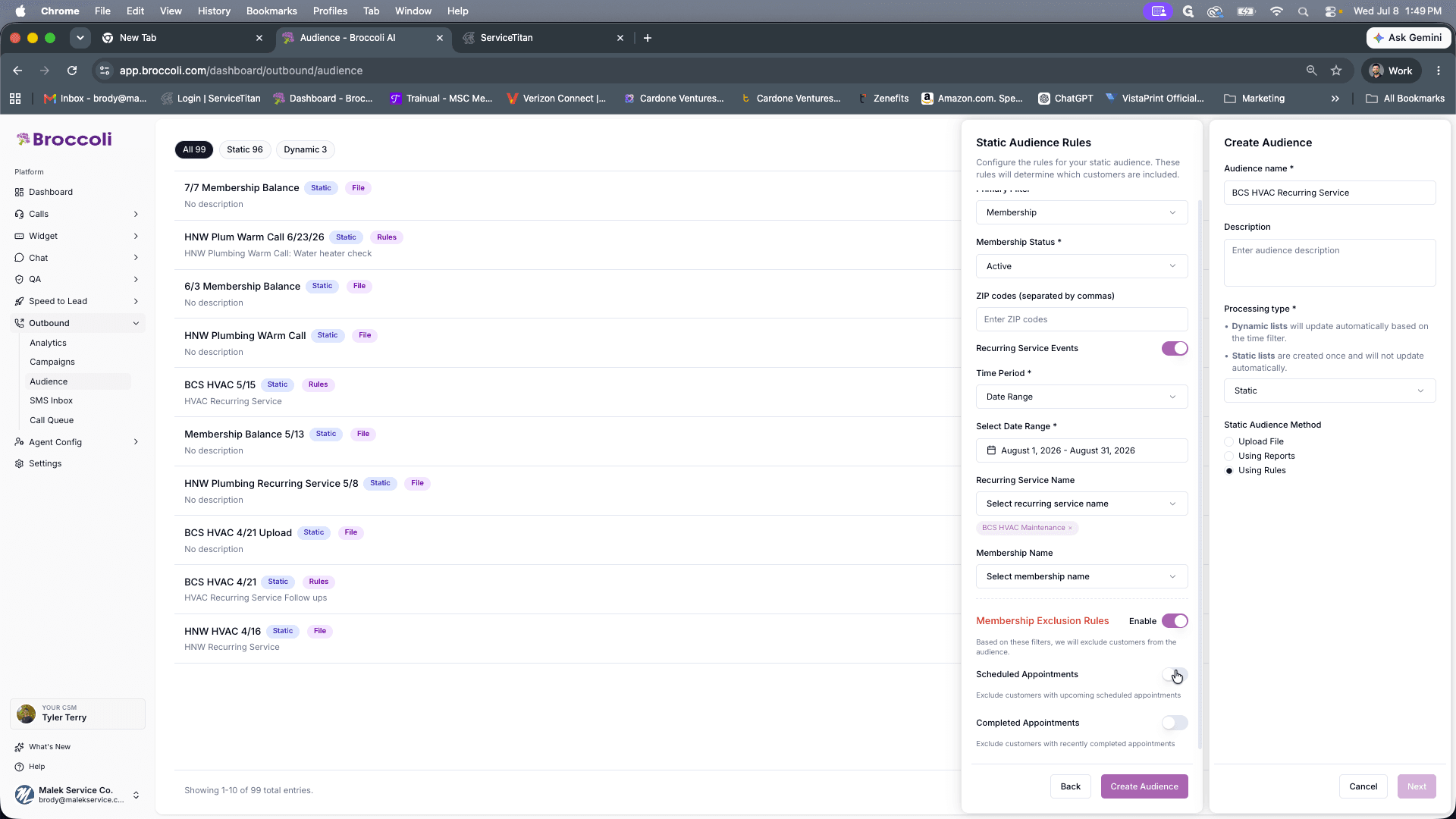
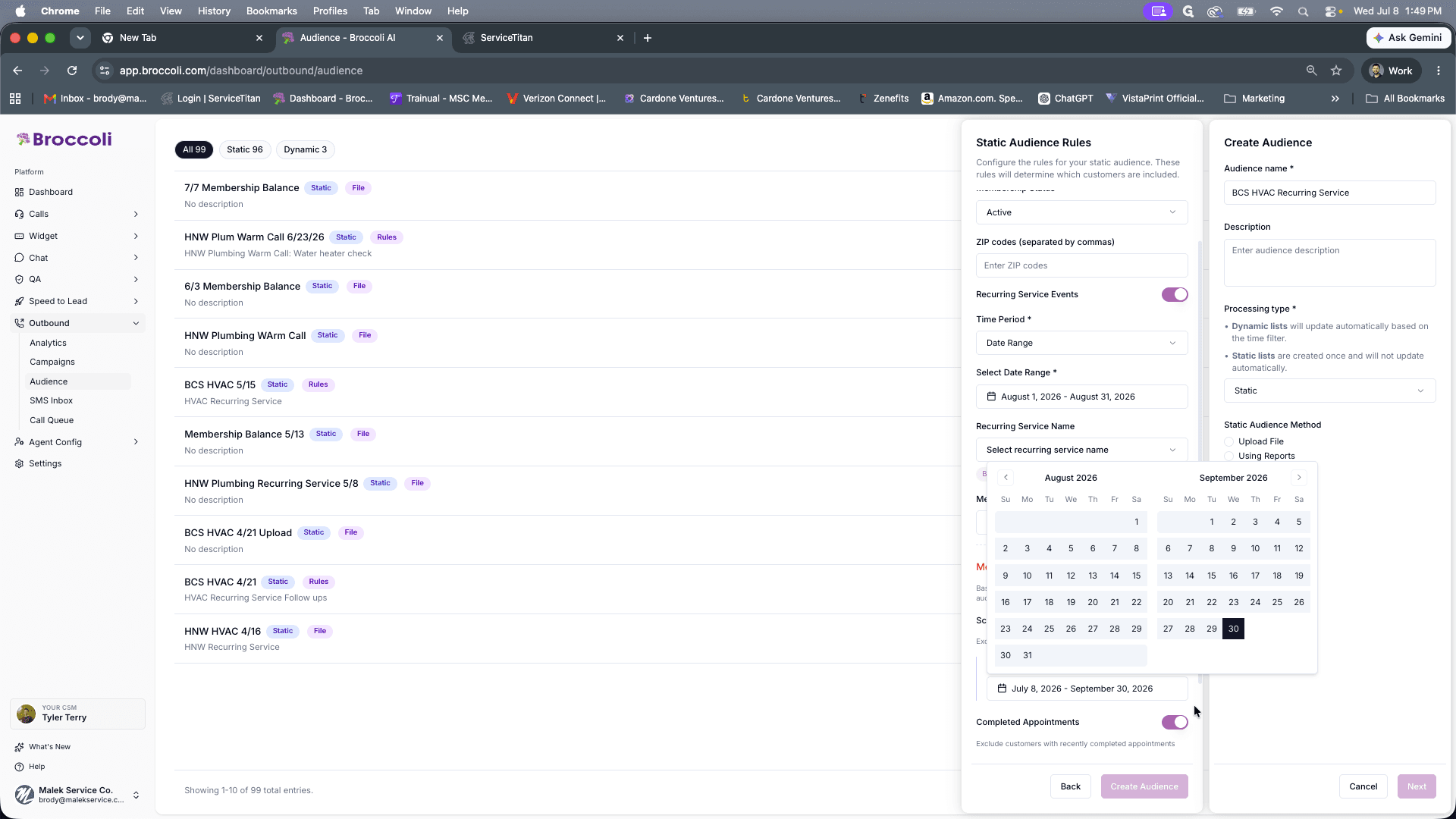
Exclusion | Scheduled Appointments | Target Month to Next Month (e.g., August - September) |
Exclusion | Completed Appointments | Previous Month (e.g., July) |
Set Inclusion Criteria
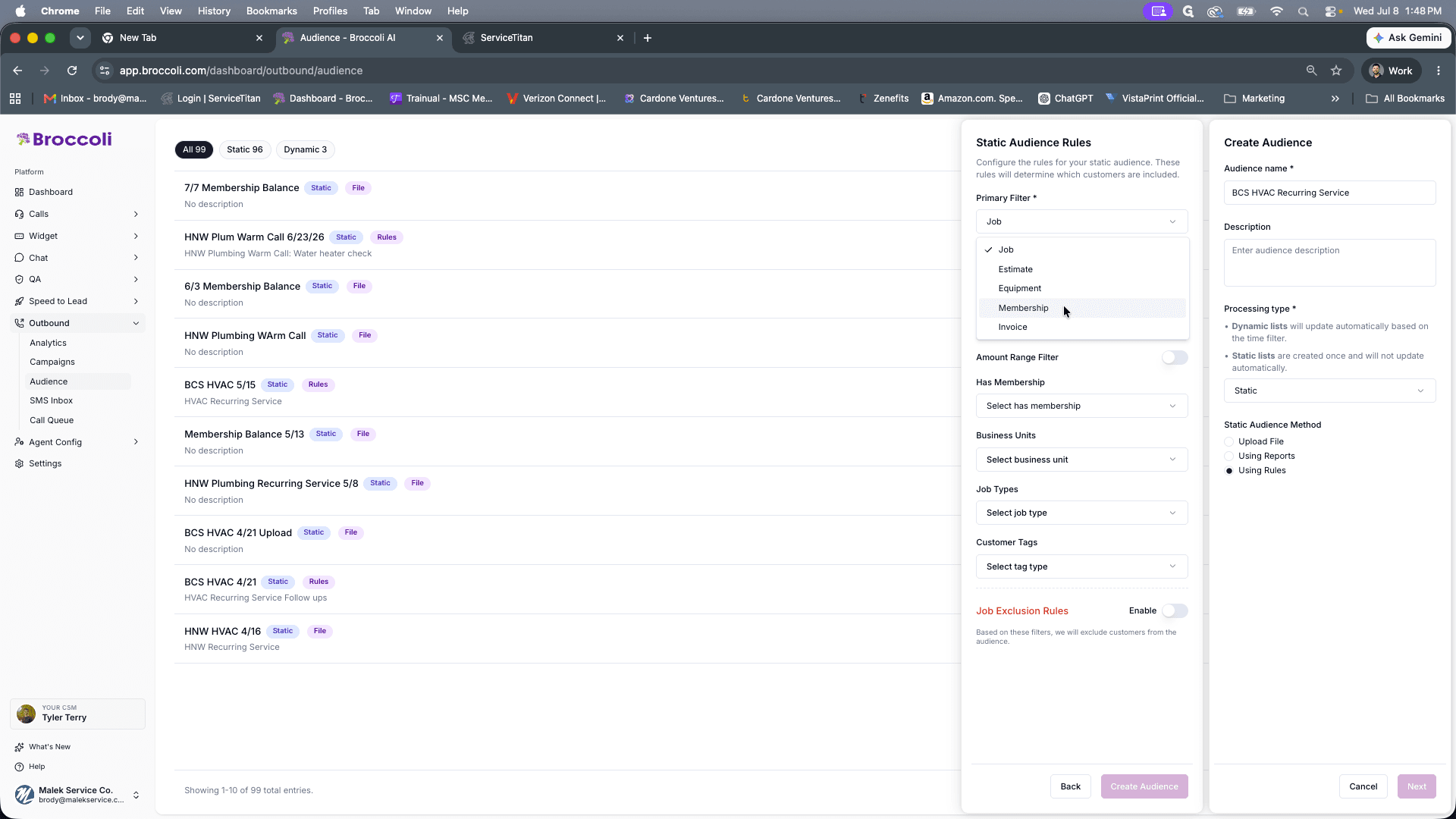
Set Exclusion Criteria
Q: Why is the audience creation taking a long time to process?
A: Longer processing times typically indicate a large number of matched customers in your database, which is expected for broad recurring service criteria.
Q: How do I use the audience once it is created?
A: You can duplicate an existing recurring service campaign and update its target audience configuration to use your newly created list.
Term | Definition |
|---|---|
Membership Exclusion Rules | Filters that automatically remove customers from your audience if they meet specific criteria, such as already having a scheduled or completed appointment. |
Static Audience | A fixed list of customers generated based on a specific set of rules applied exactly at the time of creation. |
Recurring Service Events | Scheduled, repeating maintenance or service visits associated with an active customer membership. |