Icon

Getting a New Referral onto the Pipeline straight from Zoho Mail

Learn how to process incoming client referrals directly from Zoho Mail into your Zoho CRM pipeline without switching tabs.

By Carmel Coman

This guide shows how to process a new referral directly from the Zoho Mail inbox into the Zoho CRM pipeline without switching tabs. By using the CRM integration, you can efficiently copy information from an email and create a pipeline record faster.

This workflow applies to intake staff or admins processing incoming referrals from existing solicitor contacts during their daily inbox triage.

Open the Email and Sidebar
1
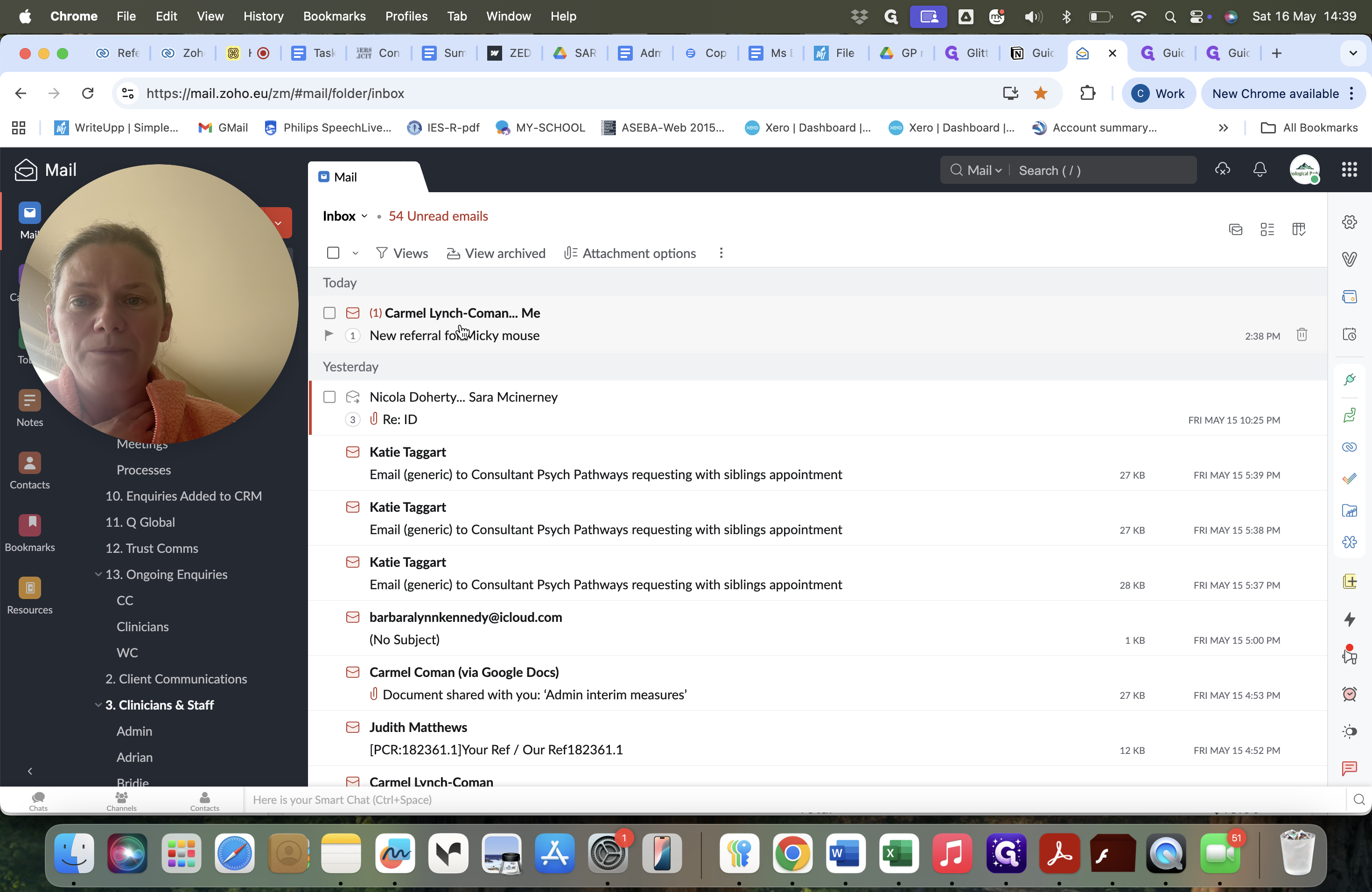
Click on the new referral email in your Zoho Mail inbox to open it.
Step #1: Click on the new referral email in your Zoho Mail inbox to open it.
2
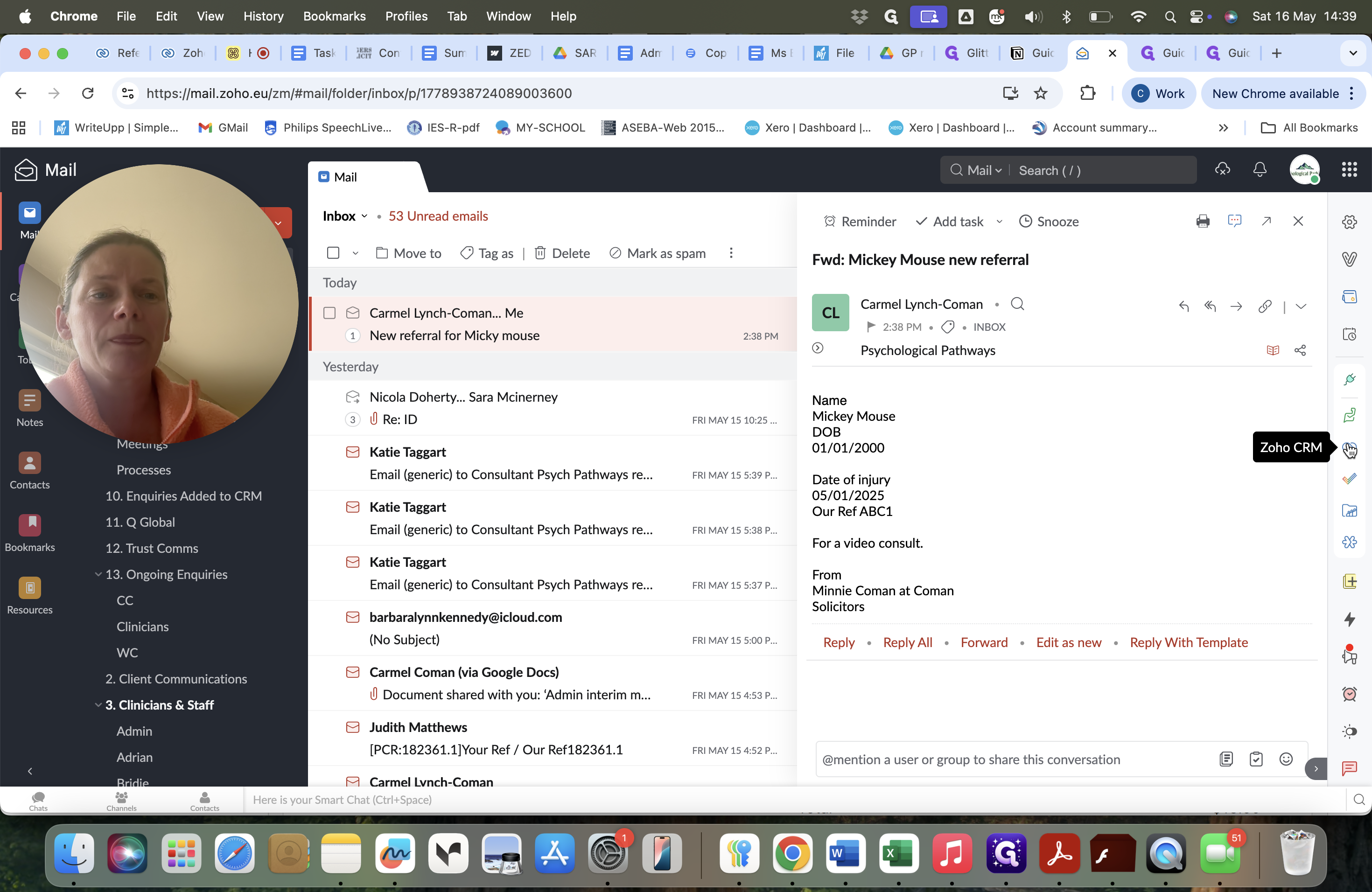
Click the Zoho CRM icon in the sidebar to open the CRM integration panel.
Step #2: Click the Zoho CRM icon in the sidebar to open the CRM integration panel.

Associate Contact and Create Referral
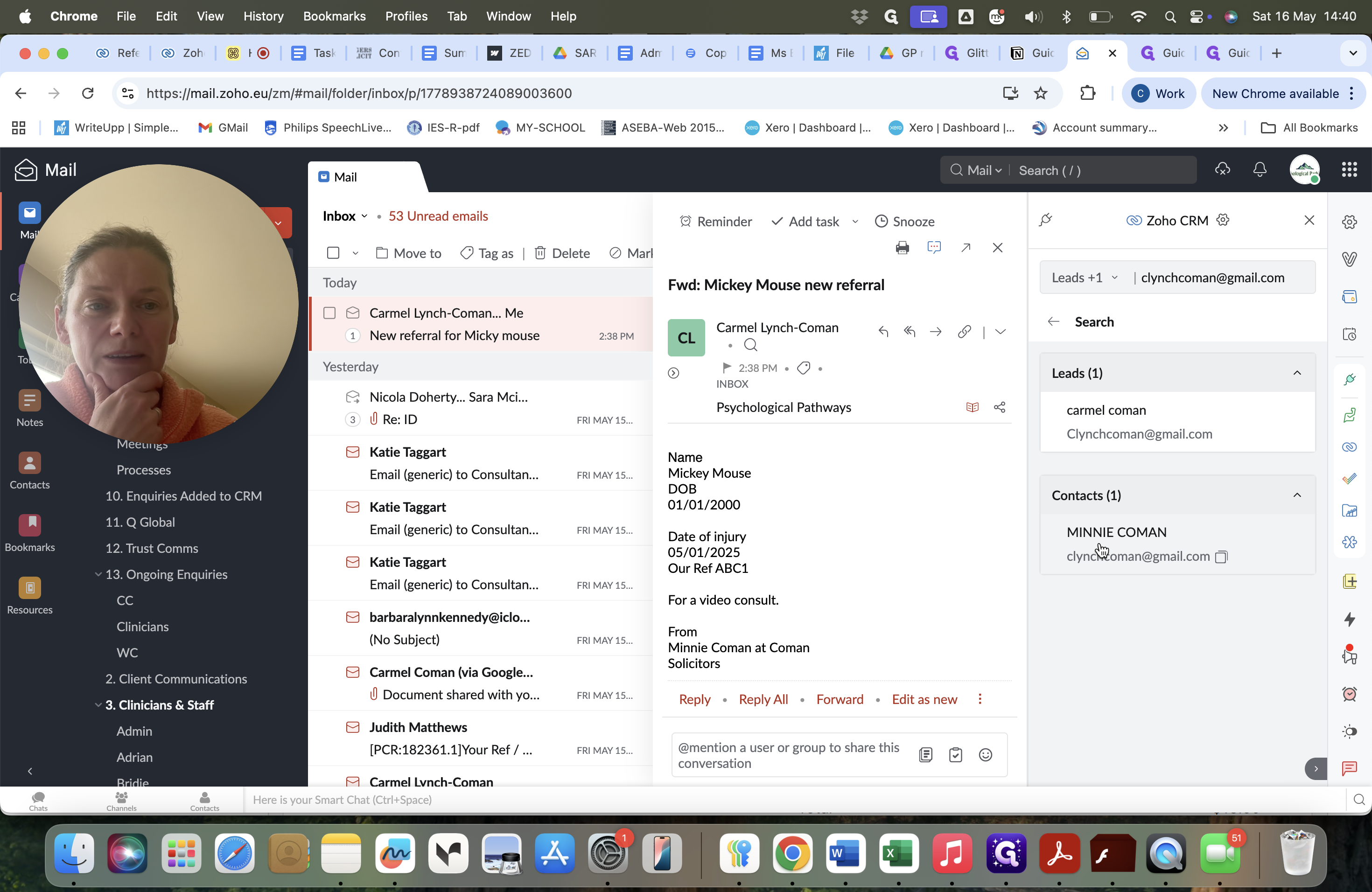
3
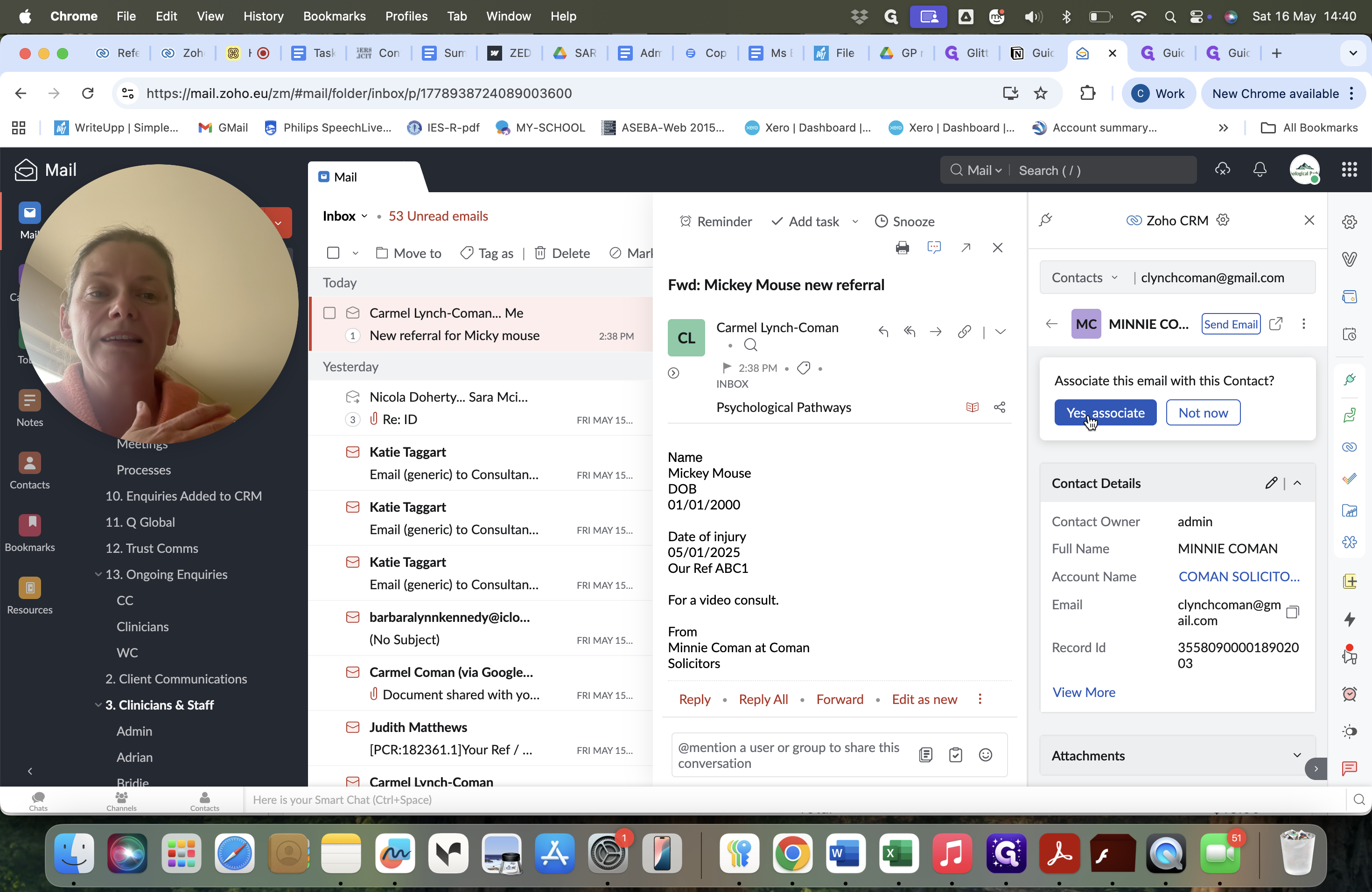
Click on the contact name that the system automatically recognizes from the email.
Step #3: Click on the contact name that the system automatically recognizes from the email.
4
Click Yes, associate to link the email to all previous correspondence with this solicitor.
Step #4: Click Yes, associate to link the email to all previous correspondence with this solicitor.
5
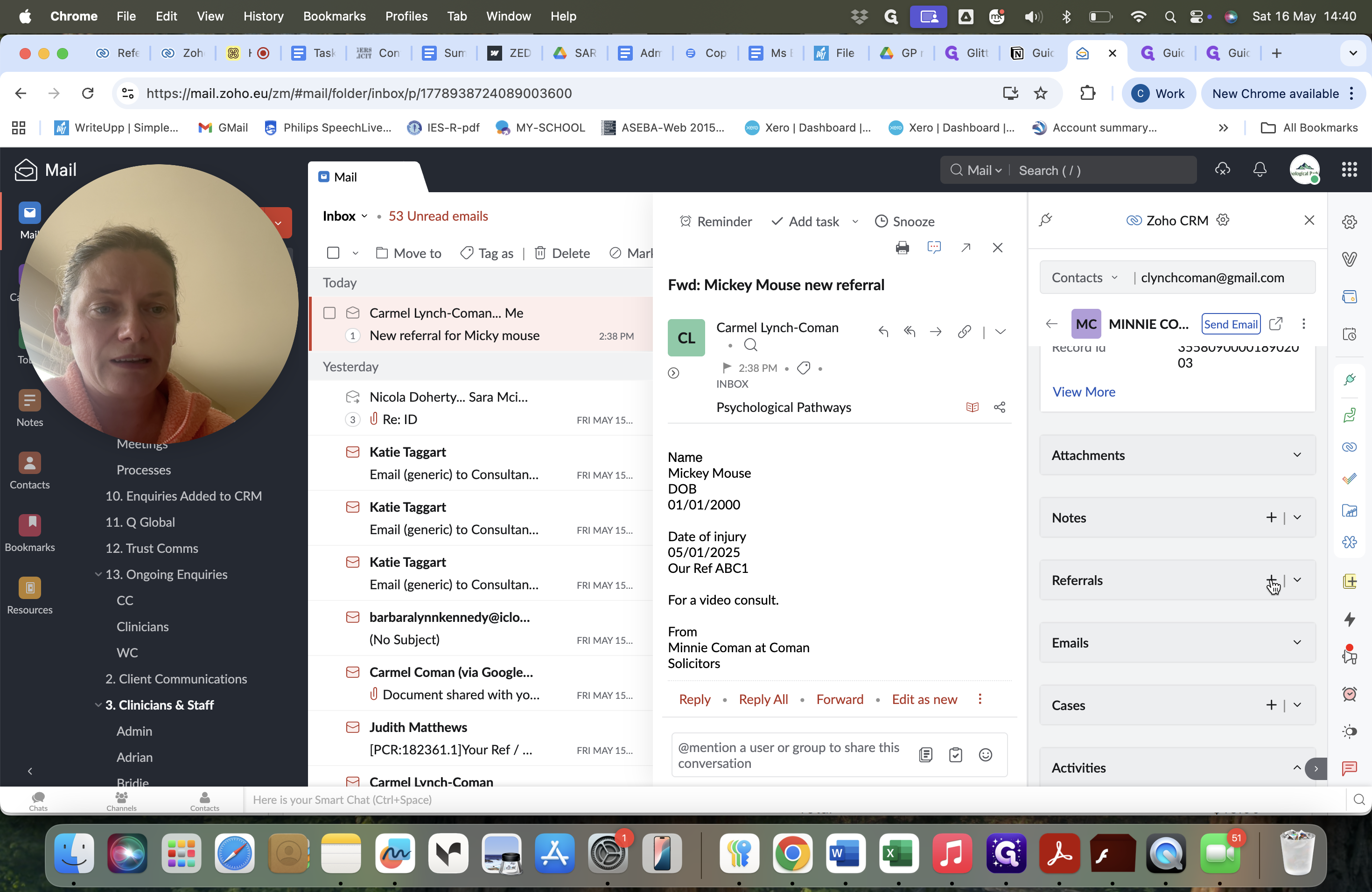
Scroll down to the Referrals section in the side panel and click the Add (+) button.
Step #5: Scroll down to the Referrals section in the side panel and click the Add (+) button.

Fill out Referral Details

6
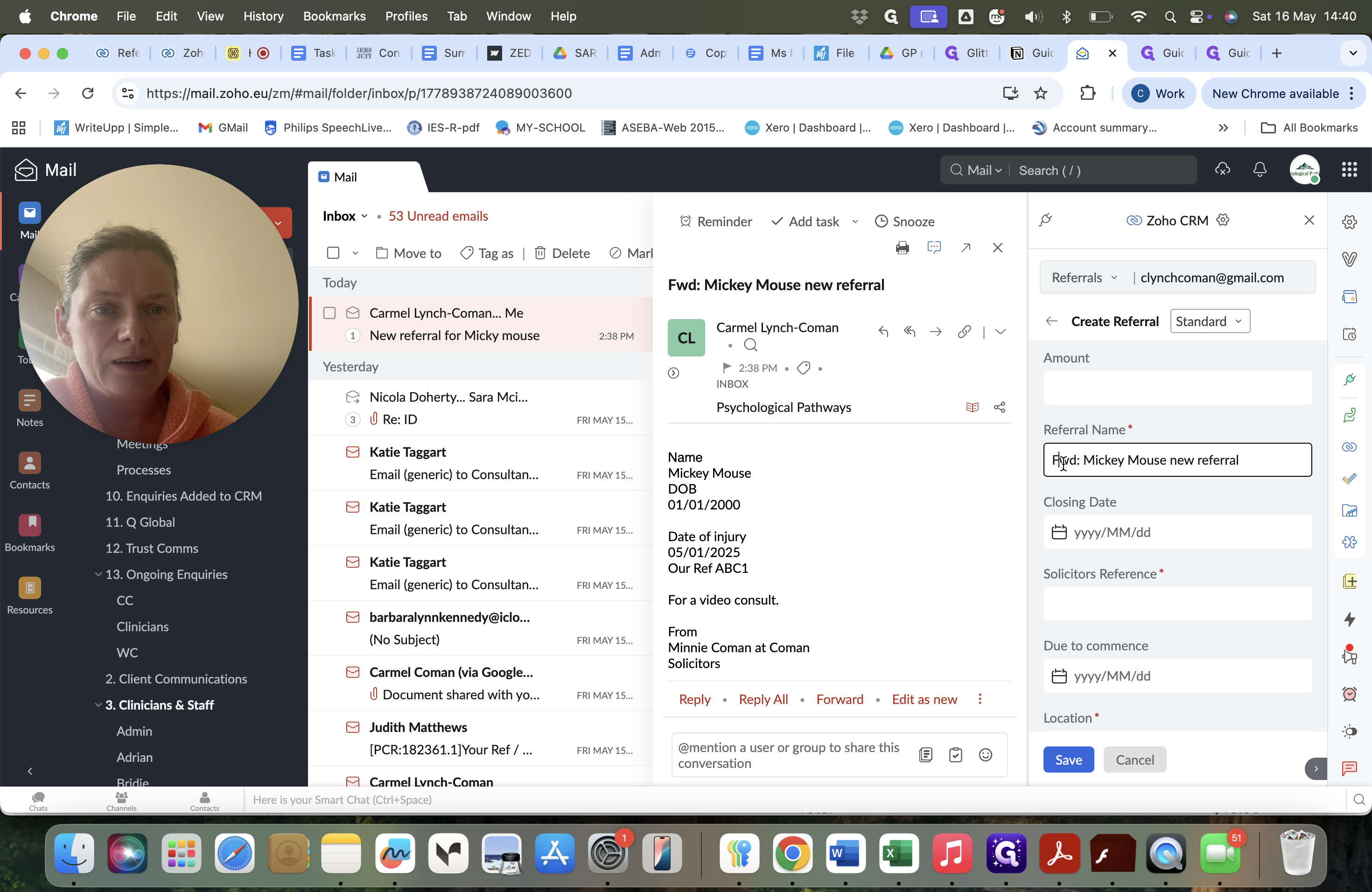
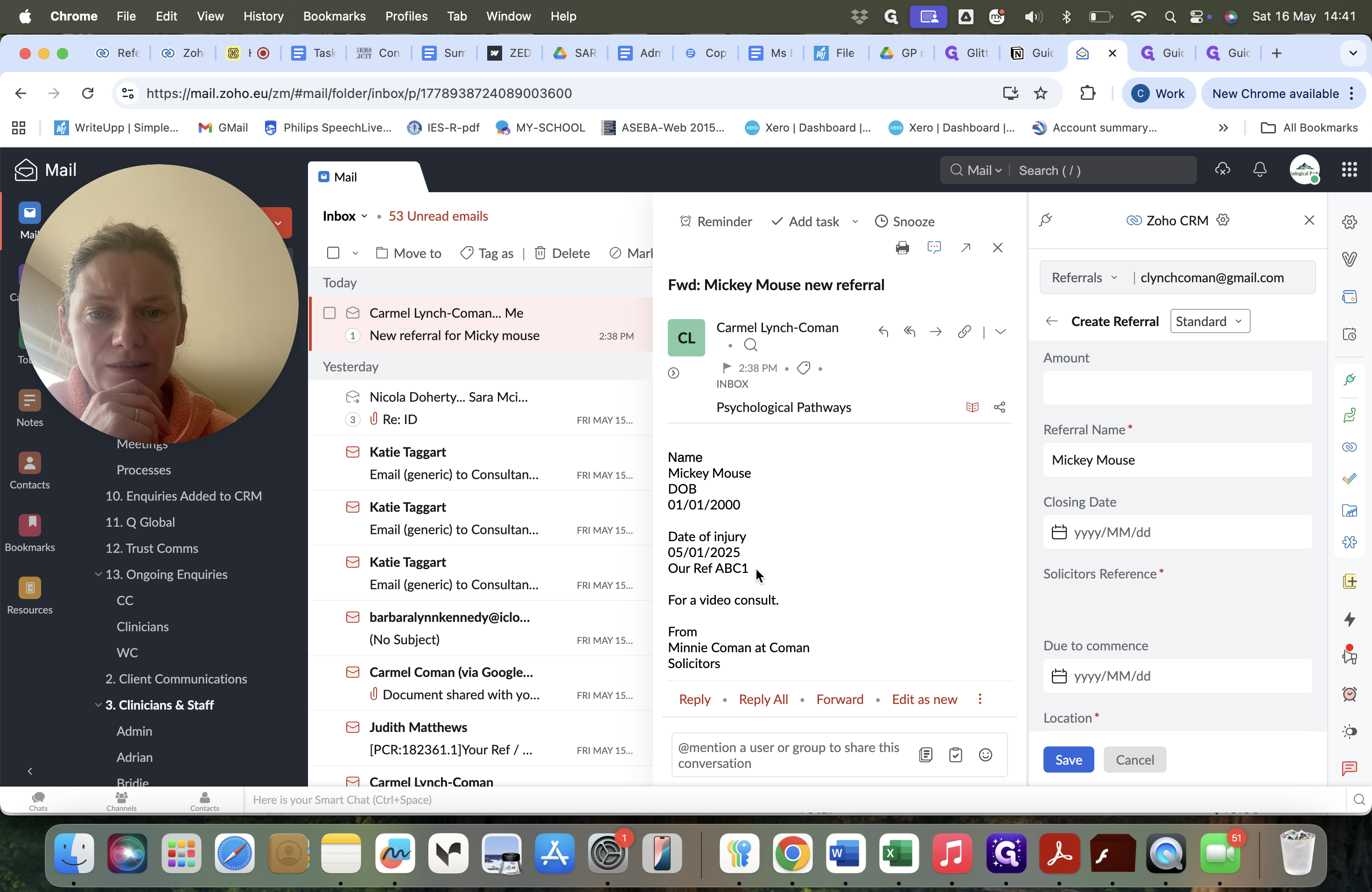
Edit the Referral Name field to clearly state the new client's name.
Step #6: Edit the Referral Name field to clearly state the new client's name.
7
Copy the solicitor's reference directly from the email body and paste it into the Solicitor's Reference field.
Step #7: Copy the solicitor's reference directly from the email body and paste it into the Solicitor's Reference field.
8
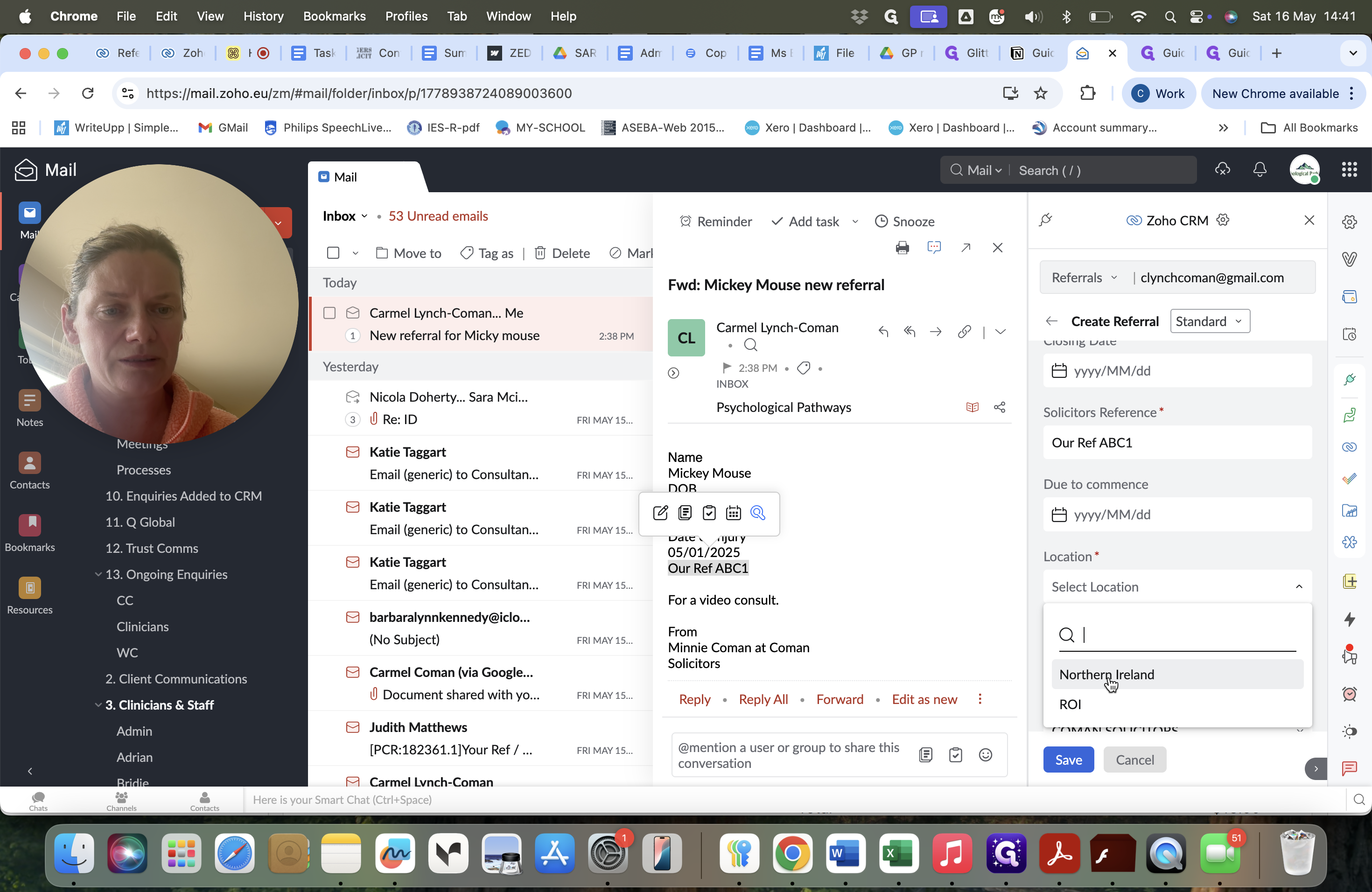
Select the correct option from the Location dropdown menu.
Step #8: Select the correct option from the Location dropdown menu.
9
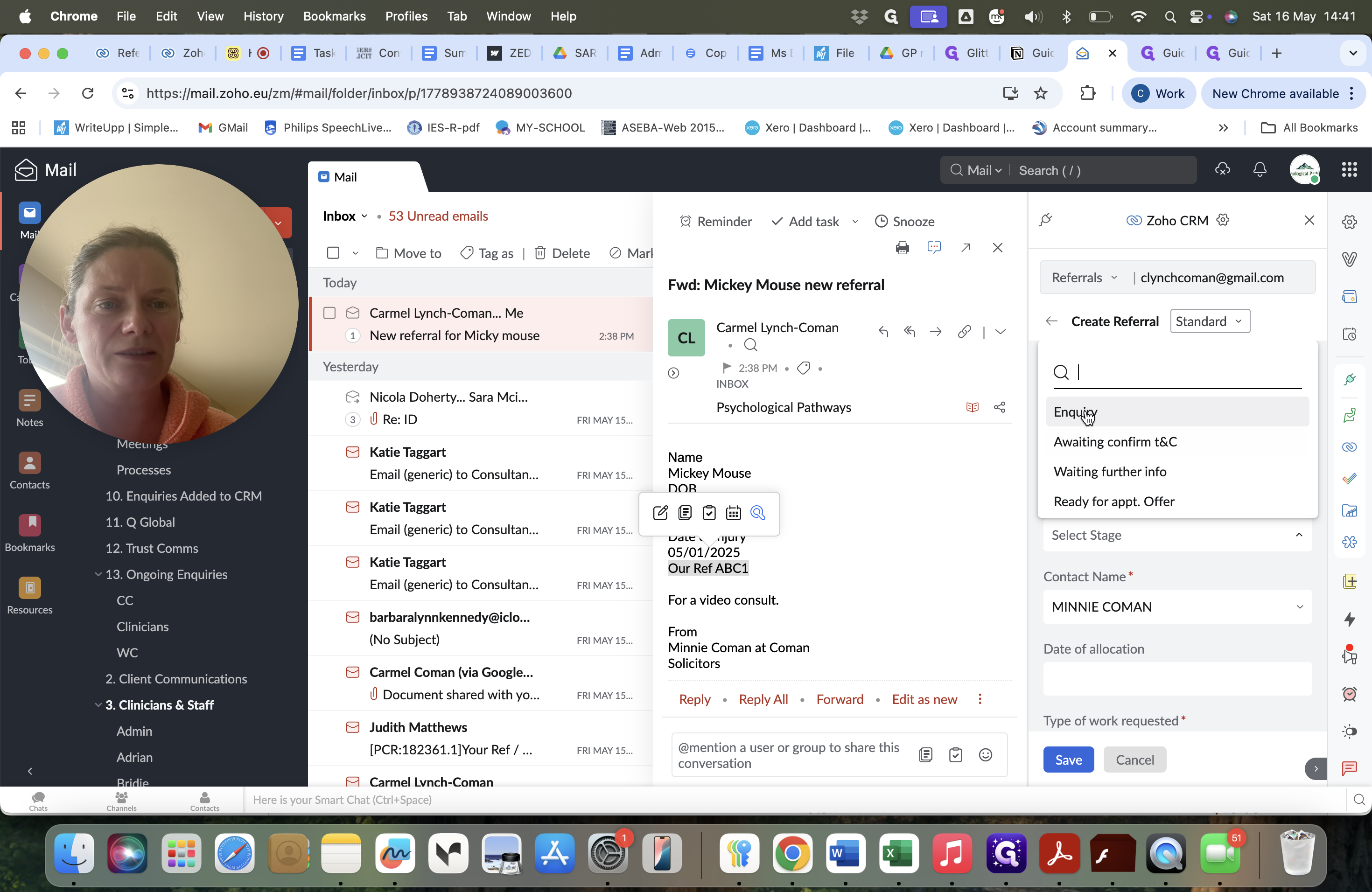
Set the Stage dropdown to Enquiry.
Step #9: Set the Stage dropdown to Enquiry.
10
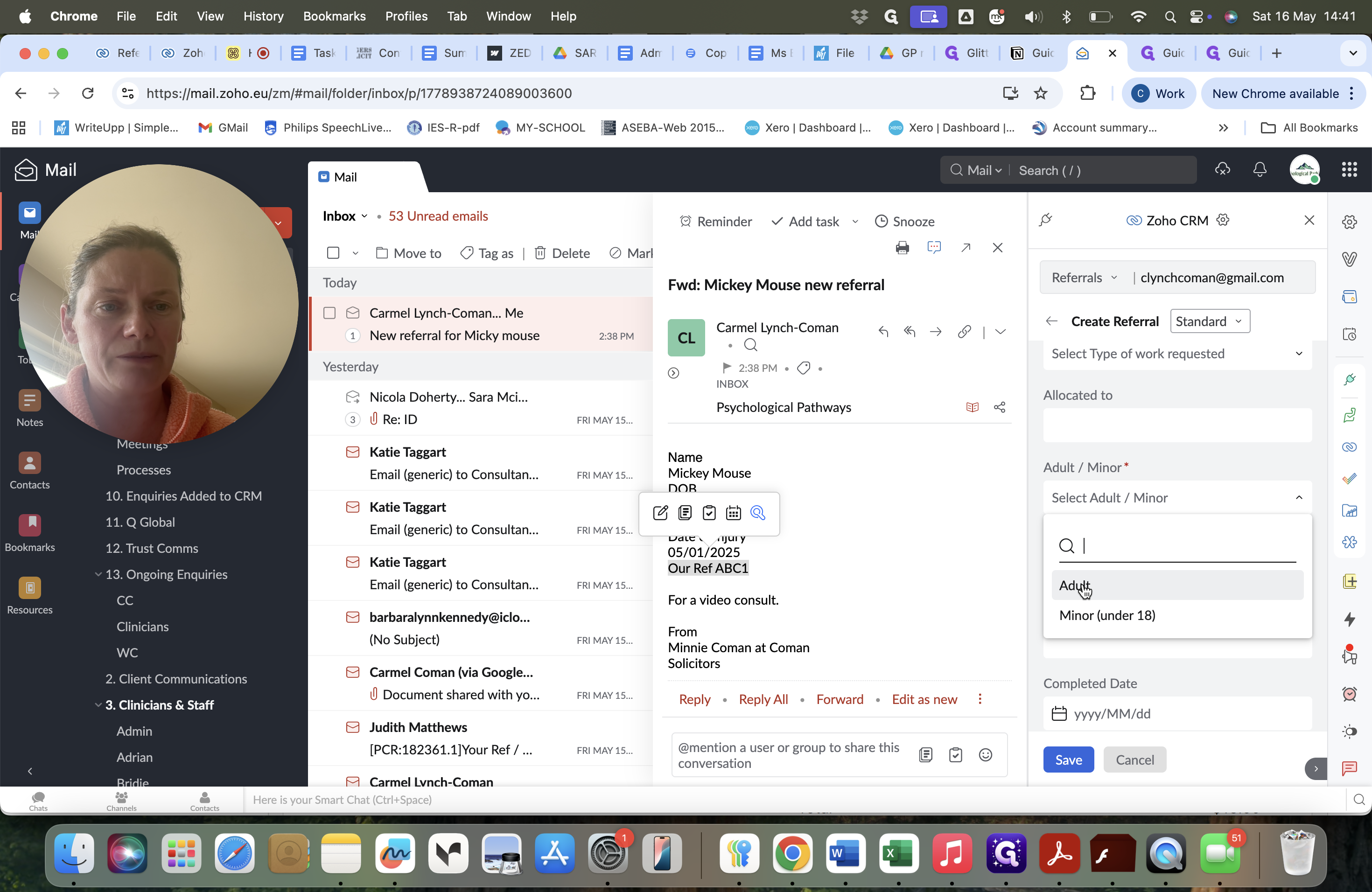
Select whether the client is an Adult or a Minor.
Step #10: Select whether the client is an Adult or a Minor.
11
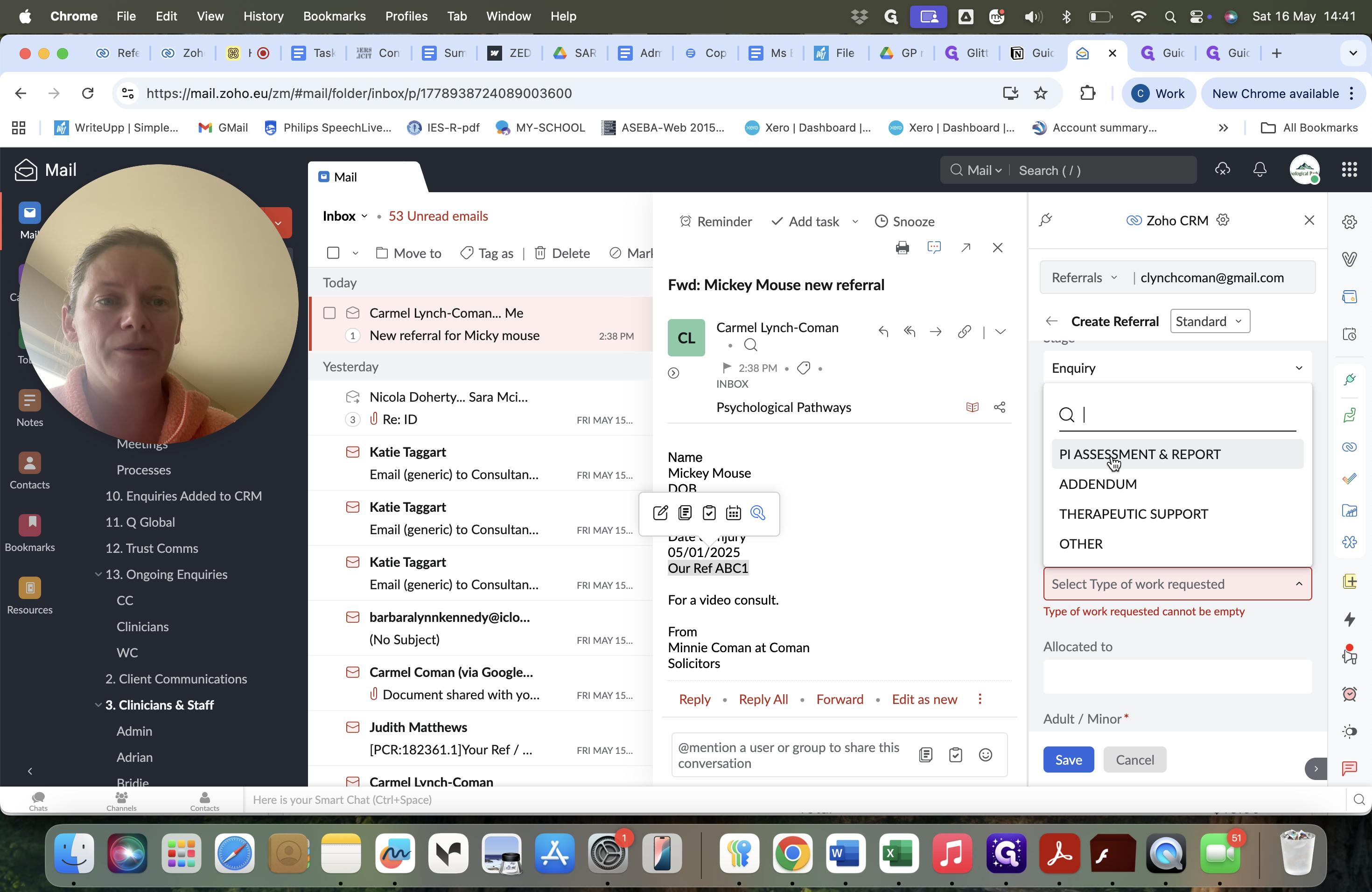
Choose the required service from the Type of work requested dropdown.
Step #11: Choose the required service from the Type of work requested dropdown.
12
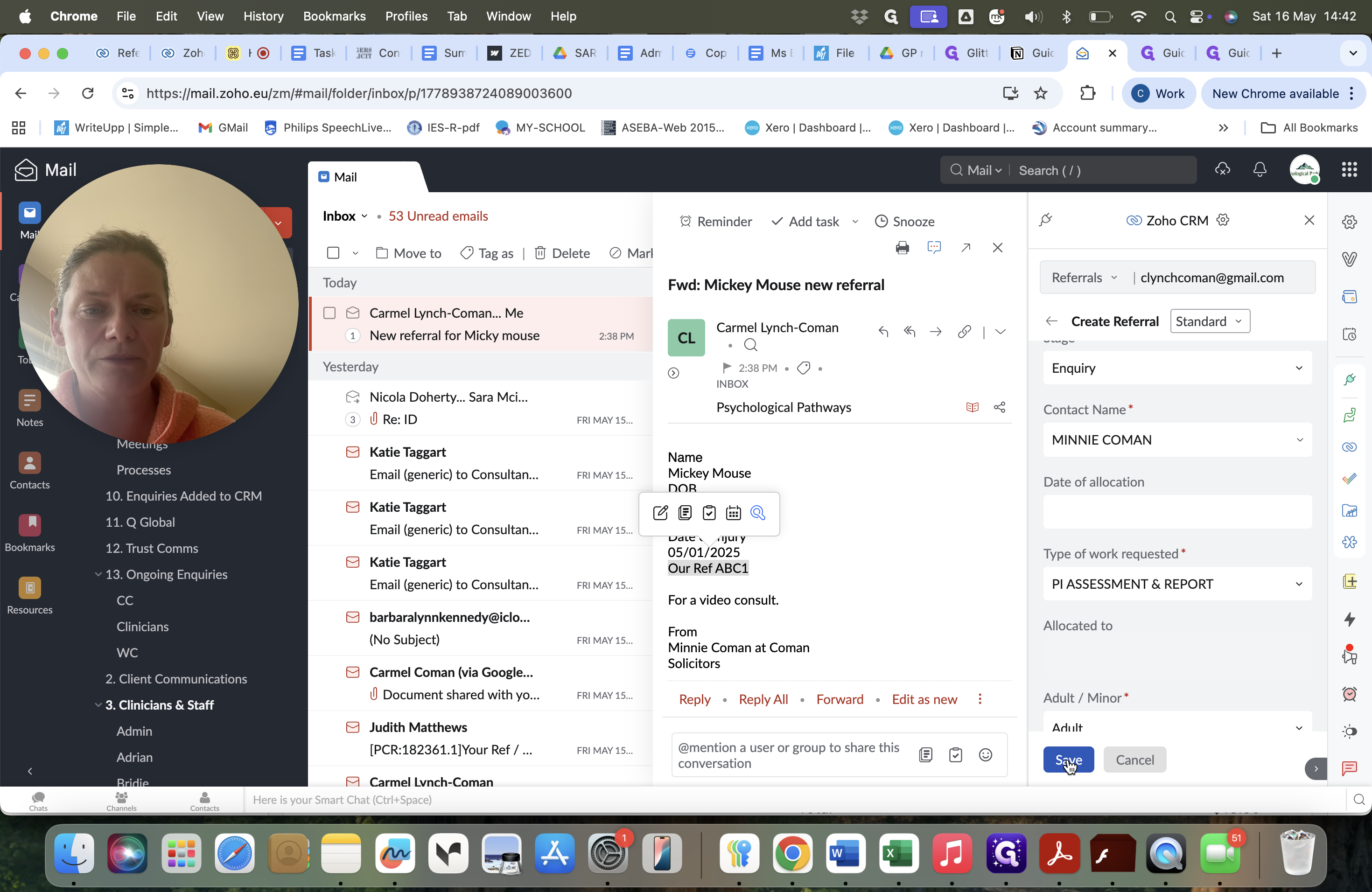
Click Save to create the new referral in the pipeline.
Step #12: Click Save to create the new referral in the pipeline.

Verify the Referral

13
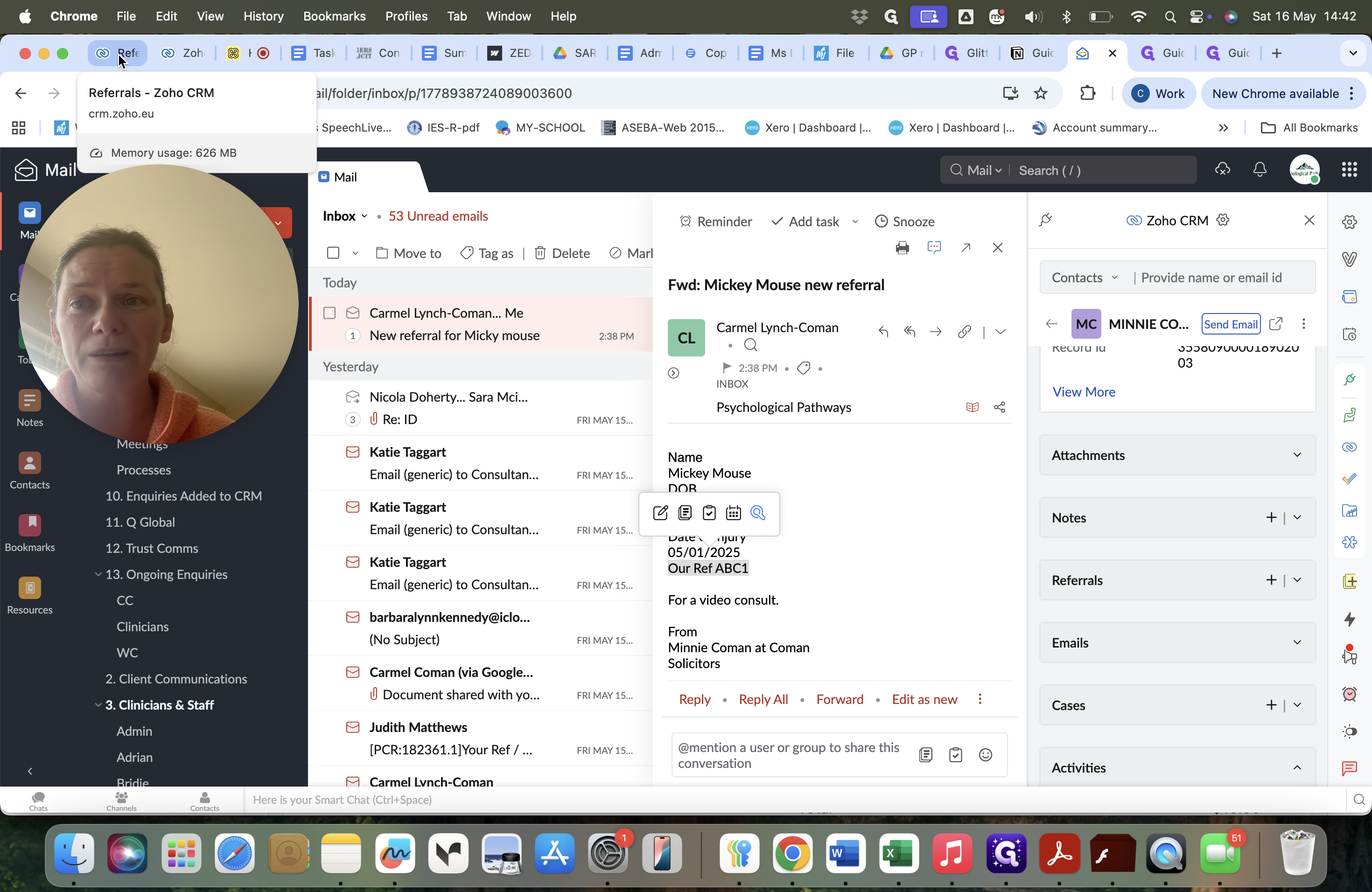
Navigate to the Referrals tab in your CRM to verify that the new referral has successfully appeared in your pipeline.
Step #13: Navigate to the Referrals tab in your CRM to verify that the new referral has successfully appeared in your pipeline.

FAQ

Q: Why does the system already know the solicitor's details?

A: If the solicitor has sent referrals in the past, their email is already saved as a contact in Zoho CRM. The integration recognizes the sender and auto-populates their details and firm location.

Q: Why are there so many blank fields in the referral form?

A: Currently, the system displays all available fields. Unnecessary fields are actively being removed to streamline this workflow, so eventually you will only see the fields required for intake.