Create a Resignation Statement in Bitrix24
Step-by-step guide on how to create, fill out, and submit an electronic statement of dismissal for signing in Bitrix24.
By Roman Daemon_with_Green_hair
This guide explains how to generate and submit an electronic statement of dismissal for signing in Bitrix24. Completing these steps initiates the formal resignation process directly within your organization's portal.
This process applies to all employees submitting an official resignation request through Bitrix24's document management module.
Navigating to Documents
1
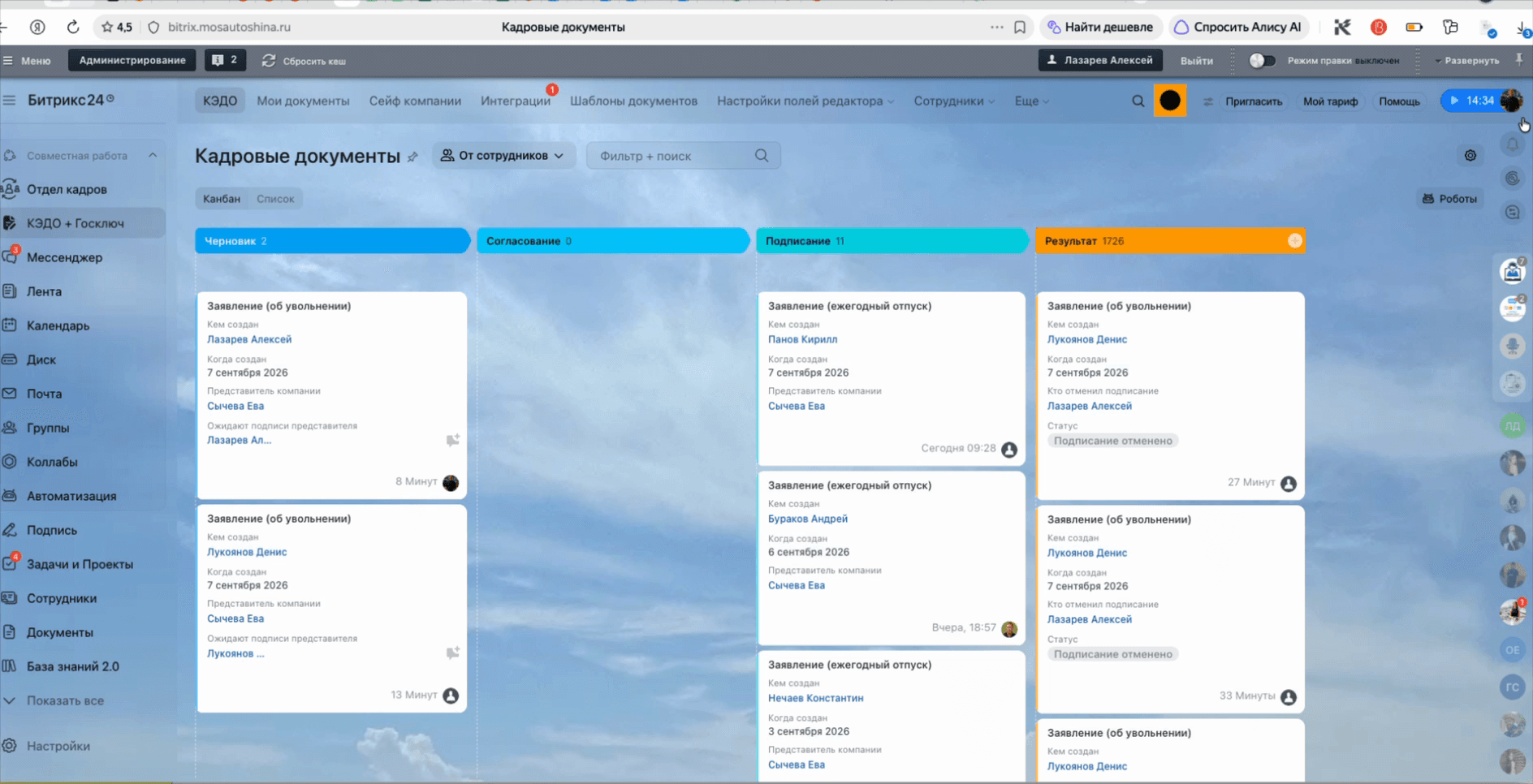
Click on the user profile avatar in the top right corner.
2
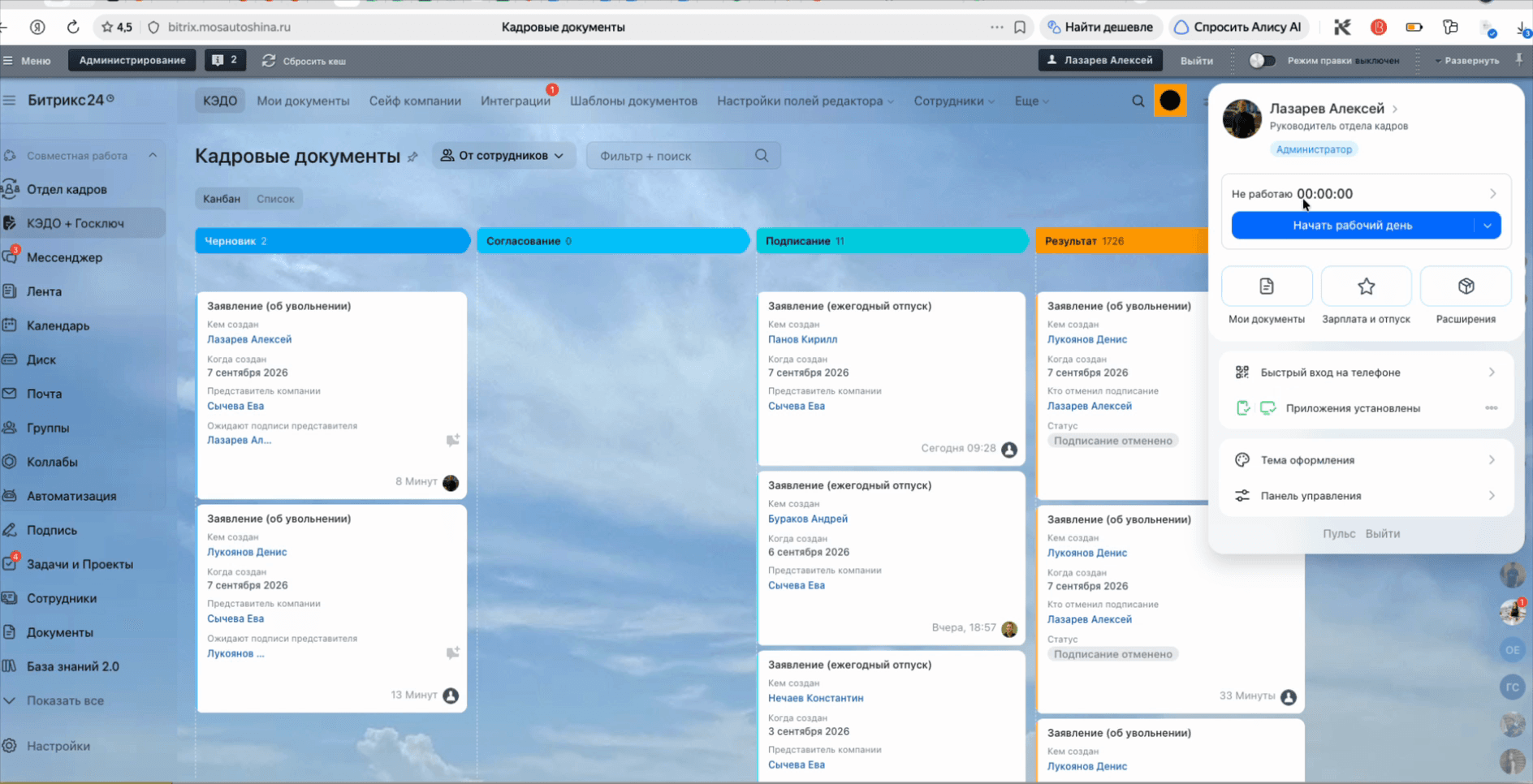
Select My Documents from the user menu.
3
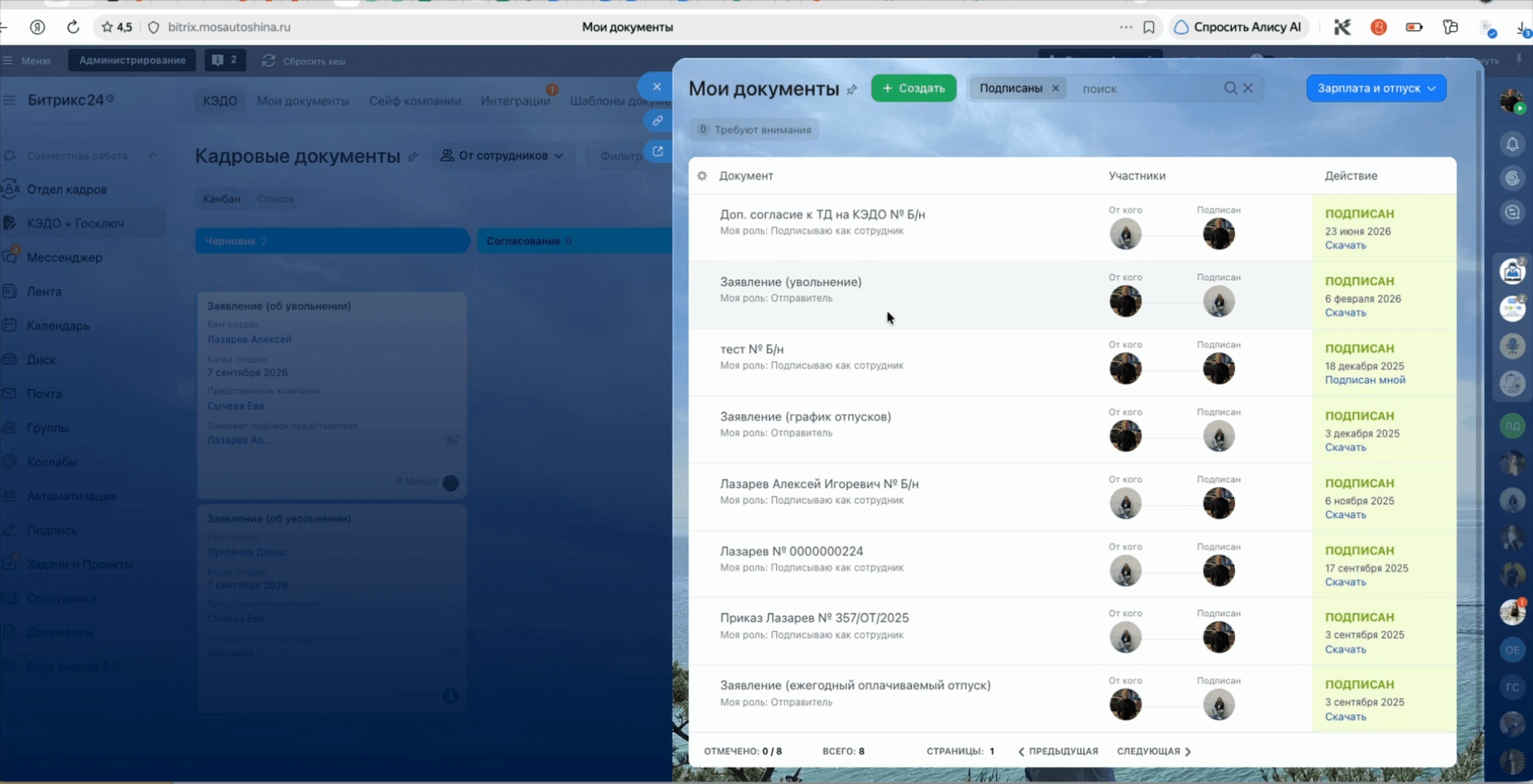
Click the green + Create button.
Configuring and Submitting the Statement
4
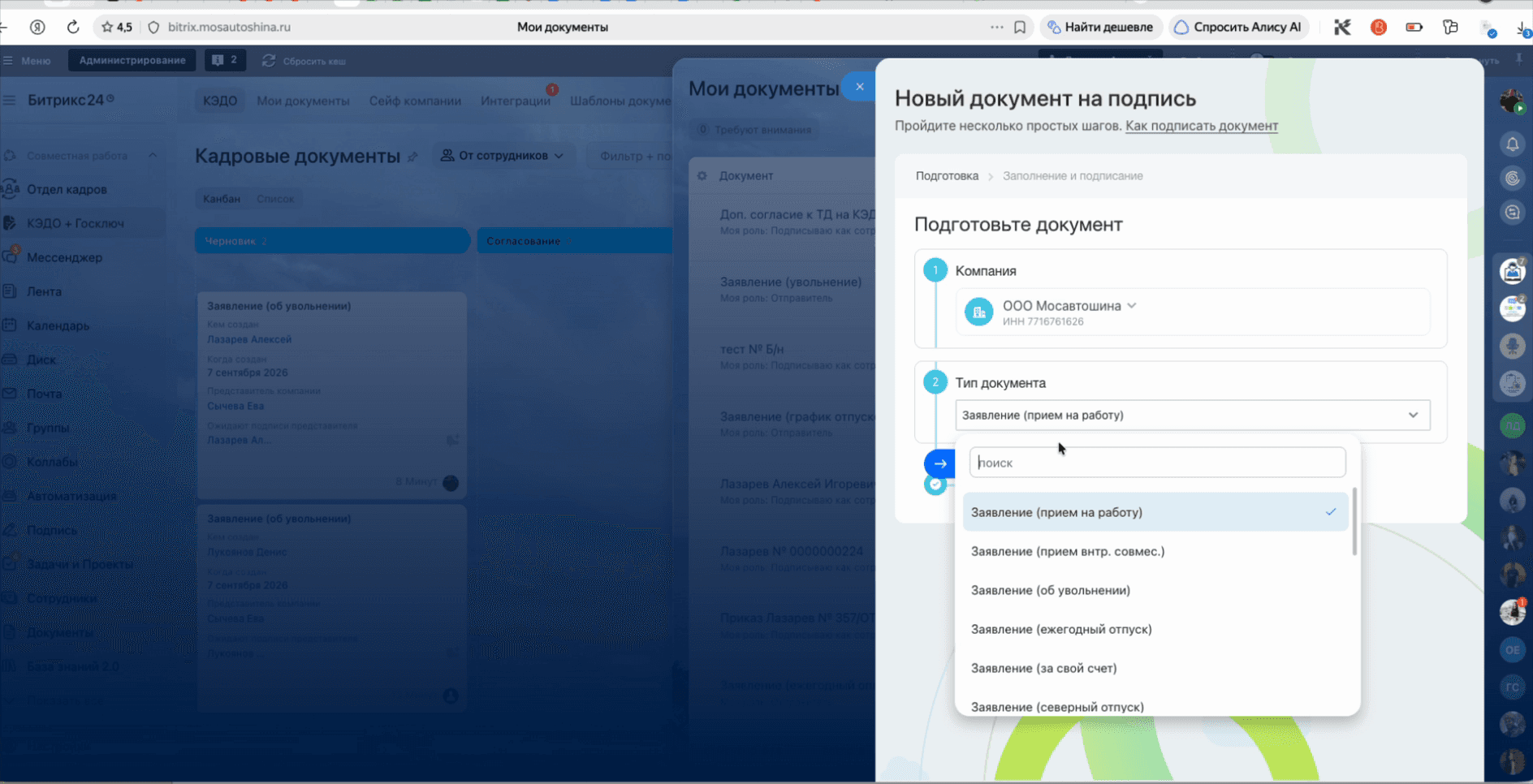
In the Document Type field, select Statement (of dismissal).
5
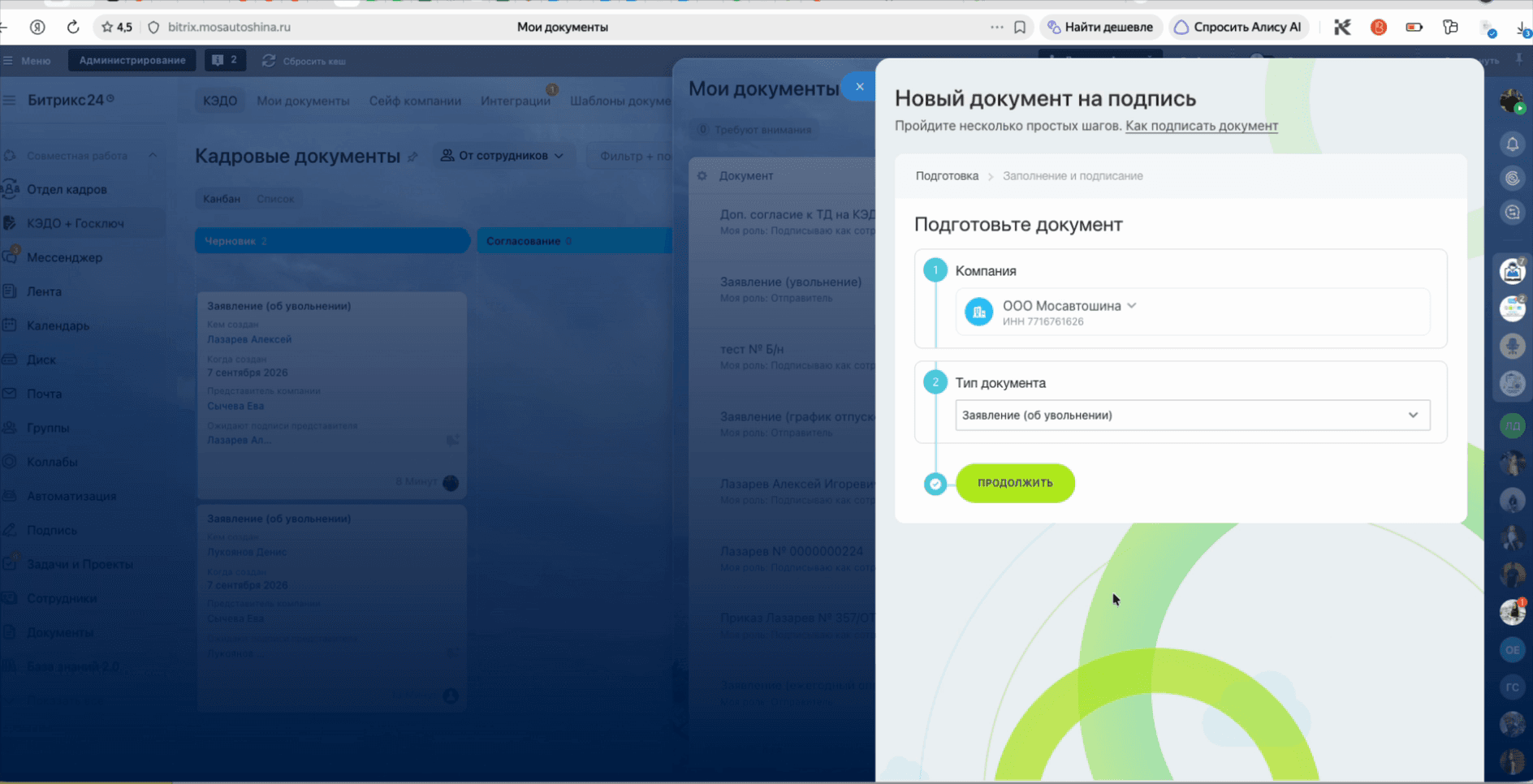
Click the Continue button.
6
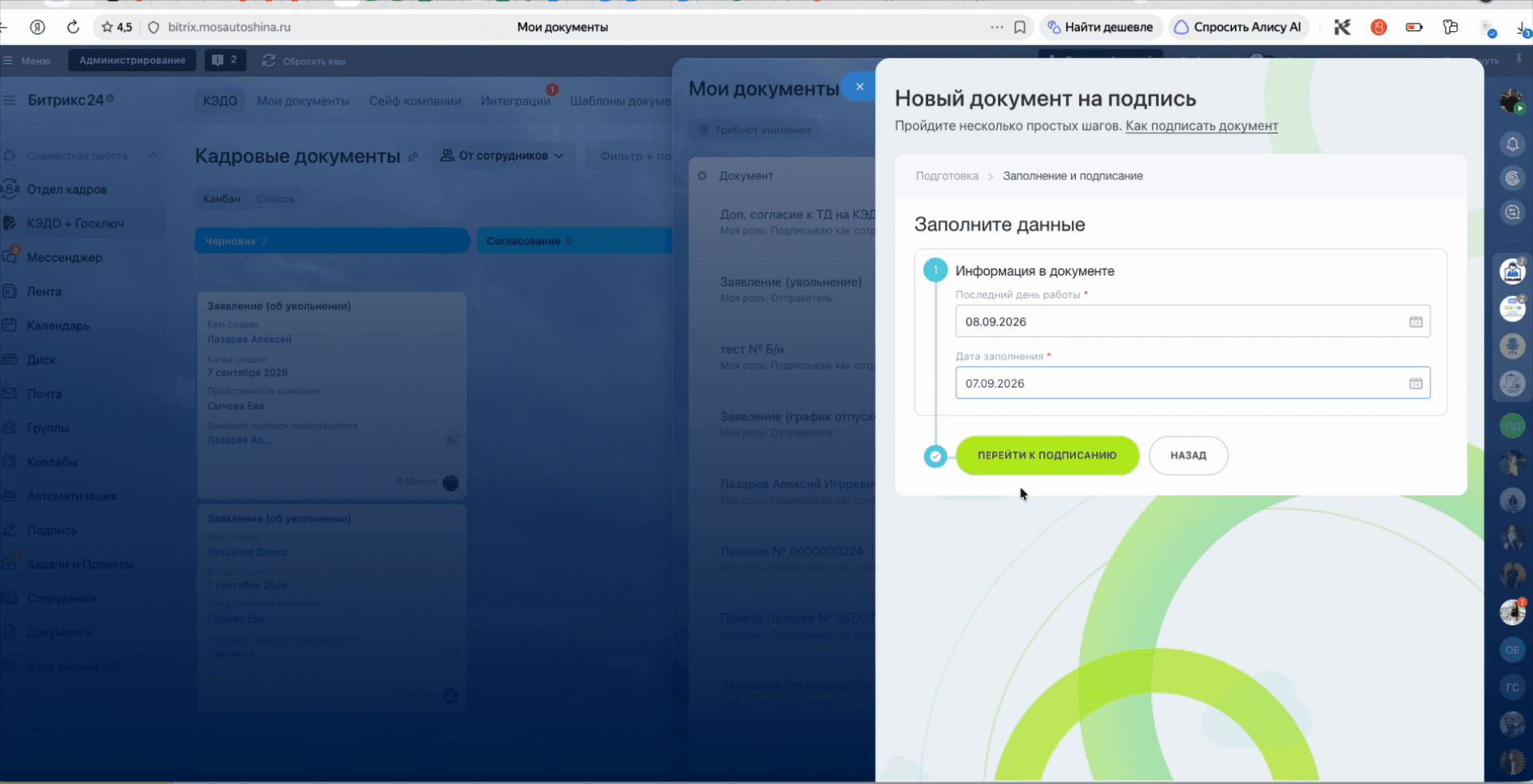
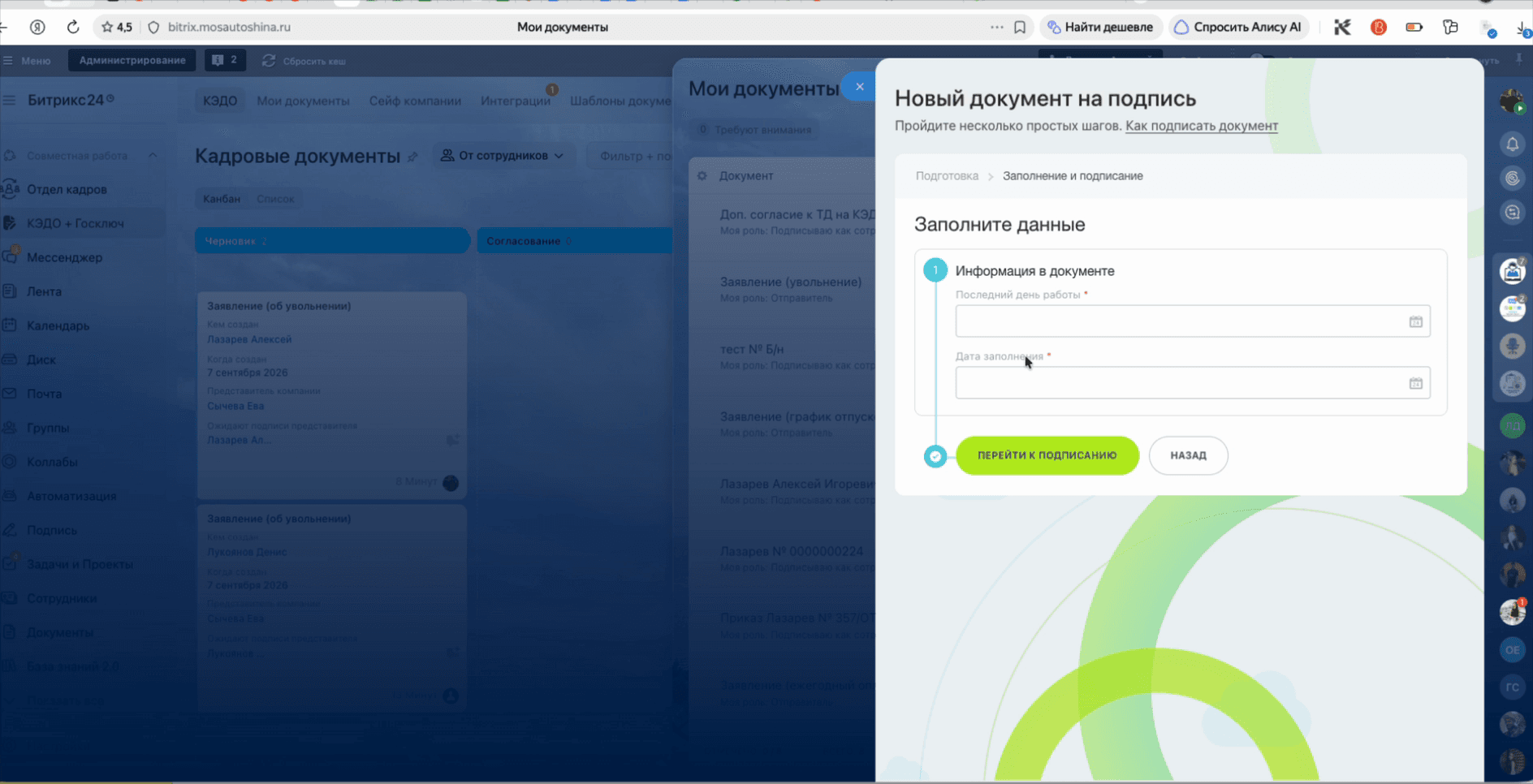
Select the dismissal date in the calendar.
7
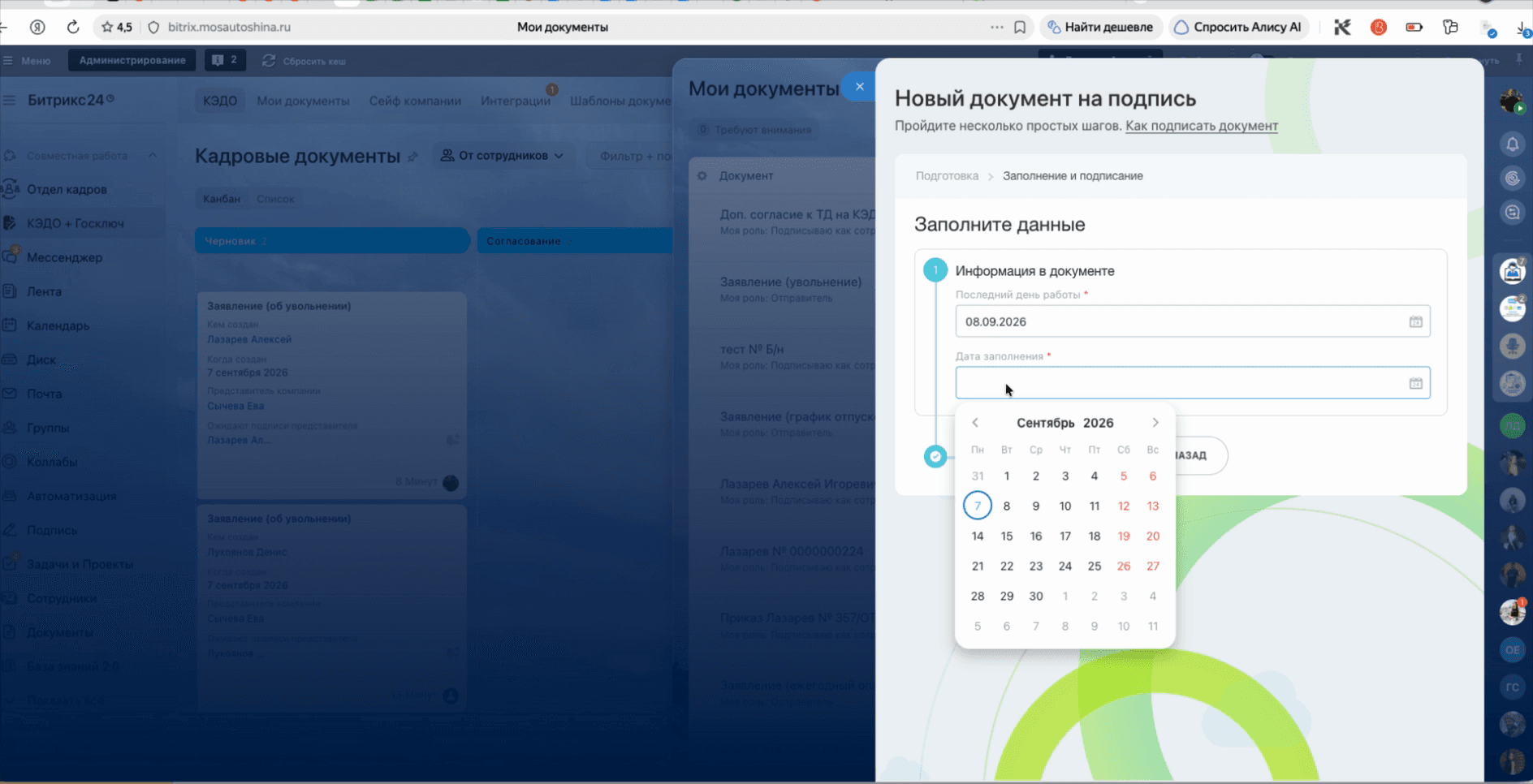
Select the application date in the calendar.
8
Click the Proceed to signing button.