Create a Student Learning Plan in PowerSchool
Learn how to create a Student Learning Plan (SLP), publish it to the parent portal, and document review notes and next steps in PowerSchool SIS.
Create, activate, and maintain Student Learning Plans (SLPs) in PowerSchool SIS to track student interventions, log parental communications, and share educational goals via the parent portal.
This guide applies to classroom teachers and student support staff using the PowerSchool Teacher Portal when initiating new learning plans or logging intervention progress reviews.
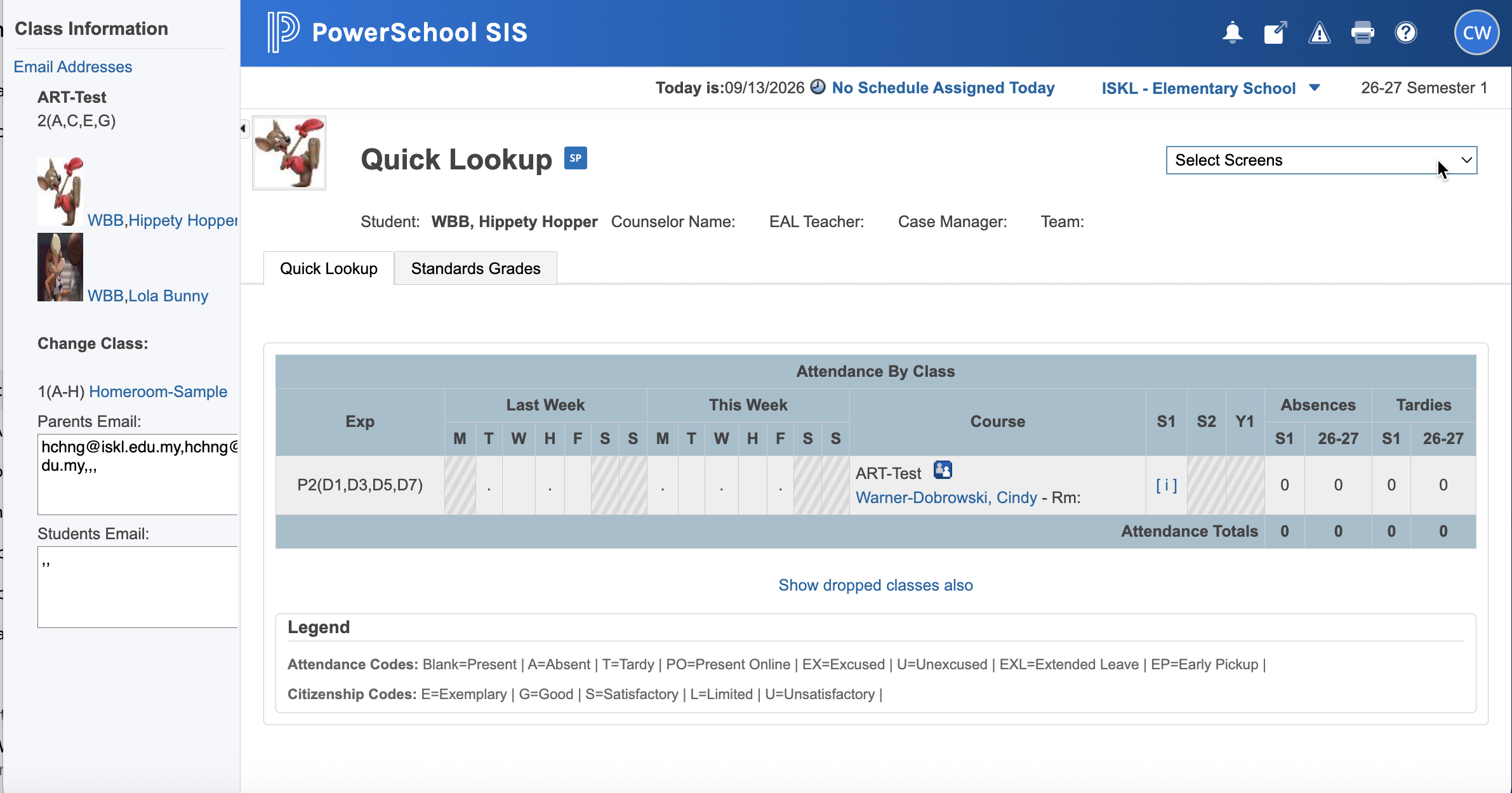
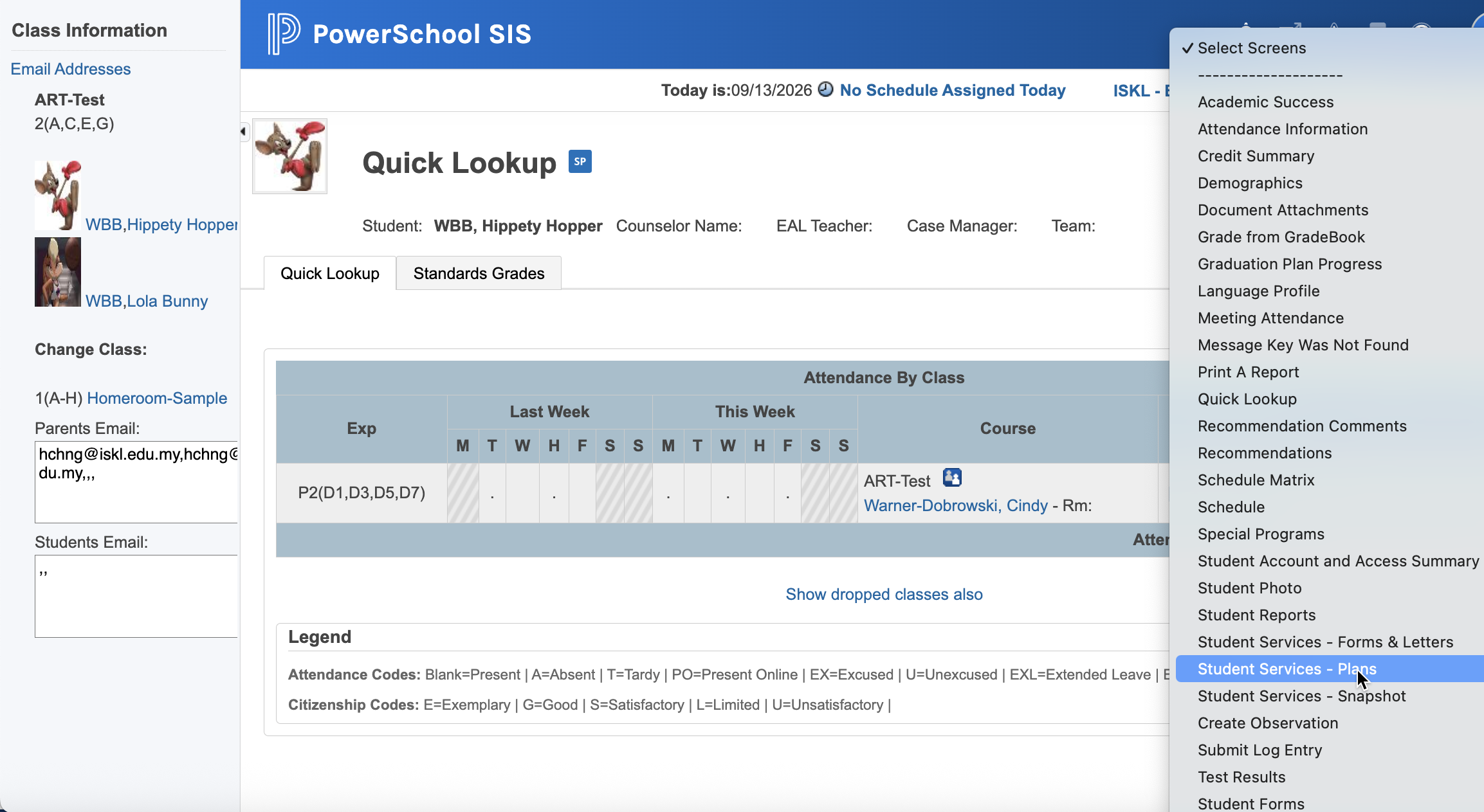
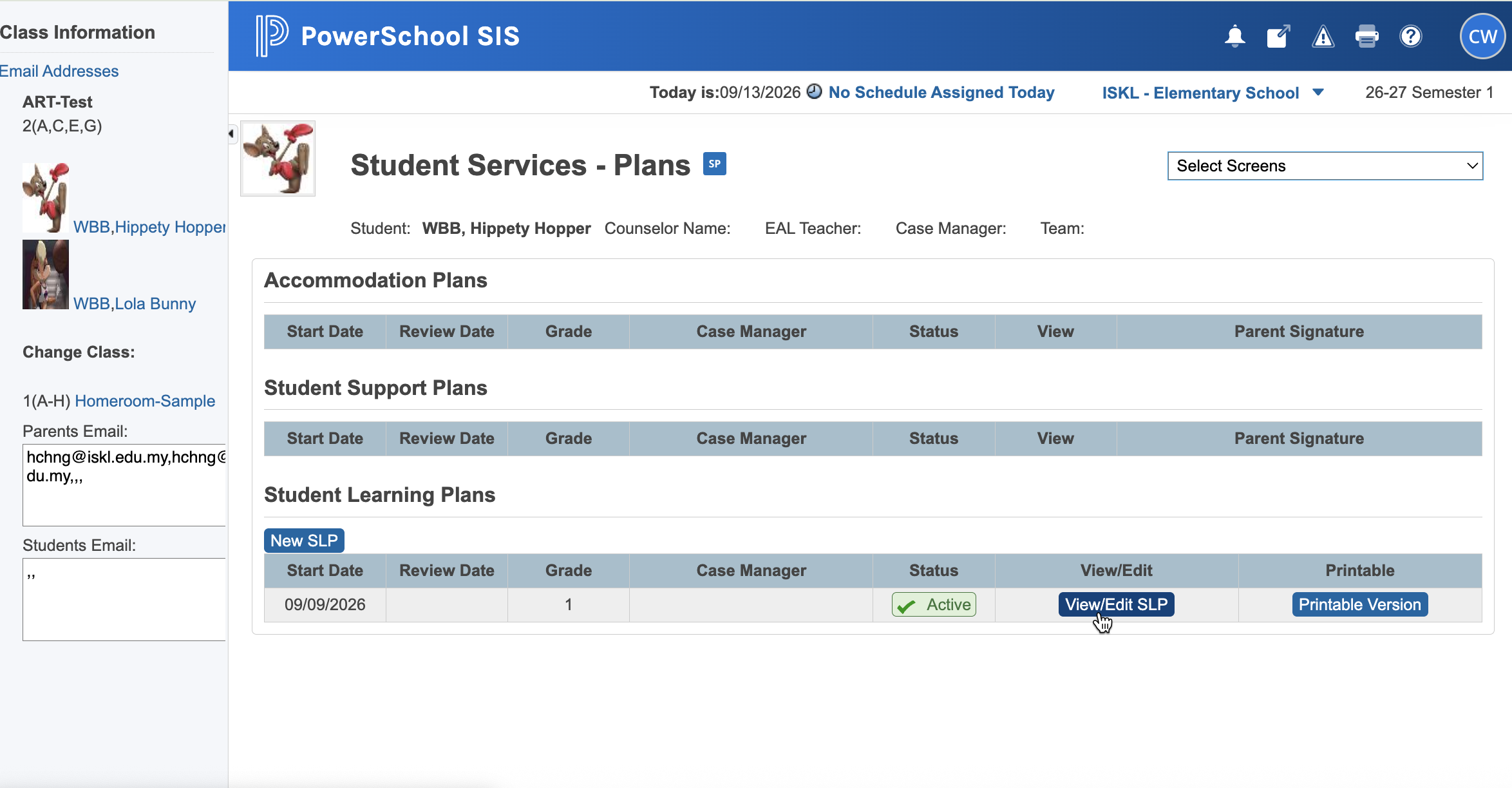
Access Student Services Plans
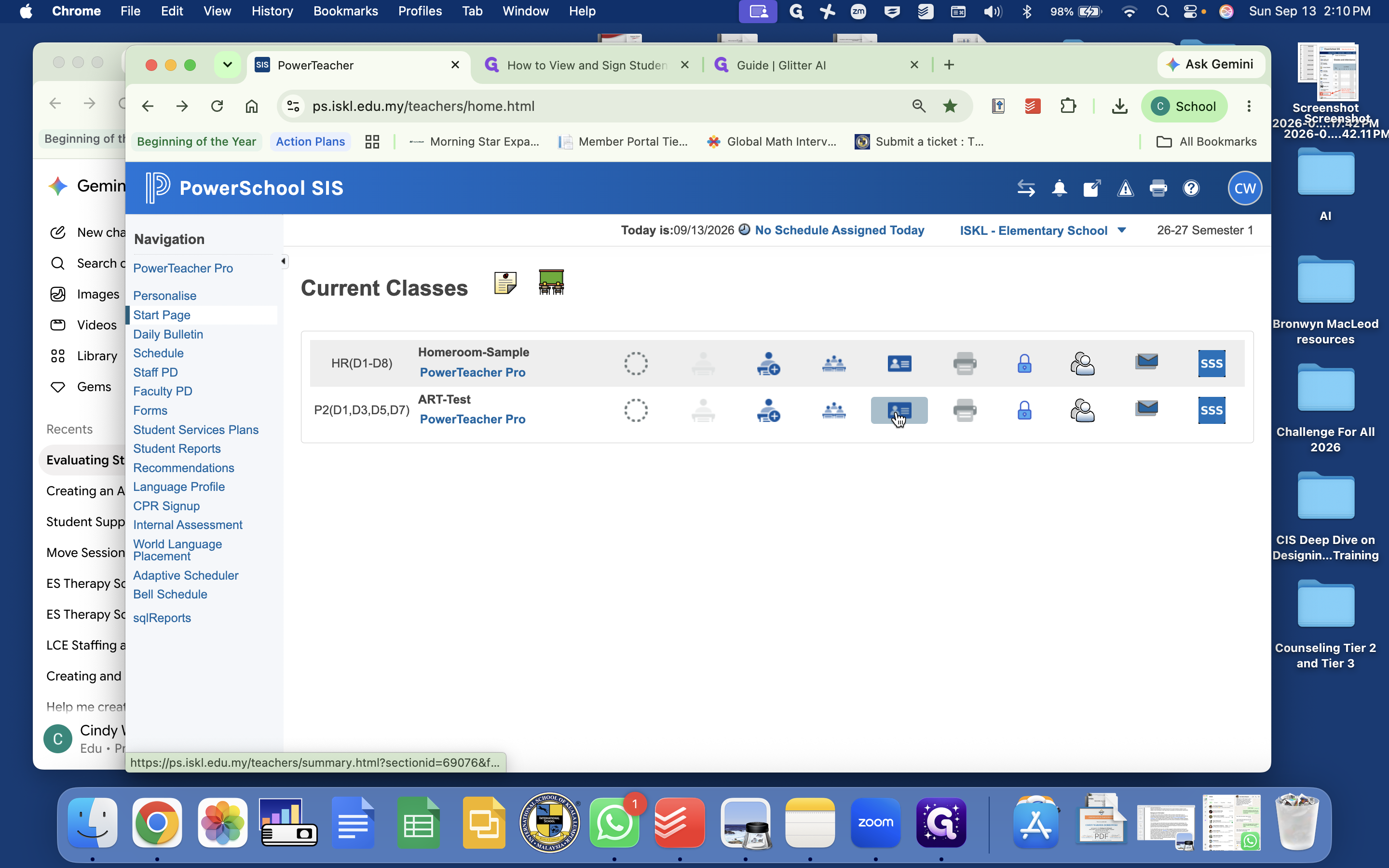
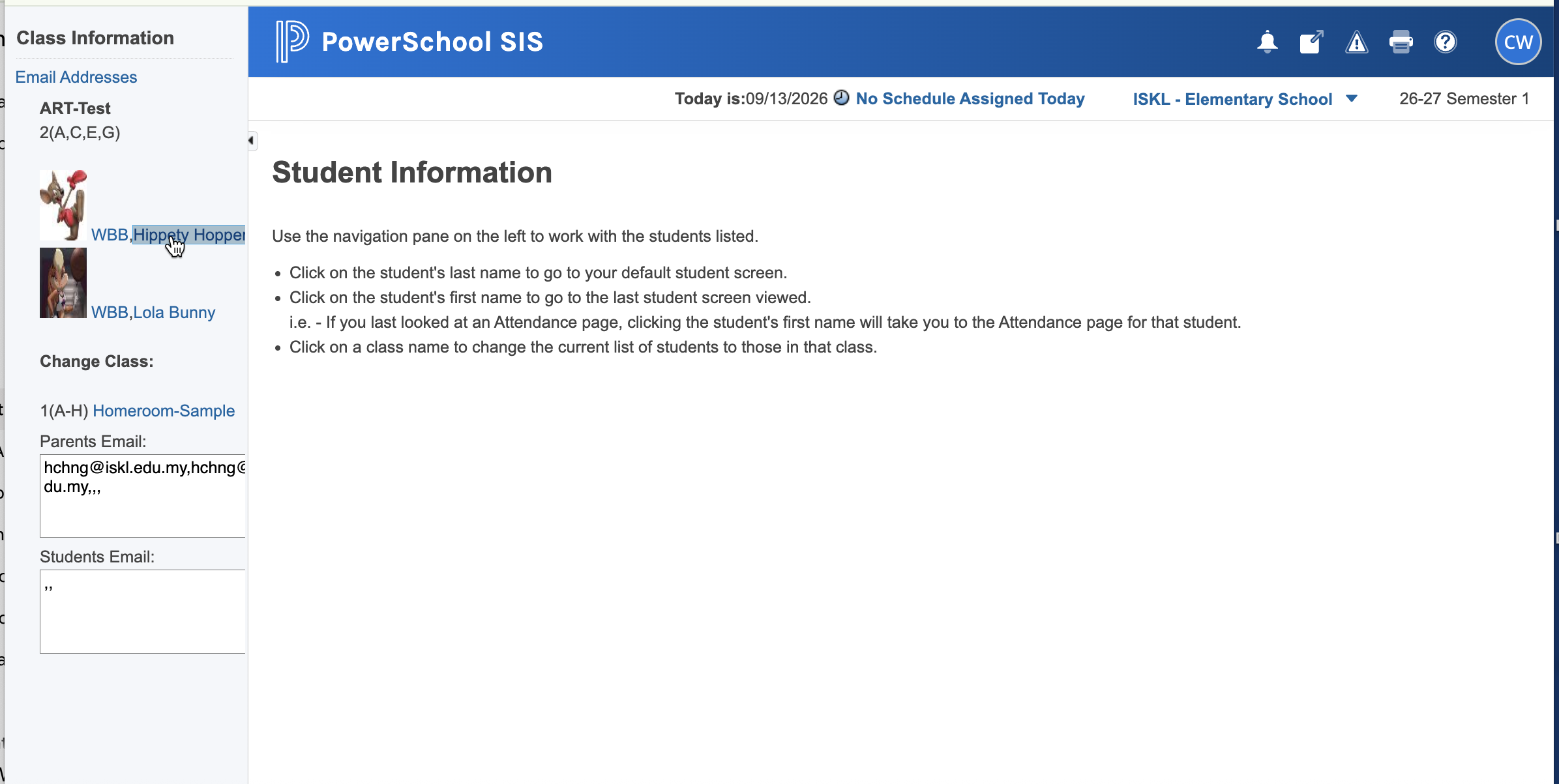
Navigate to your class roster to open the student record.
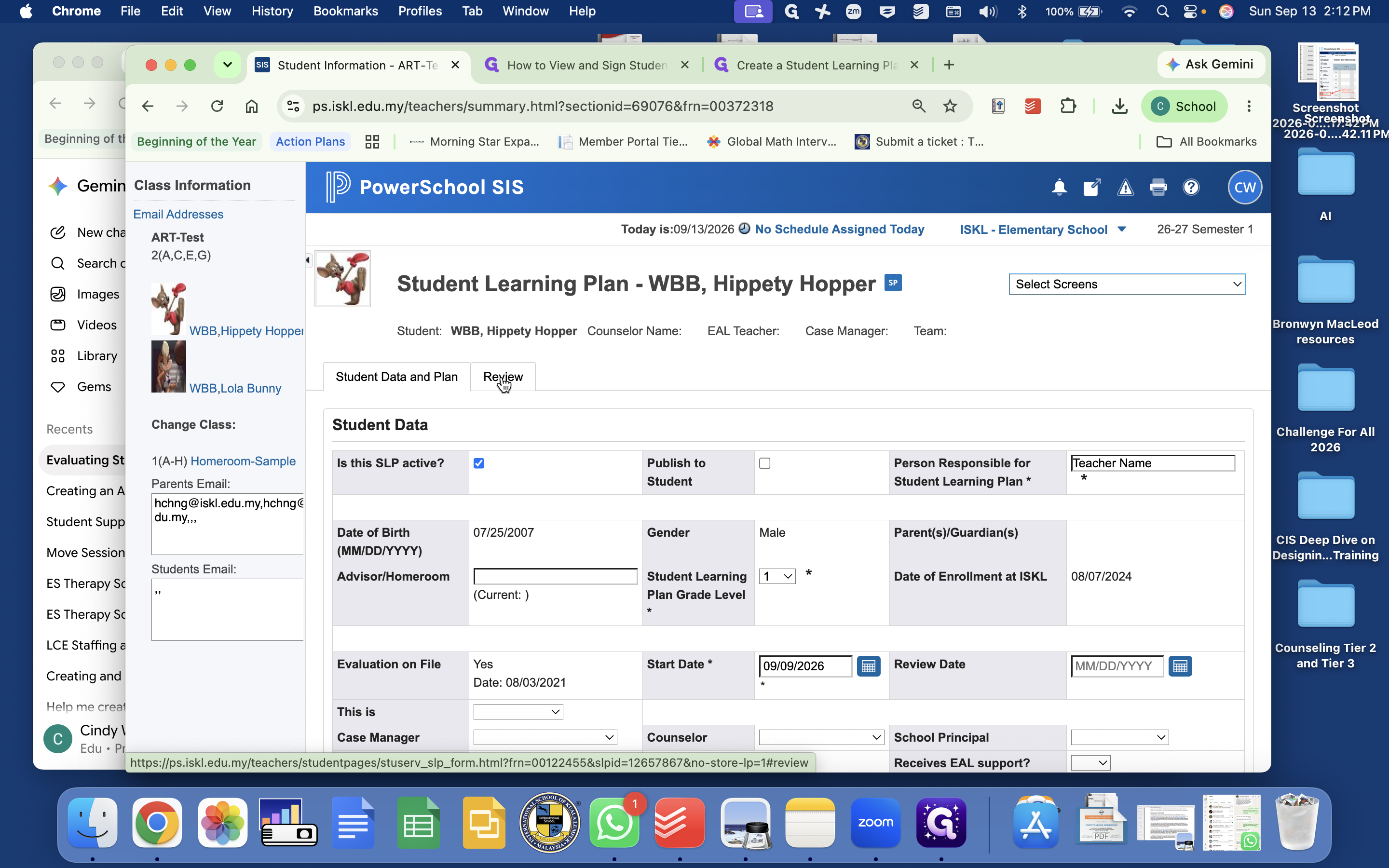
Create a New Student Learning Plan
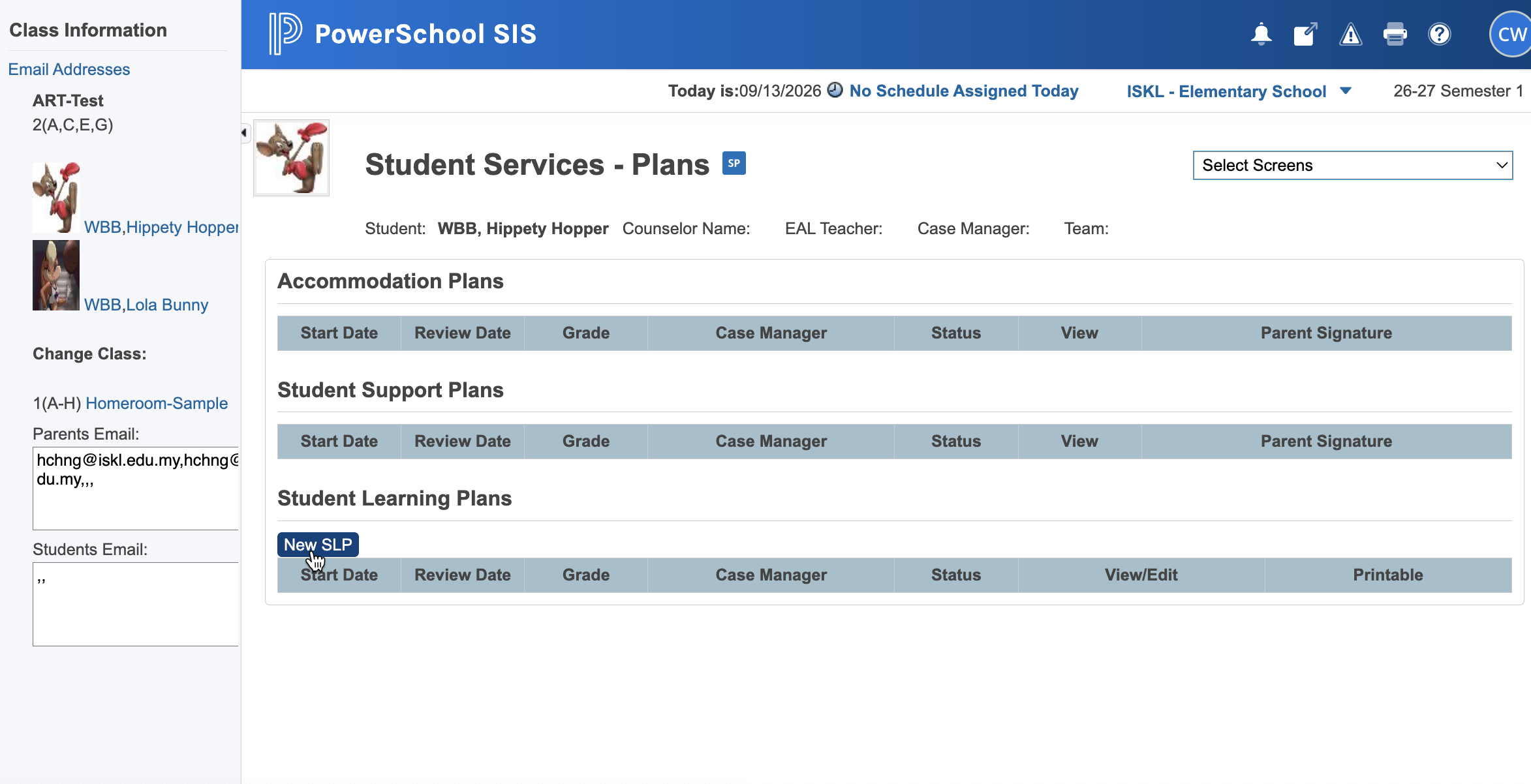
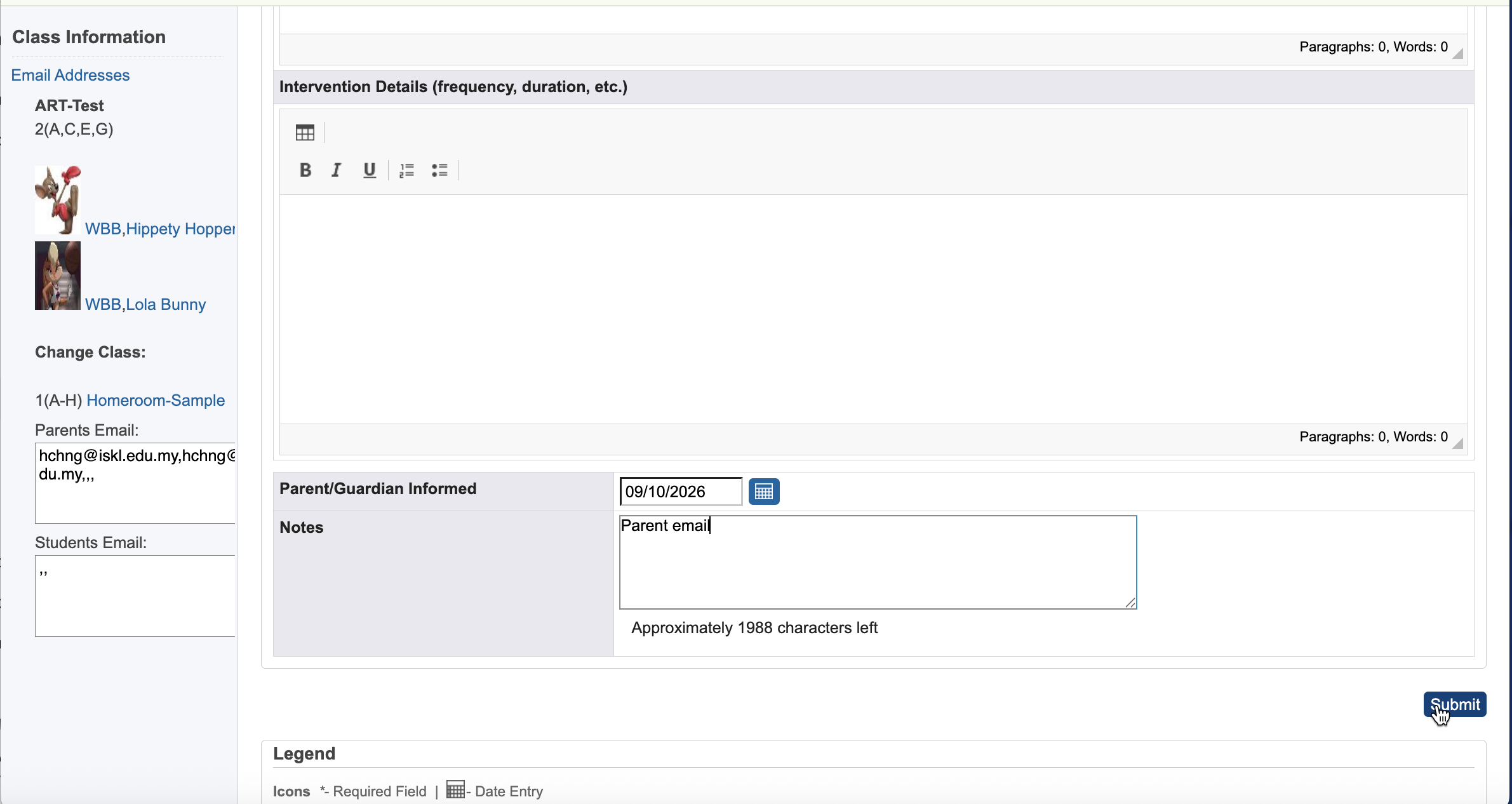
Activate and Publish the Plan
To make the plan visible to parents in the parent portal, mark the plan as active.
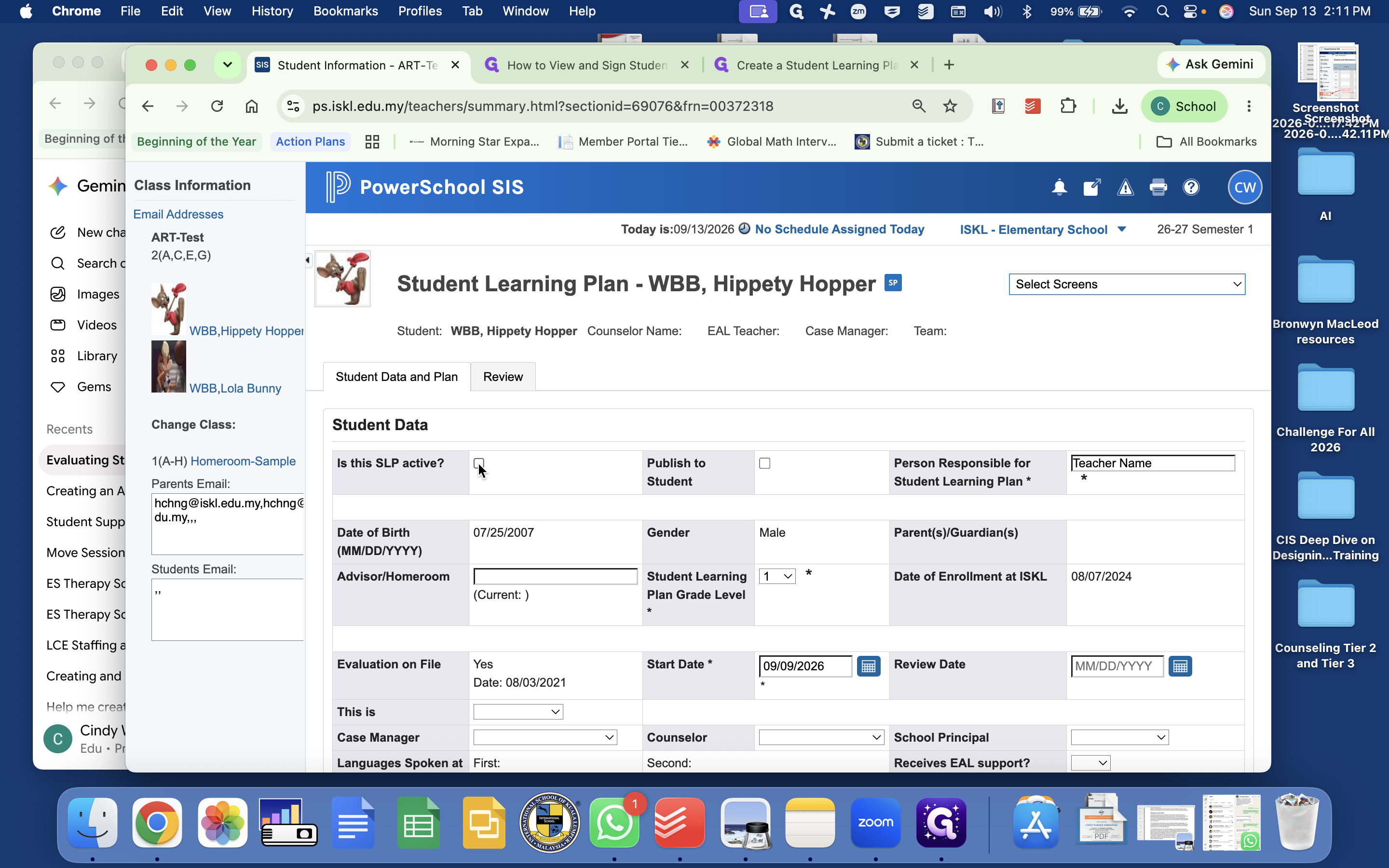
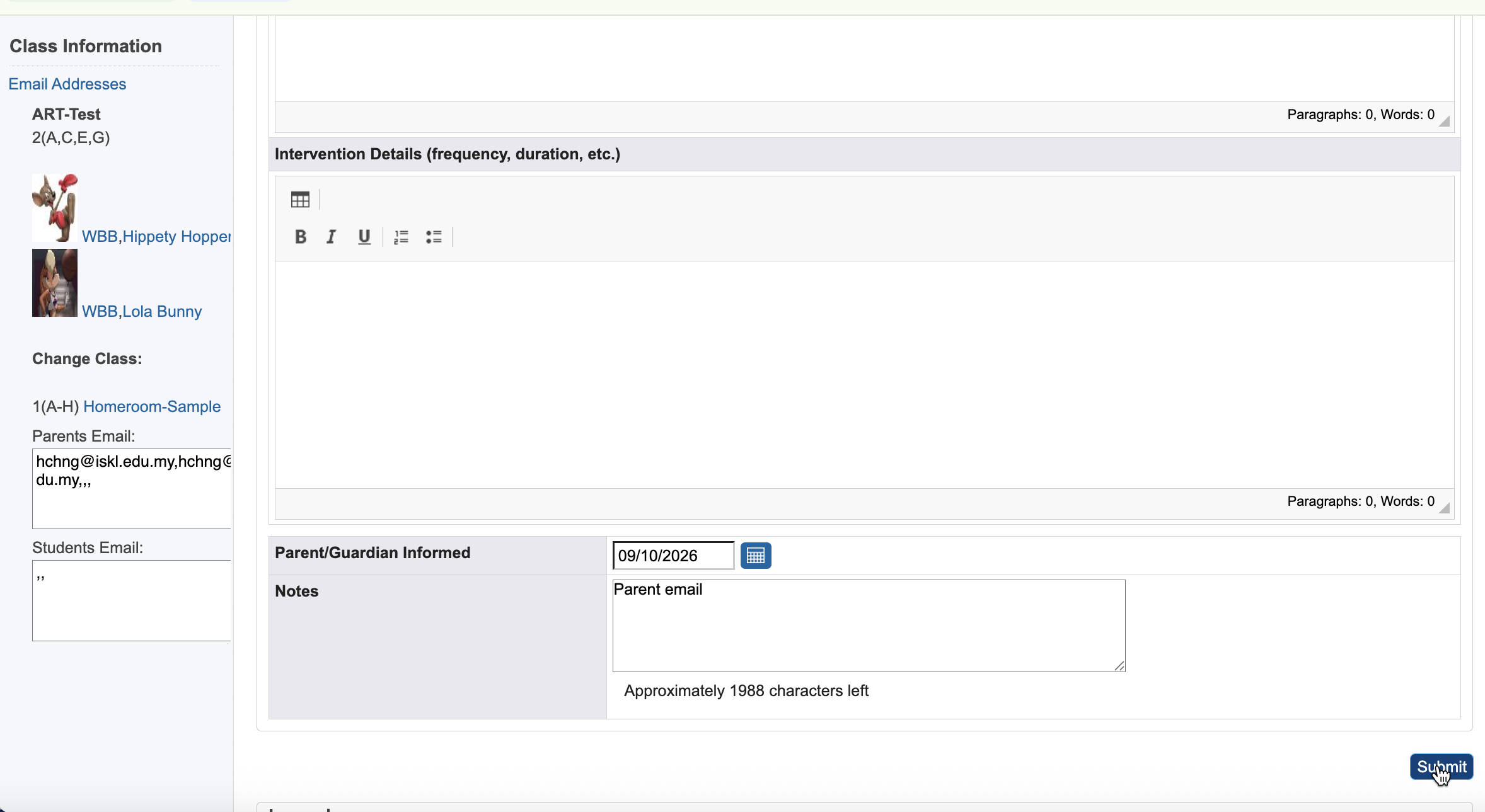
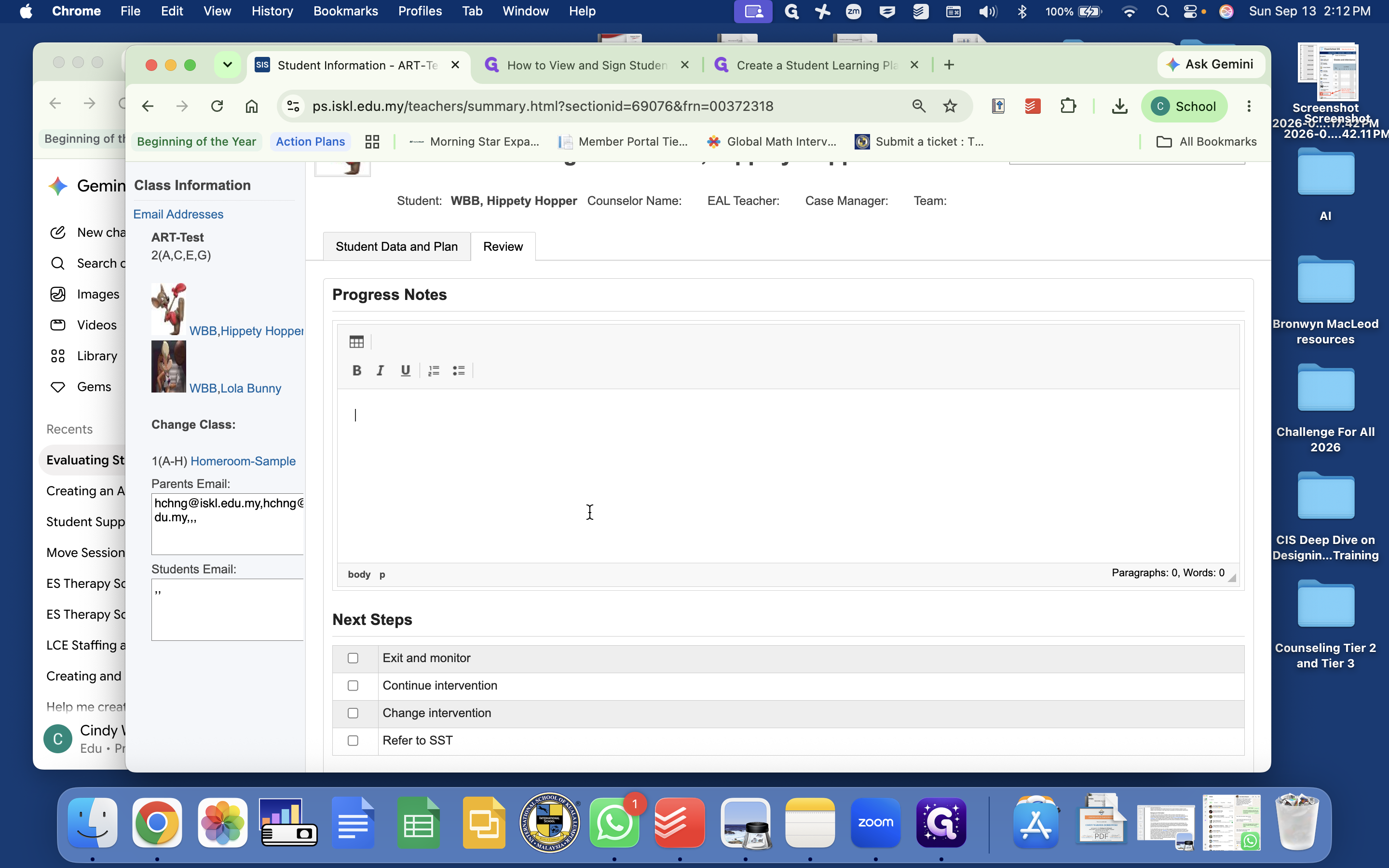
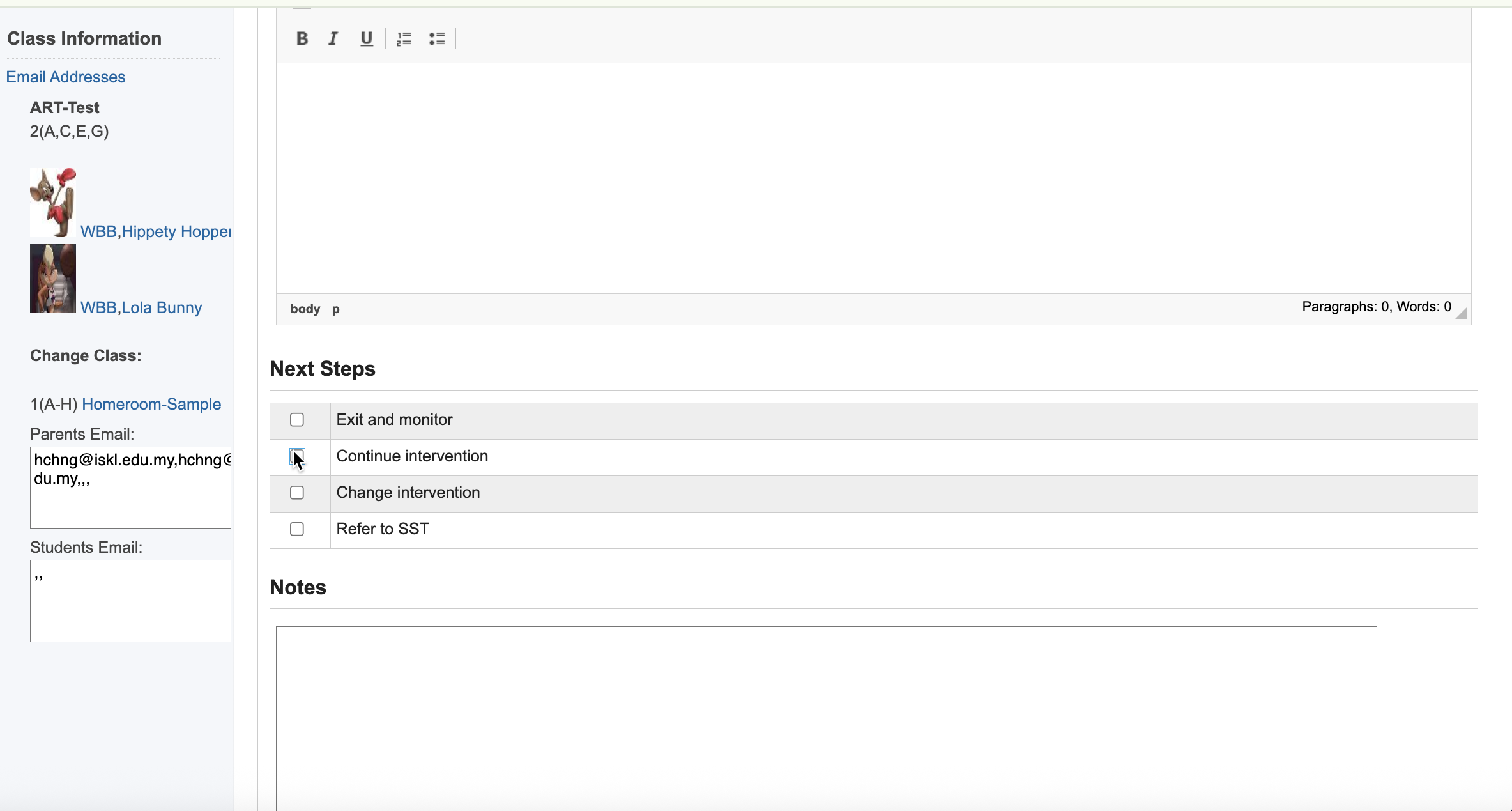
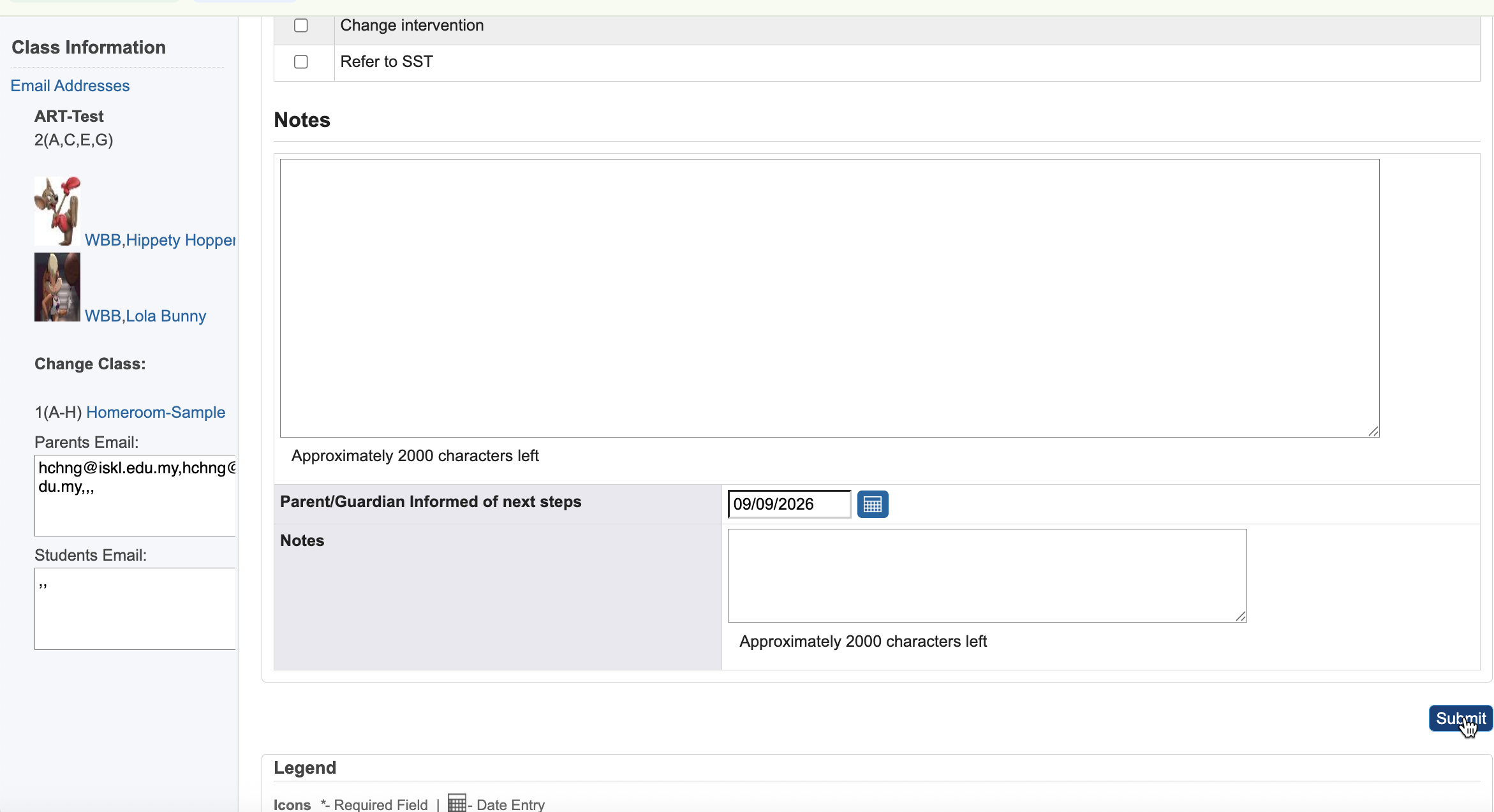
Document Review Notes and Next Steps
Track ongoing student progress and log intervention updates.
Q: How do I make a Student Learning Plan visible to parents?
A: Reopen the saved plan by clicking View / Edit SLP, check the Is this SLP active? checkbox, and click Submit to publish it to the parent portal.
Q: Where do I record updates on student progress after saving an SLP?
A: Open the plan using View / Edit SLP, select the Review tab, and enter your observations into the Progress Notes field before choosing the appropriate next steps.
Term | Definition |
|---|---|
SLP (Student Learning Plan) | An individualized education plan created to set learning goals, assign responsible staff, and track student intervention progress. |
PowerSchool SIS | A web-based student information system used by educators to manage student records, grading, attendance, and support plans. |
Parent Portal | An online PowerSchool interface enabling parents and guardians to view published student records and active learning plans. |