Create Tasks from Emails in Microsoft Outlook
Learn how to quickly create and manage tasks directly from email text in Microsoft Outlook using the integrated To Do app.
By Lisa
This guide demonstrates how to quickly create a trackable task directly from an email in Microsoft Outlook by simply highlighting text. The goal is to efficiently turn email action items into tasks without manual data entry.
This workflow applies to any Microsoft Outlook user who wants to streamline their personal task management and automatically track action items seamlessly within the integrated To Do app.
Create a Task from Email Text
1
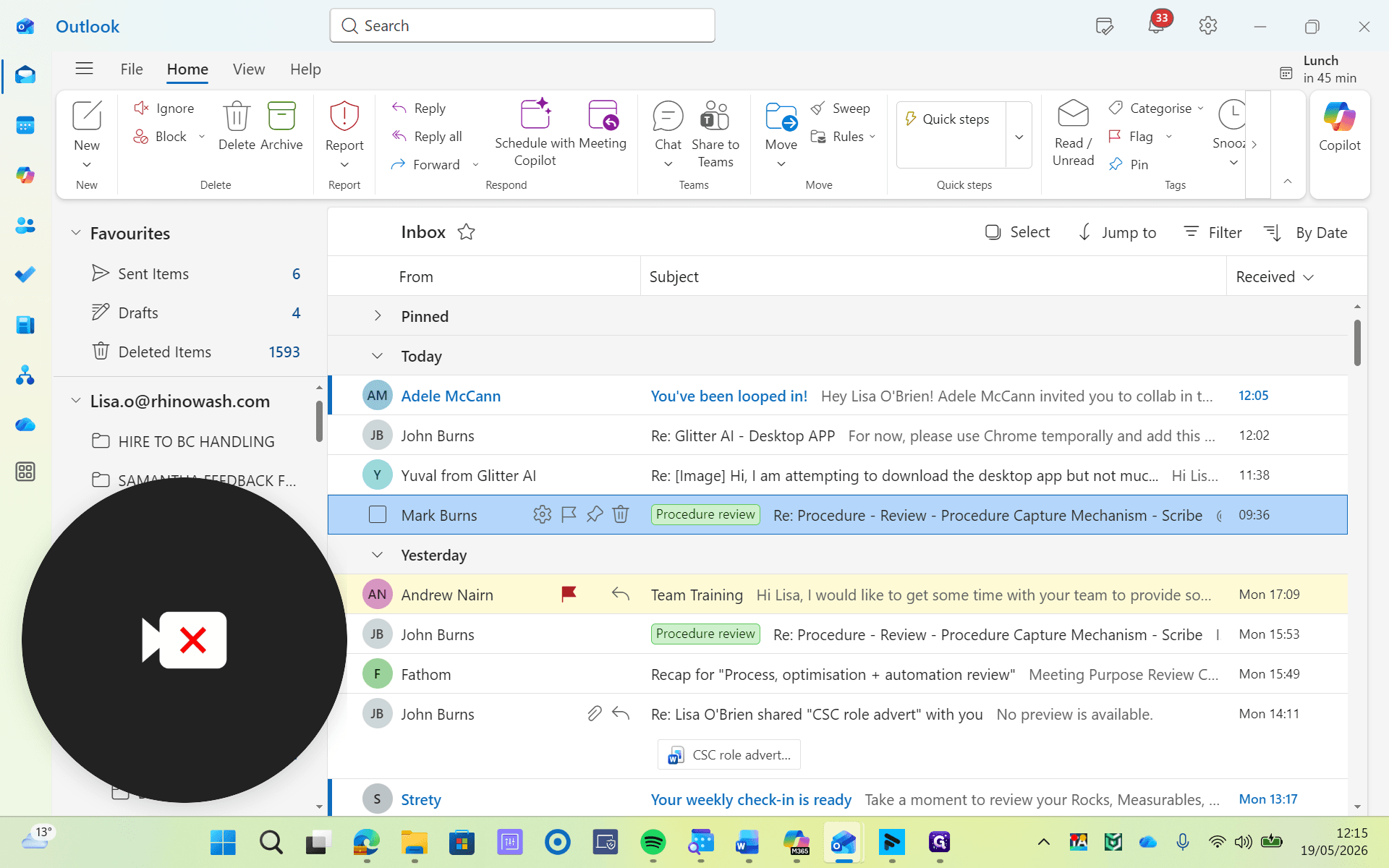
Double-click an email from your inbox to open it.
2
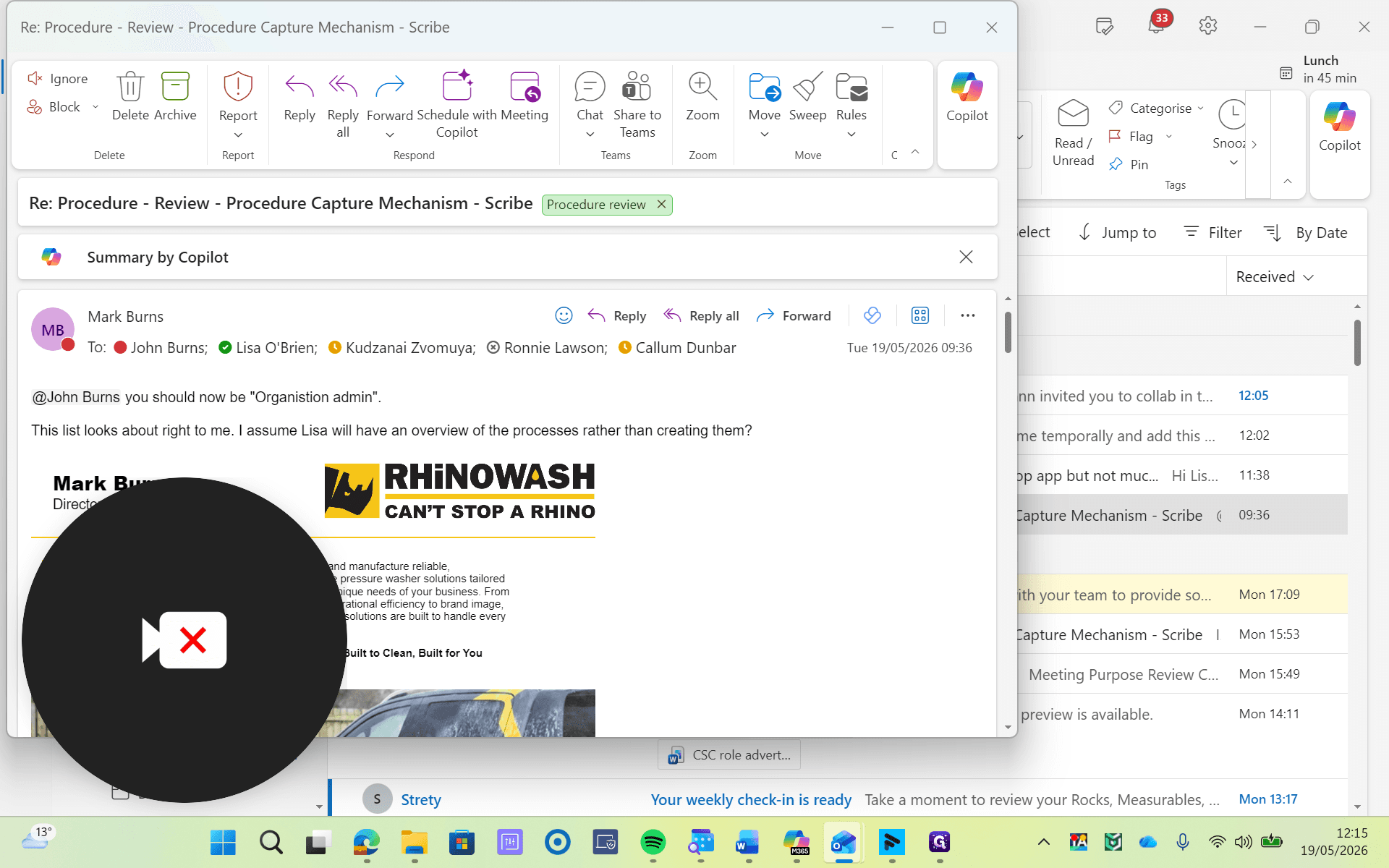
Highlight the specific text in the email body that you want to use as your task name.
3
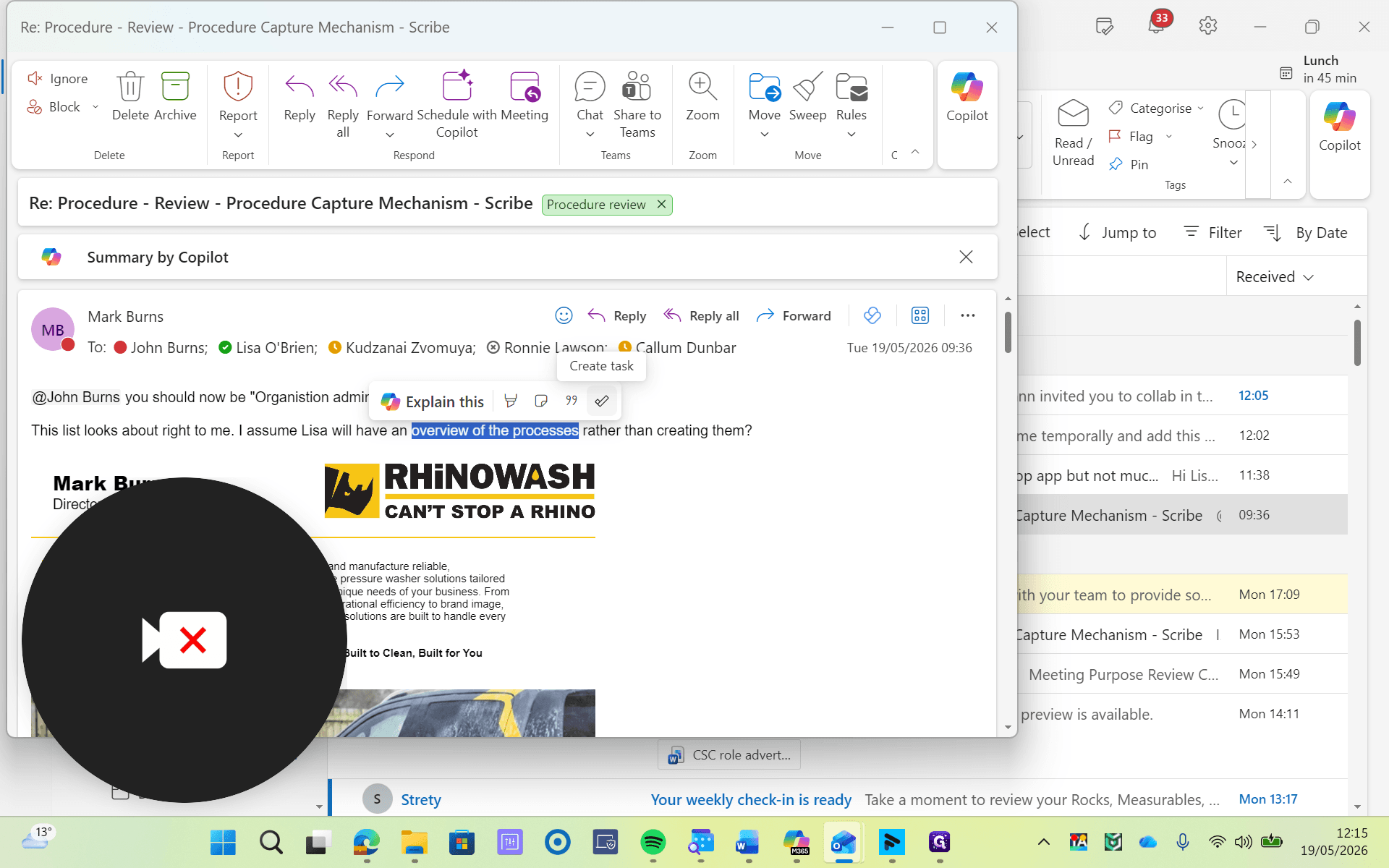
Click the Create Task button that appears in the pop-up menu directly above the highlighted text.
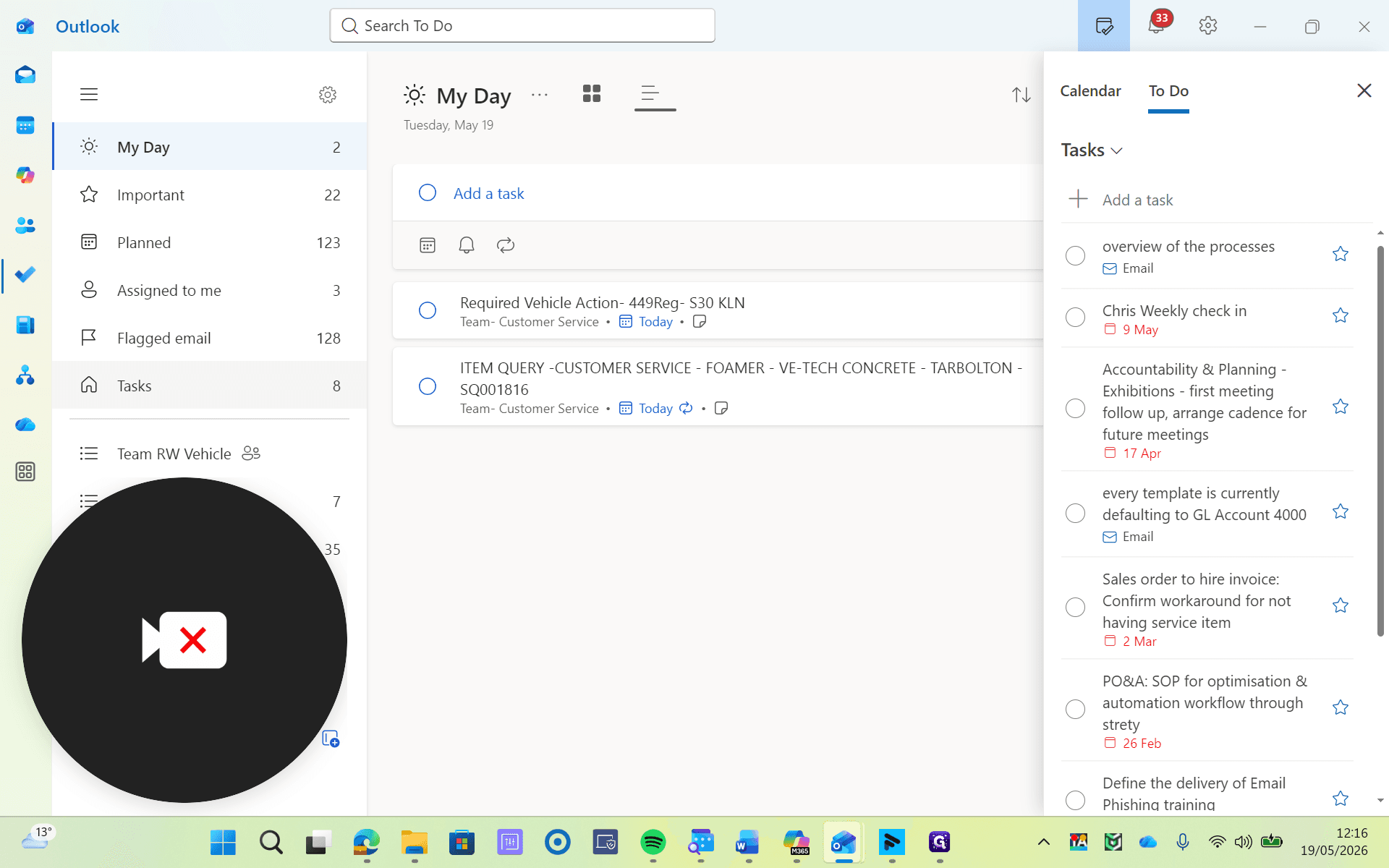
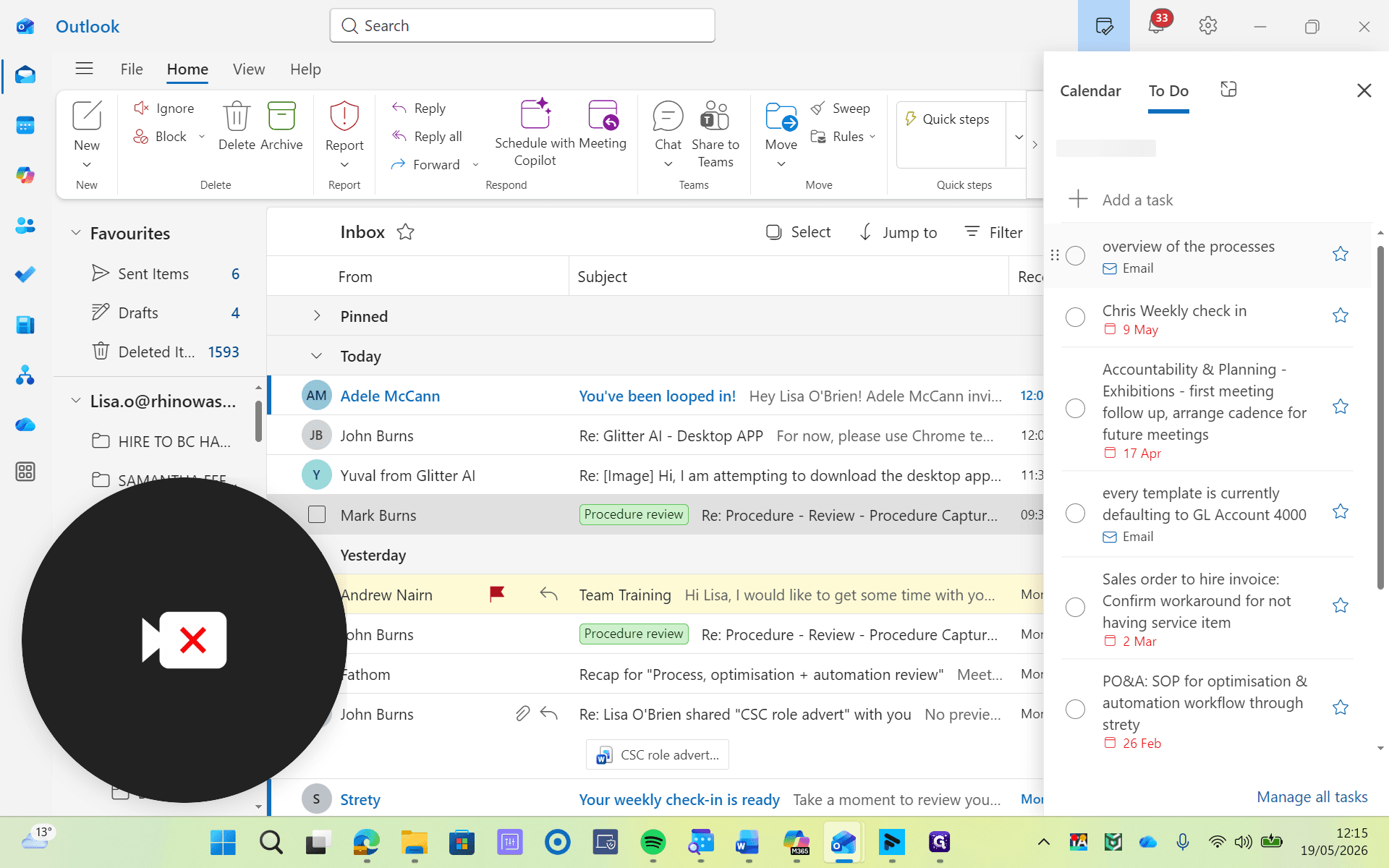
The new task will load and appear in your To-Do bar on the right-hand side of the page.
4
Click the newly created task in the right-hand To-Do pane to open it and add any additional details or context.
Manage Tasks in the To Do App
For a broader view of your pipeline, you can access all of your generated tasks directly inside the integrated To Do app.
5
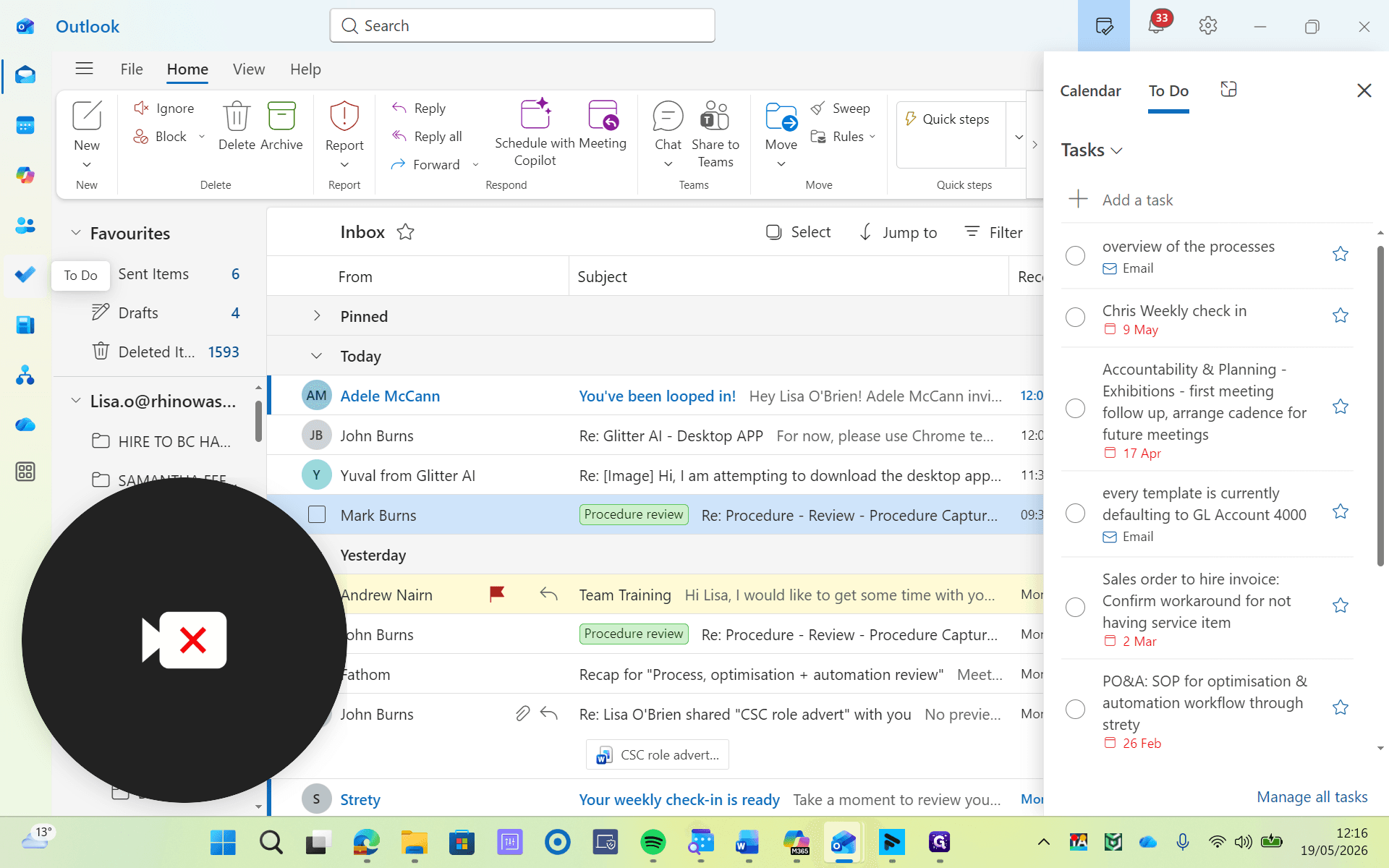
Navigate to the left-hand menu and click the To Do application icon.
6
Select the Tasks tab to view, amend, and manage your complete list of action items.