
Step 3 - Creating a Scenario for UBOs and Balance Sheet Update
A step-by-step guide on creating a scenario after updating your balance sheet and inputting your UBOs. The article covers aspects like expected returns, cash and accrued distribution rates for stressed assets, and country exposures.
In this guide, we'll learn how to create a scenario in WMCockpit. After inputting your UBOs and updating your balance sheet with assets and liabilities, the next step is creating a scenario. This scenario sets the foundation for your financial projections and decisions. By defining parameters such as UBO selection, investment details, return rates, exposure settings, and more, you can tailor a scenario to simulate different financial situations. Let's dive into the process.
The scenarios form the backbone of the assumptions used in calculations and projections. The logic behind this approach is that scenarios allow for different economic conditions, family structures, and asset allocations to be modeled. Each scenario can have unique settings for things like UBOs (Ultimate Beneficial Owners), asset distributions, and economic projections. These settings are crucial for accurately calculating and displaying the various metrics and analyses that WMCockpit provides.
Setting Up the Scenario
To begin, click on "scenario settings" to initiate the scenario creation process. This step is essential as it establishes the framework for your financial model.
Defining Scenario Parameters
Within the scenario settings, you'll specify key details such as UBO selection, investment specifics, return rates, exposure settings, and other relevant parameters. These inputs will shape the scenario and influence the outcomes of your financial analysis.
Saving and Presenting the Scenario
Once you've input all the necessary parameters, remember to save your scenario. You can choose to present it as neutral or already stressed for currency or market conditions. Saving your scenario ensures that you can refer back to it and analyze its impact on your financial model.
Let's get started.
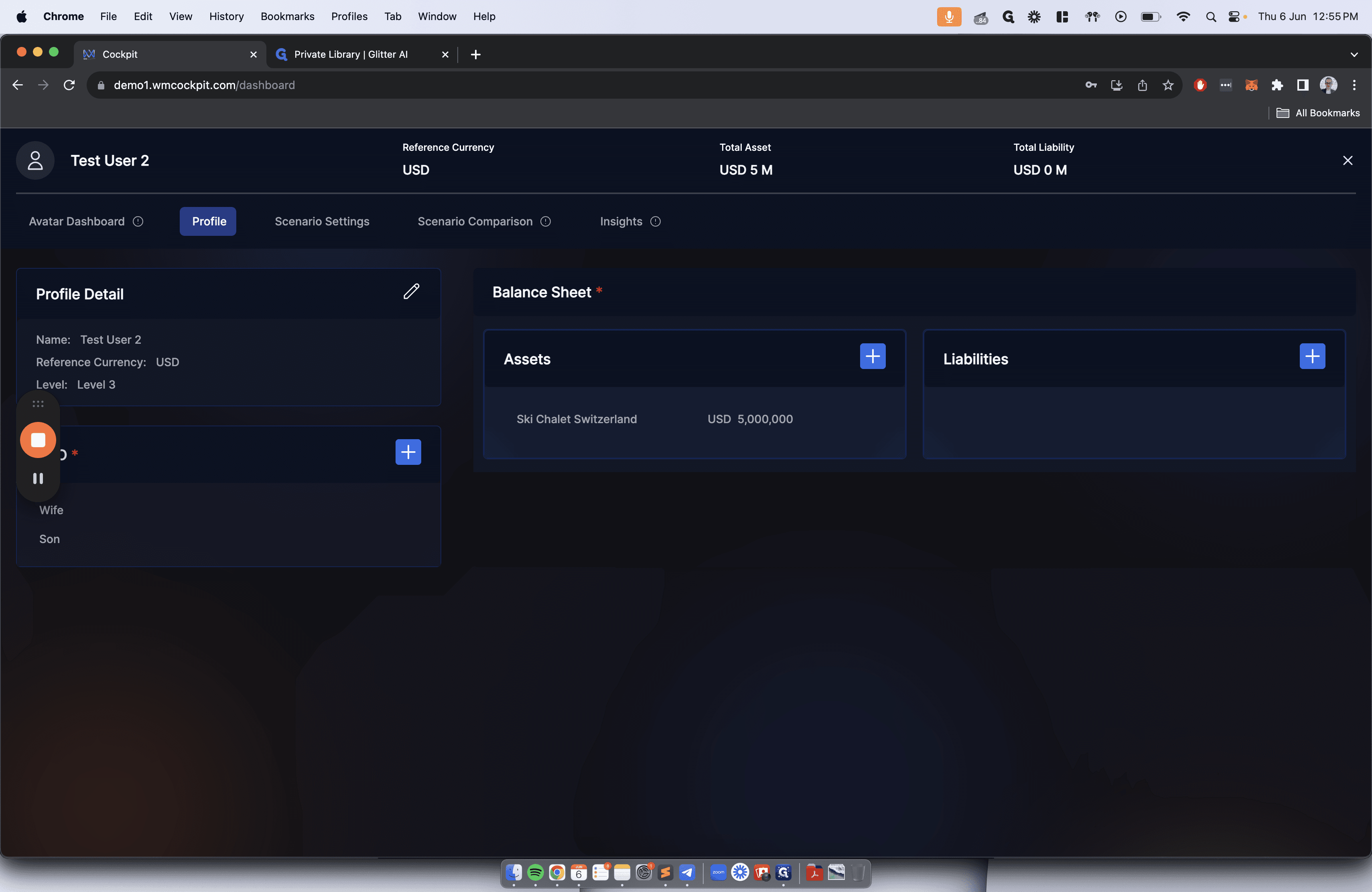
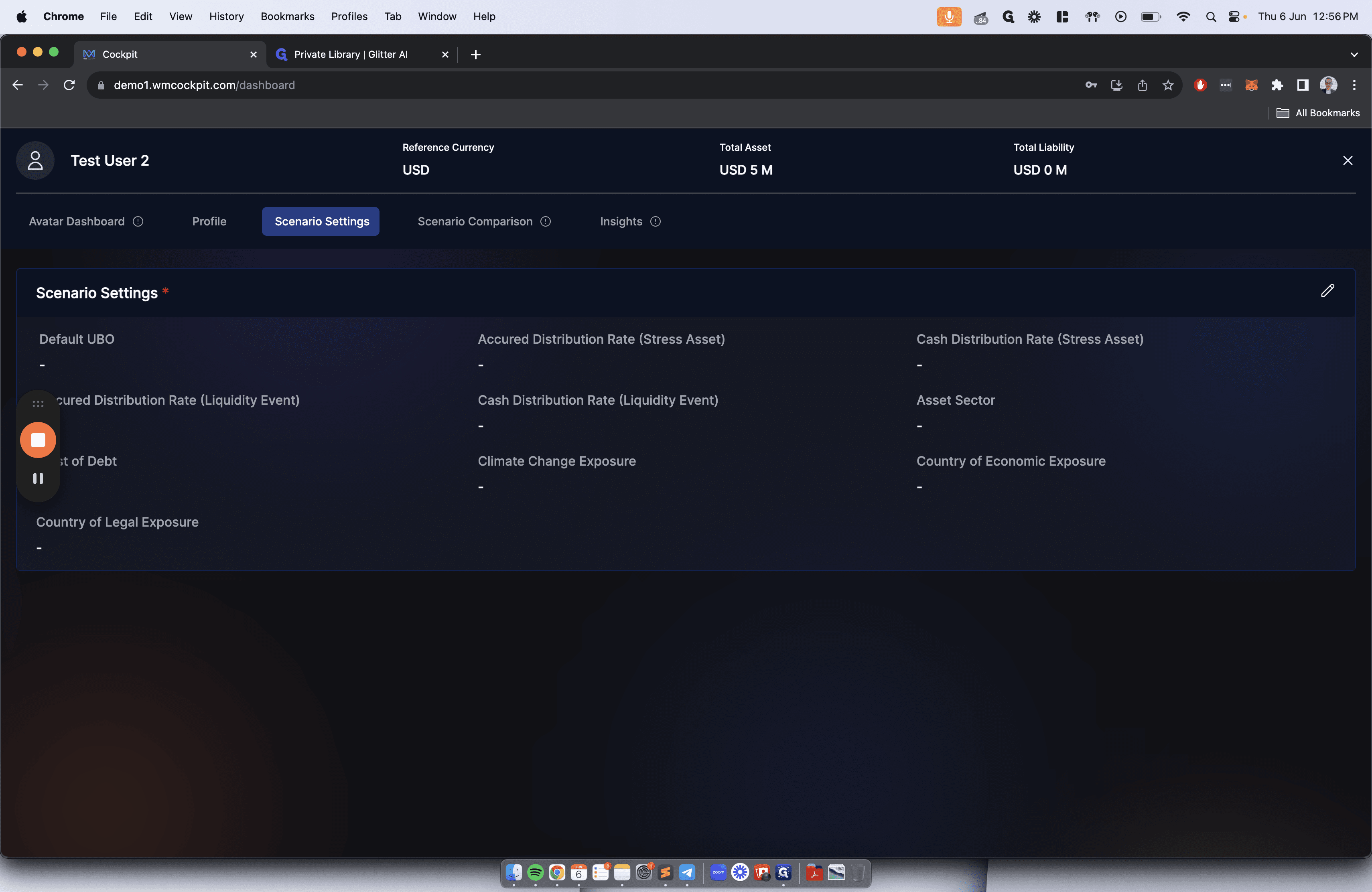
After inputting your UBOs and updating your balance sheet, including assets and relevant liabilities, we need to create a scenario. Click on scenario settings to proceed.
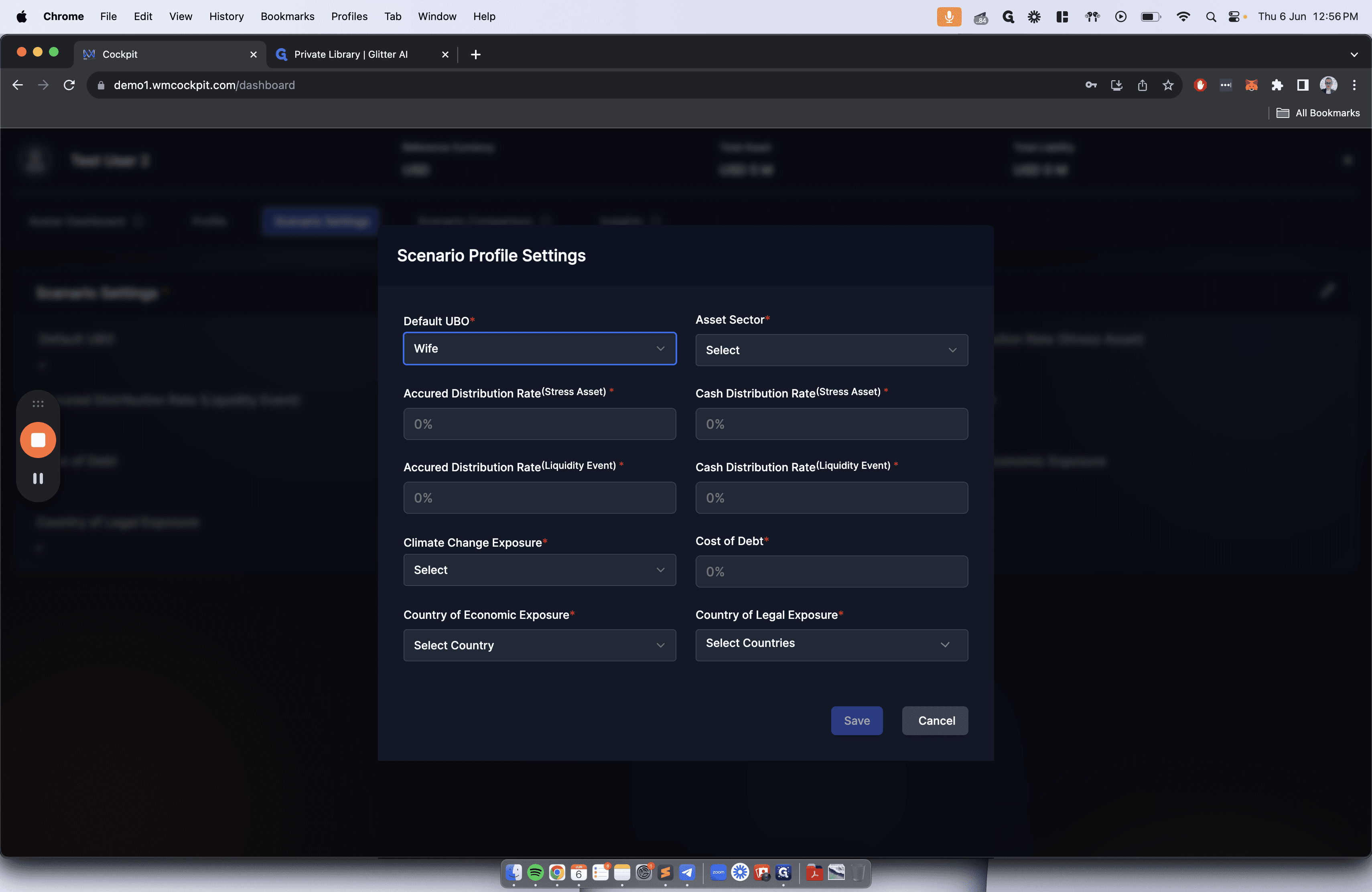
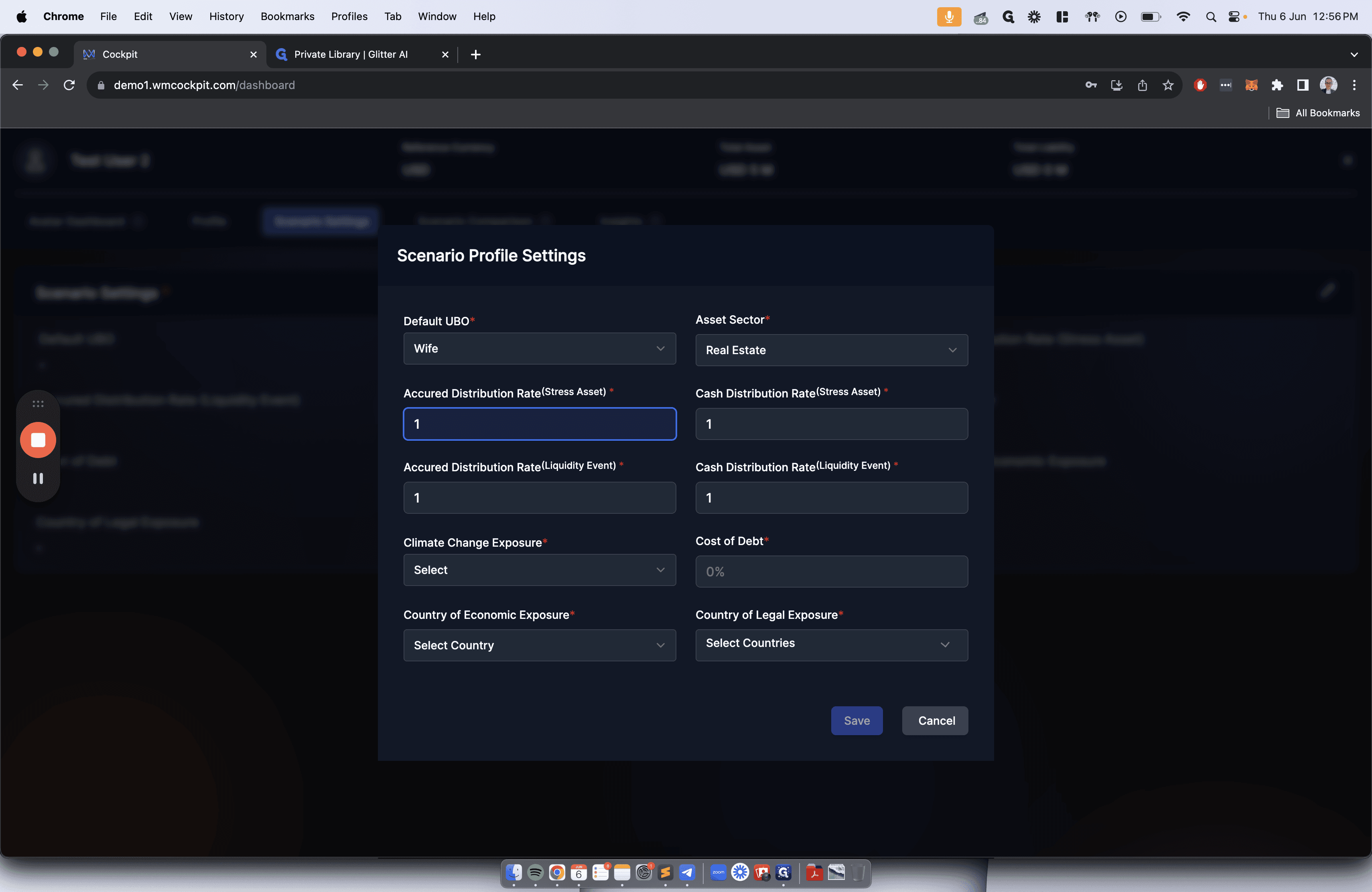
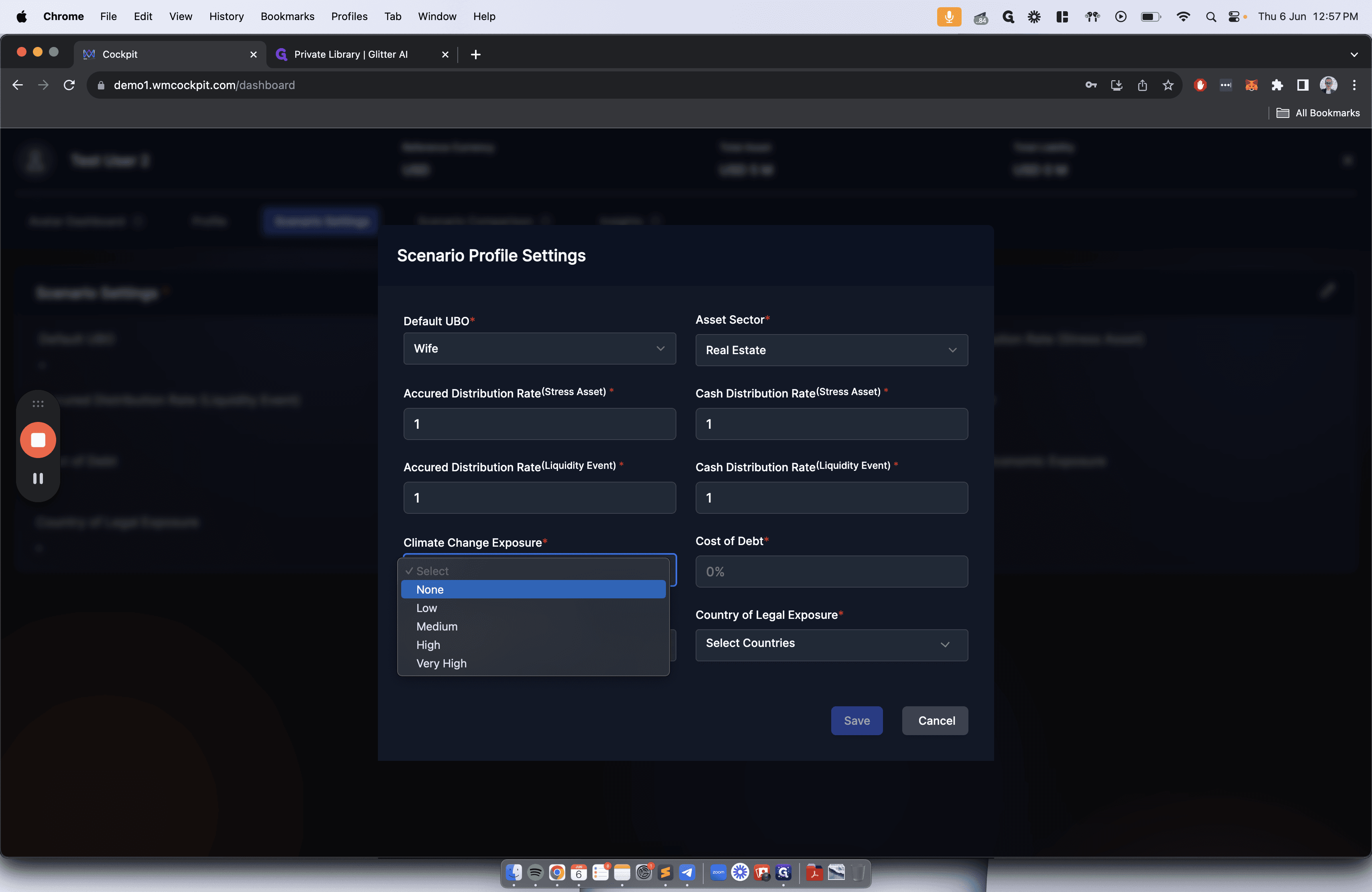
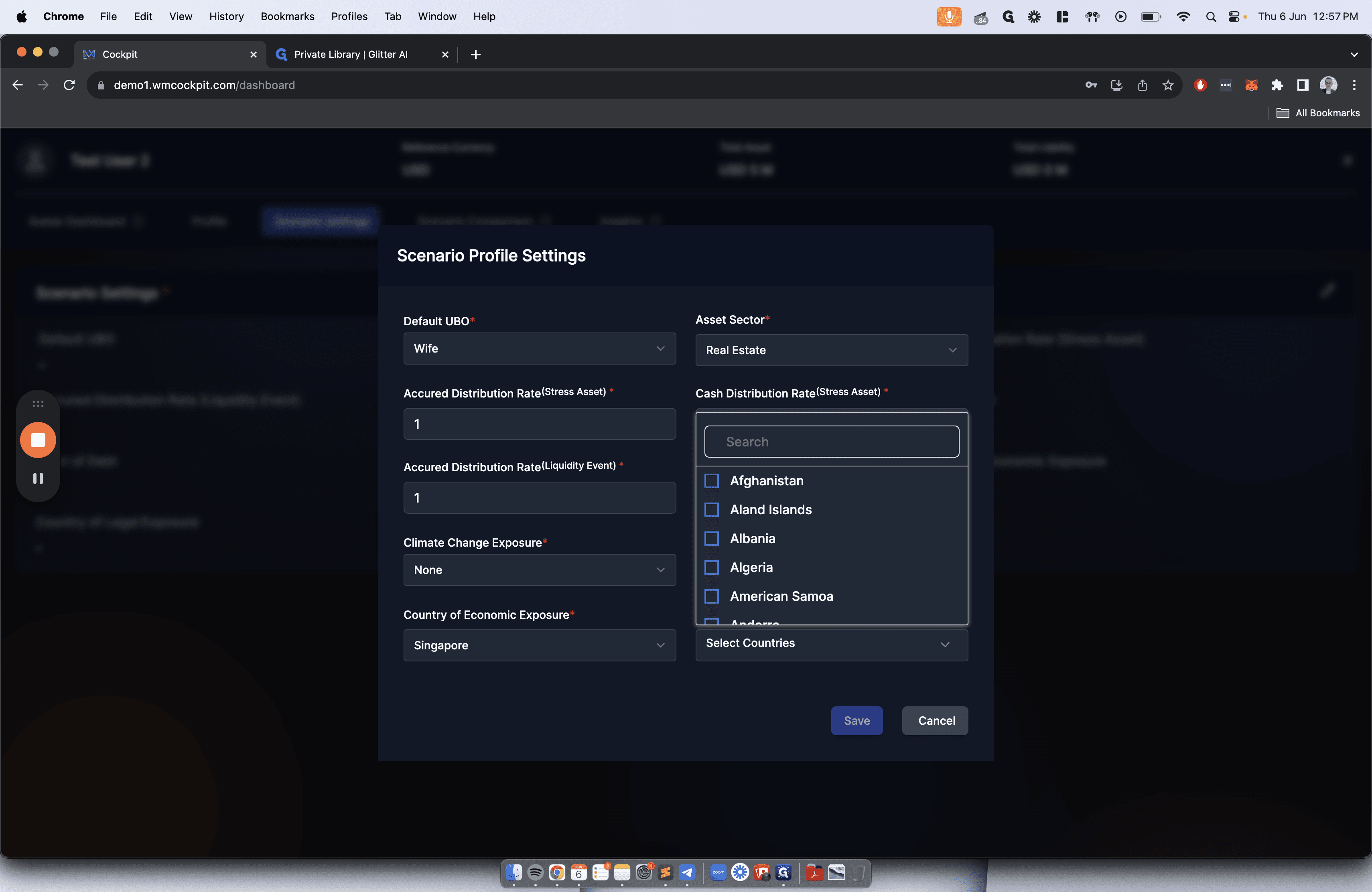
The scenario needs to establish the foundation. UBOs must be selected from the existing list for the investment and borrowing. Consider the expected returns, cash and accrued distribution rates for stressed assets, expected return on a liquidity event, and country exposures. Customize a scenario by using the edit button. This can also be set to "Neutral" as in 0% on all inputted values.
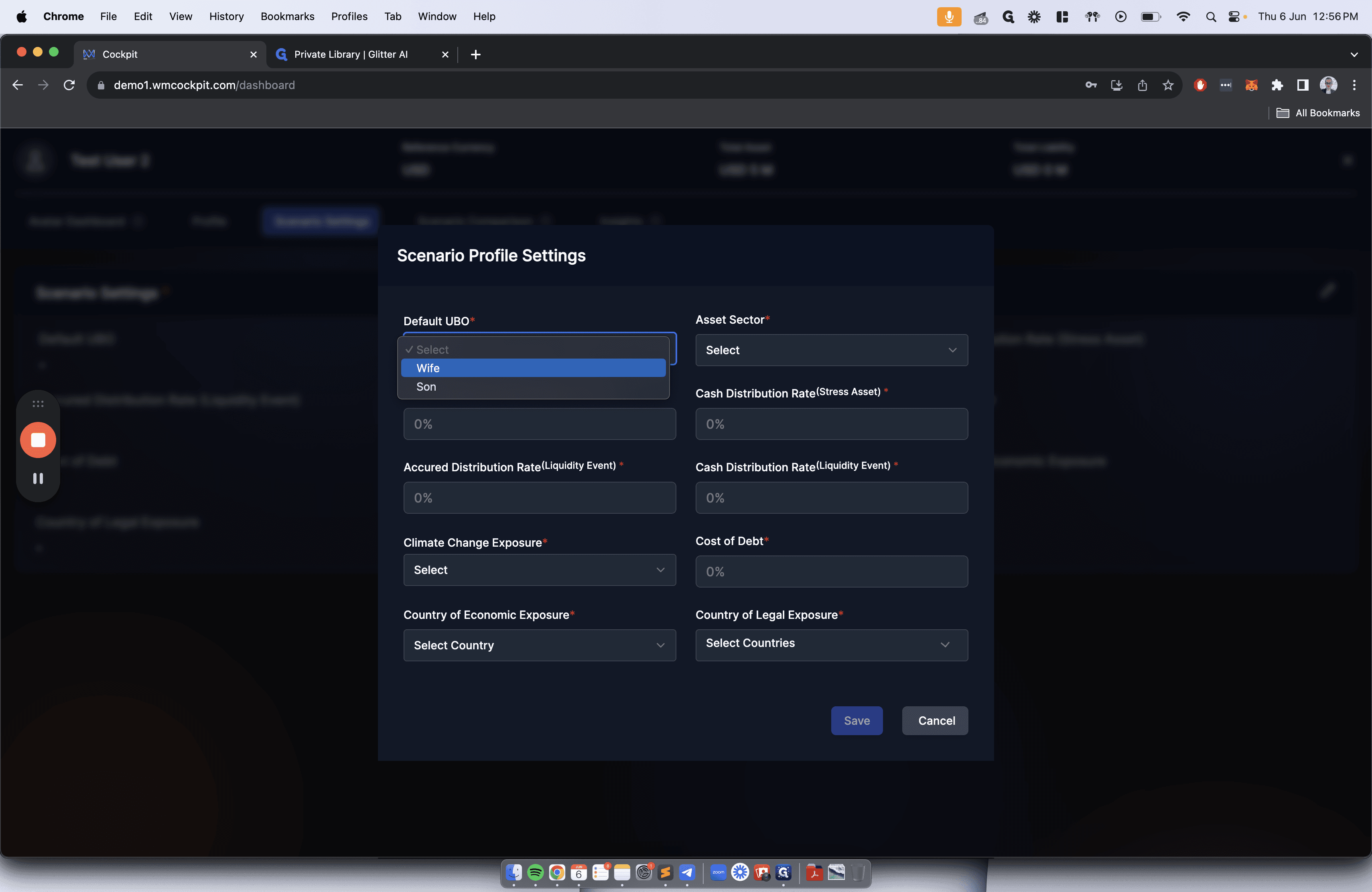
We will then select a specific UBO. This UBO is chosen for the investment and commensurate borrowing.
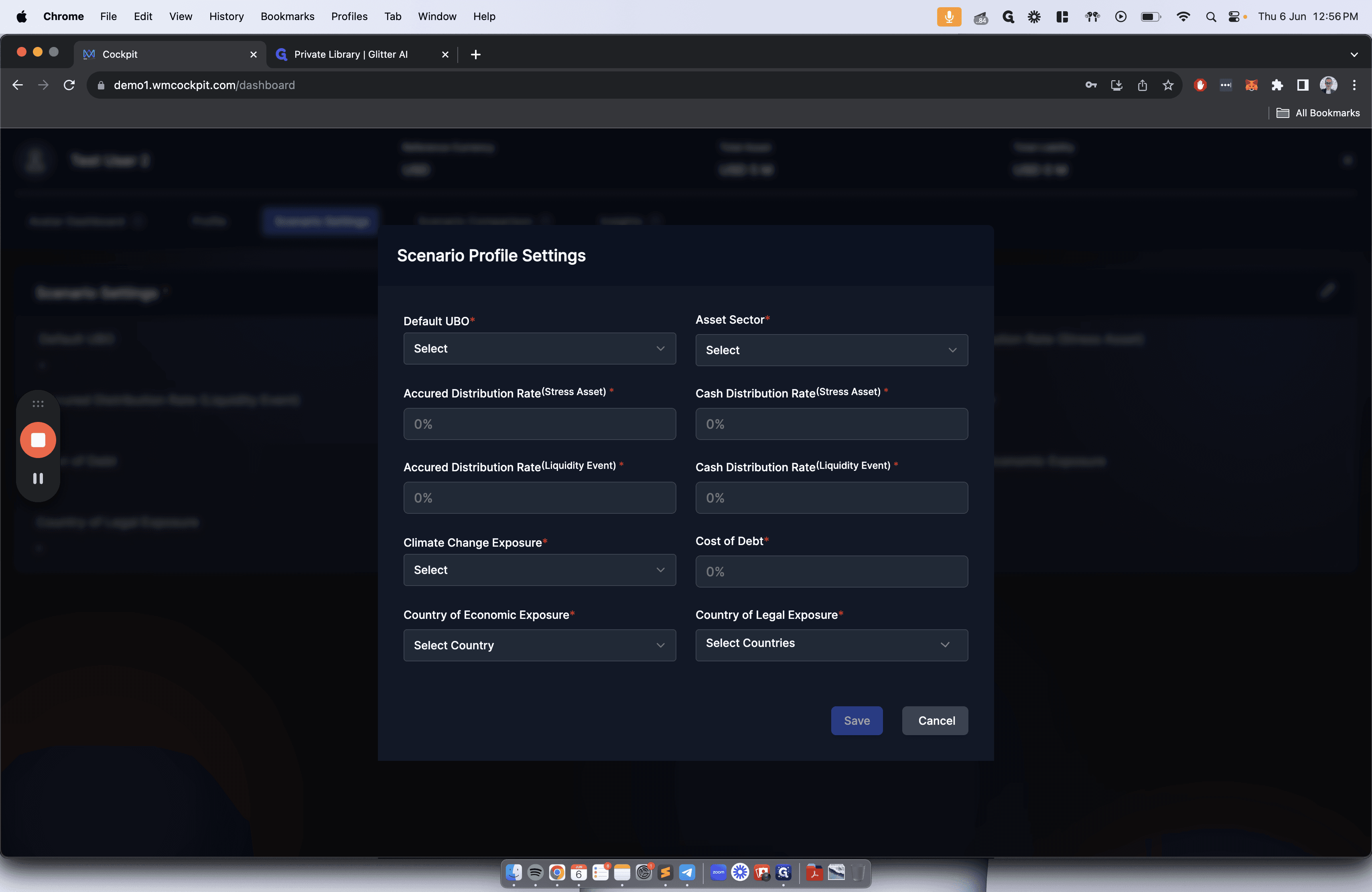
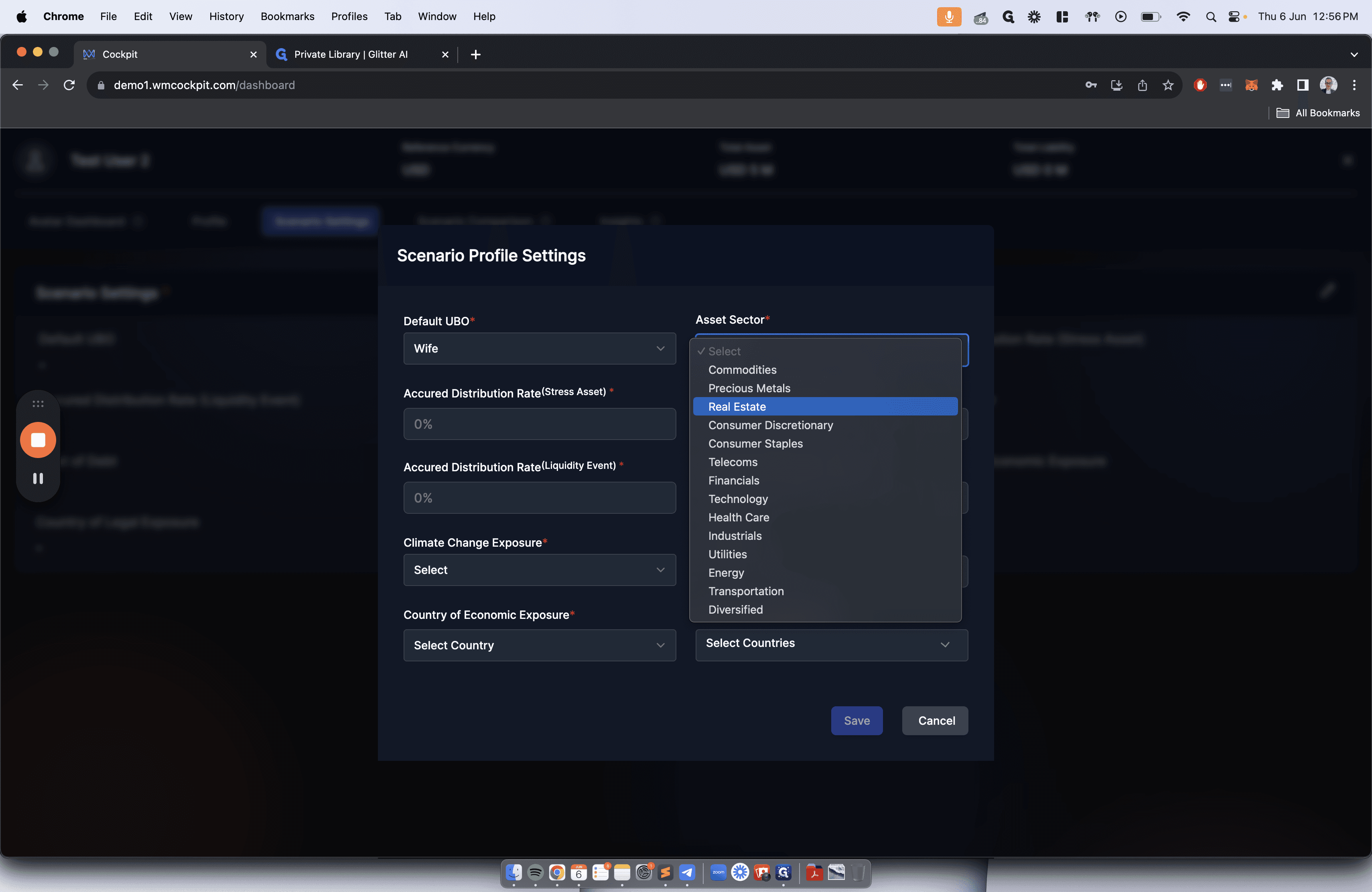
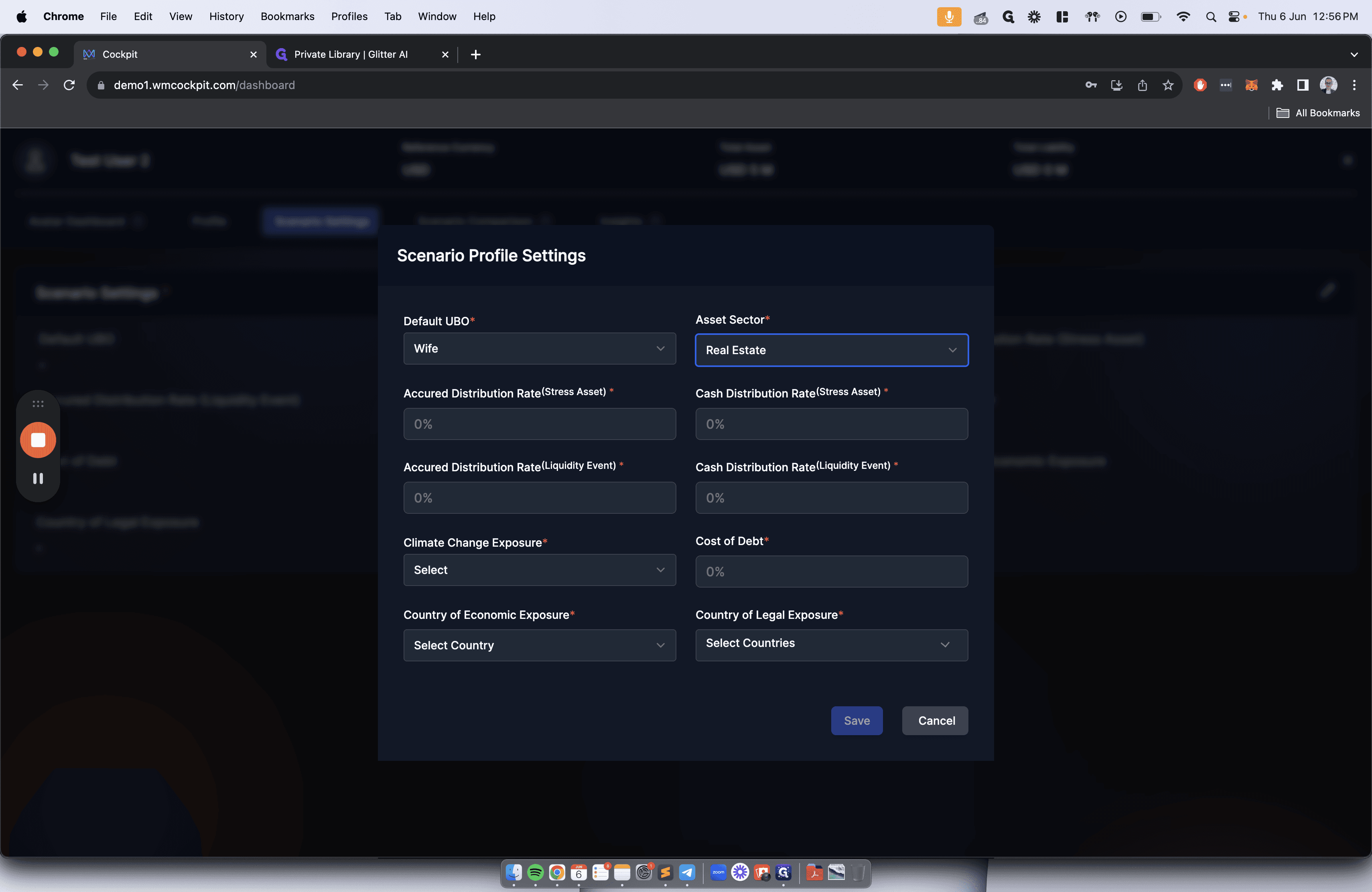
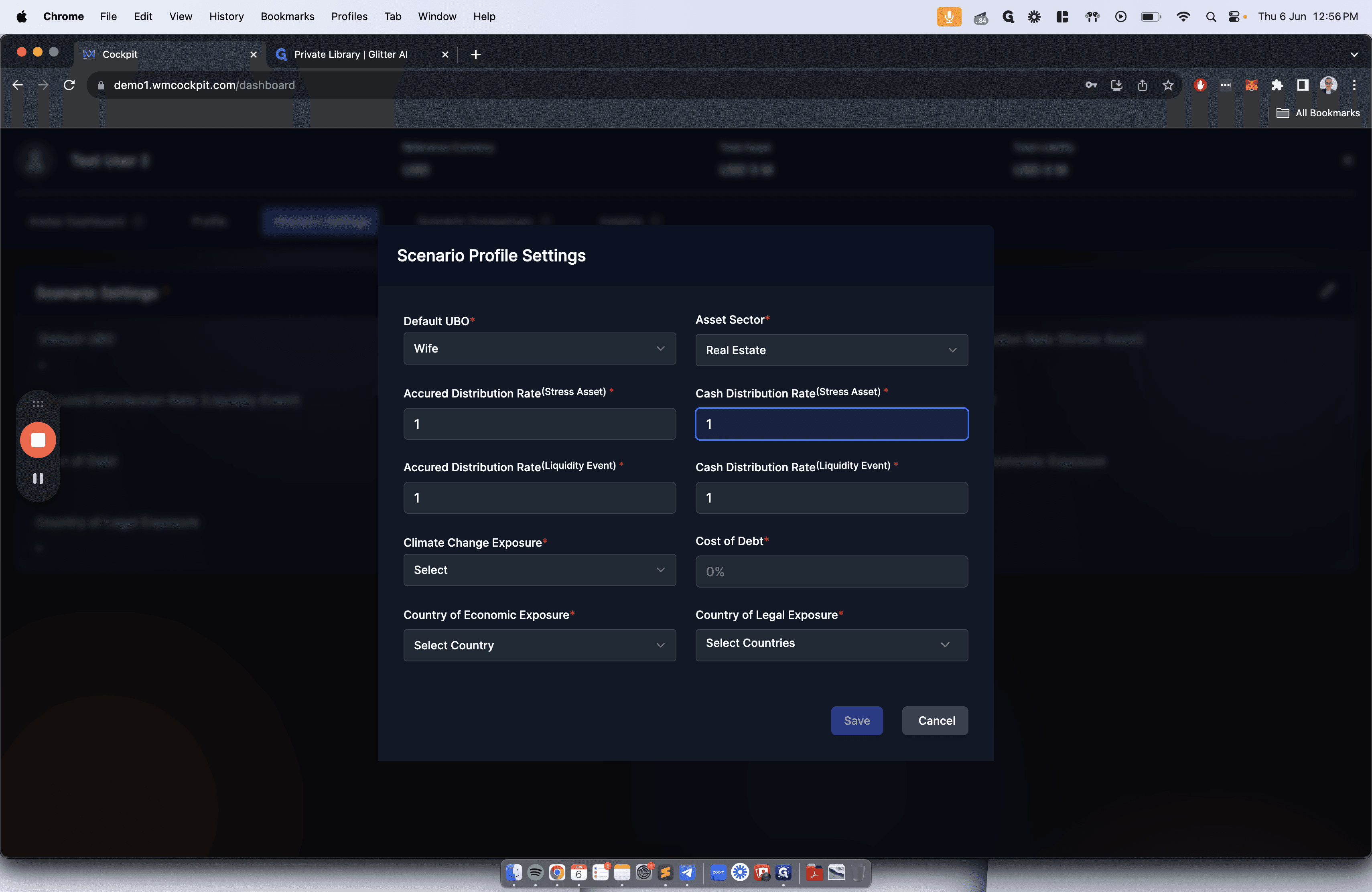
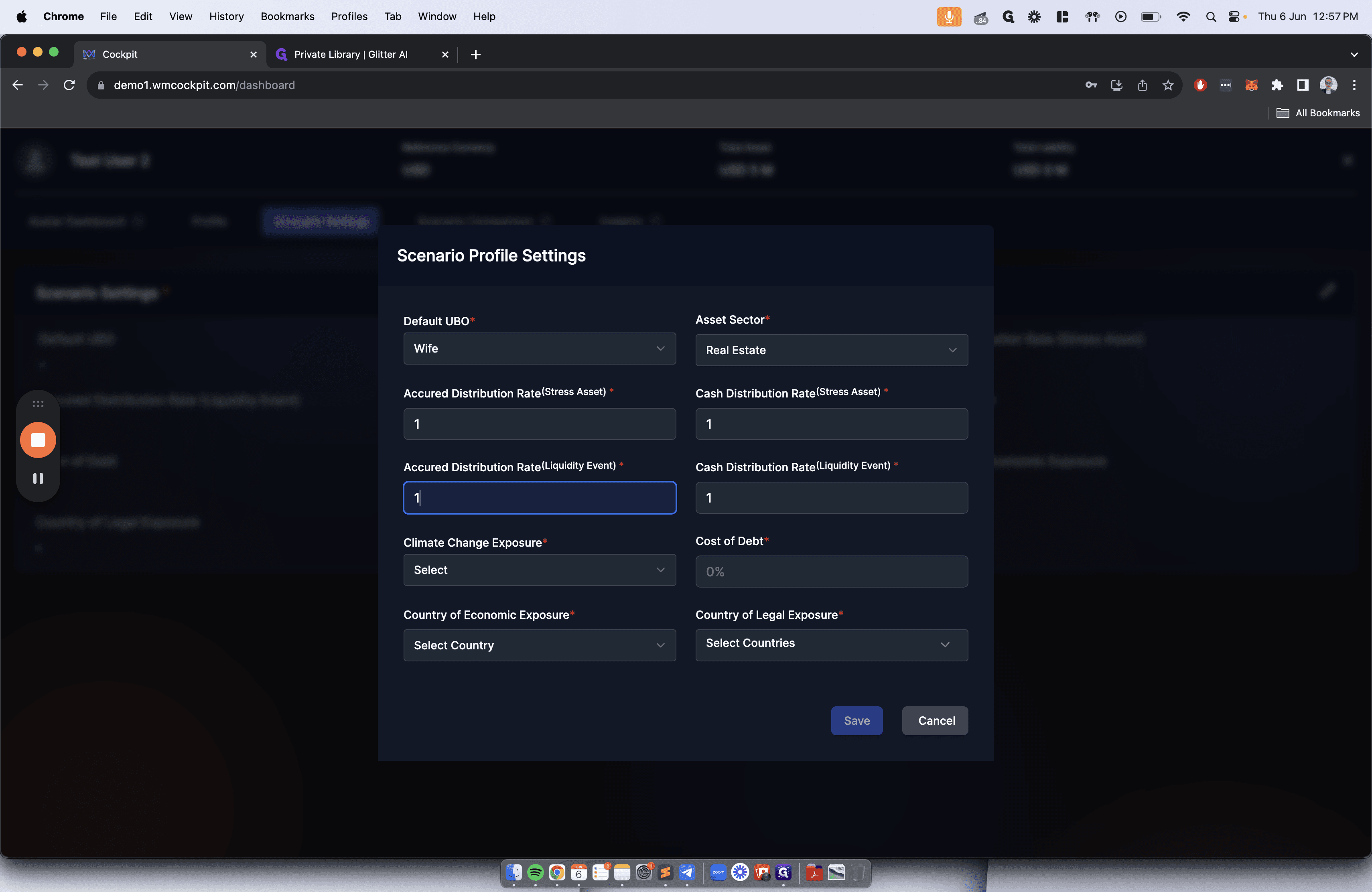
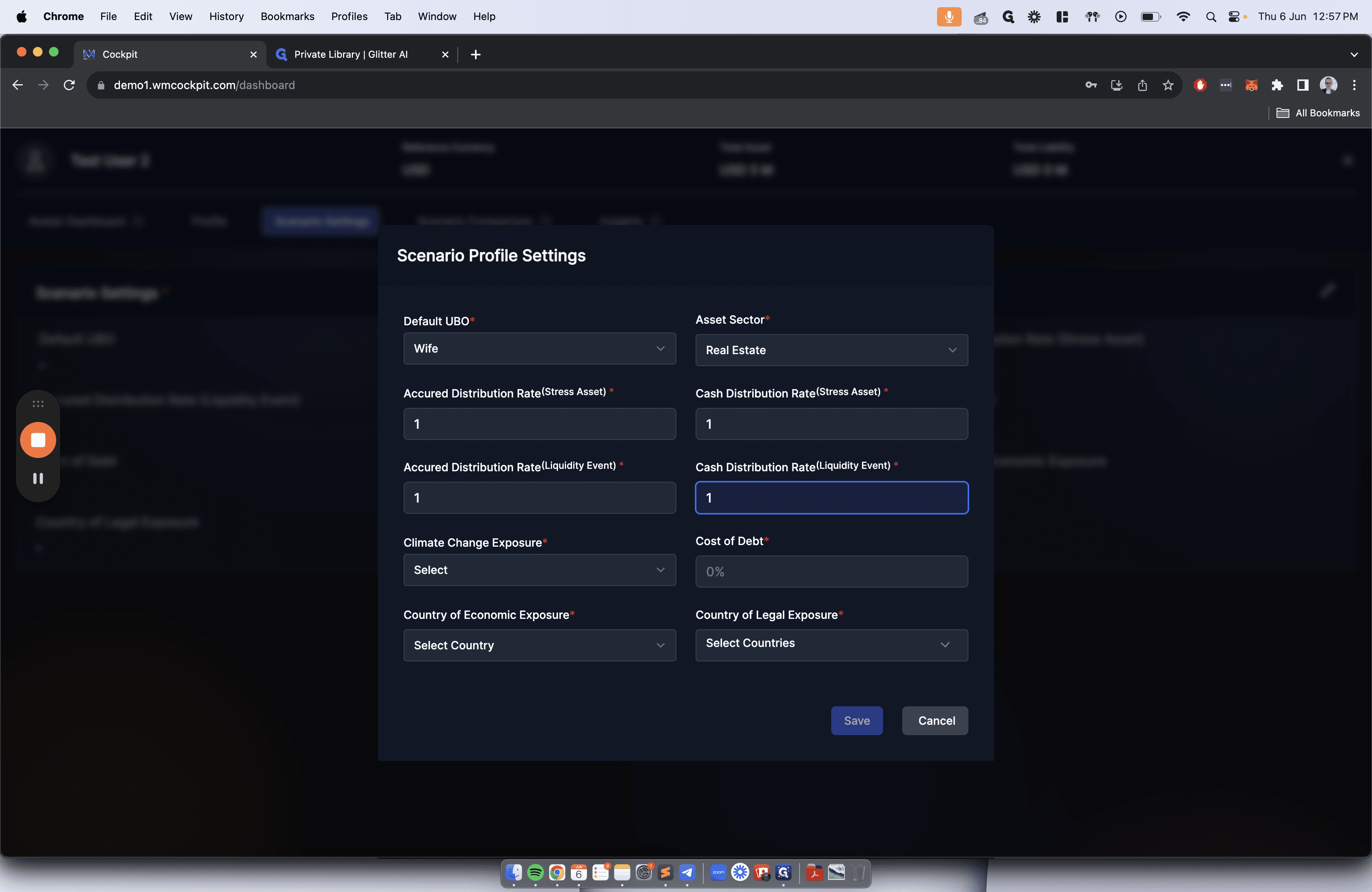
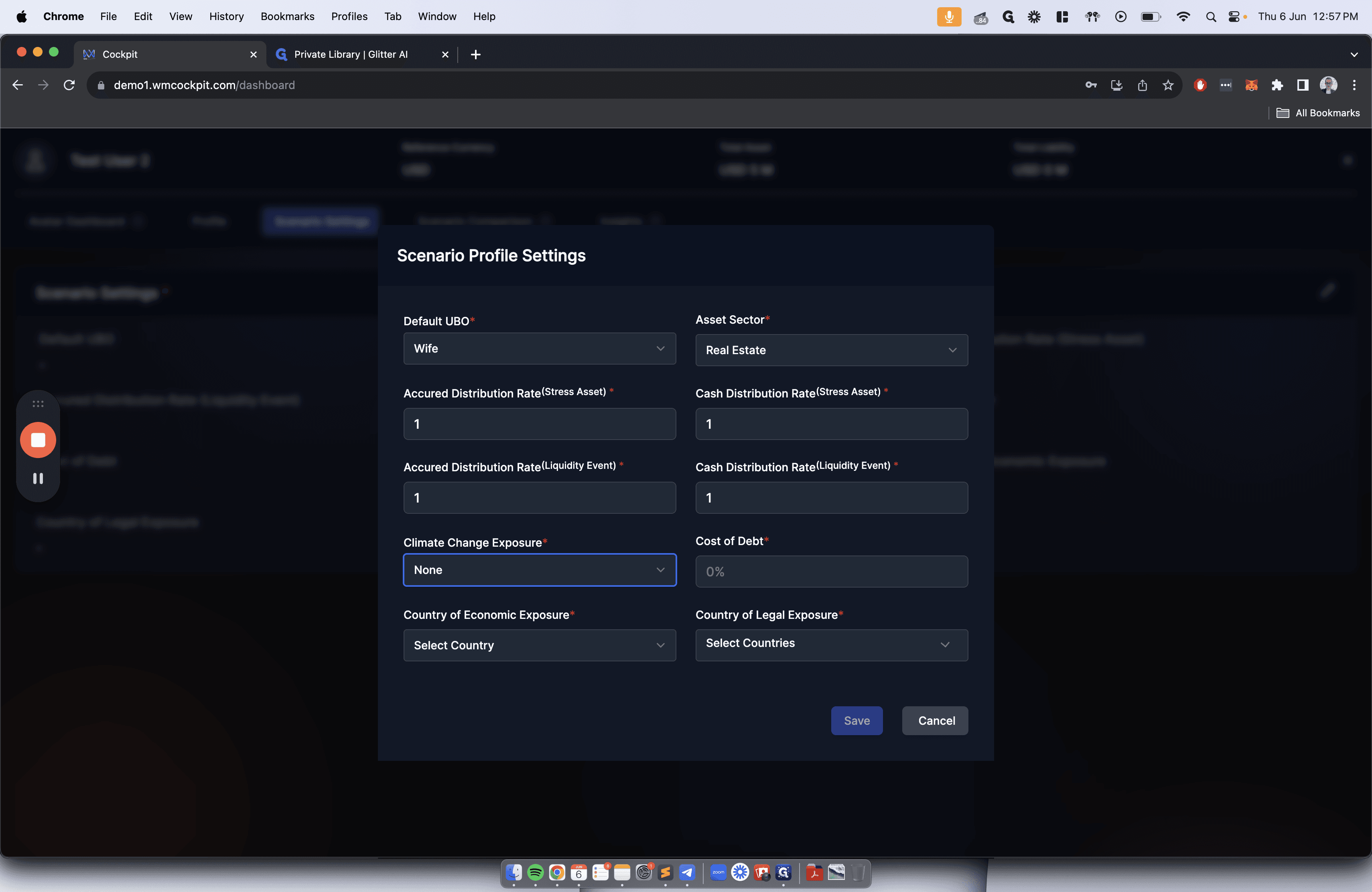
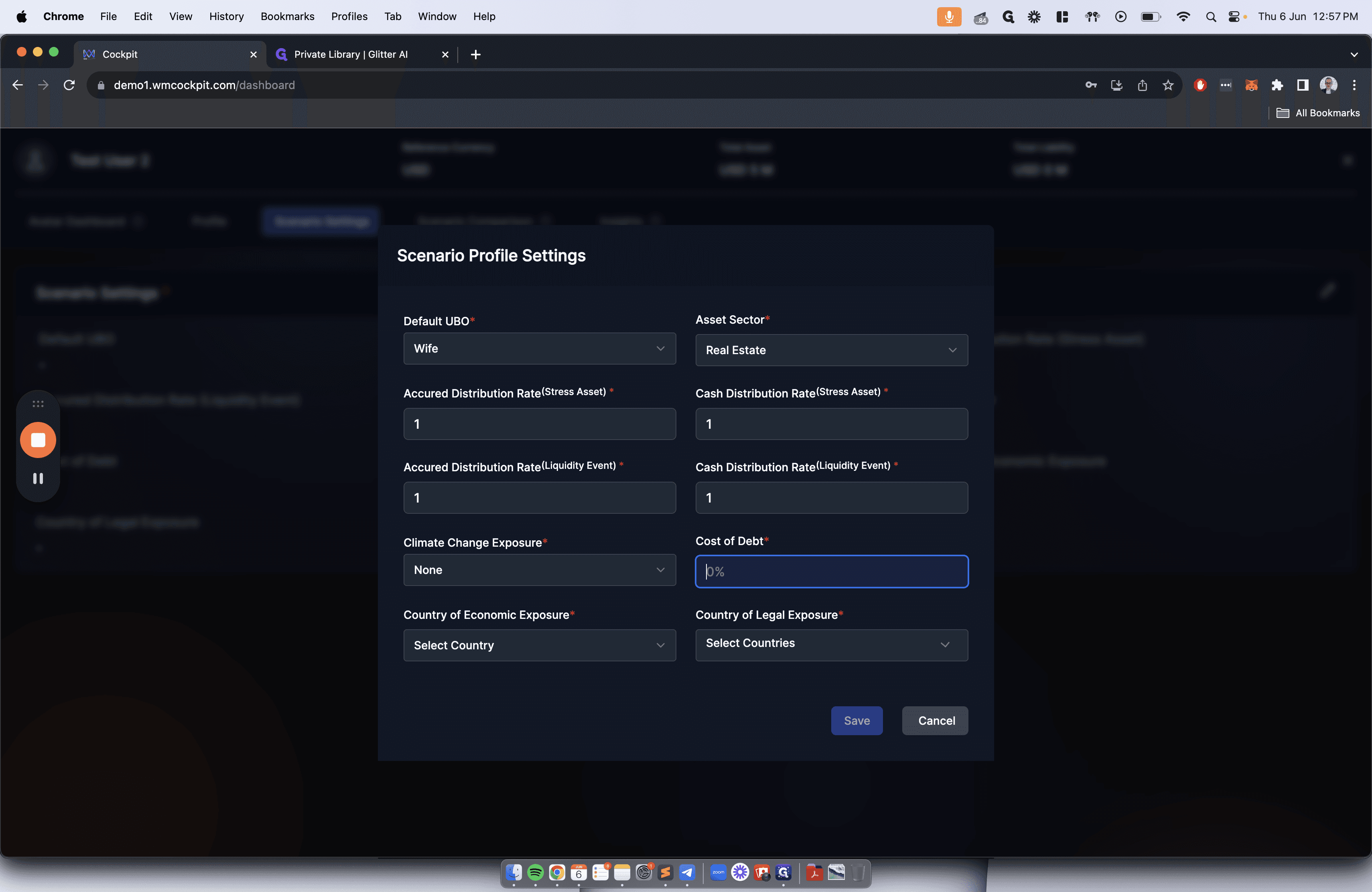
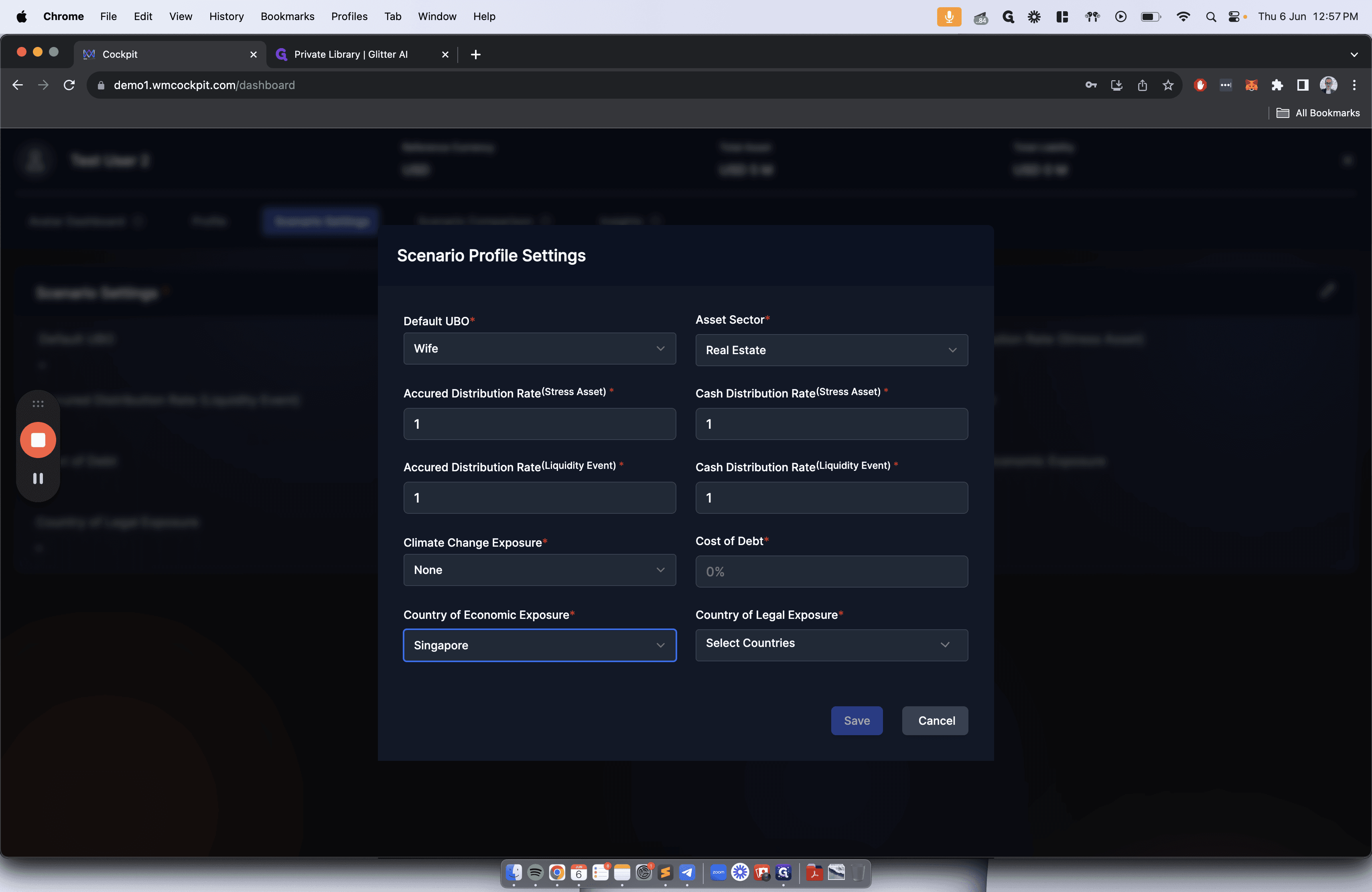
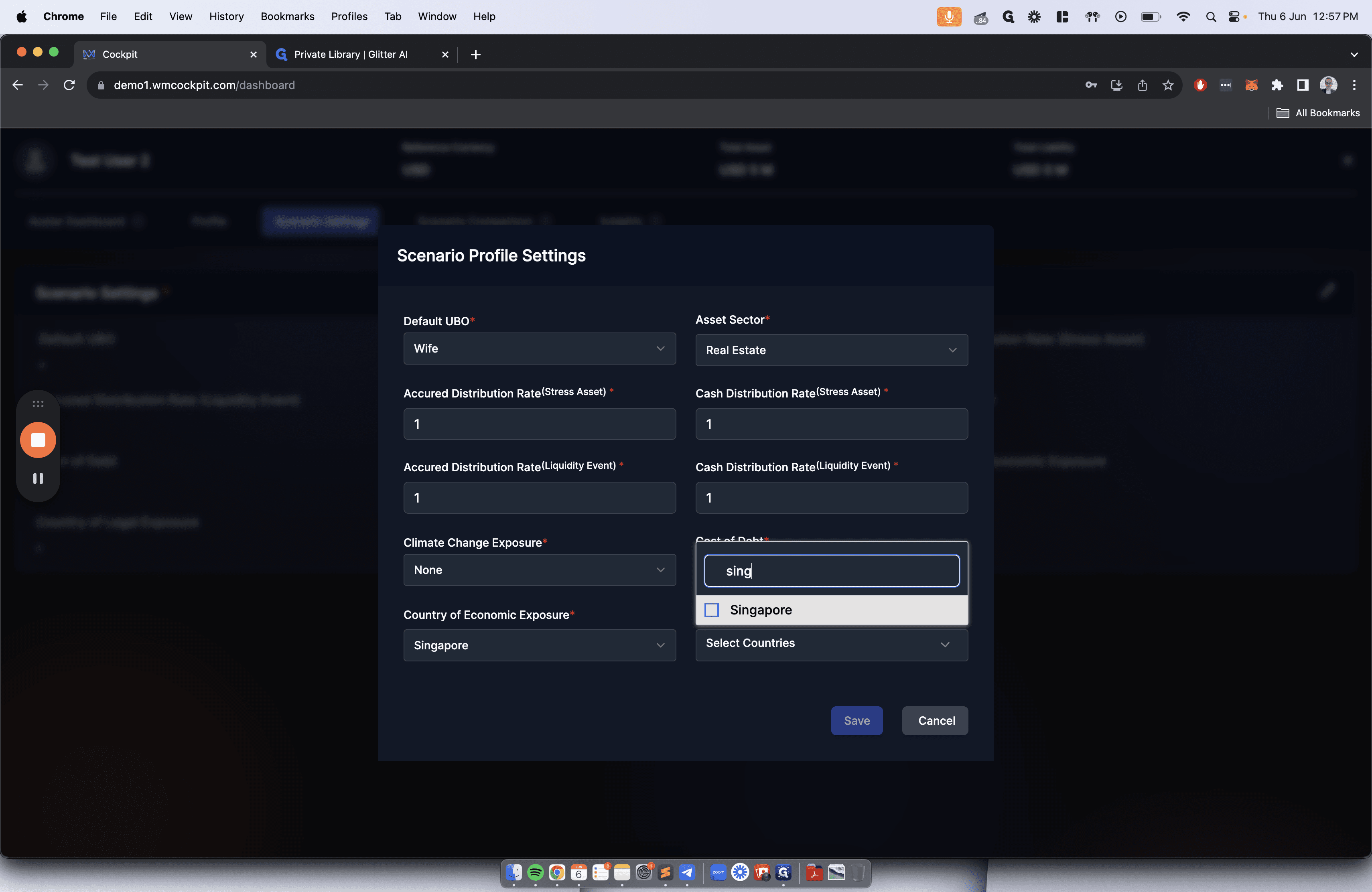
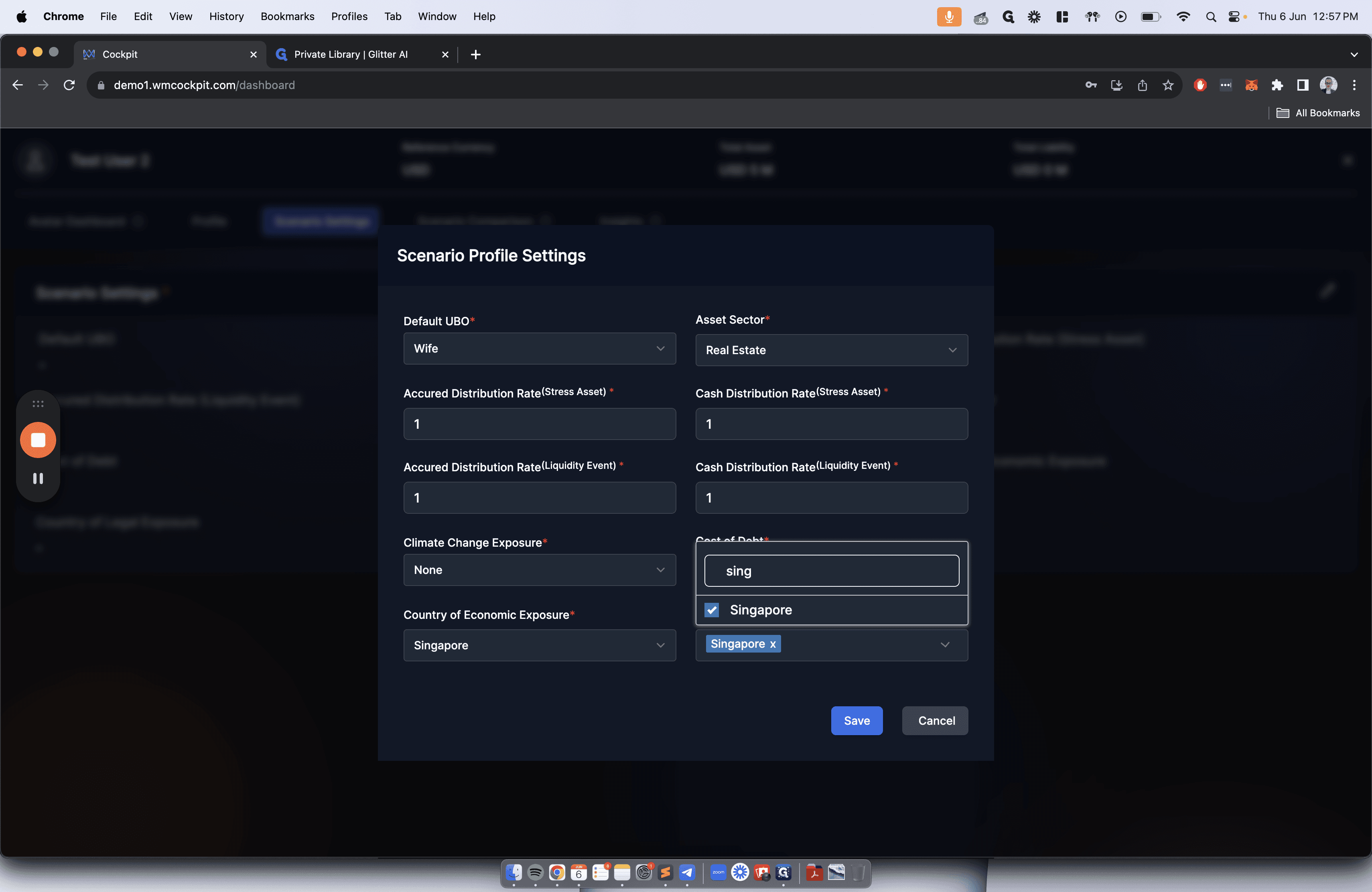
We will select the sector and enter the required parameters for the following: accrued distribution rate, cash distribution rate for stressed asset, accrued distribution rate for liquidity event, cash distribution rate for liquidity event, climate change exposure, cost of debt, country of economic exposure, country of legal exposure, and then save.
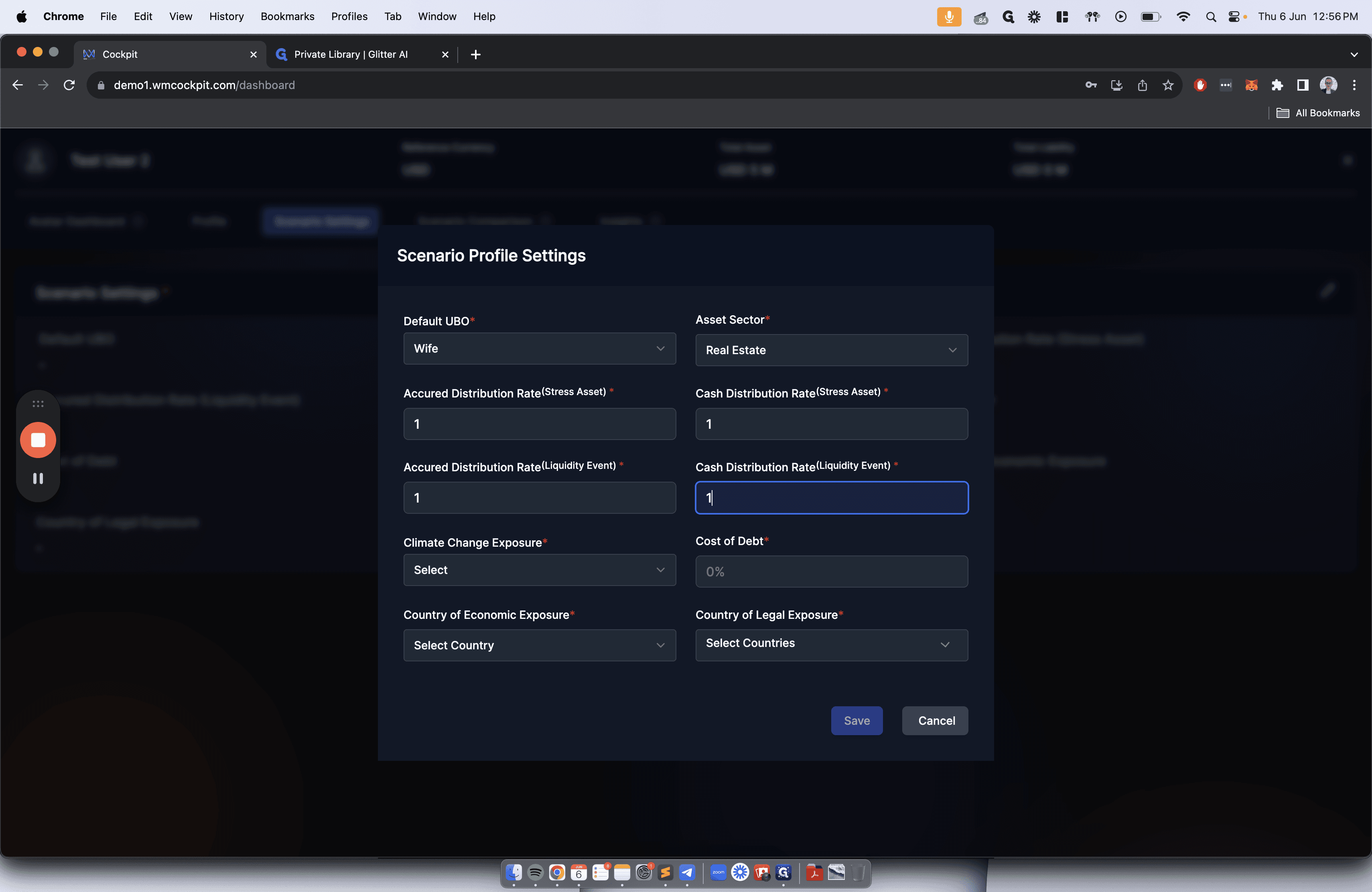
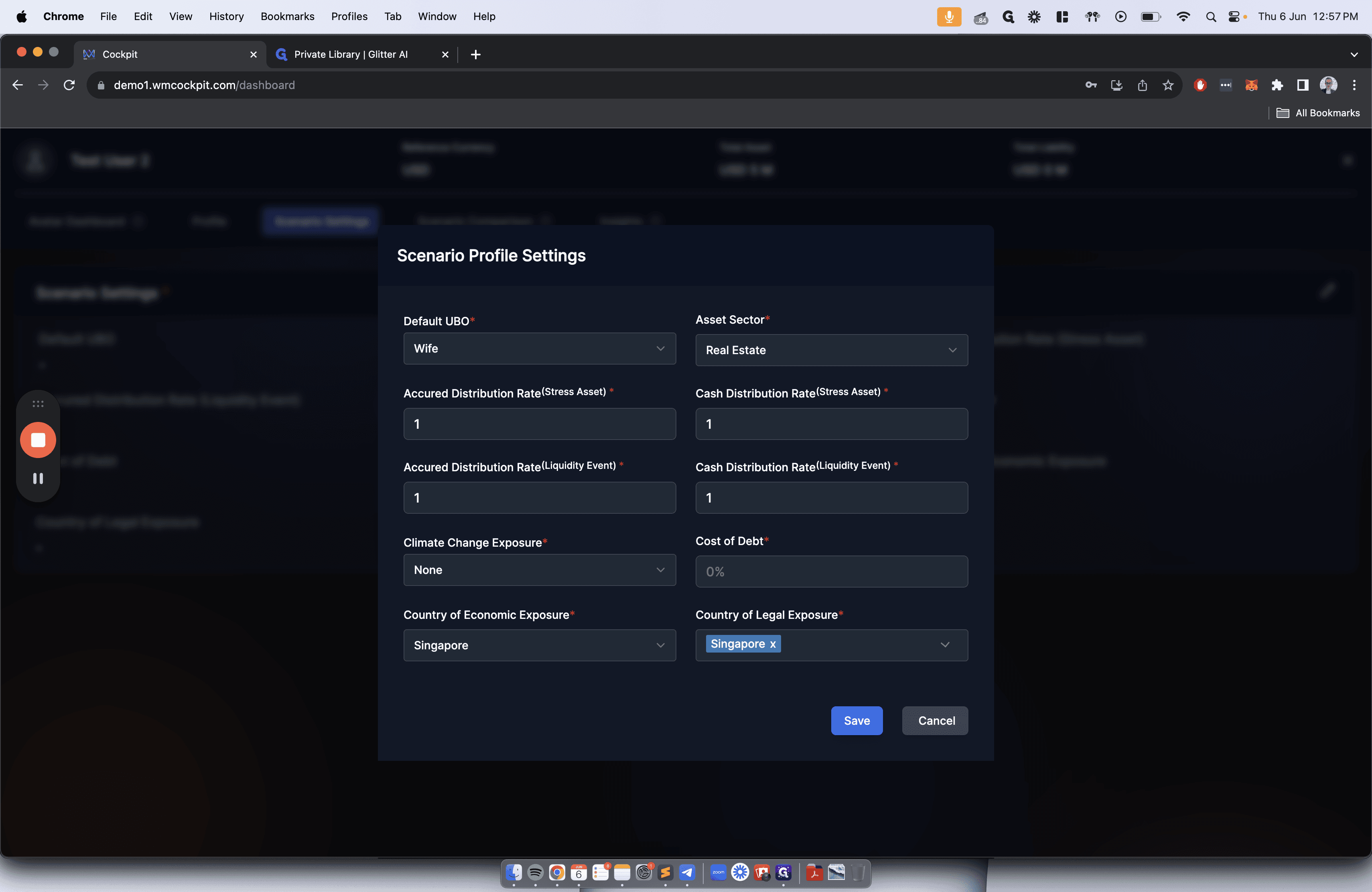
This scenario can be presented as neutral or already stressed for currency or market.