Icon

Customer Profile Overview: Navigating Tabs and Features

Learn how to access and navigate the customer profile, including summary, contact details, vehicles, sales, service, invoices, comments, documents, and more. This general overview helps you understand the customer file and what information can be found in it.

By Dominik Black

In this guide, we'll learn how to access and navigate a client's profile. We'll cover the main features you see when you first open the profile, such as searching for a client, viewing their summary, and using key functions like communications and tasks.

This overview will help you understand the basic structure of the client's profile. More detailed instructions for each tab will be provided in separate articles.

Let's get started

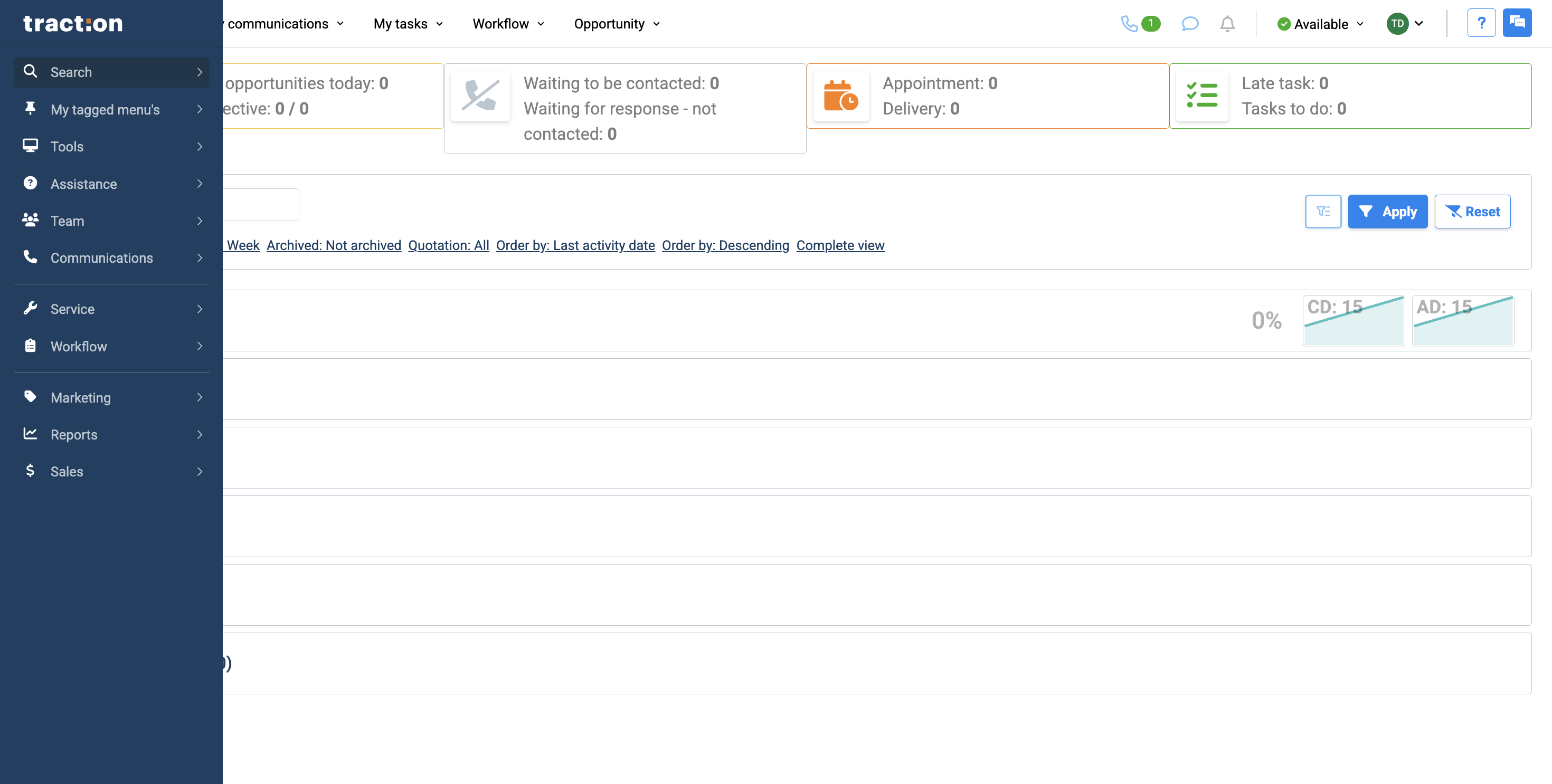
In this article, we will review the client's profile. The client's profile is complex. This will be a general overview, with additional articles providing detailed explanations for each tab in the customer's profile. To access a customer's profile, start by clicking the search option in the menu.
1
Click Search
Step #1: Click Search

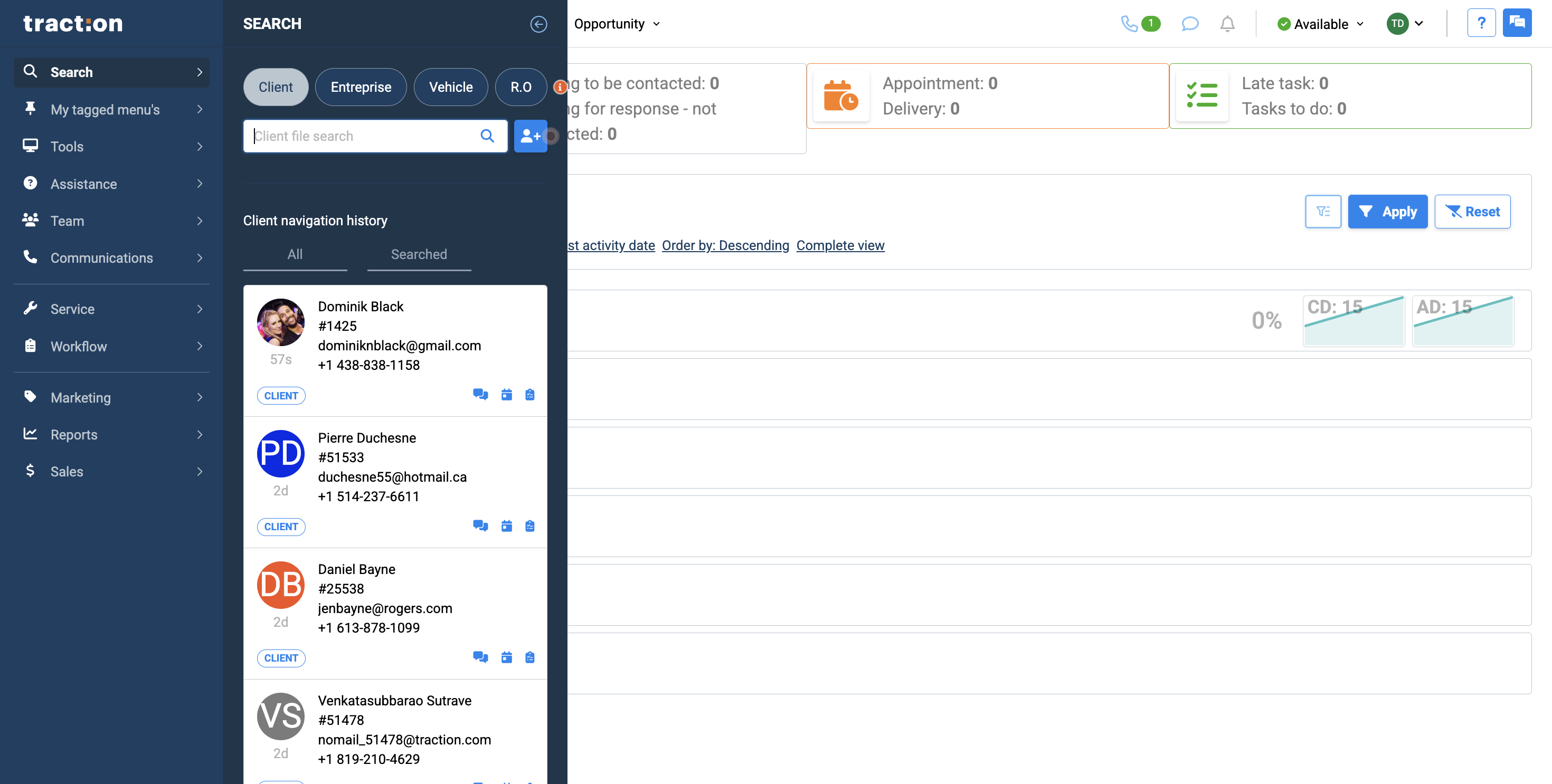
At the top, you can search for a client by name, phone number, email, or Traction ID. Your most recent client history appears below in the client navigation history.
2
Click the search bar and enter the client information
Step #2: Click the search bar and enter the client information

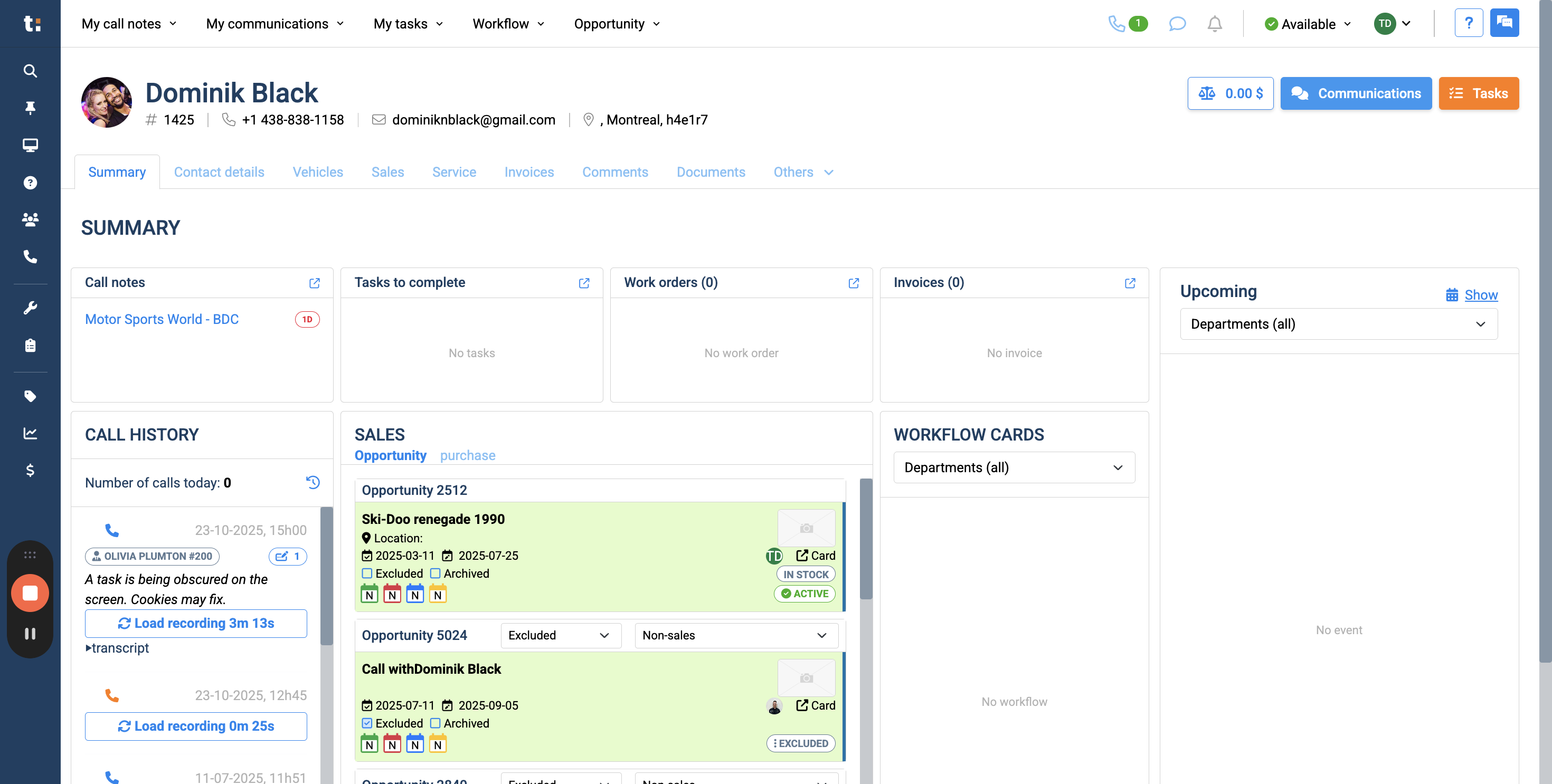
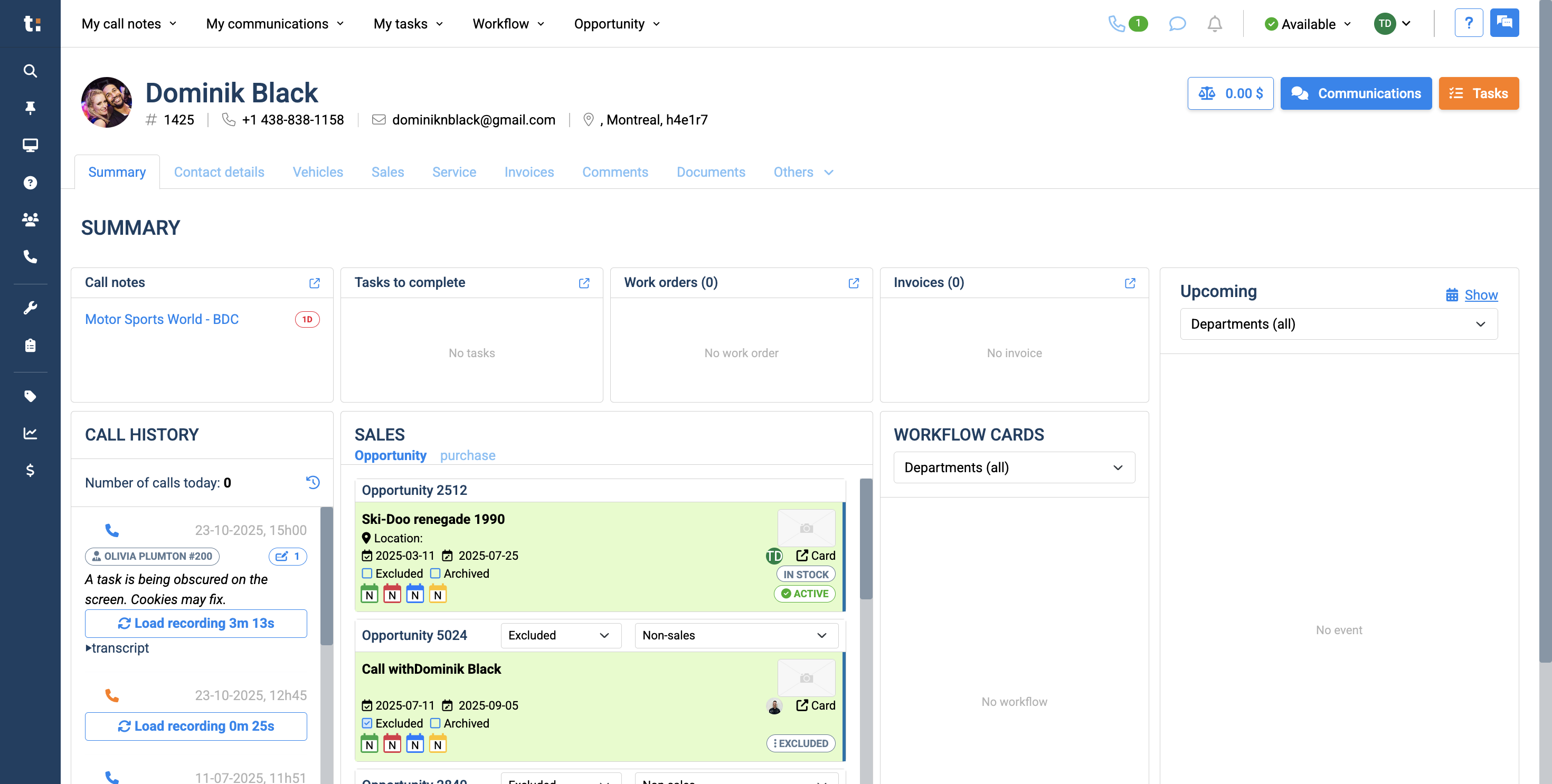
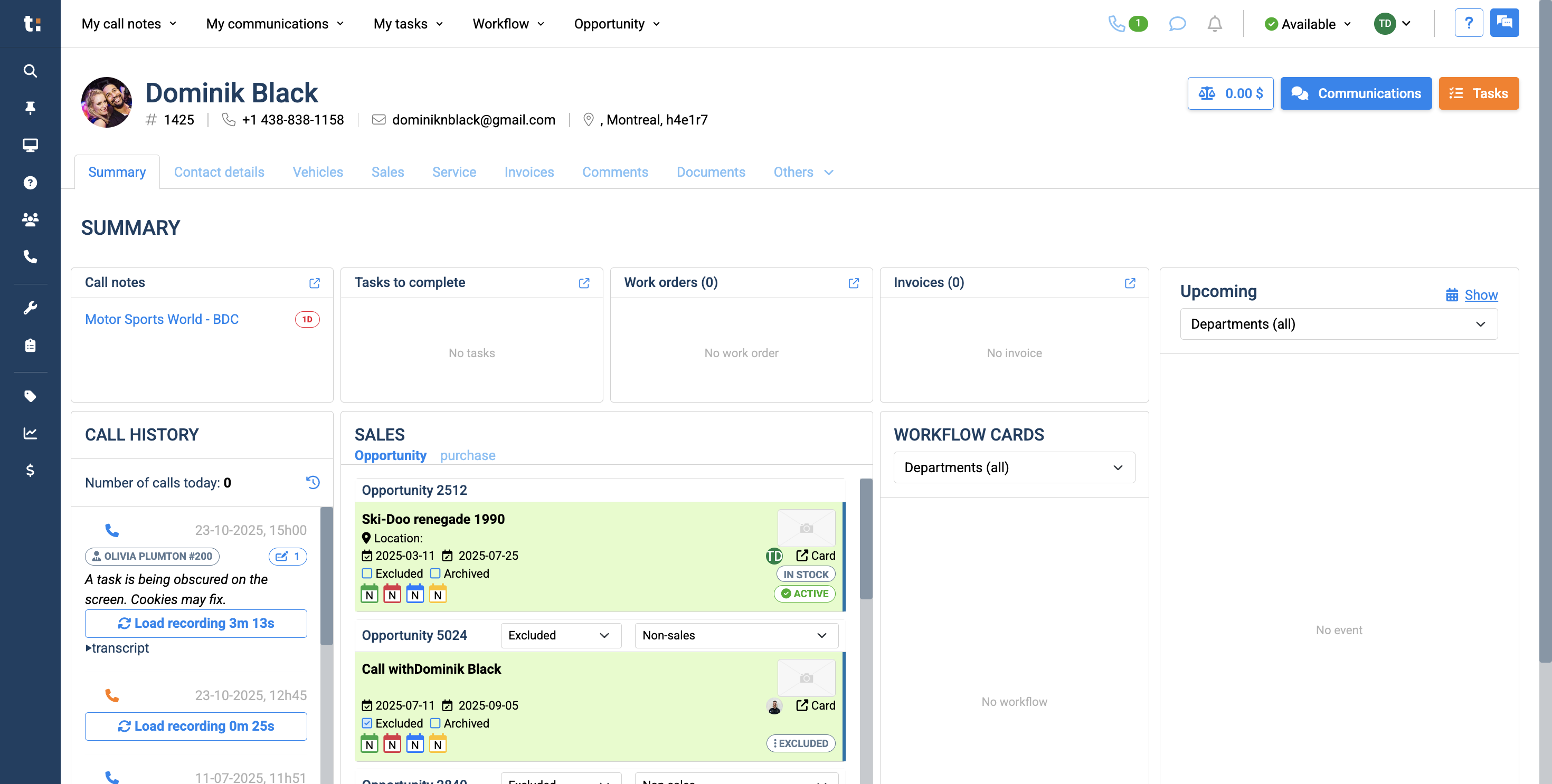
When we open the customer's profile, we automatically land on the summary tab. It will give you a general overview of the customer's profile, but I won't go into detail. As I mentioned earlier, all the tabs above will have sub-articles created for them.
3
Generally, the information you see includes the customer's name, phone number, email, and address.
Step #3: Generally, the information you see includes the customer's name, phone number, email, and address.

4
You also have a total amount displayed, showing how much they owe you for overdue bills.
Step #4: You also have a total amount displayed, showing how much they owe you for overdue bills.

5
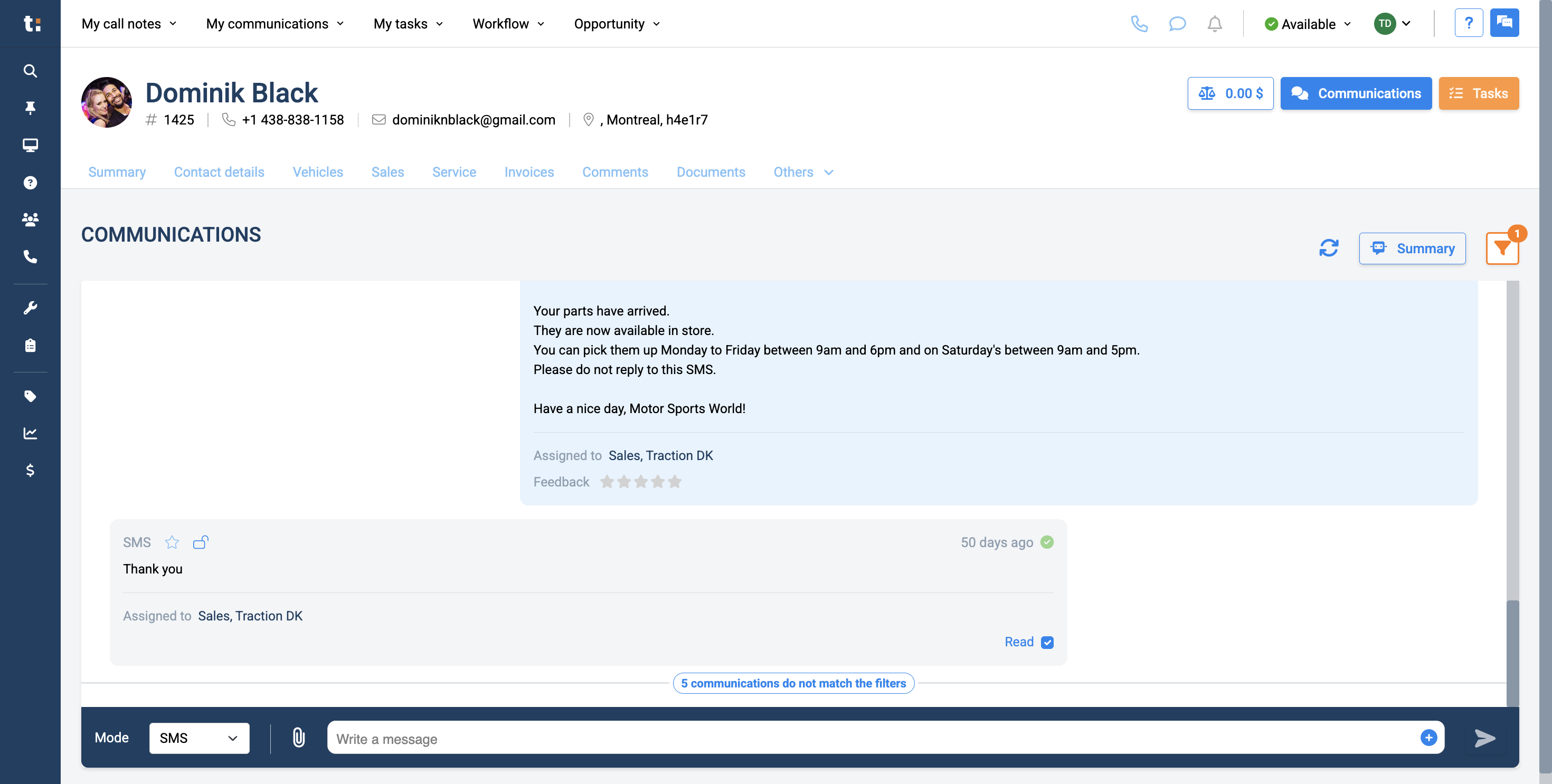
There is a communications button that, when clicked, takes you directly to your communications with the customer, while keeping you within the customer profile.
Step #5: There is a communications button that, when clicked, takes you directly to your communications with the customer, while keeping you within the customer profile.

6
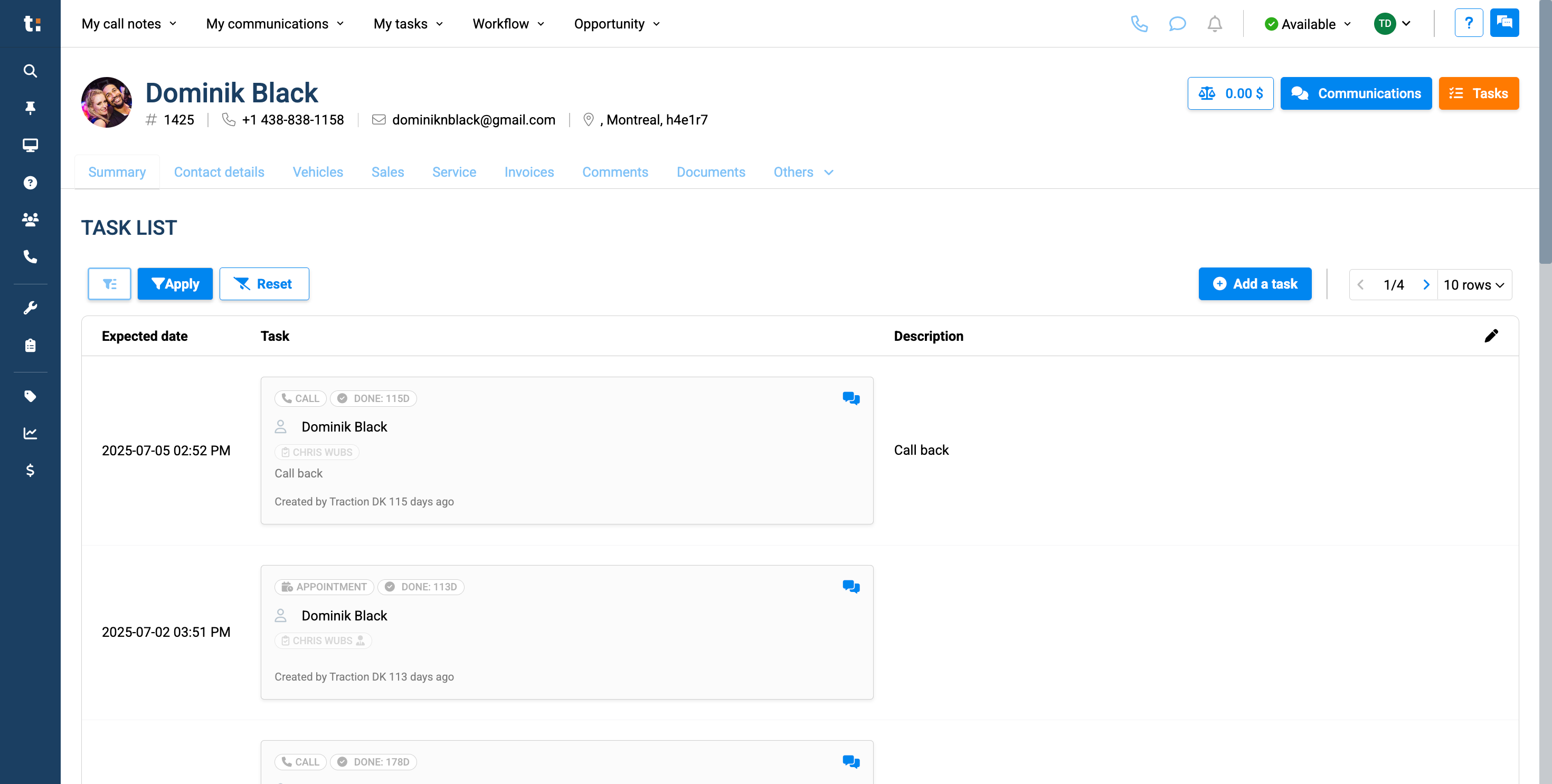
Lastly, there is a button for tasks here that lets you create a task within the customer profile.
Step #6: Lastly, there is a button for tasks here that lets you create a task within the customer profile.

7
The customer profile includes several tabs. The summary tab provides a general overview of your customer and their history.
Step #7: The customer profile includes several tabs. The summary tab provides a general overview of your customer and their history.
8
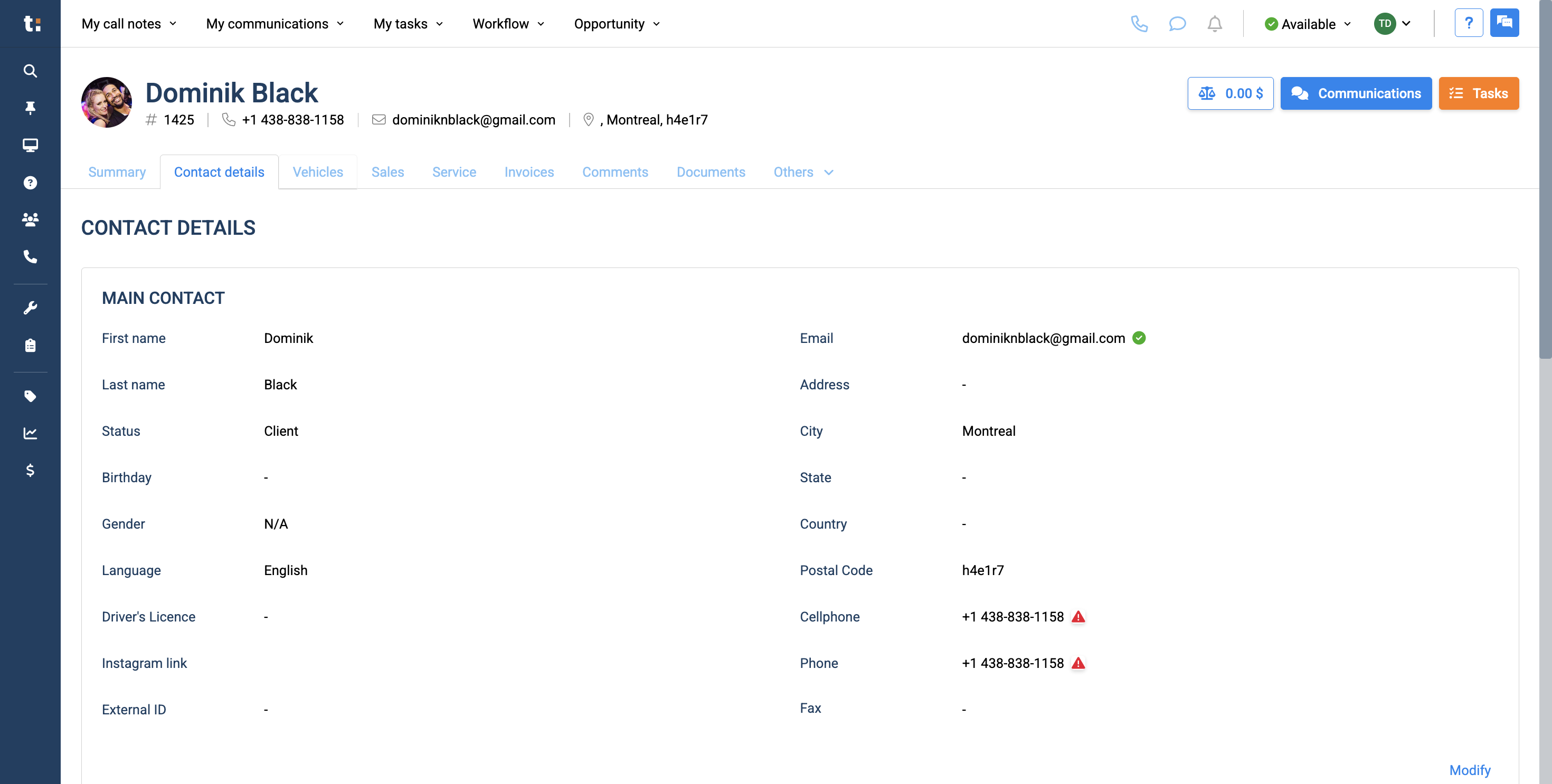
The contact details includes all contact information of the customer.
Step #8: The contact details includes all contact information of the customer.

9
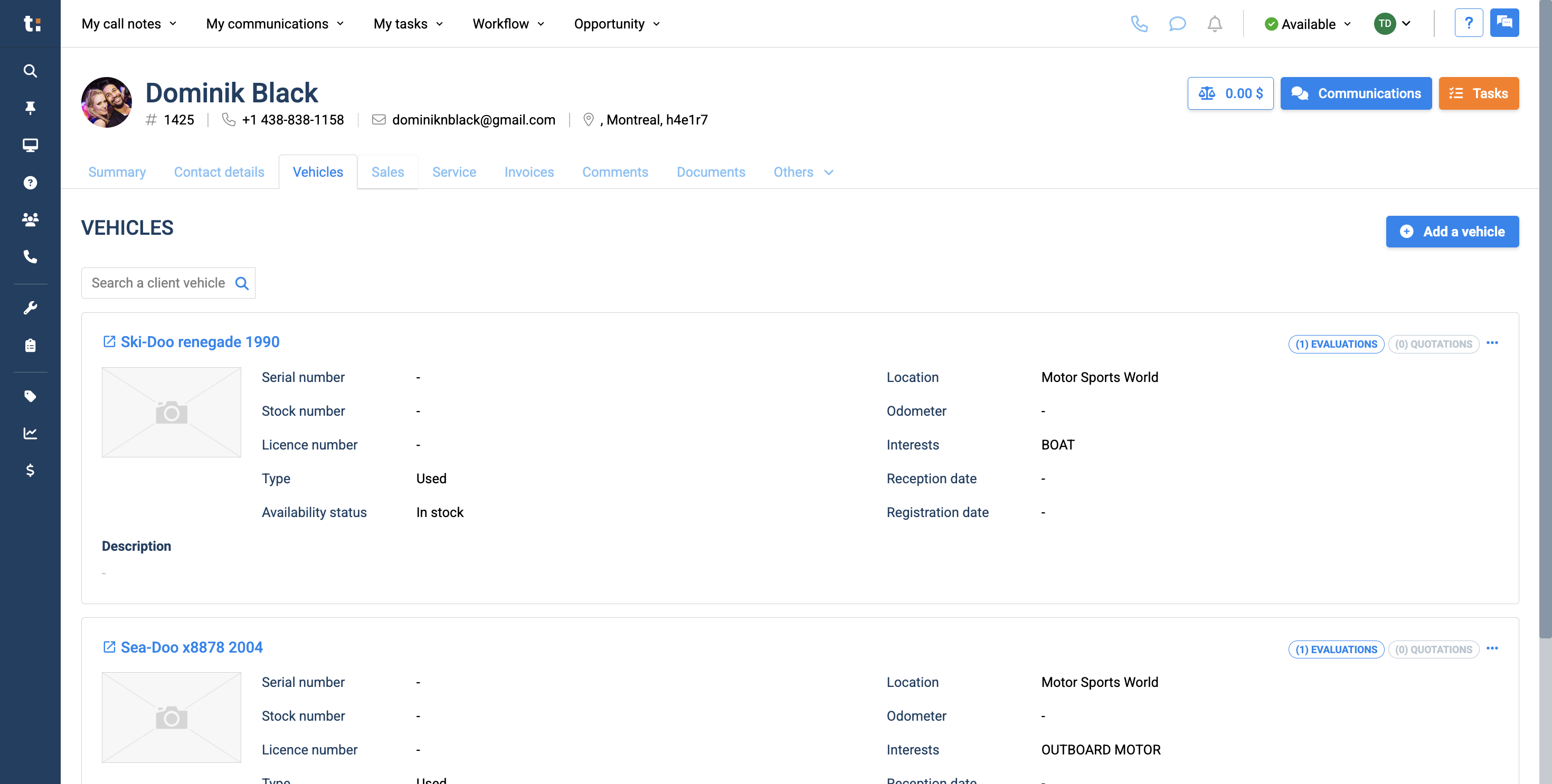
You have a Vehicles tab. This shows the vehicles that the customer owns and has previously purchased with you. These vehicles can also be used as trade-ins.
Step #9: You have a Vehicles tab. This shows the vehicles that the customer owns and has previously purchased with you. These vehicles can also be used as trade-ins.

10
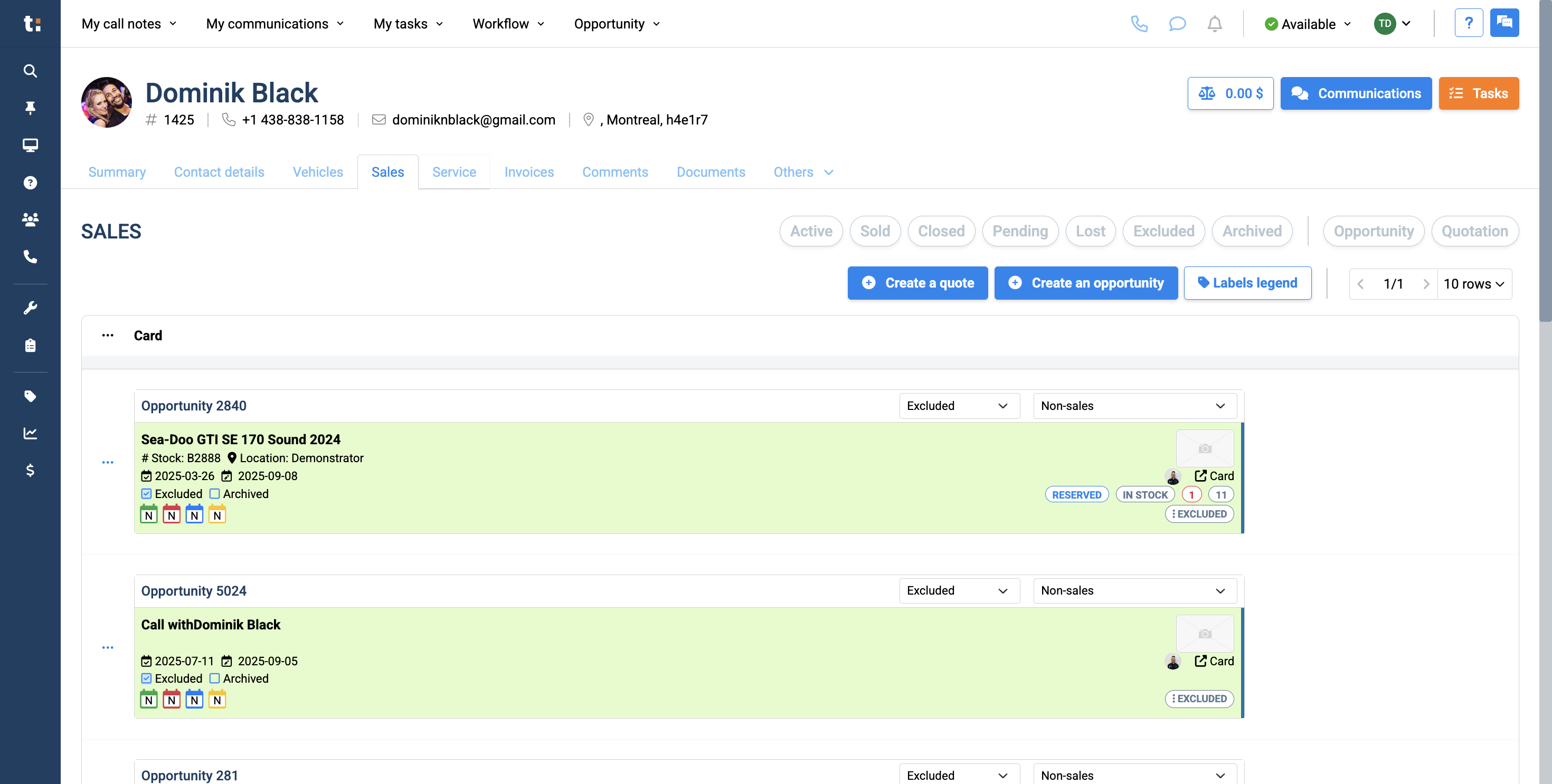
You have a sales tab. This is where you can find all your sales and opportunities.
Step #10:  You have a sales tab. This is where you can find all your sales and opportunities.

11
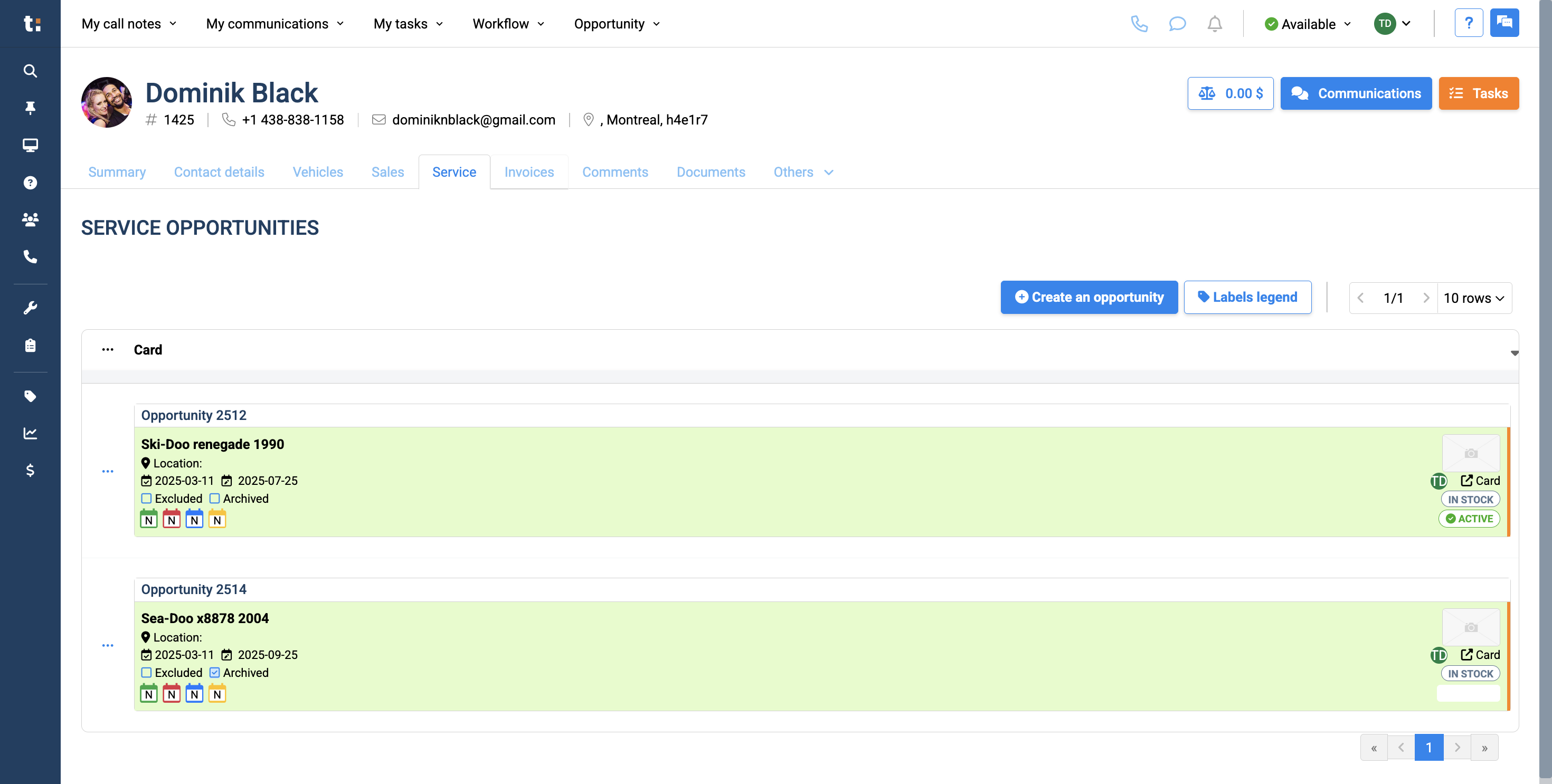
You have a service tab that displays all service opportunities related to the customer.
Step #11: You have a service tab that displays all service opportunities related to the customer.

12
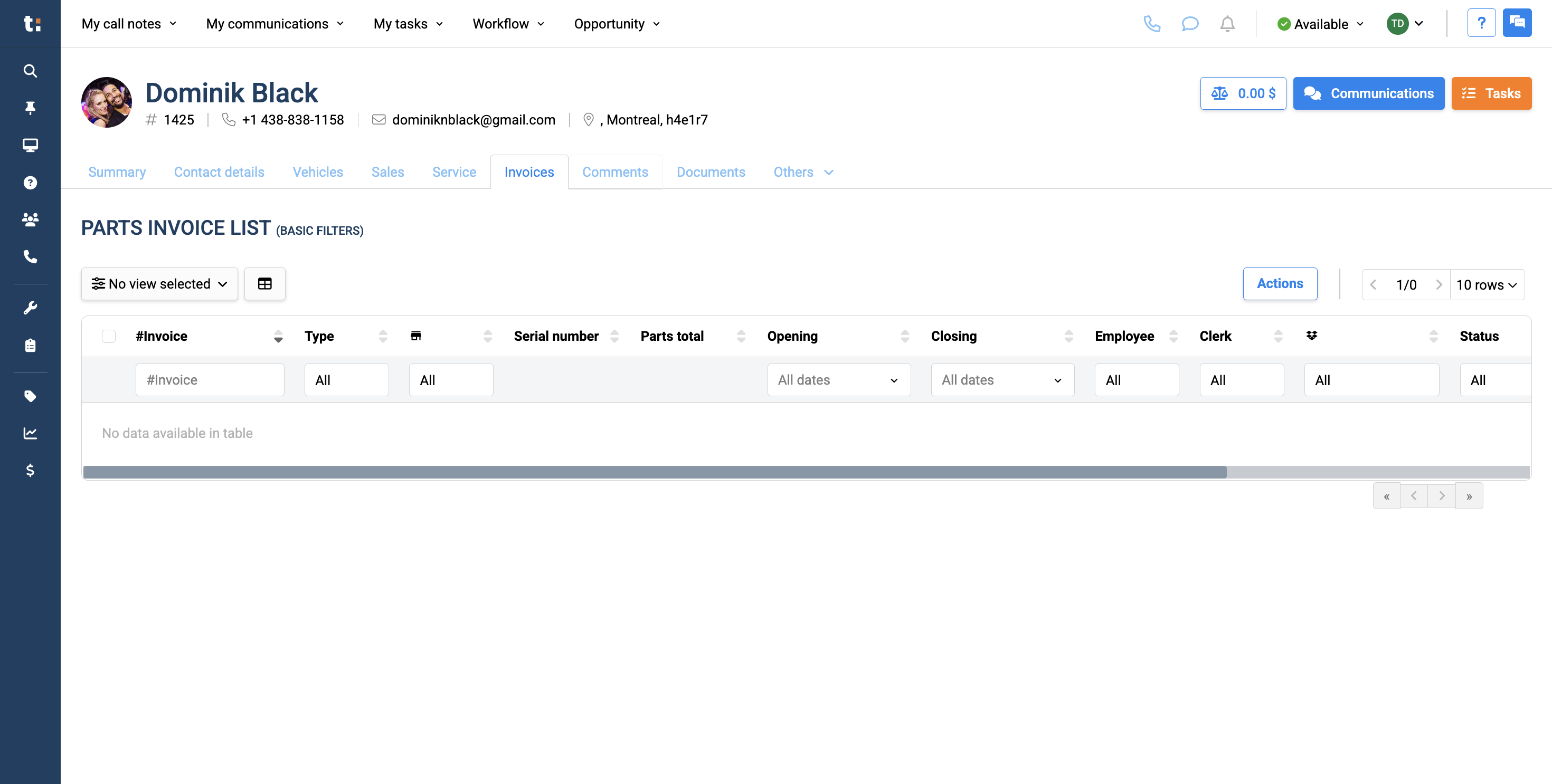
You have an invoices tab that stores all parts invoices related to this customer.
Step #12:  You have an invoices tab that stores all parts invoices related to this customer.
13
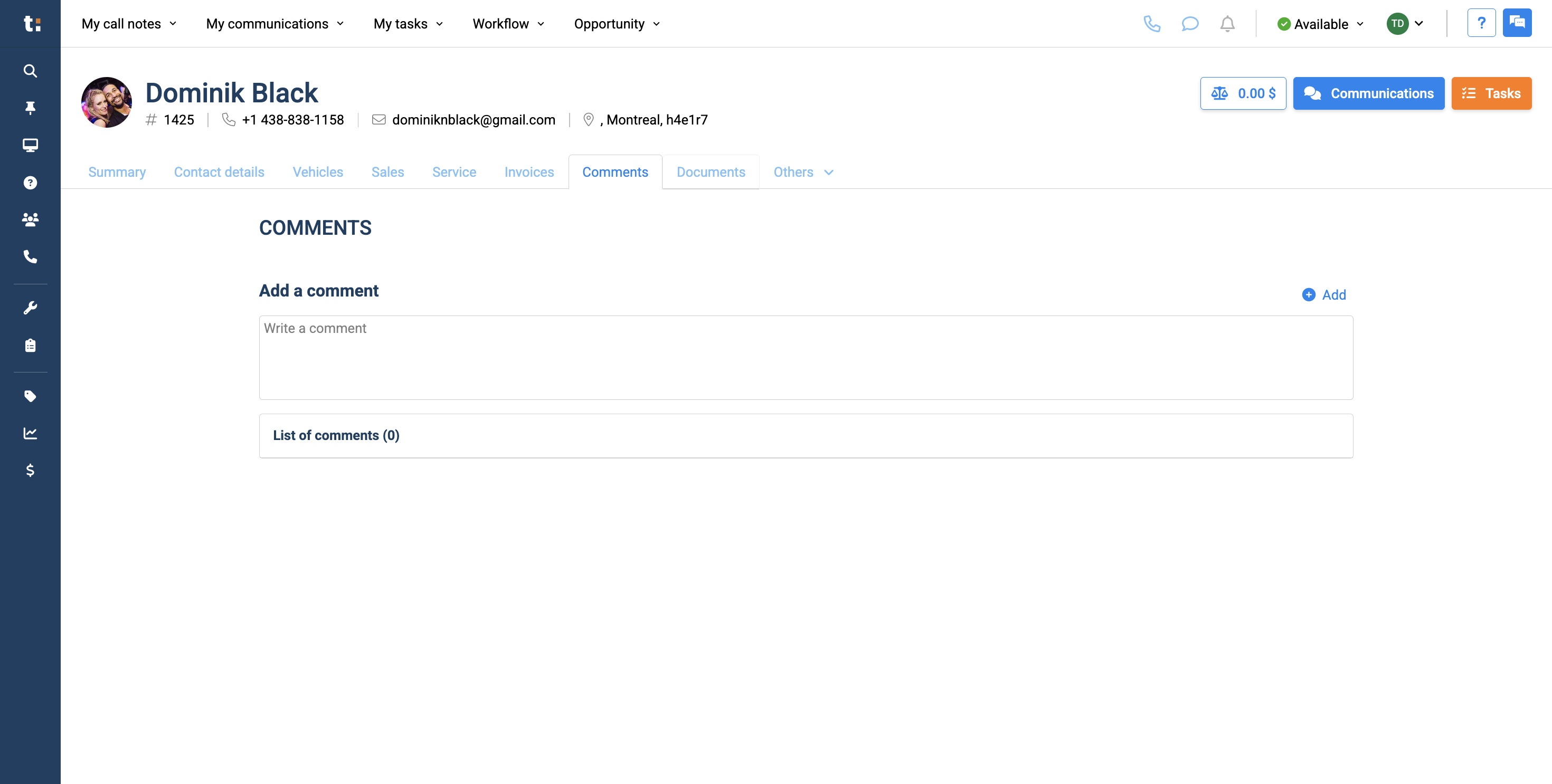
There is a comments tab where anyone in the dealership can write comments.
Step #13: There is a comments tab where anyone in the dealership can write comments.

14
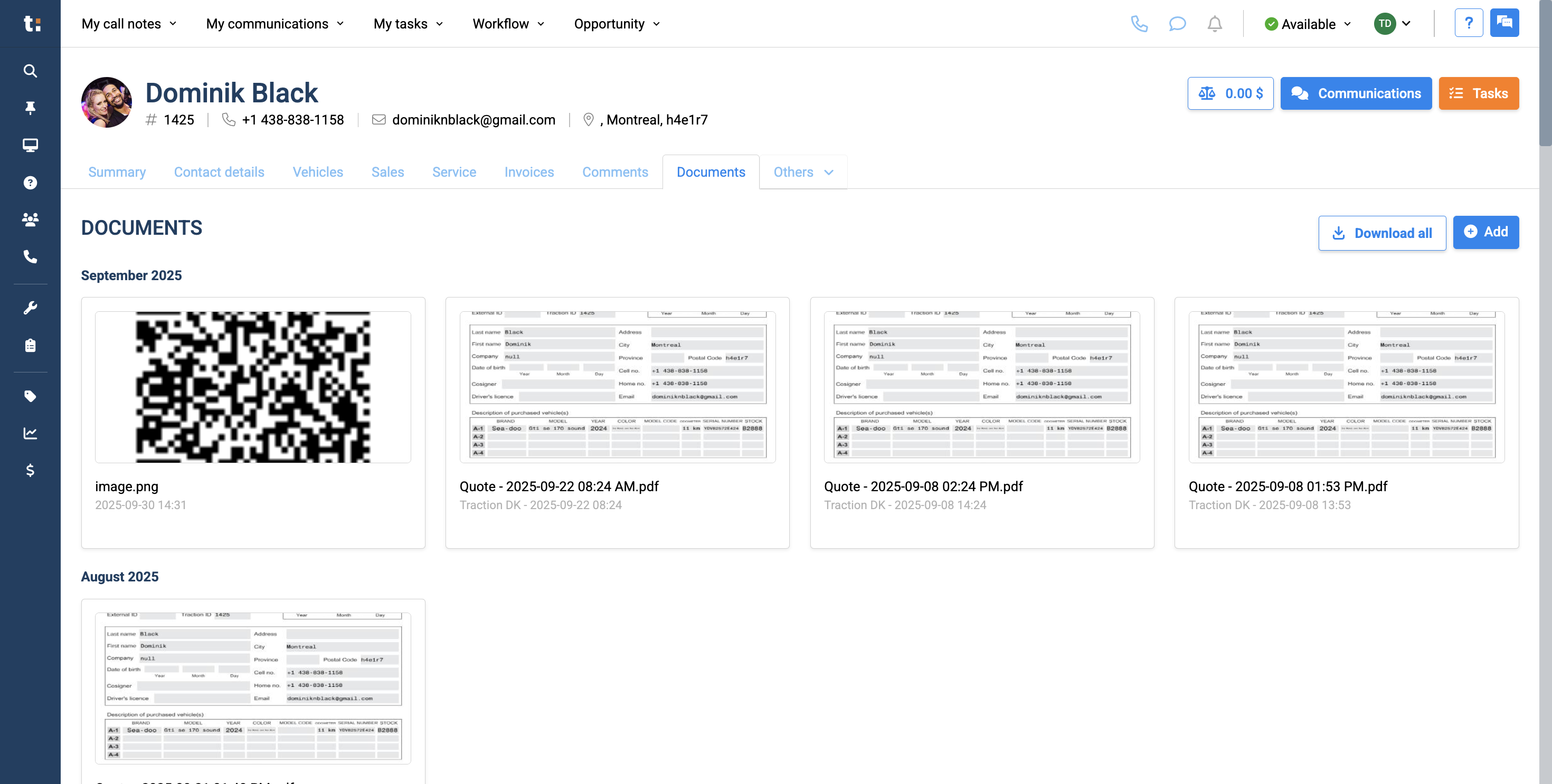
You have a Documents tab that saves all possible documents.
Step #14: You have a Documents tab that saves all possible documents.

15
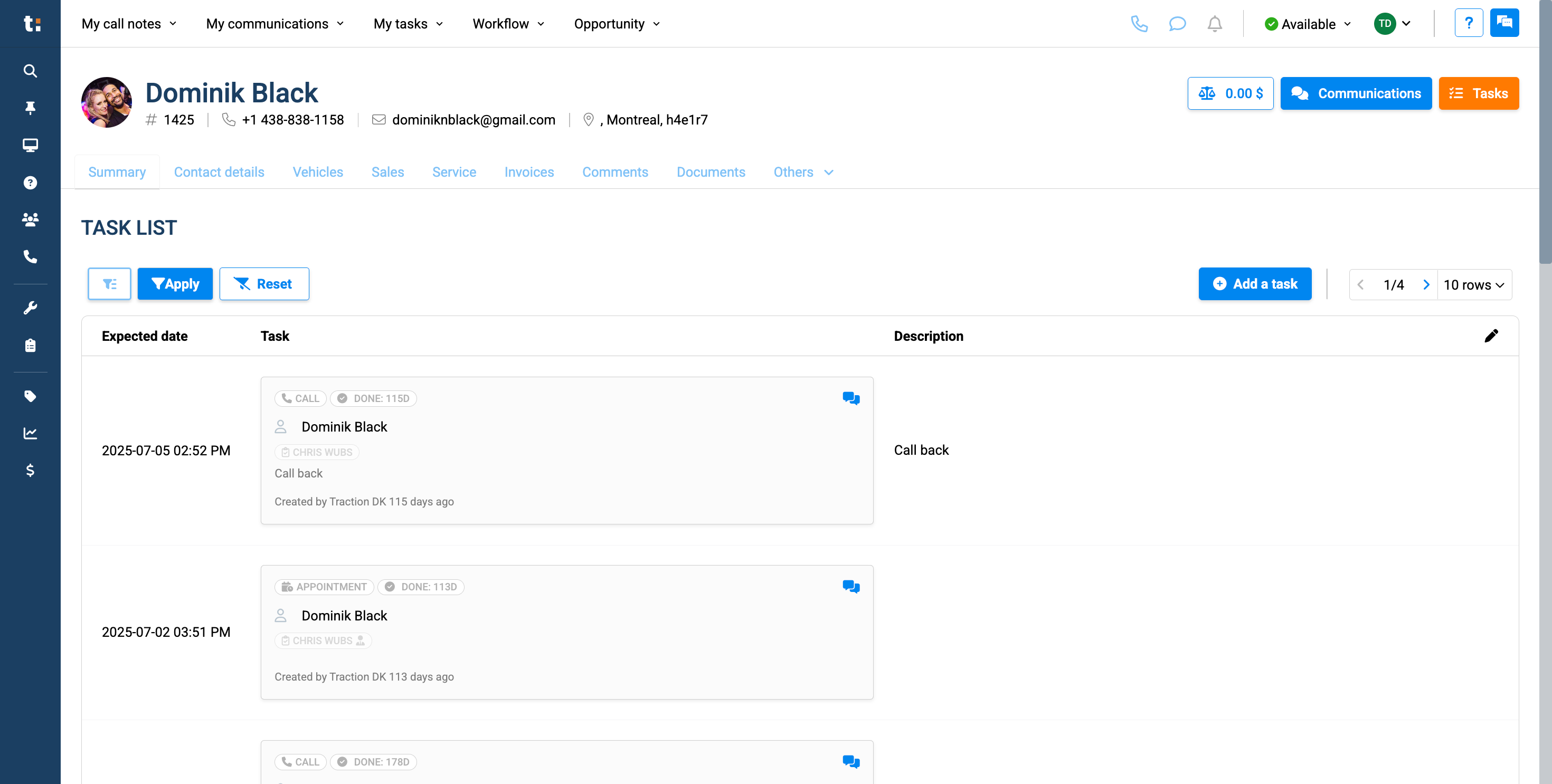
There is also an Others tab with various actions you can sort through in your customer's profile.
Step #15: There is also an Others tab with various actions you can sort through in your customer's profile.

If you still have questions after consulting this article, please feel free to contact our support team at: support@tractiondk.zohodesk.com

Customer Profile Overview: Navigating Tabs and Features