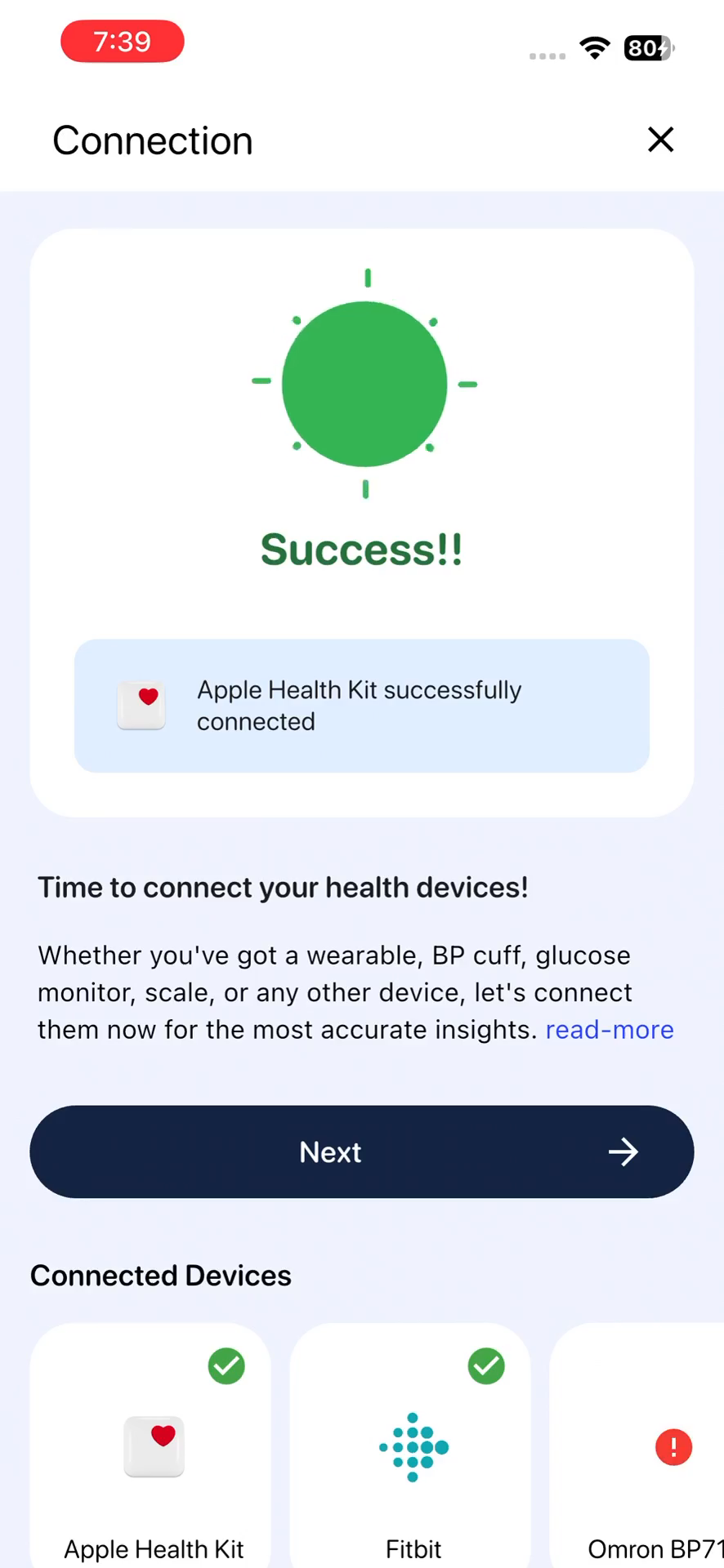
Diagnose and Refresh Your Apple Health Kit Connection
Learn how to use the in-app diagnostic tool to refresh your Apple Health Kit connection and resolve syncing issues.
By Lohith HG
This guide walks you through the process of diagnosing and refreshing your Apple Health Kit connection within the mobile app. Completing this ensures your health data accurately syncs with your central dashboard.
This flow is useful for users experiencing syncing issues or missing data from their Apple Watch or iPhone health records. It takes less than a minute to complete.
Navigate to Device Settings
1
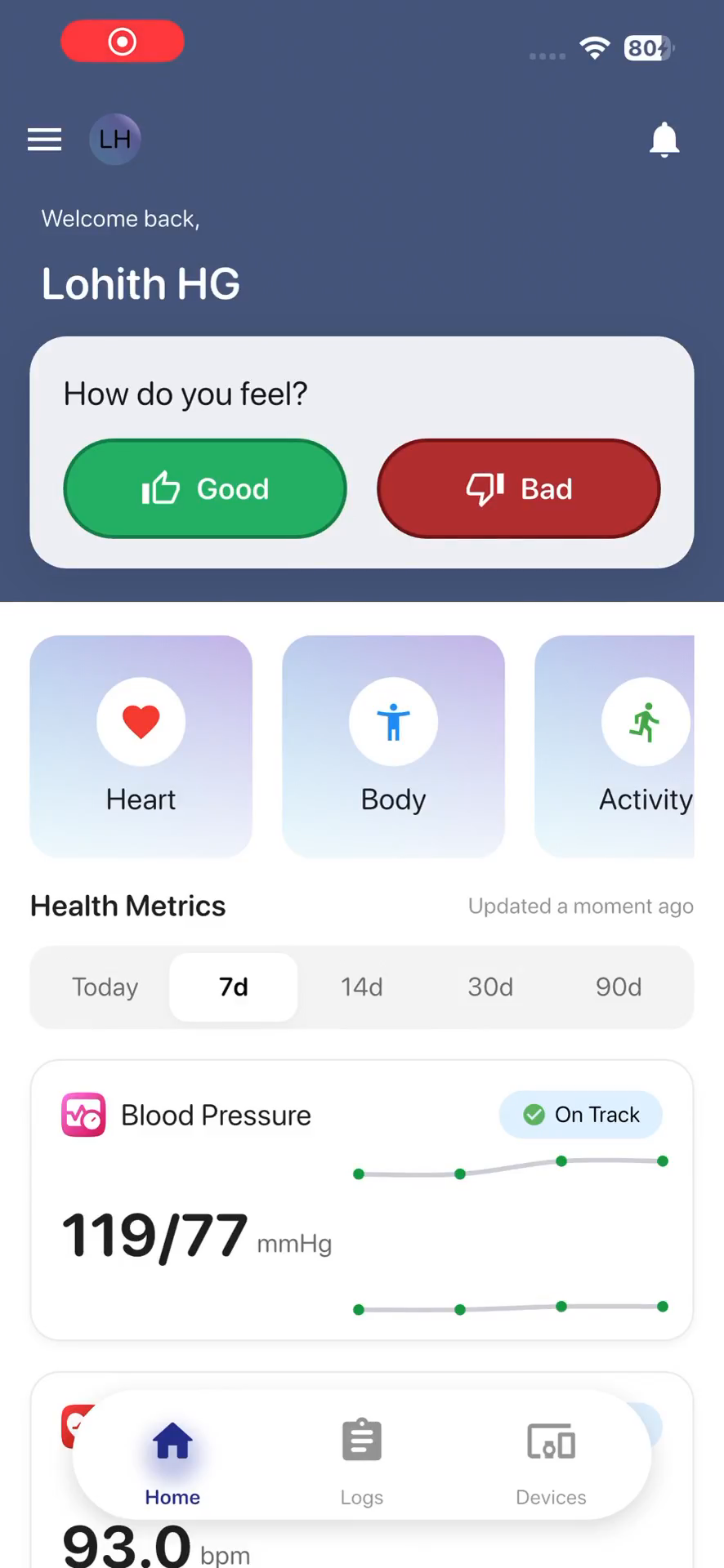
Tap the Home icon in the bottom navigation bar to open your main dashboard.
2
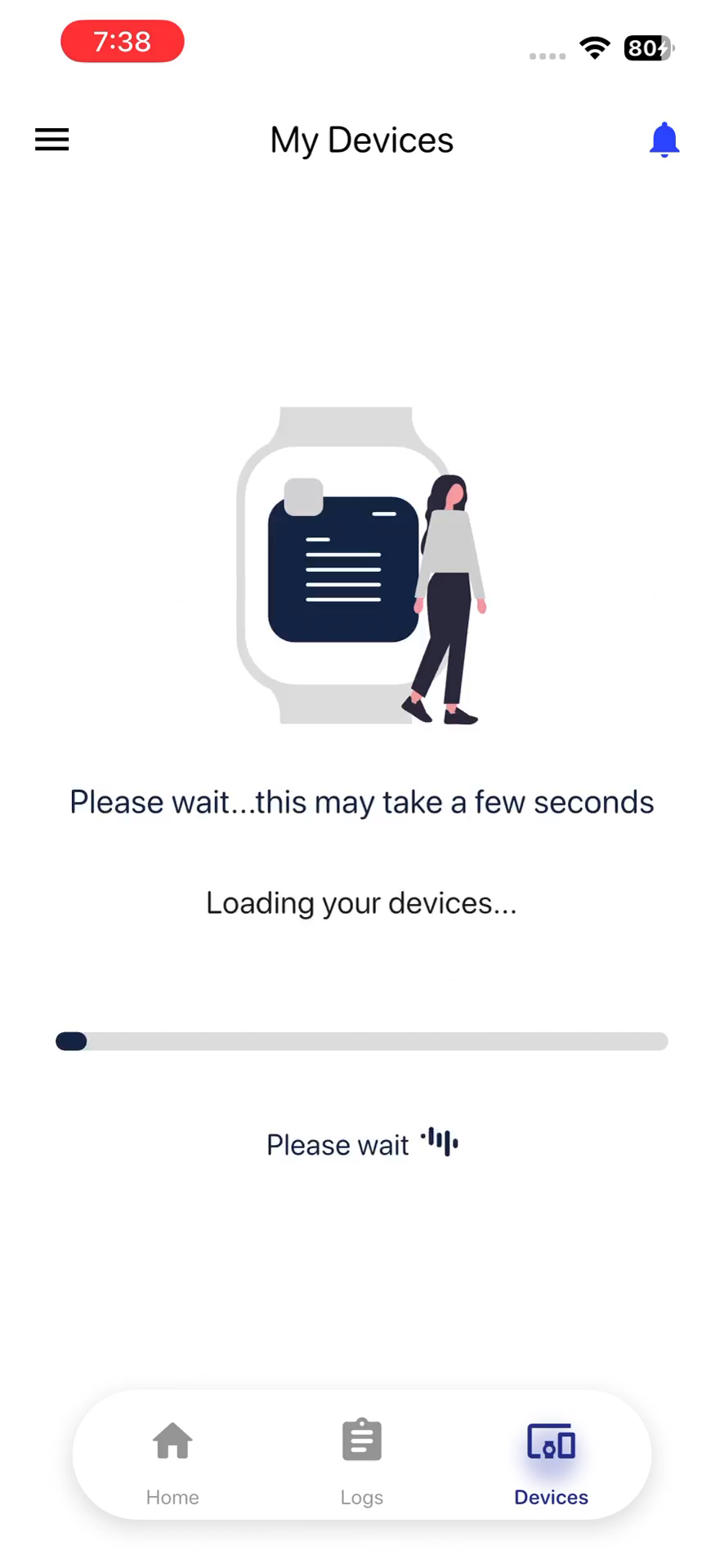
Tap Devices.
3
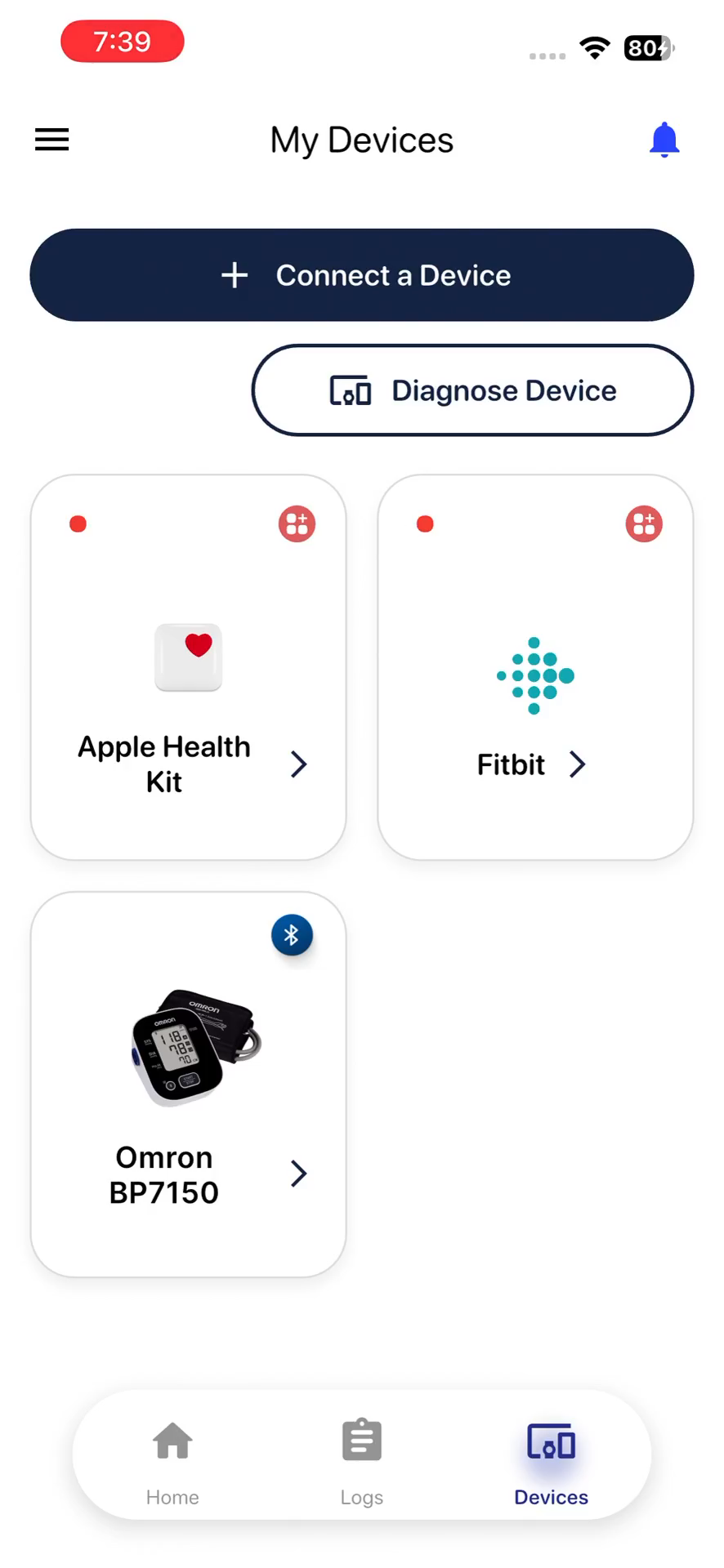
Select the Apple Health Kit card from your list of connected devices.
Run the Diagnostic Tool
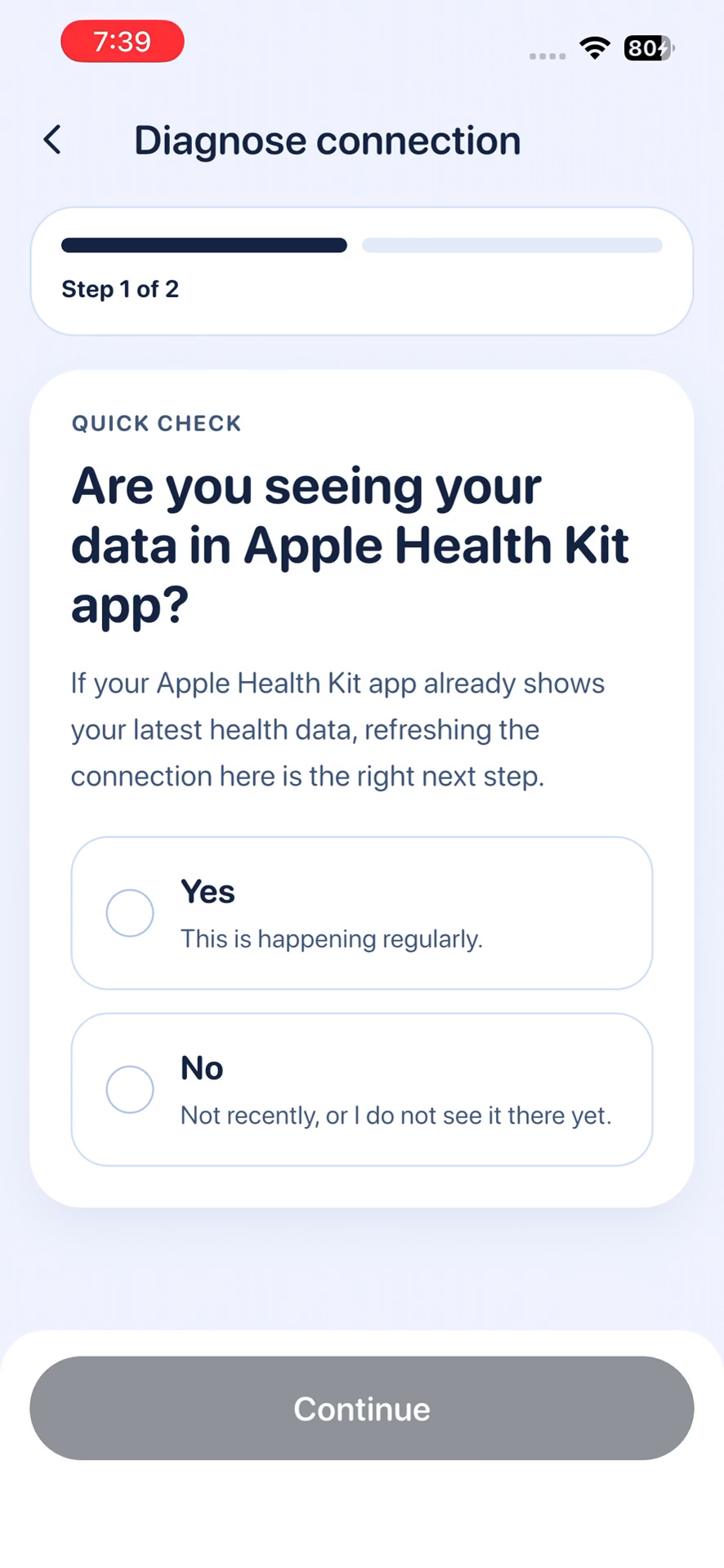
The app will ask you a few questions to verify the status of your data before attempting a fix.
4
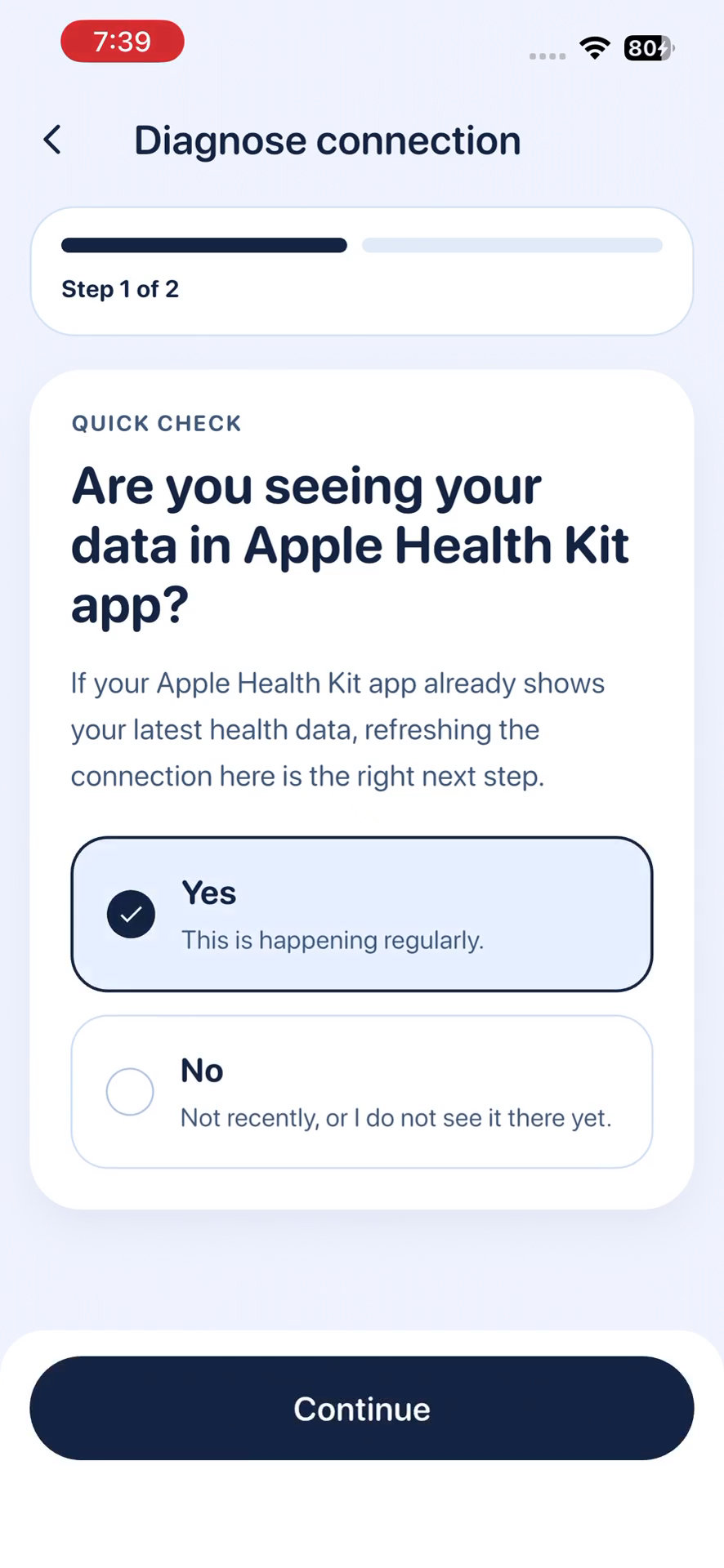
When asked if your health data is visible in the Apple Health Kit app, select Yes.
5
Tap Continue to proceed to the next step of the diagnostic flow.
Refresh the Connection
6
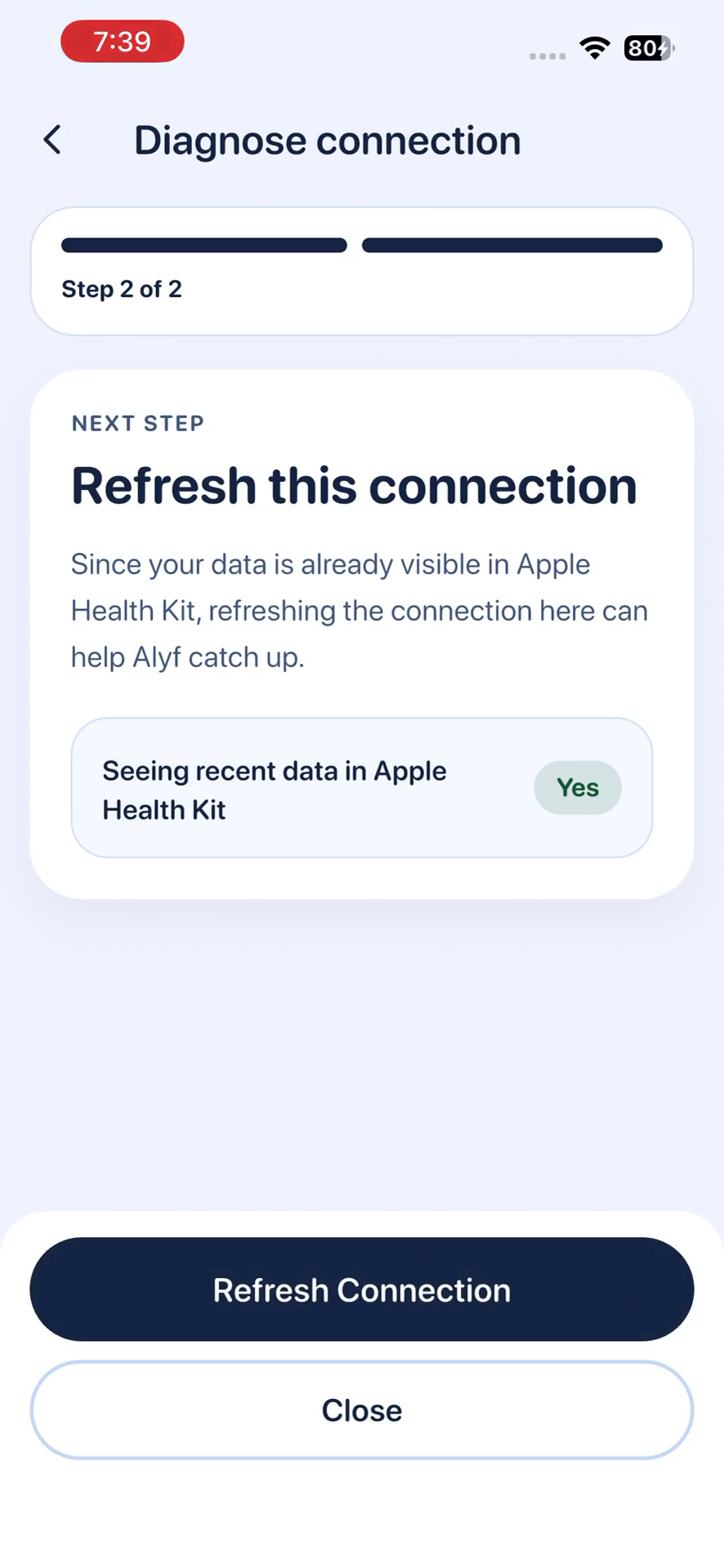
Tap Refresh Connection at the bottom of the screen to force a manual sync.
7
Tap Next to finalize the setup and return to your device list.