
How to Discover and Manage AI Prompts in Spotlight
Learn how to discover, organize, and manage AI chatbot prompts using Spotlight's prompt volume tools and topic configurations.
This guide explains how to discover, manage, and configure AI chatbot prompts to analyze brand visibility and perception effectively.
This process is designed for SEO and marketing teams who need to organize their prompt pipeline and track how specific queries impact brand reputation in AI overview systems.
Discovering and Researching Prompts
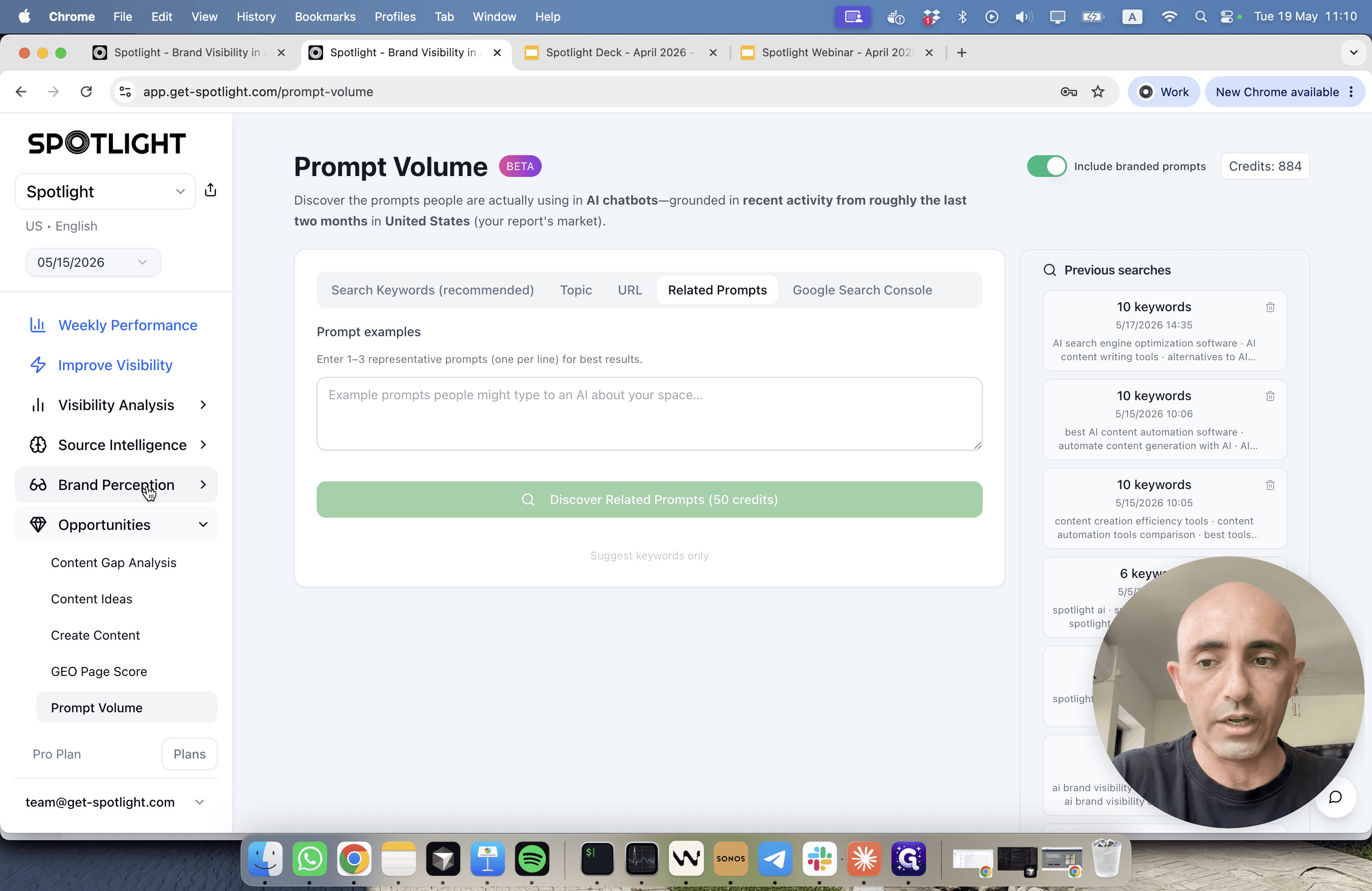
Before manually adding prompts, use Spotlight's discovery tools to find high-volume queries relevant to your brand.
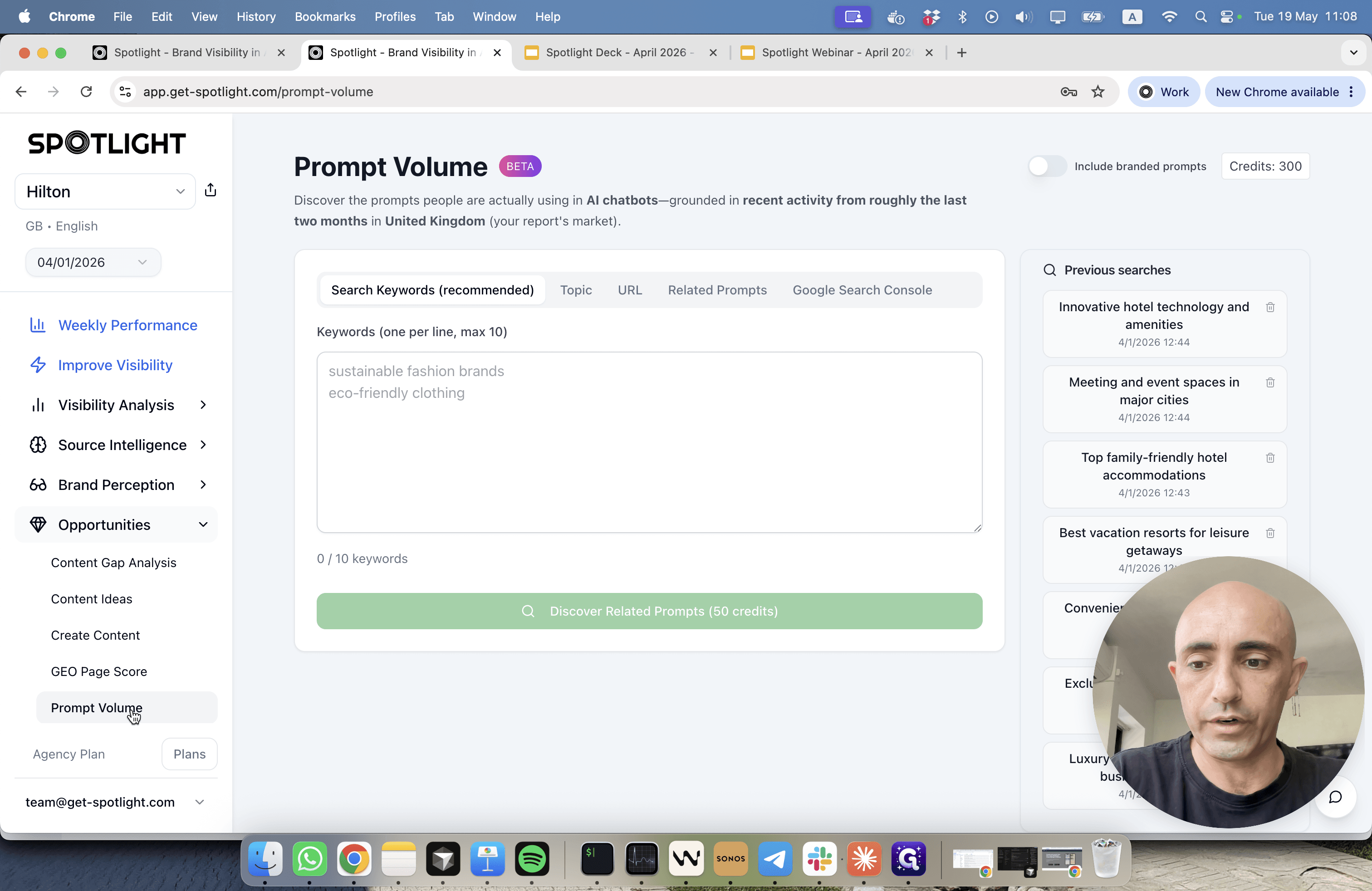
Spotlight provides multiple methods to discover prompts based on your existing data or market research:
Discovery Method | How it works | Where to find it |
|---|---|---|
Search Keywords | Finds AI prompts sharing the same intent as standard Google Search keywords you already optimize for. | The Keywords tab. |
Google Search Console | Surfaces actual prompts driving traffic from AI Overviews in search engines today. | The Google Search Console tab (requires connected account). |
Page URL | Scans a specific product or service webpage and generates a list of highly relevant user queries. | The Page URL tab. |
Related Prompts | Uses a few sample prompts to discover similar variations with measurable search volume in your target market. | The Related Prompts tab. |
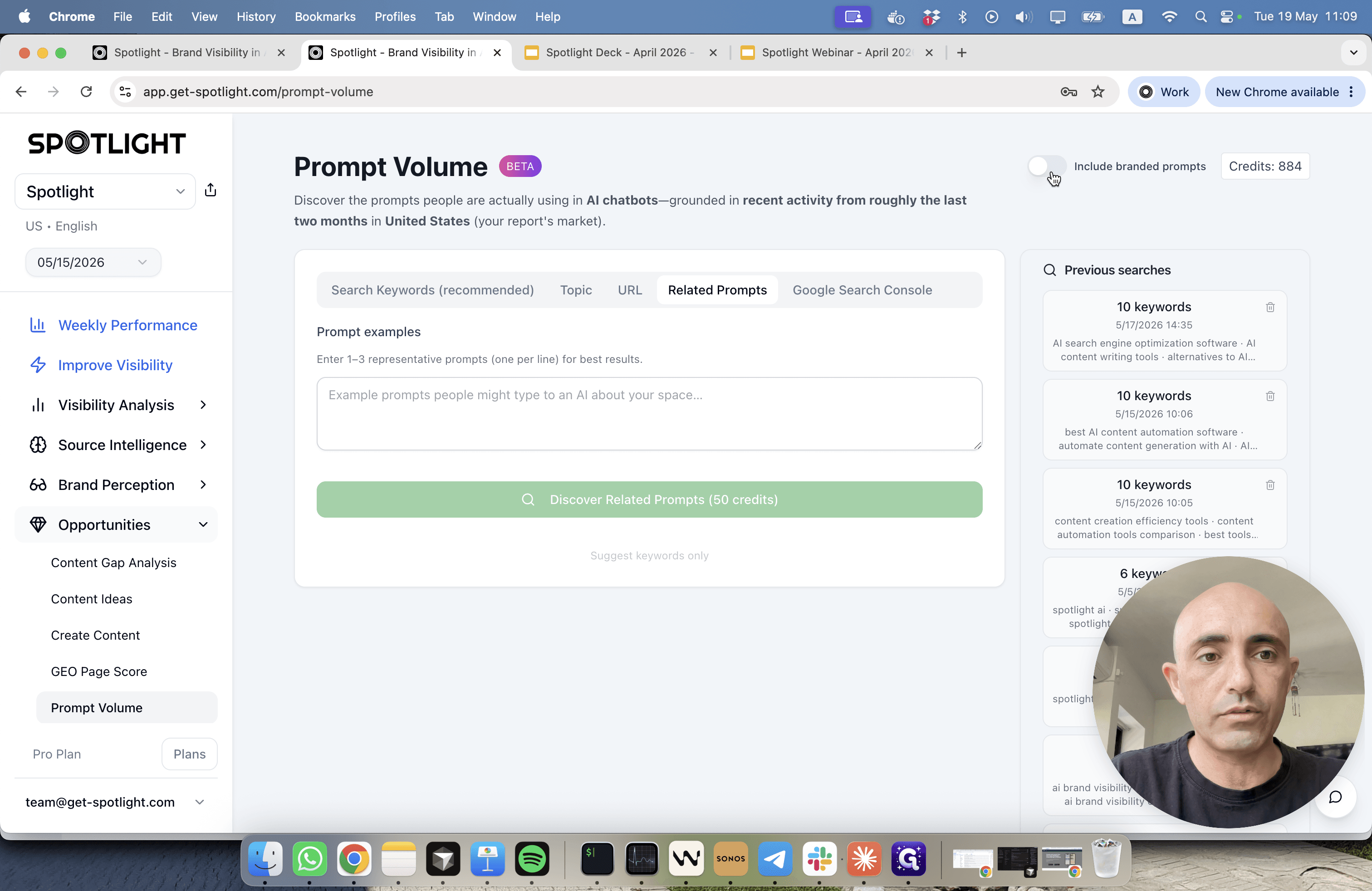
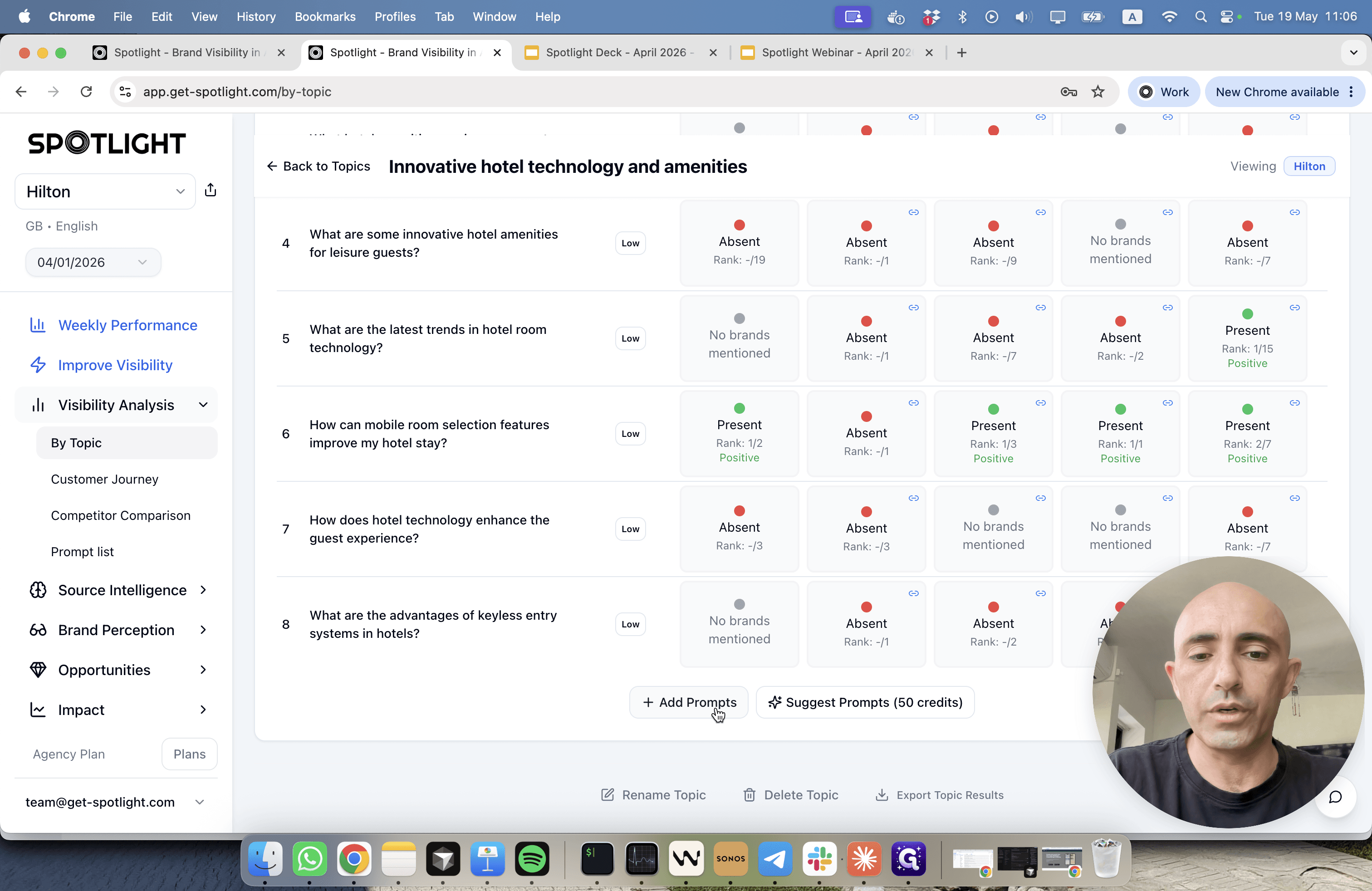
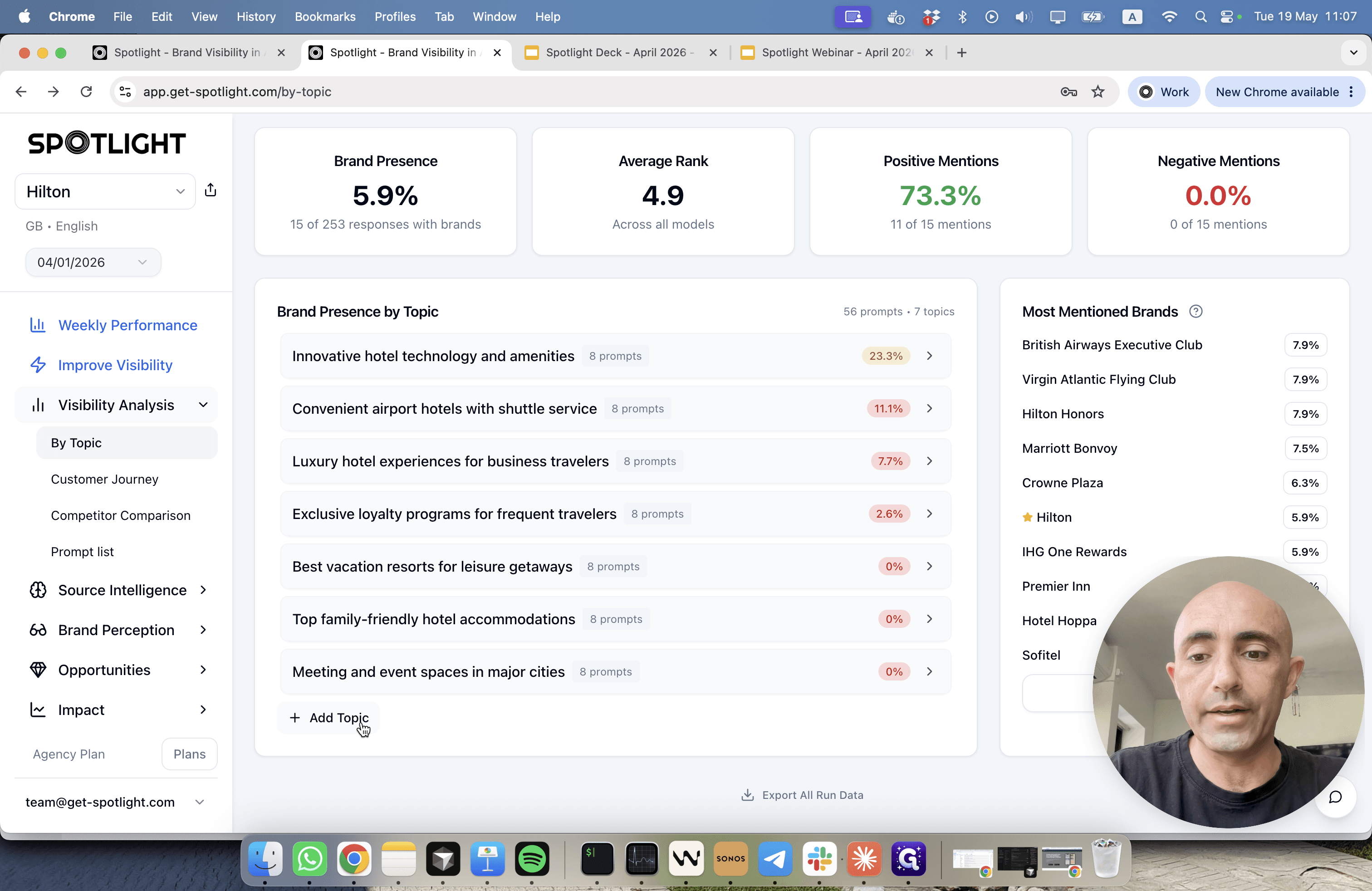
Organizing Prompts by Topic
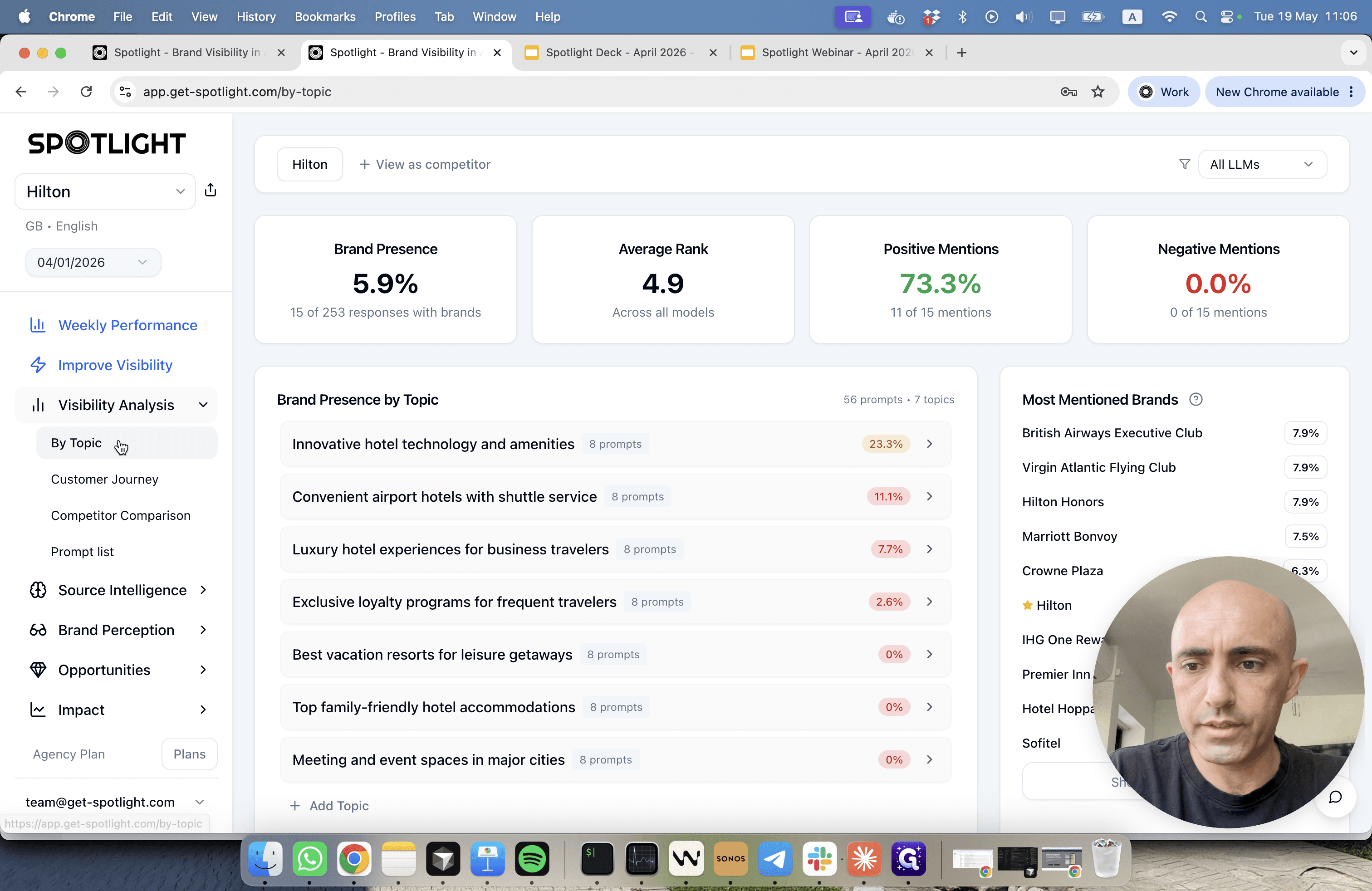
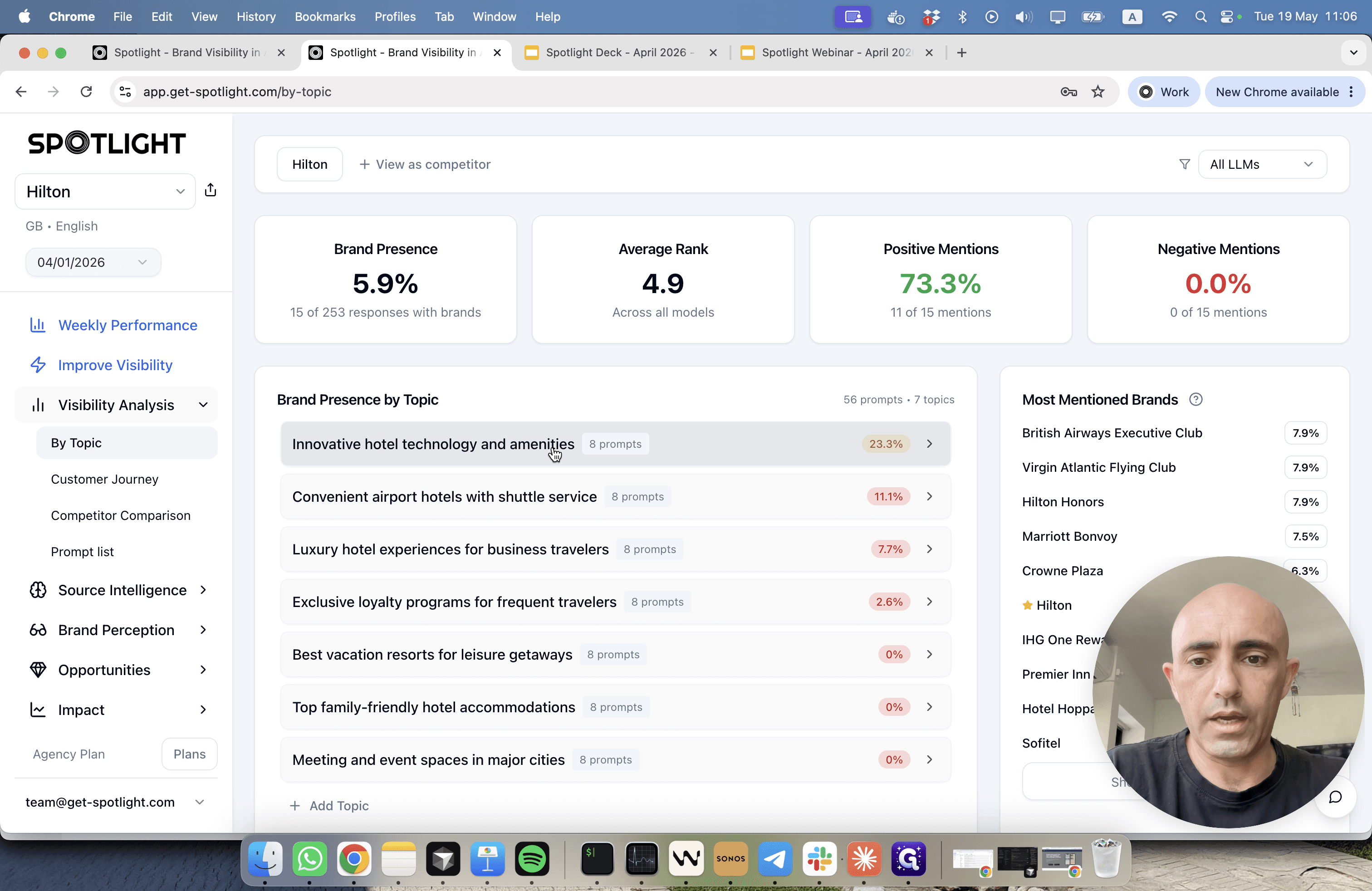
The system automatically generates topics based on your brand, but you can manually expand them.
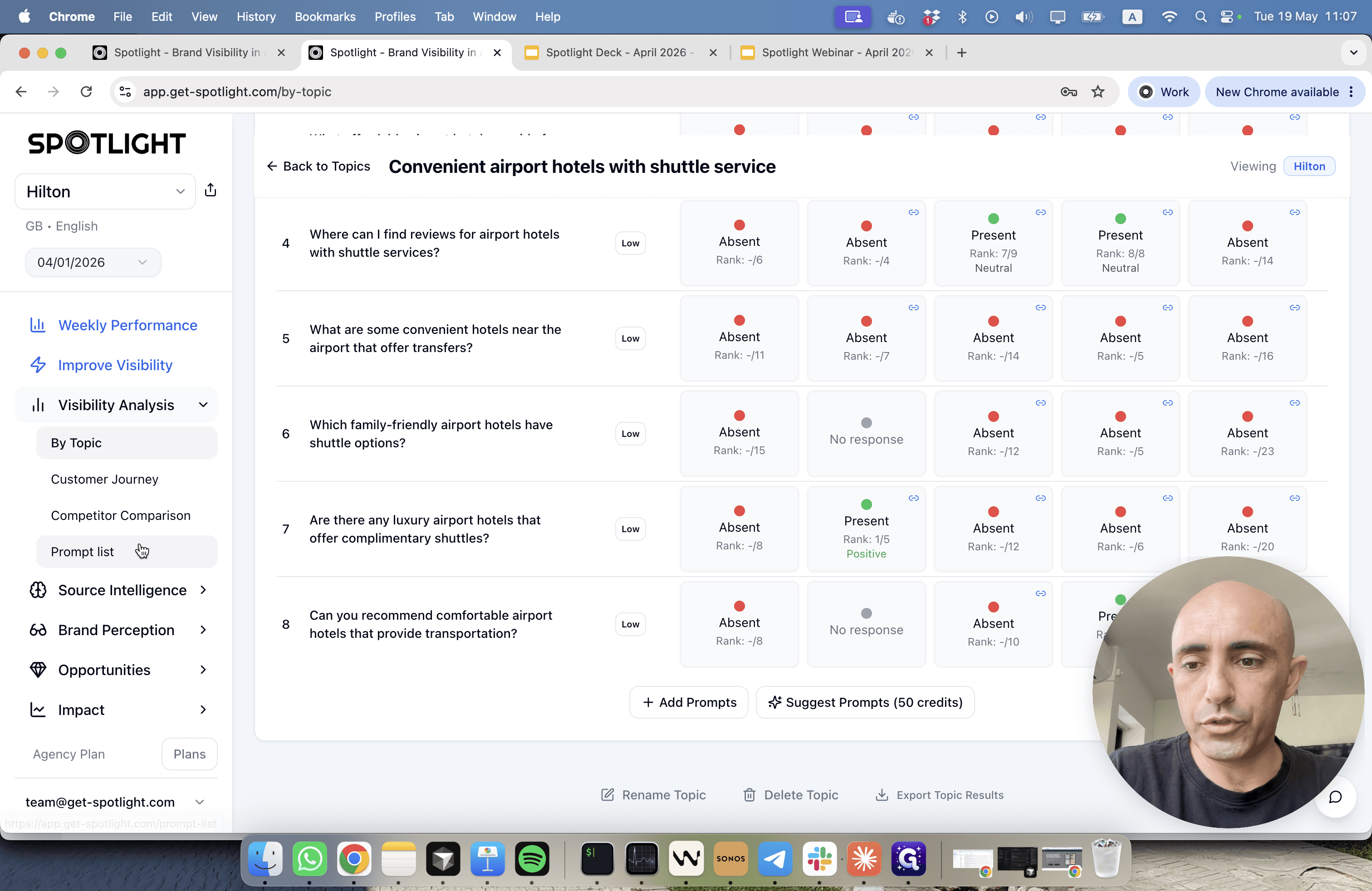
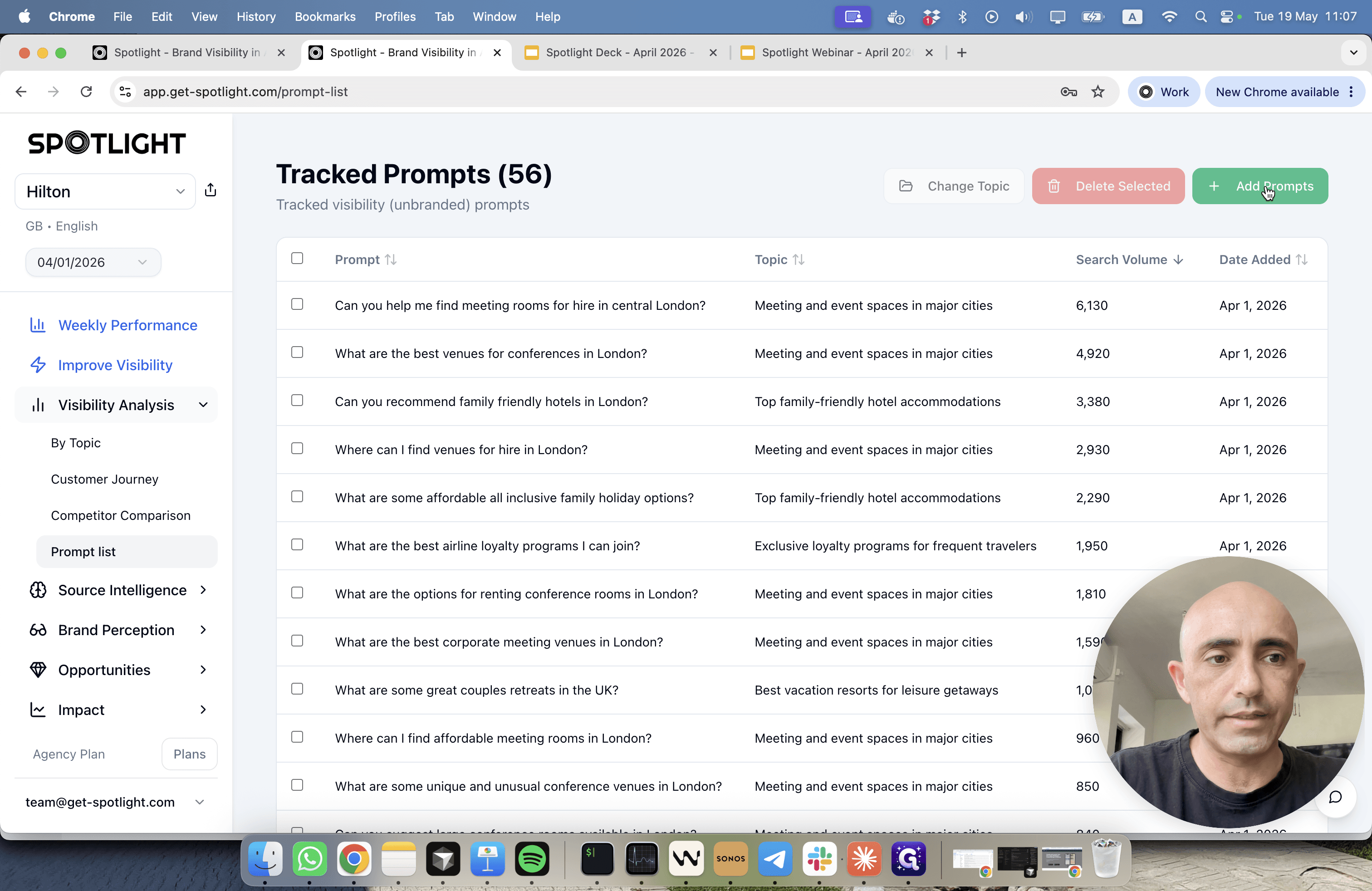
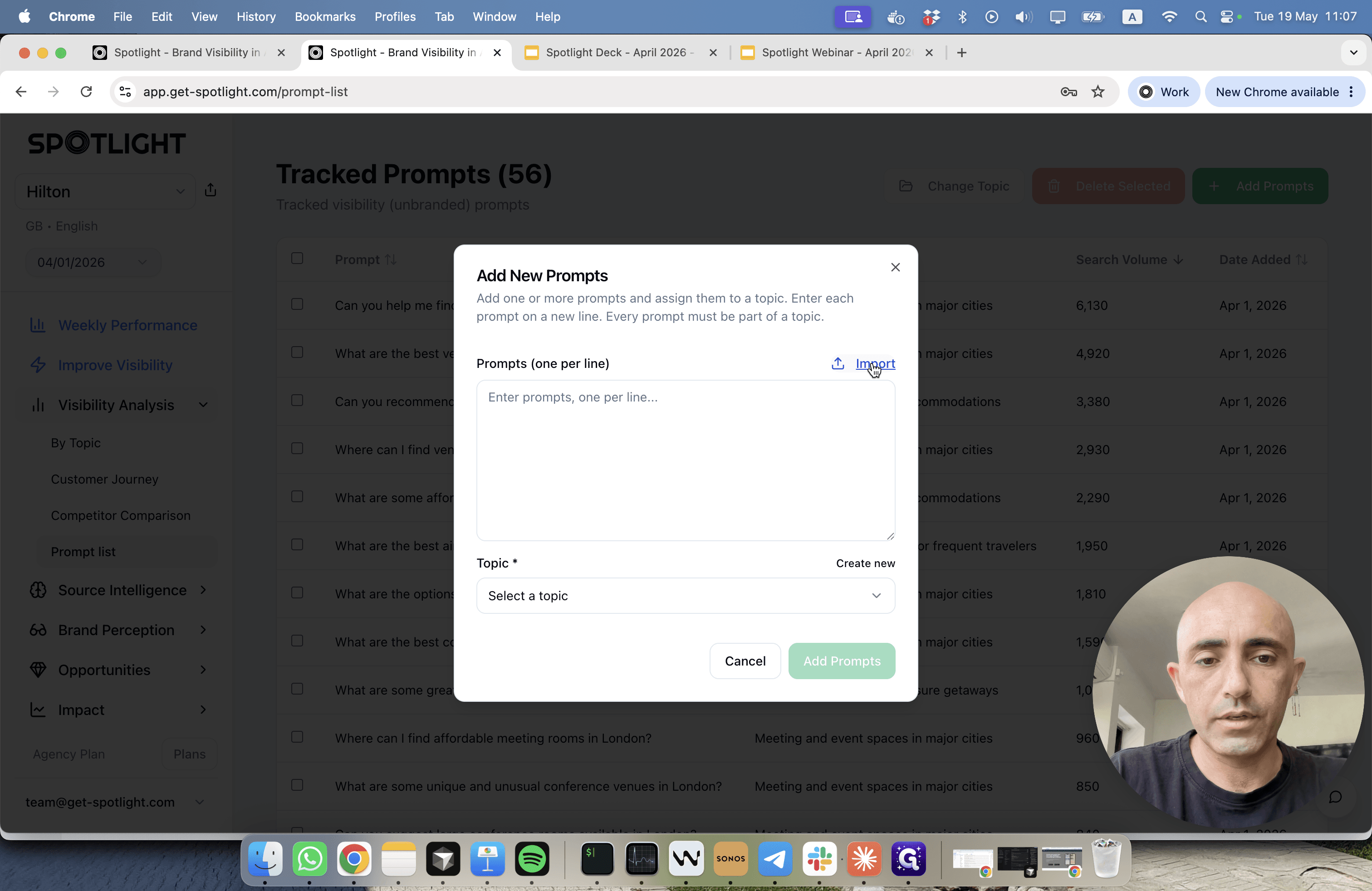
Importing Prompts in Bulk
If you prefer to manage your research in a spreadsheet, you can import prompts along with their mapped topics.
Mapping the Customer Journey
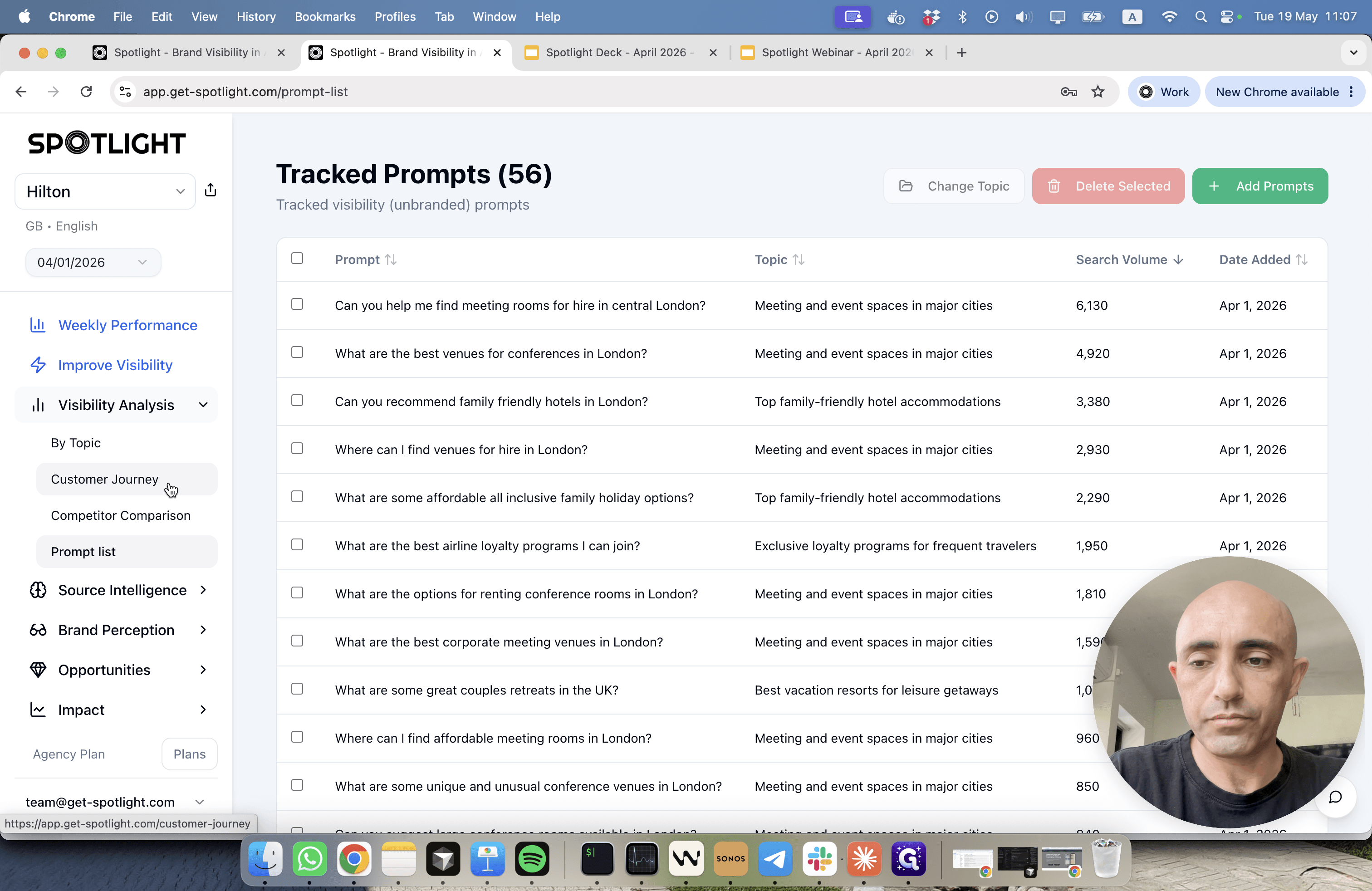
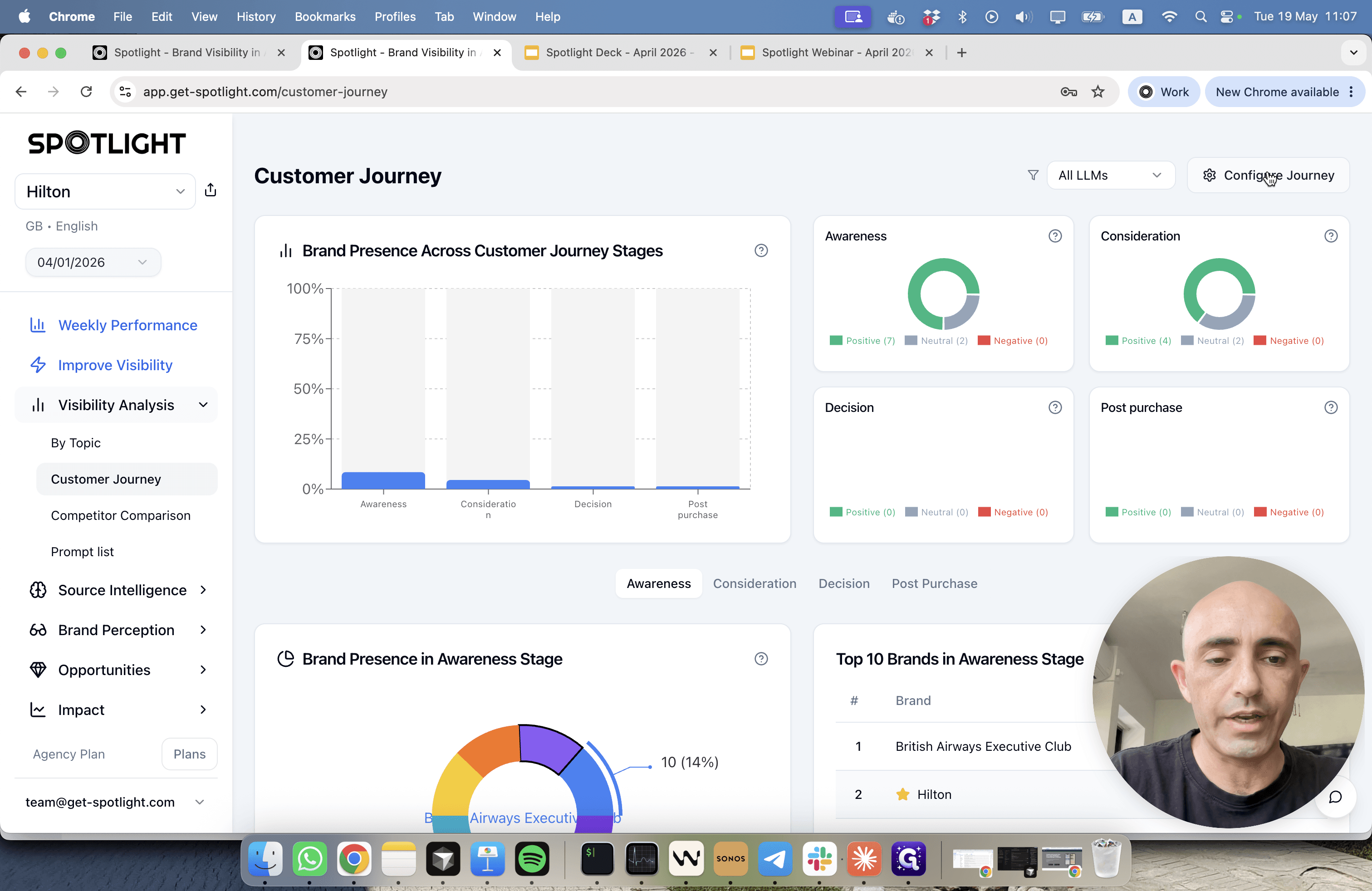
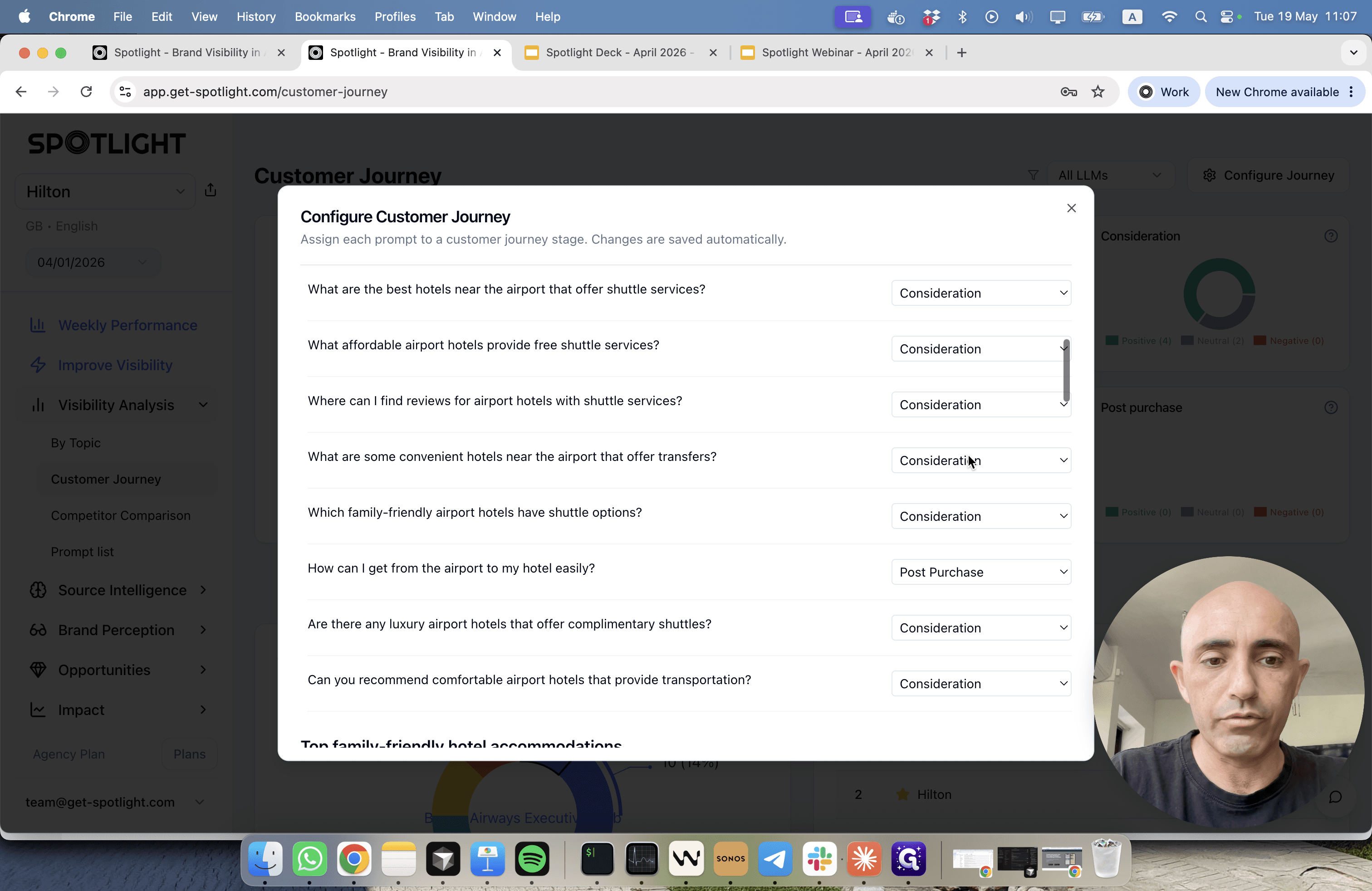
Classifying prompts by journey stage (e.g., Awareness, Consideration, Decision) helps clarify how users interact with AI at different funnel points.
Tracking Brand Perception
To understand your reputation in AI responses, you can track prompts that ask direct questions about your brand.
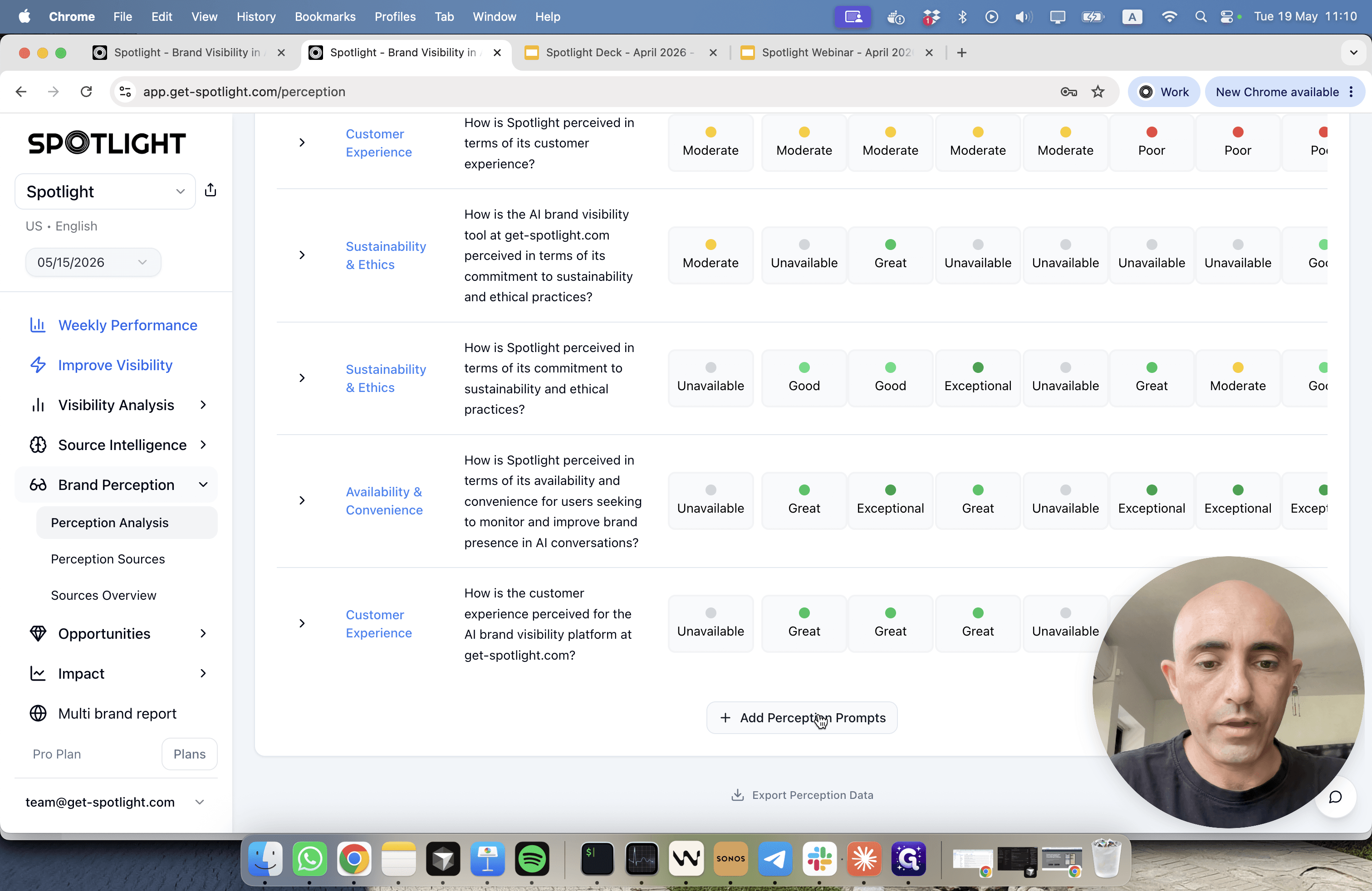
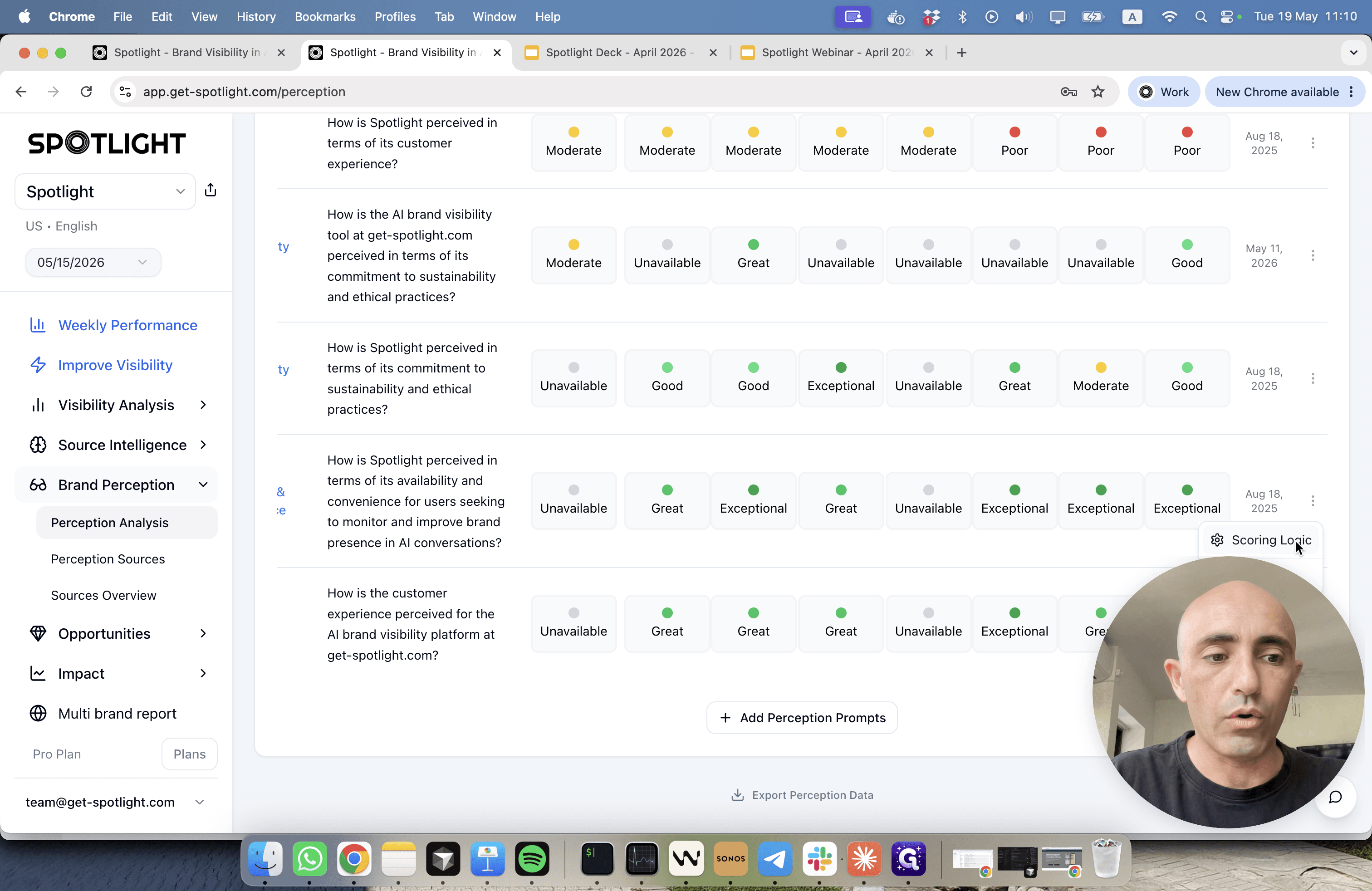
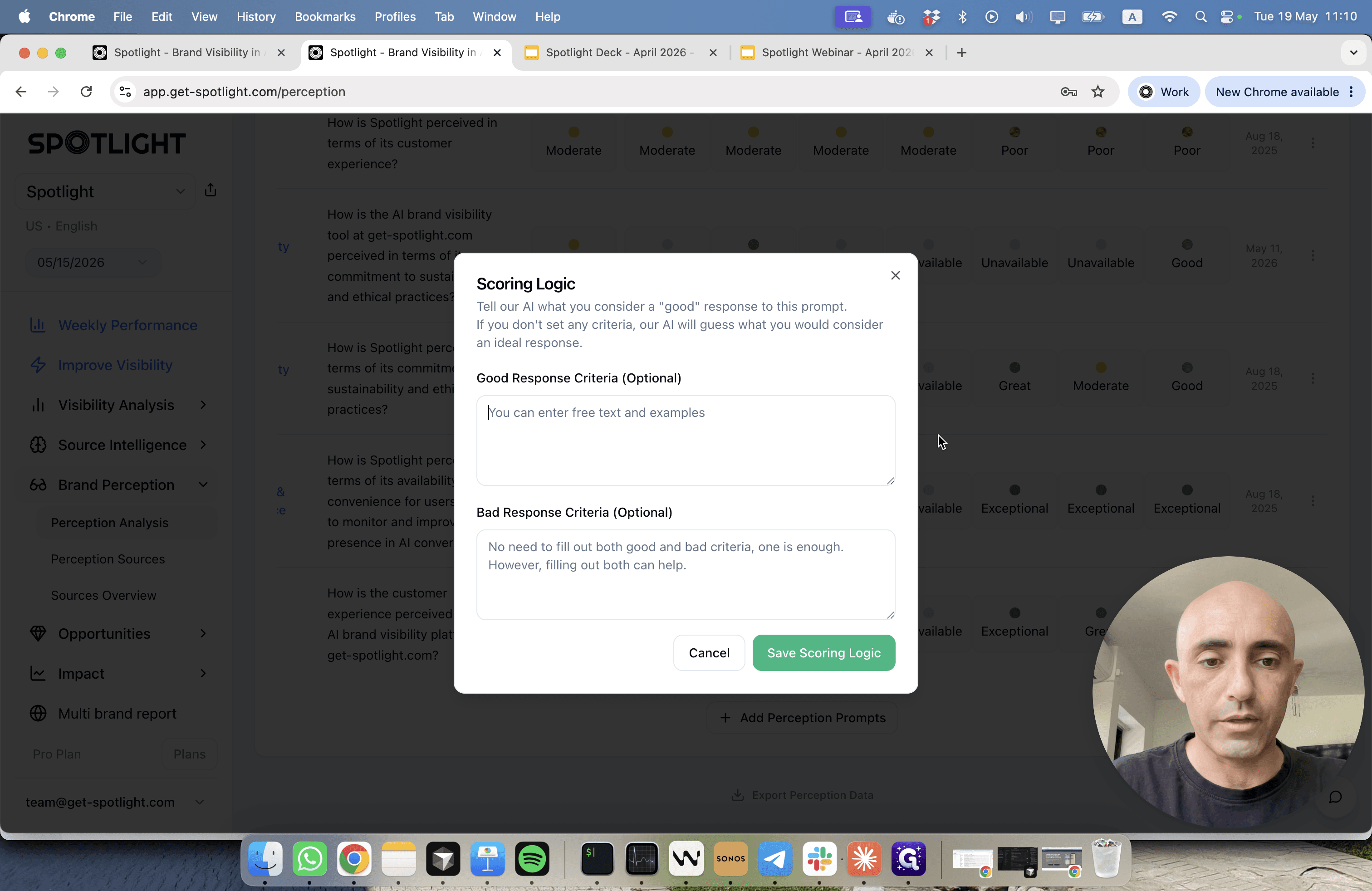
Unlike general visibility prompts, perception prompts require you to define what constitutes a favorable AI response.
FAQ
Q: Can I automate adding prompts and topics?
A: Yes. Spotlight features an MCP (Model Context Protocol) API. You can instruct tools like Claude Desktop to automatically add prompts and topics to your account without opening the web interface.
Glossary
Term | Definition |
|---|---|
Prompt Volume | A metric representing the estimated frequency that users ask AI chatbots a specific query. |
Brand Perception Prompts | Queries specifically asking an AI about a brand's reputation, features, or overall standing in the market. |
Scoring Logic | Custom criteria you set to instruct the system on how to grade the sentiment or accuracy of an AI's response. |