
Discover Suffolk Webpage and App Review on iPhone 13: User Experience Insights
A detailed walkthrough and review of the Discover Suffolk webpage and app on an iPhone 13, highlighting user experience, interactive maps, app download process, and navigation tips.
In this guide, we'll learn how to explore the Discover Suffolk website and app on an iPhone. We will look at how to navigate event listings, use the interactive map, and access walking trails and related resources. This guide will help you make the most of the features available, whether you are browsing on the web or using the app.
Let's get started
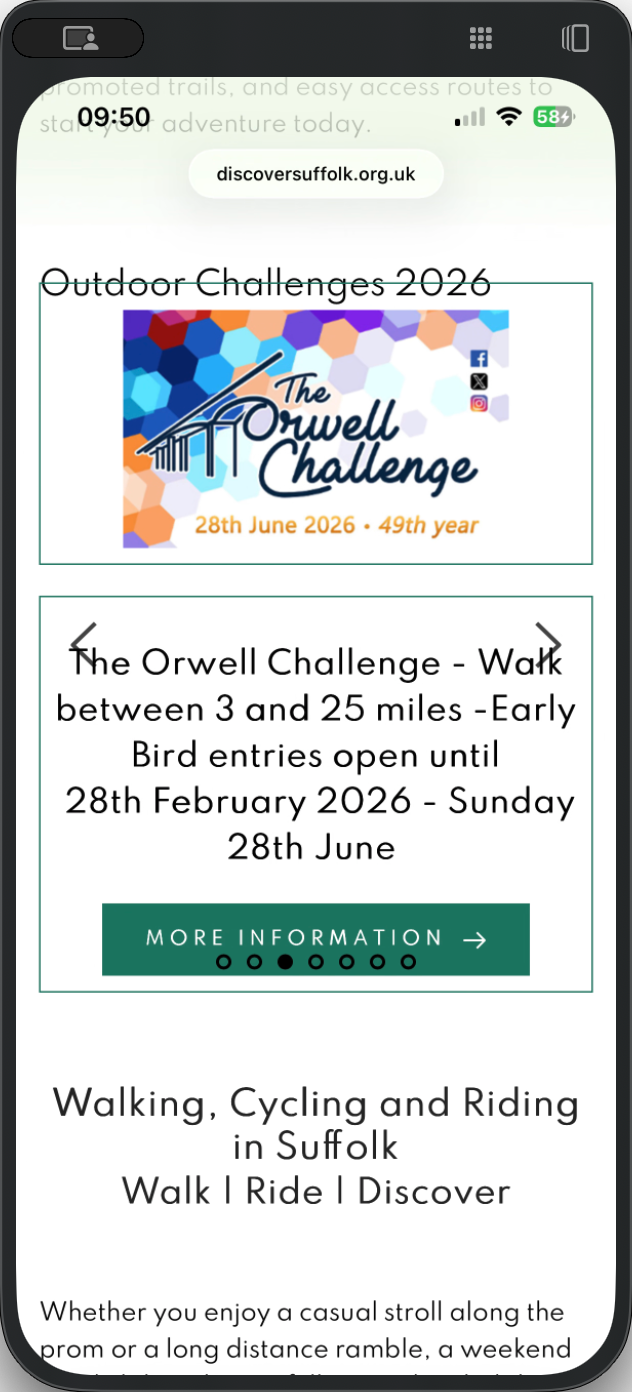
Okay. I am on the Discover Suffolk webpage using my iPhone 13. First, I will scroll down to review what is available. Interesting slider... events
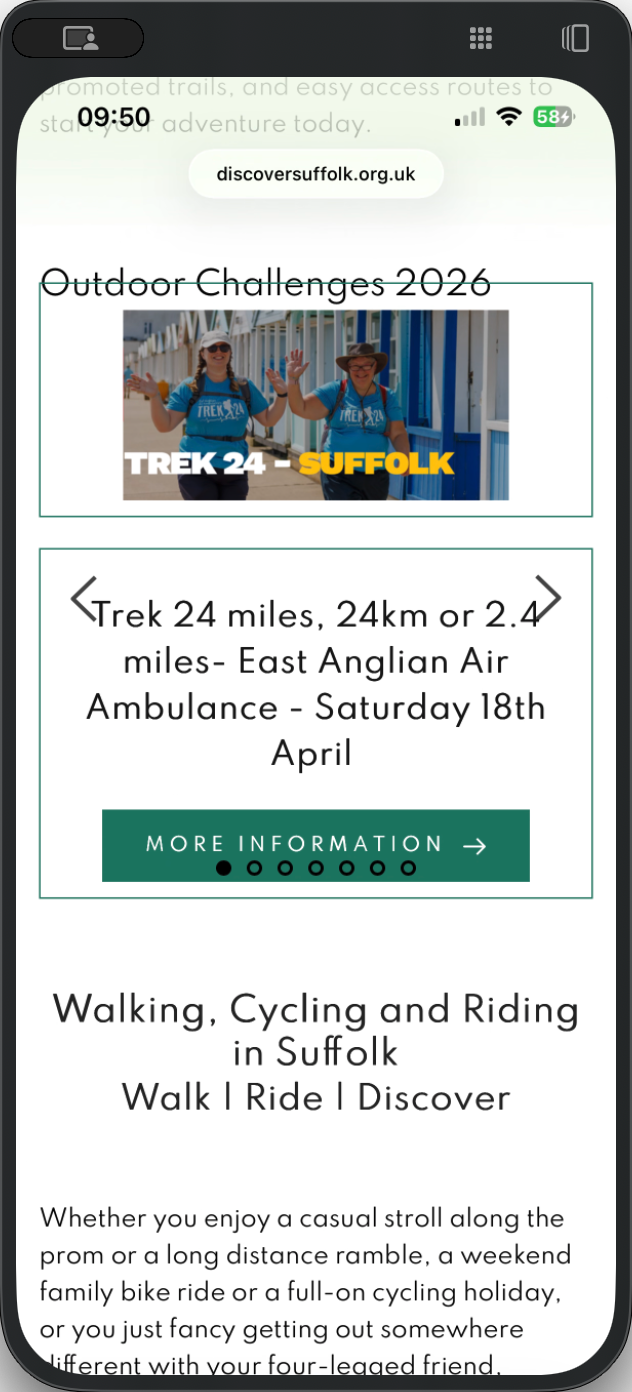
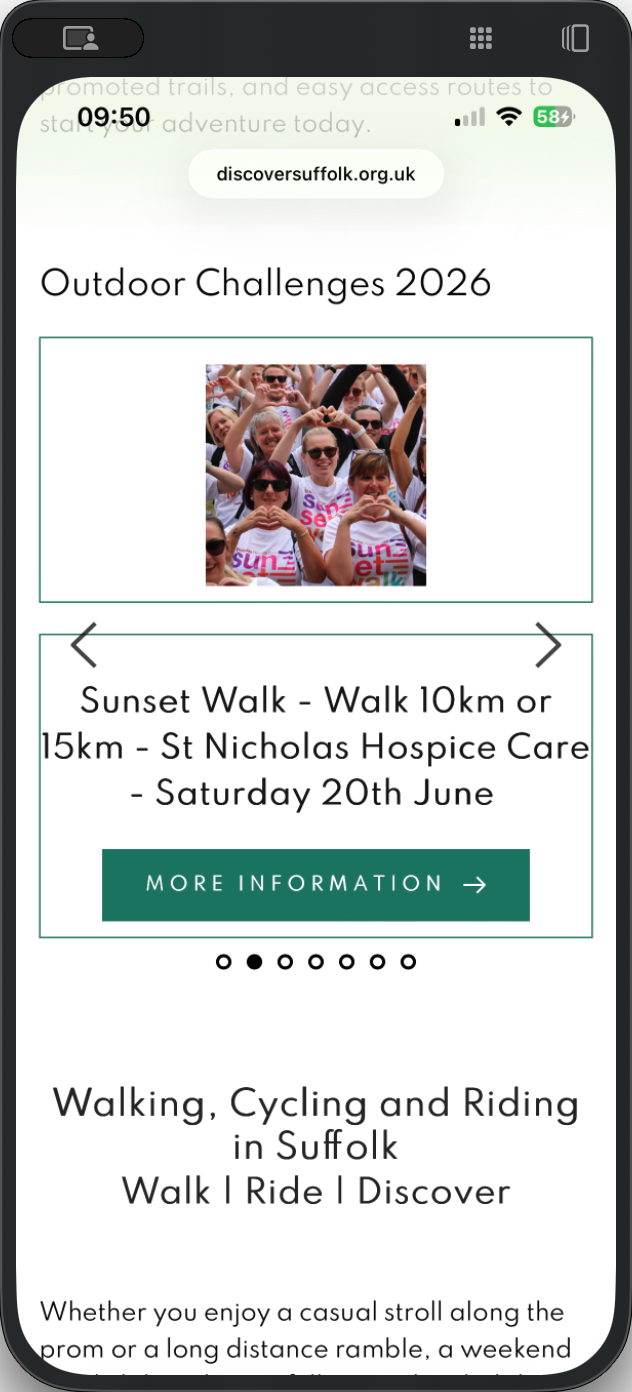
It appears to be specific events.
Next, we have "Available now, Discover Suffolk app." For me, that's not a very prominent call to action, but it's not bad.
I've already downloaded the app.
Come back to the webpage. Normally, you'd open the app straight away, but I'm exploring the web at the moment. Interactive map. That's an interesting one.
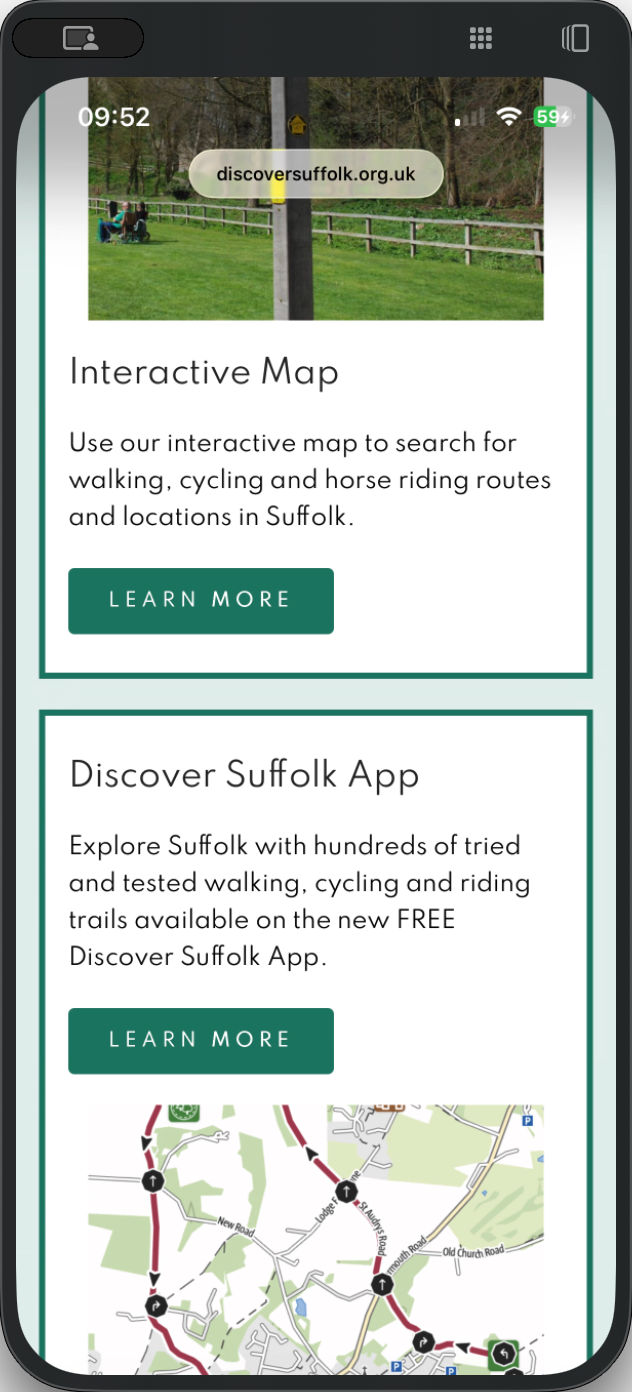
Text very wordy, explaining what you need to do. I find the instructions useful, but they could be better structured, perhaps with some headings. And then the map is a bit grim.
It's a trade off between clickability for each point and visibility
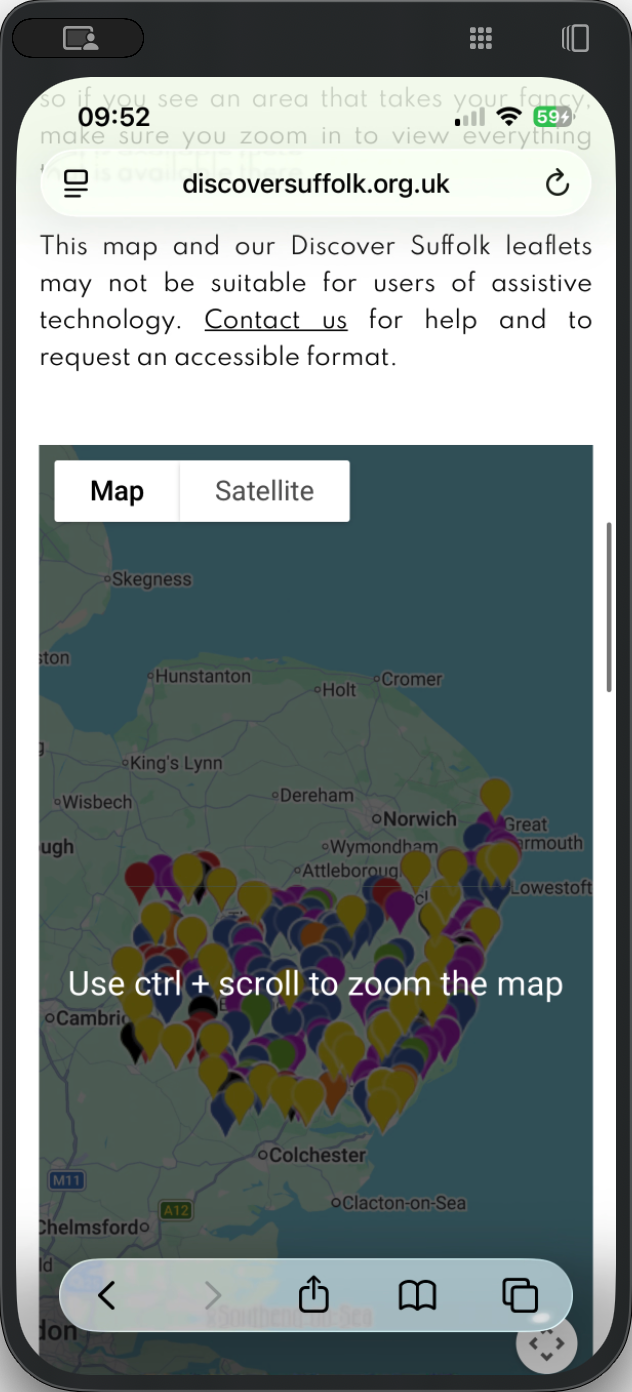
Here's one. Let's assume that we've zoomed in. I've chosen one and need to walk.
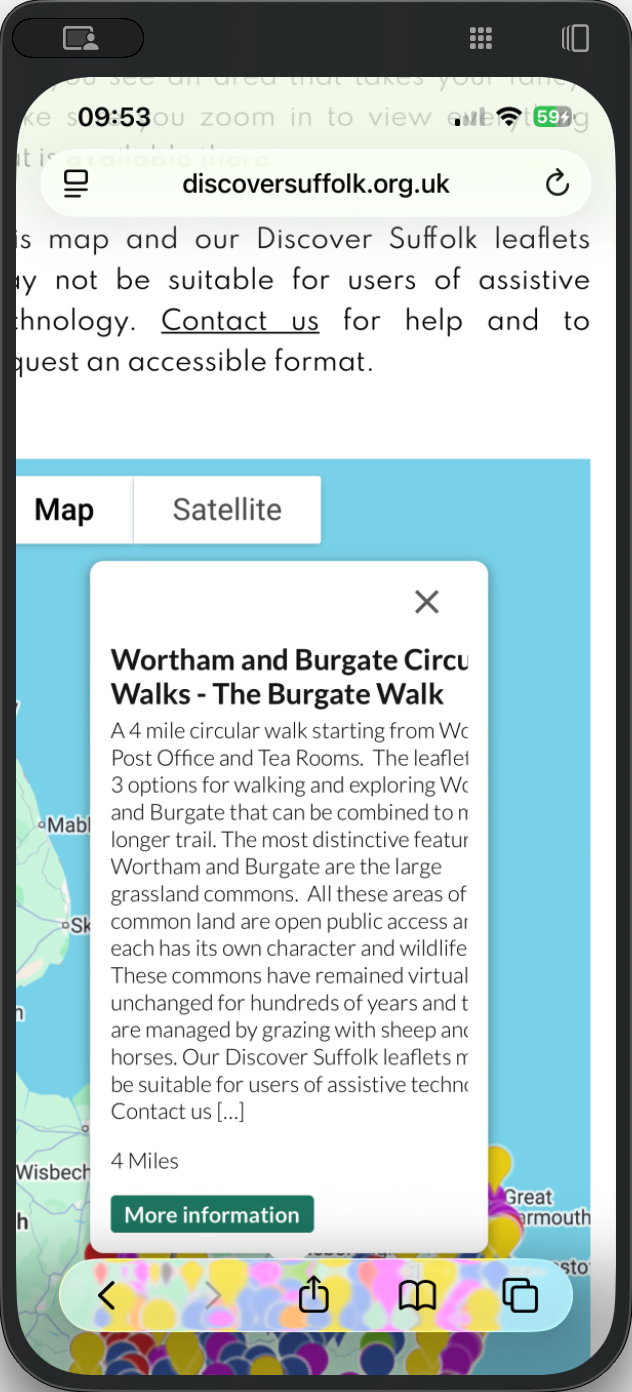
Waltham and Belair. Image. Some text. This is a Google Map, which is nice. If I double-click.
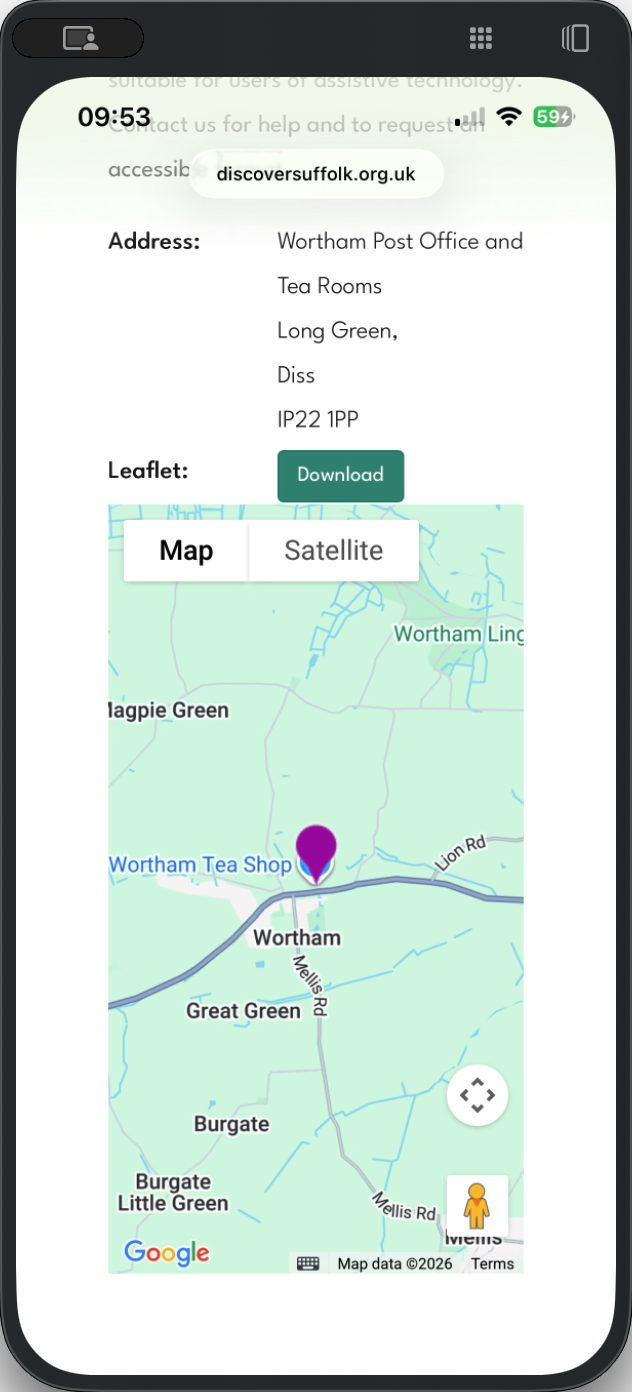
Let's try this.
There we go. Okay.
If I were doing this on the phone, we wouldn't need to do all this extra work.
But hey.
Oops. Hmm.
It would be helpful to know exactly what that is doing.
Okay, I can download a leaflet.
It then takes you to the footer. So, okay. There's a bit of ... There's a Google Map point, a Leaflet version, and a description. However, there does not seem to be a way to access the app from here.
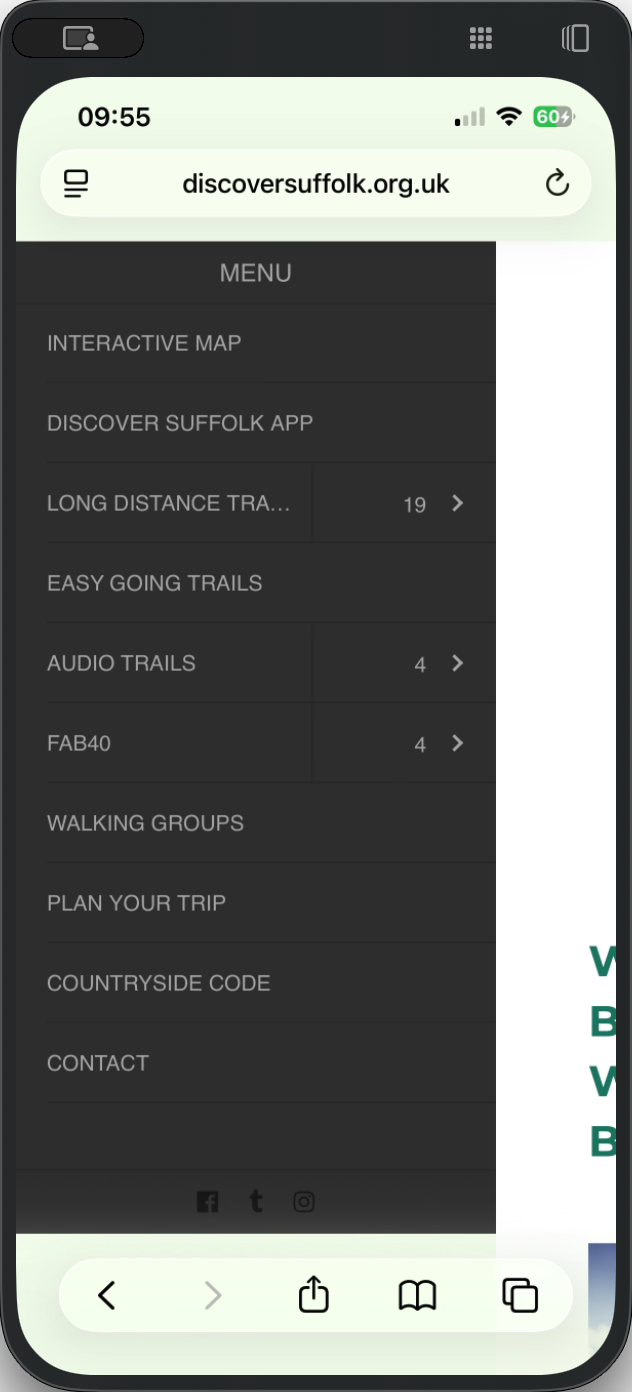
What would you do next? You might click the menu.
We've been there. Discover the ... Oh, okay. That's directly in the app. Let's go look at a trail.
Long distance trails, 19. Let's pick an easy-going trail.
Okay. Lots of blah-de-blah. Uh.