How to Download and Connect With AnyDesk
Learn how to download the AnyDesk remote desktop application, run the executable file, and start a remote connection to a saved device.
By metagrpMM
This guide explains how to download the AnyDesk remote desktop application and initiate a connection to a saved device. Following these steps allows you to quickly establish remote access without running a full system installation.
This process is intended for IT professionals, support agents, and remote workers who need to securely connect to another computer using AnyDesk.
1
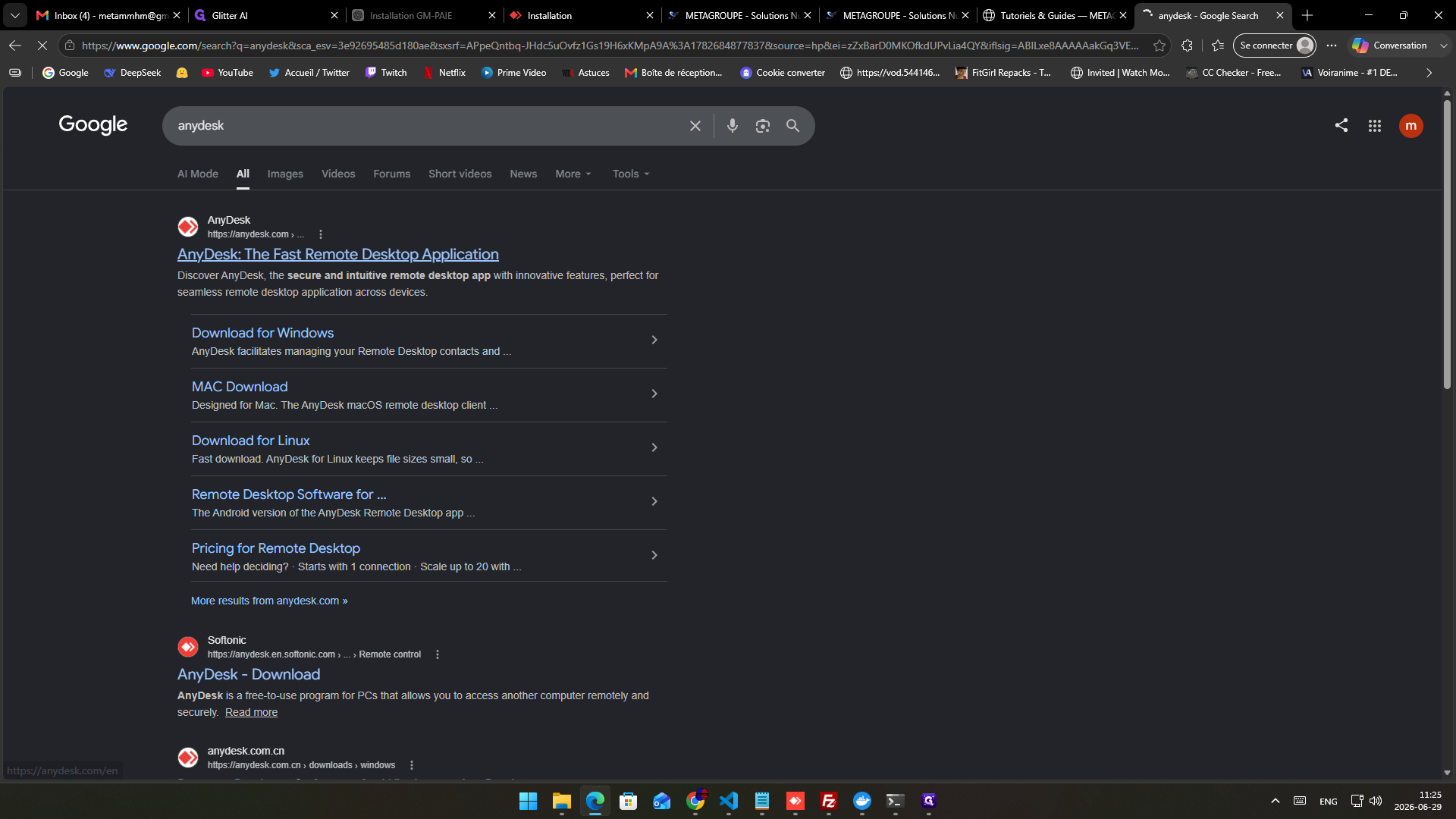
Search for AnyDesk in your web browser.
2
Click on the search result for AnyDesk: The Fast Remote Desktop Application to open the official homepage.
3
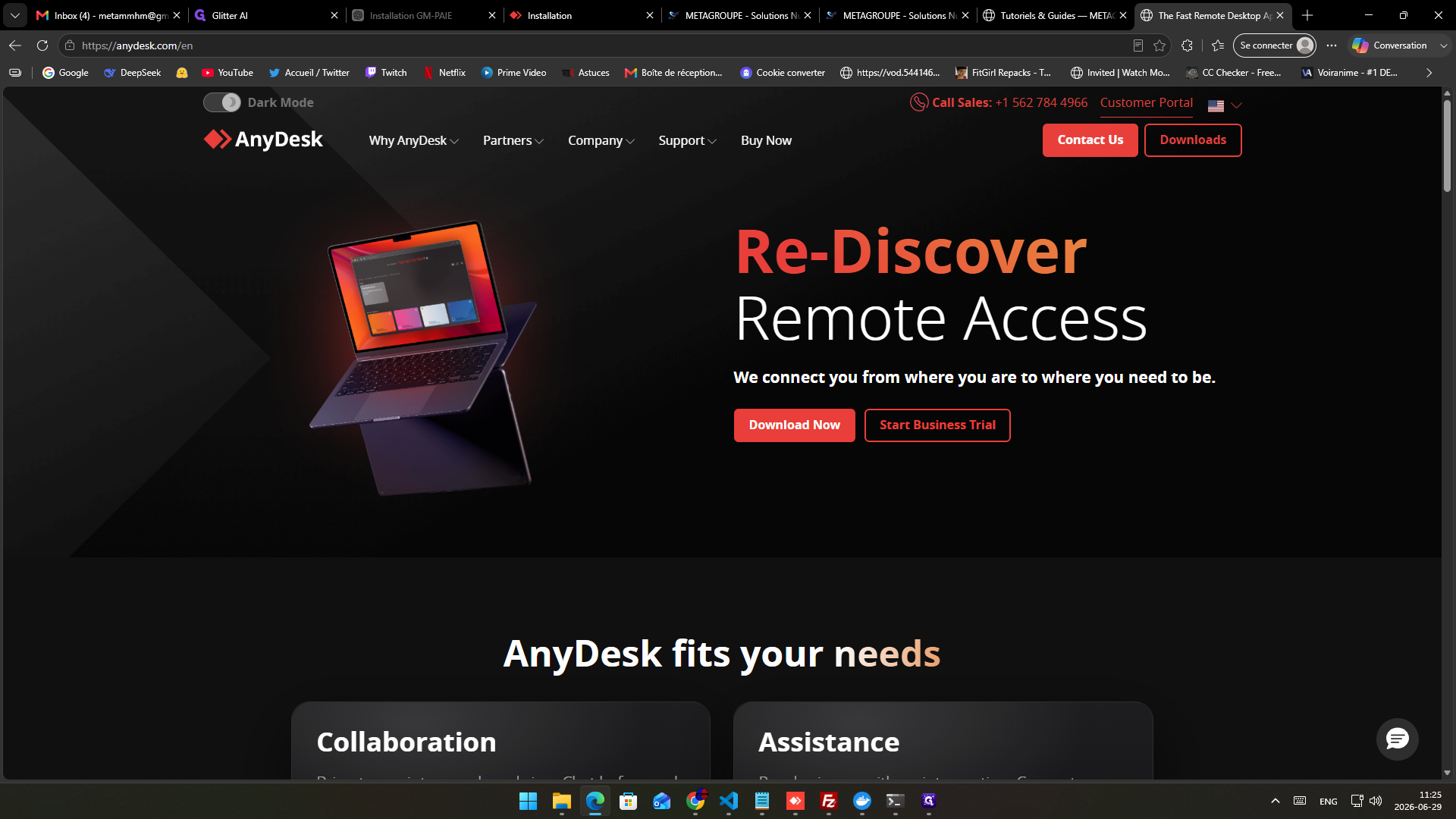
Click the Download Now button.
4
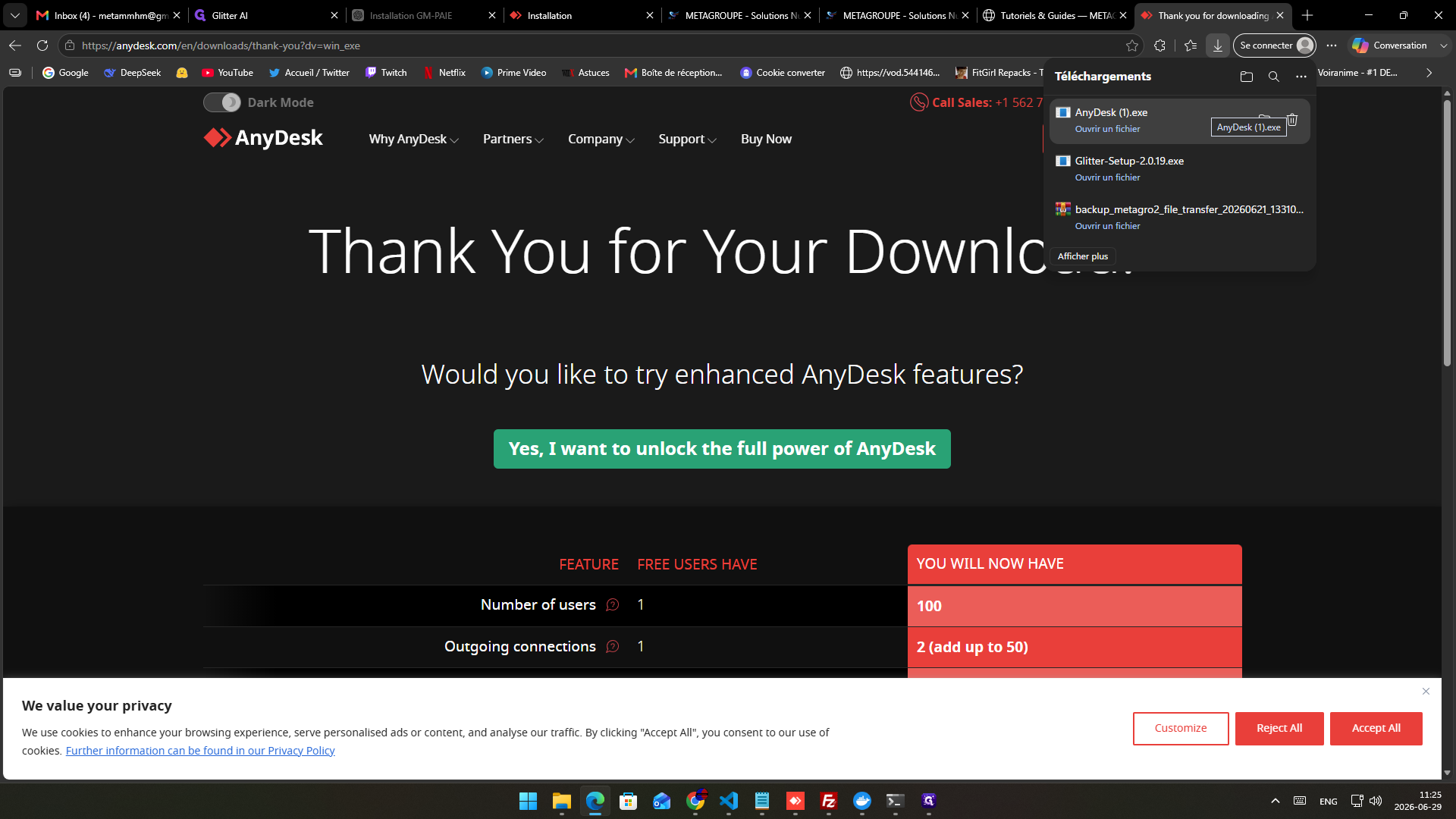
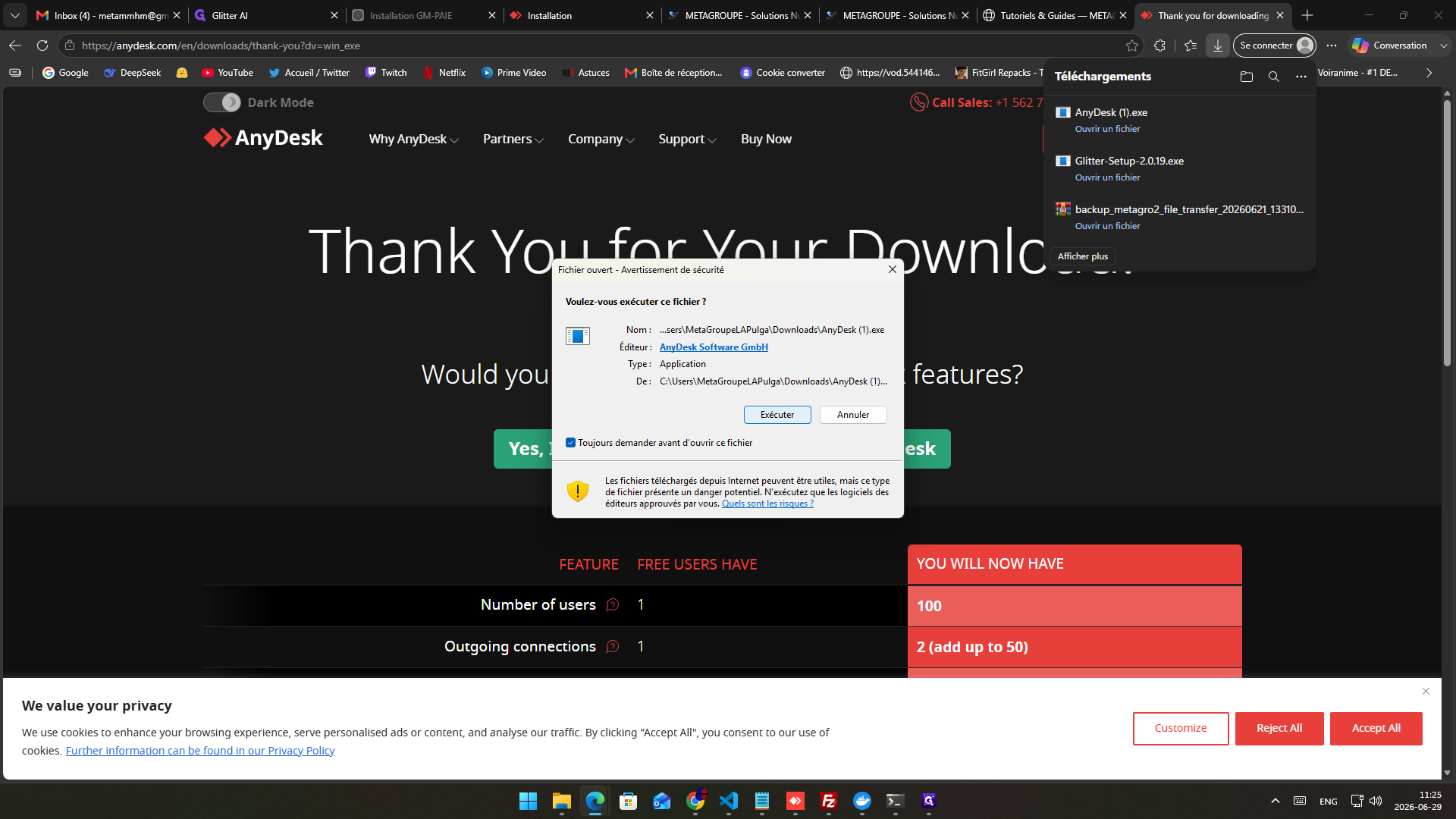
Open your browser's download manager and click the downloaded AnyDesk.exe file.
5
Click Exécuter (Run) in the Windows security warning prompt to start the application.
6
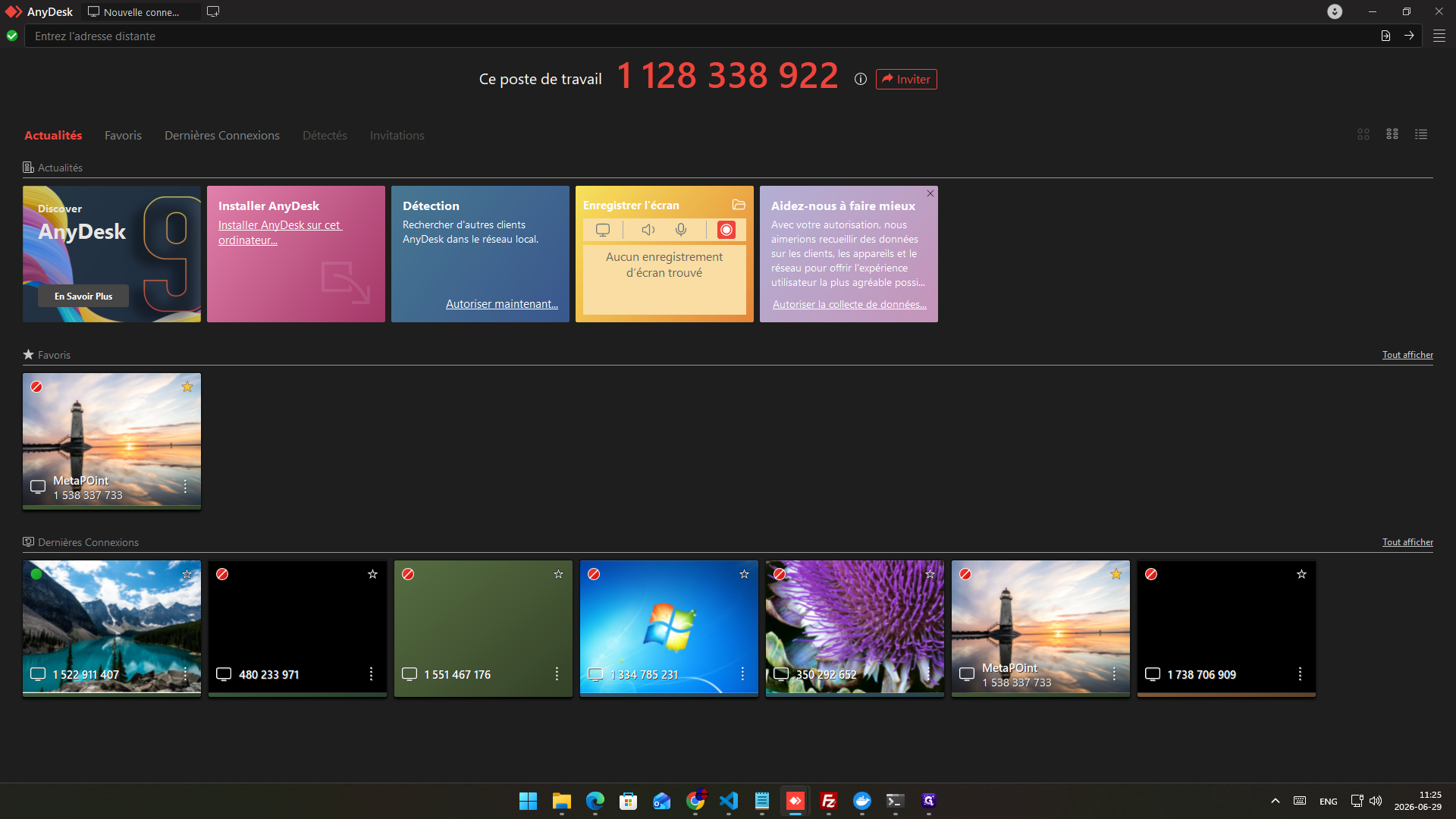
From the AnyDesk dashboard, locate your target device and click on its remote ID (e.g., 1 128 338 922) under your Favorites or Recent Connections to start the remote session.