
How to Download and Install OBS Studio on Mac
Learn how to download, install, and launch OBS Studio on a Mac to start recording your screen and camera.
By Vishal Shyaman
Made with Glitter AI
This guide walks you through downloading, installing, and opening OBS Studio on a Mac. This setup is the first step in preparing to record your screen and camera simultaneously.
Download OBS Studio
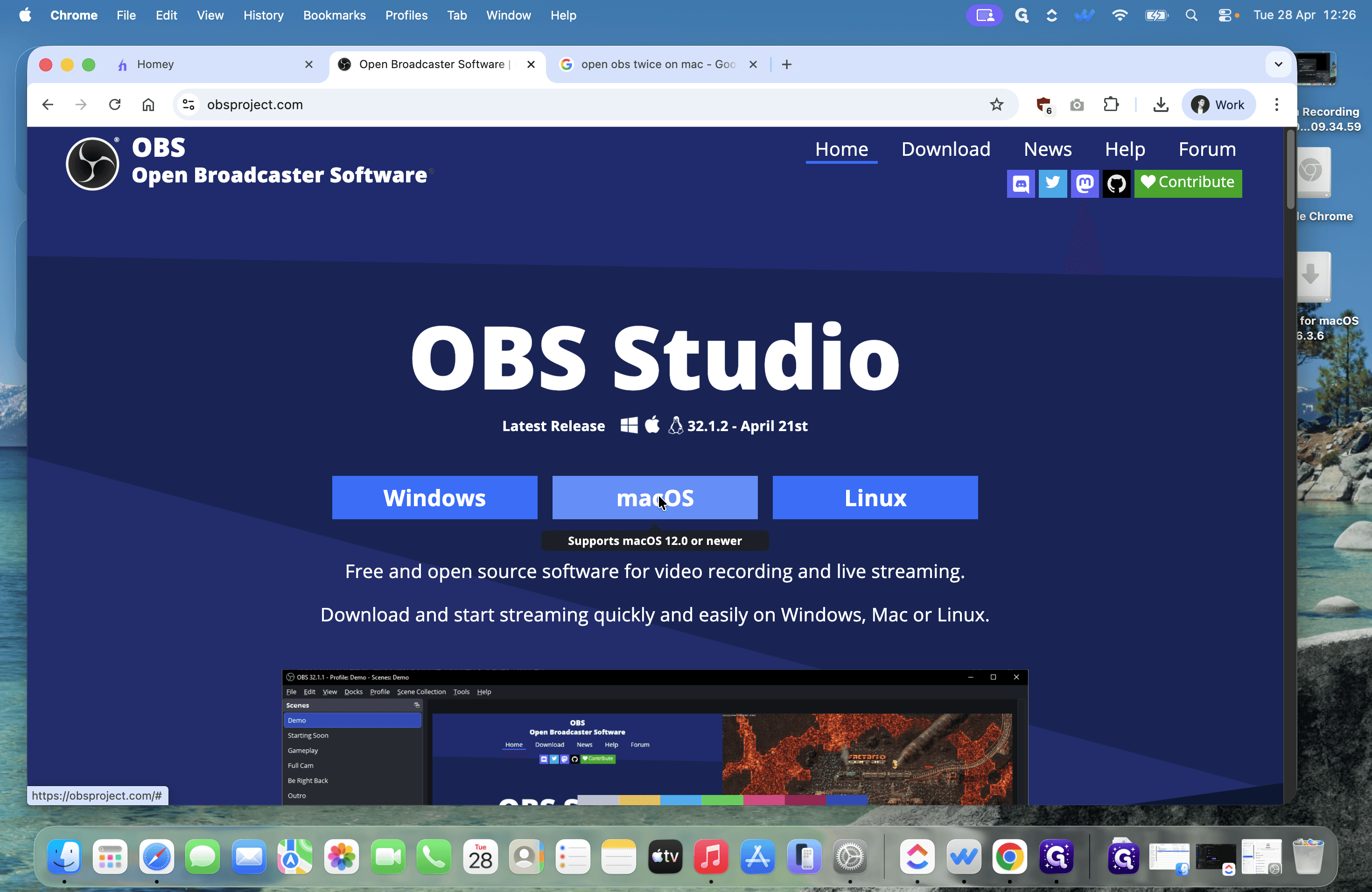
First, open your web browser and navigate to obsproject.com.
1
Click macOS.
2
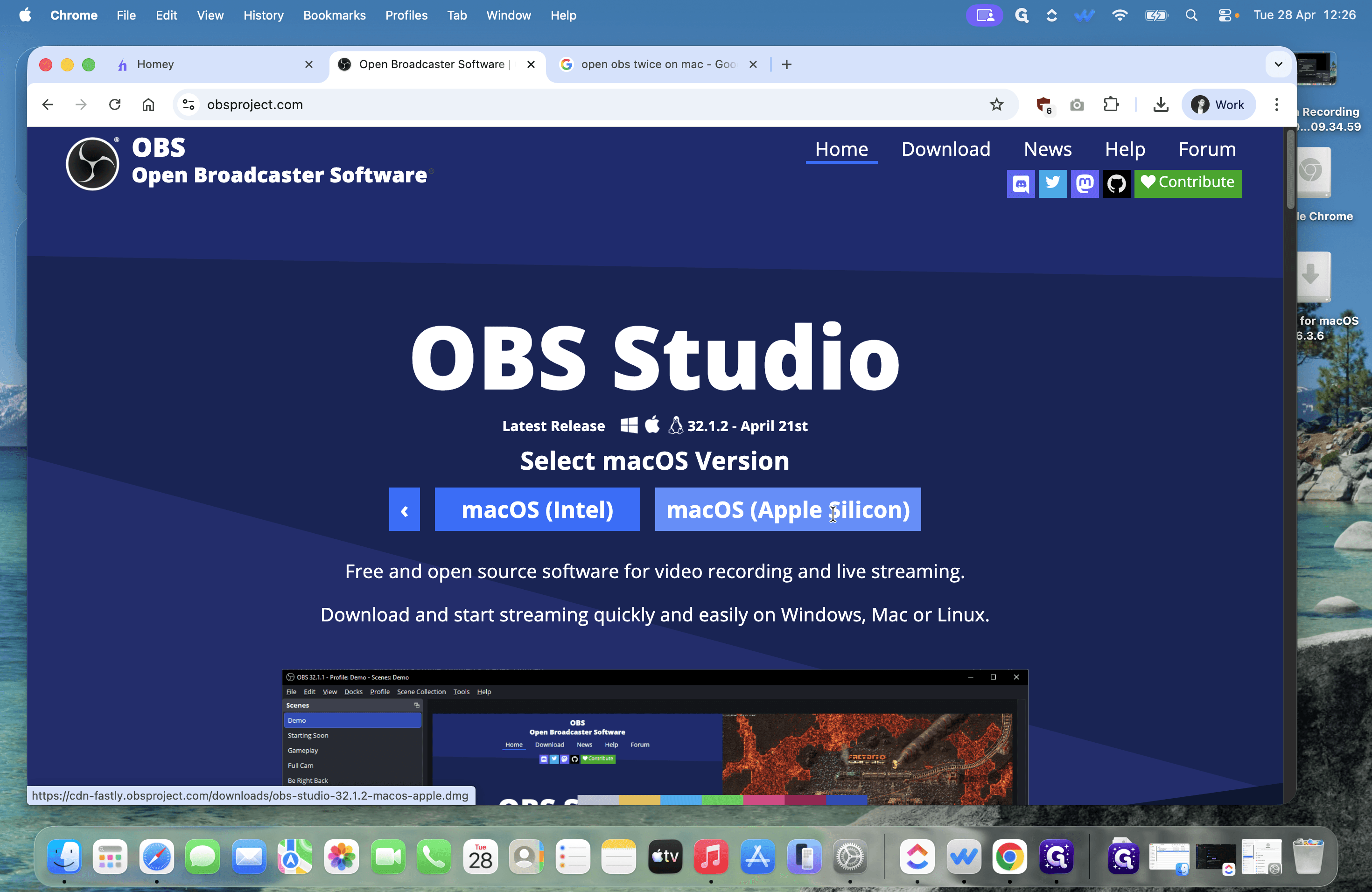
Click macOS (Apple silicon).
Install and Open OBS
3
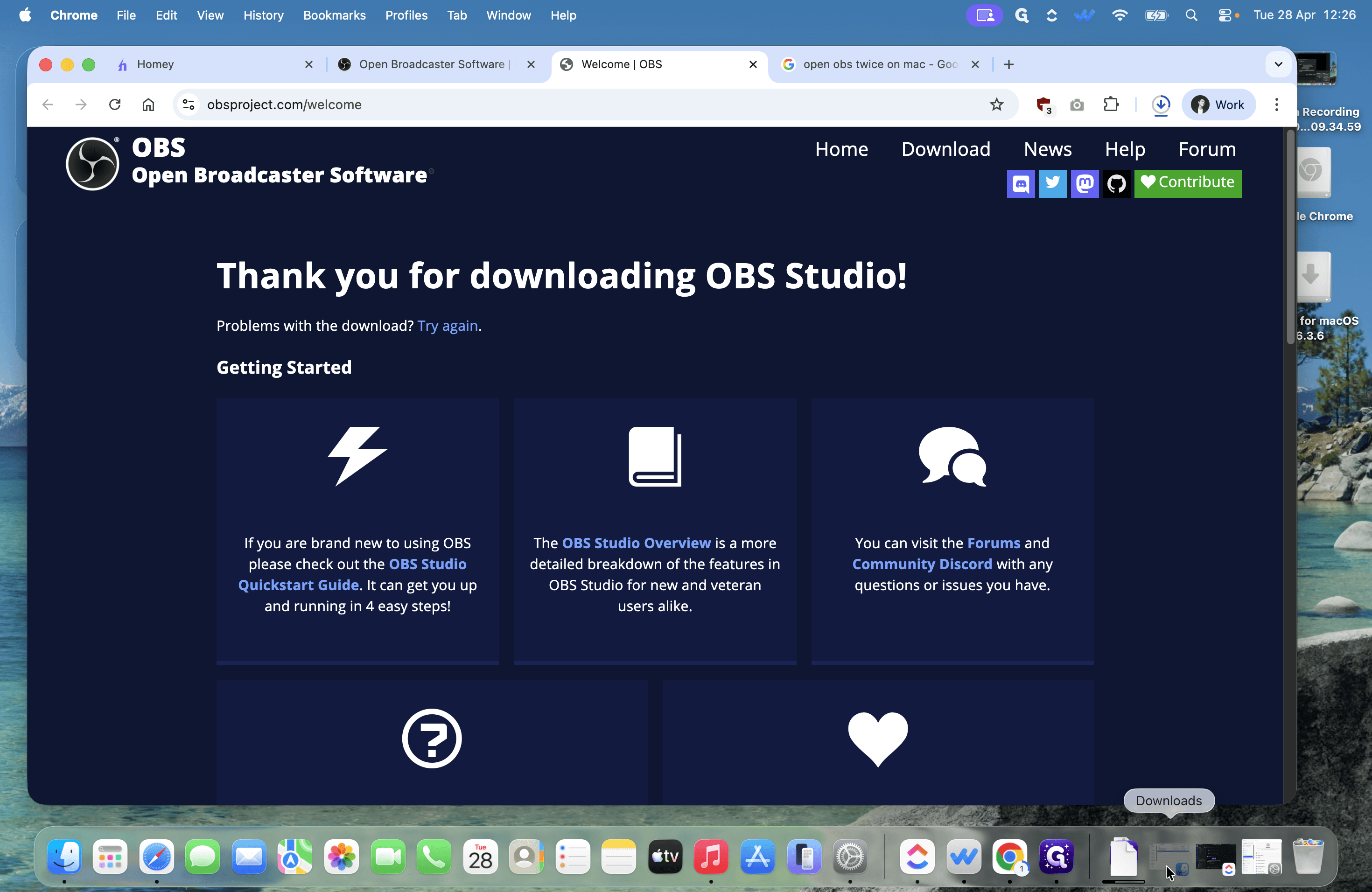
Open your Downloads folder and click the downloaded installer file.
4
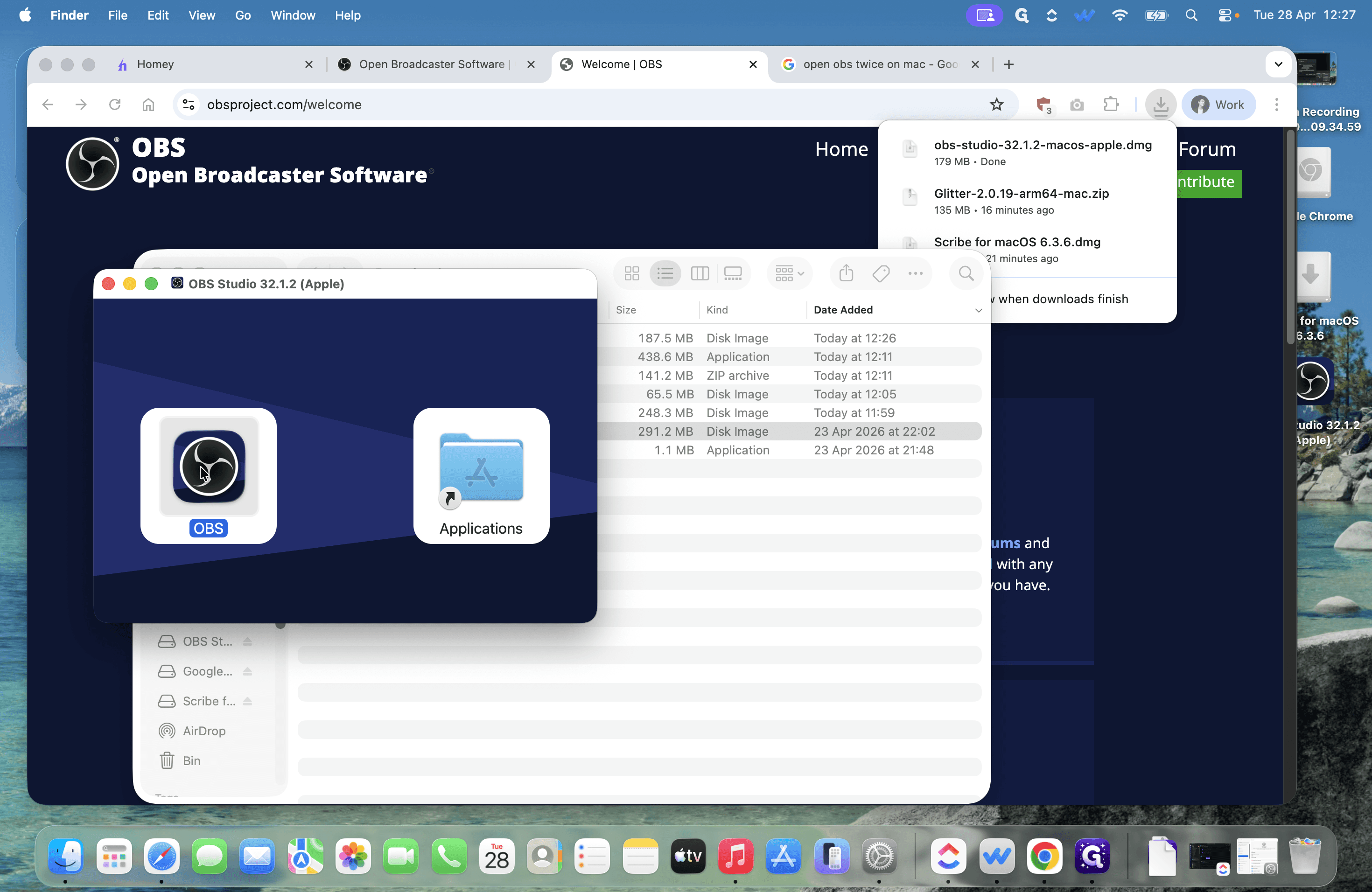
Drag the OBS icon into the Applications folder to install it.
Once the installation completes, you can launch the application.
5
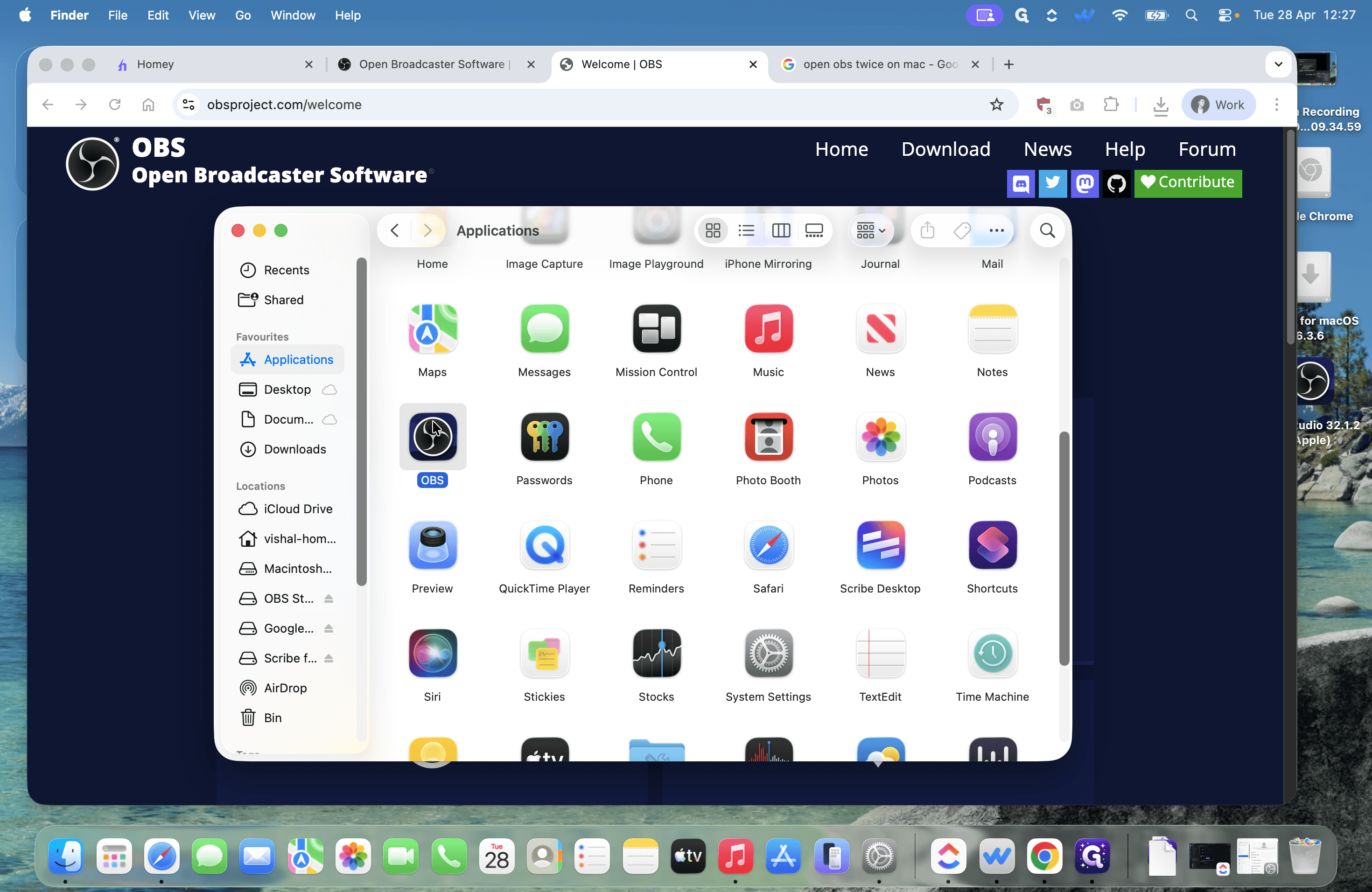
Double-click the OBS icon in your Applications folder.
6
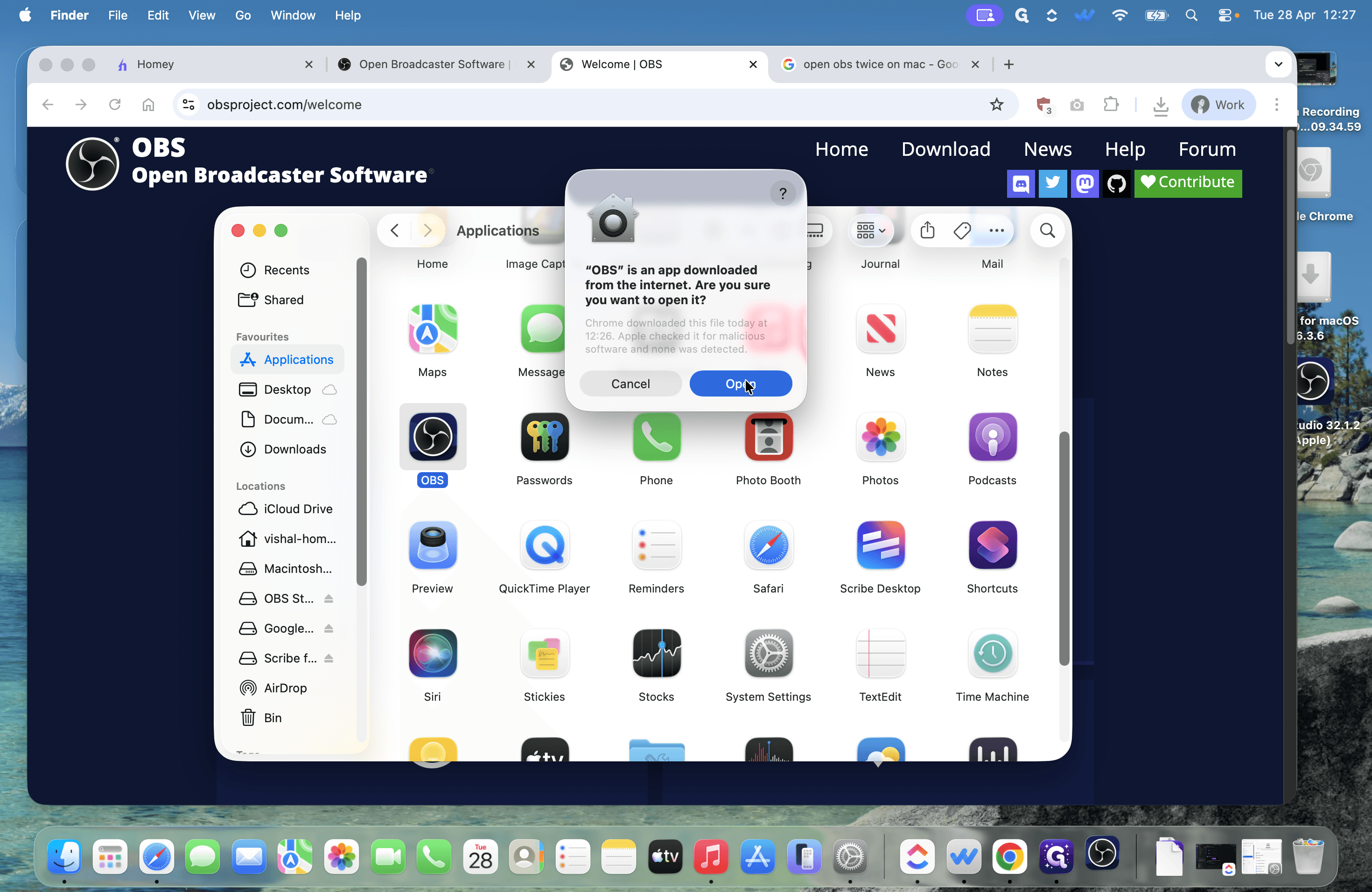
Click Open on the security prompt to confirm you want to launch the application.
You are now ready to set up your recording workflow and add your screen and camera sources to the OBS canvas.