Dukaan Dost ERP Inventory Reports Download
How to download many different inventory reports on ERP
By Pankita Tibrewala
Made with Glitter AI
Above is the video demonstration of how to download reports.
Step - by - step guide below 👇
1
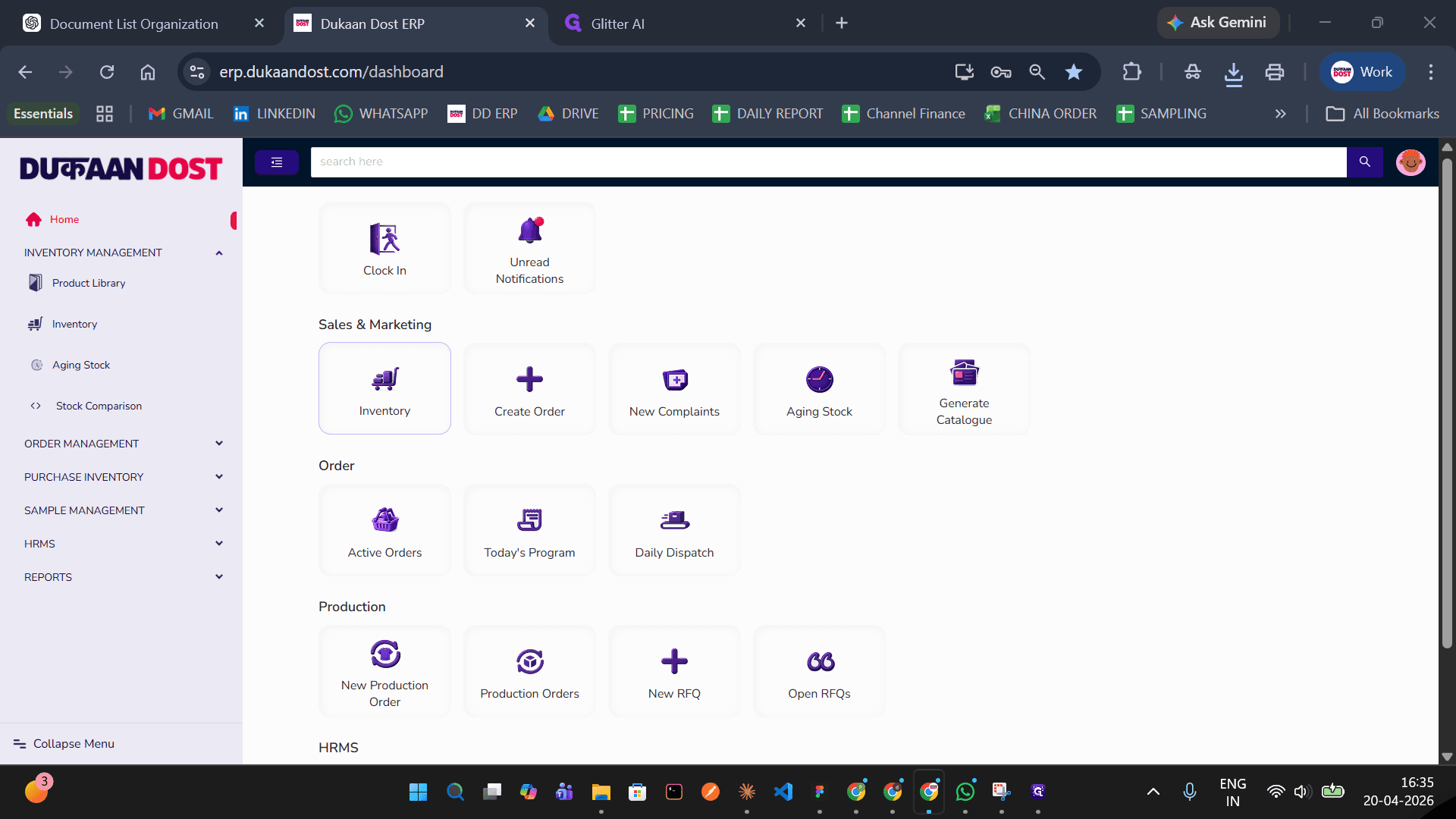
Go to inventory page
2
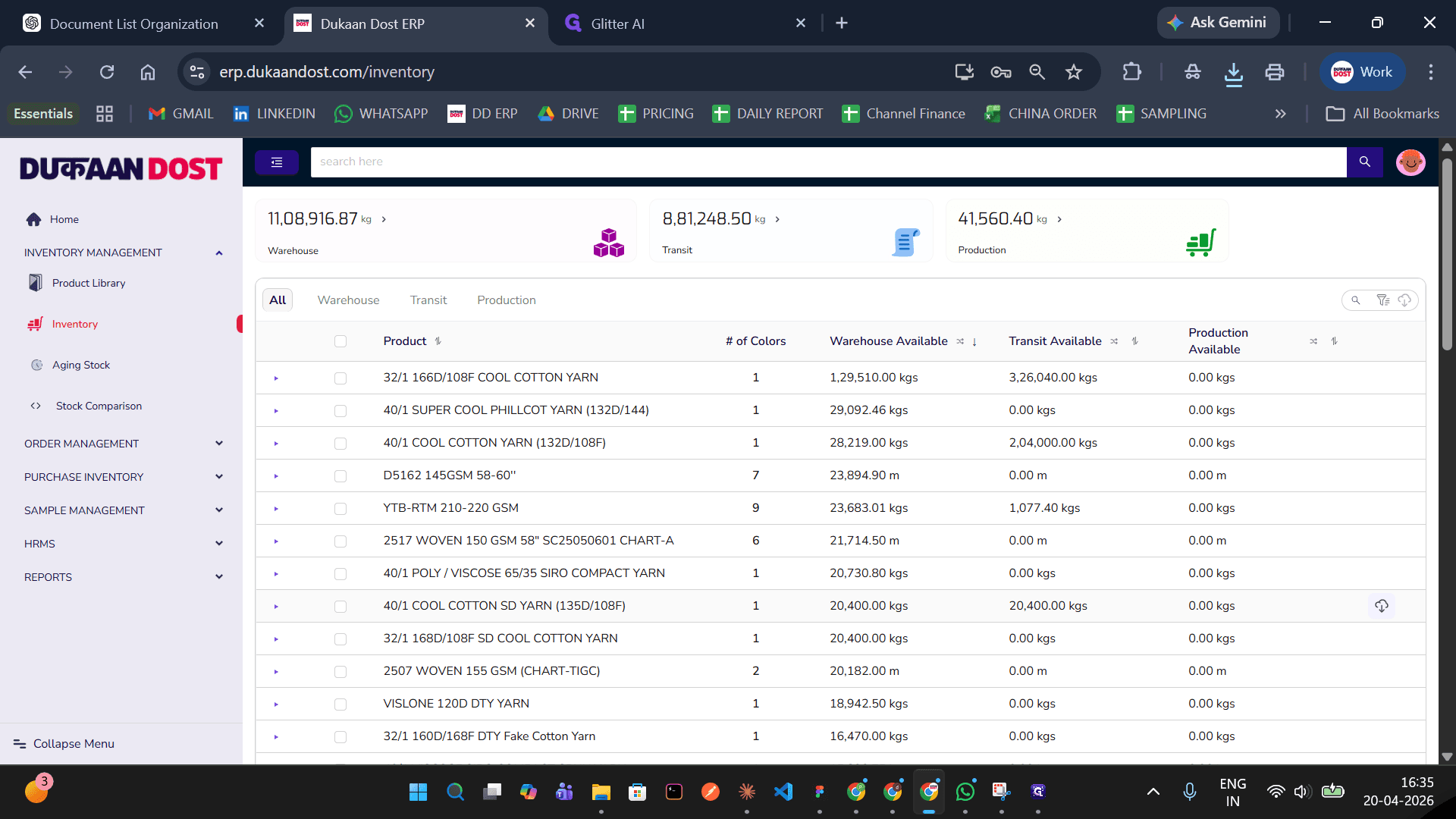
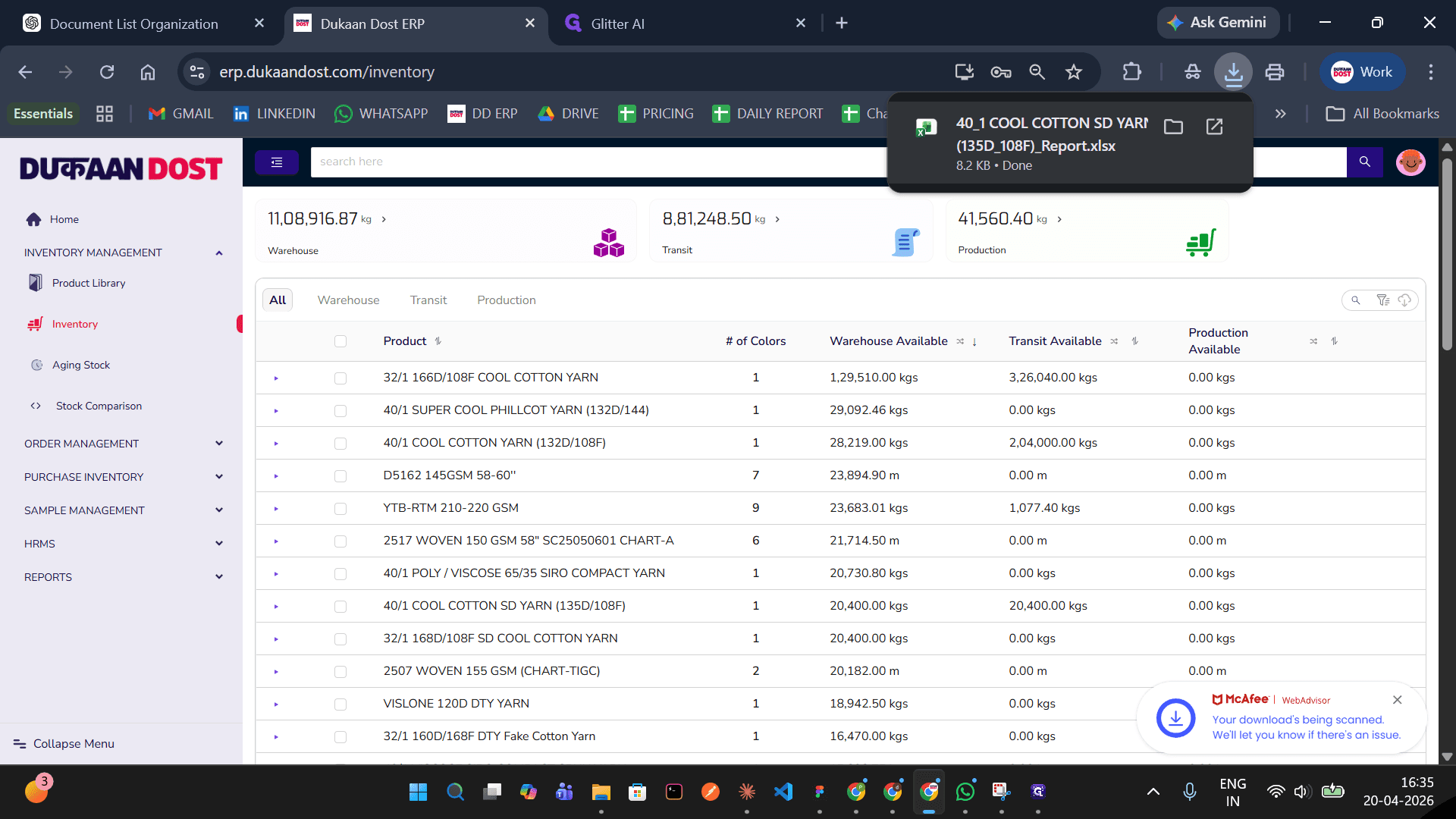
While hovering on any row in the table, you'll see a download icon. On click, it will download the inventory reprot for this product.
3
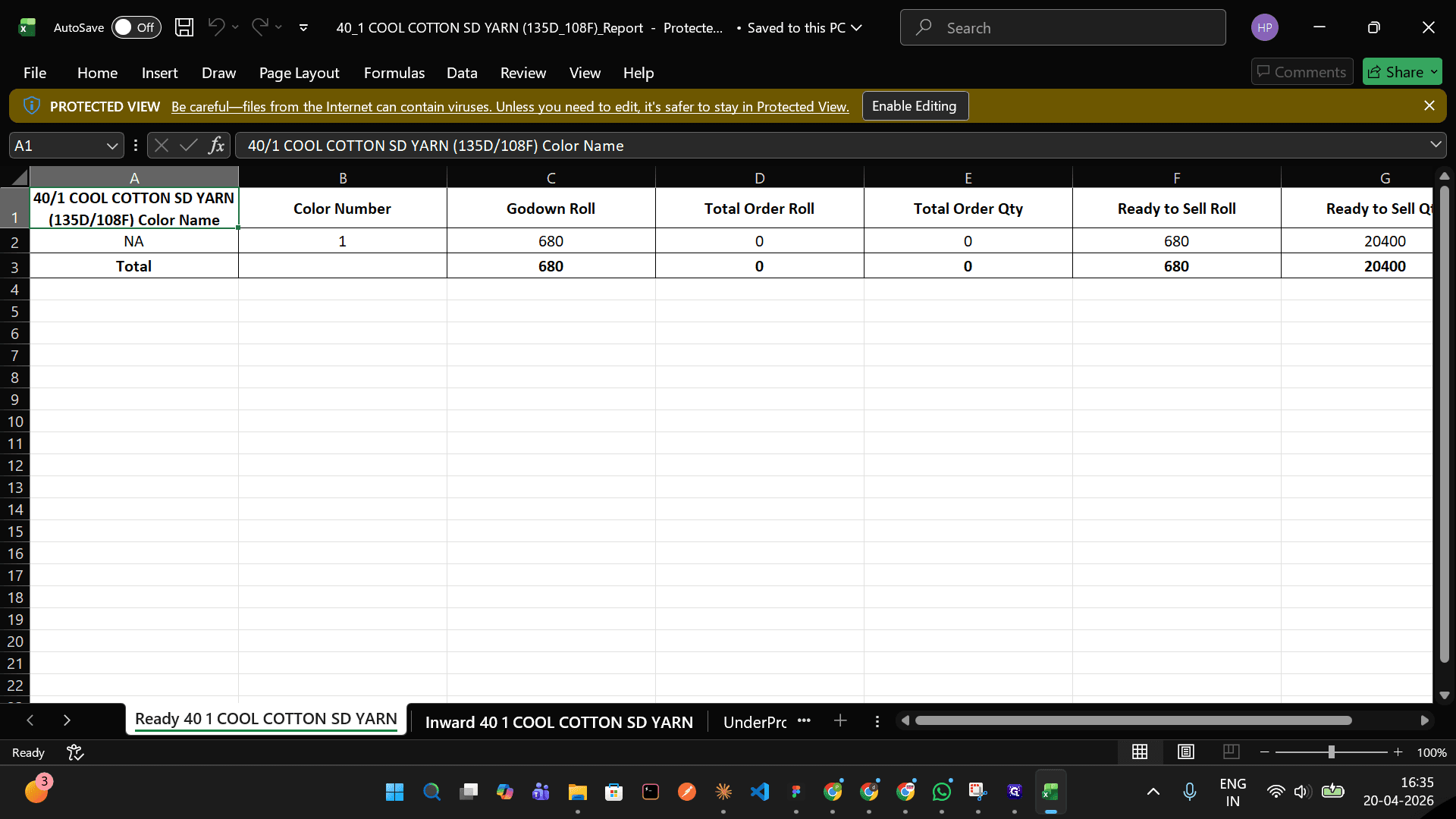
Lets open this report to see what all details it will have.
4
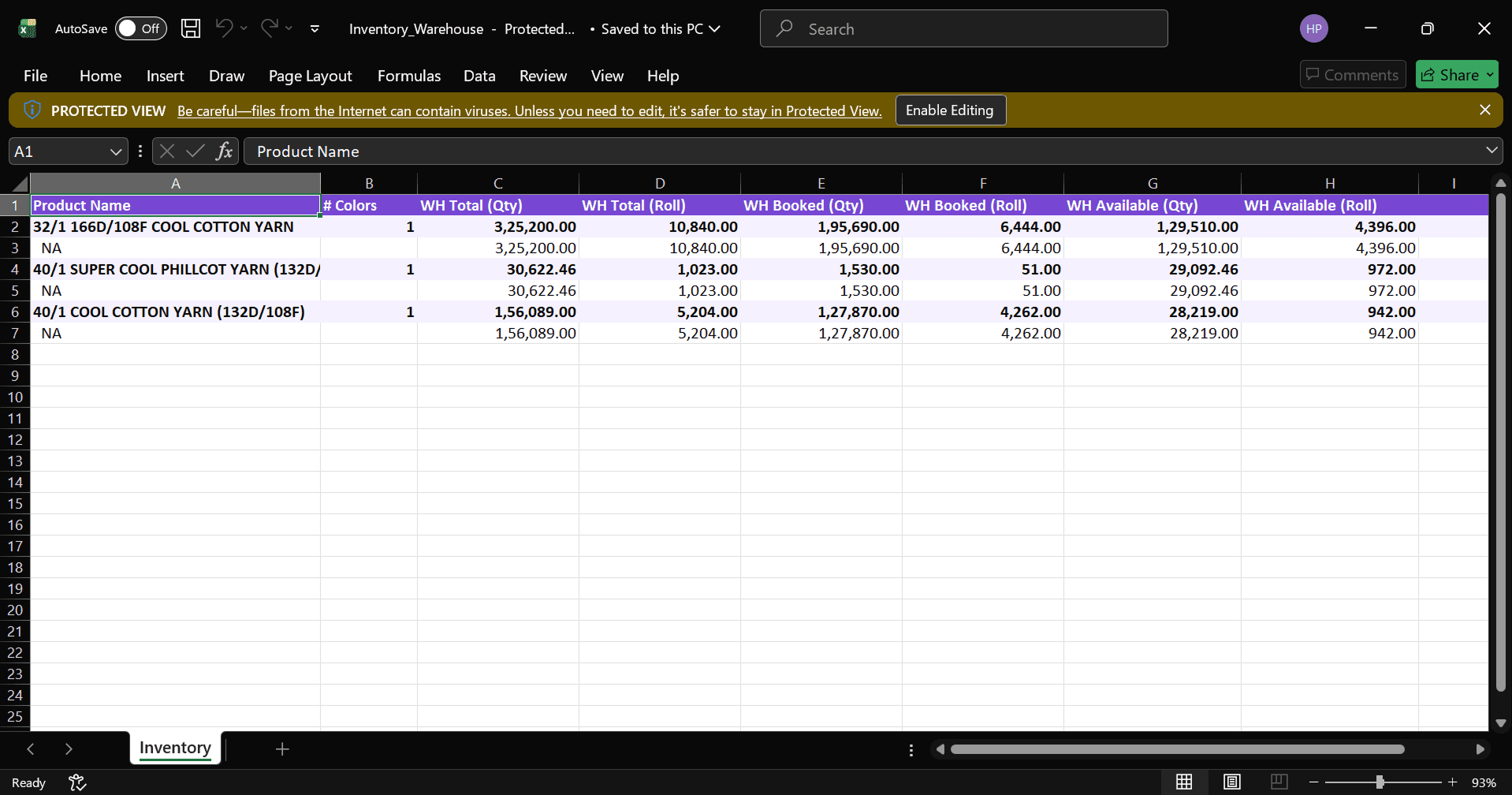
This report has all data for warehouse, transit and under production in 3 individual pages. Each page has total, ordered and available quantity and rools.
5
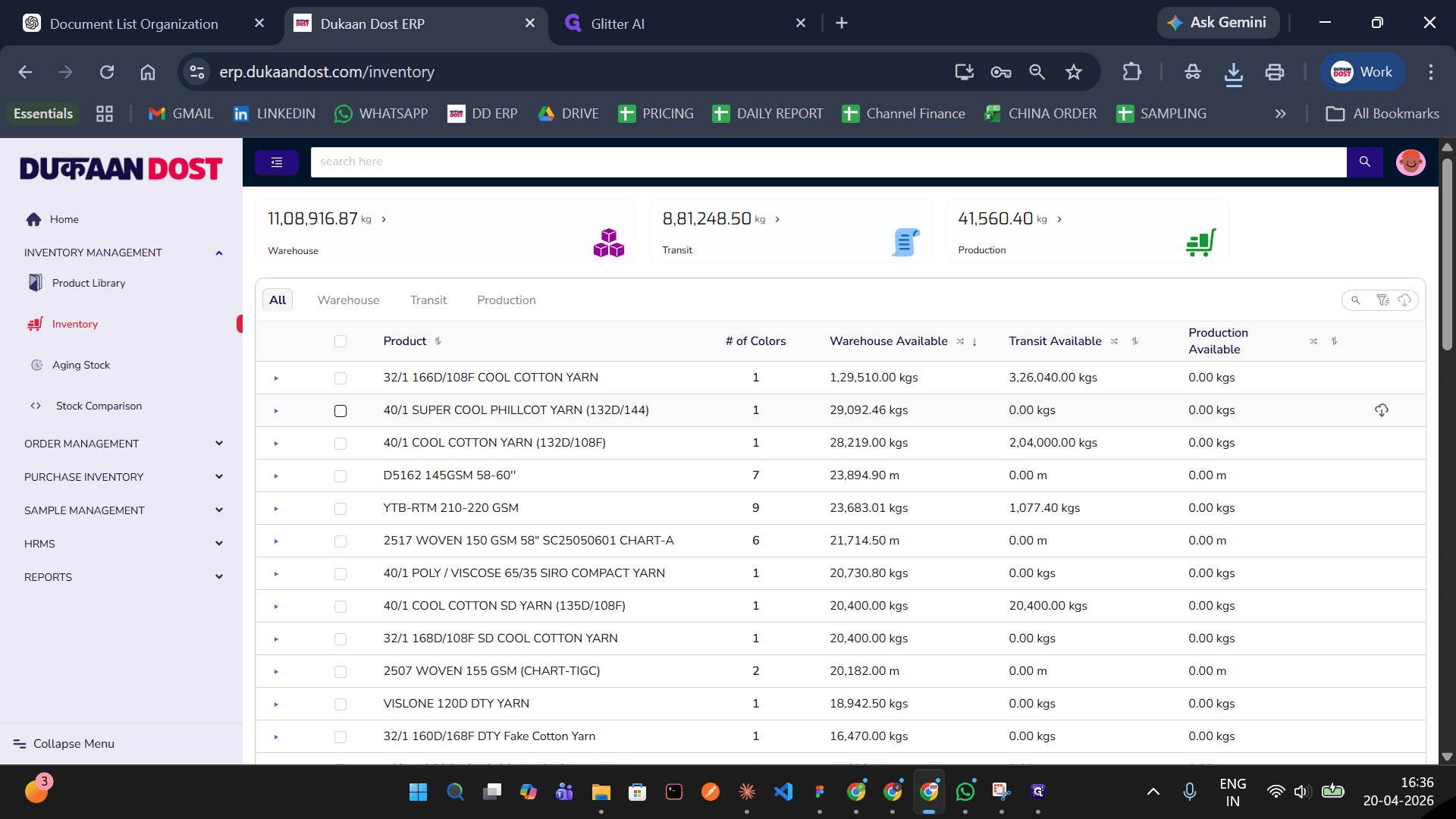
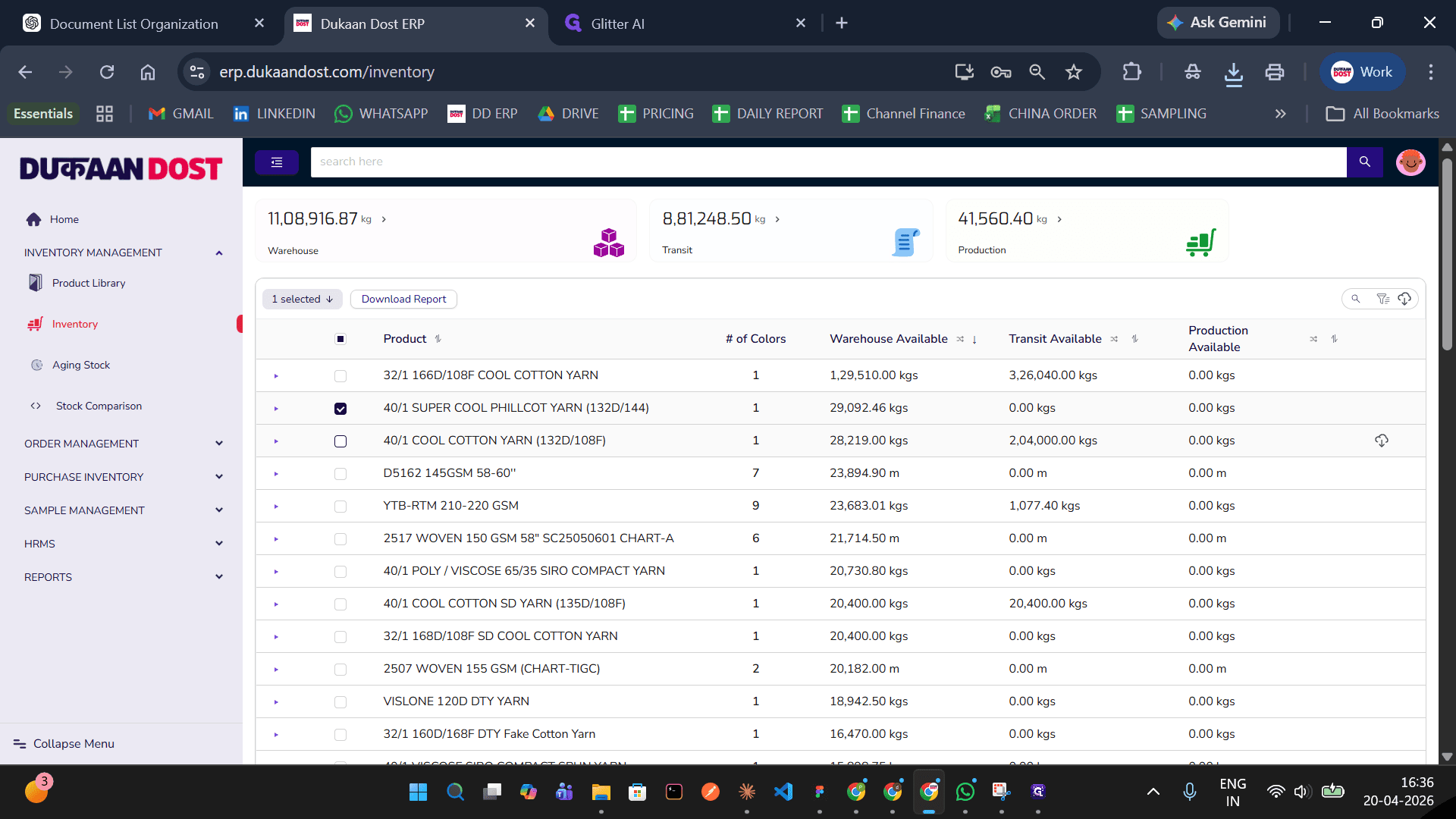
Next lets take a look at bulk downloading report for multiple products. In all tab select products
6
7
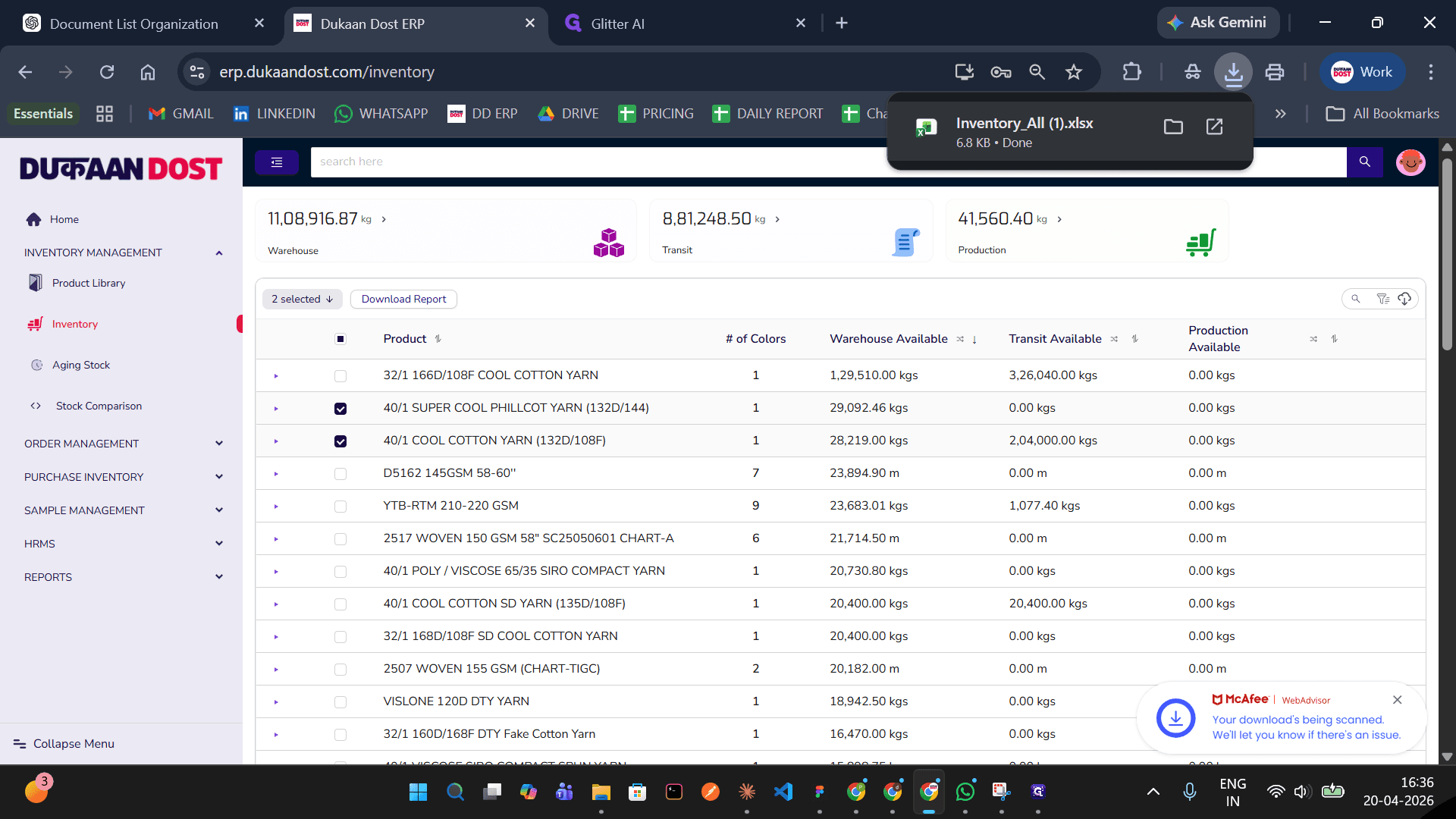
Click download report
8
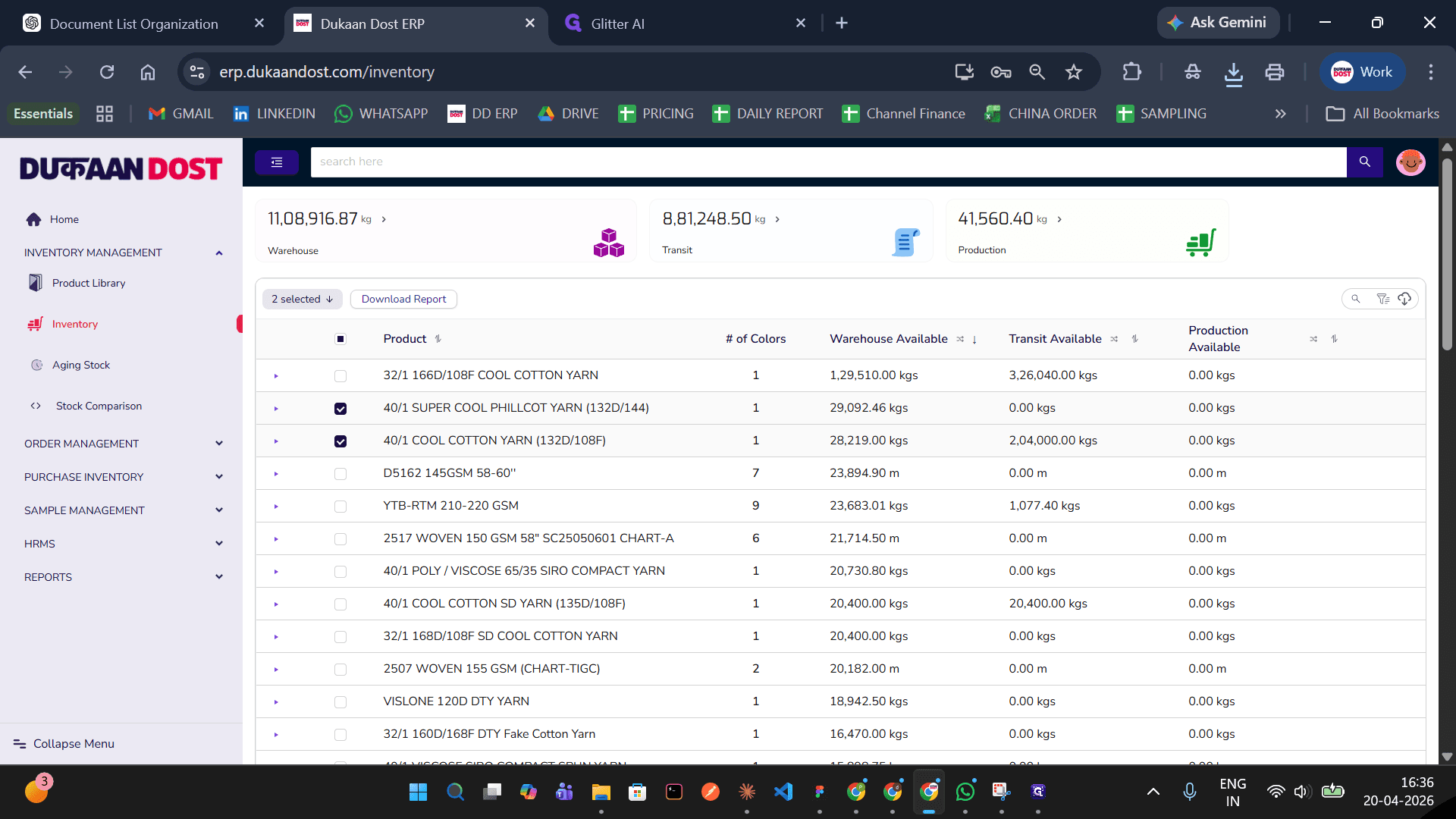
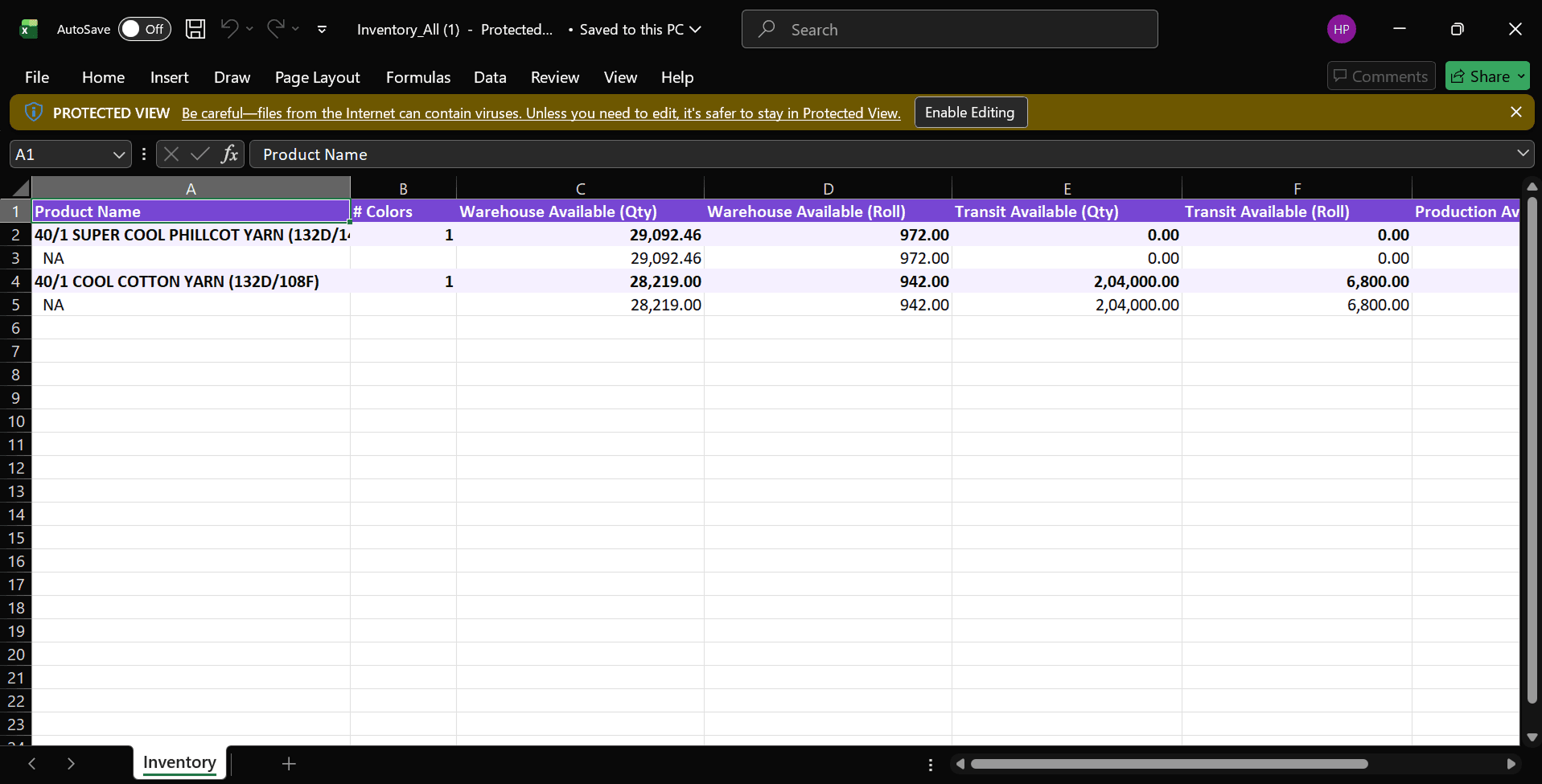
Open this report. You will see all available stock for the selected products
9
10
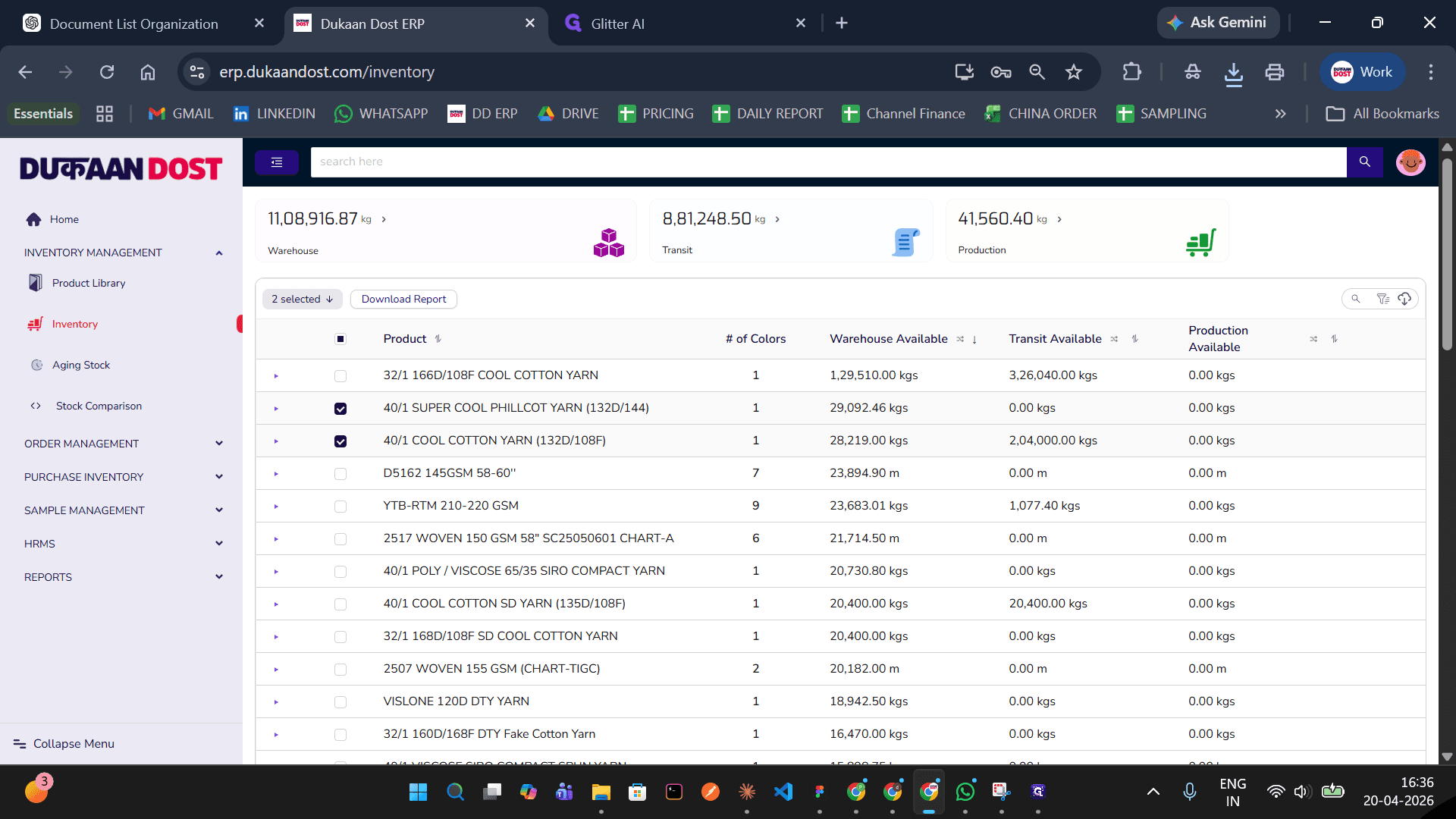
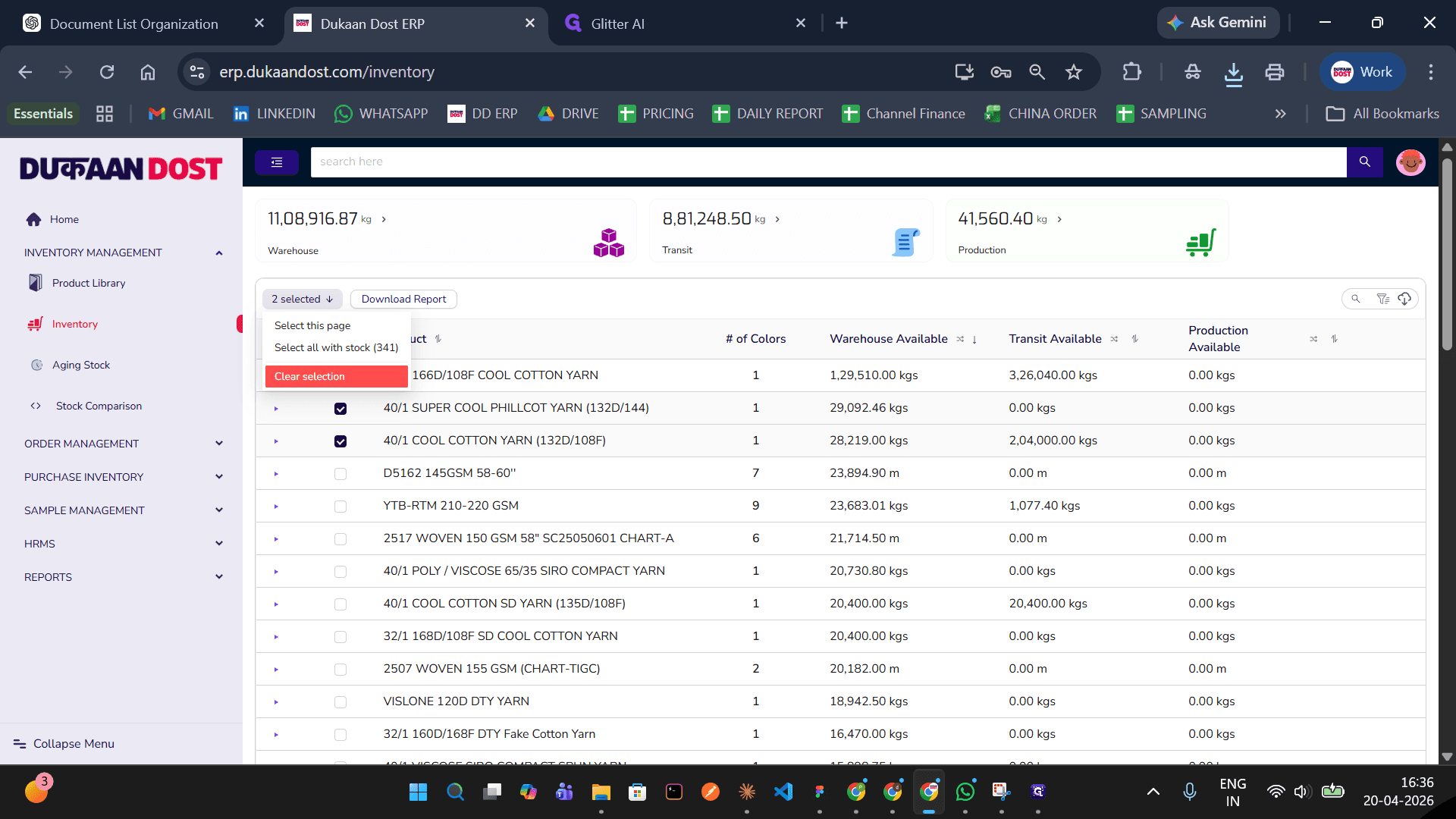
Remove the selection, we will see the next report you can download
11
12
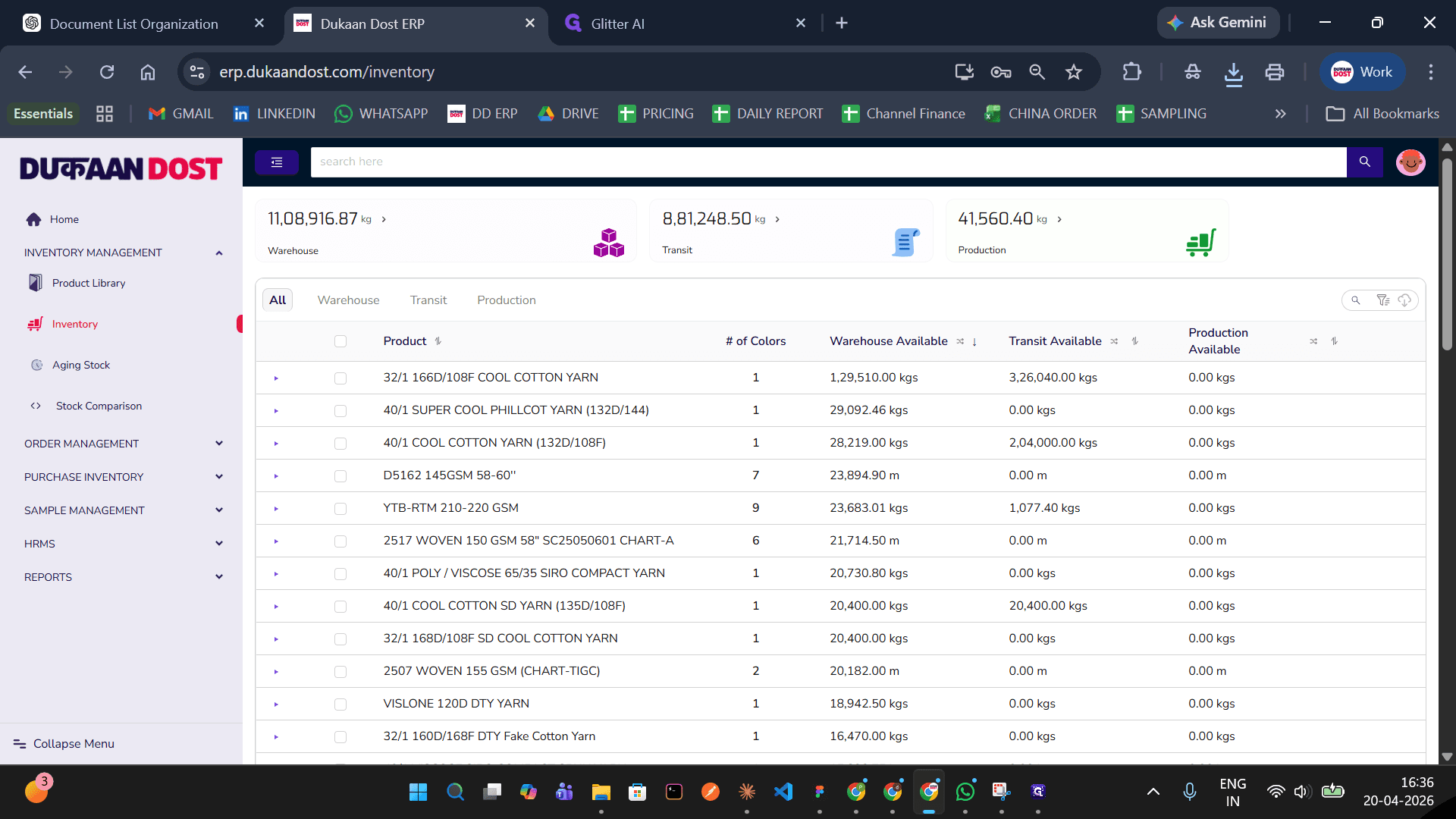
You can bulk export from warehouse, transit and production tabs too. Each tab bulk report will show total, booked and available inventory data for selected products.
13
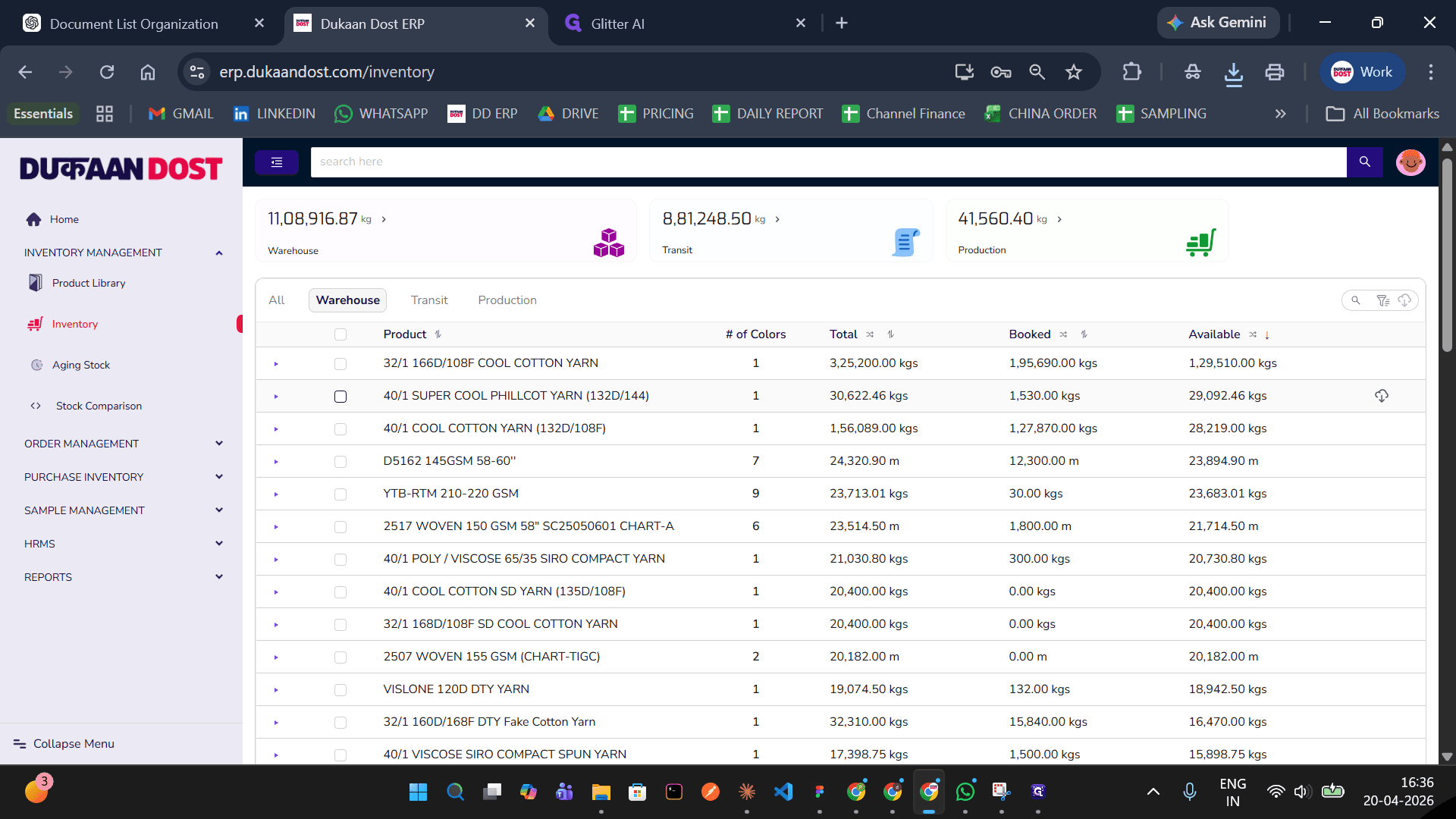
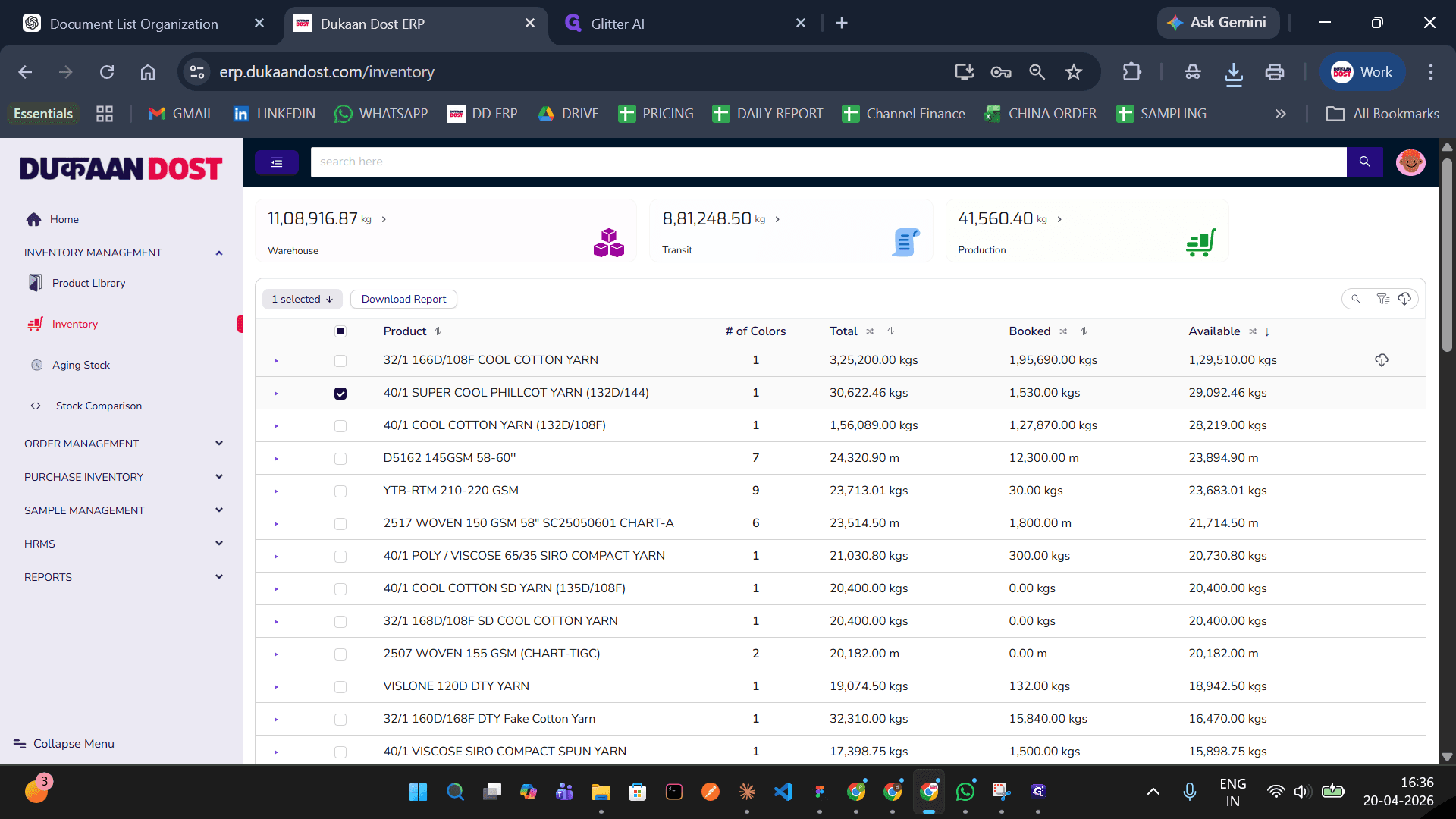
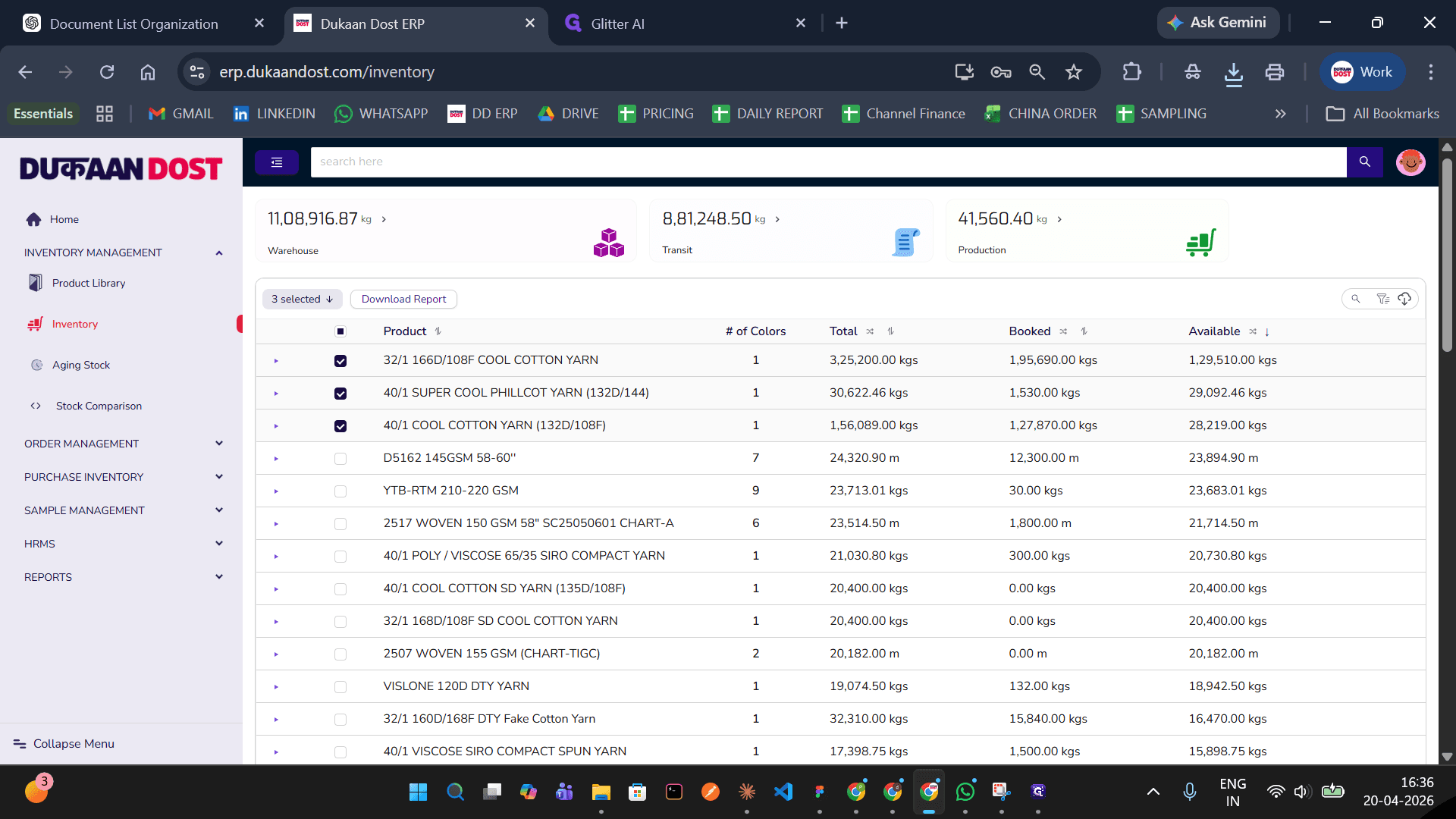
Lets see warehouse tab bulk export report. Select desired products.
14
15
16
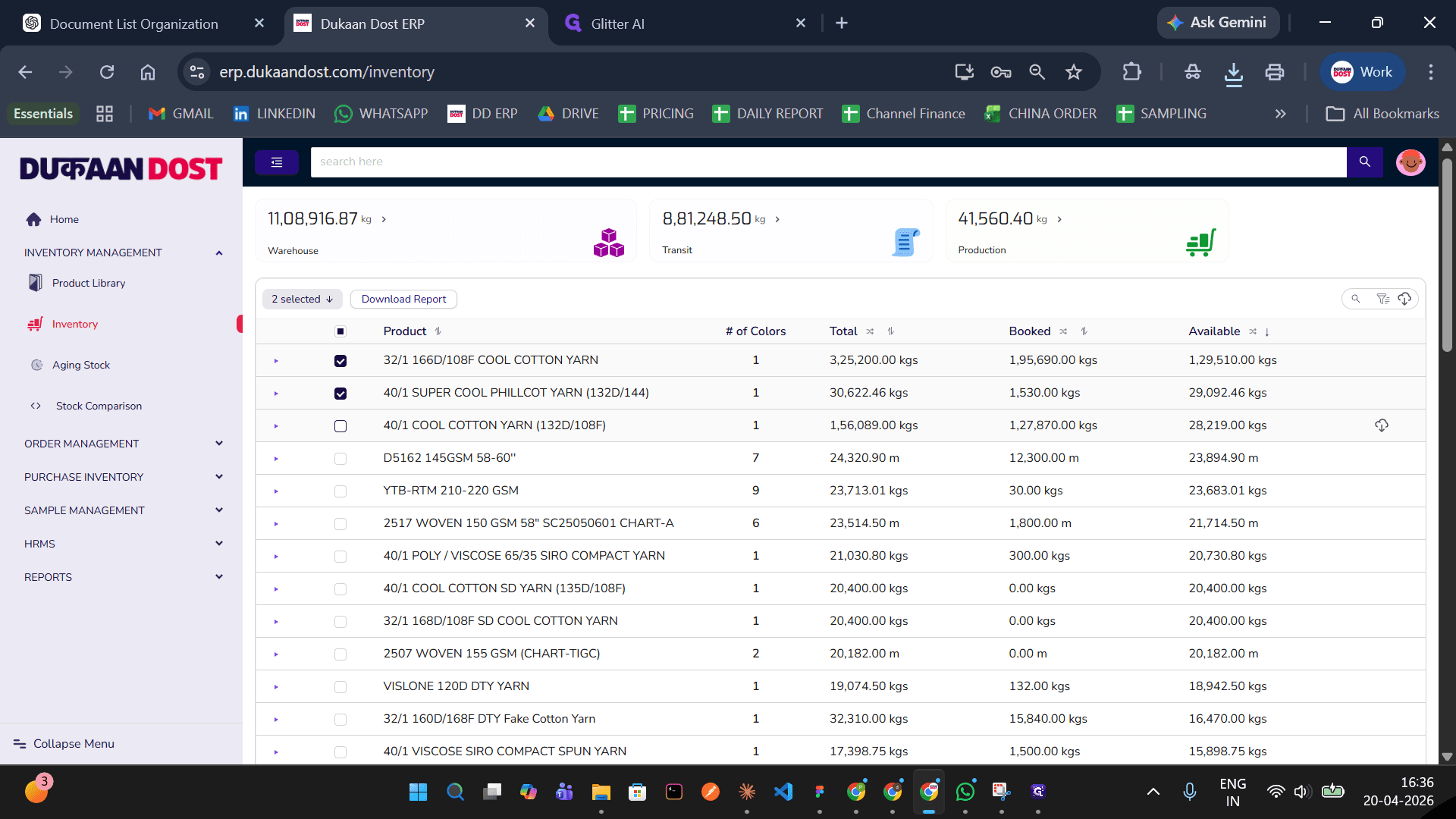
When all desired products are selected, click download report.
17
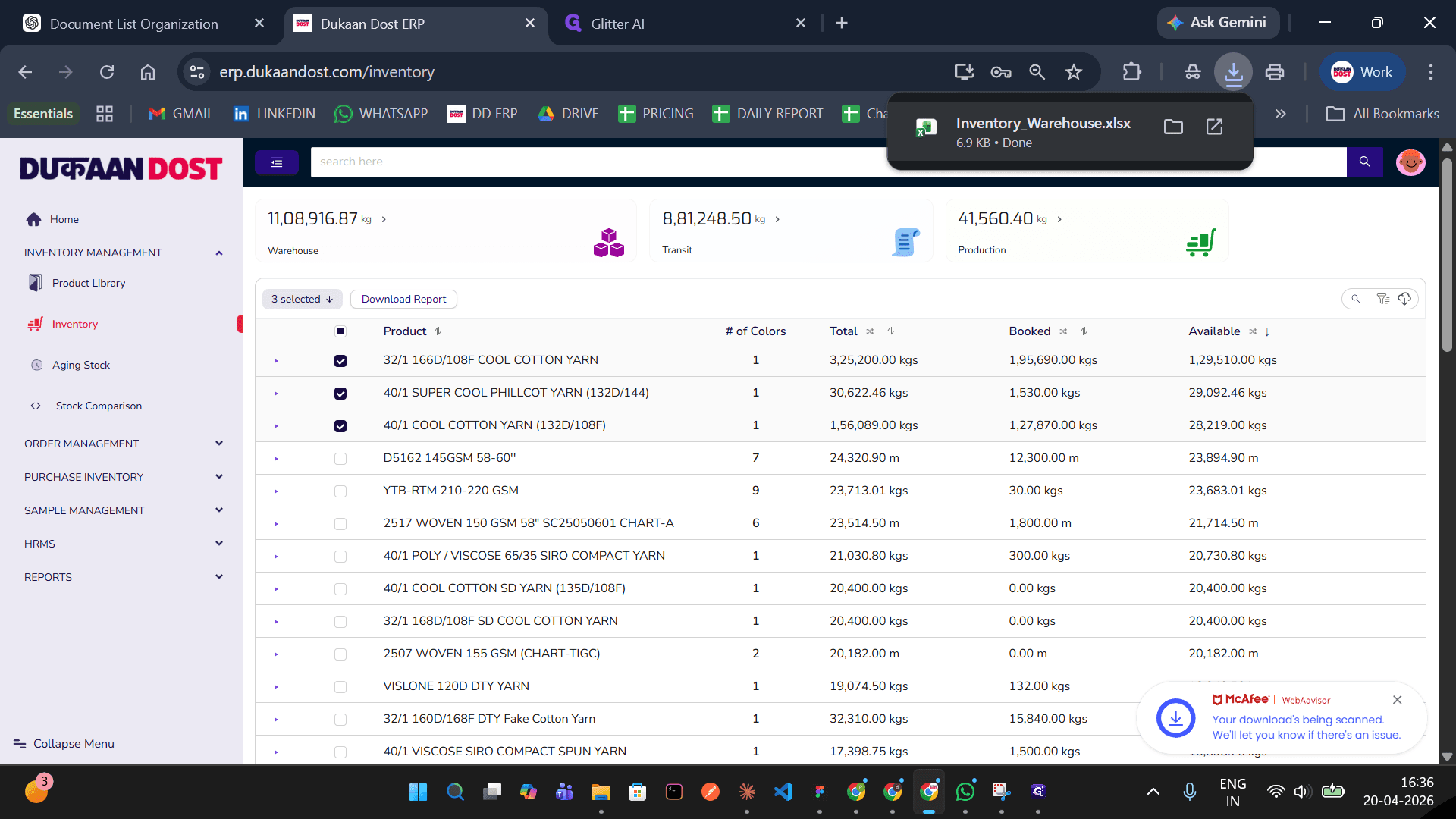
Open downloaded report
18
In this report you will see total, booked and available qty and roll of selected products.