Edit and Receive Purchase Orders in ServiceTitan
Learn how to find, update tax details, mark as sent, and receive purchase orders with attached vendor documents in ServiceTitan.
Learn how to locate an existing purchase order, adjust tax line items, mark the order as sent, and process receipt of items along with vendor invoice documentation.
This guide is intended for procurement specialists, inventory managers, and accounting personnel updating order details and receiving vendor shipments in ServiceTitan.
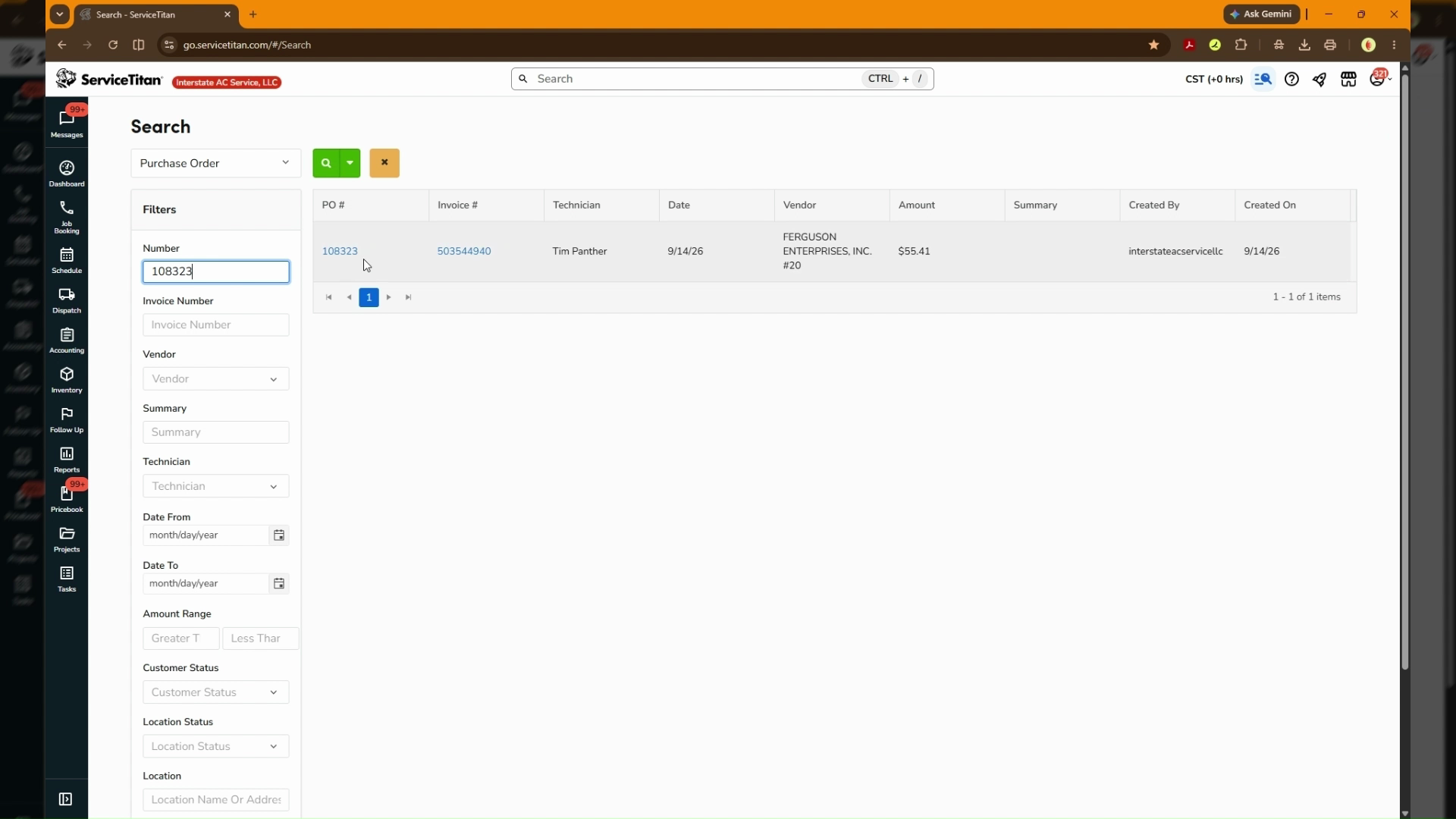
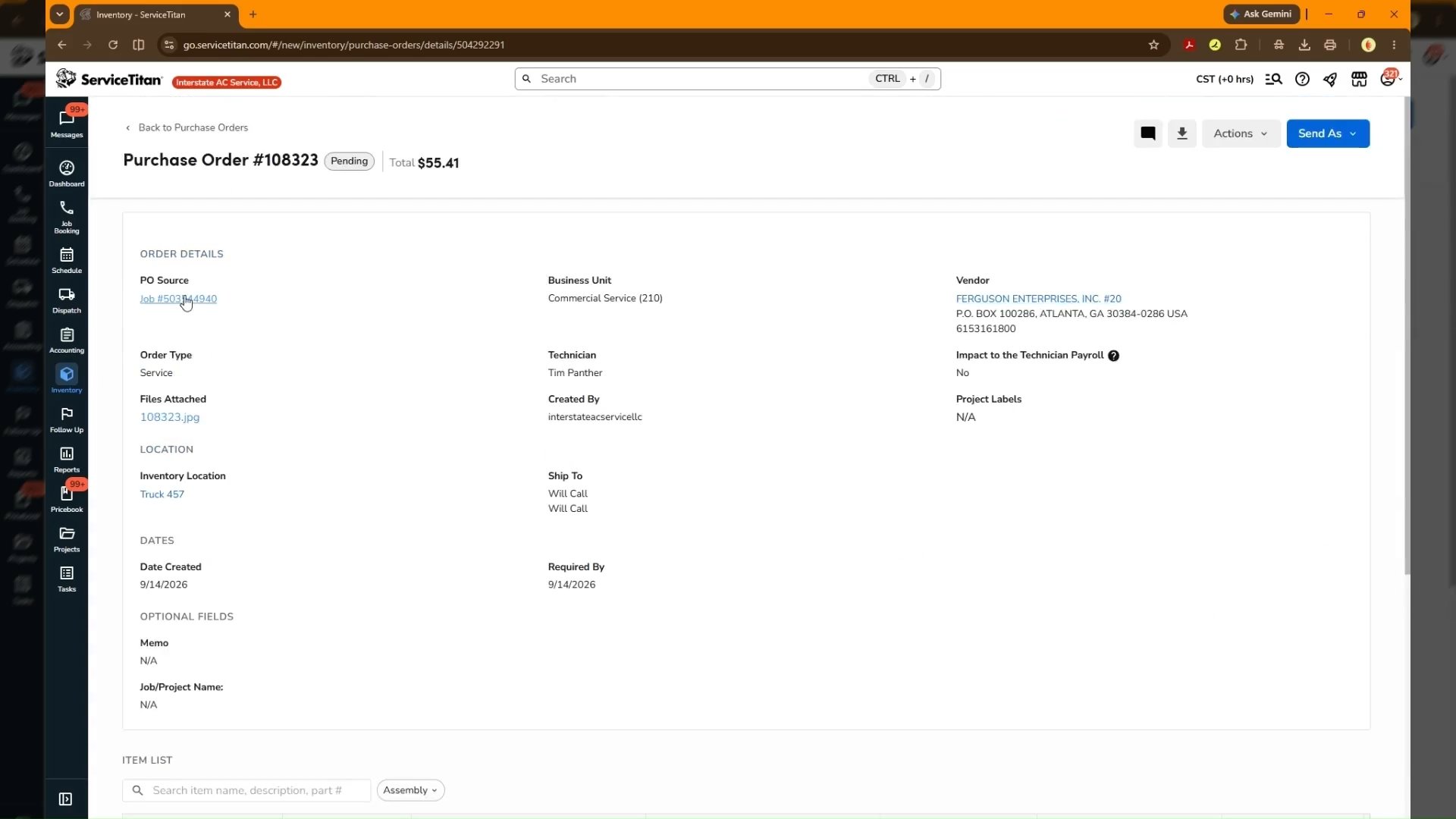
Search for the Purchase Order
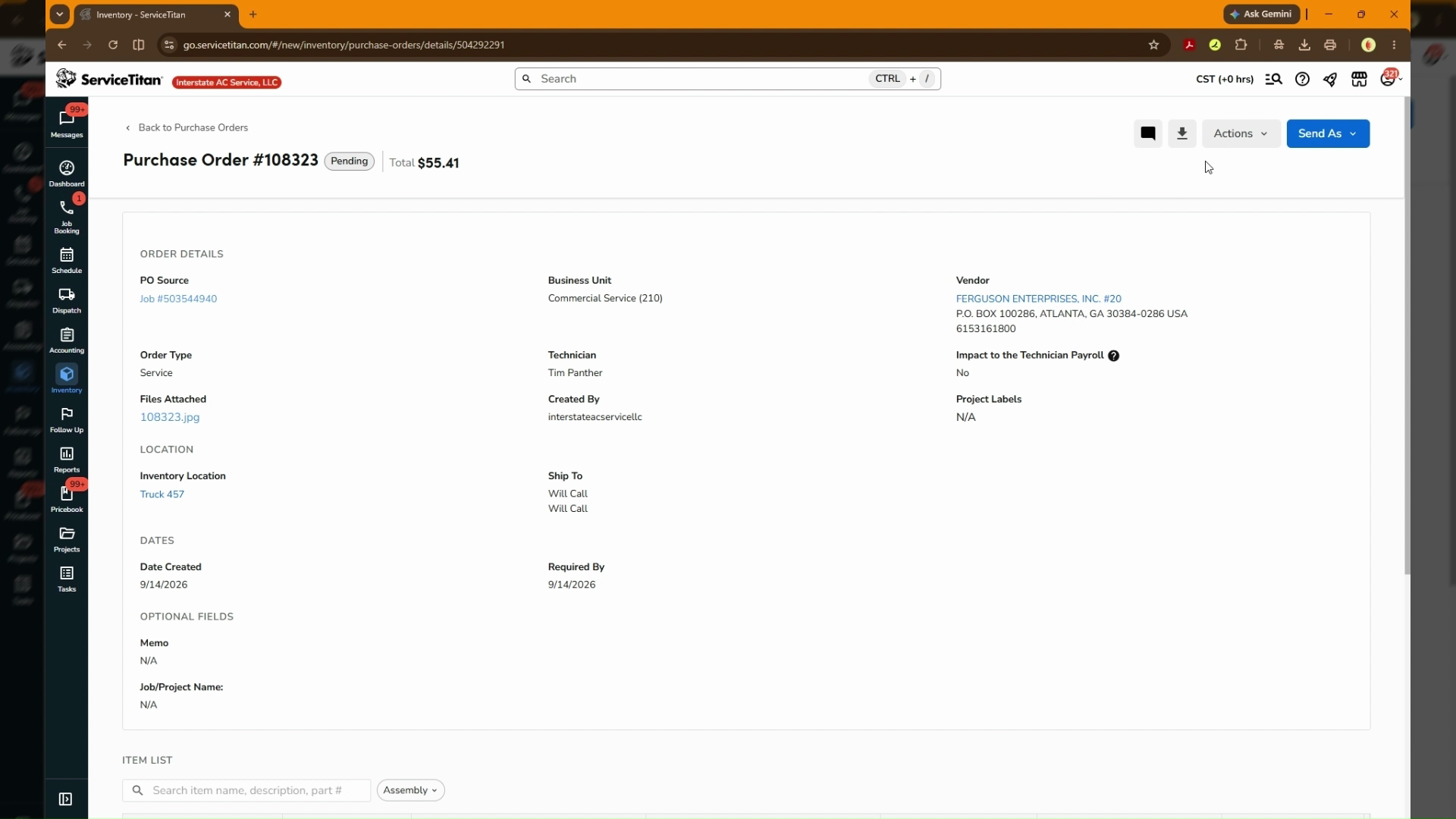
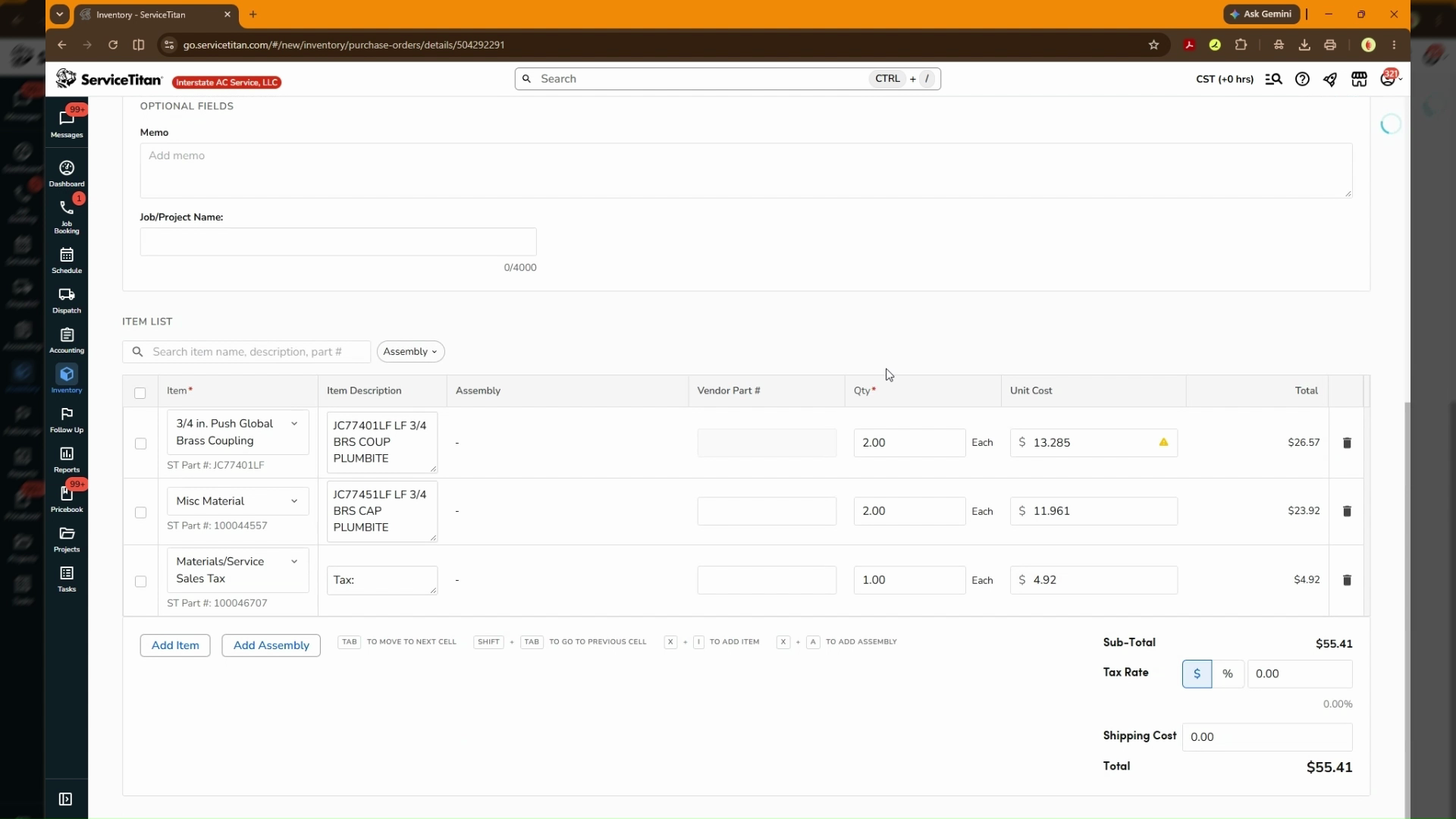
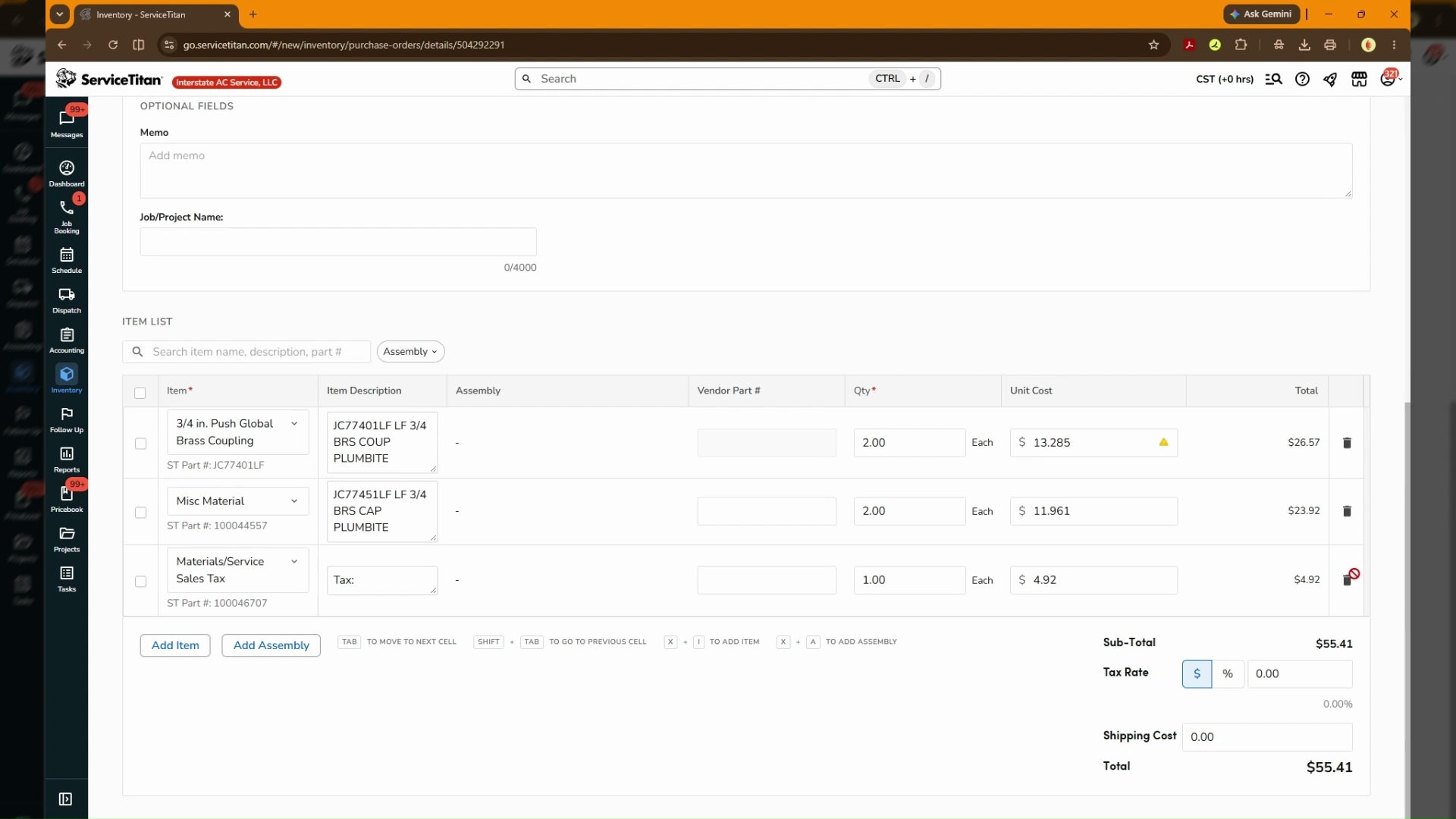
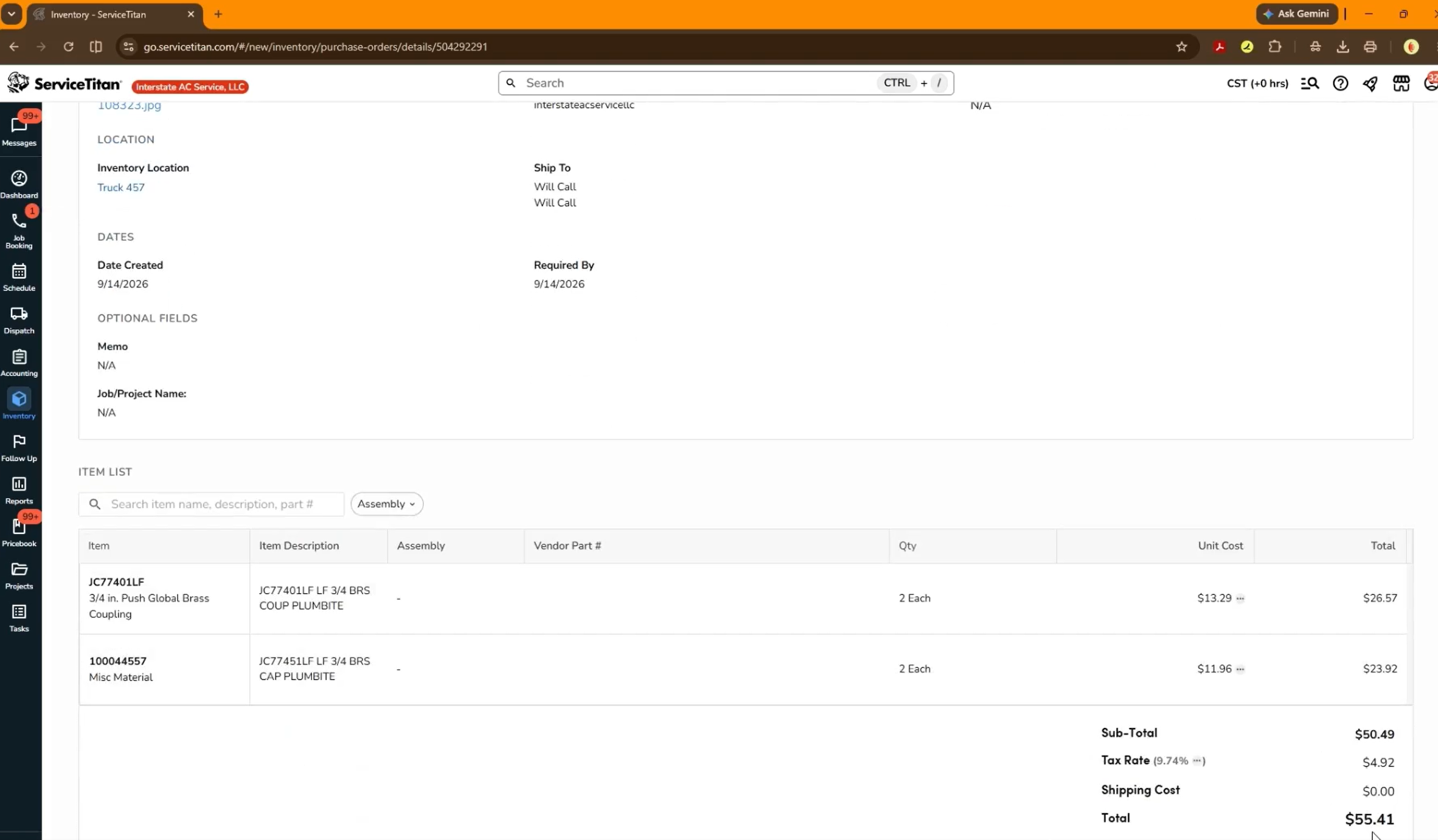
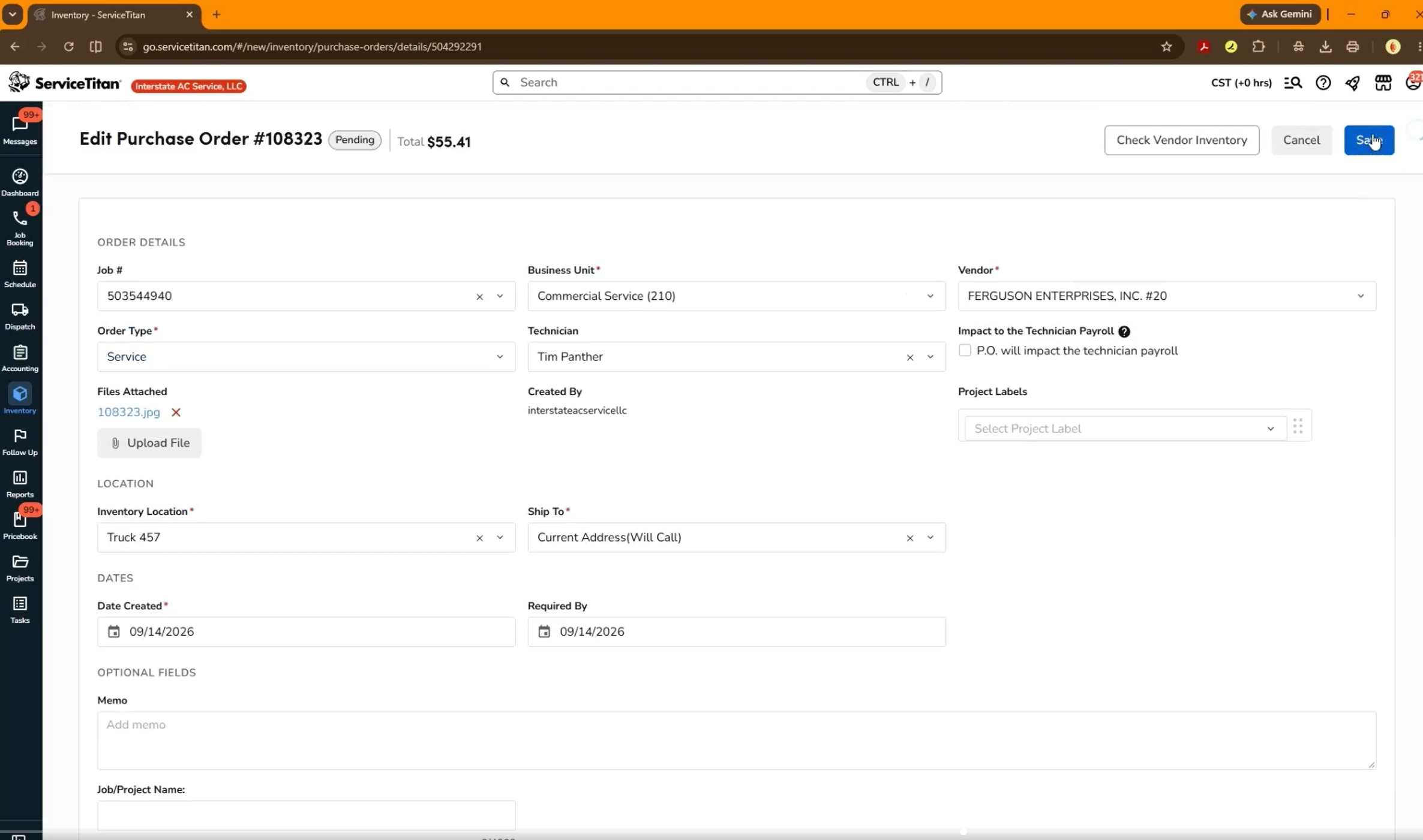
Adjust Tax Information
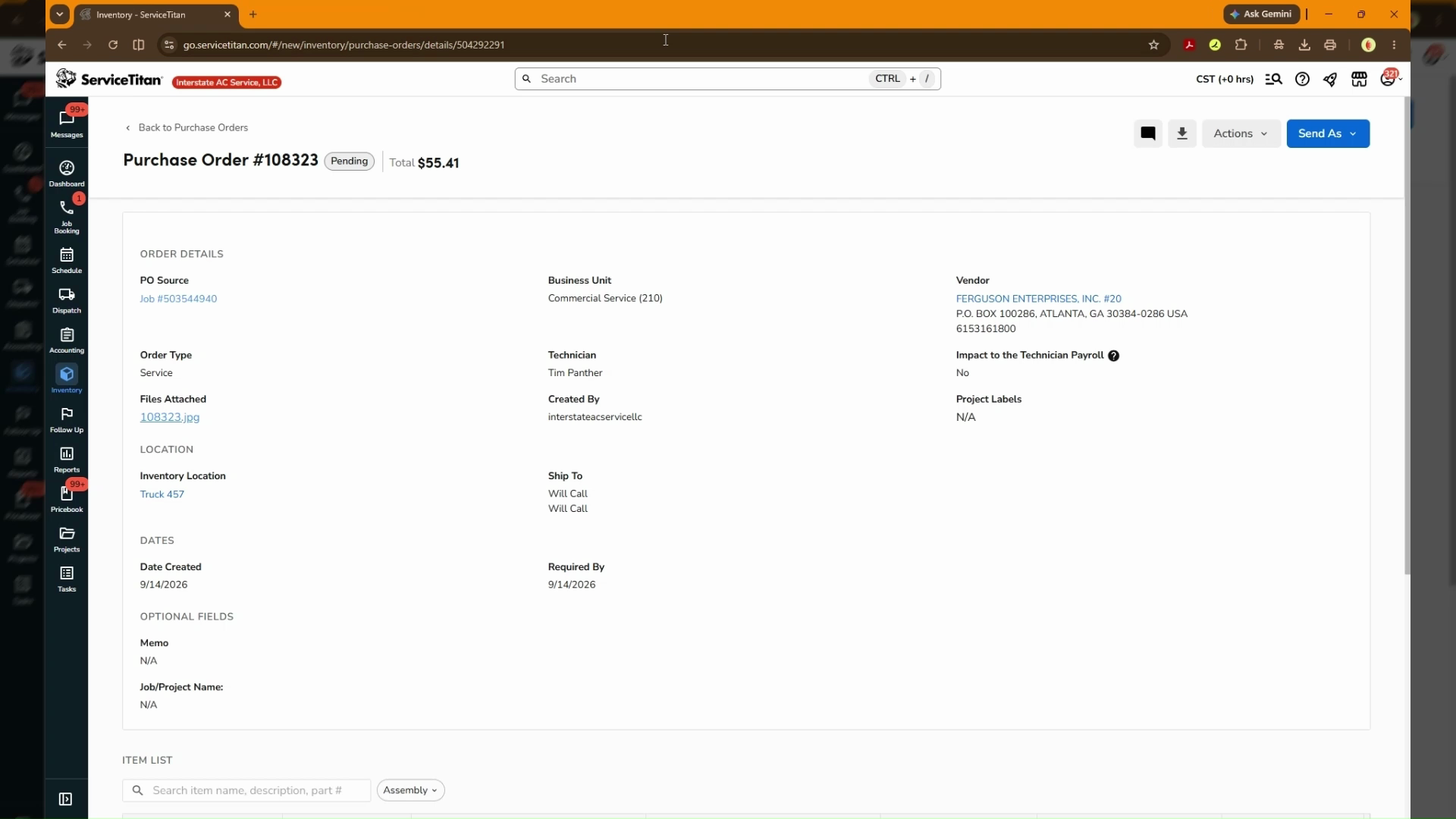
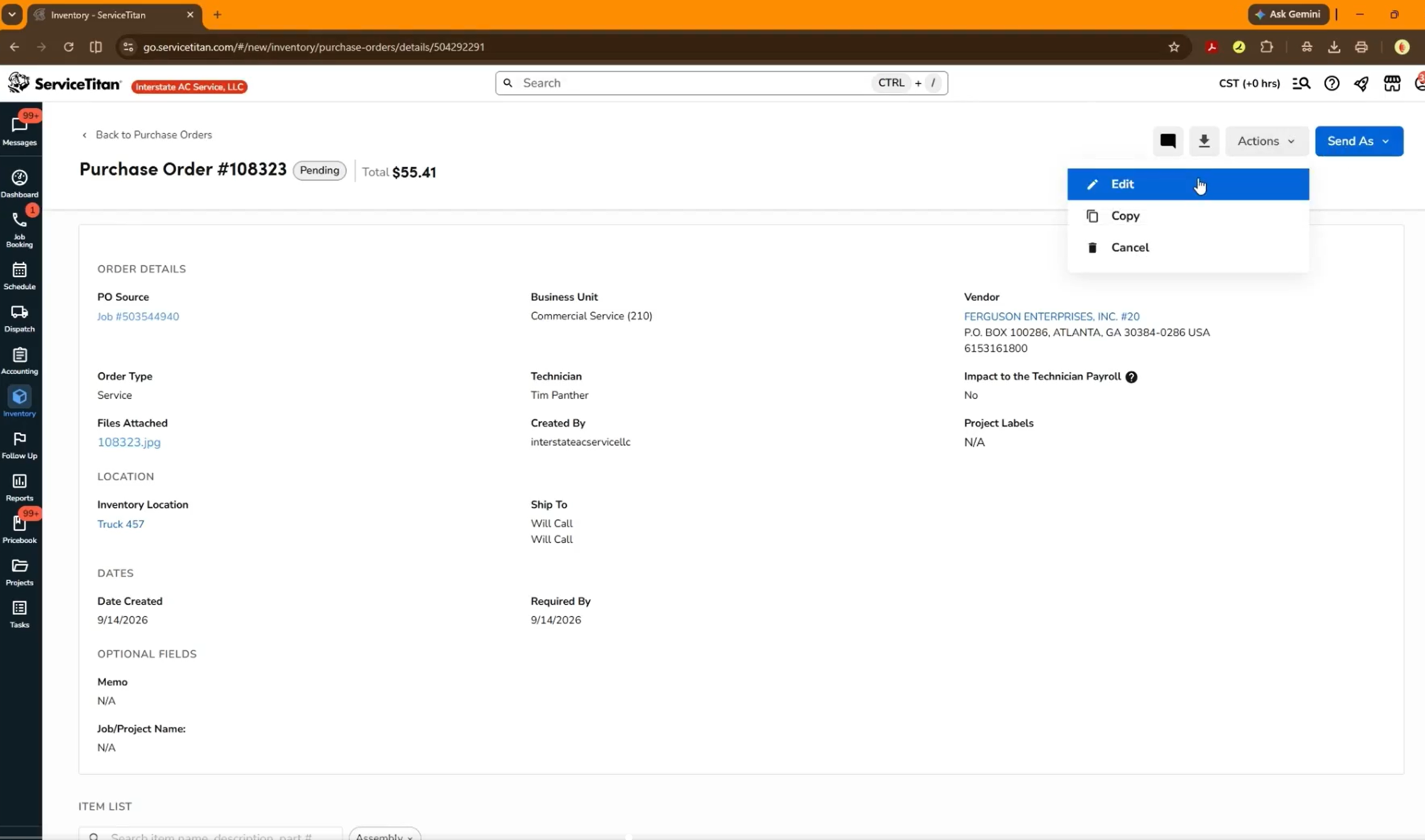
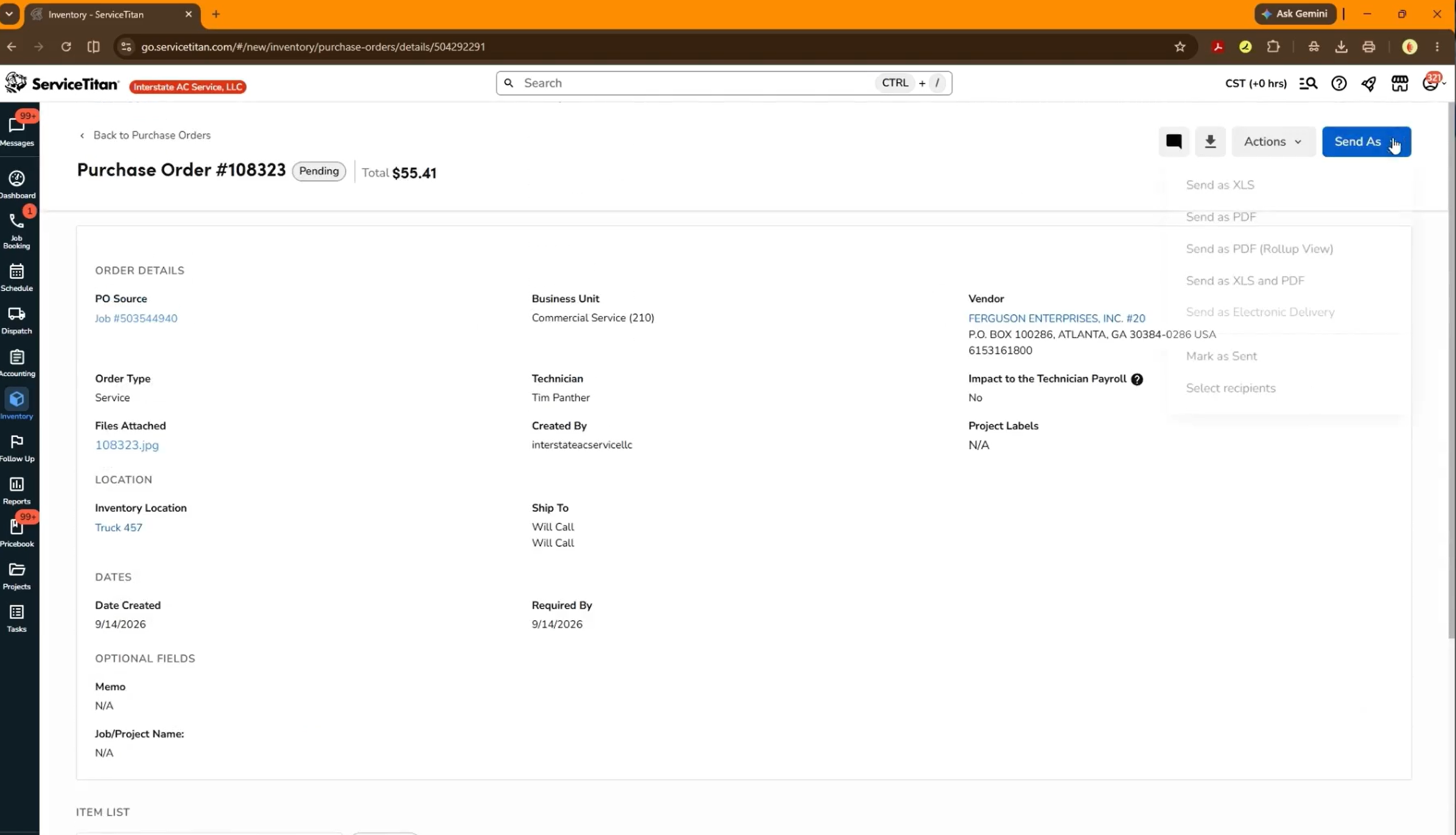
Update Sent Status and Date
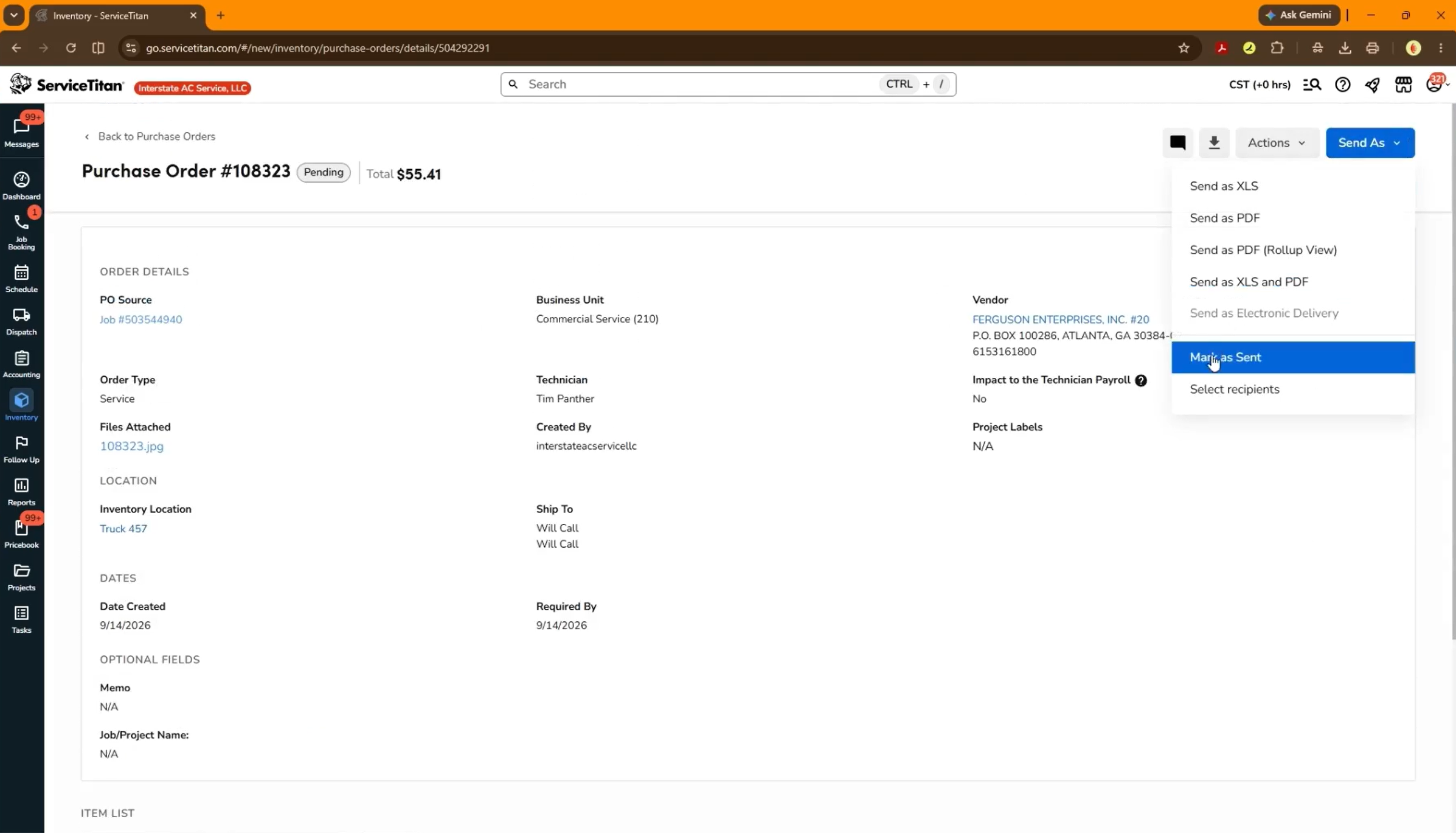
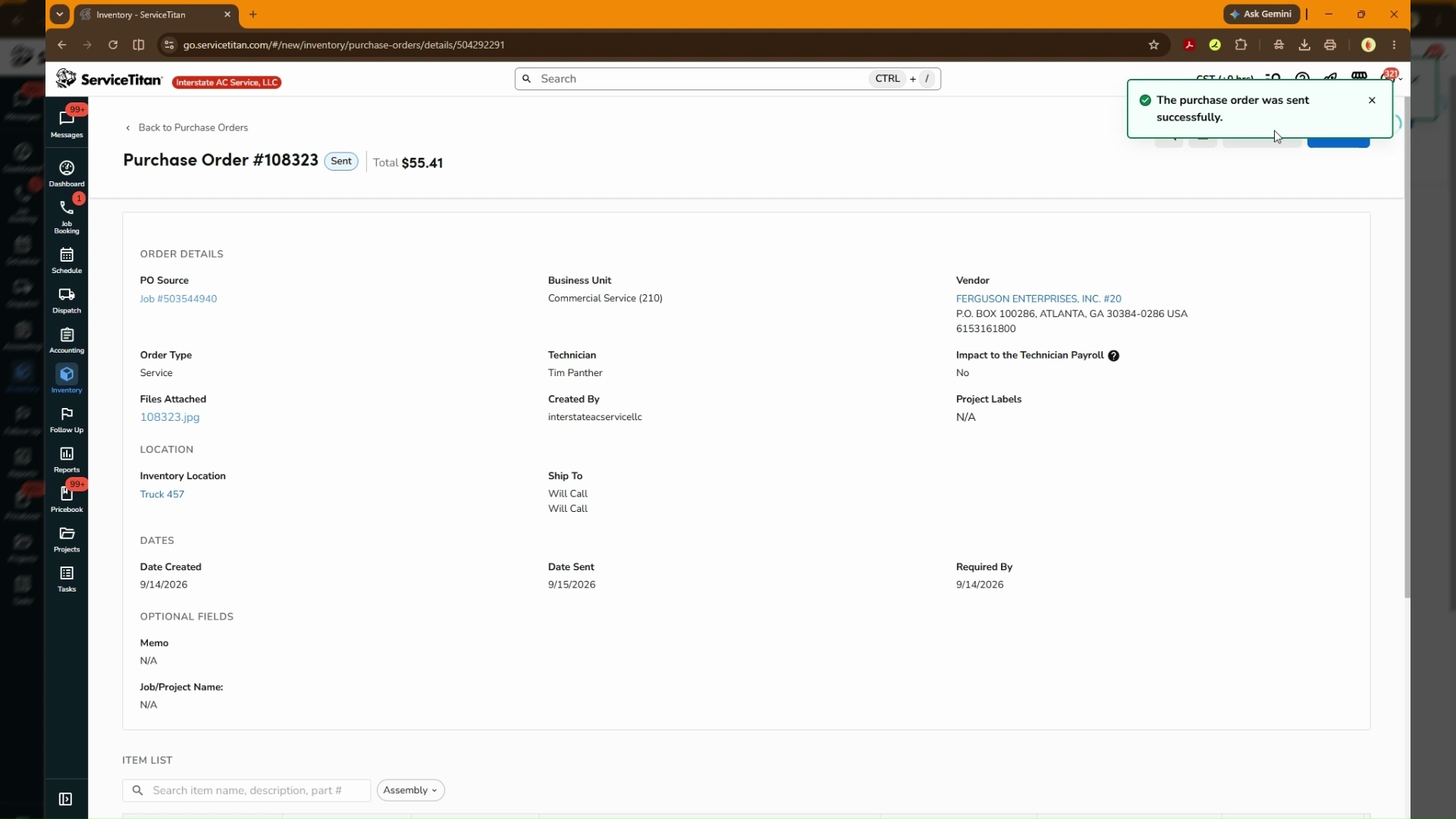
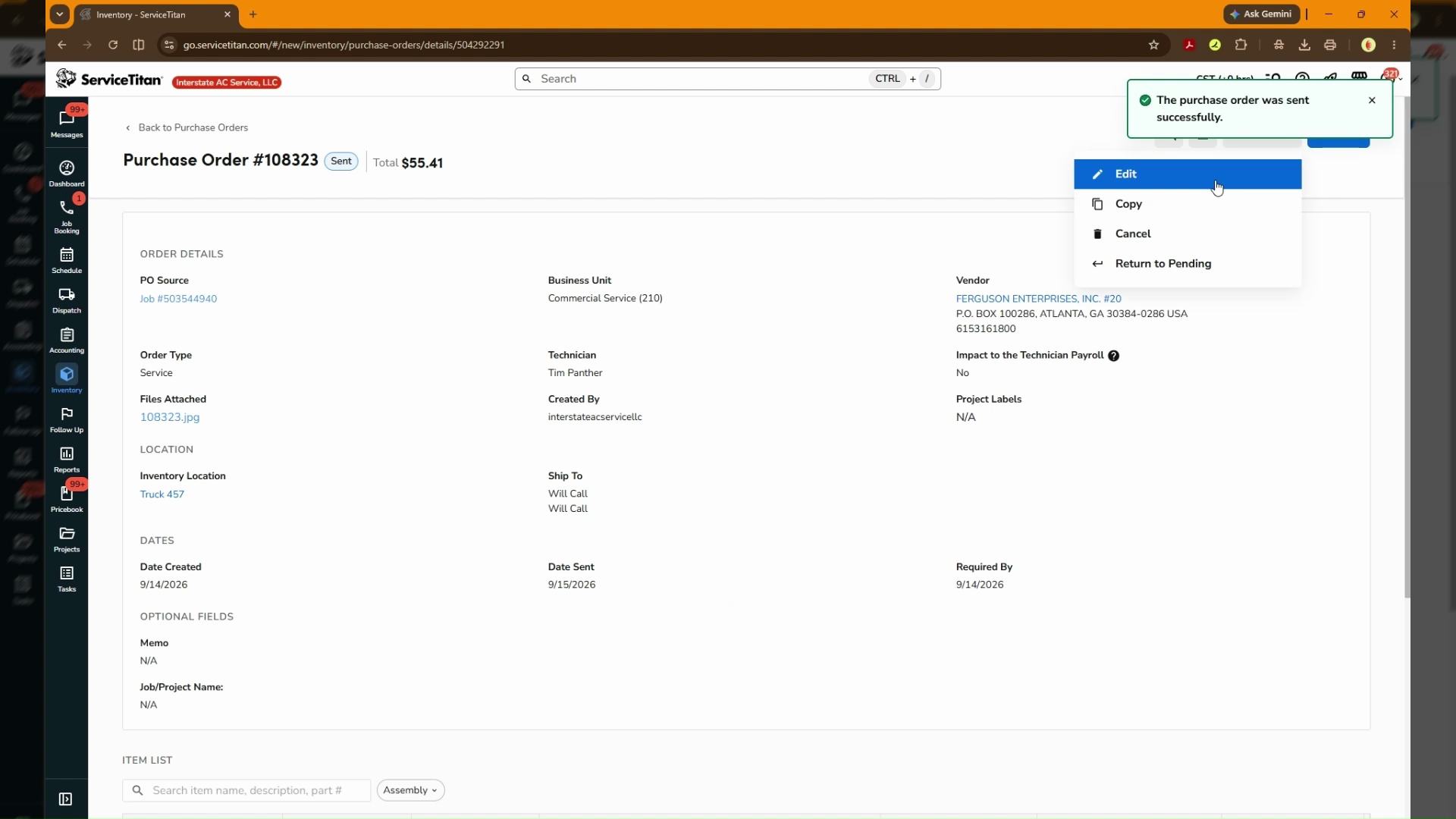
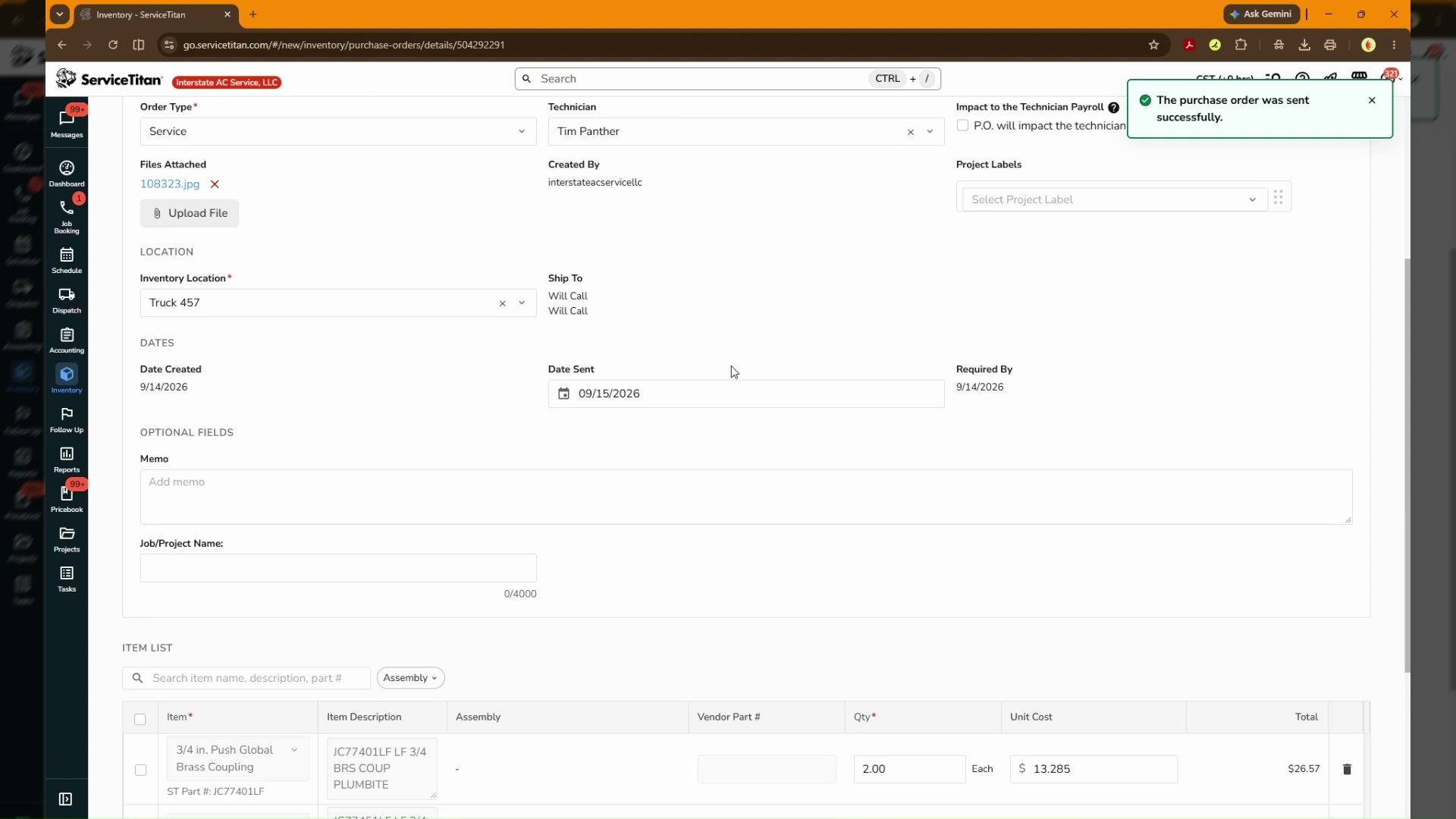
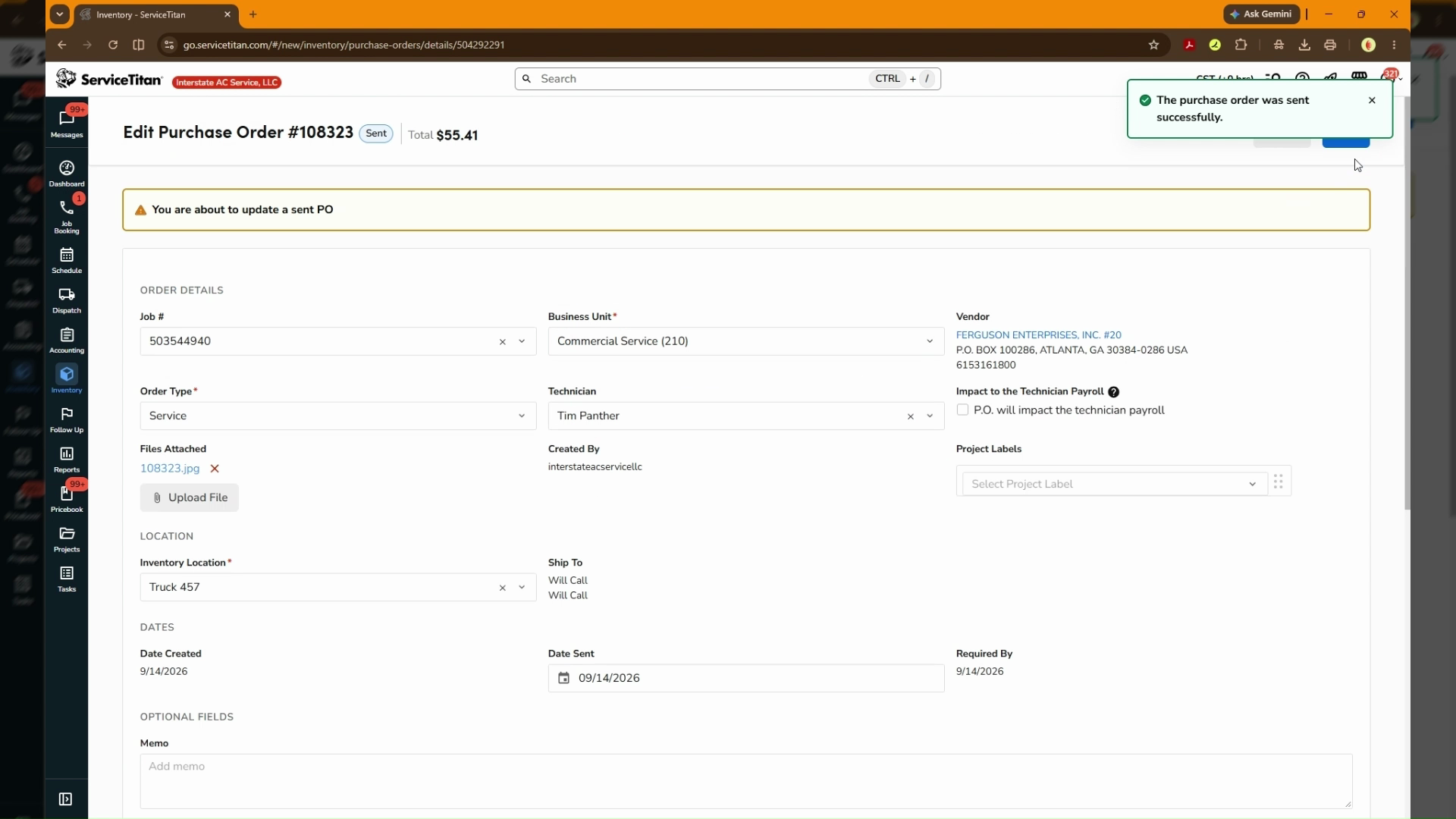
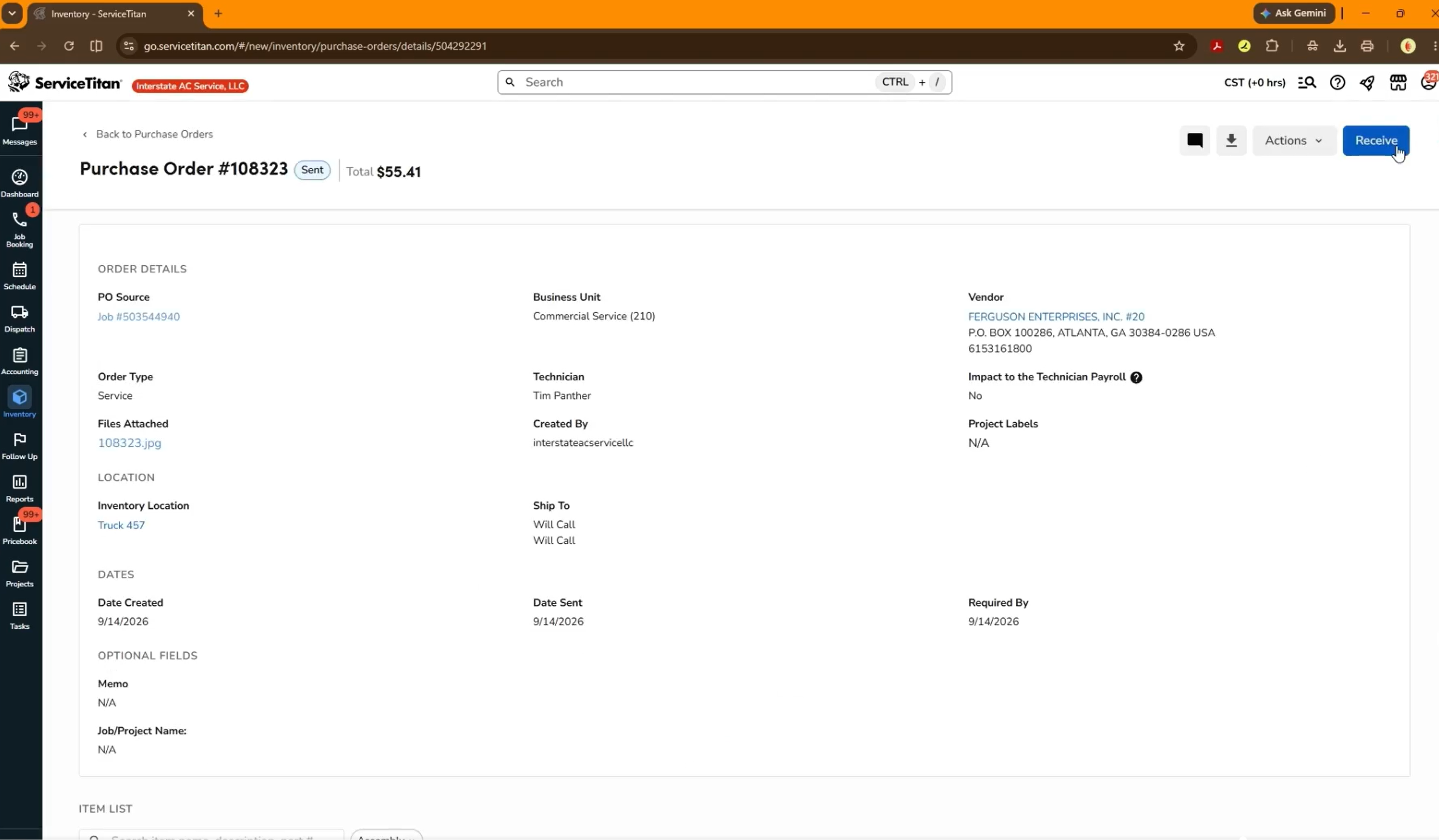
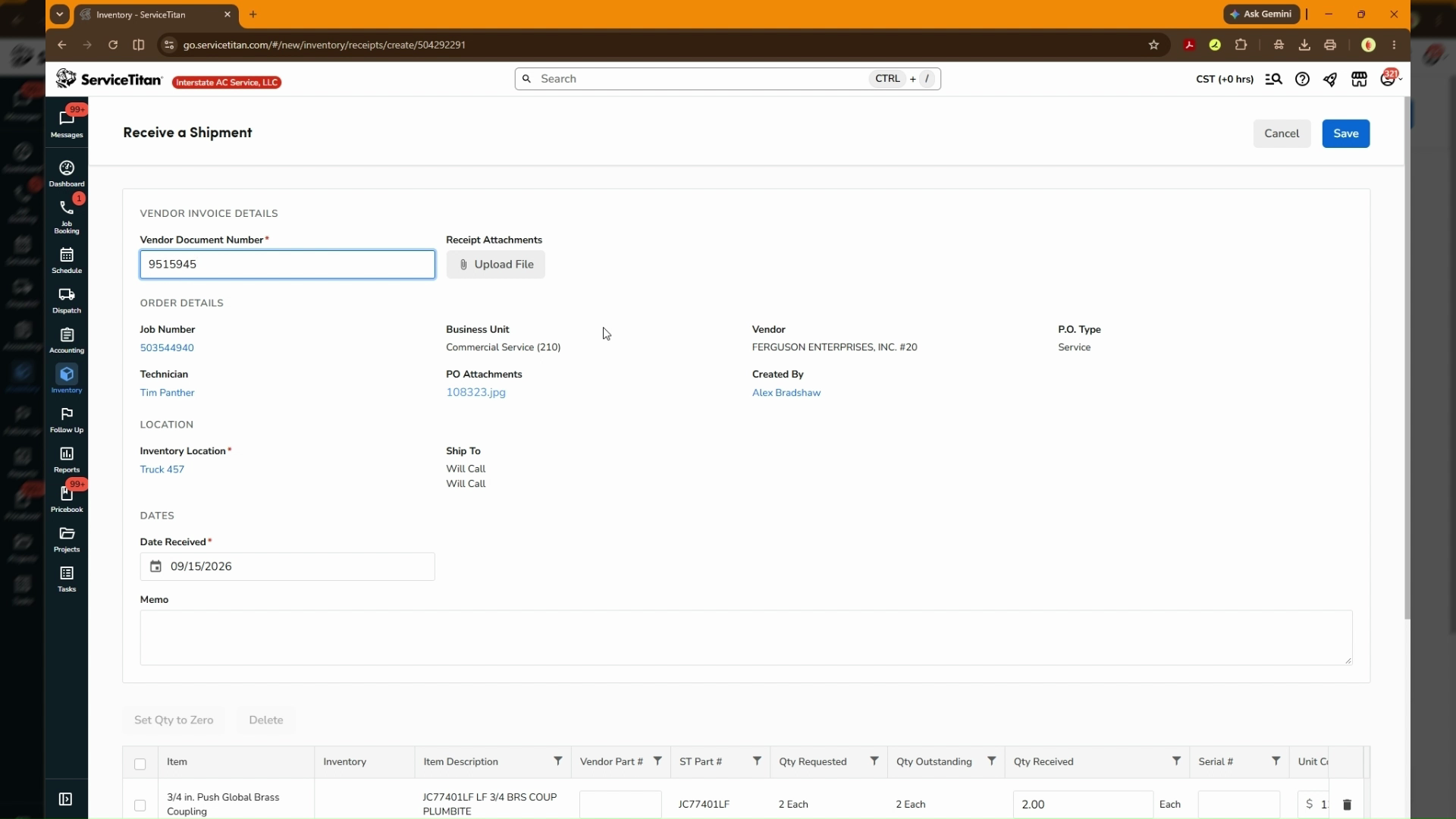
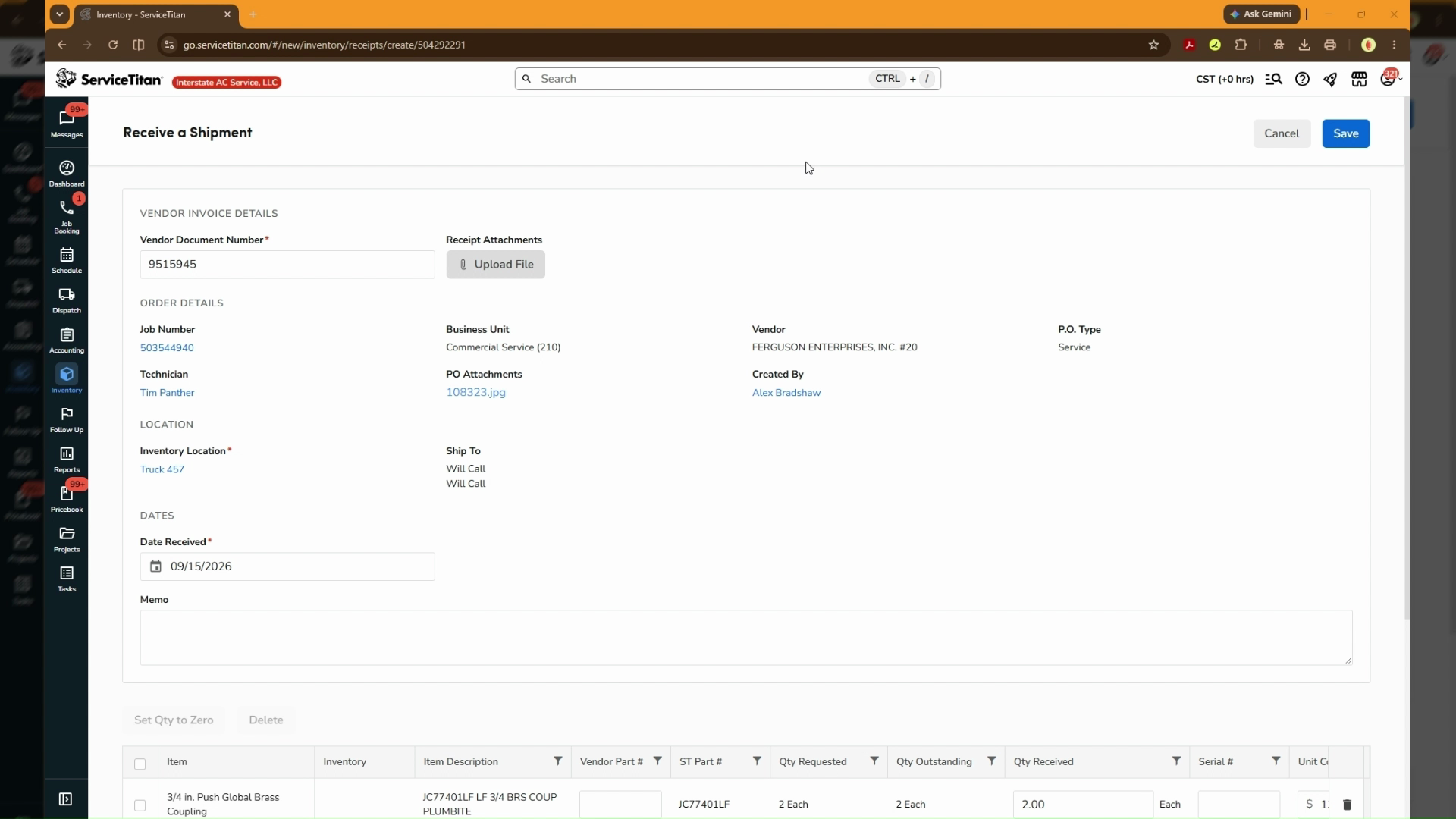
Receive Shipment
Q: Why do I need to delete the tax line item instead of editing it directly?
A: In ServiceTitan, tax items entered as separate line items must be removed so the tax rate and amount can be properly calculated using the dedicated Tax fields on the purchase order.
Q: Where do I upload the vendor invoice or receipt when receiving items?
A: On the Receive a Shipment screen, use the Upload File button located under the Receipt Attachments section before saving.
Term | Definition |
|---|---|
Purchase Order (PO) | A commercial document and official offer issued by a buyer to a seller indicating types, quantities, and agreed prices for products or services. |
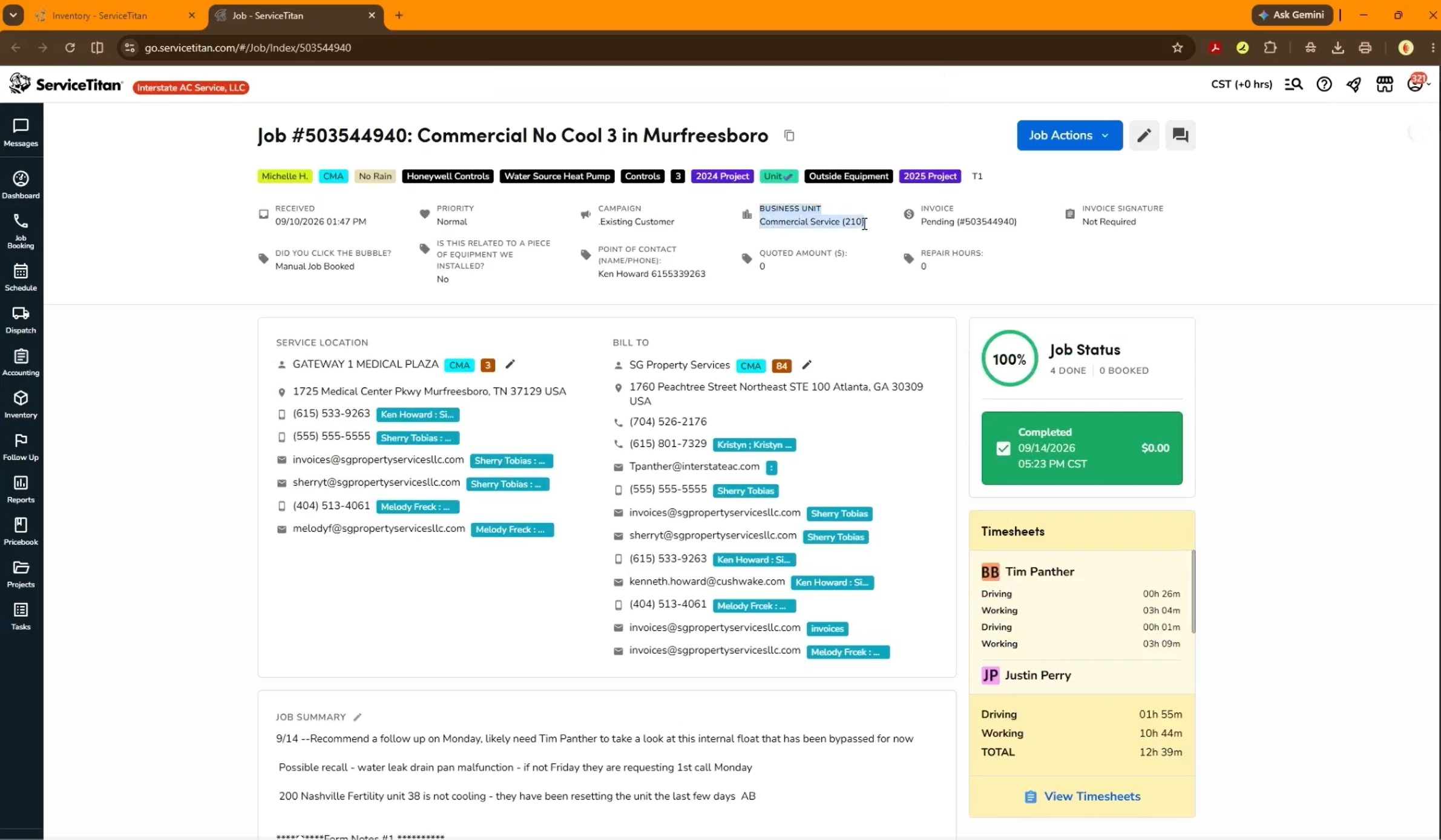
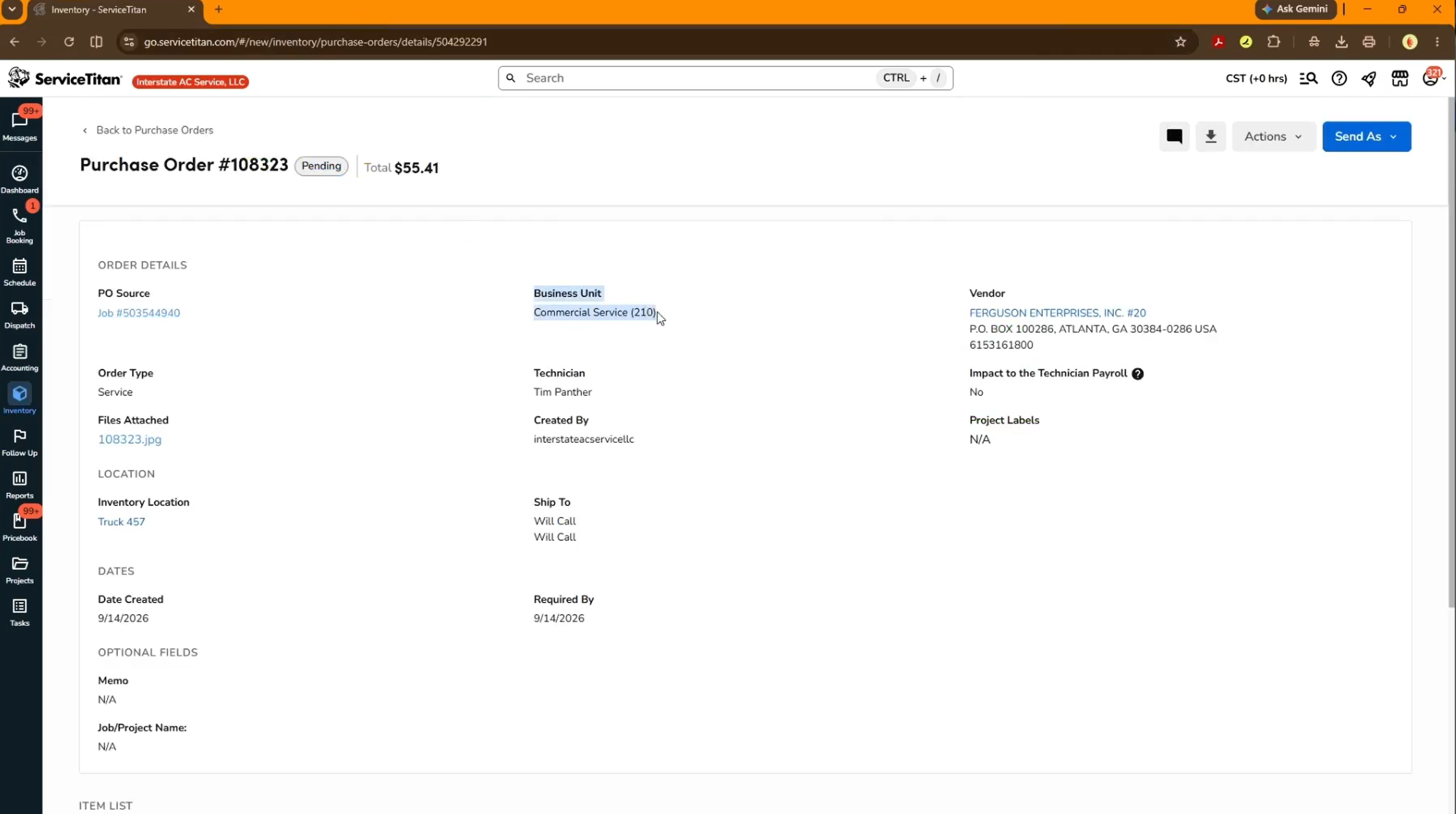
PO Source | The originating job or project in ServiceTitan associated with the purchase order. |
Vendor Document Number | The invoice or reference identifier provided by the vendor on their receipt or billing document. |