Icon

Edit Course Modules and Lessons in GoHighLevel

Learn how to manage memberships, update lesson HTML code, edit course resources, and customize bonus modules in your Salig.ai dashboard.

By Michael Wilkinson

This guide walks you through navigating to your course products, editing lesson details, using custom code editors for clean formatting, and updating specific modules like AQme tests, playbooks, and bonus upsells.

Accessing Your Course

1
Click on Memberships in the left sidebar navigation.
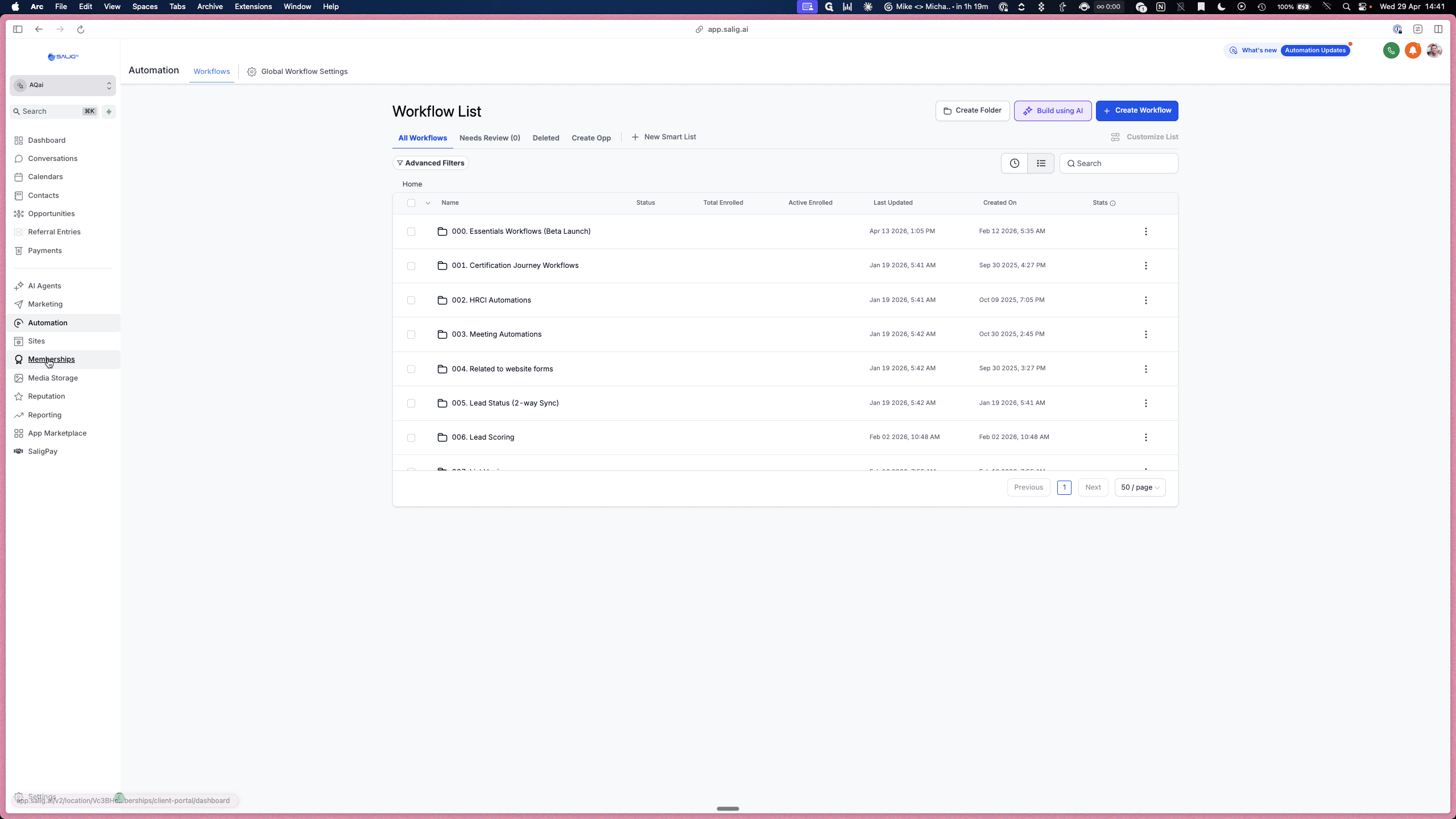
Step #1: Click on Memberships in the left sidebar navigation.
2
Click on Products from the top menu dropdown.
Step #2: Click on Products from the top menu dropdown.
3
Select the course you want to edit (e.g., AQai - Essentials Course).
Step #3: Select the course you want to edit (e.g., AQai - Essentials Course).

Editing a Lesson

When editing a lesson, you can delete and upload new videos. If replacing a video, ensure you use the correct version (e.g., ones capturing edits or specific digital twins).

4
Click on the lesson you want to update (e.g., Welcome & How to use Essentials).
Step #4: Click on the lesson you want to update (e.g., Welcome & How to use Essentials).
5
Click into the Lesson Name field to rename the lesson if necessary.
Step #5: Click into the Lesson Name field to rename the lesson if necessary.

Updating Lesson Content with Custom Code

Rather than manually formatting lesson descriptions and downloadable resource links using the visual editor, you can generate the HTML using Claude. The AI can read through your workbook and video scripts to output the exact HTML you need.

6
Click the Custom Code Editor icon (< >) in the text formatting toolbar.
Step #6: Click the Custom Code Editor icon (< >) in the text formatting toolbar.
7
Paste your generated HTML into the modal and click Save.
Step #7: Paste your generated HTML into the modal and click Save.

Checking Partner Modules and Playbooks

Certain modules are more likely to require manual updates, particularly those tied to certified partners or specific corporate roles.

8
Click on Module 3 in the left navigation sidebar.
Step #8: Click on Module 3 in the left navigation sidebar.
9
Click on Take AQme - Get a Clean Result. Sense-check this lesson, as the ACME list may change depending on the certified partner.
Step #9: Click on Take AQme - Get a Clean Result. Sense-check this lesson, as the ACME list may change depending on the certified partner.
10
Click on Module 4 to expand it.
Step #10: Click on Module 4 to expand it.
11
Click on the Role Playbook lesson. Playbooks almost always vary per course, so ensure the correct one is uploaded and linked.
Step #11: Click on the Role Playbook lesson. Playbooks almost always vary per course, so ensure the correct one is uploaded and linked.

Updating Bonus Modules and Upsells

Almost every new course will have a distinct upsell module designed to push users to a higher tier.

12
Click on the Bonus module folder in the sidebar.
Step #12: Click on the Bonus module folder in the sidebar.
13
Select the Making the Case to Your Leadership lesson.
Step #13: Select the Making the Case to Your Leadership lesson.
14
Select the Going Deeper with AQ lesson.
Step #14: Select the Going Deeper with AQ lesson.