How to Edit a Student Profile in Edusua
Learn how to update student information, including full name and medical notes, in Edusua.
By Seth Tawiah Nortey Jr (NSJ)
This guide walks you through editing existing student details, such as full name and medical information, to ensure student records stay accurate and up to date.
This applies to school administrators, registrars, and teachers who need to update student records when personal details or health notes change.
Updating Student Information
1
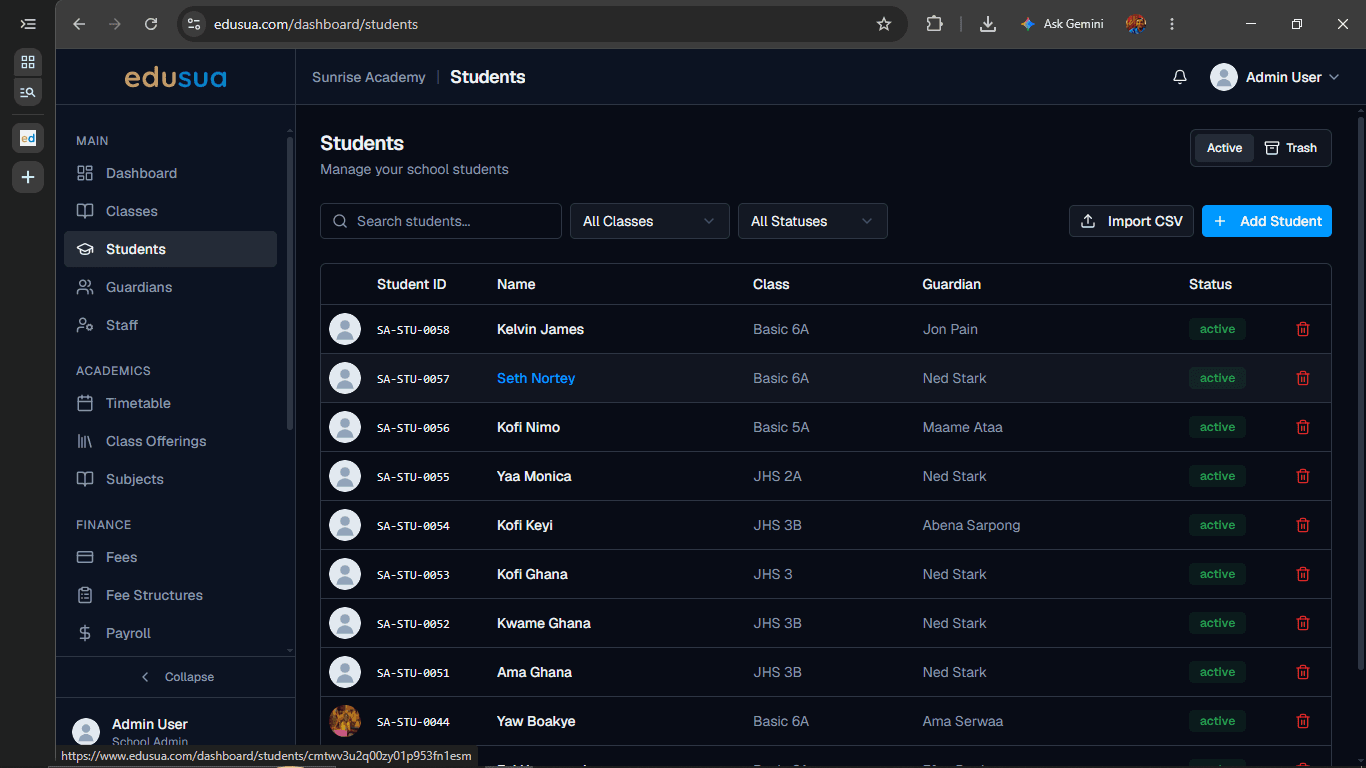
Click on the student's name in the Students table.
2
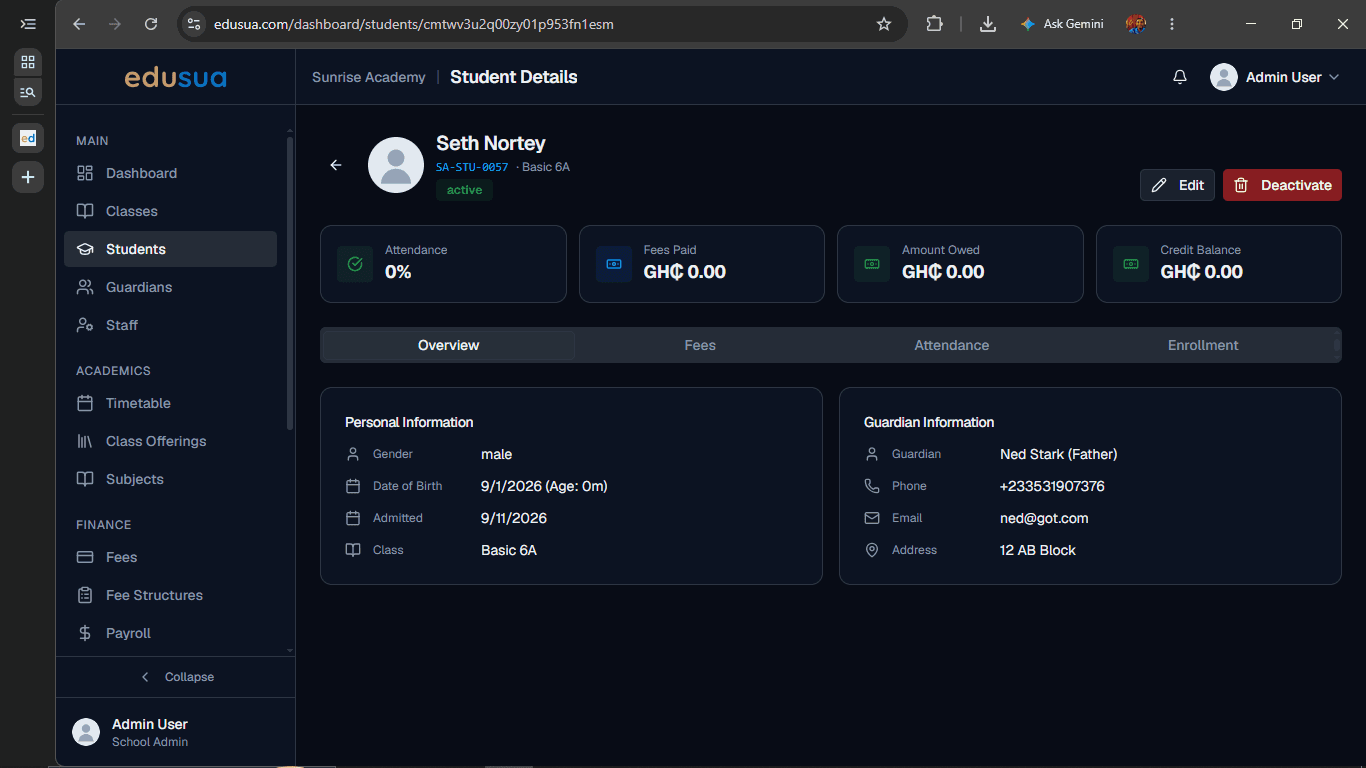
Click the Edit pencil icon next to the Deactivate button.
3
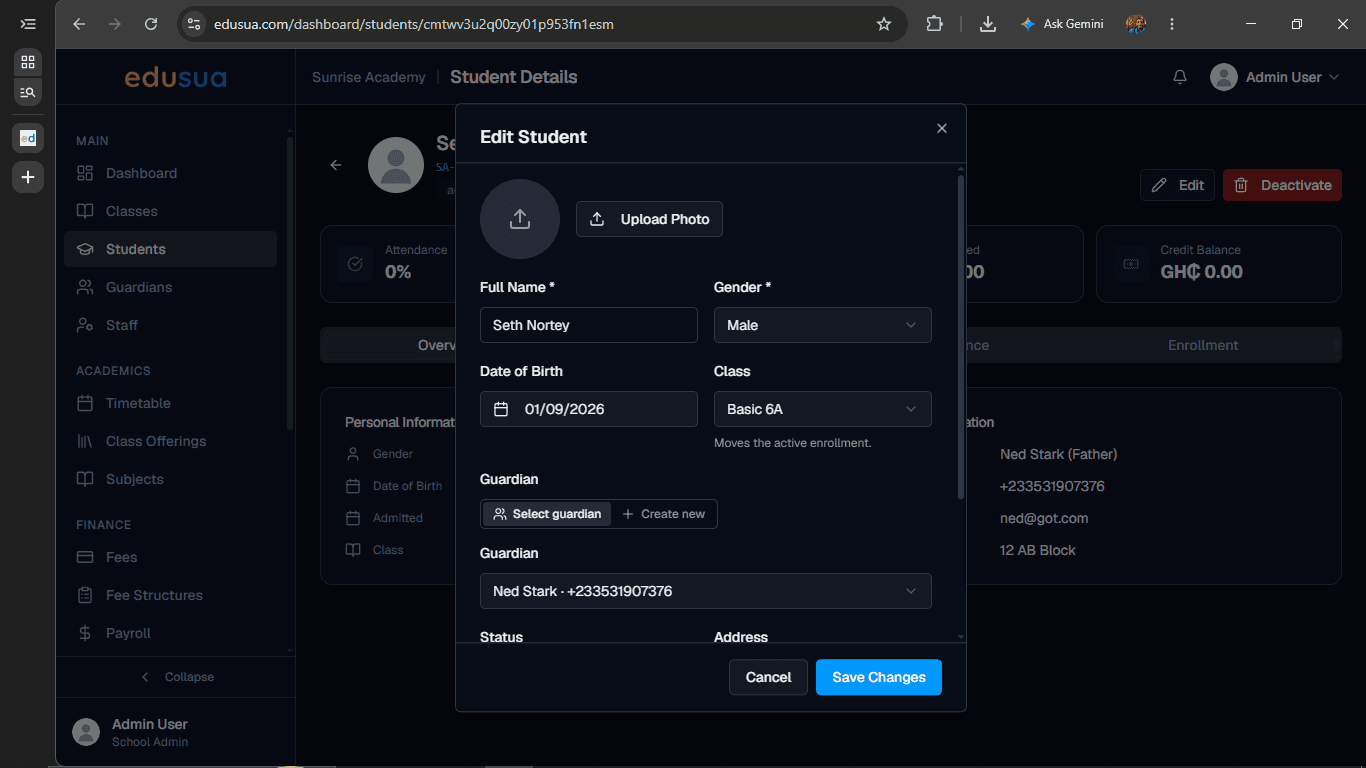
Click the **Full Name *** field.
4
Type the updated name details.
5
Click the Medical notes (allergies, conditions) field.
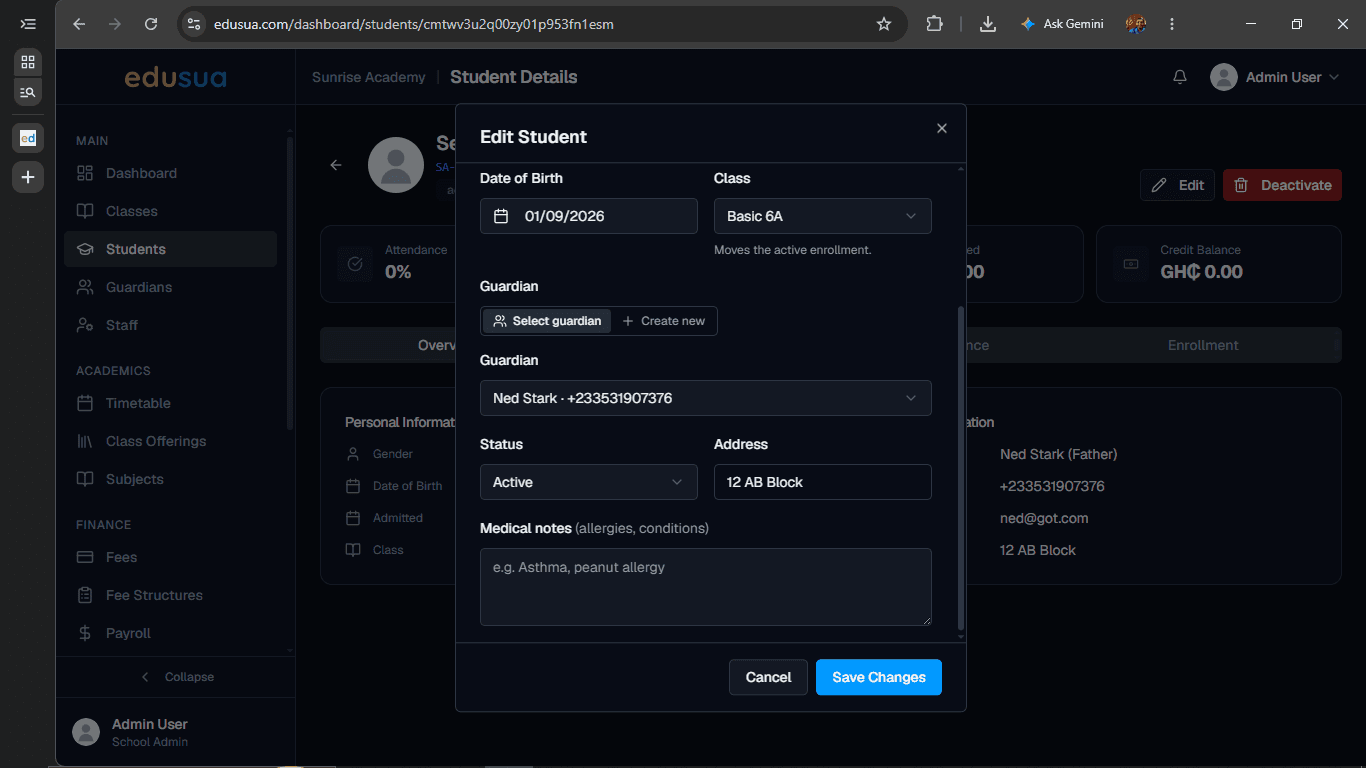
6
Type any relevant medical conditions or allergy information.
7
Click Save Changes.
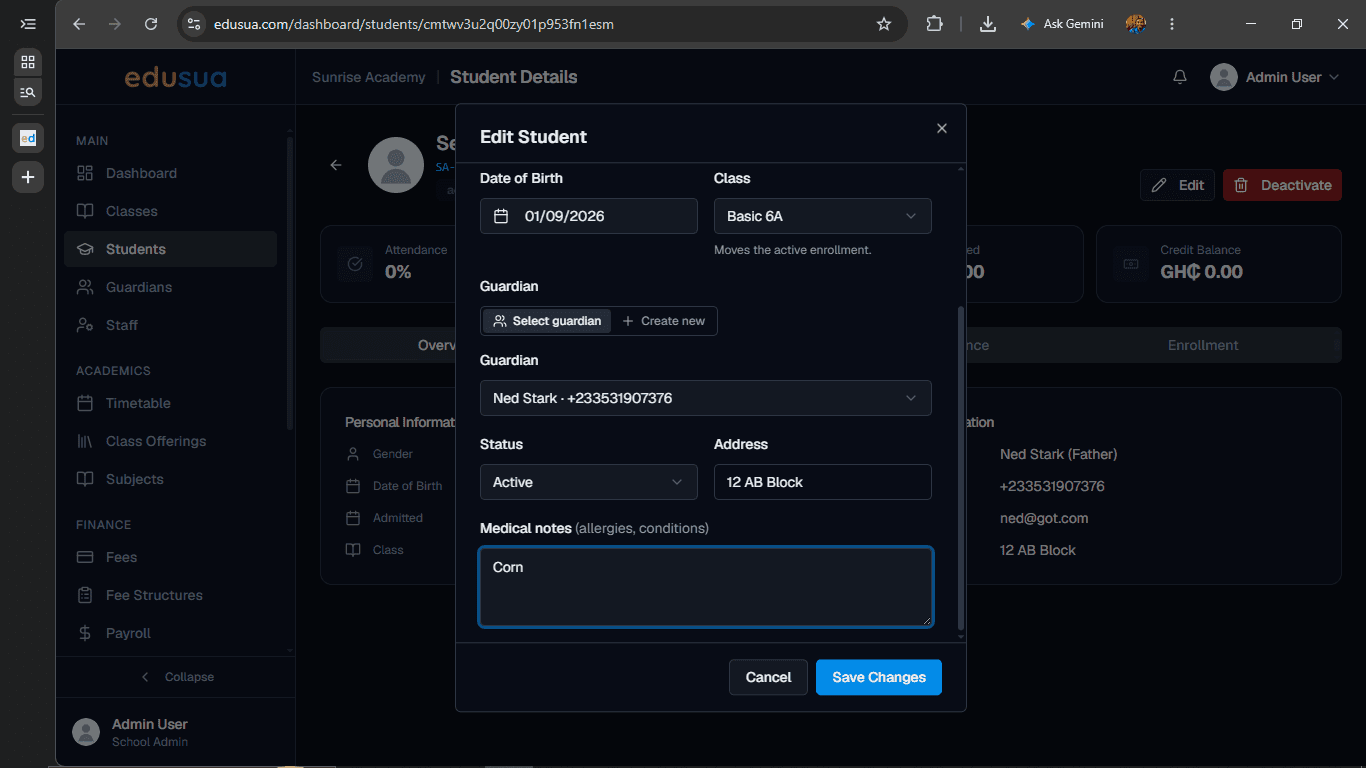
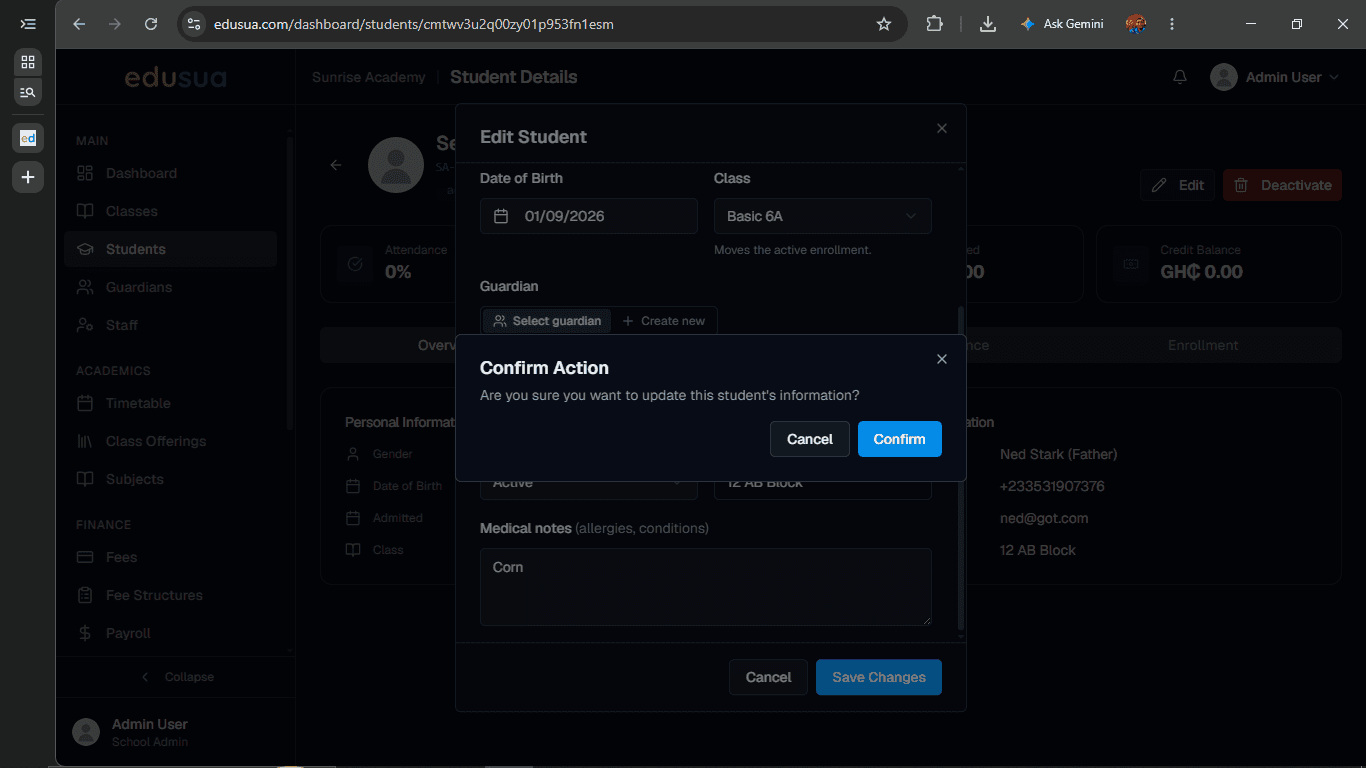
8
Click Confirm in the confirmation dialog to apply the updates.