How to Enable Desktop Notifications for Prokeep
Learn how to configure Google Chrome site settings and Windows 11 system notifications to ensure you receive pop-ups, sounds, and alerts for Prokeep.
By Danielle Yawgel
This guide explains how to configure your browser and system settings to allow pop-ups, sound, and notifications for Prokeep. Completing this ensures you never miss an incoming message or alert.
This applies to any user accessing Prokeep via a PC device who wants to receive real-time desktop alerts for customer communications.
Configure Internet Browser Site Settings
1
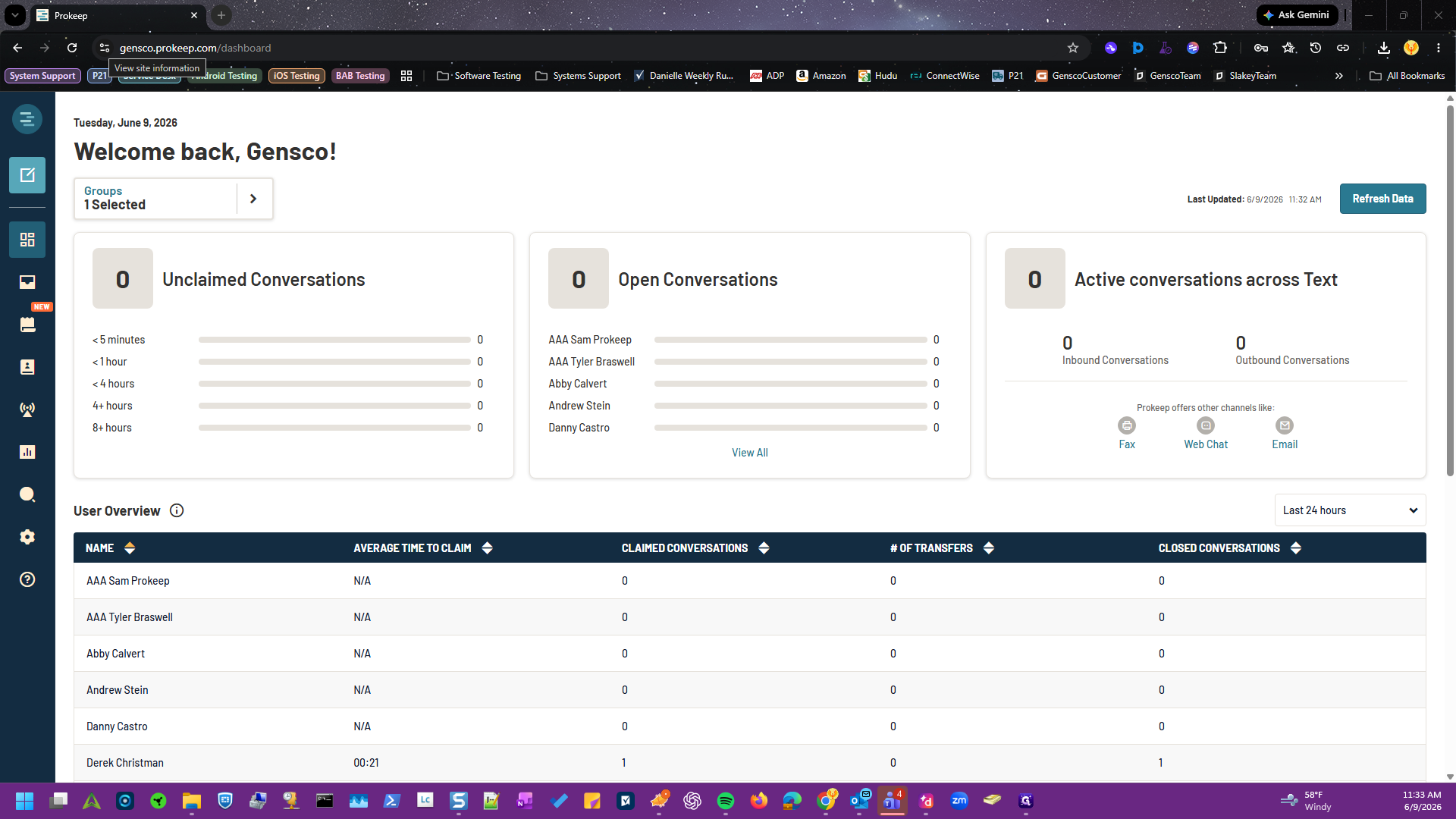
Click the site information icon in the browser address bar while on the Prokeep dashboard.
2
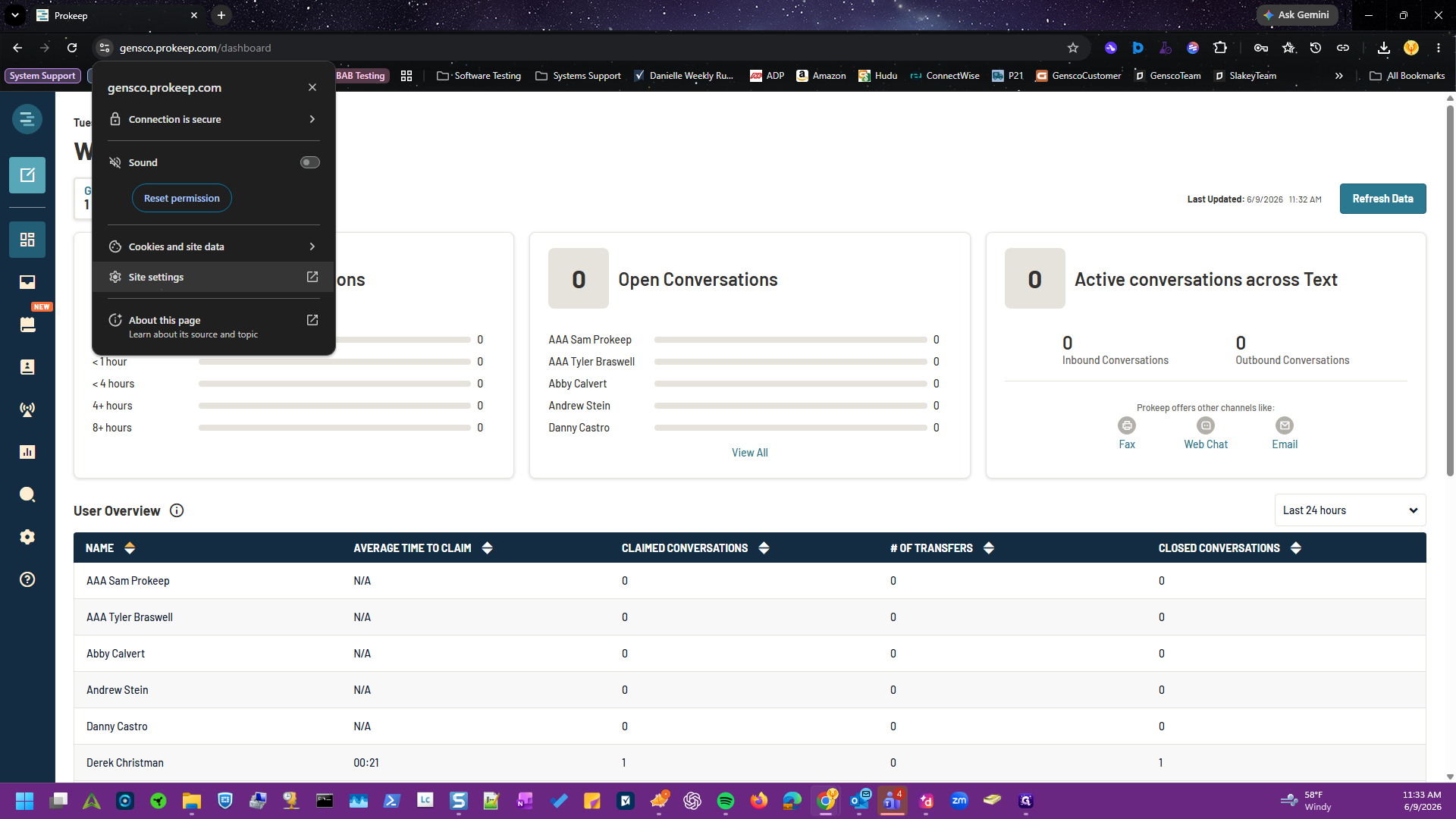
Click Site settings to open the permissions page for Prokeep.
3
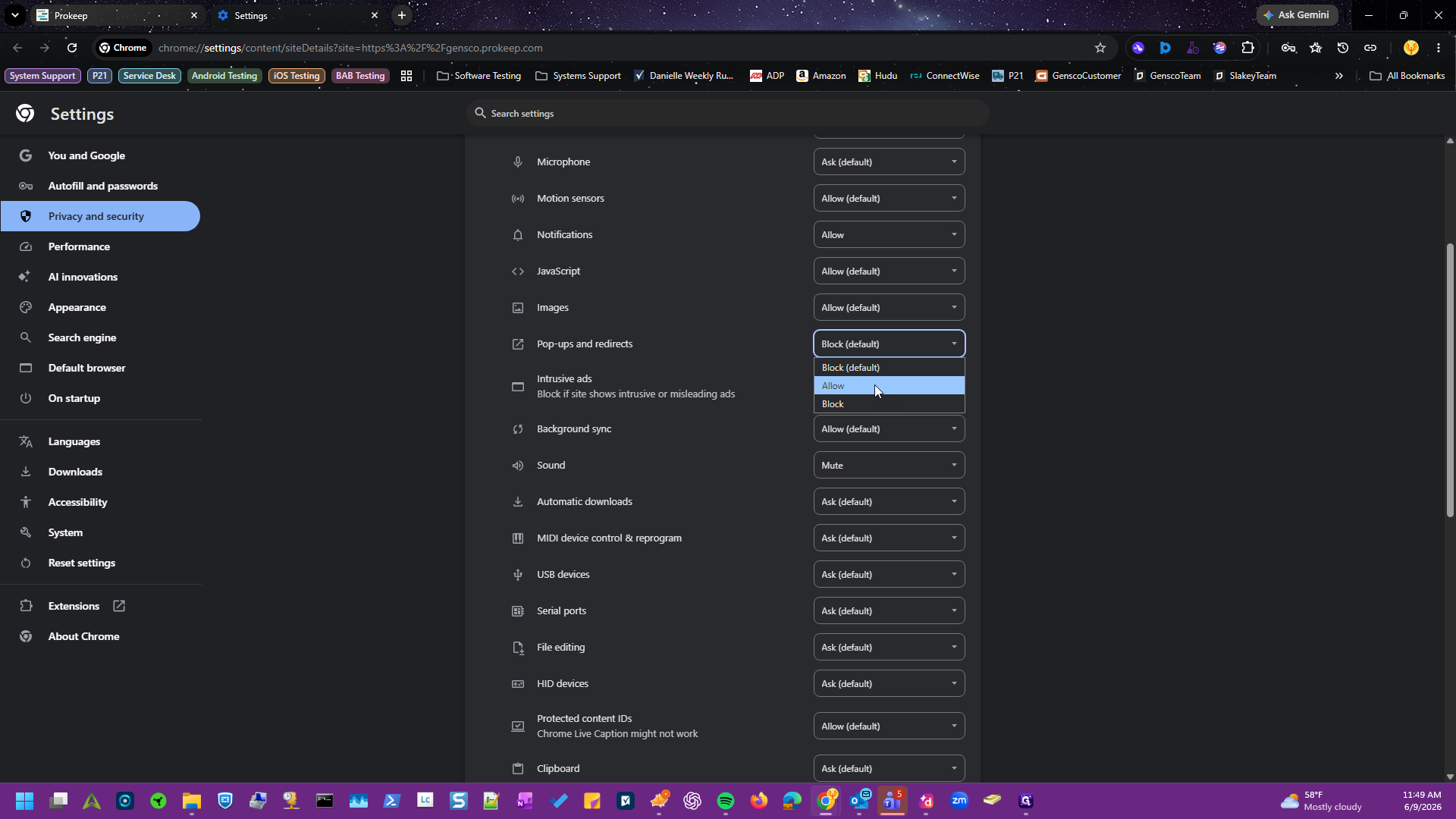
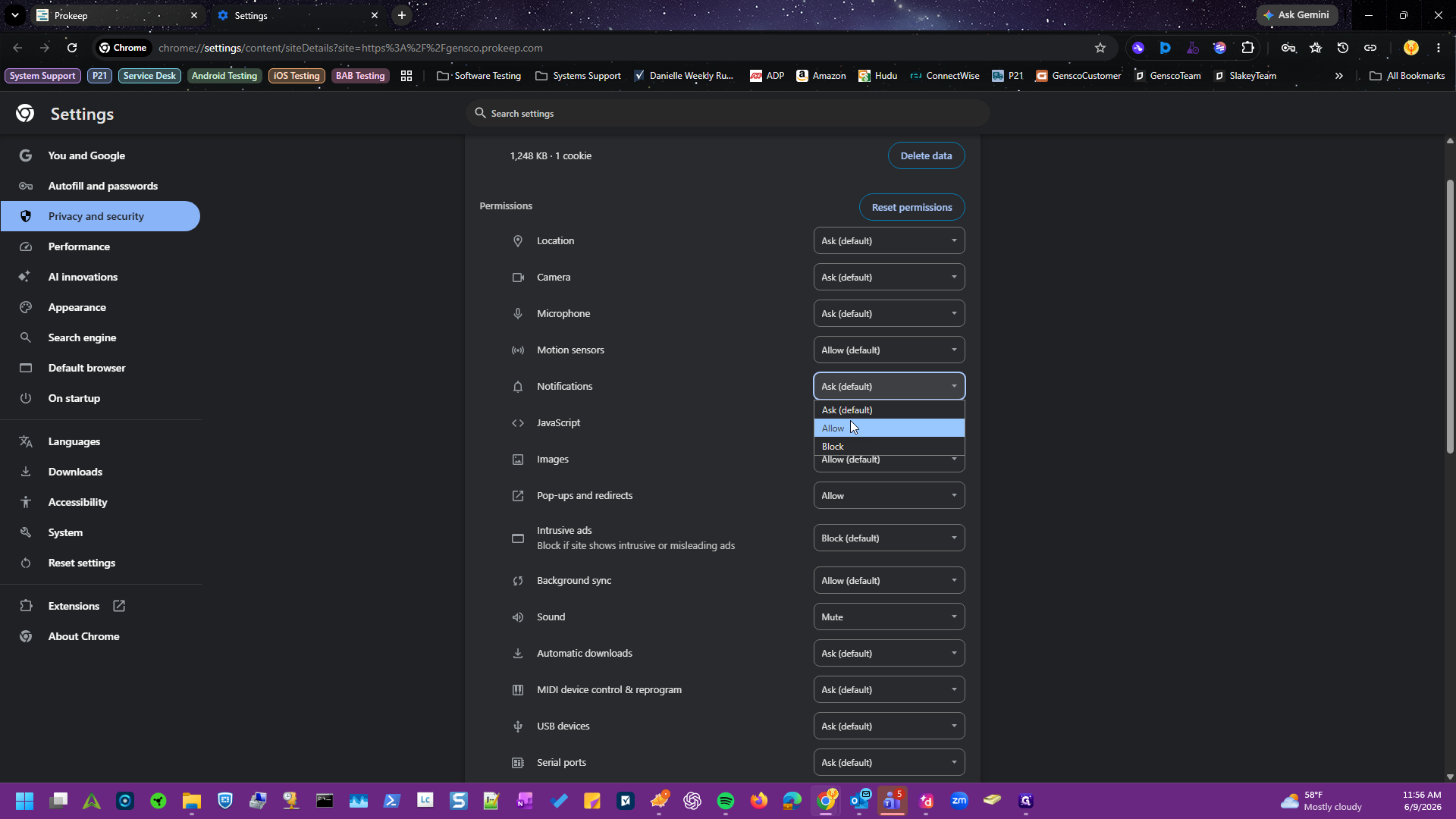
Locate the Pop-ups and redirects permission and select Allow from the dropdown menu.
4
Locate the Notifications permission and select Allow from the dropdown menu.
5
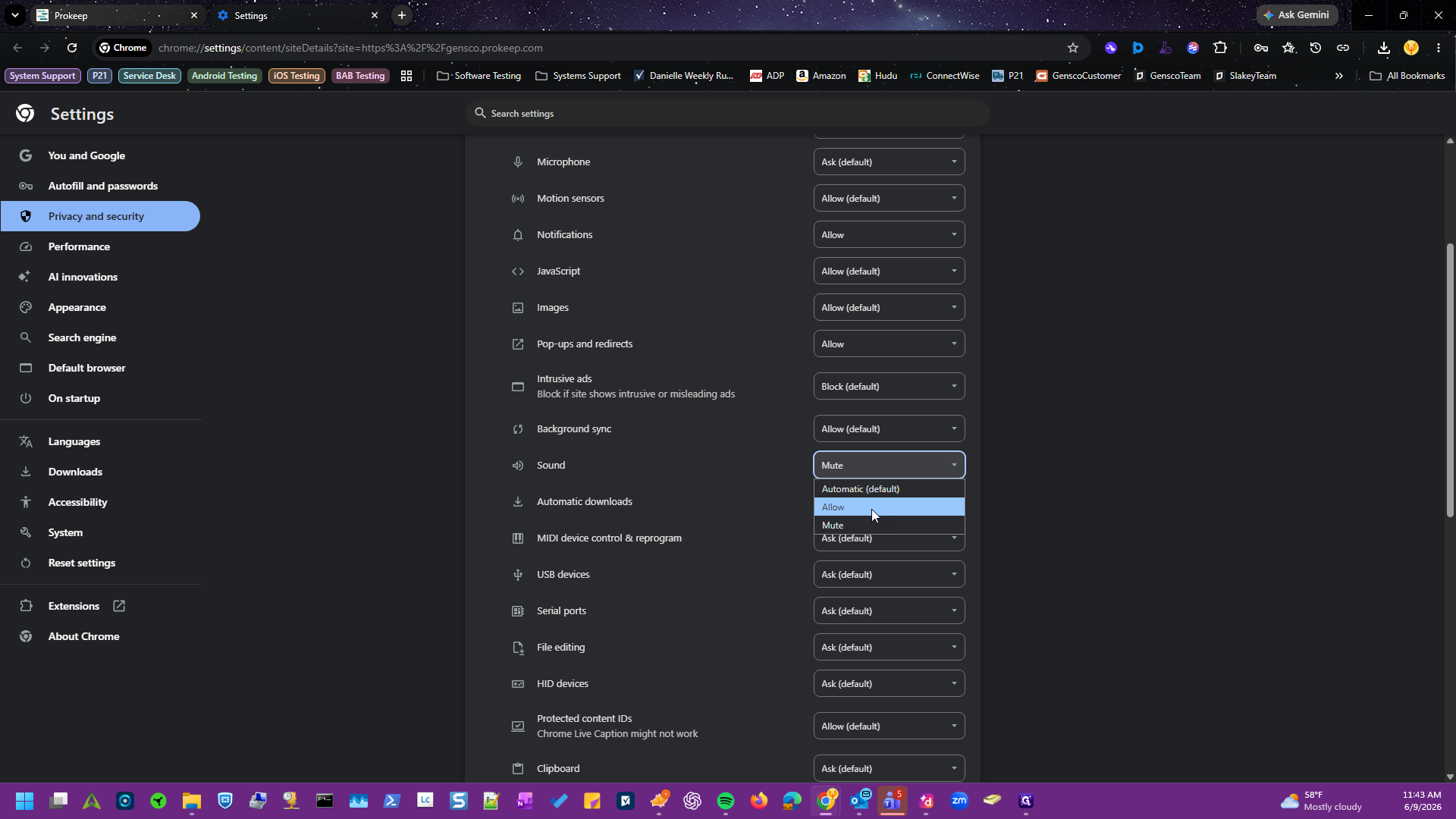
While you are here also locate the Sound permission and select Allow from the dropdown menu, if not already selected.
6
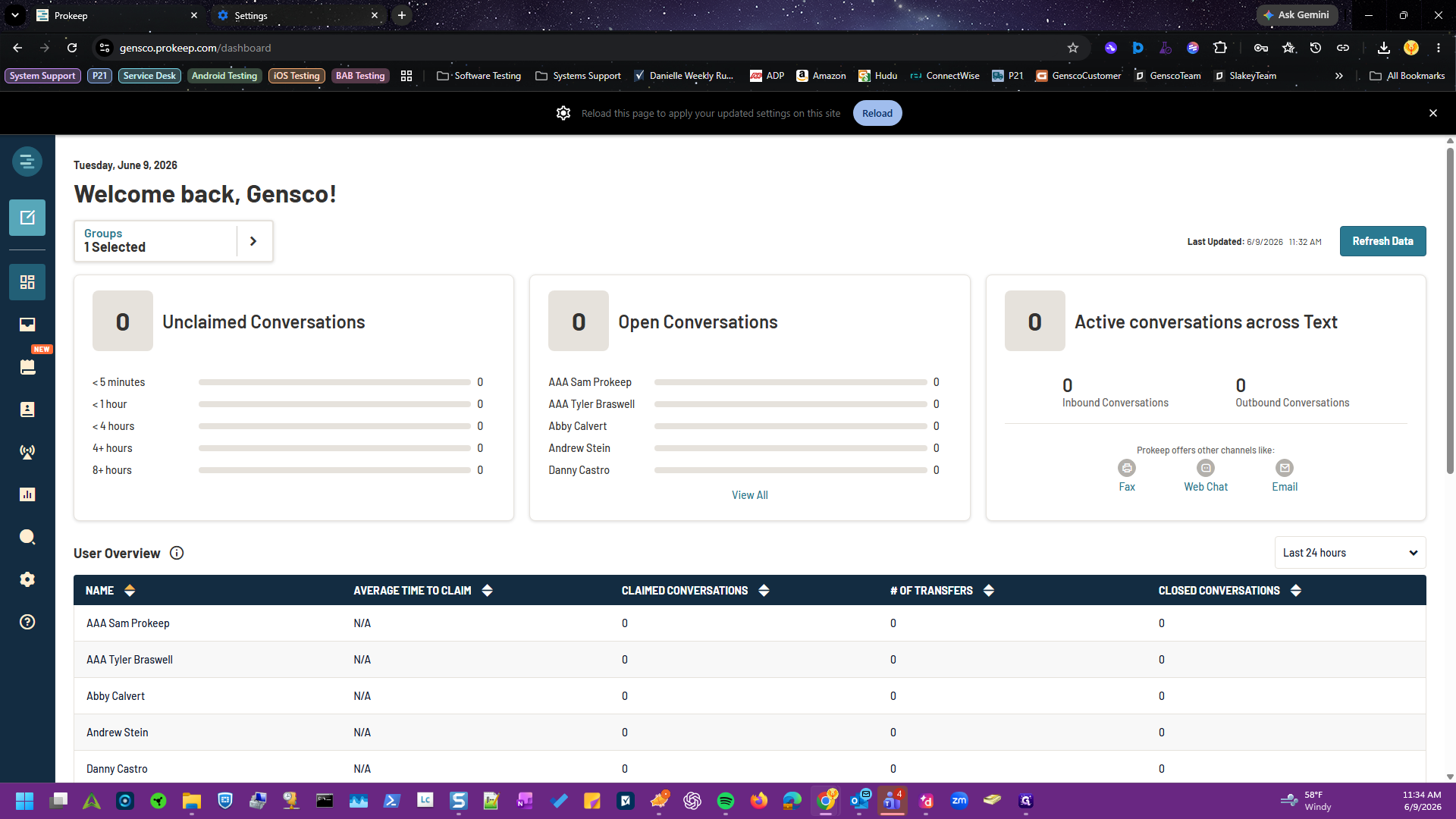
Return to the Prokeep dashboard tab and click Reload to apply the updated site settings.
Enable System Notifications in Windows 11
7
Open the Windows Start menu, type
Settings, and press Enter.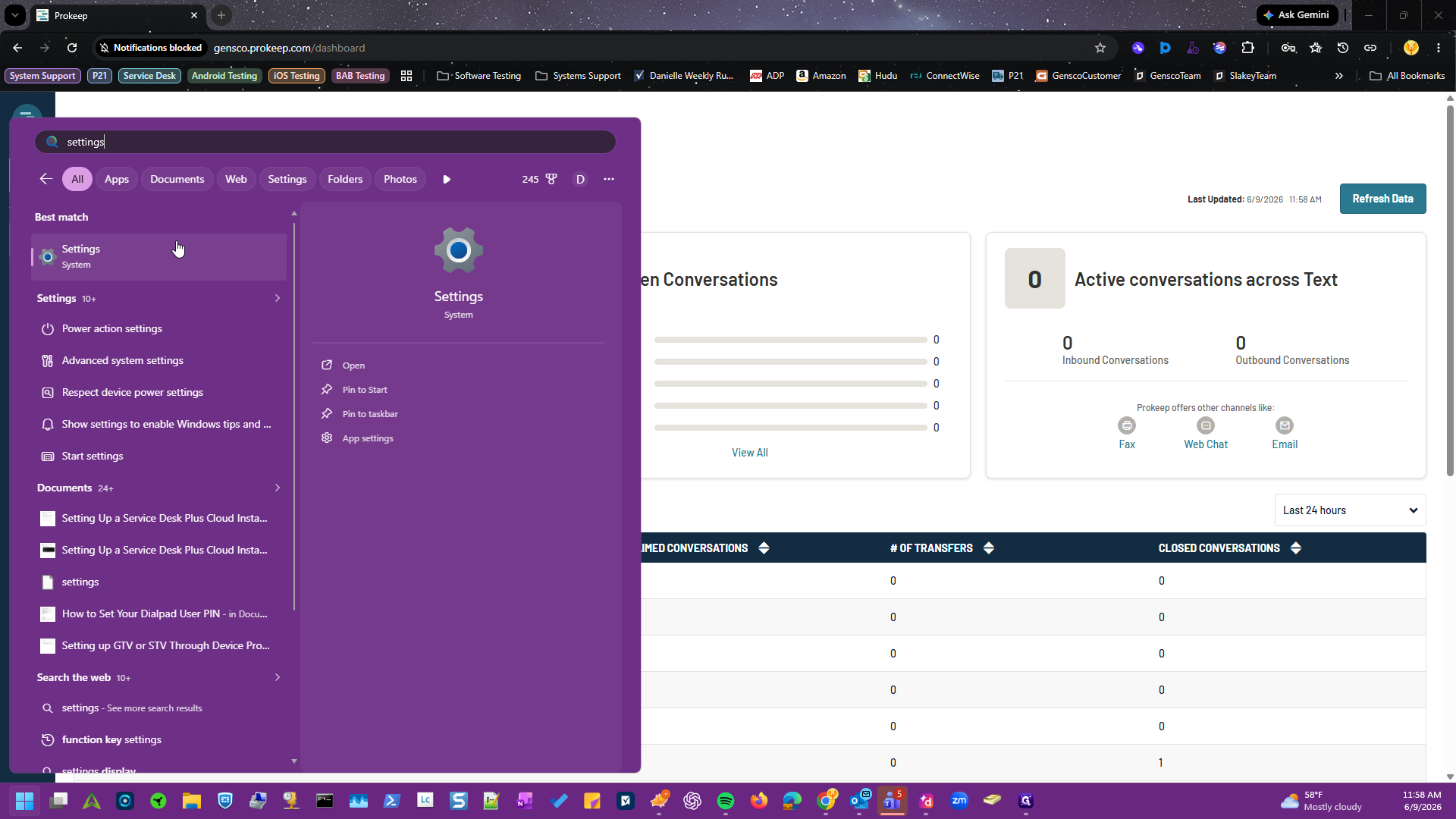
8
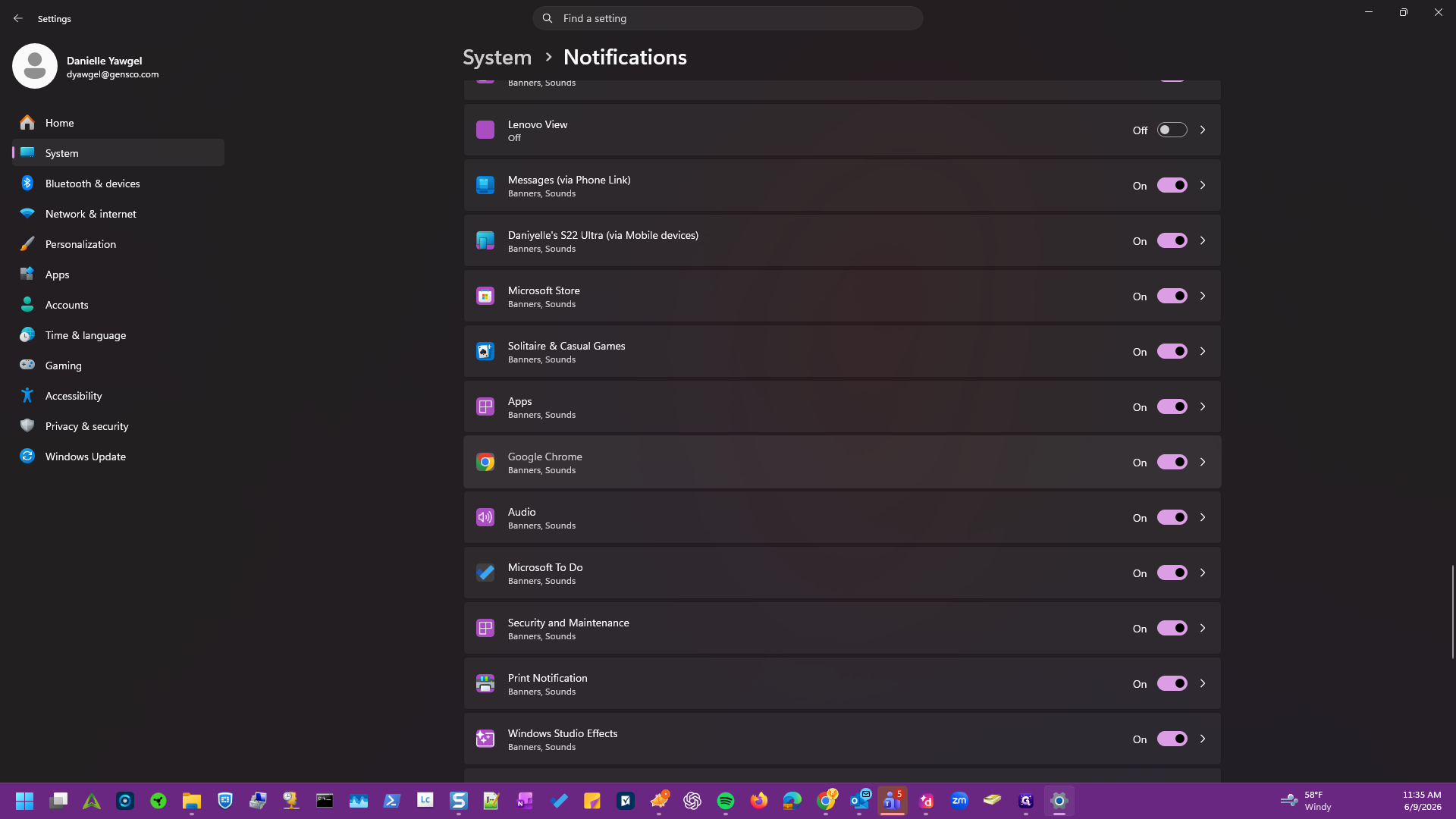
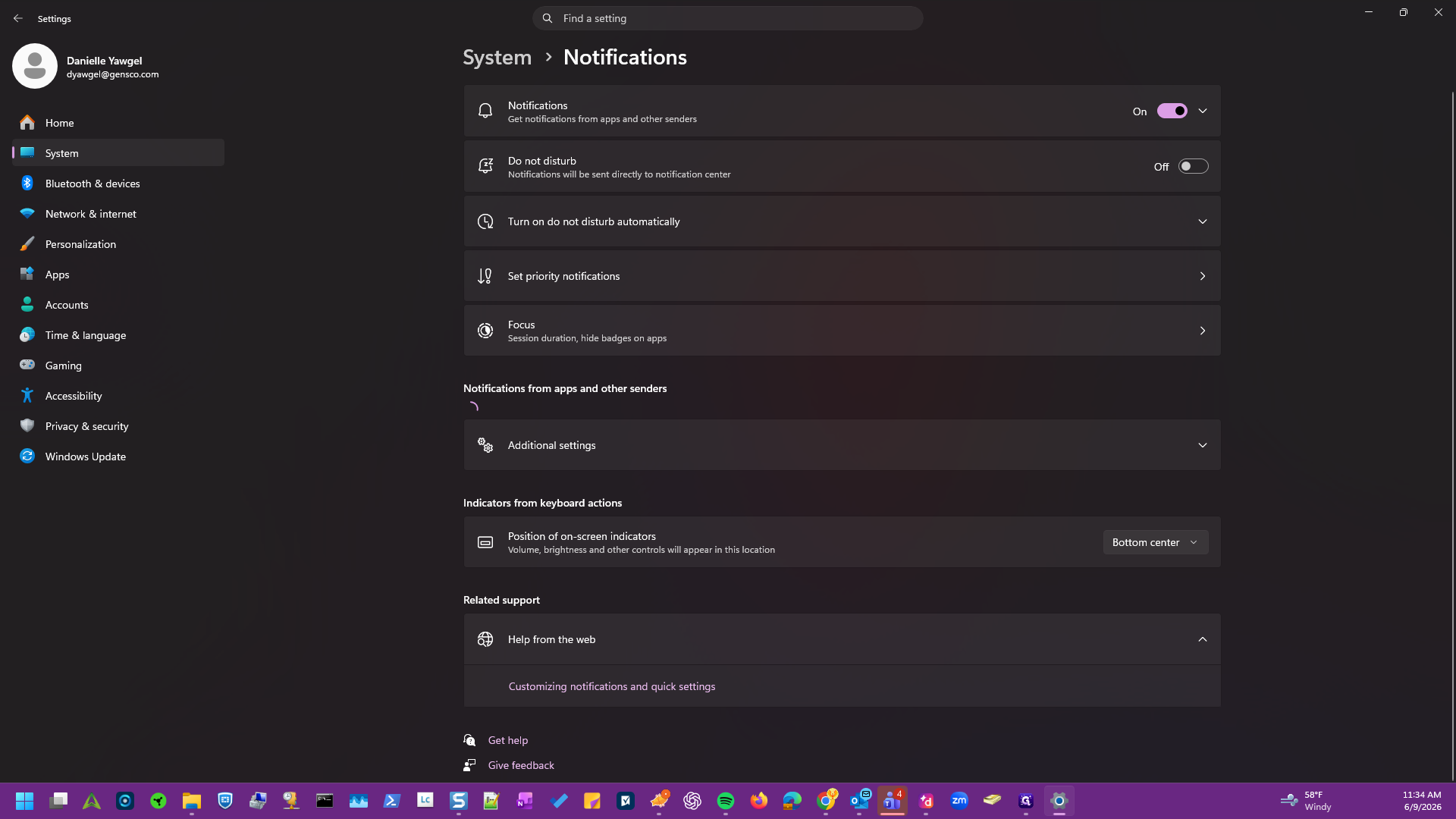
Navigate to the Notifications settings page and wait for the list of applications to populate under Notifications from apps and other senders.
9
Scroll down to the list of applications and ensure the toggle for the Internet browser you are using Prokeep with is turned On.