How to Find Student Support Services Information in PowerTeacher
Learn how to access student support plans, accommodations, historical documents, and service overviews in PowerTeacher.
This guide explains how to find information about students who receive support services in PowerTeacher and is intended for teachers and school staff who need to access support plans, accommodations, or special services details for their enrolled students. Use this when preparing for classes or reviewing individual student requirements during the school year.
There are multiple ways to locate information regarding student support services in PowerTeacher. Depending on the level of detail you need, use this comparison table to choose the best method:
Method | Best For |
|---|---|
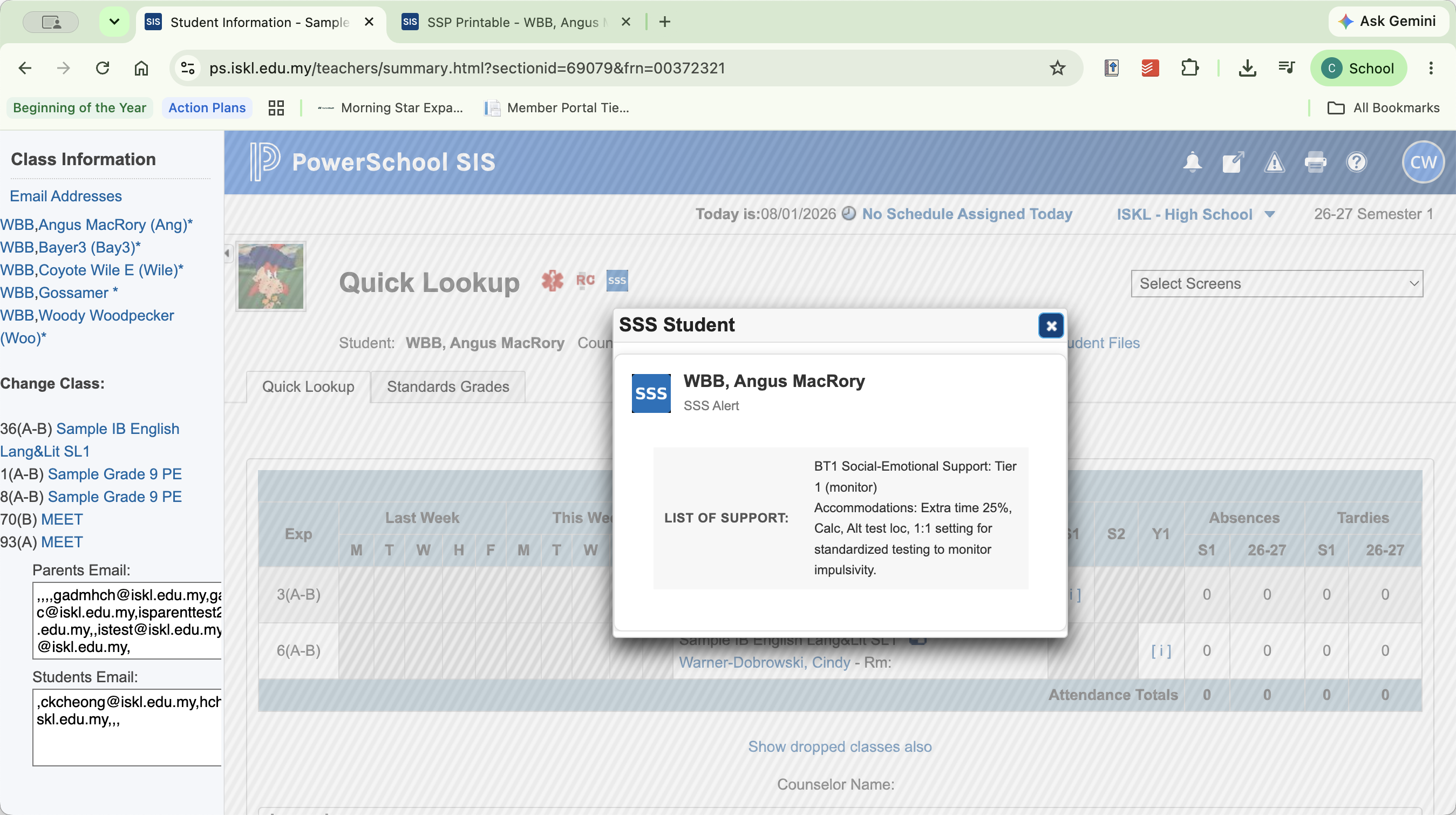
SSS Icon | Getting a quick summary of services, tier one strategies, and accommodations directly from the classes view. |
Student Services Plans | Reviewing detailed accommodation, support, and learning plans for specific students. |
Student Files | Accessing confidential Google Workspace documents, such as ISKL meeting minutes. |
Document Attachments | Finding historical records, evaluation reports, and consent forms. |
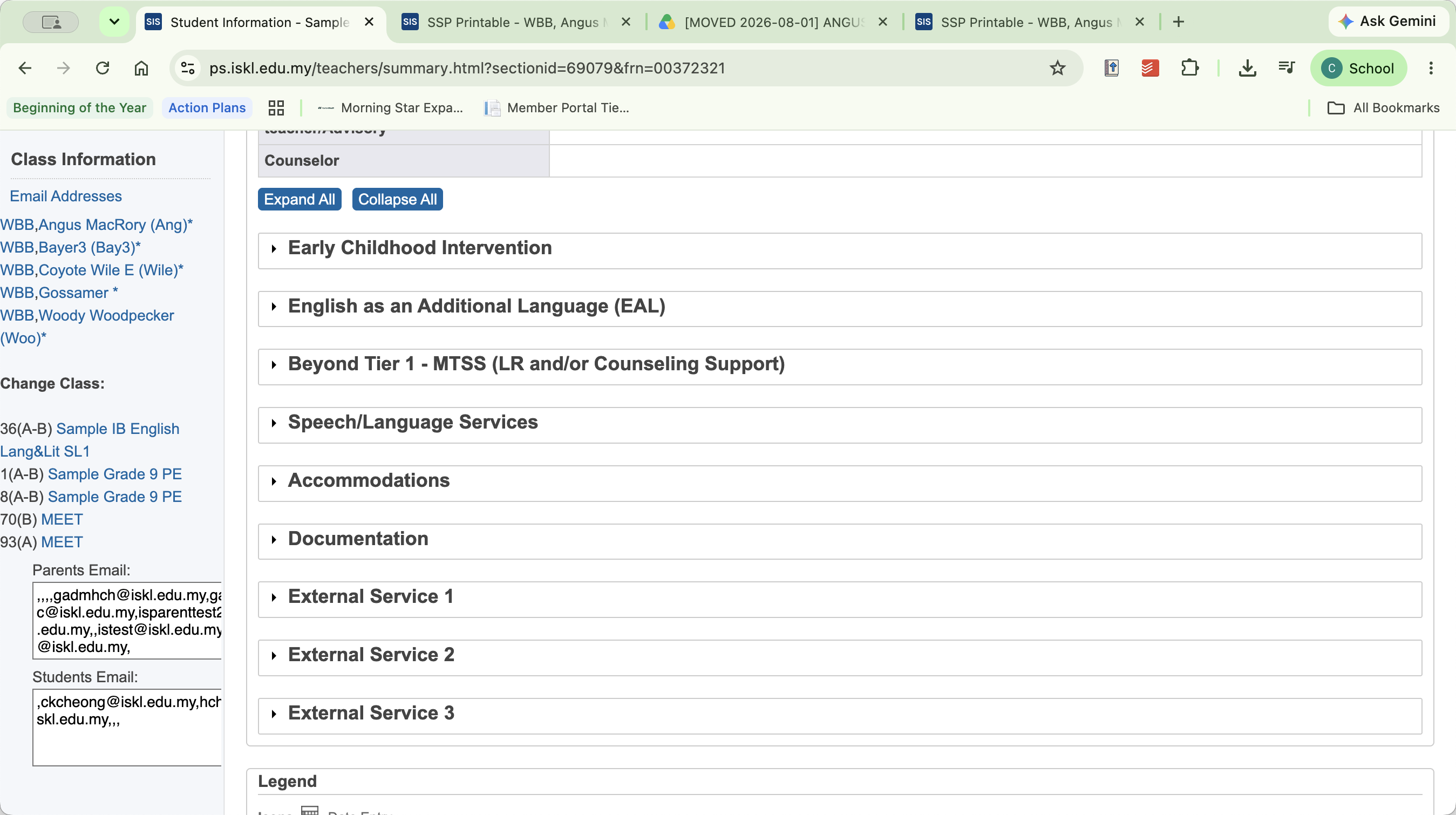
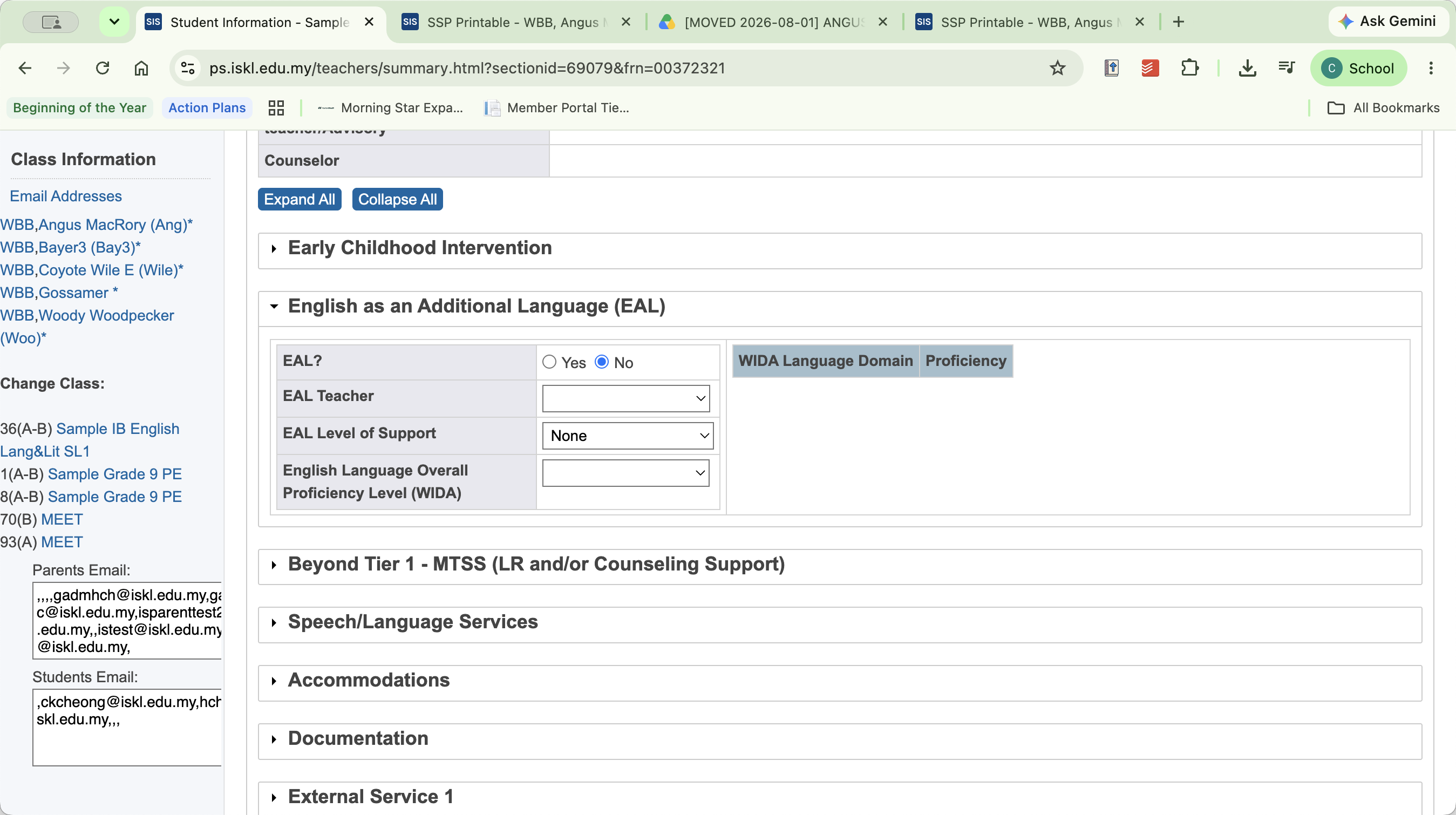
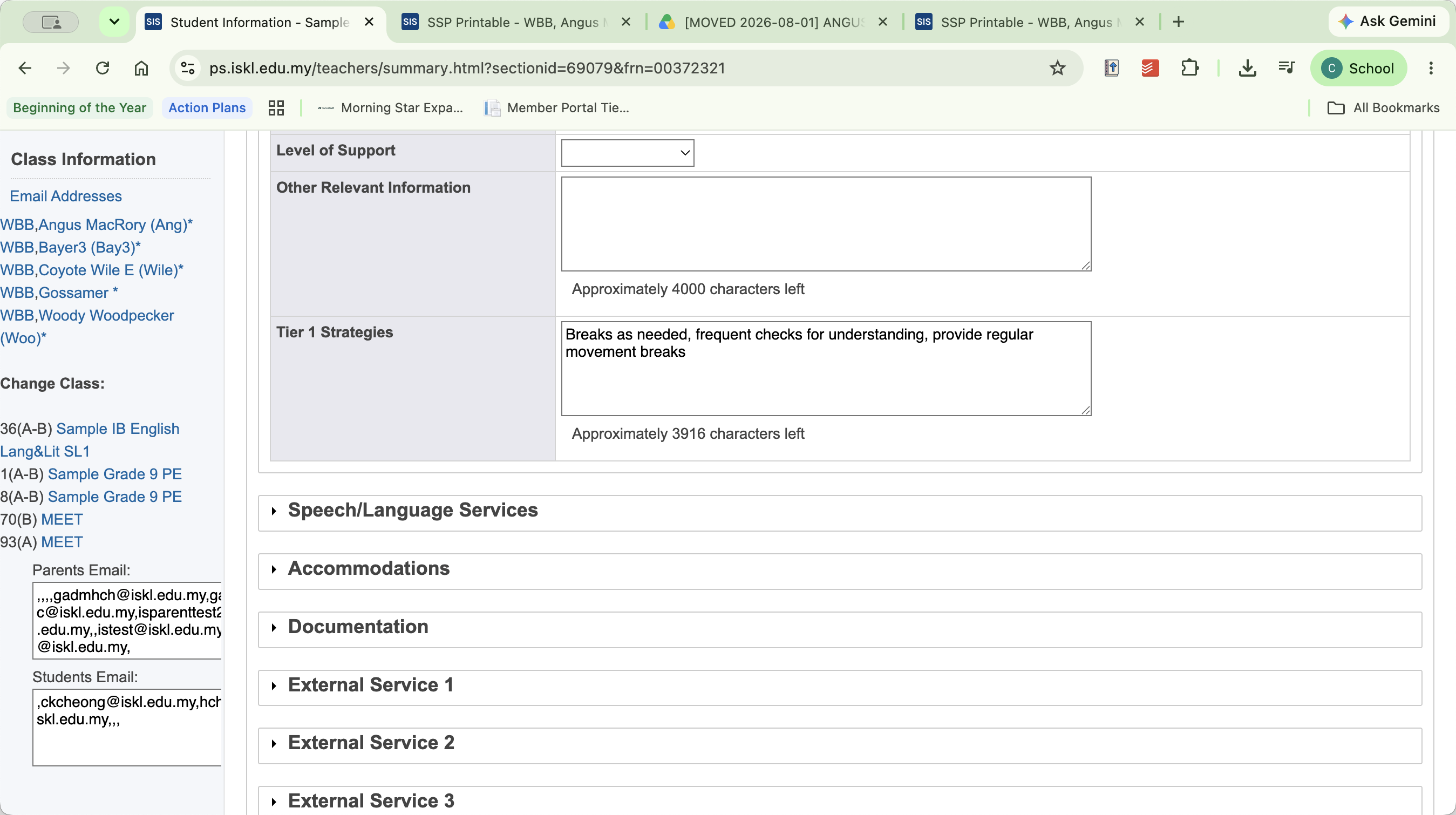
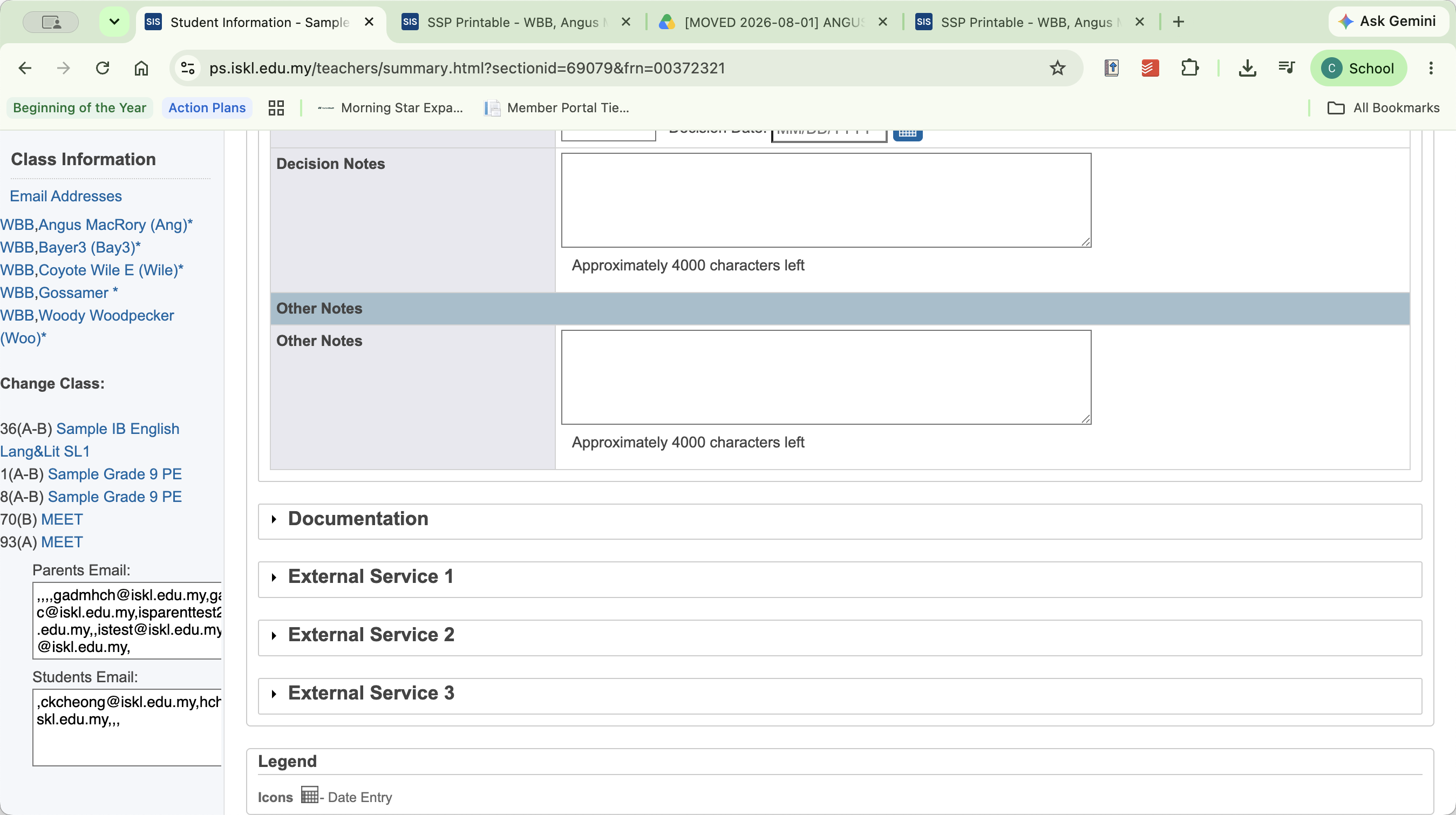
Student Snapshot | Viewing a comprehensive breakdown of EAL scores, MTSS tiers, and external services. |
Method 1: The SSS Icon in Current Classes
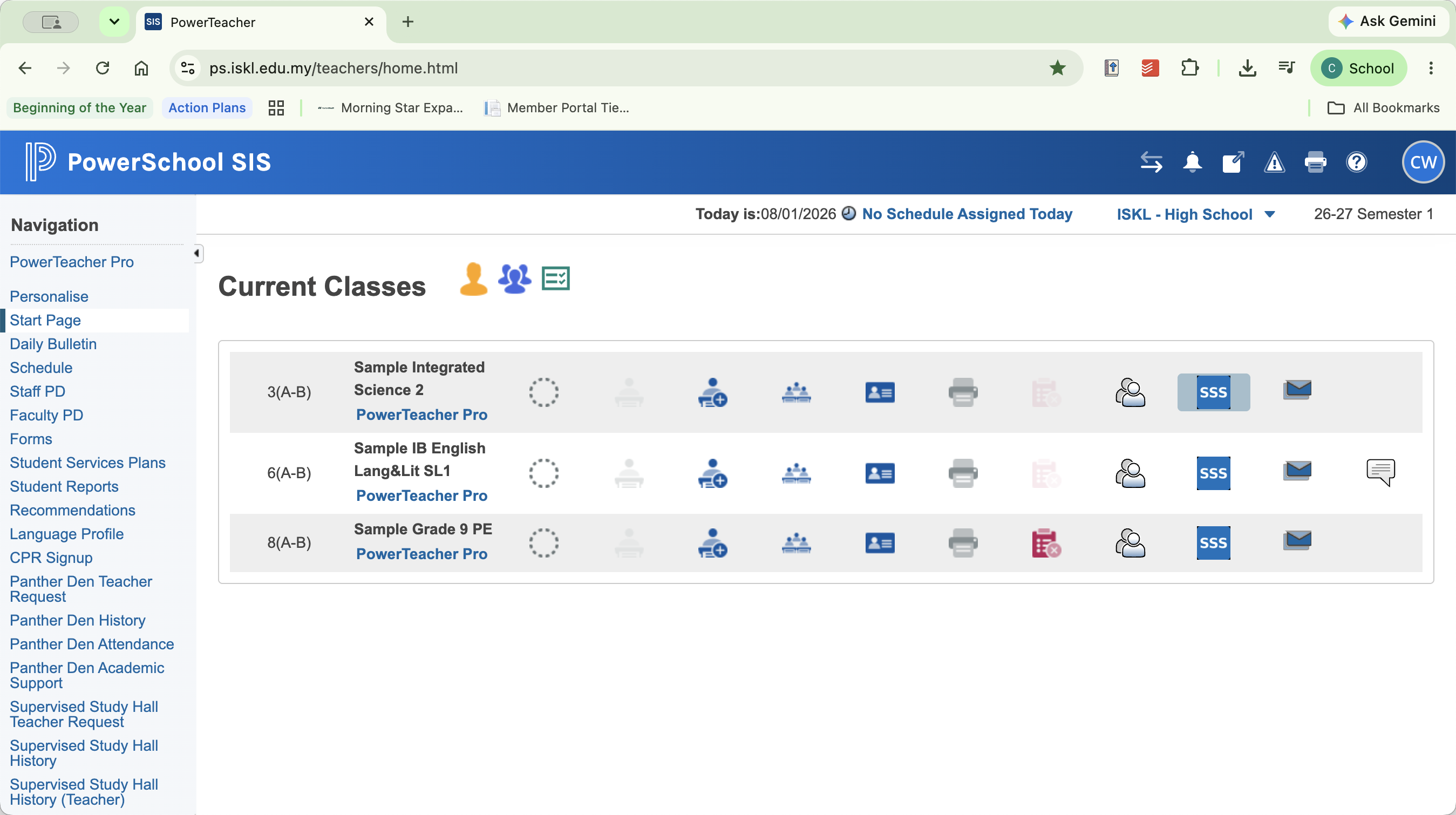
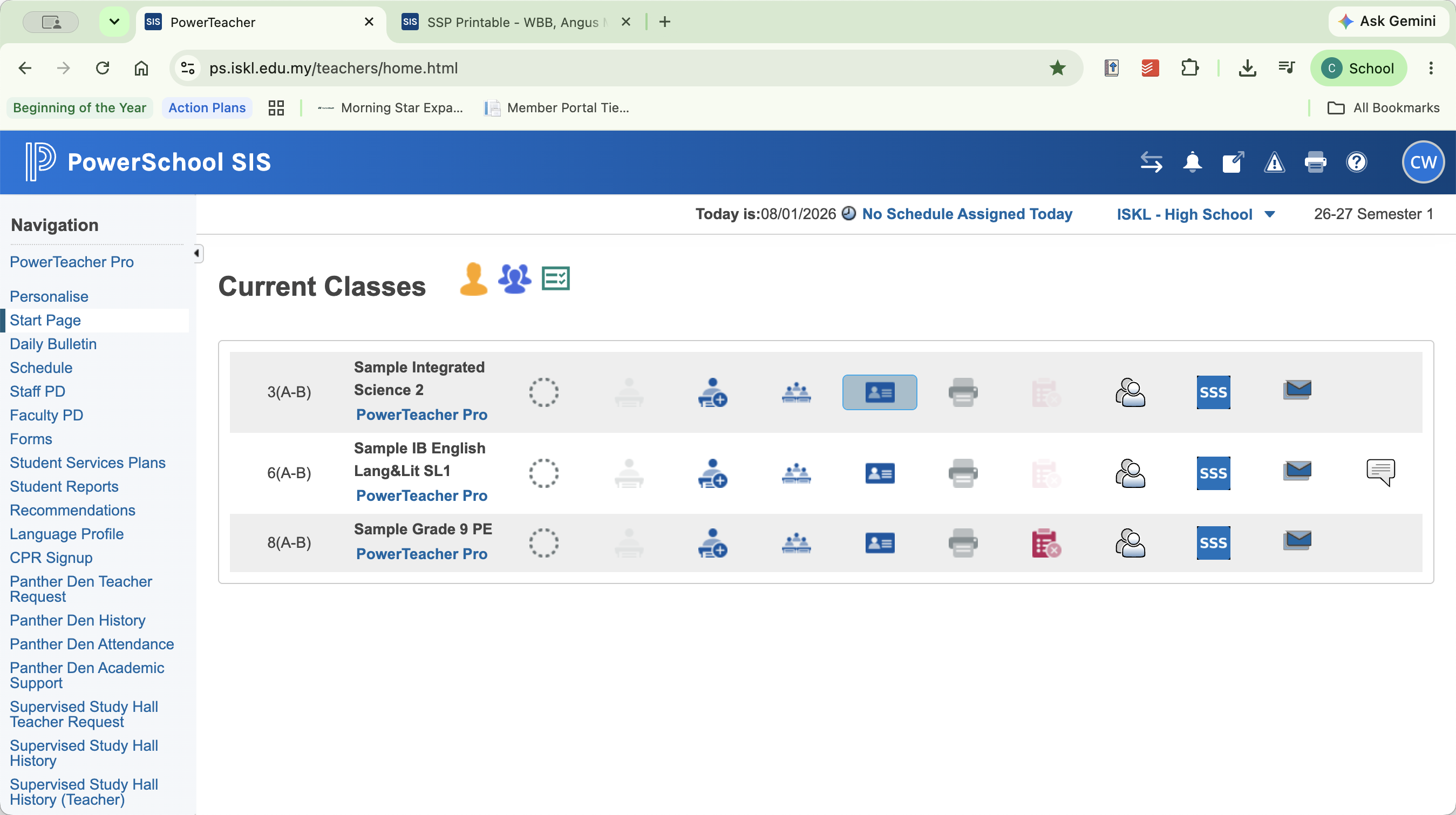
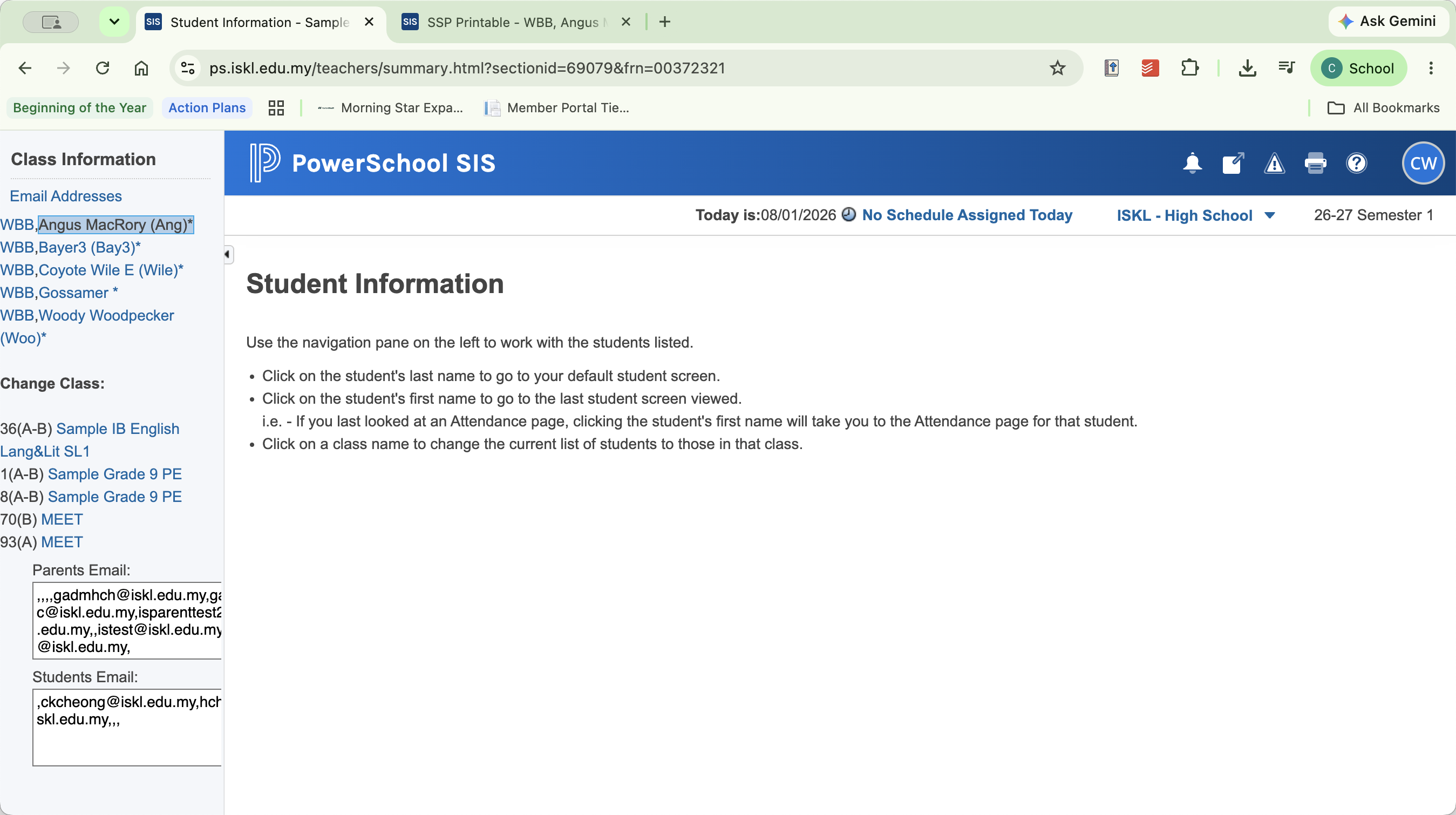
To view support information for a specific individual from the roster:
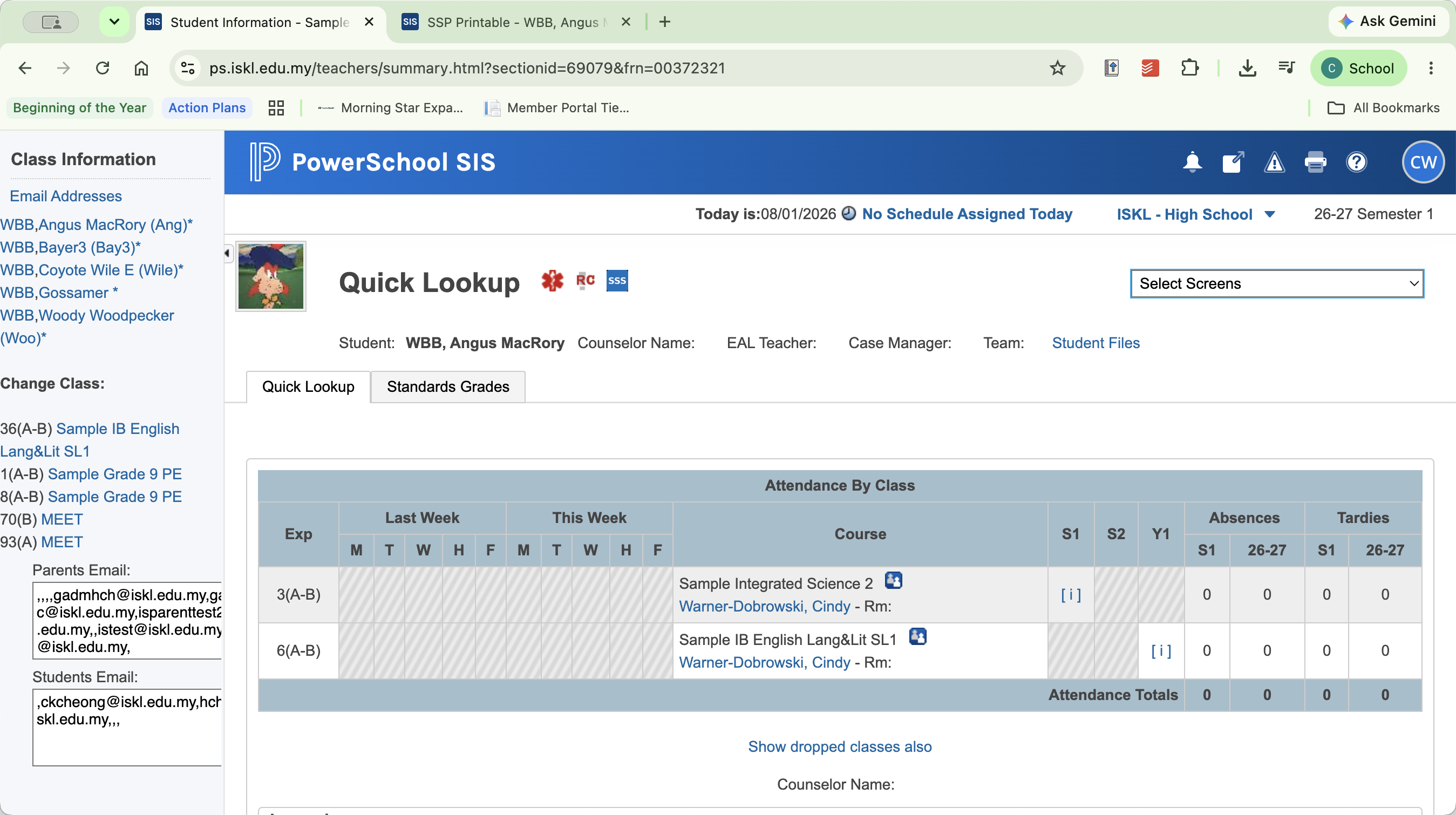
Method 2: Student Services Plans
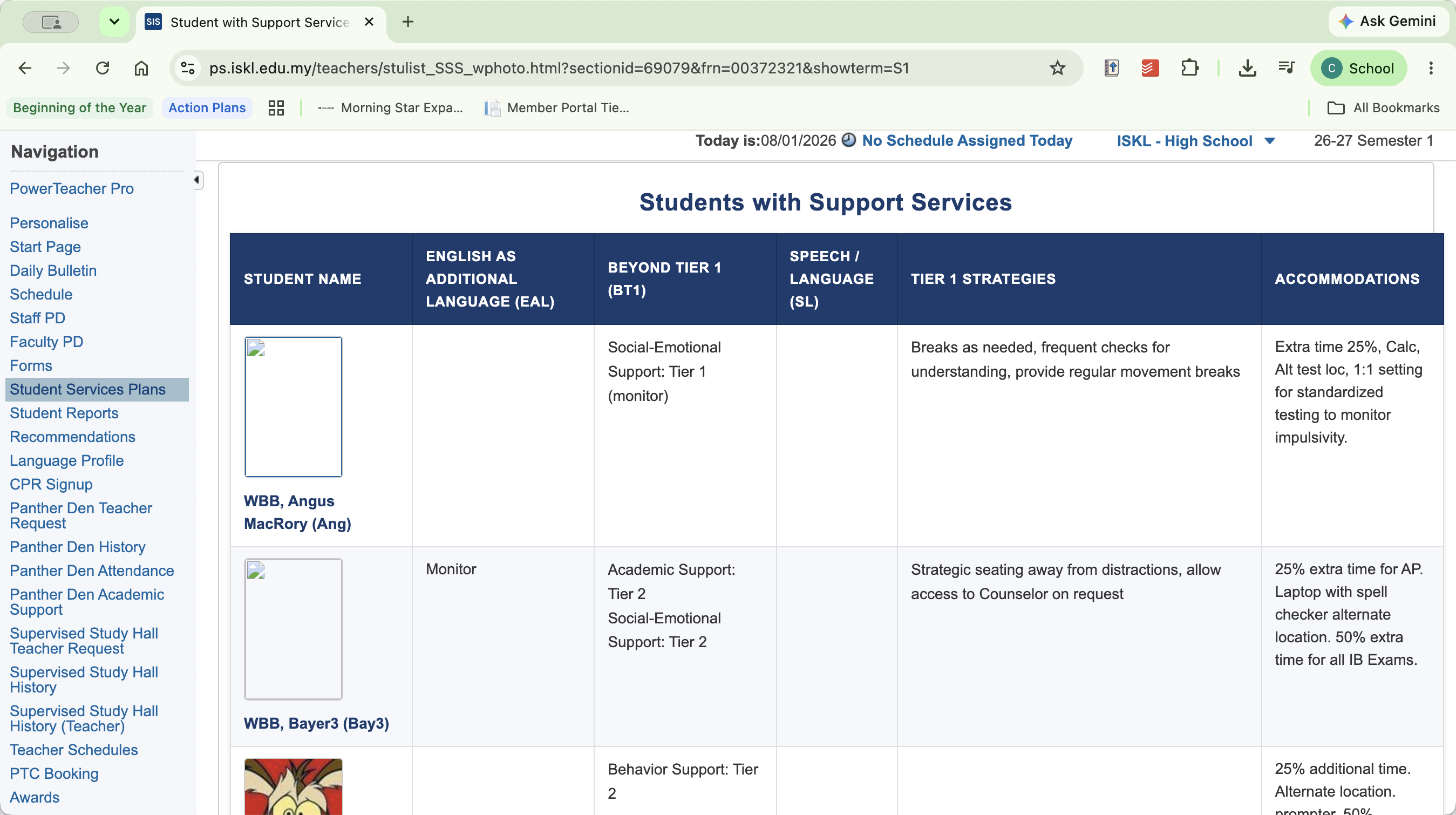
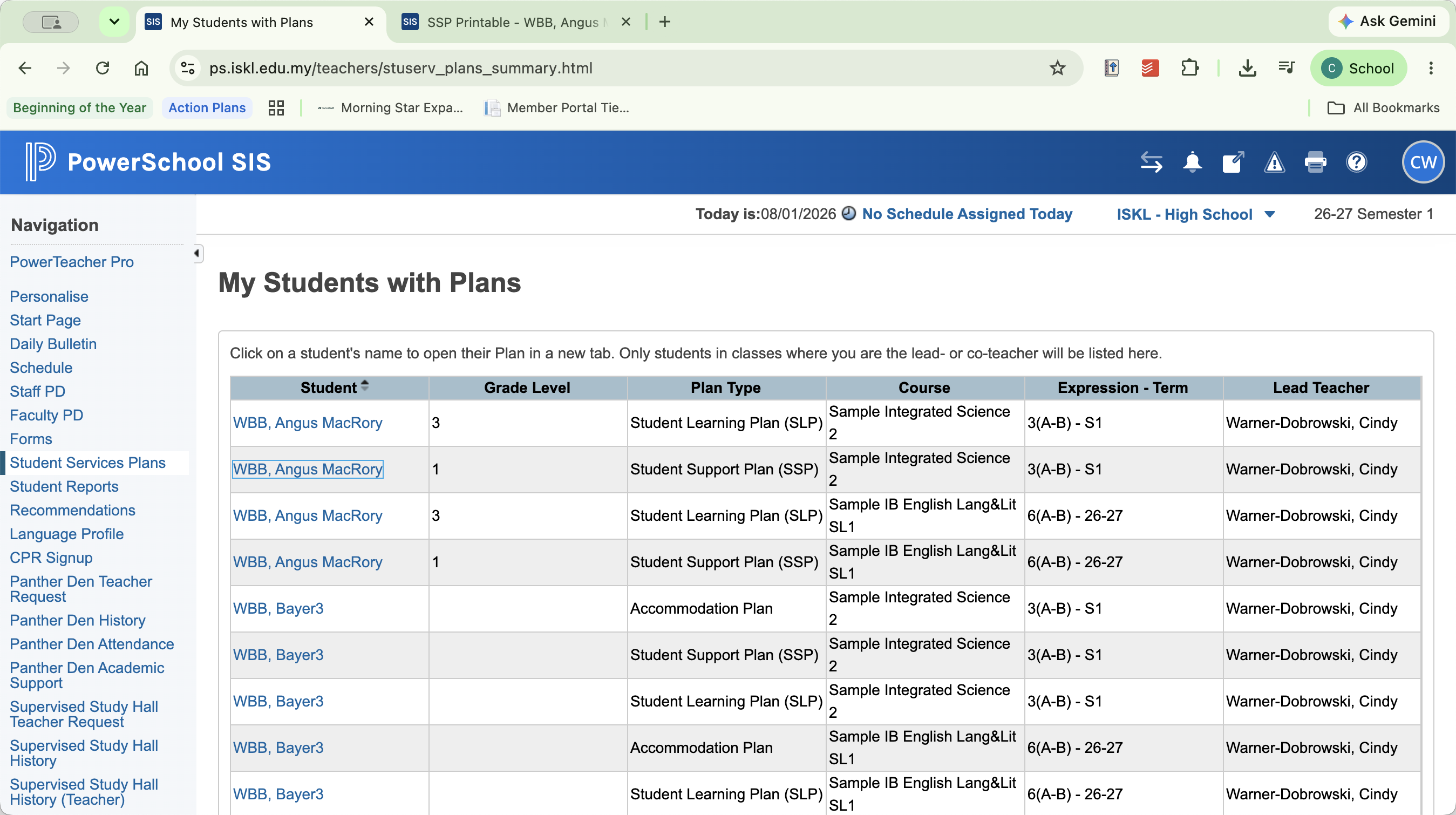
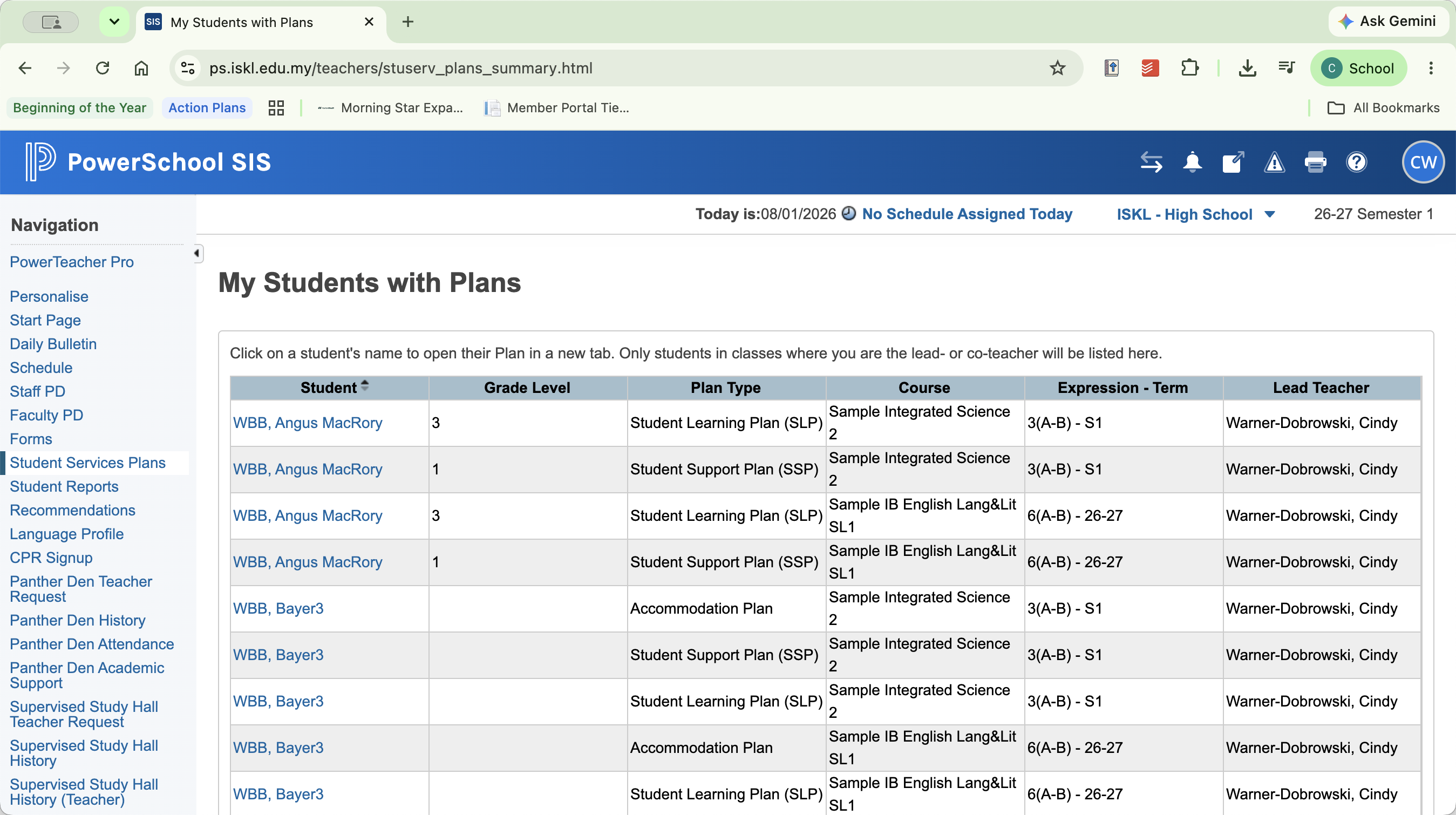
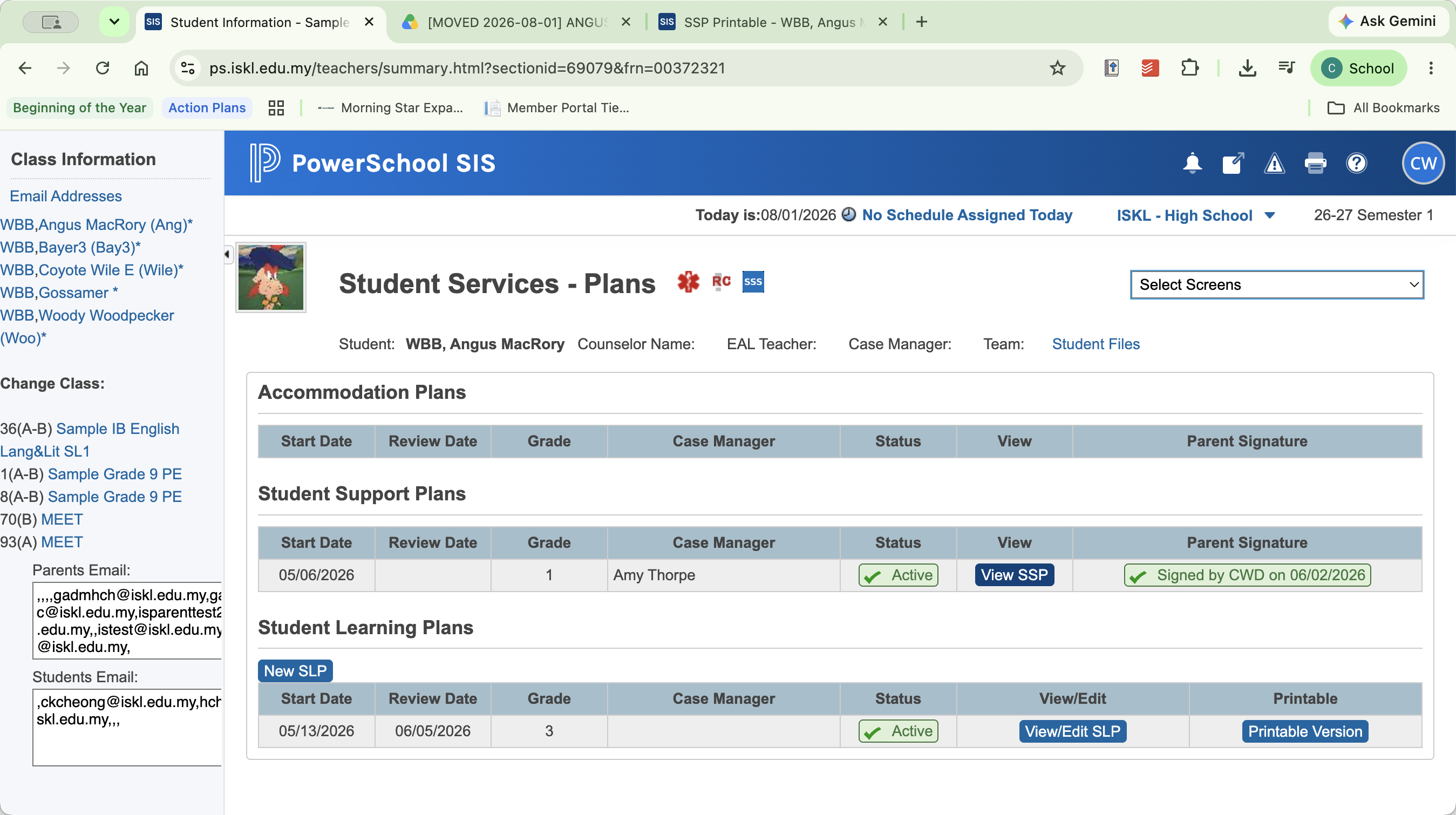
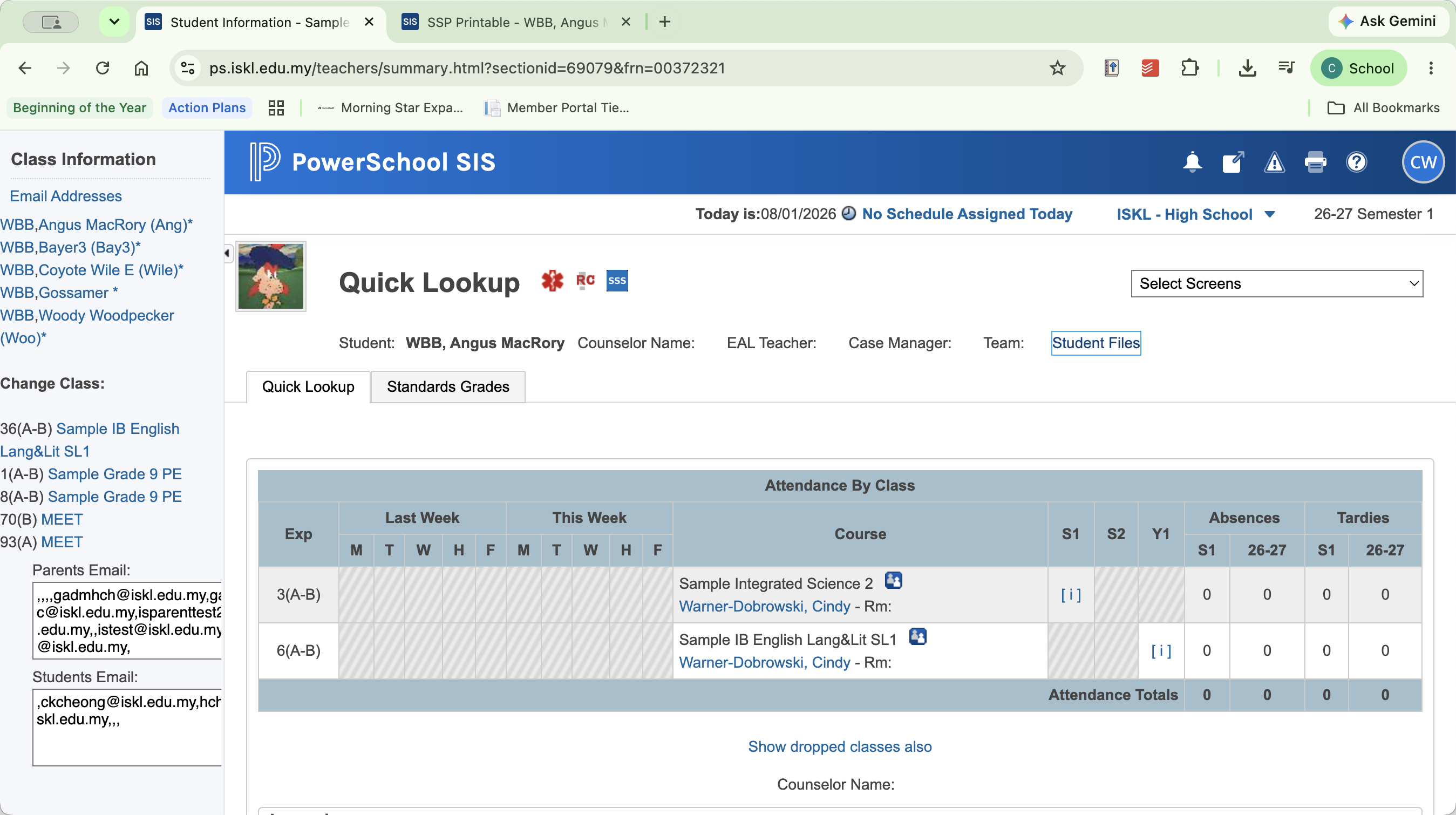
Method 3: Student Files (Google Workspace)
Every student has a confidential, auto-generated Google folder for storing ISKL meeting minutes and shared documentation. Access to Student Services team members and teachers is automatically granted or removed by PowerSchool when a student enrolls in or leaves your section.
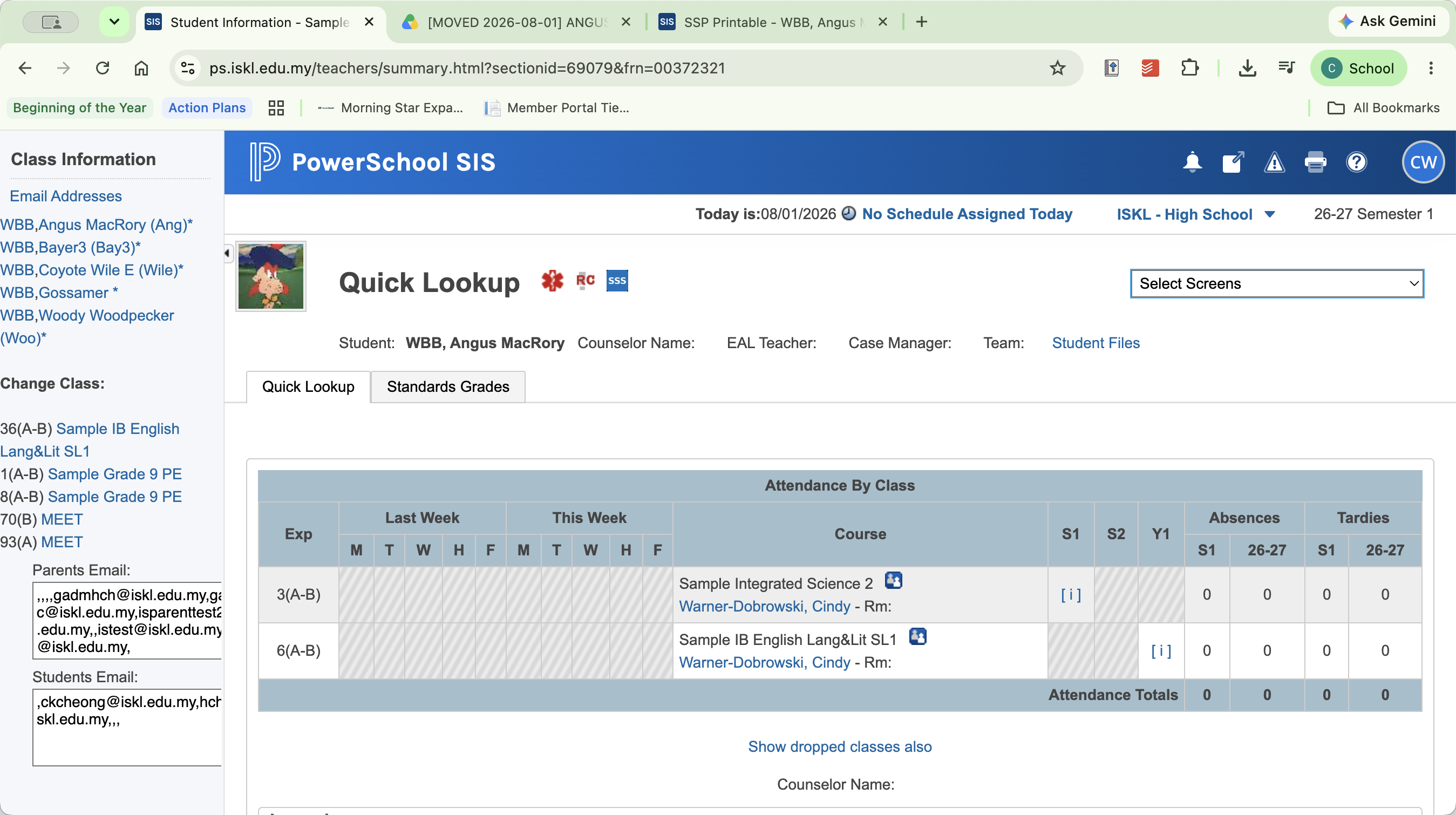
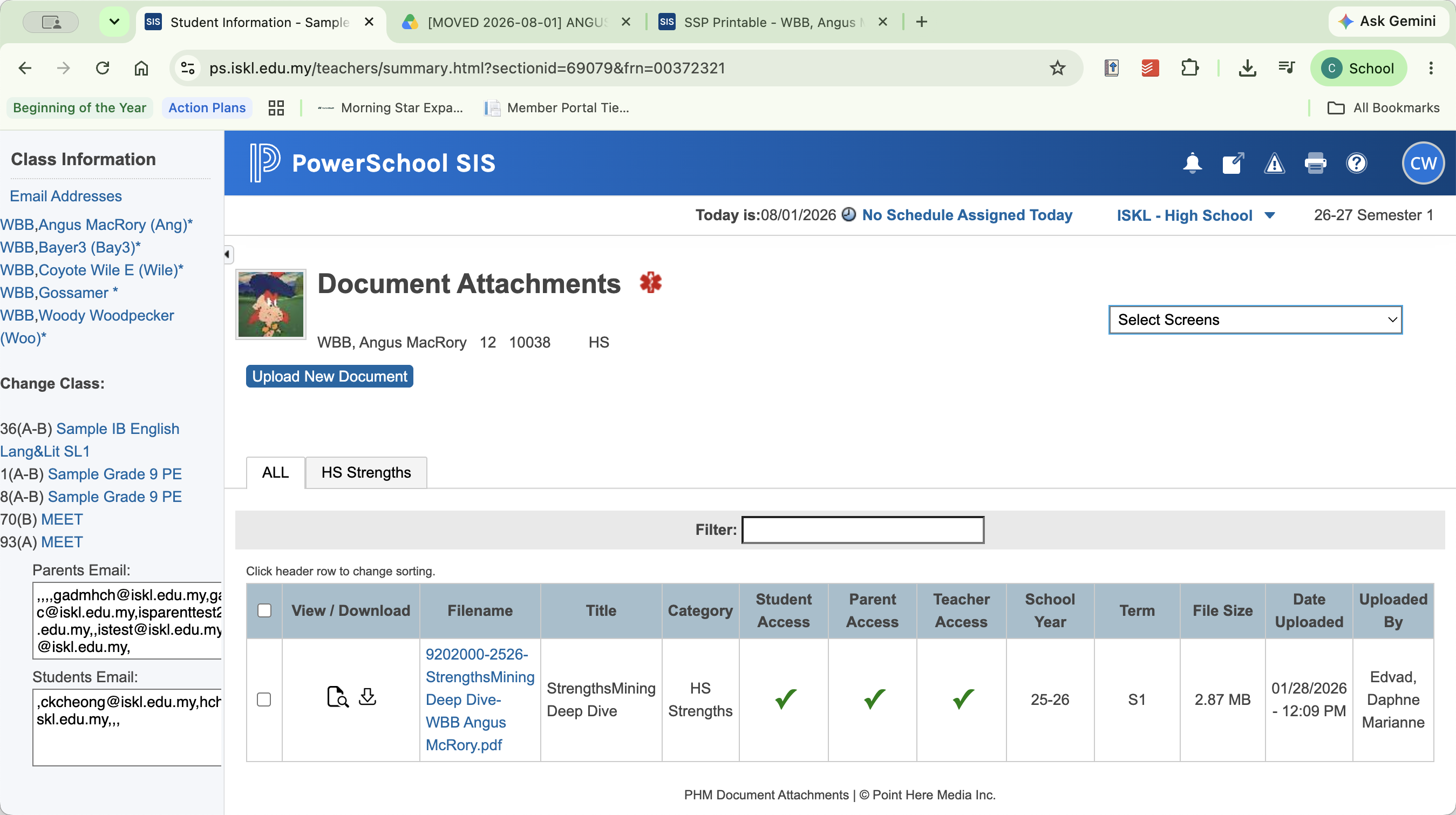
Method 4: Document Attachments
Use this section to find older historical documents previously stored in PowerSchool Special Programs.
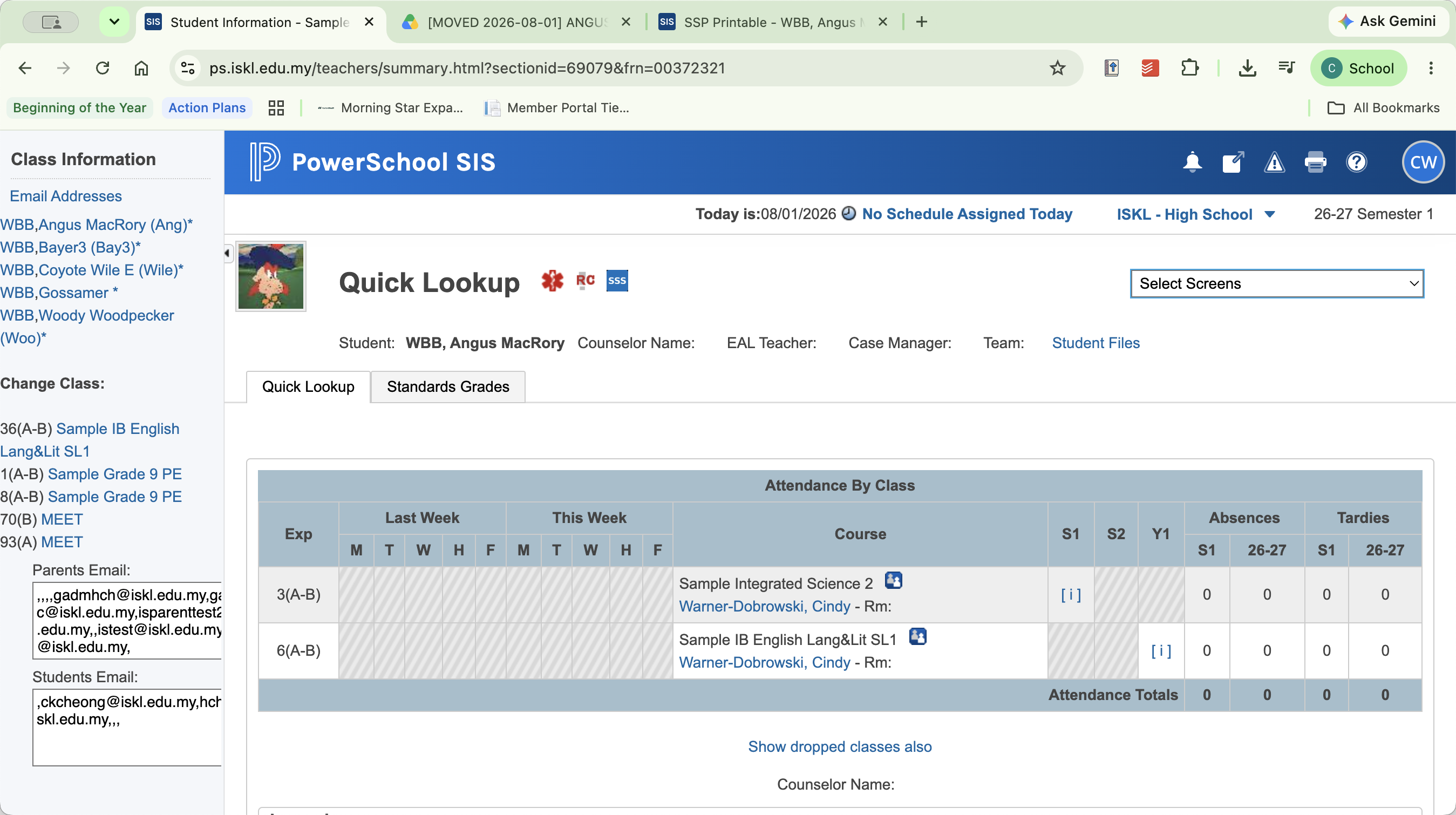
Method 5: Student Snapshot
The snapshot offers an expandable overview of the varying tiers of service a student receives.
Q: Why are accommodations only showing for high school students?
A: Currently, accommodations are only visible in high school profiles. Starting in October, they will be available for all students across divisions who have accommodation plans and SSPs.
Q: What does an asterisk (*) next to a student's name signify?
A: An asterisk indicates that the student currently receives support services.
Q: Do I need to request access to a student's Google Drive files?
A: No. The share settings for the confidential Student Files folder are automatically managed by PowerSchool based on whether the student is enrolled in your section.
Q: Where can I find older evaluation reports or consent forms?
A: All historical documents that were previously stored in the old PowerSchool Special Programs system are now uploaded under Document Attachments in the student's profile.
Term | Definition |
|---|---|
SSS | Students with Support Services; indicates a student receives additional educational support. |
SSP | Student Services Plan; a detailed outline of the support and accommodations a student receives. |
EAL | English as an Additional Language; support services provided to non-native English speakers. |
WIDA | A standardized language proficiency assessment used to measure English language development for EAL students. |
MTSS | Multi-Tiered System of Supports; a framework used to provide targeted support to students (e.g., beyond Tier 1). |
LR | Learning Resource; a type of specialized academic support or intervention service. |