
Flat Files Video 1 -Bulk Update Amazon Listings Using Flat Files
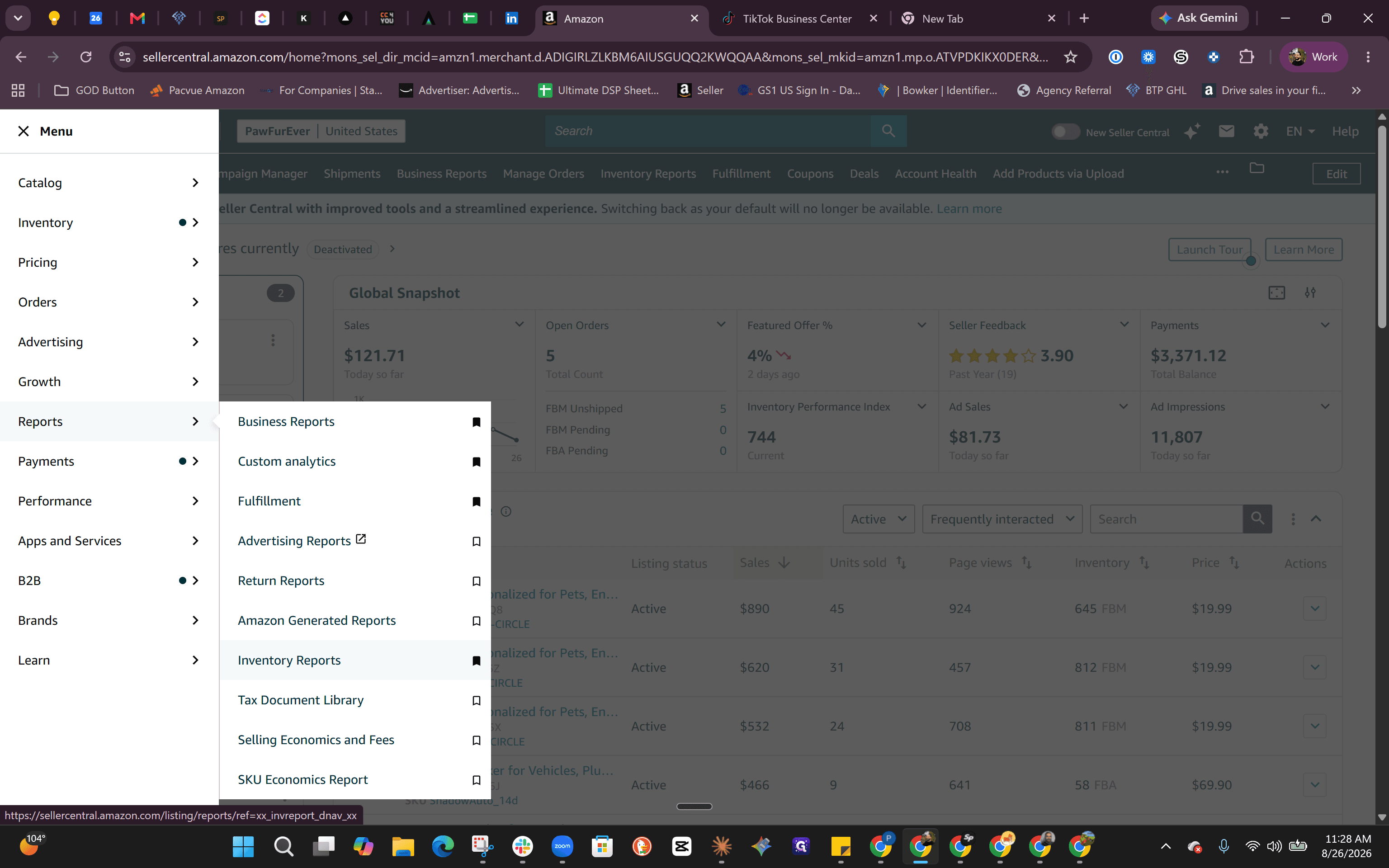
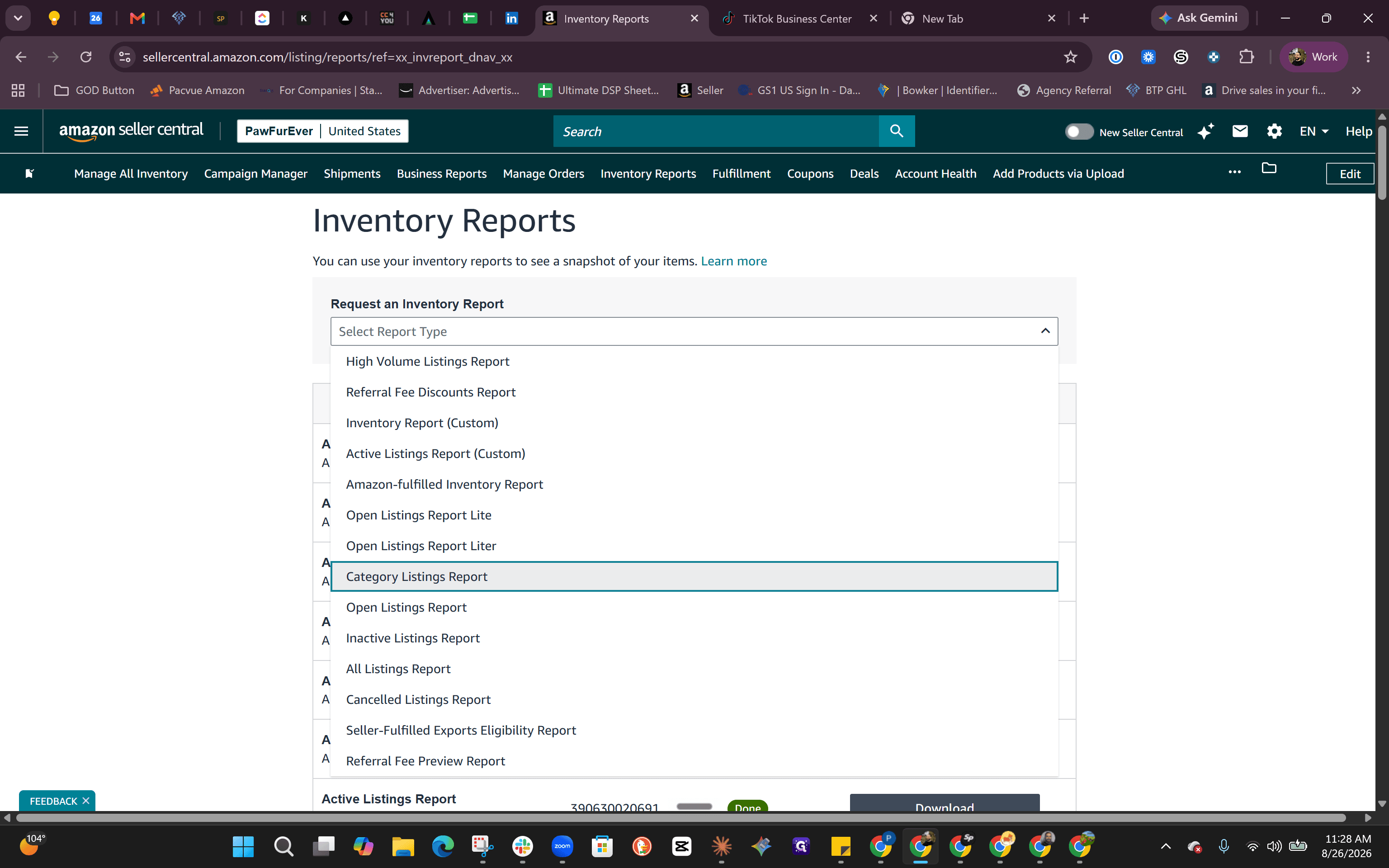
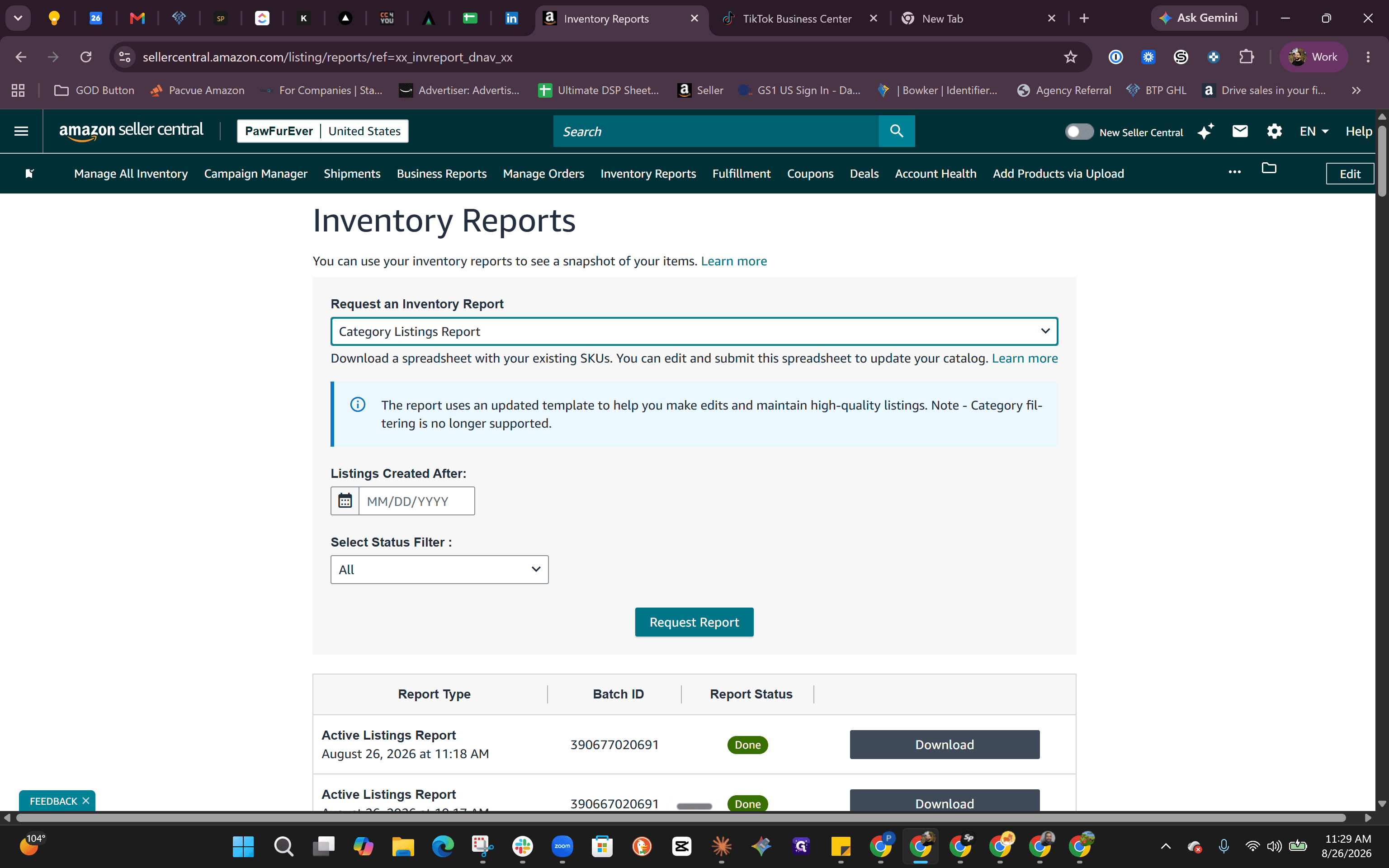
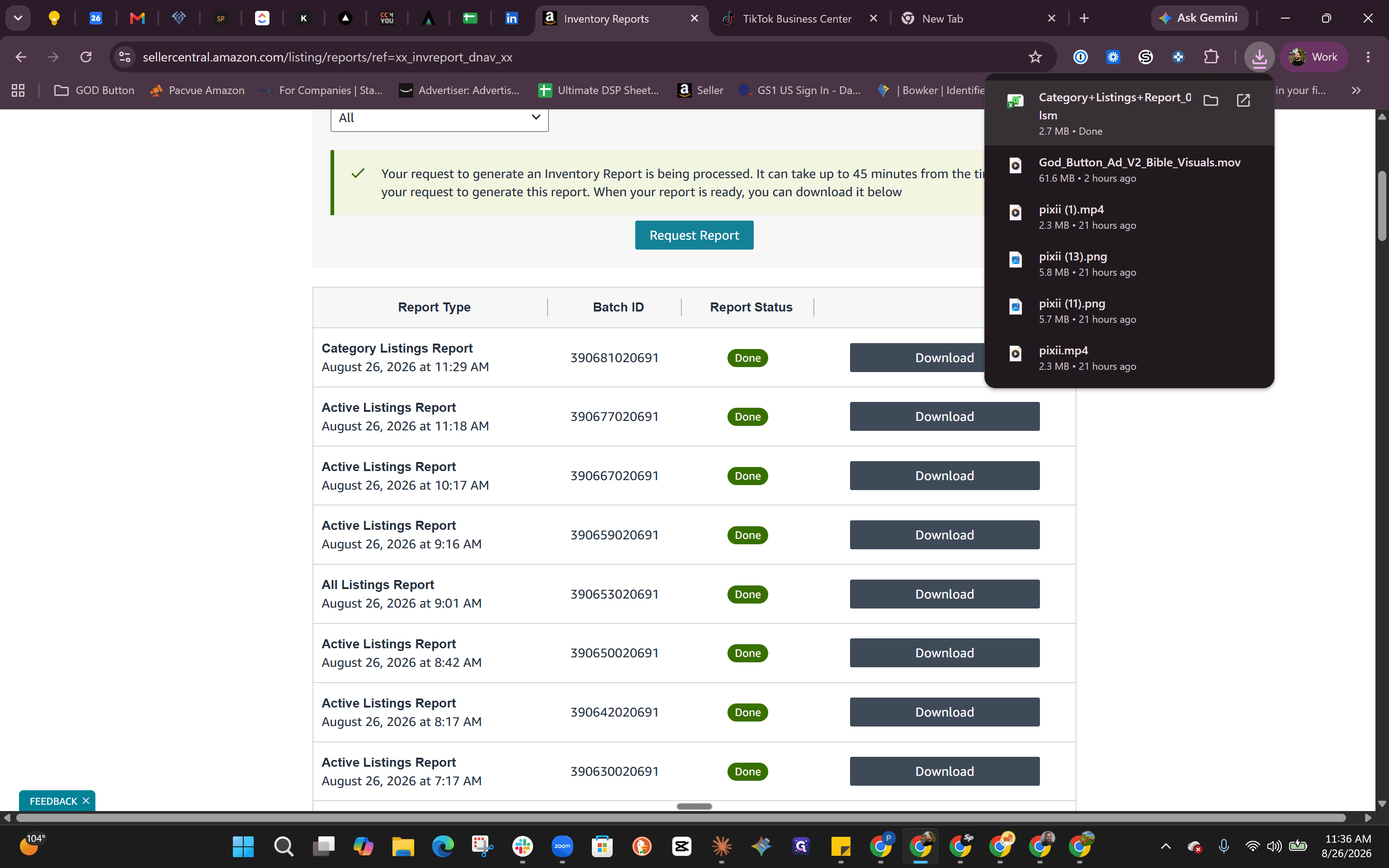
Learn how to export a Category Listings Report from Amazon Seller Central, filter items in Excel, update attributes in bulk, and save as a TSV flat file.
This guide walks through exporting existing catalog data from Amazon Seller Central via a Category Listings Report flat file, modifying product attributes in bulk, and saving the updated file for upload.
This workflow applies to Amazon sellers, e-commerce brand managers, and catalog specialists needing to make large-scale updates to existing product titles, highlights, or variation structures.
Exporting the Category Listings Report
When updating products that already exist in your Amazon catalog, downloading a Category Listings Report allows you to pull all existing back-end attributes directly from Amazon and reverse-engineer your changes rather than building a flat file from scratch.
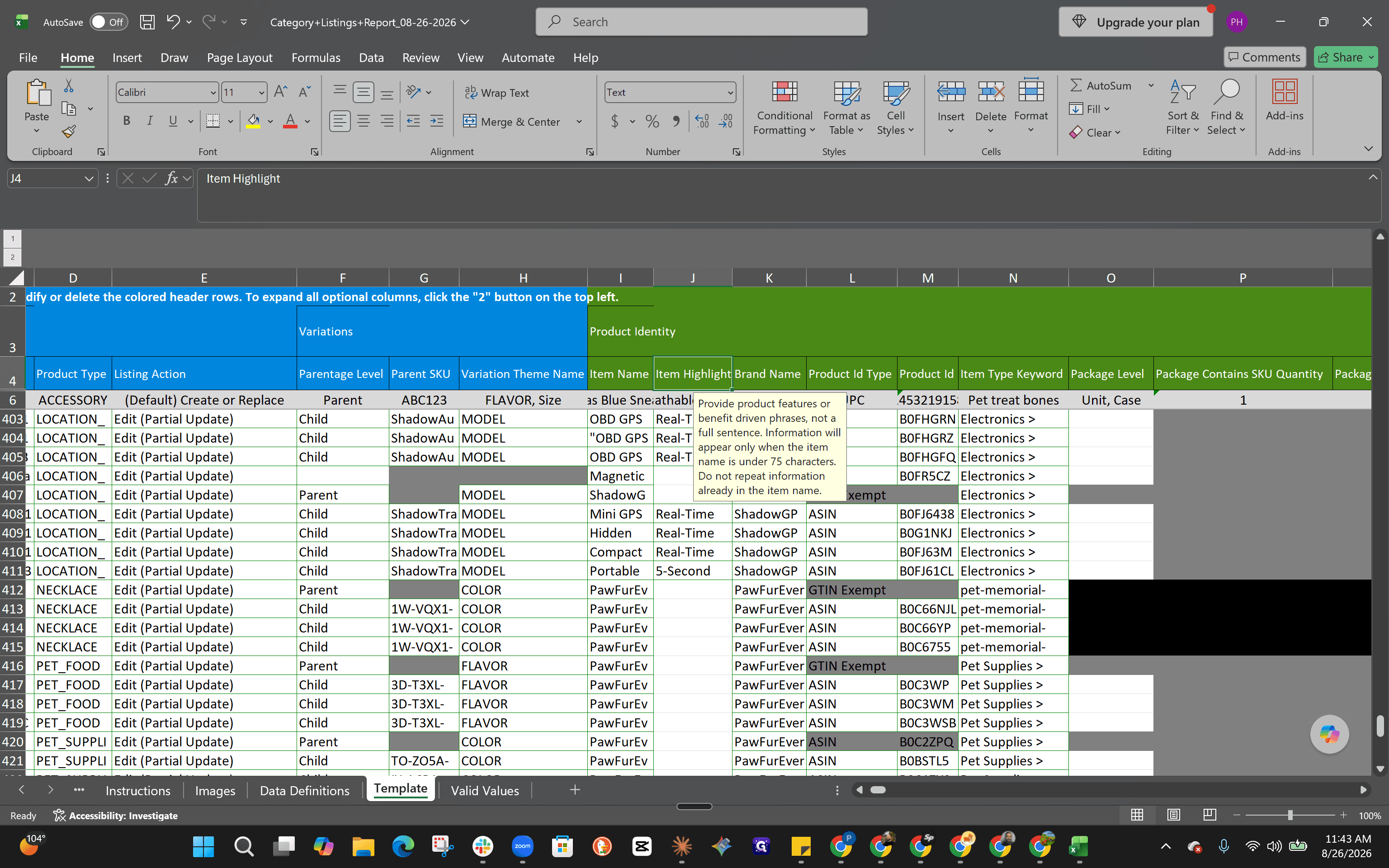
Reviewing Flat File Structure & Attributes
Open the downloaded workbook in Microsoft Excel to inspect the catalog attributes and variation structures.
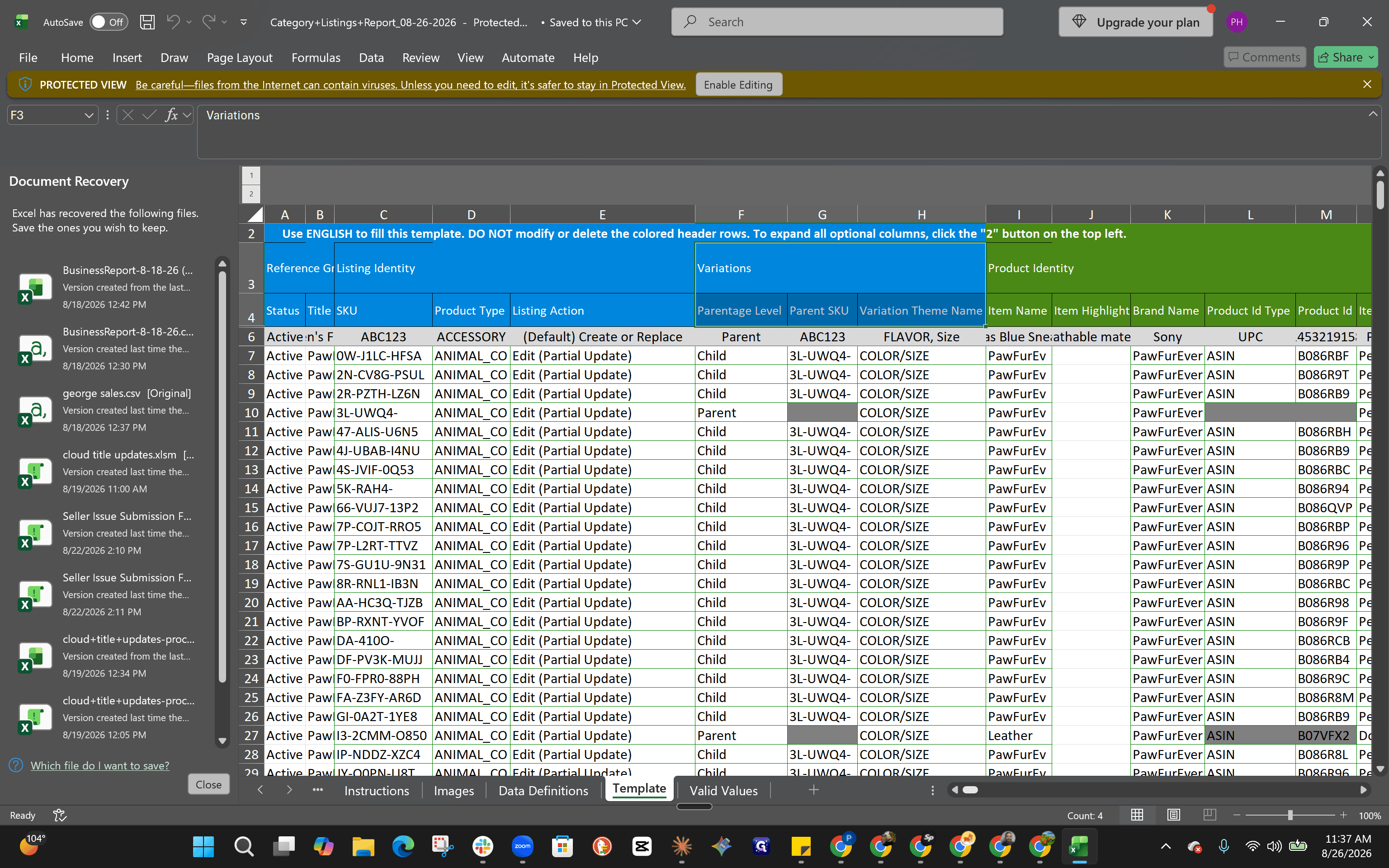
Key Attribute Fields
Attribute | Column Header | Description |
|---|---|---|
Parentage Level |
| Identifies whether the row is a |
Variation Theme |
| Specifies the variation dimension (e.g., |
Product Type |
| Amazon's classification category for the product (e.g., |
Item Type Keyword |
| The browse node path that dictates where the product is mapped in Amazon's storefront catalog. |
Item Name |
| The customer-facing product title. |
Item Highlight |
| Key product bullet points and features. |
Filtering Target SKUs
Because the exported report contains the entire account catalog across multiple product types and brands, use Excel filters to isolate the specific products requiring updates.
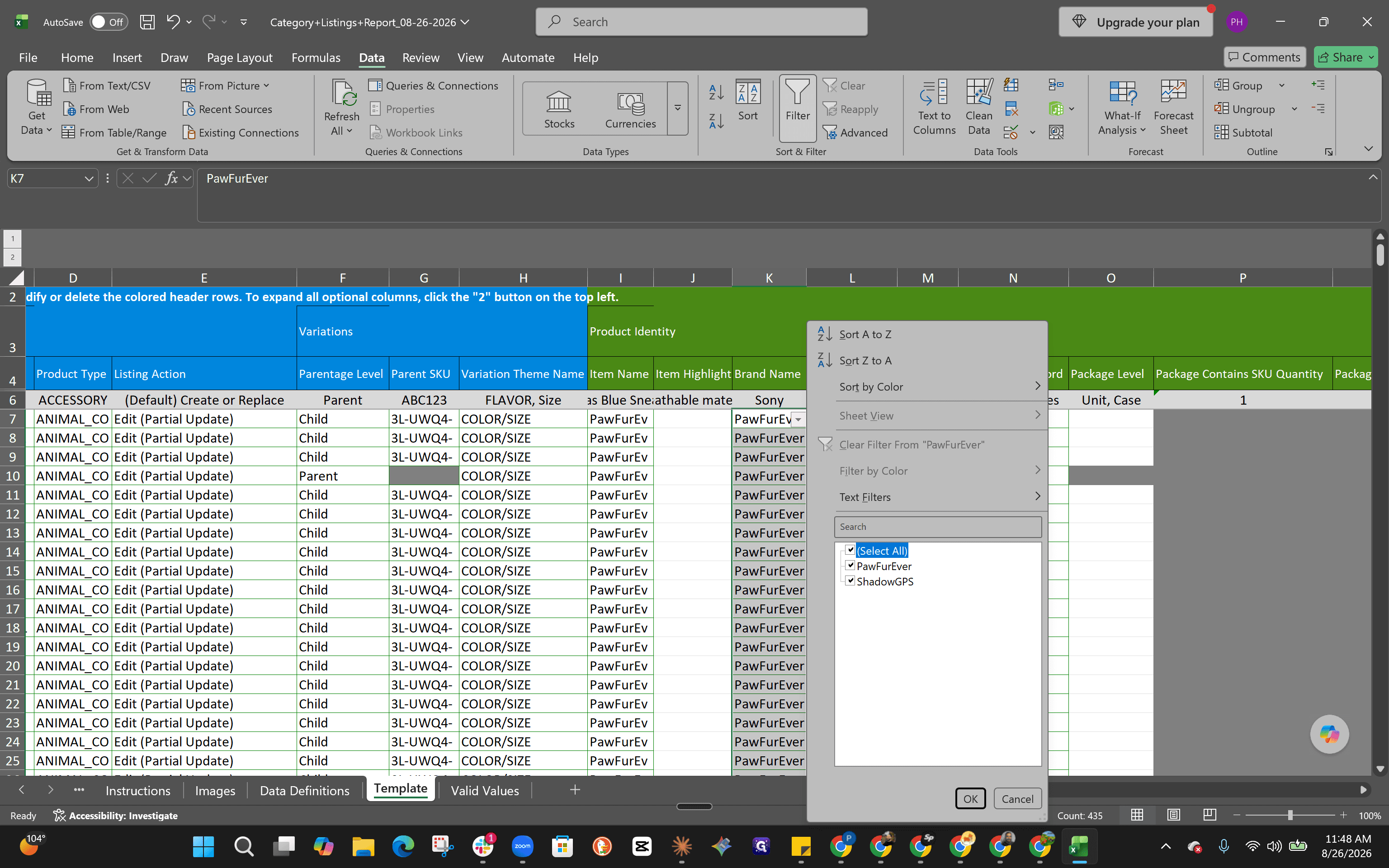
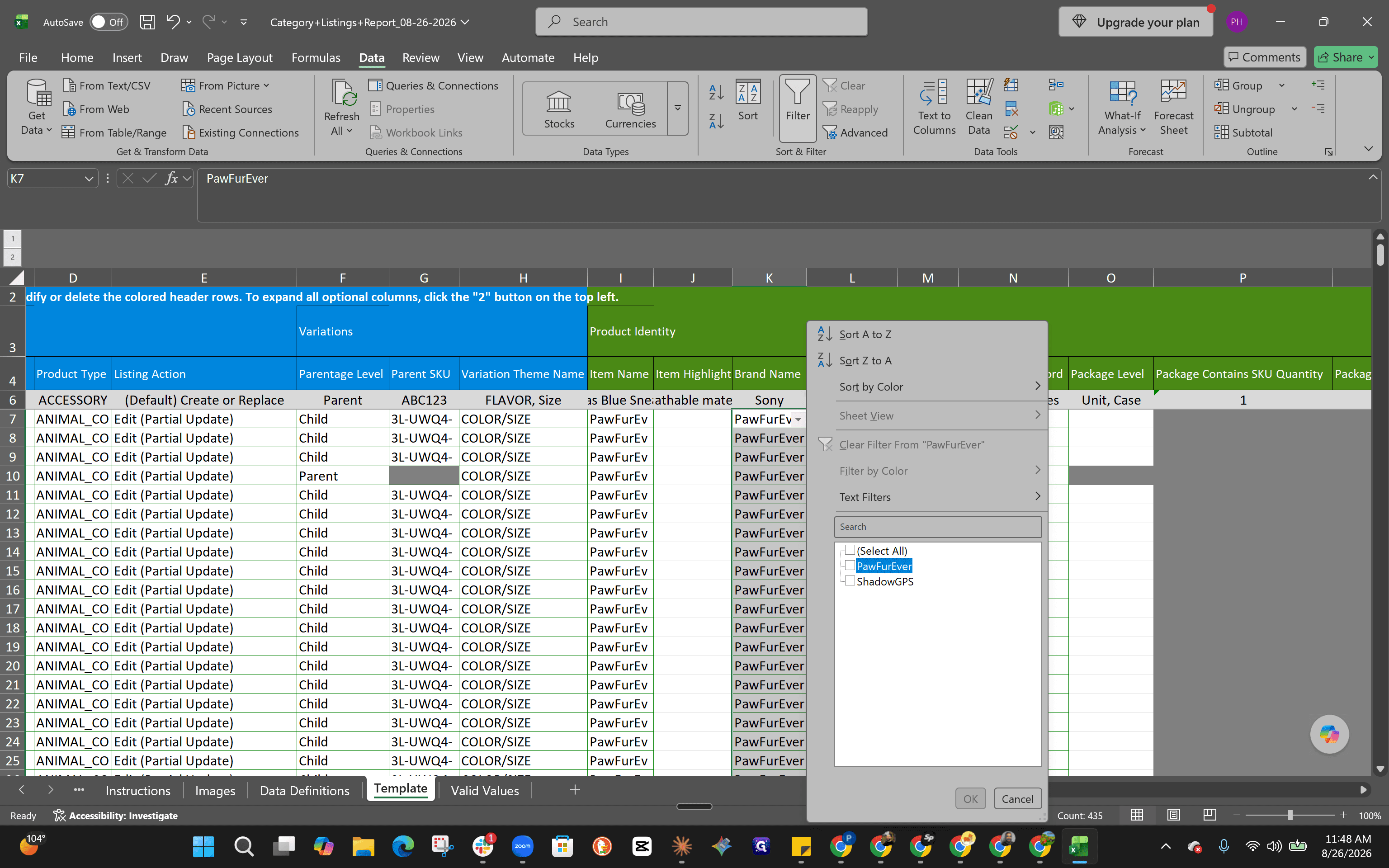
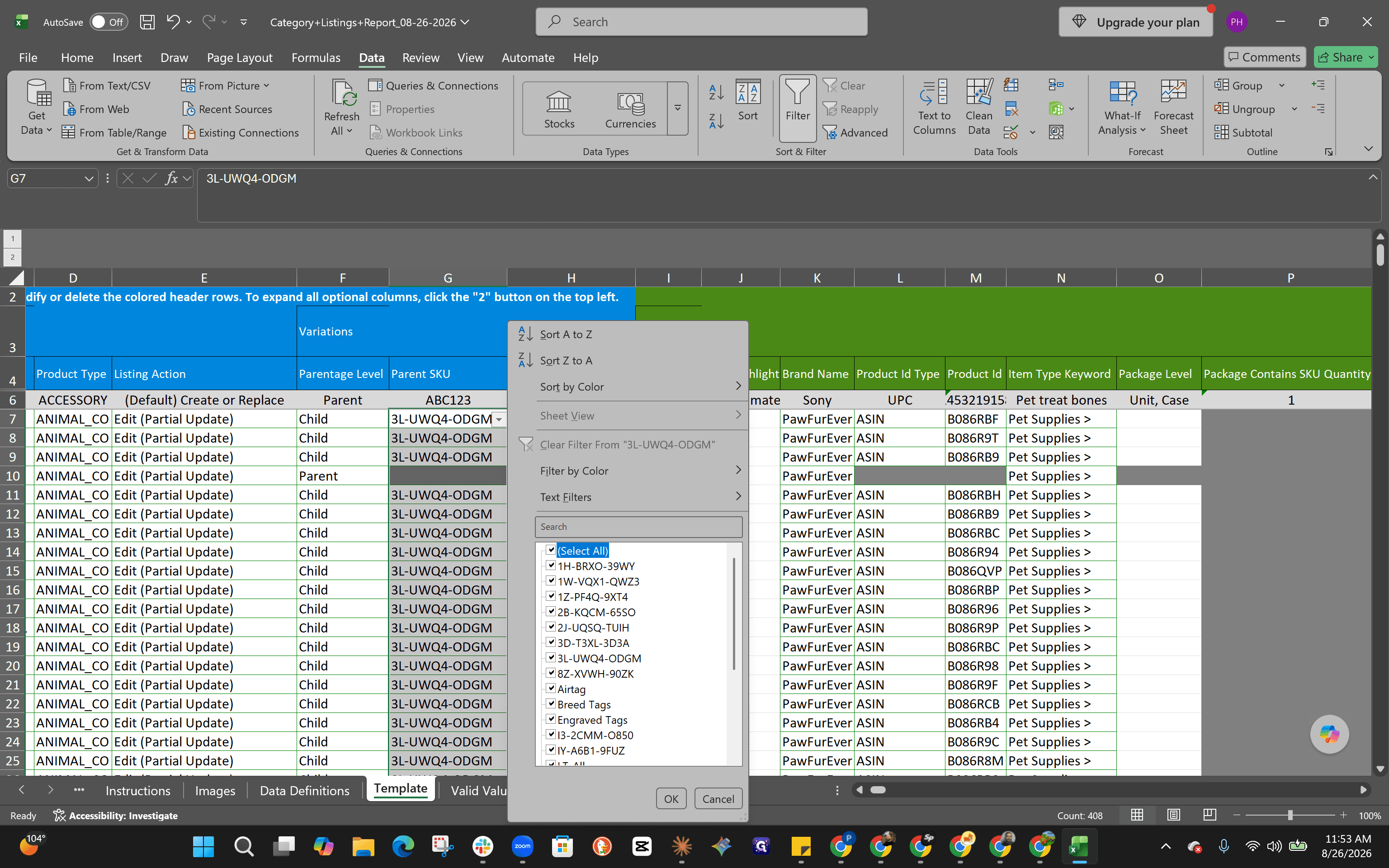
3L-UWQ4-ODGM) to display only the child variations belonging to that family.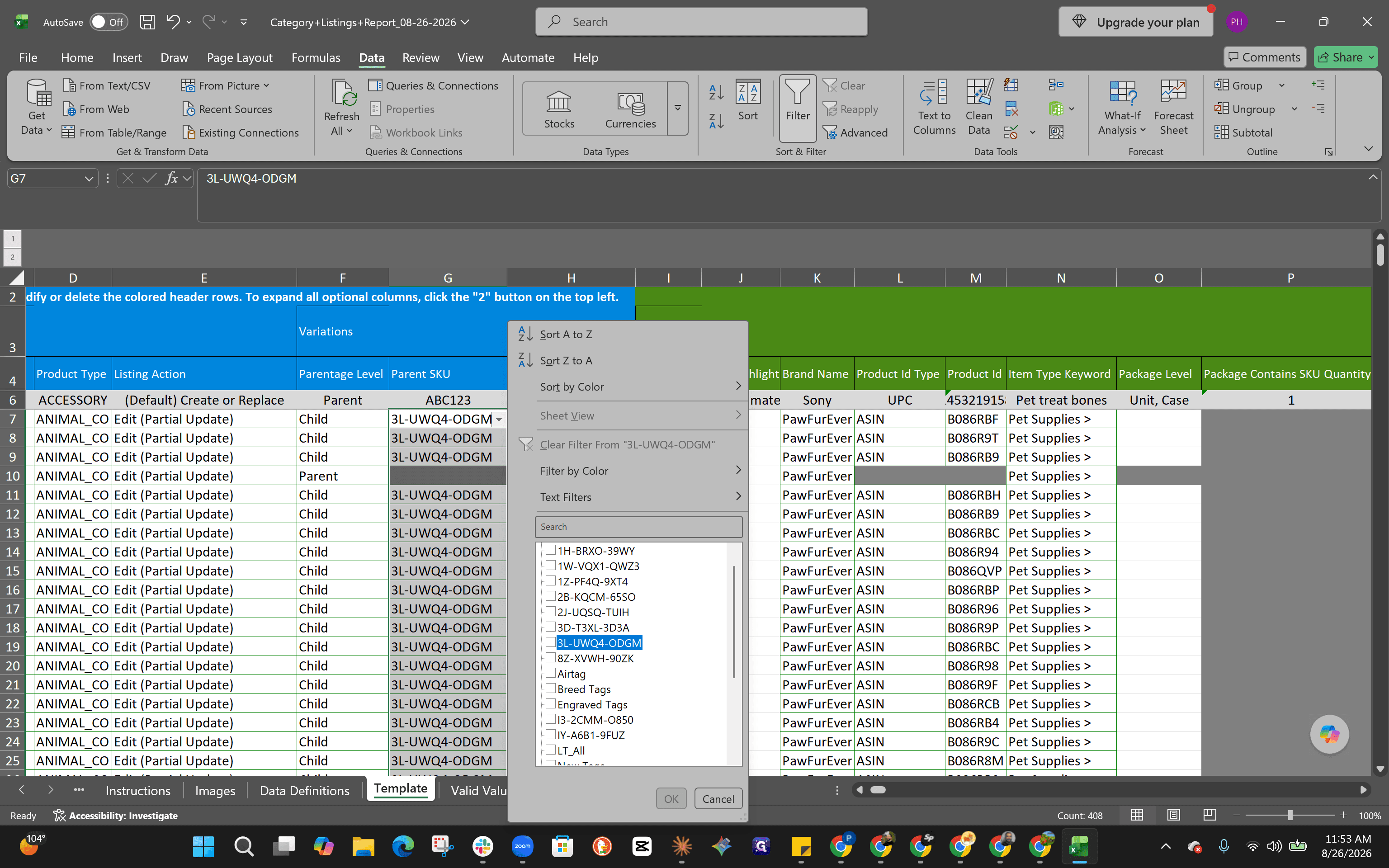
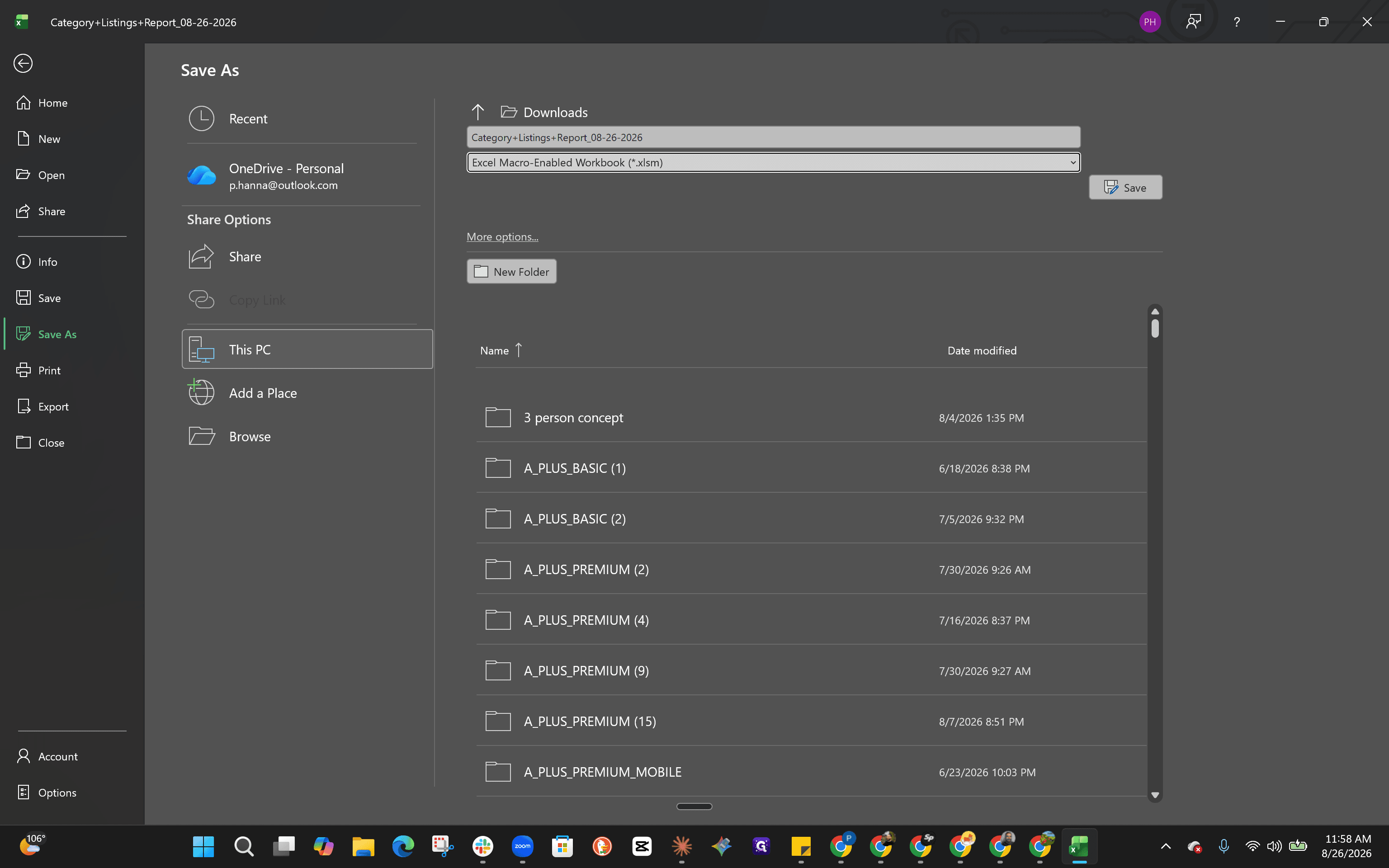
Updating Content and Saving the File
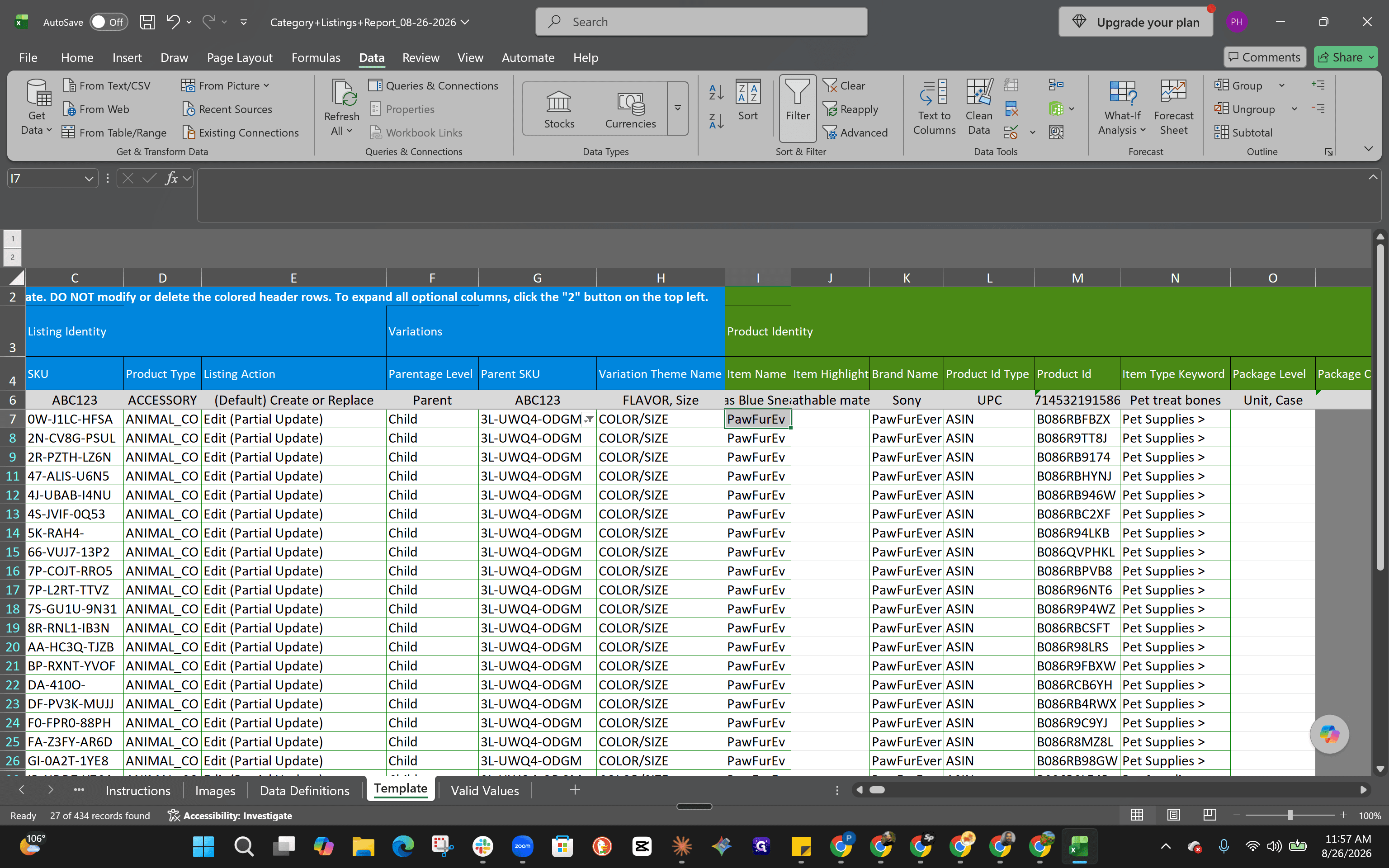
After filtering to the target products, apply your title and feature updates.
Q: Why should I download a Category Listings Report instead of starting with a blank template?
A: Downloading an existing Category Listings Report pulls your live catalog data and back-end attribute values directly from Amazon. This allows you to modify existing values without having to fill in every required attribute from scratch.
Q: What is the difference between Product Type and Item Type Keyword (ITK)?
A: Product Type determines the attribute schema and category classification provided by Amazon, while the Item Type Keyword (ITK) functions as the browse node path placing the listing into the correct customer-facing department.
Q: How do I isolate all child ASINs that belong to a specific parent listing?
A: Filter the Parent SKU column in your spreadsheet to display the parent SKU identifier, which filters the sheet down to the corresponding family of child variations.
Q: What file format should be used when saving flat files for bulk upload?
A: Flat files should be saved as a tab-delimited text file (TSV/TXT) to ensure compatibility with Amazon's bulk upload processing.
Term | Definition |
|---|---|
Category Listings Report | An inventory report exported from Amazon Seller Central containing all active product data and back-end attributes for your catalog. |
Flat File | A spreadsheet template used to create, manage, and update multiple Amazon listings simultaneously in bulk. |
Item Type Keyword (ITK) | A standardized category code that maps an Amazon listing to a specific browse node or storefront aisle. |
Parent SKU | A non-buyable placeholder SKU used to group multiple child variation listings together under a single detail page. |
Child ASIN | A buyable product variation that differs by specific attributes (such as color or size) linked under a parent listing. |