Icon

Funnel - WBI Planner Walkthrough Guide

Learn how to test the Wealth By Intention planning block funnel, from event registration and VIP checkout to pipeline management and planner delivery.

By Mary-Jane Marcos

This guide demonstrates how to test the full user journey of the Wealth By Intention webinar funnel. You will learn how to submit a test registration, navigate the VIP planner upsell, complete the checkout process, and manually trigger the digital fulfillment email via the CRM pipeline.

This guide is intended for funnel managers and administrators who need to verify event registrations, payment processing, and email delivery workflows before launching the campaign.

Accessing the Funnel
1
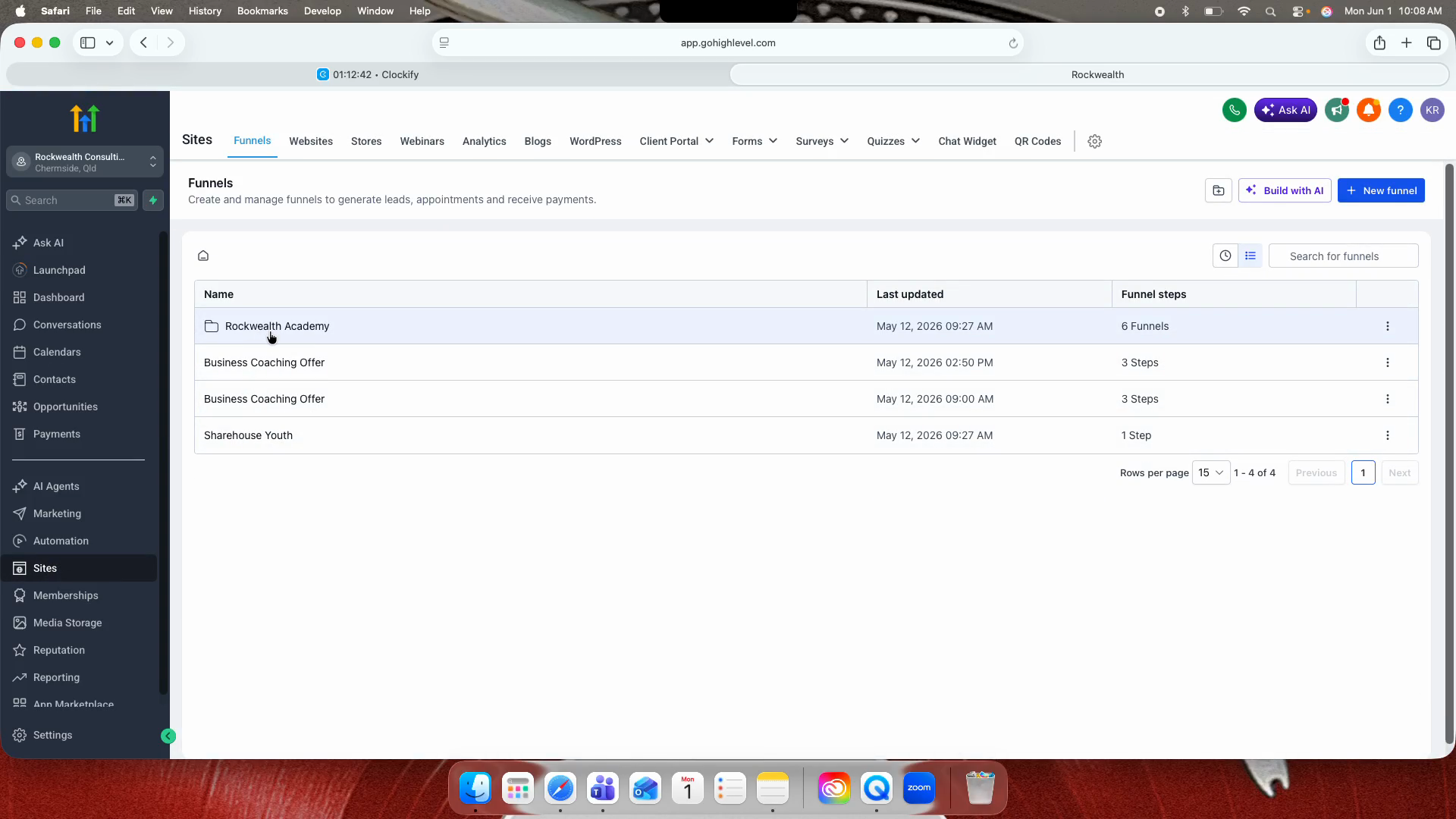
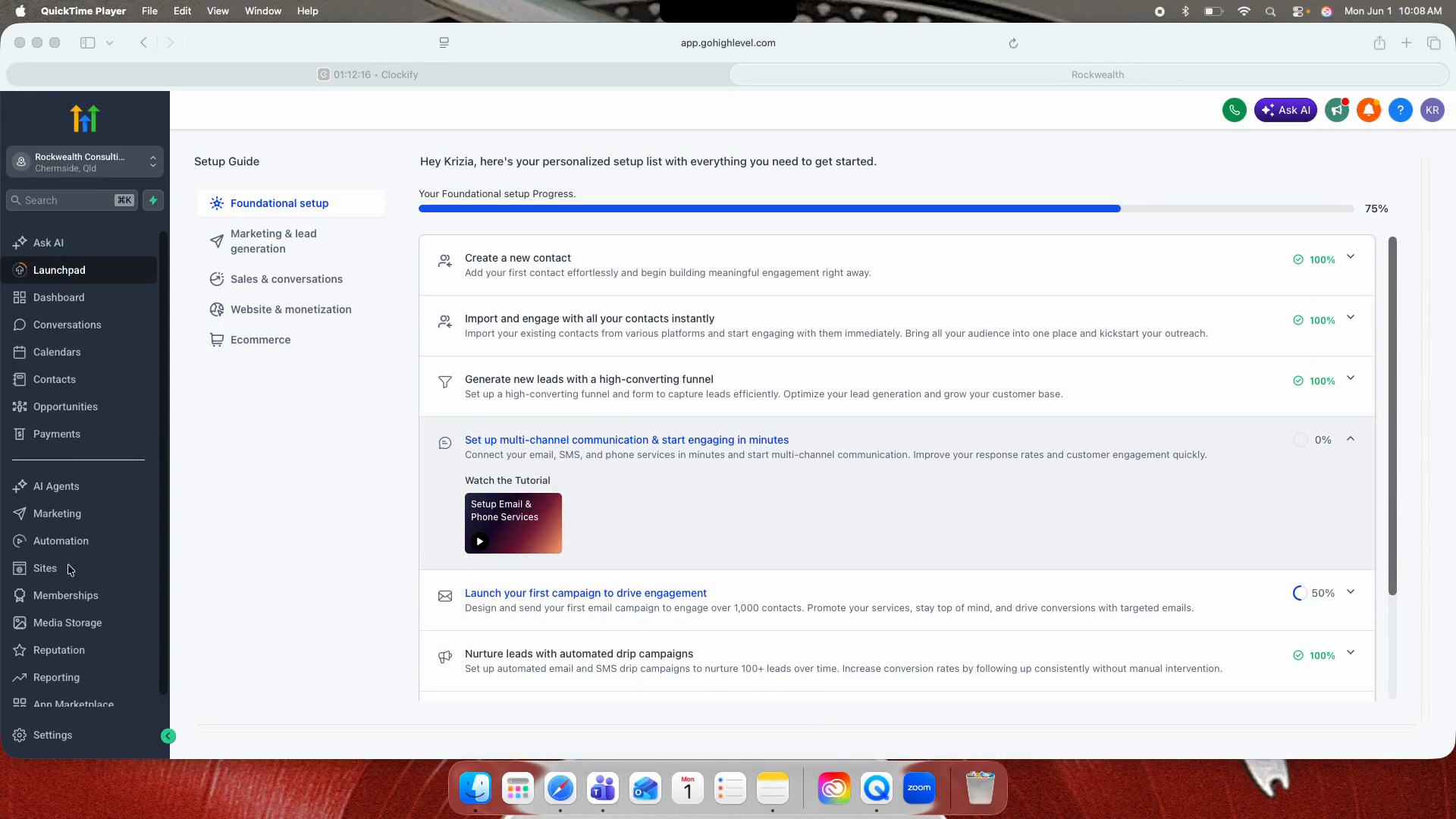
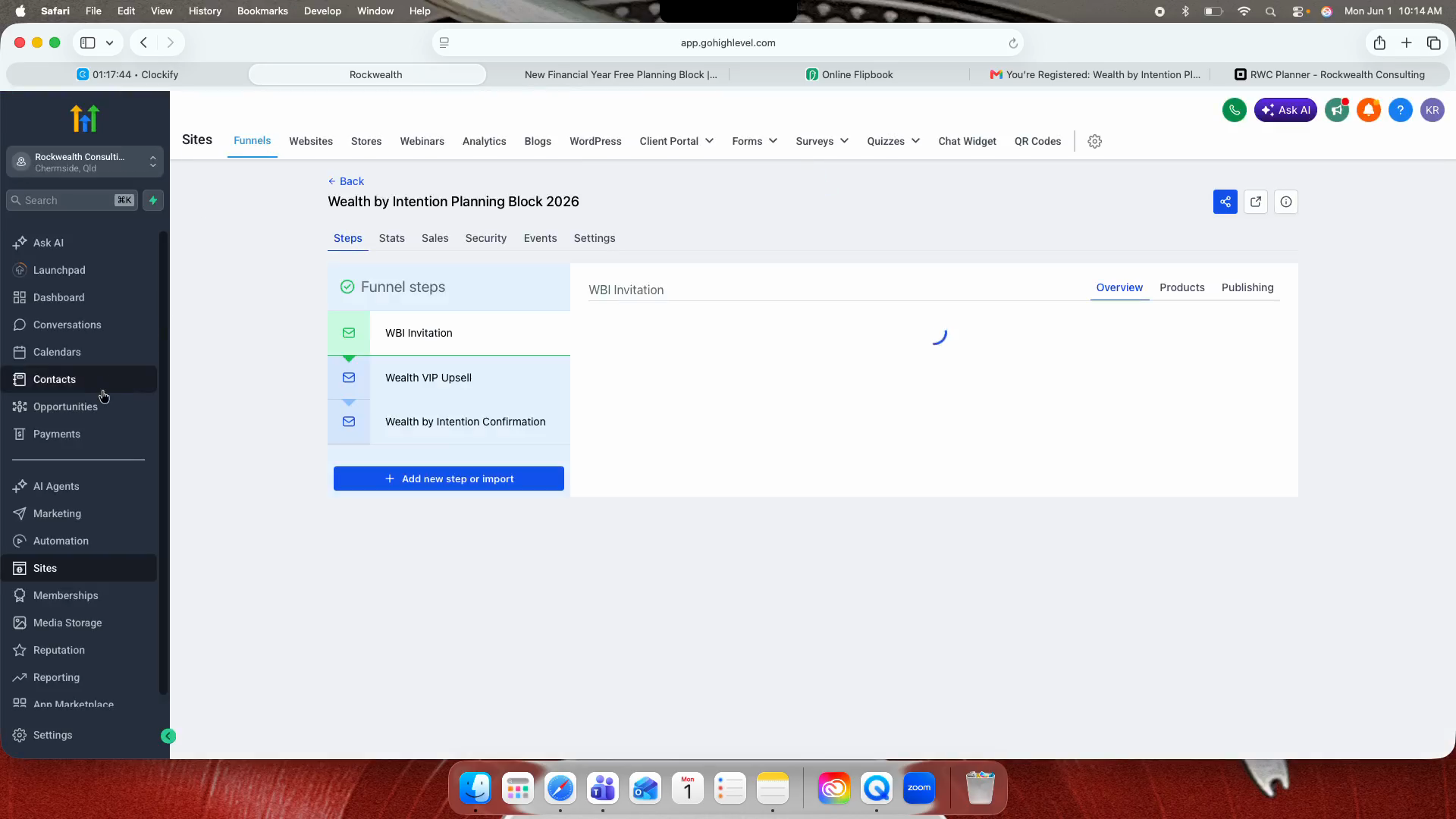
Click Sites in the left-hand navigation menu.
Step #1: Click Sites in the left-hand navigation menu.
2
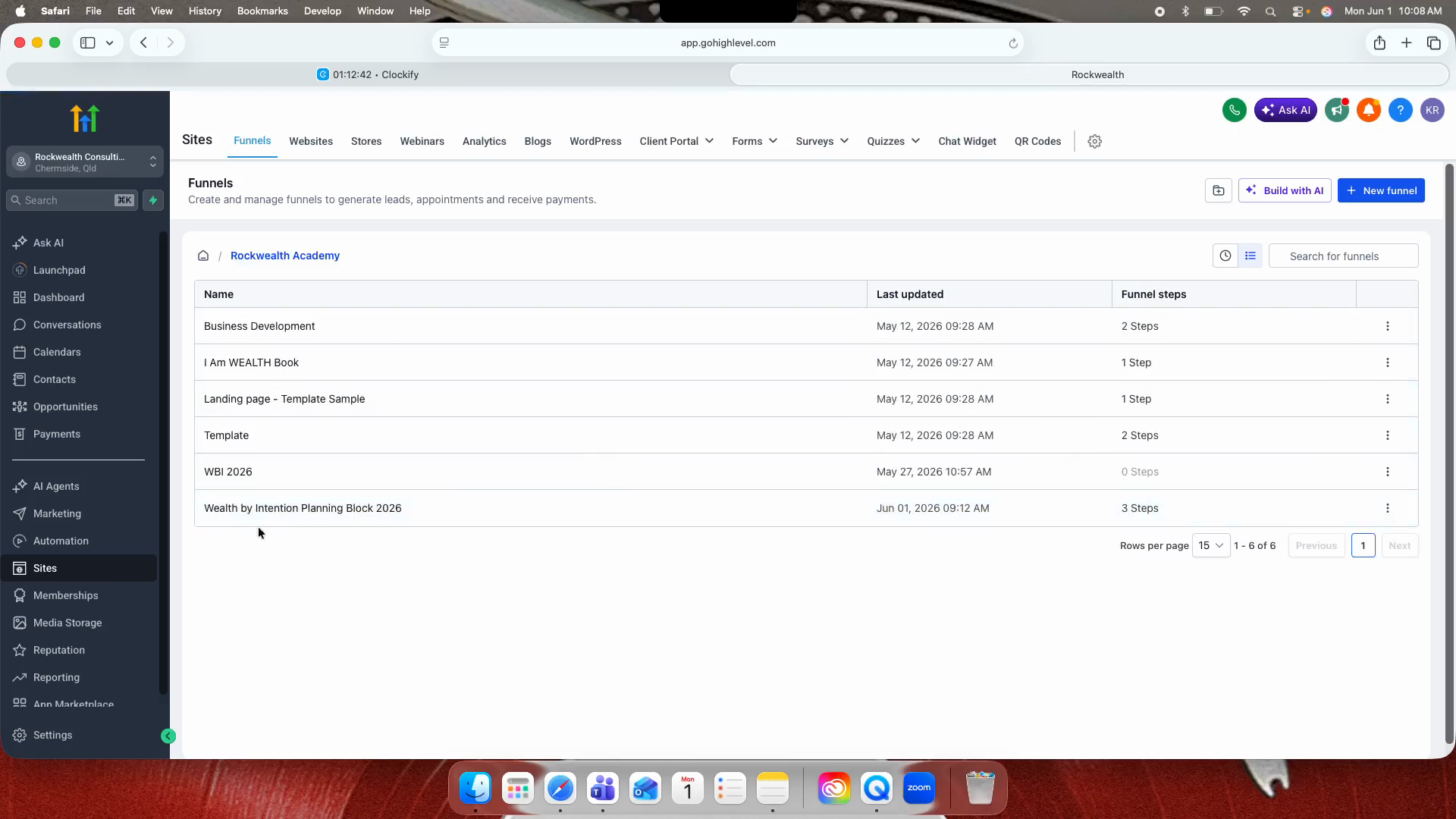
Open the Rockwealth Academy folder under the Funnels section.
Step #2: Open the Rockwealth Academy folder under the Funnels section.
3
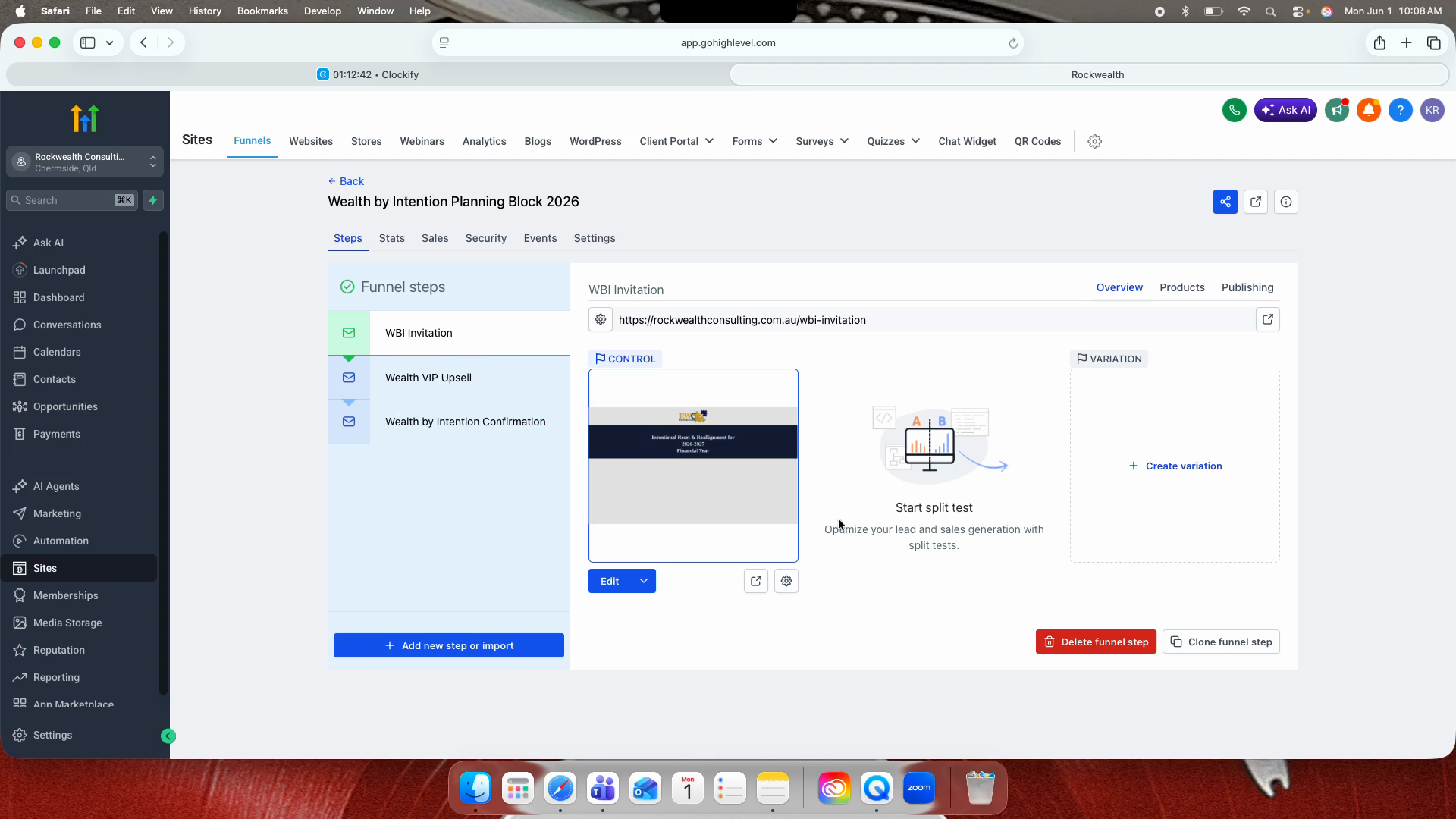
Select Wealth by Intention Planning Block 2026.
Step #3: Select Wealth by Intention Planning Block 2026.
4
On the Invitation Page step, click Edit.
Step #4: On the Invitation Page step, click Edit.
5
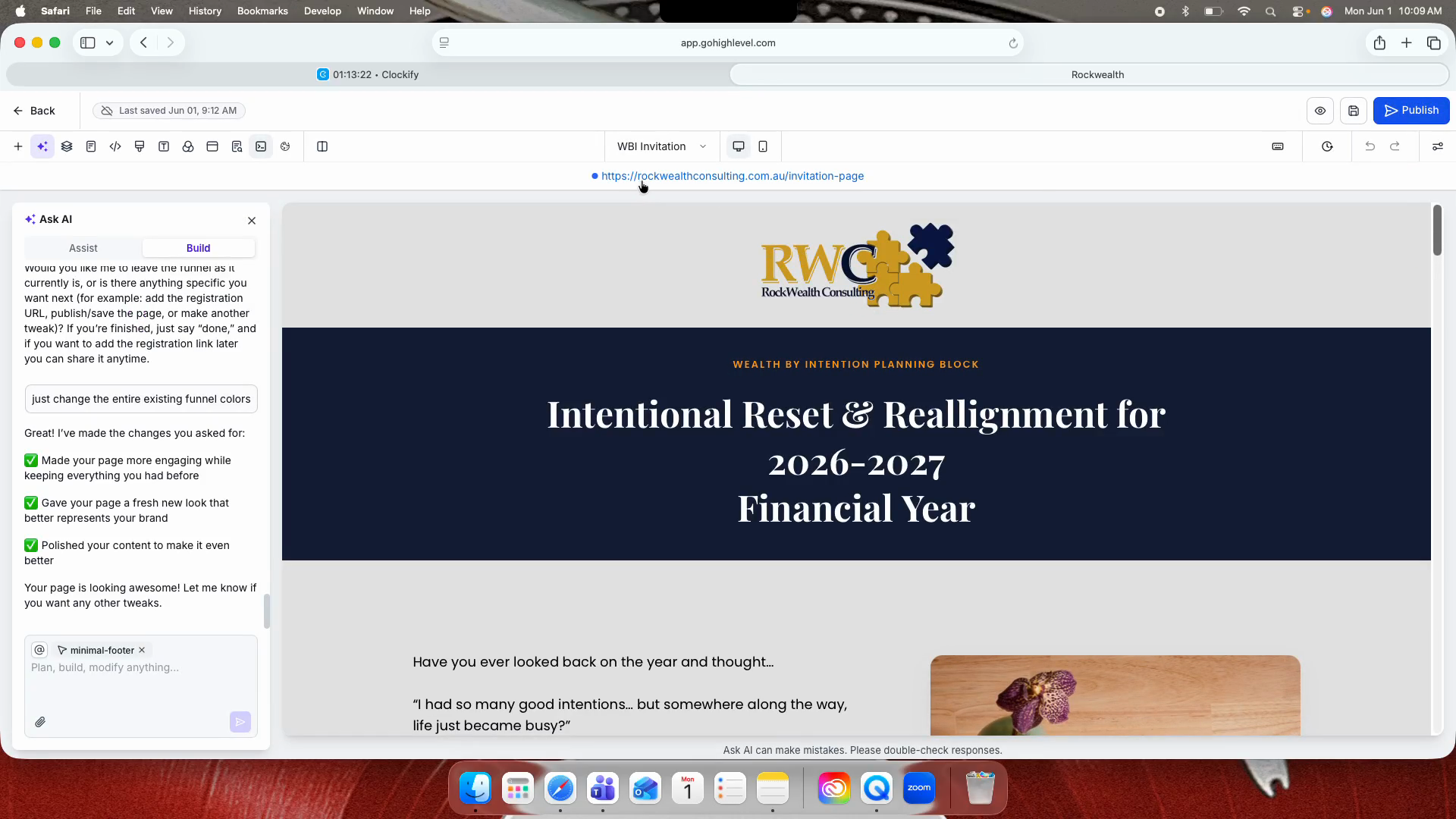
Click the publish URL link to view the live landing page.
Step #5: Click the publish URL link to view the live landing page.

Submitting the Registration

6
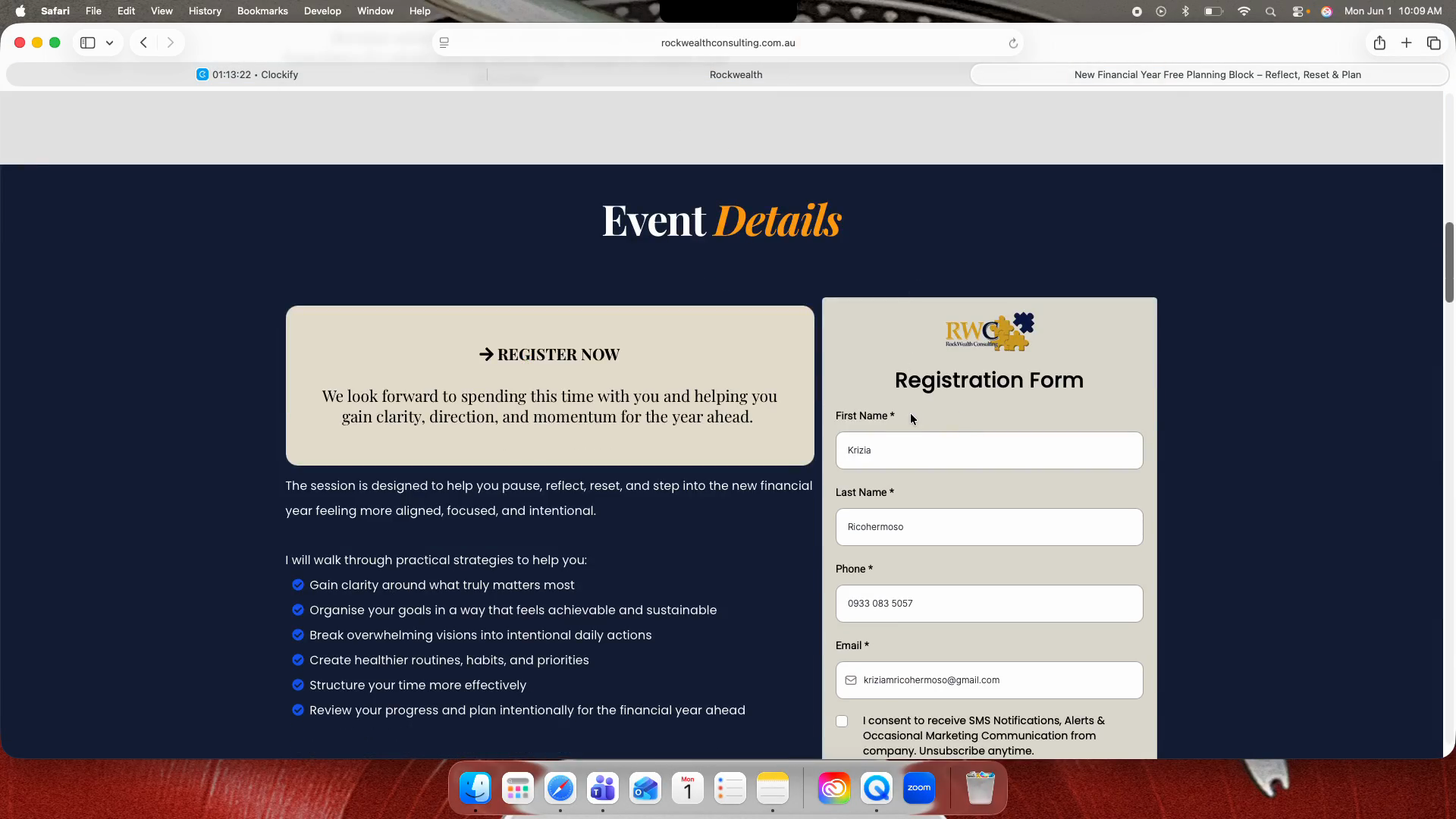
Scroll to the event details and fill out the registration form with your information.
Step #6: Scroll to the event details and fill out the registration form with your information.
7
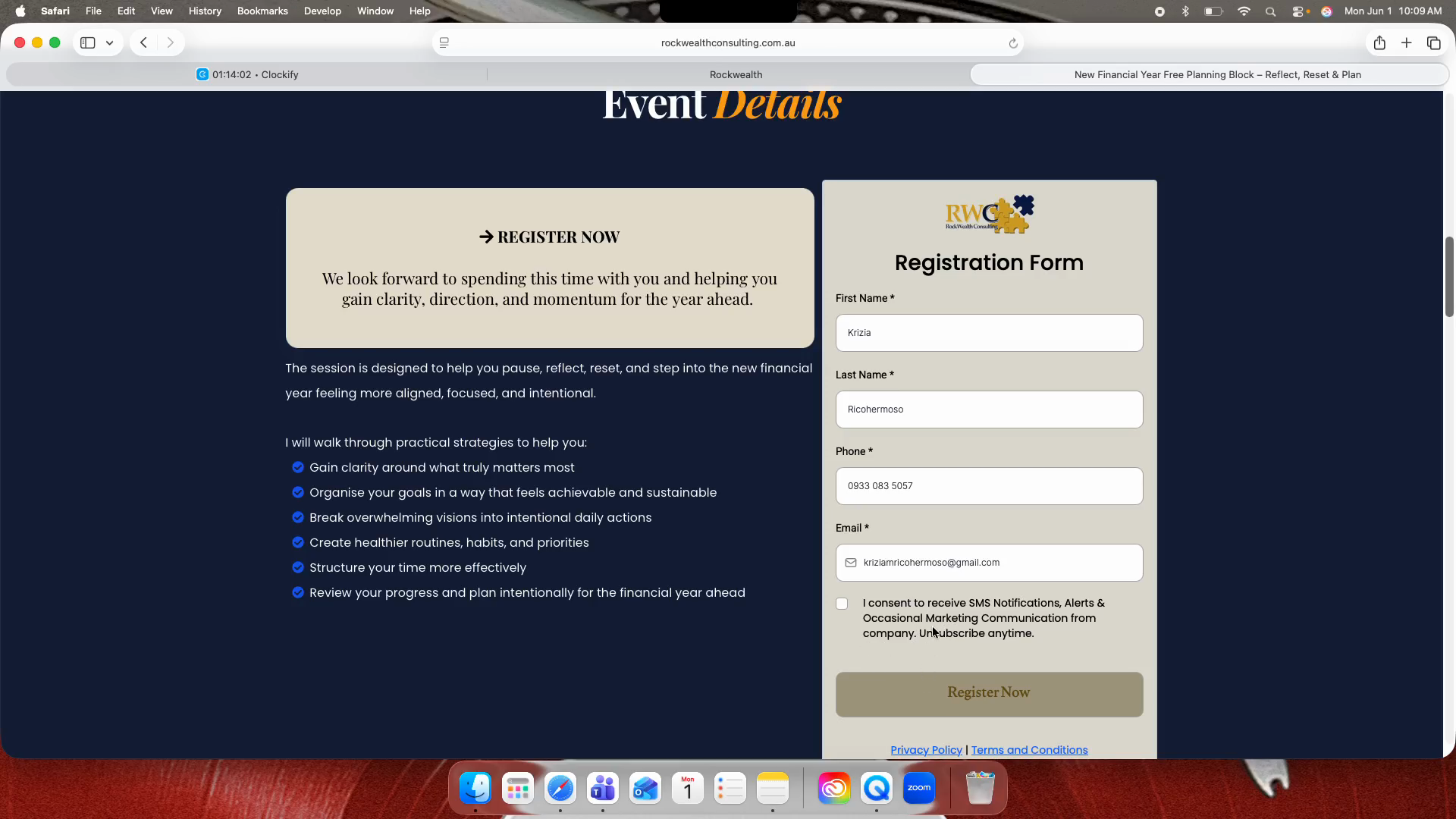
Check the consent box to agree to receive SMS notifications and marketing communications.
Step #7: Check the consent box to agree to receive SMS notifications and marketing communications.
8
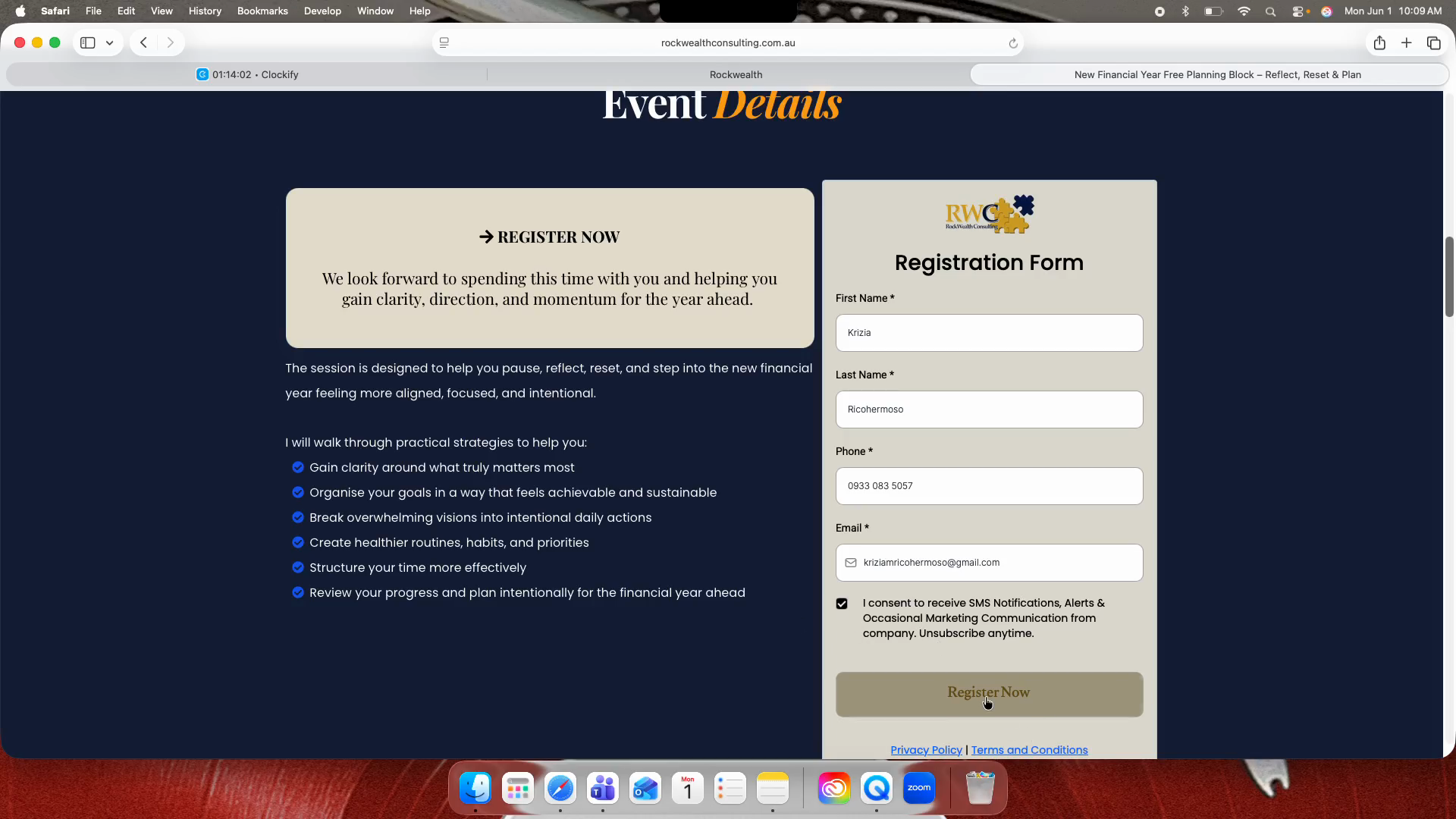
Click Register Now to submit the form.
Step #8: Click Register Now to submit the form.

Navigating the VIP Upsell

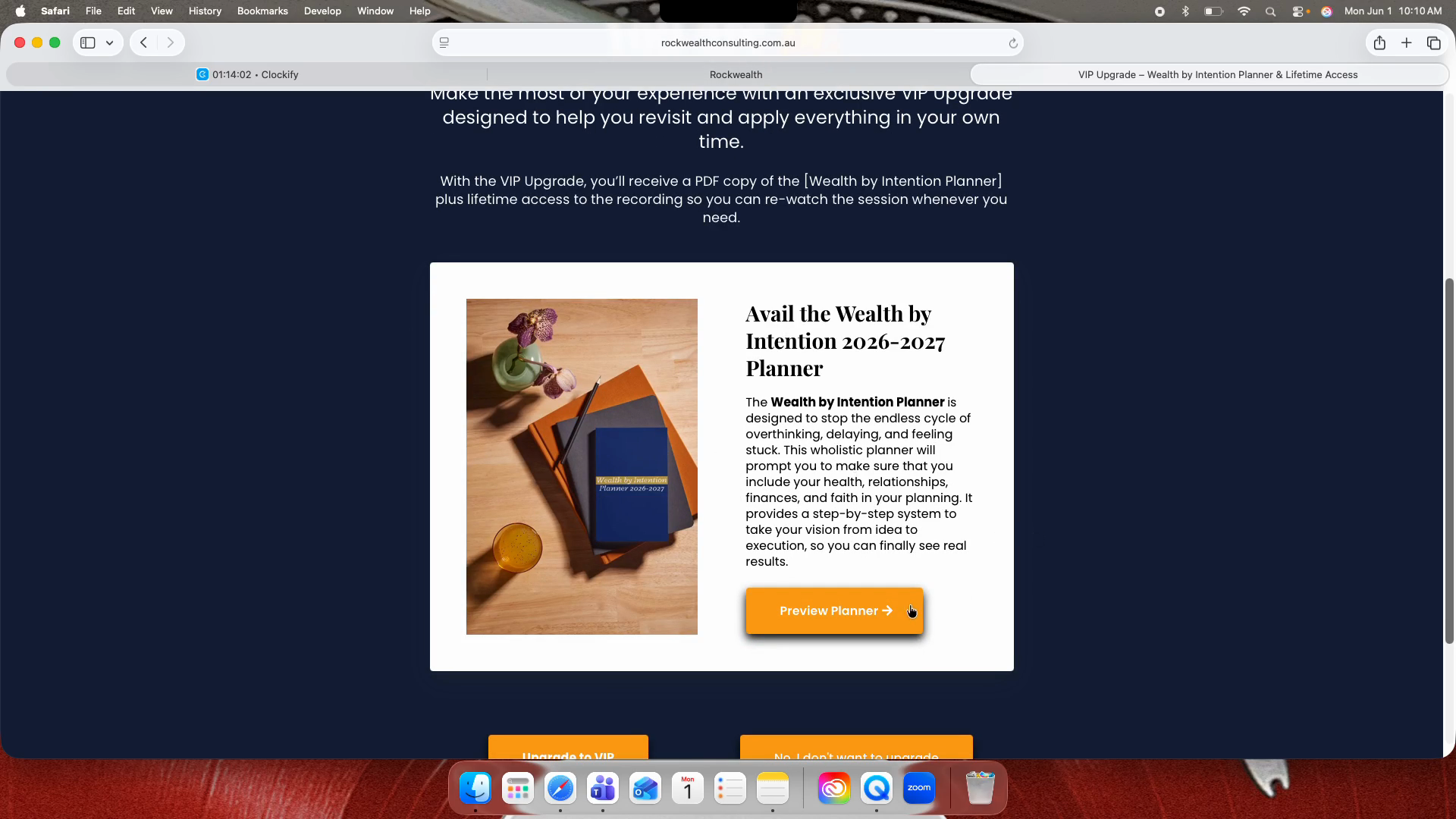
After registering, you are redirected to the VIP Upsell page offering the 2026-2027 Planner. You have three choices on this page:

Option

Action

Outcome

Preview Planner

Click Preview Planner

Opens a read-only flipbook of the planner layout. The preview cannot be downloaded or printed.

Upgrade to VIP

Click Upgrade to VIP

Redirects you to the shop checkout page to purchase the digital planner.

Decline Upgrade

Click No, I don't want to upgrade

Routes you to the standard confirmation page. You will receive the webinar recording but no planner.

Previewing the Planner

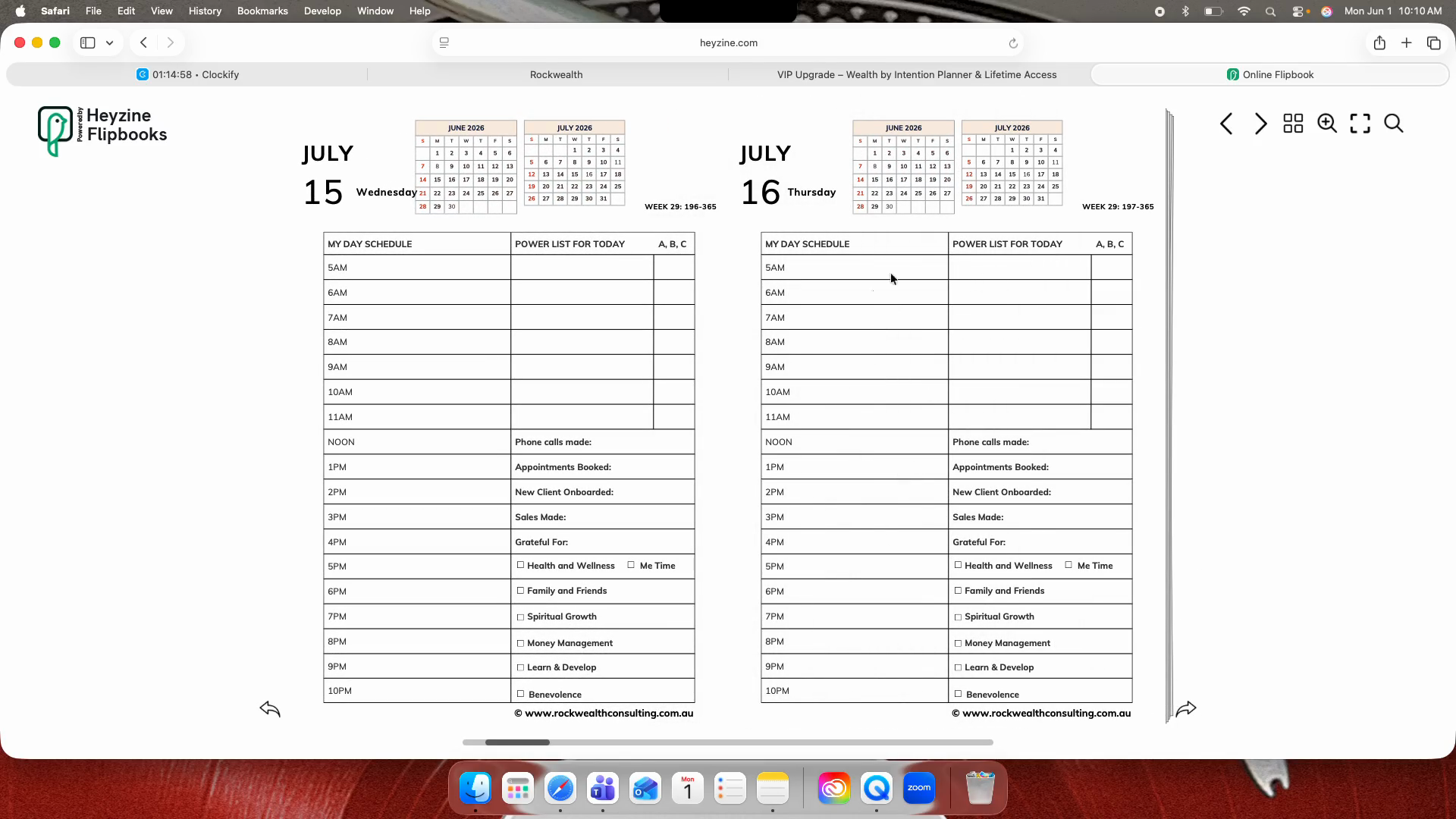
9
Click Preview Planner to view the document layout.
Step #9: Click Preview Planner to view the document layout.
10
Review the July 2026 to June 2027 spread.
11
Note that this preview version cannot be downloaded or printed.
12
Return to the funnel page.
Step #12: Return to the funnel page.
13
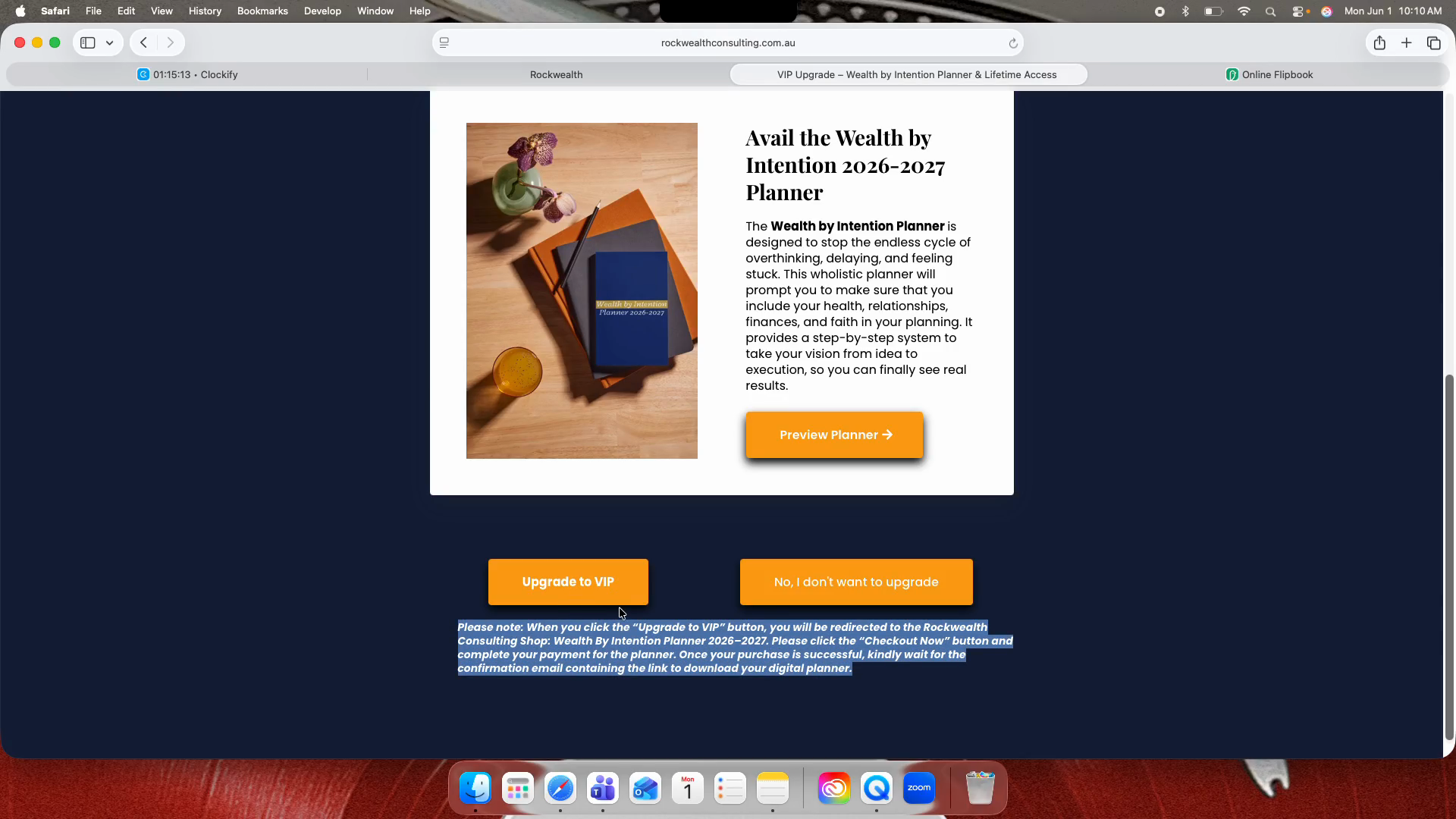
Scroll to the bottom of the page to read the upgrade instructions.
14
Review the upgrade details before making a decision.

Path 1: Purchasing the VIP Upgrade
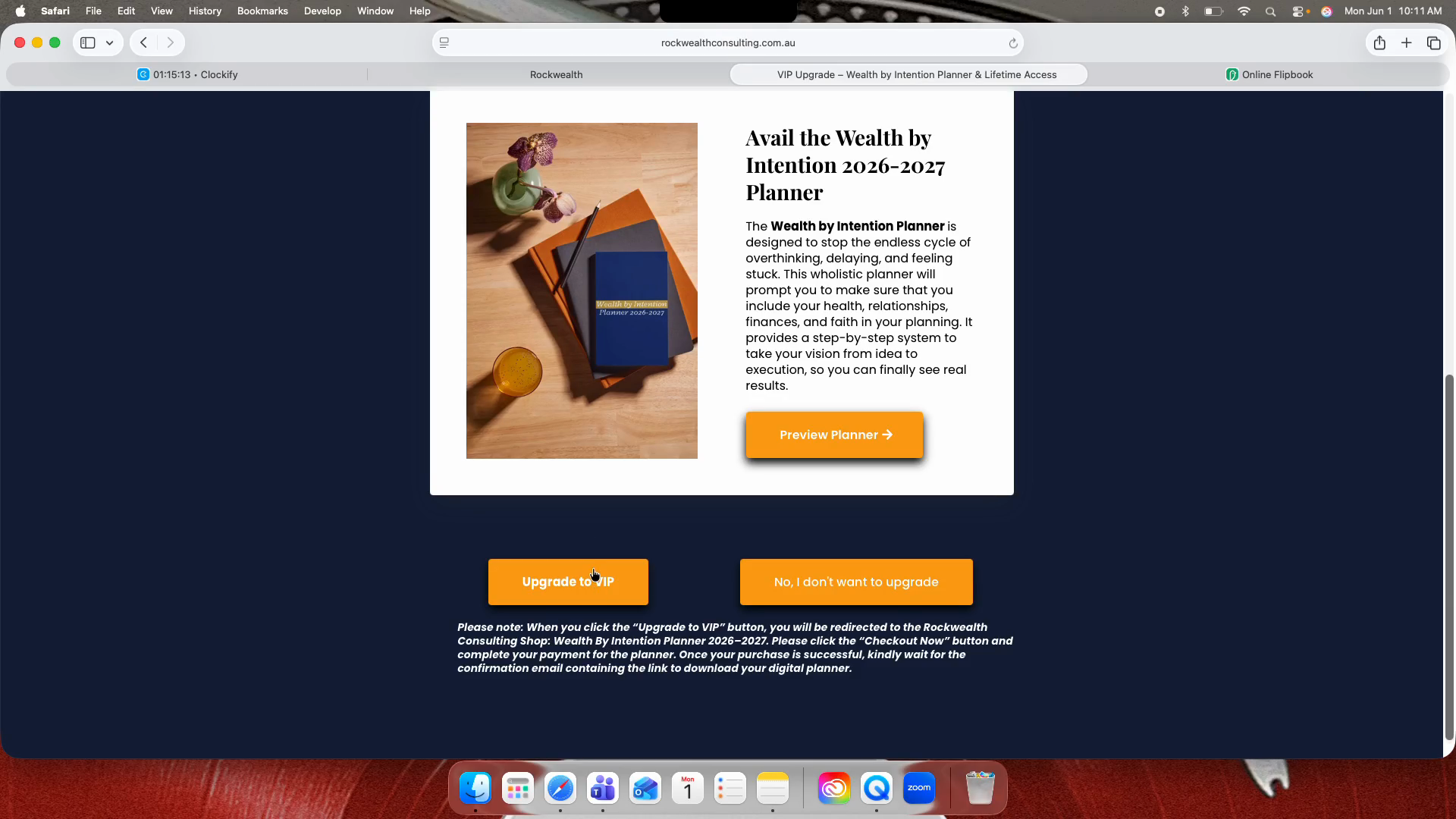
15
Click Upgrade to VIP.
Step #15: Click Upgrade to VIP.
16
Click Upgrade to VIP again on the redirect screen.
Step #16: Click Upgrade to VIP again on the redirect screen.
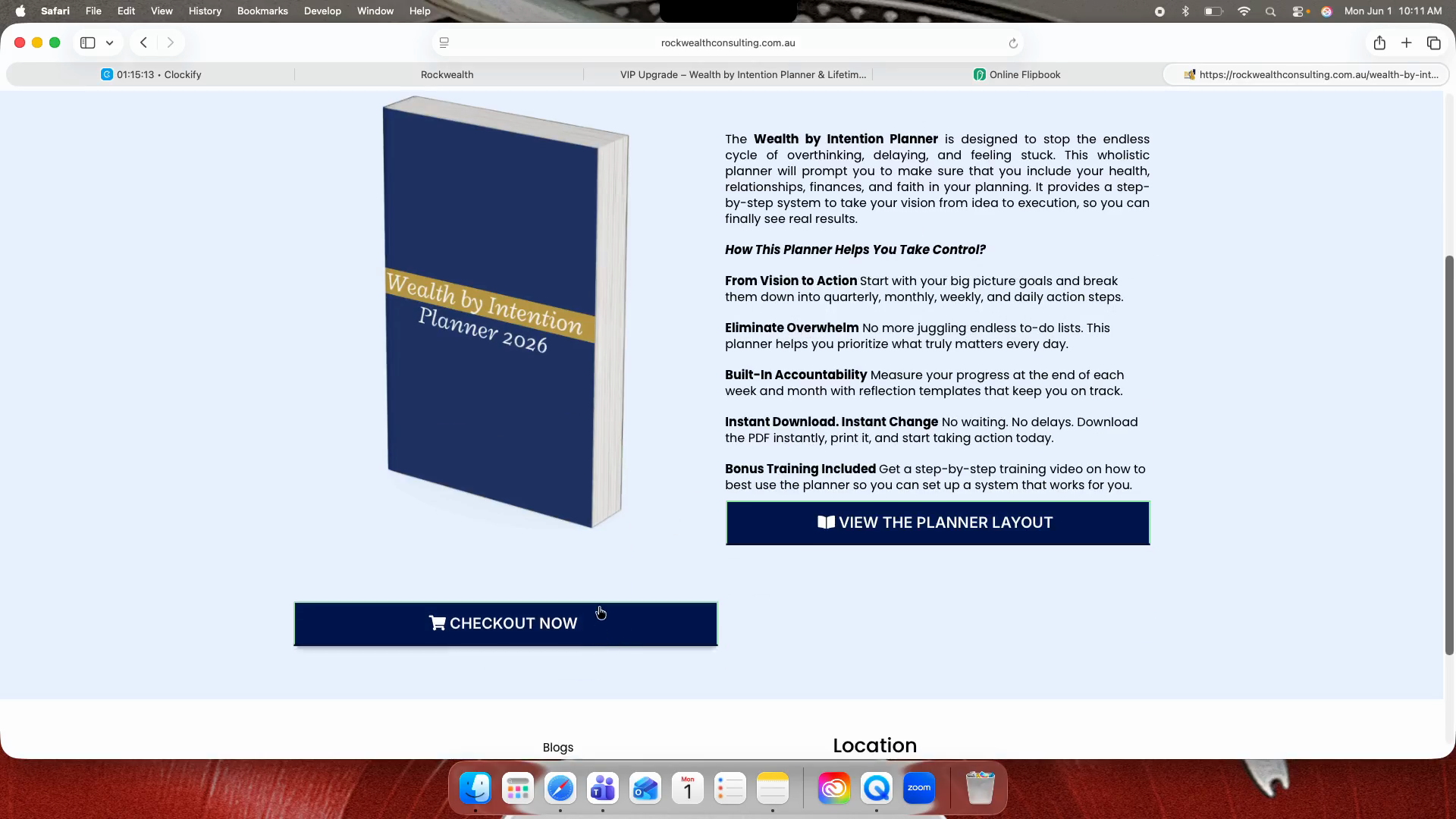
17
Scroll down the planner product page.
Step #17: Scroll down the planner product page.
18
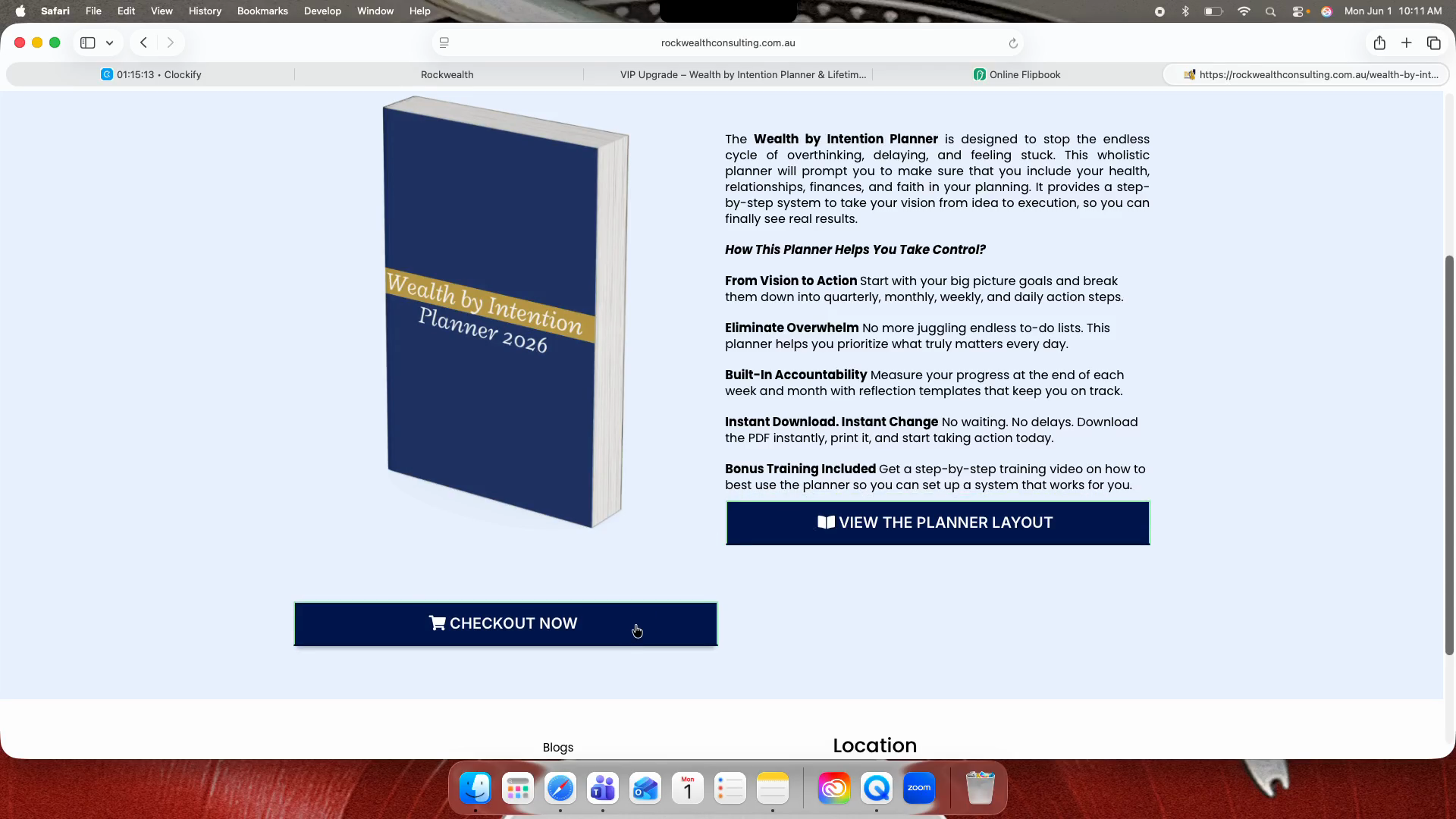
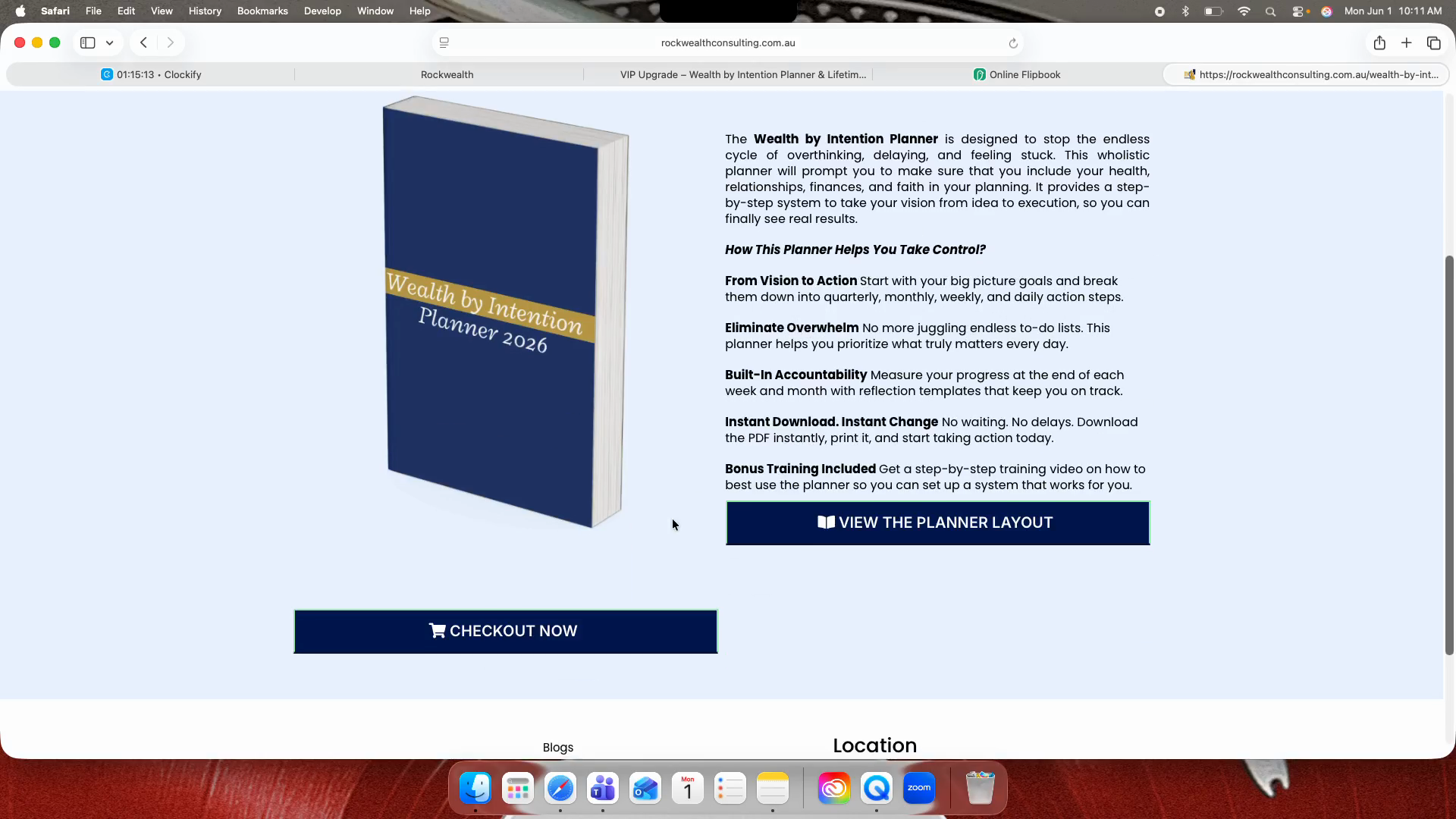
Click the Checkout Now button.
Step #18: Click the Checkout Now button.
19
Confirm by clicking CHECKOUT NOW once more.
Step #19: Confirm by clicking CHECKOUT NOW once more.
20
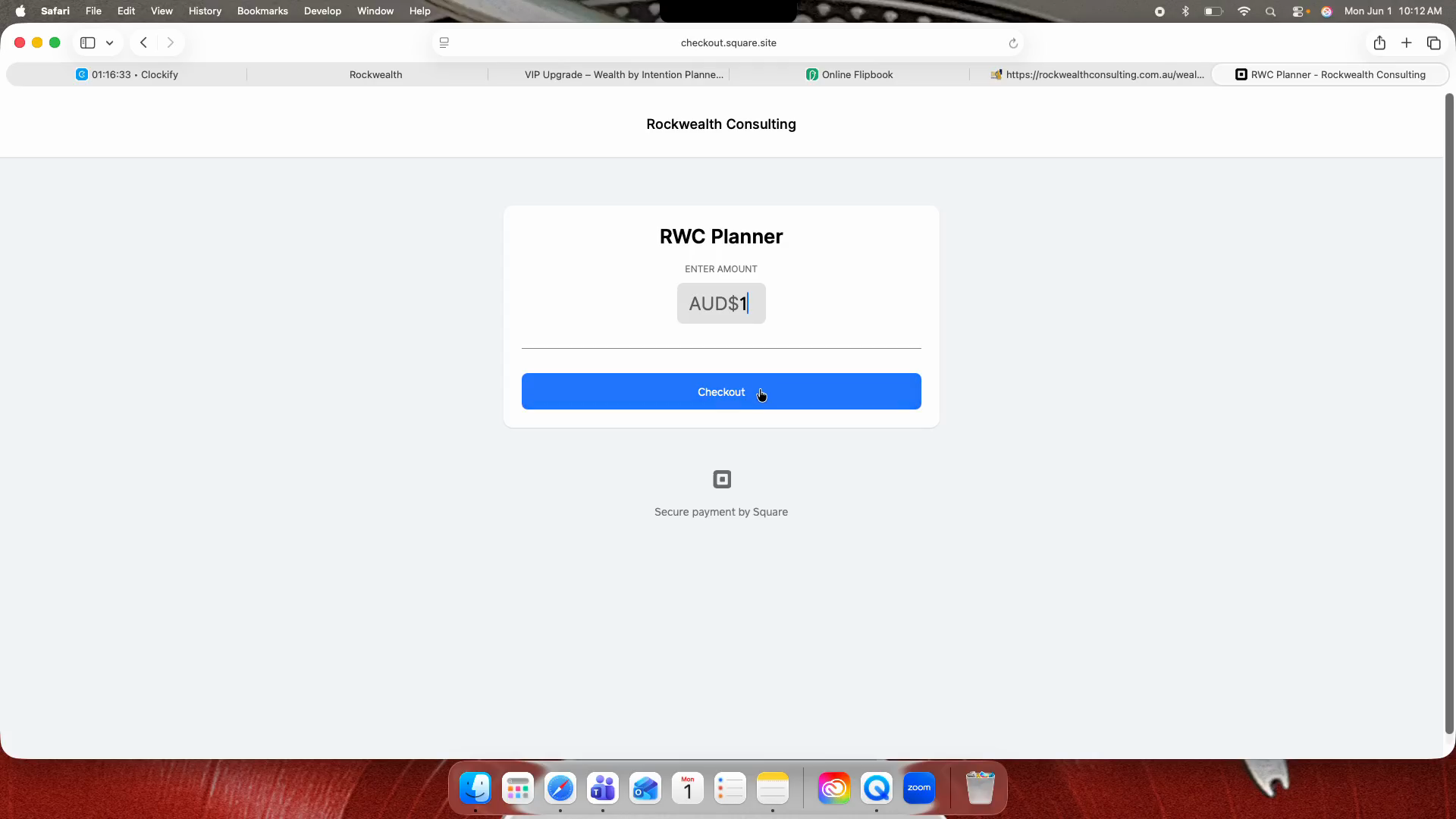
On the payment page, input your purchase amount (e.g., $1 for testing).
21
Click Checkout.
Step #21: Click Checkout.
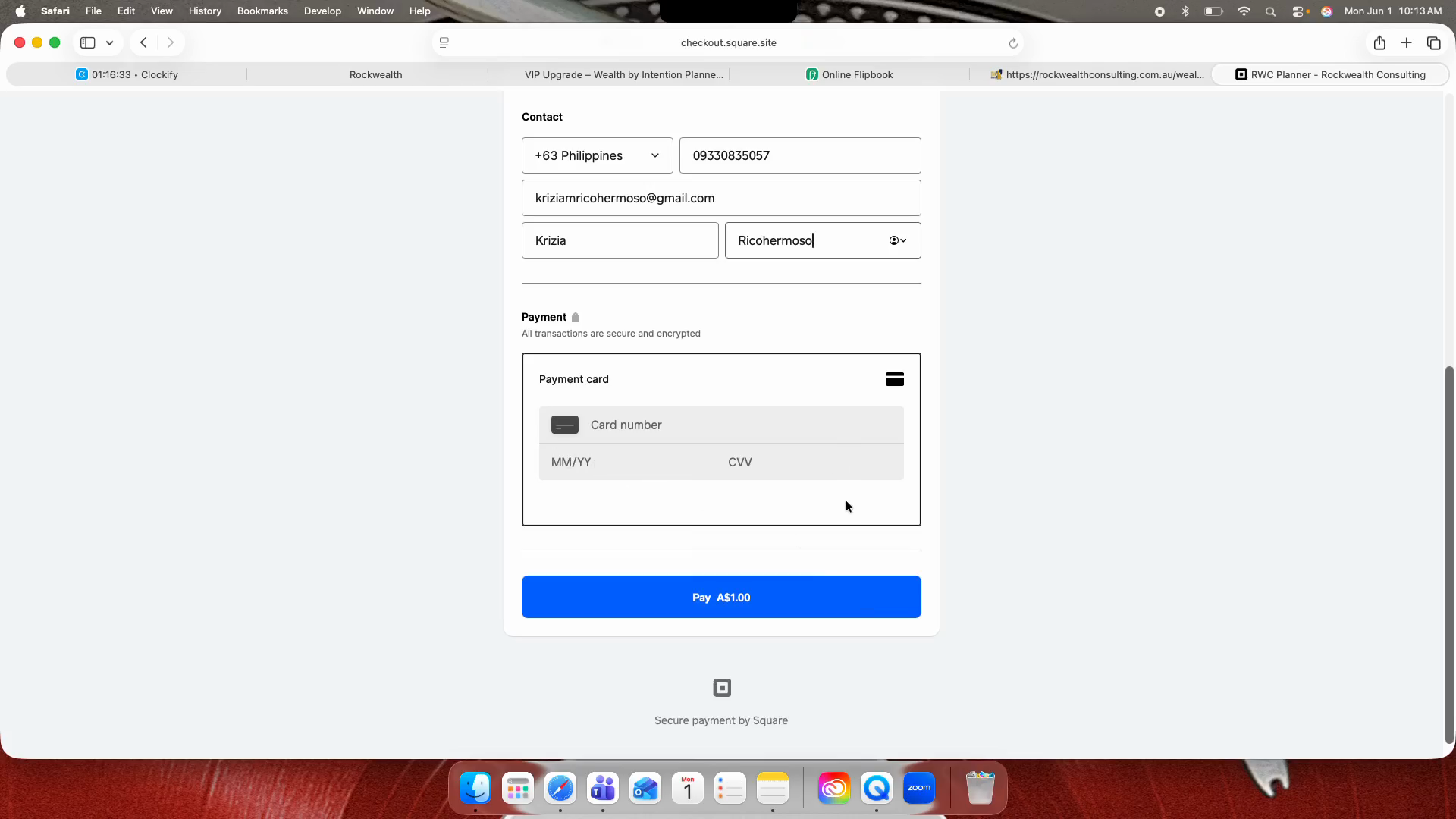
22
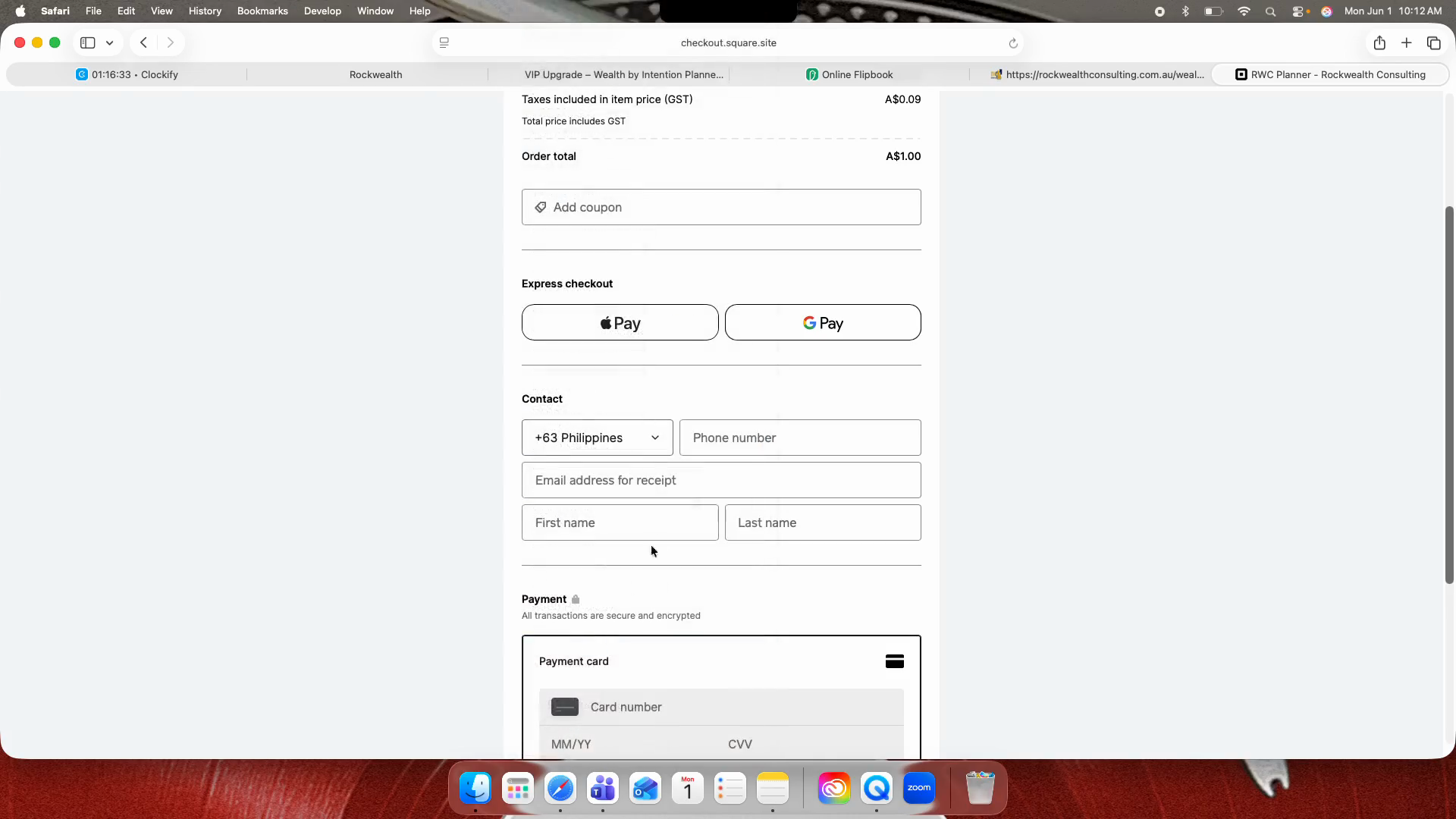
Fill in your contact details.
23
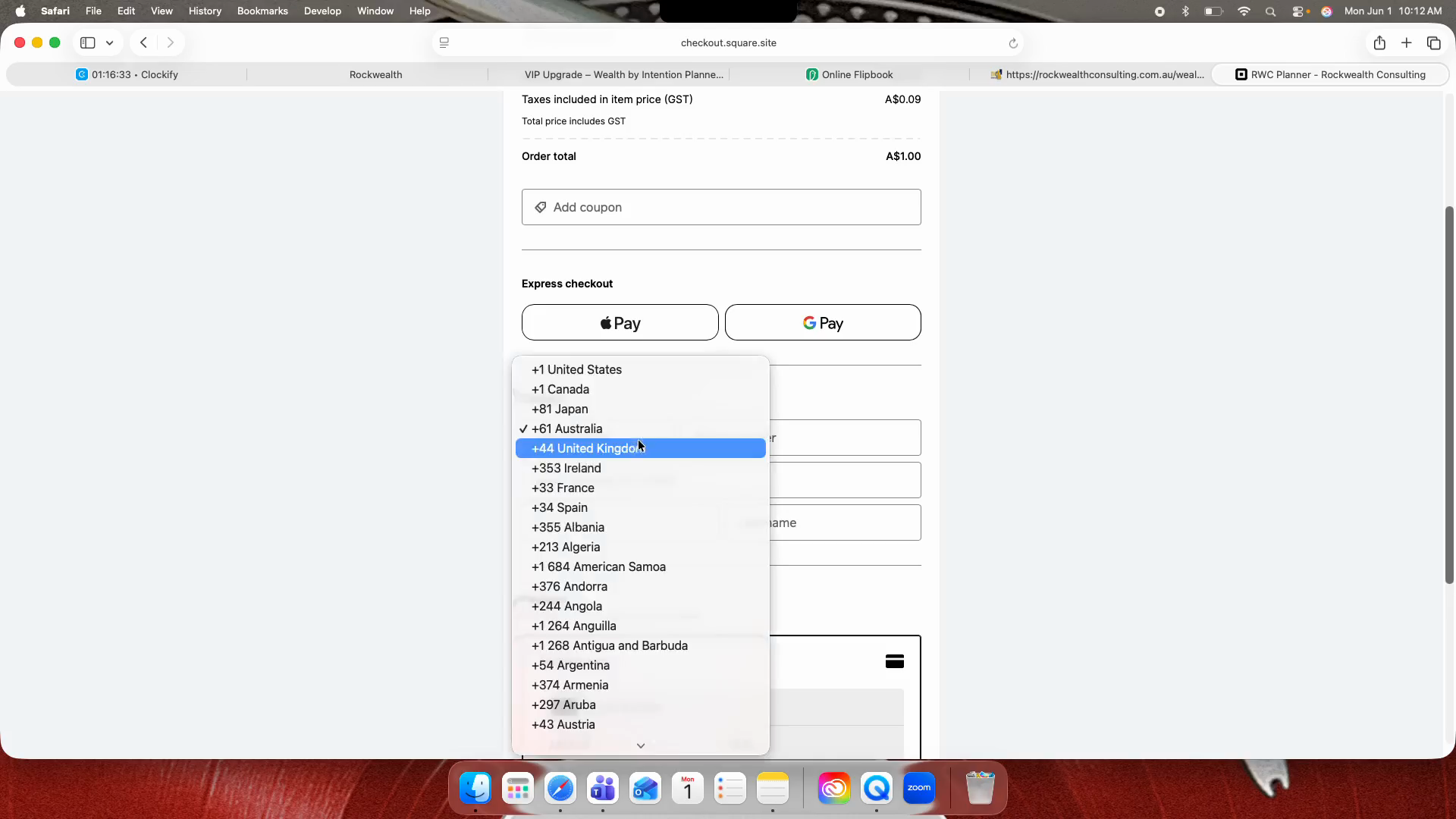
Click the country code dropdown.
Step #23: Click the country code dropdown.
24
Select your respective country code.
Step #24: Select your respective country code.
25
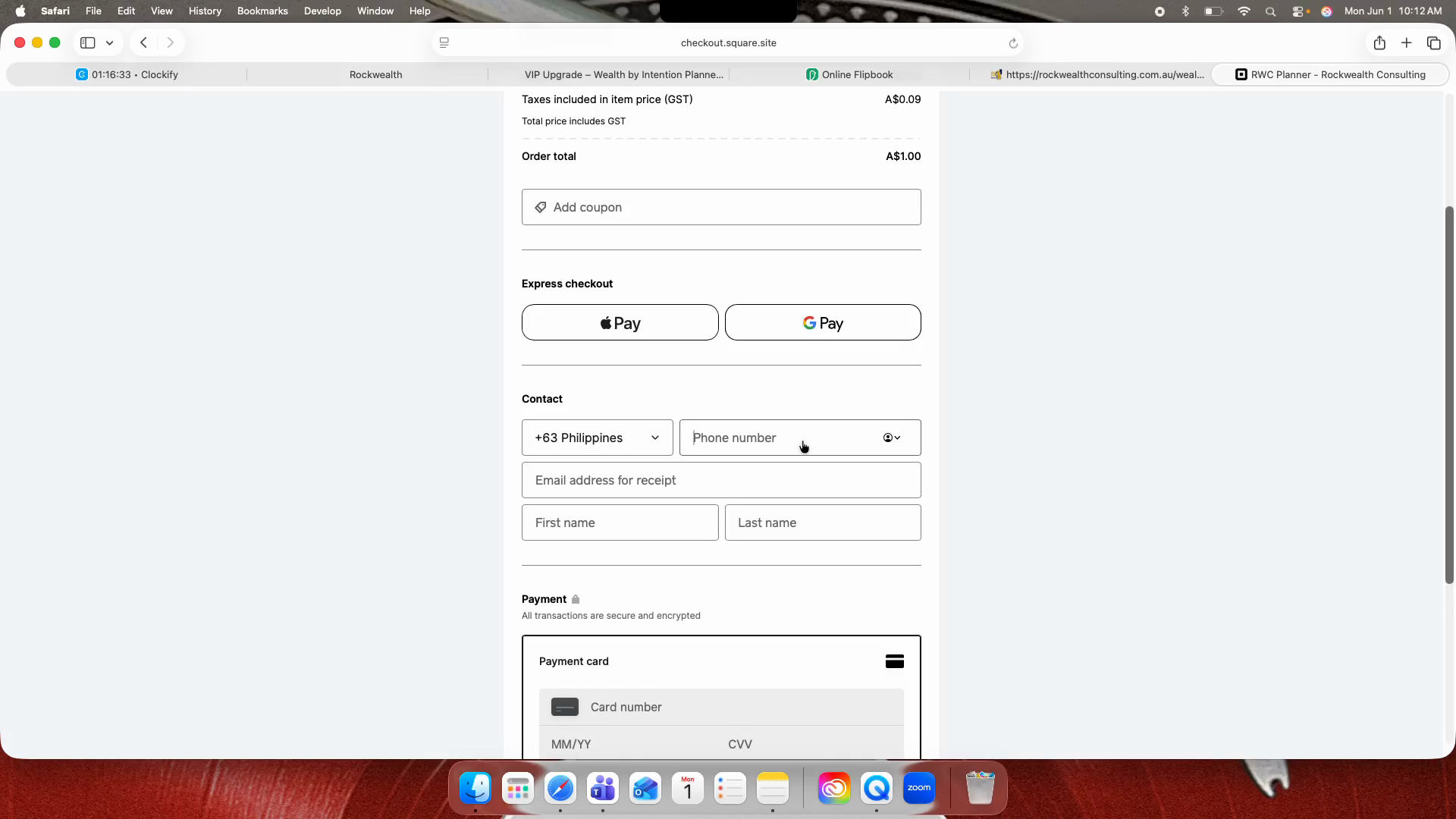
Click the Phone number field.
Step #25: Click the Phone number field.
26
Enter your phone number.
27
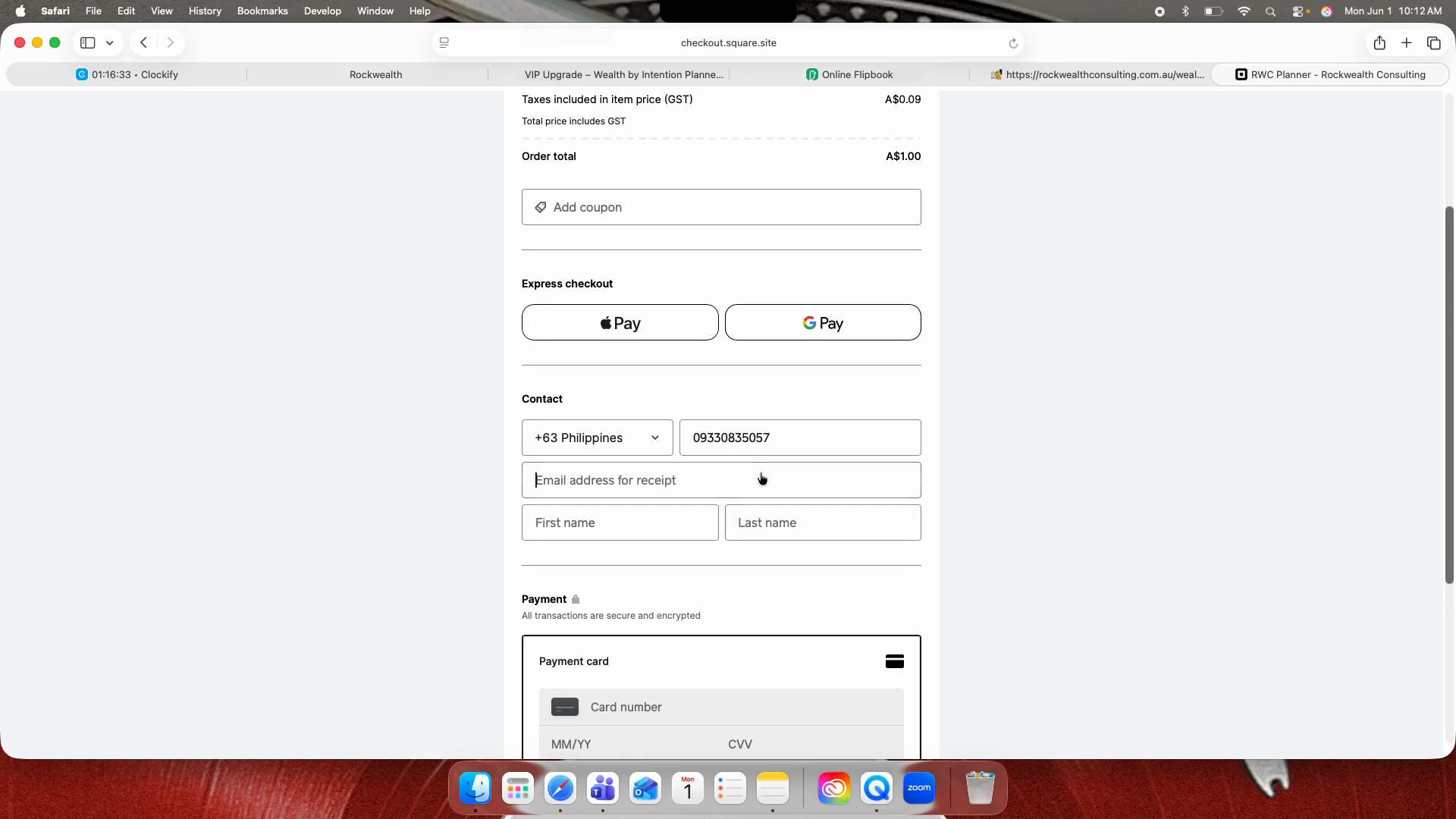
Click the Email address for receipt field.
Step #27: Click the Email address for receipt field.
28
Enter your email address to ensure you receive the digital planner.
29
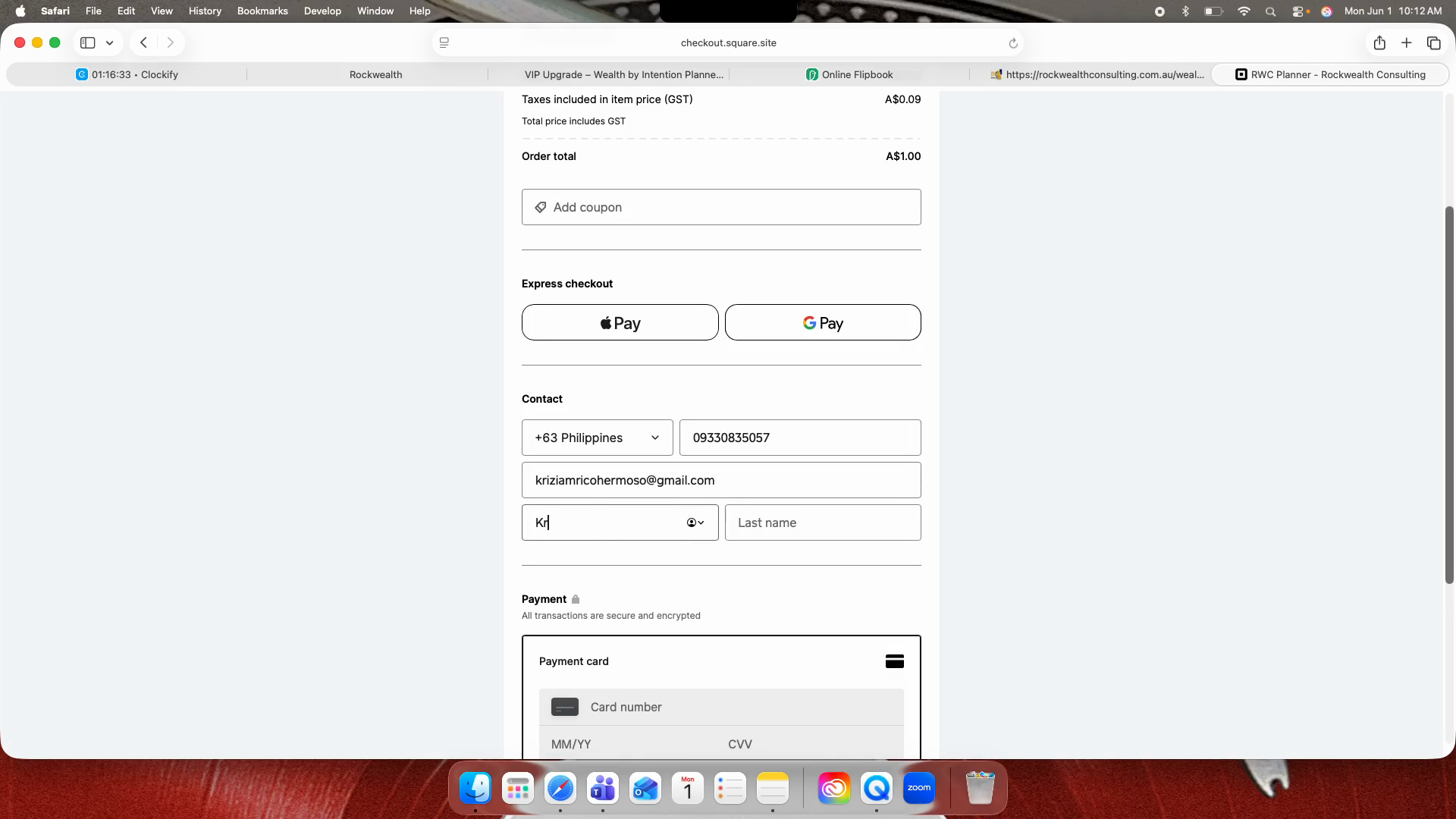
Click the First name field.
Step #29: Click the First name field.
30
Enter your first name.
31
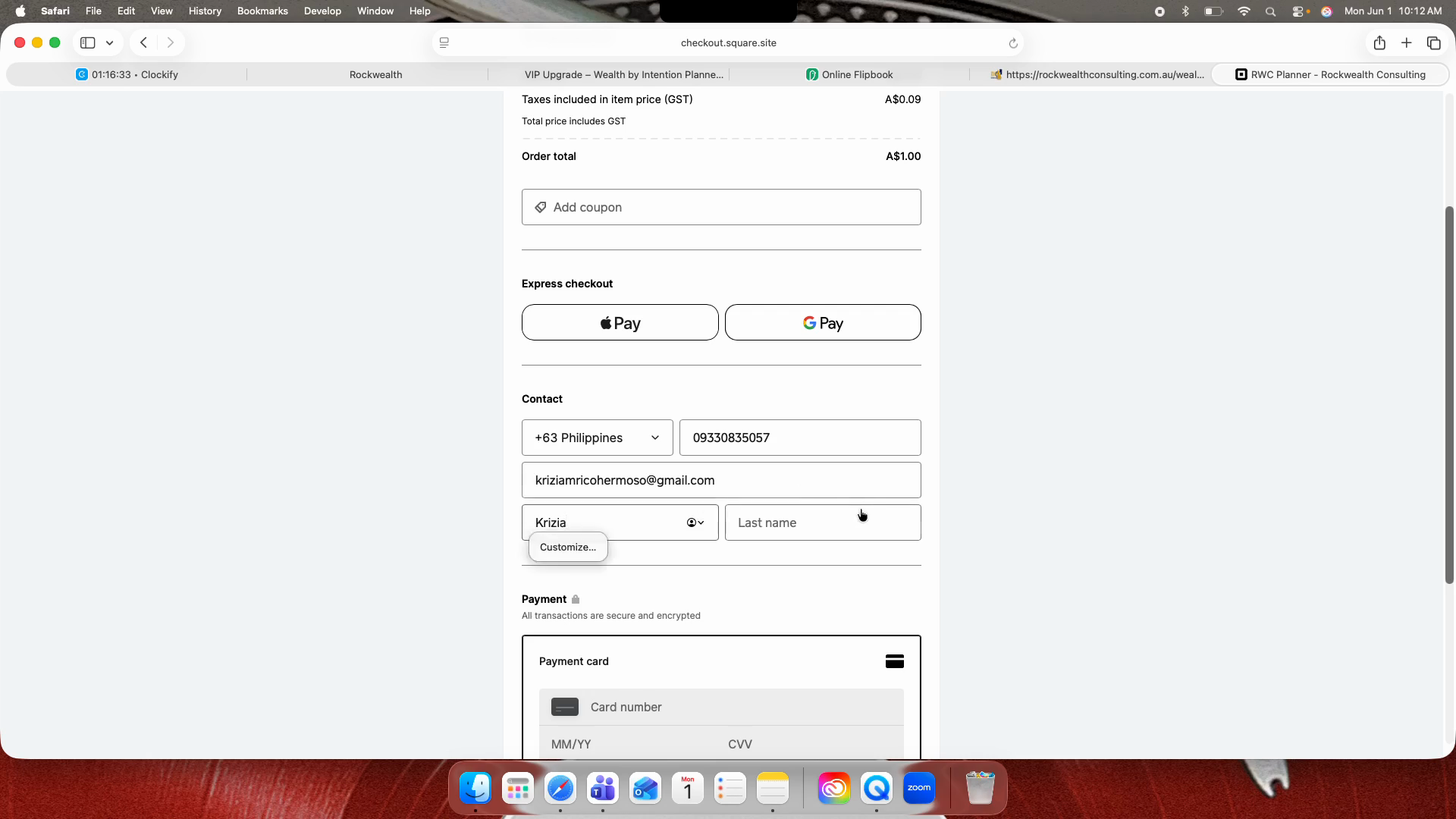
Click the Last name field.
Step #31: Click the Last name field.
32
Enter your last name.
33
Enter your payment card number.
34
Enter the card's expiration month and year.
35
Enter the CVV code.
36
Click Pay to finalize the transaction.
Step #36: Click Pay to finalize the transaction.

Path 2: Declining the Upgrade
37
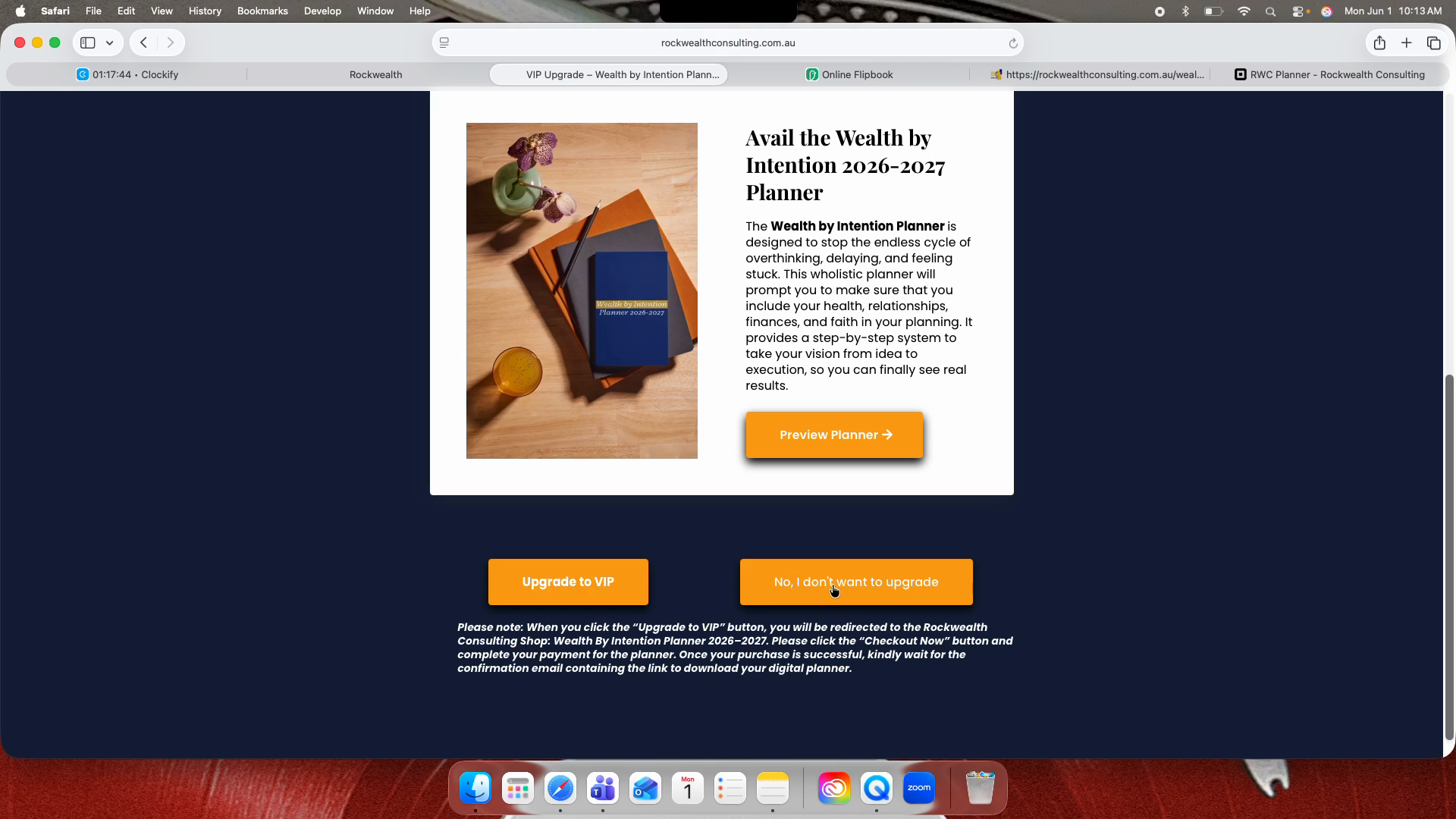
If you choose not to upgrade, click No, I don't want to upgrade to bypass the planner and route straight to the confirmation page.
Step #37: If you choose not to upgrade, click No, I don't want to upgrade to bypass the planner and route straight to the confirmation page.

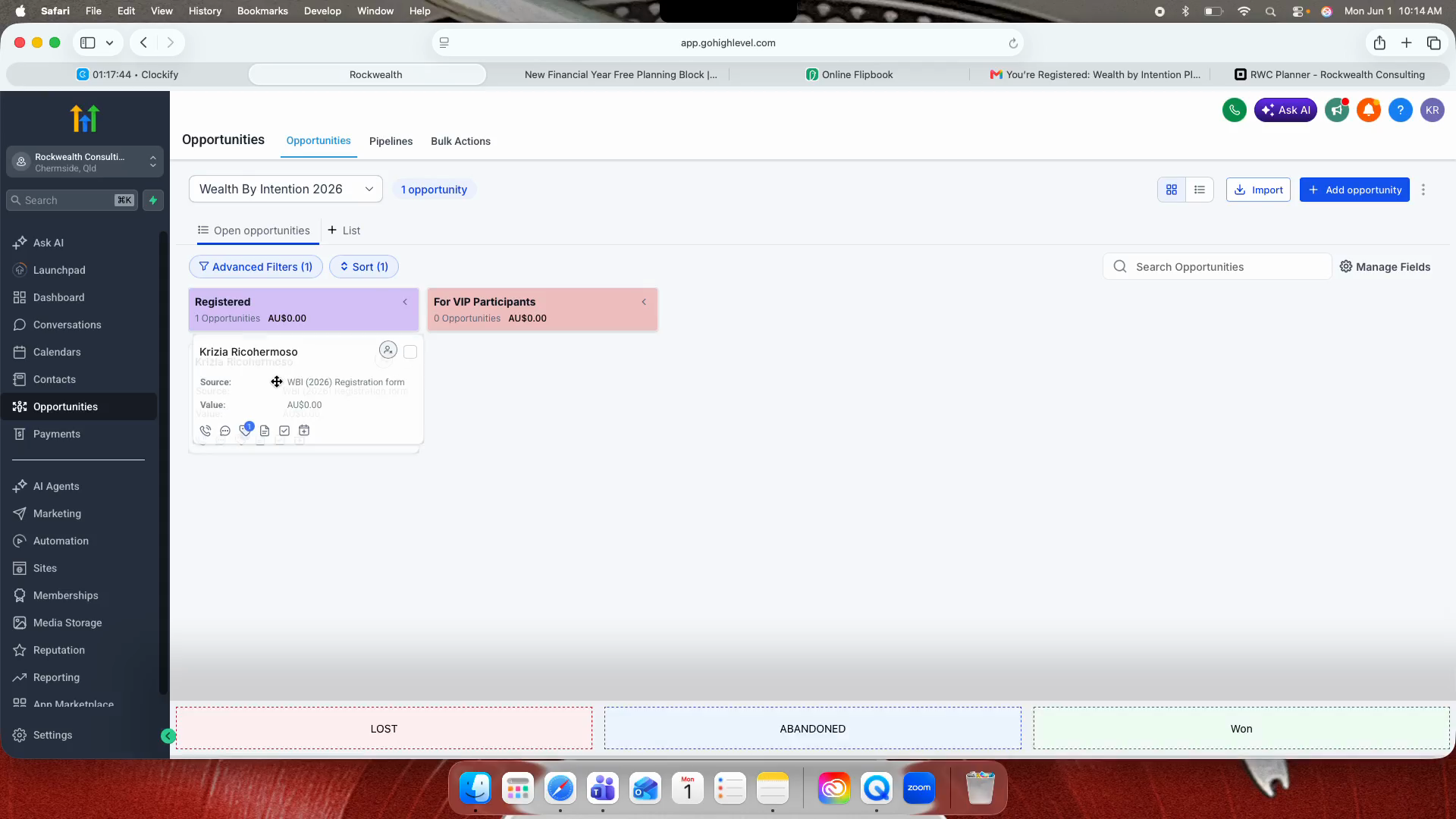
Admin Pipeline Management

If a VIP user requires manual approval or you are testing the pipeline progression, you must move their registration card to trigger the automated delivery email.
38
In the platform dashboard, click Opportunities.
Step #38: In the platform dashboard, click Opportunities.
39
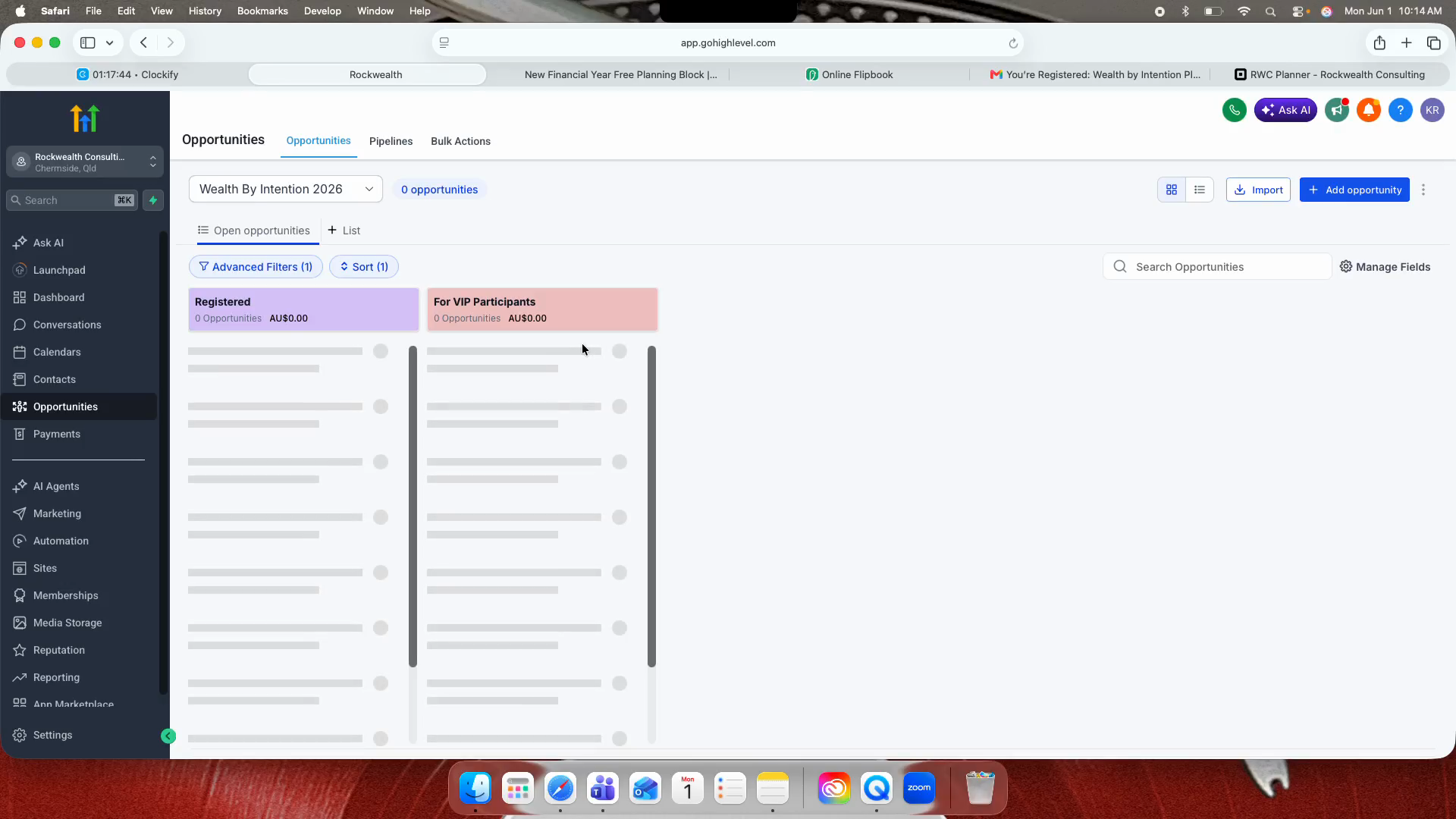
Locate the active Wealth By Intention 2026 pipeline.
Step #39: Locate the active Wealth By Intention 2026 pipeline.
40
Drag and drop the user's registration card into the For VIP Participants column to trigger the downloadable planner email.
Step #40: Drag and drop the user's registration card into the For VIP Participants column to trigger the downloadable planner email.

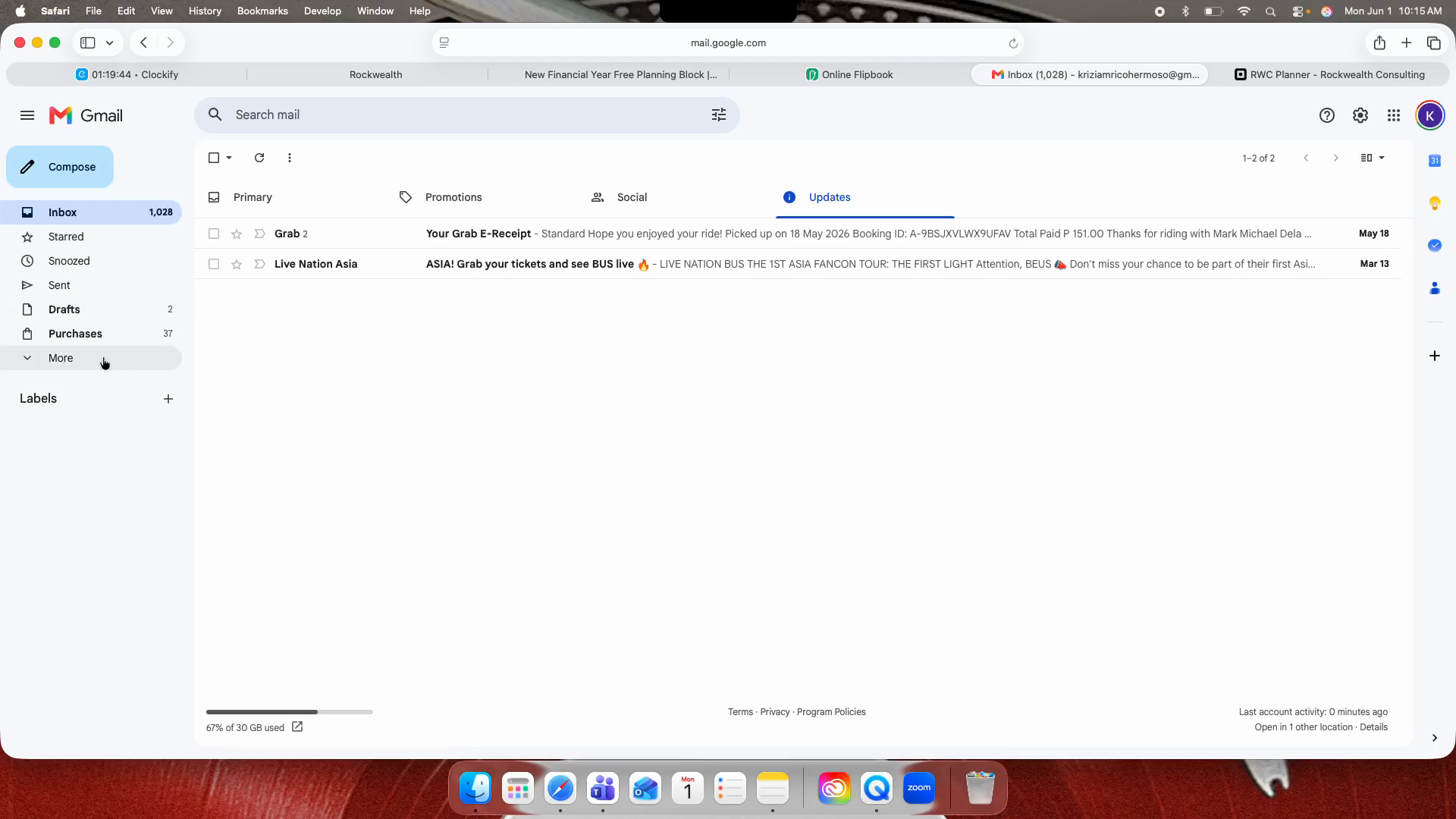
Retrieving the Digital Planner
41
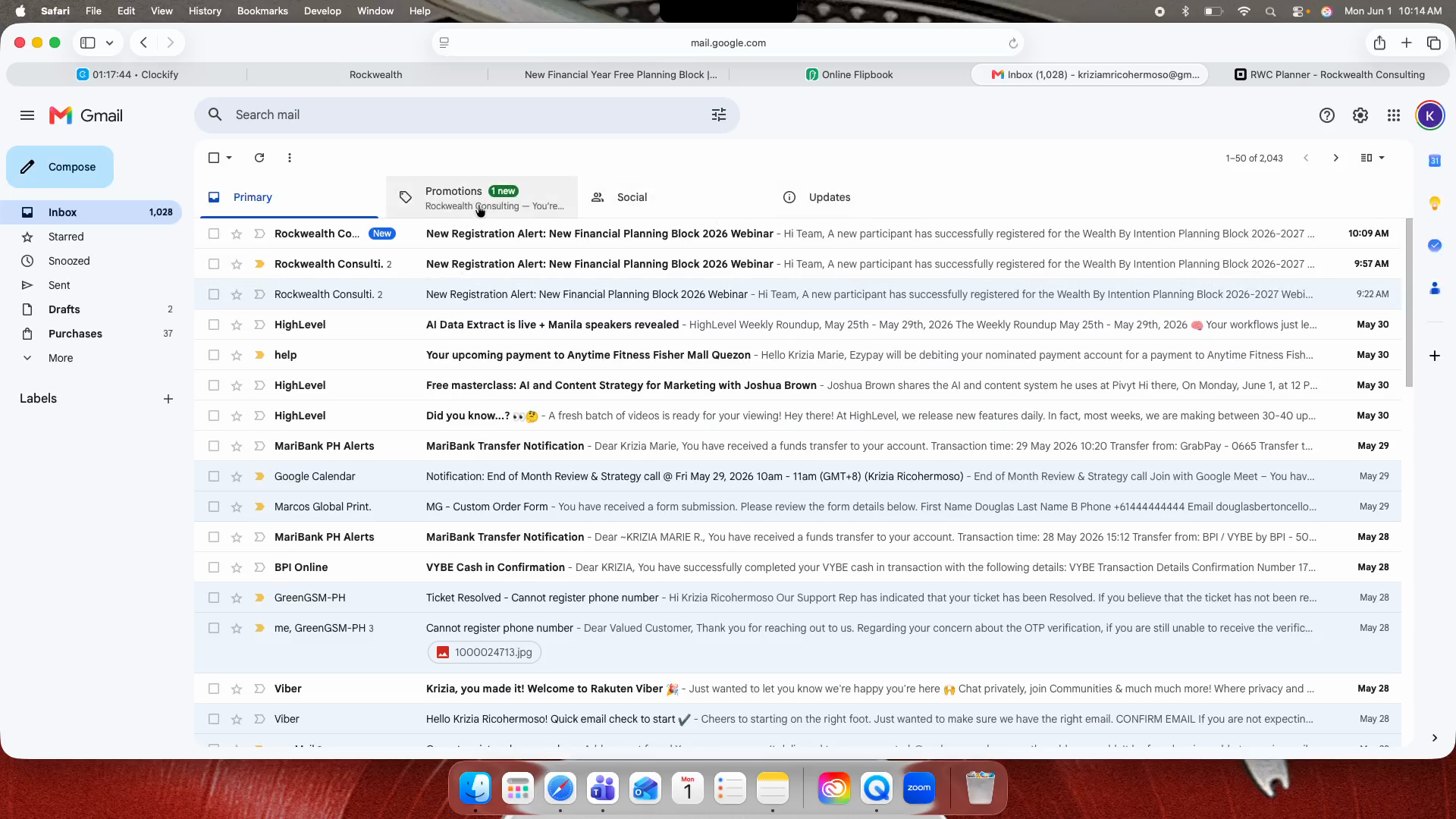
Check your email client's Promotions category.
Step #41: Check your email client's Promotions category.
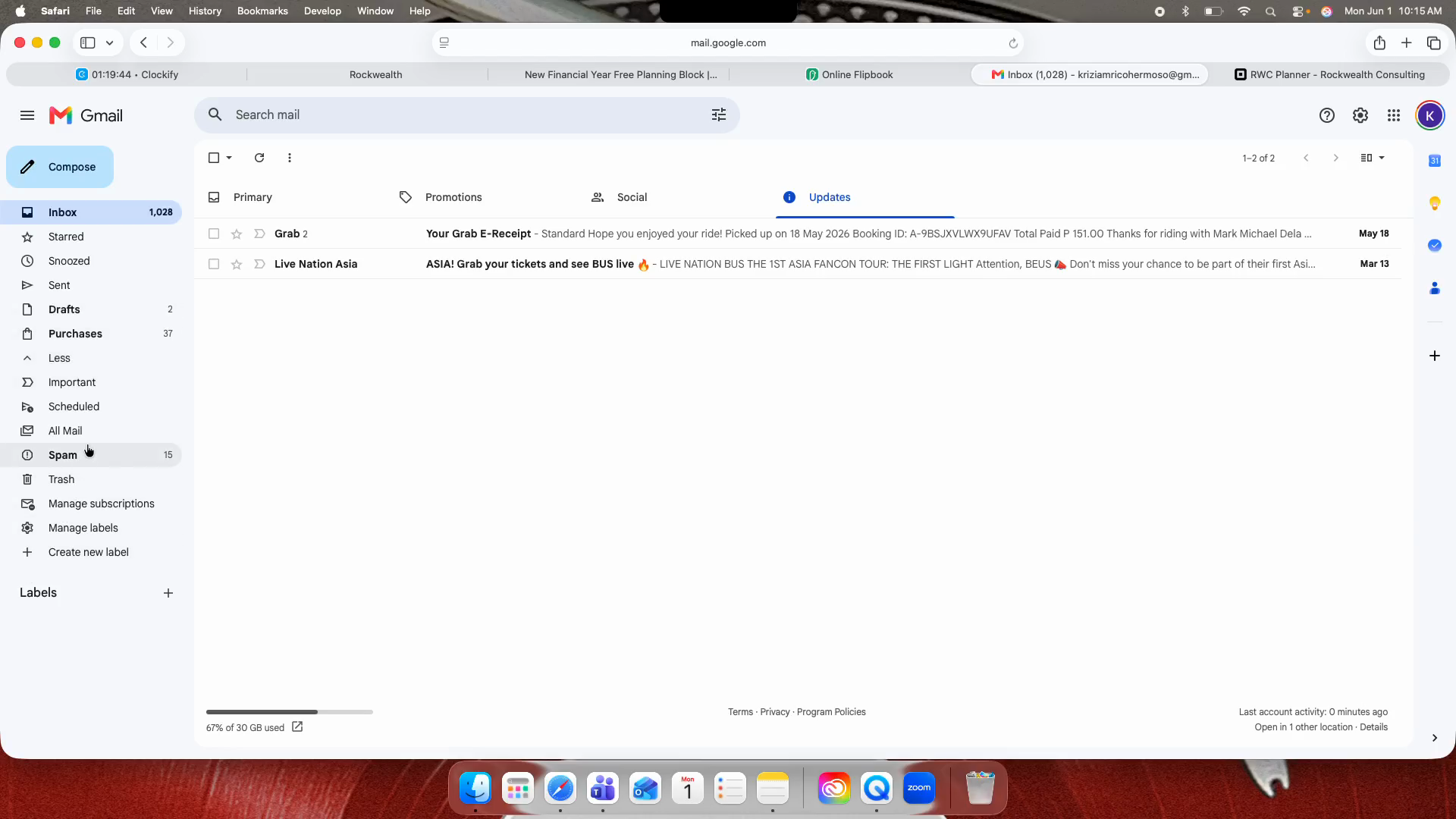
42
If you cannot find it, navigate to your Spam folder.
Step #42: If you cannot find it, navigate to your Spam folder.
43
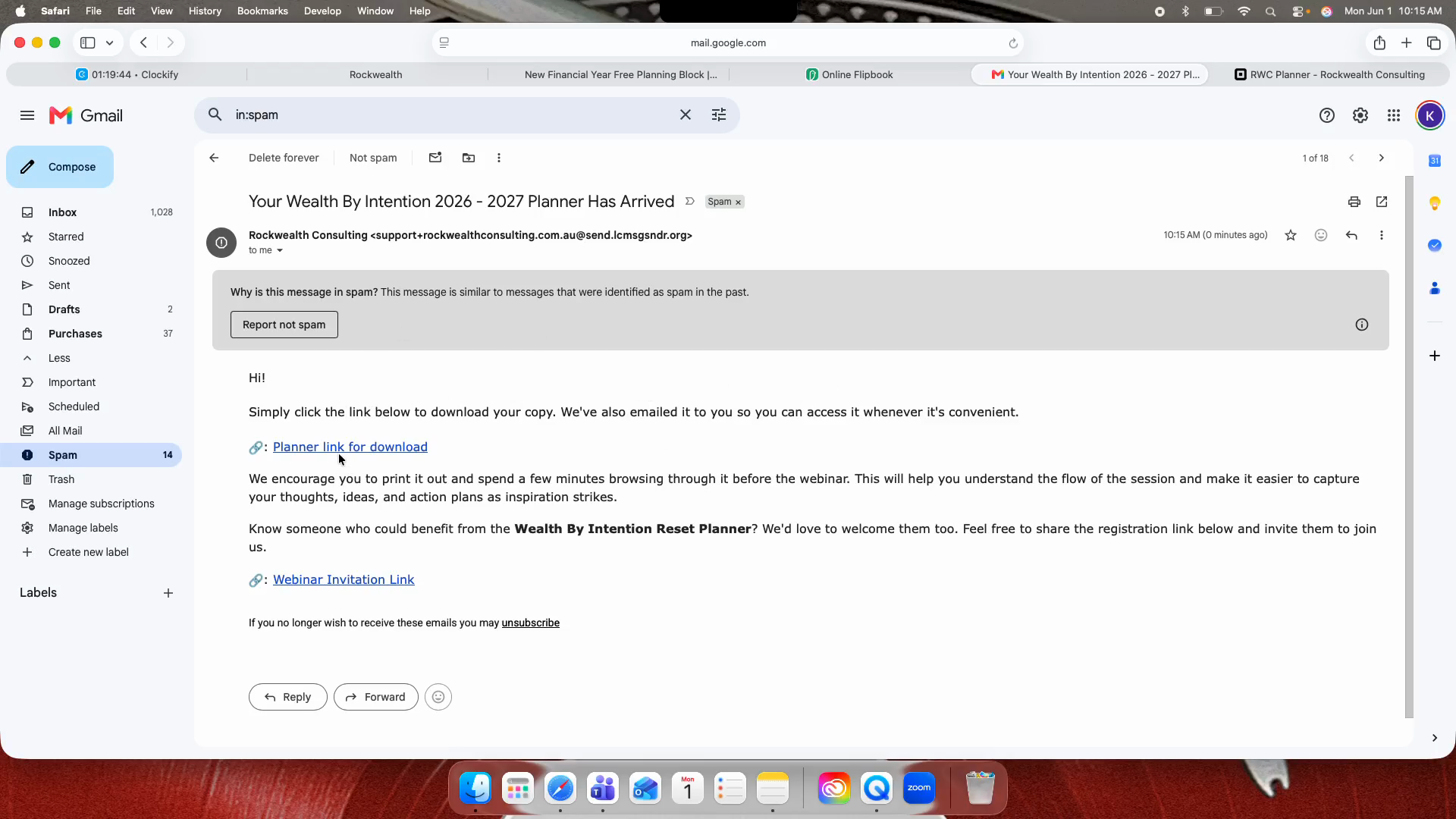
Open the email titled "Your Wealth By Intention 2026 - 2027 Planner Has Arrived".
Step #43: Open the email titled "Your Wealth By Intention 2026 - 2027 Planner Has Arrived".
44
Click the Planner link for download inside the email.
Step #44: Click the Planner link for download inside the email.
45
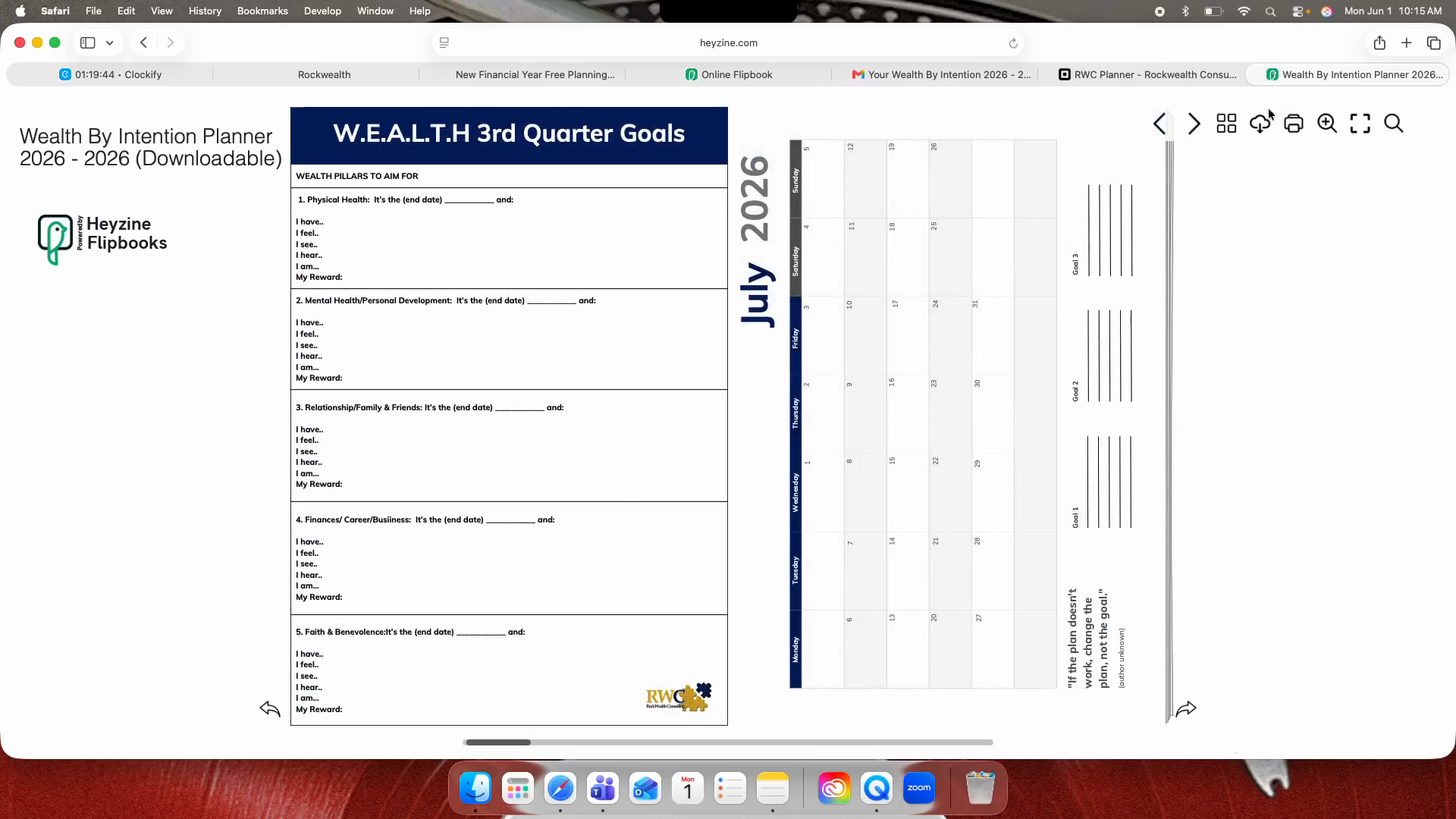
In the flipbook viewer, click the Download icon in the right sidebar to save a printable copy of the planner.
Step #45: In the flipbook viewer, click the Download icon in the right sidebar to save a printable copy of the planner.

Sharing the Webinar Link

46
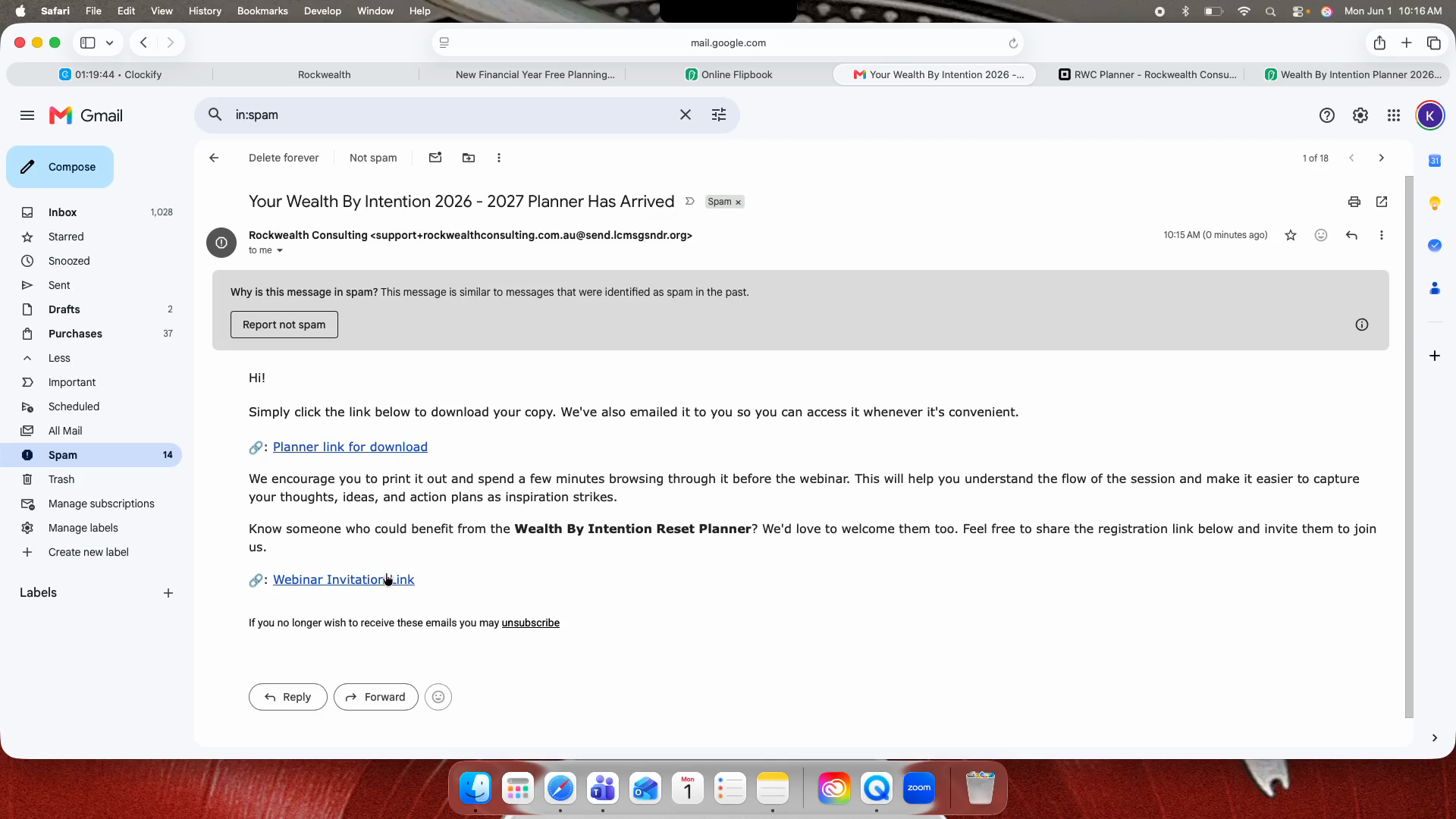
To invite others, click the Webinar Invitation Link included in your confirmation email.
Step #46: To invite others, click the Webinar Invitation Link included in your confirmation email.
47
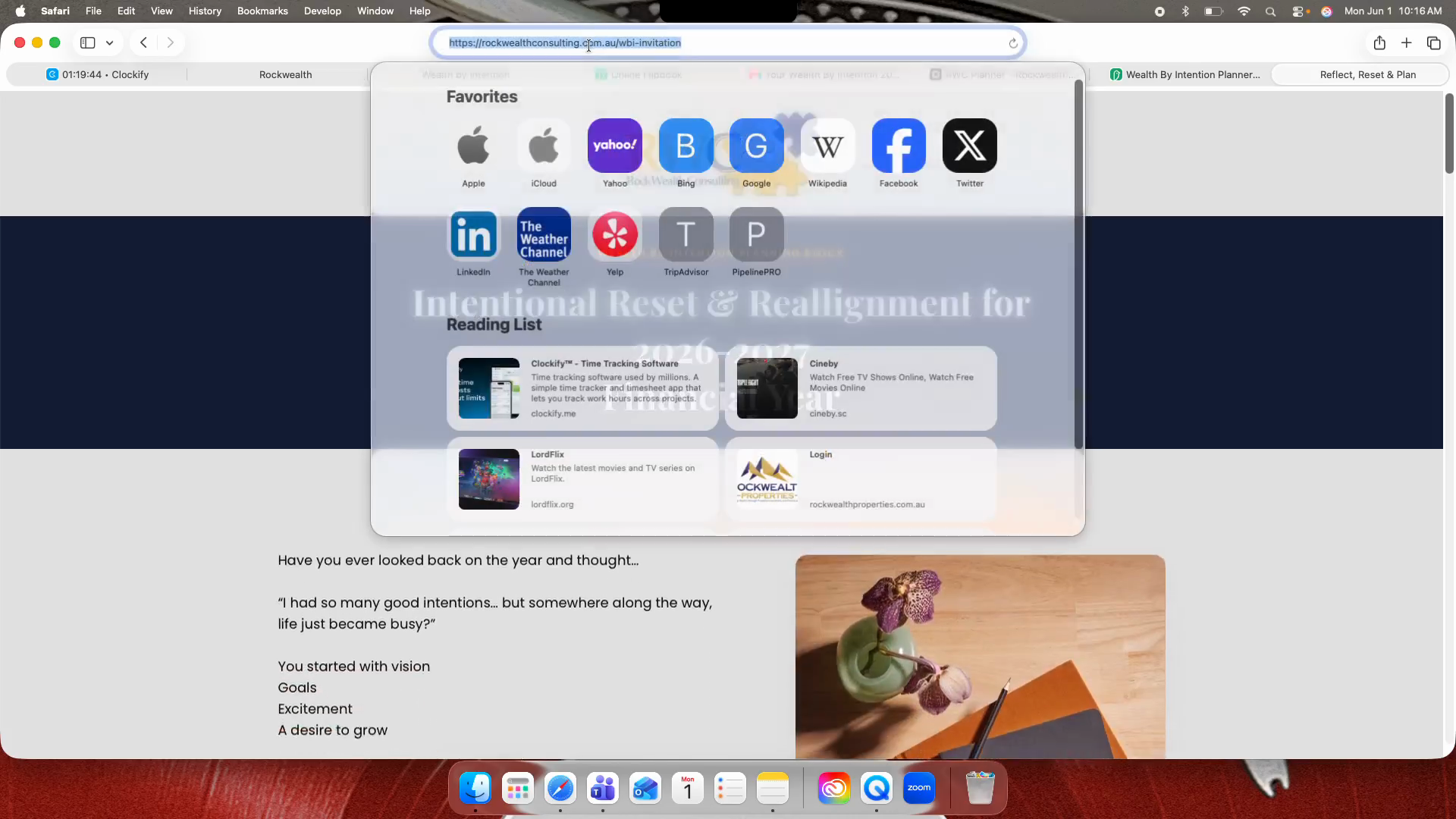
Click on your browser's URL address bar.
Step #47: Click on your browser's URL address bar.
48
Right-click the highlighted URL and click Copy.
Step #48: Right-click the highlighted URL and click Copy.
49
Paste and share the link with friends or family via email or text message.

Q: Can I download or print the planner from the preview page?

A: No, the preview page only allows you to view the planner layout. To download and print the planner, you must purchase the VIP upgrade.

Q: What happens if I decline the VIP upgrade?

A: You will still be successfully registered for the webinar. A recording will be sent to your email after the event, but you will not receive the digital planner.

Q: Why haven't I received my digital planner email yet?

A: The delivery email may be in your Spam or Promotions folder. Alternatively, if the system requires manual approval, an admin must move your registration card to the VIP column in the Opportunities pipeline to trigger the email.

Term

Definition

Funnel

A series of connected web pages designed to guide users towards a specific conversion goal, such as registering for an event or purchasing a product.

Upsell

A strategy to offer a premium, upgraded, or add-on product (like a digital planner) to a user immediately after they register or make an initial commitment.

Pipeline

A visual CRM representation of the sales or registration process, often organized in columns, tracking users as they move through different stages.

Funnel - WBI Planner Walkthrough Guide