
How to Generate and File Meeting Notes from a Teams Transcript
Learn how to download a Microsoft Teams transcript, upload it to SharePoint, use ChatGPT to generate meeting notes, and format the final Word document.
This guide outlines the process for downloading a recorded meeting transcript, storing it in the correct client folder, and using an AI tool to generate structured meeting notes. Completing this ensures a clear, searchable record of project highlights and action items is maintained.
This procedure is for project managers, coordinators, or account managers responsible for handling weekly status reports. It should be used immediately after a client meeting concludes.
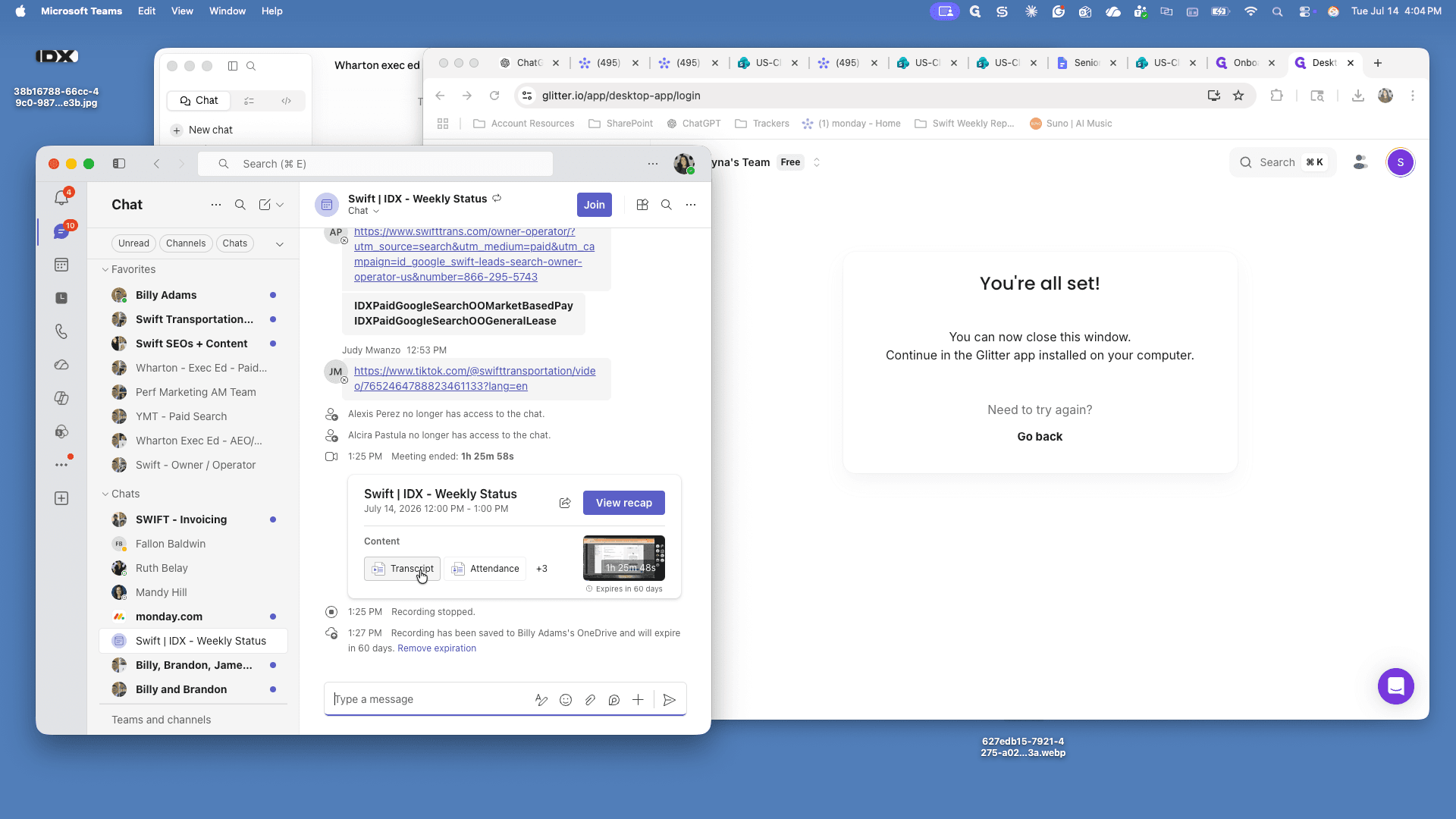
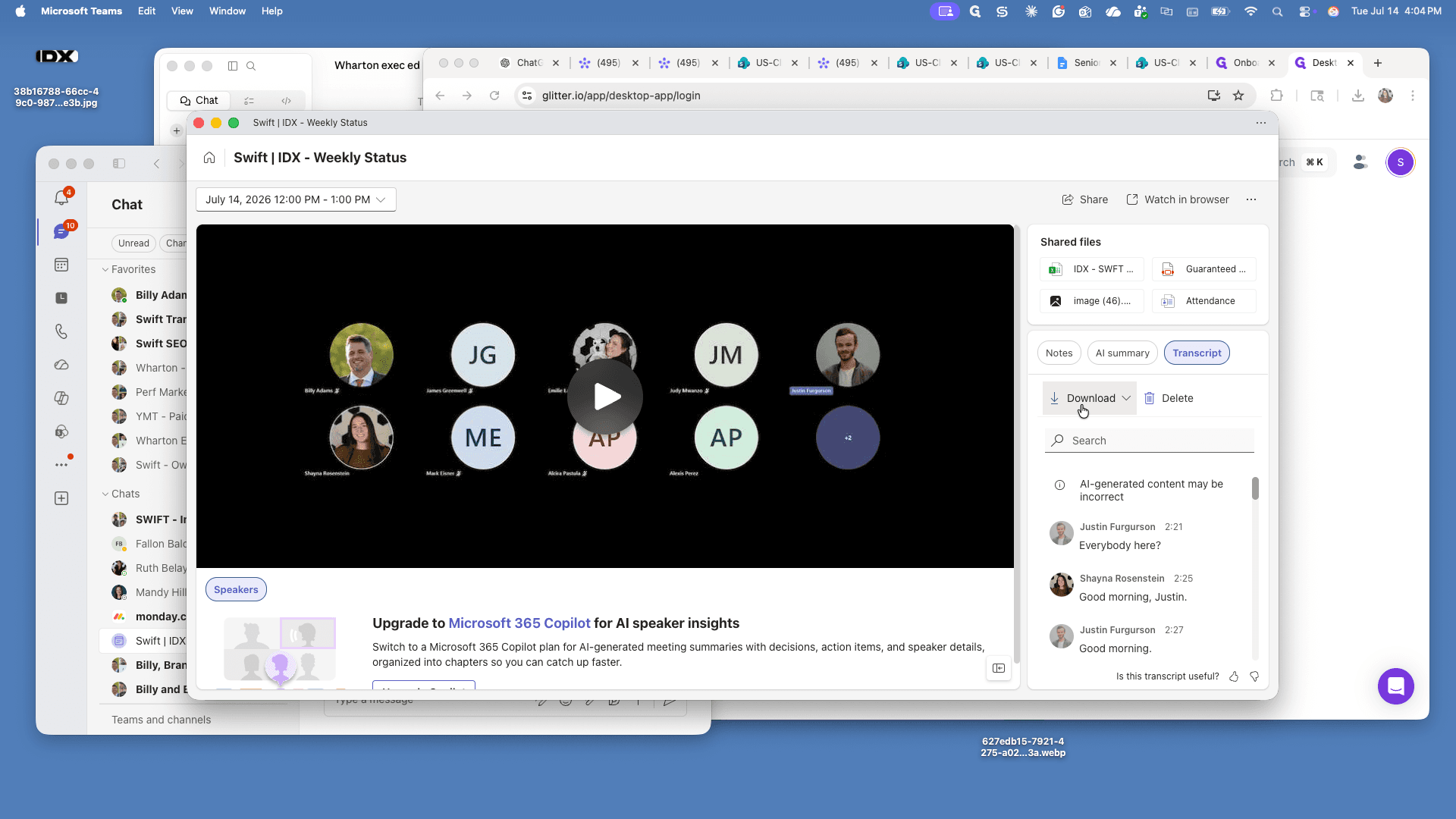
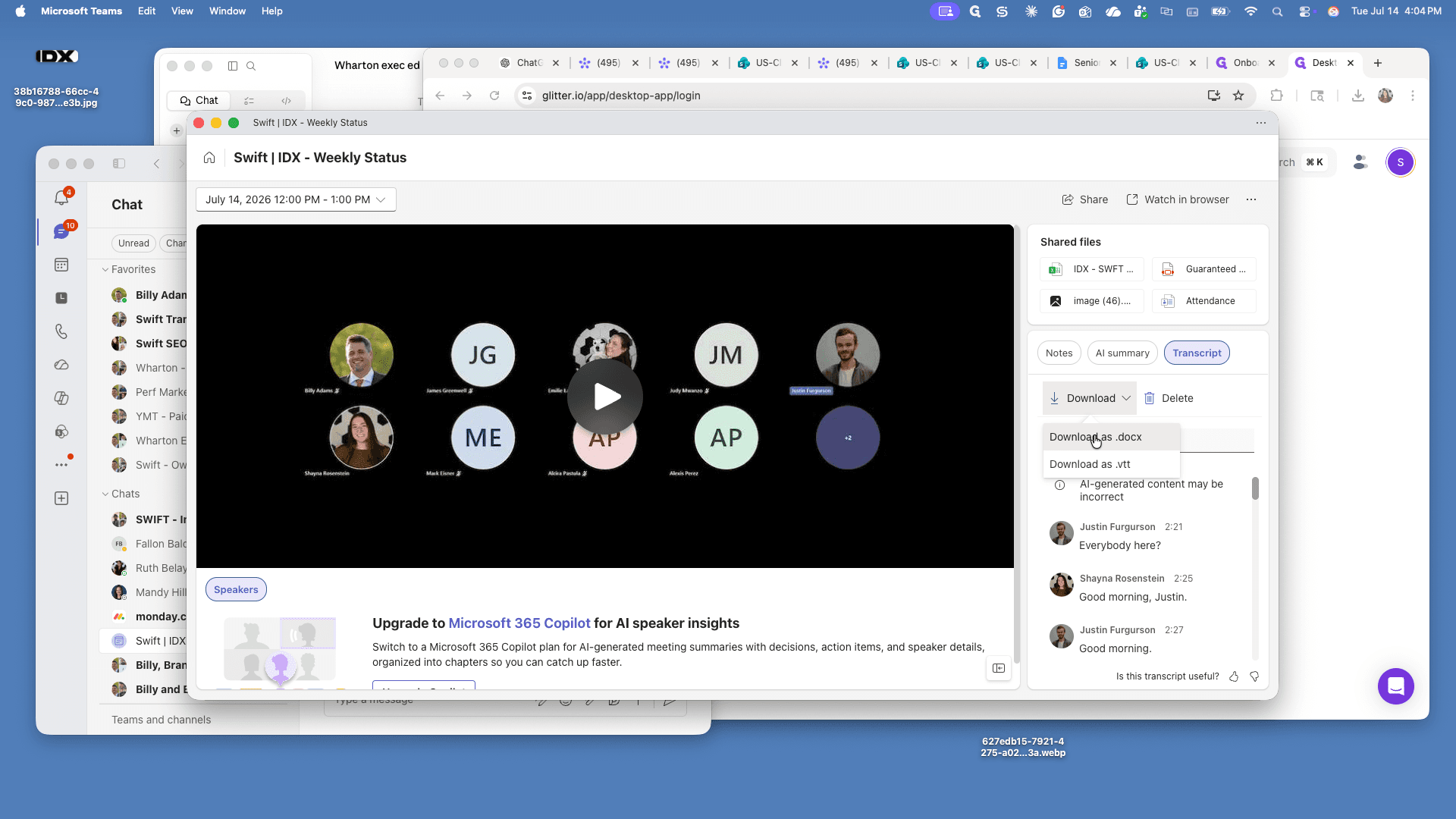
1. Download the Meeting Transcript
2. Upload and Rename the Transcript in SharePoint
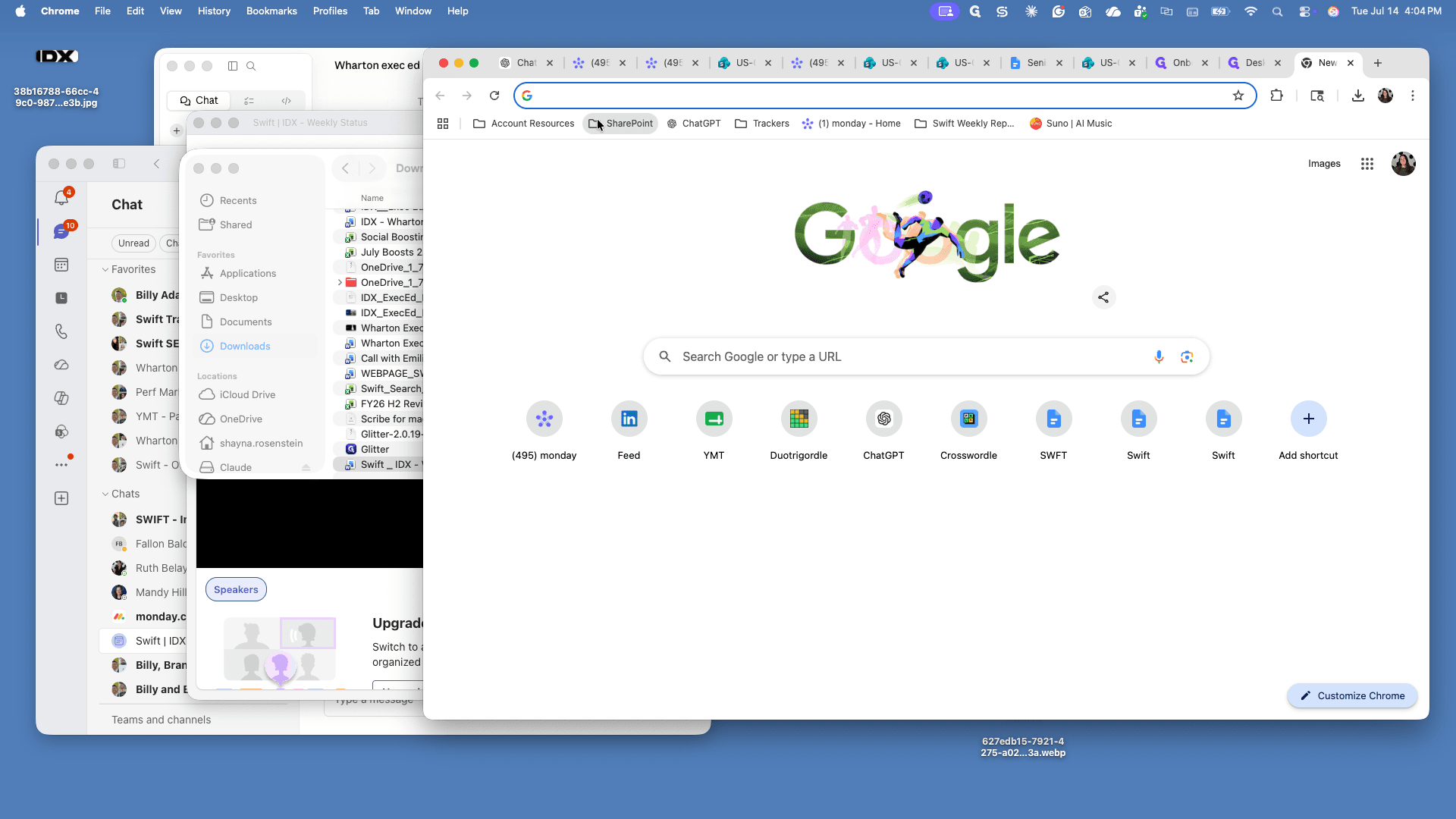
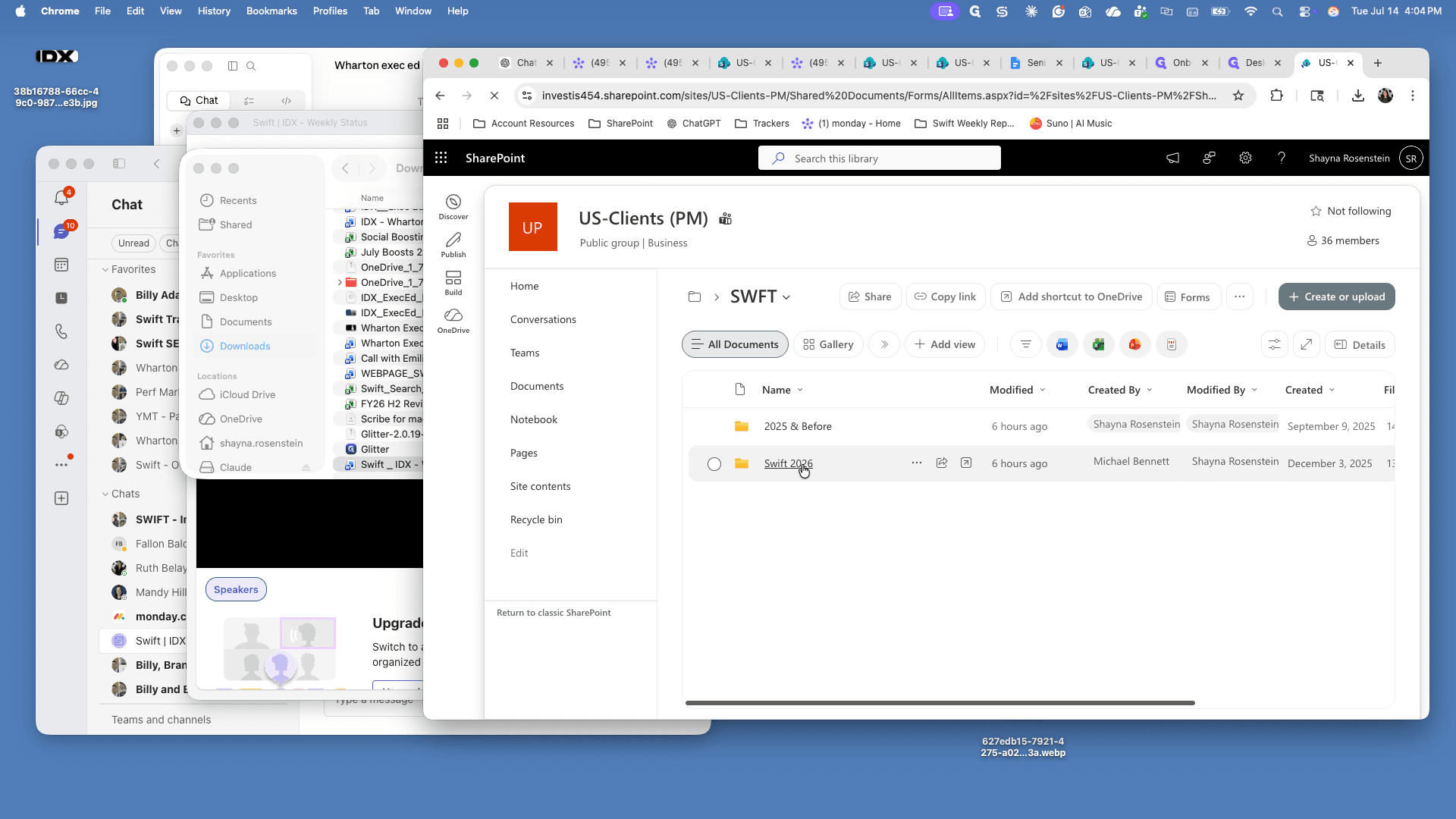
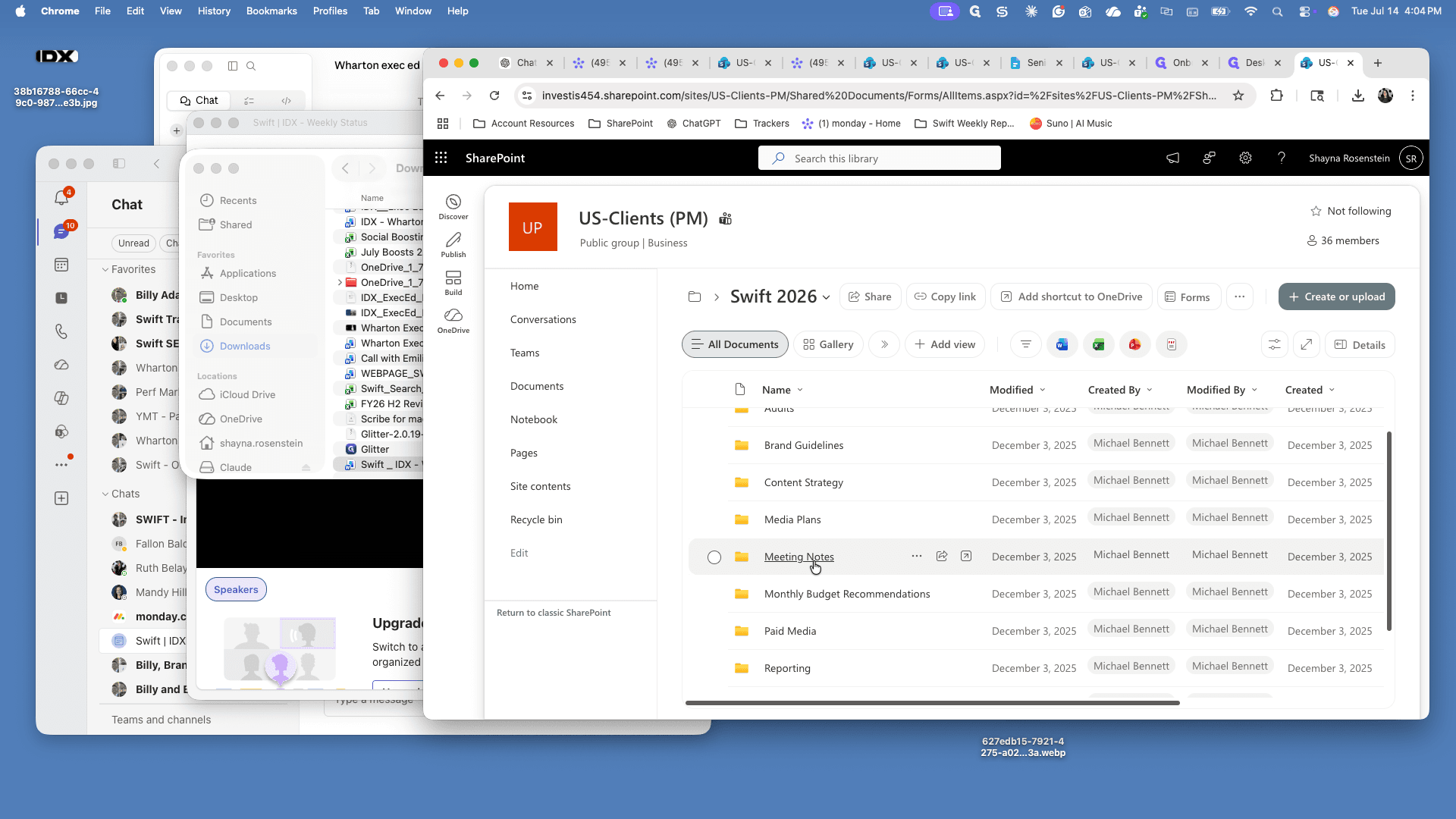
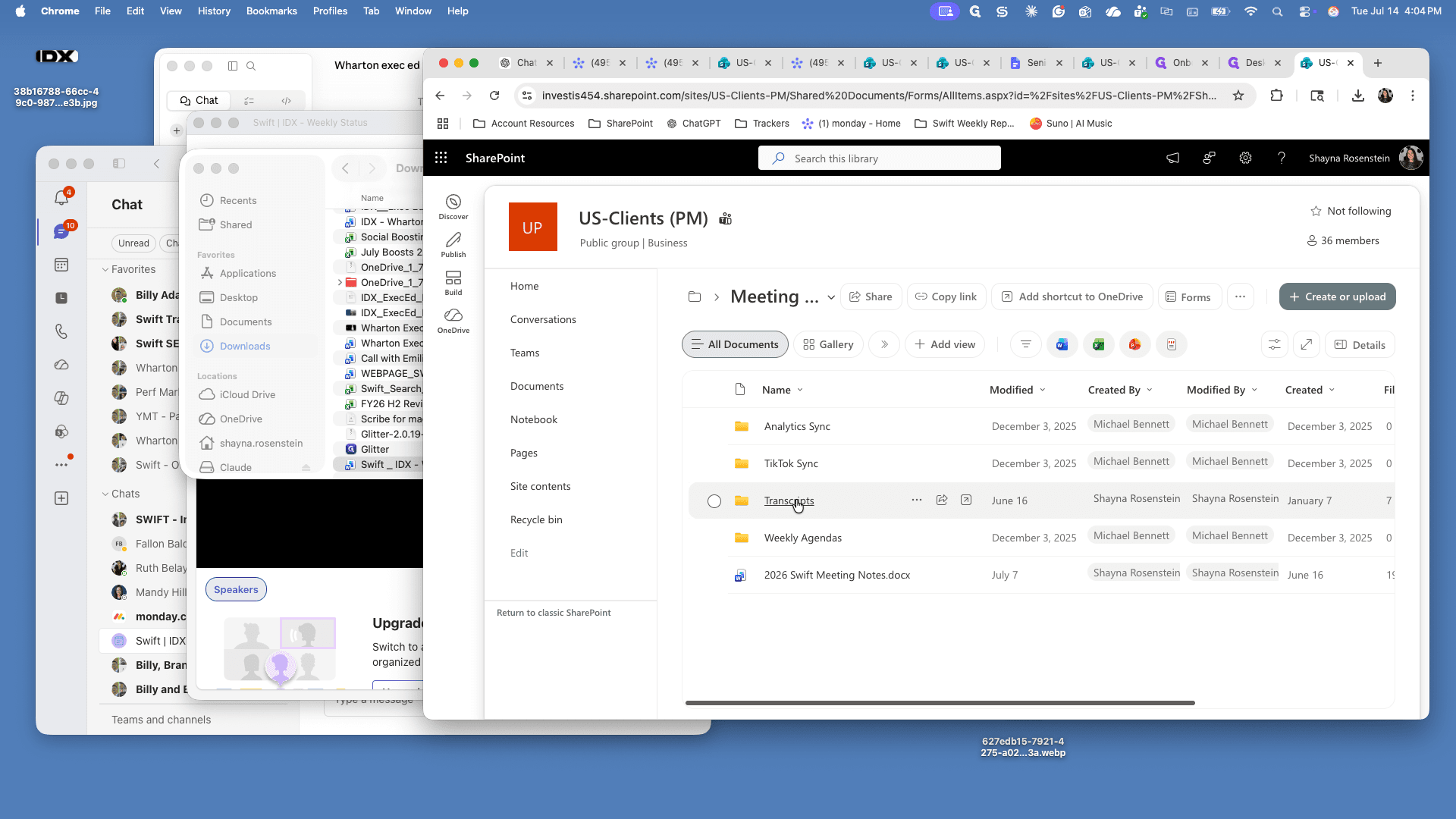
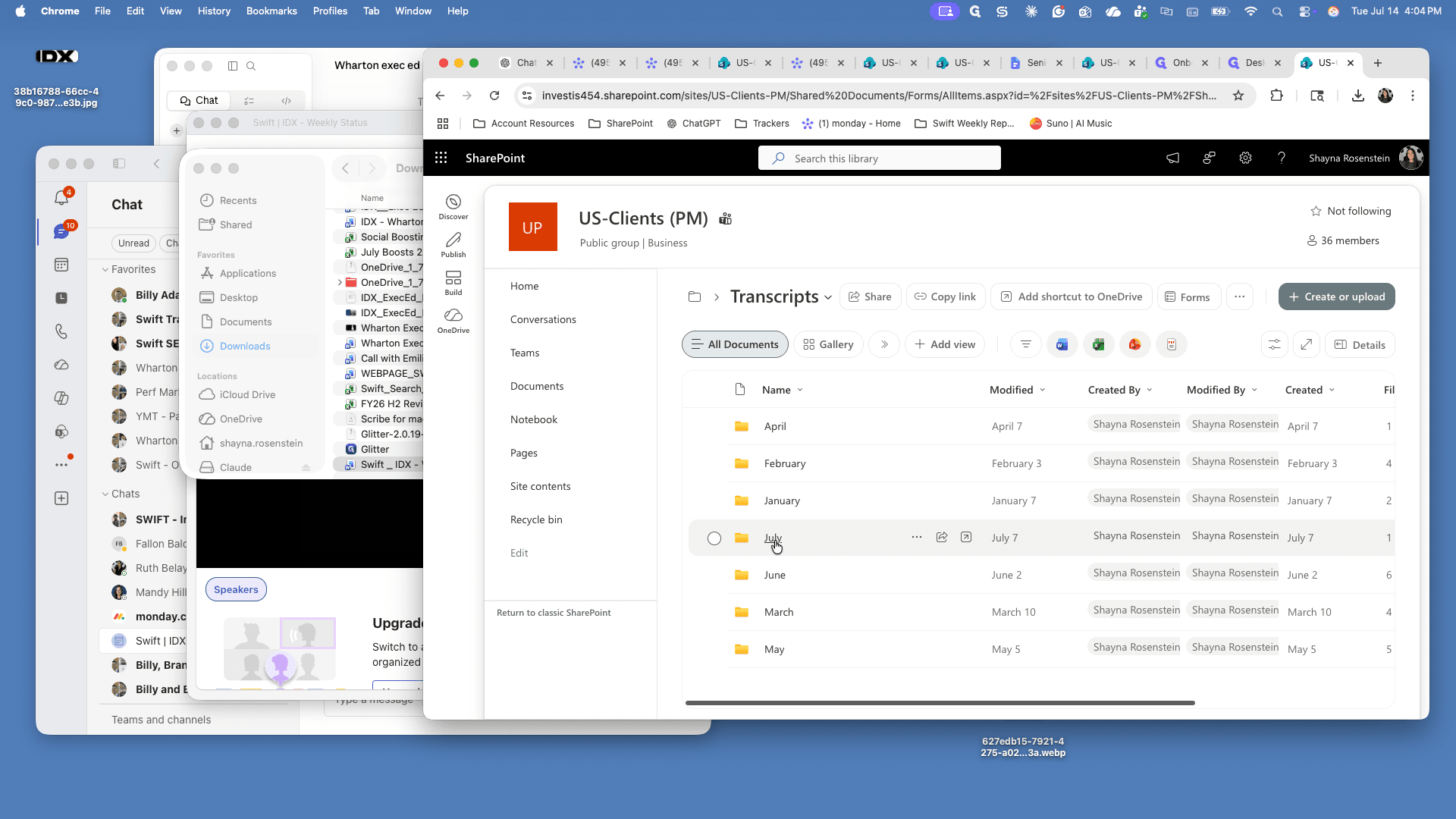
.docx transcript file from your computer into the SharePoint folder view.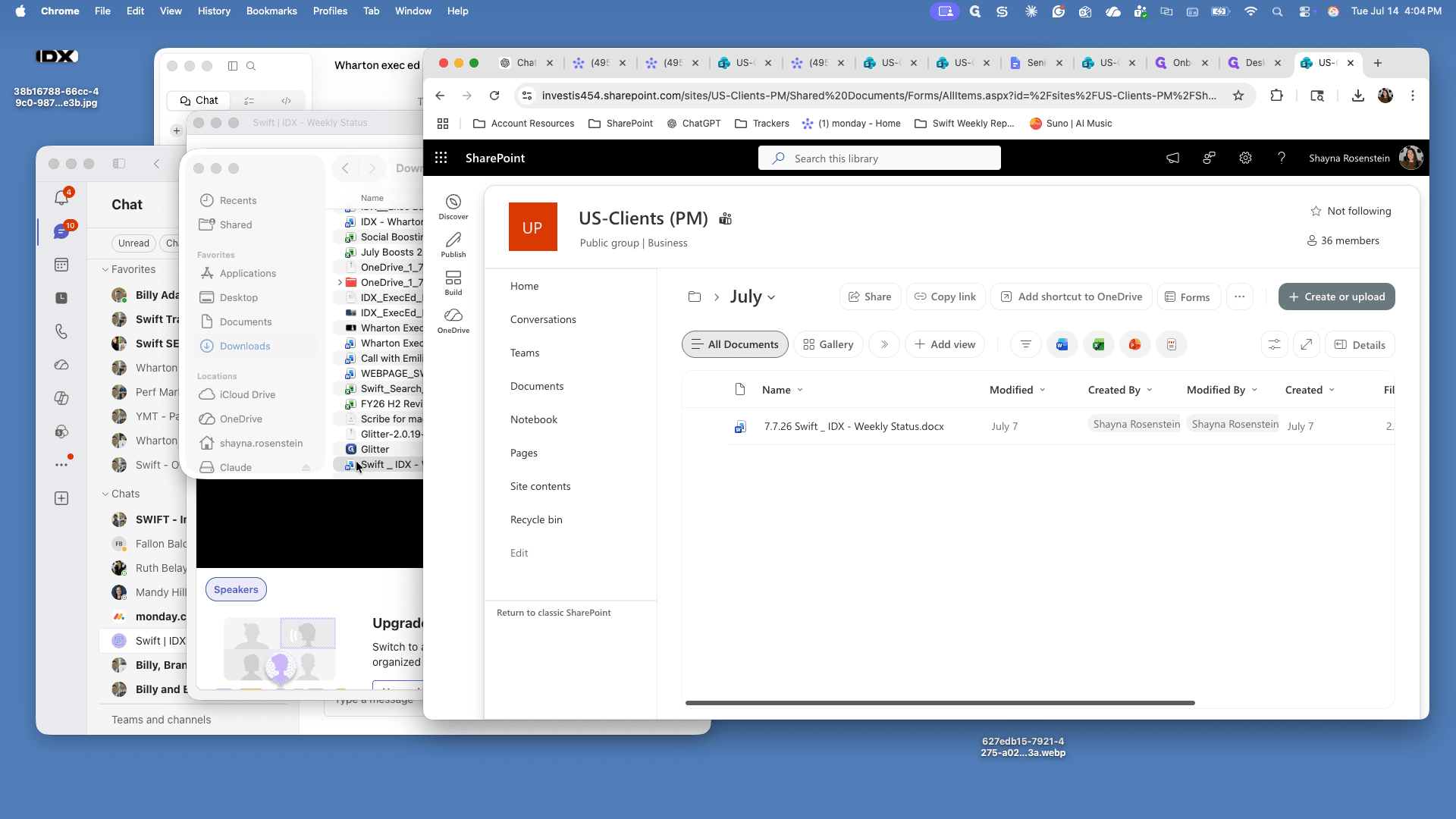
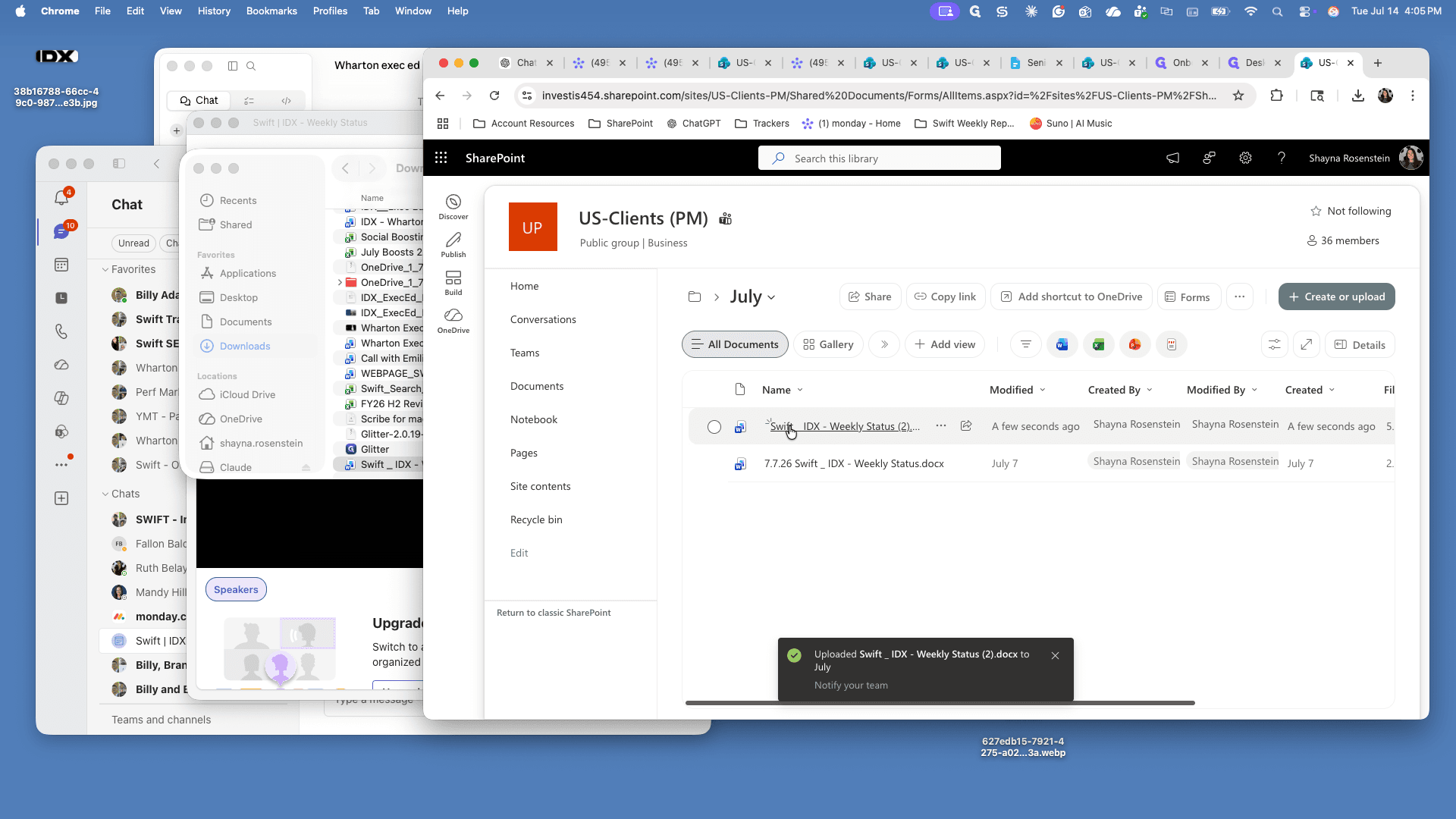
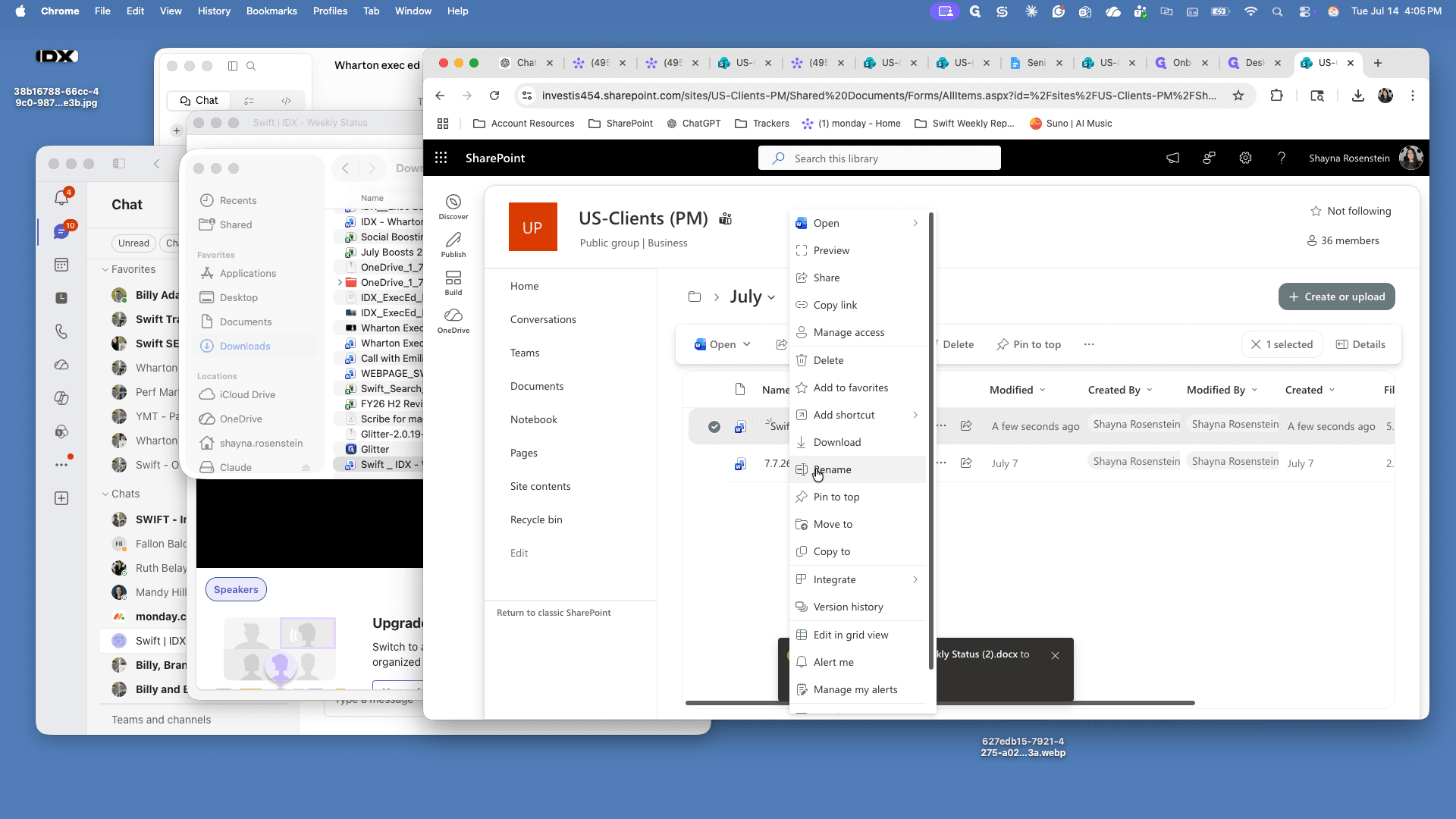
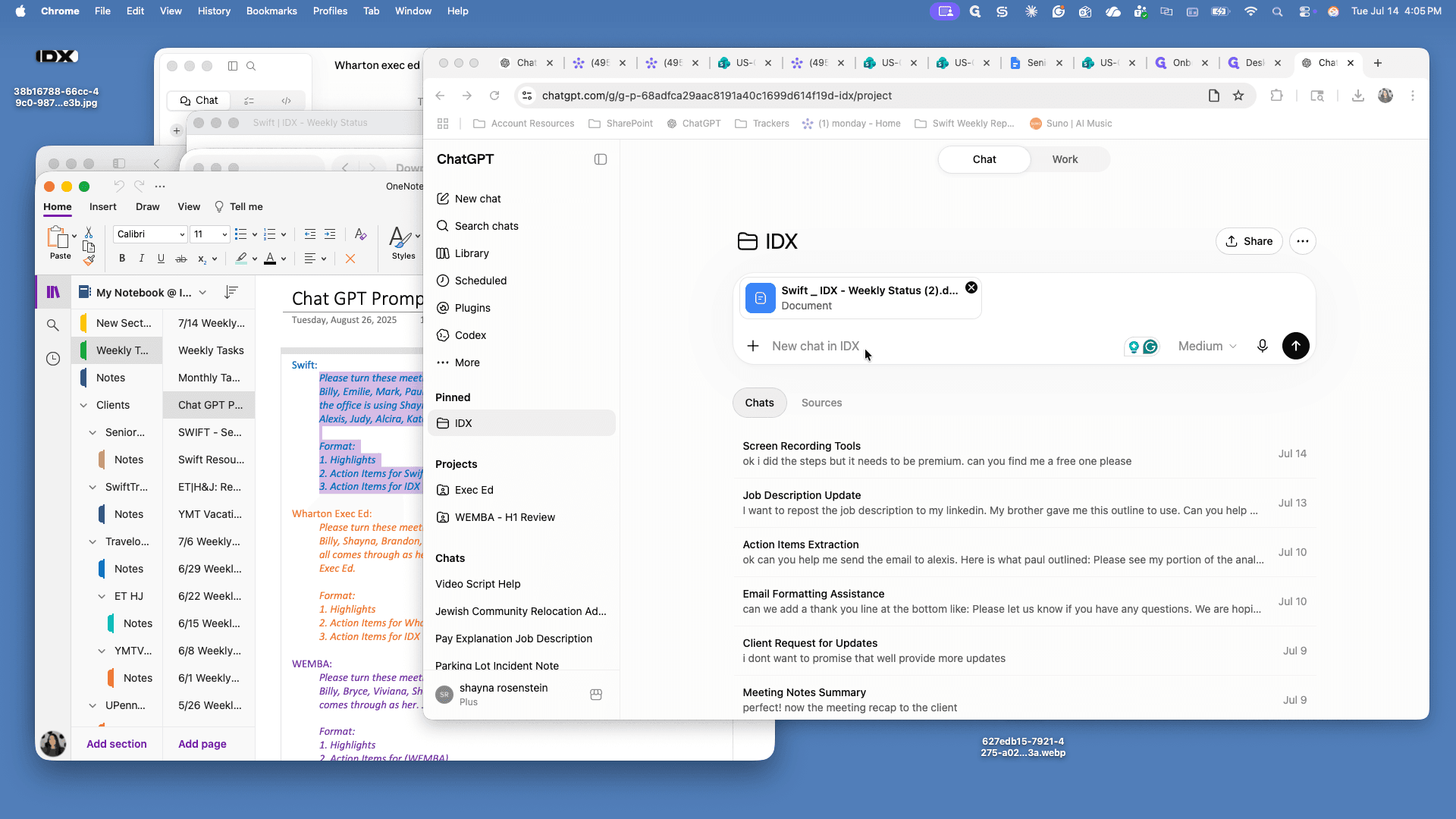
7.14.26) to the file name to keep records organized, then press Enter.3. Generate the Meeting Summary using ChatGPT
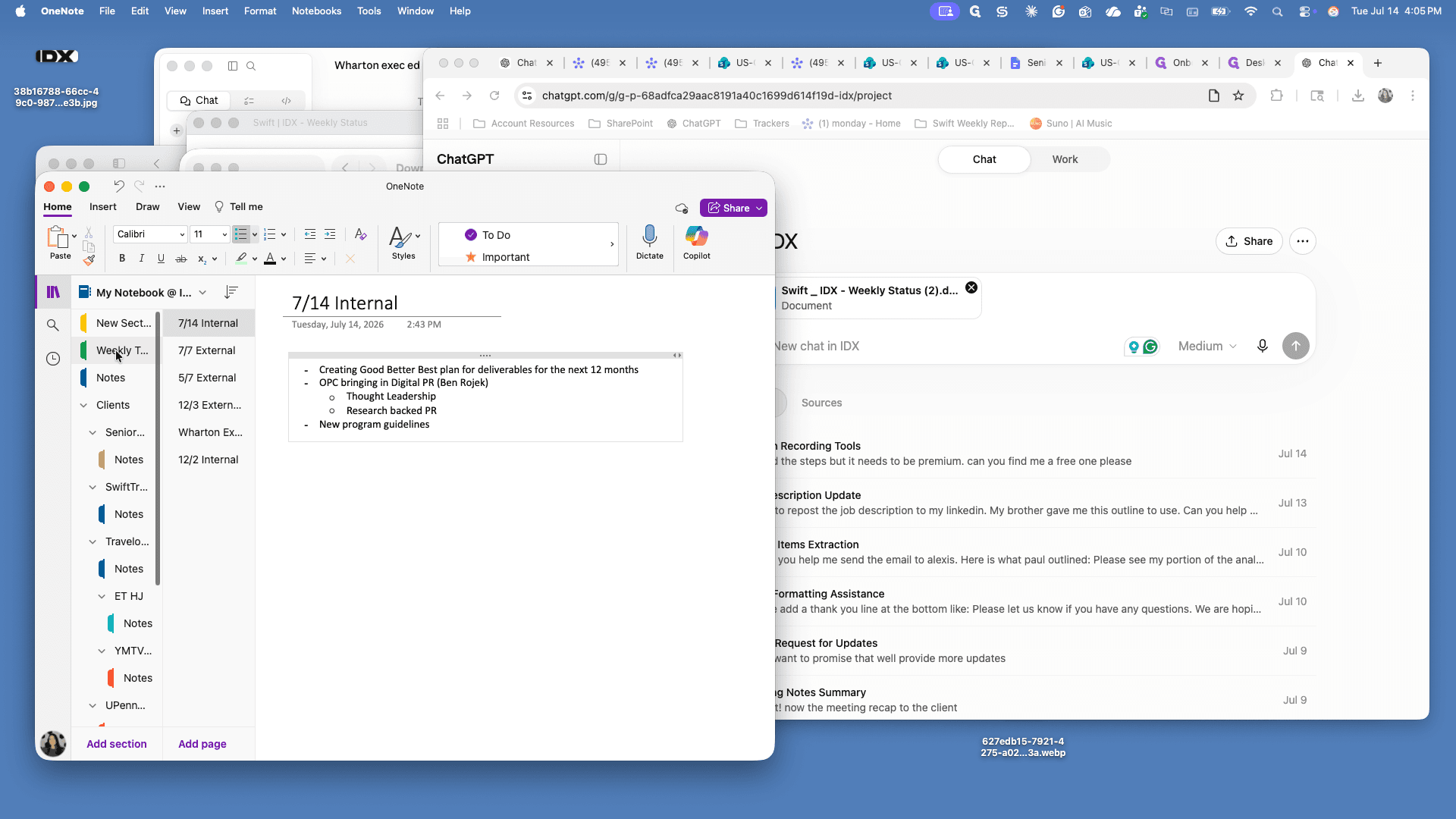
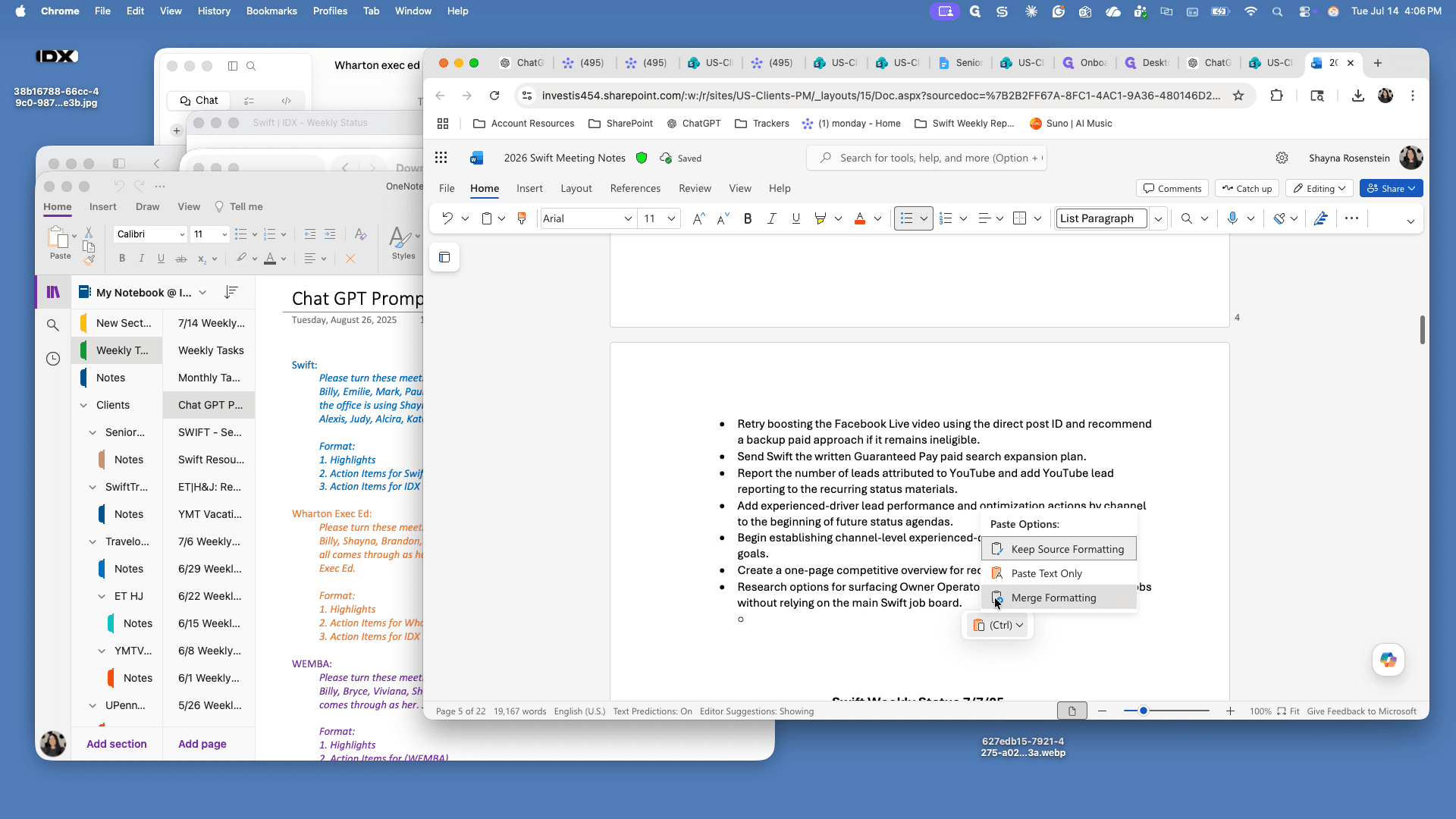
4. Update the Master Meeting Notes Document
Q: What format should I use to download the transcript from Teams?
A: Download the transcript as a .docx file so it is easy to read, copy text from, and upload directly to SharePoint as a document.
Q: Where should I upload the downloaded transcript?
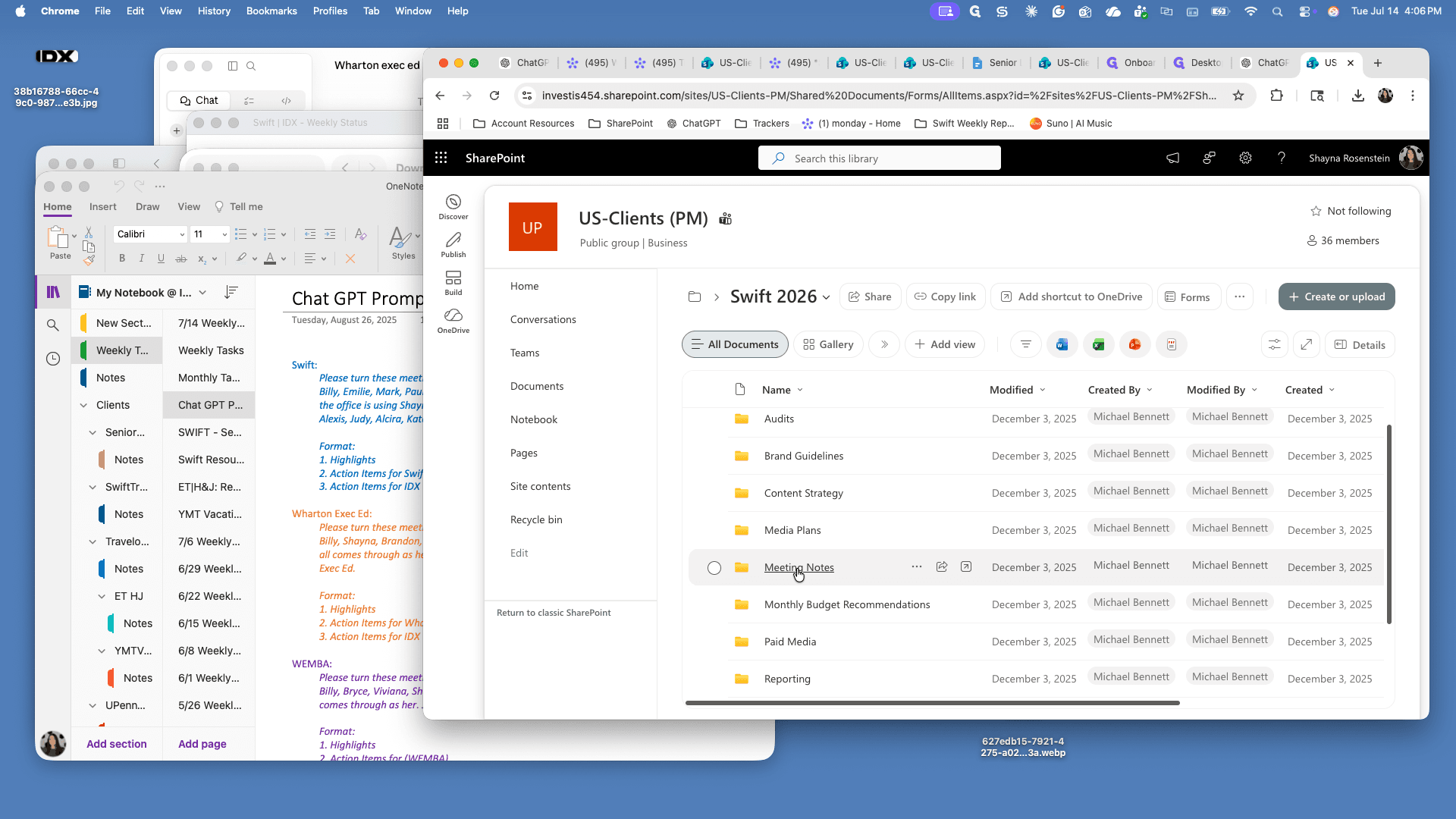
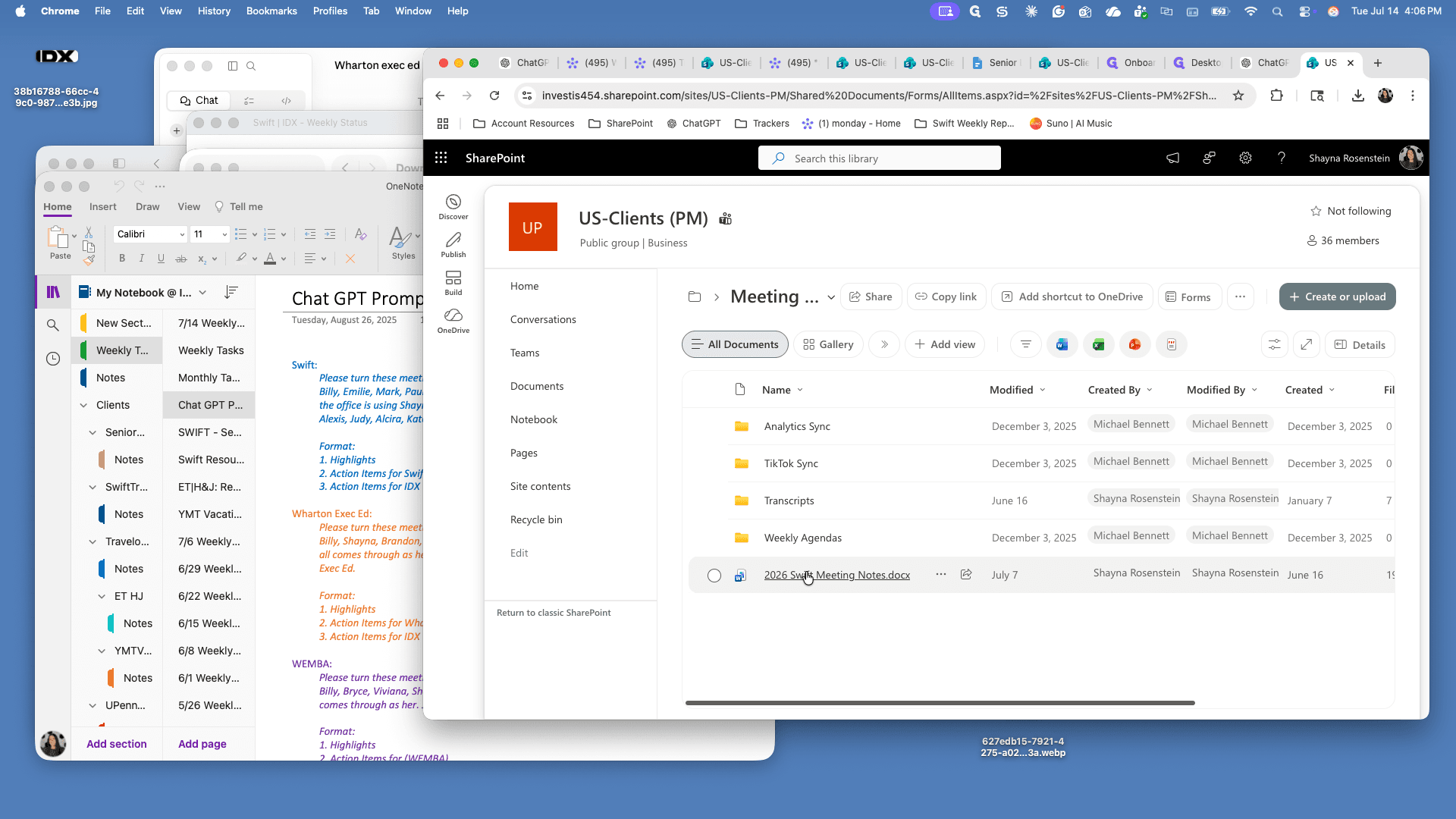
A: Upload it to the designated client folder in SharePoint. Navigate to the Notes directory, then Transcripts, and place it in the folder corresponding to the current month.
Q: How can I ensure the pasted ChatGPT summary matches the existing document format?
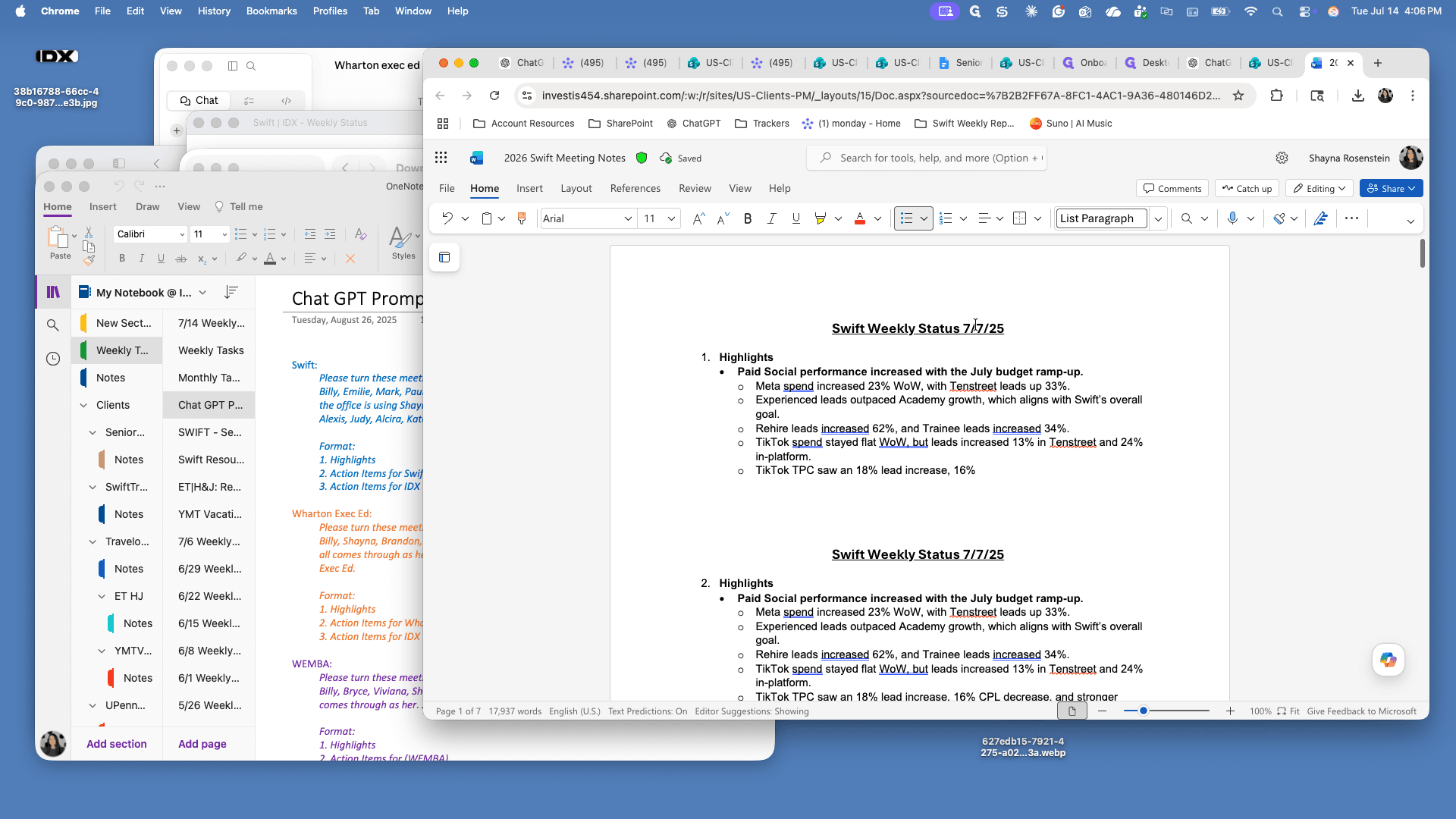
A: Use the "Paste Options" dropdown icon that appears right after you paste into Word Online, and select "Merge Formatting" or "Paste Text Only."
Term | Definition |
|---|---|
Transcript | A written, word-for-word record of spoken conversation generated automatically during a recorded meeting. |
SharePoint | A web-based collaborative platform used by organizations to manage, store, and organize documents. |
Prompt | A specific set of instructions given to an AI tool to generate a desired response or summary. |