How to Generate and Print Equipment QR Code Labels

Learn how to search for equipment locations, generate QR codes in the Milner Customer Gateway, and print labels using DYMO Connect.

By Allan Mendoza

This guide explains how to locate specific equipment records in the Milner portal and generate QR code labels for them. Completing this task ensures your physical devices are properly tagged for quick scanning and inventory management.

This workflow applies to inventory managers, IT staff, or facility administrators. Use these steps whenever you need to print new or replacement QR code labels for office equipment deployed at specific locations.

Locate Equipment Records
1
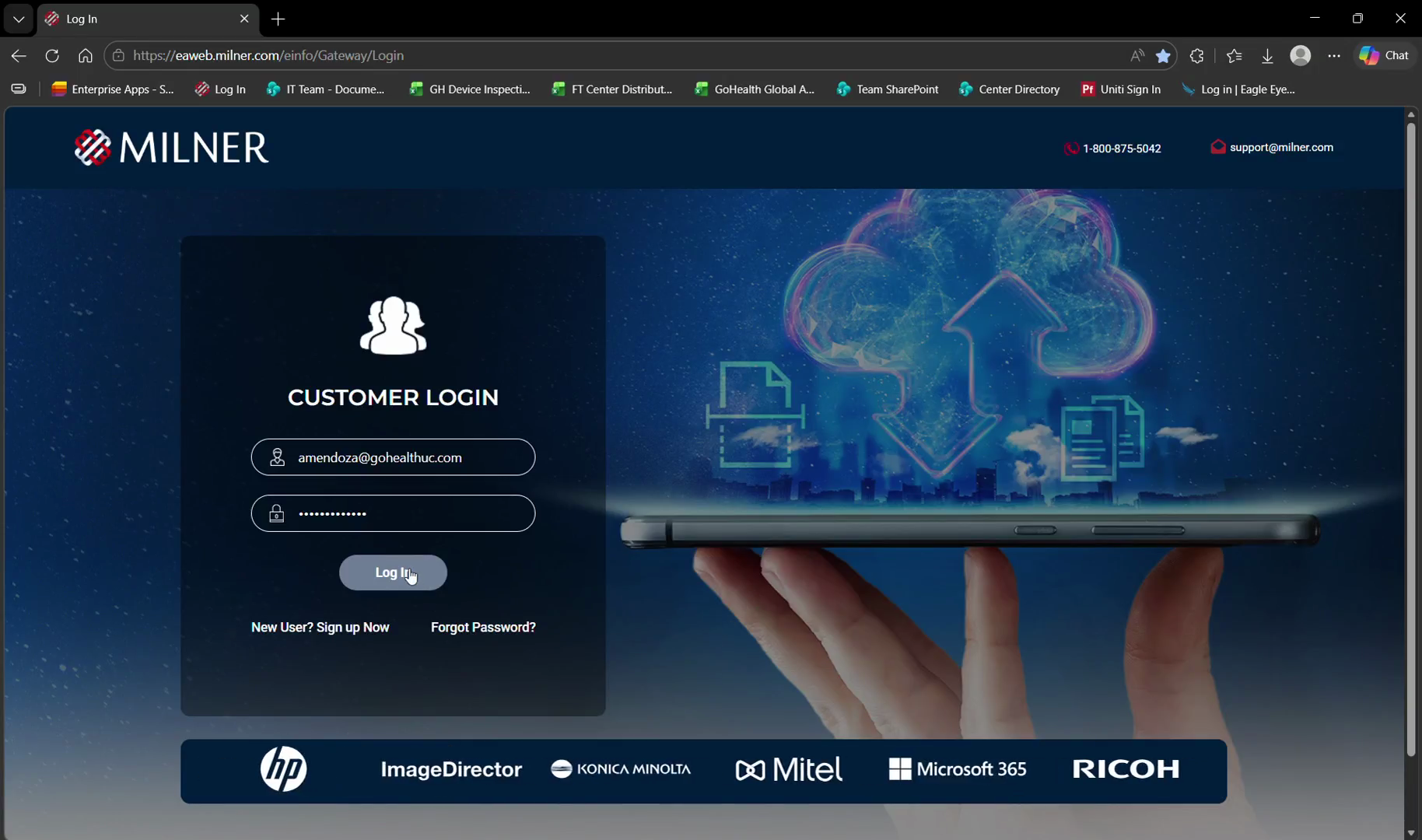
Click Log In to access the Milner Customer Gateway.
Step #1: Click Log In to access the Milner Customer Gateway.
2
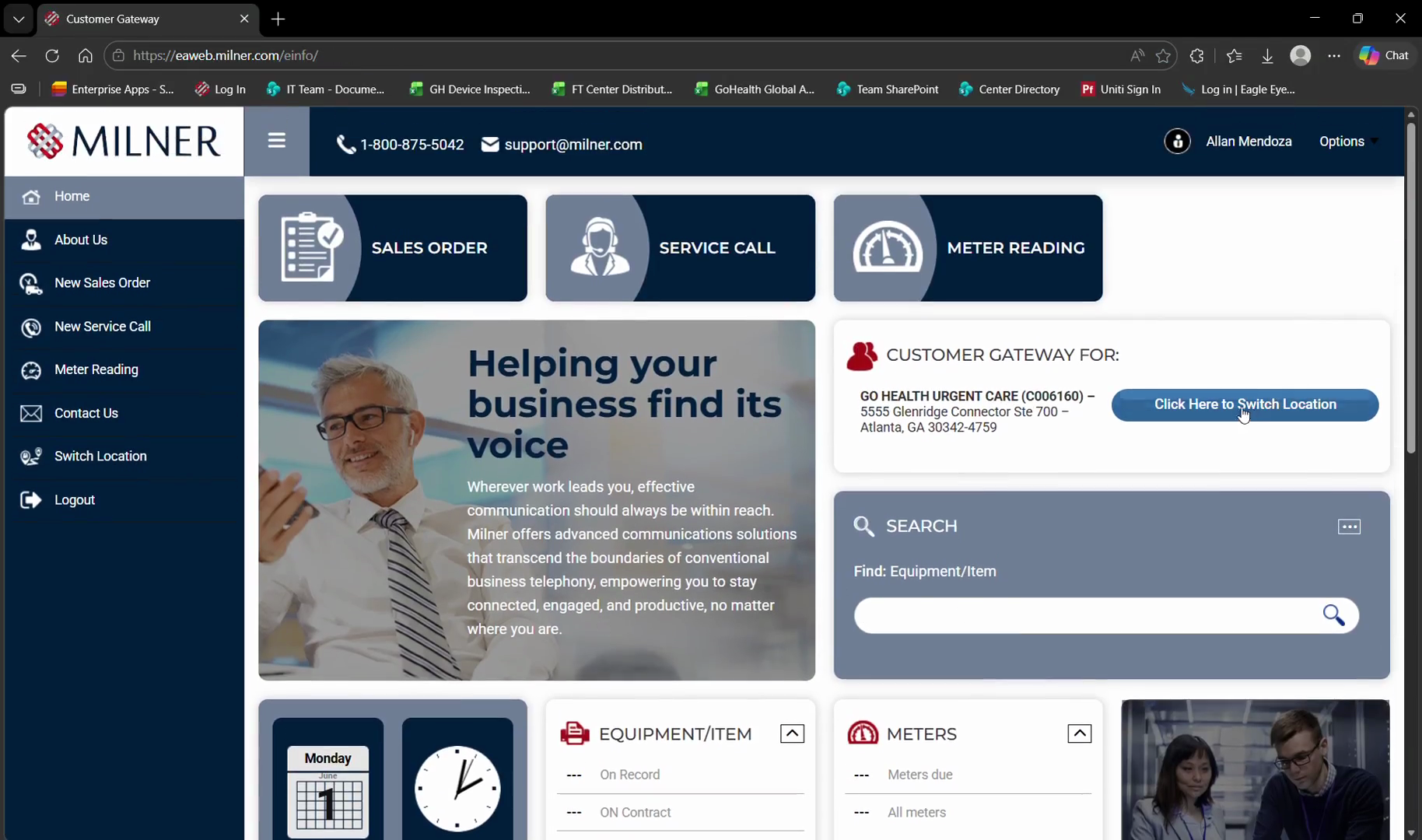
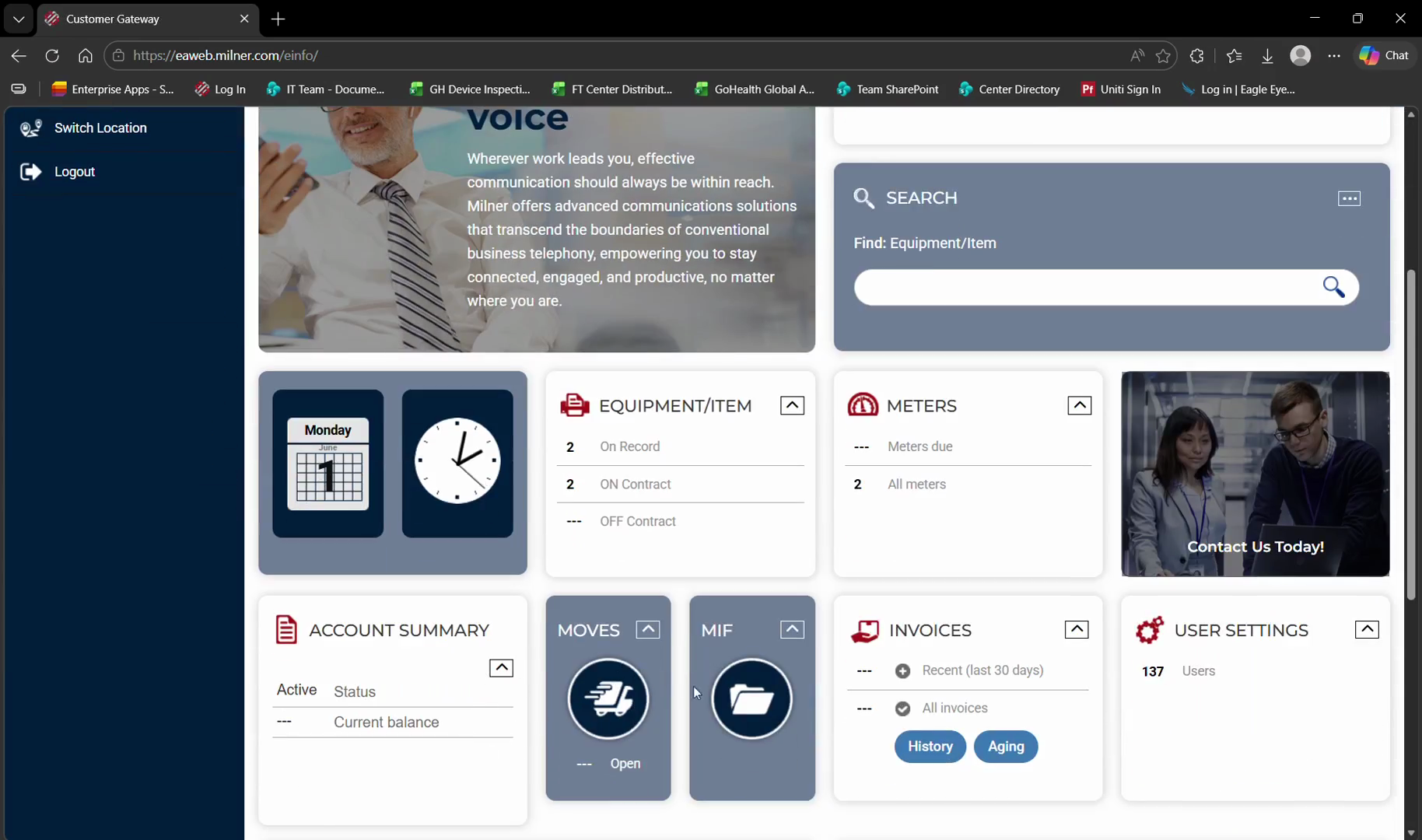
Click Click Here to Switch Location on the dashboard.
Step #2: Click Click Here to Switch Location on the dashboard.
3
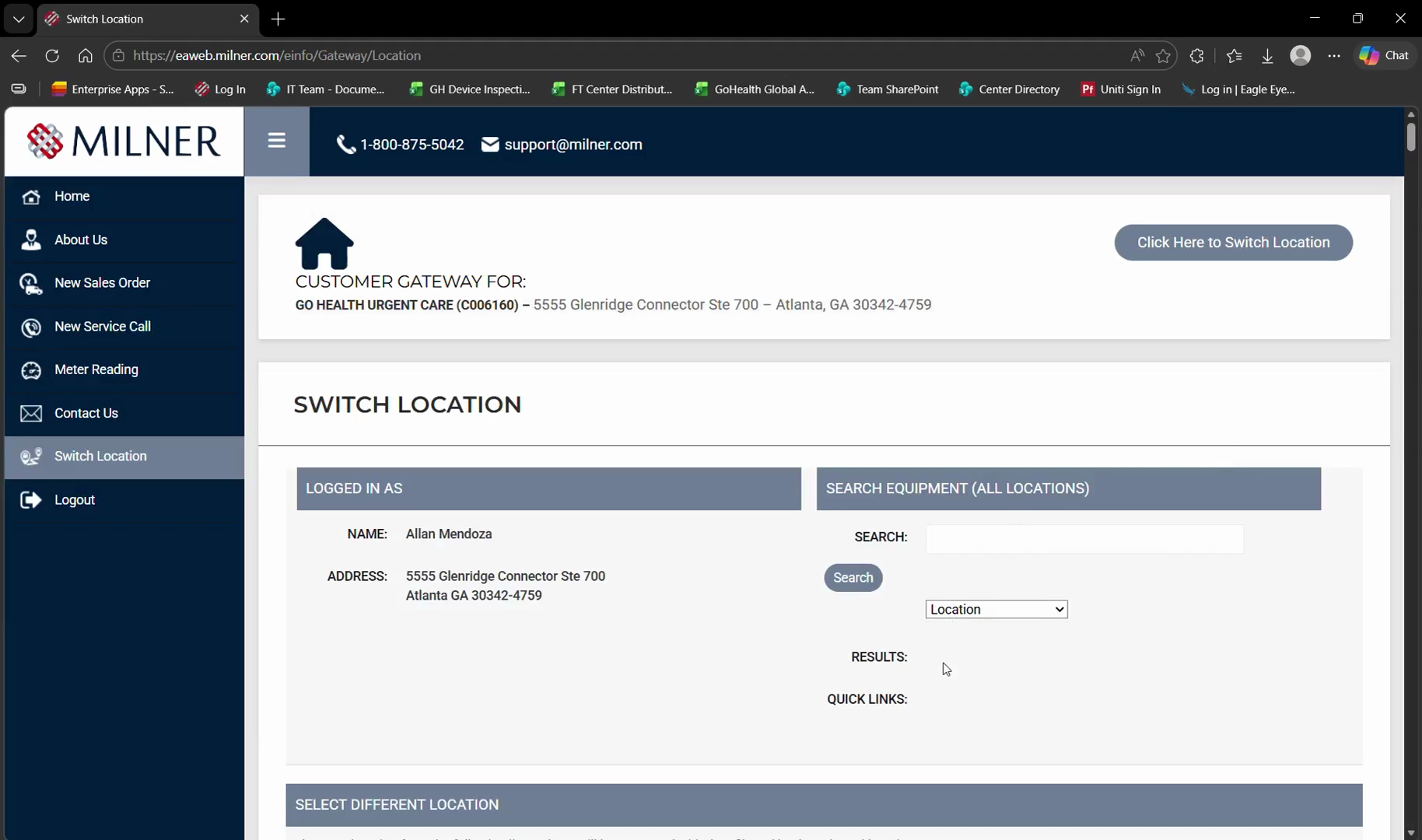
Click the SEARCH field.
Step #3: Click the SEARCH field.
4
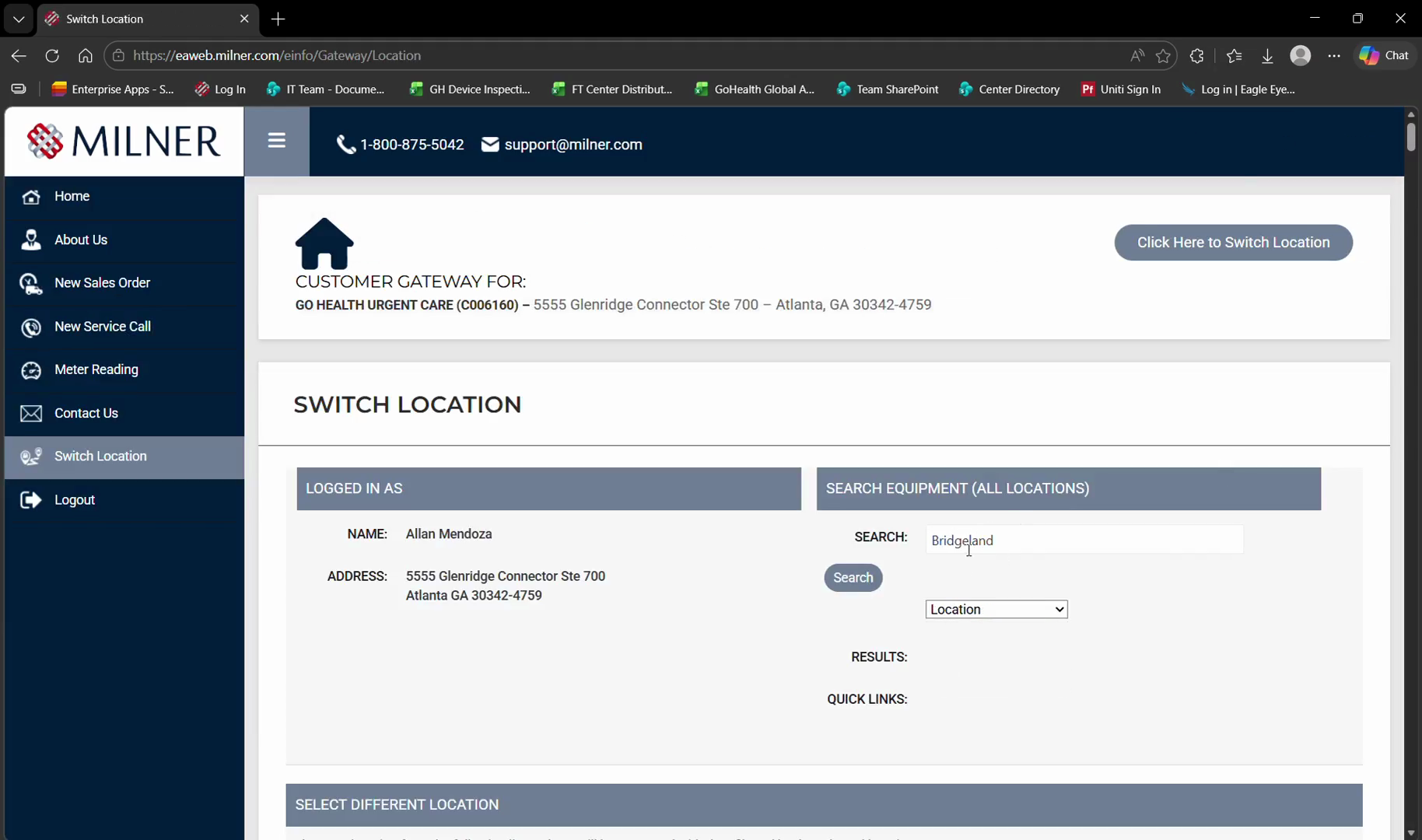
Type the name of the desired location (for example, "Bridgeland").
5
Click Search to view matching facilities.
Step #5: Click Search to view matching facilities.
6
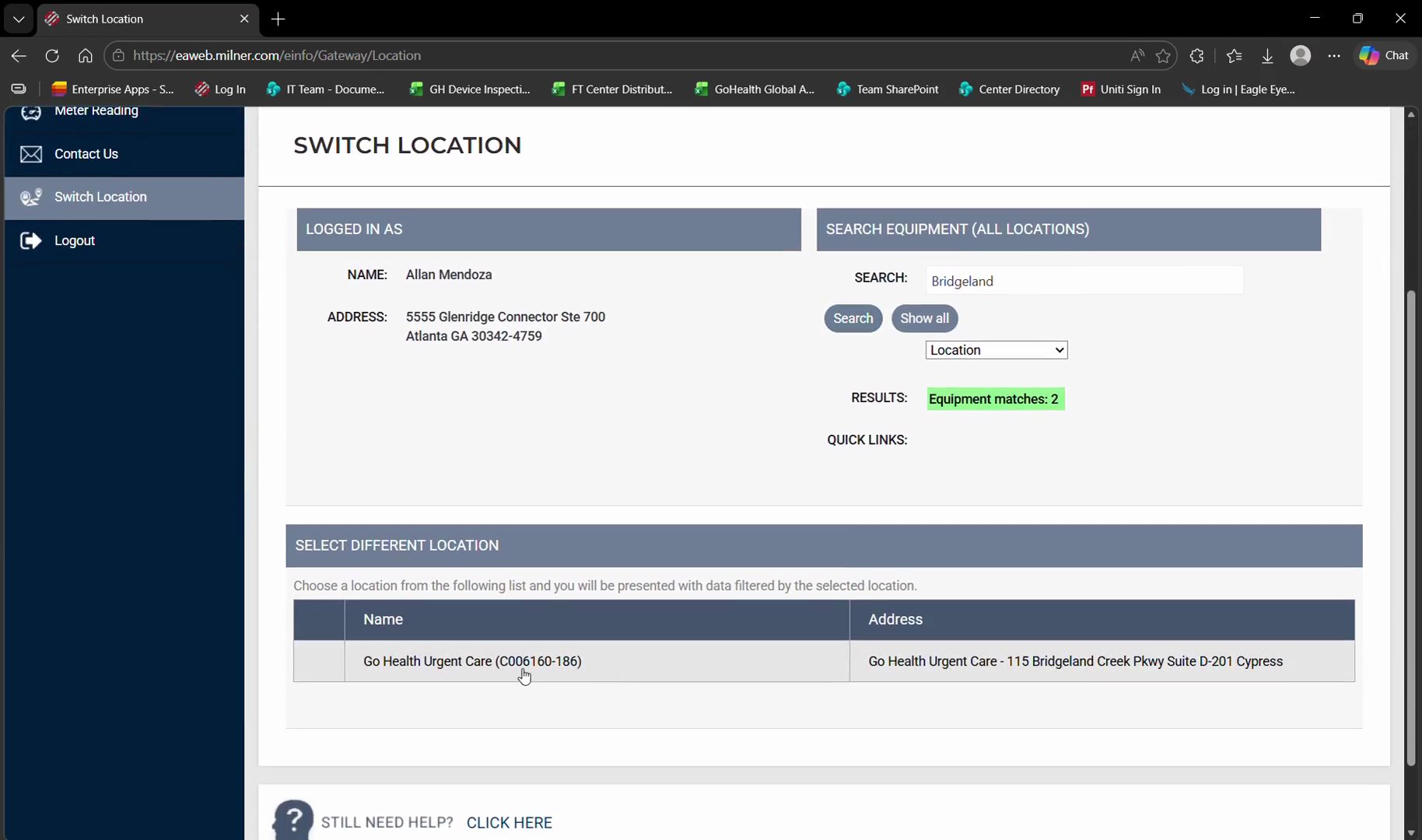
Select the correct location from the search results, such as Go Health Urgent Care.
Step #6: Select the correct location from the search results, such as Go Health Urgent Care.
7
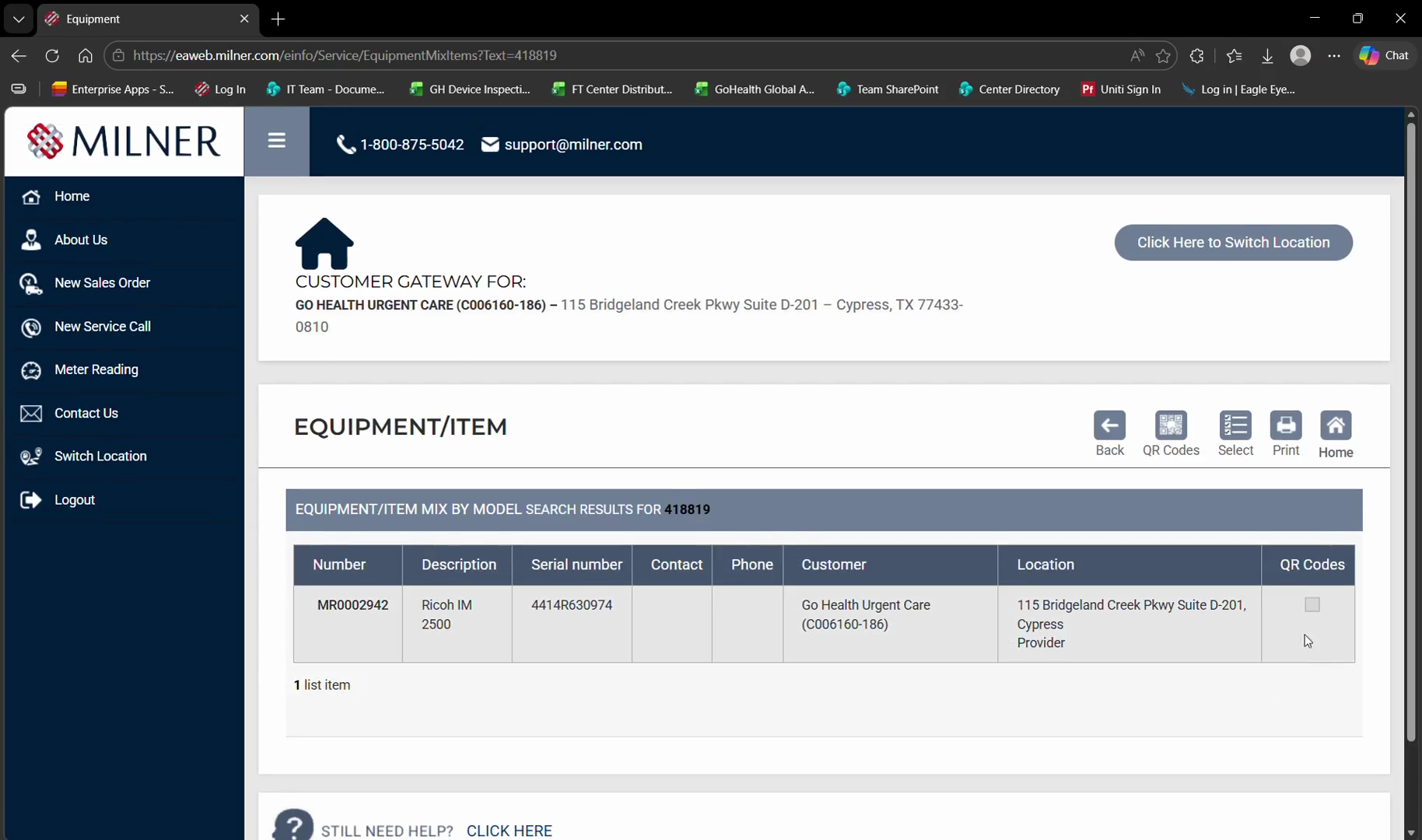
In the Equipment/Item widget, click On Record to view the deployed devices.
Step #7: In the Equipment/Item widget, click On Record to view the deployed devices.
8
Check the box in the QR Codes column next to the equipment you want to tag.
Step #8: Check the box in the QR Codes column next to the equipment you want to tag.

Capture and Print the Label

9
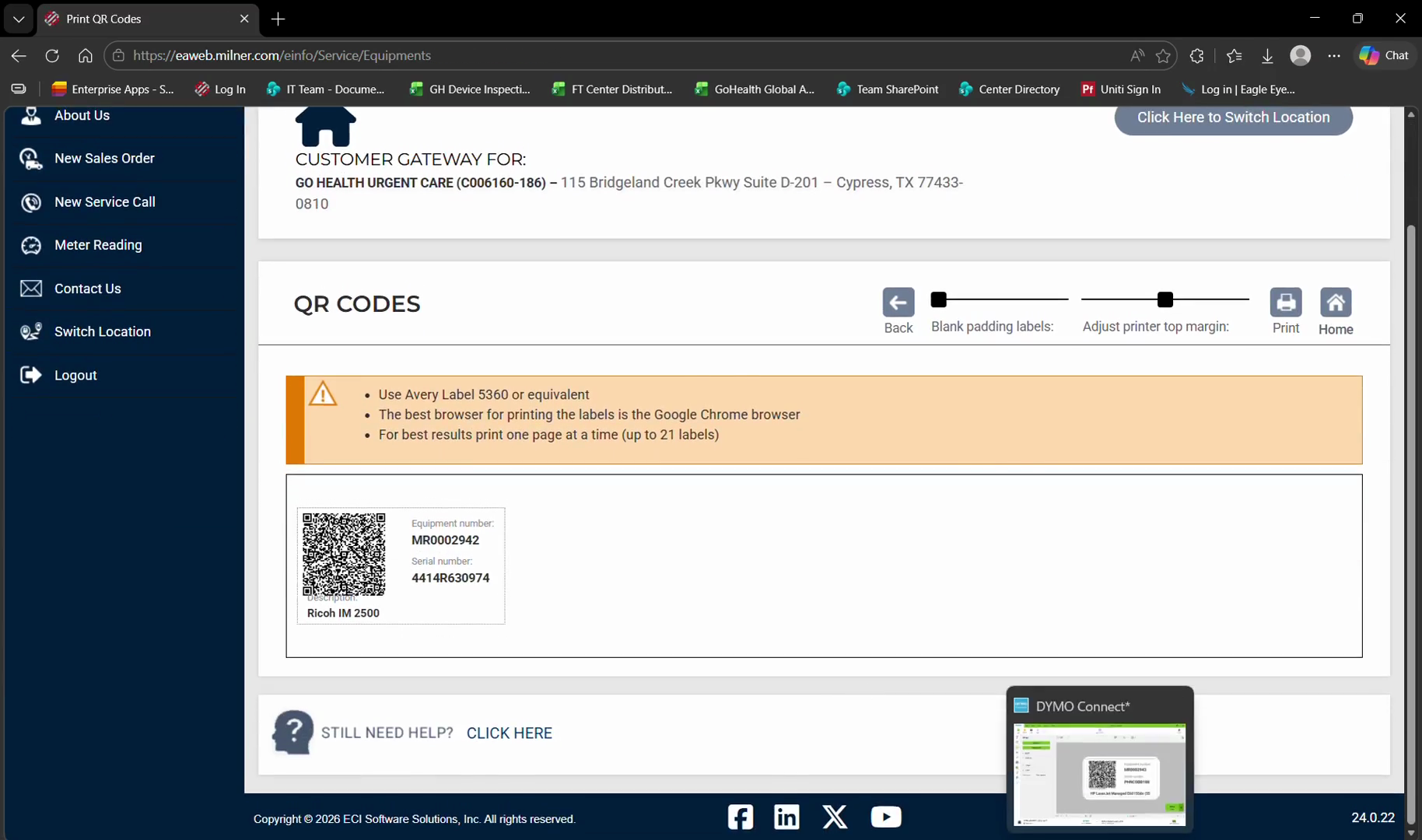
Open your DYMO Connect software and click Screen grab.
Step #9: Open your DYMO Connect software and click Screen grab.
10
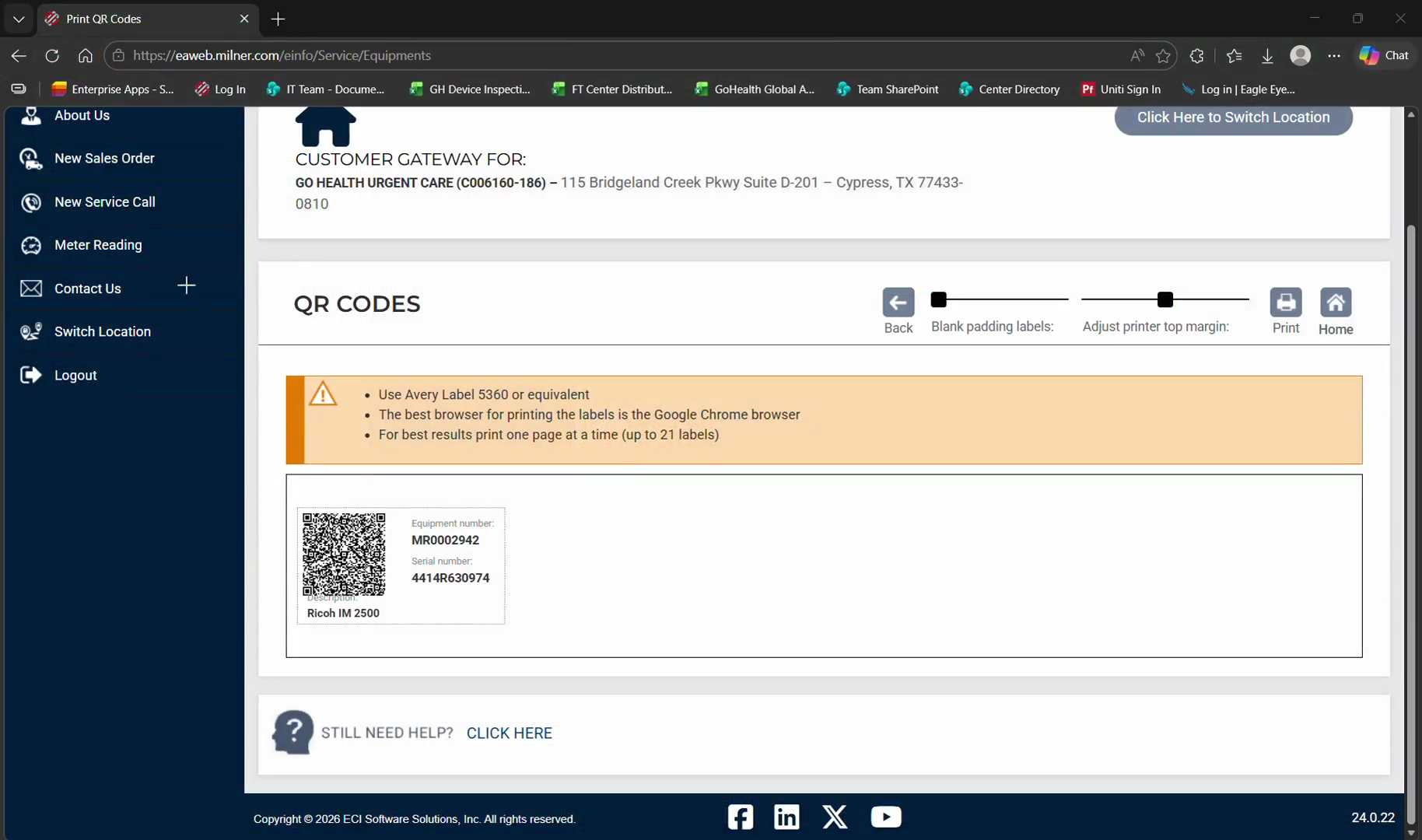
Click and drag your mouse to select the QR code and equipment details displayed on the web portal.
Step #10: Click and drag your mouse to select the QR code and equipment details displayed on the web portal.
11
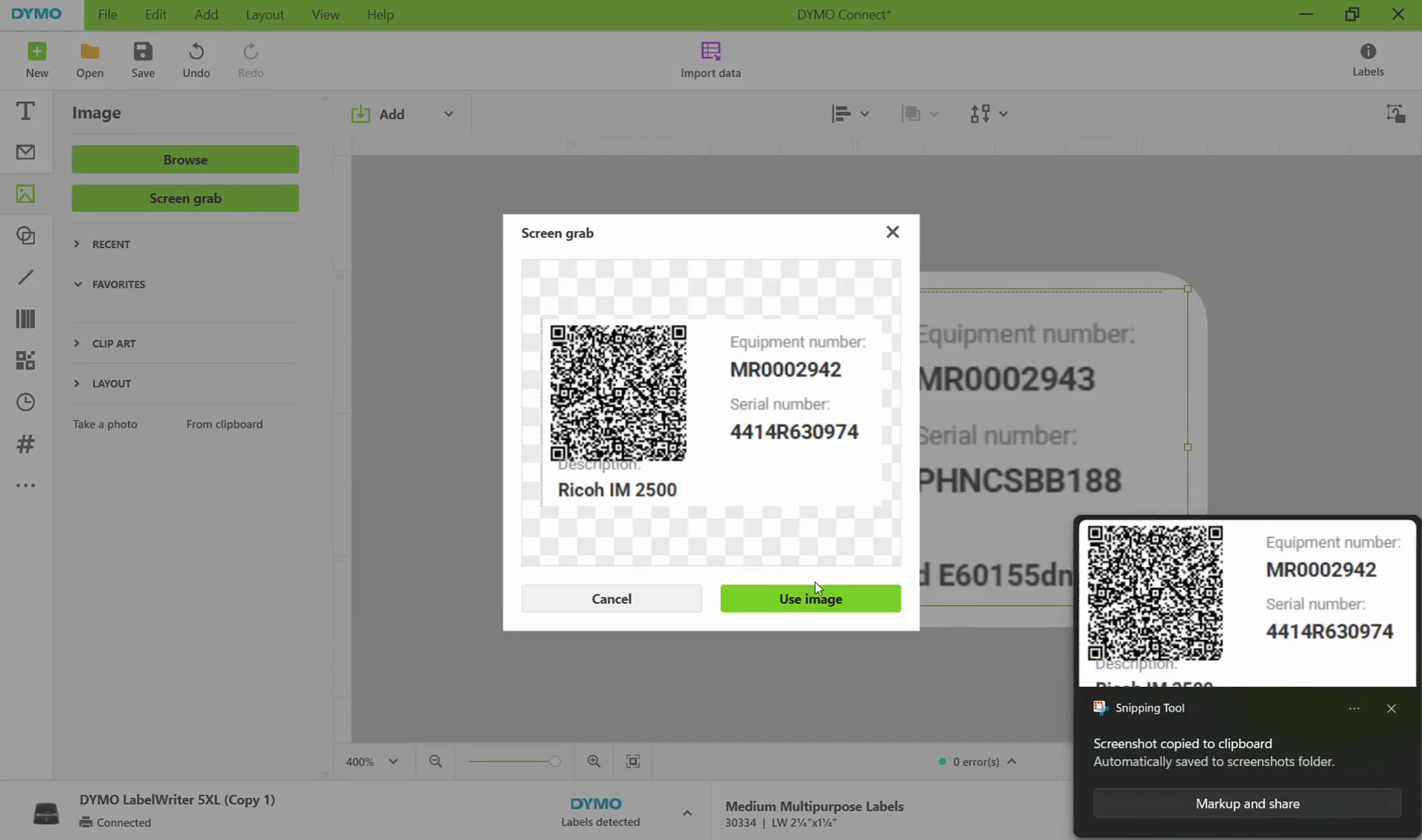
Click Use Image to insert the captured QR code onto your label design.
Step #11: Click Use Image to insert the captured QR code onto your label design.
12
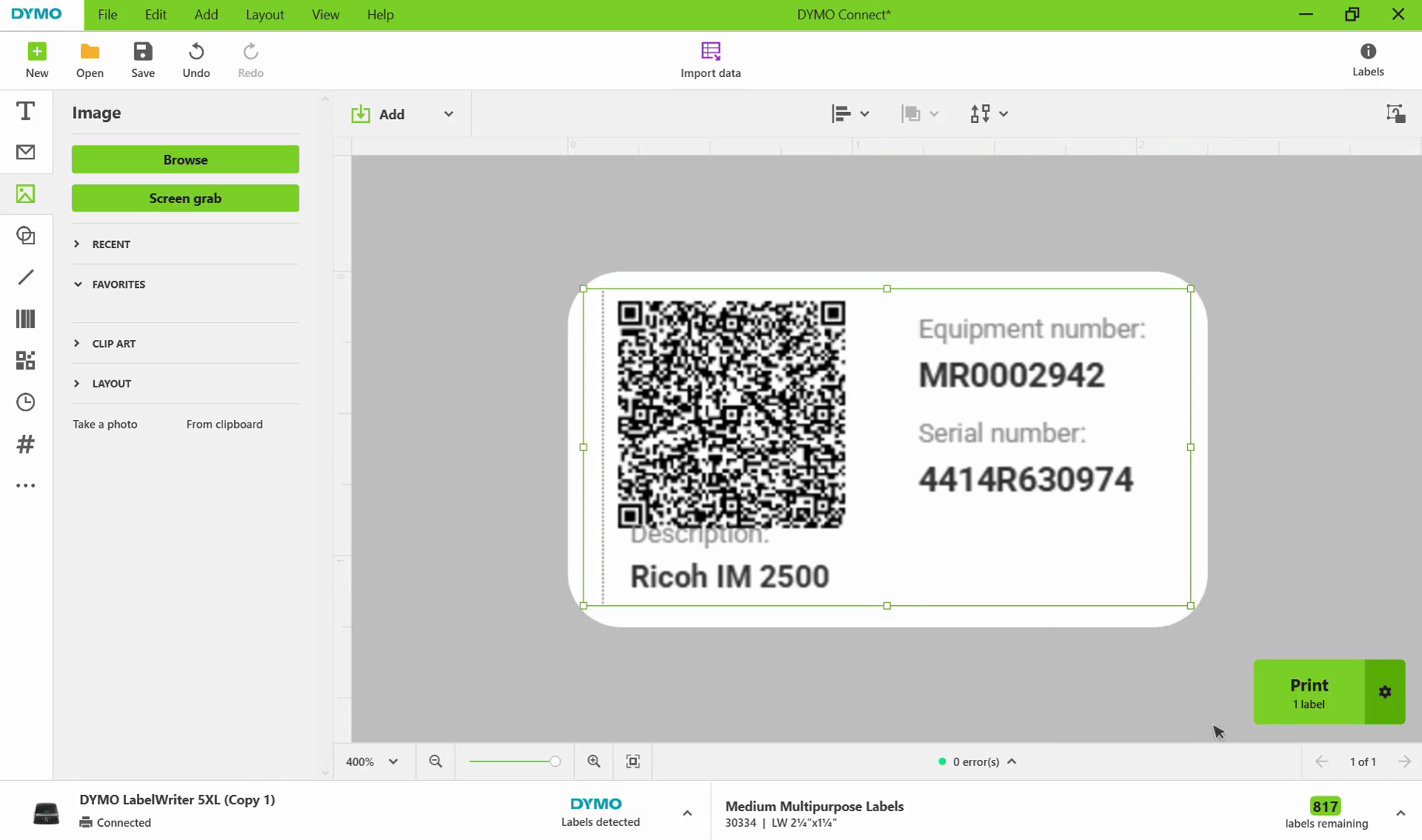
Click the Print button in the bottom-right corner to print the label.
Step #12: Click the Print button in the bottom-right corner to print the label.

Term

Definition

Milner Customer Gateway

The customer portal used to manage account details, track equipment, and generate inventory QR codes.

DYMO Connect

The label design and printing software used to capture and format images for physical labels.

Screen grab

A tool within DYMO Connect that captures a specific portion of the computer screen to insert onto a label canvas.