Generate Profit and ROI Reports for Your Rental Business
Learn how to track the financial performance of your rental inventory by generating Profit and ROI reports and entering purchase information.
This guide explains how to generate profit and return on investment (ROI) reports for your rental products.
By configuring your product purchase information, you can track financial performance, measure cost recovery, and monitor equipment utilization.
This guide applies to rental business owners and financial administrators managing inventory.
Use this process when adding new products or auditing existing equipment to track profitability accurately.
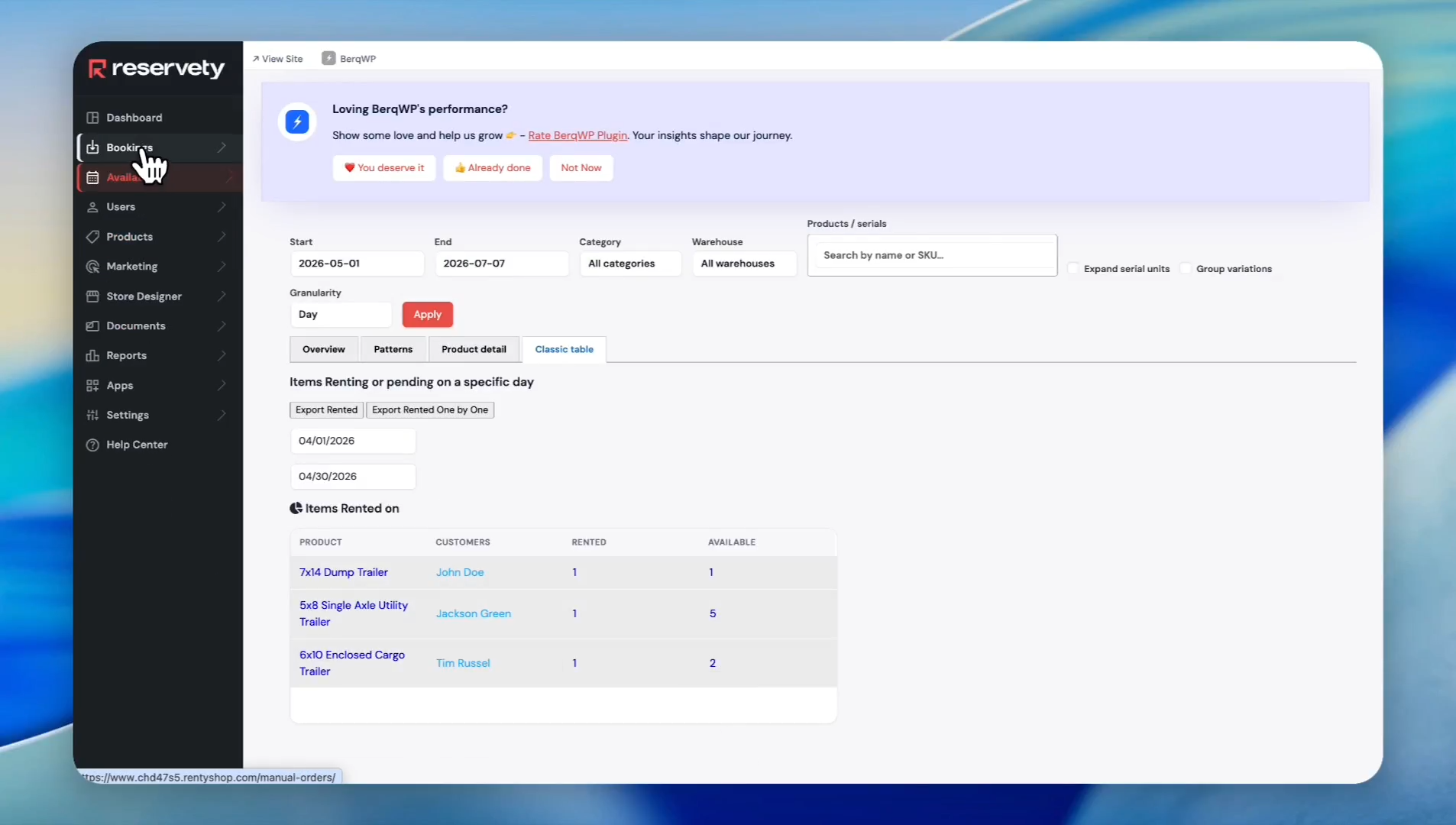
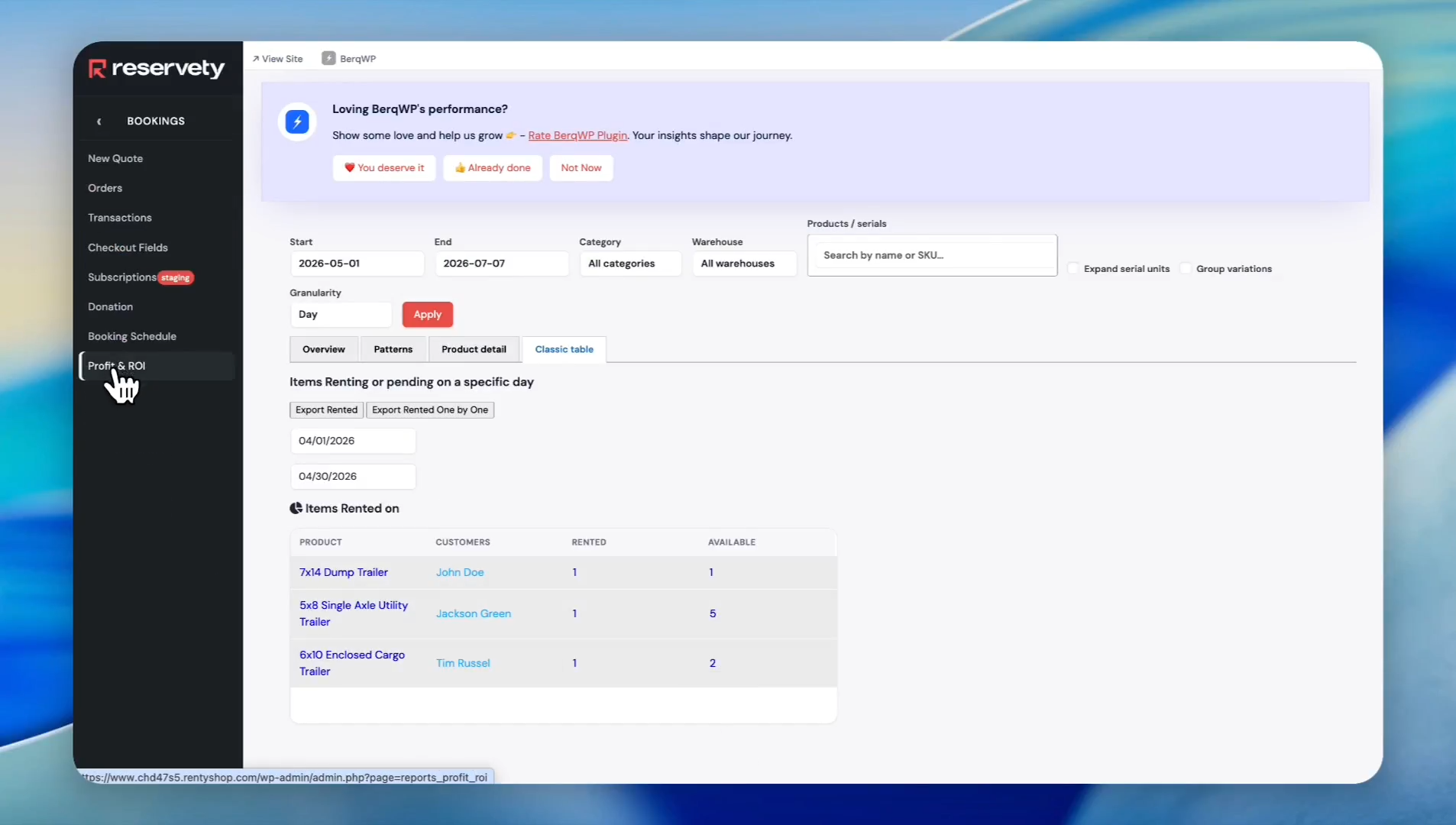
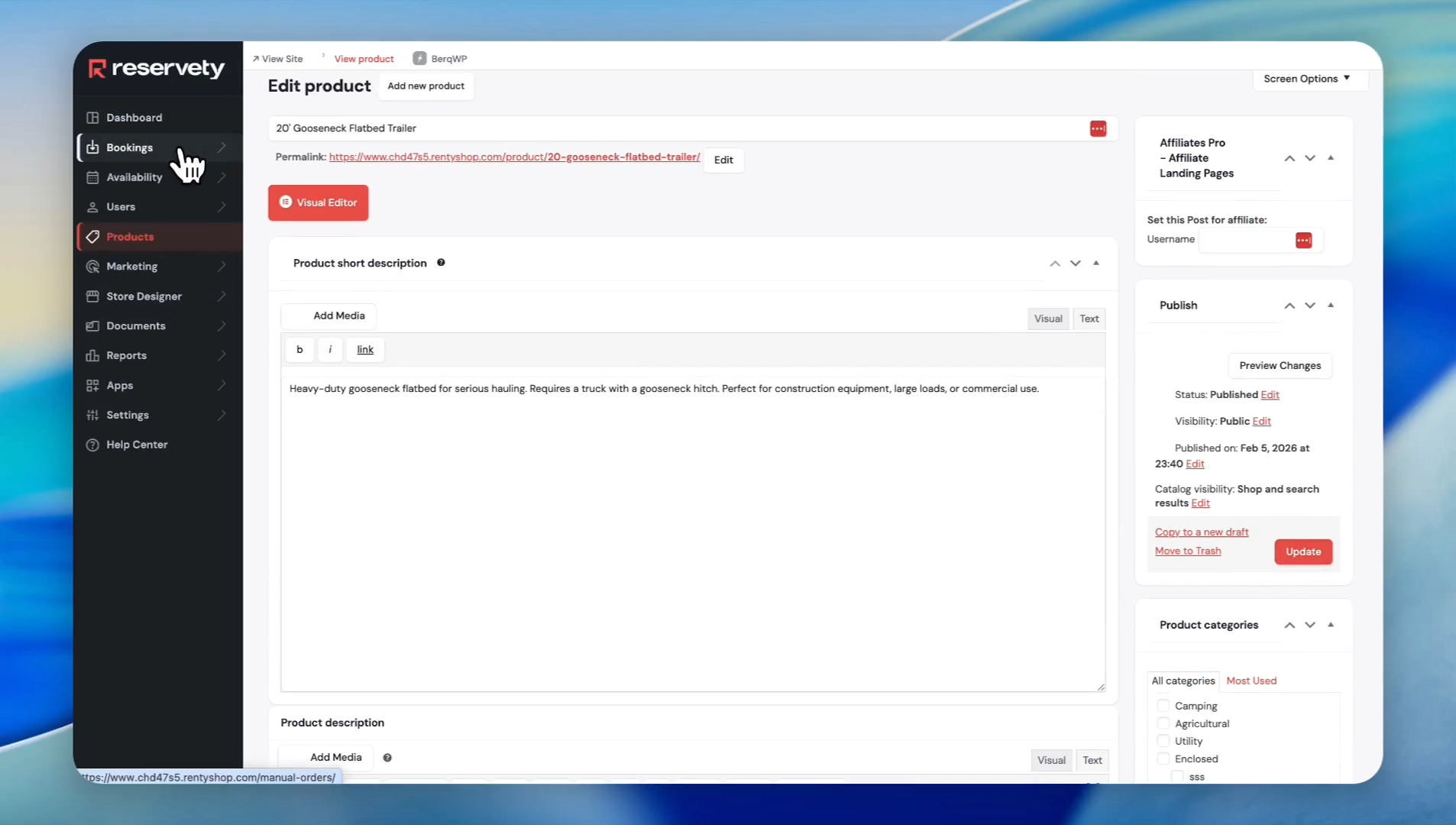
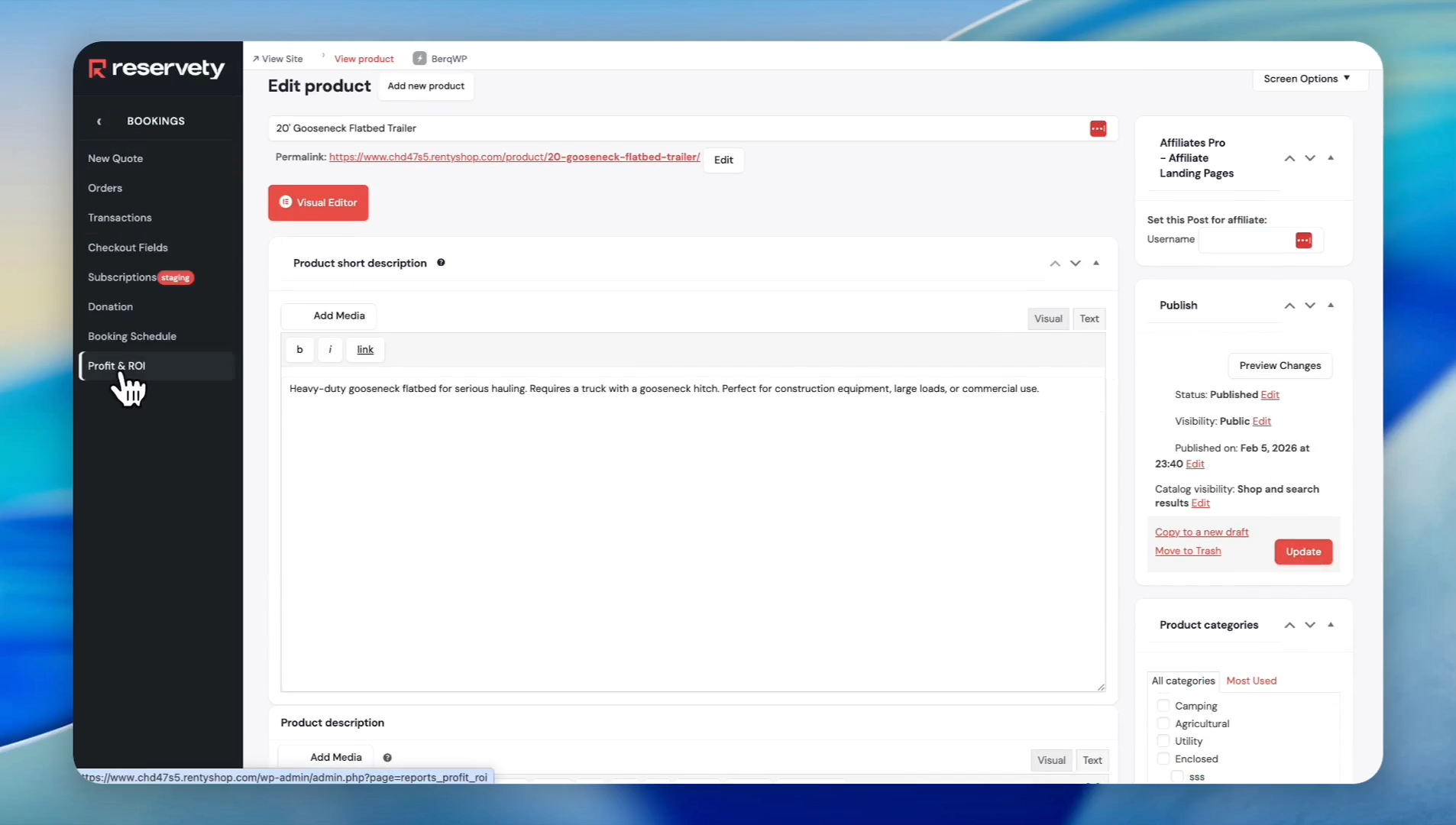
Accessing the Profit and ROI Report
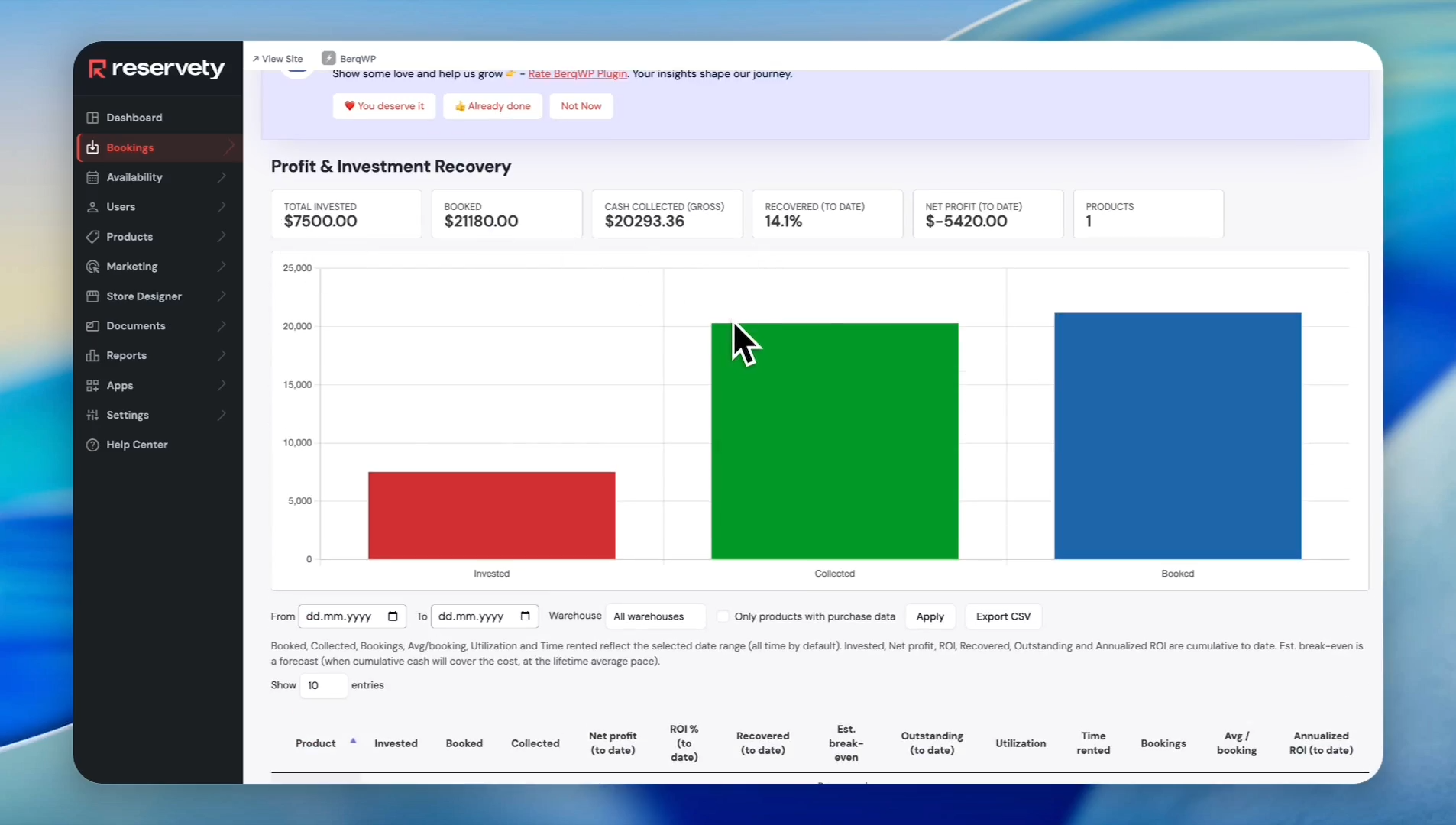
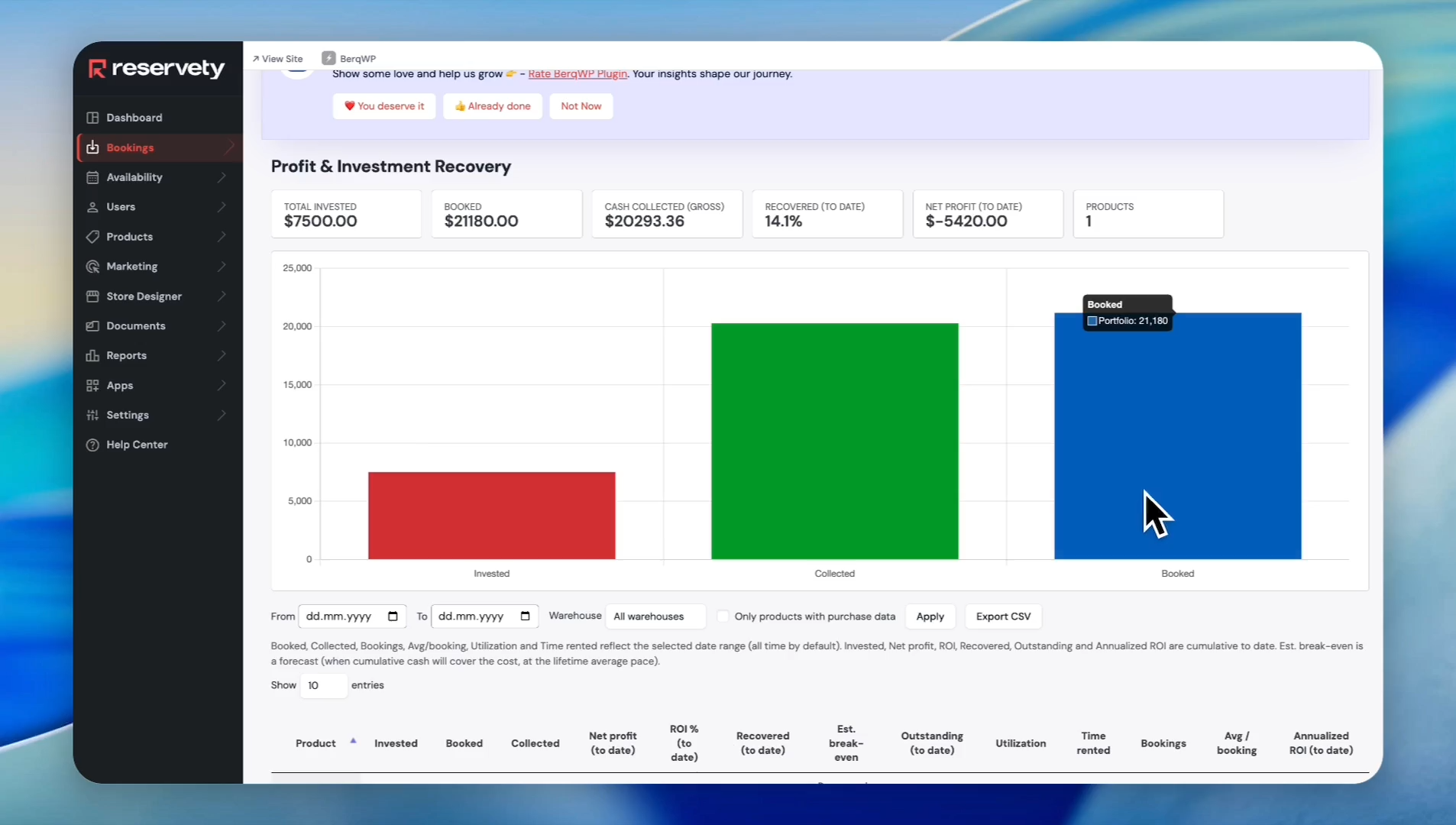
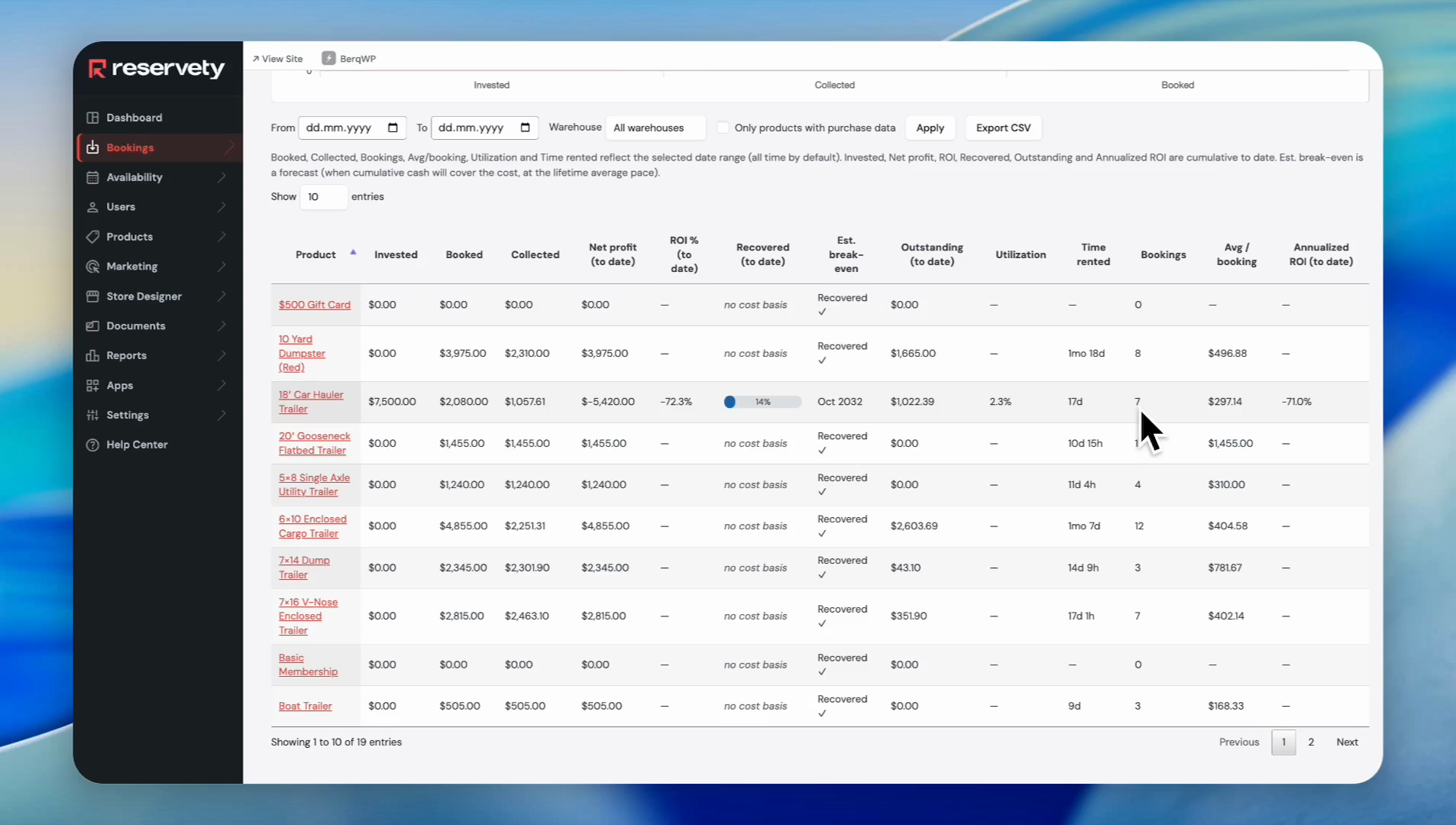
At the top of the page, you will see key performance indicators (KPIs) summarizing your financial data. Only products that have their purchase information configured will appear in this report.
KPI | Description |
|---|---|
Total Invested | The total amount spent purchasing your rental inventory. |
Booked | The total value of bookings during the selected period. |
Cash Collected | The amount you have actually received from customers. |
Recovered | The percentage of your original investment already recovered through rental income. |
Net Profit | Your profit after subtracting the purchase cost of your inventory. |
Richest Products | The number of products currently included in the report. |
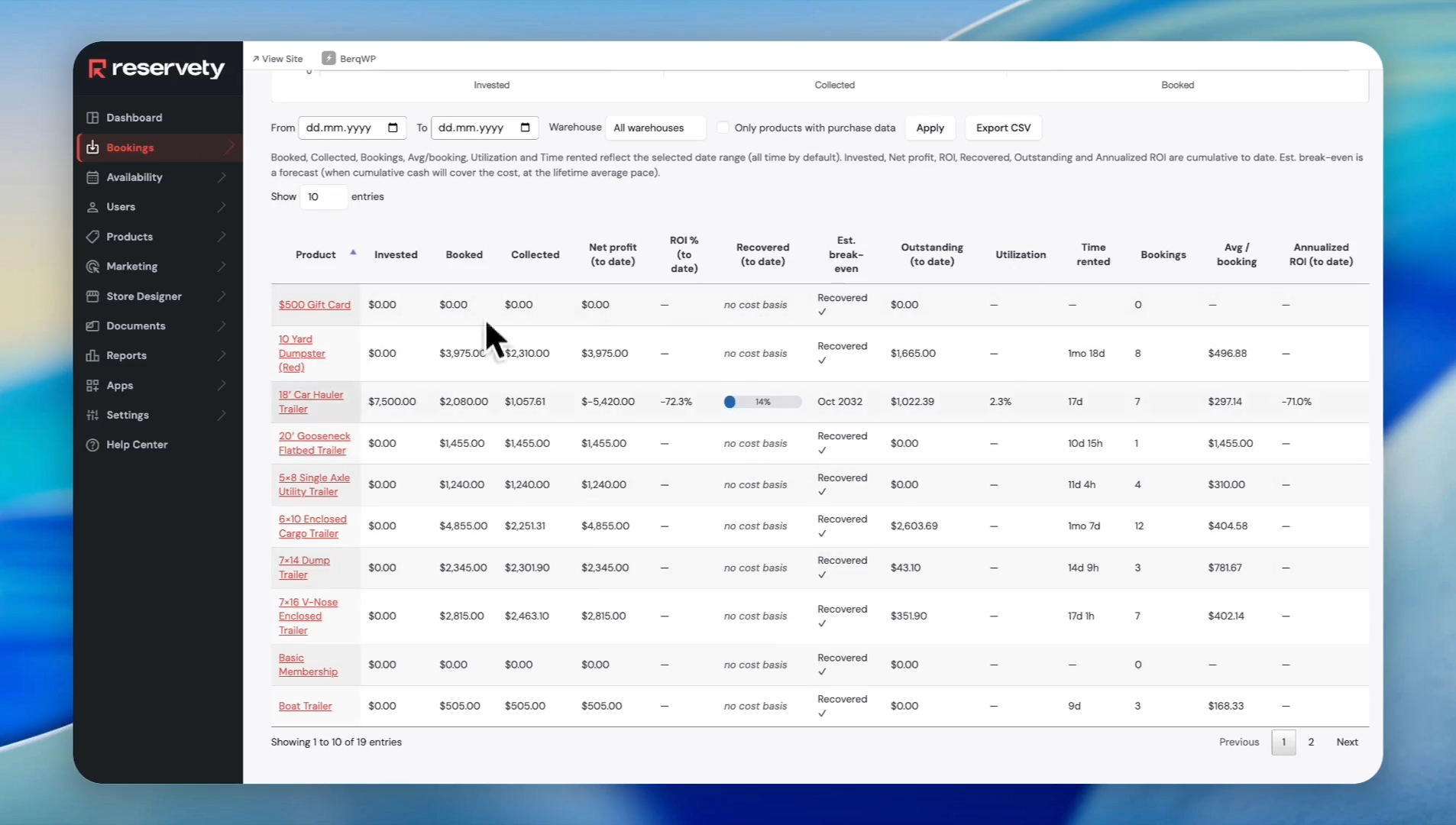
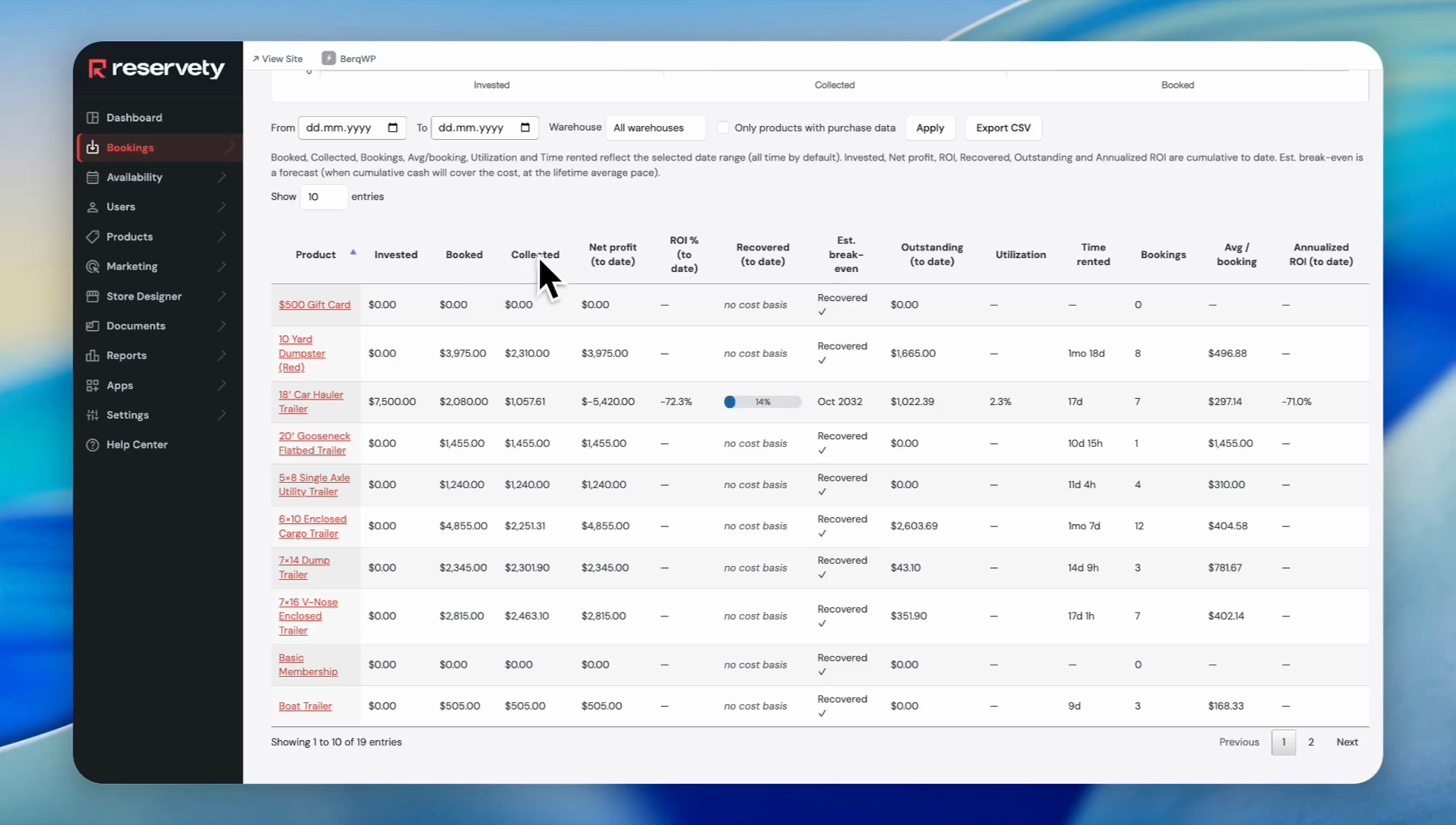
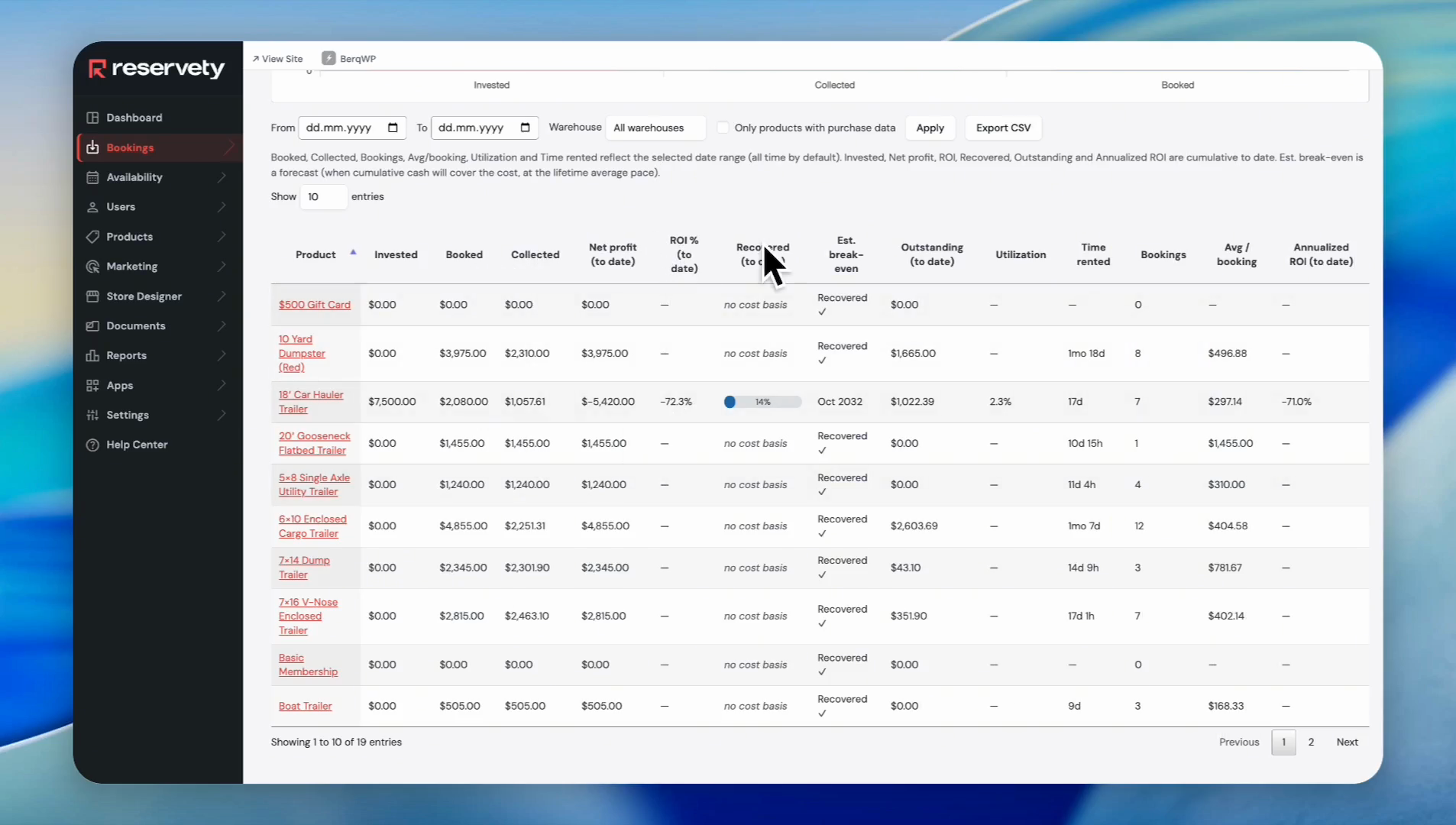
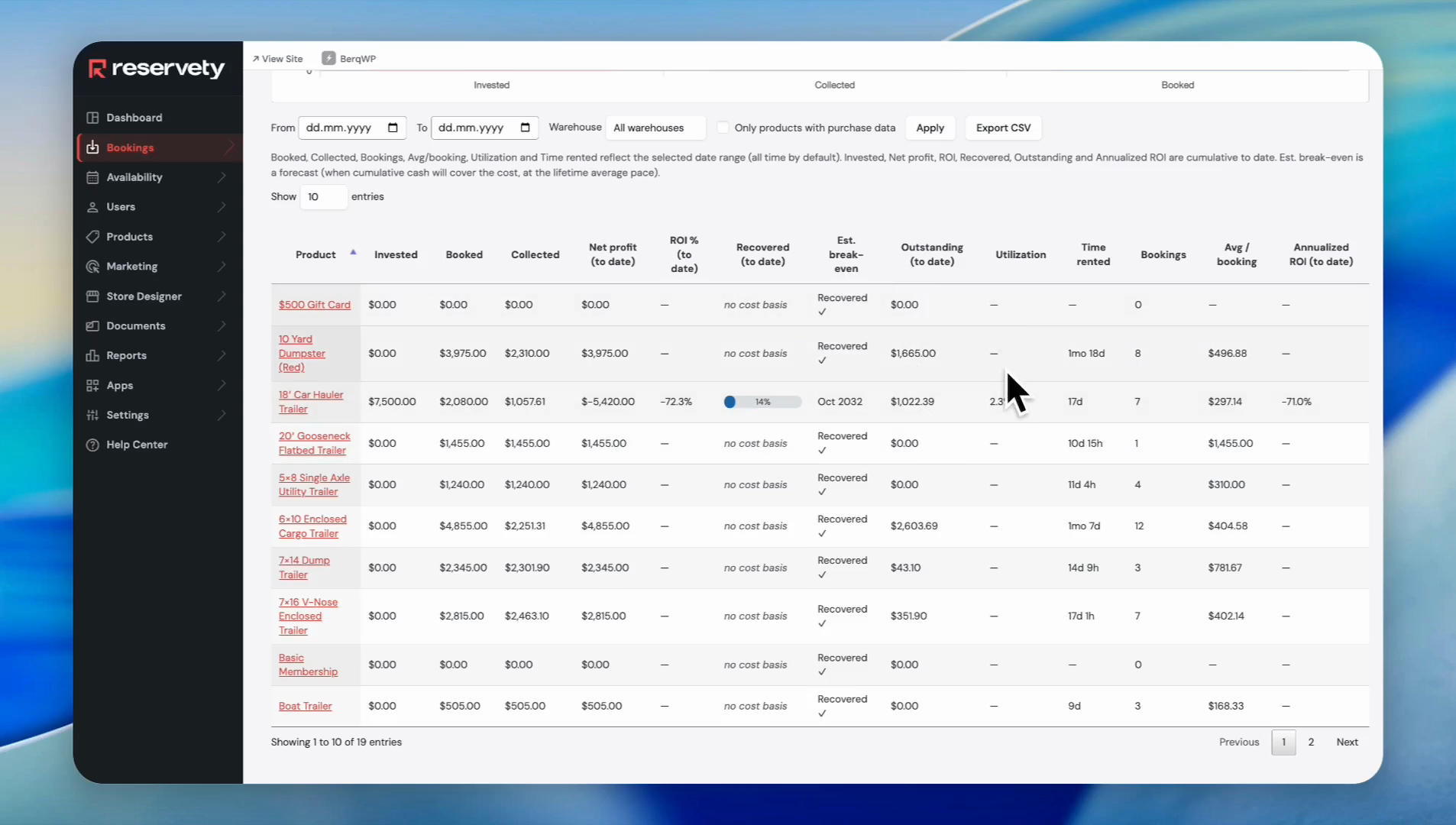
Understanding the Product Performance Table
The table below the charts provides detailed financial information for each product.
Adding Purchase Details to Products
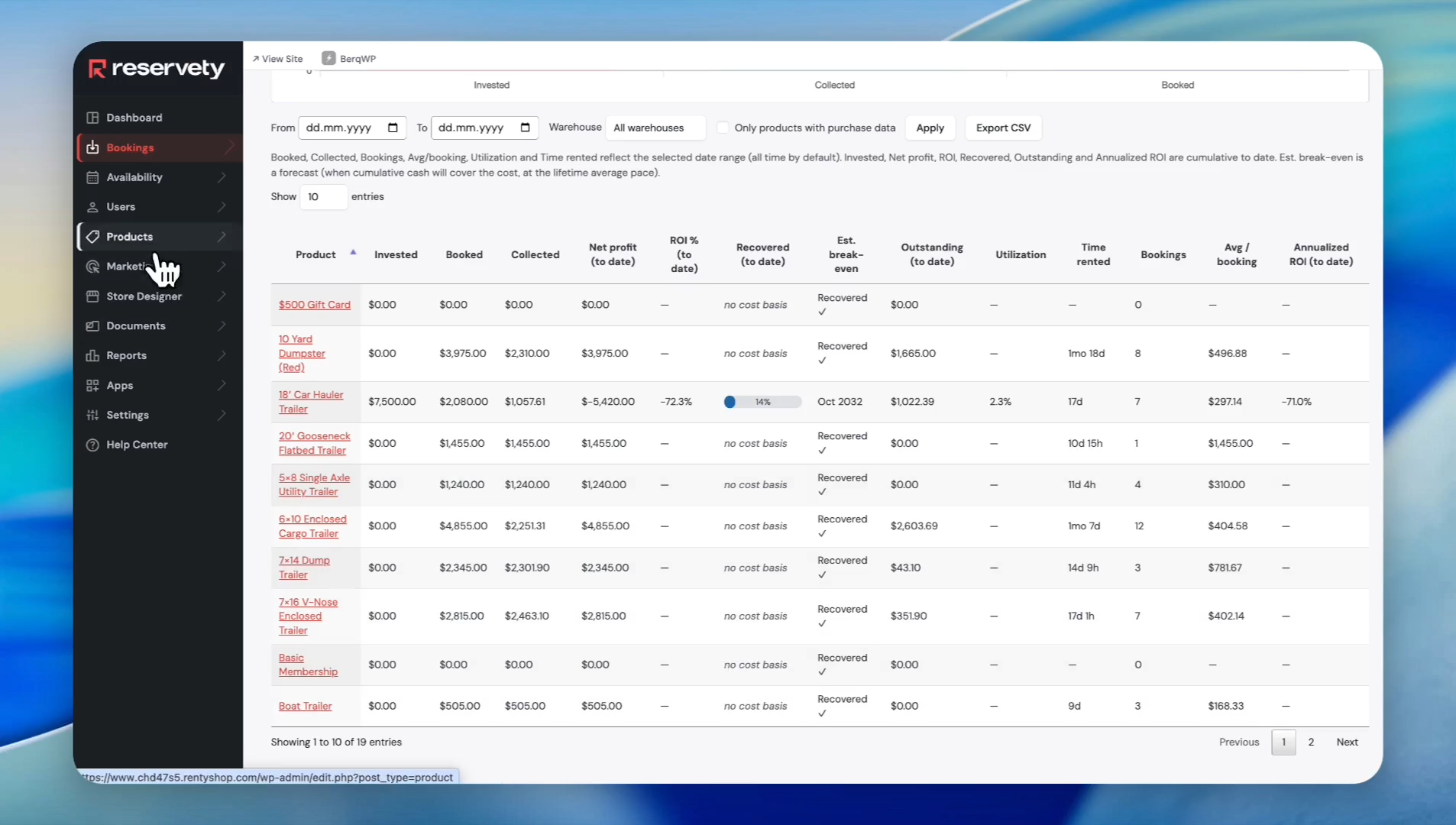
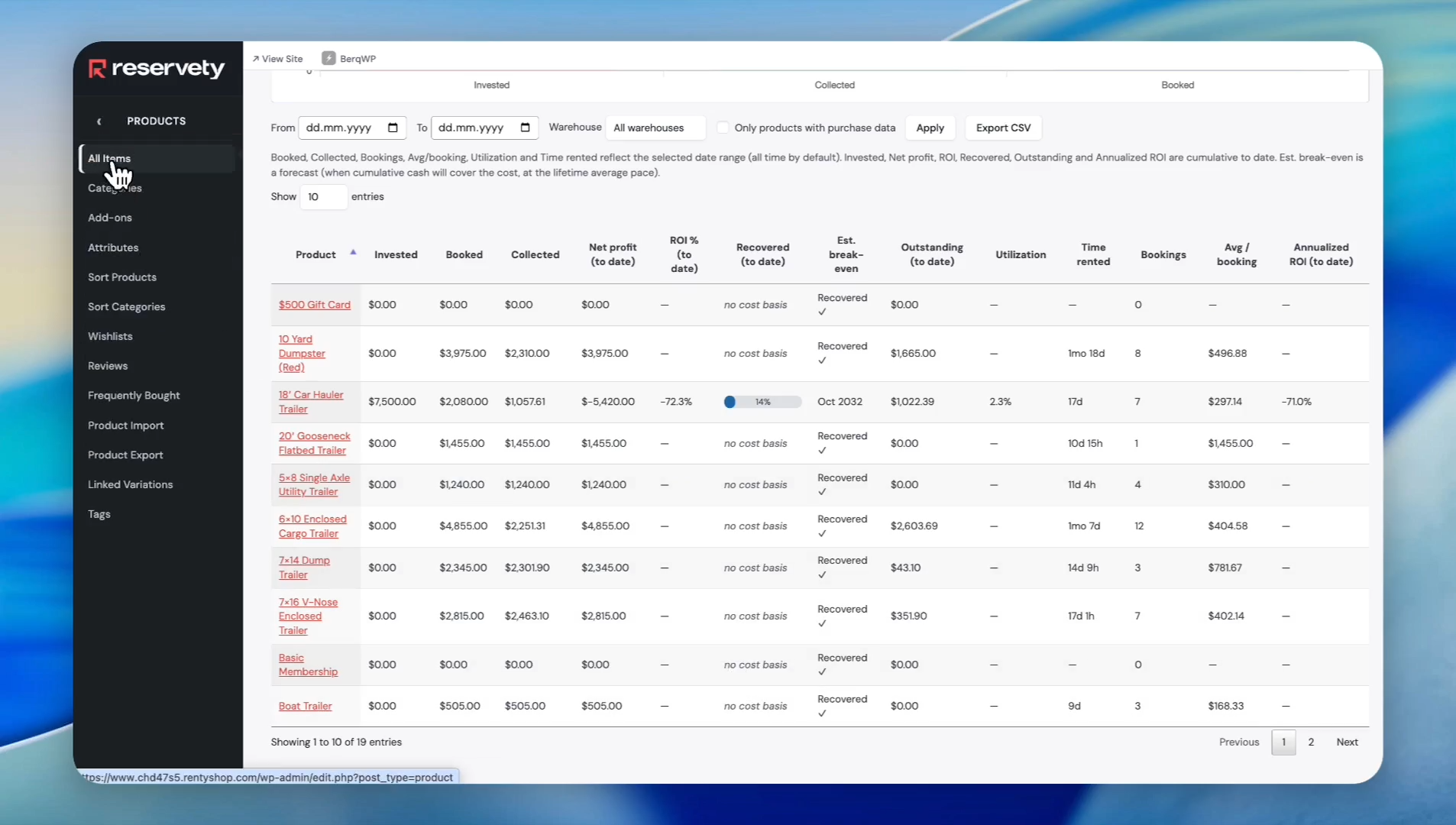
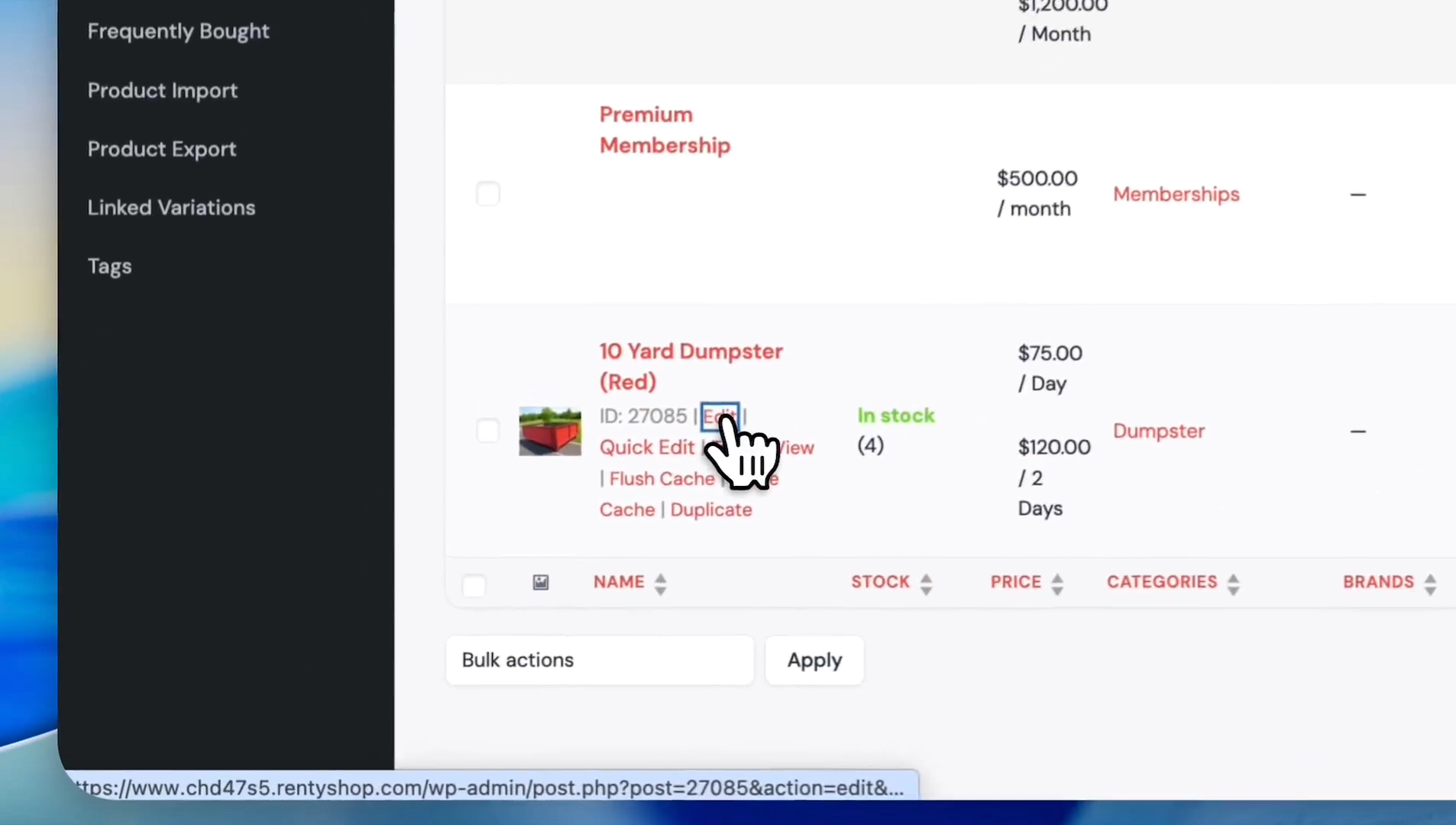
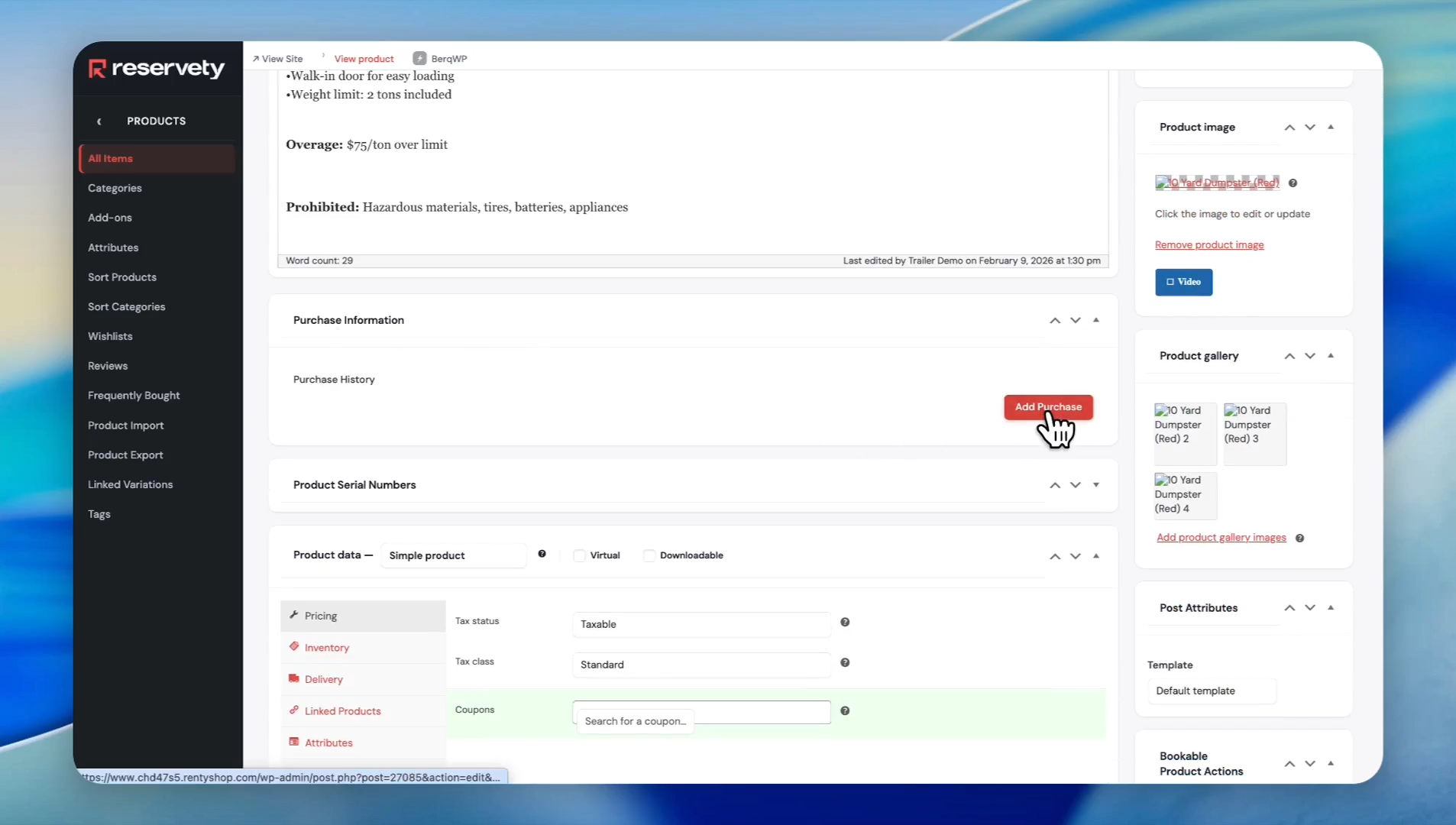
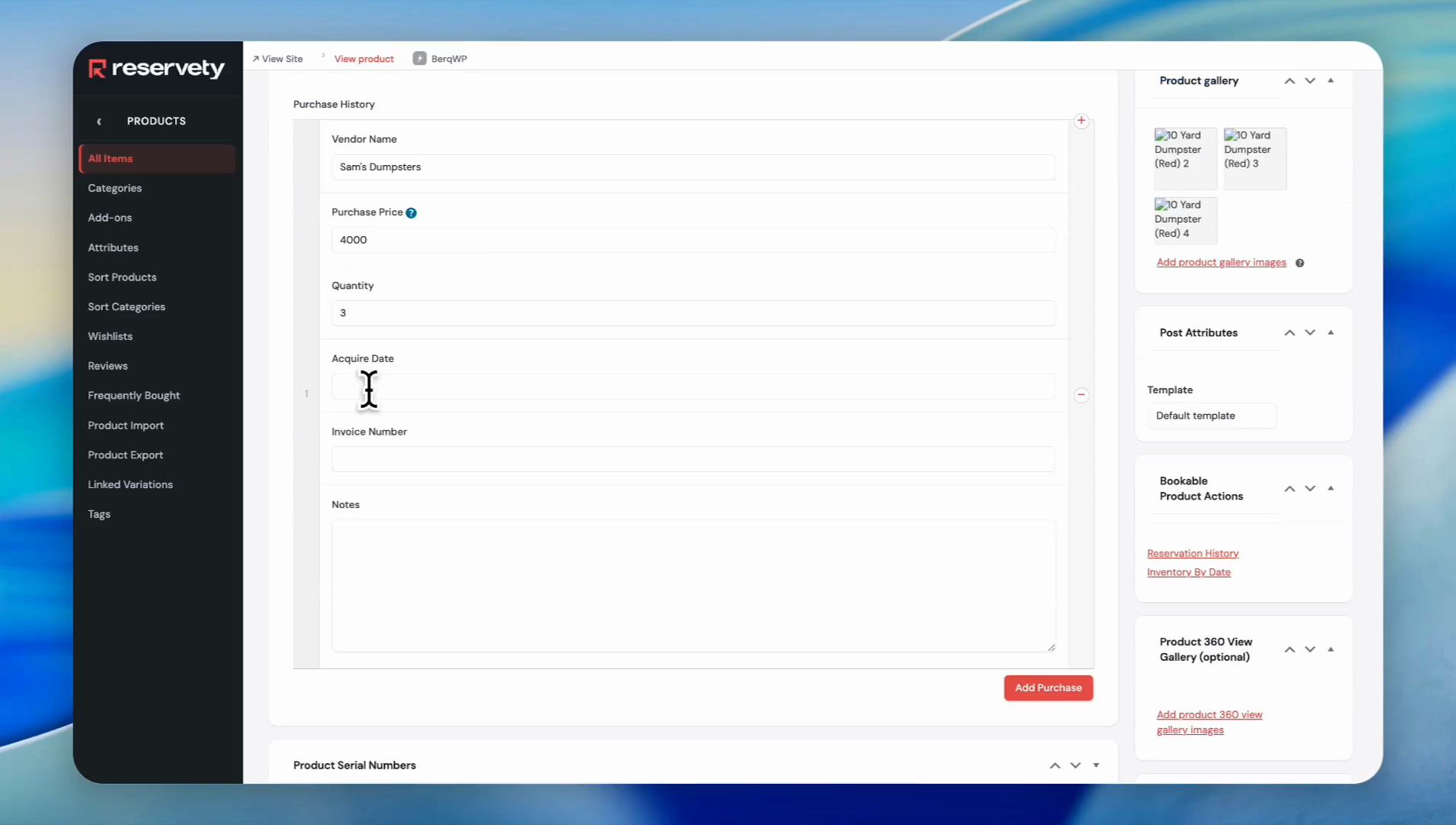
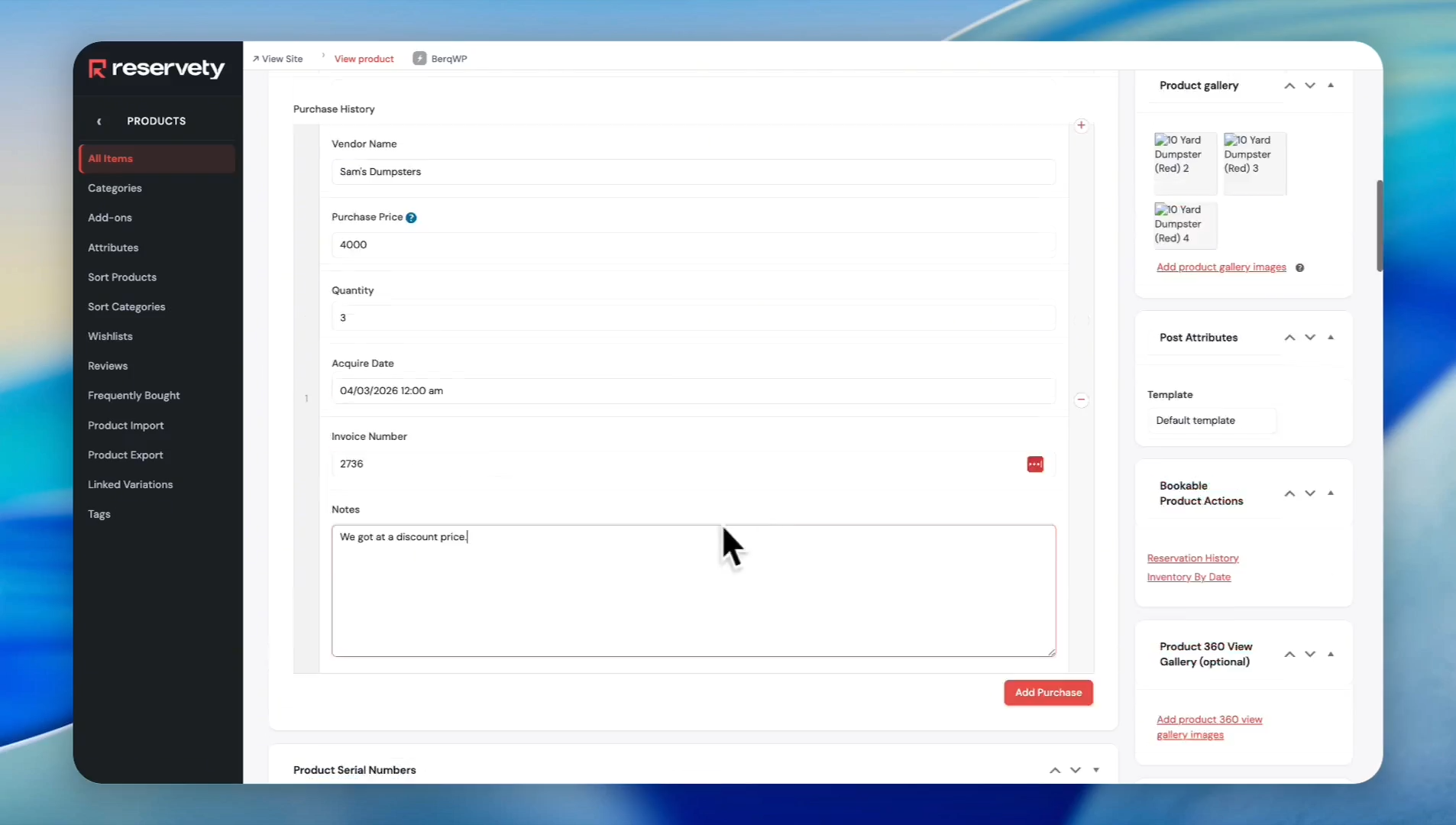
In order to populate the Profit and ROI report, you must assign an original purchase cost to each product in your catalog.
Viewing the Updated Report
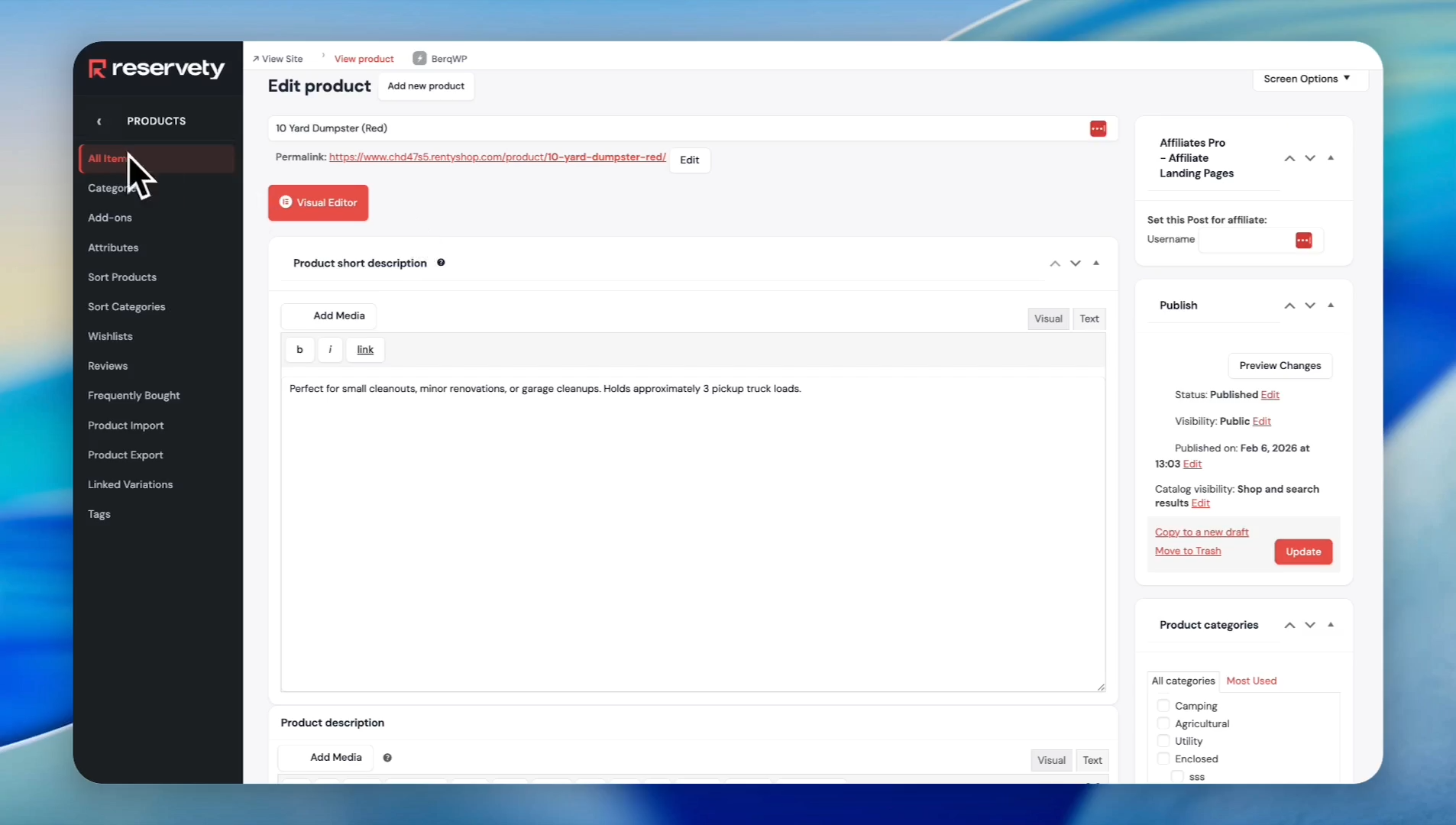
Once your products are updated, navigate back to the reporting page to see them reflected in the data.
Best Practices
Q: Why does the report only display data for some of my products?
A: The Profit and ROI report only includes products that have an established purchase price. You must configure the purchase amount in the Purchase Information section of the product details page for each item to appear in the full report.
Term | Definition |
|---|---|
Cash Collected | The actual amount of payment received from customers for rentals. |
Est. Break-Even | A projection of when a rental product will generate enough revenue to fully cover its original purchase cost. |
Net Profit | The total profit calculated by subtracting the initial purchase cost of the inventory from the generated rental revenue. |
Recovered | The percentage of the product's original investment that has been earned back through rental income. |
Utilization | A metric that measures how frequently a product has been rented out over a given period. |