Icon

Generating a Quick Quote for Event Bookings

Learn how to use the Quick Quote form to generate event estimates, select conference packages, and automate email drafts for clients.

By Heidi Badenhorst

This guide walks you through generating a quick quote for event bookings using an interactive Fillout form. By following these steps, you can capture client details, automatically calculate room supplements, and trigger automated quote emails to streamline your booking pipeline.

This process is designed for event coordinators and sales teams handling initial venue inquiries. Use this workflow when a client requests a preliminary estimate for a conference or event space.

Completing the Quick Quote Form

The Quick Quote URL can be embedded directly onto your website or shared with clients via WhatsApp and email. When accessed, it opens an interactive form for capturing event parameters.
1
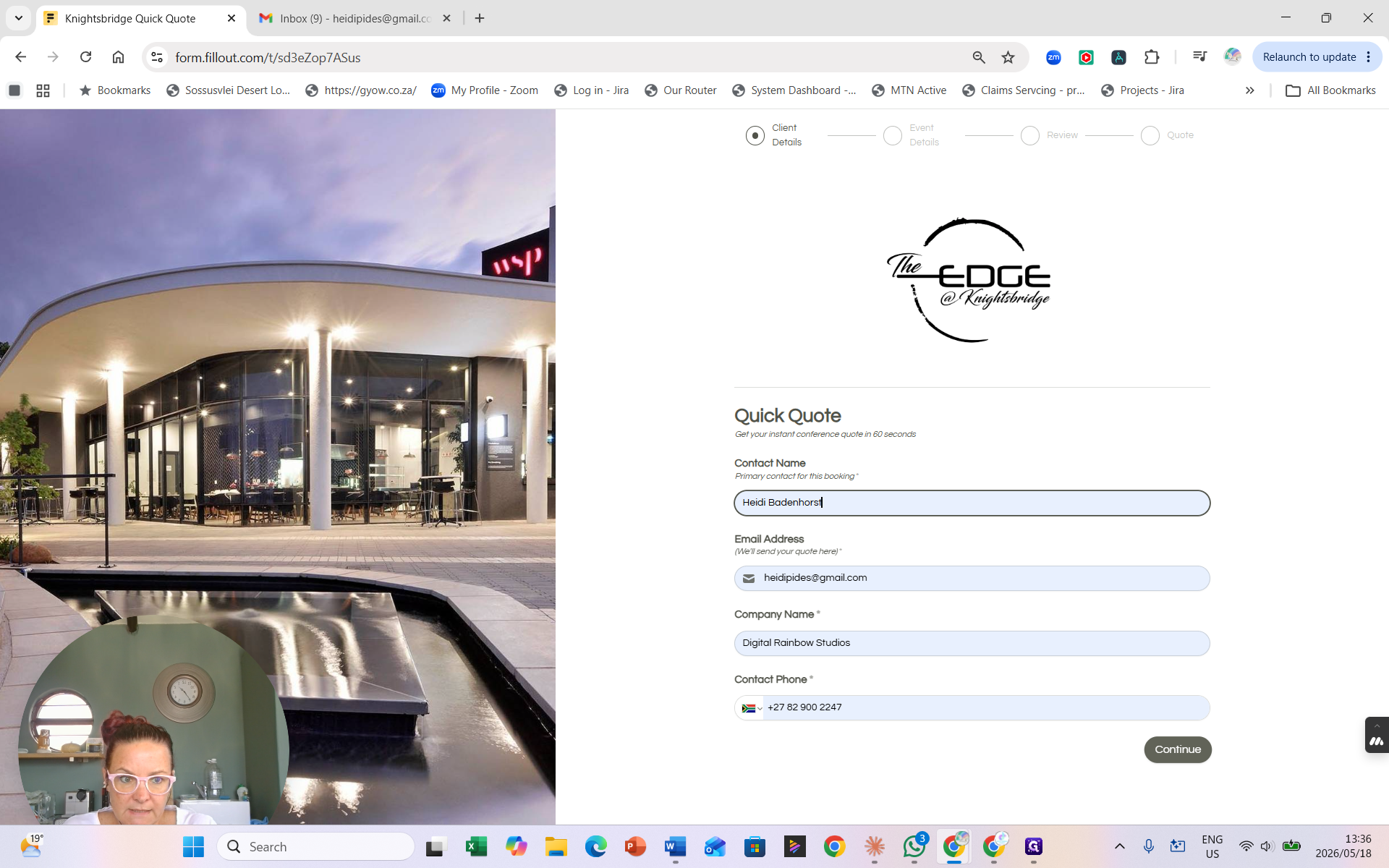
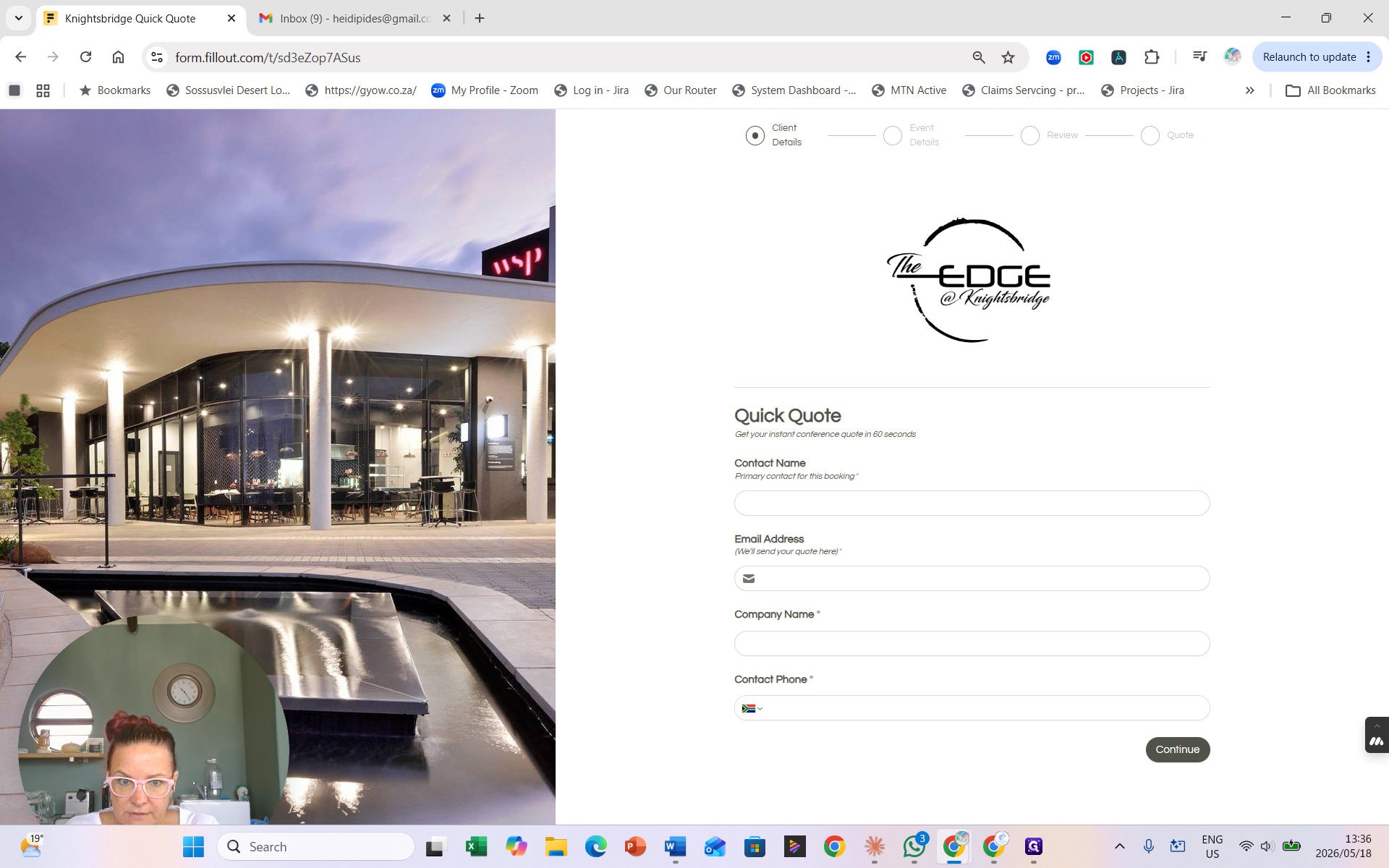
Click Continue on the initial Quick Quote page.
Step #1: Click Continue on the initial Quick Quote page.
2
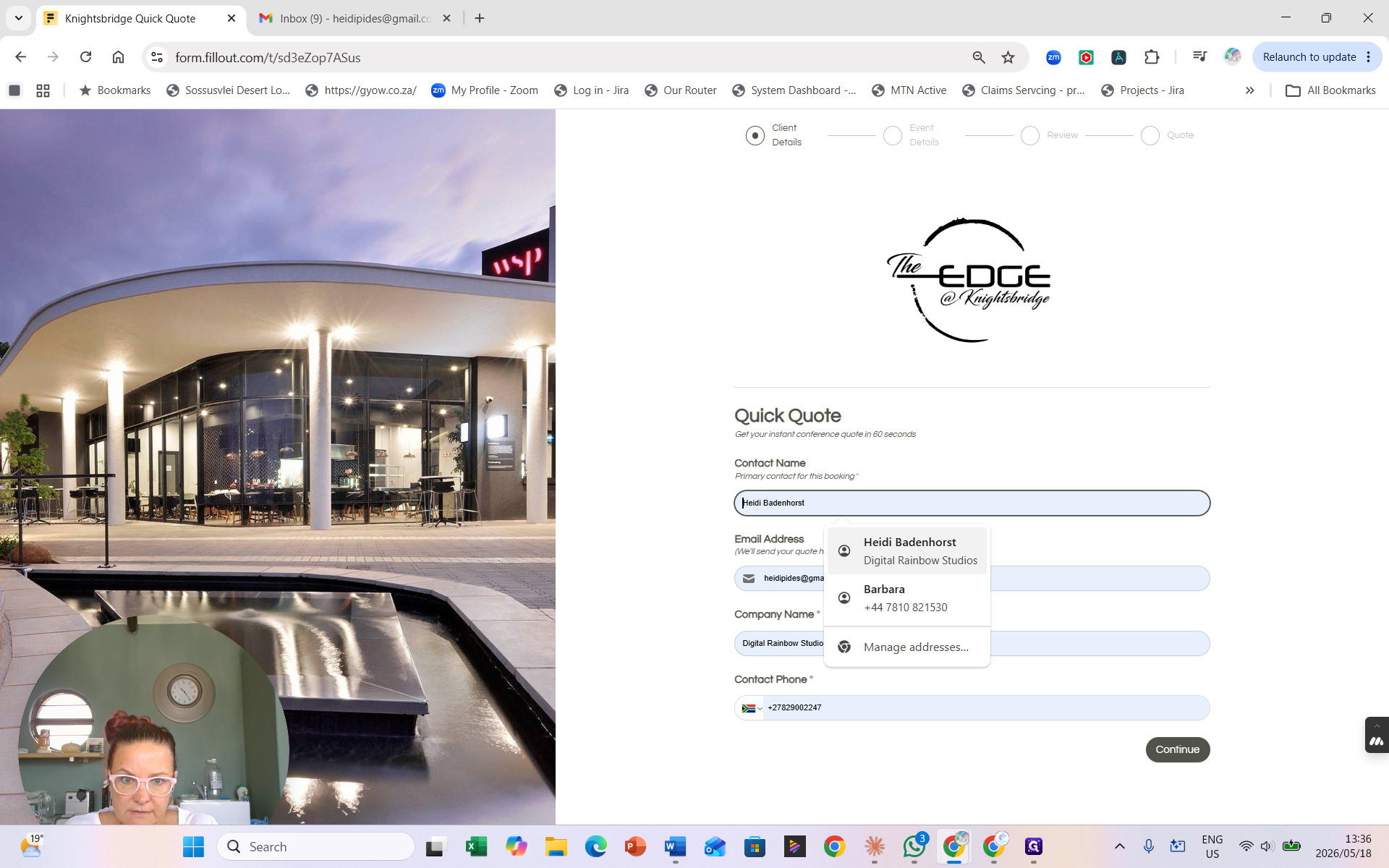
Enter the client's Contact Name and select the matching user profile.
Step #2: Enter the client's Contact Name and select the matching user profile.
3
Click Continue to proceed to the event details section.
Step #3: Click Continue to proceed to the event details section.
4
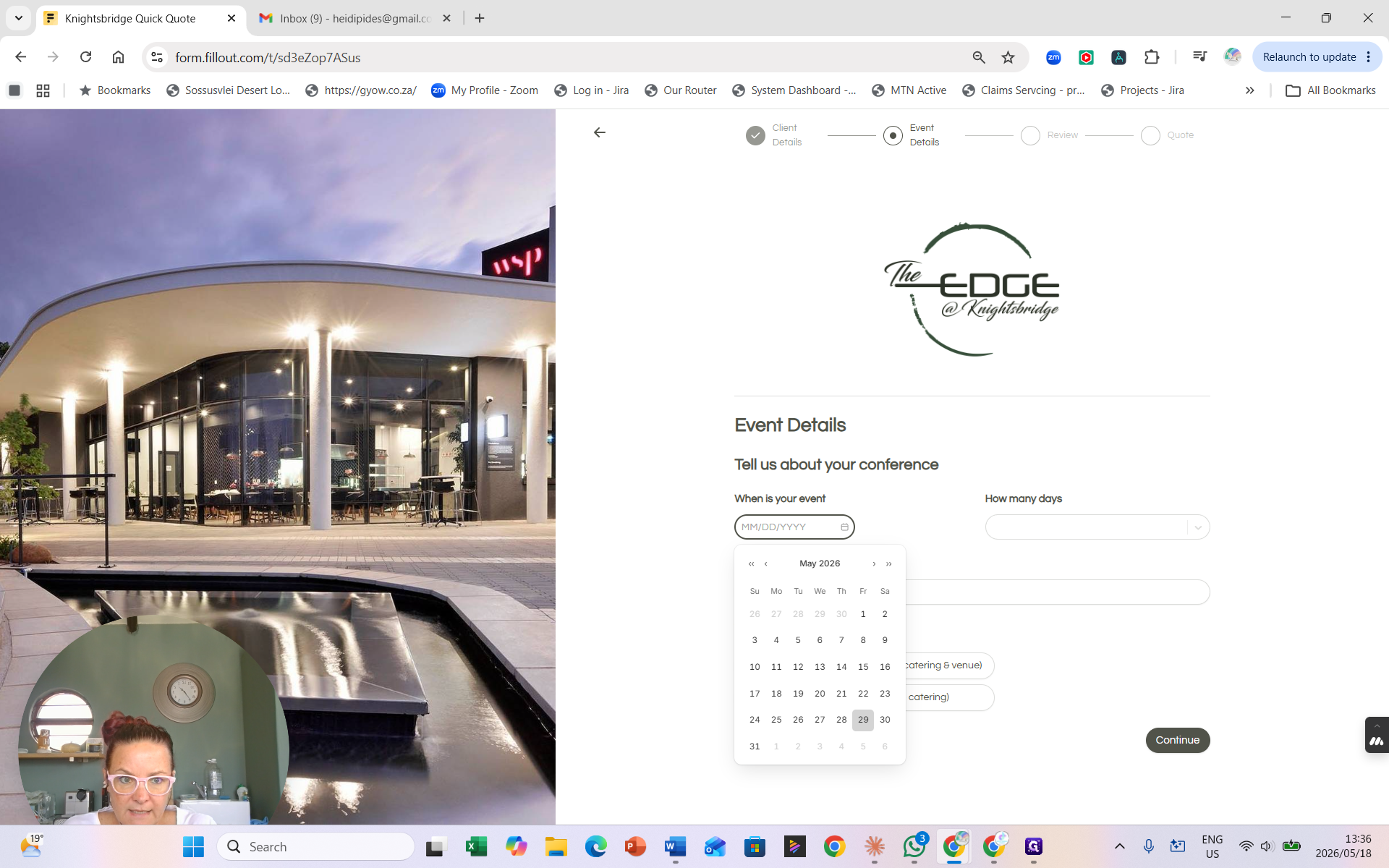
Select the desired Event Date from the calendar popup.
Step #4: Select the desired Event Date from the calendar popup.
5
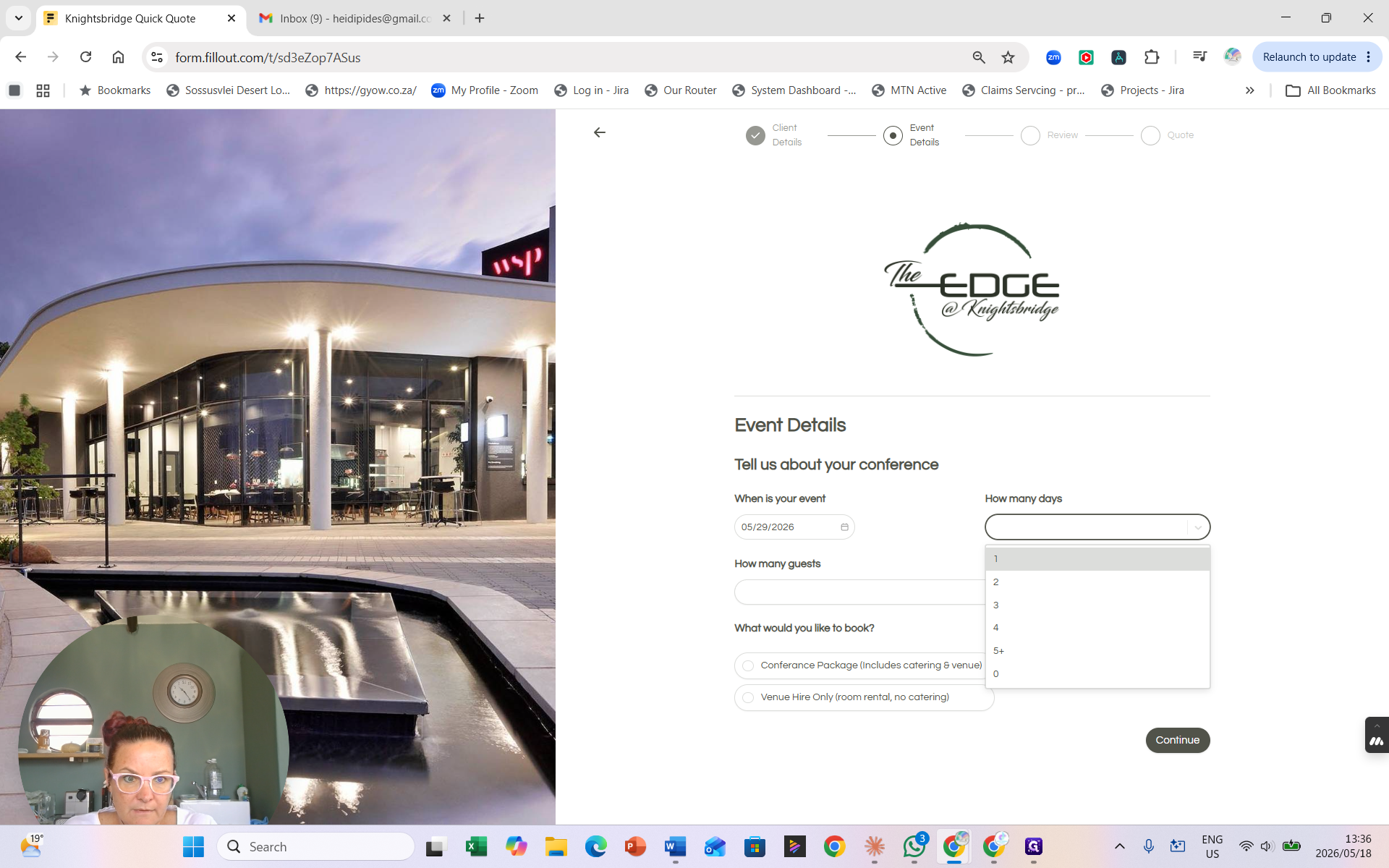
Select the number of days for the event from the dropdown menu.
Step #5: Select the number of days for the event from the dropdown menu.
6
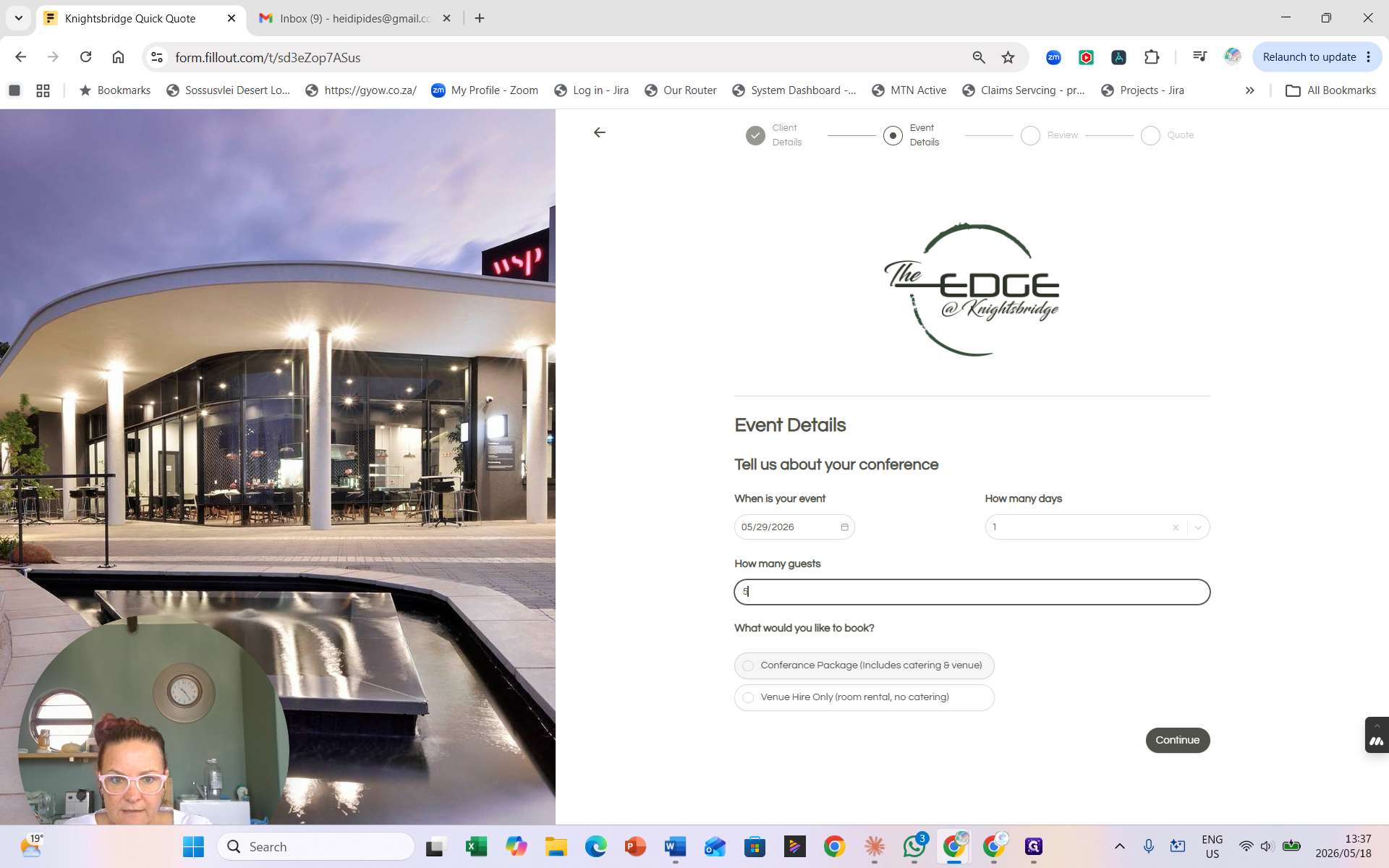
Enter the number of guests. Entering a low headcount for a high-capacity room will automatically calculate a room supplement fee on the next screen.
7
Select Conference Package to view available inclusions and pricing models.
Step #7: Select Conference Package to view available inclusions and pricing models.
8
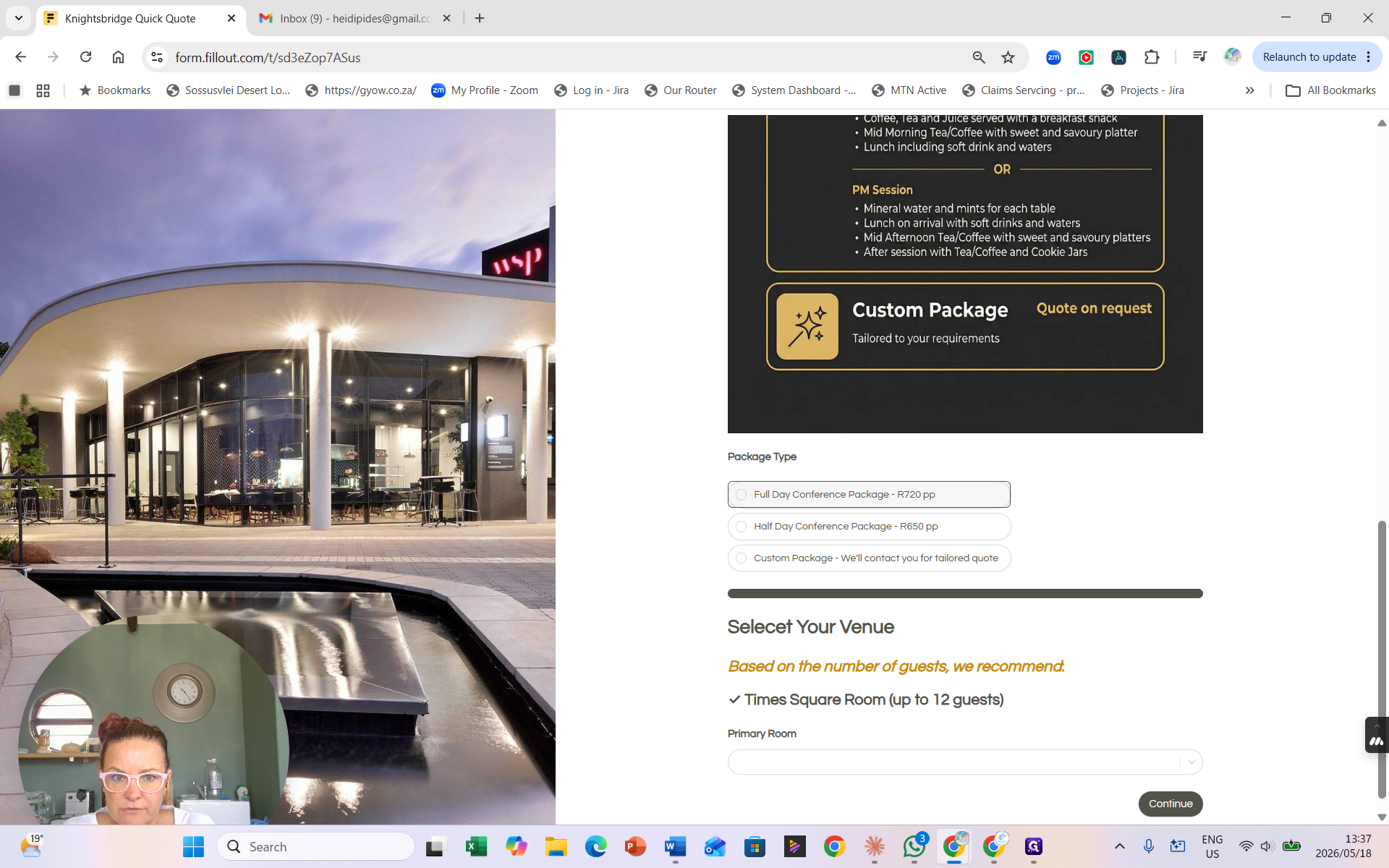
Choose the specific package required, such as the Full Day Conference Package.
Step #8: Choose the specific package required, such as the Full Day Conference Package.
9
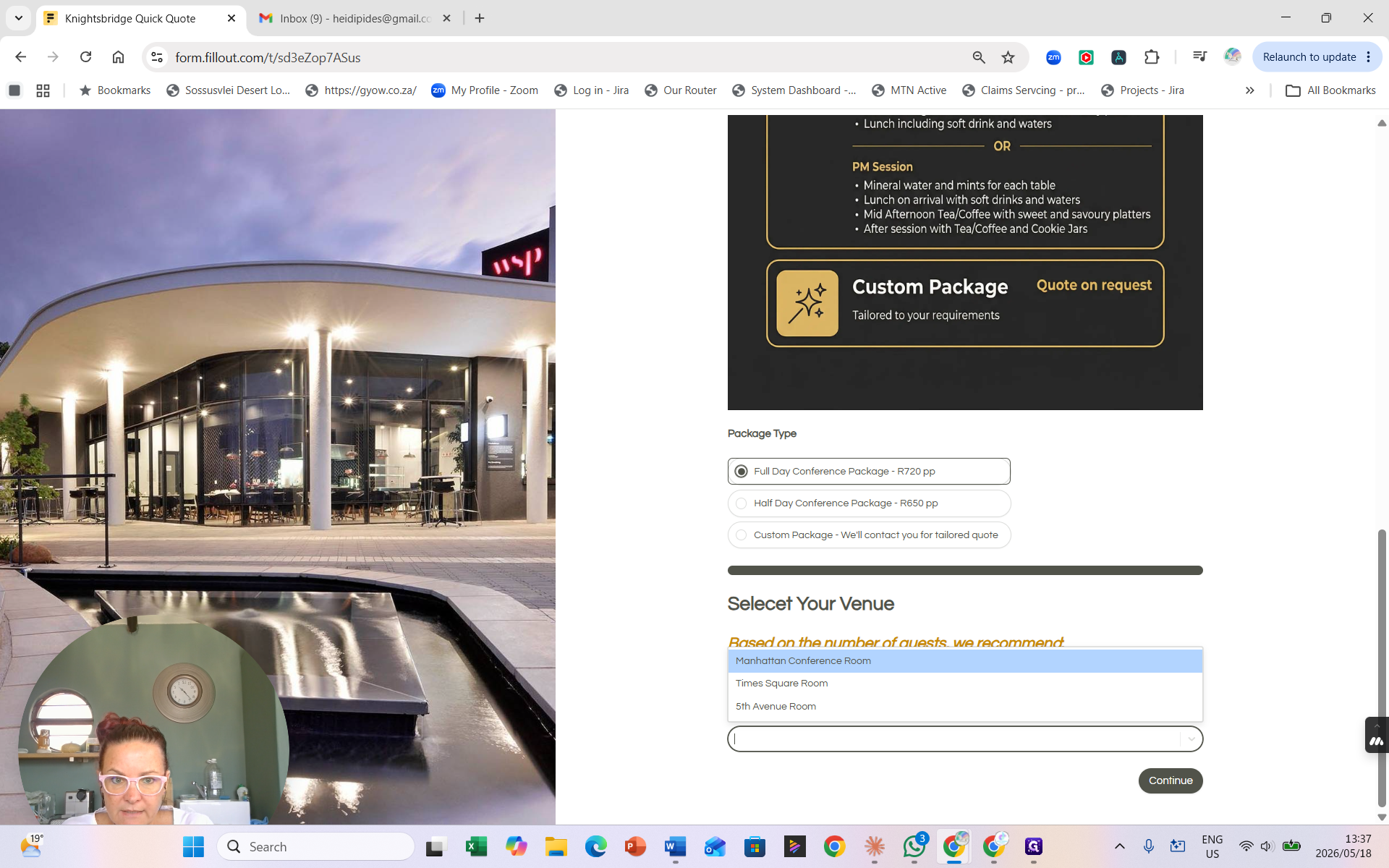
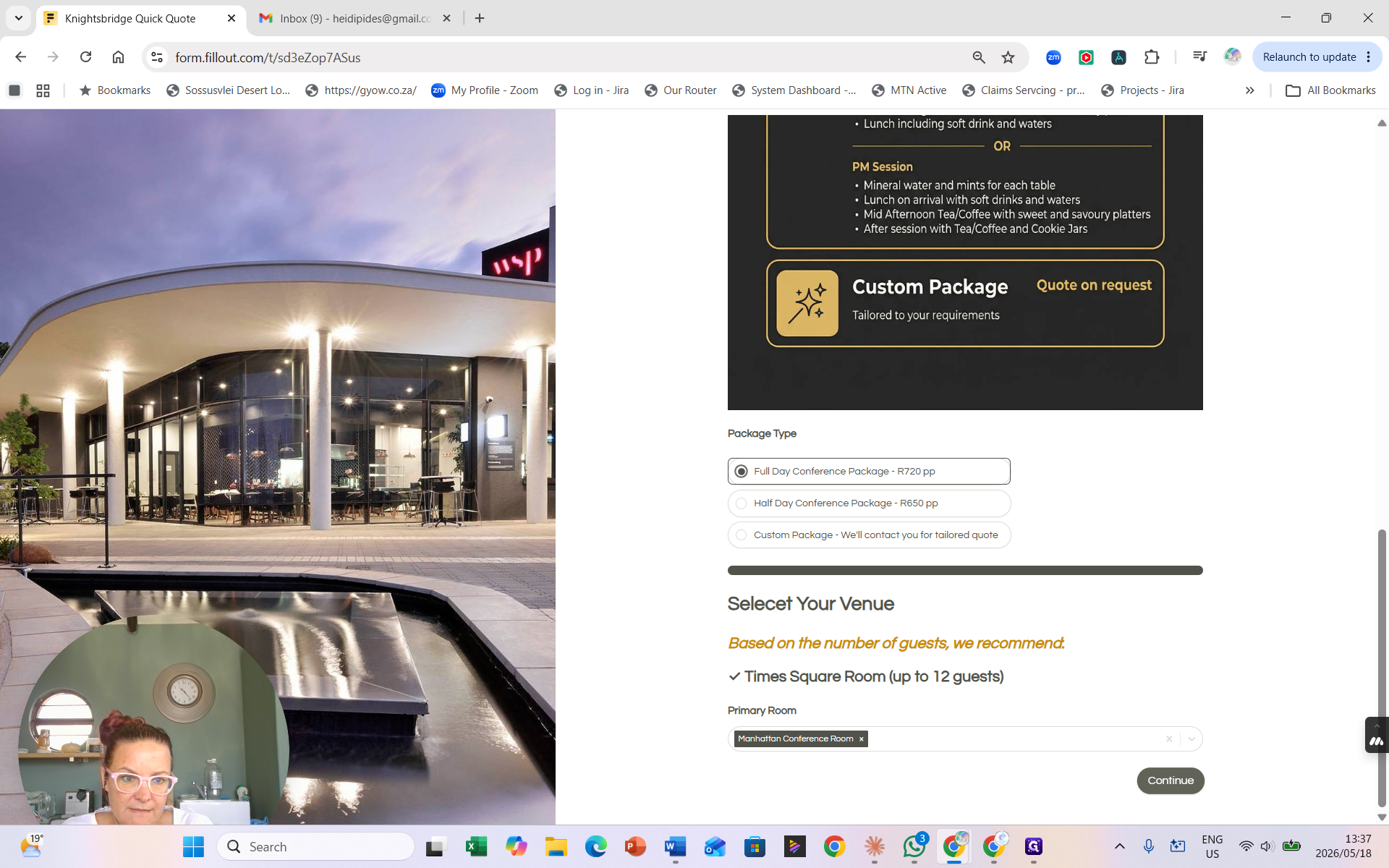
Select the desired venue. While the system recommends rooms based on the guest count, you can manually override this (e.g., selecting the Manhattan Conference Room).
Step #9: Select the desired venue. While the system recommends rooms based on the guest count, you can manually override this (e.g., selecting the Manhattan Conference Room).
10
Click Continue to generate the final estimate.
Step #10: Click Continue to generate the final estimate.
11
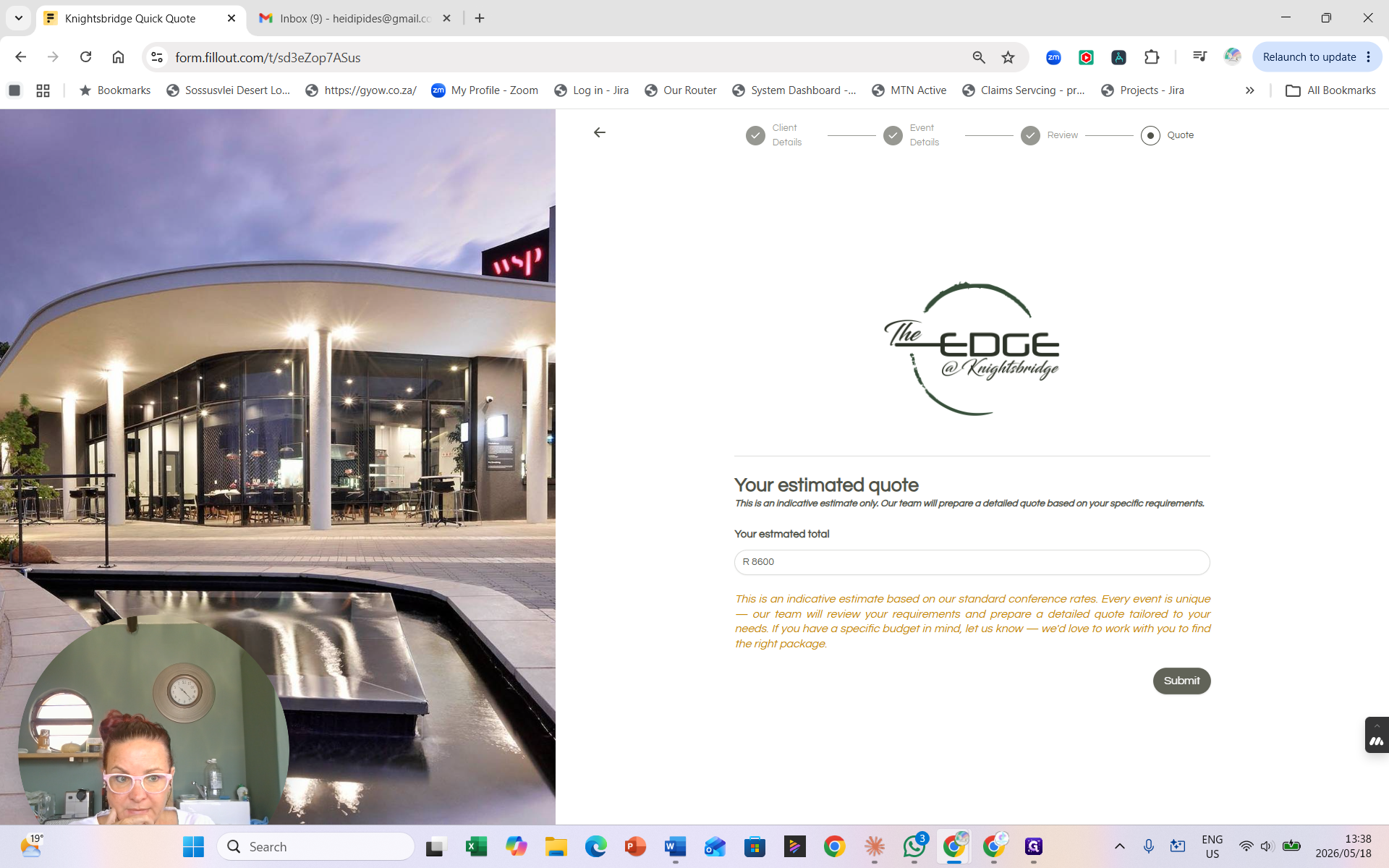
Review the estimated total, verifying any necessary room supplements, and click Submit.
Step #11: Review the estimated total, verifying any necessary room supplements, and click Submit.

Managing Automated Quote Notifications

Submitting the Quick Quote form triggers a backend automation that generates two distinct emails.

Email Type

Recipient

Purpose

Next Action

Internal Request

Sales Team

Alerts the team that a client generated an estimate on the website. Contains all selected options and the estimated value.

Review the booking parameters and prepare the formal invoice in Zoho.

Client Draft

Sales Team (Pre-drafted)

A fully branded quote pre-addressed to the client, ready to send.

Verify details, attach the finalized Zoho invoice, and forward to the client.

12
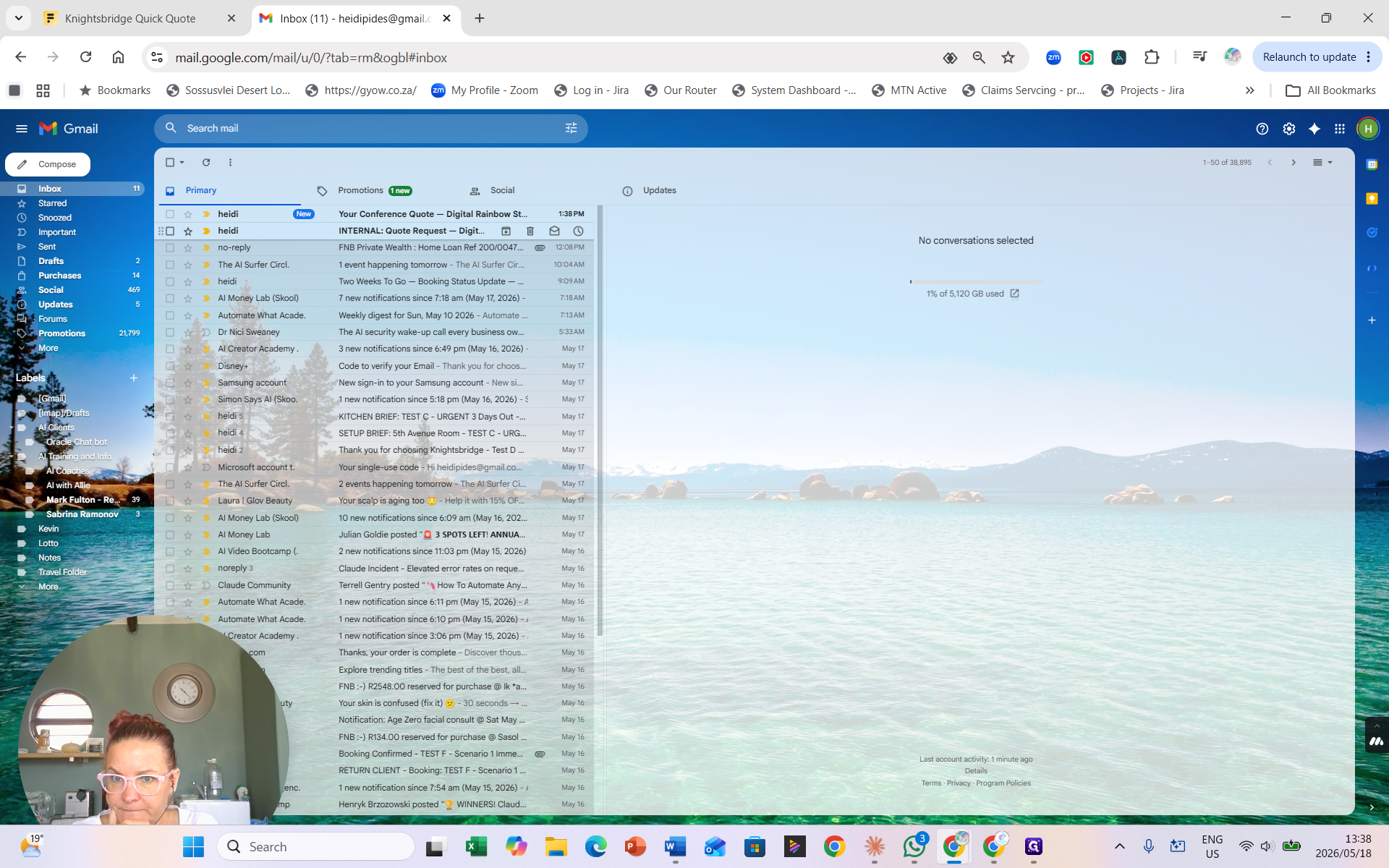
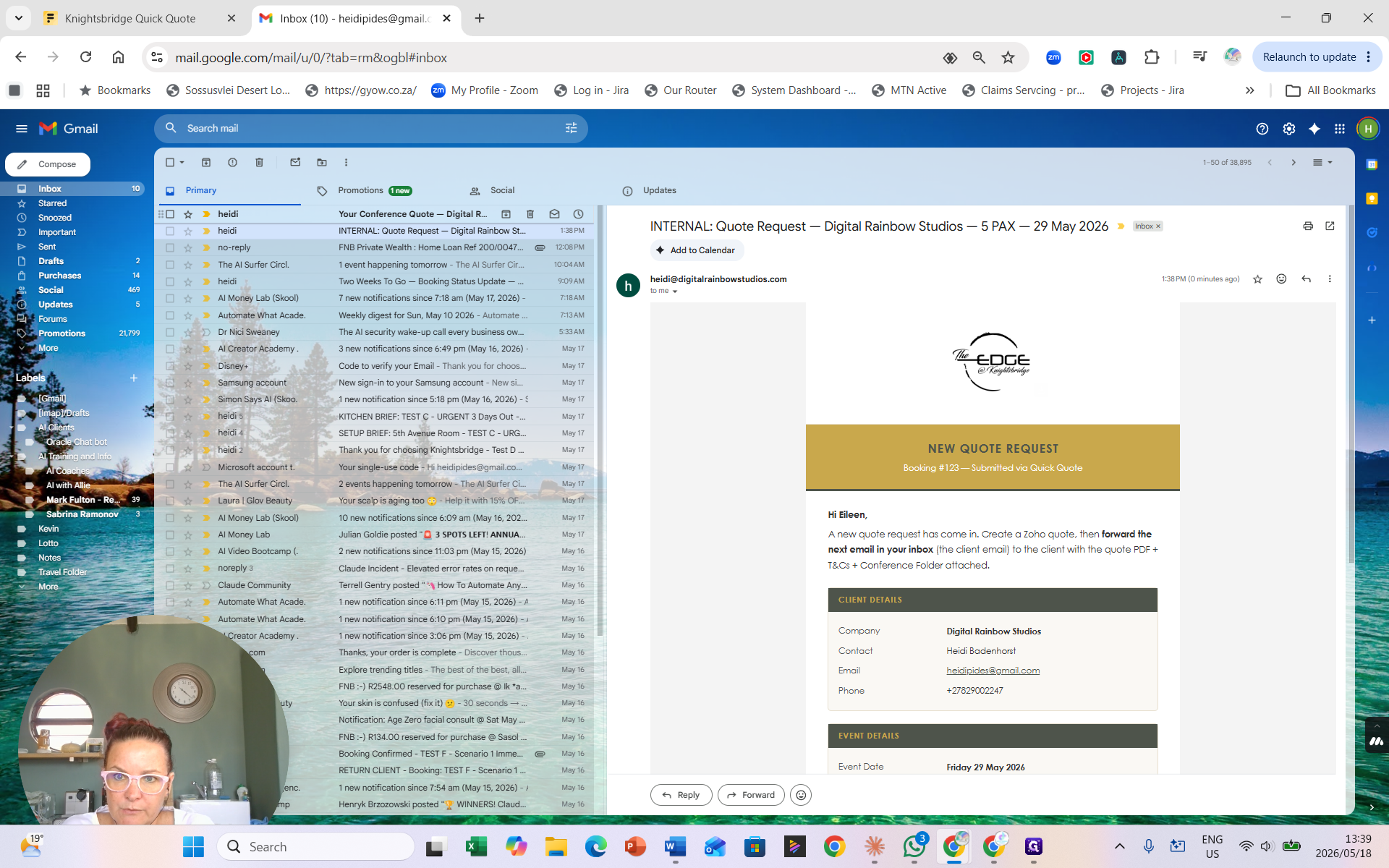
Open the INTERNAL: Quote Request email in your inbox to review the client's requested estimate and selections.
Step #12: Open the INTERNAL: Quote Request email in your inbox to review the client's requested estimate and selections.
13
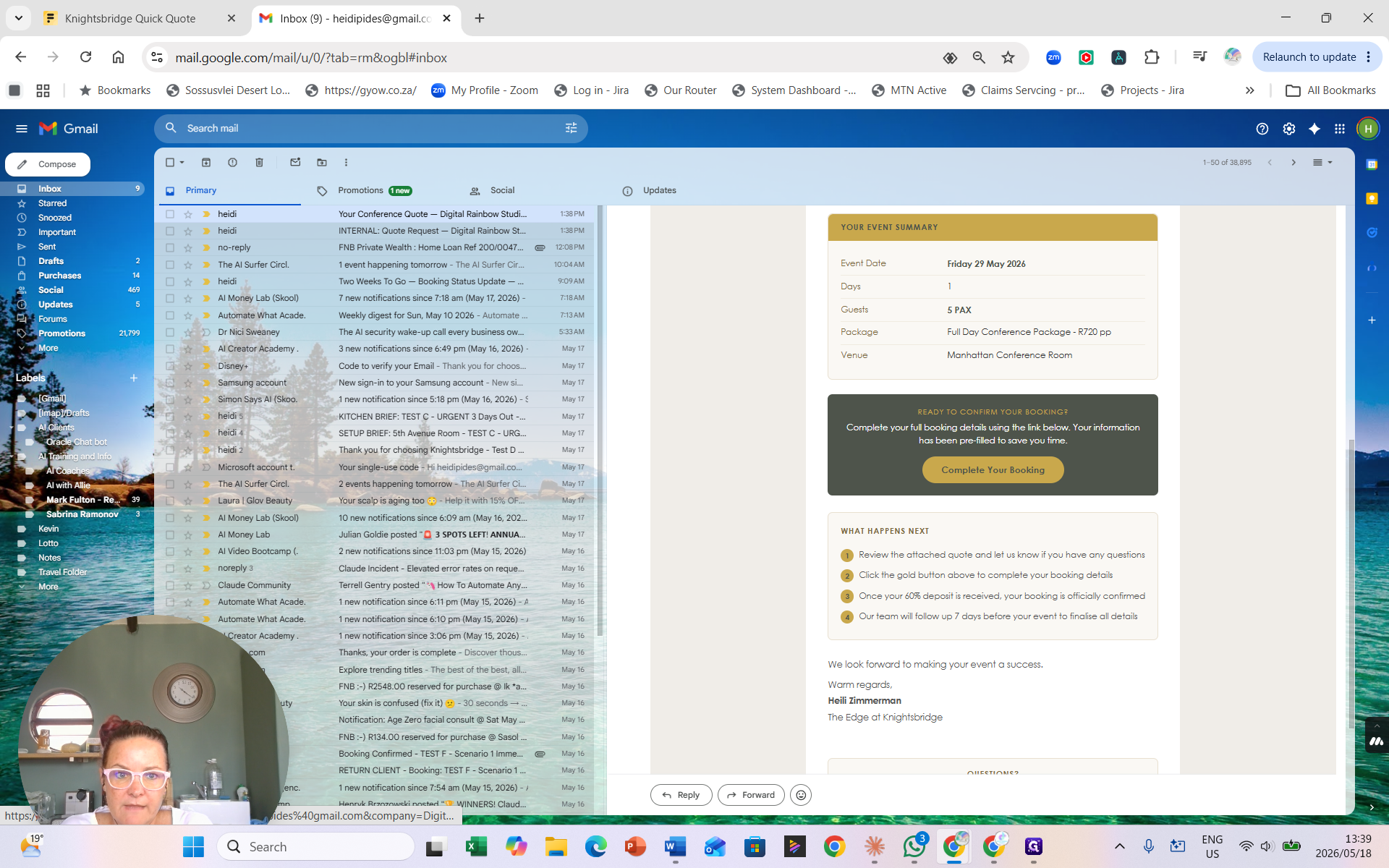
Open the pre-drafted Your Conference Quote email. Verify the details, attach the corresponding Zoho invoice, and forward it directly to the client.
Step #13: Open the pre-drafted Your Conference Quote email. Verify the details, attach the corresponding Zoho invoice, and forward it directly to the client.
14
Once received, the client clicks Complete Your Booking in their email to pay the deposit and officially confirm the event.
Step #14: Once received, the client clicks Complete Your Booking in their email to pay the deposit and officially confirm the event.

FAQ

Q: When are quote notification emails sent to the team?

A: The system runs a batch automation every 15 minutes. It picks up all recent quote requests submitted within that timeframe and automatically emails them to the assigned internal coordinator.