
How to Generate a Recurring Service Report
Learn how to filter and generate a recurring service and last job report to track active maintenance memberships and prepare data for export.
By Brody Zalesak
This guide explains how to search for and configure the Broccoli Recurring Service and Last Job report. By completing this workflow, you can isolate active maintenance memberships within specific date ranges for auditing, dispatching, or follow-ups.
This process is intended for service managers, dispatchers, and office staff who need to track active recurring service memberships during routine reporting.
Access the Report
1
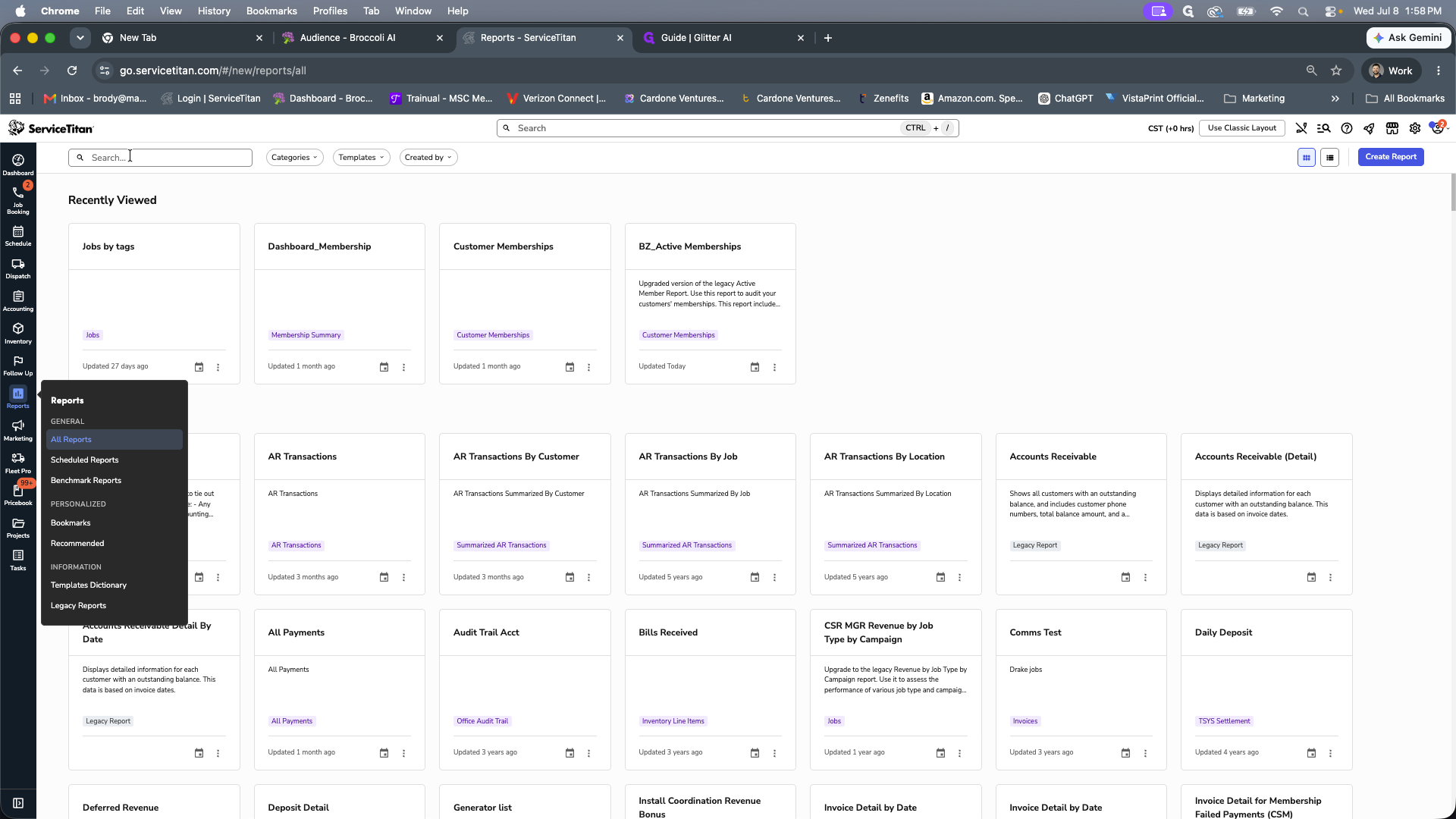
Click the Search field in the reports dashboard.
2
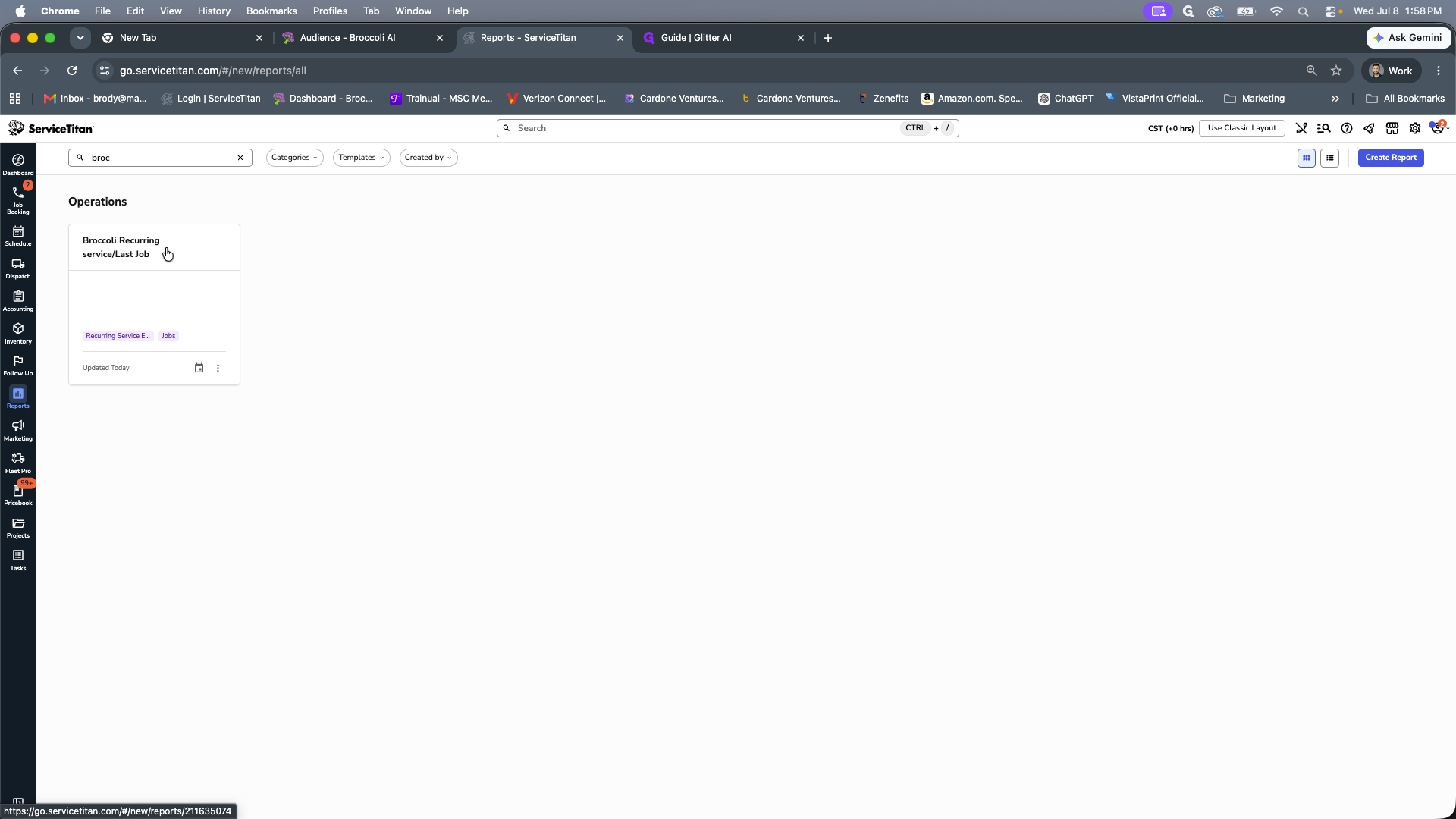
Type "Broccoli" to narrow down the available reports.
3
Click the Broccoli Recurring service/Last Job report card to open it.
Configure Report Filters
4
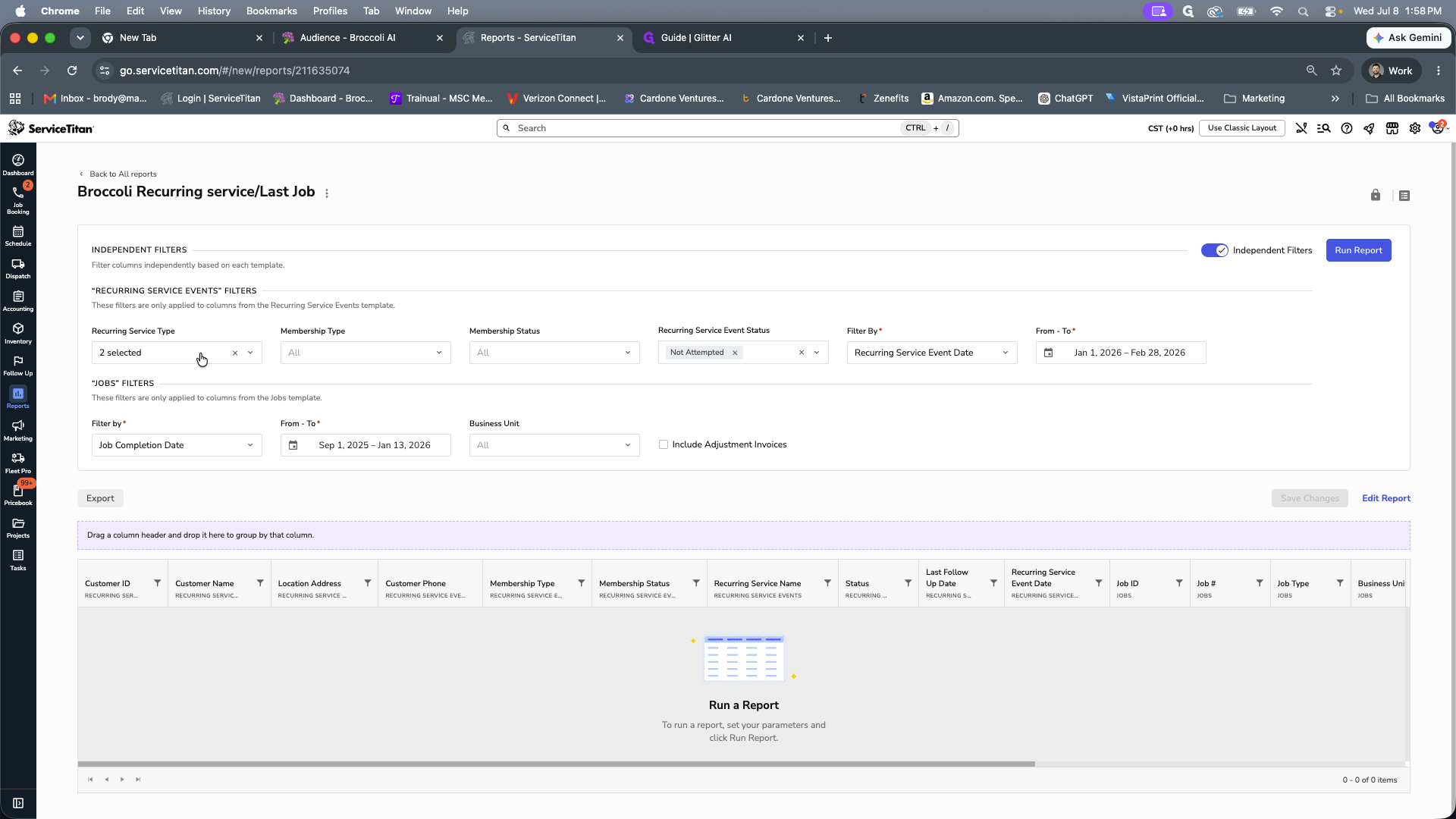
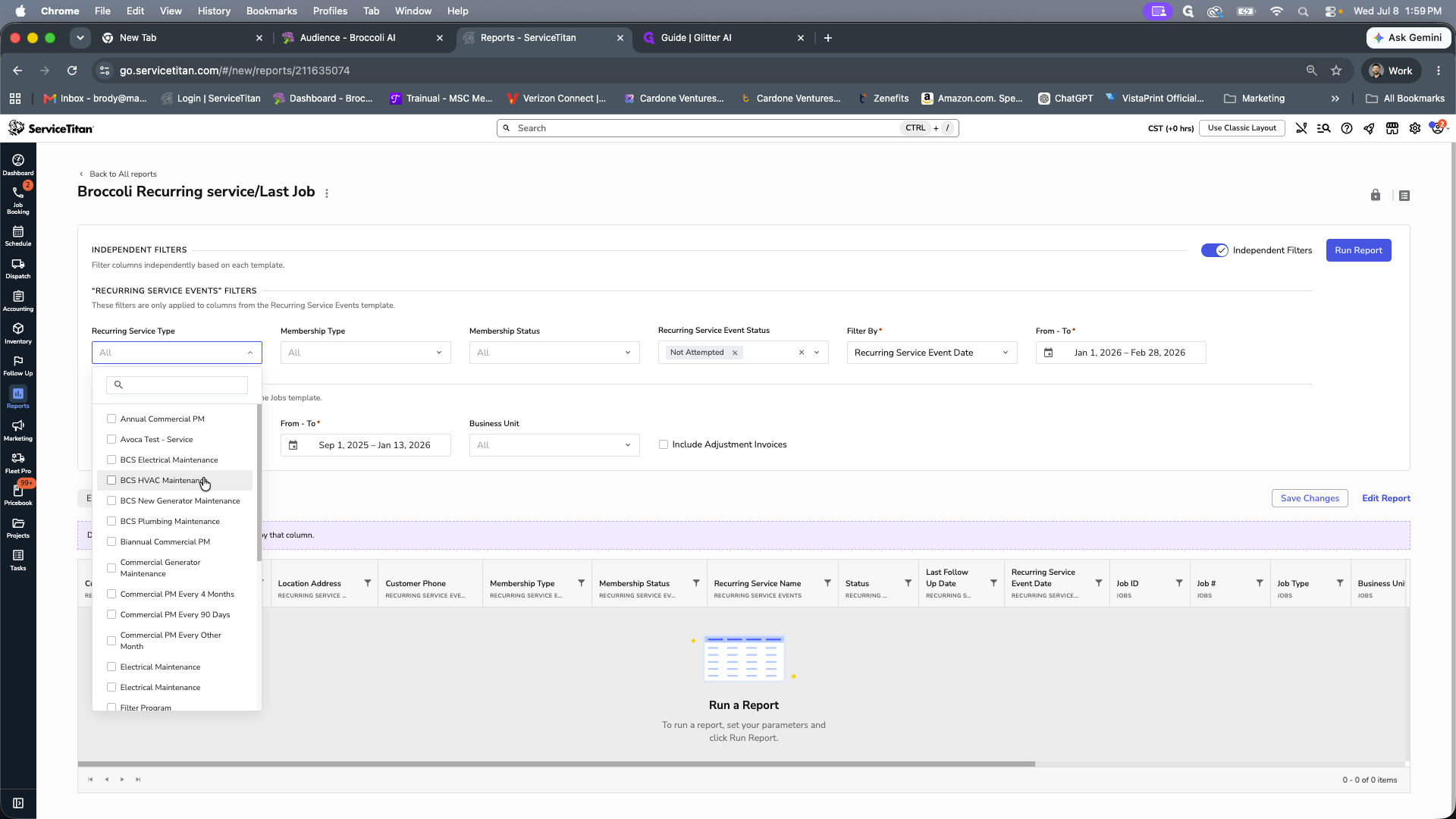
Open the Recurring Service Type dropdown menu and clear any pre-selected options.
5
Select the recurring services you want to report on, such as BCS HVAC Maintenance.
6
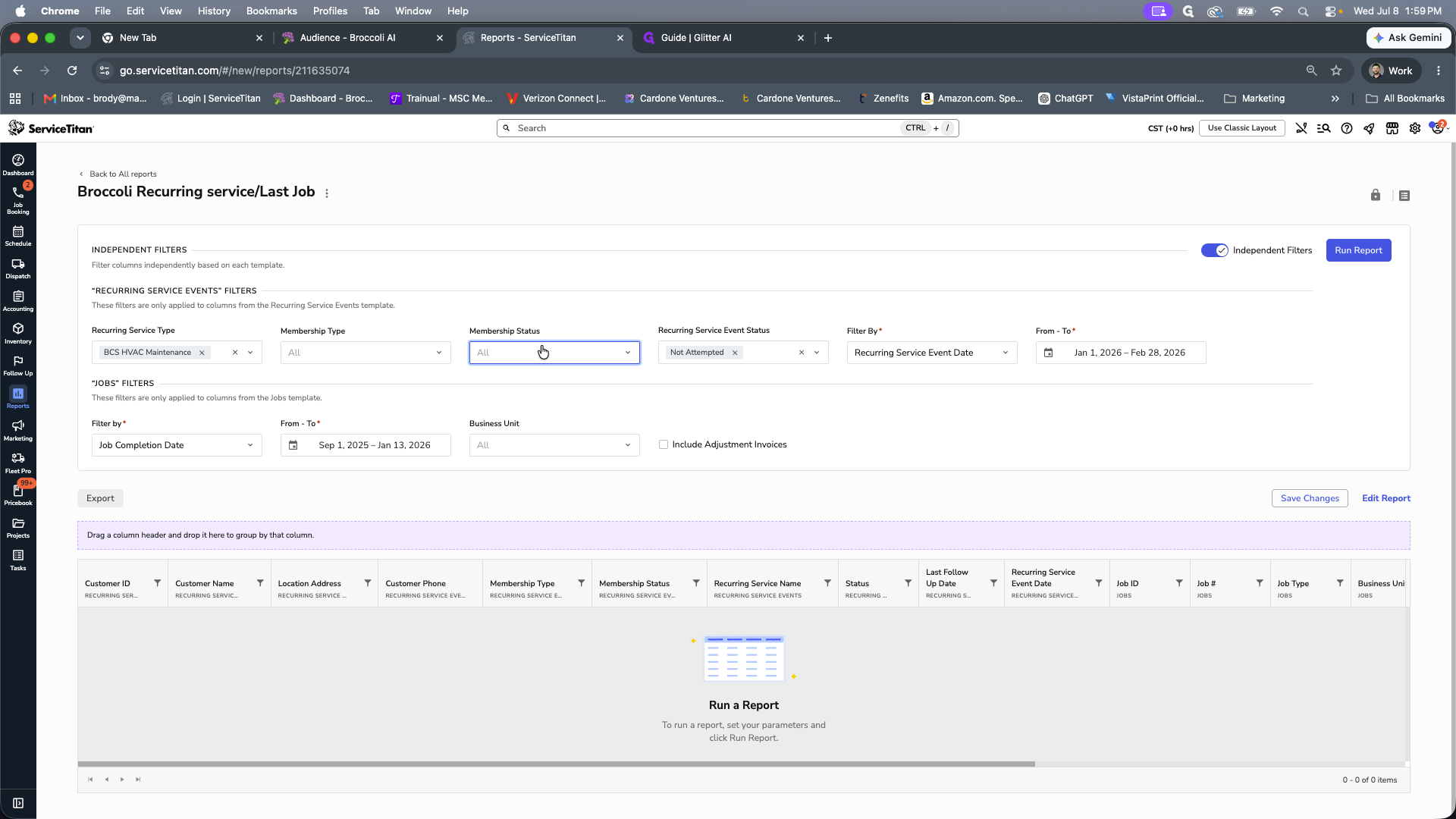
Click the Membership Status dropdown menu.
7
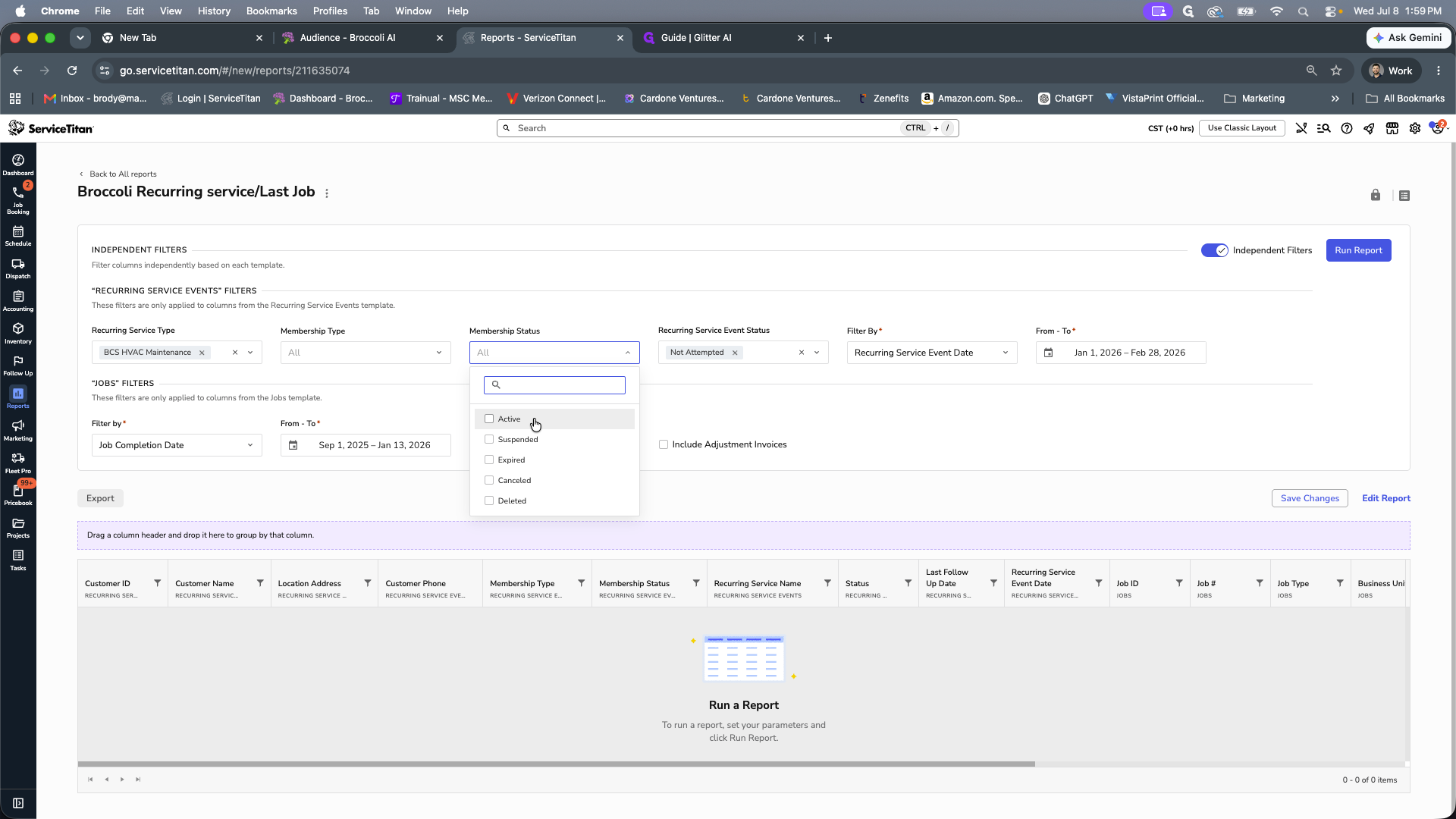
Select the Active checkbox to filter for active memberships.
8
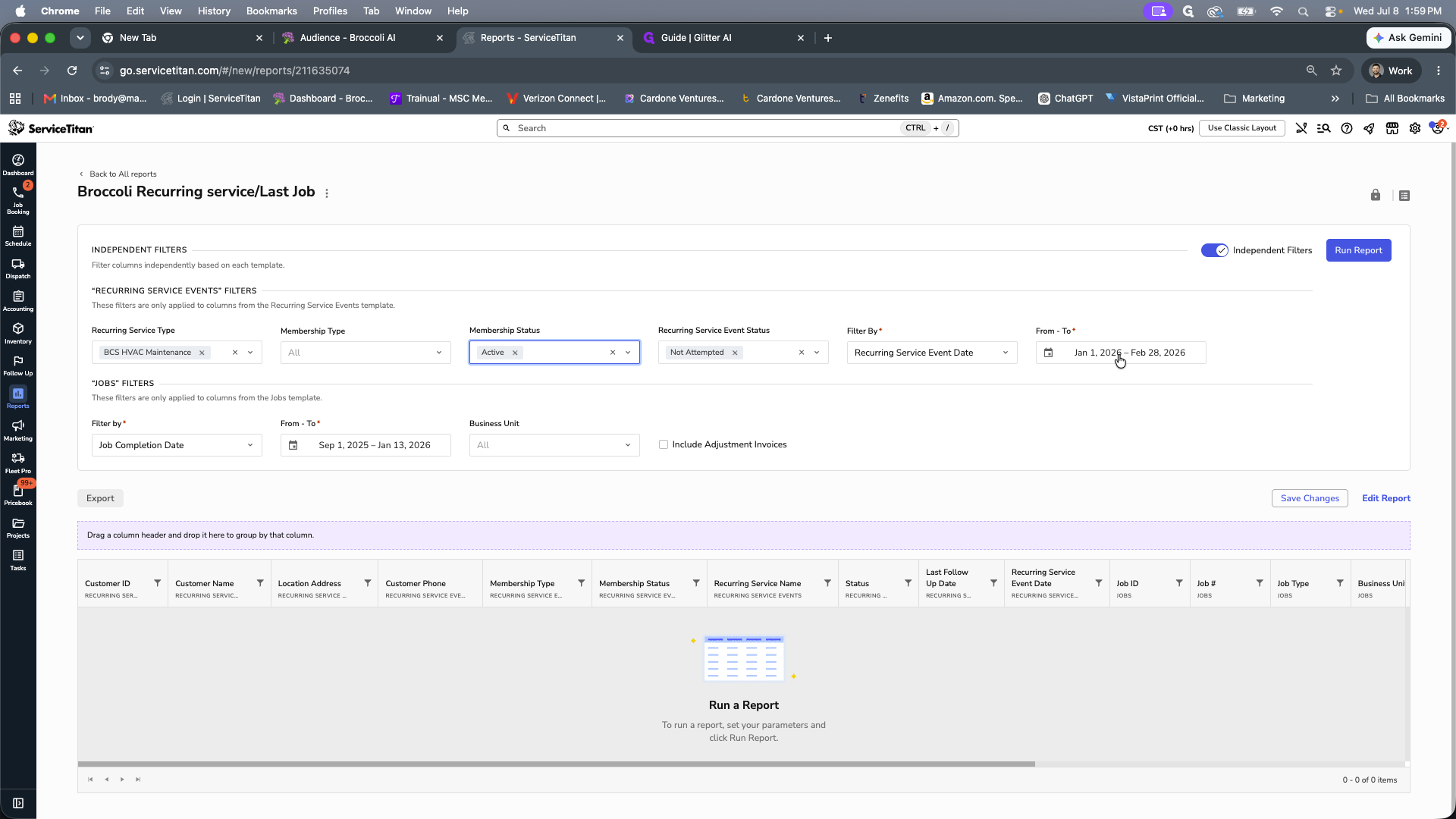
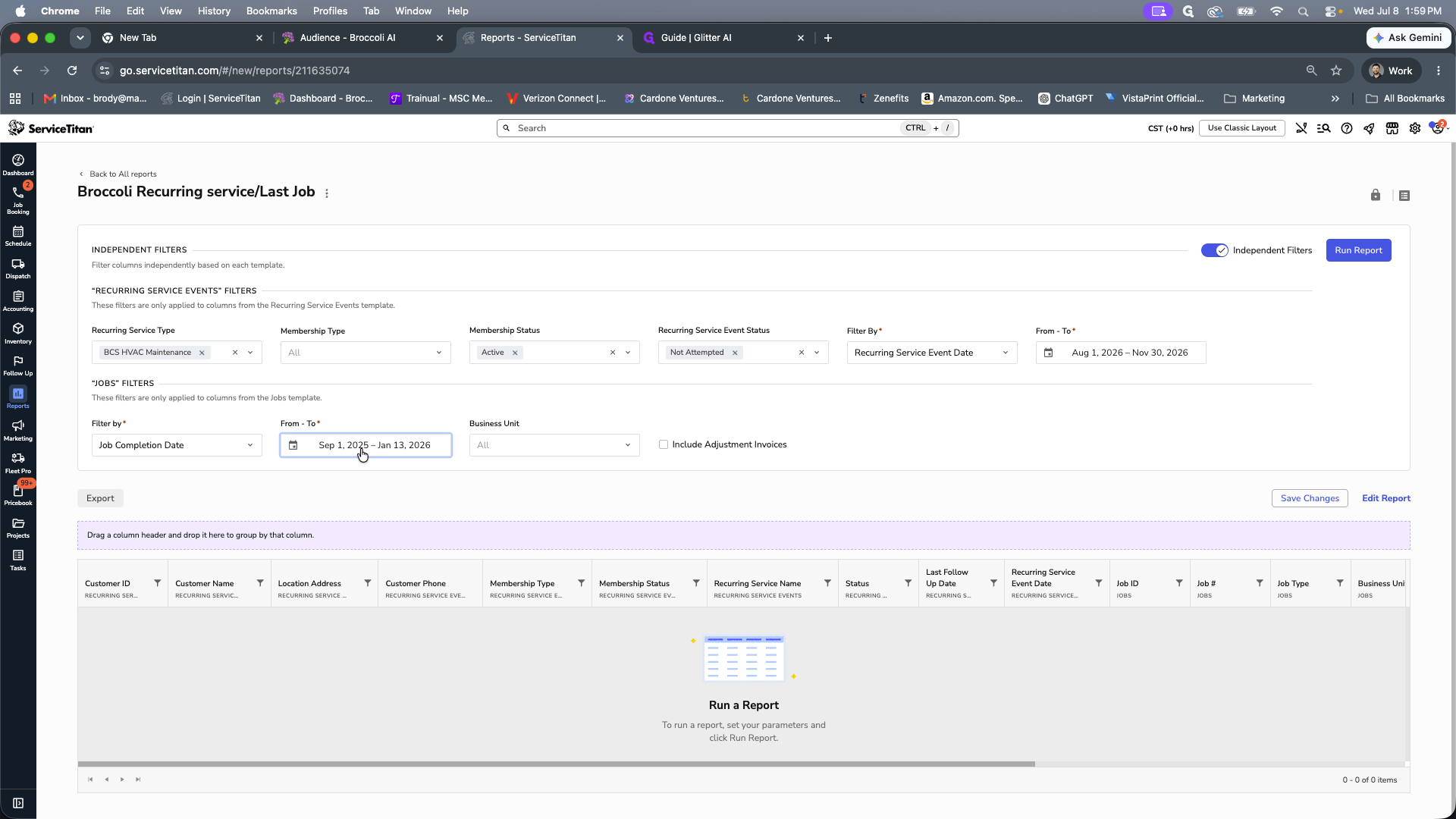
Click the date range selector under the Recurring Service Events filter.
9
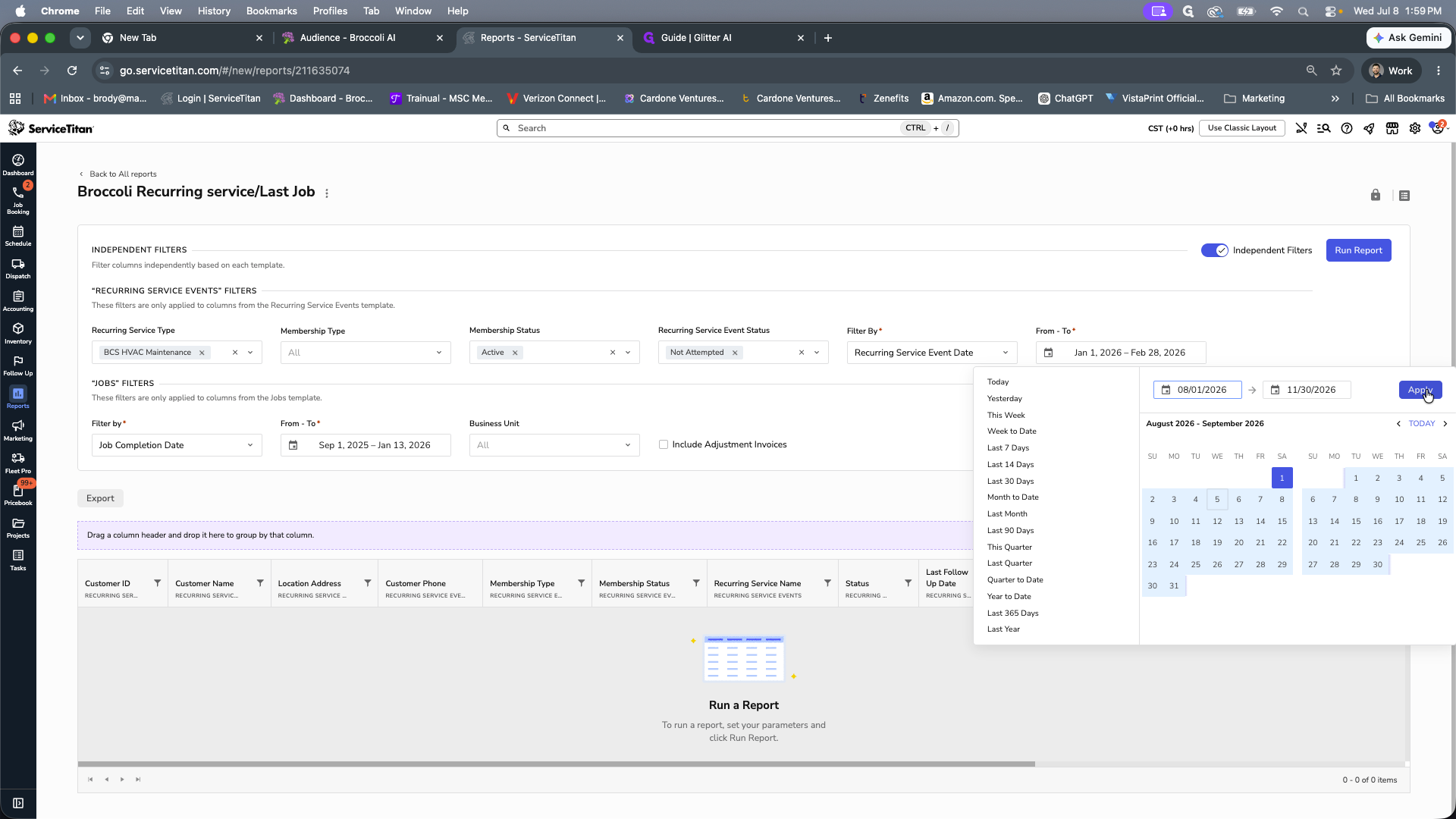
Select your target start and end dates using the calendar, then click Apply.
10
Click the date range selector under the Jobs filter to exclude or include jobs completed within a specific timeframe.
Run and Export
11
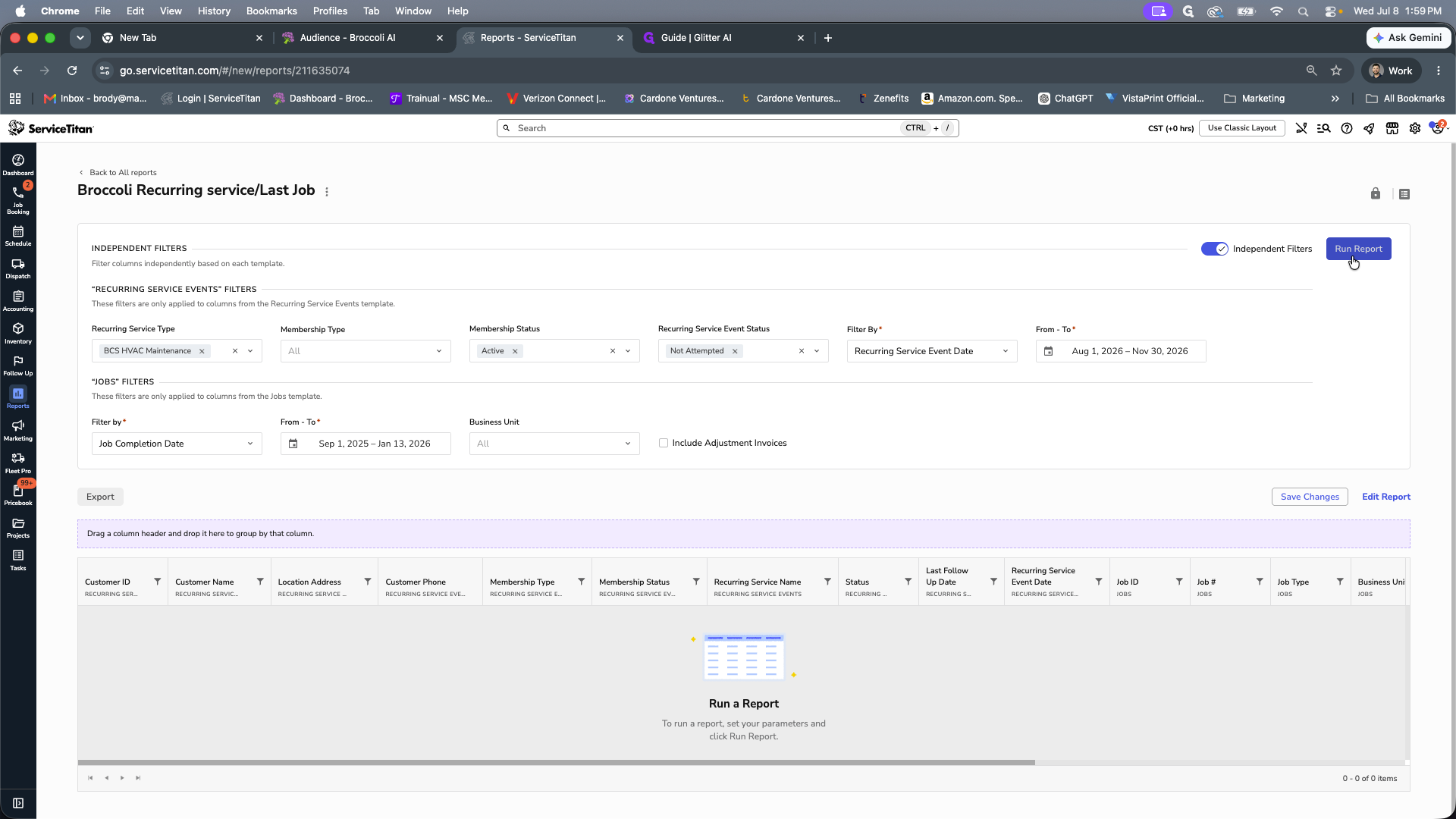
Click Run Report in the top right corner to generate your results.
Q: What details are required when exporting the report?
A: You must ensure the exported file includes the Customer ID and phone number columns. You should also manually remove any accounts marked with "Do Not Service" tags from your final list before using the data.