Icon

Generate and Track Custom Marketing Lists in LLE

Learn how to generate, filter, and track customer marketing lists using the Lexus Loyalty & Engagement (LLE) portal to drive dealership service retention.

By Jade Moreno

This guide explains how to generate, filter, and track custom customer lists using the Lexus Loyalty & Engagement (LLE) portal. By completing this task, you will be able to target specific customer segments and track the performance of your dealer marketing campaigns.

This workflow applies to dealership marketing managers and service directors. It is used when preparing targeted outreach lists for mail or email campaigns to drive service retention and sales.

Access the Customer List Generator
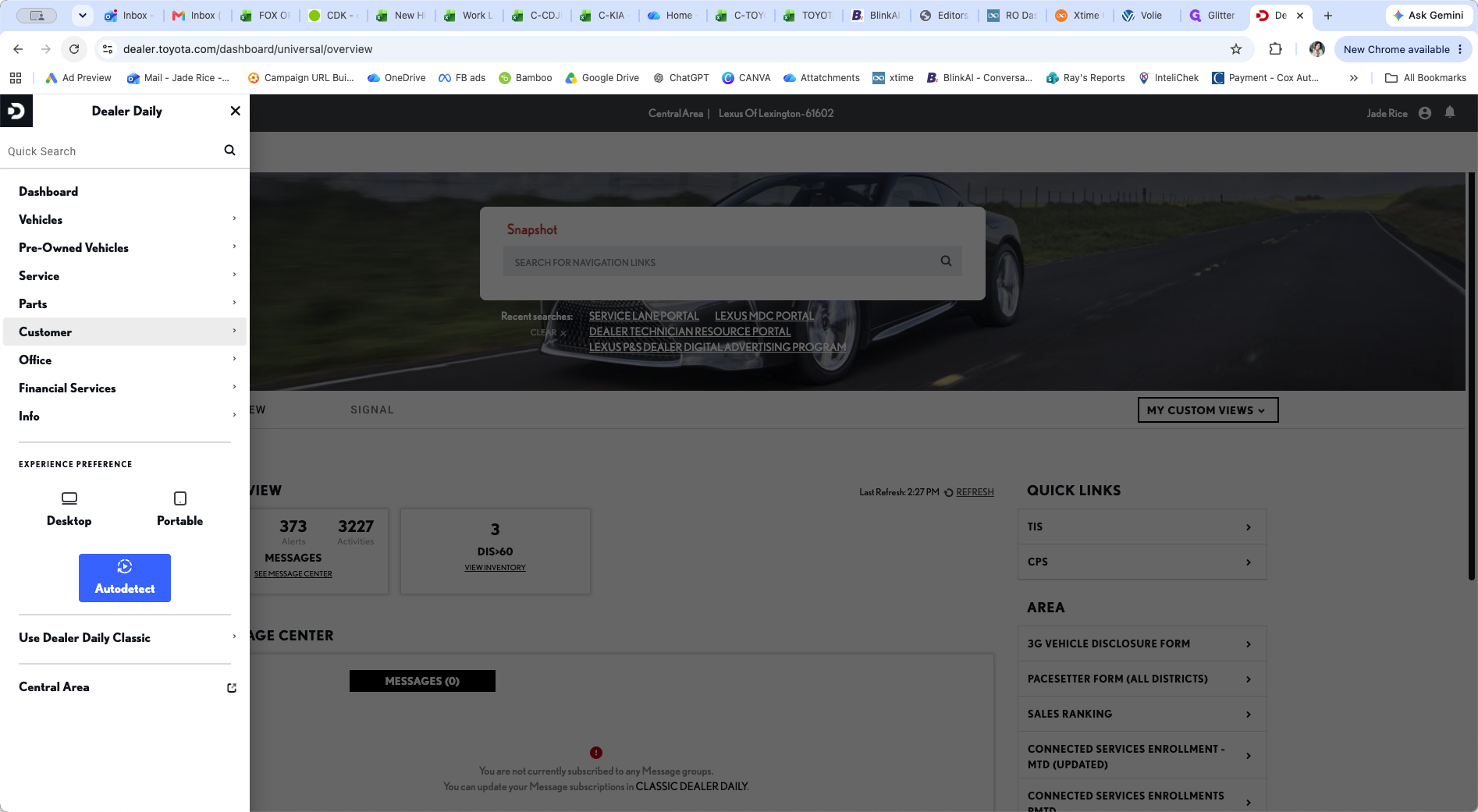
1
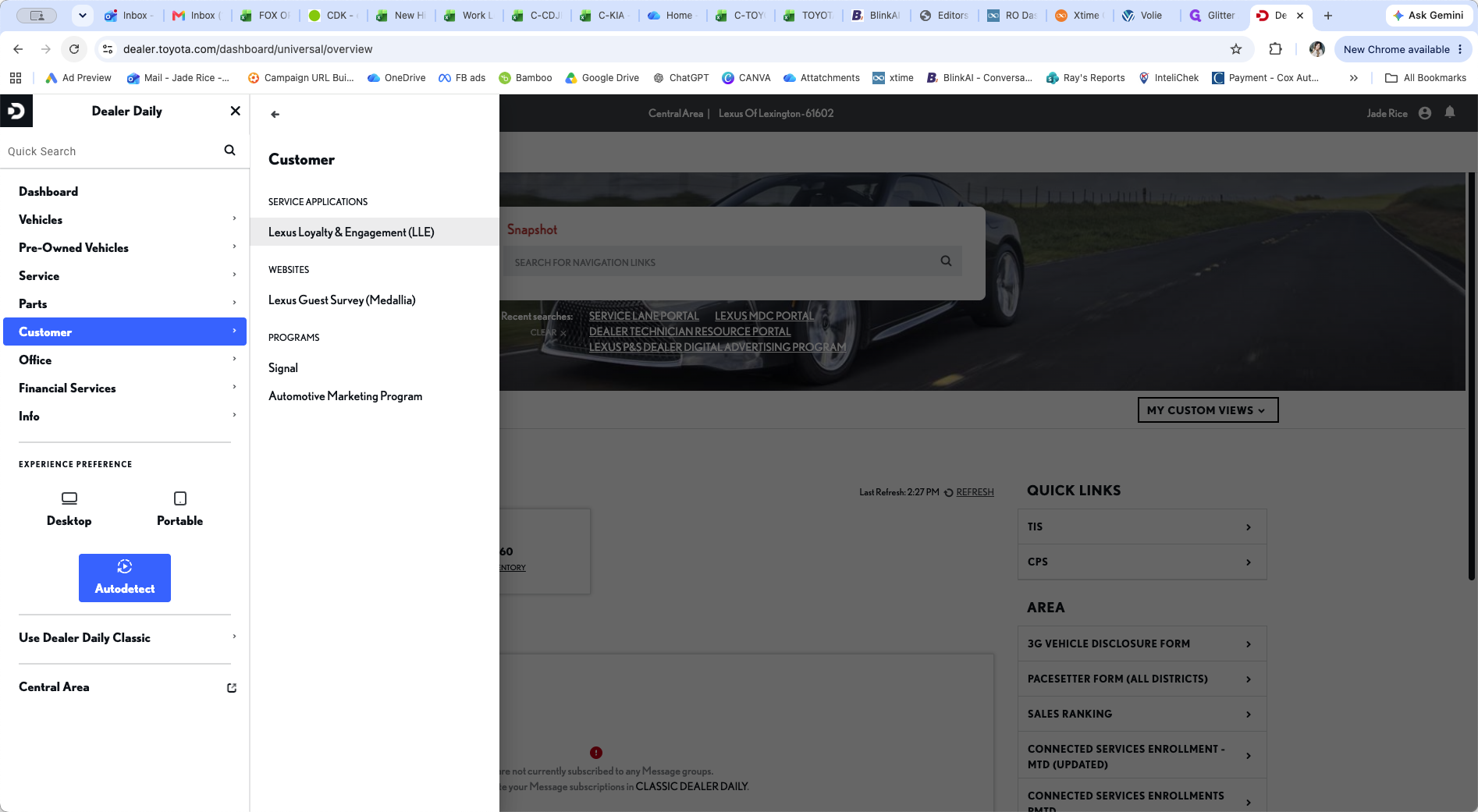
Click Customer in the main navigation sidebar.
Step #1: Click Customer in the main navigation sidebar.
2
Select Lexus Loyalty & Engagement from the Service Applications menu.
Step #2: Select Lexus Loyalty & Engagement from the Service Applications menu.
3
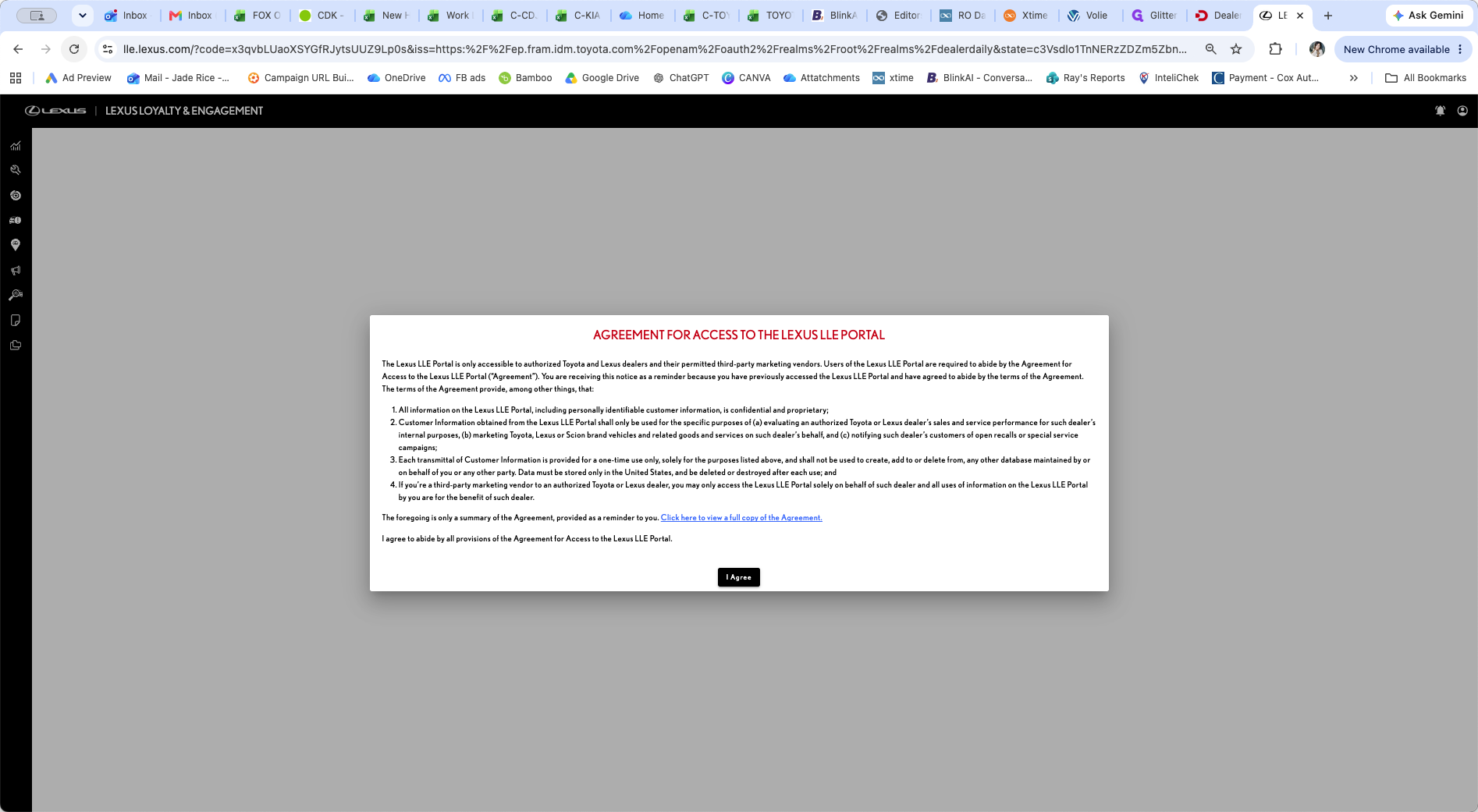
Review the Agreement for Access modal and click I Agree.
Step #3: Review the Agreement for Access modal and click I Agree.
4
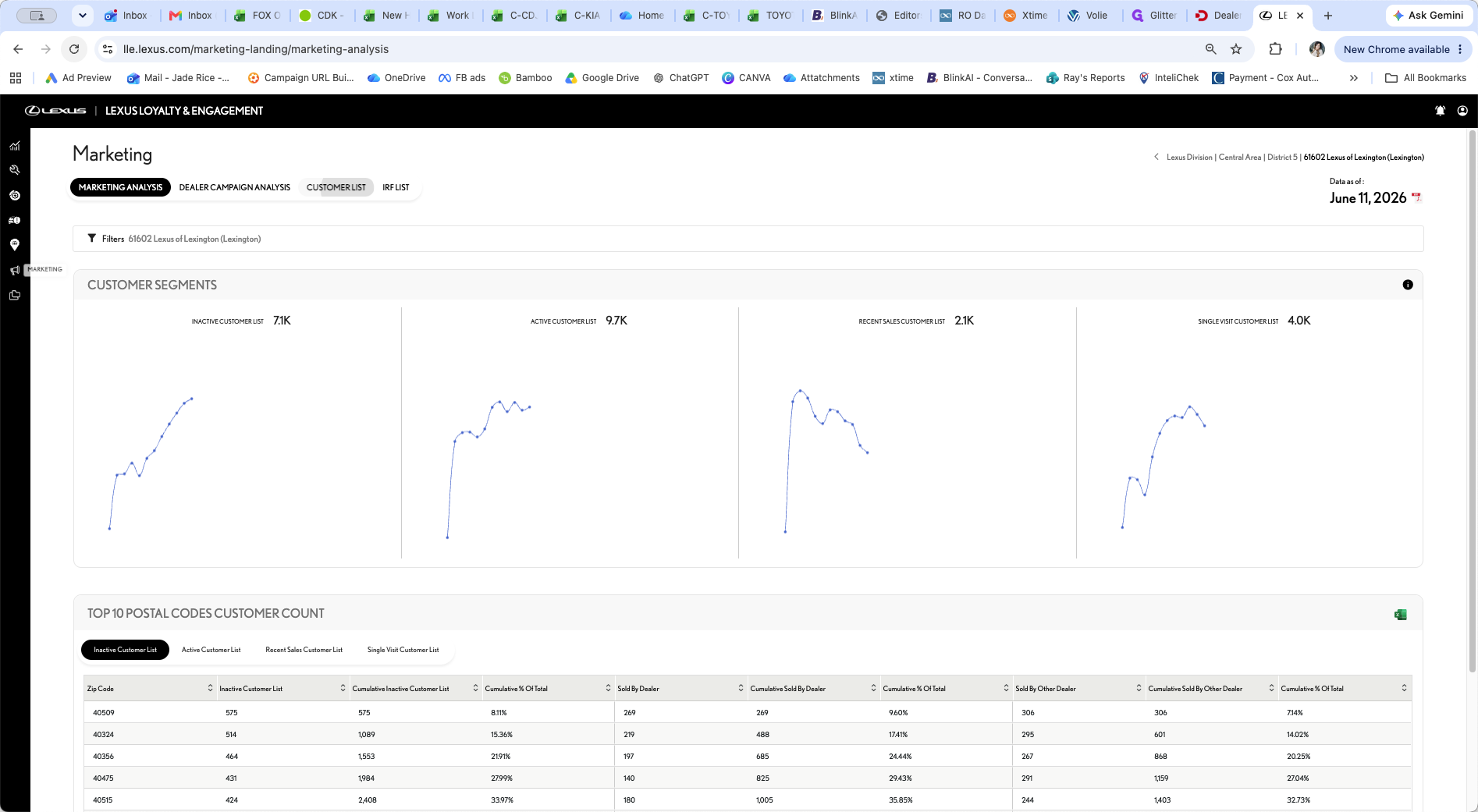
Click the CUSTOMER LIST tab under the Marketing heading.
Step #4: Click the CUSTOMER LIST tab under the Marketing heading.

Select and Filter Your List

When generating a customer list, you can choose from several standard list types based on your marketing objectives.

List Type

Target Audience

Service Opportunity

Lexus vehicles that have been newly assigned to your Primary Market Area (PMA).

Maintenance Eligible

Customers eligible for complementary scheduled services (e.g., 5K, 10K, and L Certified).

Customer List All

A broad list typically used for custom marketing campaigns, allowing you to define specific filtering criteria.

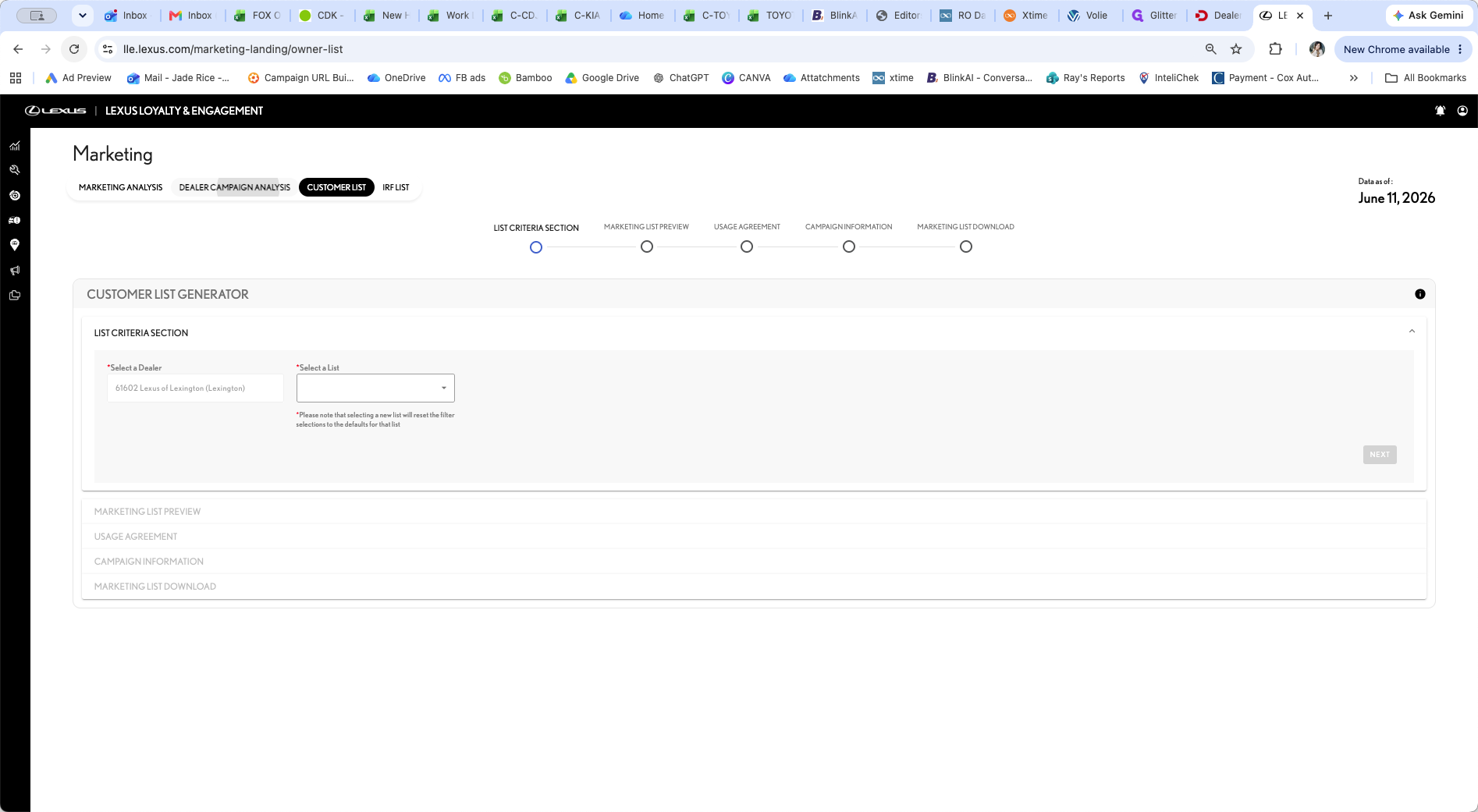
5
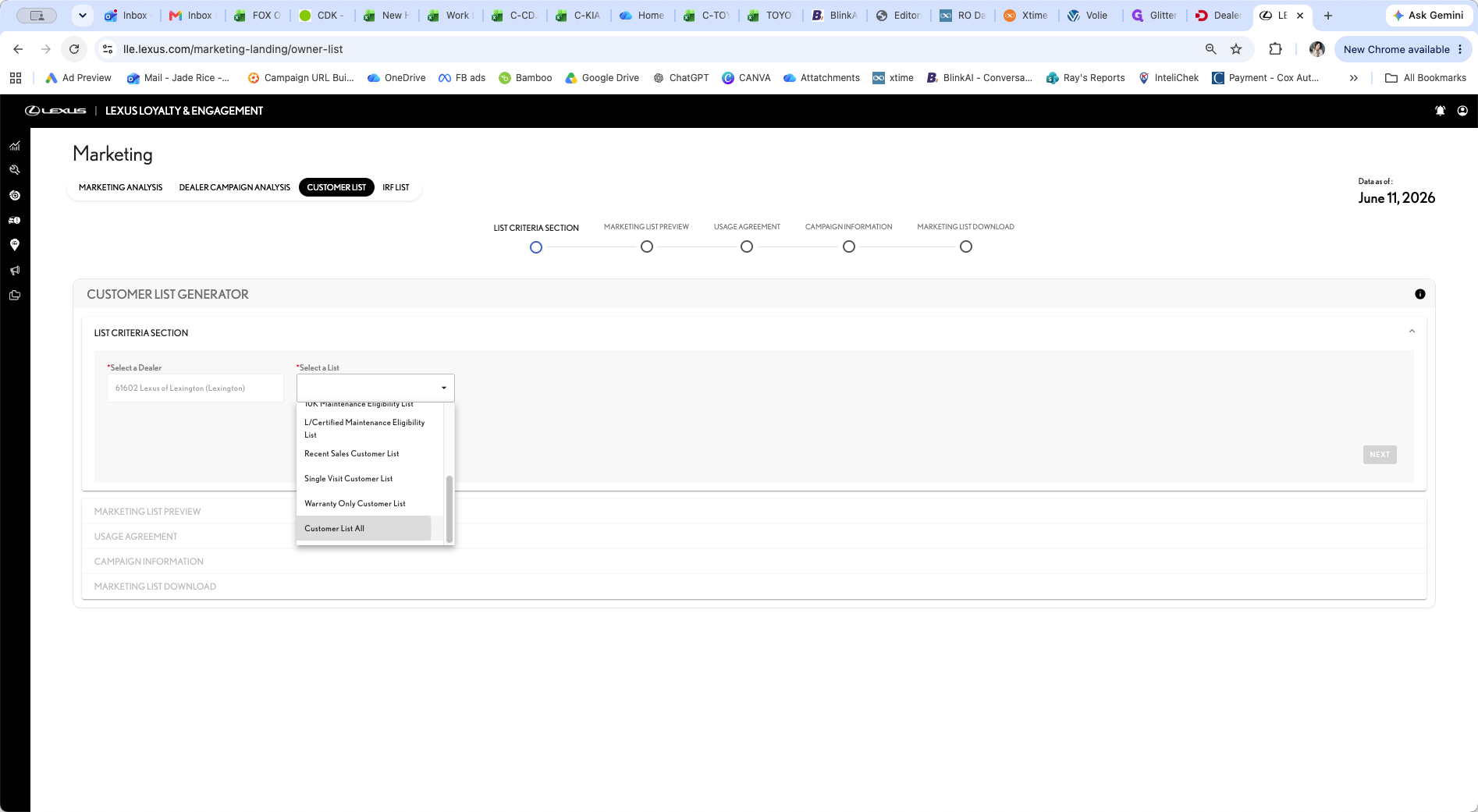
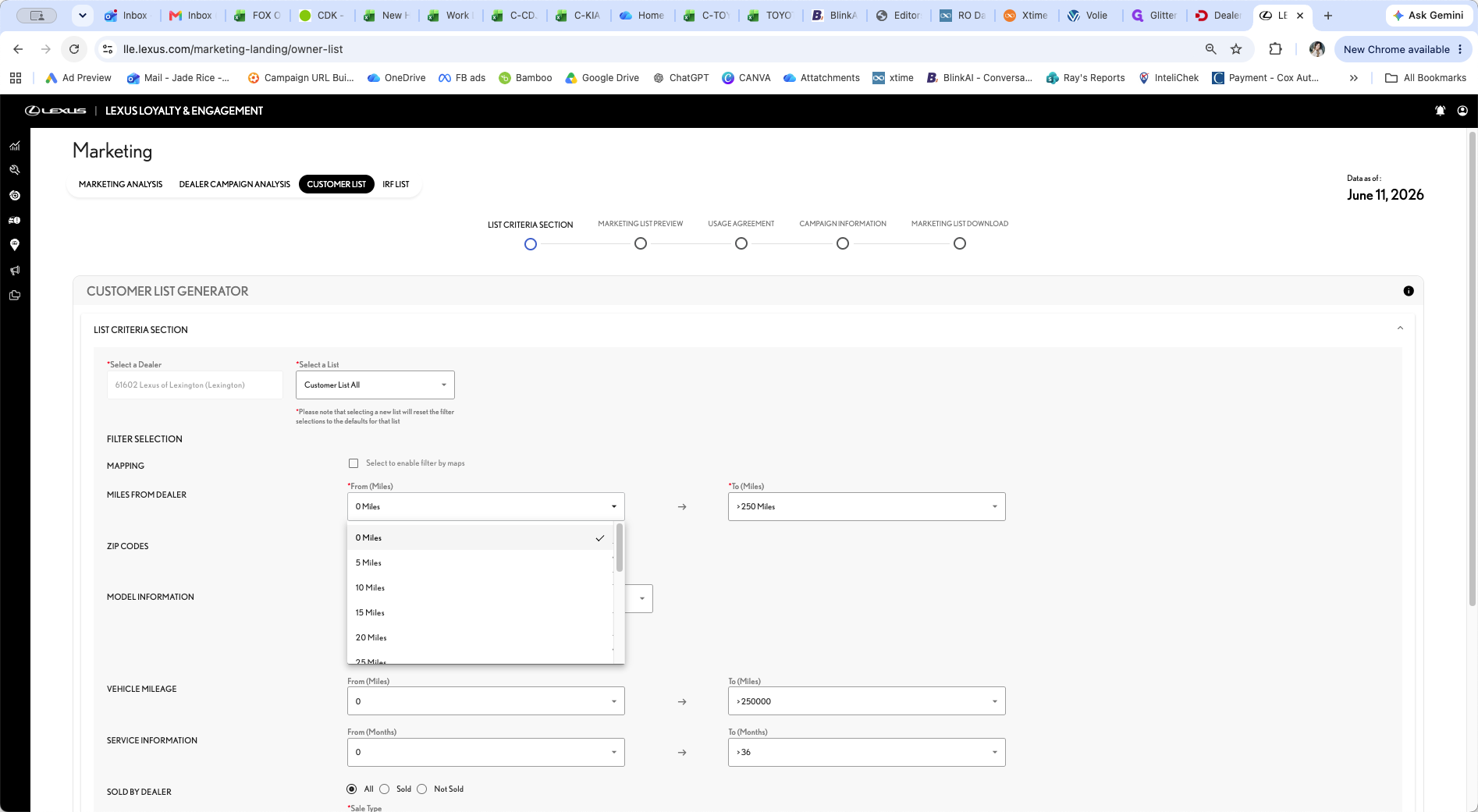
Open the Select a List dropdown menu and select Customer List All.
Step #5: Open the Select a List dropdown menu and select Customer List All.
6
Adjust the Miles from Dealer dropdown to target customers within a certain radius, such as within 100 miles of the dealership.
Step #6: Adjust the Miles from Dealer dropdown to target customers within a certain radius, such as within 100 miles of the dealership.
7
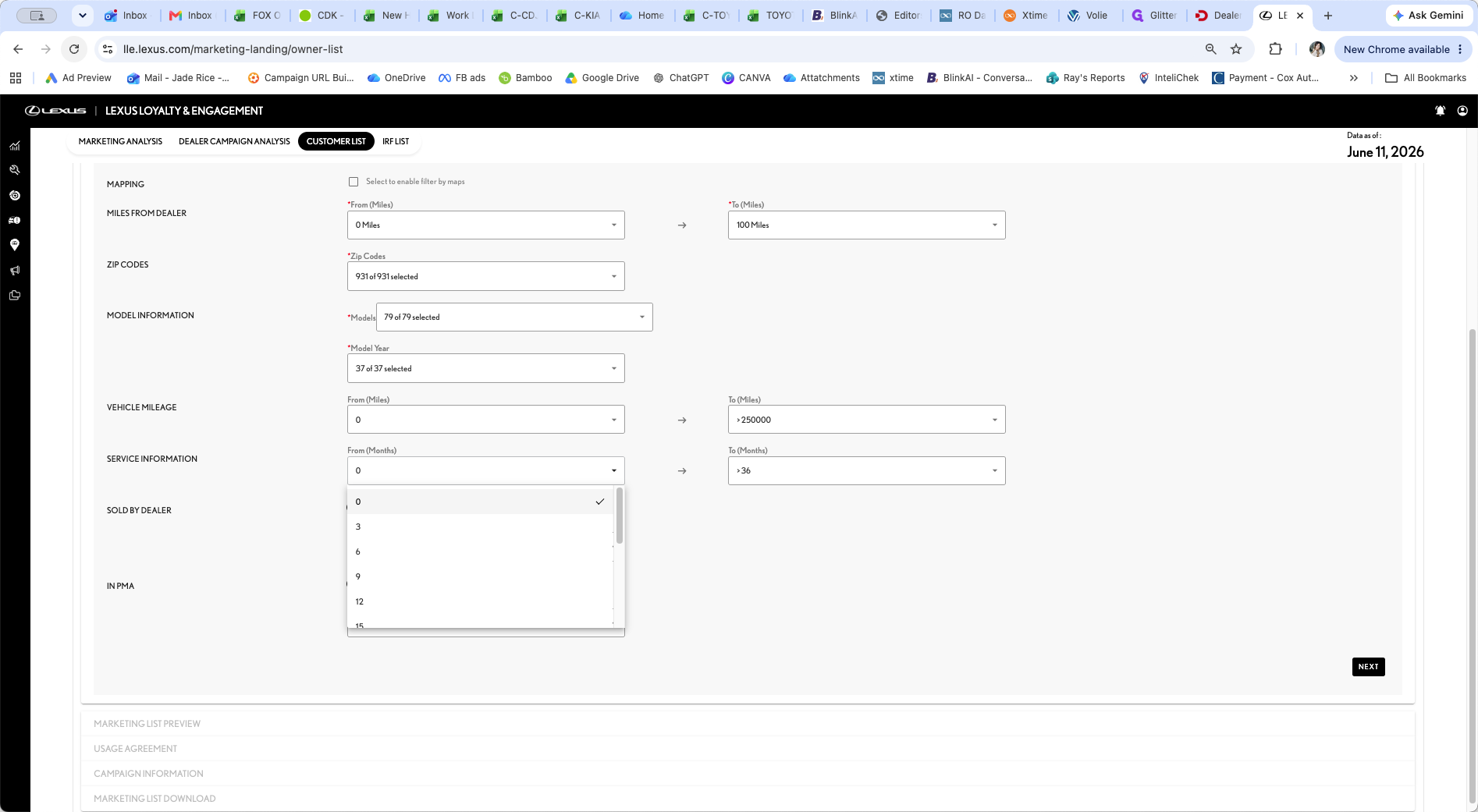
Configure the Service Information dropdown to filter by the customer's last service visit. For example, select 6 months to target individuals who are due for service.
Step #7: Configure the Service Information dropdown to filter by the customer's last service visit. For example, select 6 months to target individuals who are due for service.
8
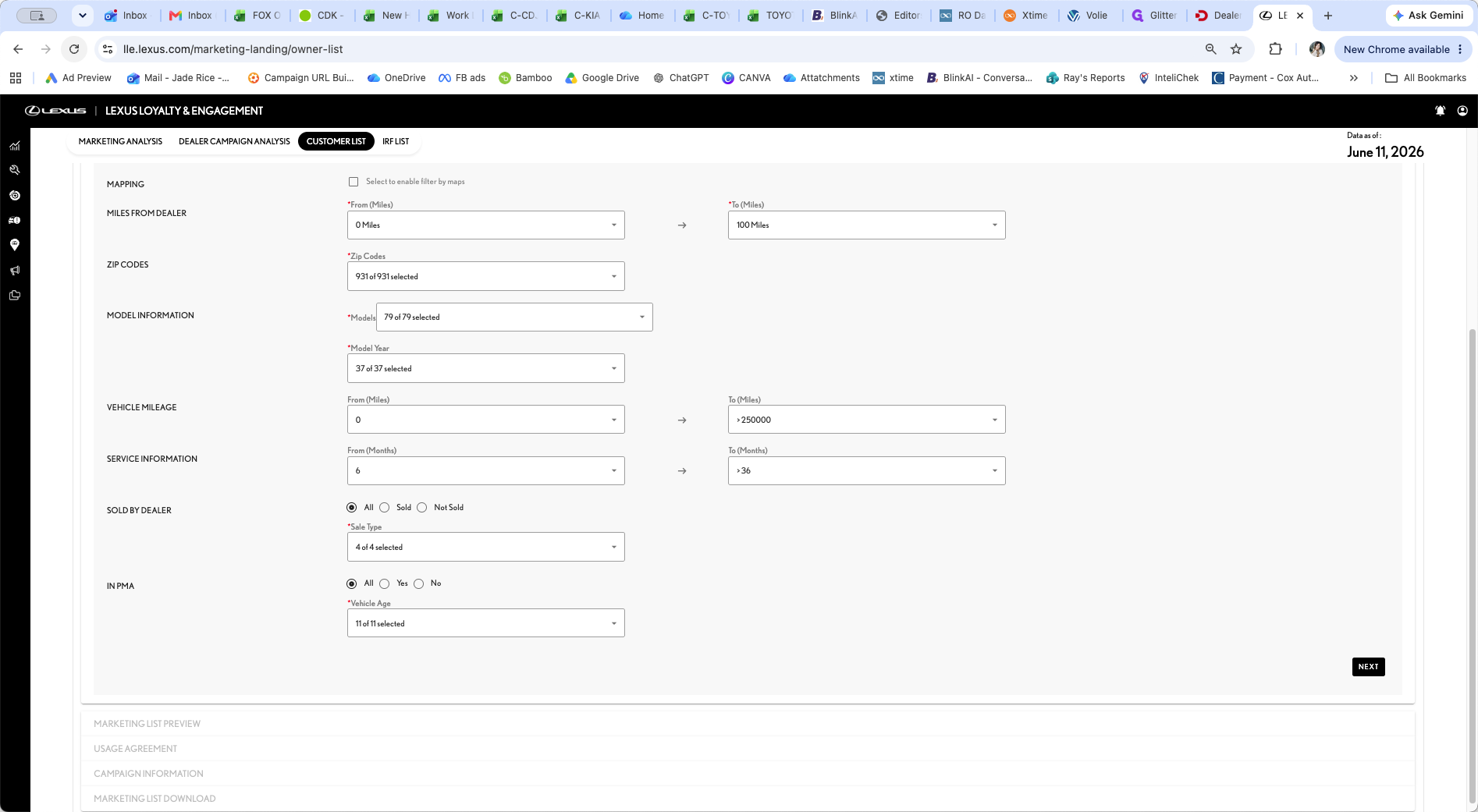
Click NEXT to proceed and view a preview of the marketing list size and customer records.
Step #8: Click NEXT to proceed and view a preview of the marketing list size and customer records.

Configure Campaign Tracking
9
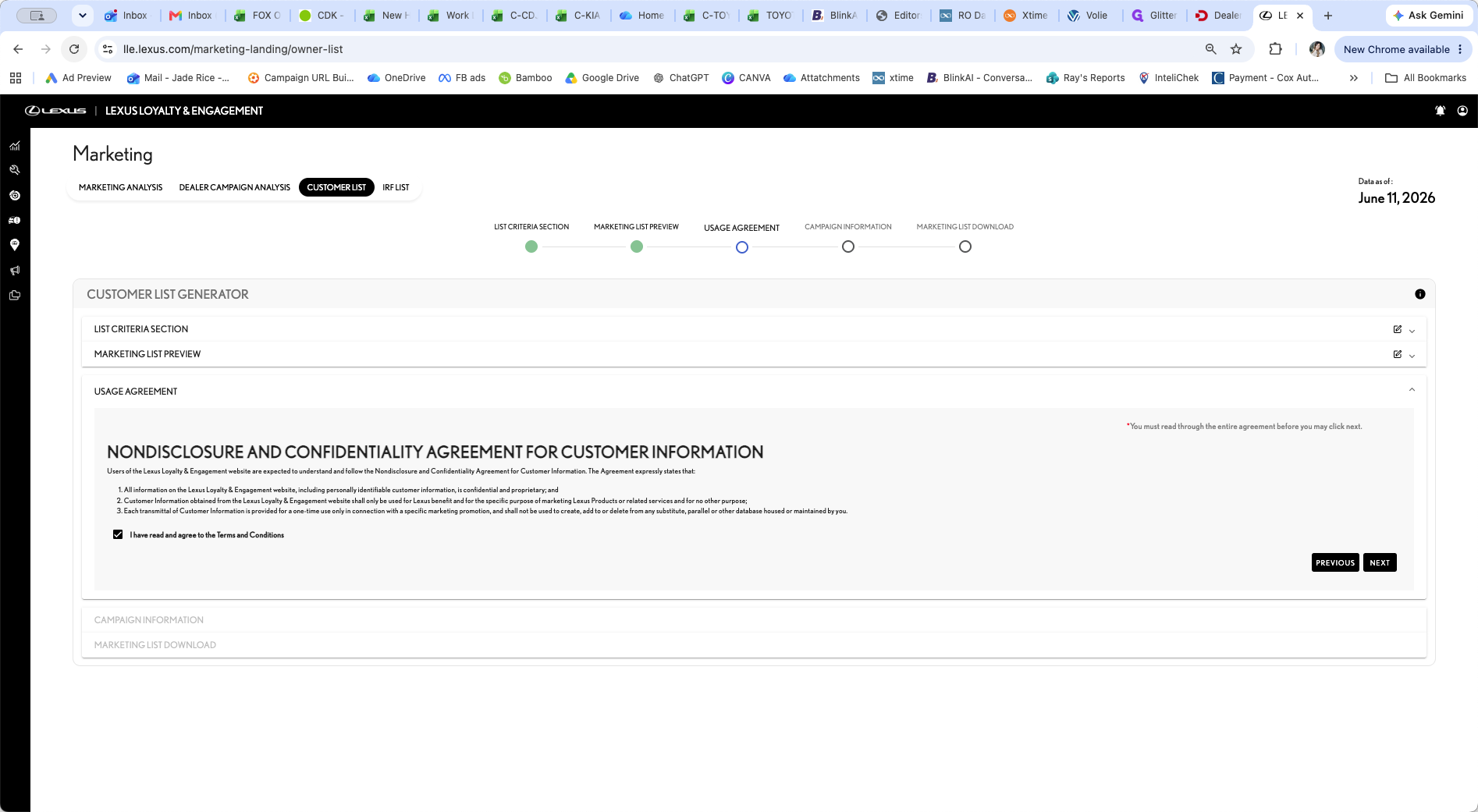
Check the box for I have read and agree to the Terms and Conditions.
Step #9: Check the box for I have read and agree to the Terms and Conditions.
10
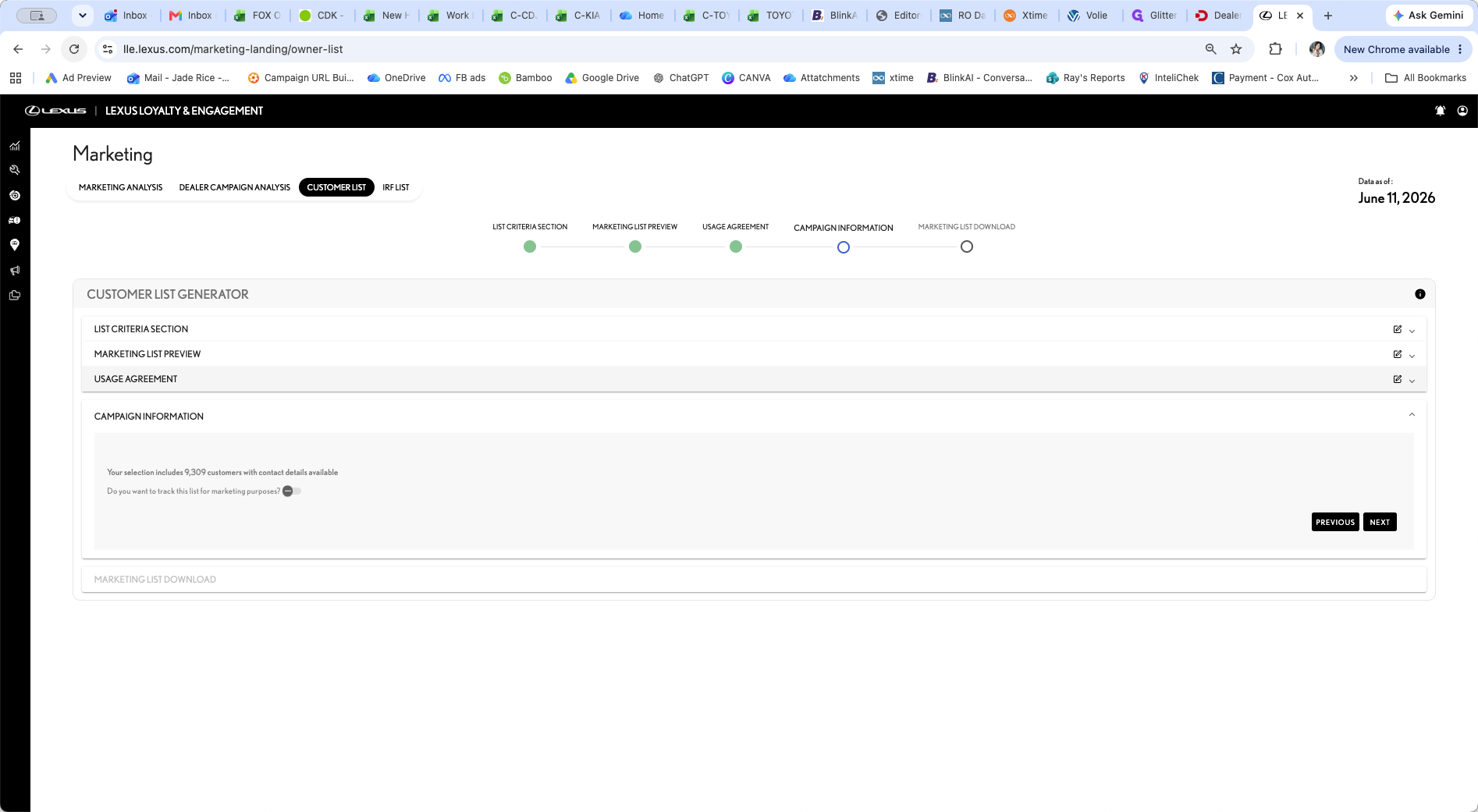
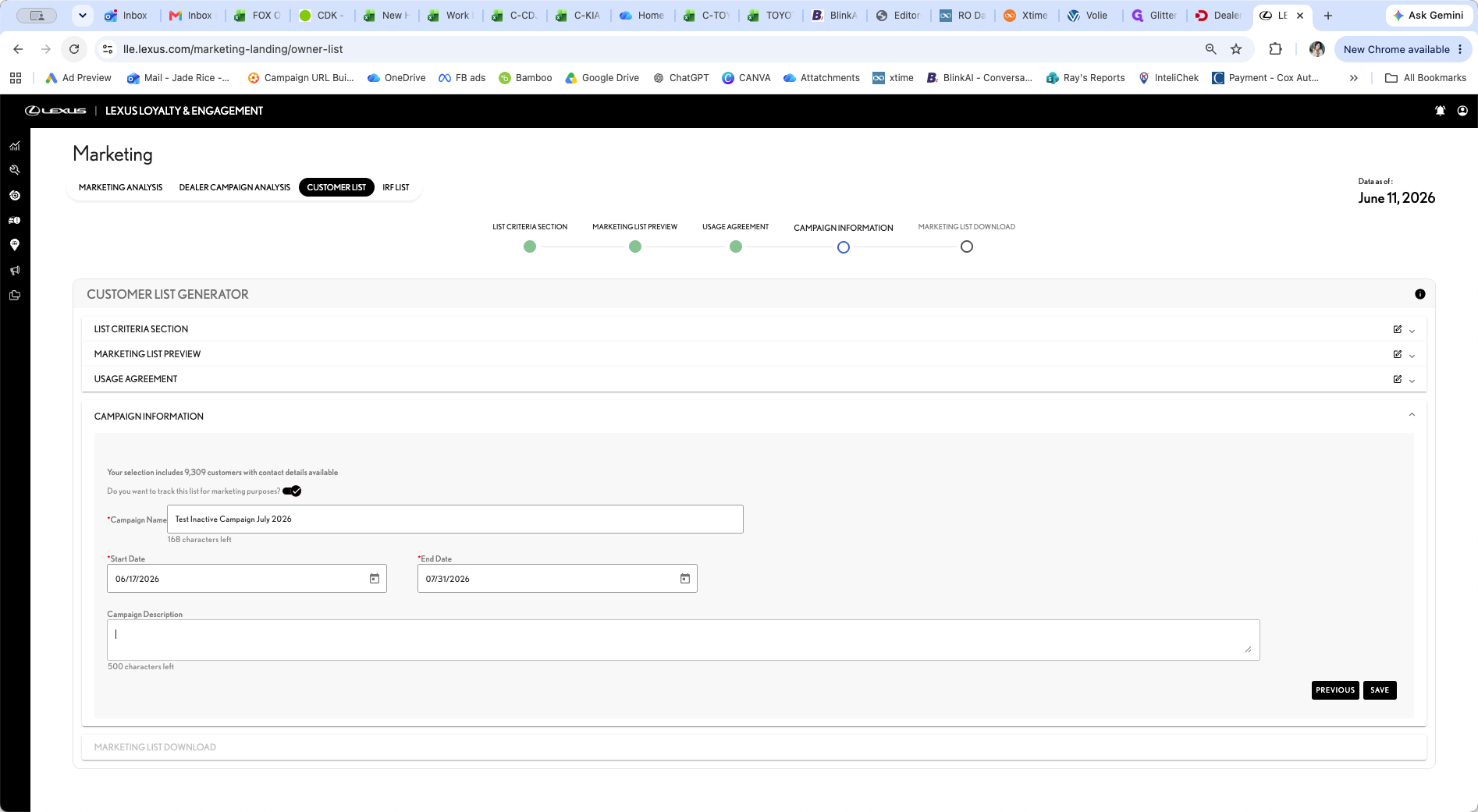
Toggle the option to track the list for marketing purposes to Yes.
Step #10: Toggle the option to track the list for marketing purposes to Yes.
11
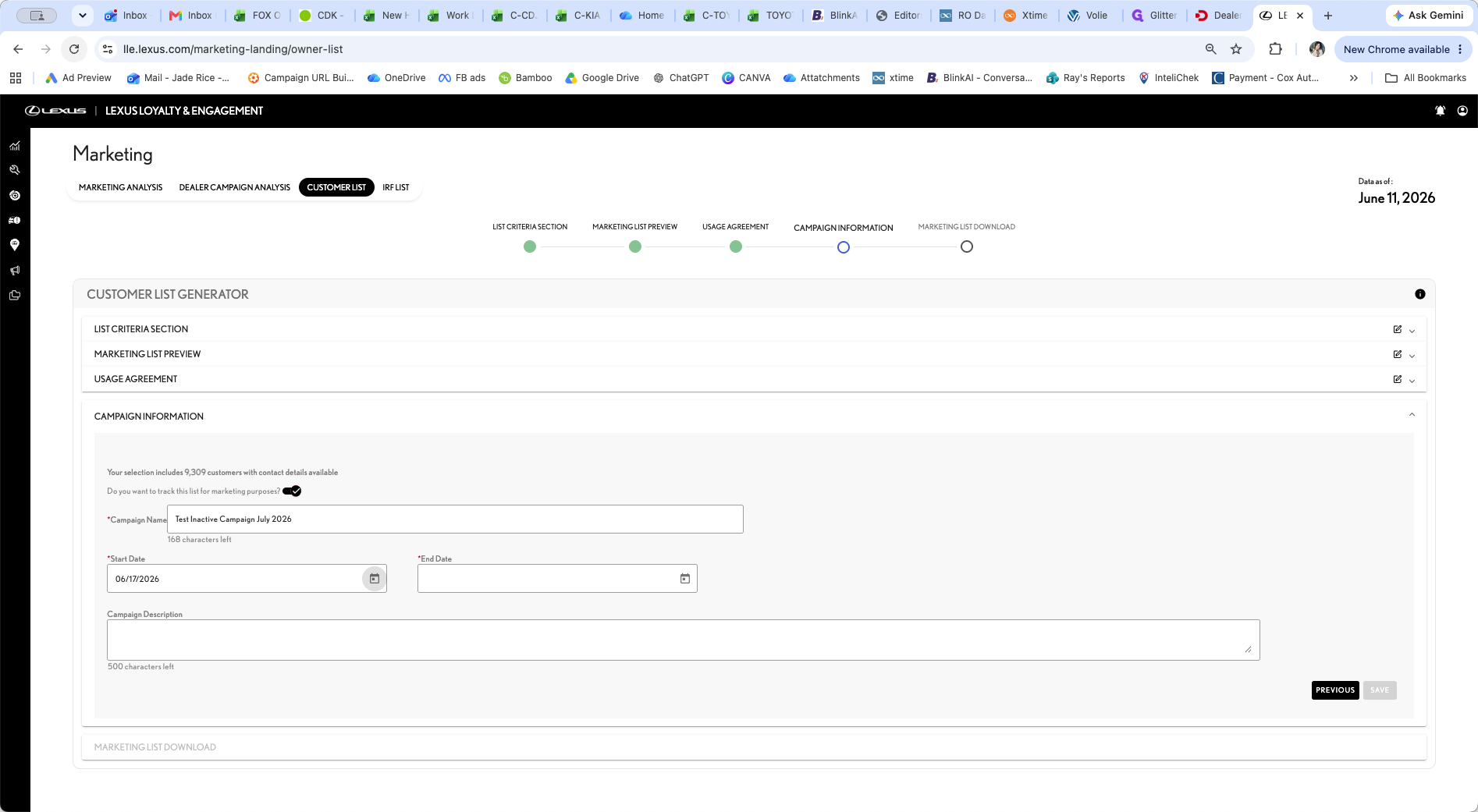
Click the Campaign Name field and enter a title for your initiative.
Step #11: Click the Campaign Name field and enter a title for your initiative.
12
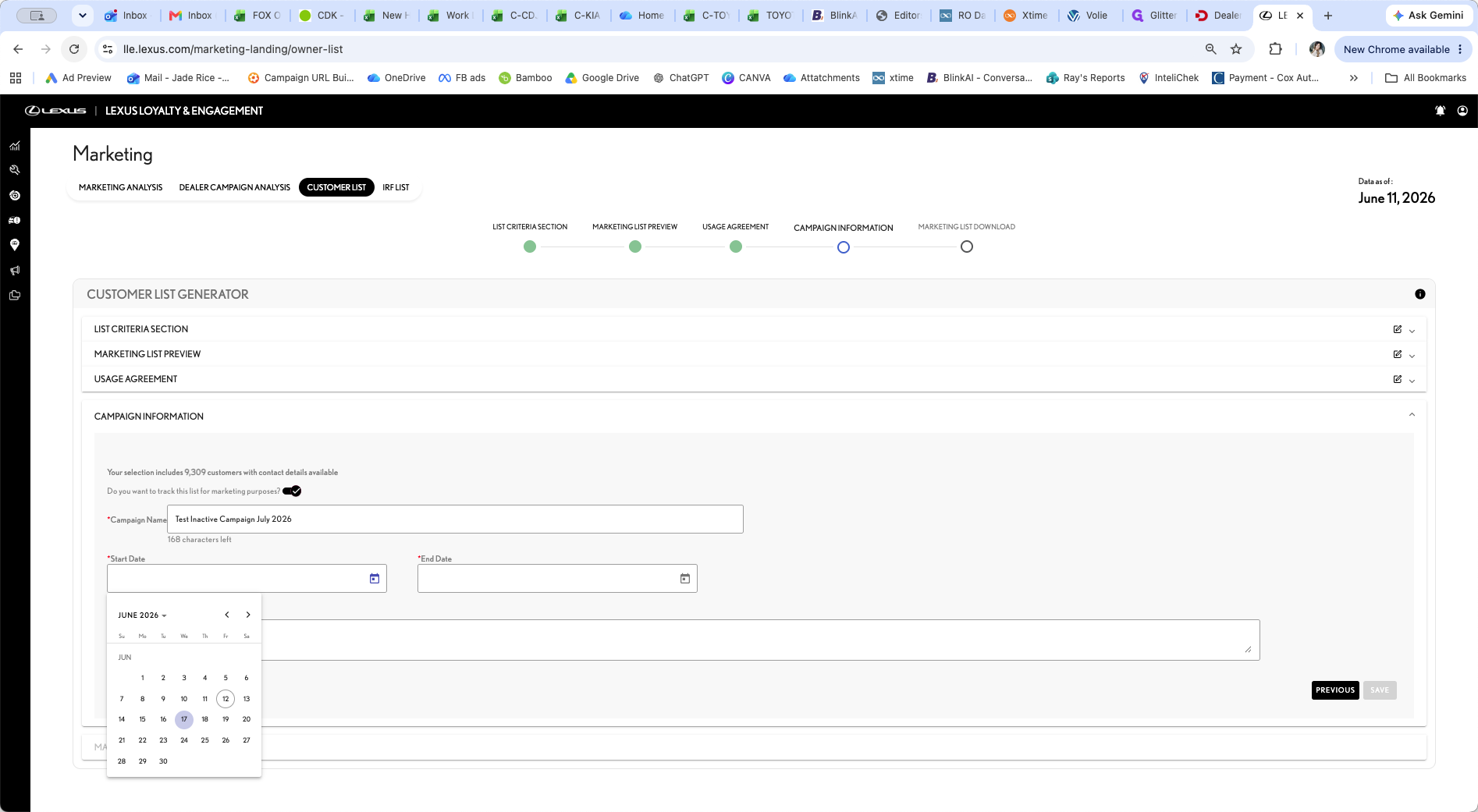
Select your campaign's Start Date.
Step #12: Select your campaign's Start Date.
13
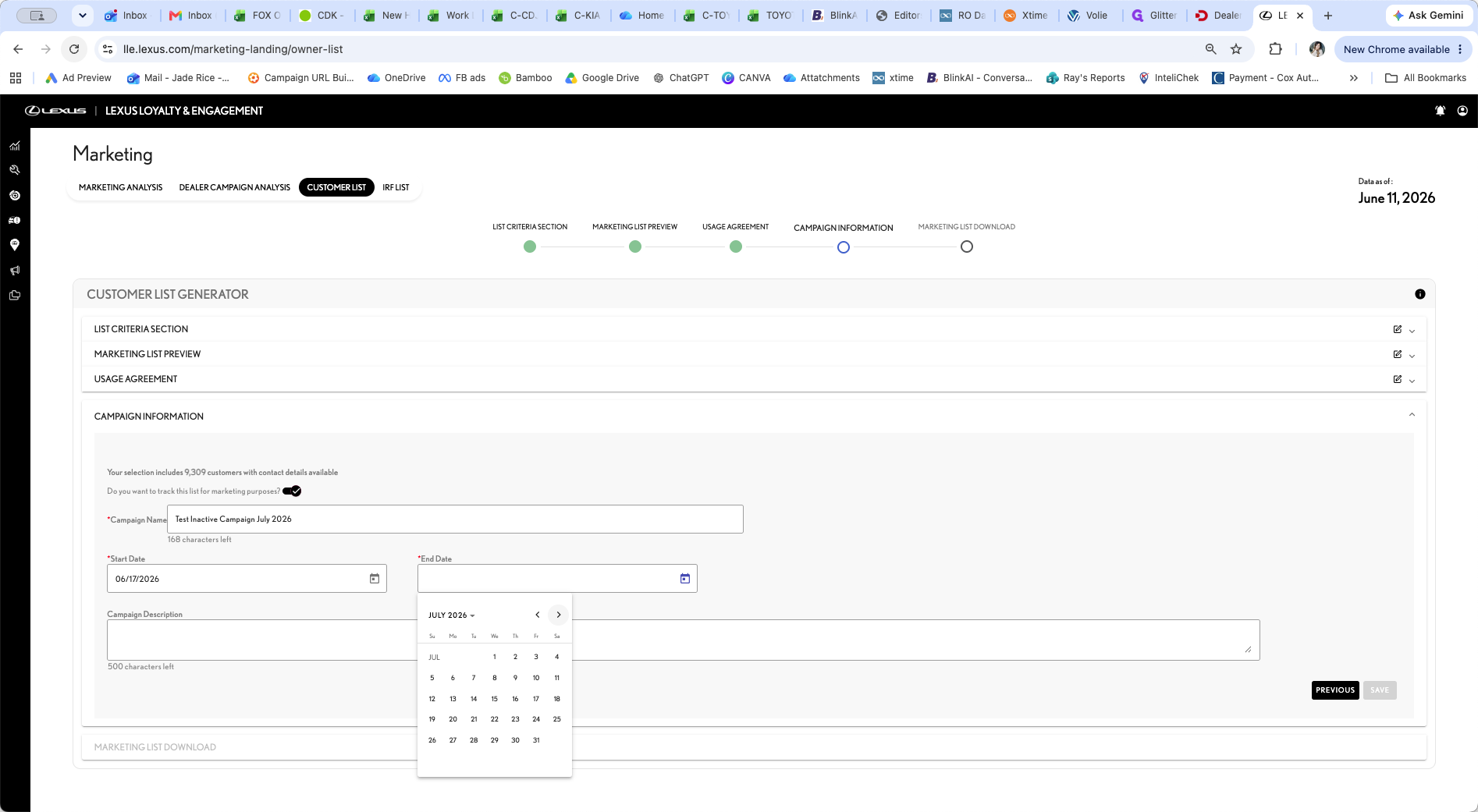
Select your campaign's End Date.
Step #13: Select your campaign's End Date.
14
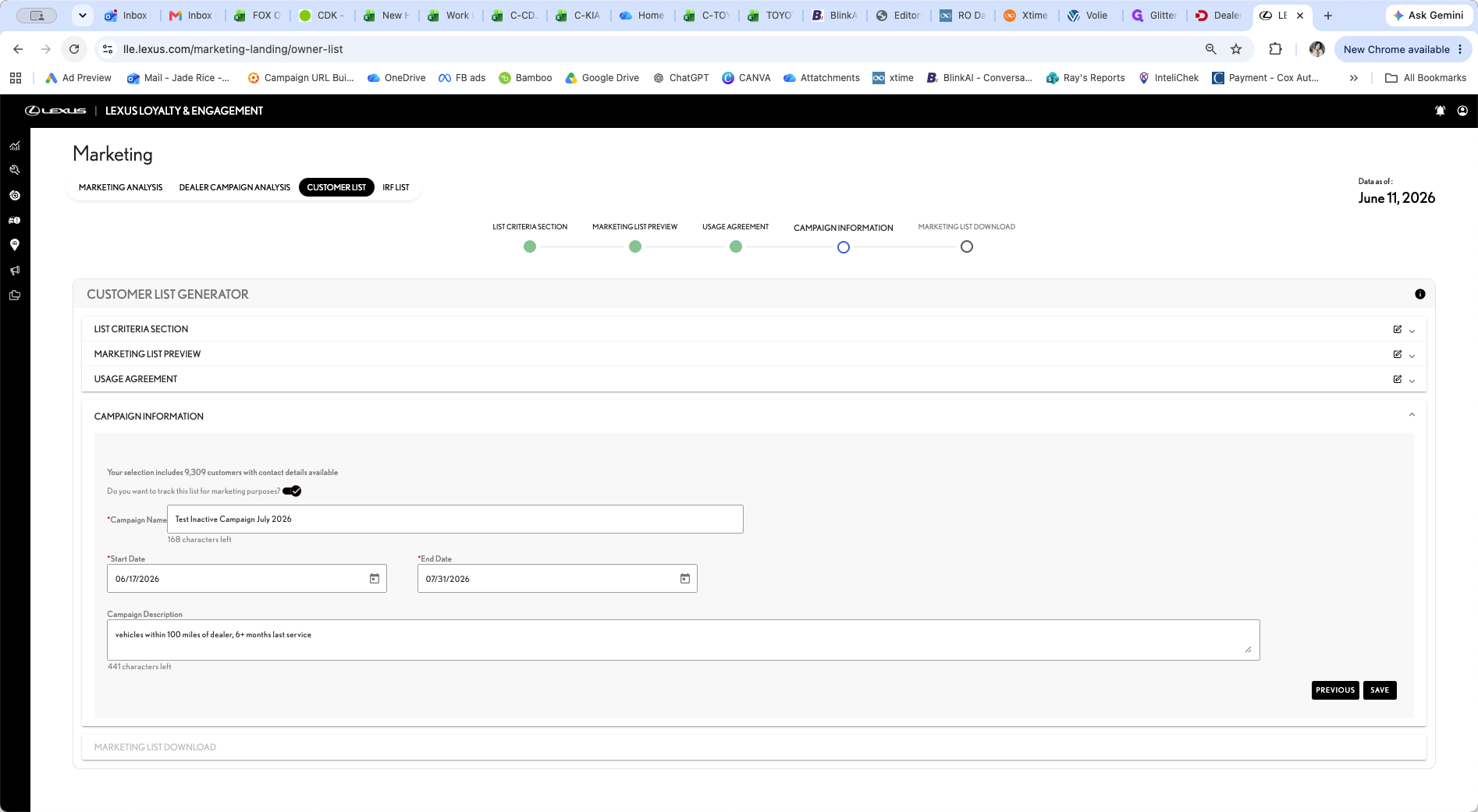
Enter a brief description of the criteria you used to pull the list.
Step #14: Enter a brief description of the criteria you used to pull the list.
15
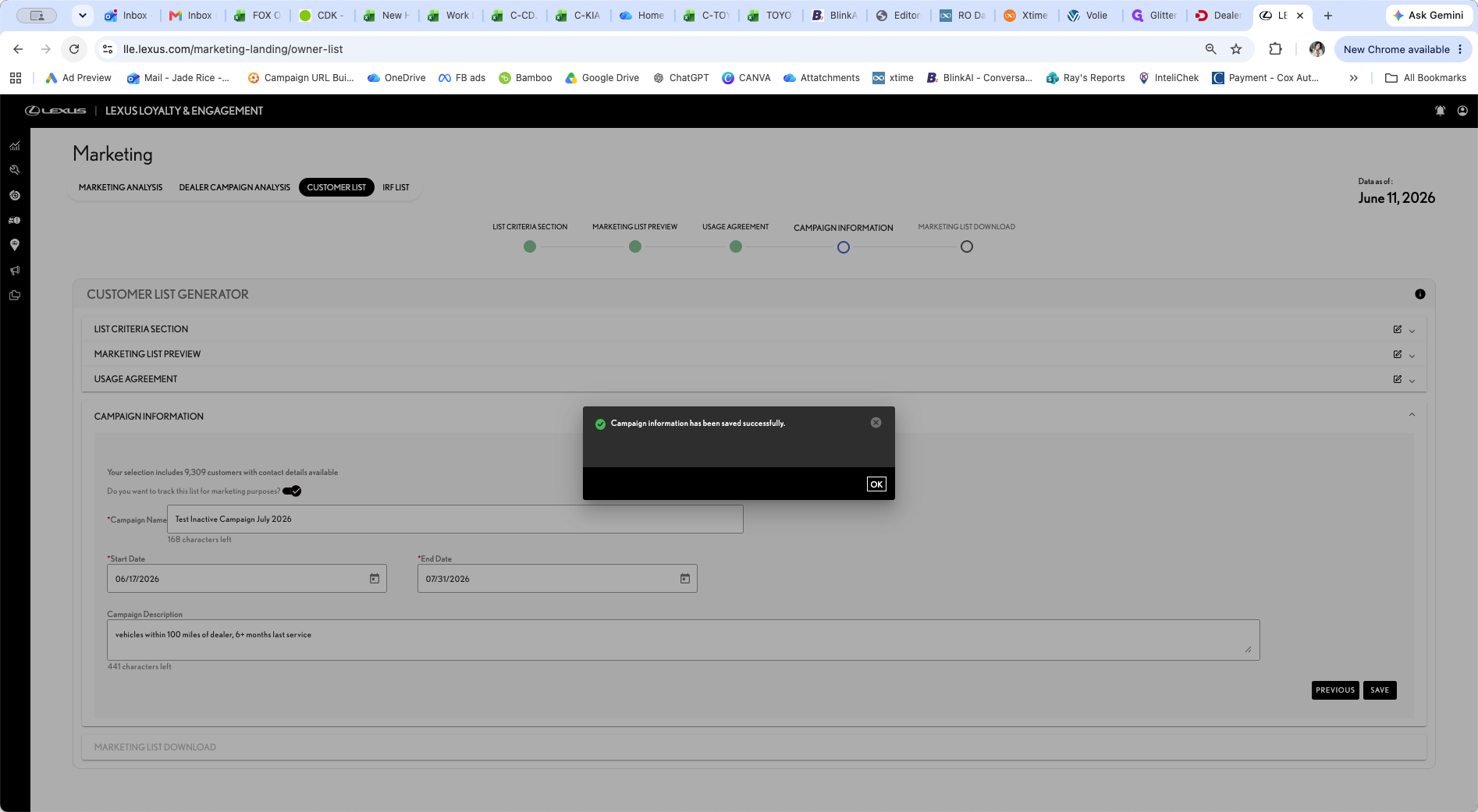
Click SAVE to lock in your campaign details.
Step #15: Click SAVE to lock in your campaign details.
16
Click OK on the successful save confirmation modal.
Step #16: Click OK on the successful save confirmation modal.

Export and Analyze

17
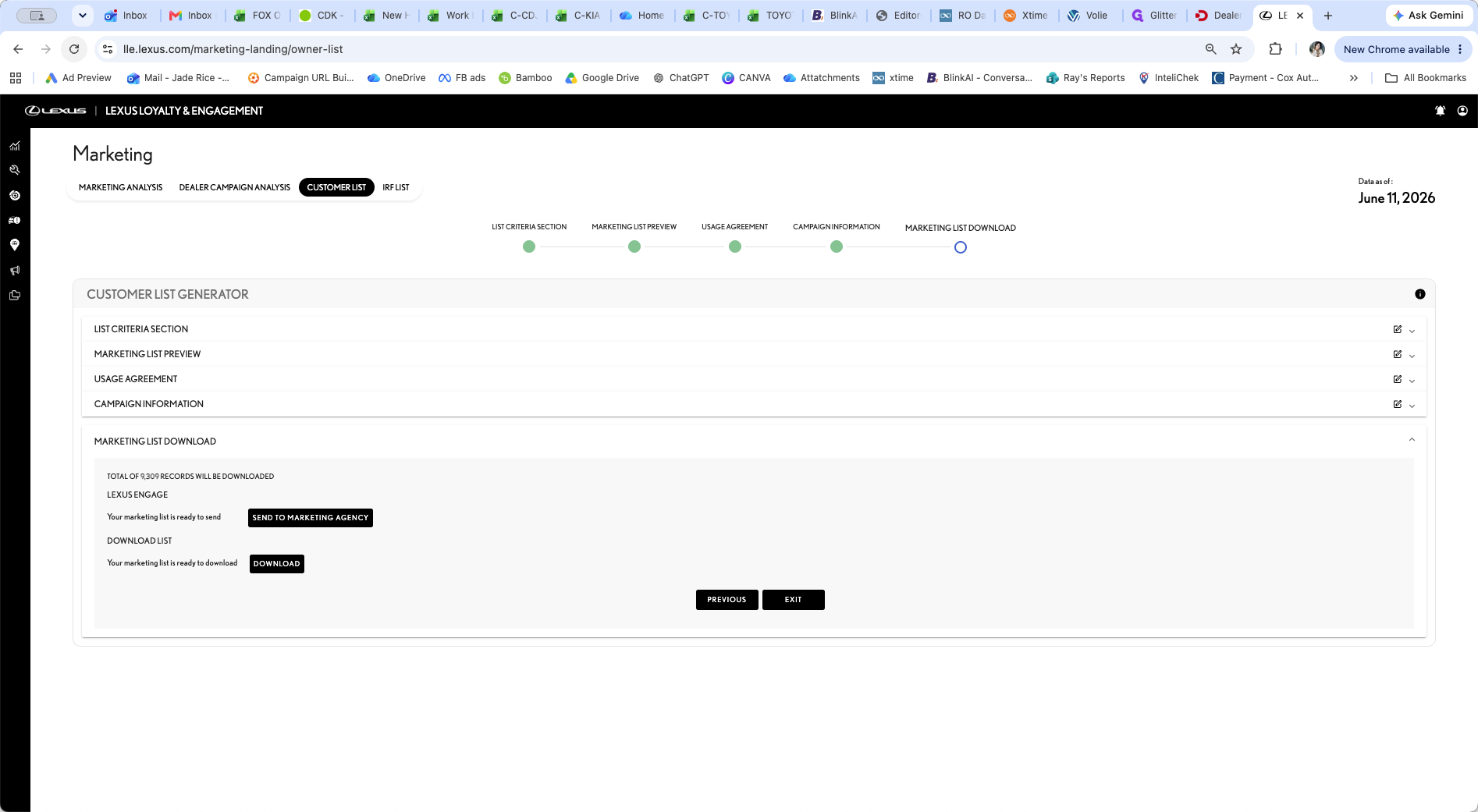
Click DOWNLOAD to export the list locally, or choose to send it to the marketing agency (WRAP/AMP) for on-demand email and direct mail campaigns.
Step #17: Click DOWNLOAD to export the list locally, or choose to send it to the marketing agency (WRAP/AMP) for on-demand email and direct mail campaigns.
18
Click EXIT once you are finished.
Step #18: Click EXIT once you are finished.
19
To review previously pulled lists and their performance metrics, click the DEALER CAMPAIGN ANALYSIS tab.
Step #19: To review previously pulled lists and their performance metrics, click the DEALER CAMPAIGN ANALYSIS tab.

Q: Will the customer list include non-Lexus vehicles?

A: No, the generated lists will only pull Lexus models and do not include any other vehicle makes.

Q: How should I determine the start date for my campaign?

A: It is recommended to set the start date to a day or two after the campaign actually launches to accurately measure your Return on Investment (ROI).

Q: How should I determine the campaign end date?

A: The end date should correspond with the expiration date of the marketing offer you are sending.

Term

Definition

LLE

Lexus Loyalty & Engagement platform used by dealerships to track performance and manage customer relationships.

PMA

Primary Market Area refers to the geographical territory assigned to a dealership for sales and service operations.

ROI

Return on Investment is a performance measure used to evaluate the effectiveness and profitability of a marketing campaign.

WRAP/AMP

A marketing agency platform integration used to execute on-demand email and direct mail campaigns for dealerships.