Getting Started with Glitter AI: A Beginner's Guide
Learn how to create your first guide using Glitter AI. Discover features like draft guides, team collaboration, and various recording options during your seven-day free trial.
By Josh Cykiert
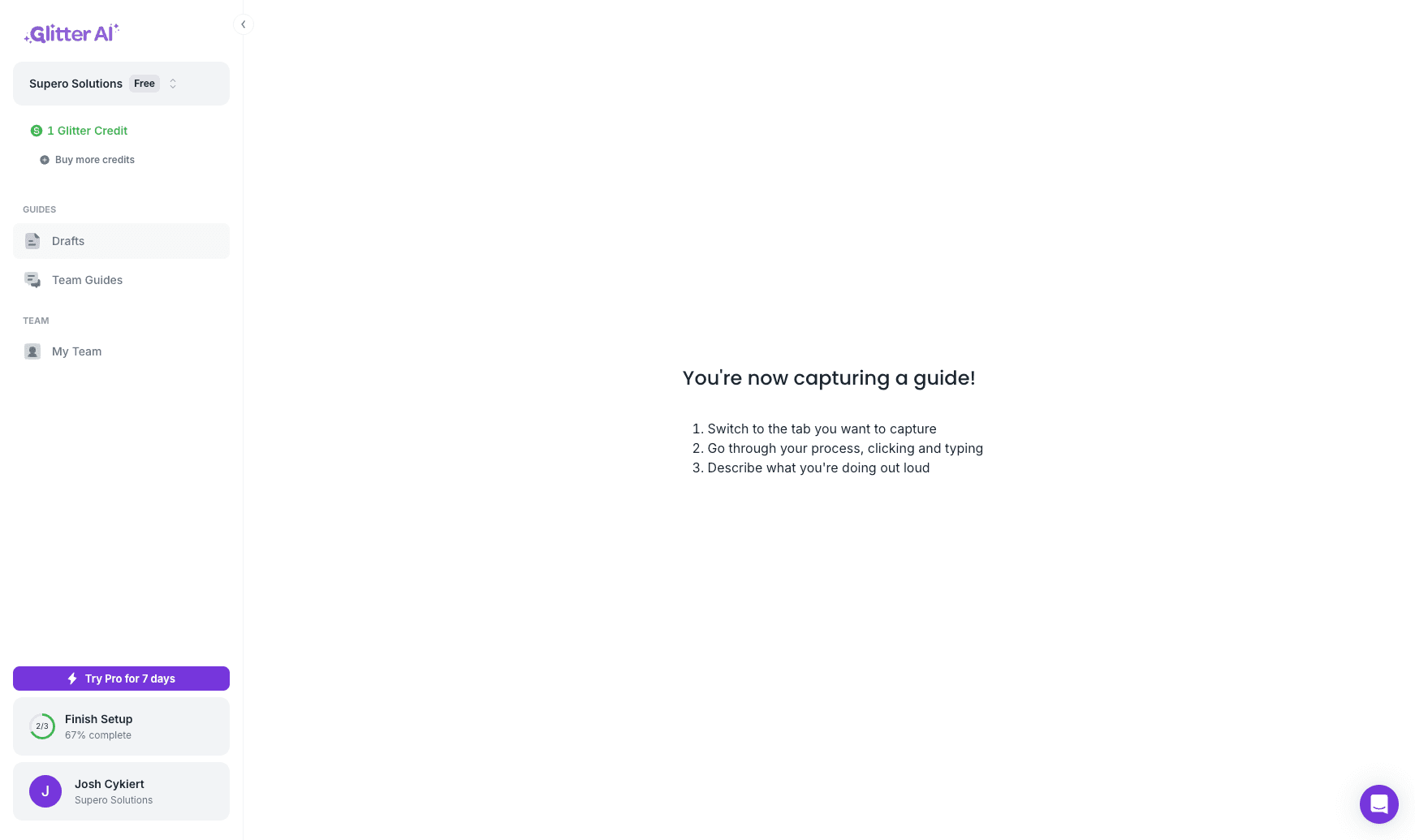
In this guide, we'll learn how to create your first guide using Glitter AI. We will explore how to start a new guide, choose between different creation options, and manage your drafts and team guides.
This guide will also cover what you can do during your free trial period.
Let's get started
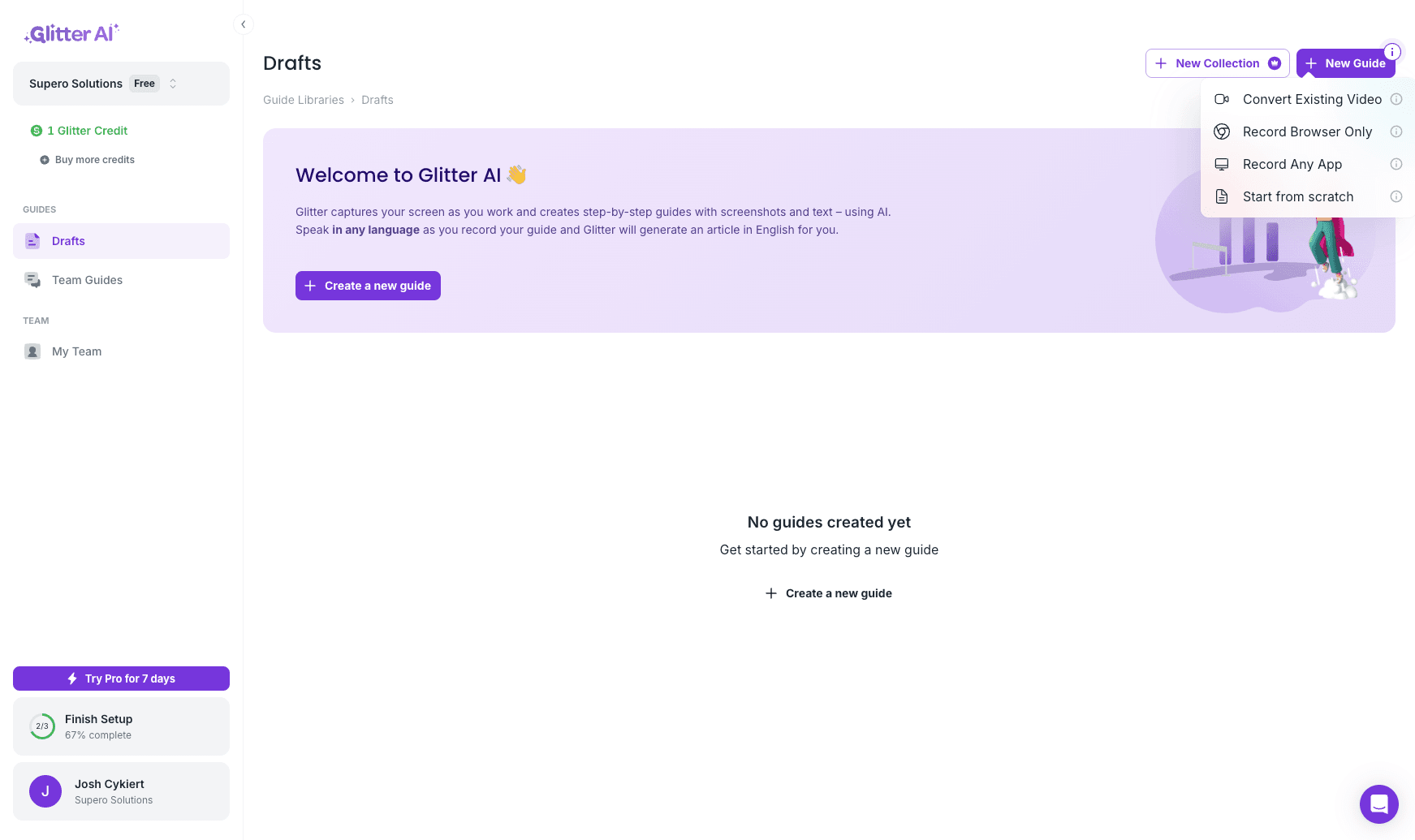
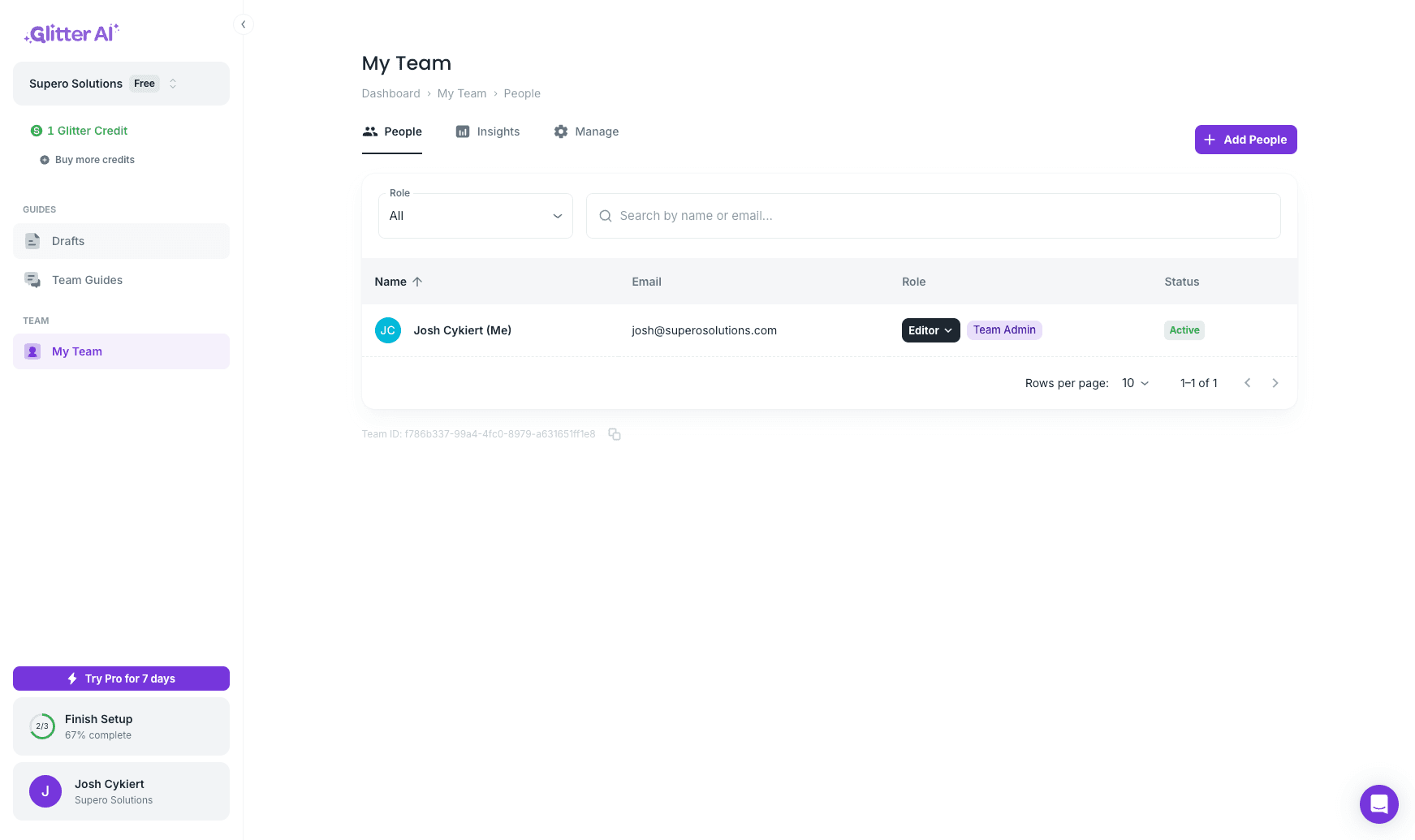
I'm creating my first guide using Glitter AI. I can move this around. I can go to my draft guides, team guides, and my team.
2
Click on "Drafts"
3
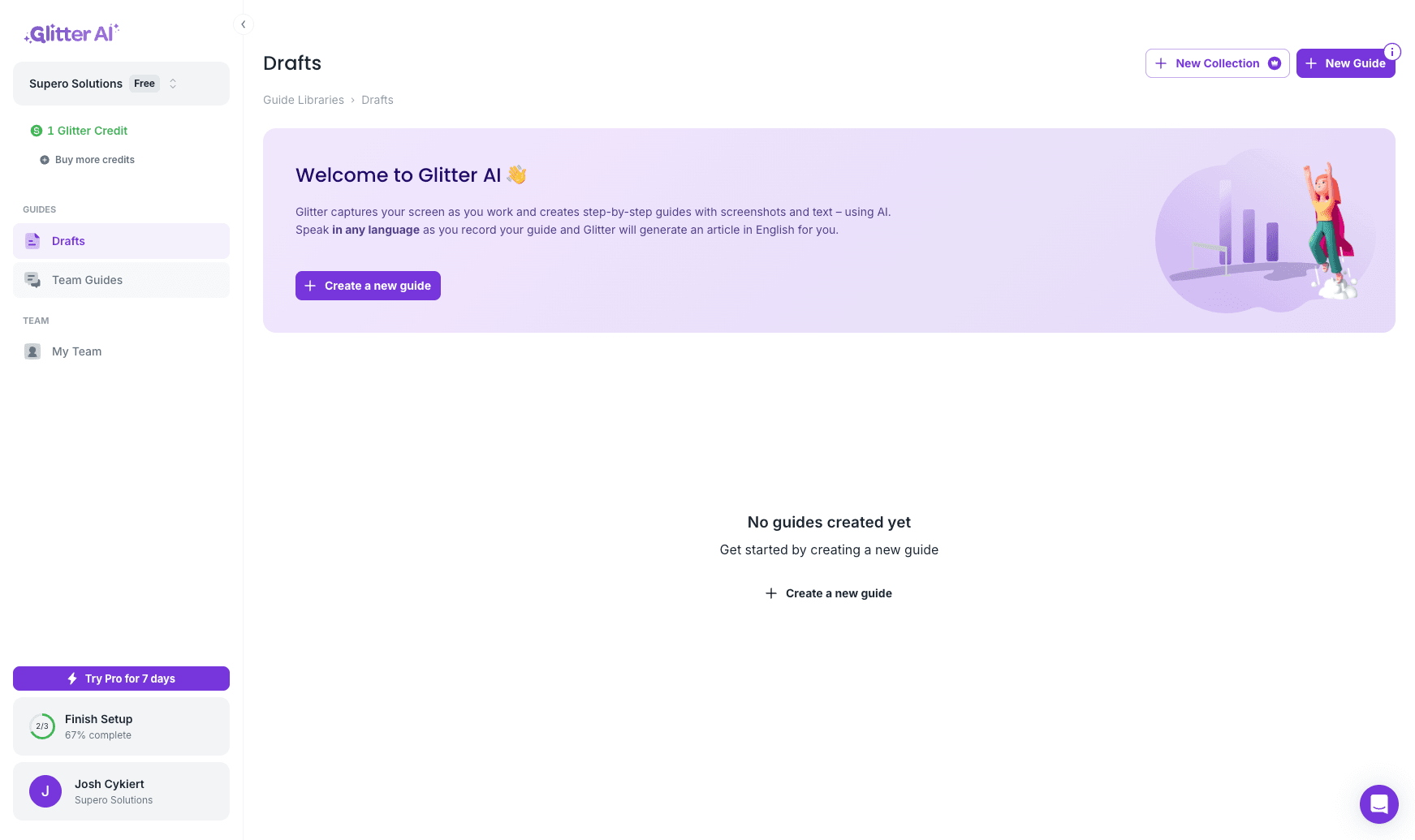
Click on "Team Guides"
4
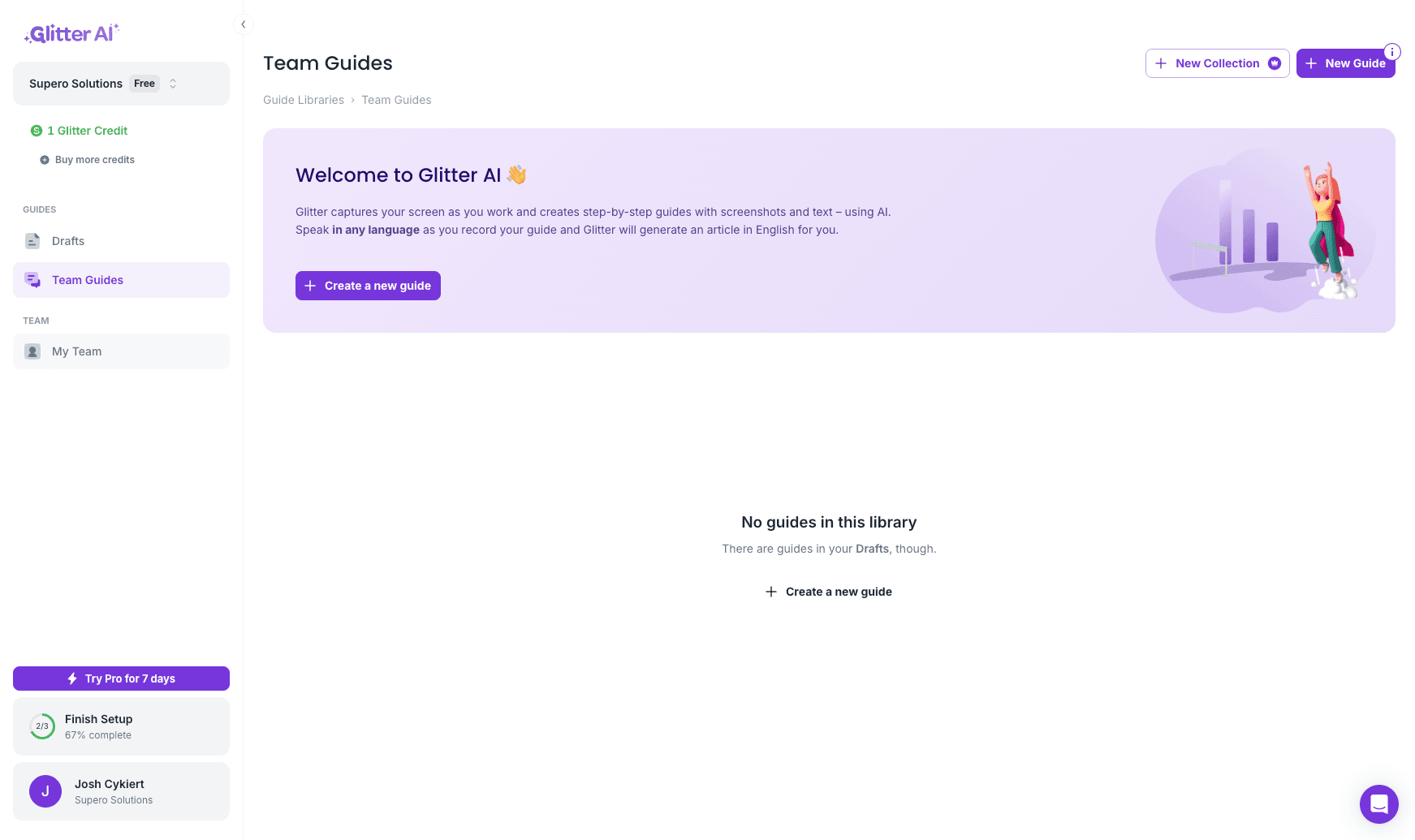
Click on "My Team"
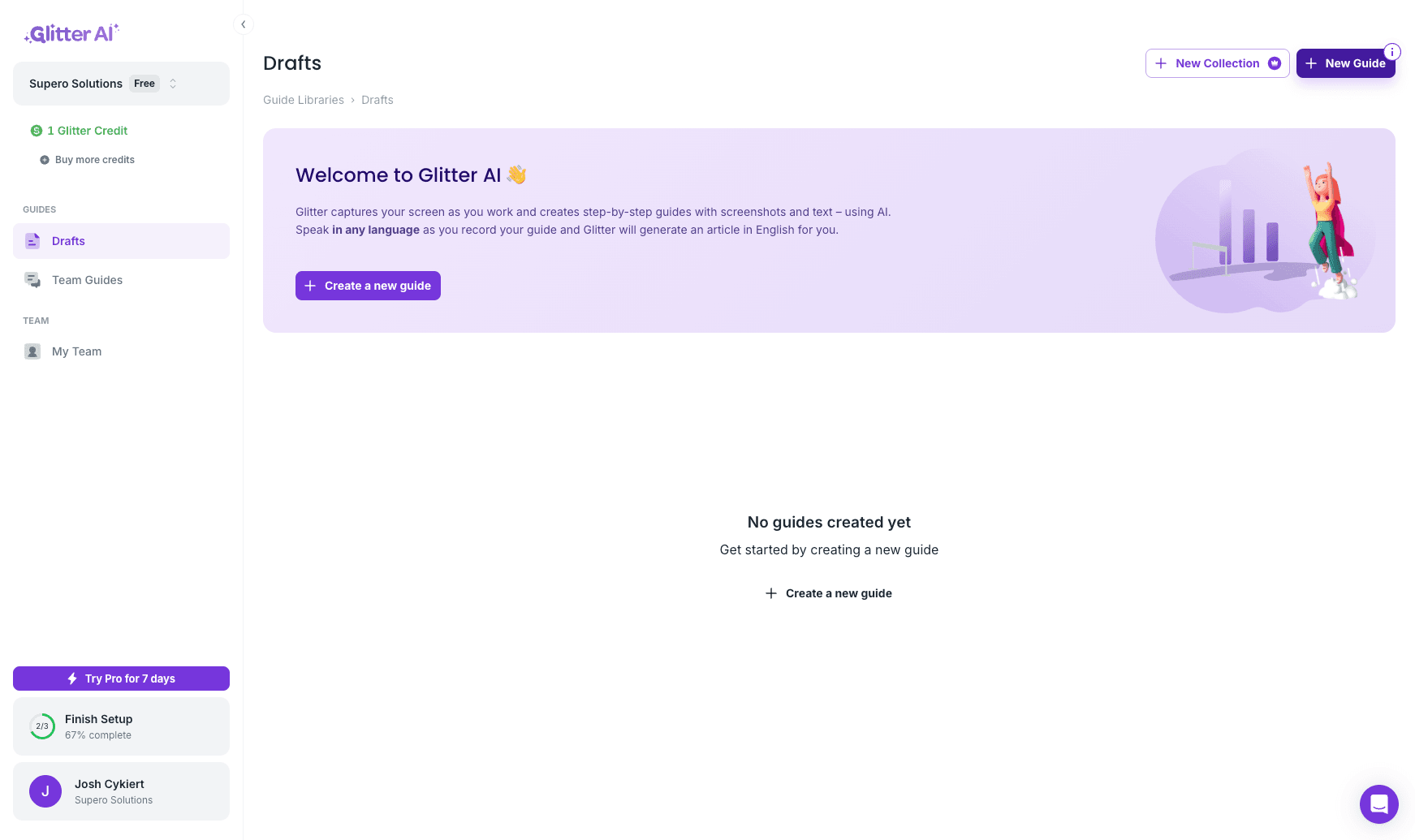
I'm on a seven-day free trial. After that, I'll decide if I want to purchase this. To create a new guide, click here and select "New Guide." You can convert an existing video, record browser only, record any app, or start from scratch.
5
Click on "Drafts"
6
Click on "+ New Guide"
Pretty cool.
7
Click here