Goods in - Mobile Device
A guide explaining a topic
By Lee Higgins
How to Book In Goods against a Purchase Order - Mobile Device
1. Accessing the goods in mobile device menu.
1
Open the "OW HHT" application from the home screen.
2
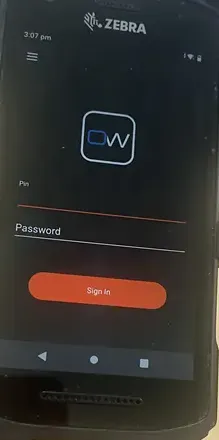
Log in using your mobile device username and pin.
3
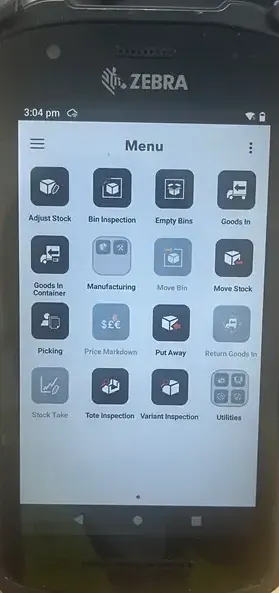
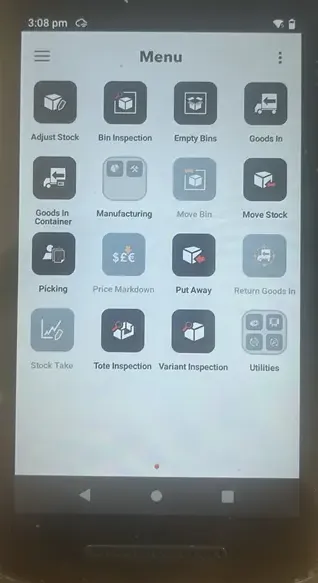
Open up the "Goods in" module on the HHT.
4
Select "Show all" to display the PO list of goods awaiting to arrive in.
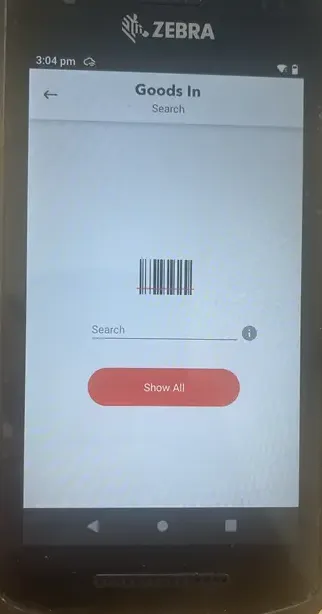
5
Once in the goods in module, you will see a list of PO numbers - Select the PO number you wish to book in (This should match up with the delivery note)
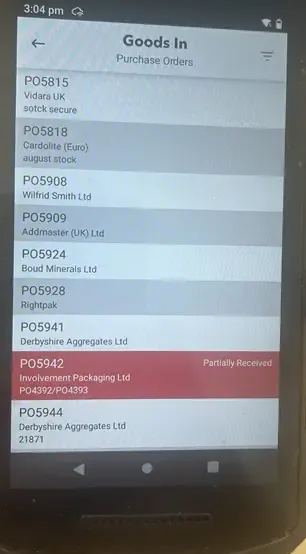
6
Select "Lines" at the bottom of the screen, then select the item you wish to book in from within that PO.
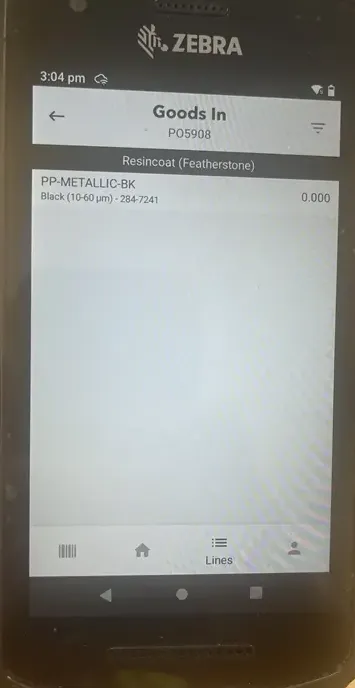
7
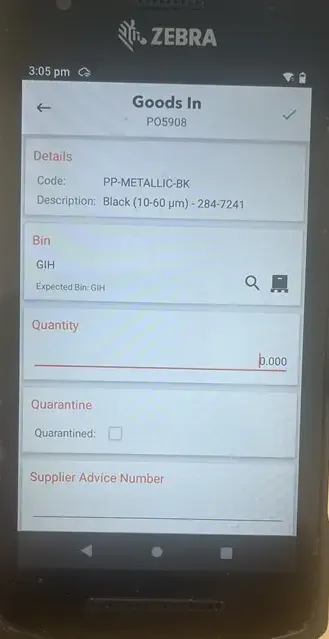
Enter the quantity received - this should line up with the delivery note. If no delivery note is present, then the goods will need to be manually counted prior to booking in.
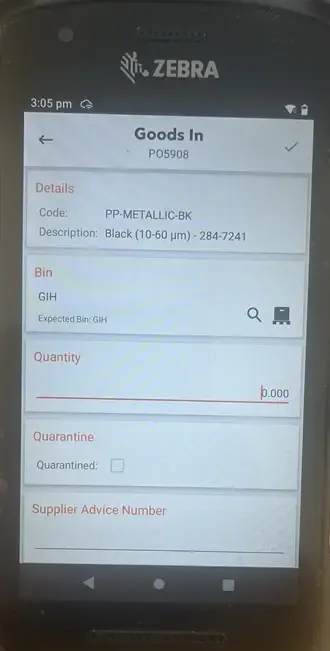
8
If agreed with purchasing that the PO amount needs to change, you can tick the "Update PO quantity" field at the bottom of the screen this updates the PO to fully received once booked in.
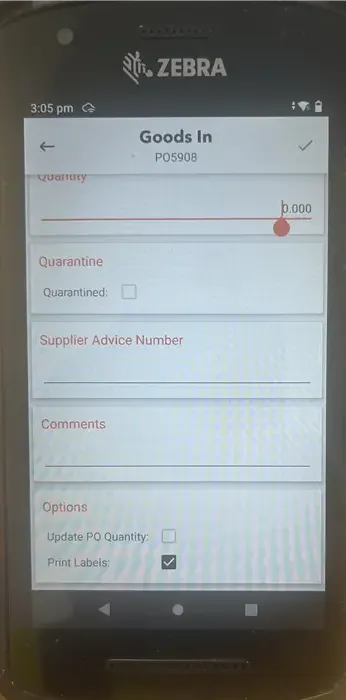
9
Select the green tick in the top right to confirm this goods receipt.