How to Grant Team Edit Access to a Guide
Learn how to update permissions in Glitter AI so your team members can collaborate and edit an existing guide.
By Yuval Karmi
This guide explains how to change the permissions on an existing Glitter AI guide to allow team editing. Completing this task ensures your teammates can securely collaborate and make updates to shared documentation.
This workflow is useful for guide creators and workspace administrators who need to open up documentation for team-wide collaboration and maintenance.
Navigate to the guide you want to share with your team before beginning these steps.
1
Click Share in the top right corner of the navigation toolbar.

2
Under the Share menu, click Edit next to People with access to view the current permissions.

3
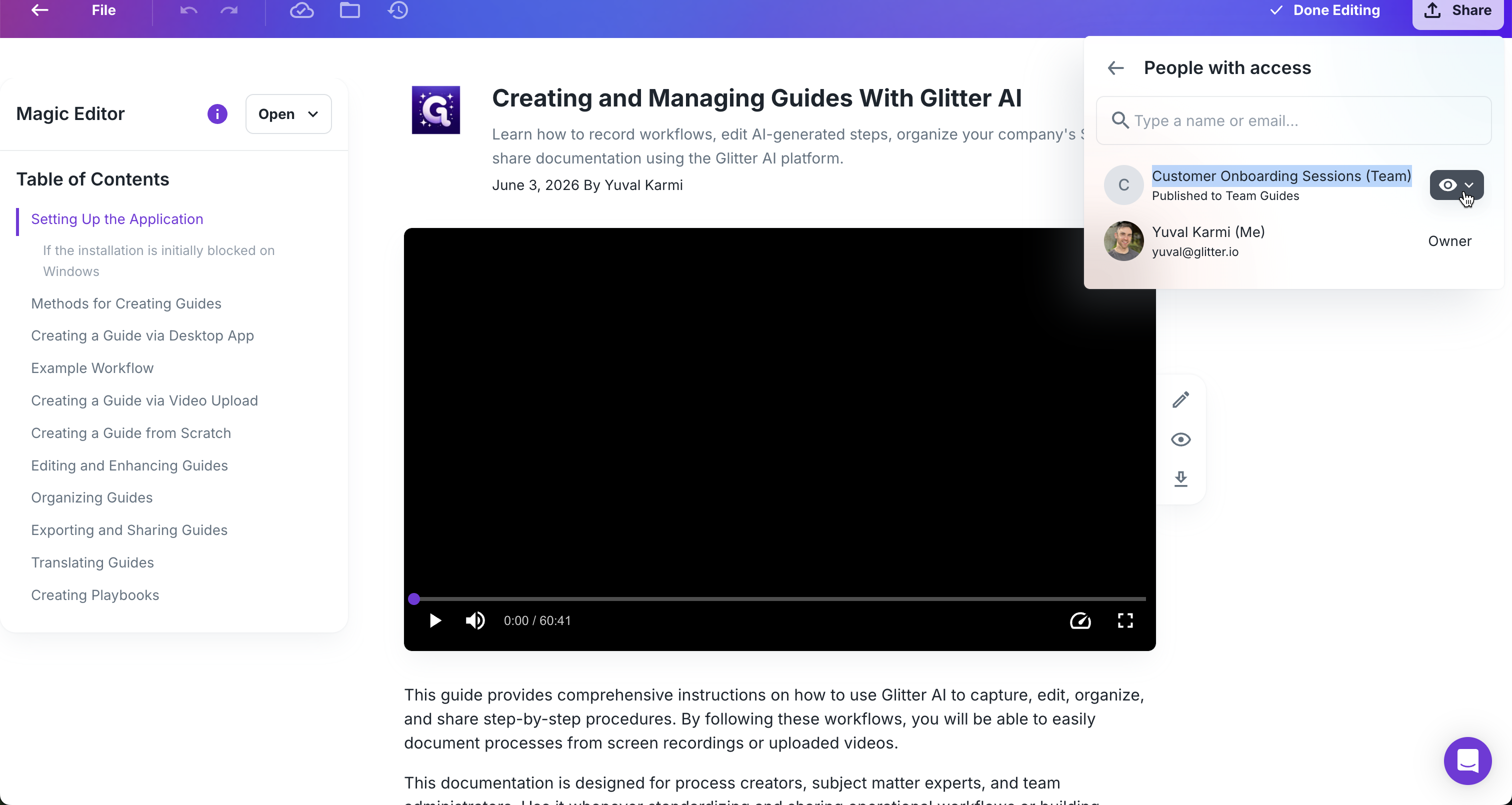
Locate your team in the list, then click the View dropdown (represented by an eye icon).
4
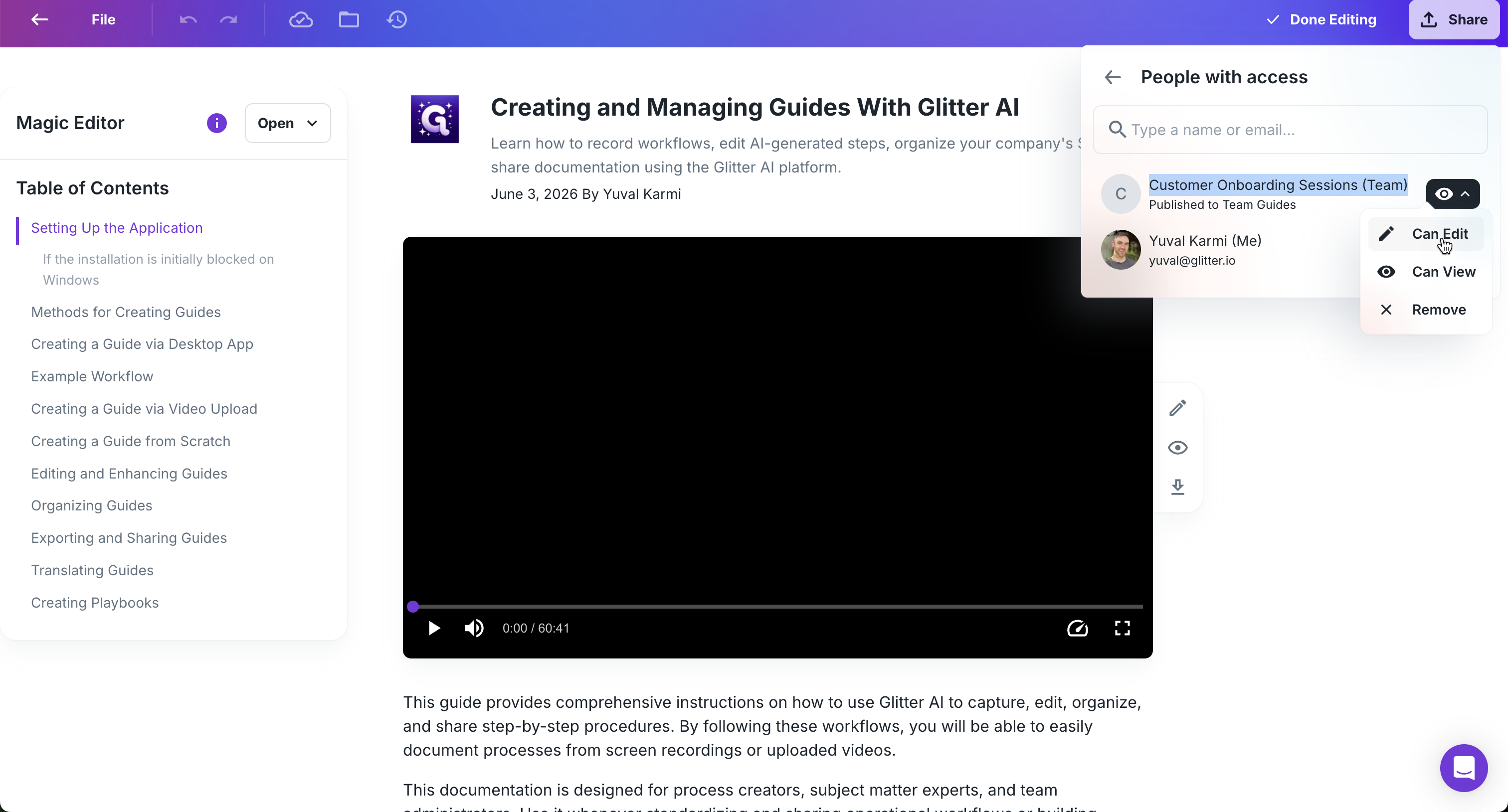
Select Can edit from the dropdown menu.