How to Use the Memo Feature on the Transaction Screen
Learn how to add and manage memo information for a transaction.
By Aasma Technology Solutions
This guide explains how to use the Memo field while reviewing transactions. The Memo field allows users to add additional information or notes to a transaction, providing helpful context and improving transaction record-keeping.
1
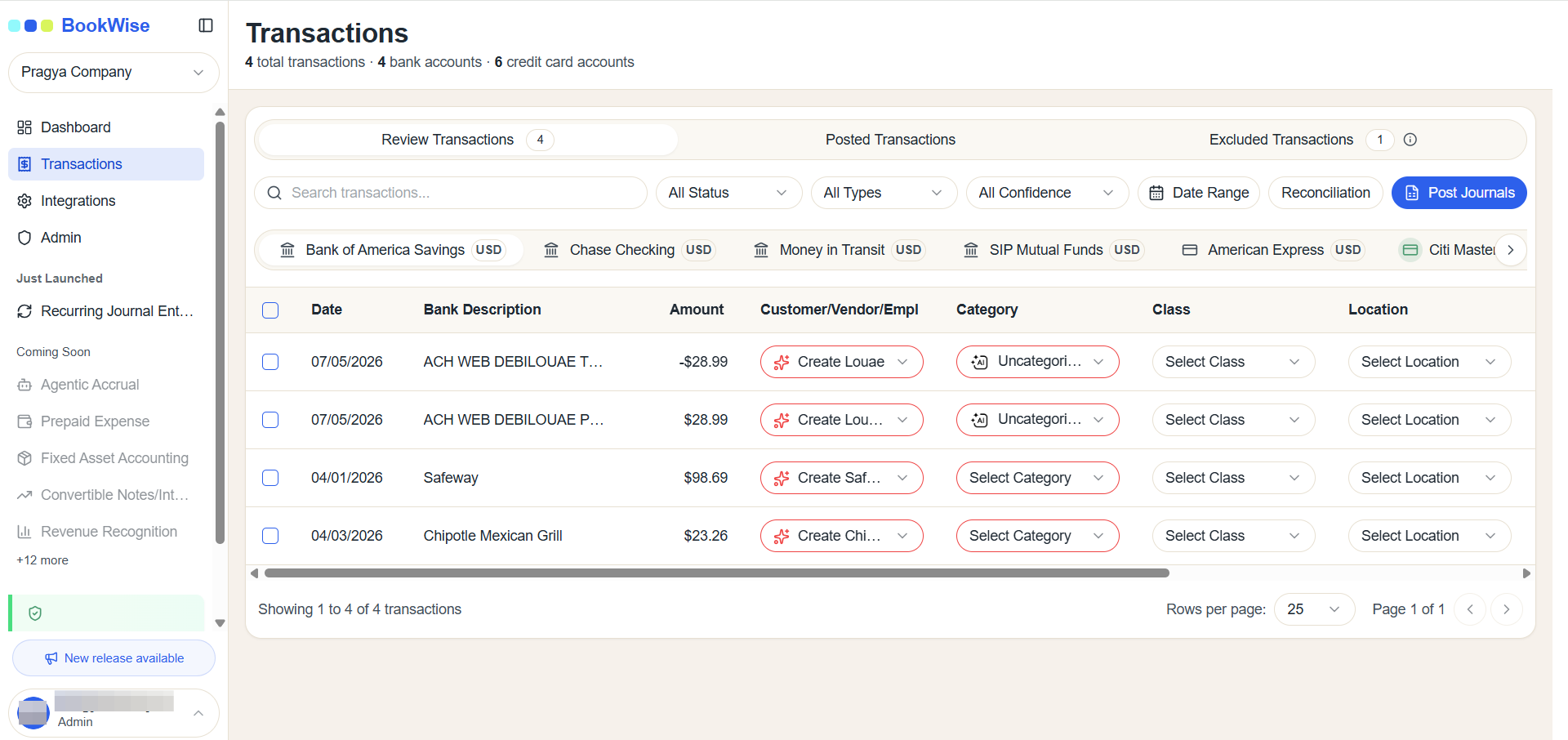
In Transactions tab, Go to the Review Transactions tab
2
Click the Select Vendor & Category respectively from the dropdown arrow
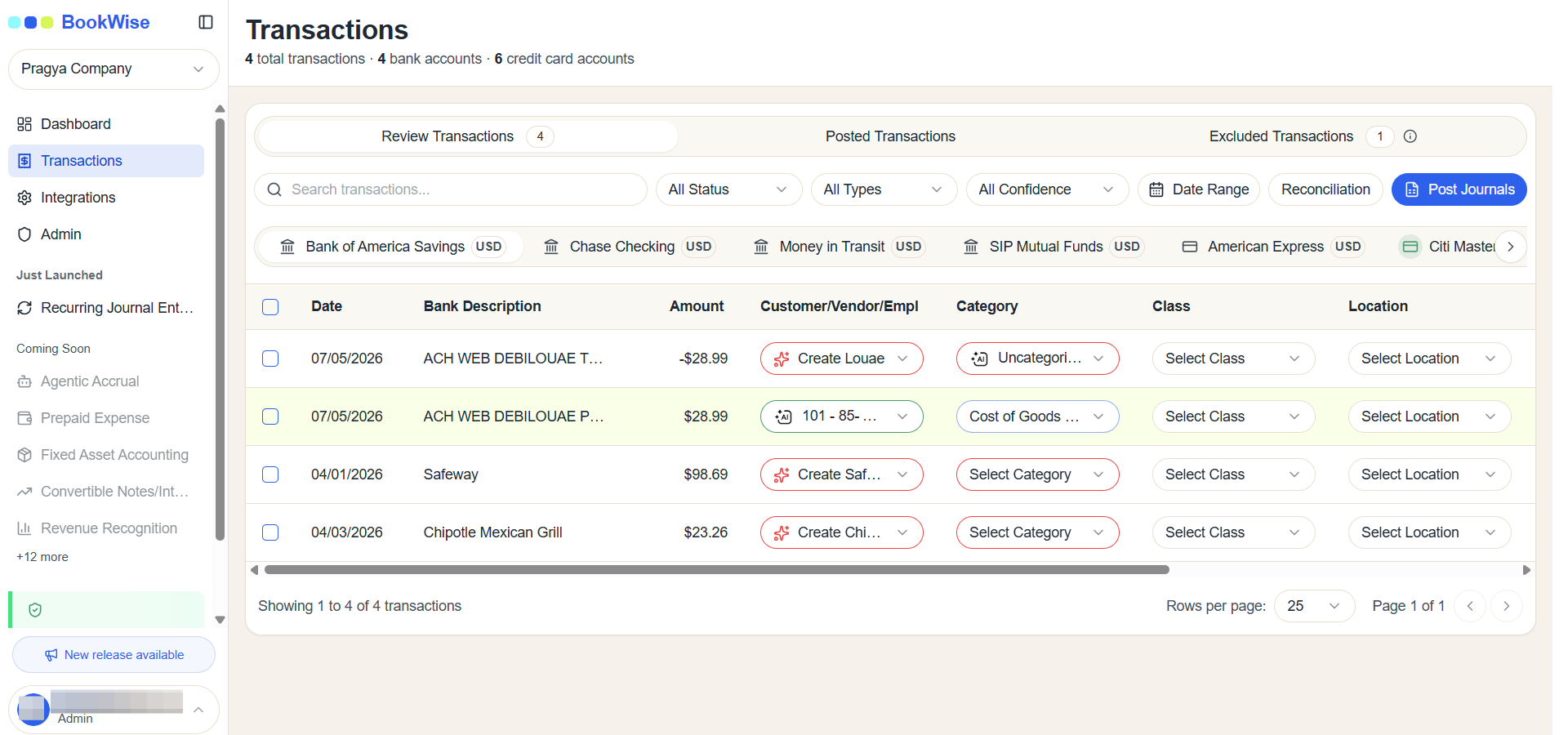
After providing Vendor and Category, Memo will be auto-generated
3
Click the text input field in the Memo column. If needed type a descriptive note explaining the transaction.
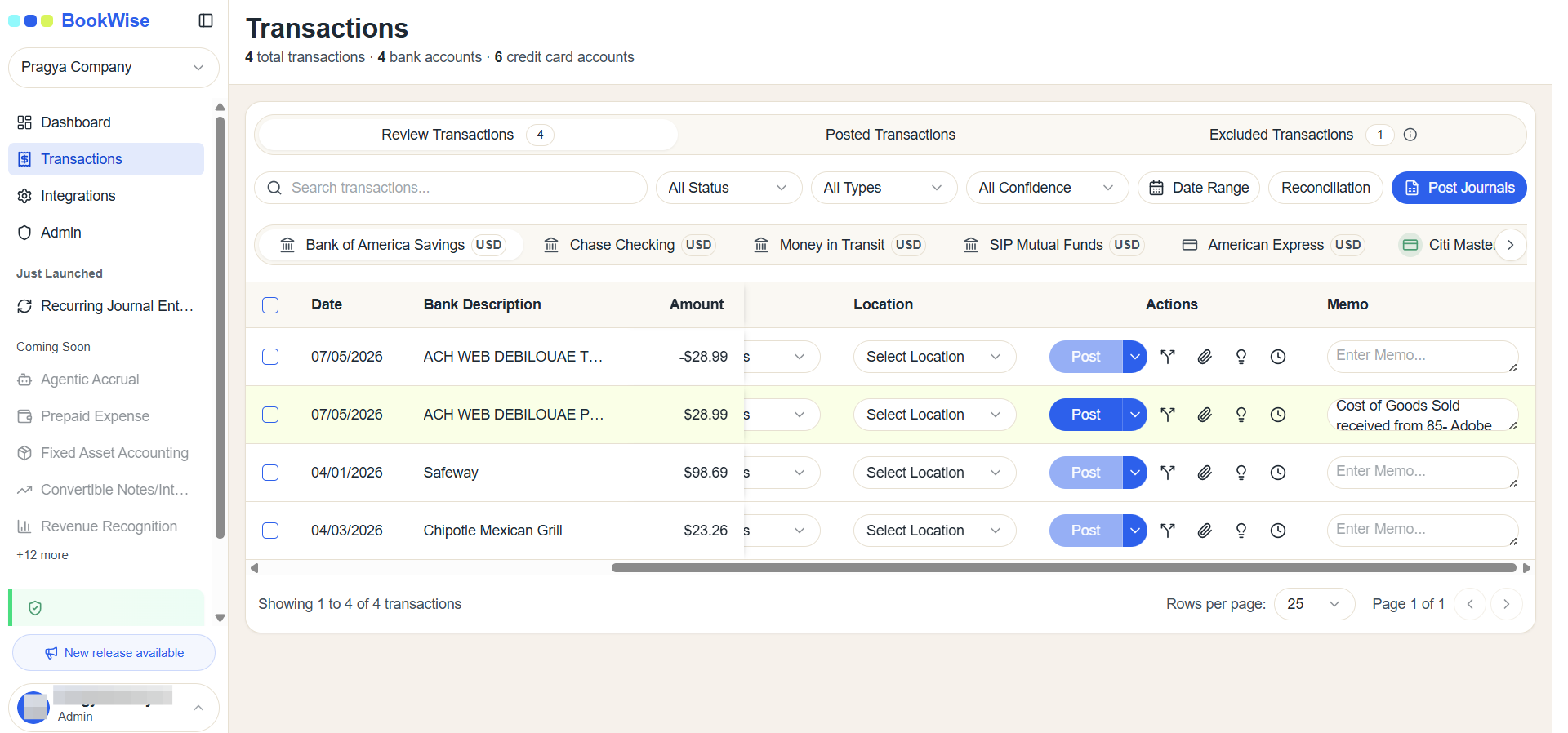
The Memo feature allows users to add relevant notes and additional information to transactions, providing better context and supporting accurate transaction documentation.