
How to Access and Edit Credit Card Allocations in Accounts Payable
Learn step-by-step how to access, modify, and process credit card allocations in the Accounts Payable menu, including best practices for notes and approvals.
In this guide, we'll learn how to access and manage credit card allocations in your accounts payable system. You will see how to review transactions, update details, and assign them to the correct job, work order, general ledger, or equipment number. This process helps keep your records organized and supports audit requirements.
Let's get started
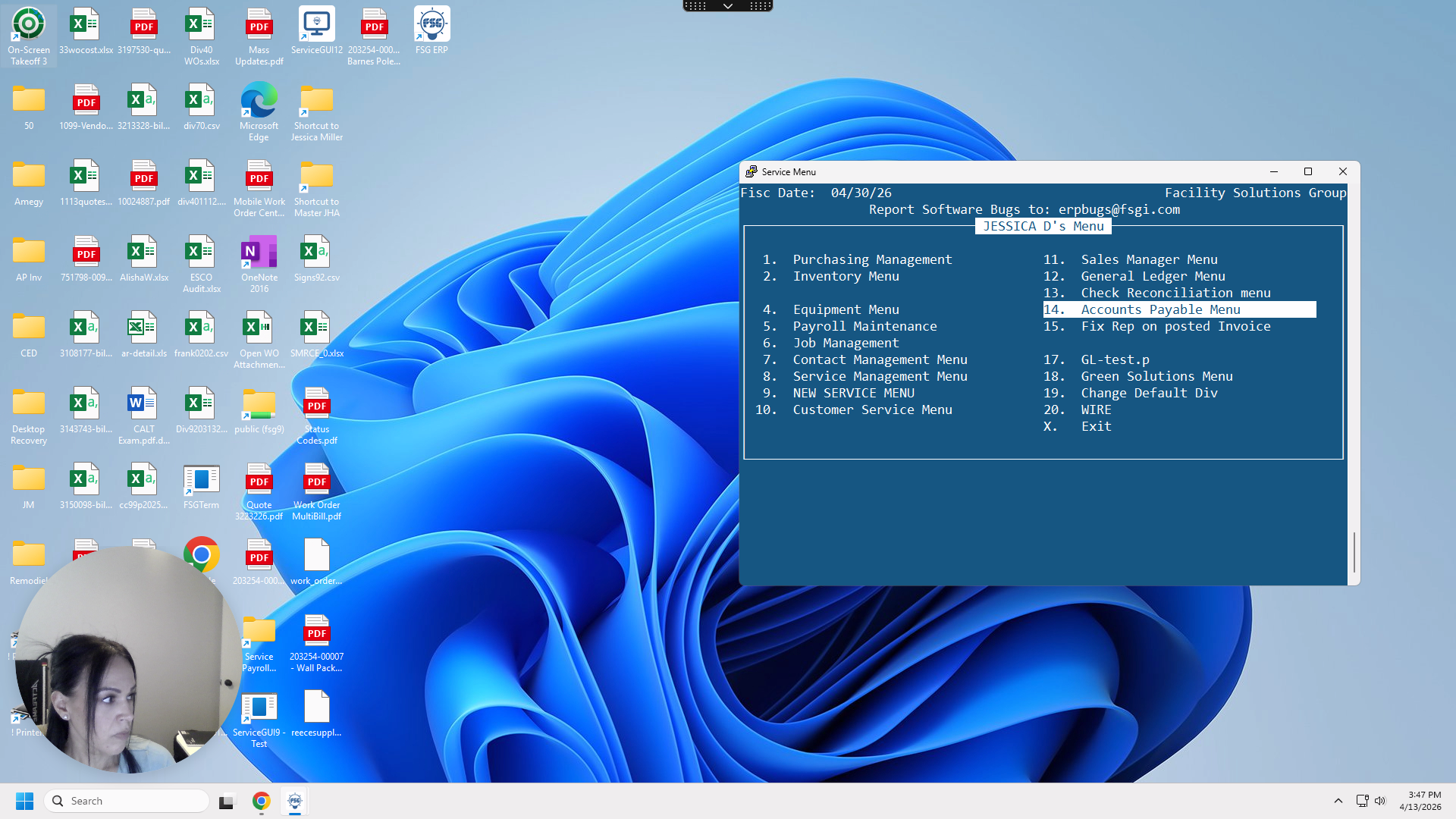
I will show you how to access your credit card allocations. If you go to number 14, Accounts Payable menu, and then go down to number 12, Credit Card Allocations, press Enter.
Here, you can enter your division number or your user. Press Enter or F1 to generate a list of all your transactions.
Here is where you will start modifying or editing your transactions to process them against a job, work order, or GL.
Go to F7 for Update. Here, you can enter a note.
I like to add a note for best practice, indicating my current status. This helps with audits or other purposes. Enter "One and two," then specify whether it's a GL number, job number, work order number, or equipment number. Type the number in the designated field.
In this case, I will tie this back to AGL. Then, I will press Enter and select Approve to Post.
I’ll type Y for yes and press Enter.