Navigate to Resource Planning
Learn step-by-step how to access the resource planning section in VantagePoint to efficiently manage your projects, including using quick search and filters.
By George de Brigard
In this guide, we'll learn how to access the resource planning section in VantagePoint to support your project management tasks.I can also use filters to find Saved Searches.
You will see how to navigate through the Hubs menu, select Projects, and open the Plan window. We will also cover how to locate your project using the search and filtering options.
Let's get started
How do I access the resource planning section of VantagePoint to manage my projects? I go to Hubs, click Projects, then select Plan.
1
Go to Vantagepoint (Ramsa)
2
Click on "Hubs"
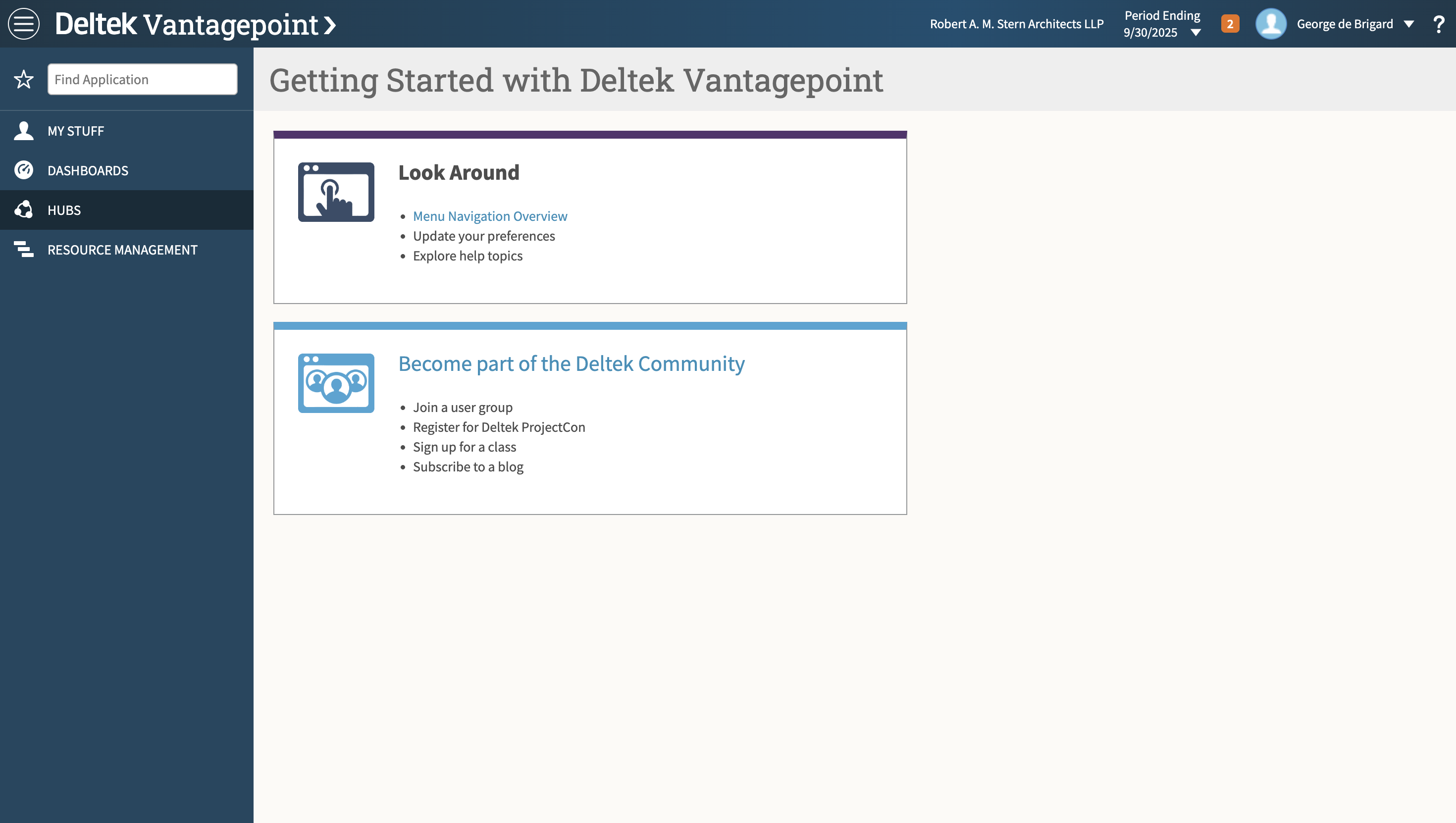
3
Click on "Projects"
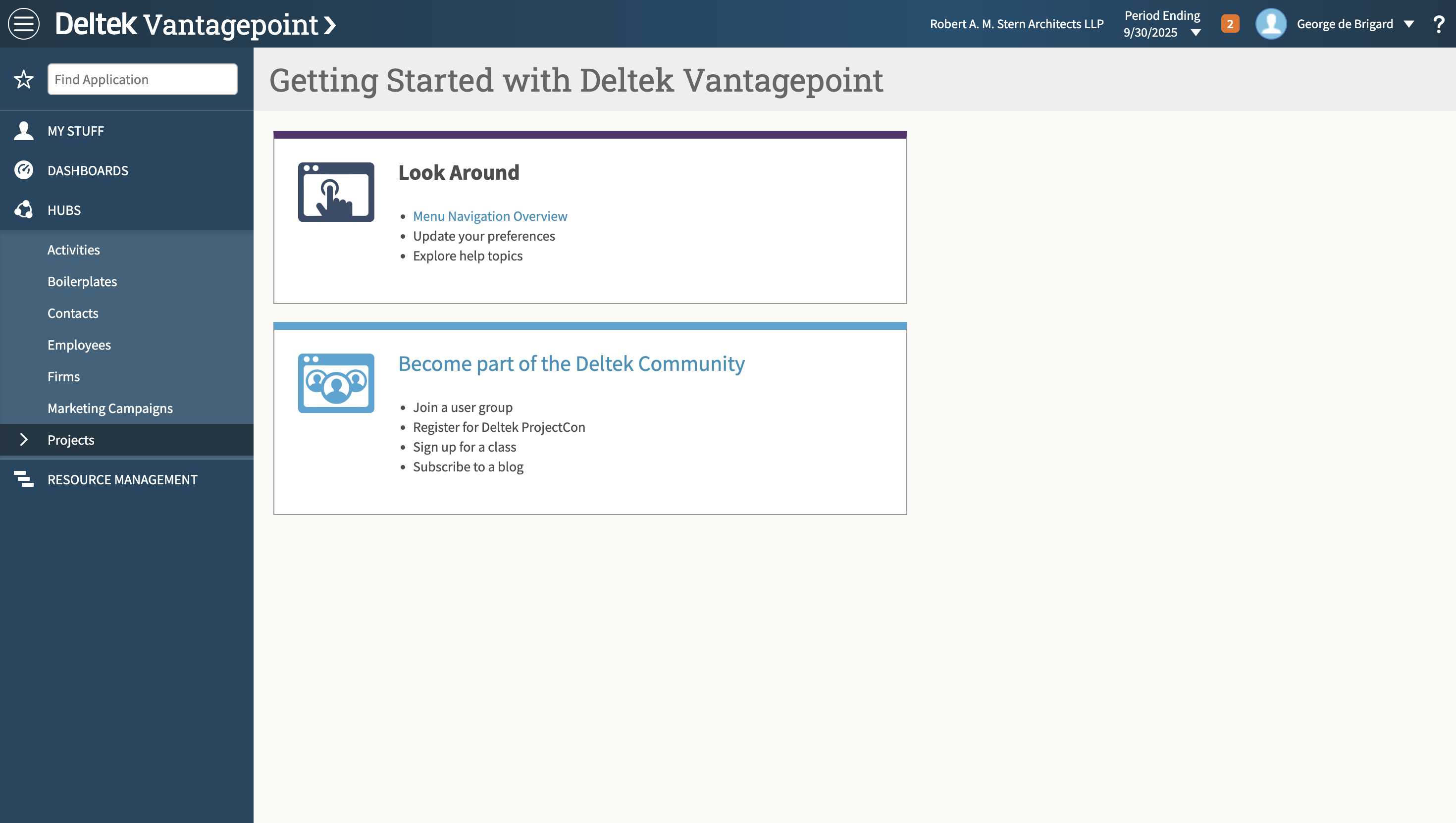
4
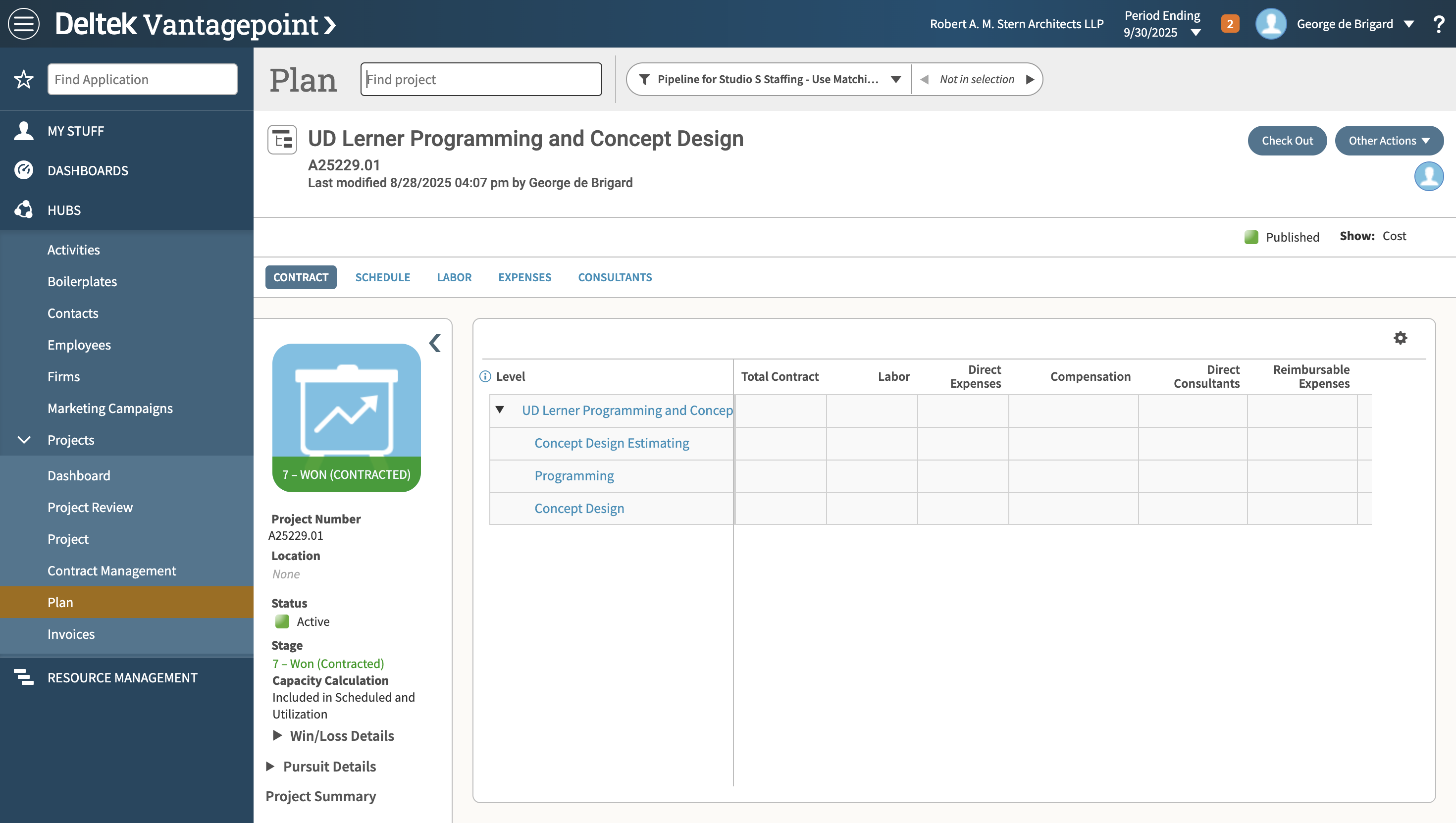
Click on "Plan"
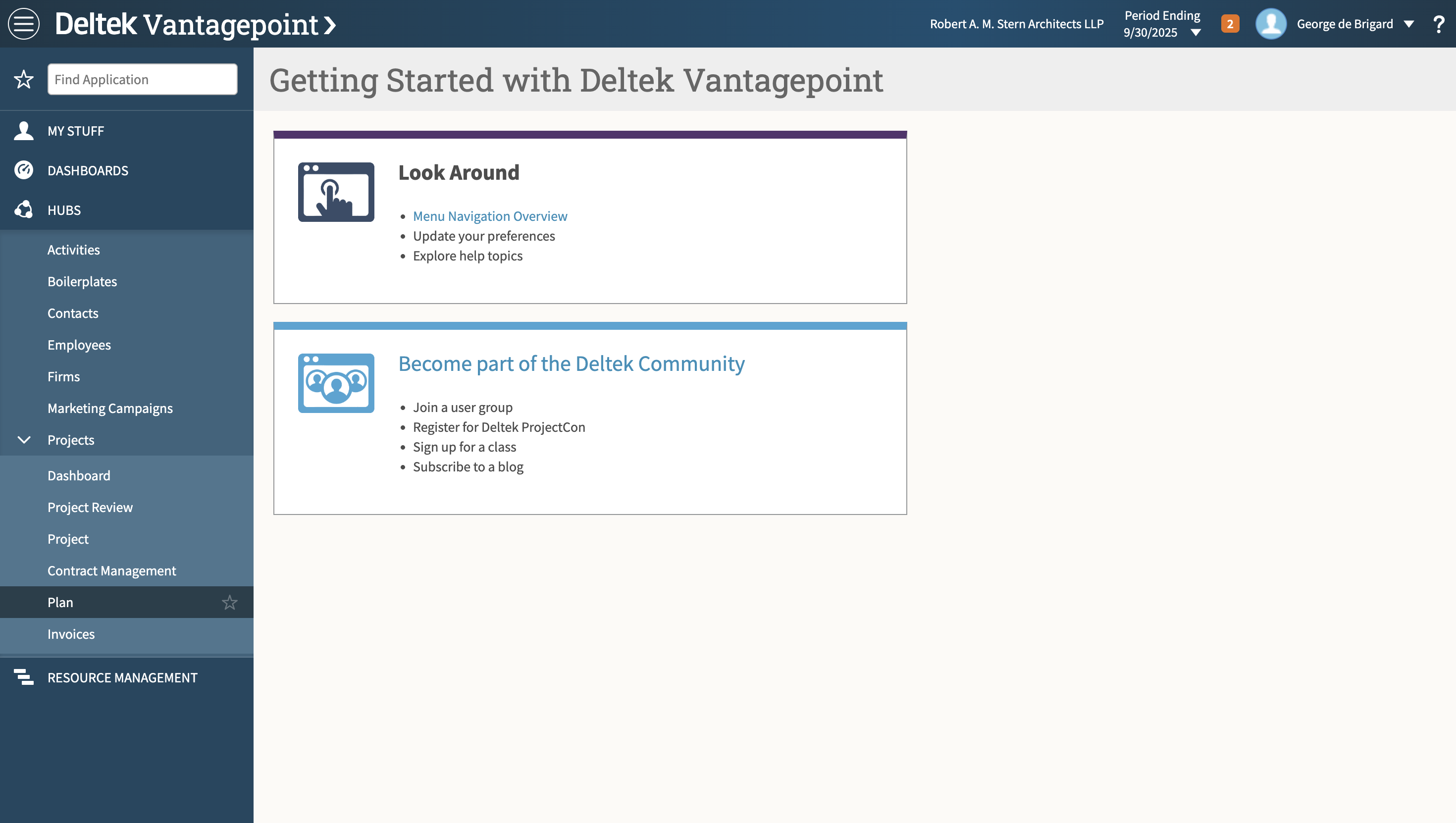
5
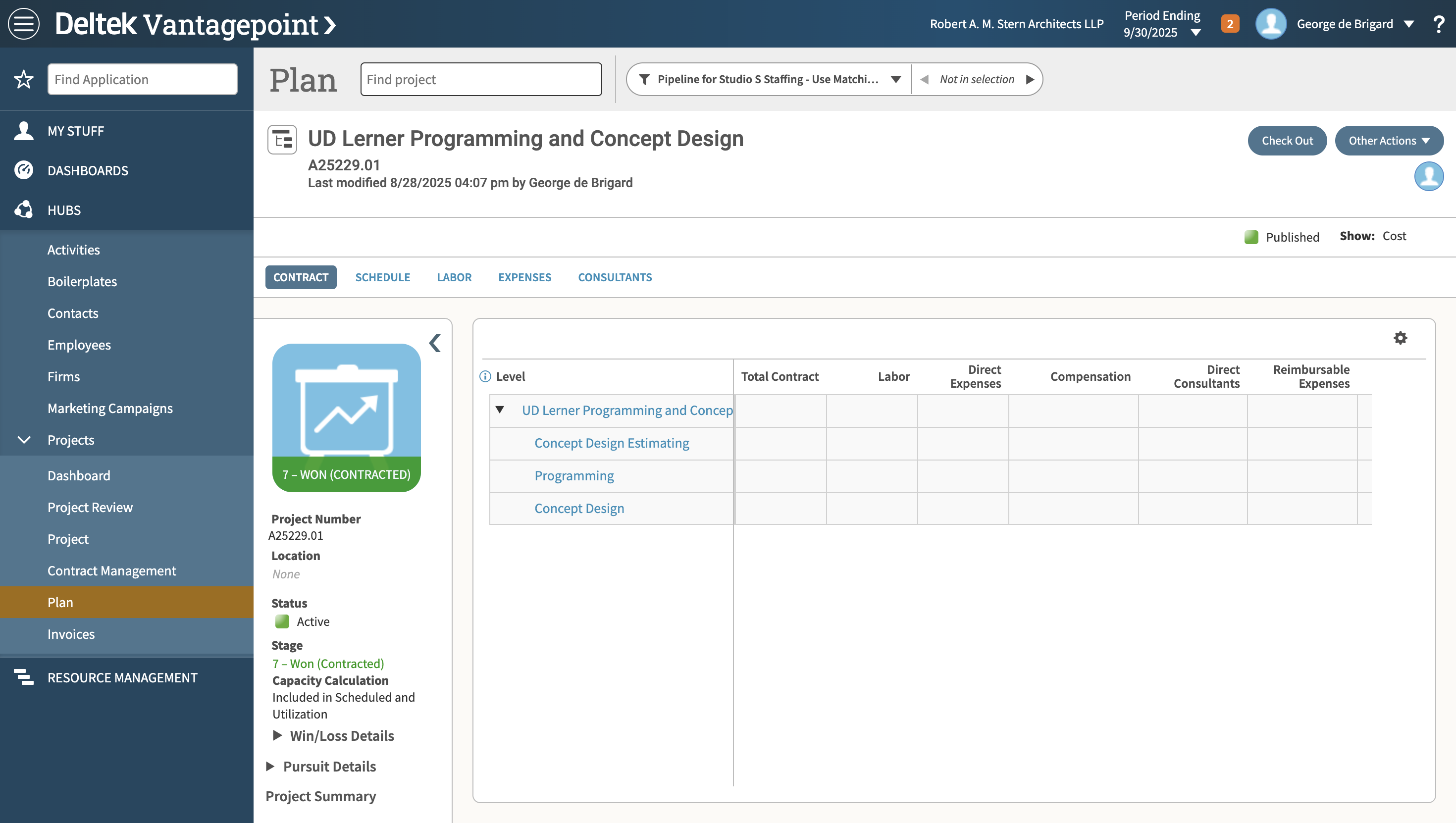
Find a project by typing the project name or number into the "Find project" quick search, or . . .
6
. . . use the search drop down to create a more detailed search or use a saved search.