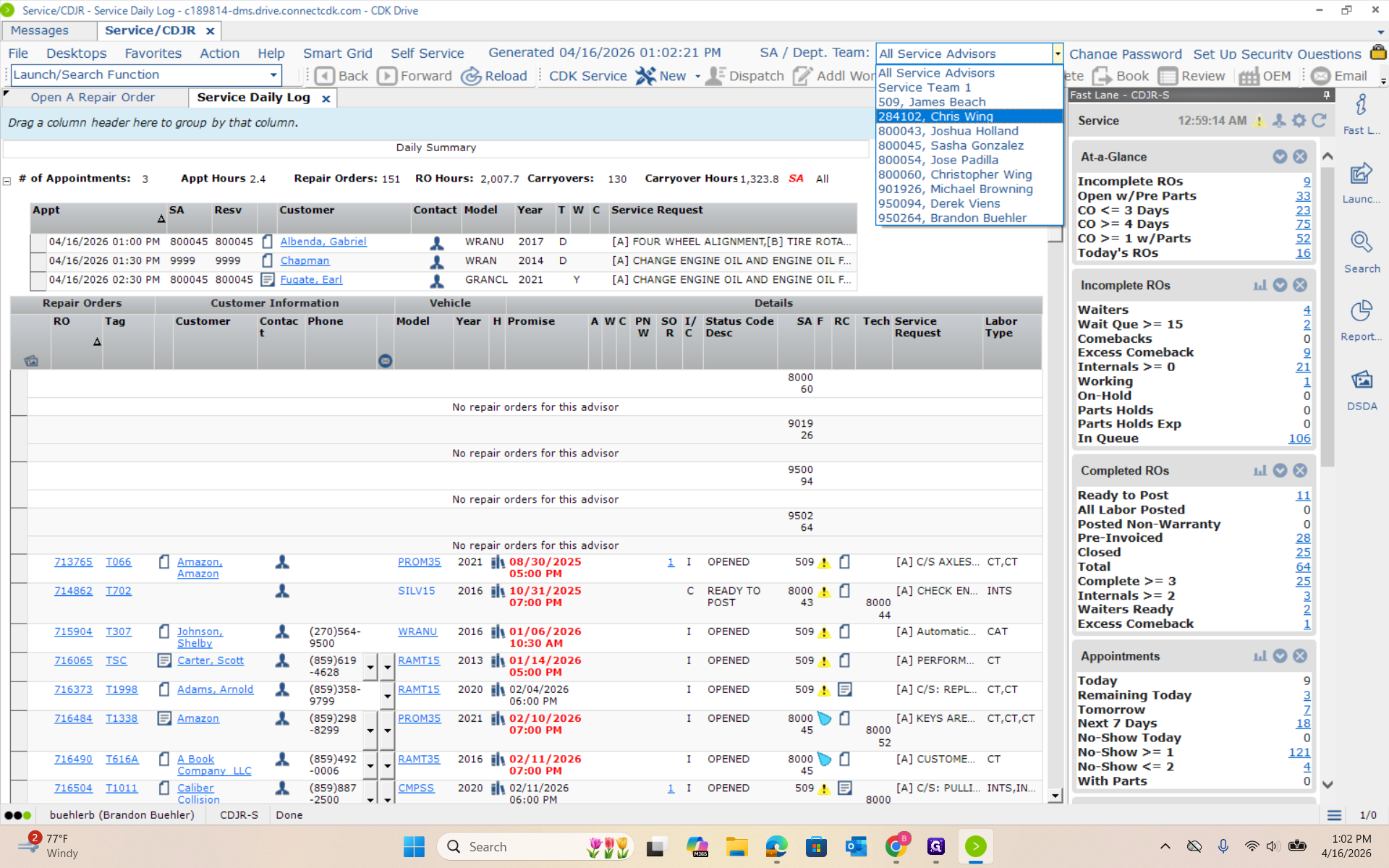
How to Access Your Service Daily Log and View Open ROs - SDL
Learn step-by-step how to open your service daily log (SDL), select your store, and view your open repair orders (ROs) and their current status.
By brandon buehler
In this guide, we'll learn how to access your service daily log to view your open repair orders and their current status. This process helps you keep track of your work and stay organized throughout the day.
We'll go through each step, from launching the system to finding your name and reviewing your open ROs.
Let's get started
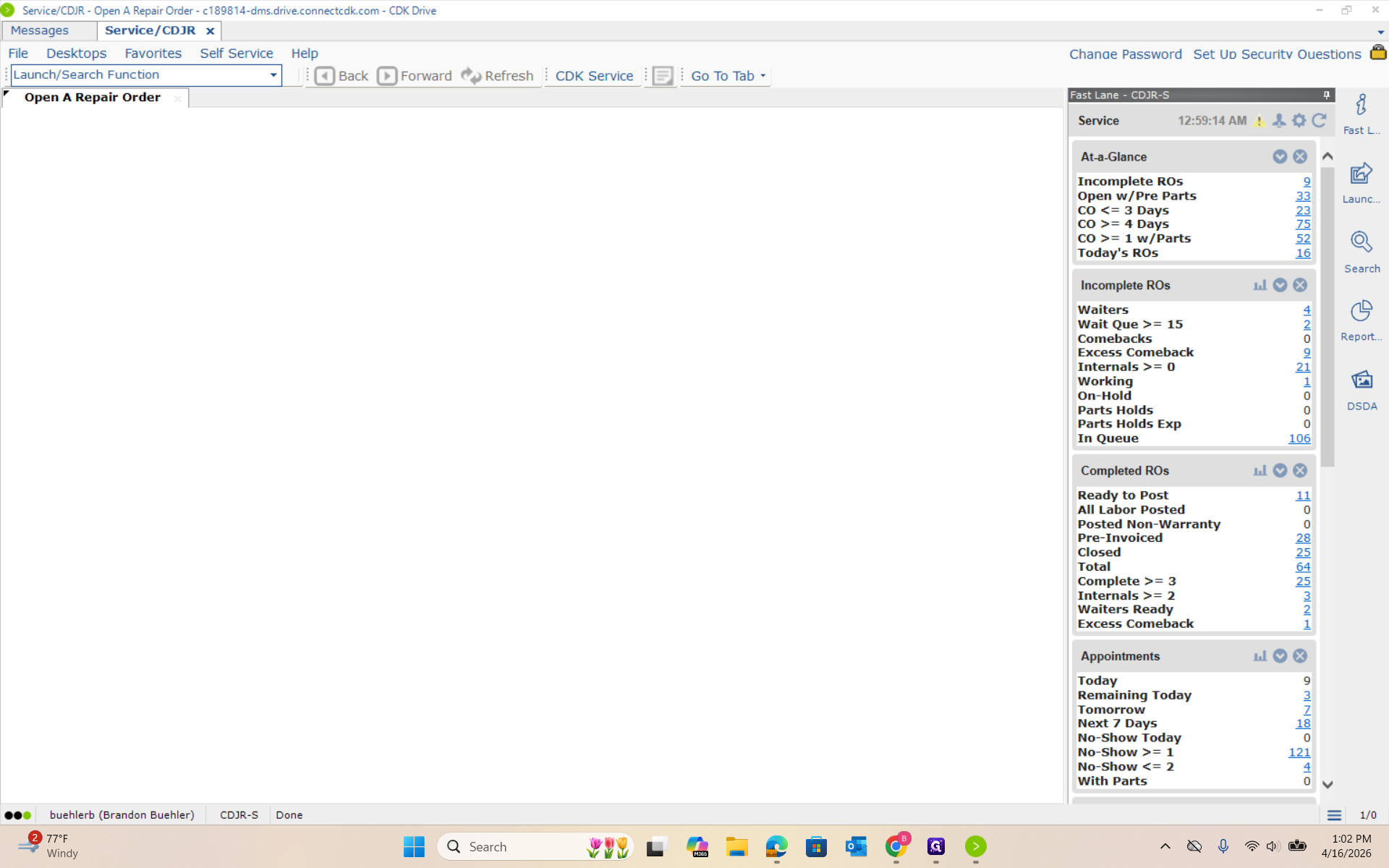
We will open your service daily log, which contains your open ROs. First, click Launch. Type "SDL" and press Enter.
1
Click on "Launch / Search Function"
2
Type "SDL + Enter"
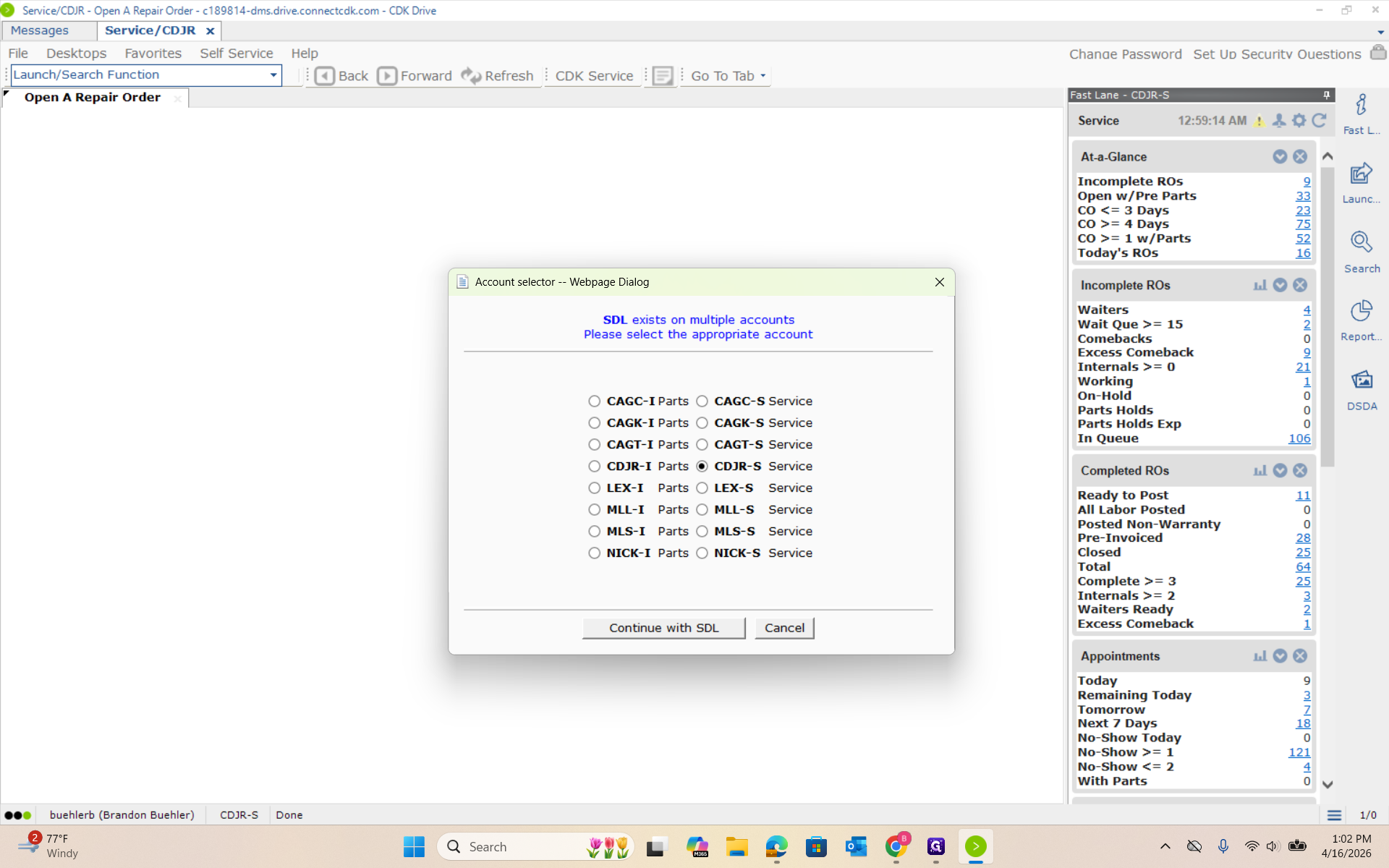
Select the -S option for your store, then click Continue with SDL. After it opens, go to the top right corner where it says SA Department Team.
3
Click on "Continue with SDL"
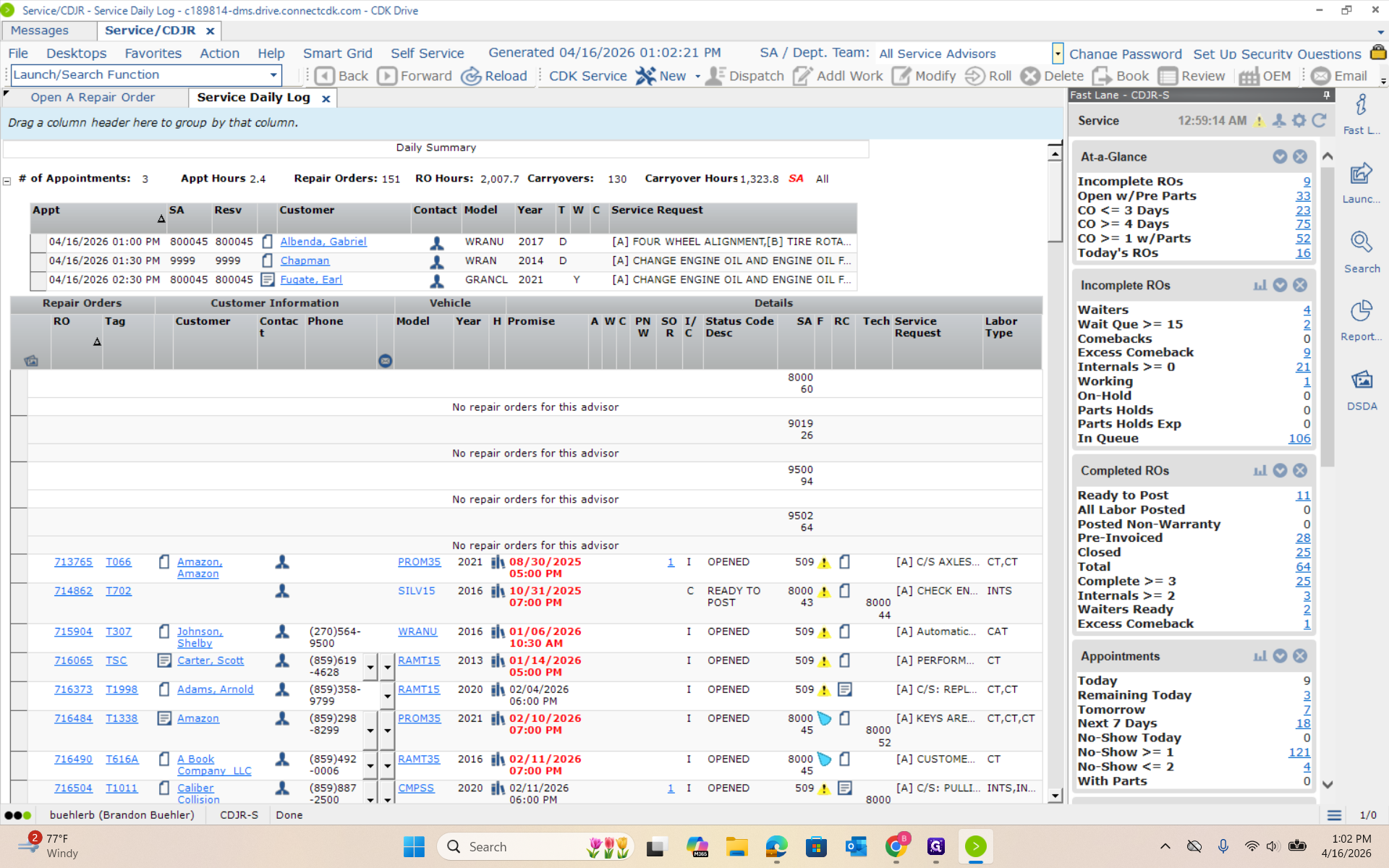
Click All Advisors, find your name, and select it. You will see your open ROs and their current status.
4
Click on "All Service Advisors"
5
Click on your name