
SOP: Recording Check Deposits (3)
Learn step-by-step how to apply large payments, reconcile invoices, and record check deposits in your accounting software. This guide covers best practices for handling underpaid invoices, organizing check scans, and ensuring accurate bank deposits.
In this guide, we'll learn how to process and record large check payments, apply them to the correct invoices, and handle any discrepancies that may arise. We will also cover how to prepare and save deposit summaries, attach supporting documents, and communicate deposit details to team members. This process helps ensure accurate record-keeping and smooth bank deposits.
Let's get started
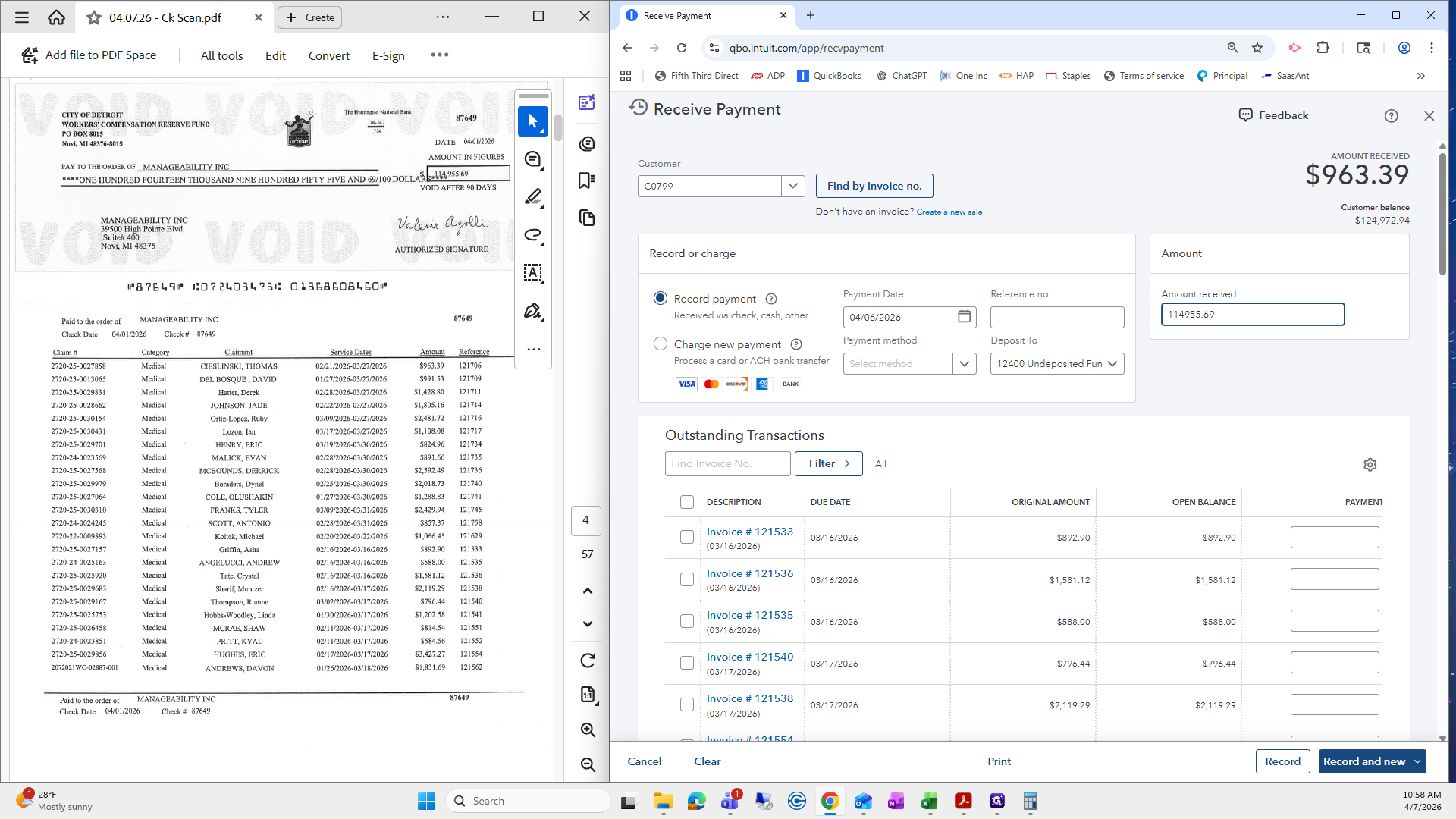
Okay. Last, we will work on the large $114,000 item. Sometimes we get lucky and can figure it out quickly when it auto-applies for us. There may be one or two invoices remaining. We need to calculate and determine which invoice should not have it applied. We will try that route first.
First, go to Record Payment.
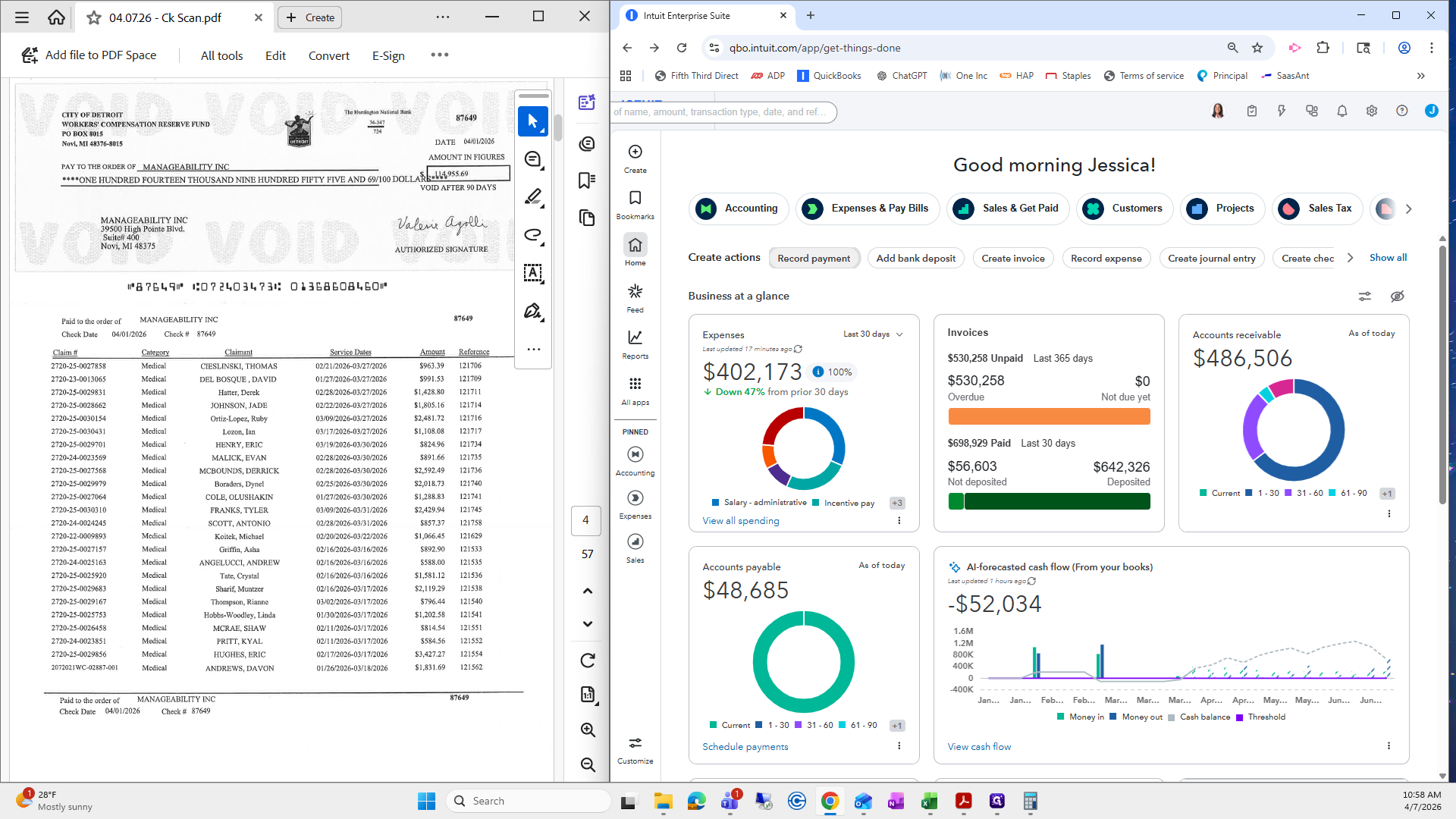
I will find it by invoice number 121706.
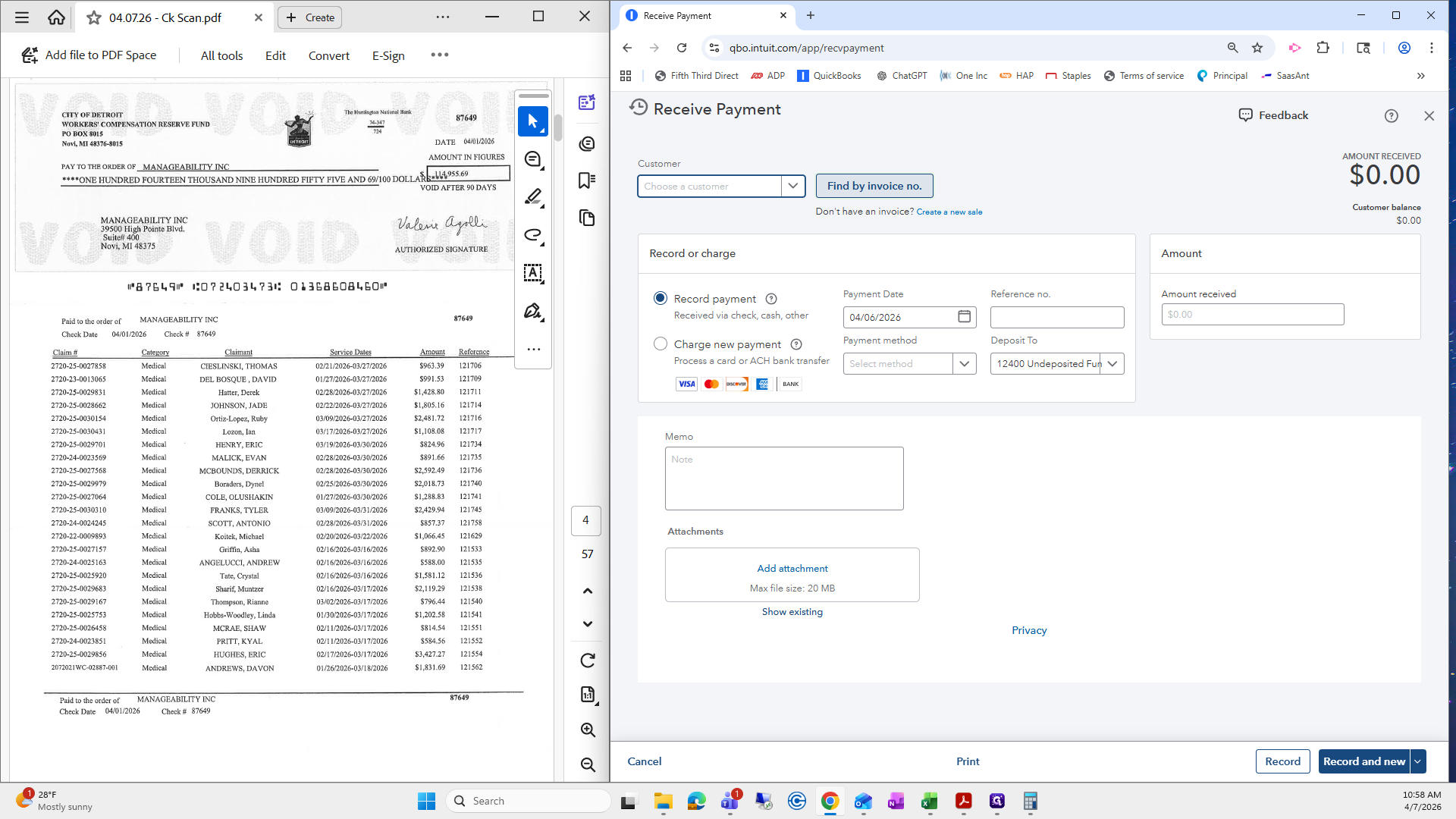
Press find.
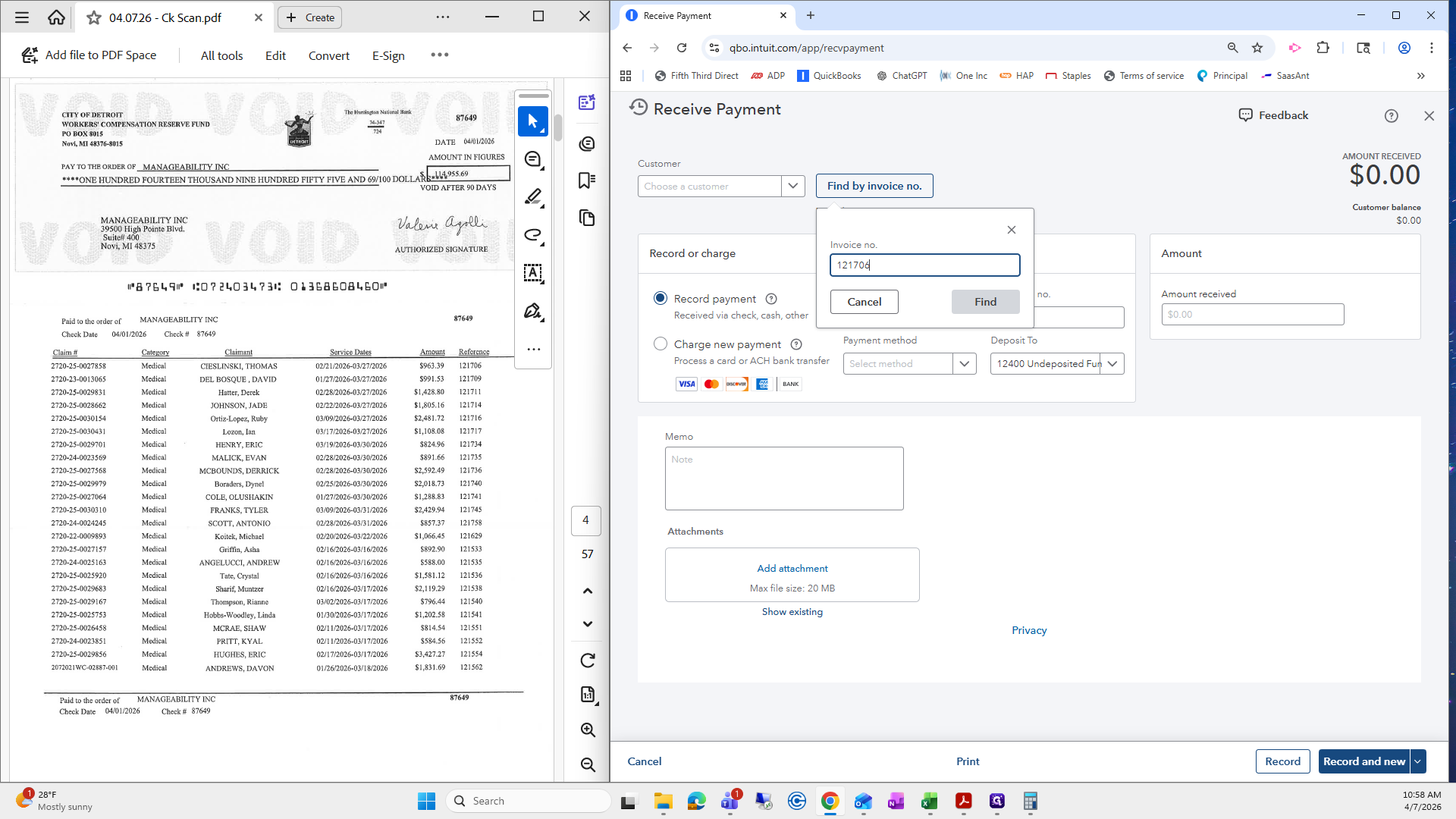
Immediately applies only the invoice we entered.
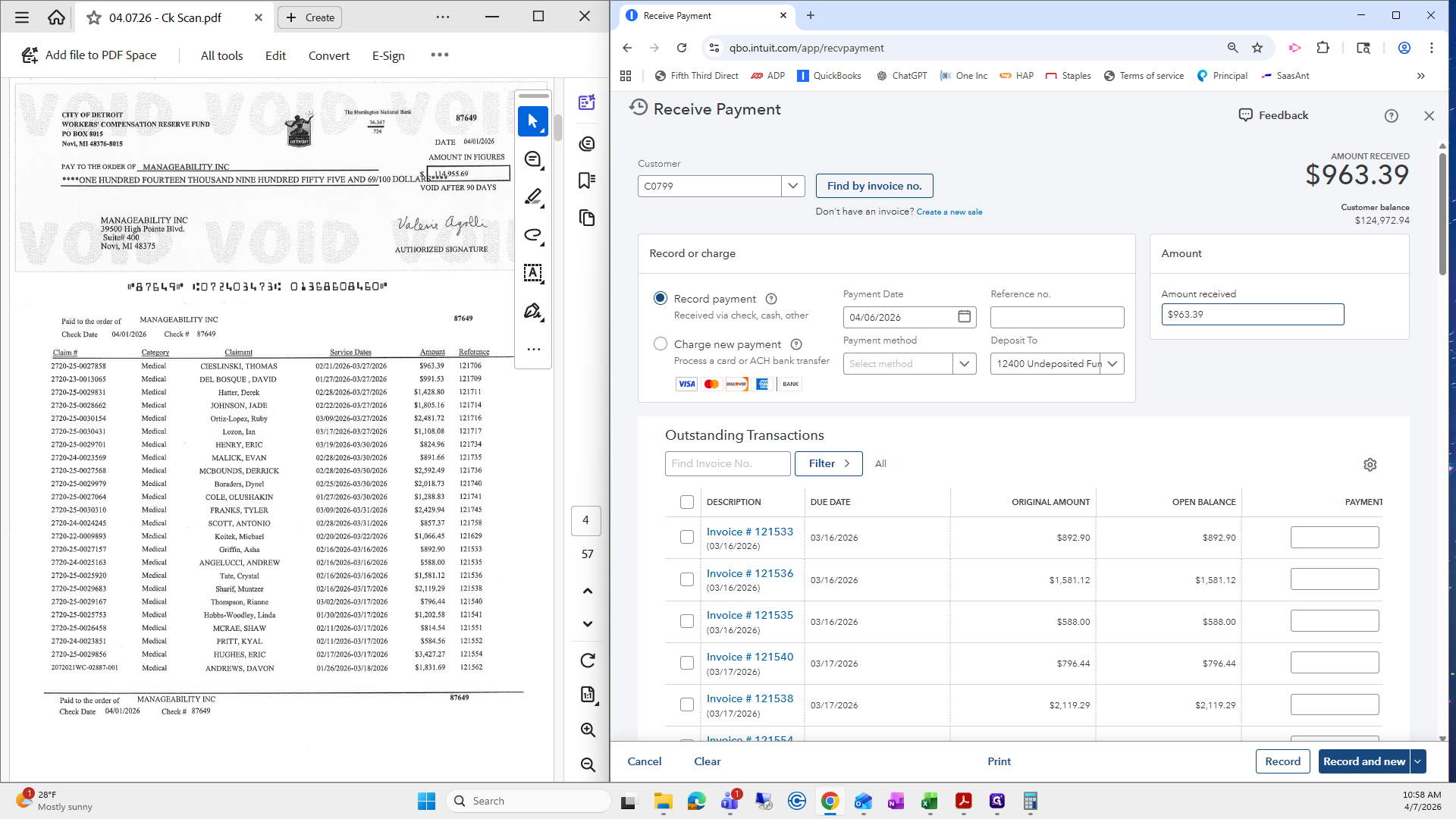
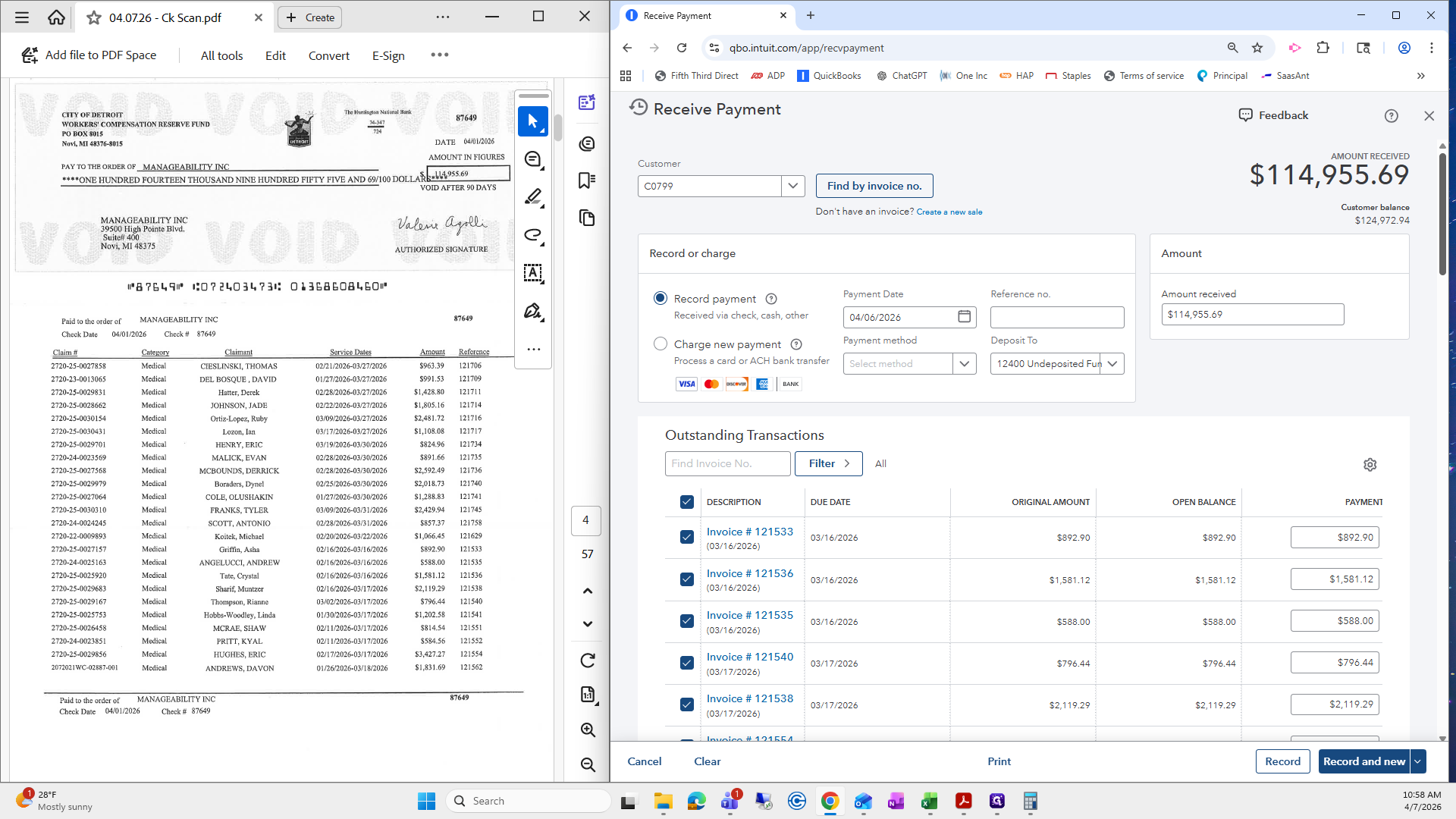
I will change it to the total of the check, which is 11,495,569. You can see it auto-applies.
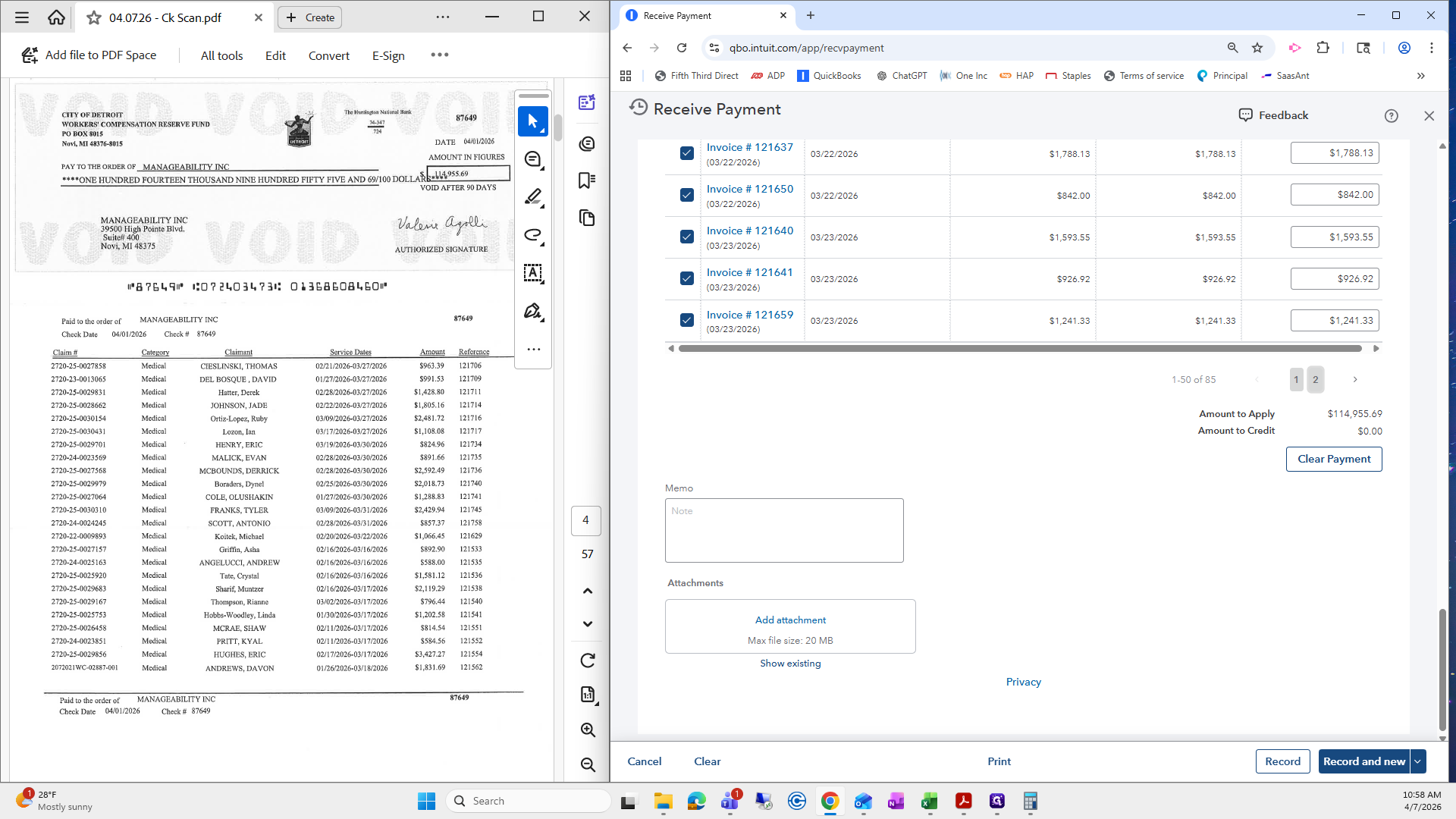
First, I will scroll down to check that there are no credit memos.
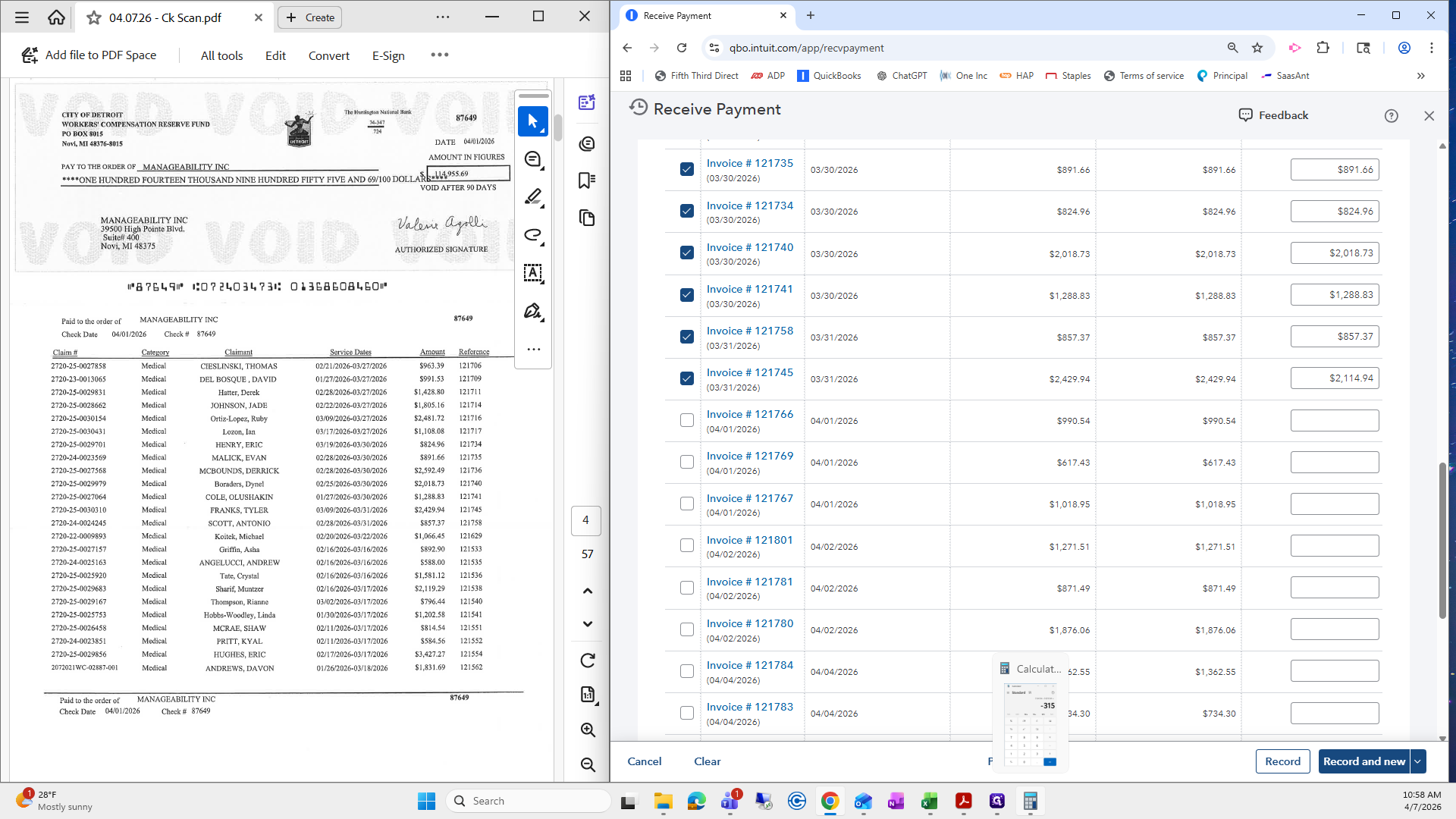
There aren't any, which is good. Now it says the total amount was applied. Go to the second page and check that the last invoice it was applied to is not underpaid. In this case, it is underpaid.
I will bring up my calculator and calculate the difference. Then, I will check if there is an invoice for that exact amount that we can uncheck.
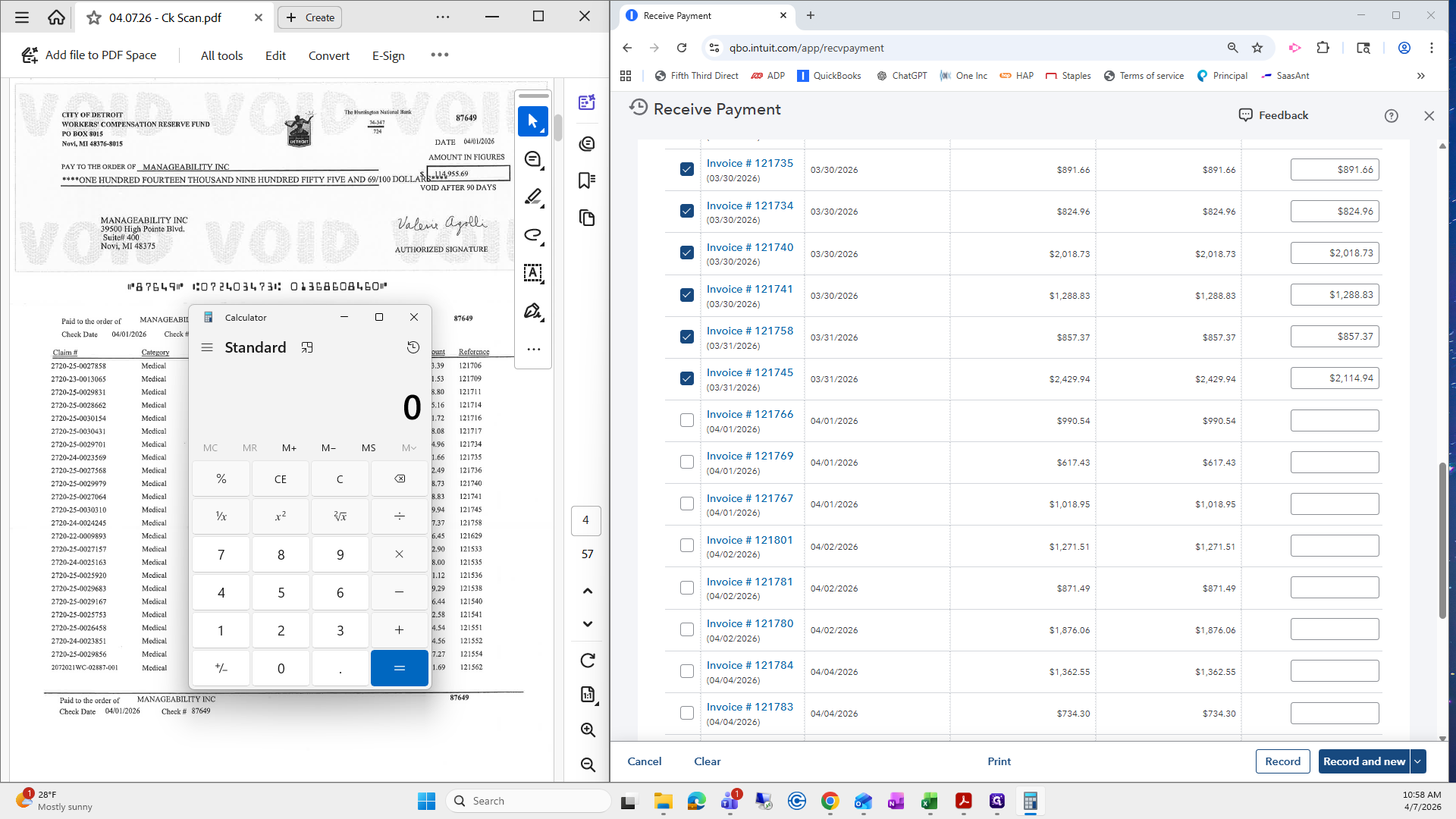
That would be the best-case scenario.
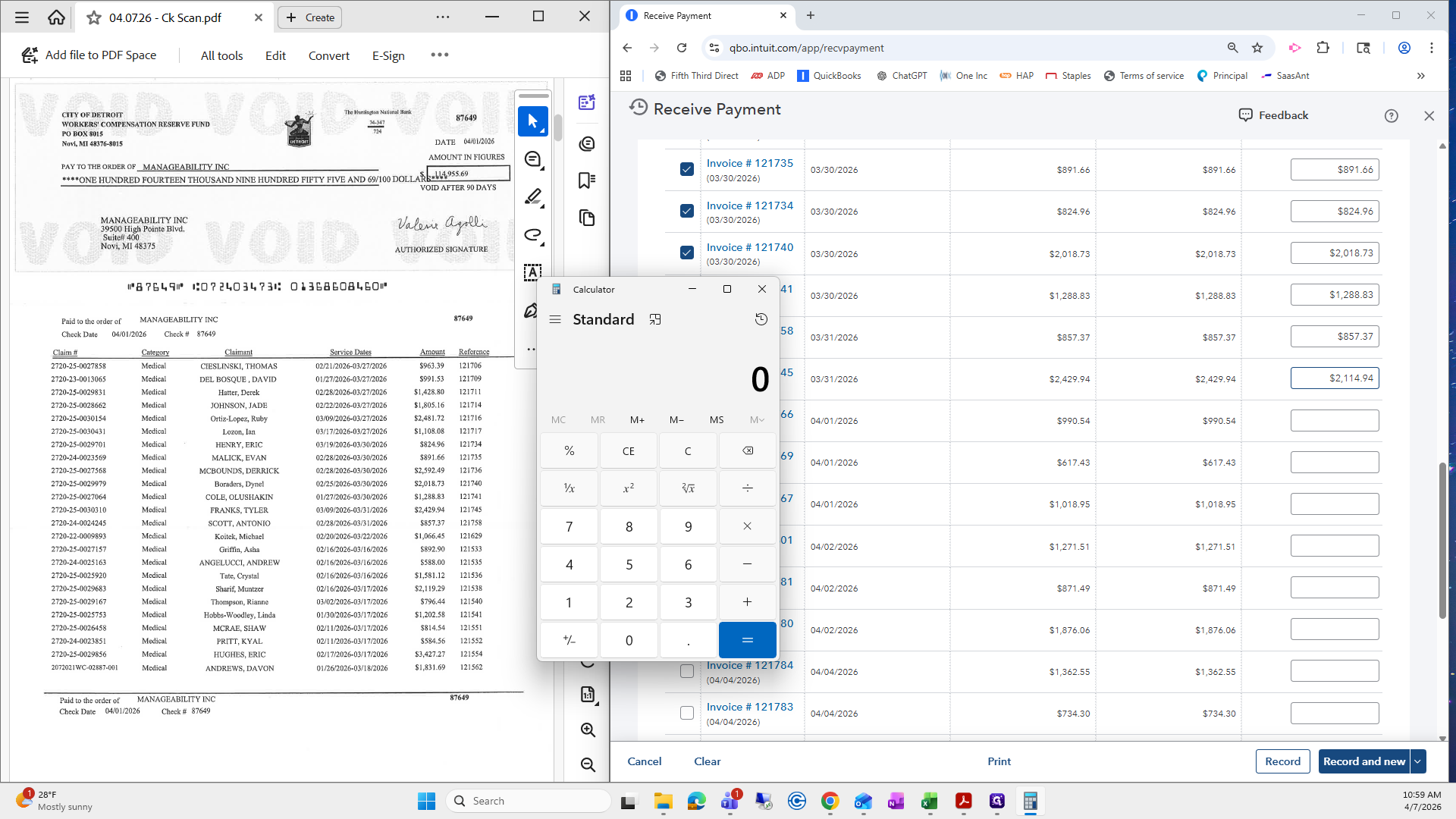
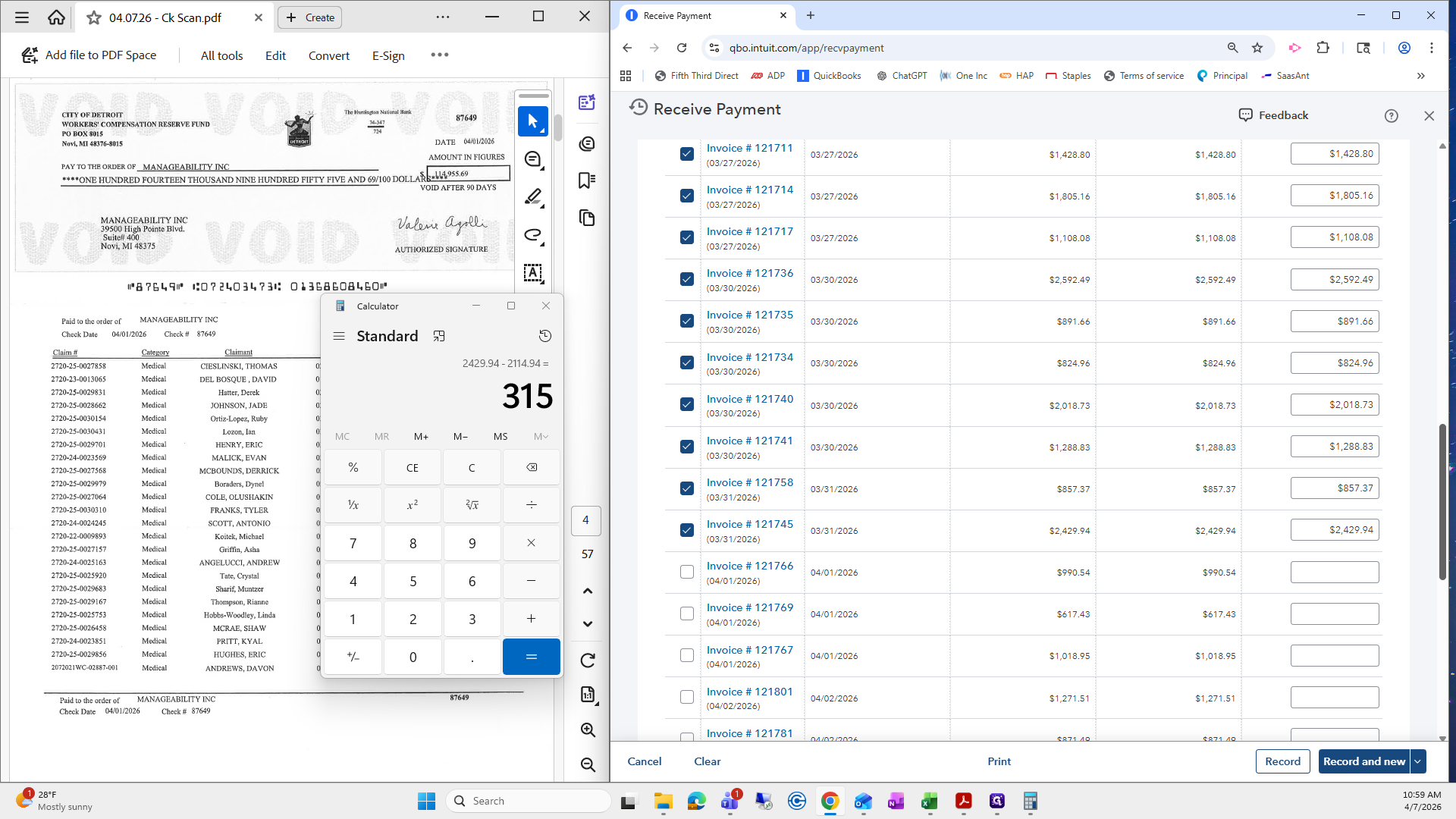
The invoice amount was $2,429.94, as shown here. I will subtract the amount that was underpaid on that invoice.
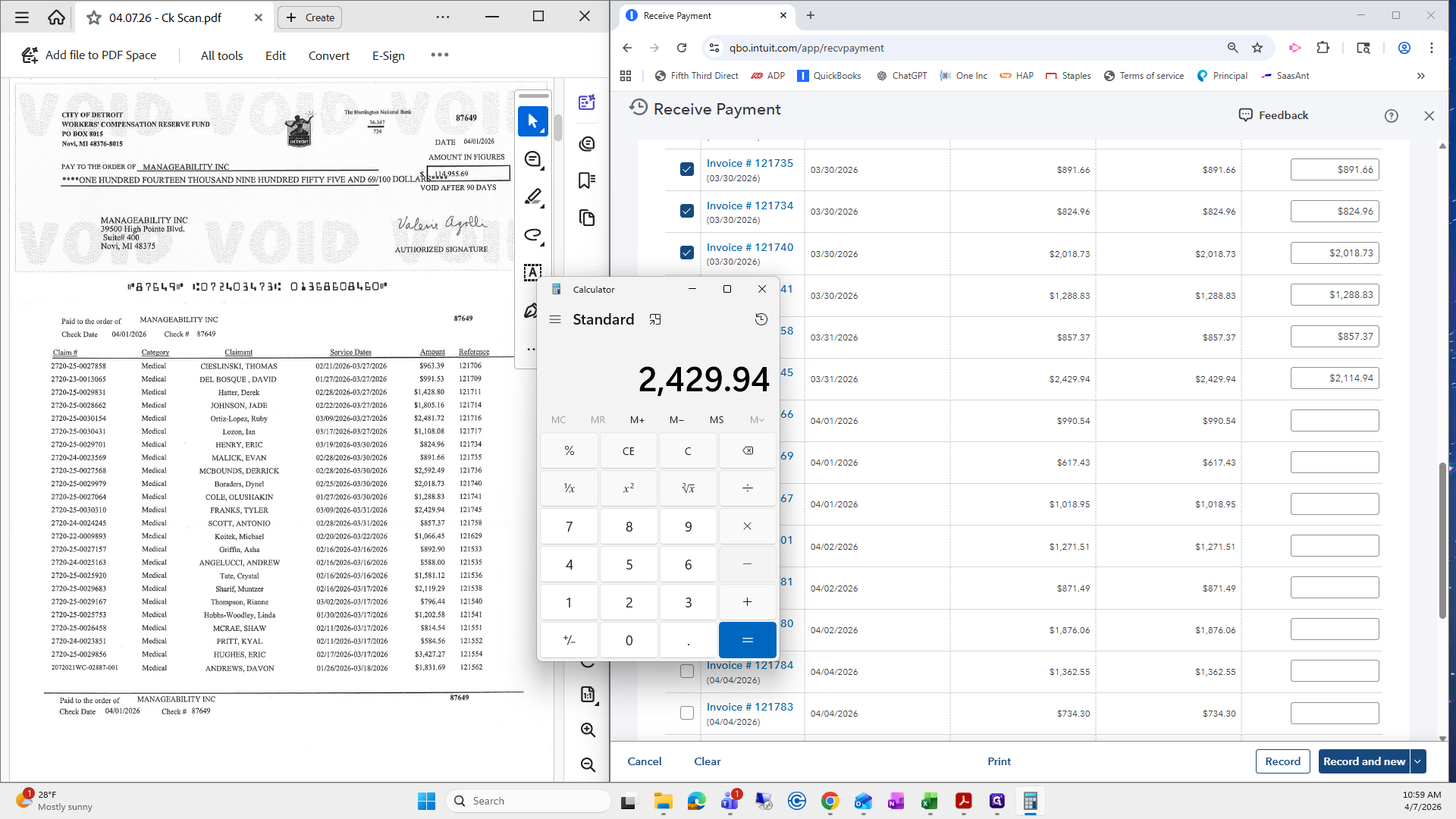
It says there's $315.
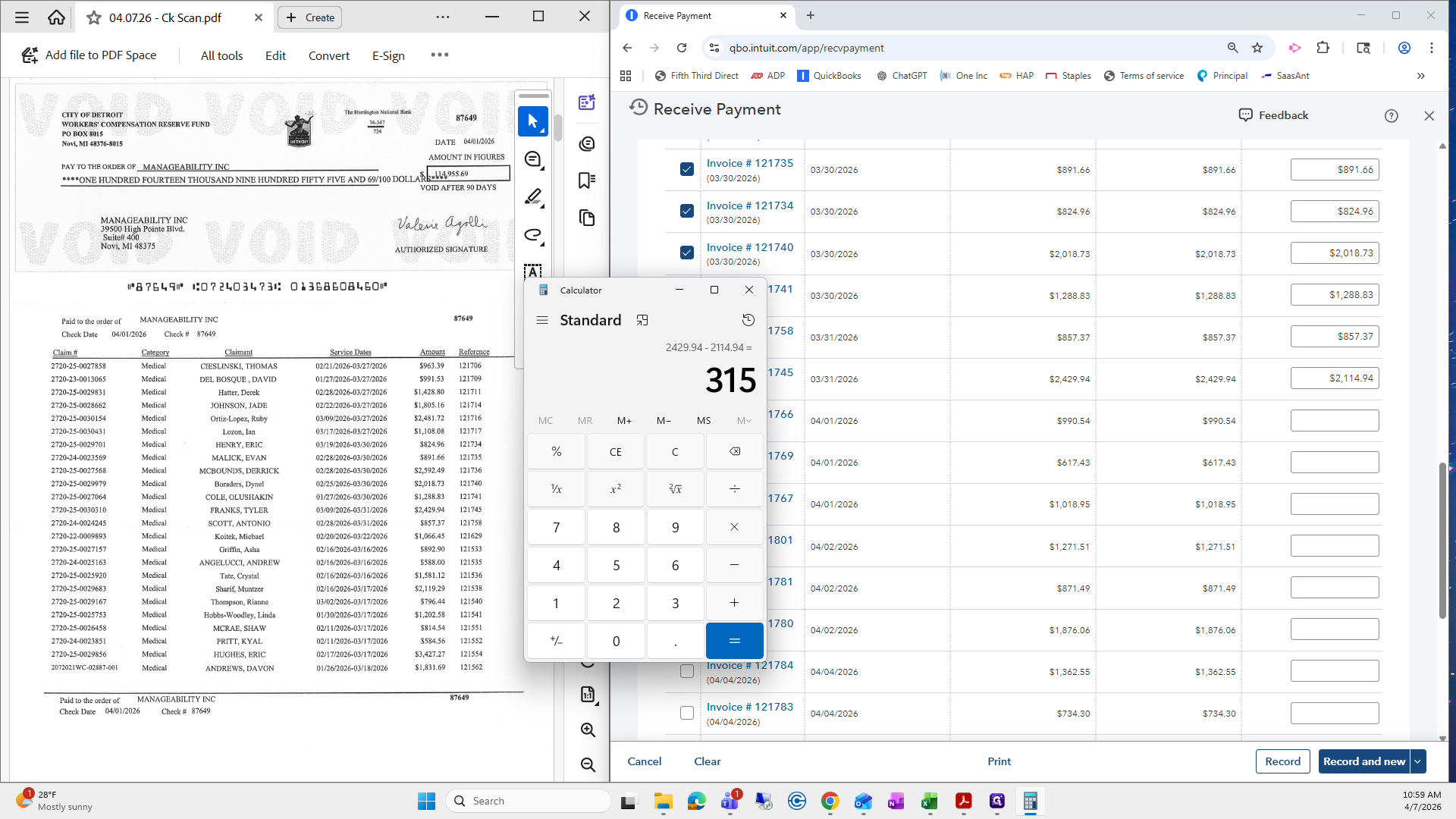
I will quickly search to see if there is an invoice for $315. There's not one on this page. I will go back to the first page.
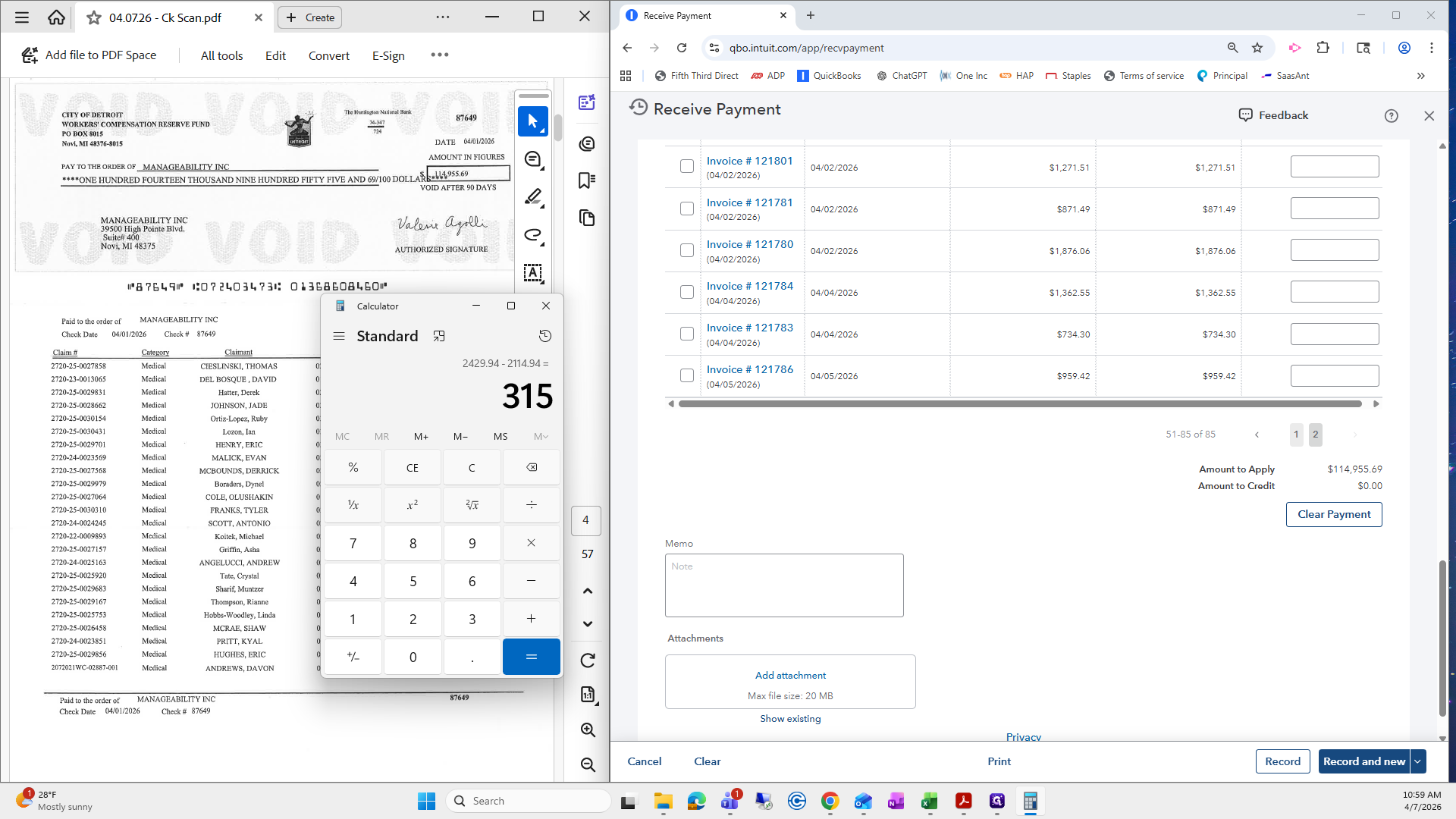
I'll quickly check to see if there is one. There is. It's our lucky day. I will uncheck this box.
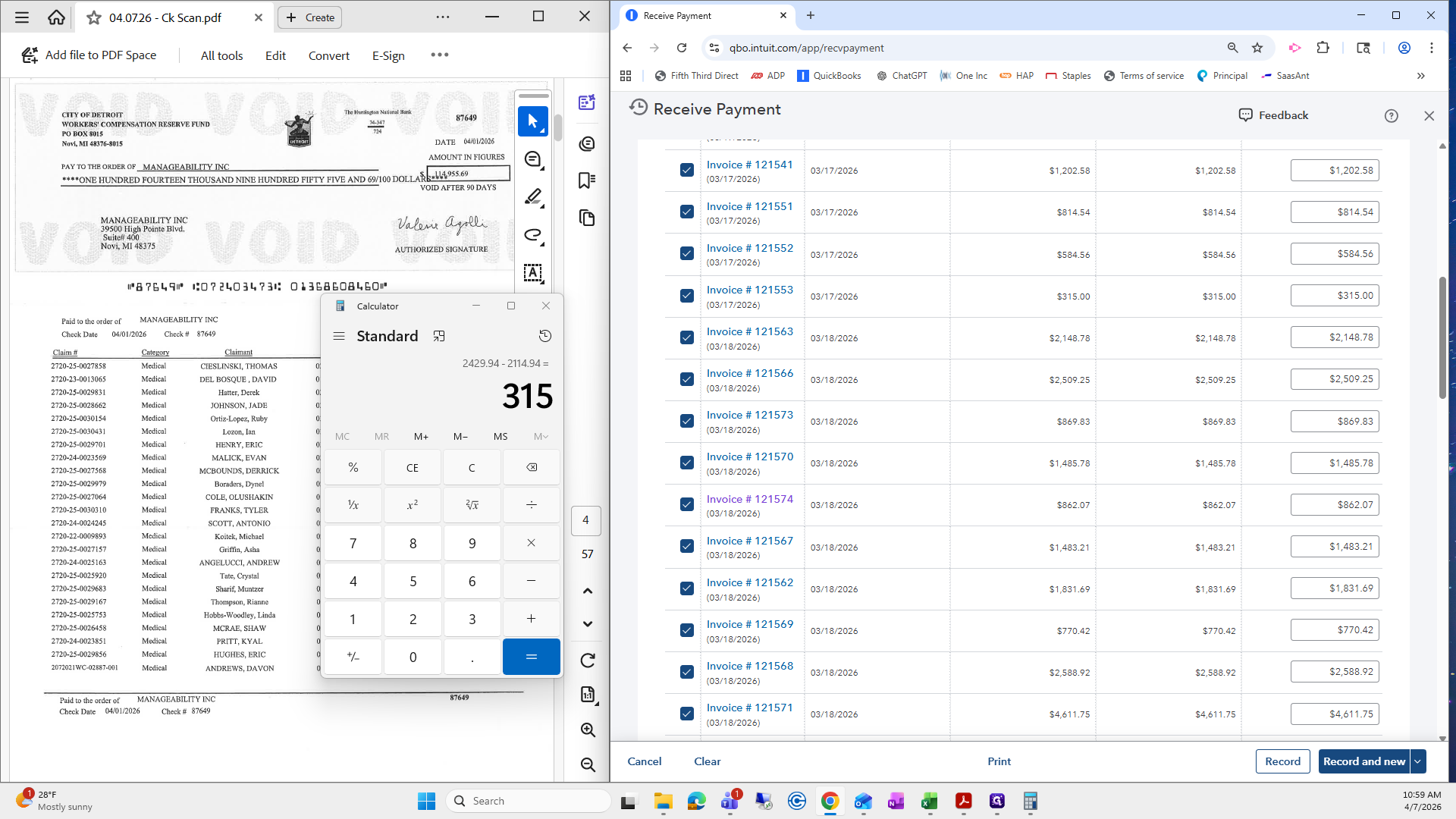
I will return to the second page, uncheck the underpaid invoice, and then recheck it so the $315 is correctly applied.
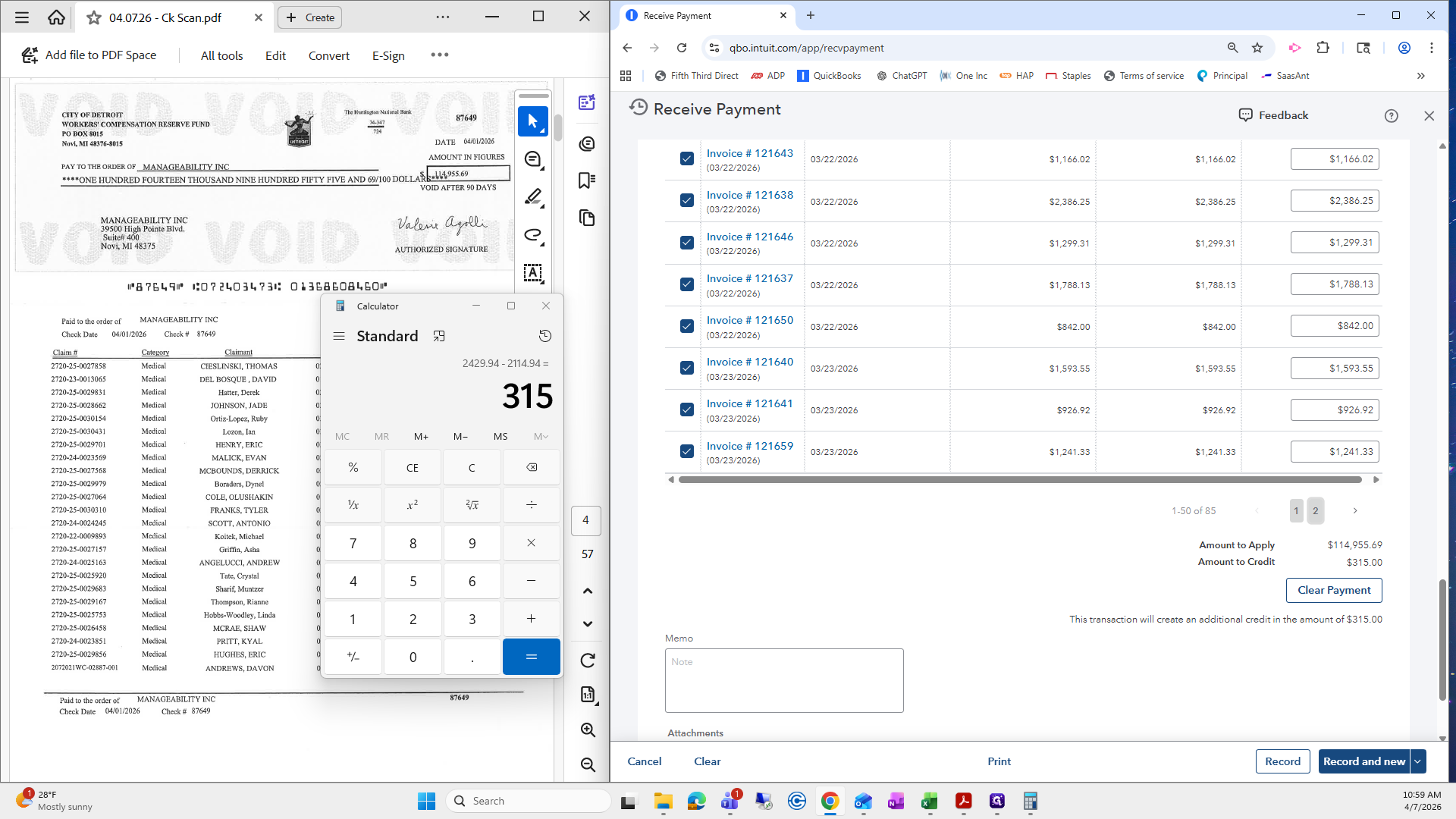
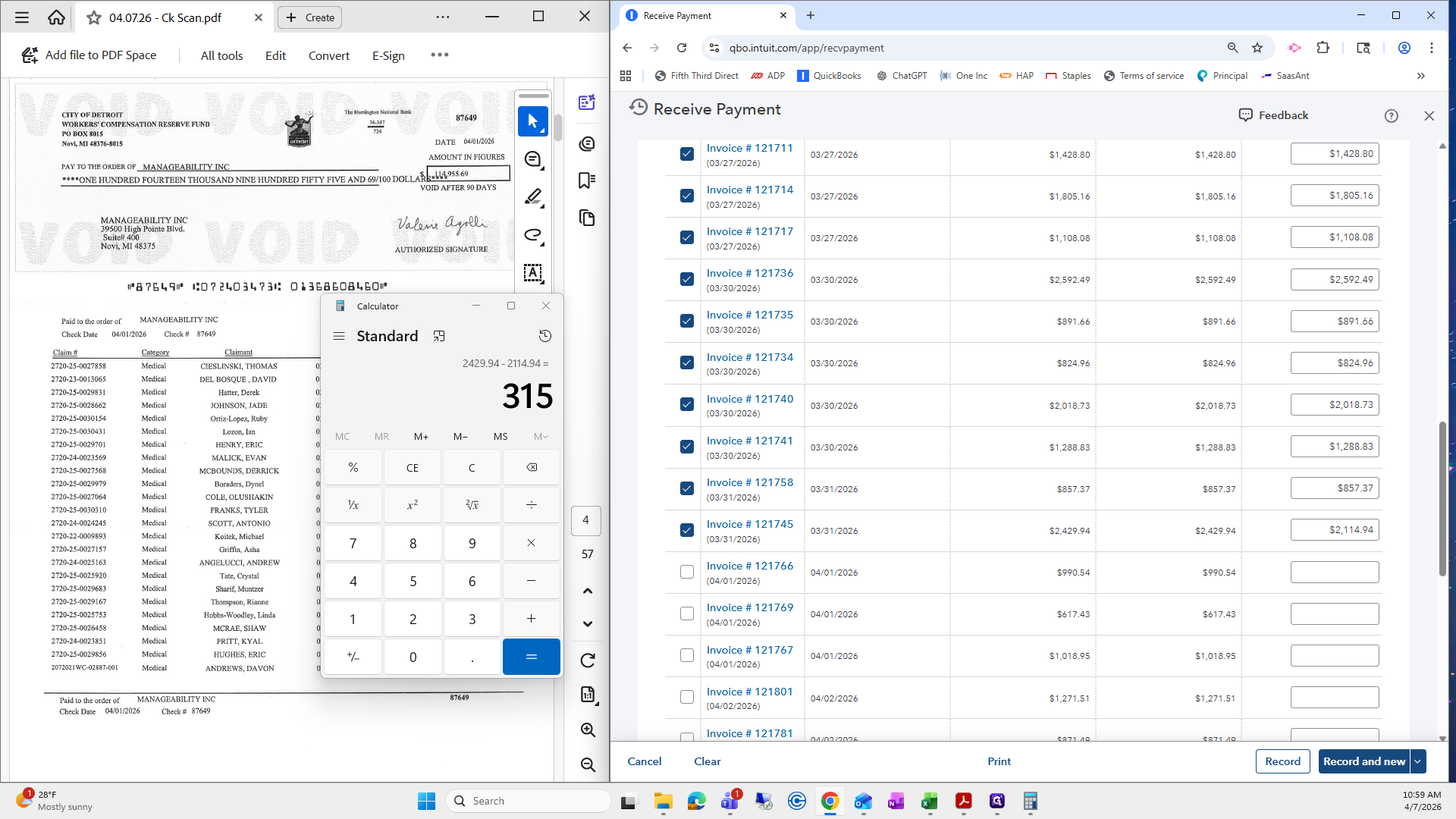
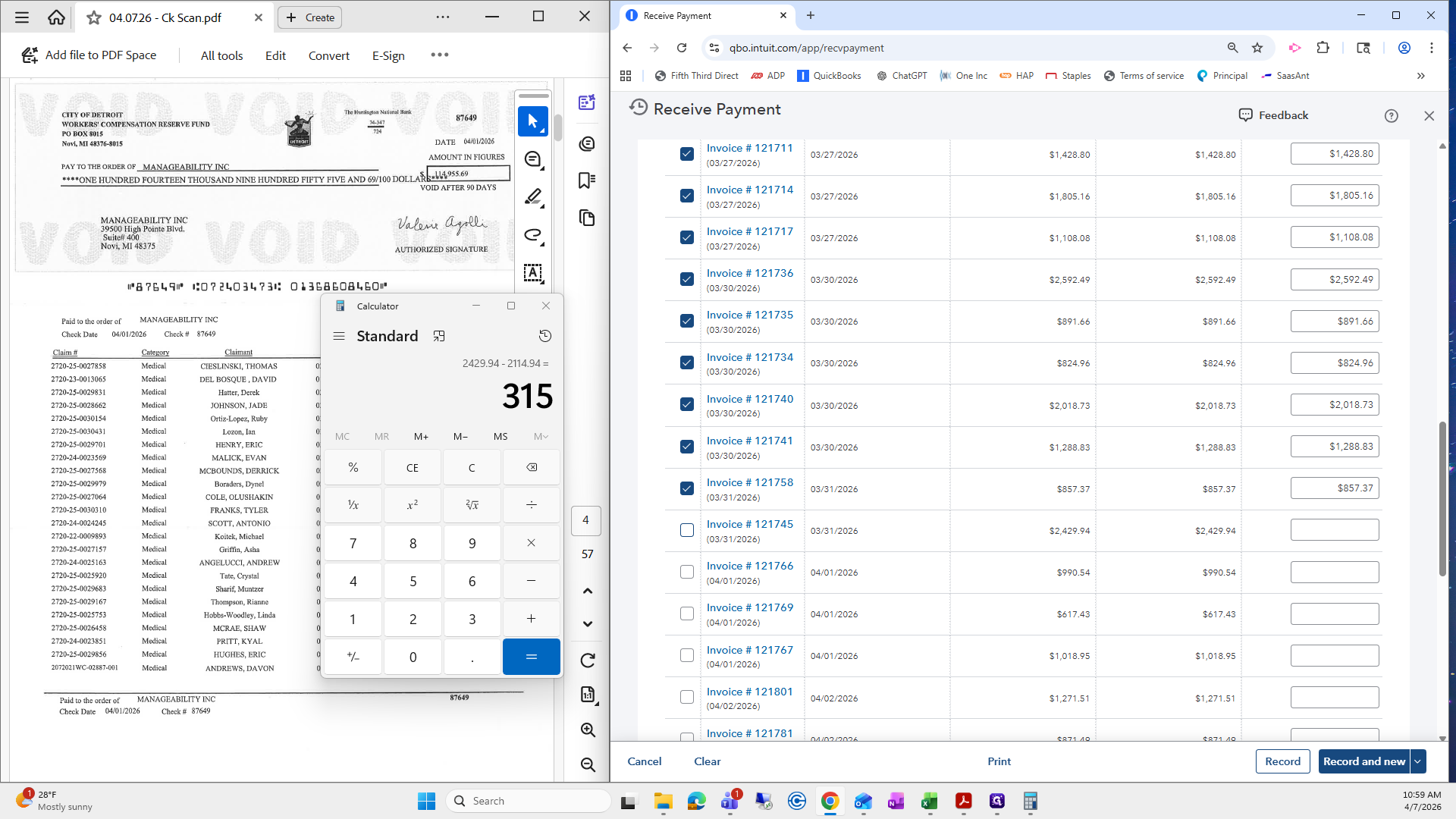
That is the best-case scenario, where you do not have to go through all the invoices. This is ideal.
Another check and balance I do is to review all the service dates. You can see that they are mostly between January, February, and March.
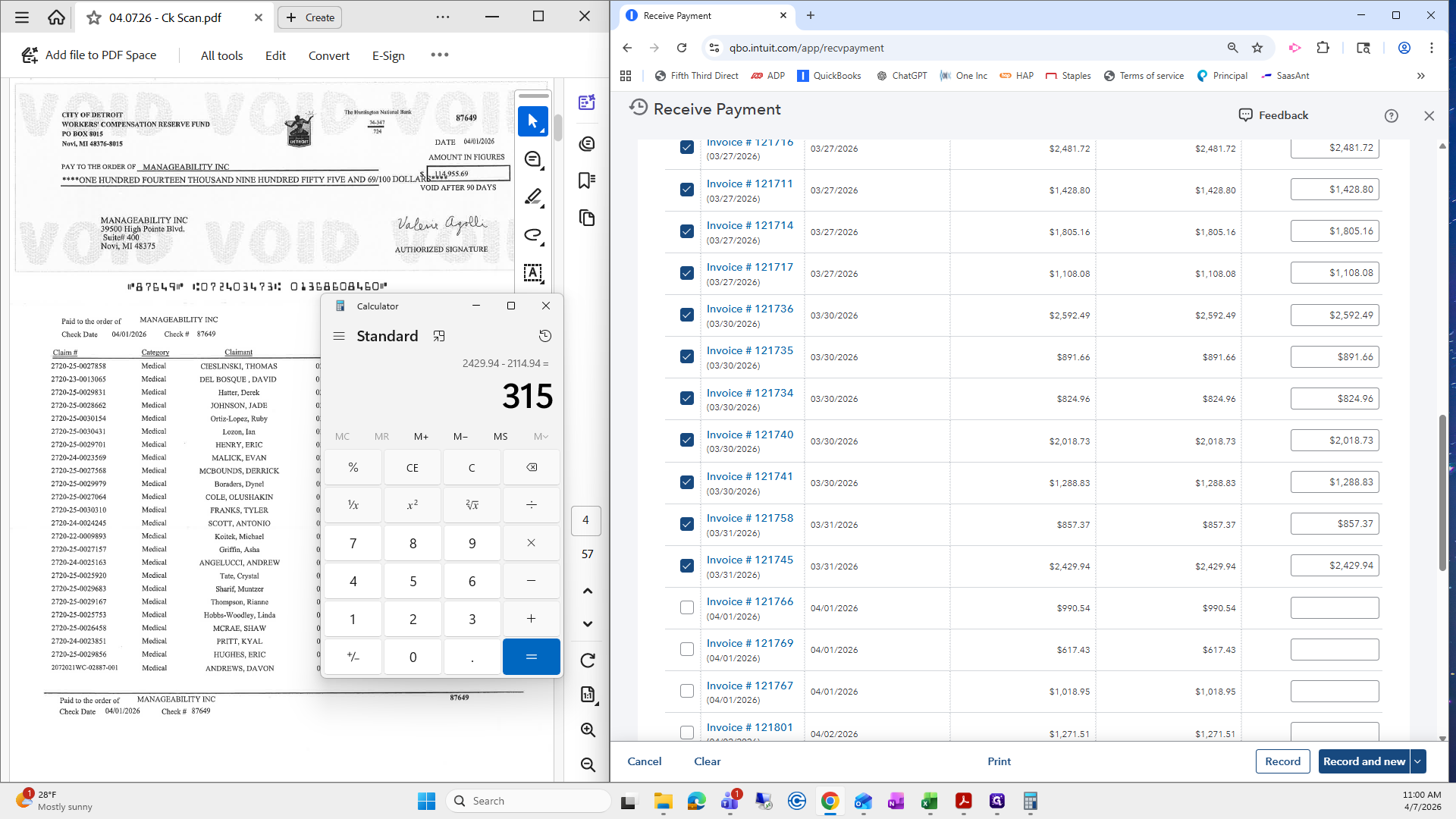
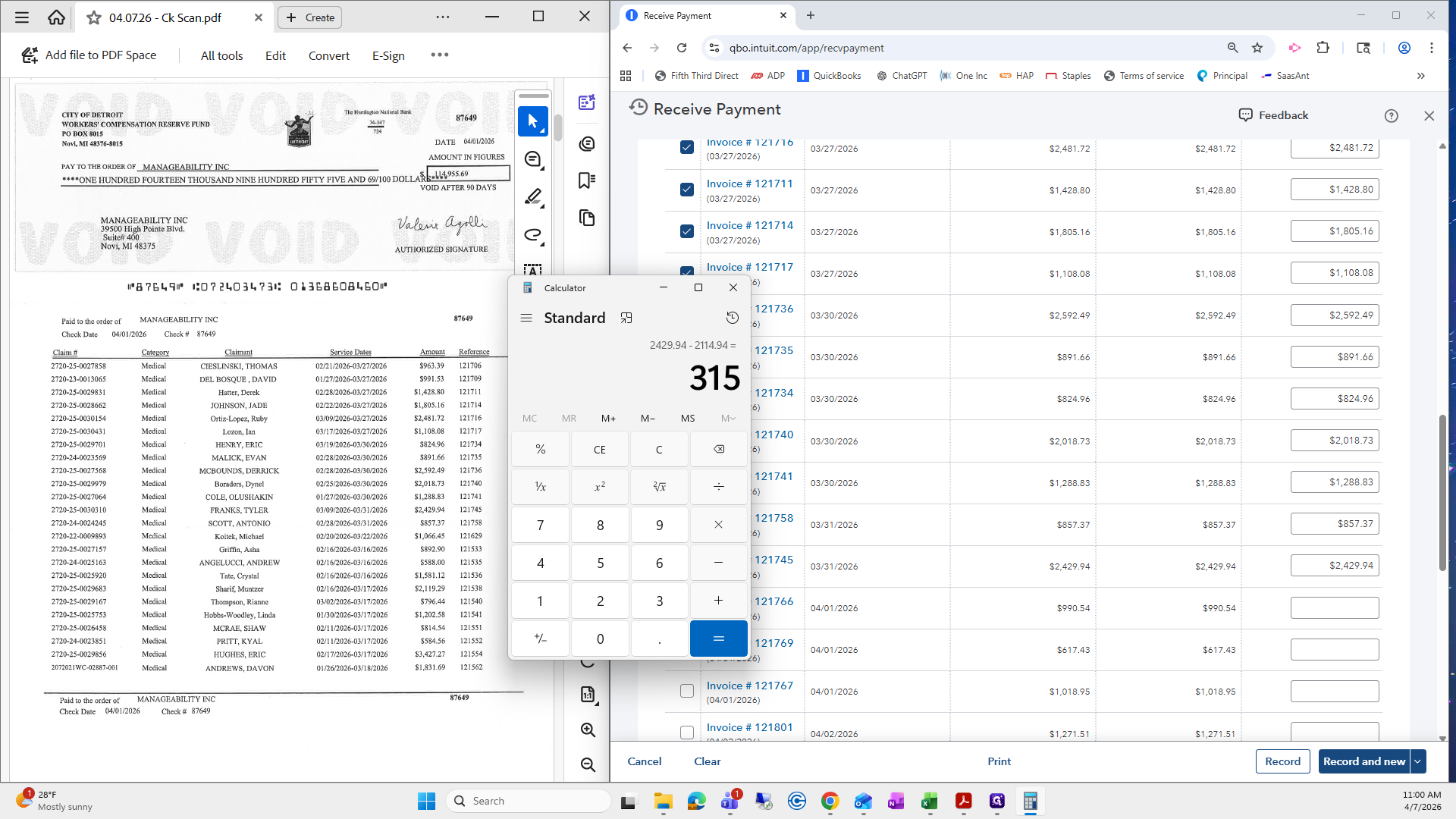
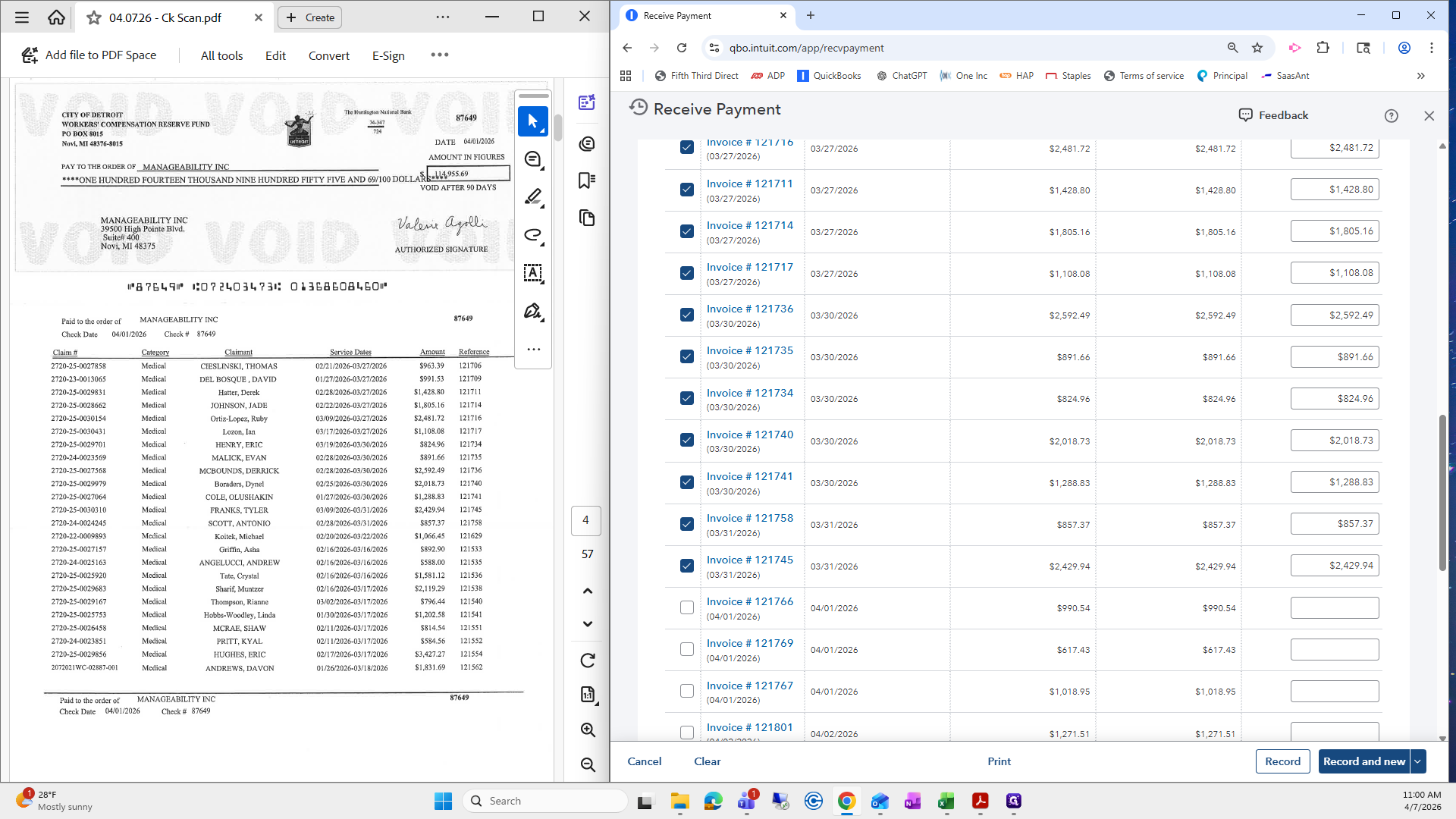
That tells me there are no service dates for April. These were all from March and earlier. That is another thing you can check. If you look back at the first page, another check and balance is to review the first few invoices.
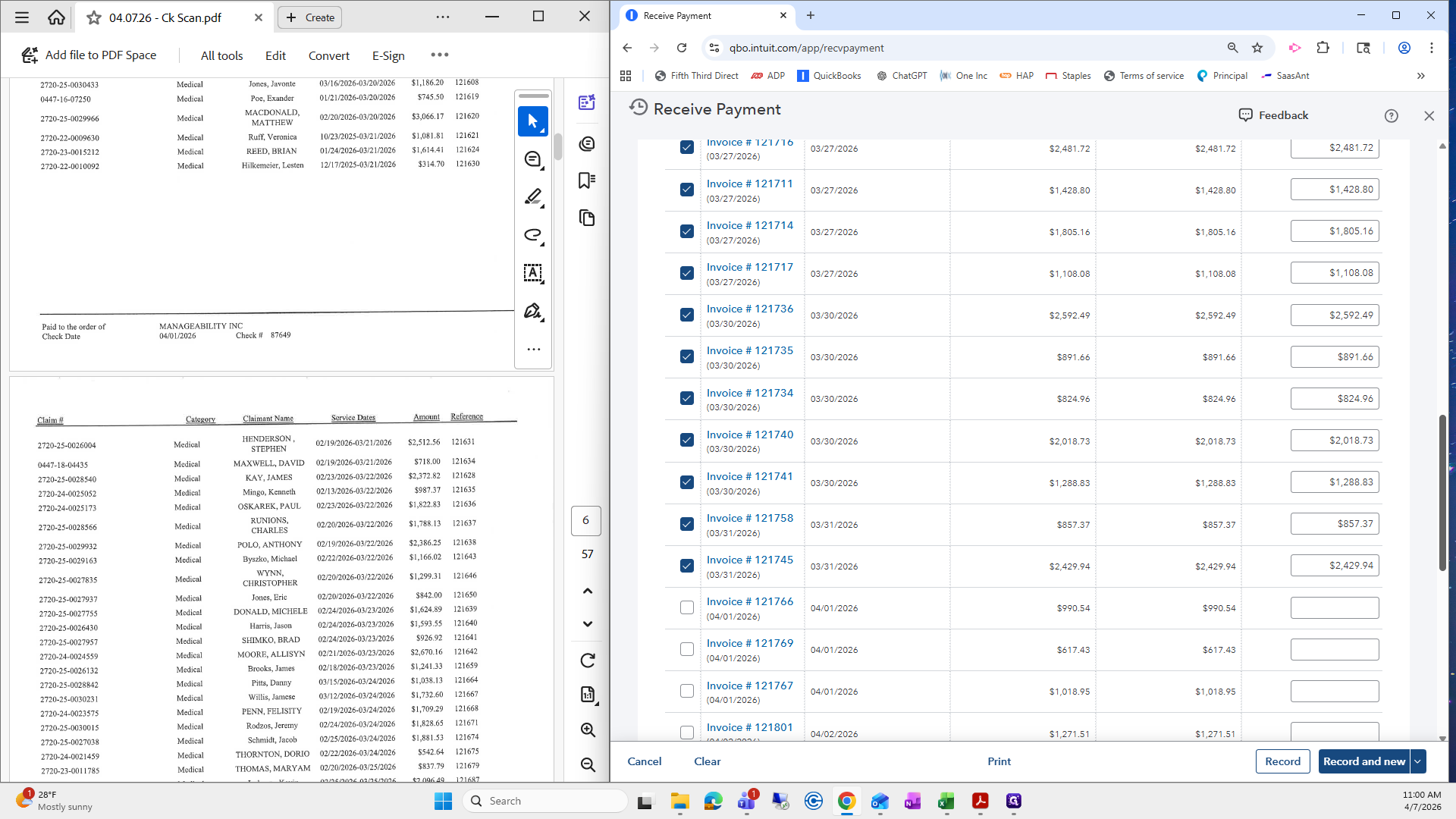
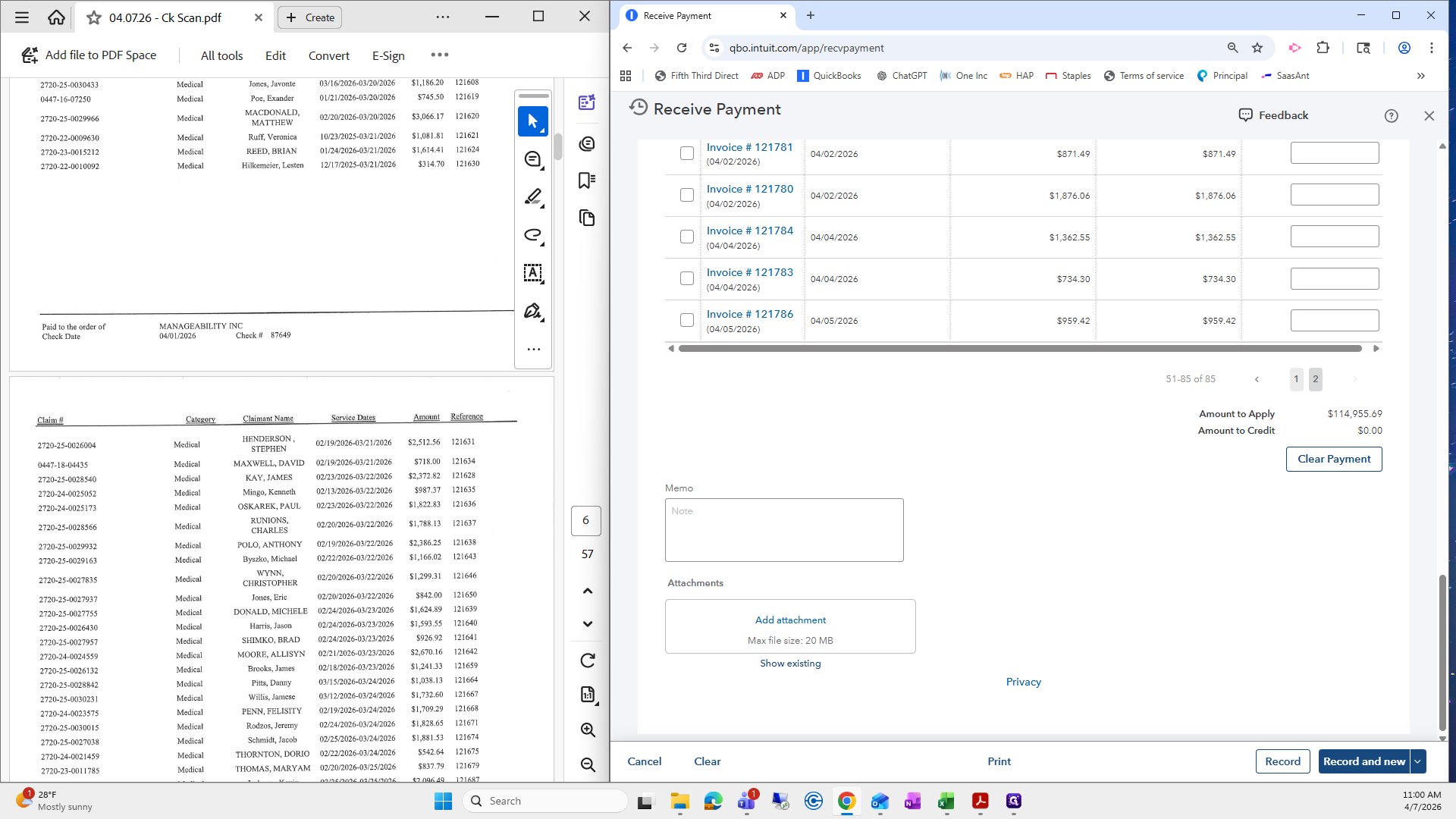
Sometimes the due date will show as 2025 or 2024. Generally, the City of Detroit will pay just the current amount. If these are for events in 2025 or 2024, I know I can probably uncheck them. This was the best-case scenario for us, which is great, and it took about four seconds.
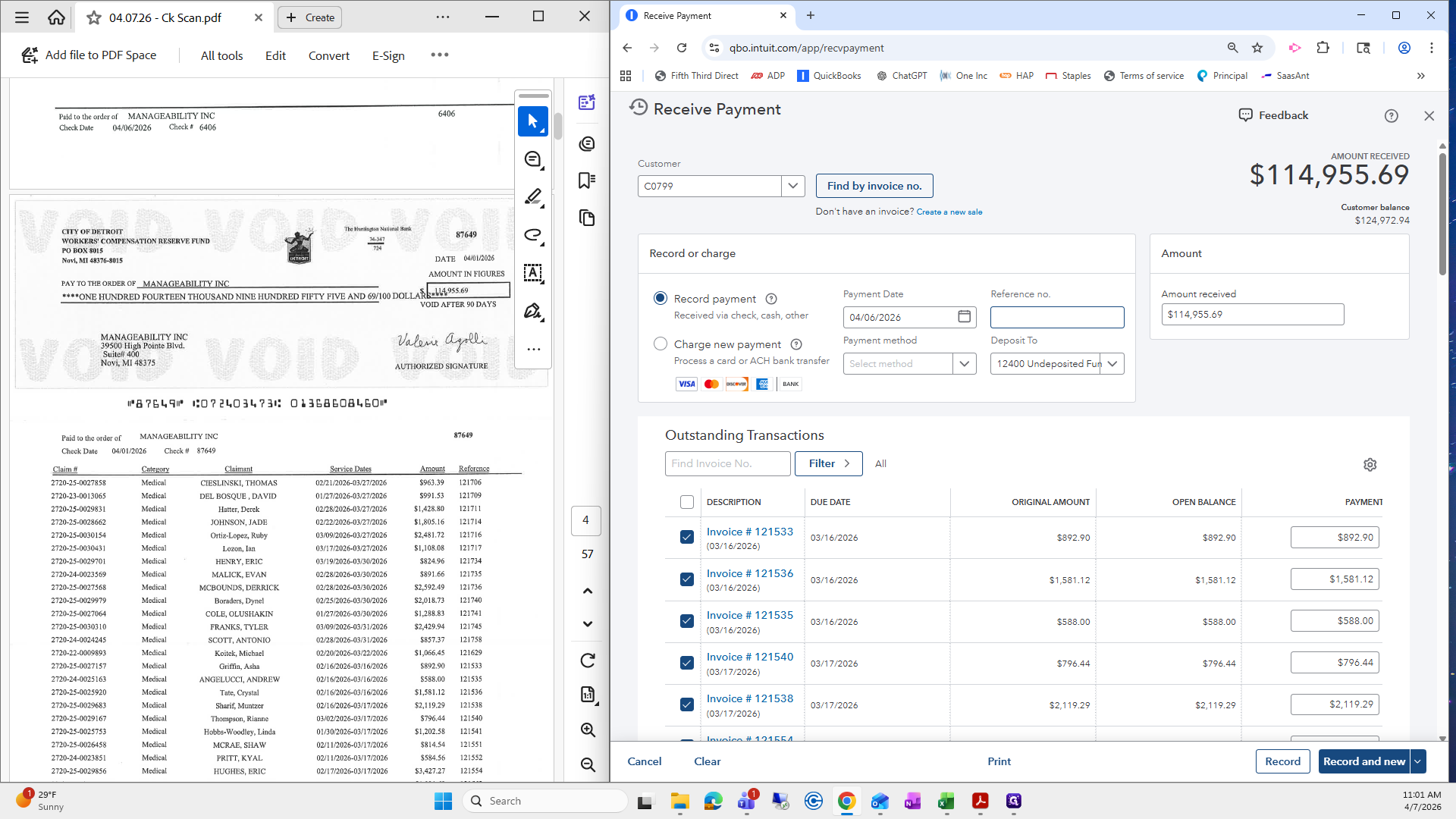
The reference number is the check number, and the payment method is check.
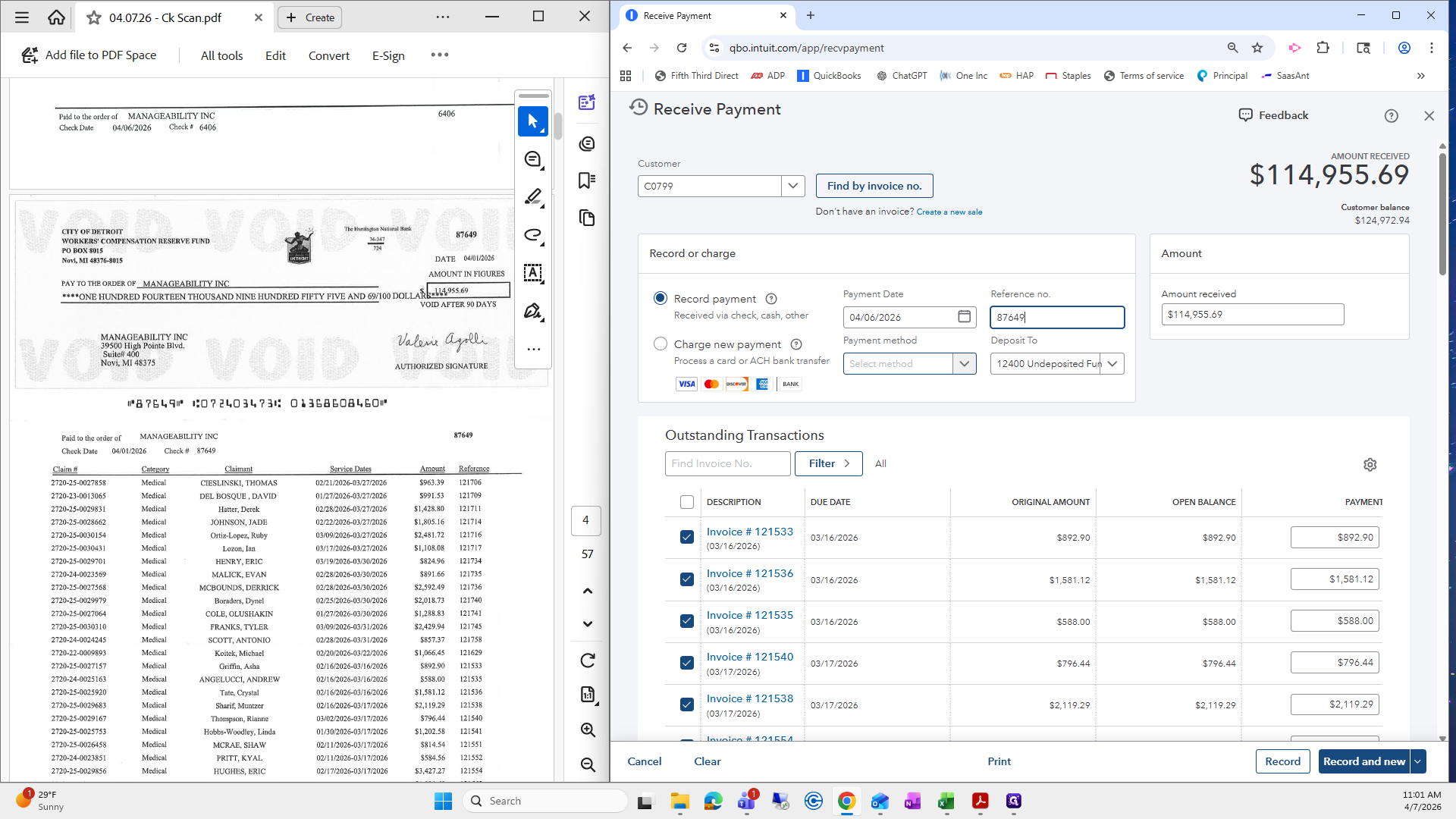
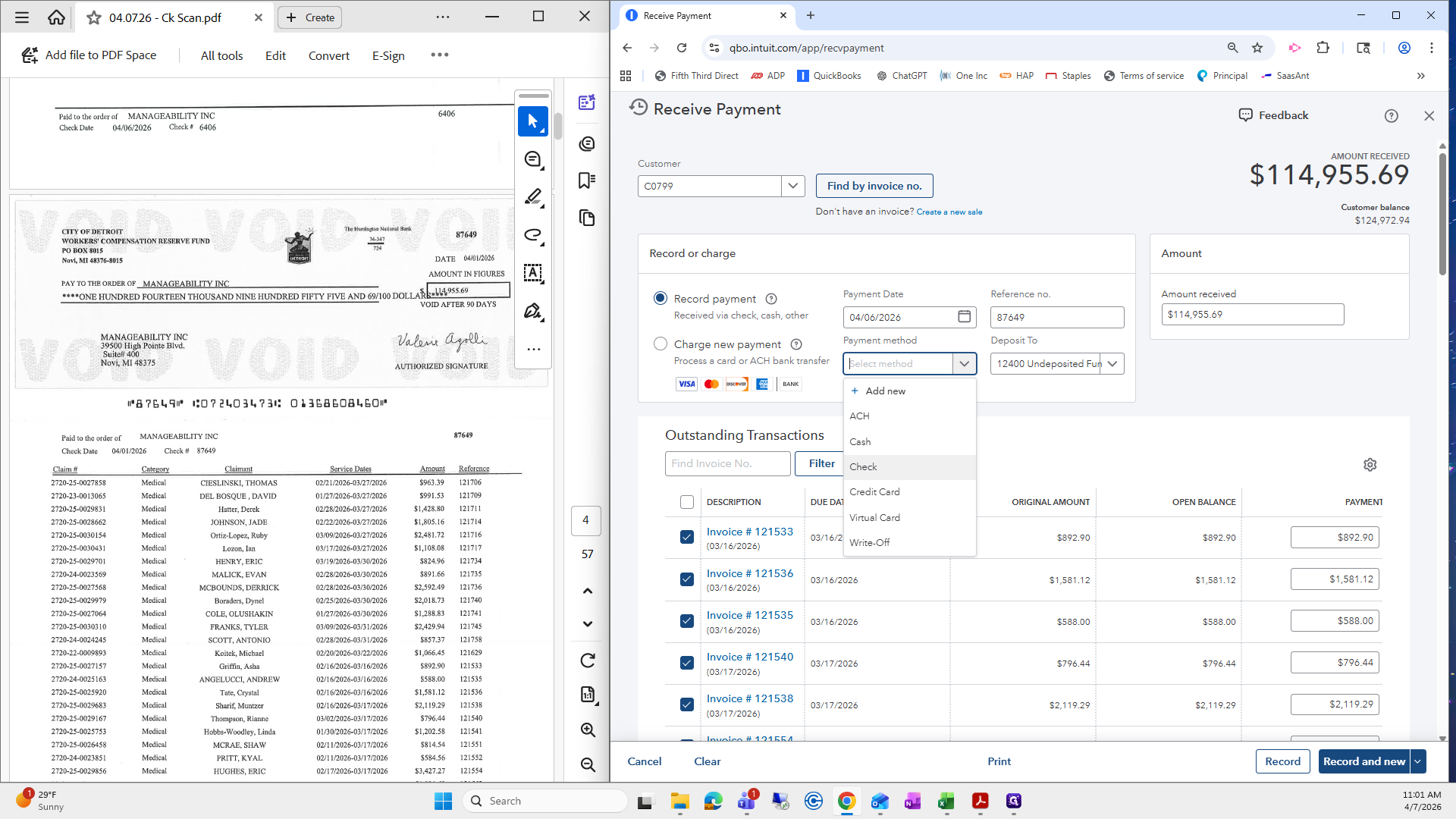
We then record a new one.
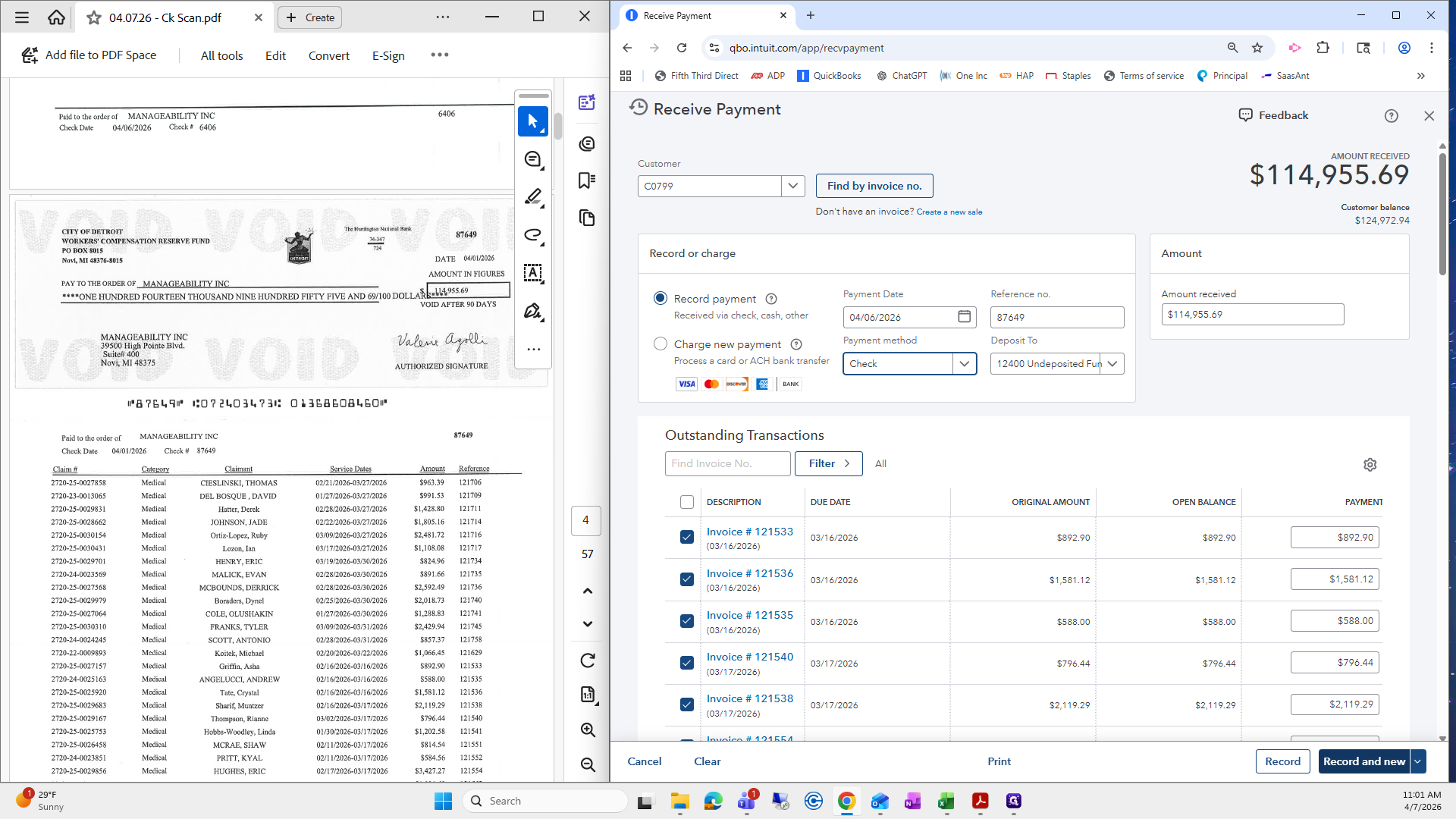
This completes all the checks for this date.
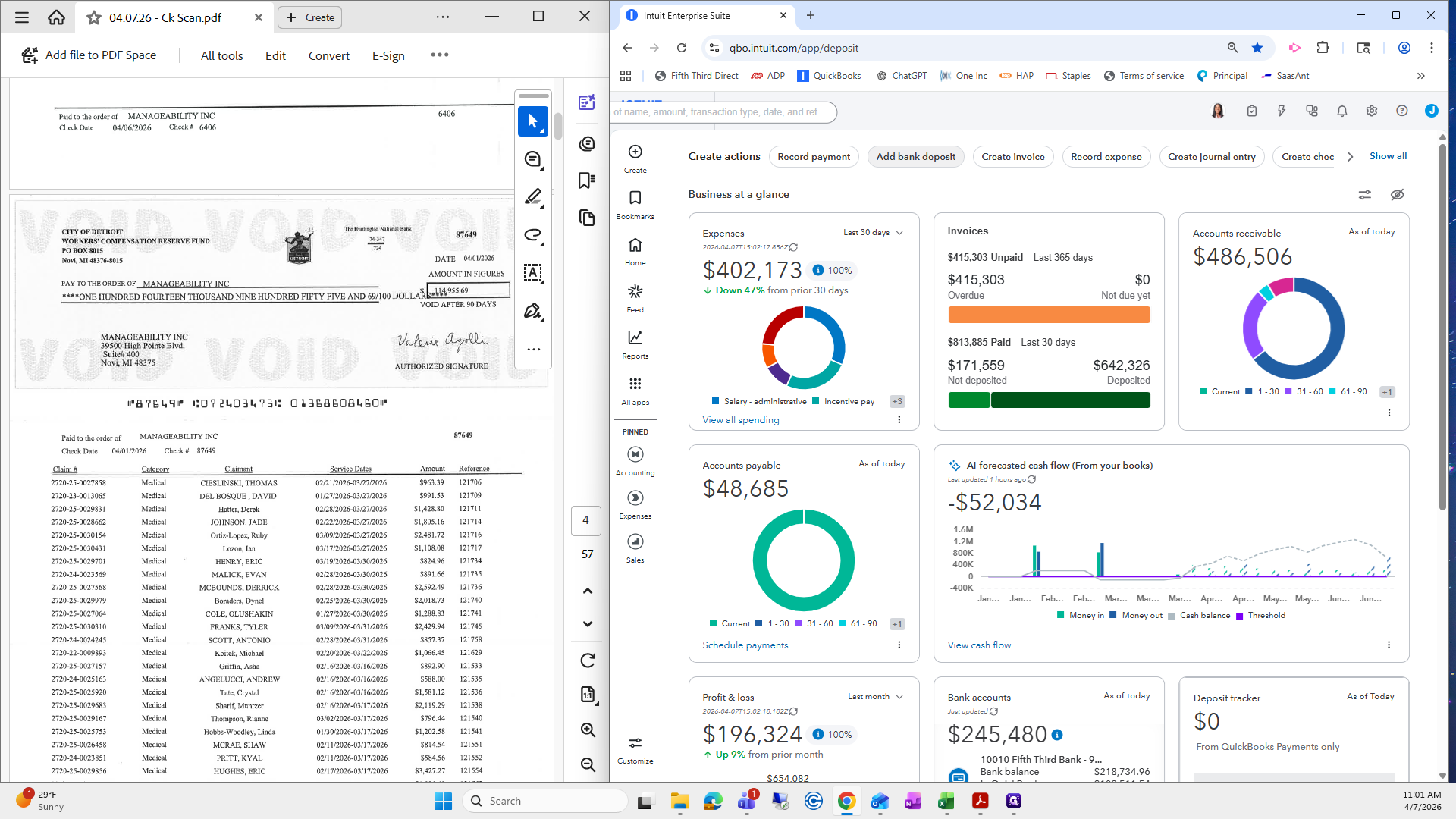
The next step is to go to Add Bank Deposit.
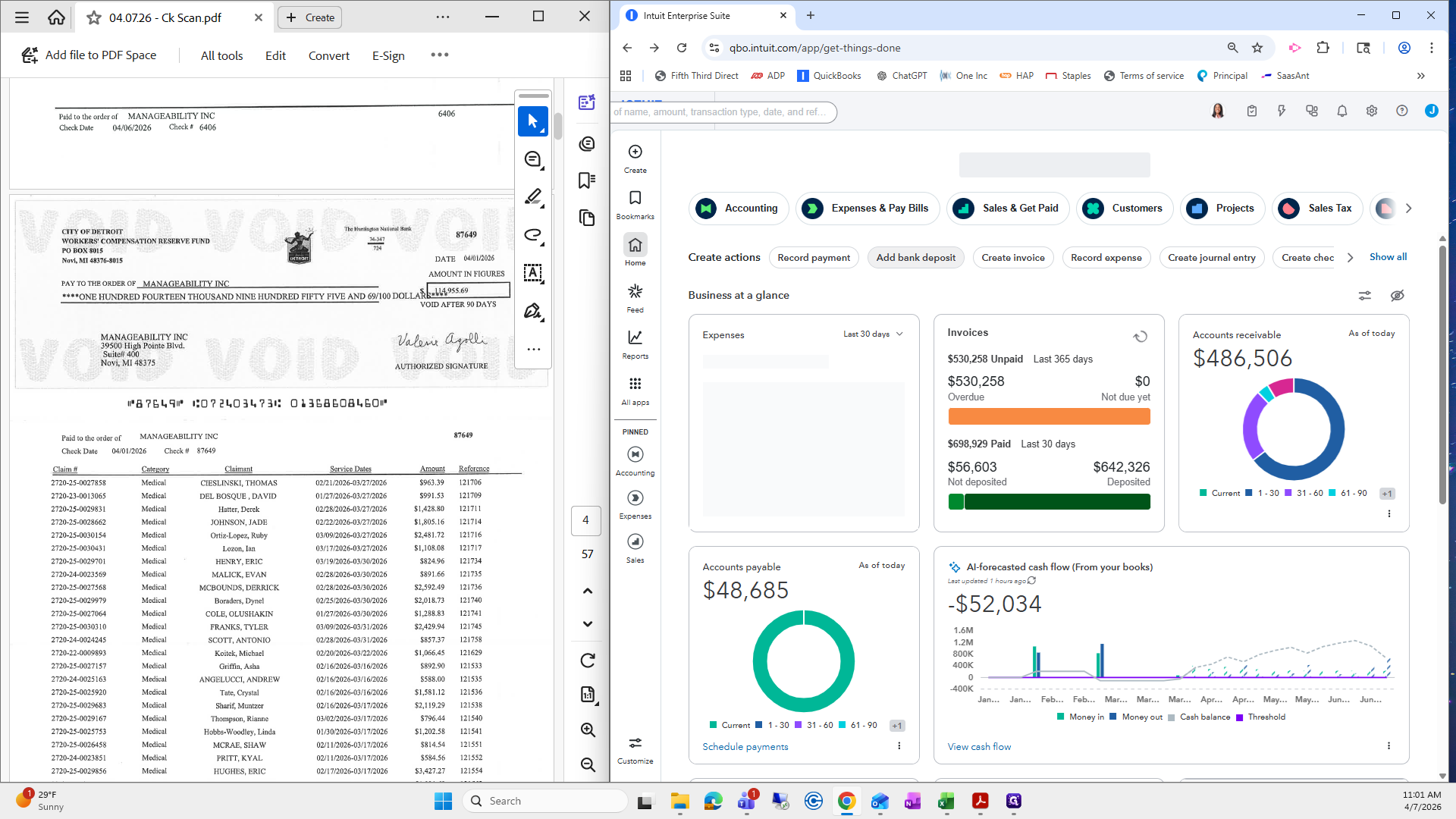
We will make sure the account is 9230.
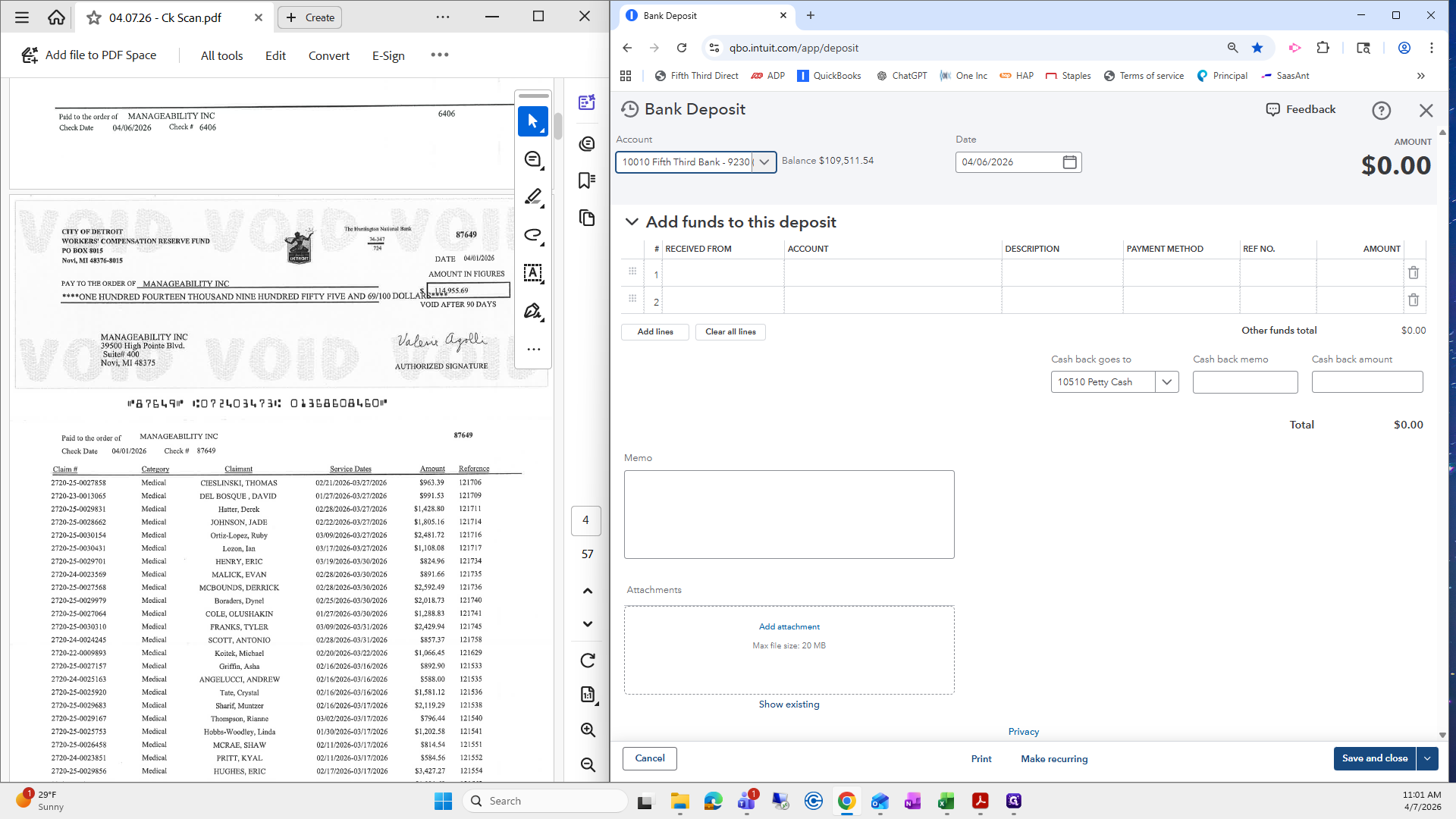
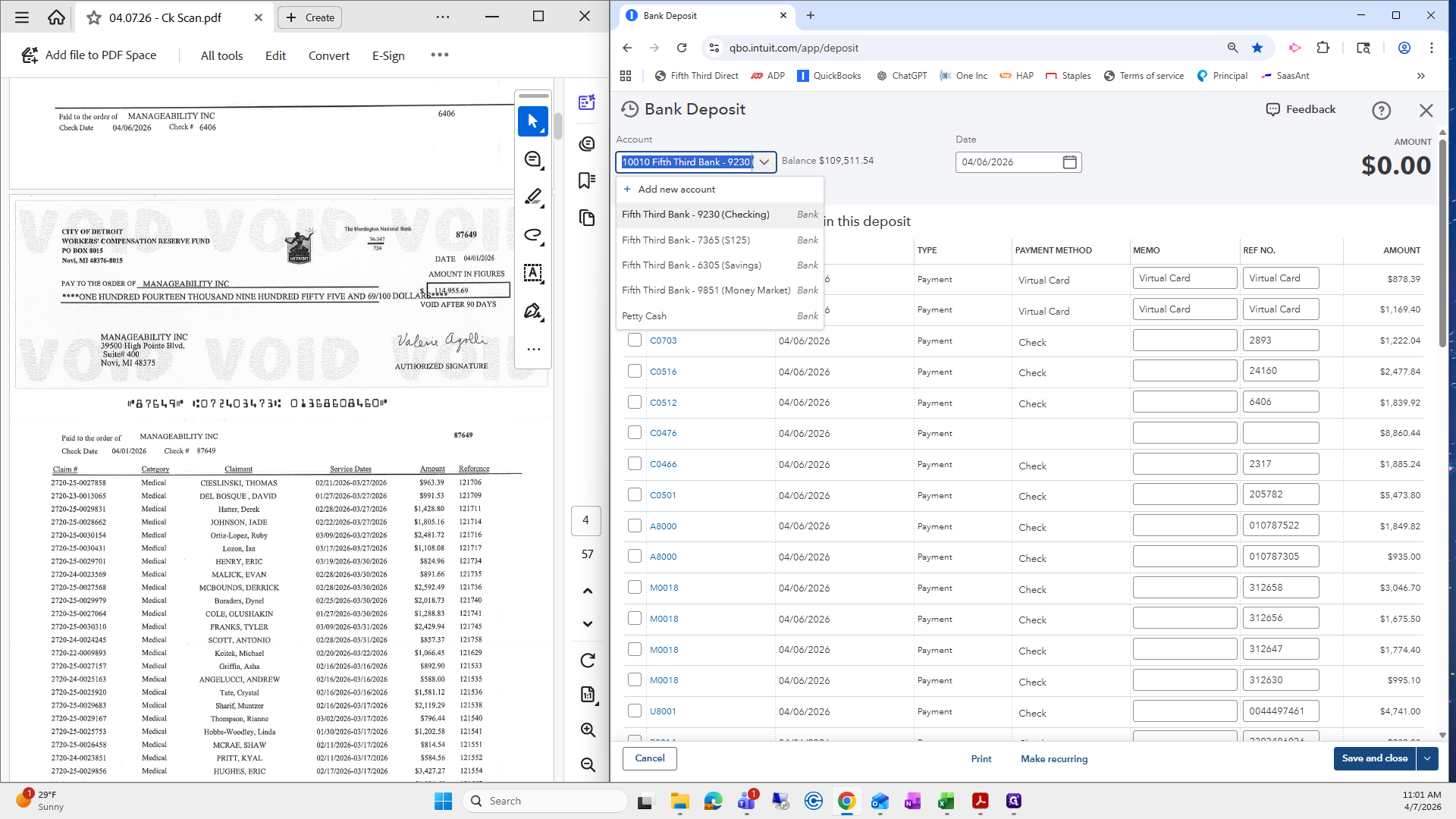
The deposit date will be today.
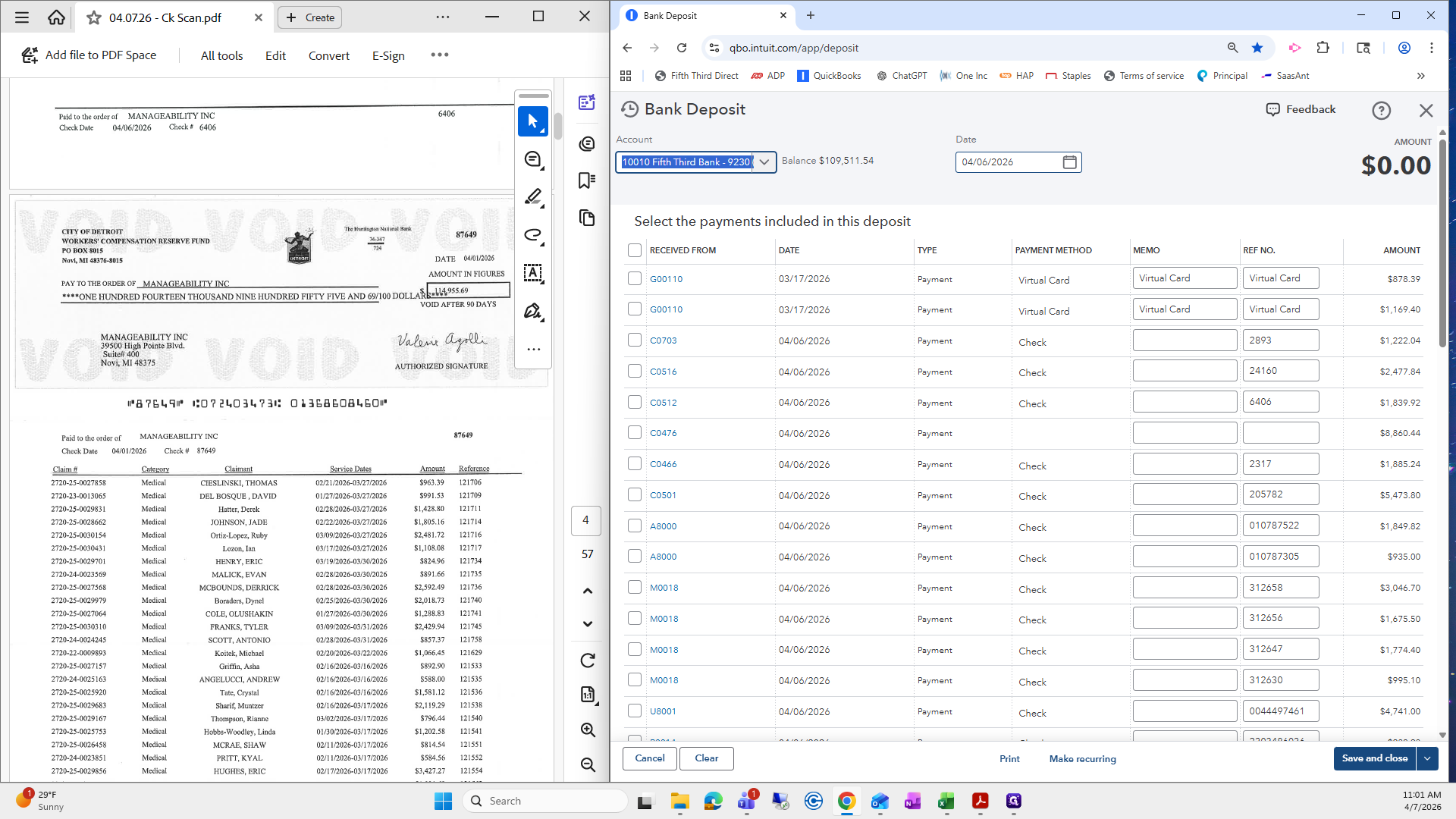
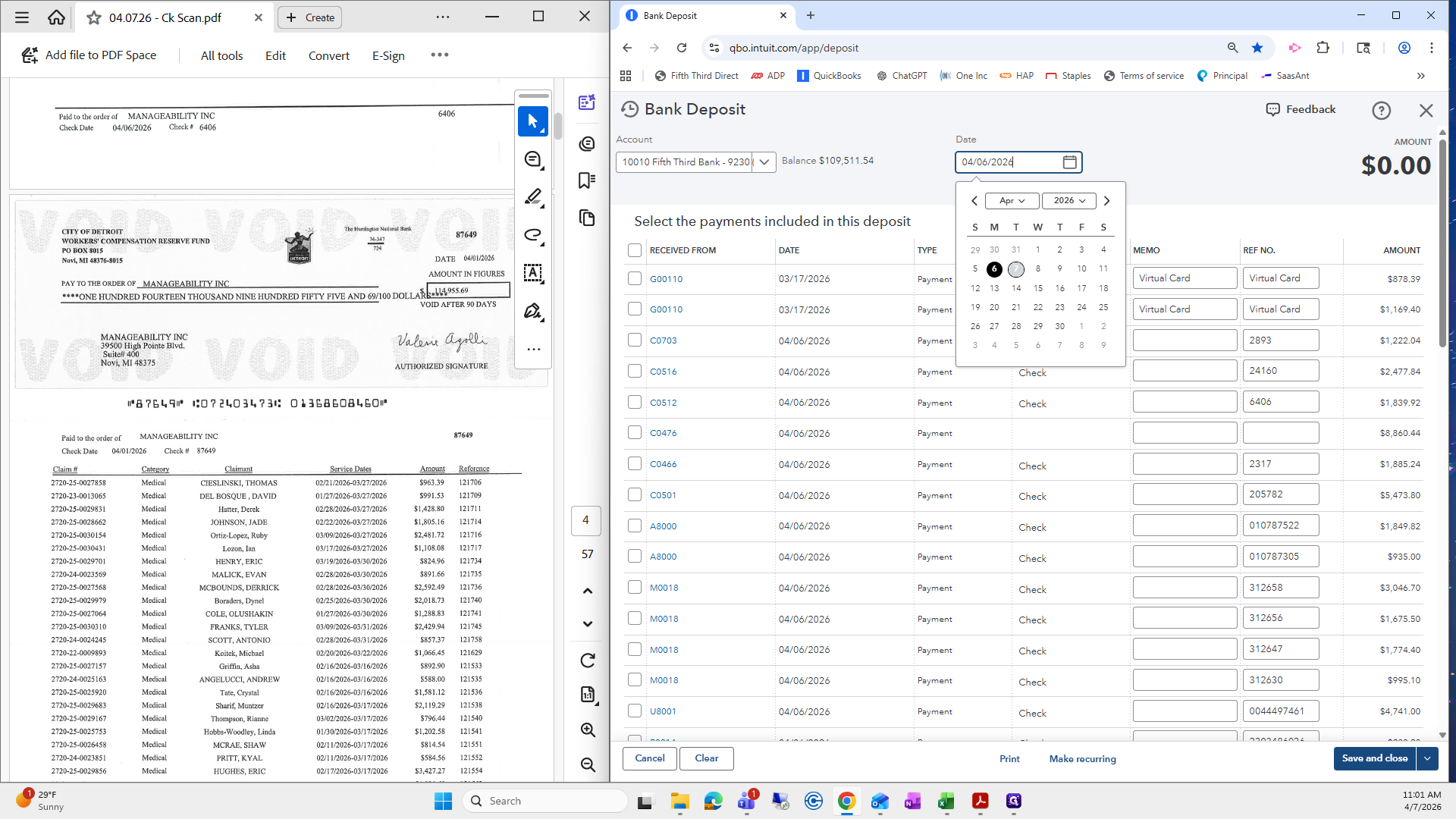
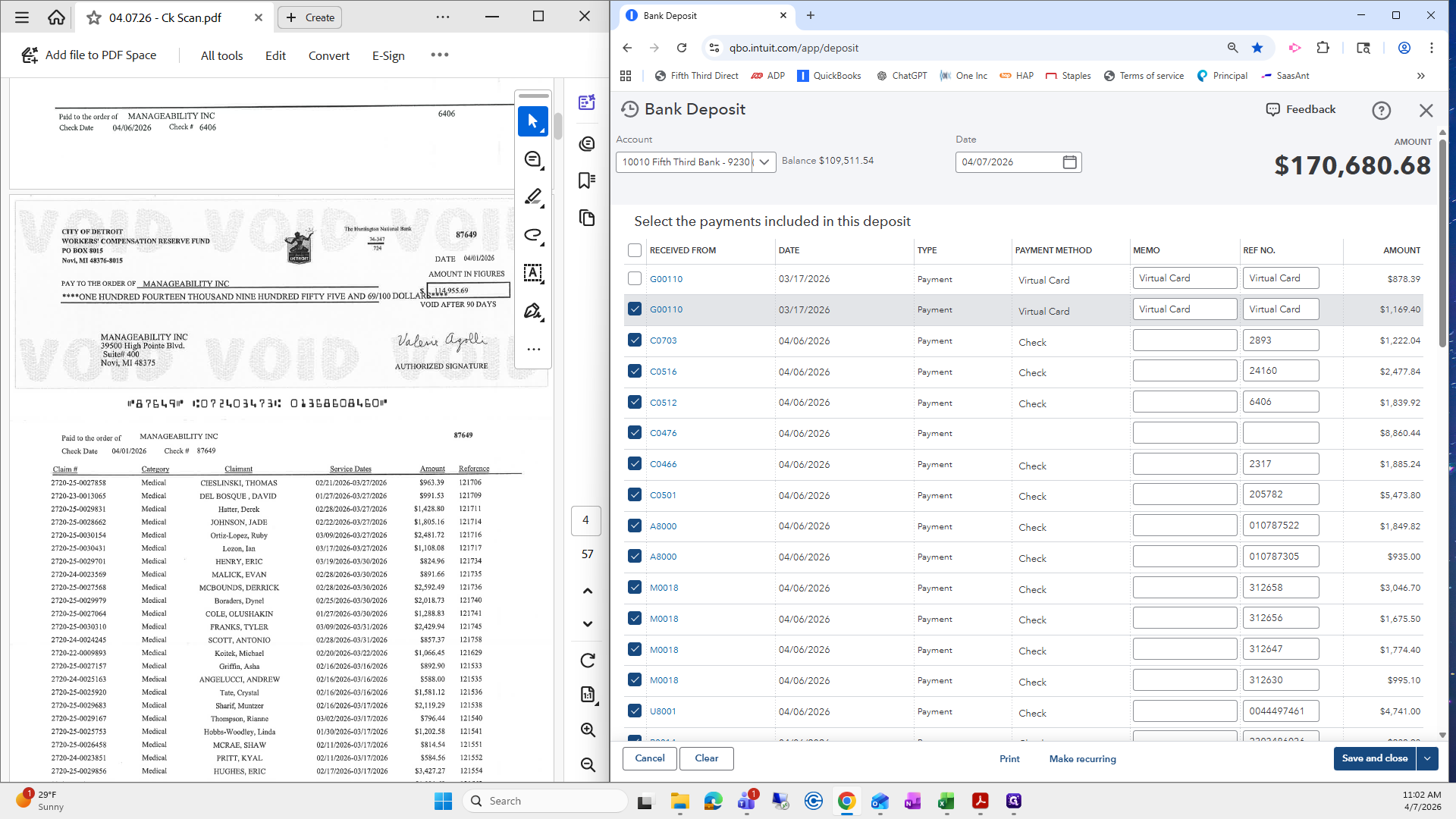
There are a few remaining deposits here that are stuck in the undeposited account, specifically these two. That's okay. We can check the rest of them, since that's what we did for 4/6. You can see it says 3/17. We do not want to include the 3/17 dates.
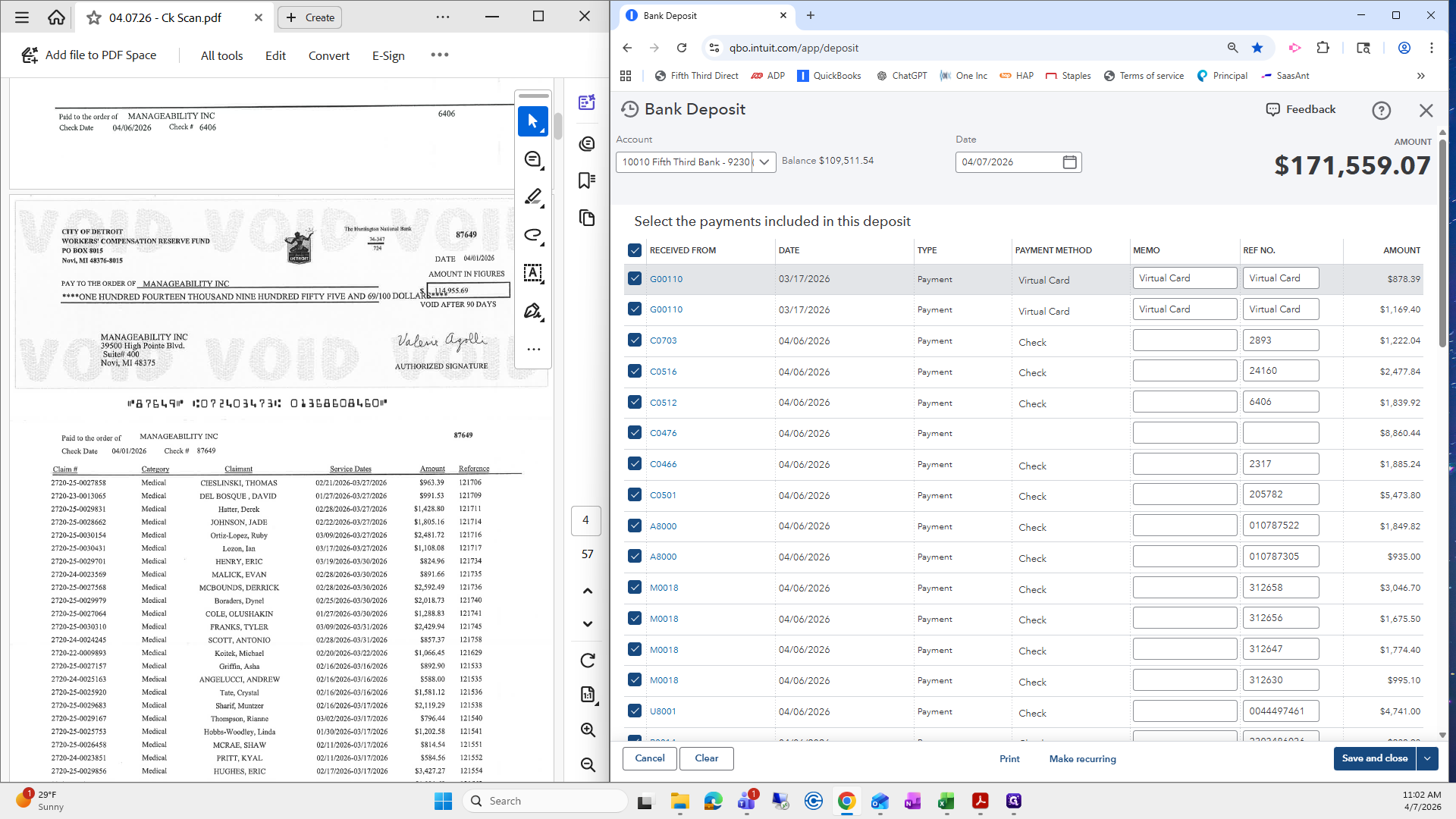
We only want to include the date for which we just entered checks. If you have multiple check deposits, process them one at a time. I will select all of these.
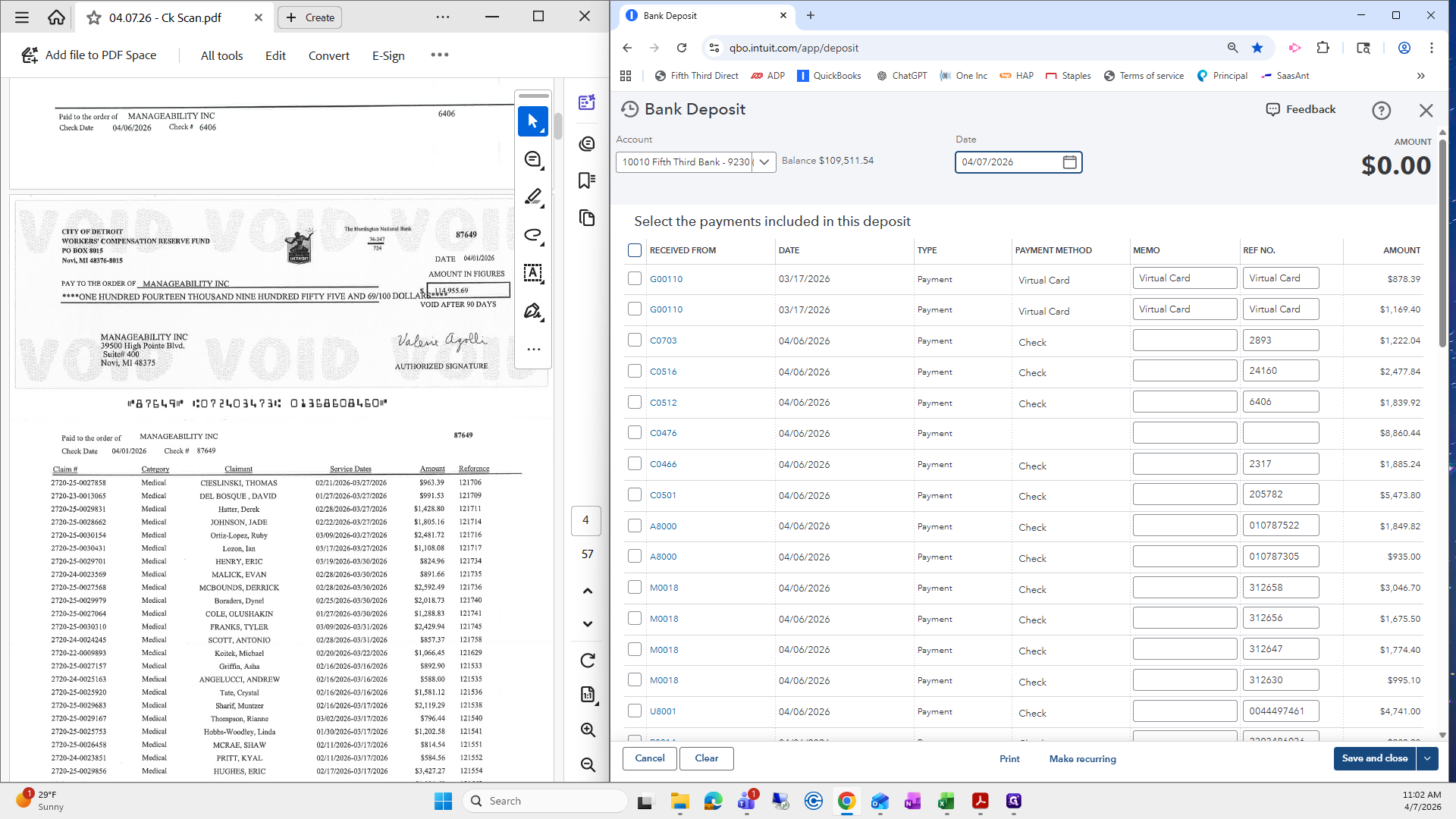
I will uncheck the 3/17s because we have not received them.
At the beginning of the videos, I mentioned that if we entered the check number and payment method first, the check number and payment method would not appear.
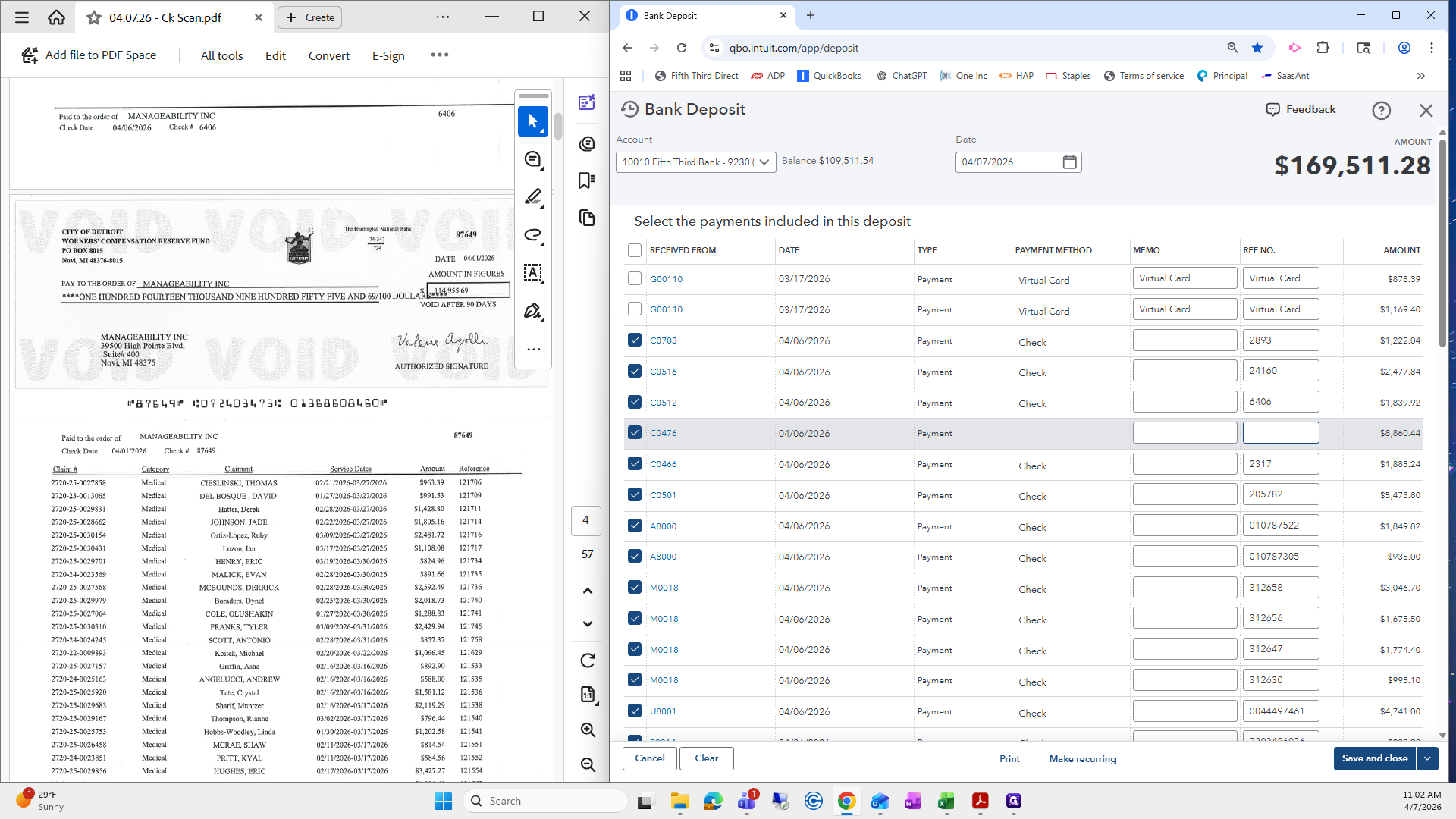
In this case, it did not.
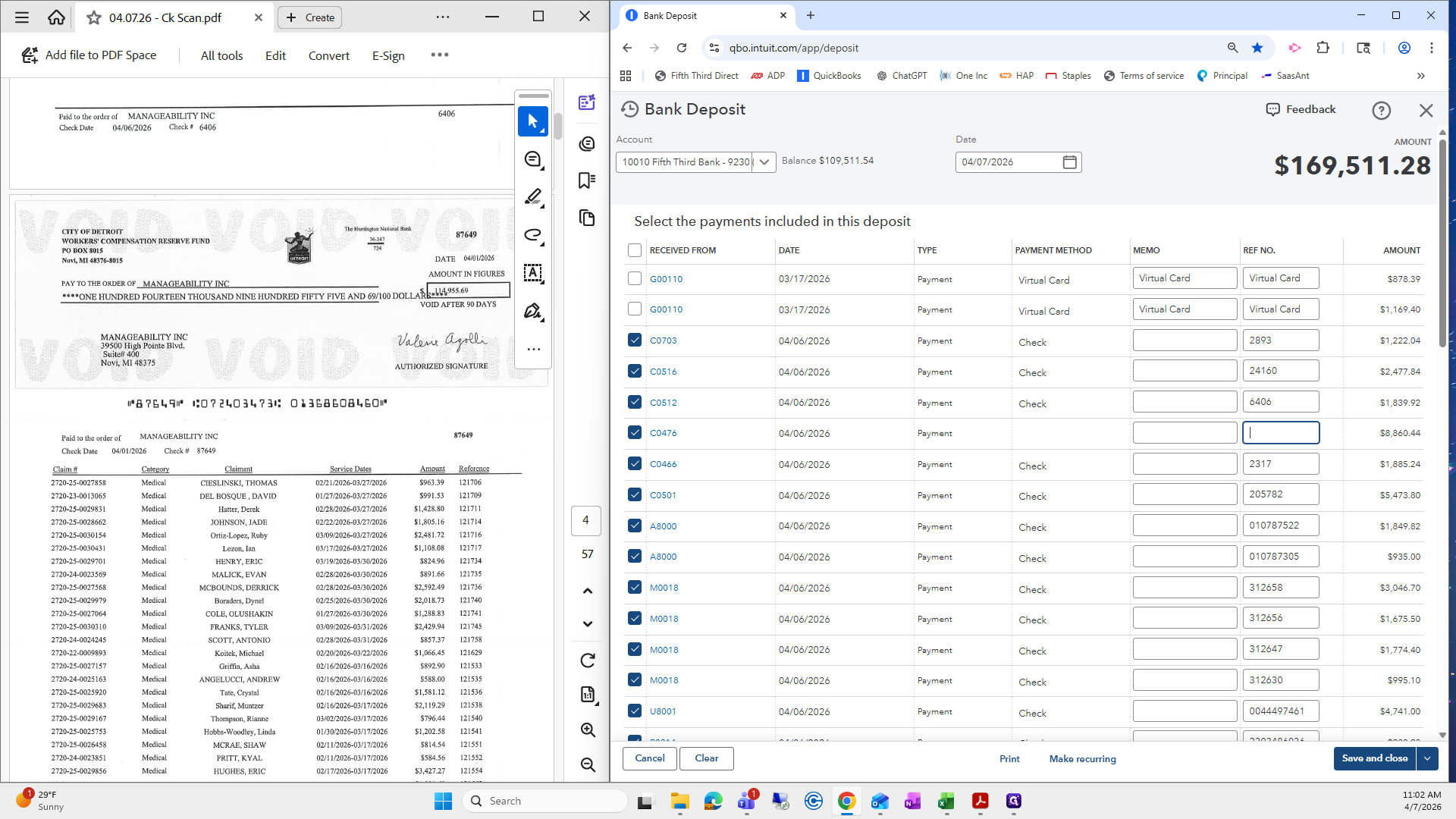
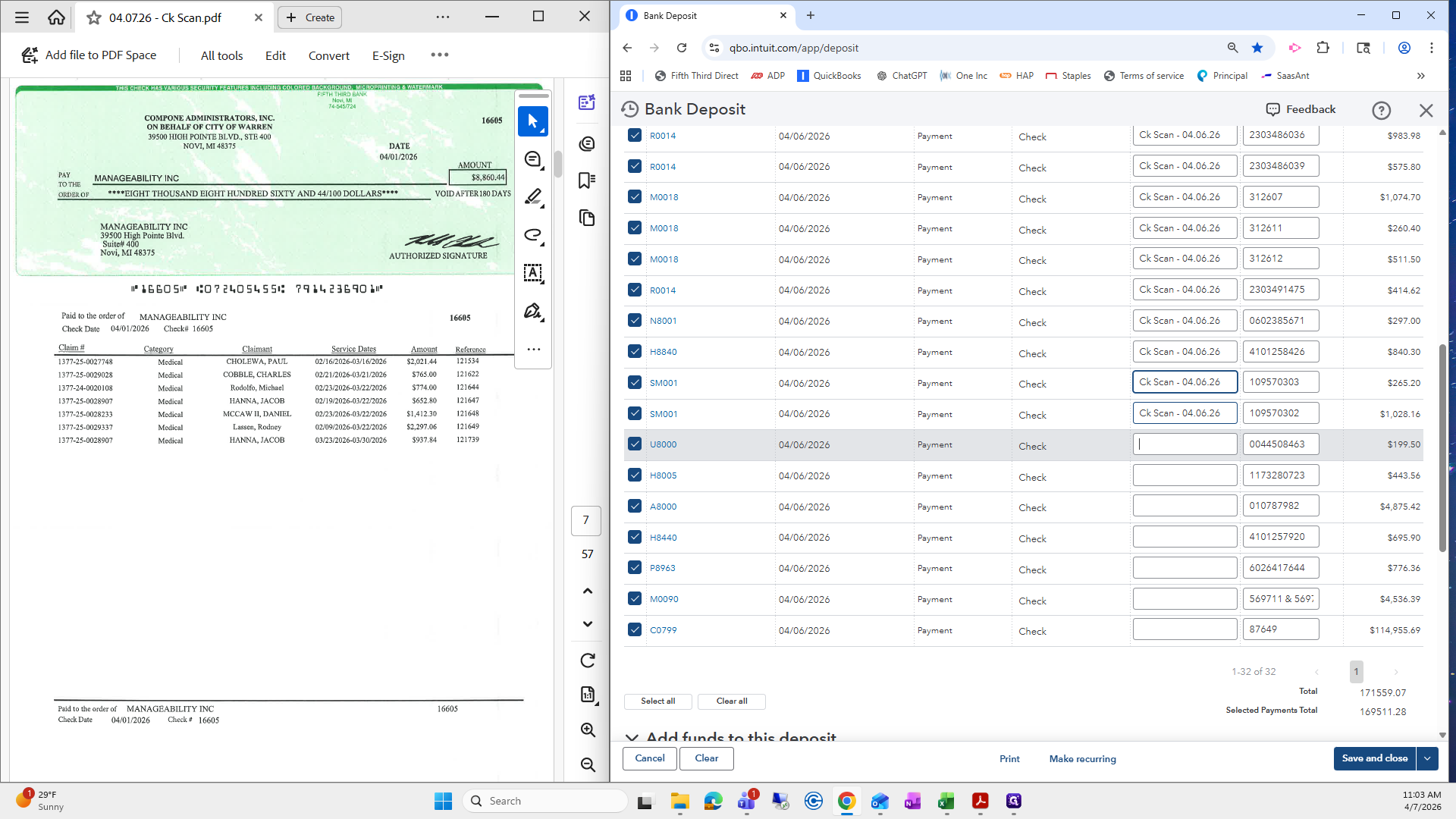
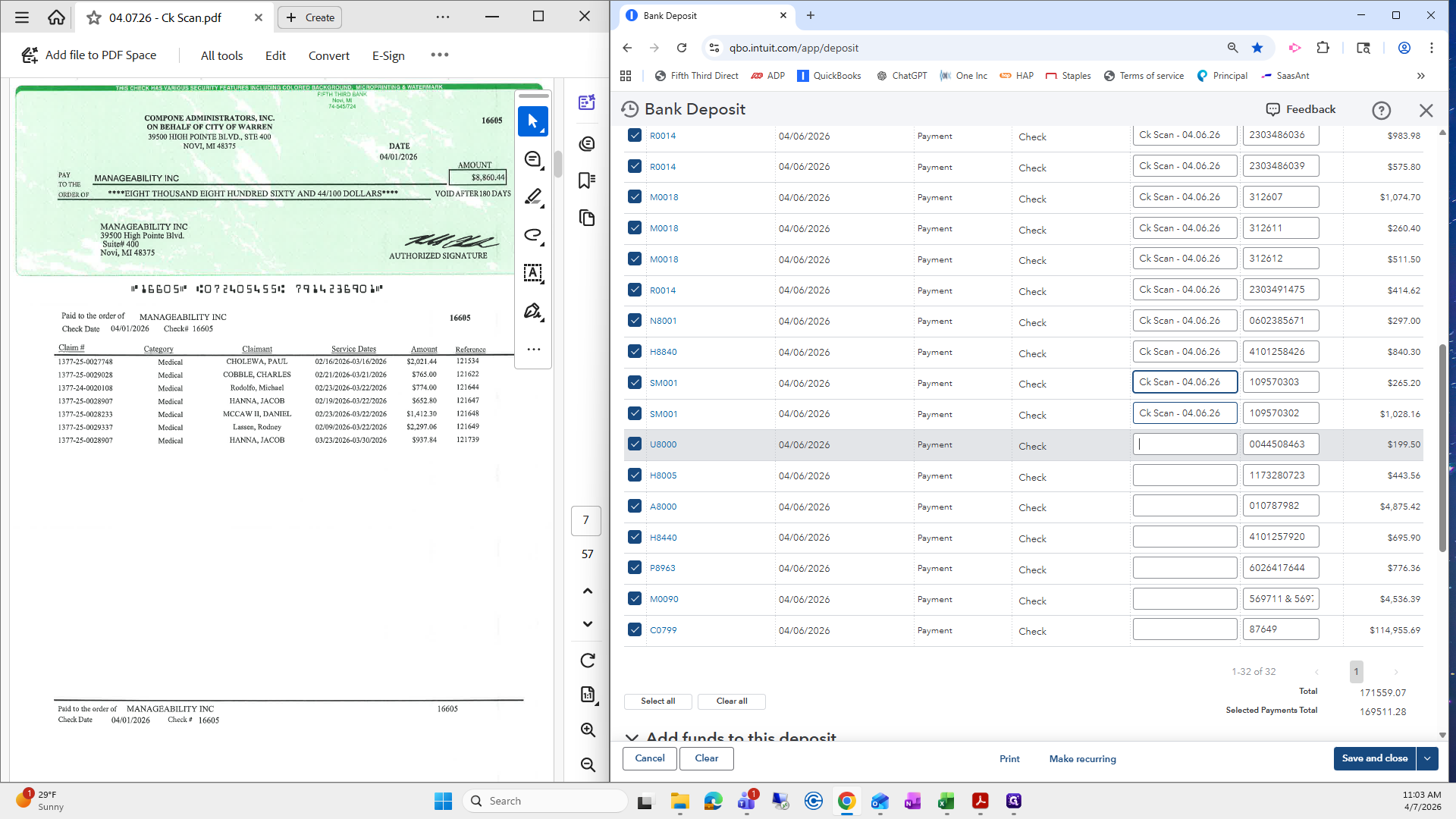
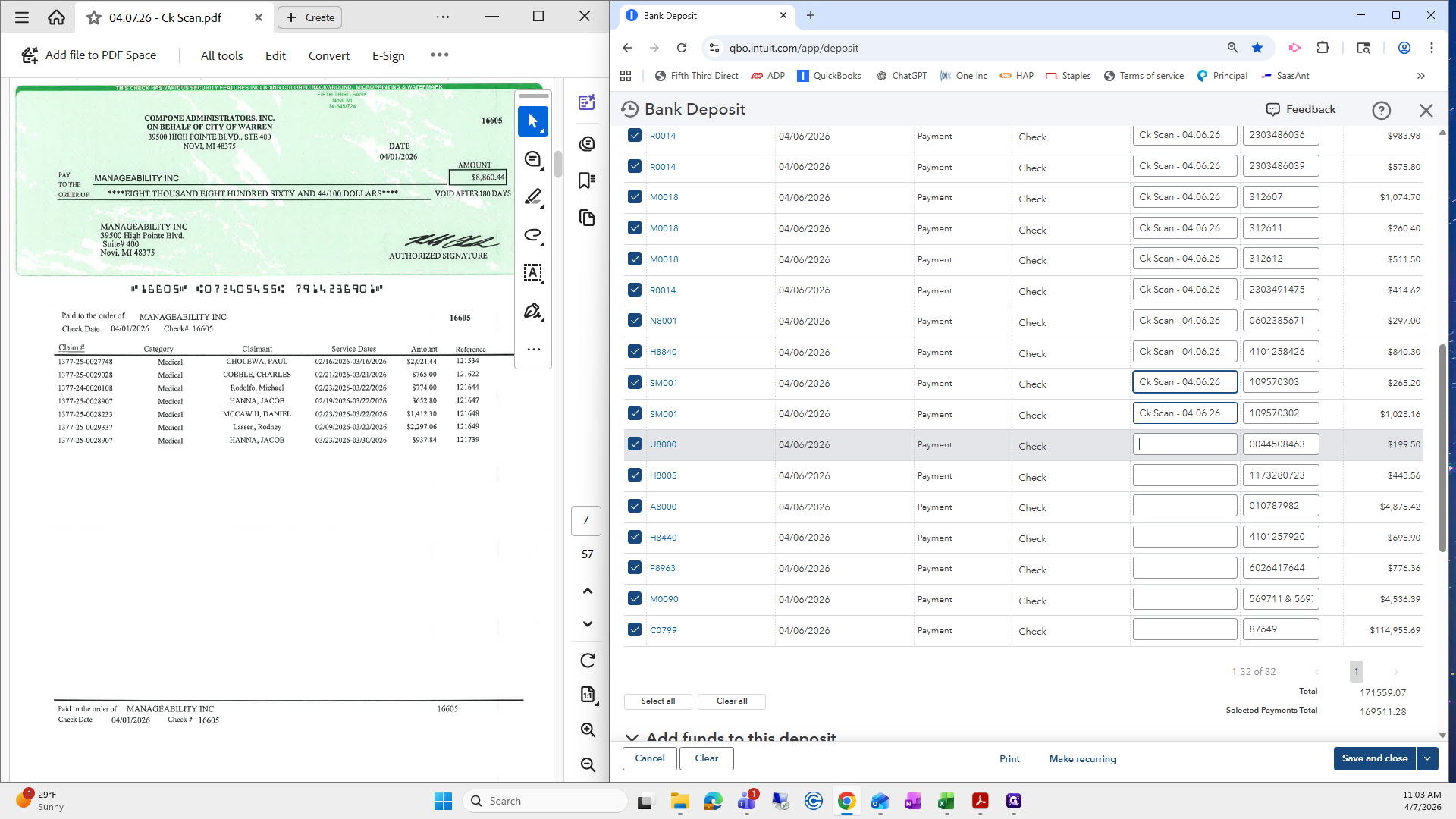
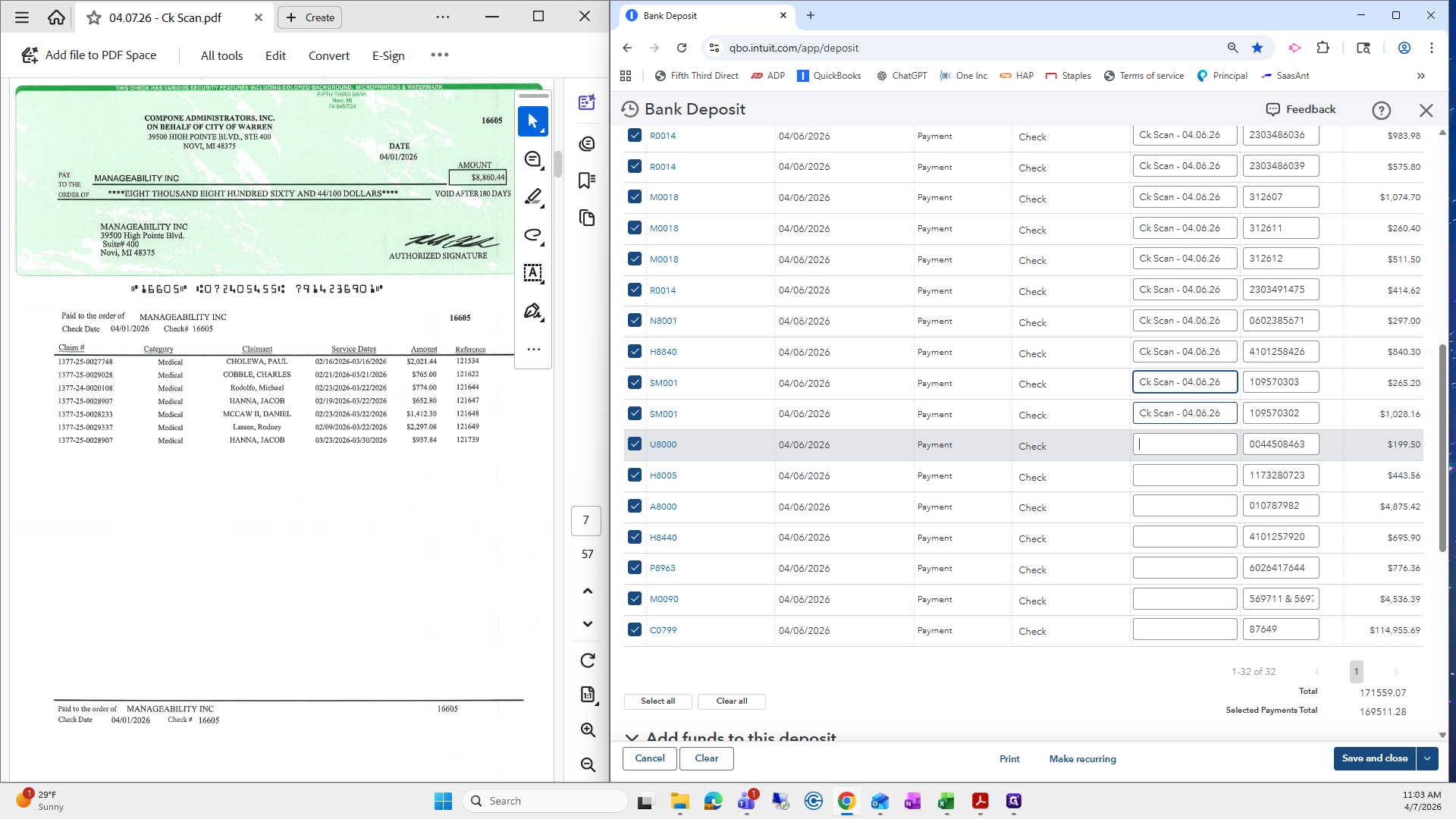
I will look for the $8,000 check so we can enter it.
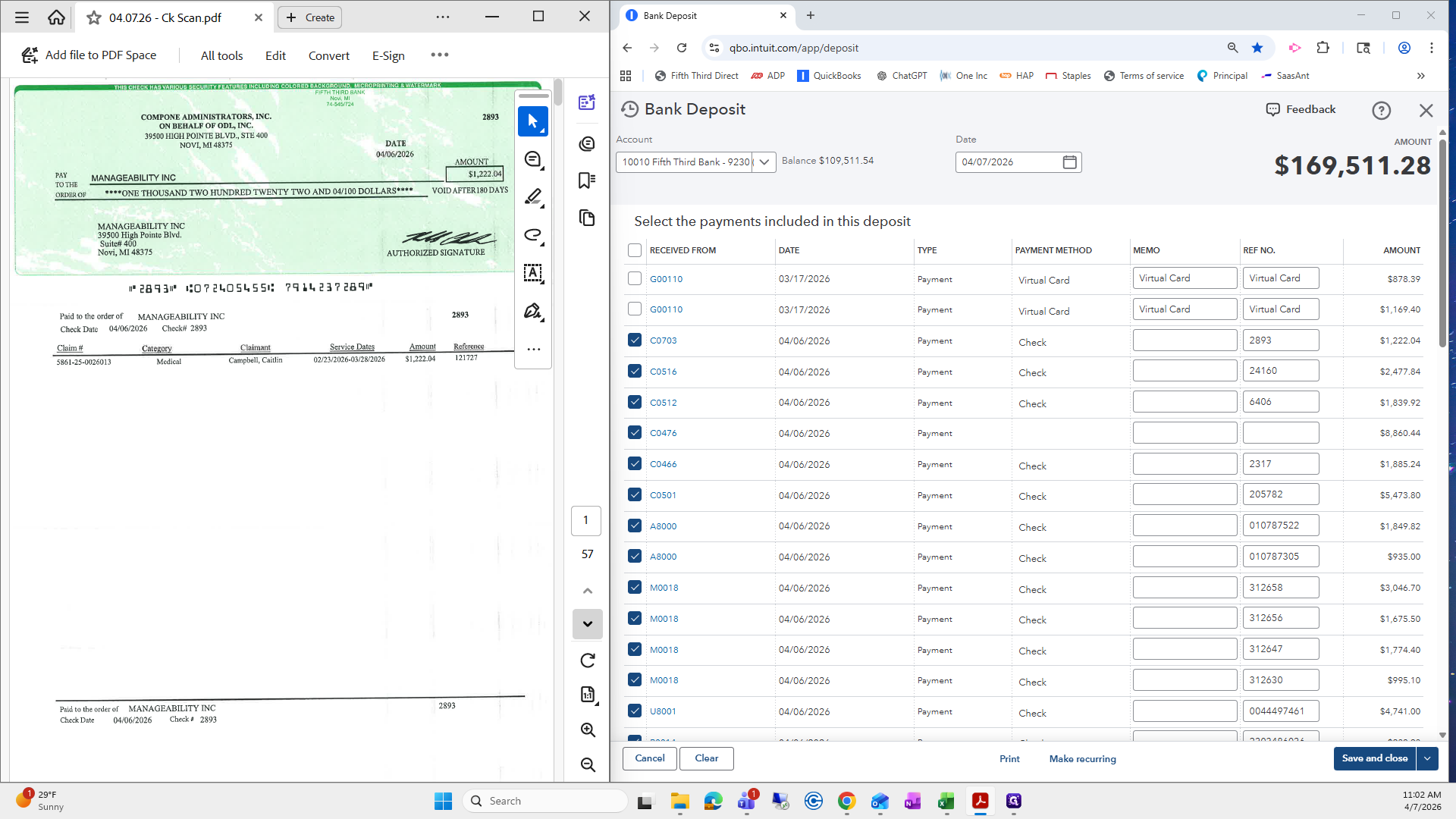
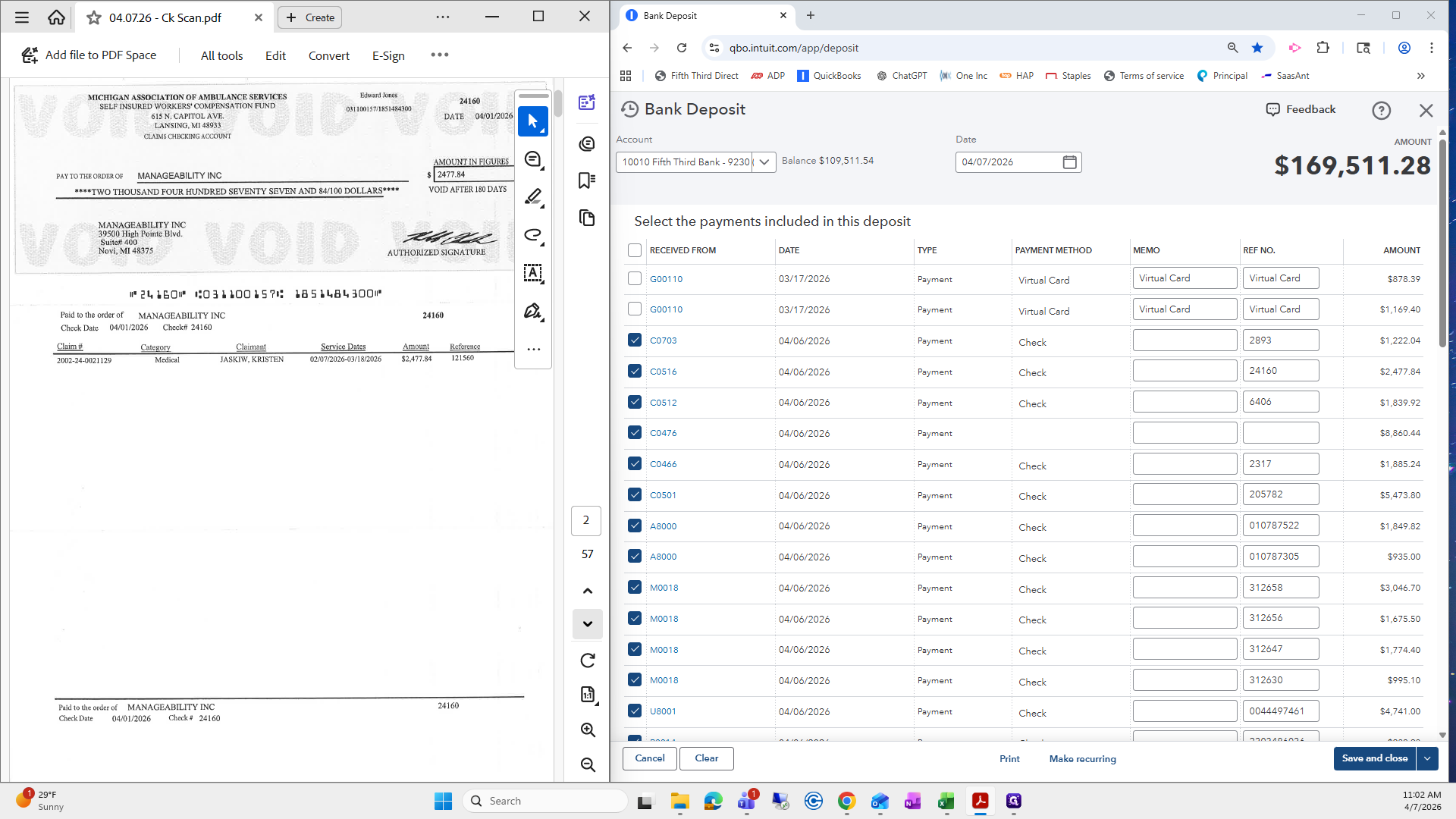
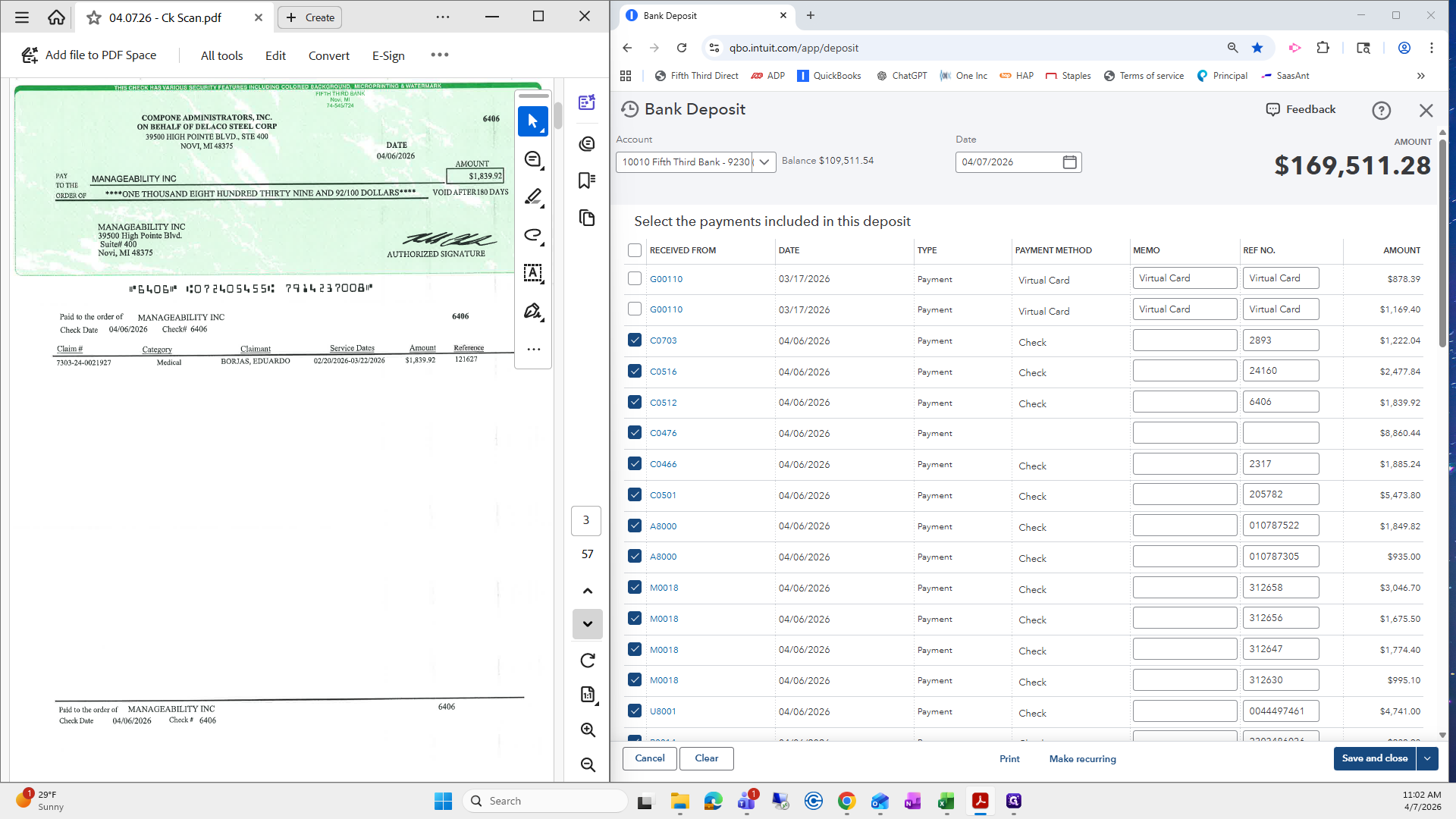
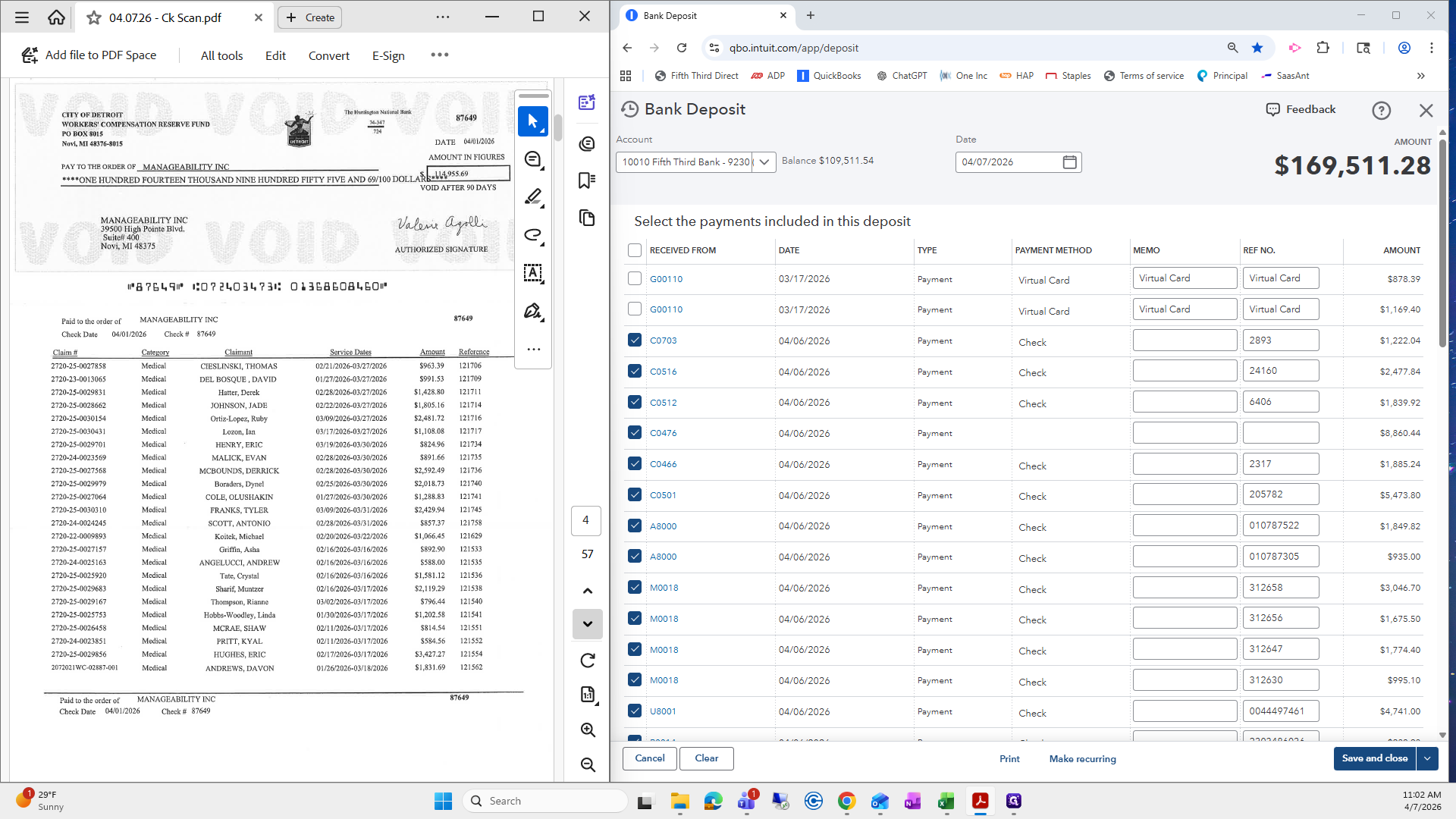
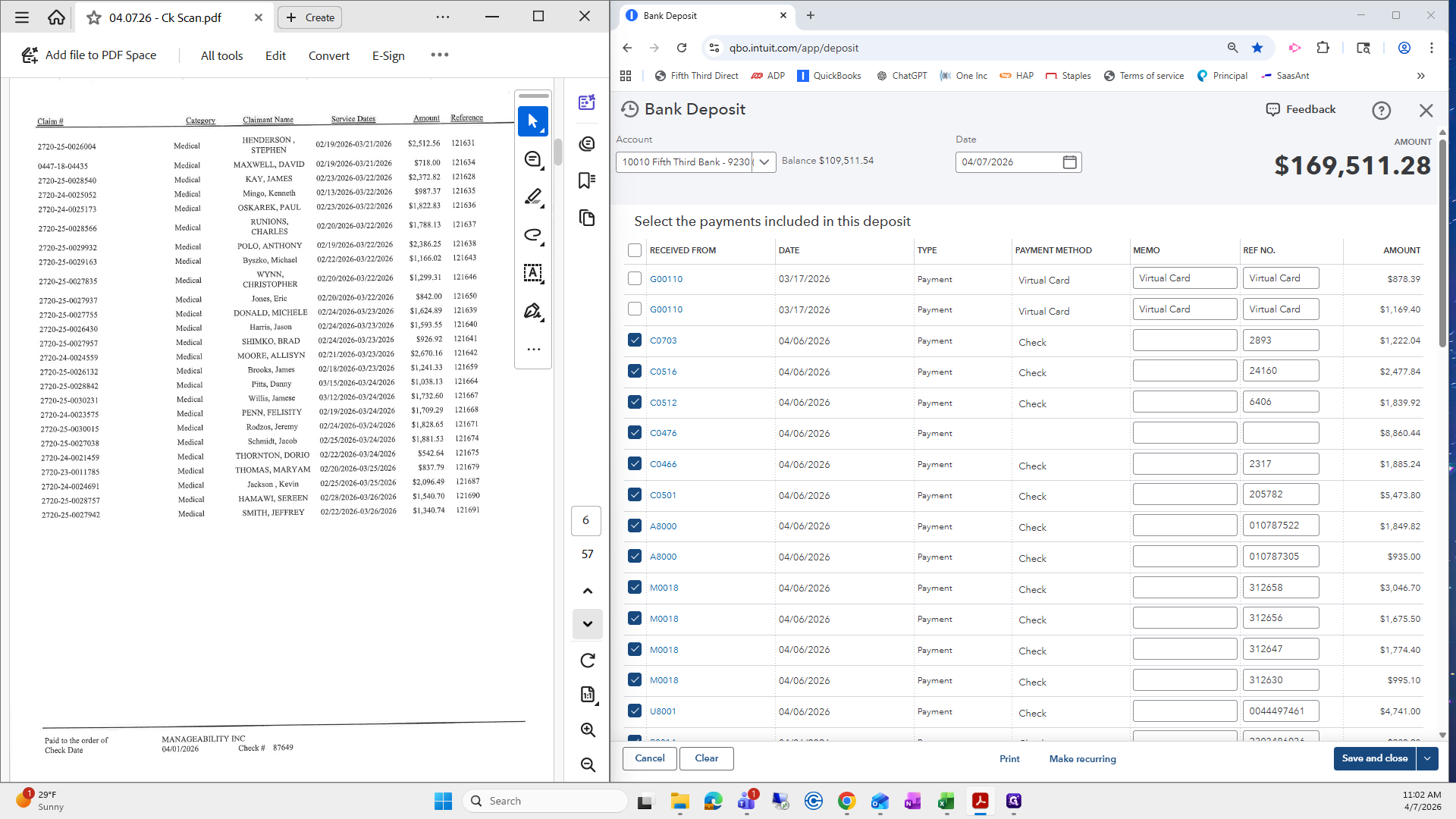
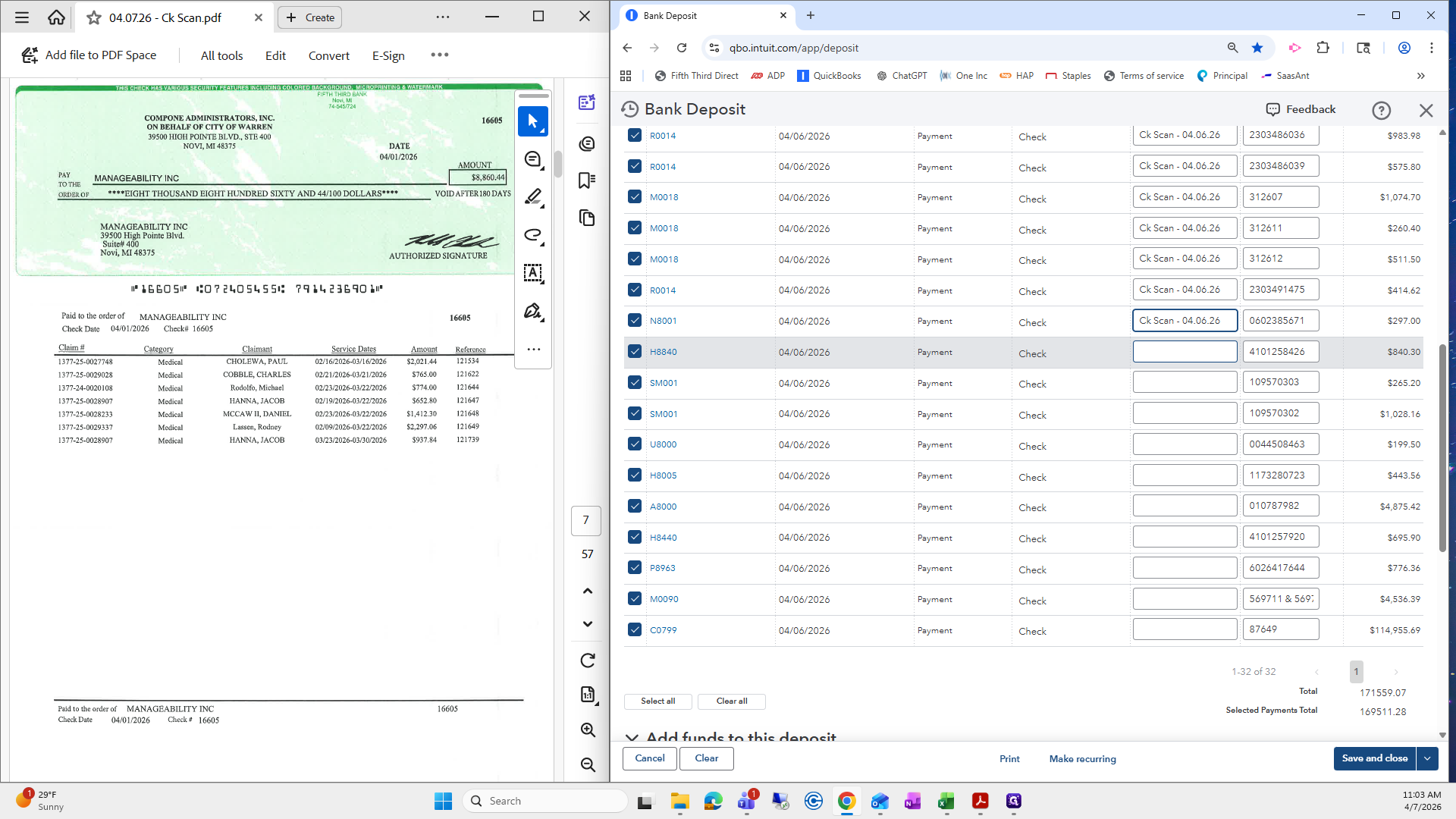
It's right here. It will be 16605.
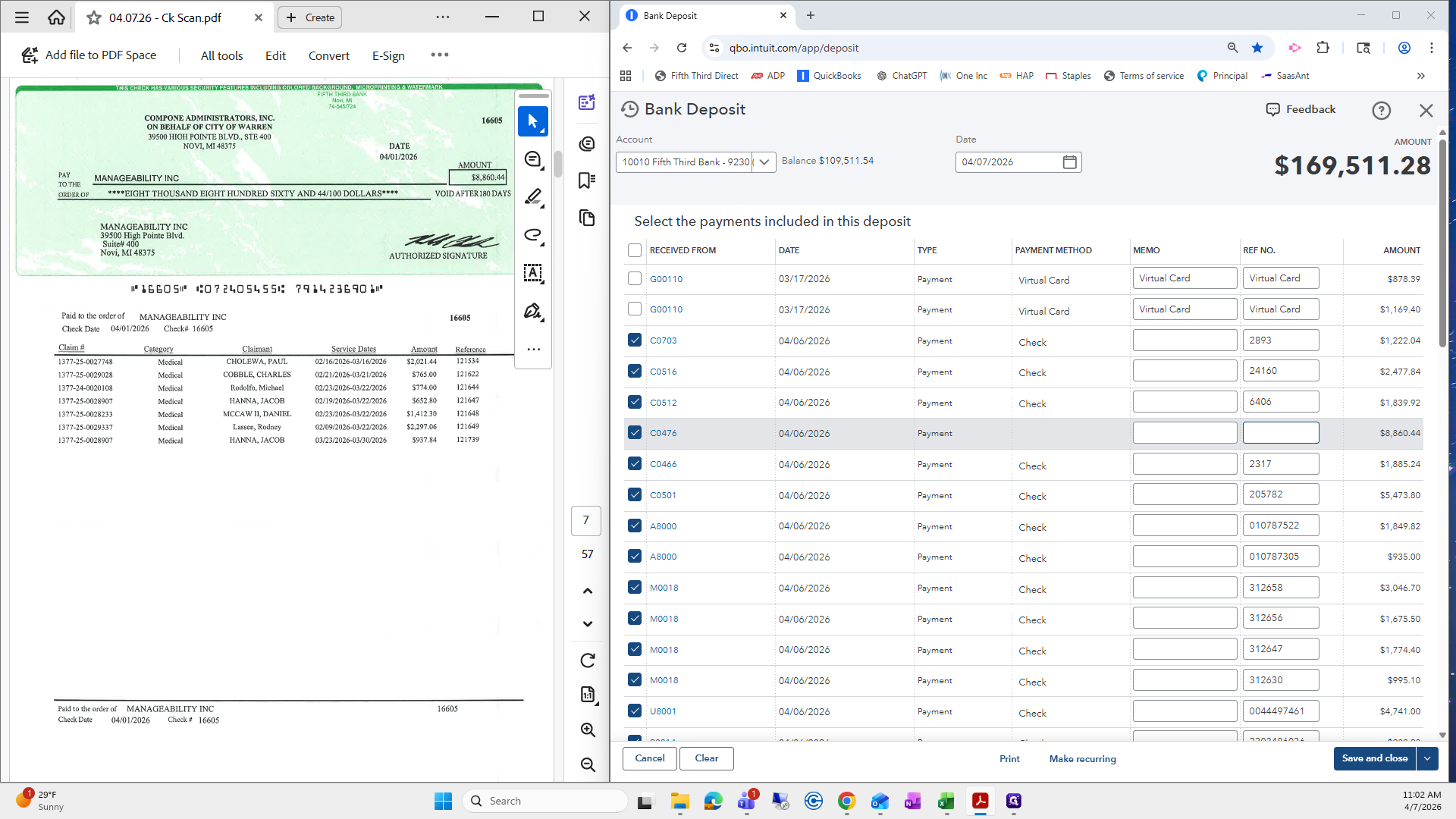
It is a check.
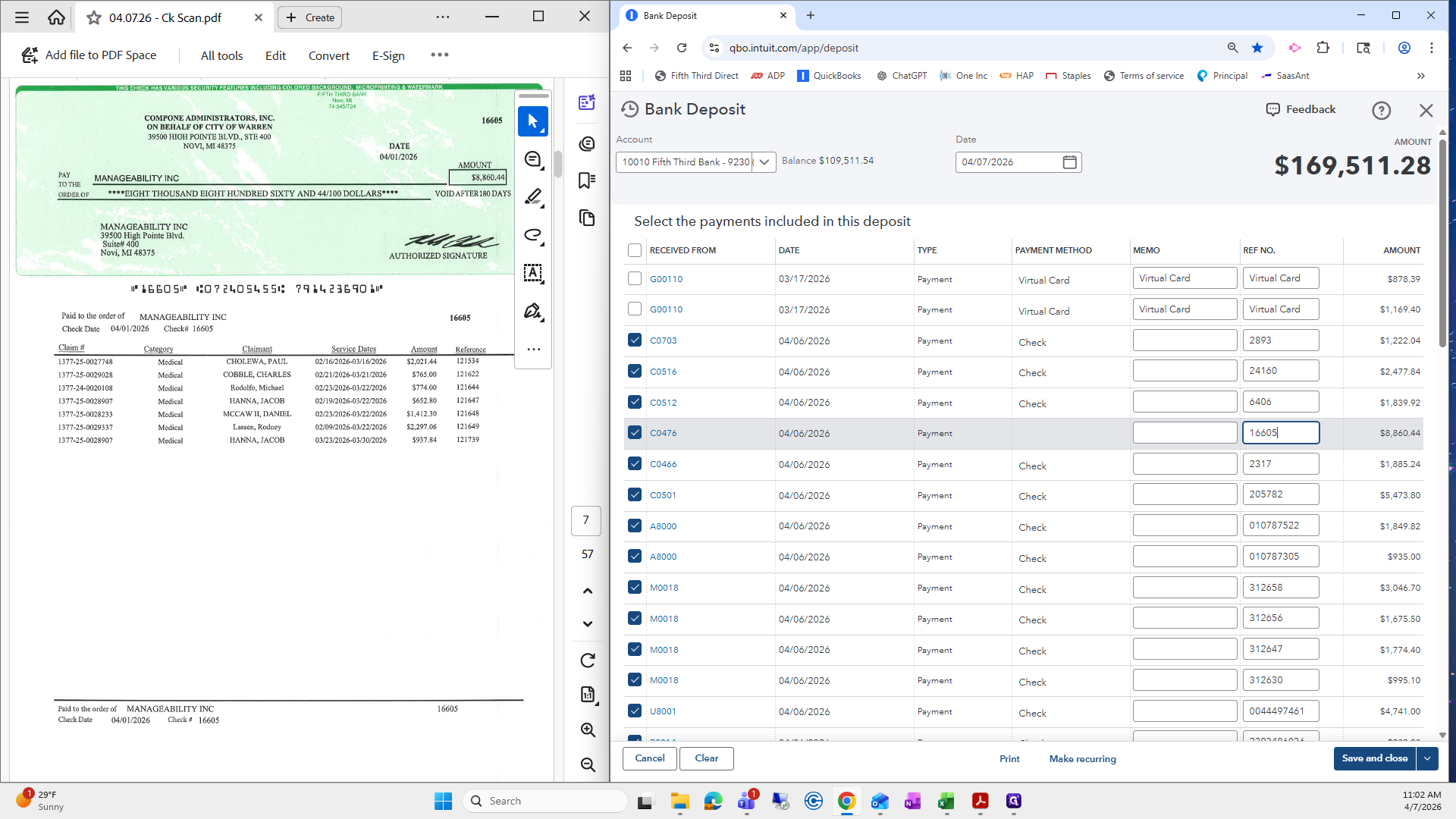
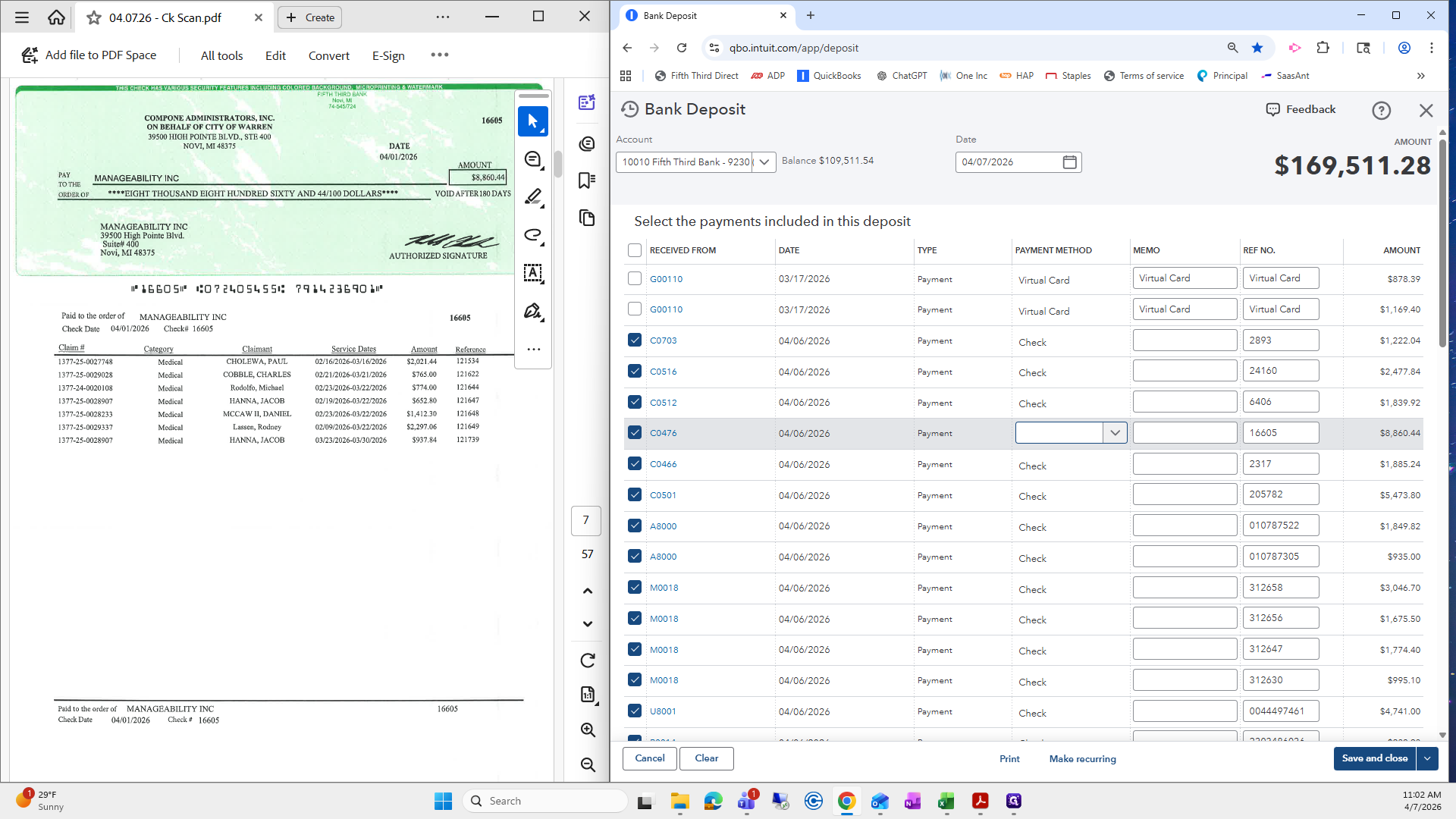
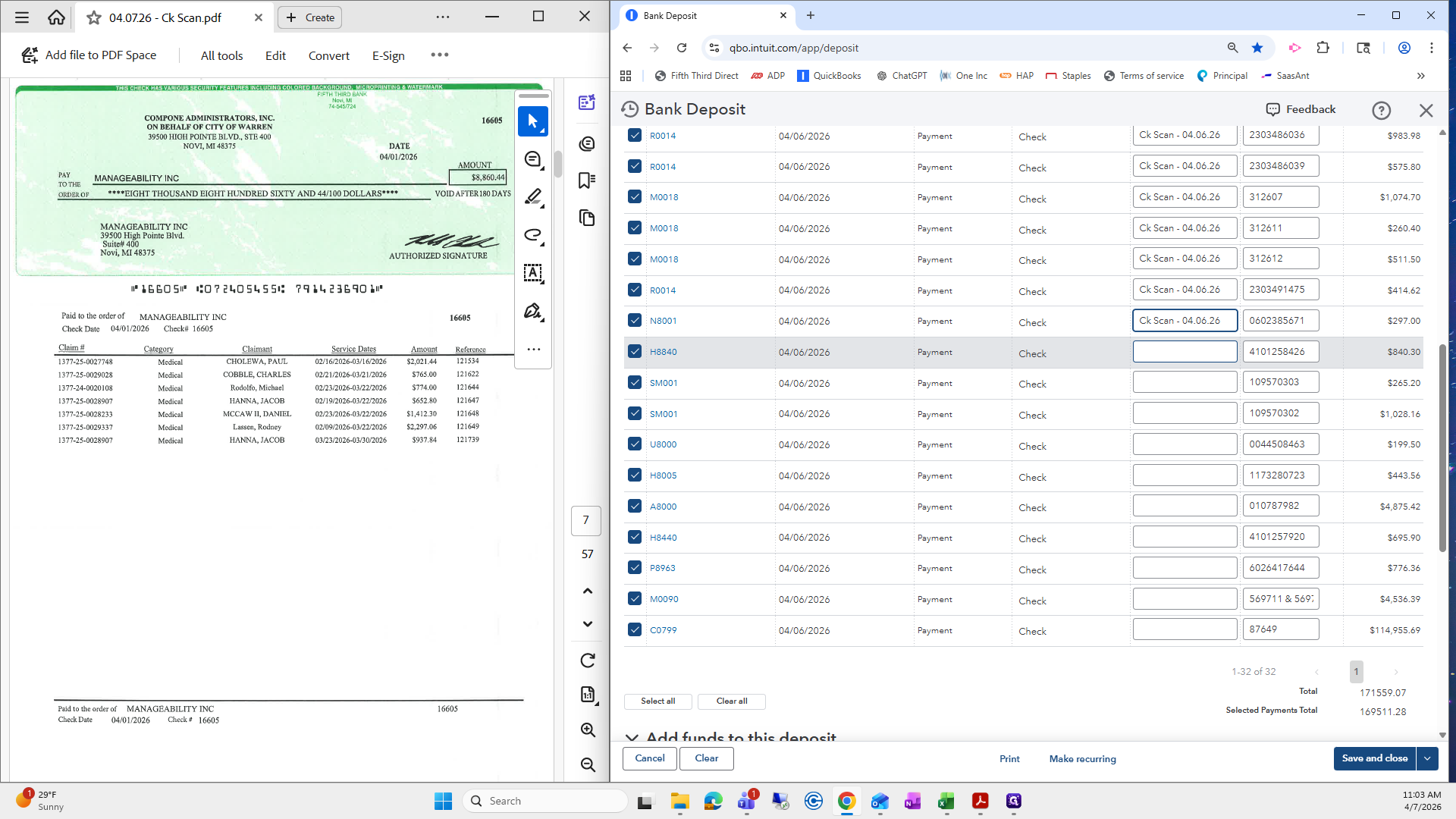
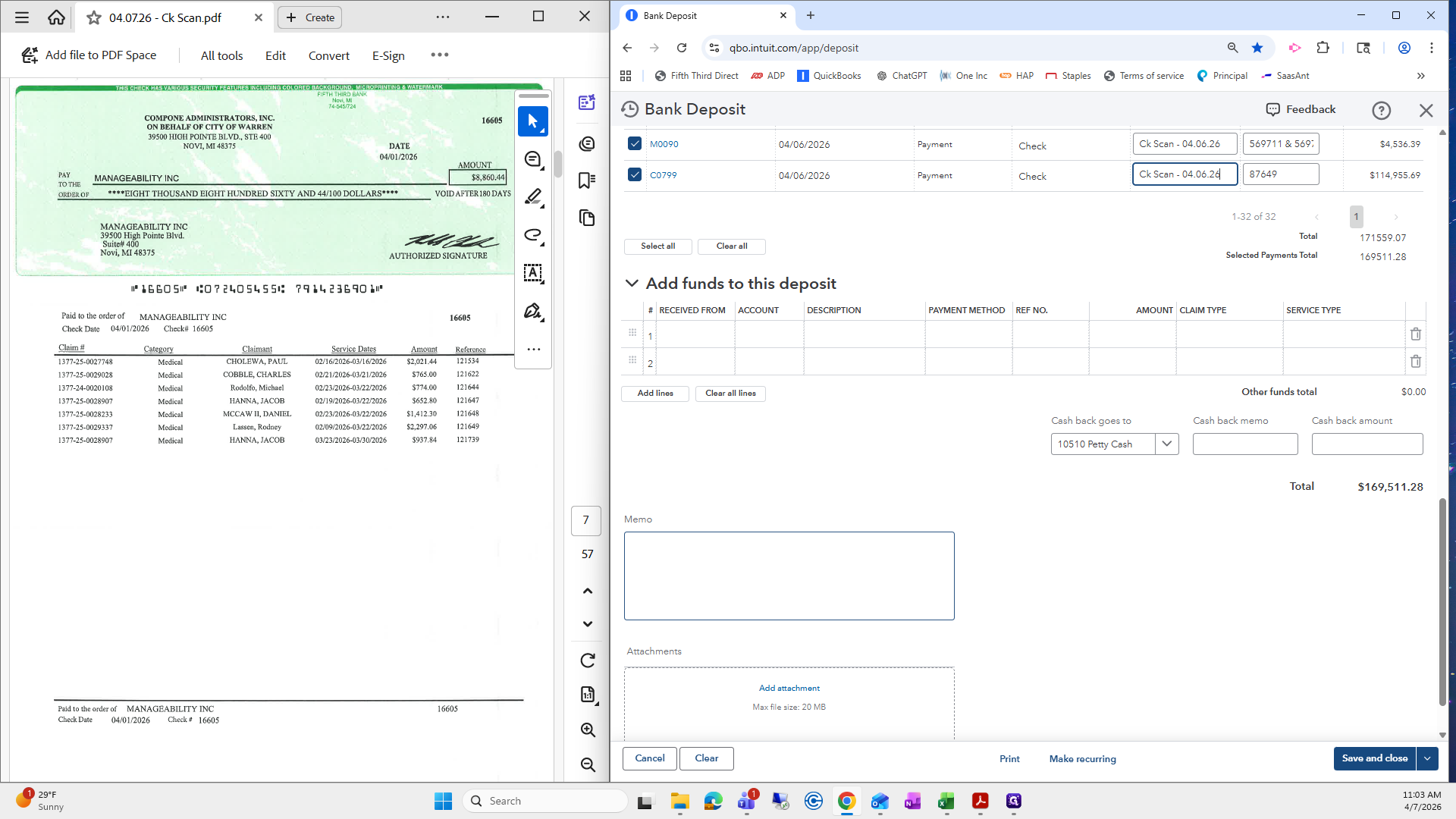
This is from check scan 46.
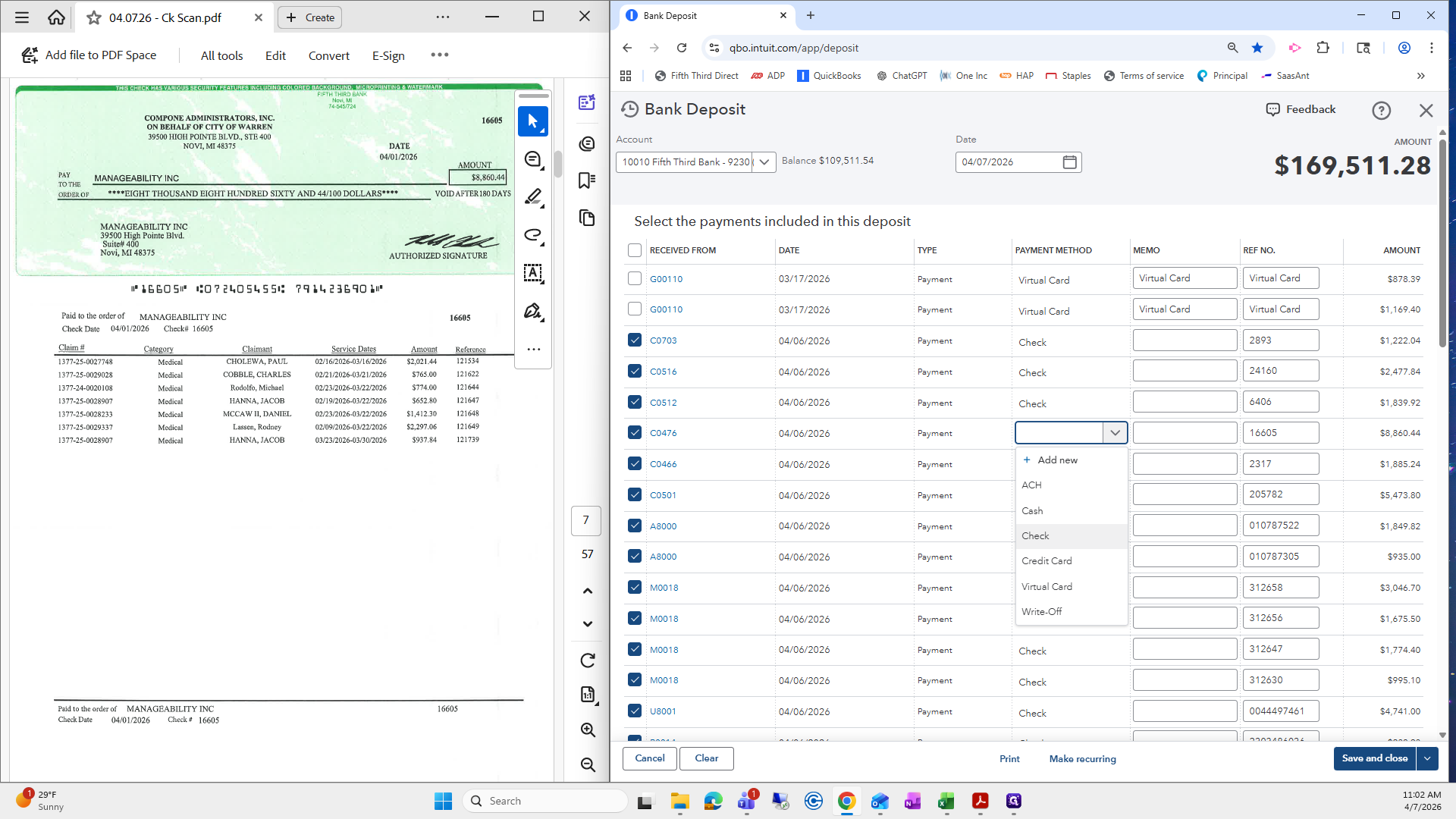
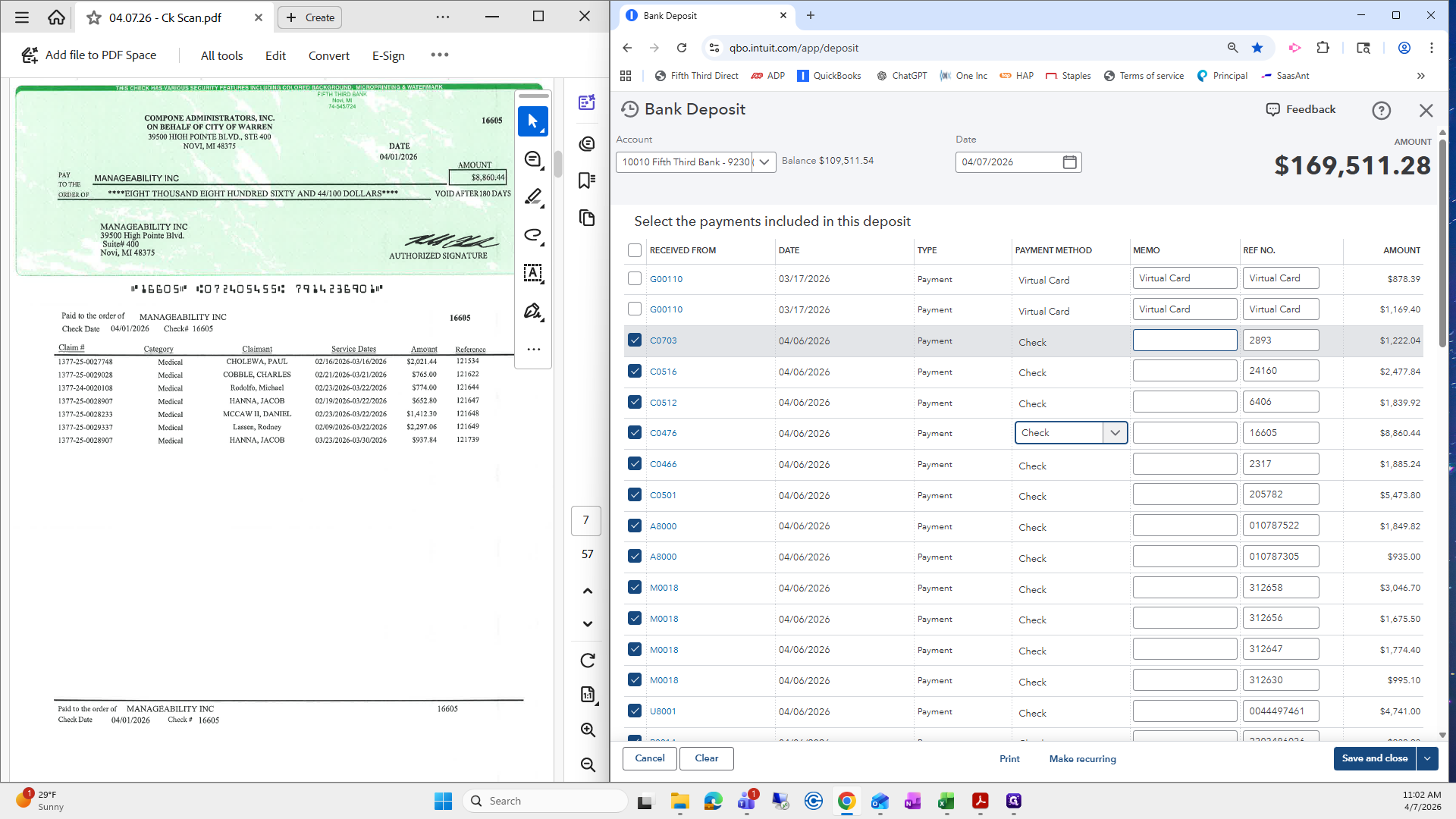
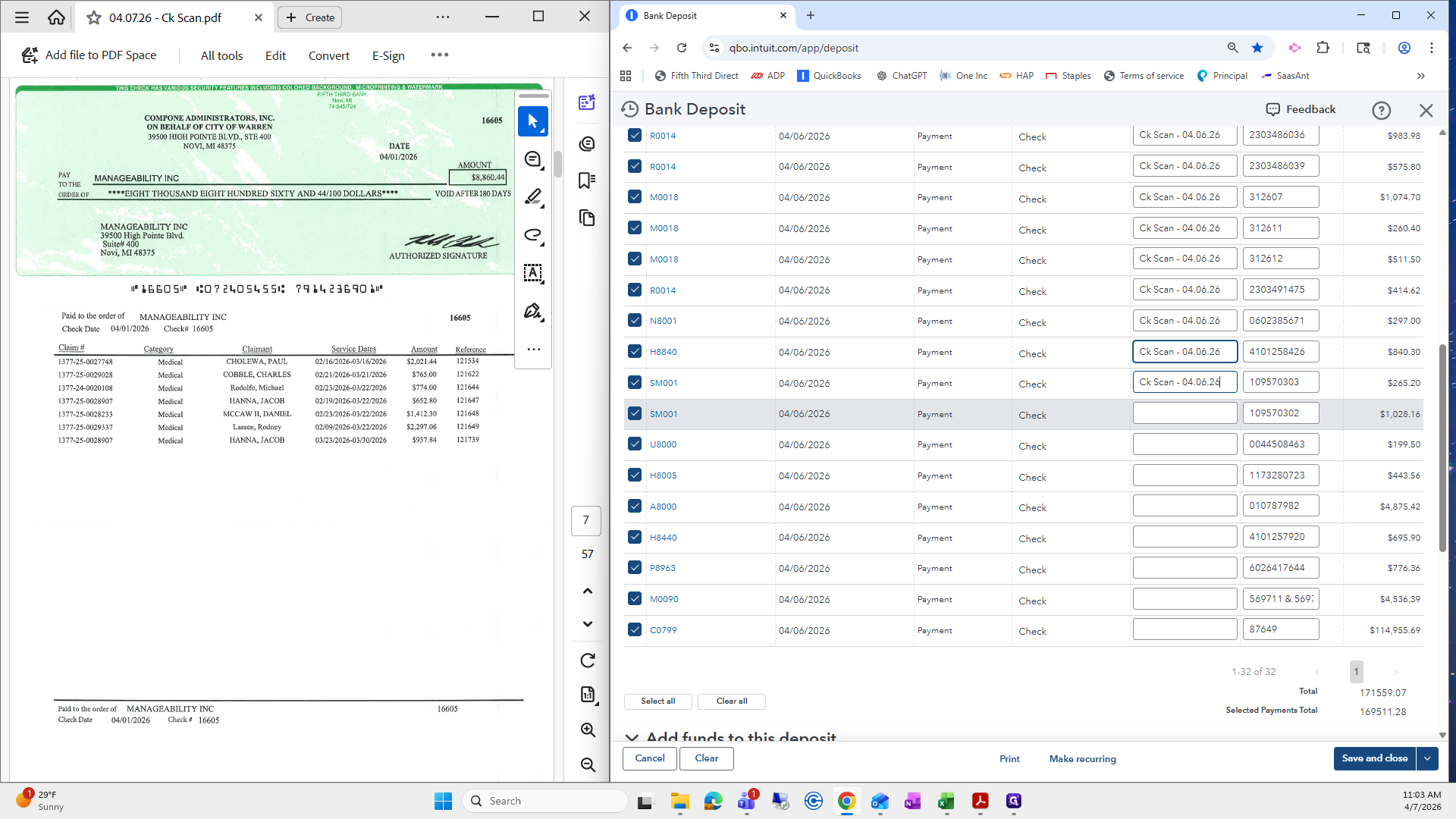
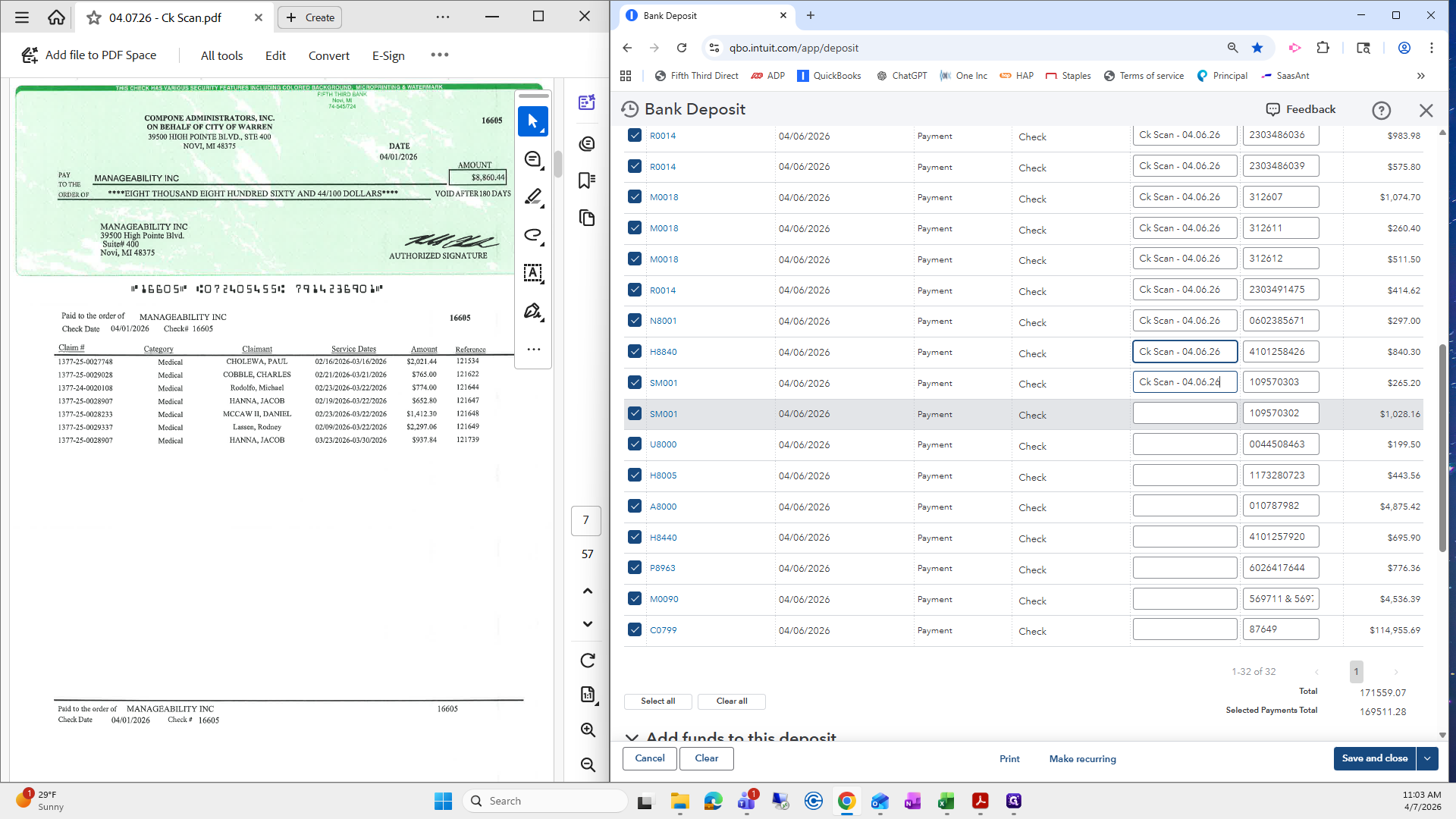
I like to put check scan dash 040626.
I copy and paste all the way down. I know it's annoying.
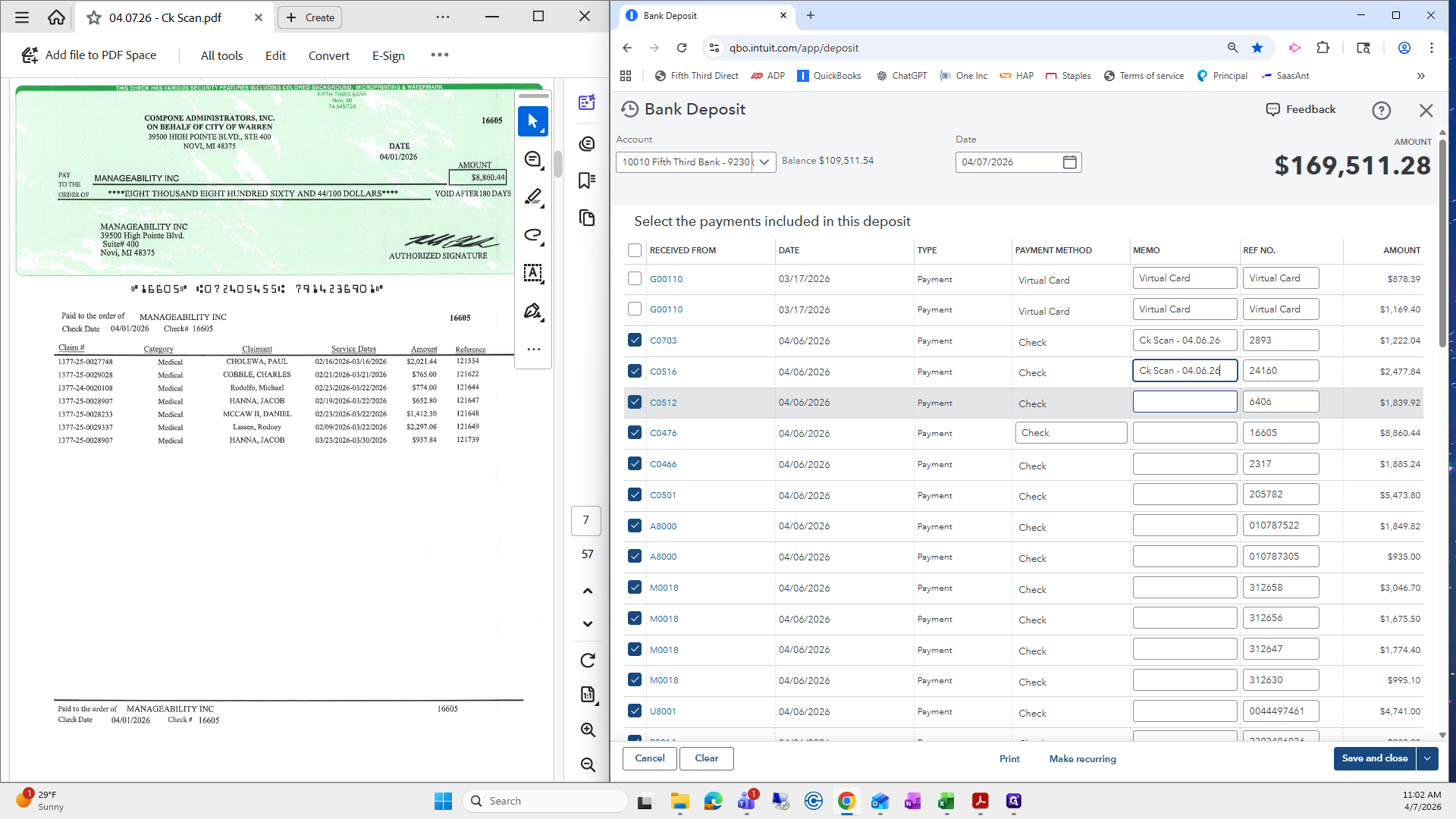
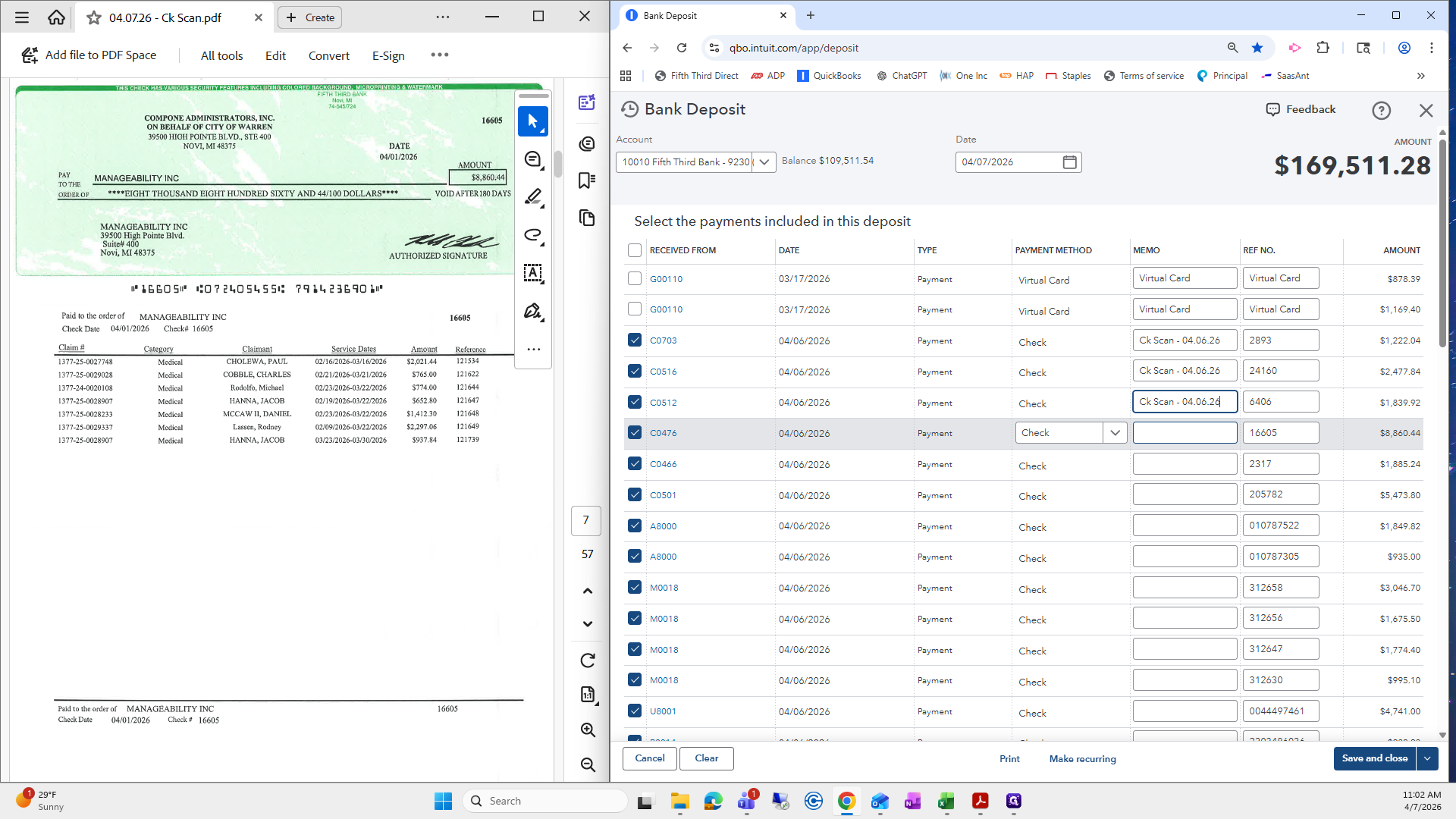
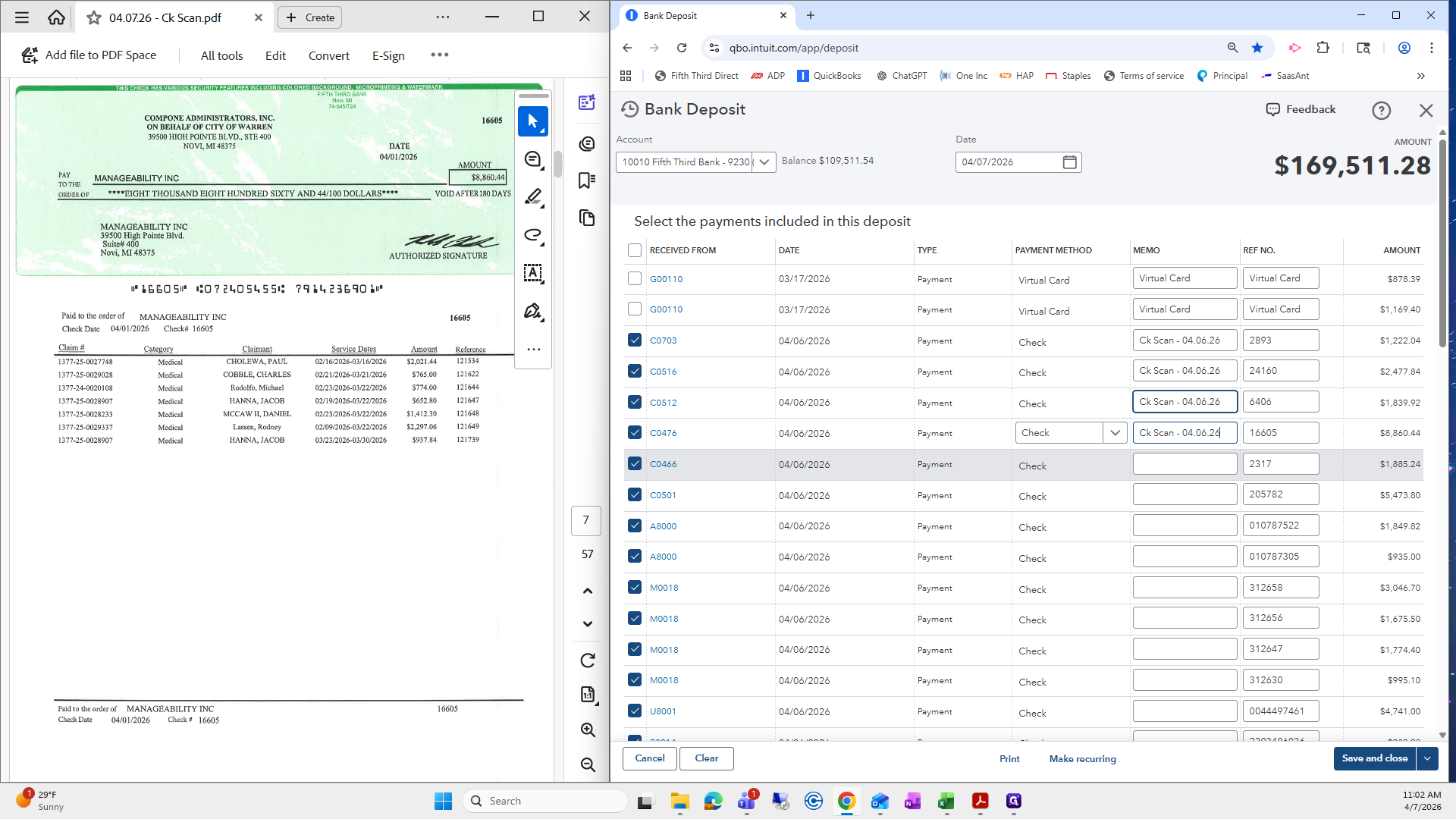
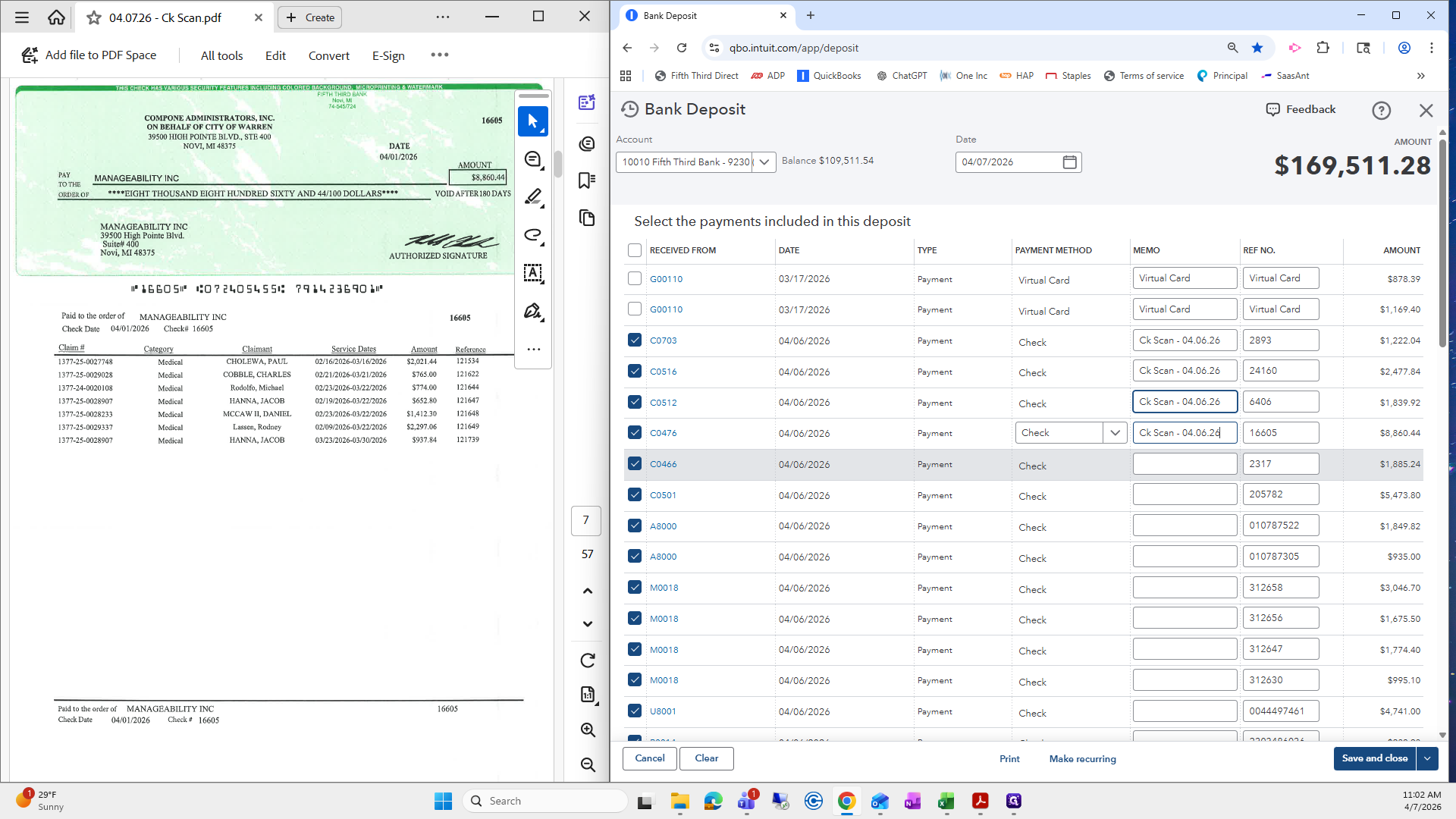
The easy way is to select it, press Control C to copy, and then press Control V in each one.
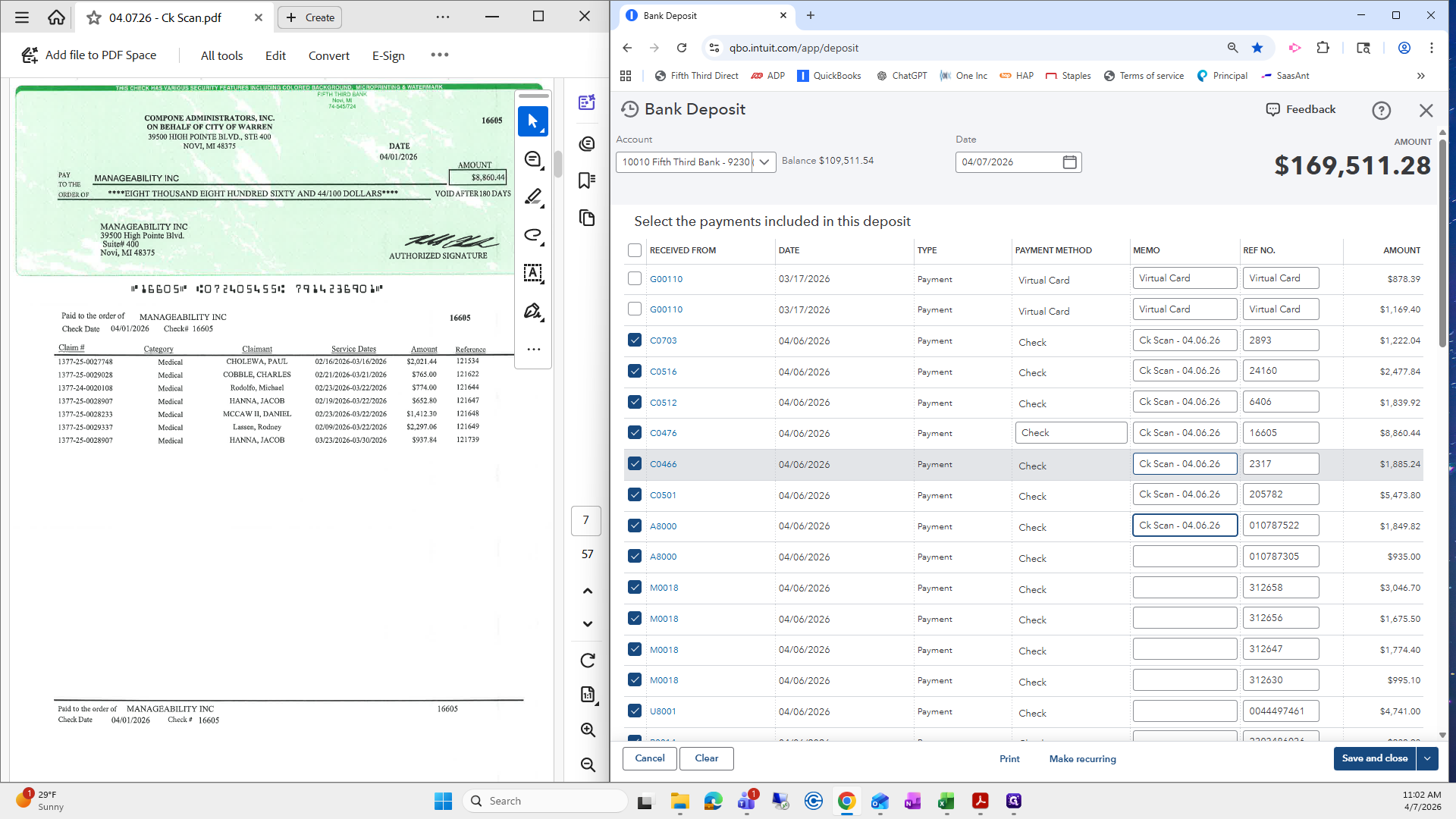
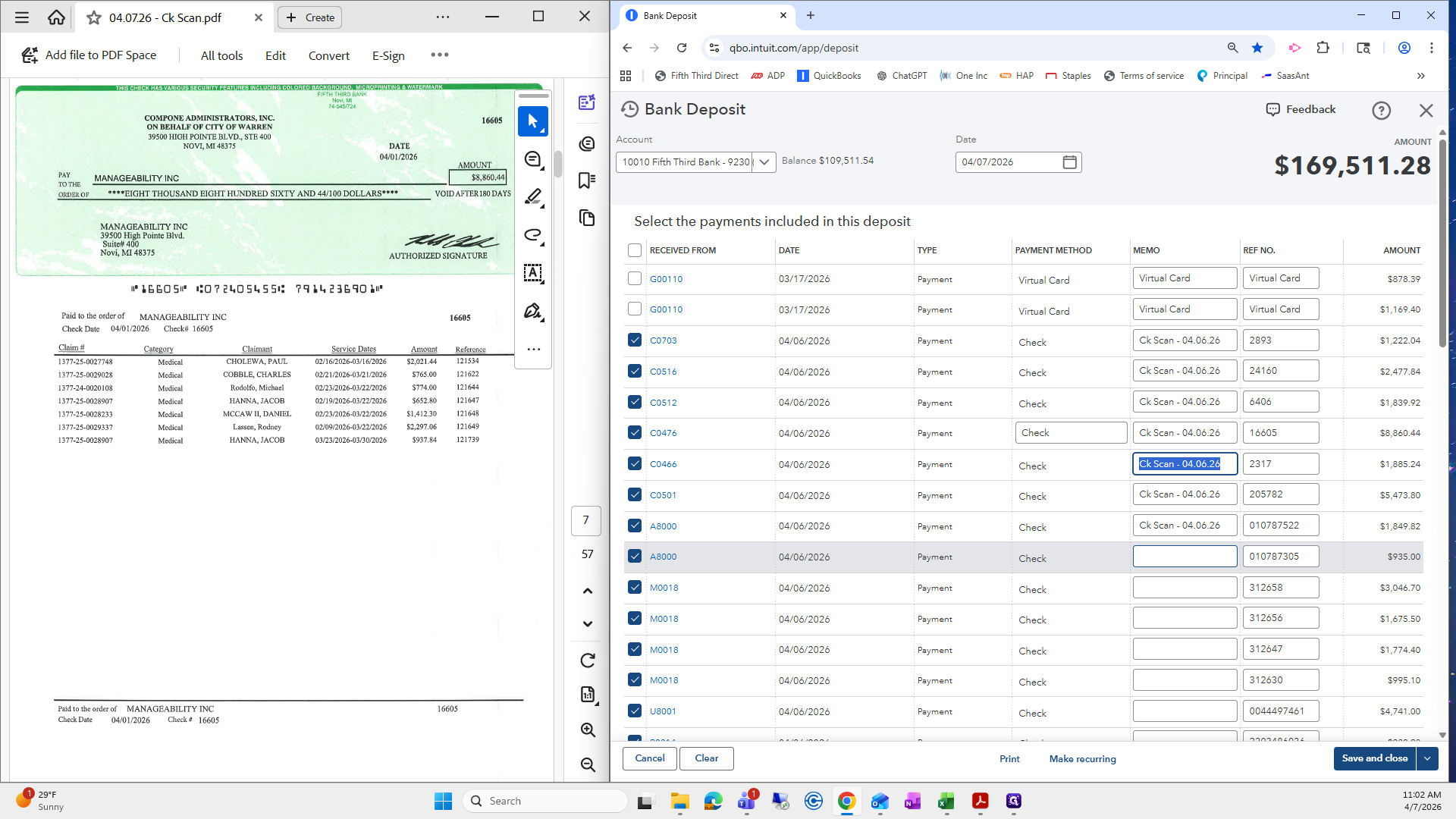
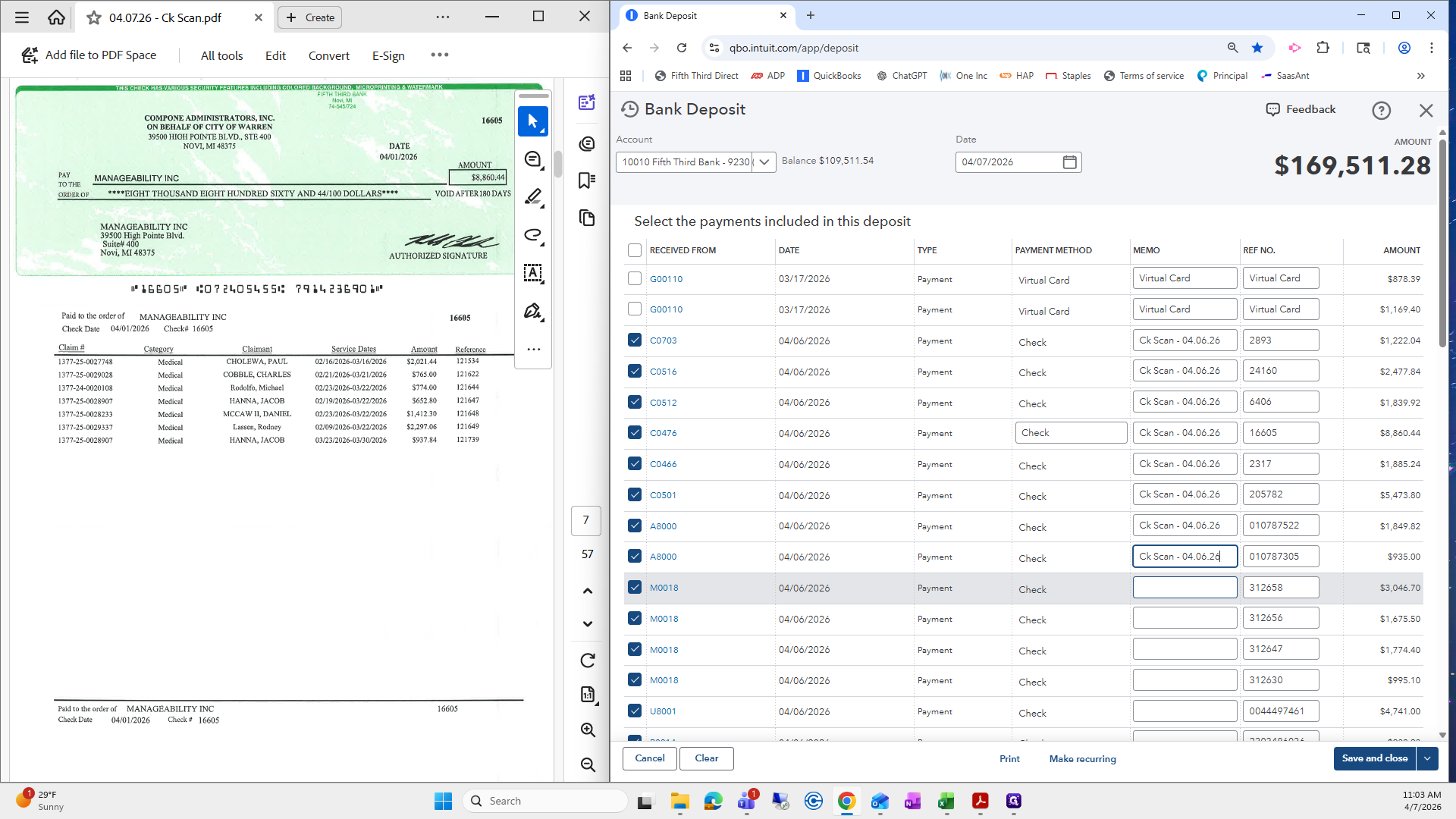
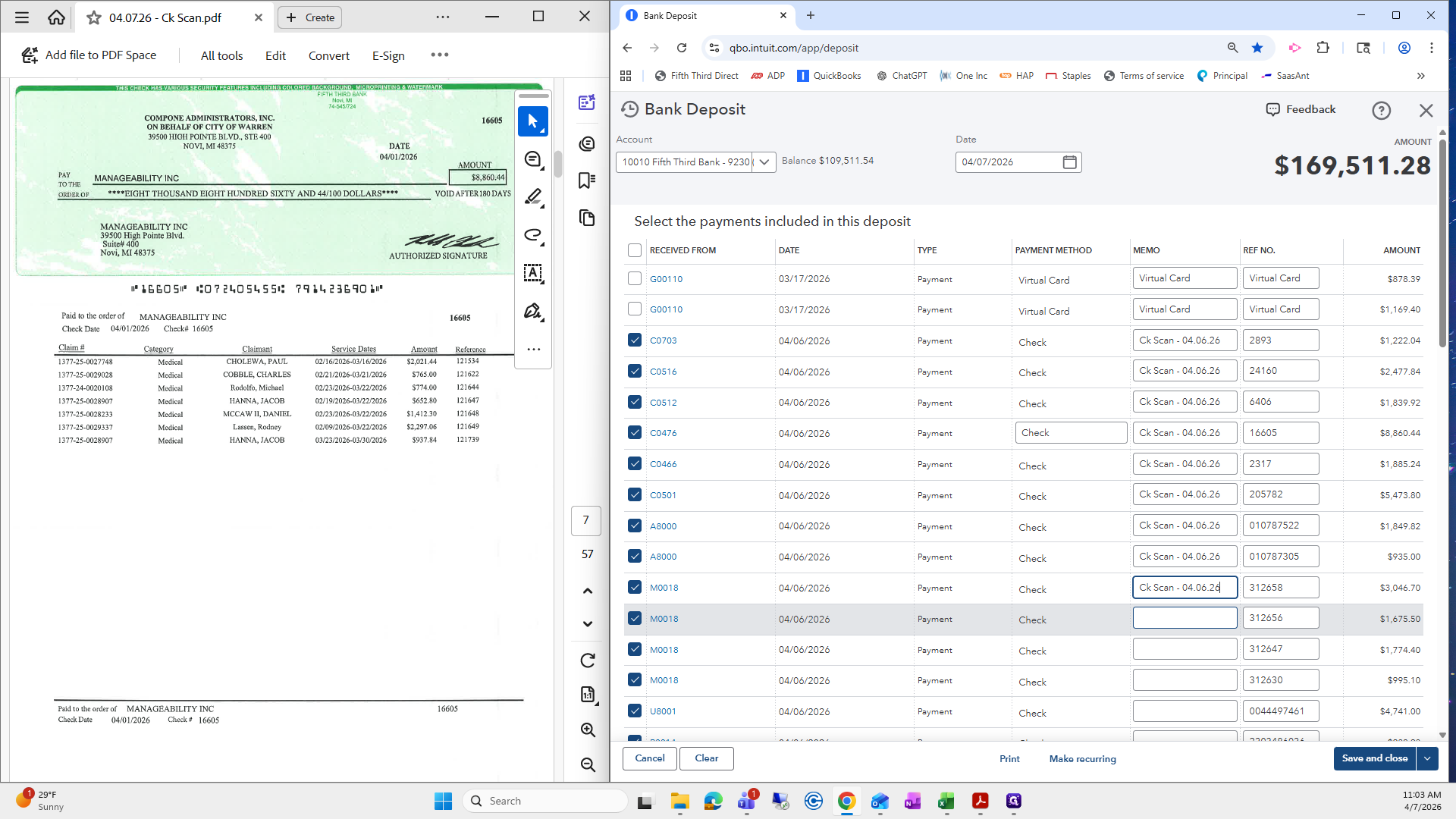
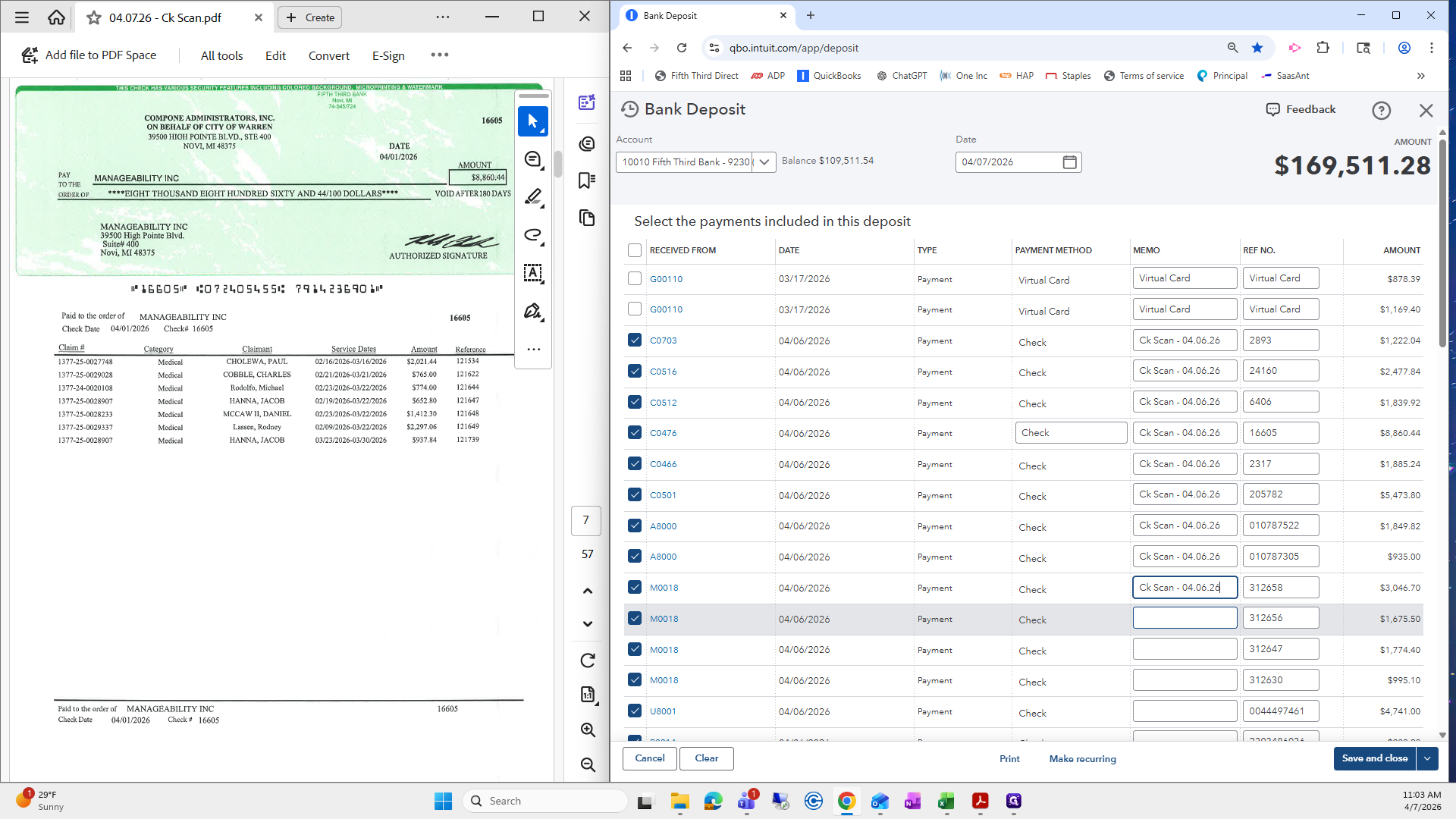
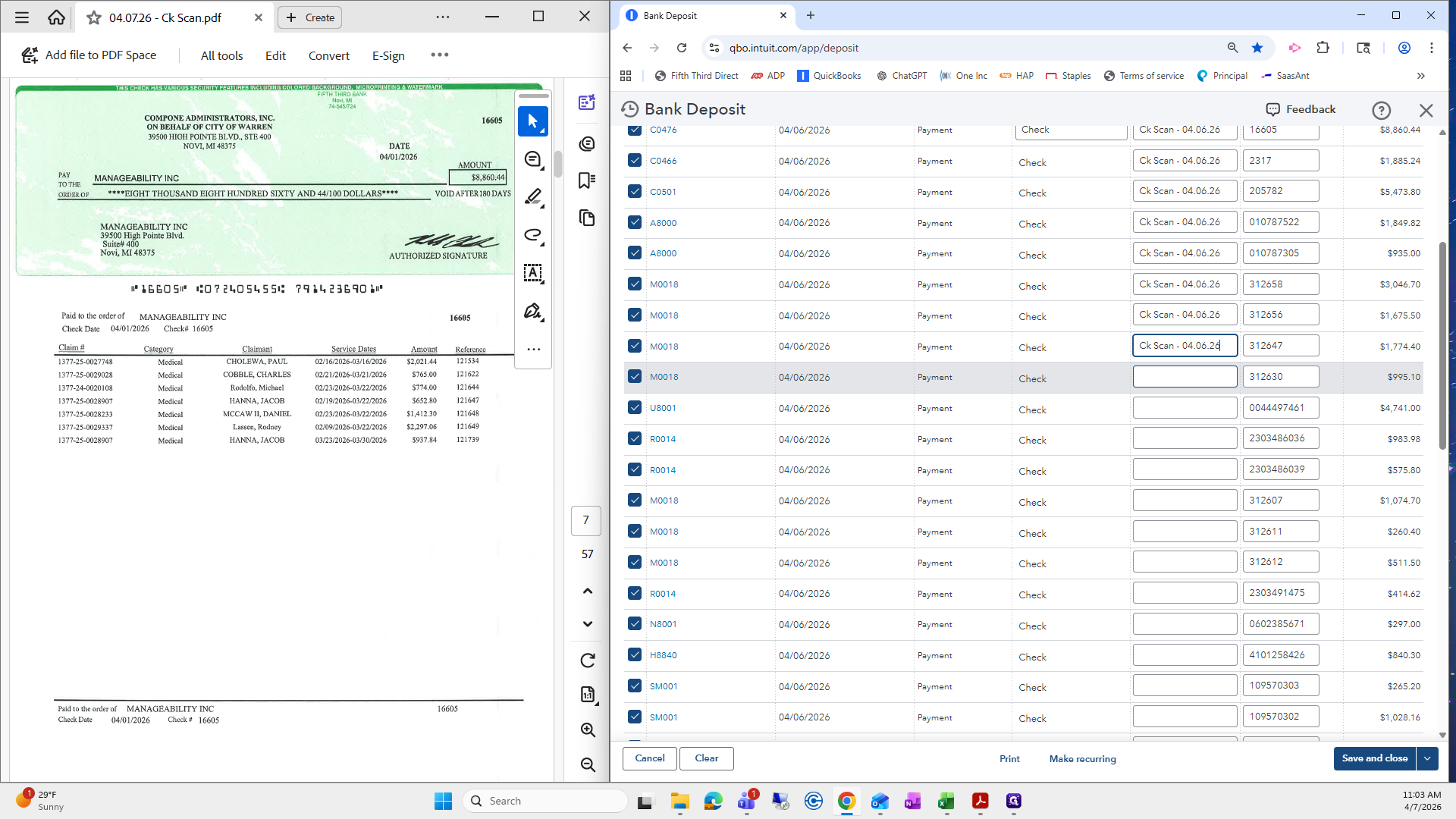
I know this is annoying, and I'm very sorry.
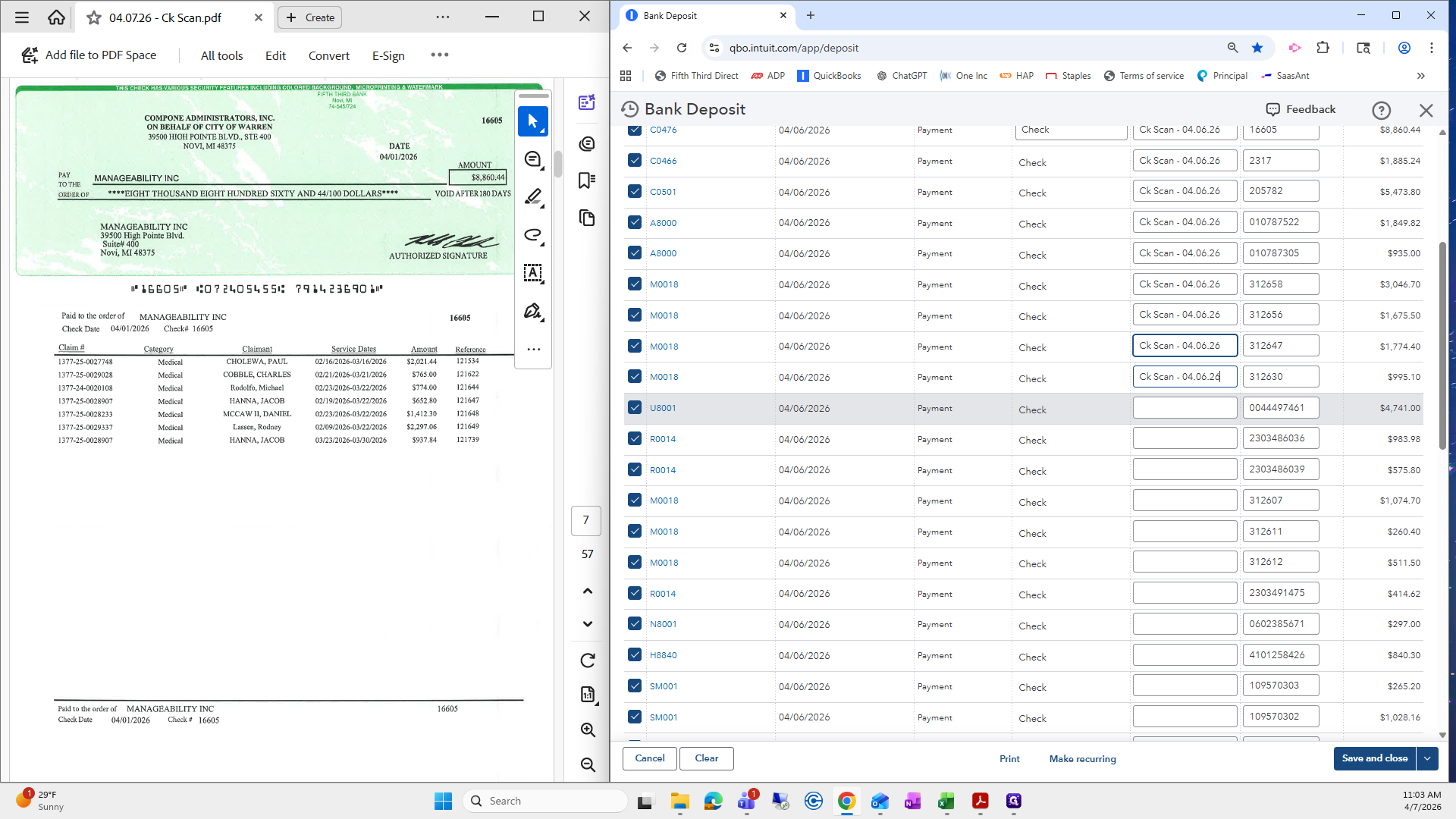
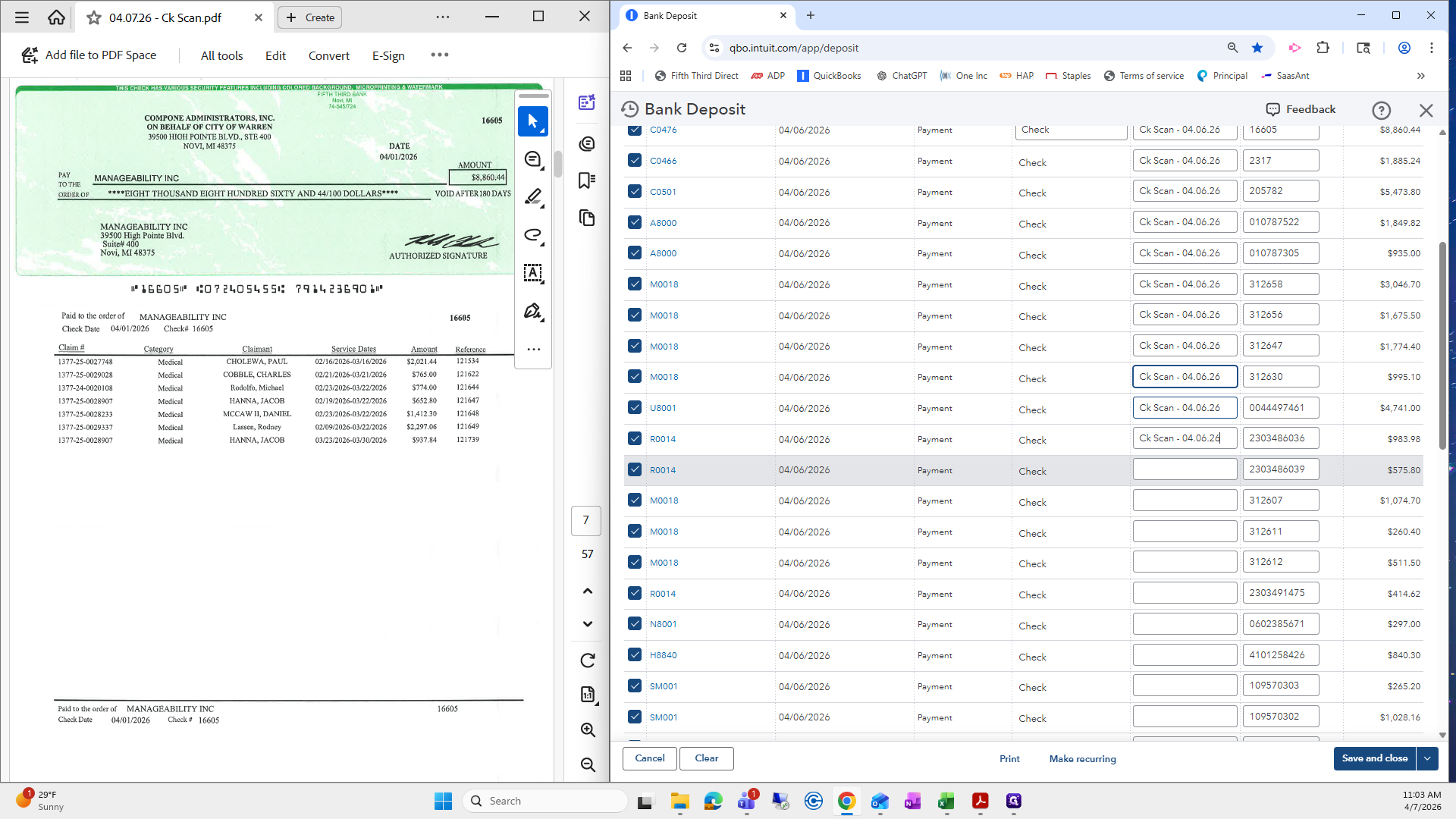
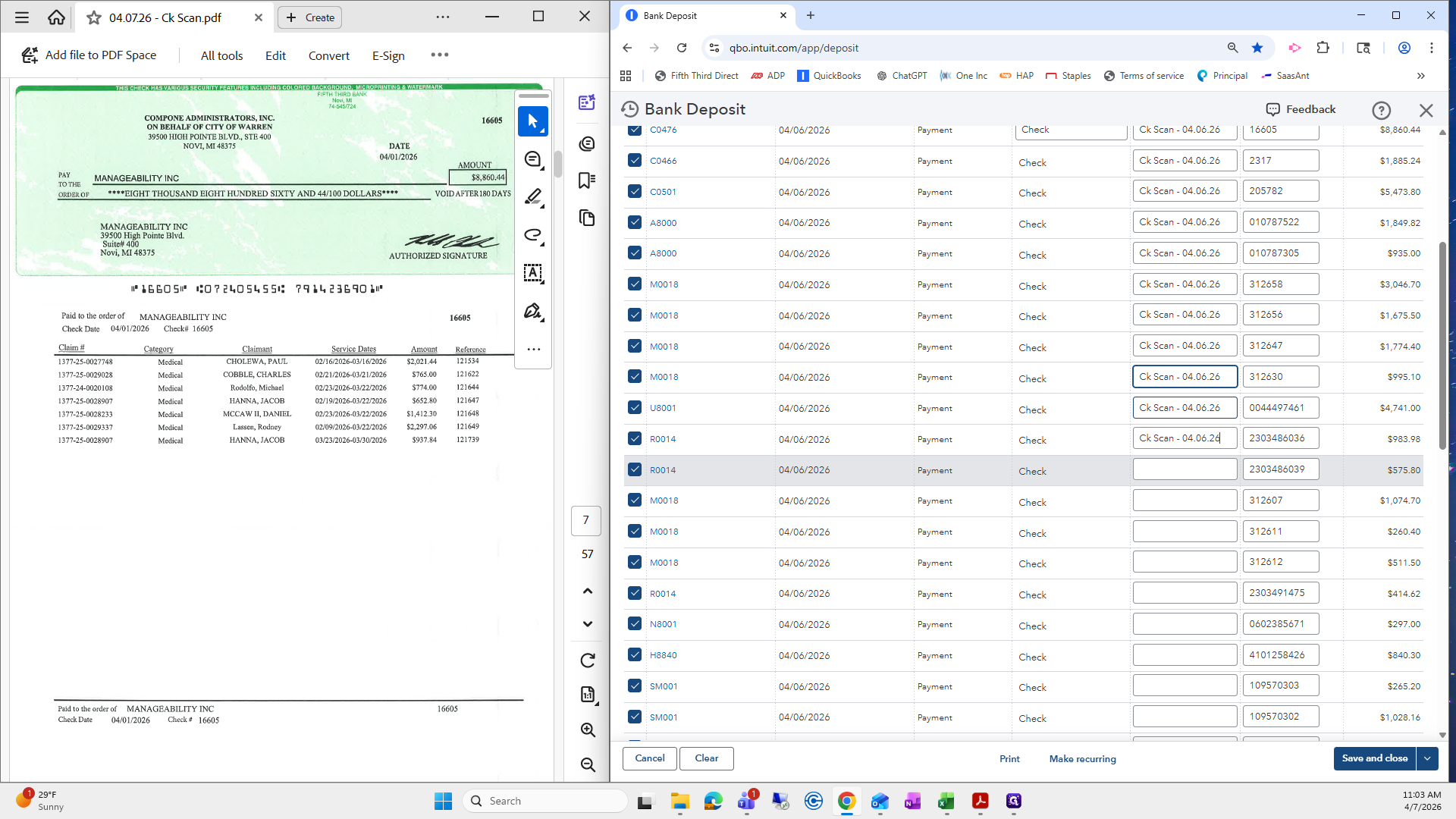
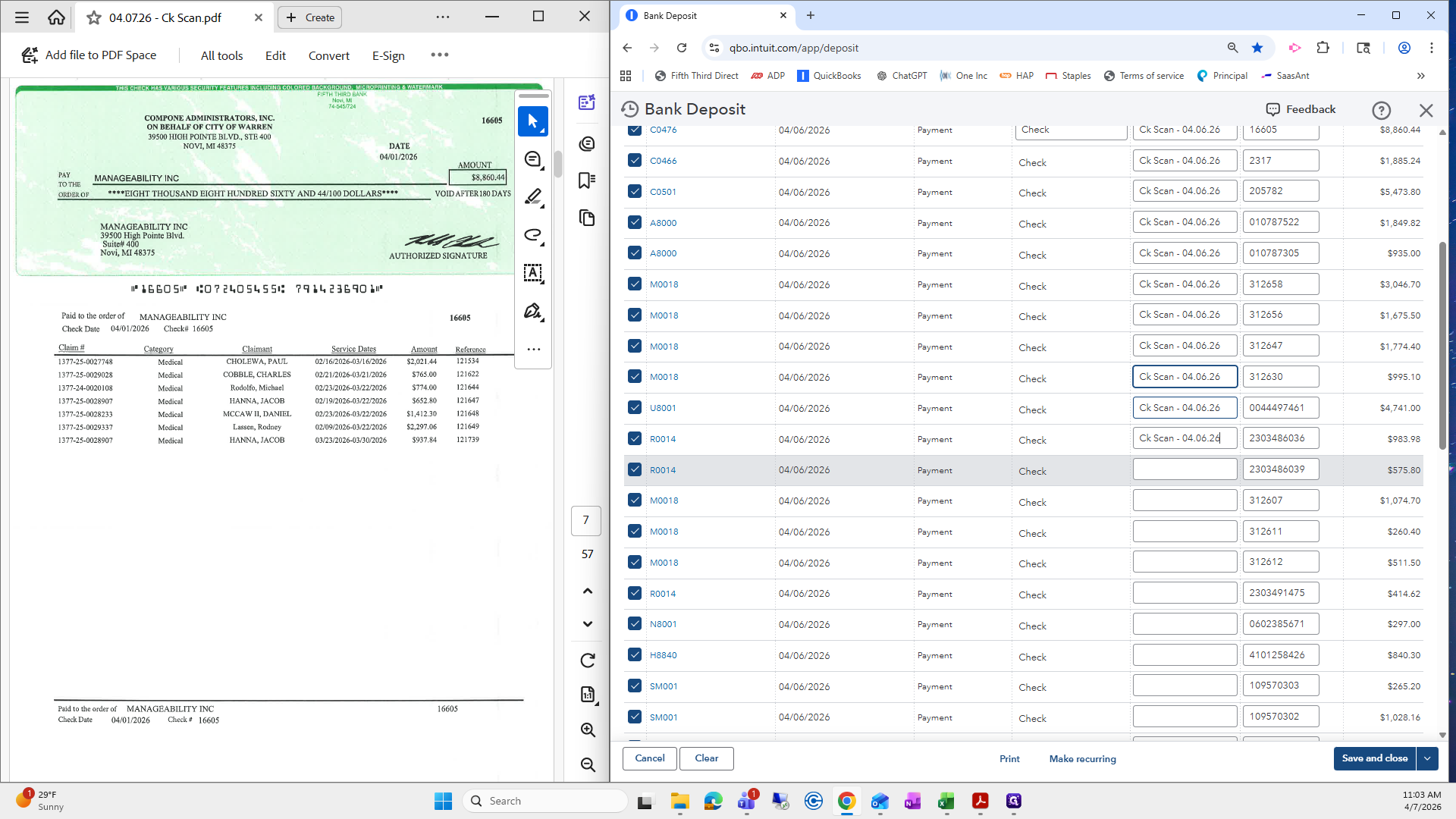
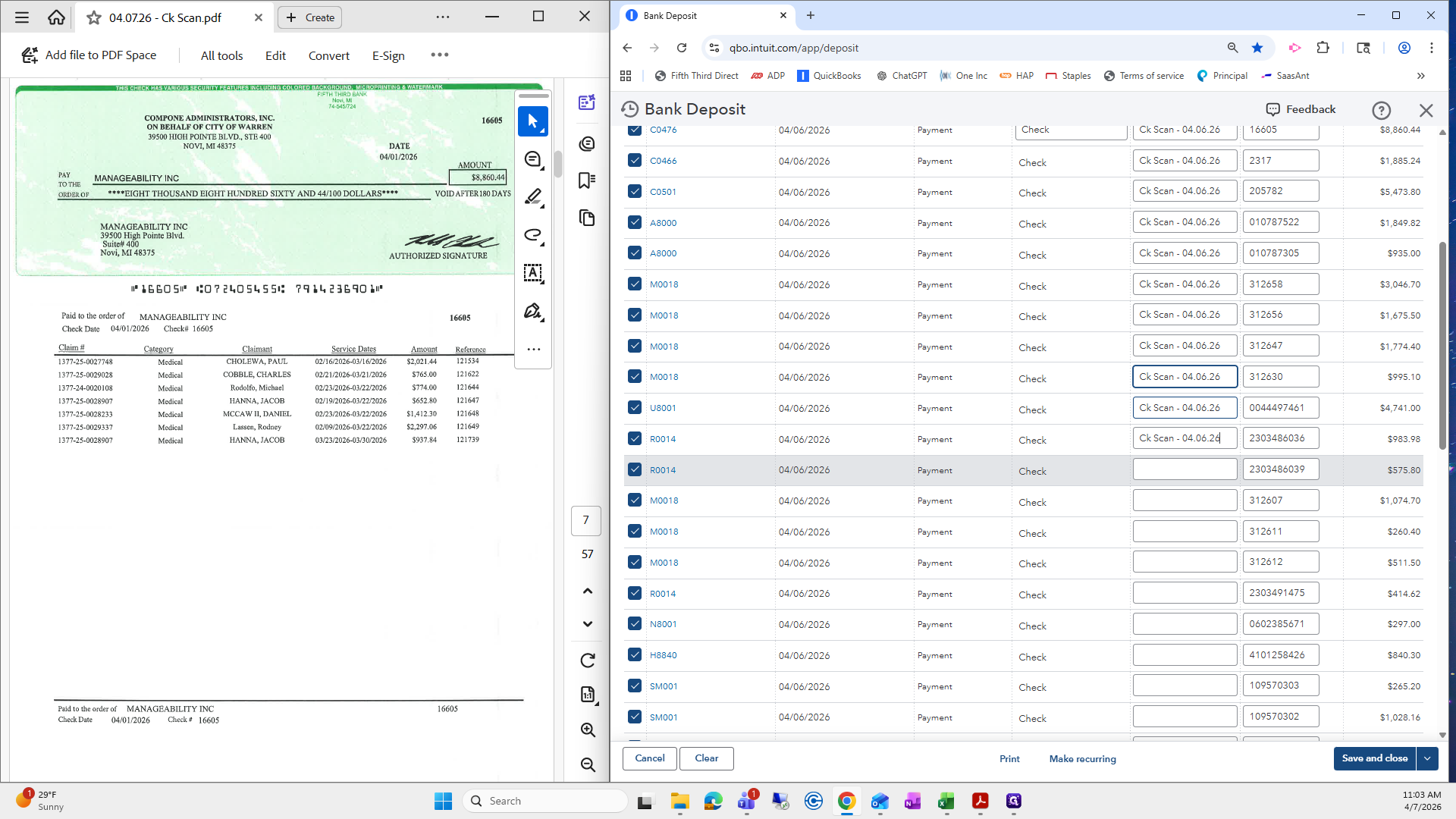
It keeps everything uniform, so if we need to reference specific checks, we know which check scan they were part of.
Okay.
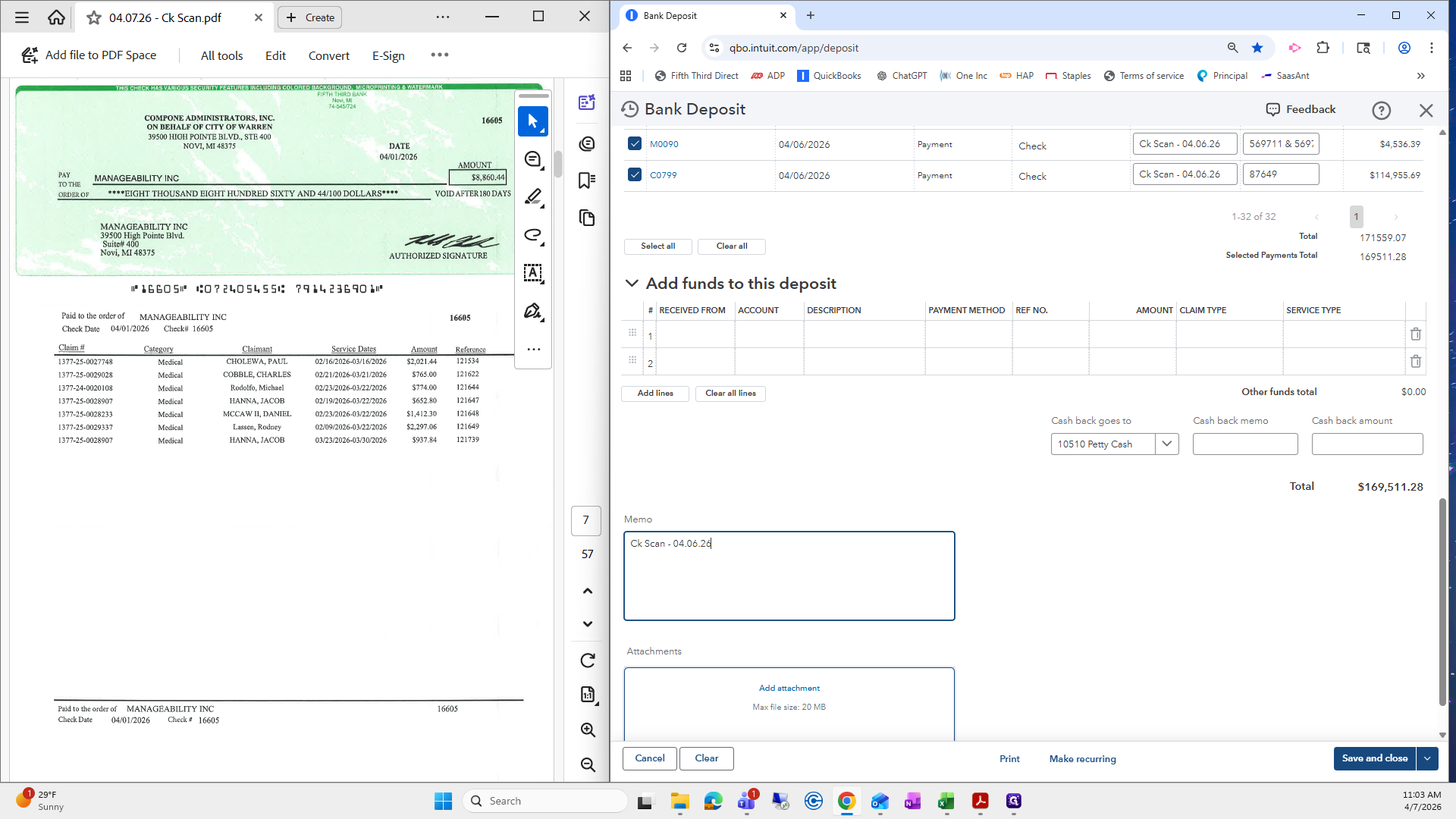
I also like to put the check scan date in the memo section.
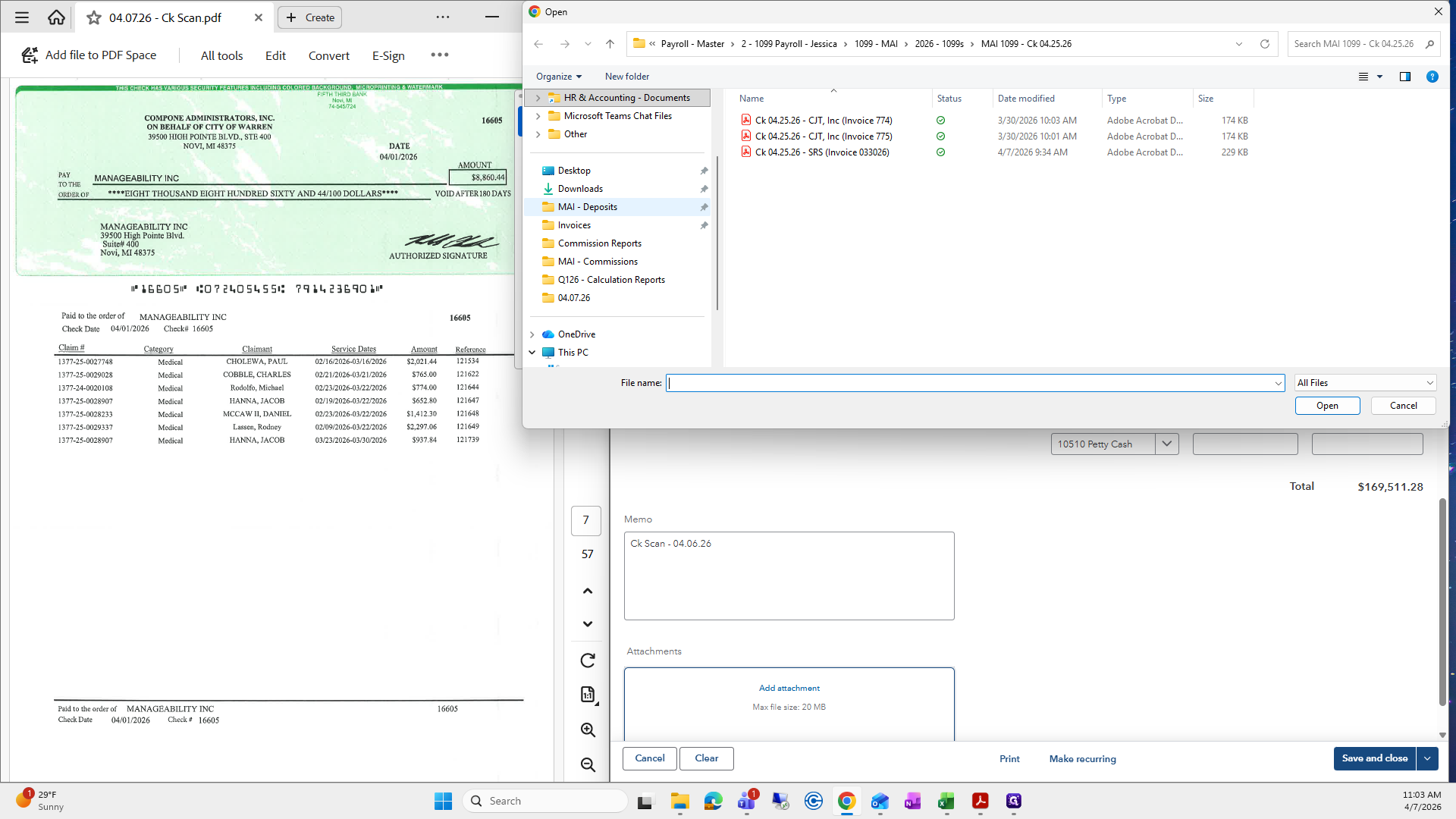
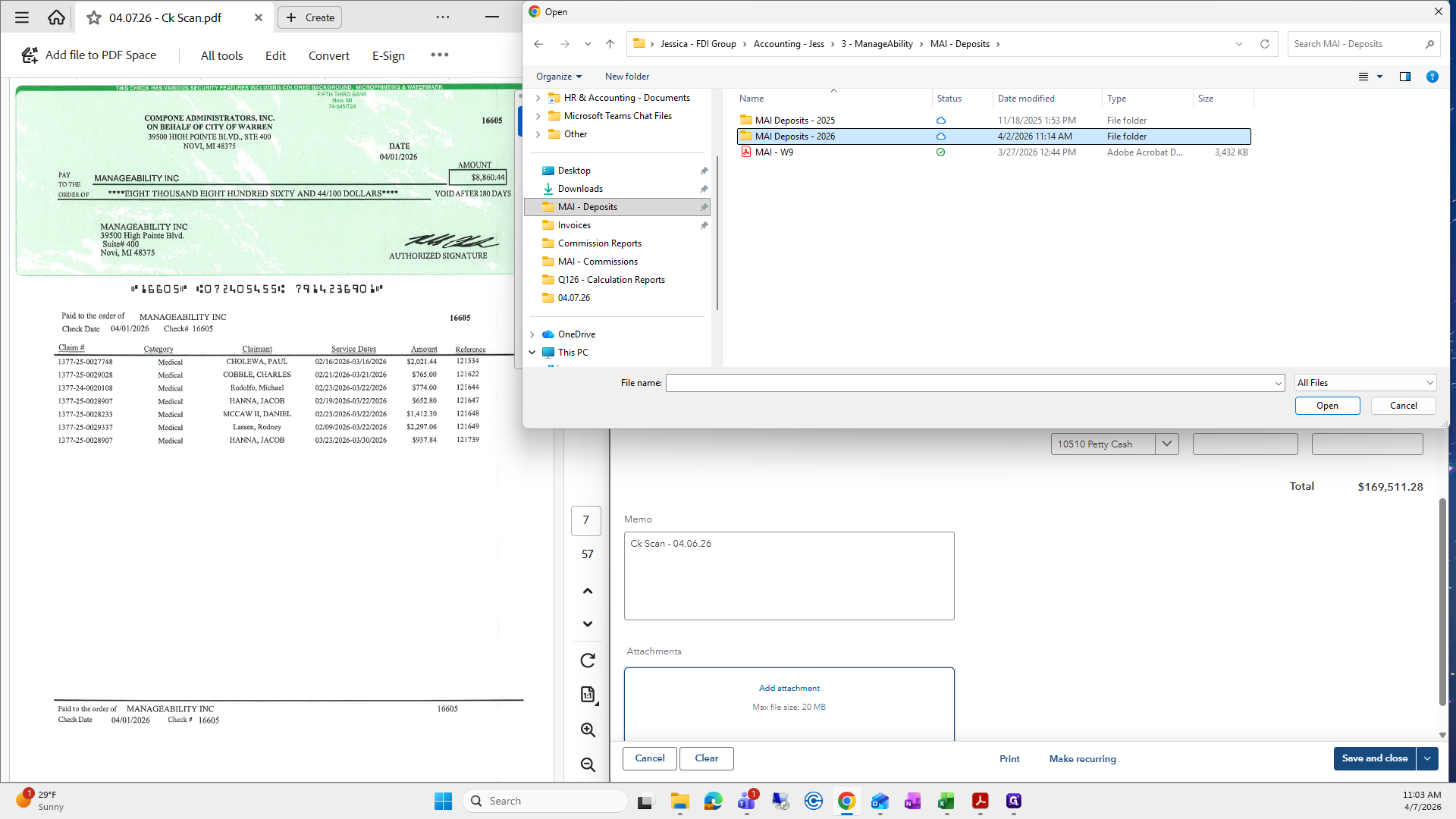
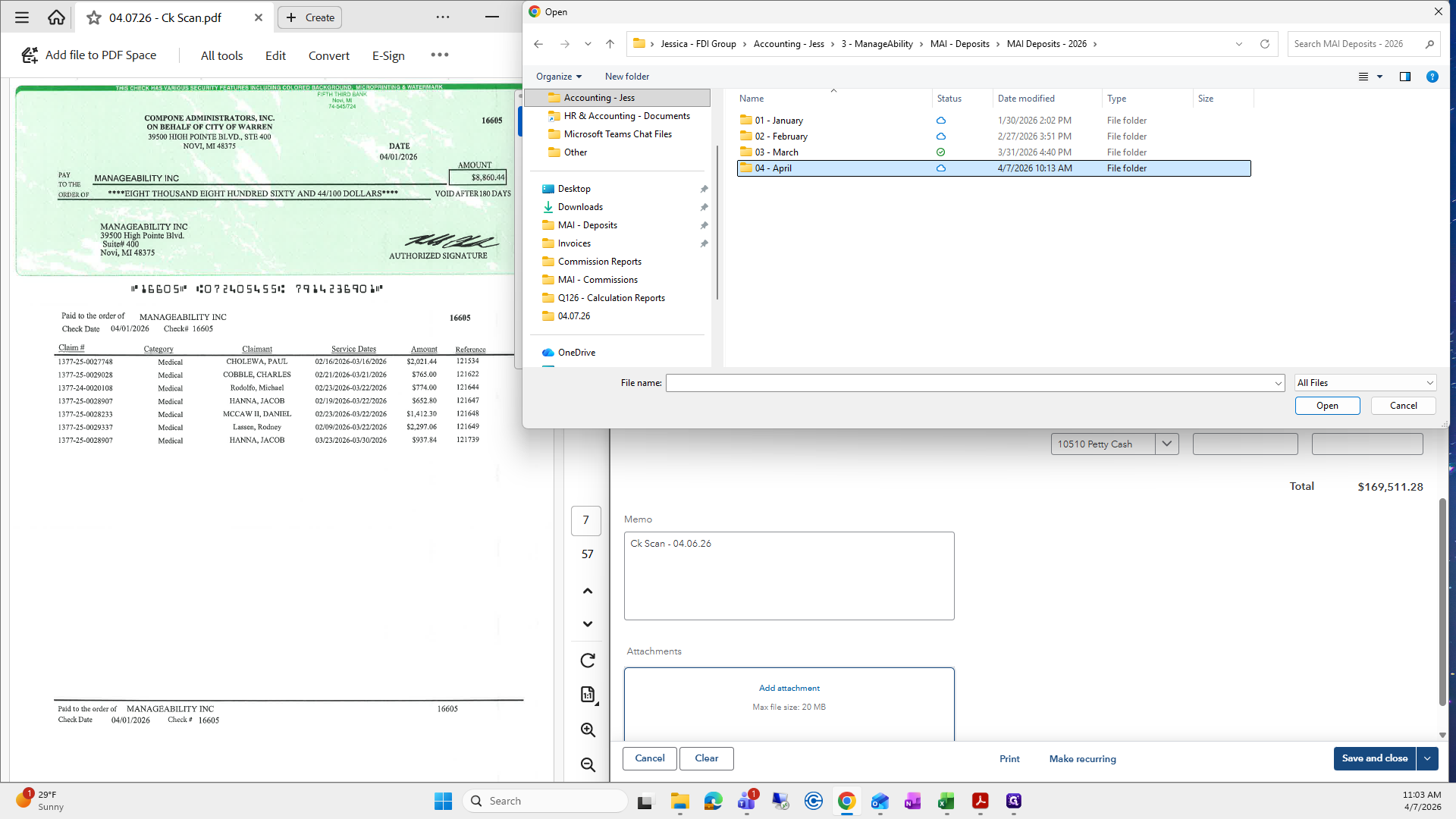
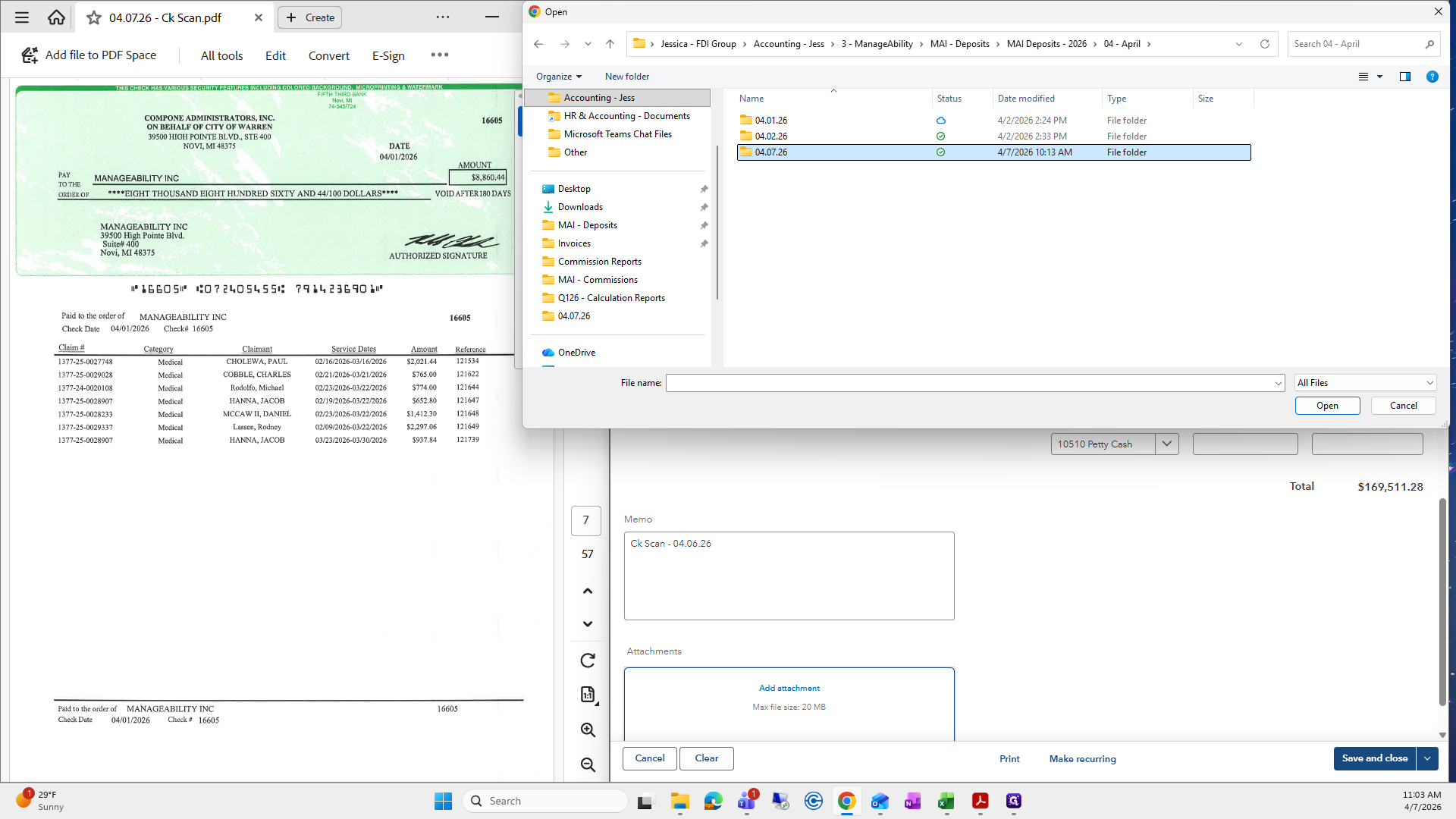
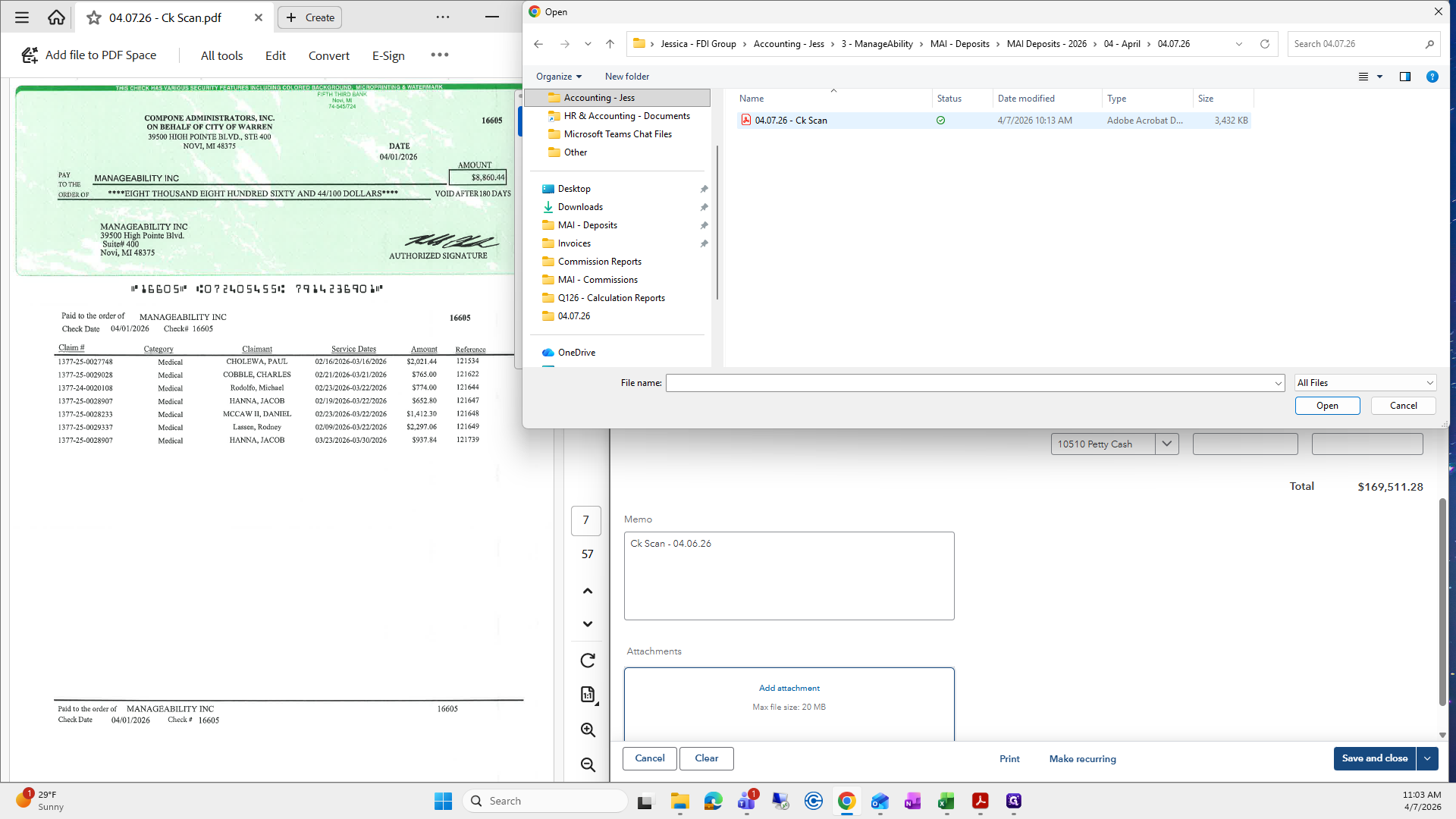
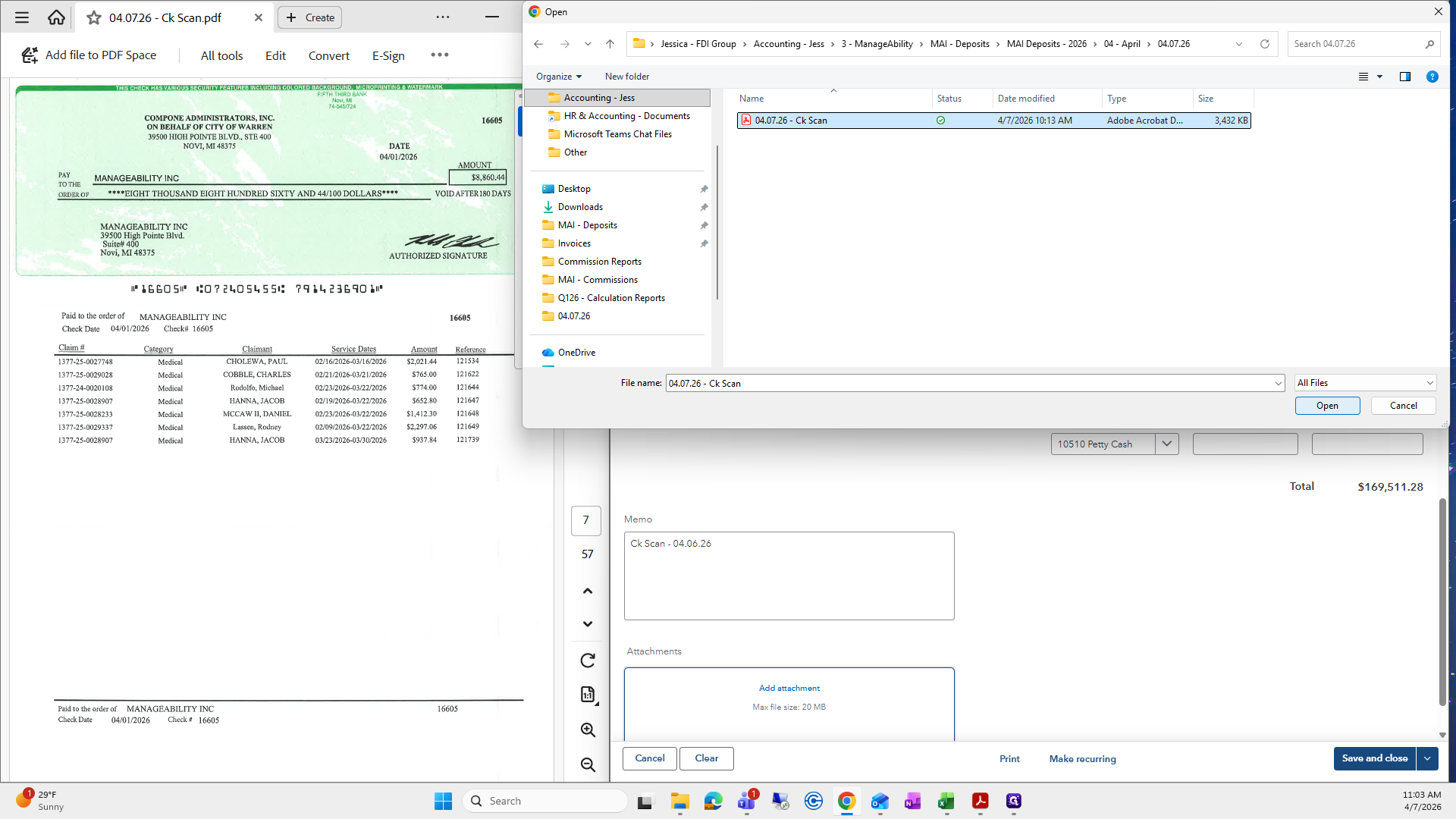
In the attachment section, I will add the deposit I saved for the check scan. Although it says 4/7, it is actually from yesterday, so I will attach this one.
From here, you can see the total of the selected payments.
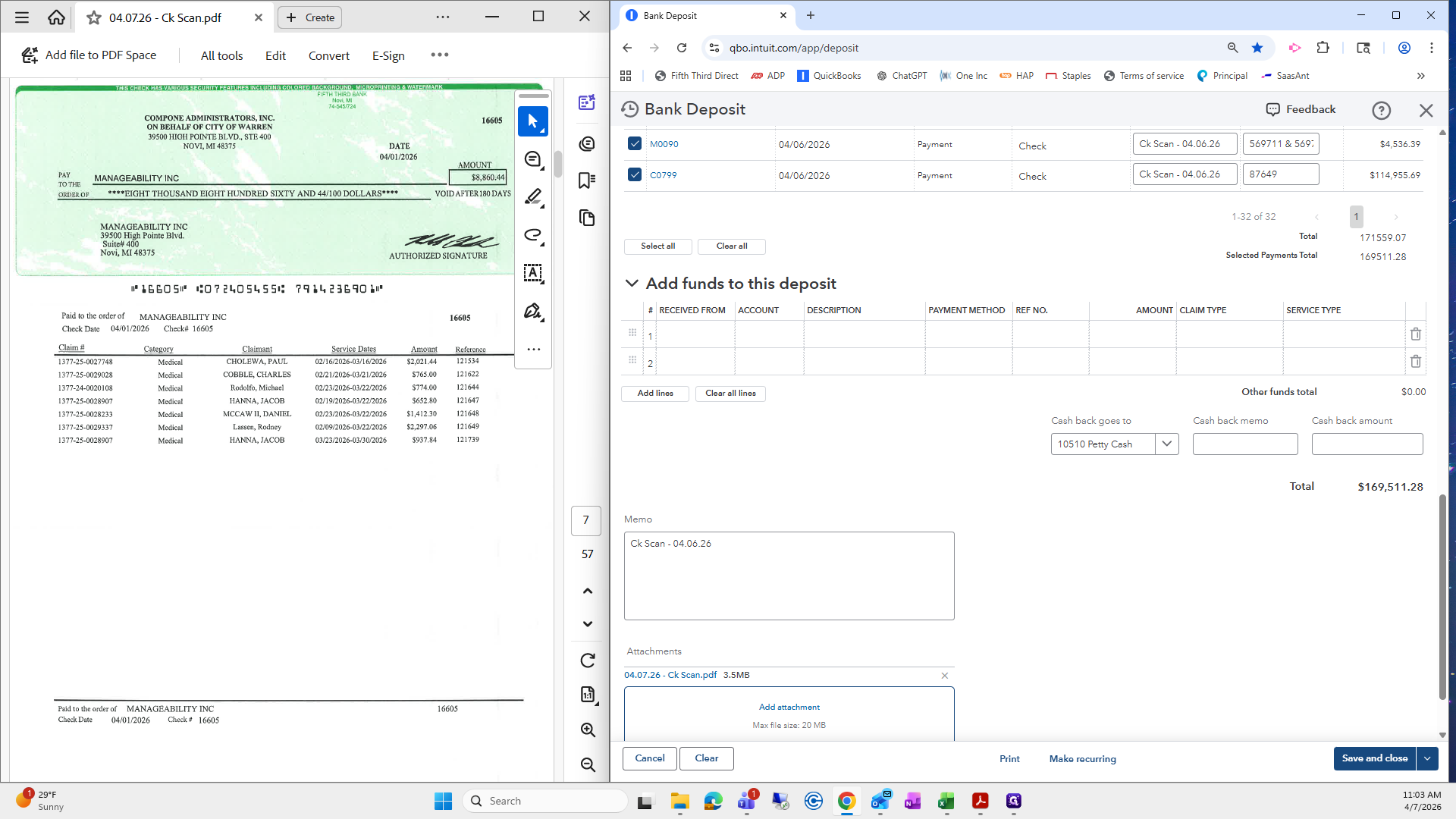
That will be our check deposit amount. I will press print, then select "Print Deposit Summary Only."
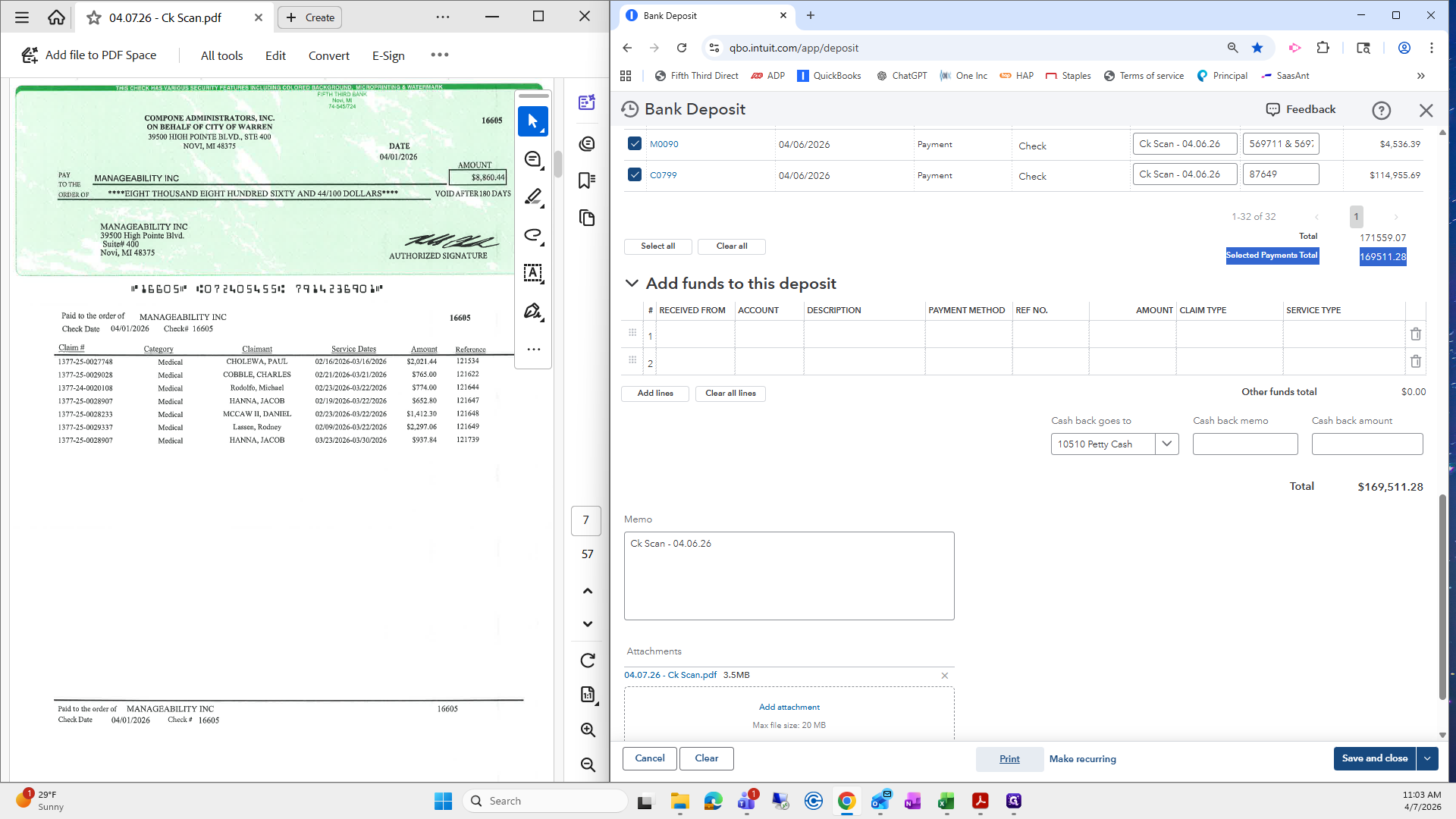
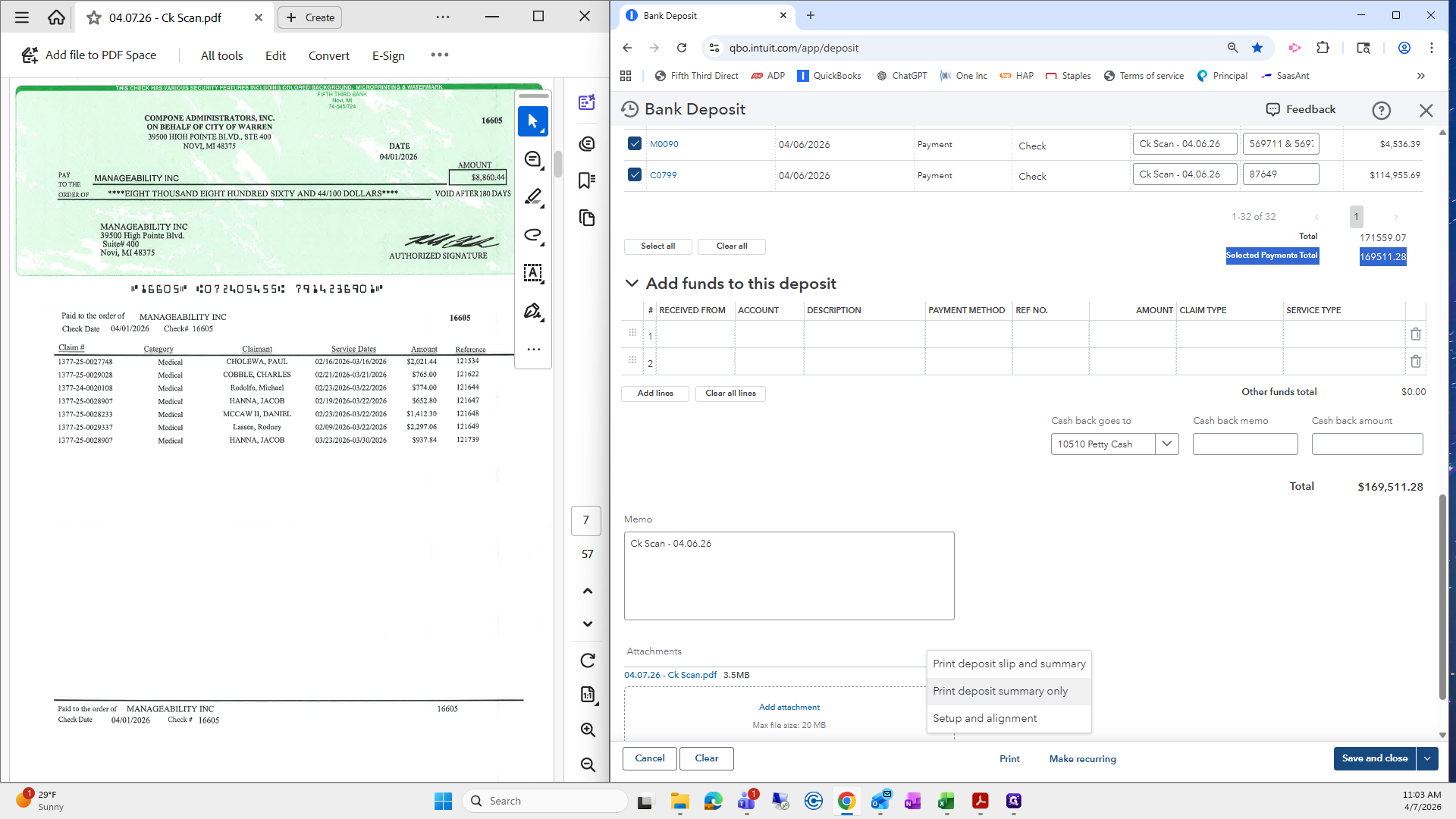
It will then provide a deposit summary of all the checks we just entered. I am going to download this and save it in my deposits folder for that date. I will choose the check scan number from the previous check scan file to keep the file name consistent.
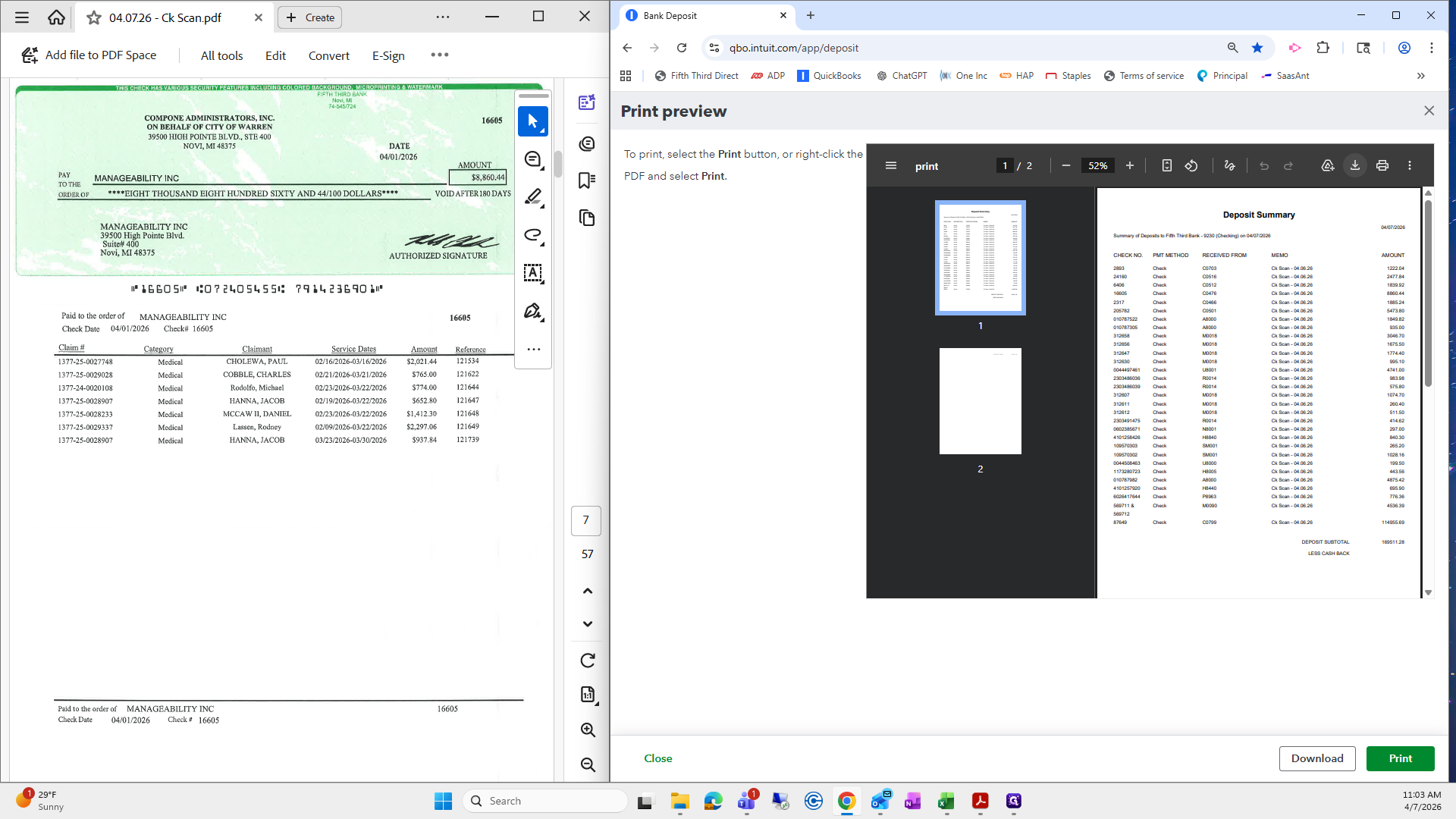
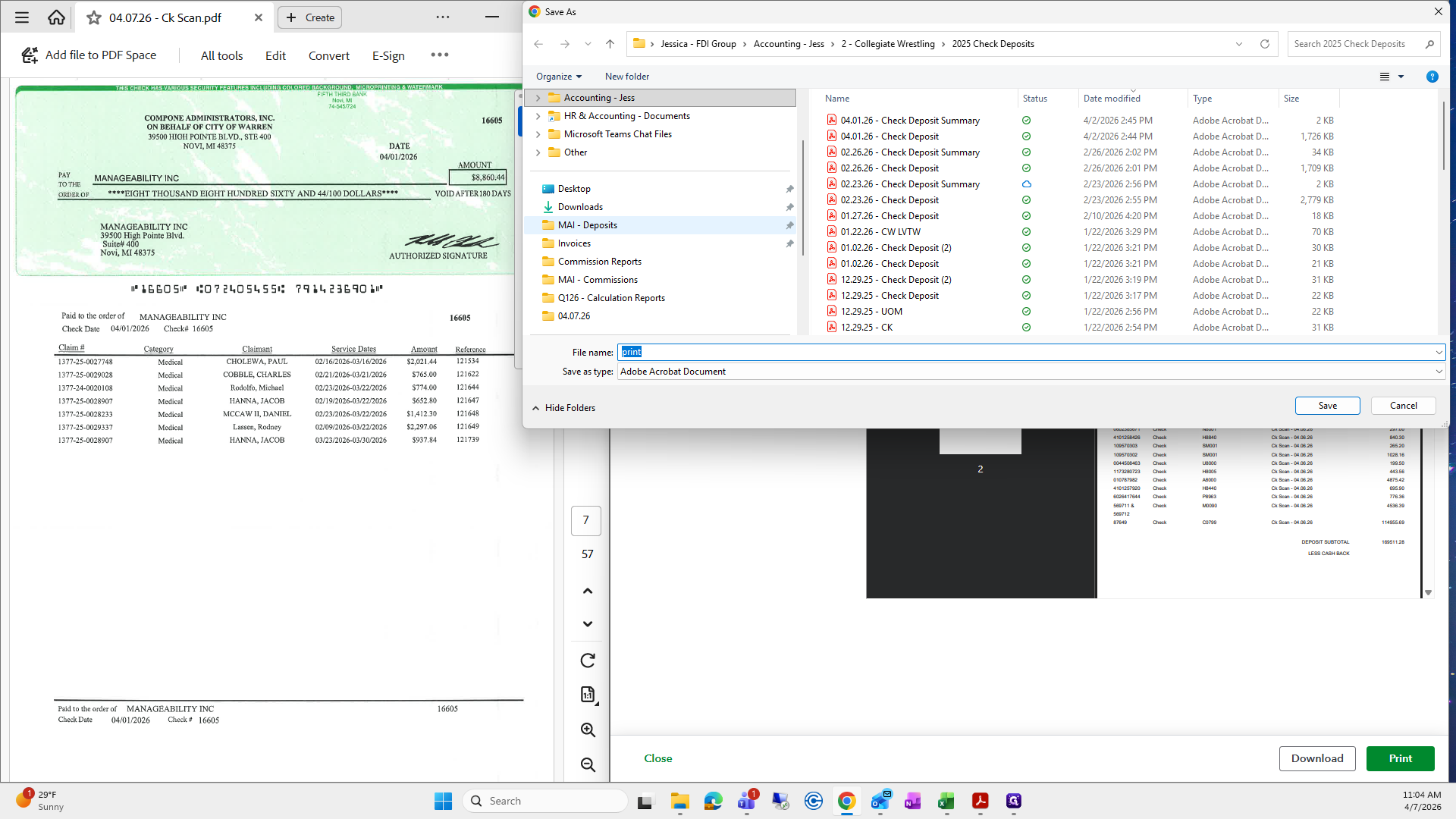
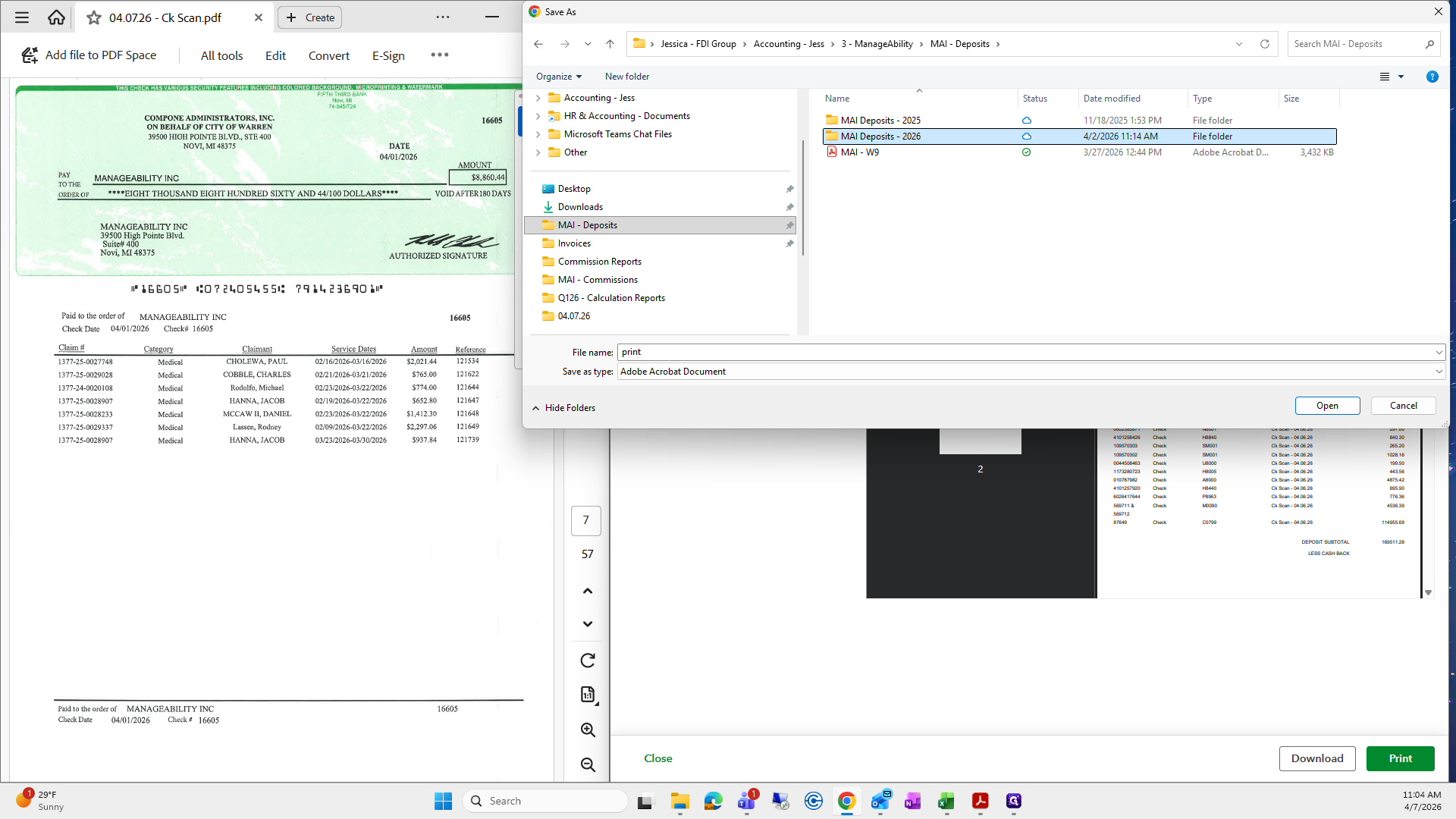
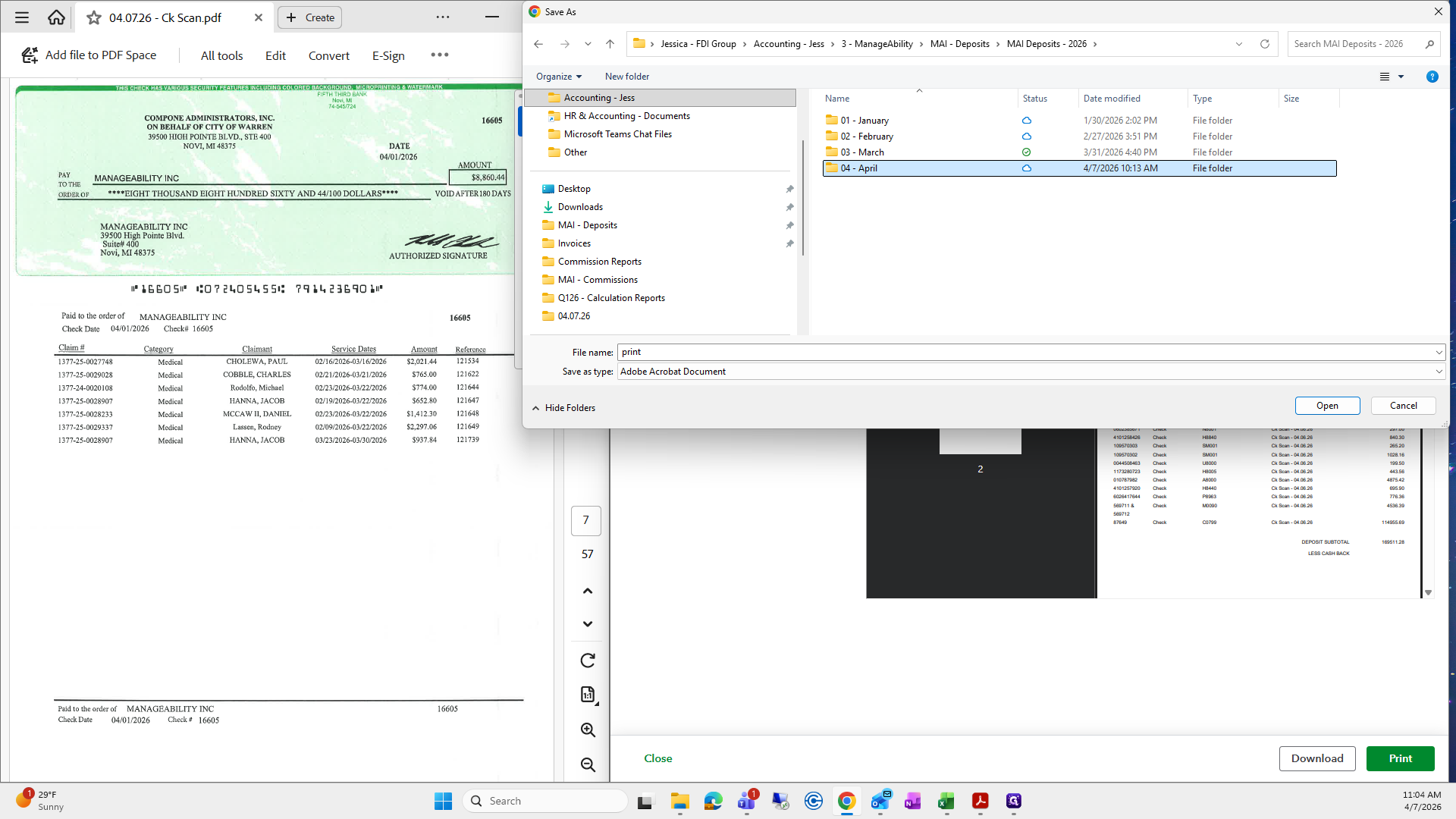
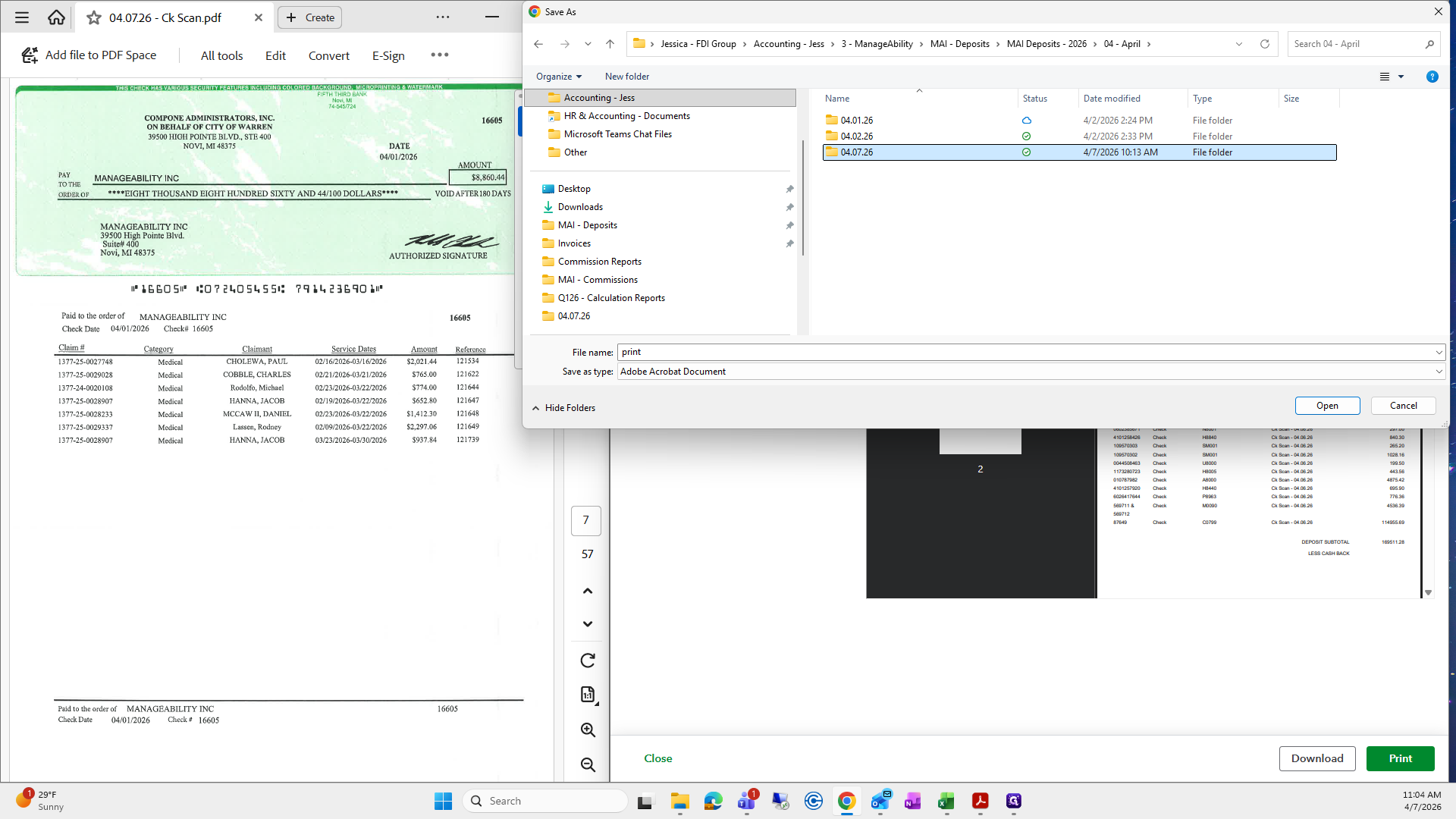
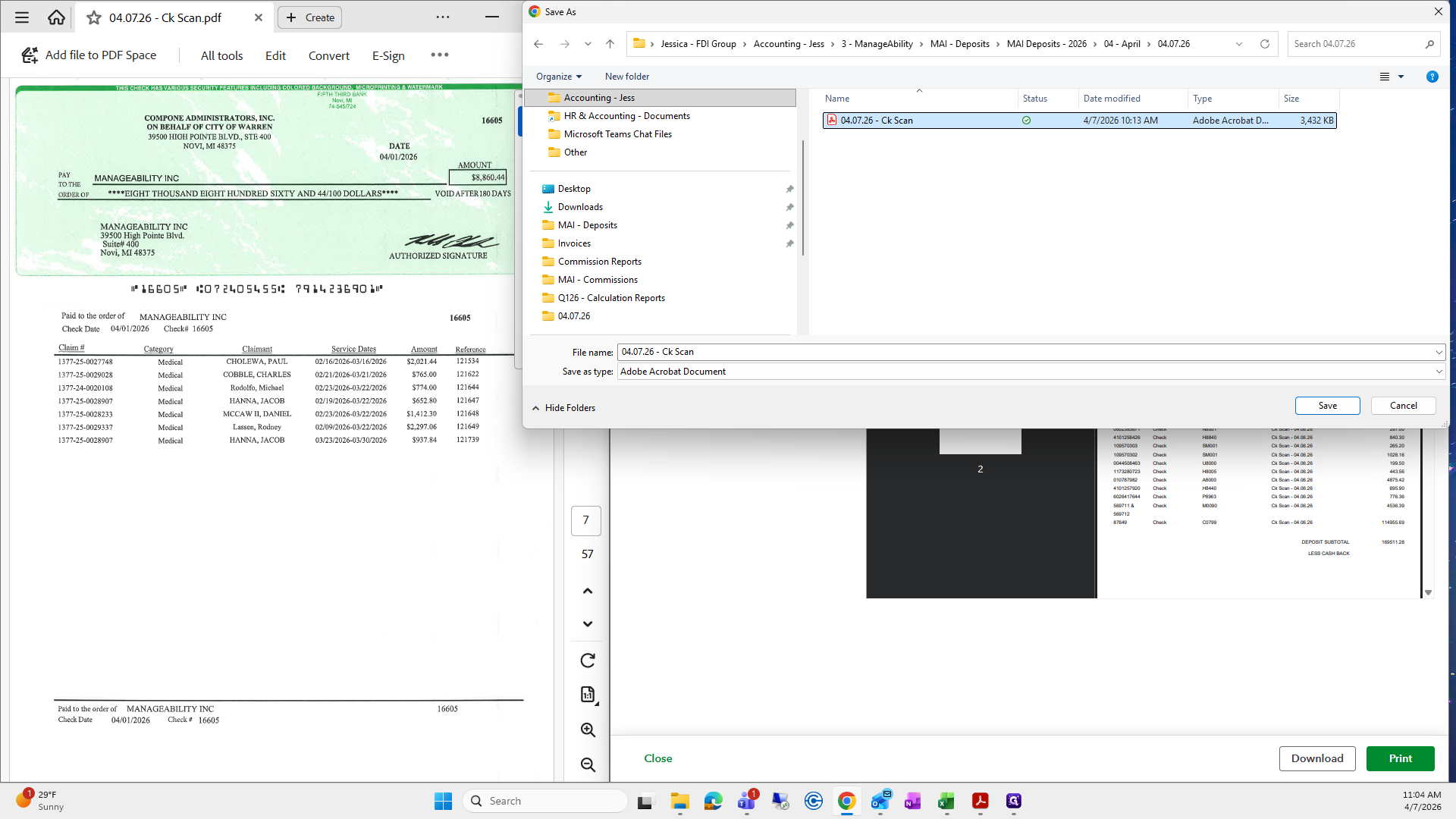
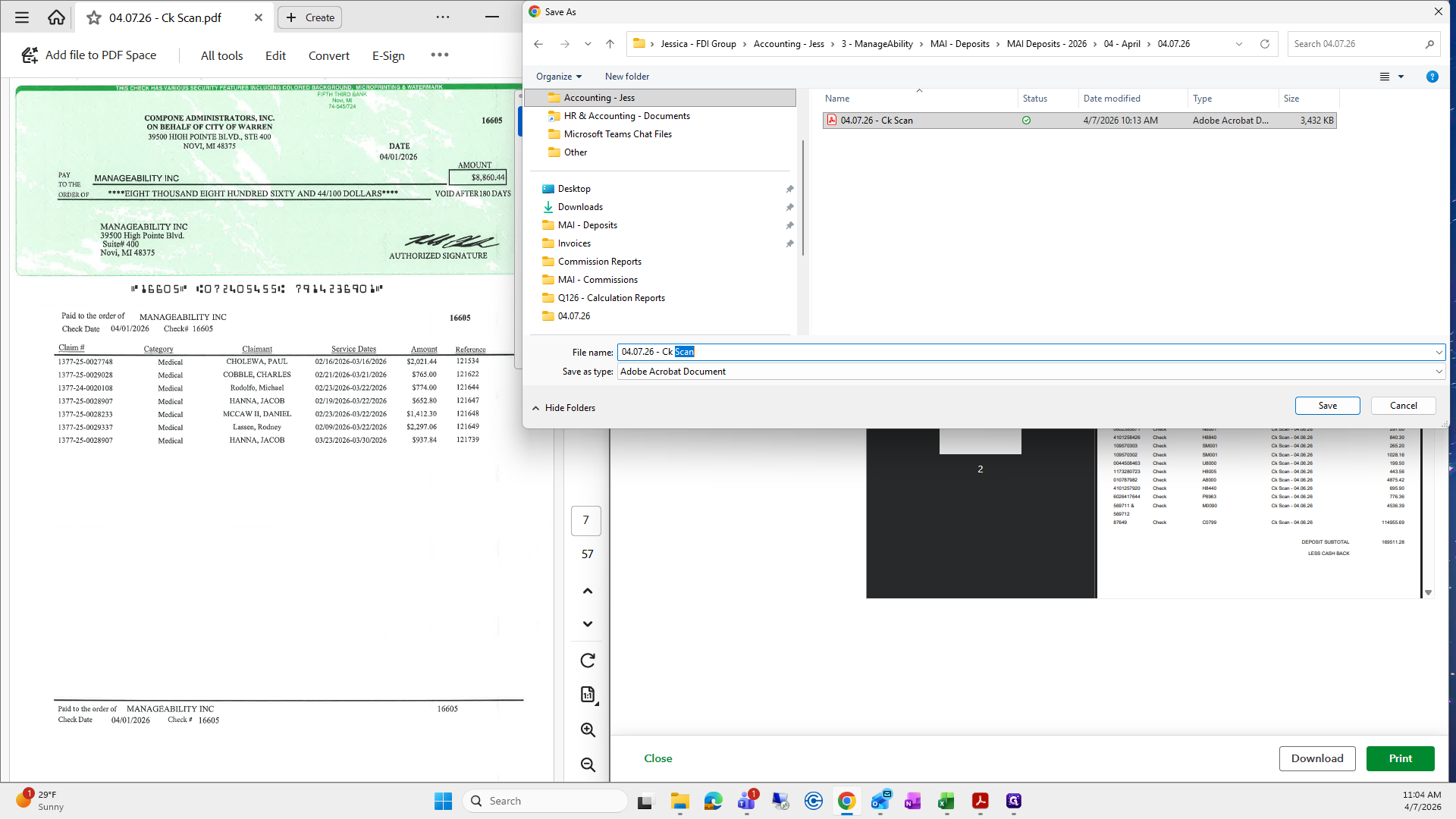
I will remove scan. I will enter "deposit summary" and then press save.
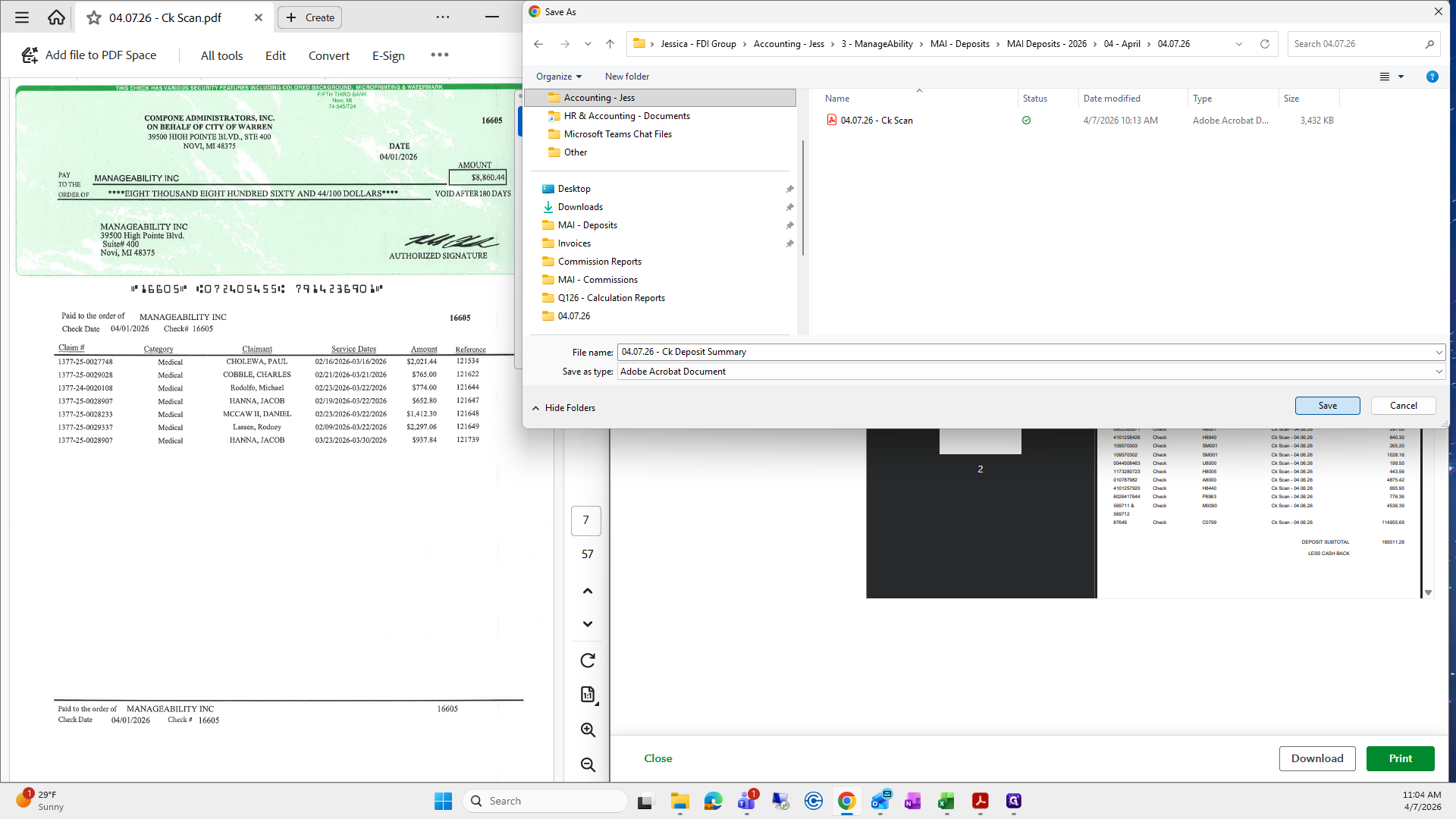
That saves the deposit summary.
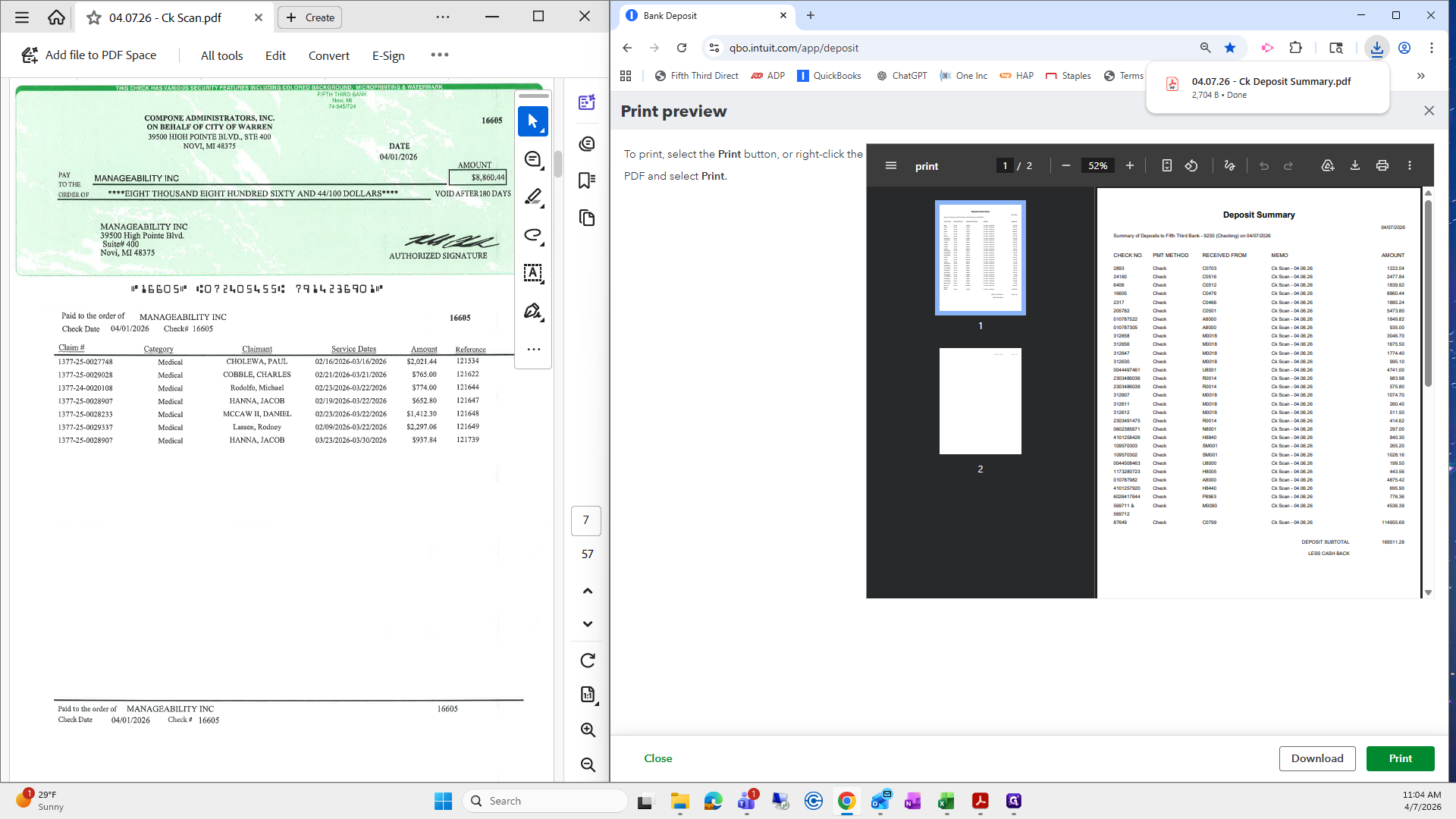
From here, which I don't do all the time but we should, we need to review our checks before giving them to you, Ms.
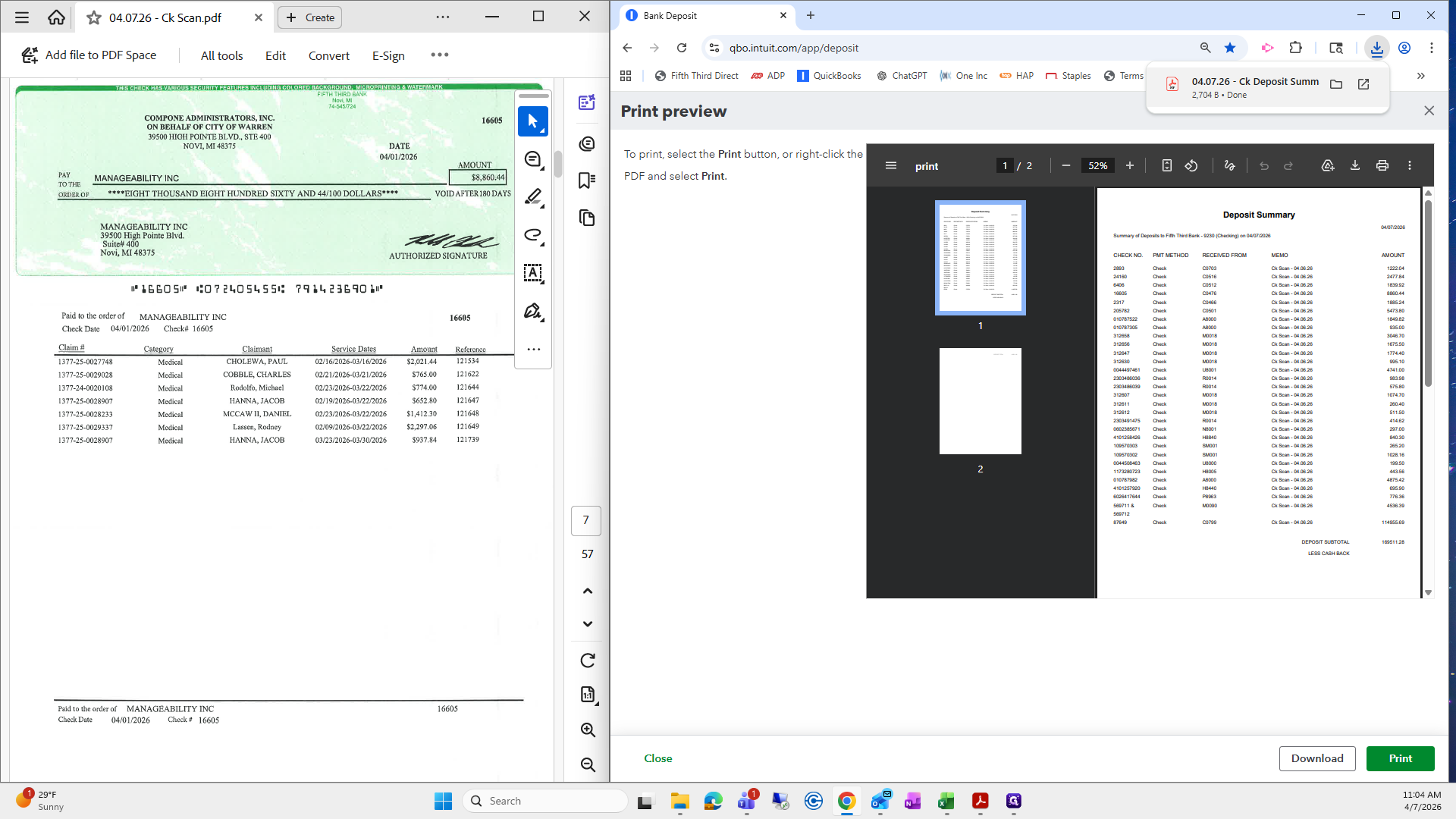
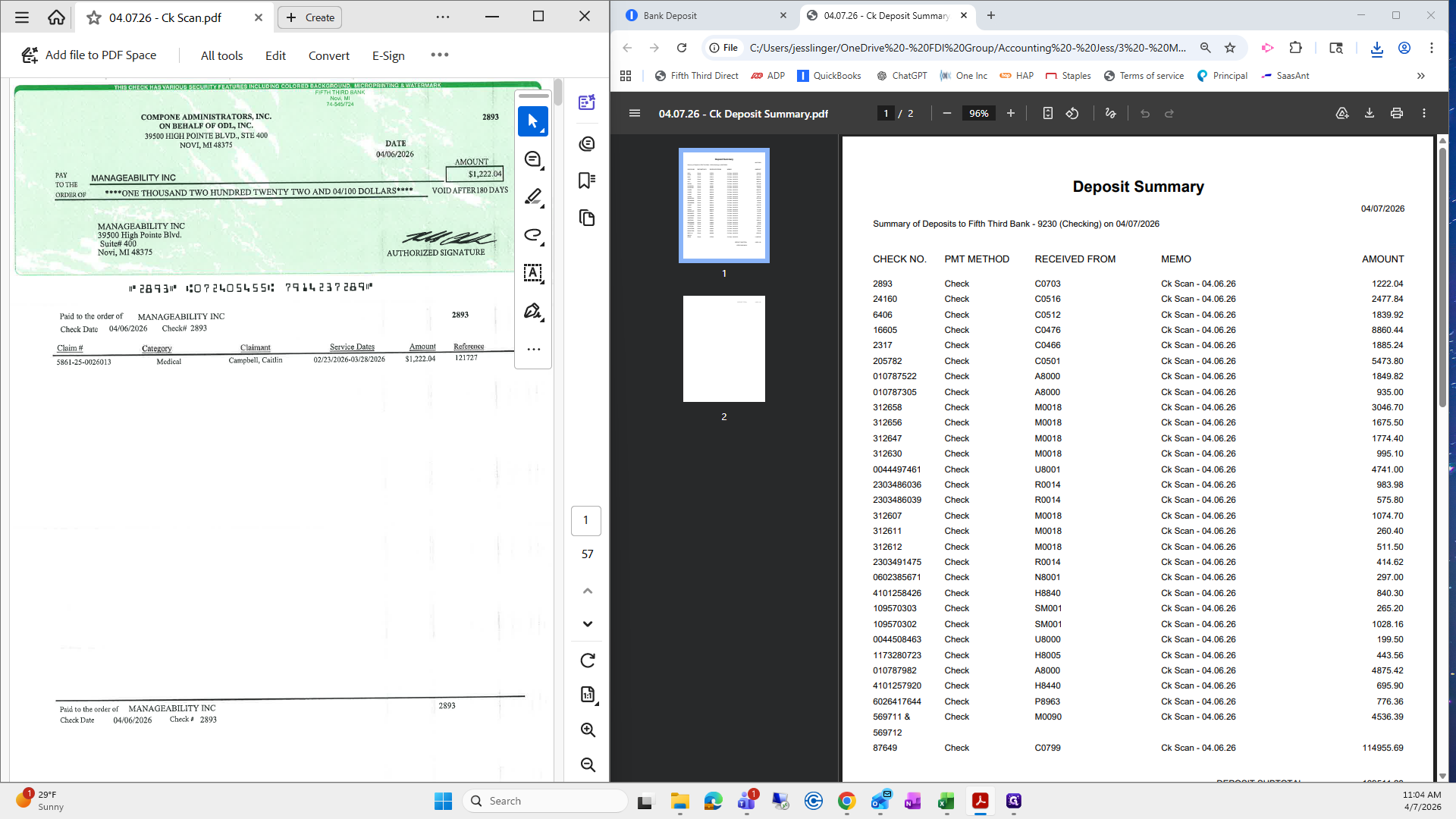
Claudia, we will go through each item one by one to ensure these check amounts match this check amount. Make sure all of these are correct before giving them to you. If they are all correct, proceed, except for the one check set aside for Penn National for about $88. That check will not be included here. I will open my email, but you don't need to do this step.
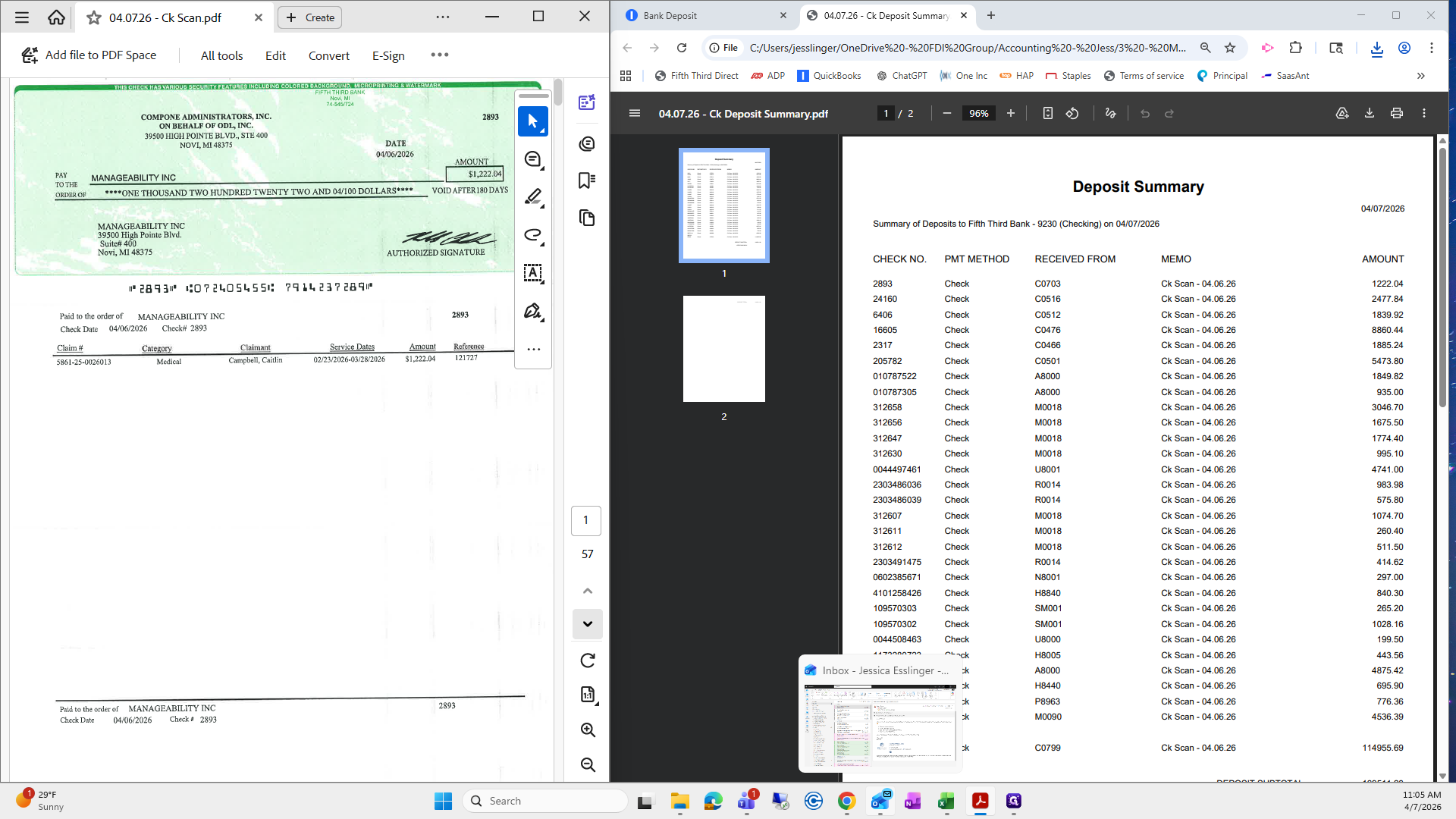
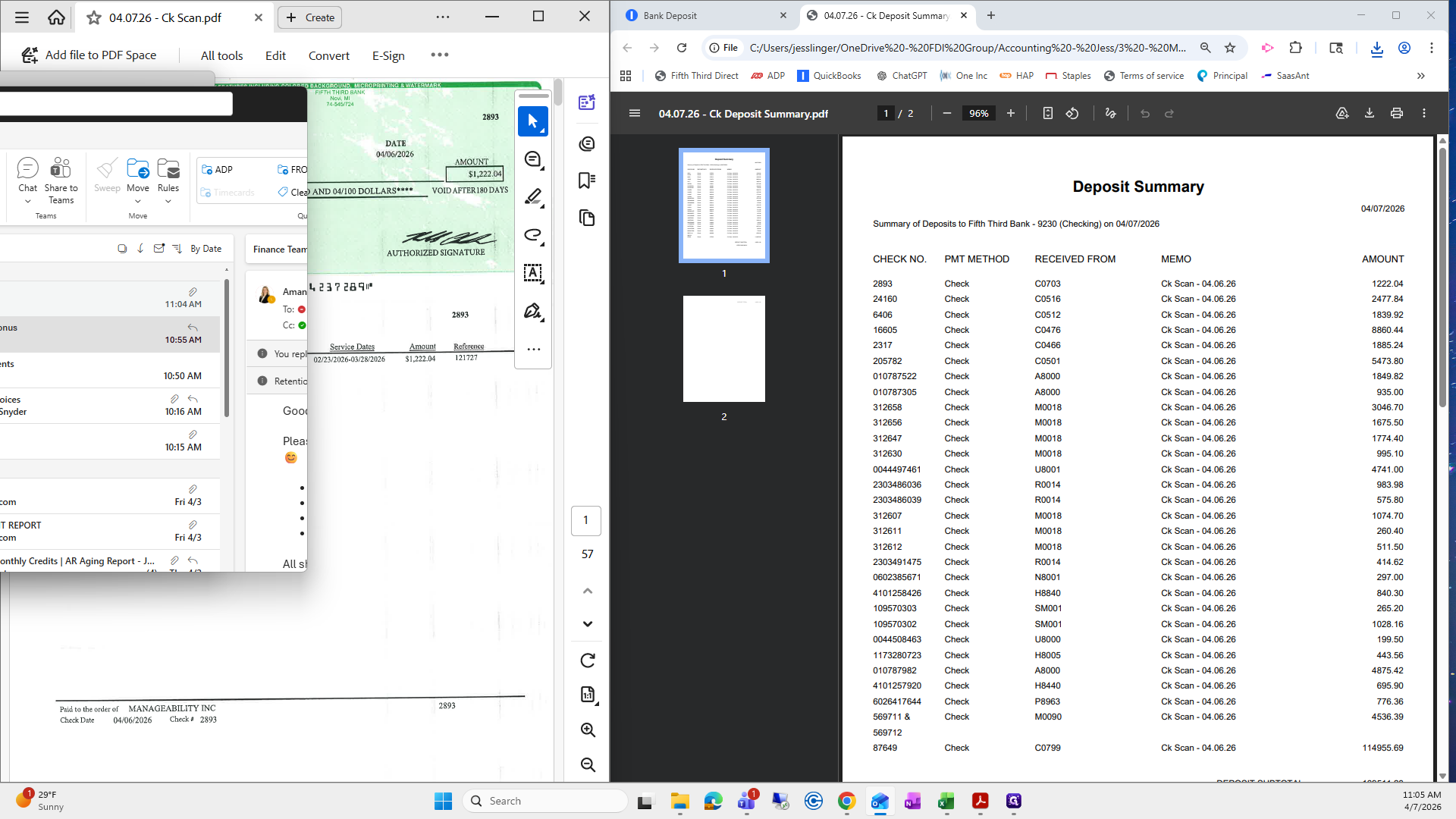
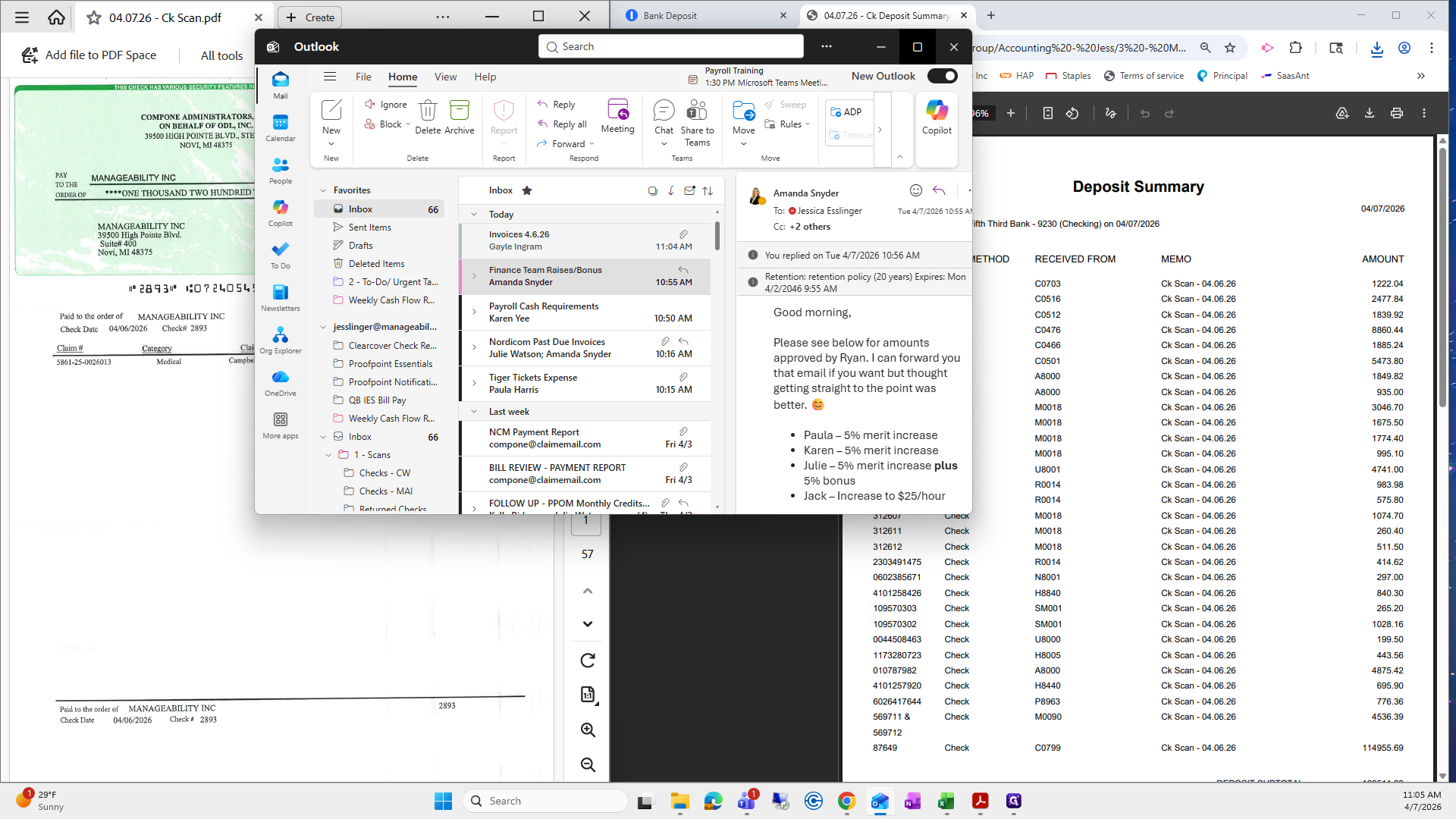
If you want to do this and still "email" me while CC'ing Amanda so I can reference it later, just go to your mail.
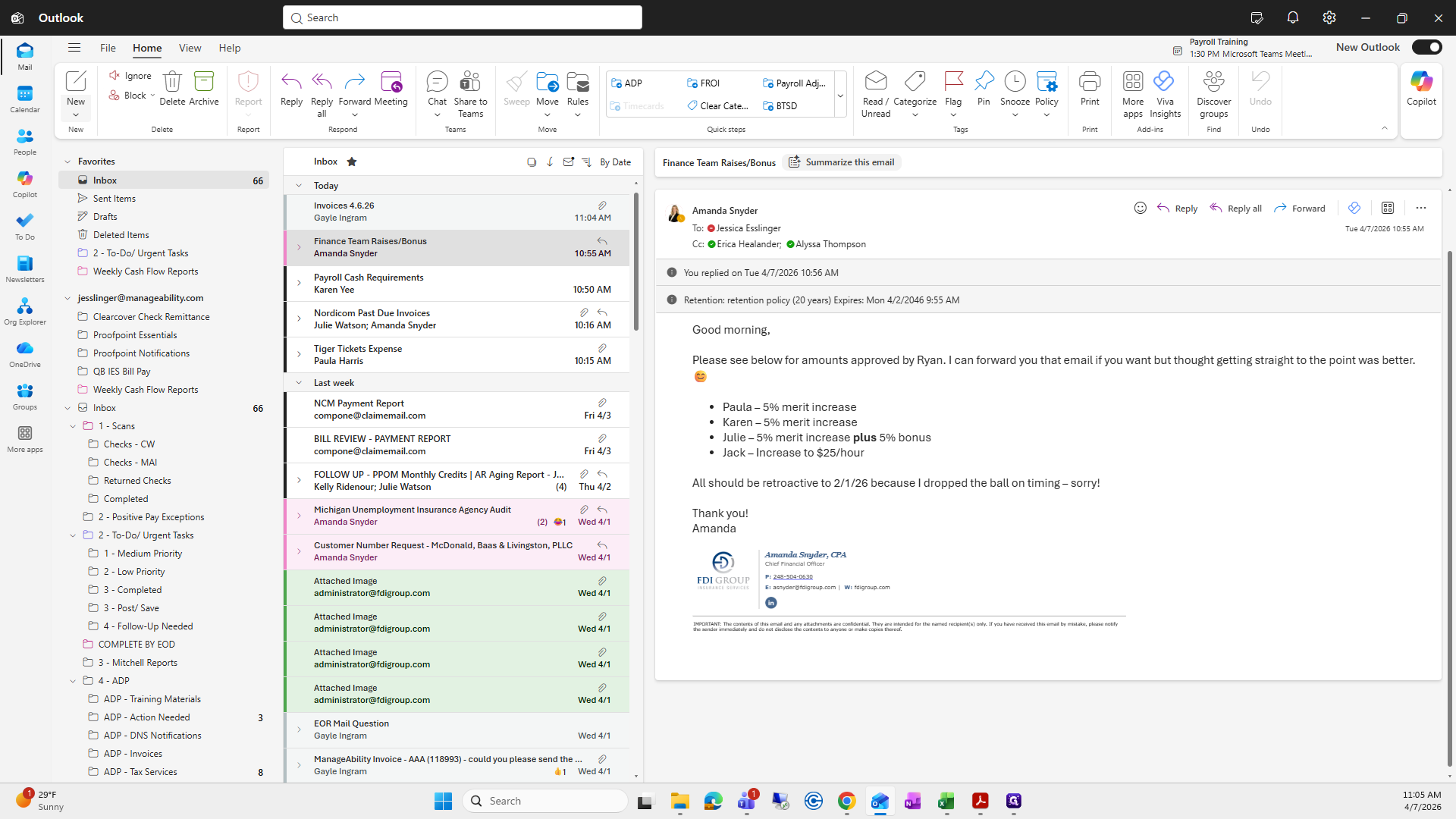
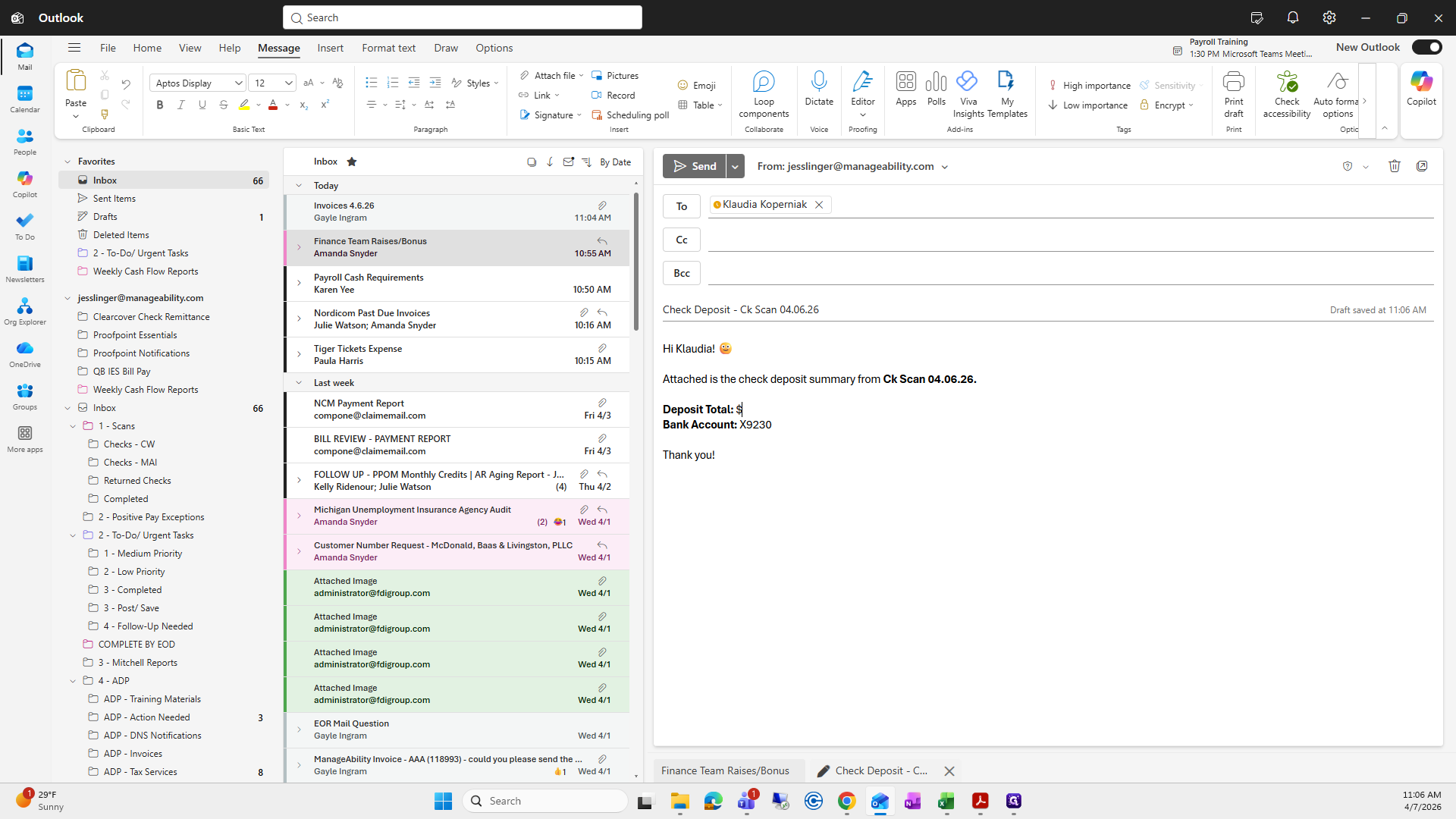
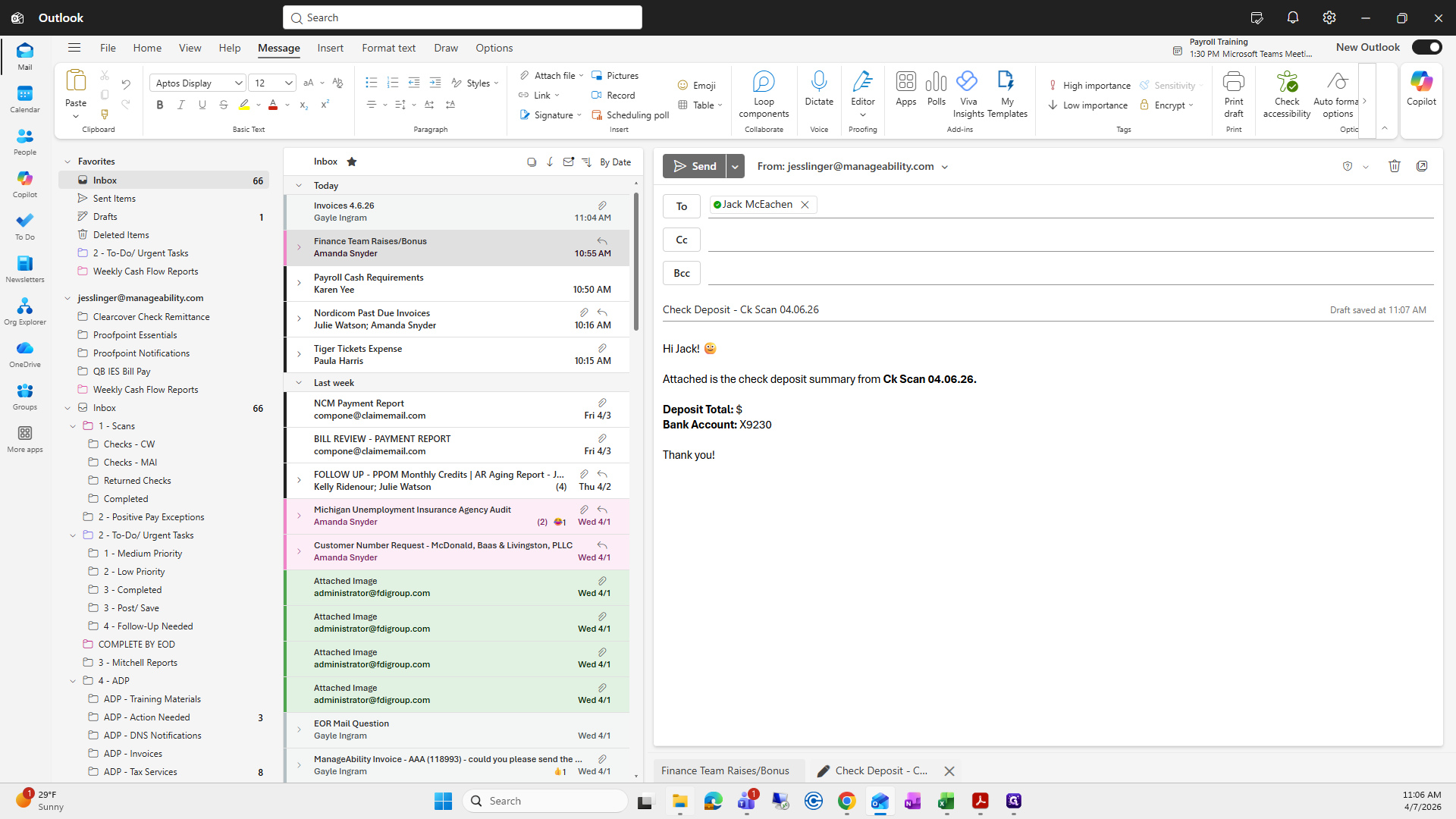
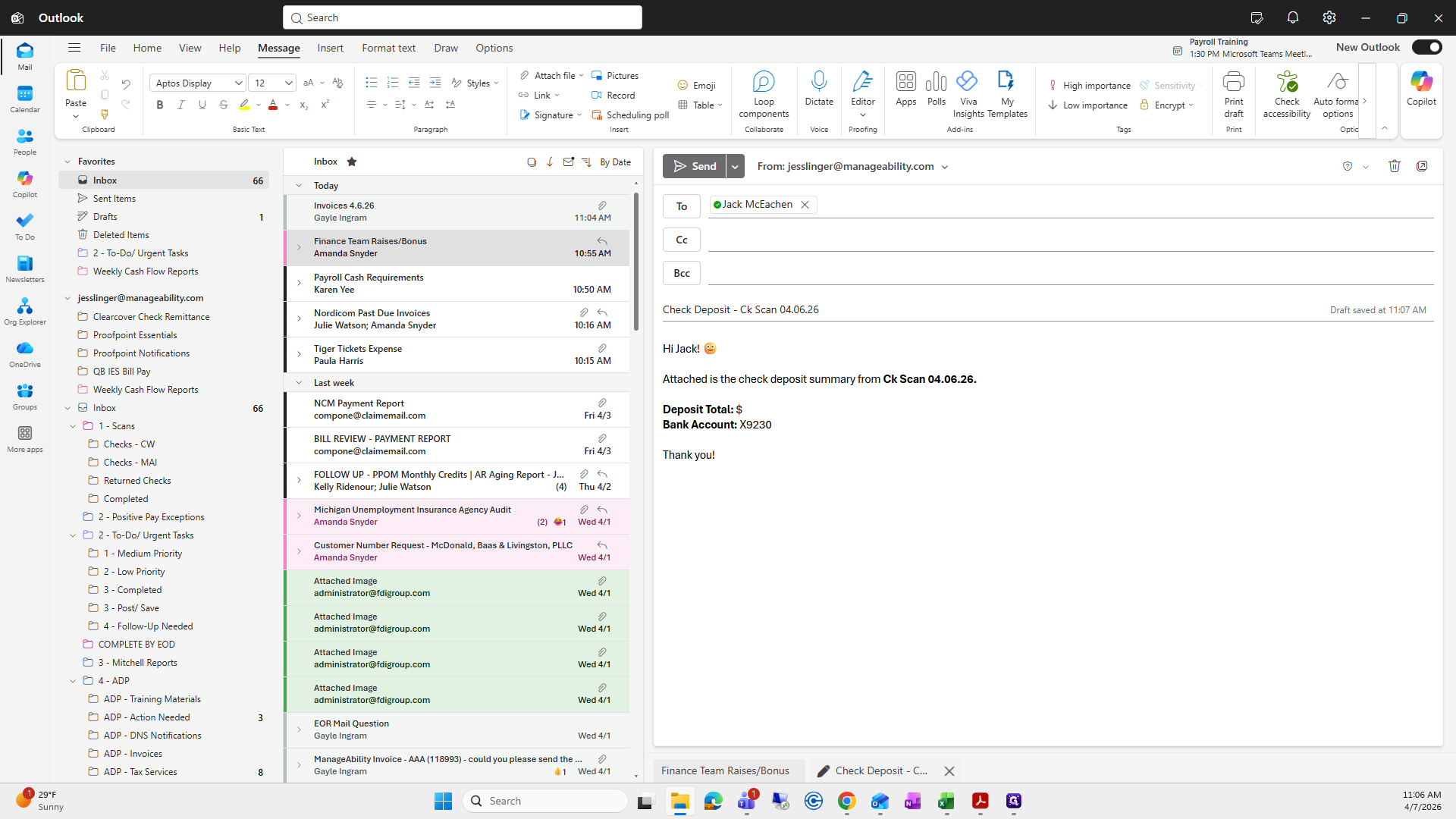
I have a template.
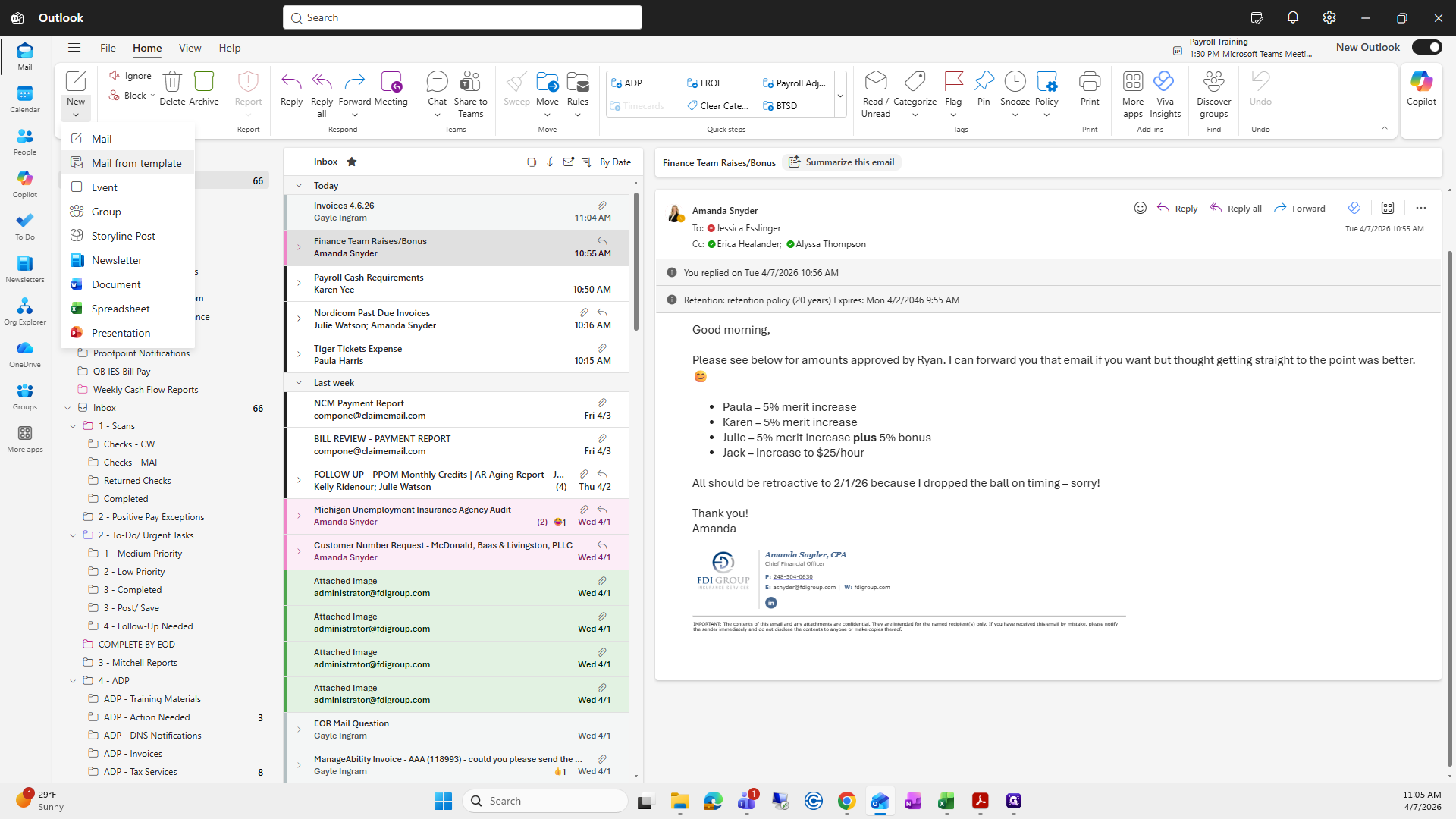
You don't need to worry about the template. I keep it even and uniform every day. Where is it? Check deposits and check scans are from yesterday.
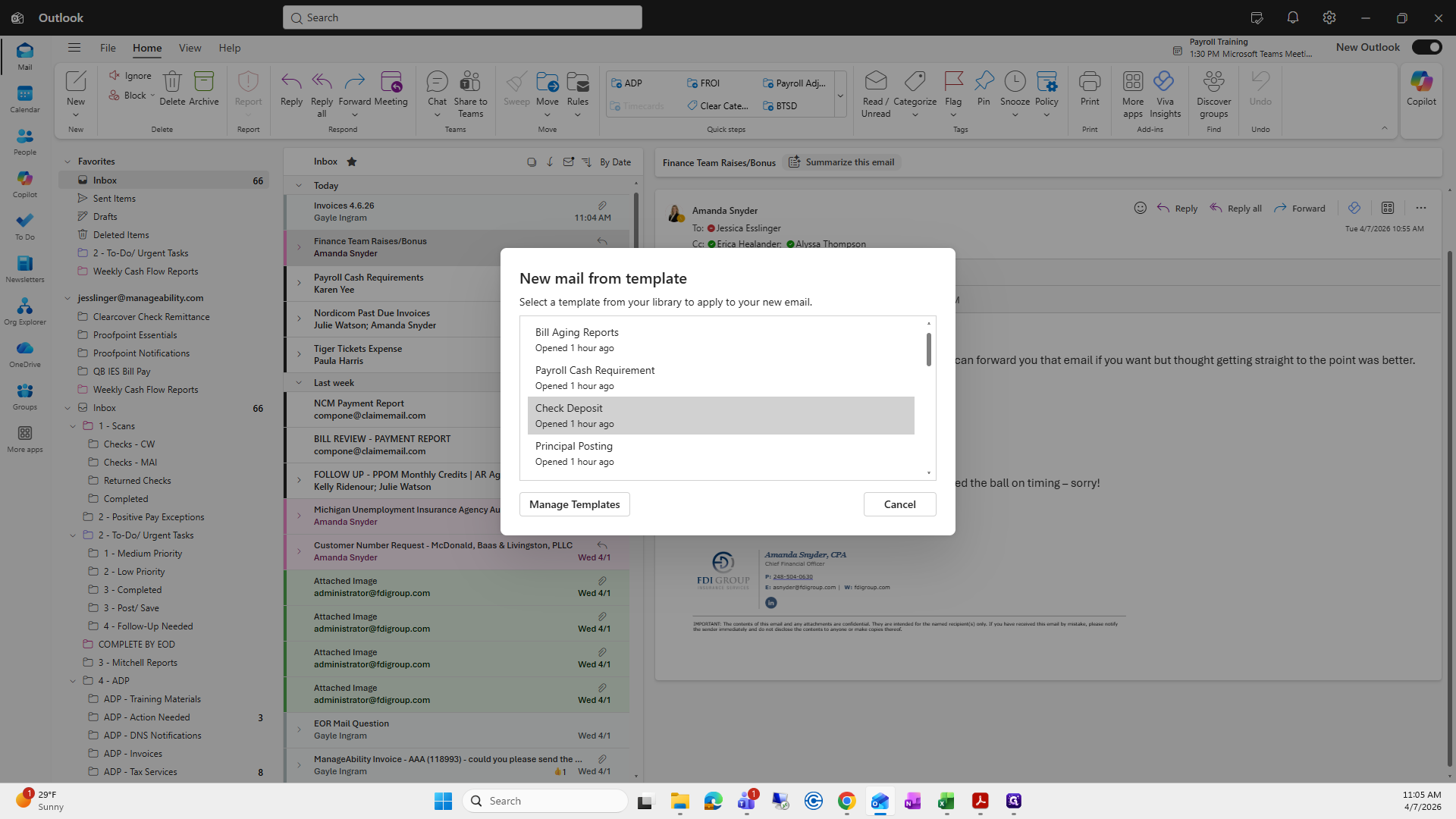
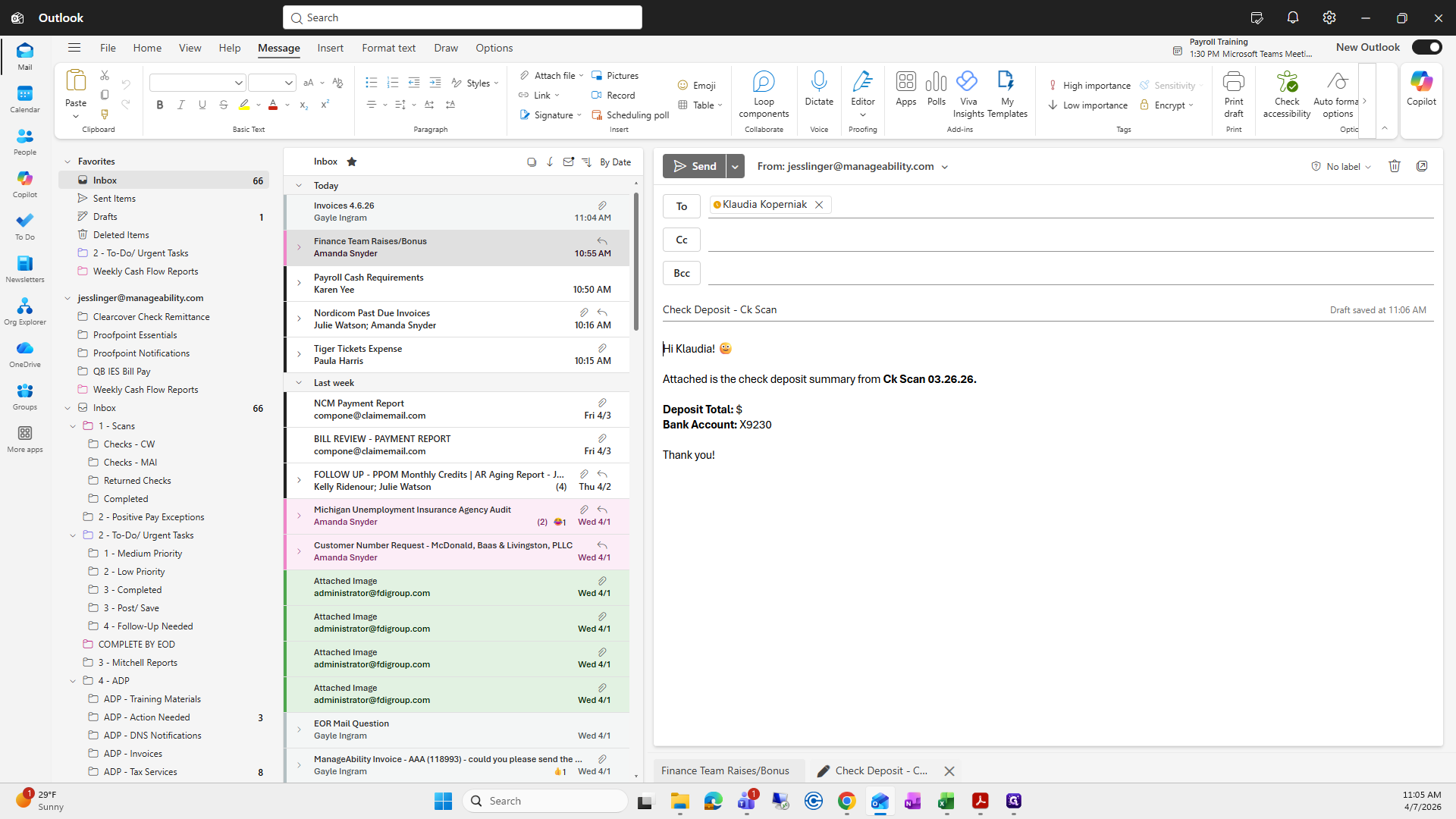
I'm going to change this.
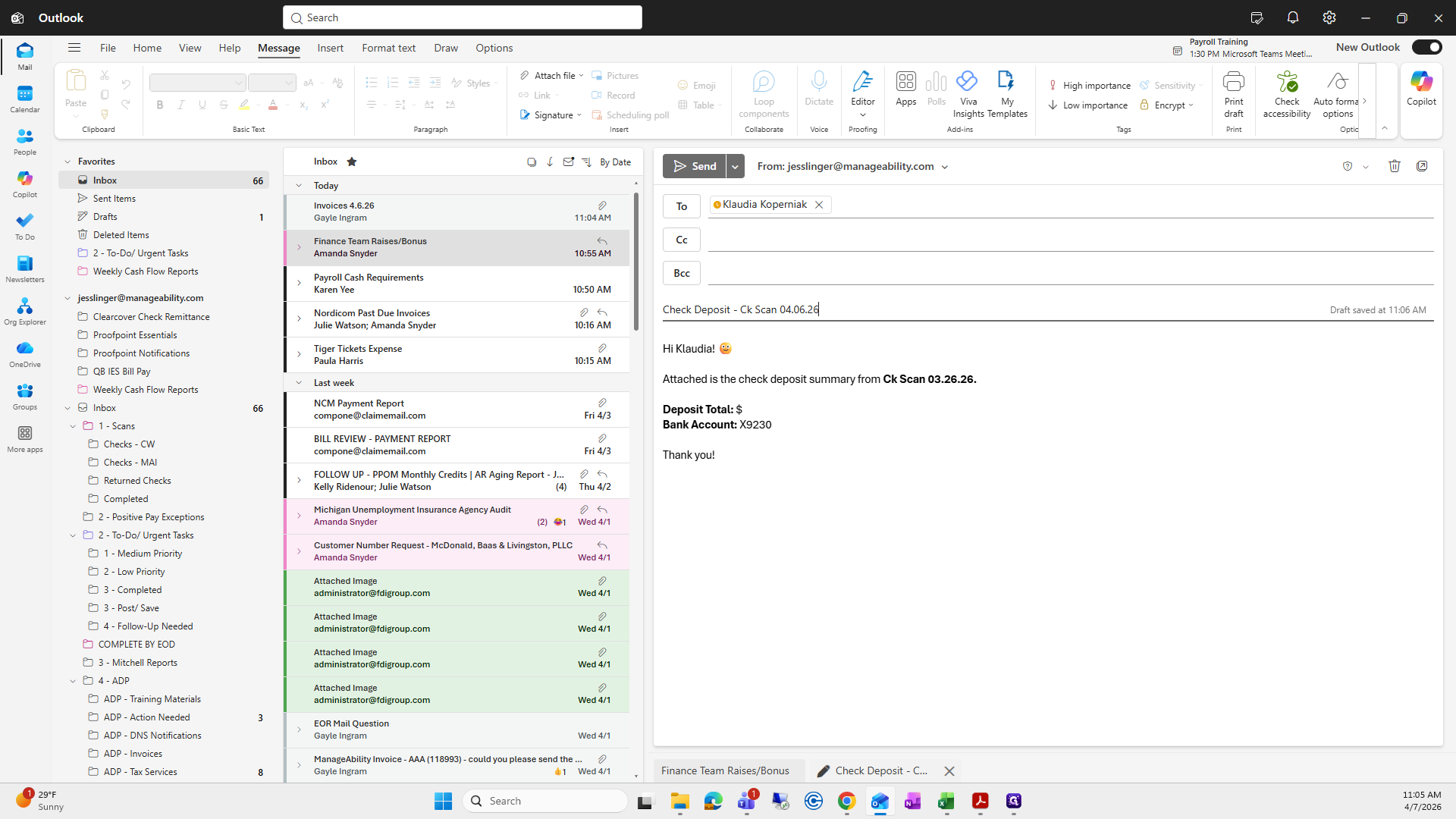
To keep it uniform.
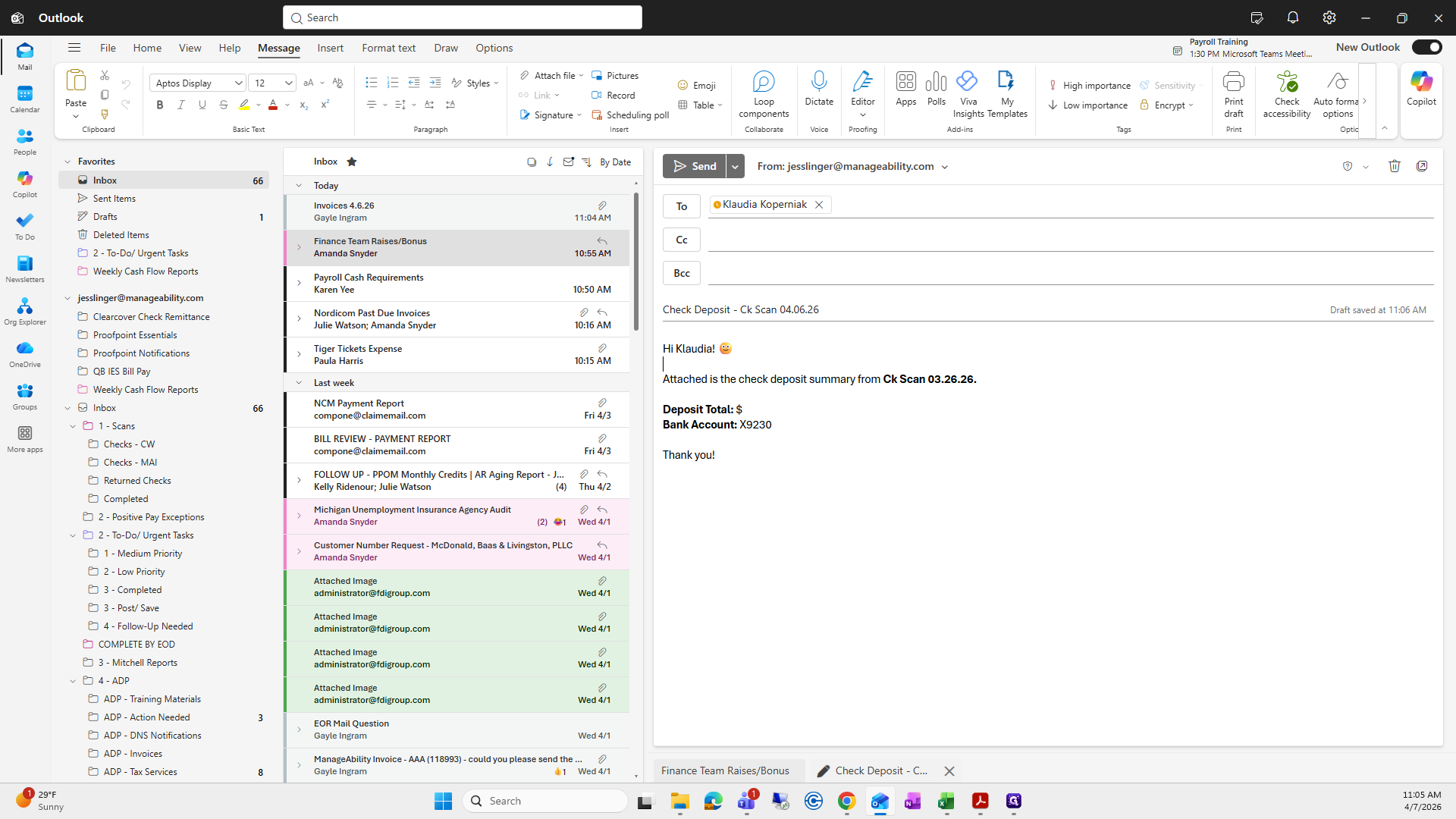
You can write something like, "Jessica, this was the deposit total, bank account number, and here is the documentation," so I can keep track of it.
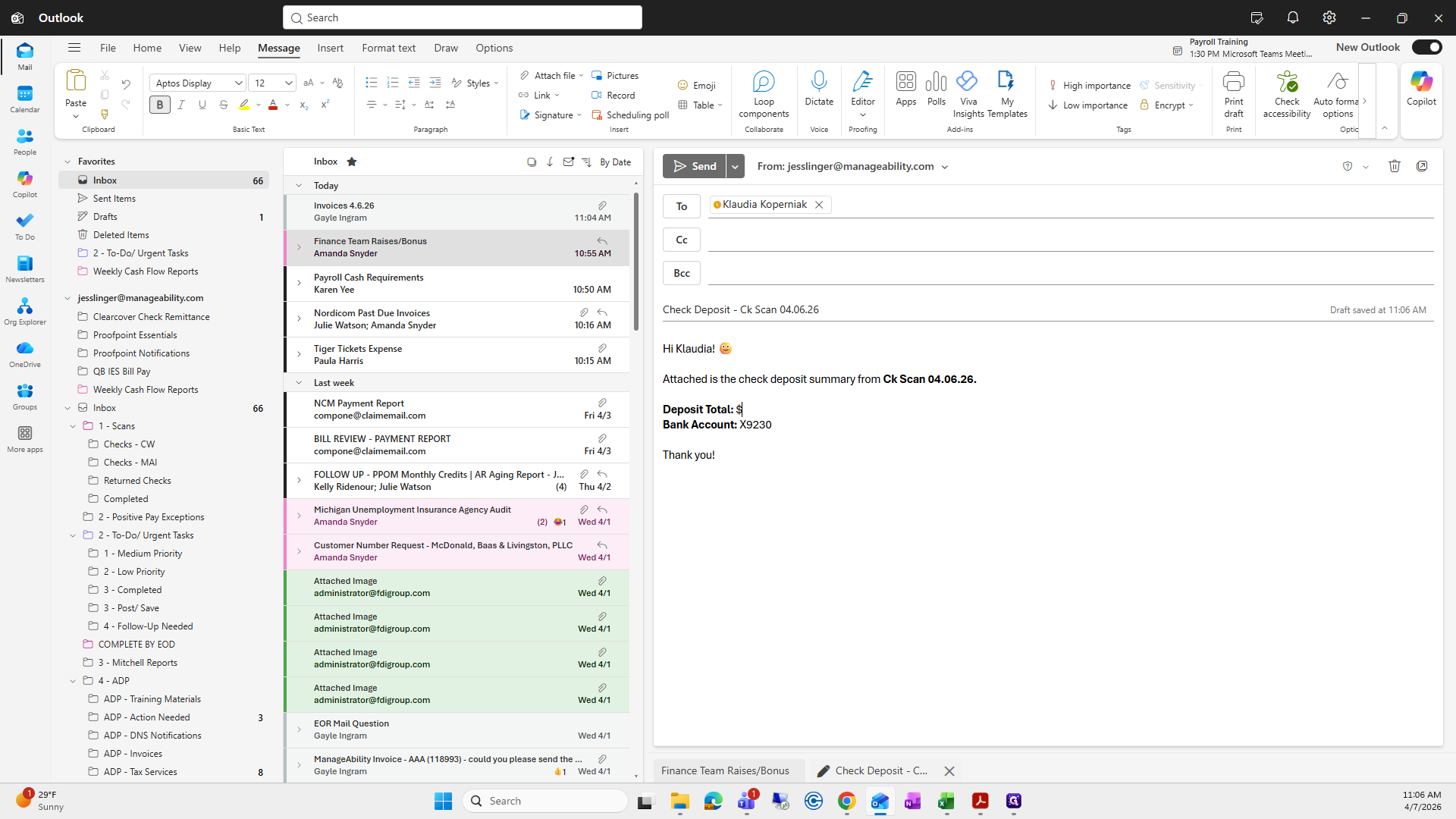
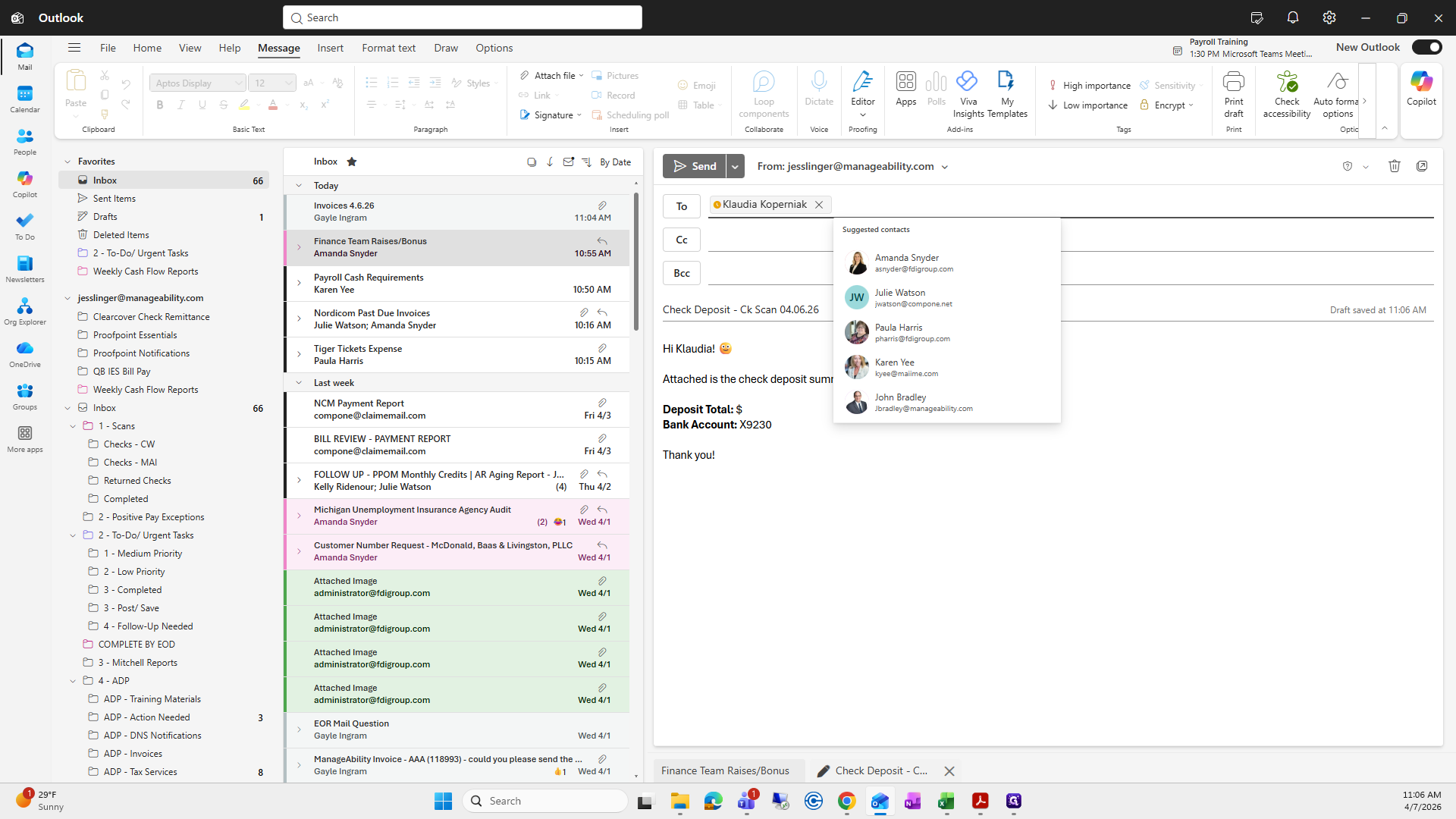
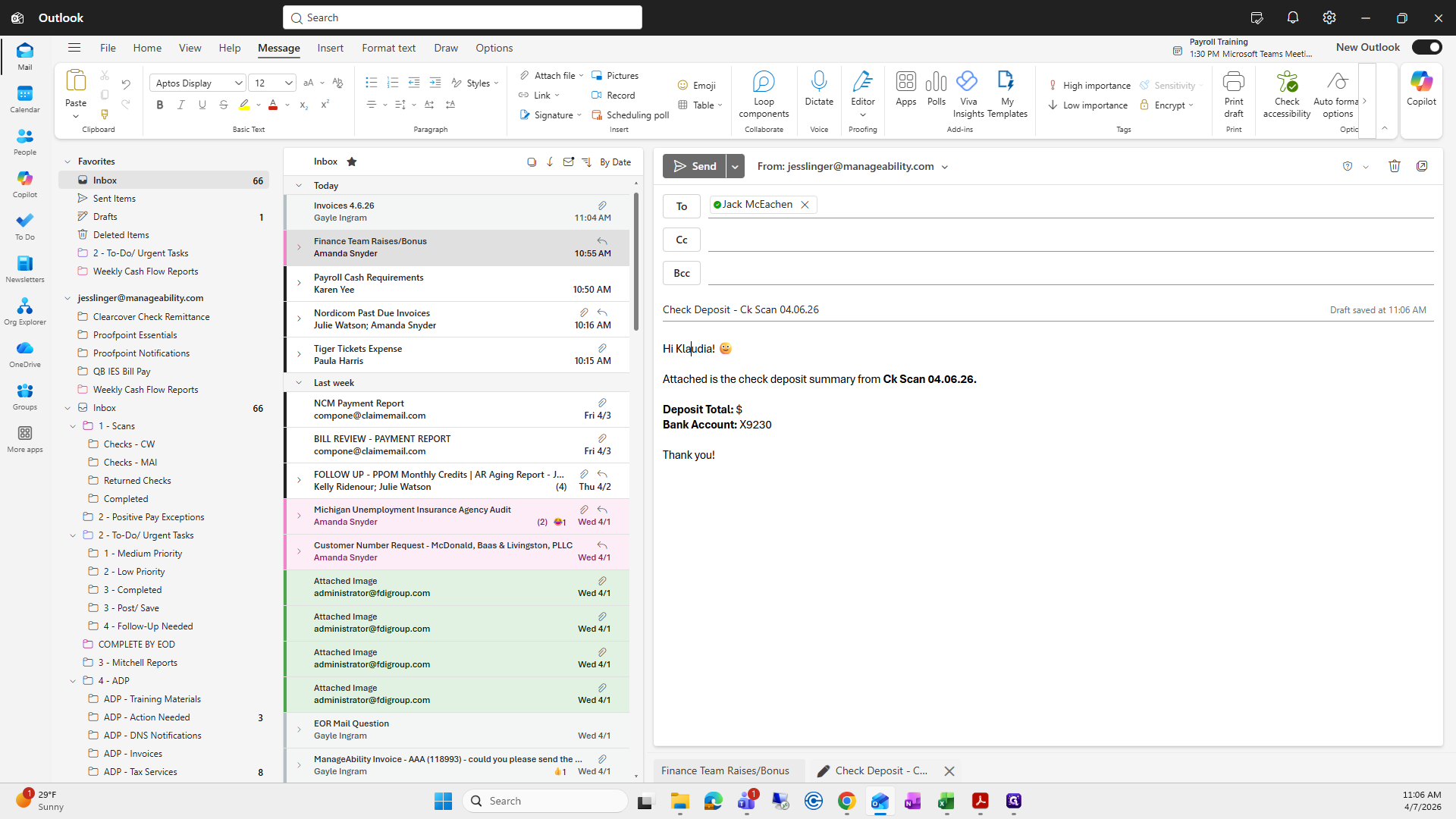
You are out of the office right now, so I will send this to Jack.
Okay.
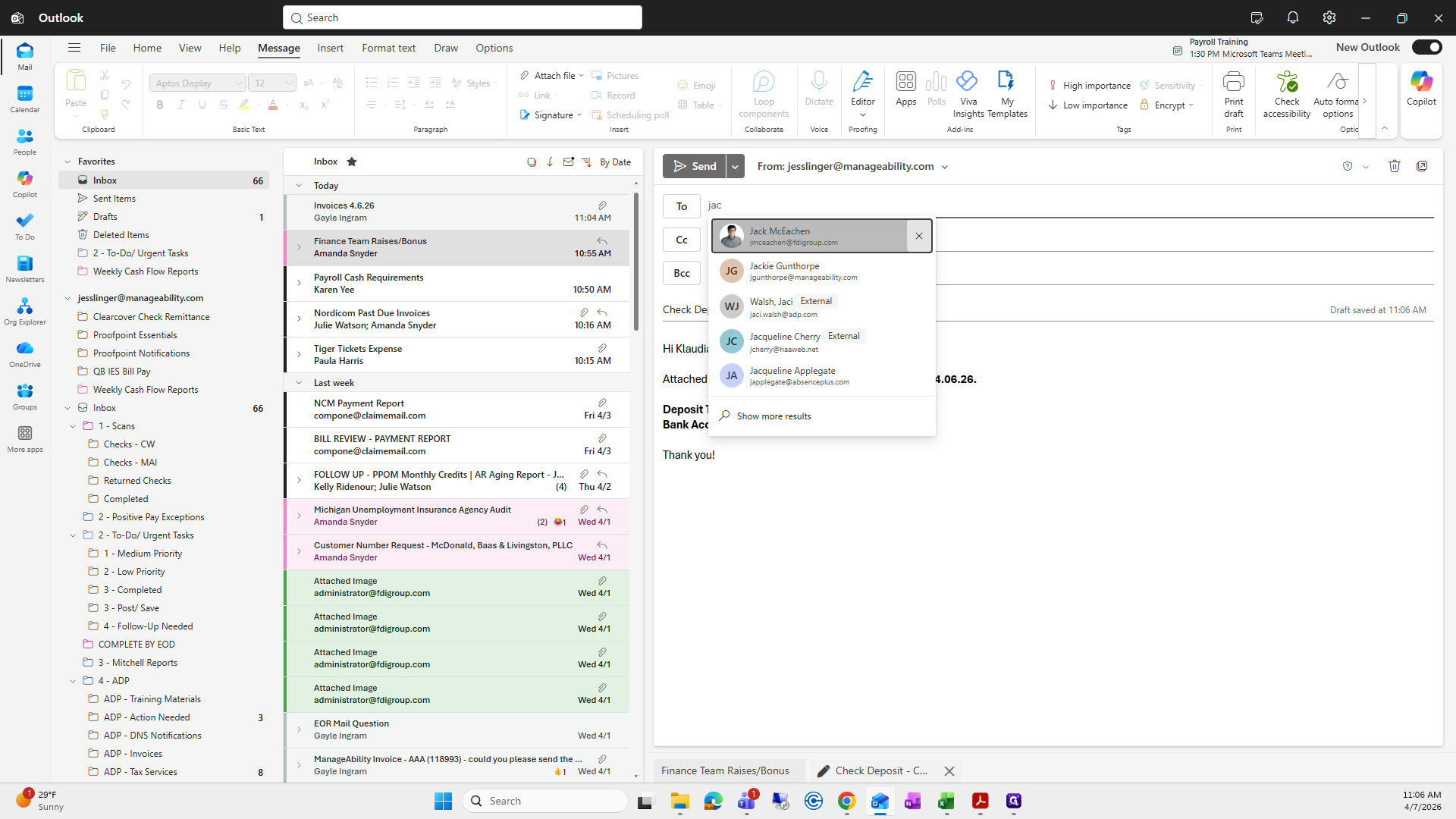
I will add the check deposit summary here.
Oops.
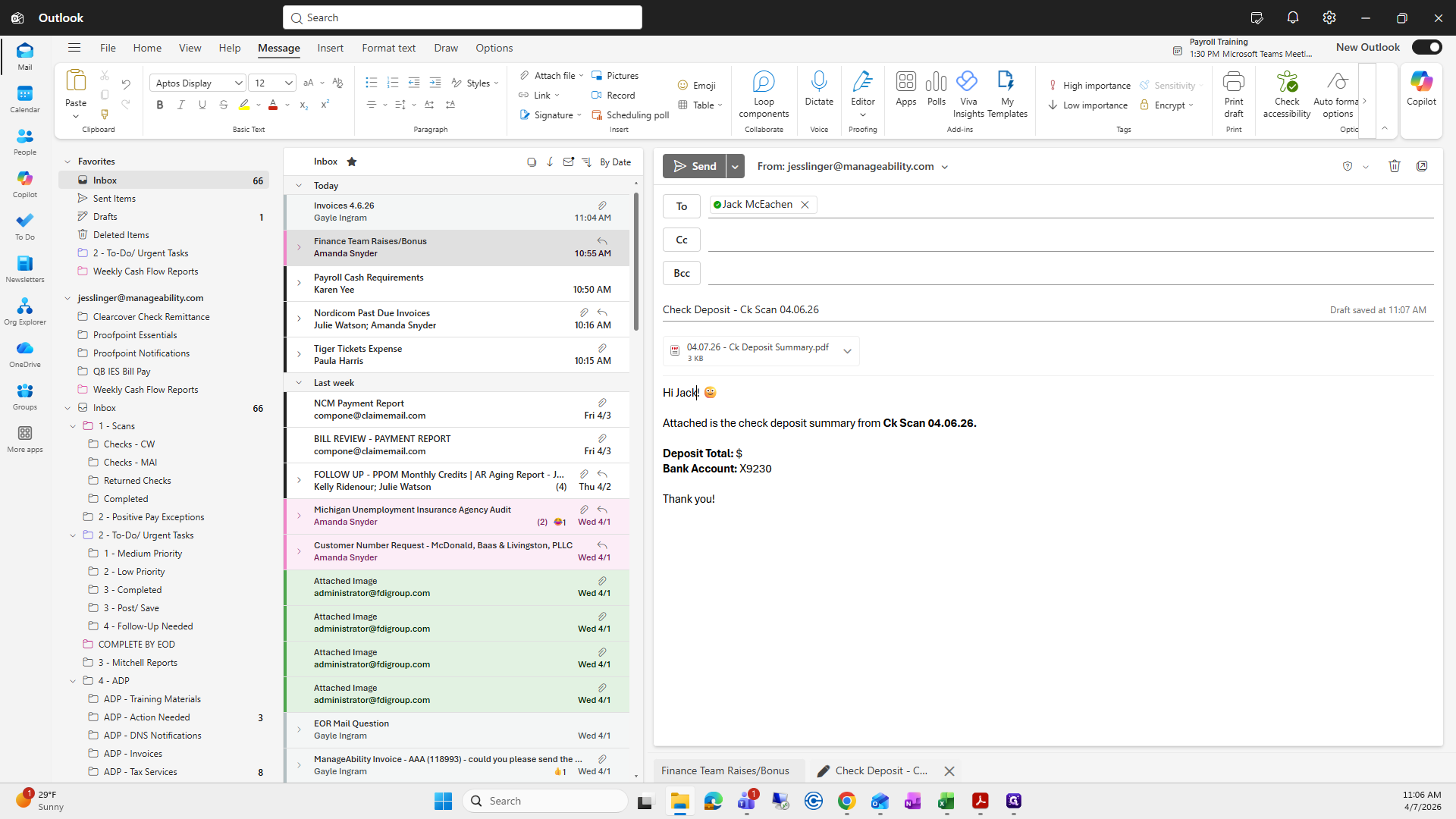
Check the scan for Jack. There is a note that says to keep out.
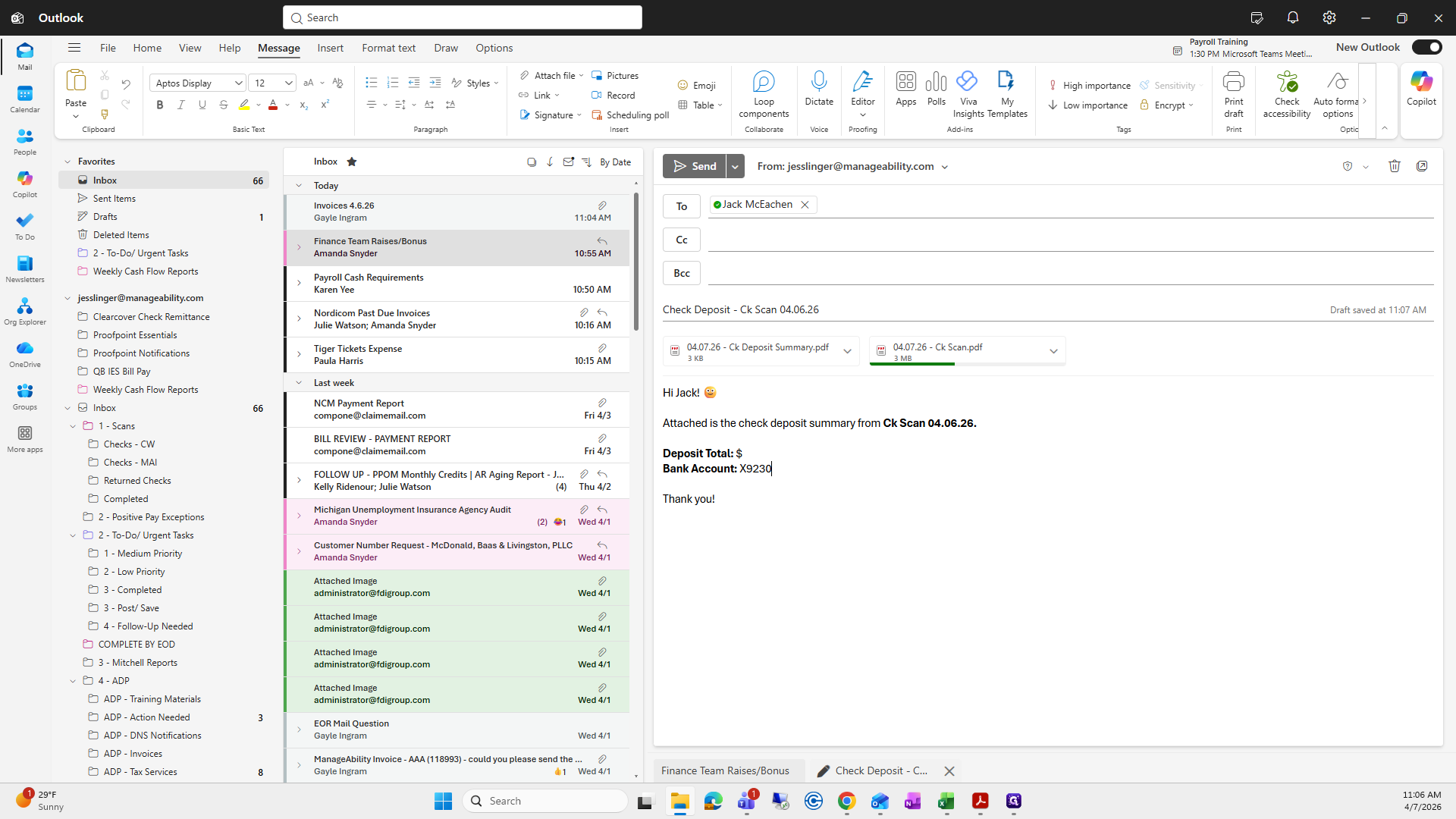
I will indicate which check to remove.
I'm going to remove the check number and look for the Penn National check to remove it for him.
That way he knows to keep it to the side.
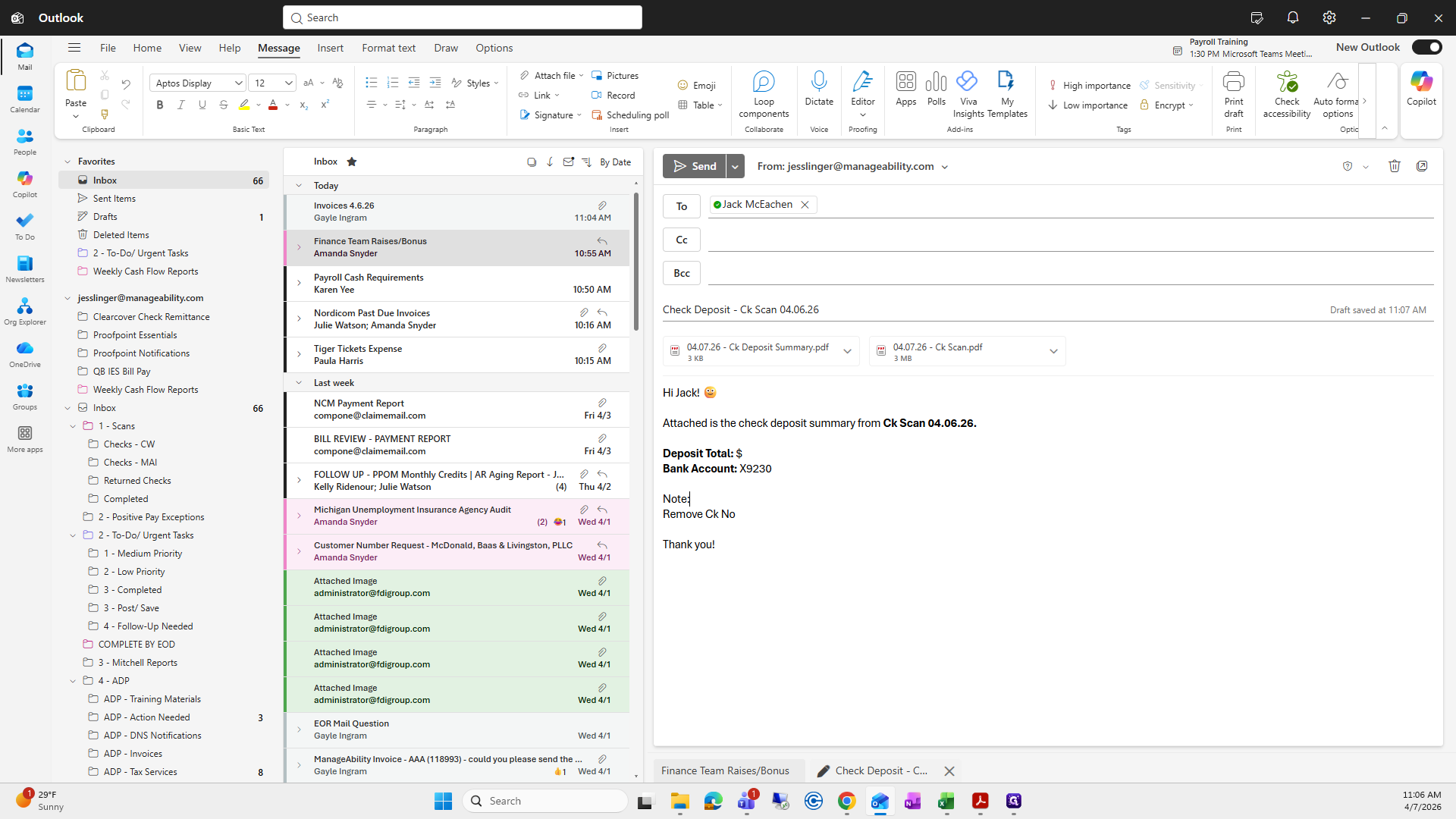
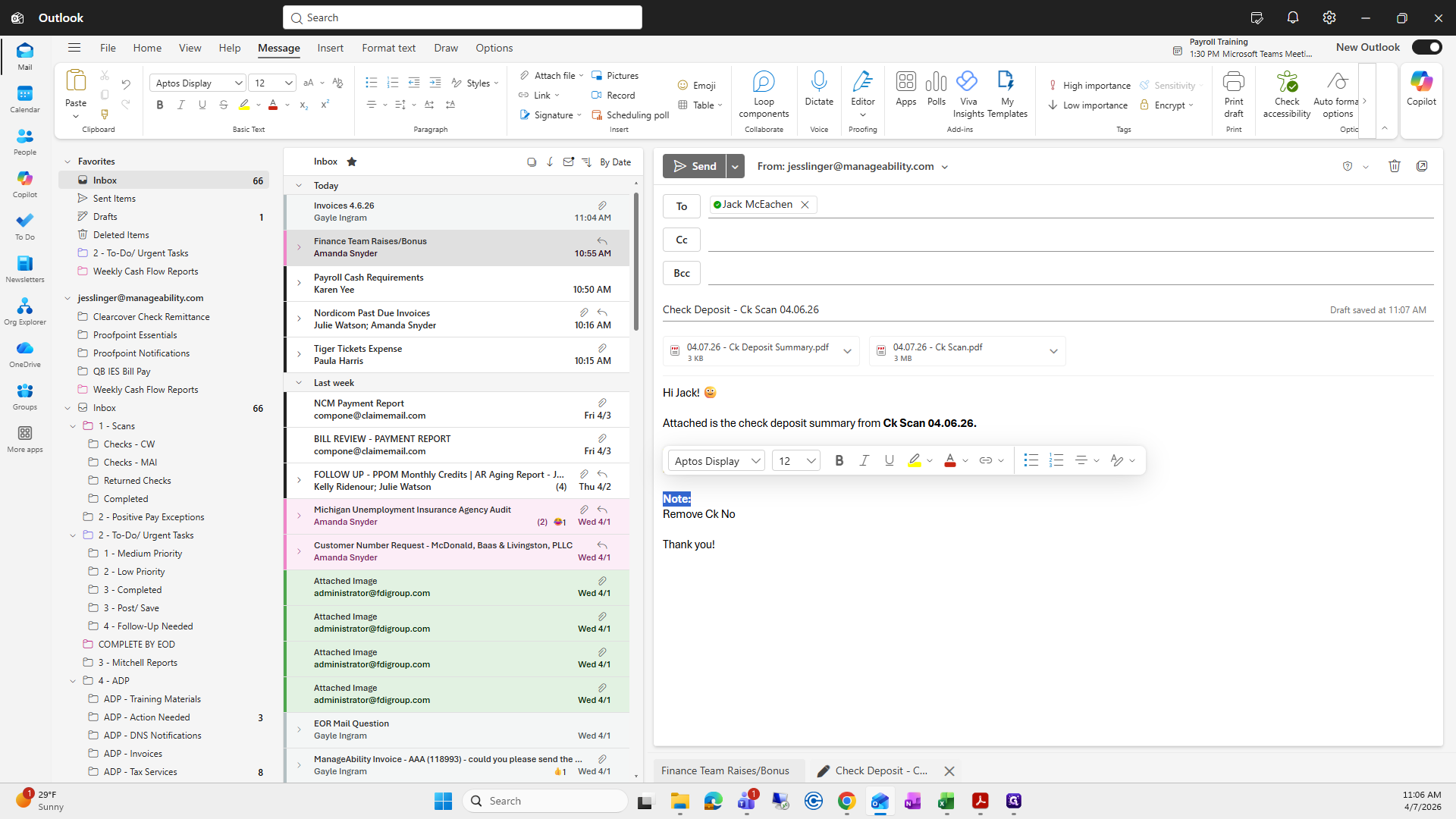
Once I add the note here, I will press send to Jack so he can deposit it.
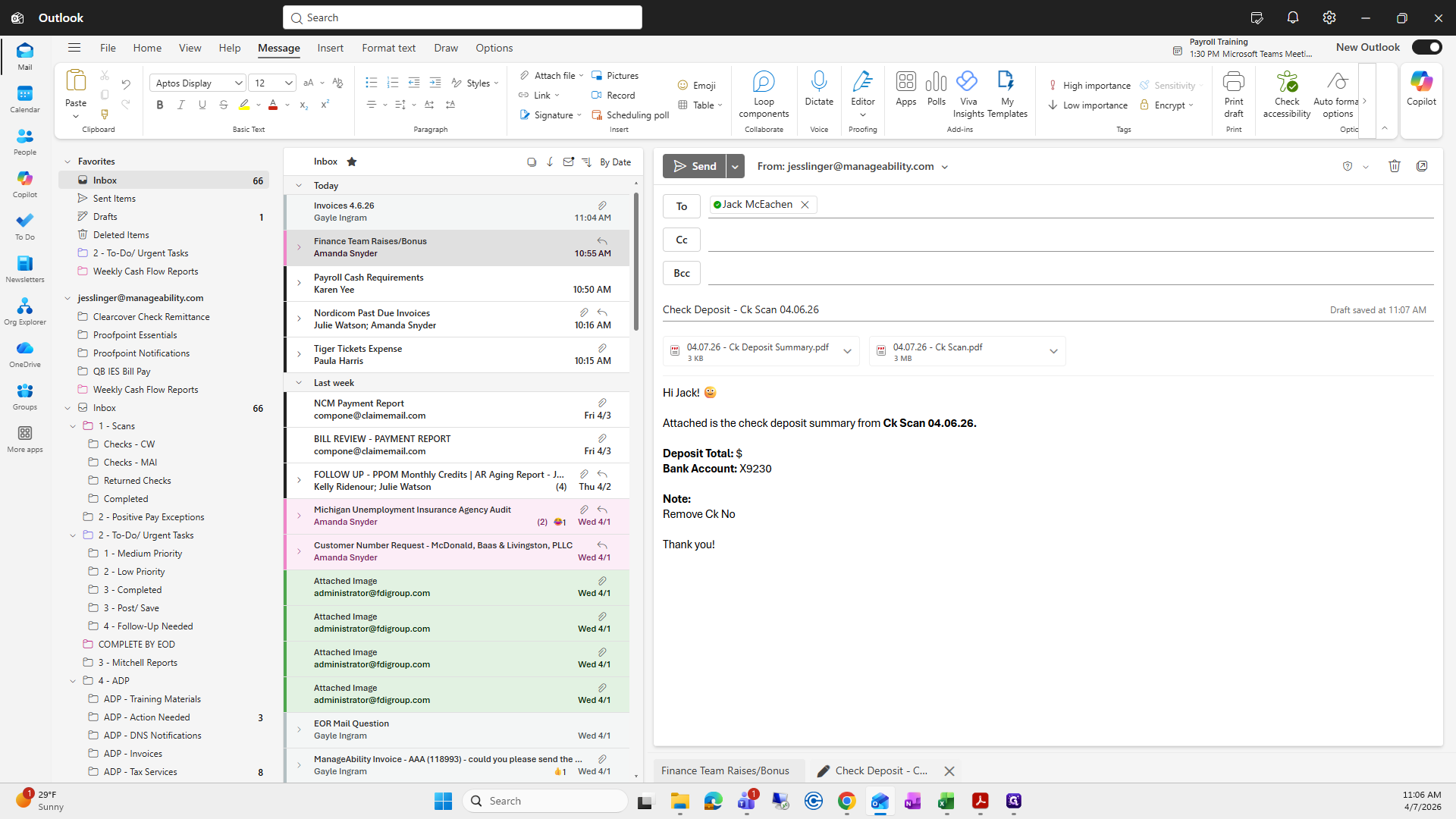
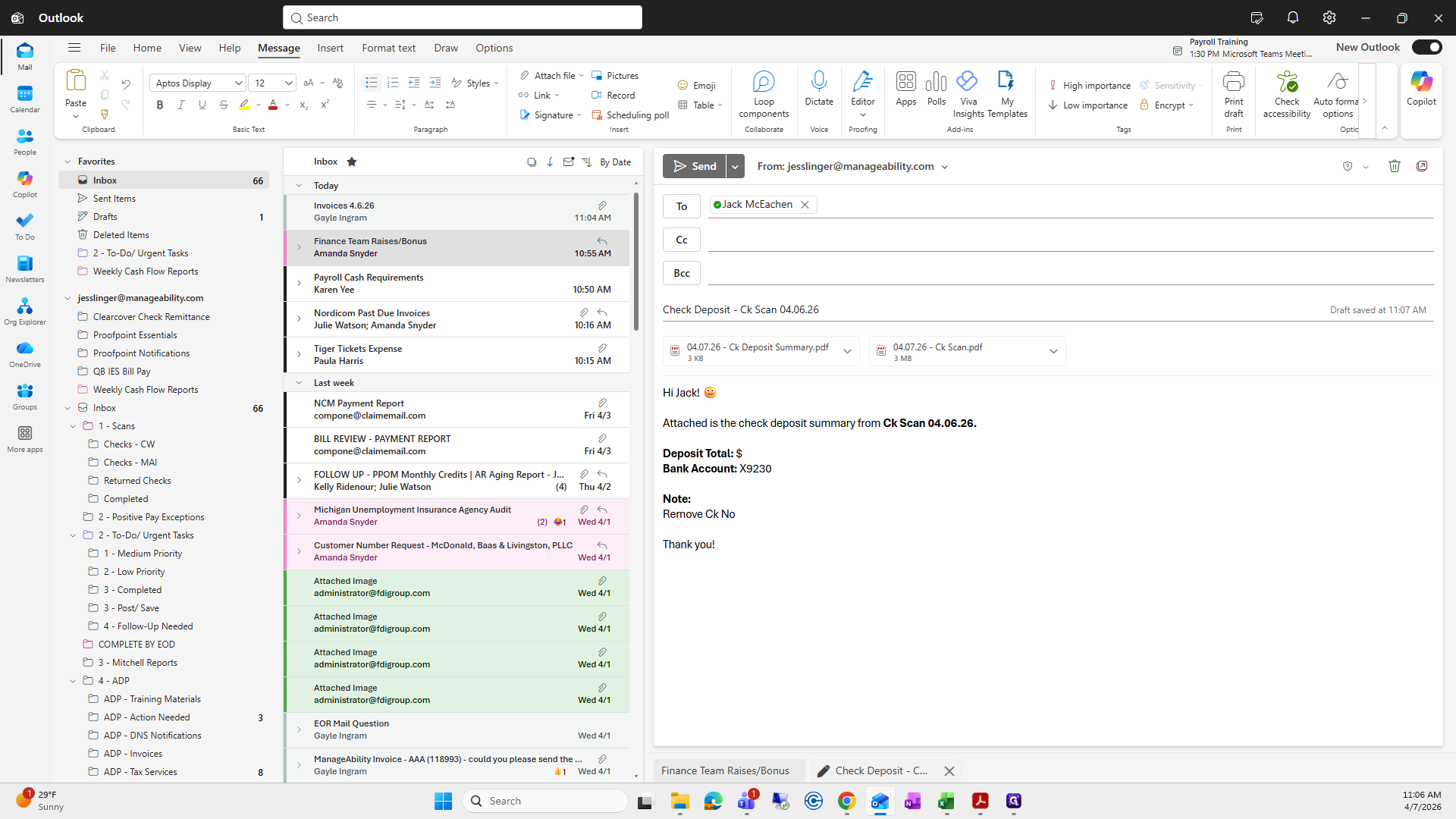
That is how you make check deposits.