How to Activate the Request for Quote Feature on Specific Products in Reservety
Learn step-by-step how to enable the Request for Quote feature for specific products, such as horse trailers, in Reservety. Hide prices and allow customers to request quotes easily with this tutorial.
By Reservety
In this guide, we'll learn how to activate the Request for Quote feature for specific products in Reservety.
This is useful when you want to hide prices and allow customers to request a quote instead of booking directly.
We will use a horse trailer as an example and walk through the steps from the dashboard to the checkout process.
Let's get started
1
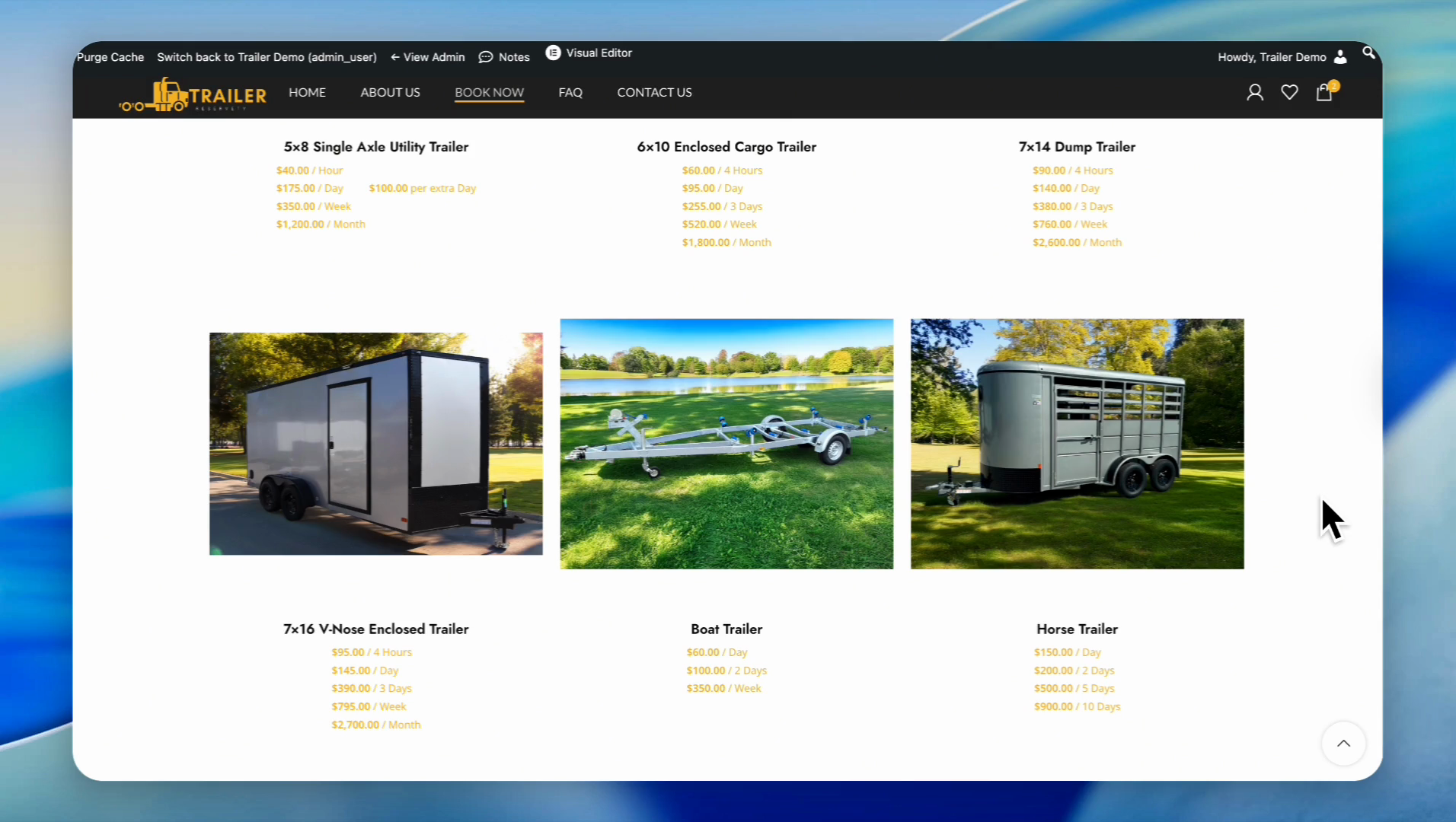
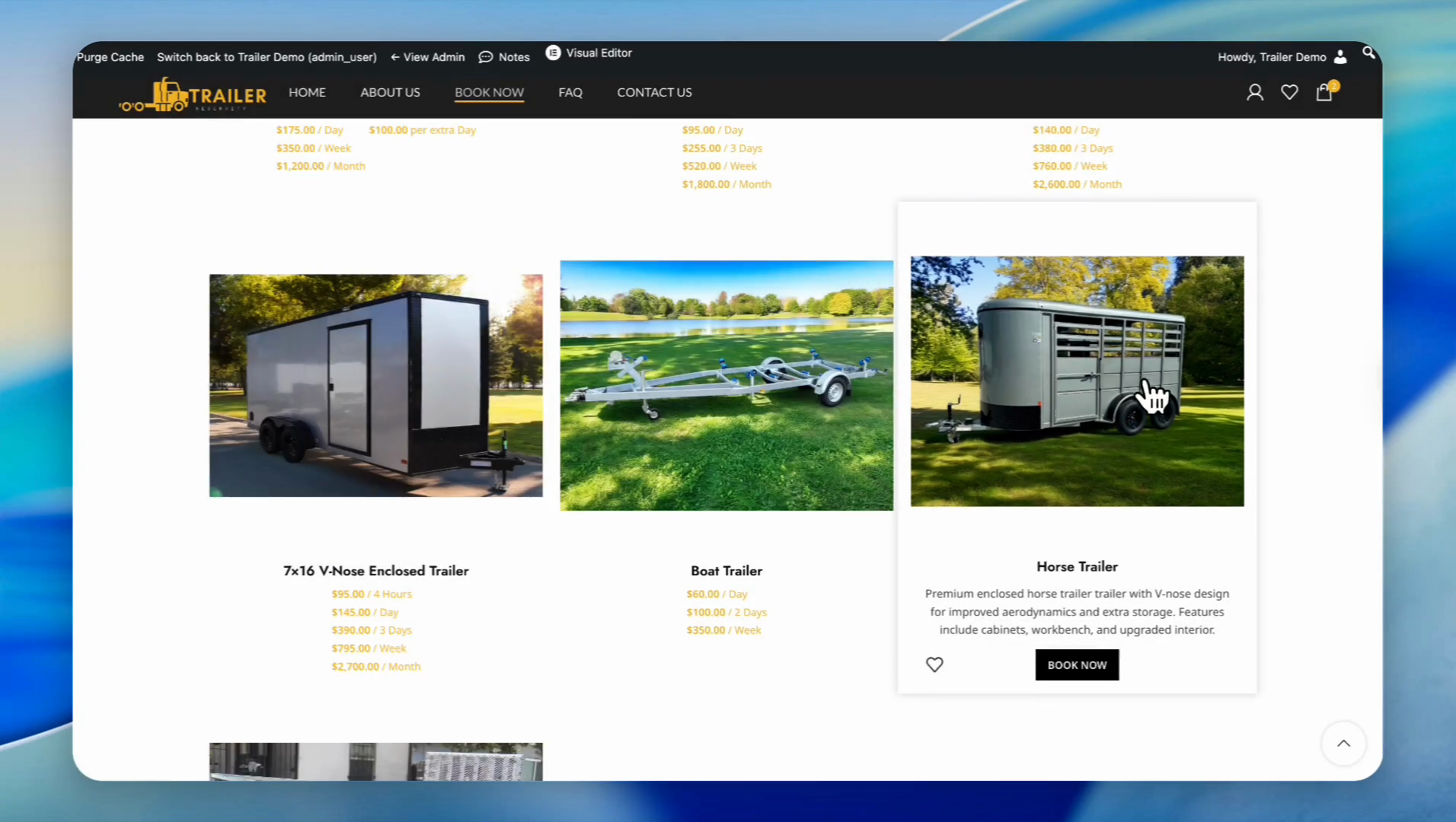
Click on the product. For example, a horse trailer.
2
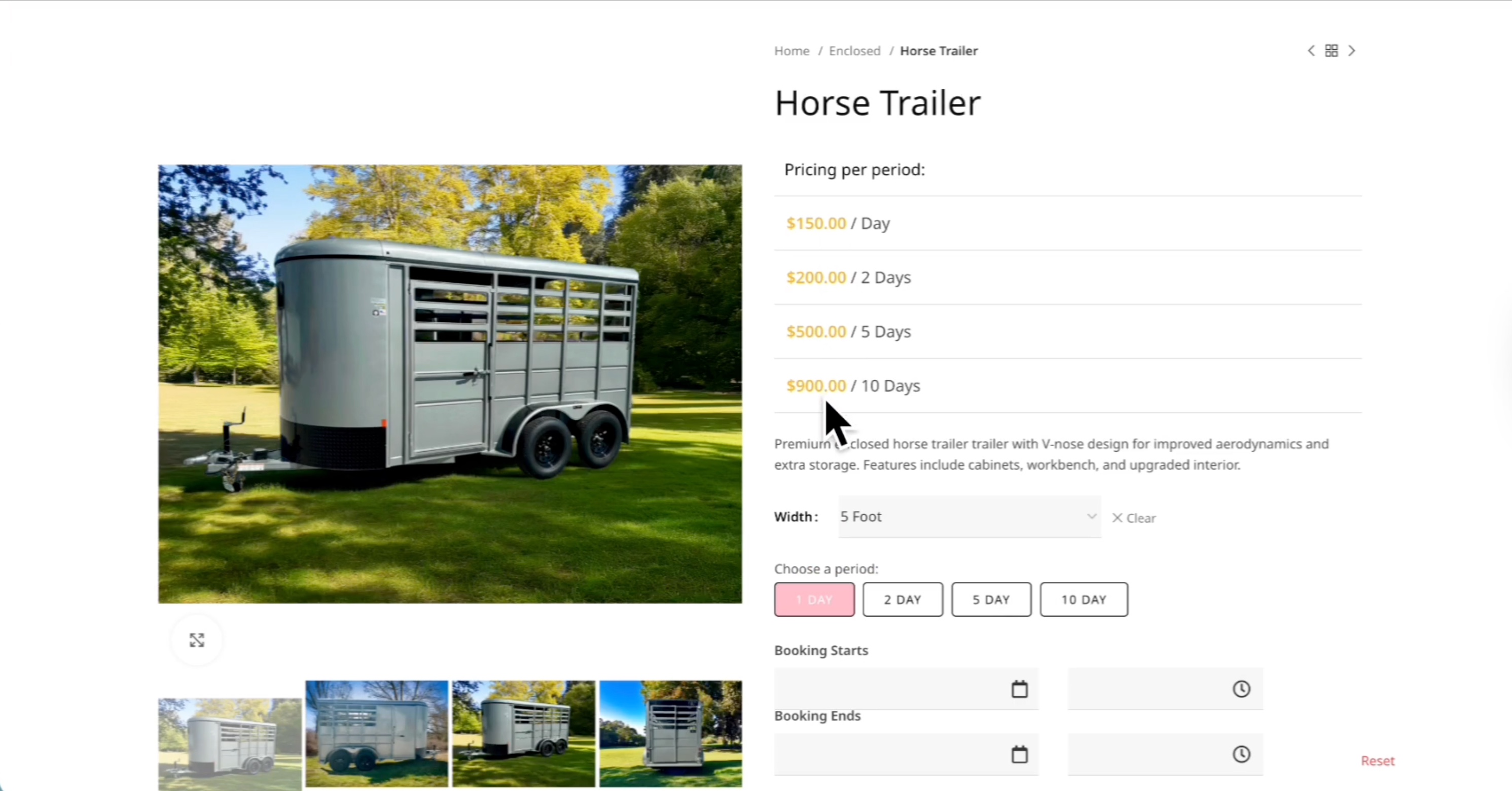
Suppose we want to hide these prices and add a Request for Quote feature.
3
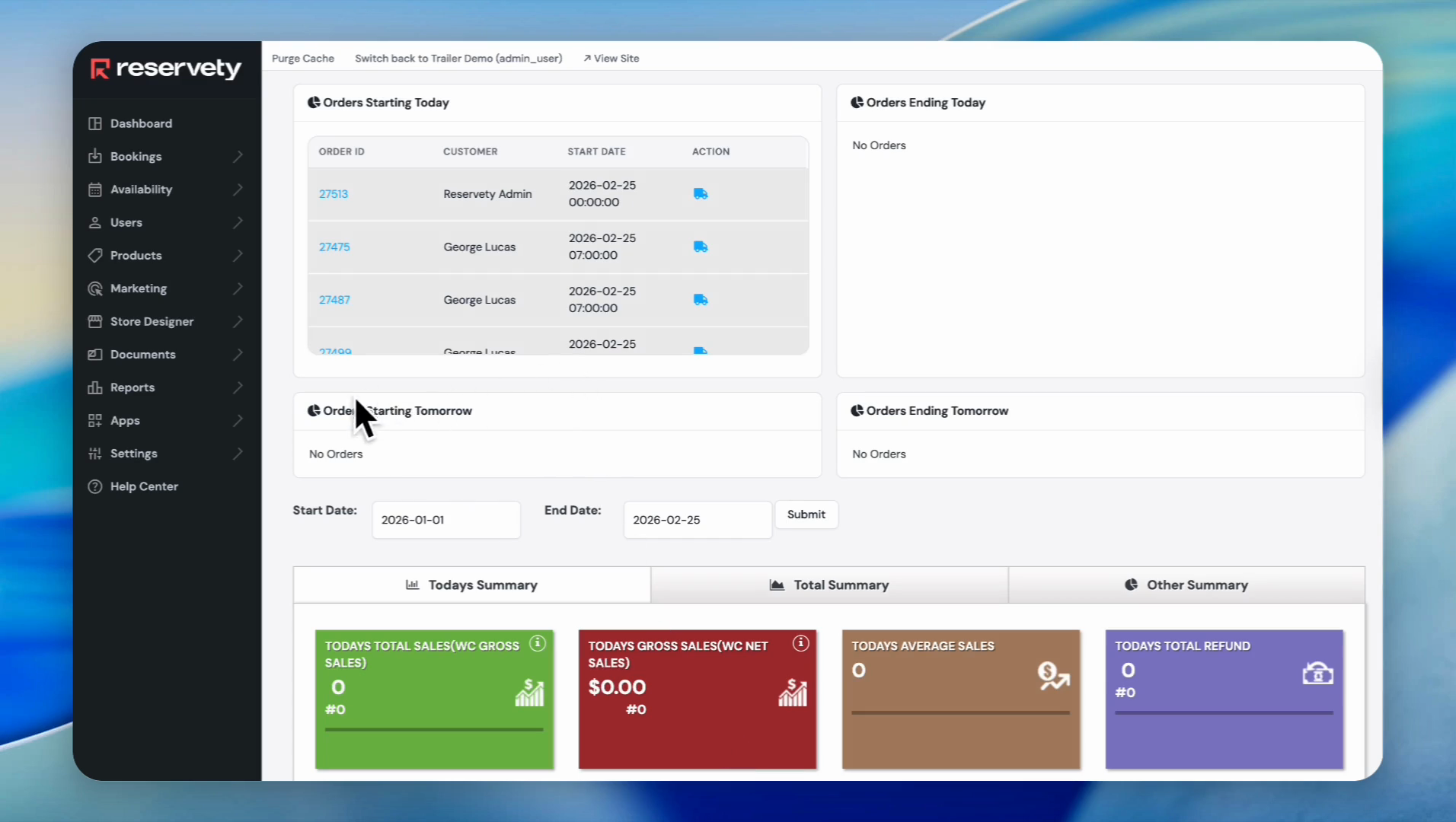
Go to the dashboard.
4
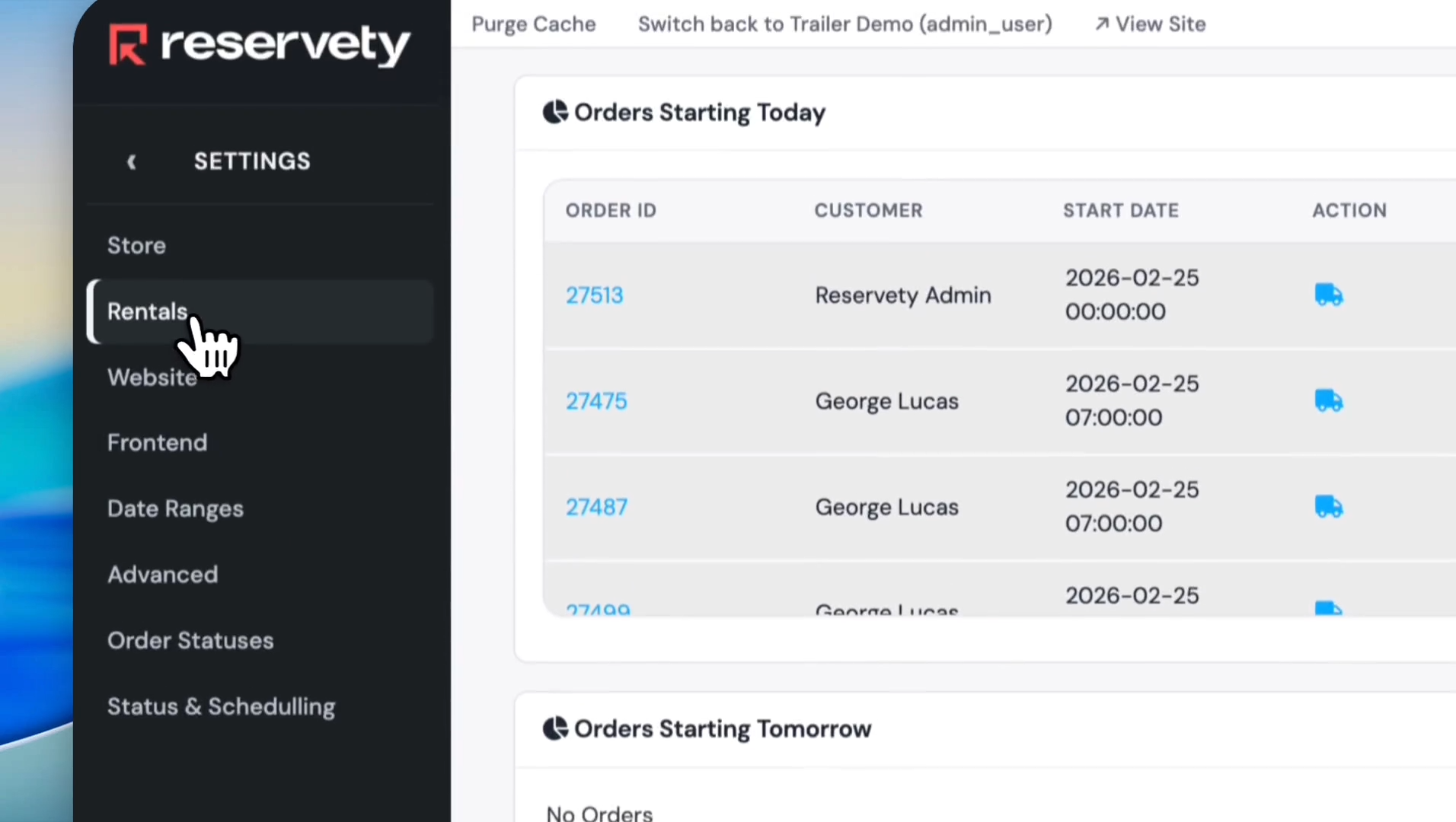
Click on Settings in the left sidebar.
5
Click on Rentals.
6
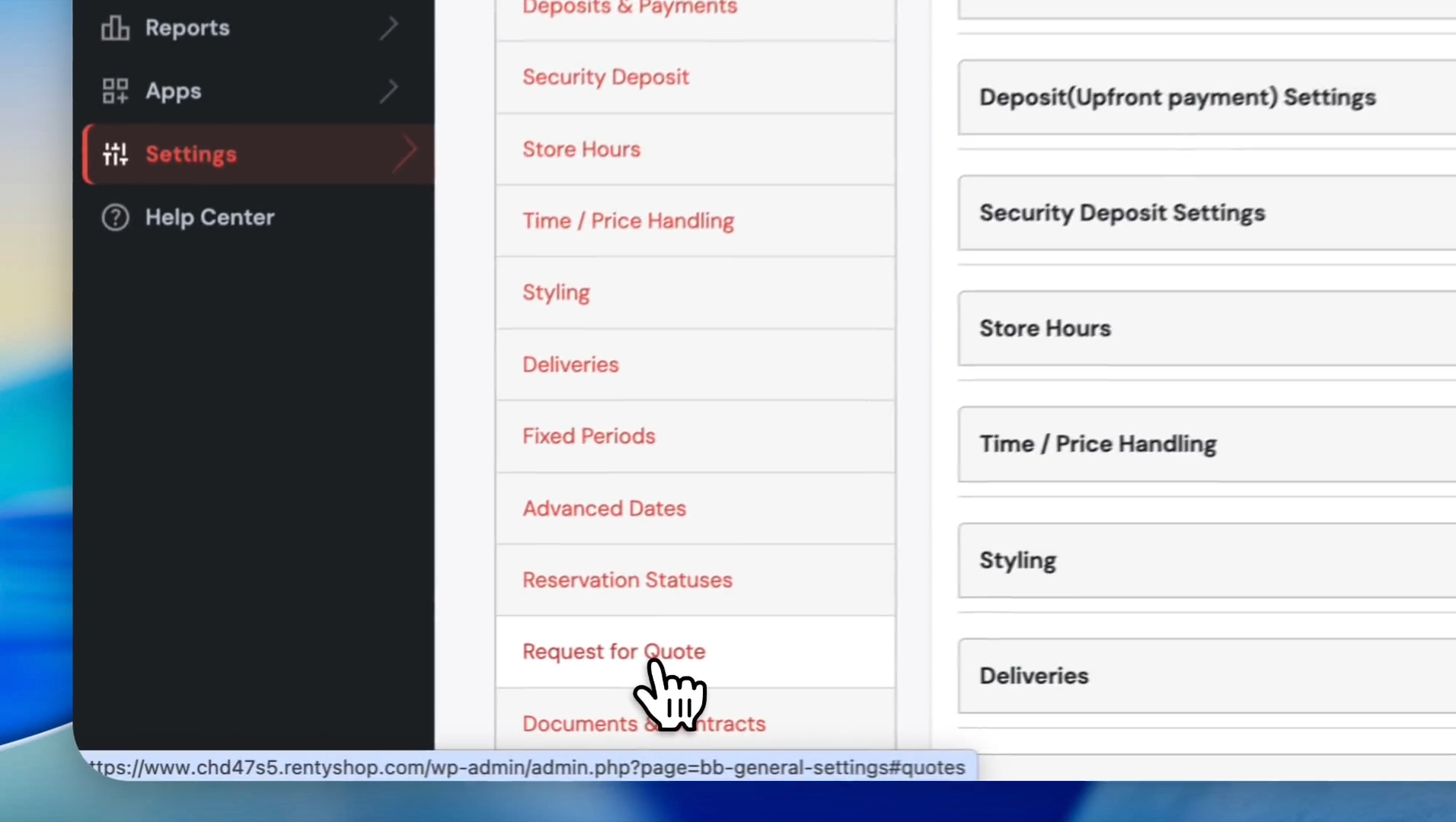
Click on Request for Quote.
7
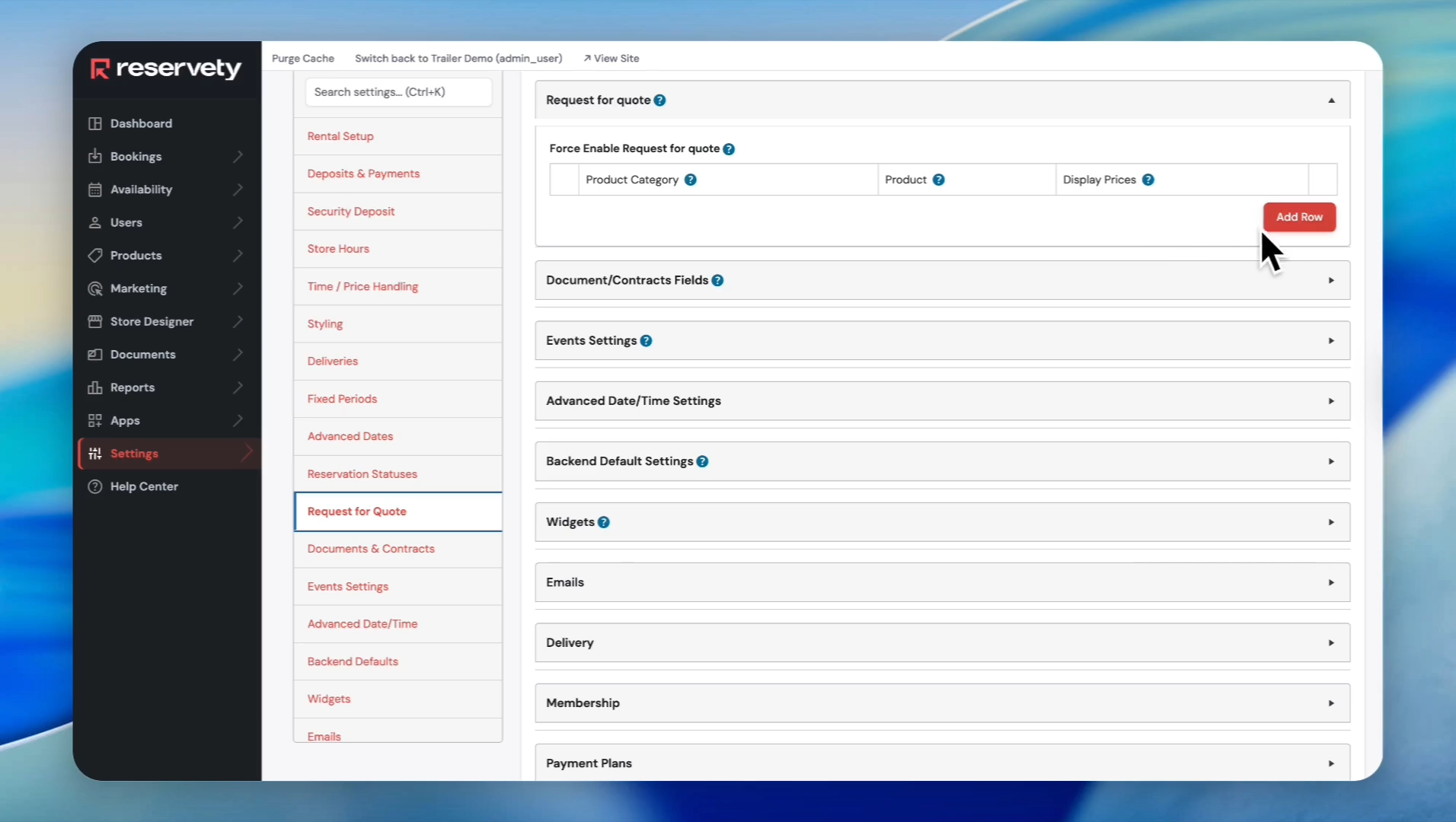
Click the Add Row button.
8
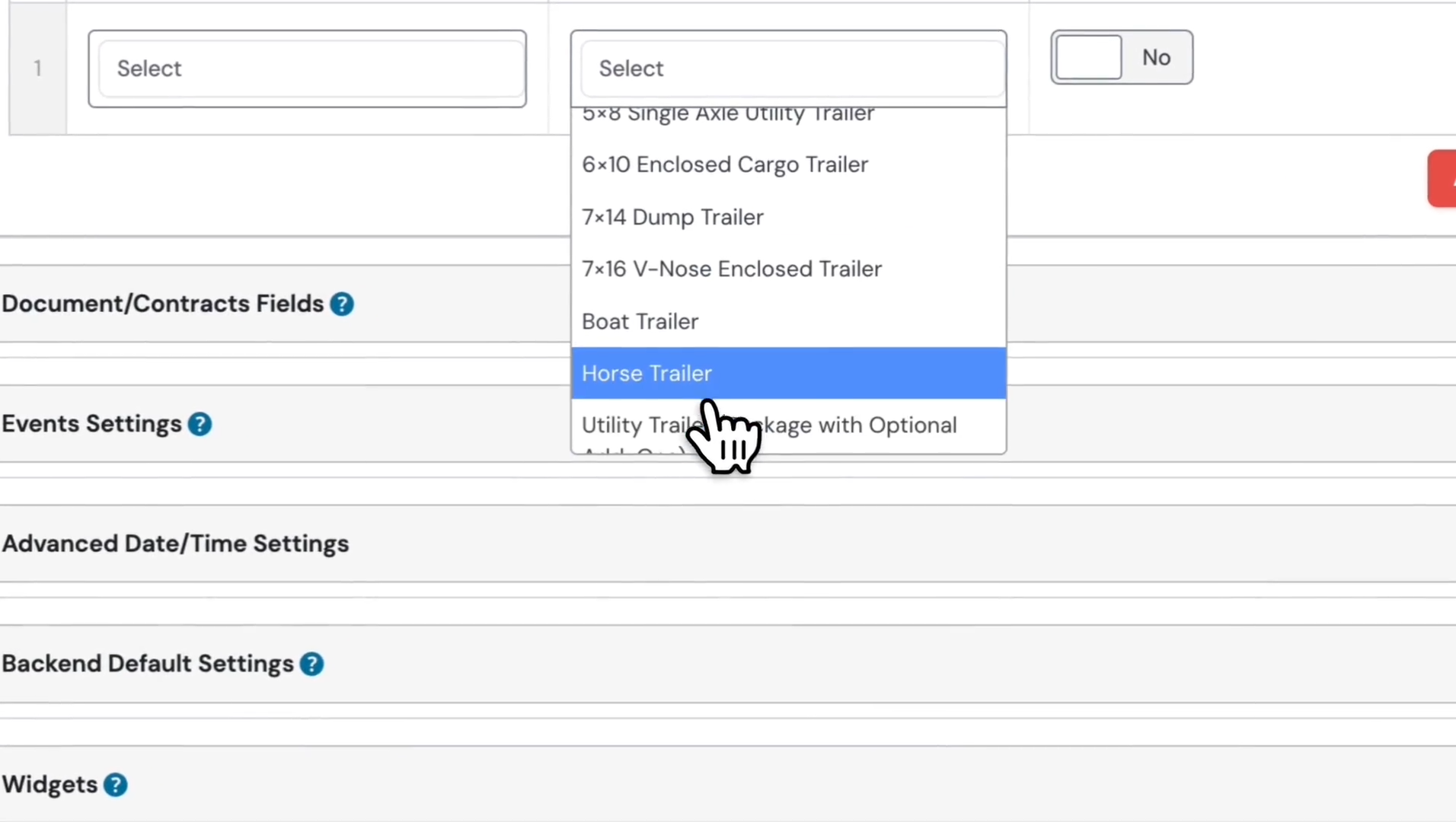
Click the Select dropdown under the Product column.
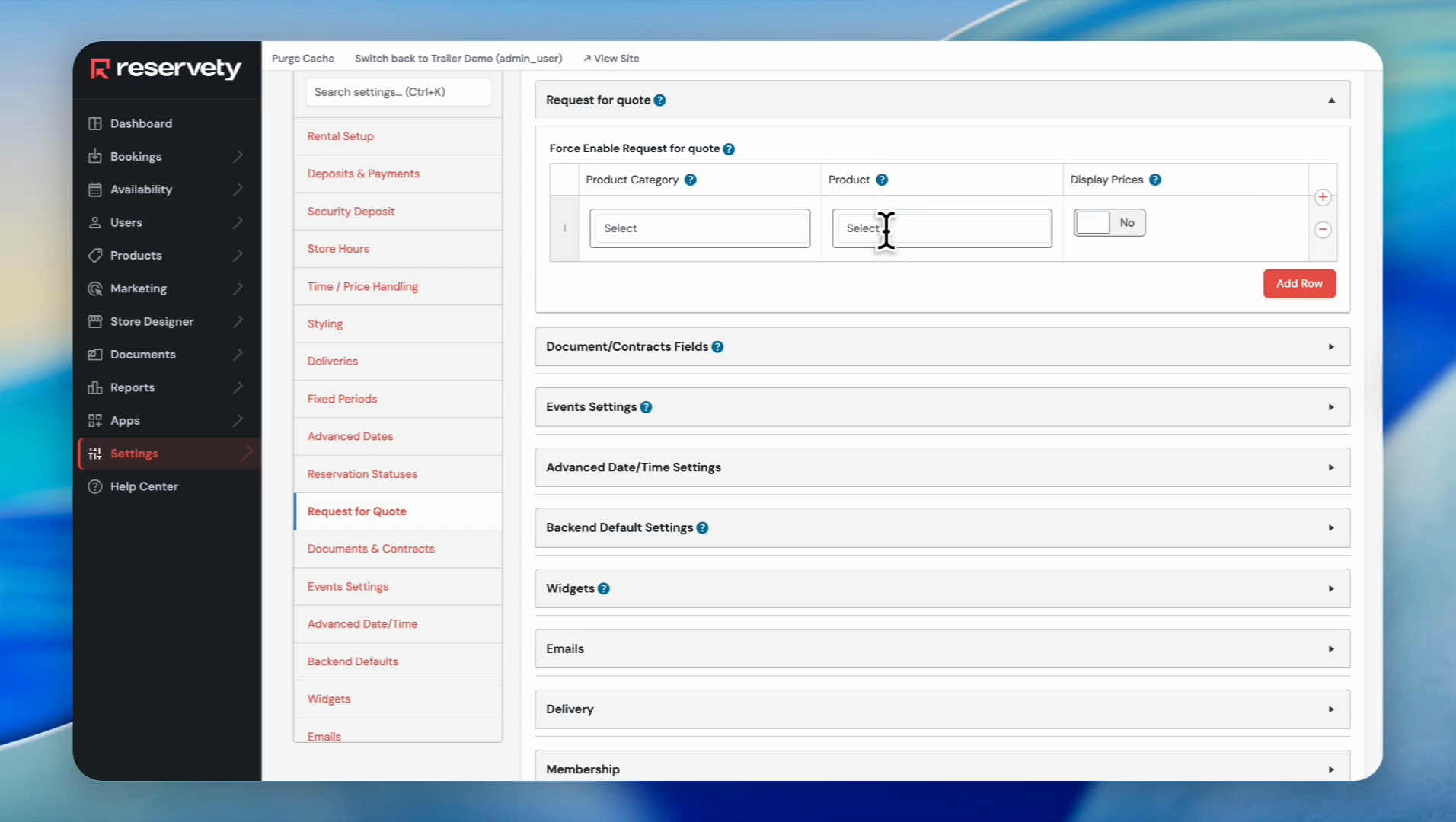
In this case, we will select the horse trailer.
9
Select 'Horse Trailer' from the dropdown menu.
10
Click the 'Update' button.
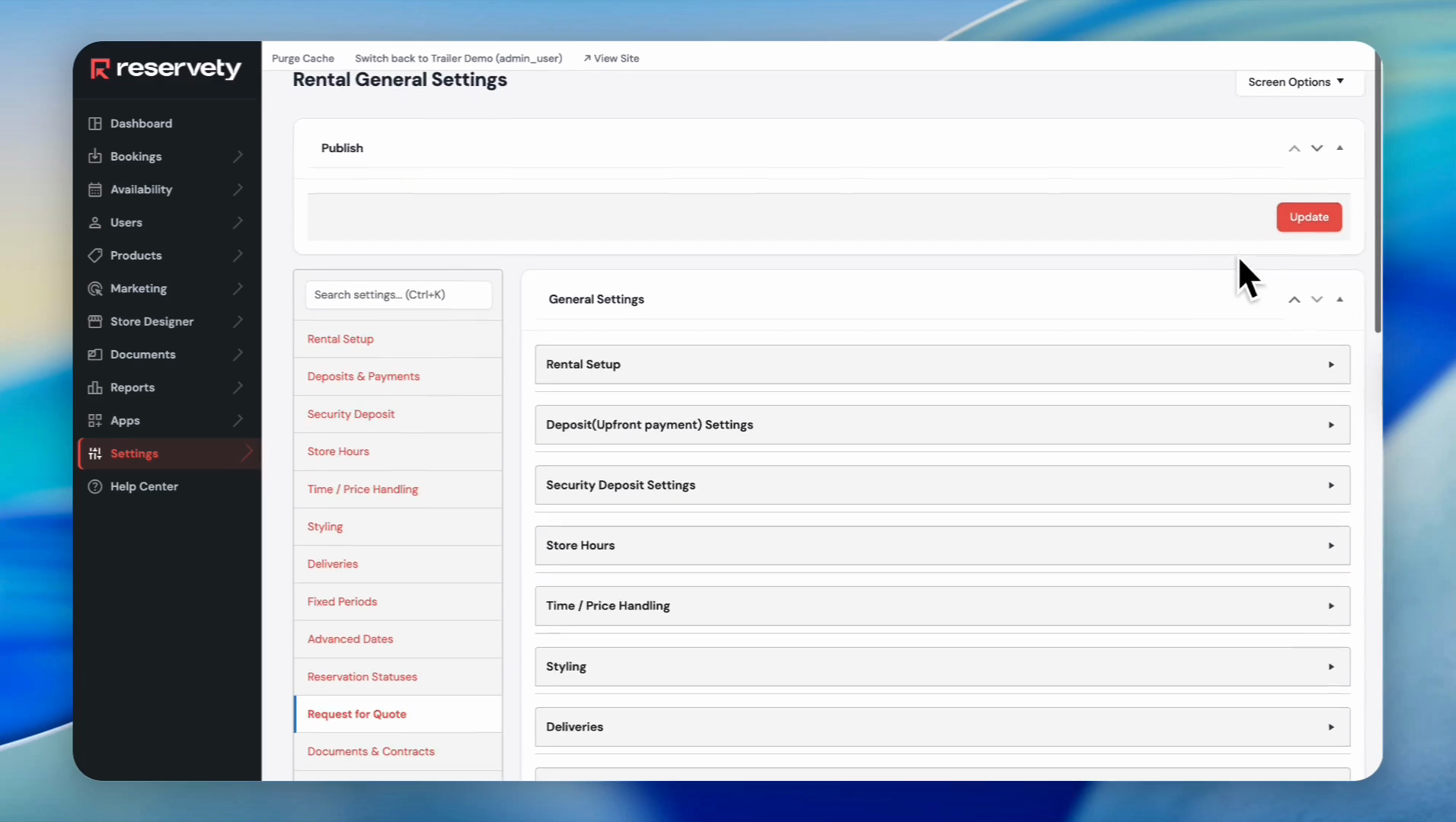
Now, let's visit our website and check the product to confirm the "Request for Payment" feature is on.
11
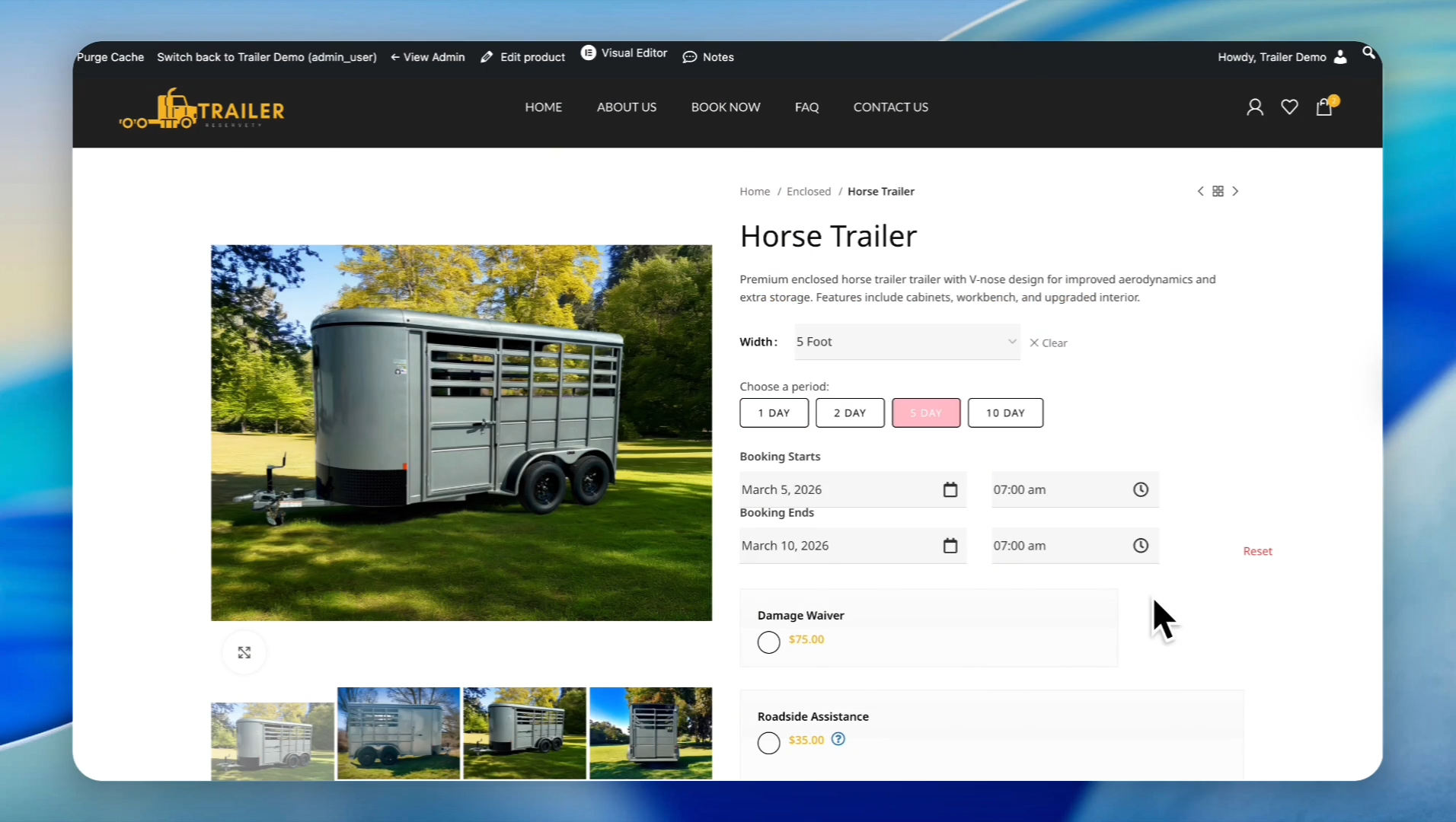
Click on the 'Horse Trailer'.
12
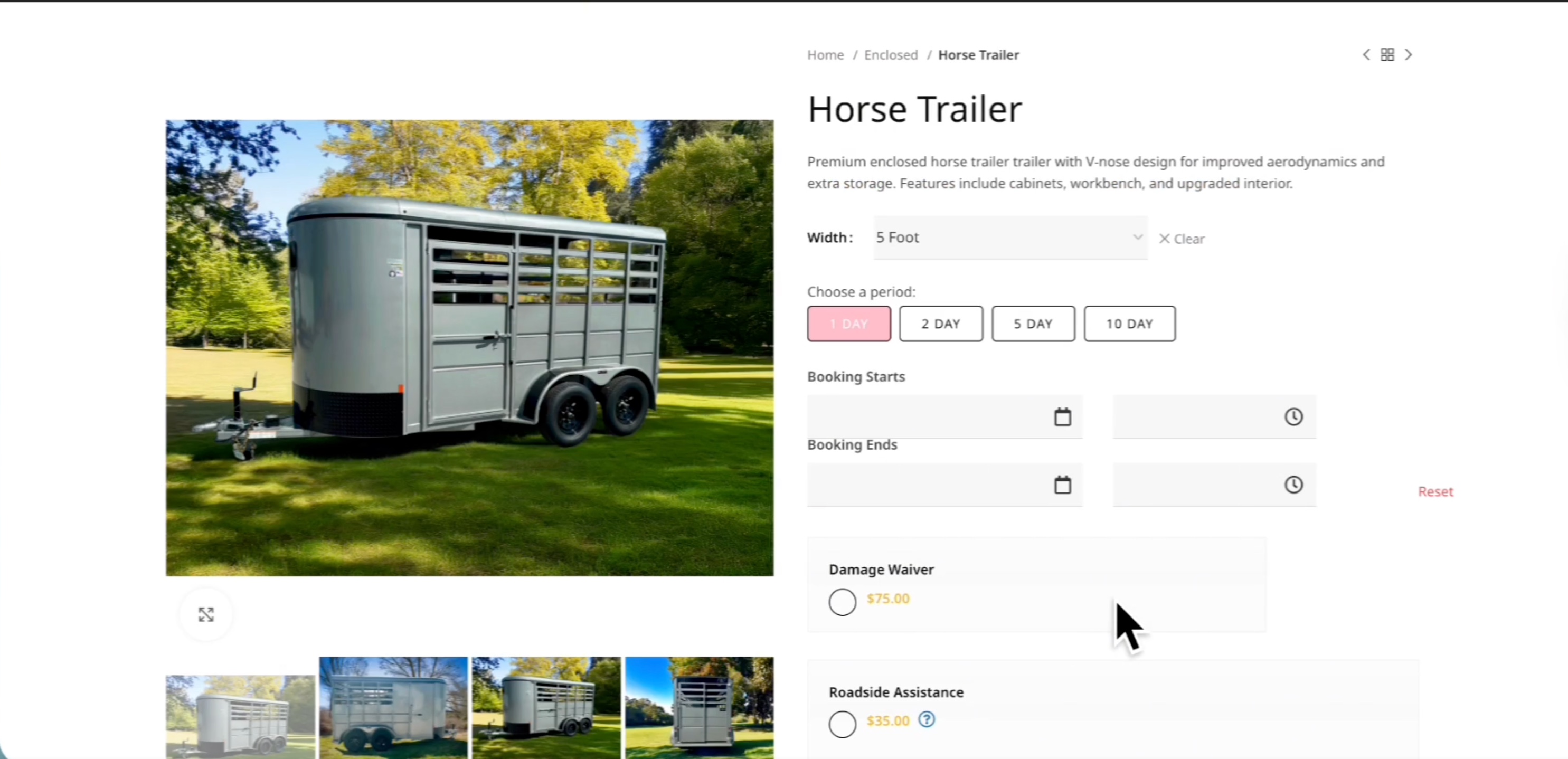
As you can see, the horse trailer does not display any pricing
13
Select a booking period for the trailer.
14
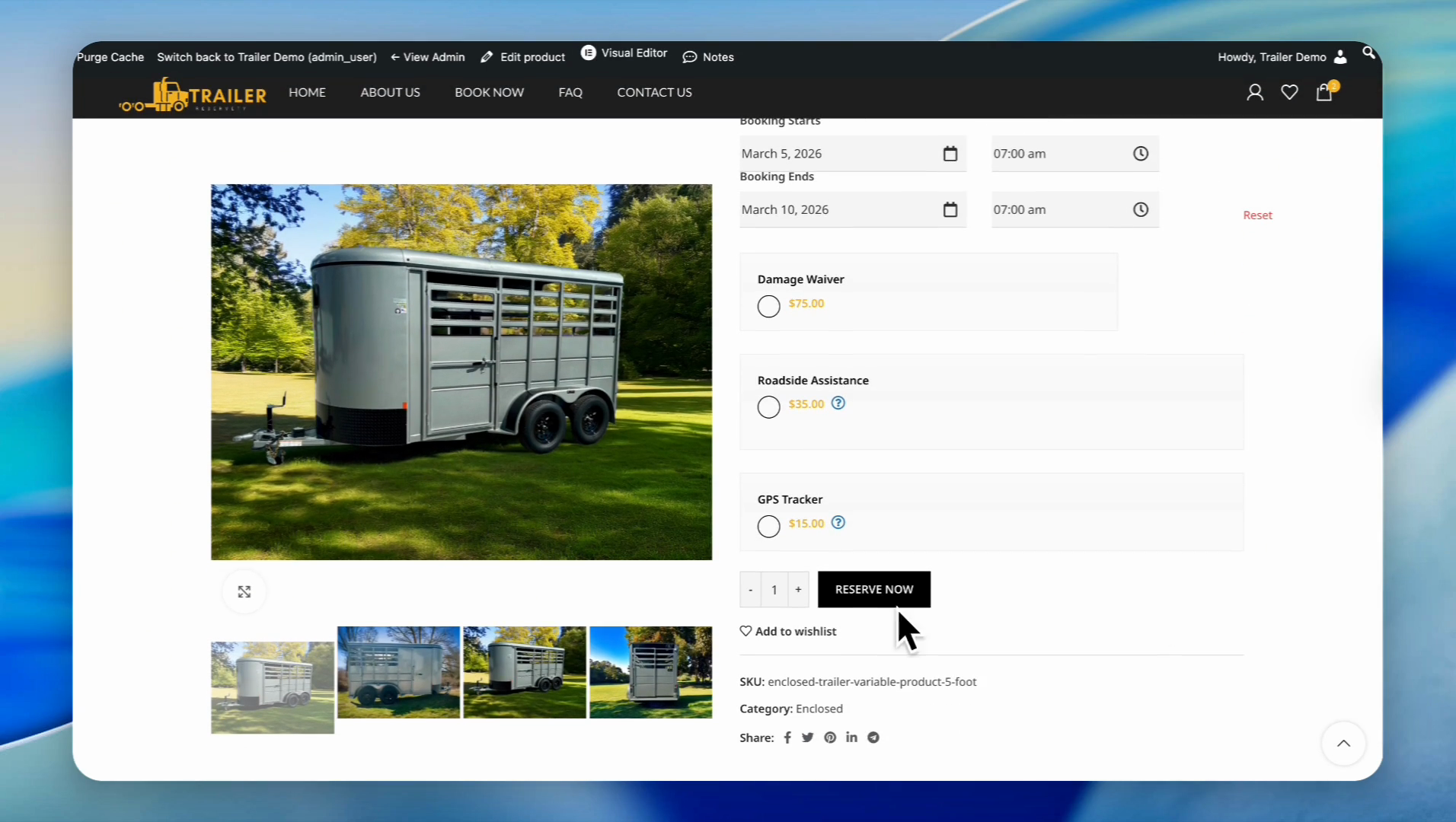
Click the 'RESERVE NOW' button.
15
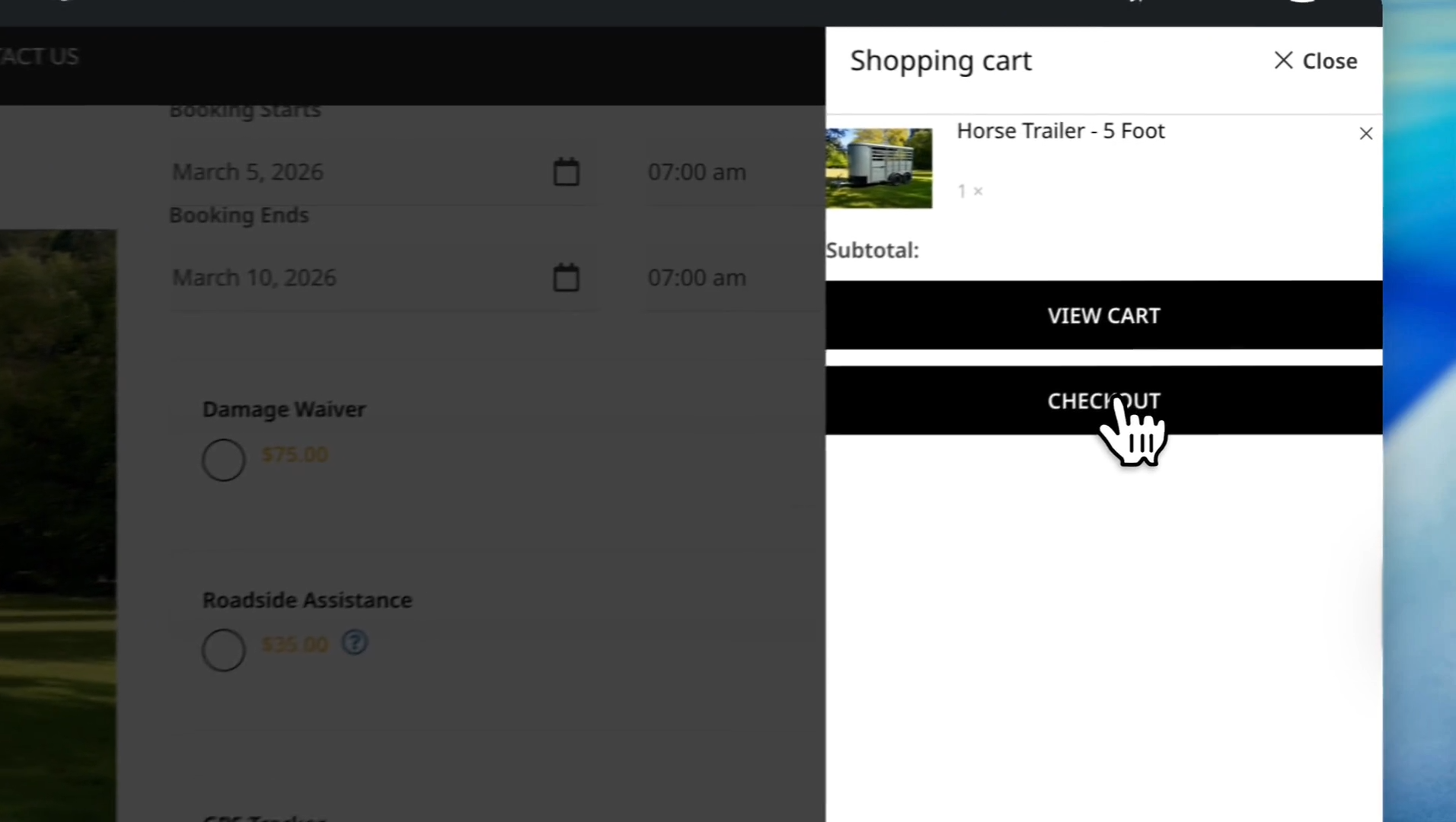
Click the 'CHECKOUT' button in the shopping cart pop-up.
16
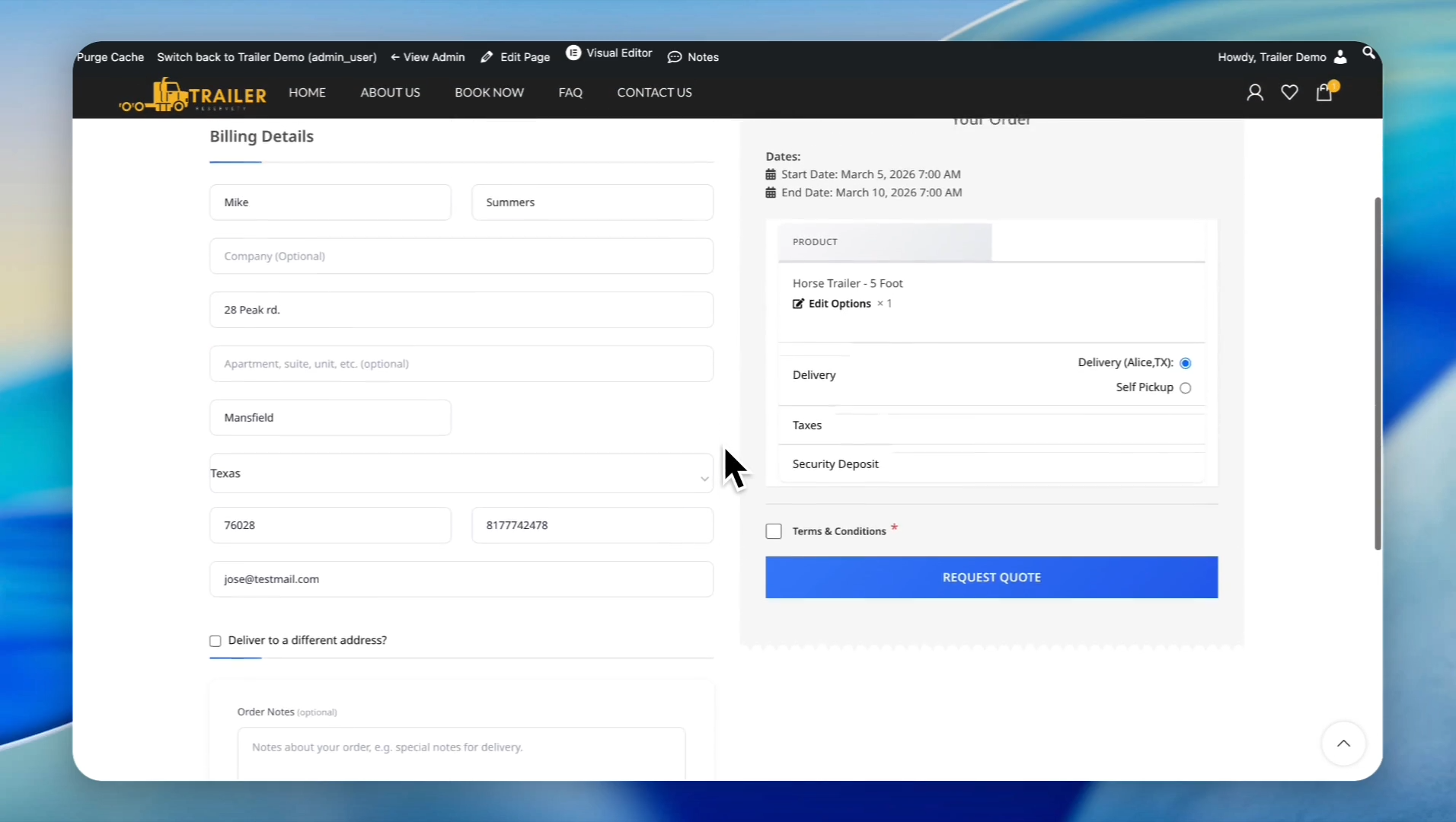
and agree to the Terms & Conditions.
17
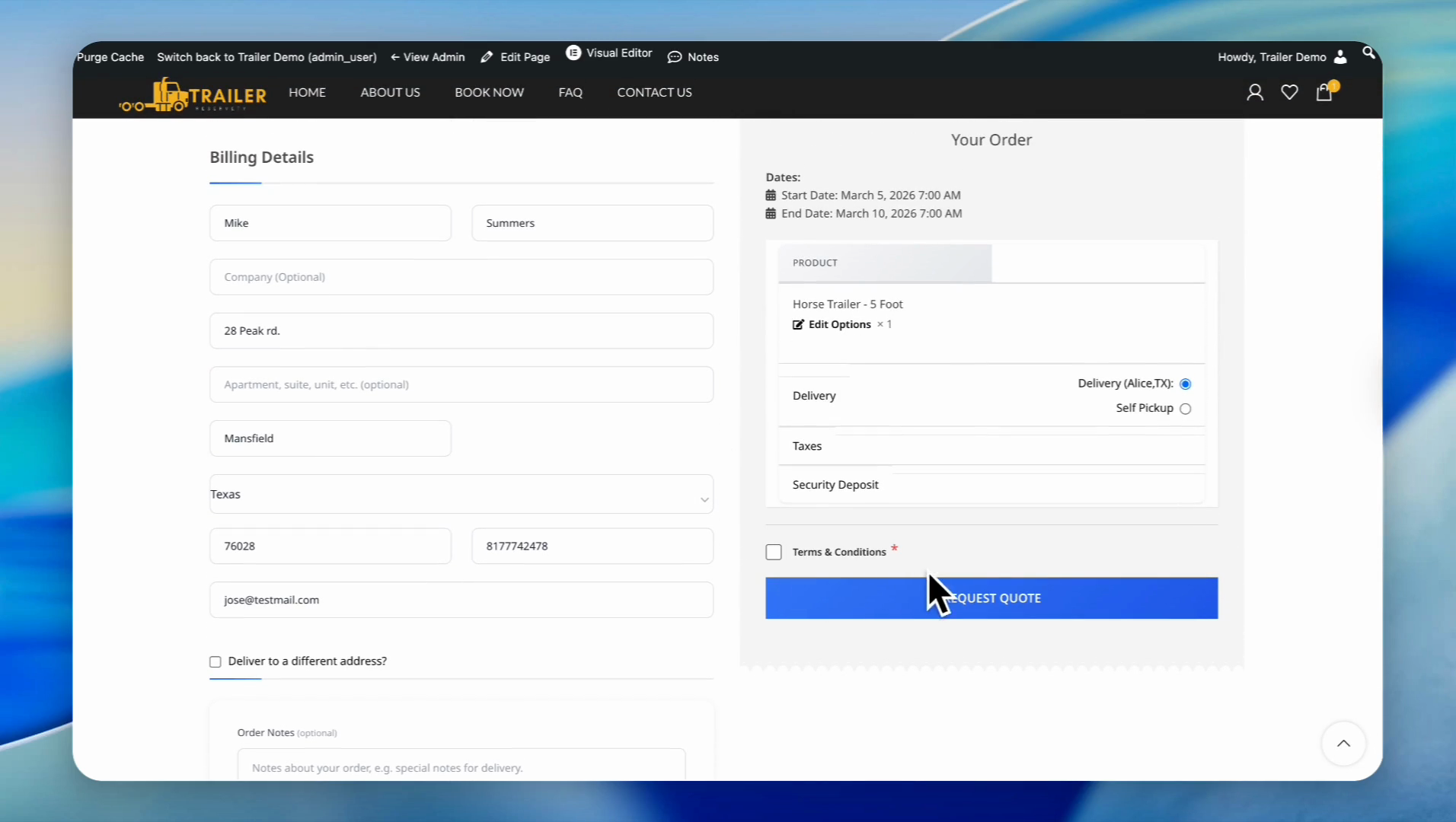
Fill out the billing details information and click the checkbox to agree to the Terms & Conditions.
18
Click the 'REQUEST QUOTE' button.