
How to Add Buildings to Your Collection in Momentum
Learn step-by-step how to add buildings to your collection in Momentum, including options for manual addition and bulk uploads.
In this guide, we'll learn how to add buildings to your collection in Momentum. You can add buildings individually by searching for their addresses or upload a list of multifamily addresses using supported file formats like csv, txt, and xlsx.
Let's get started
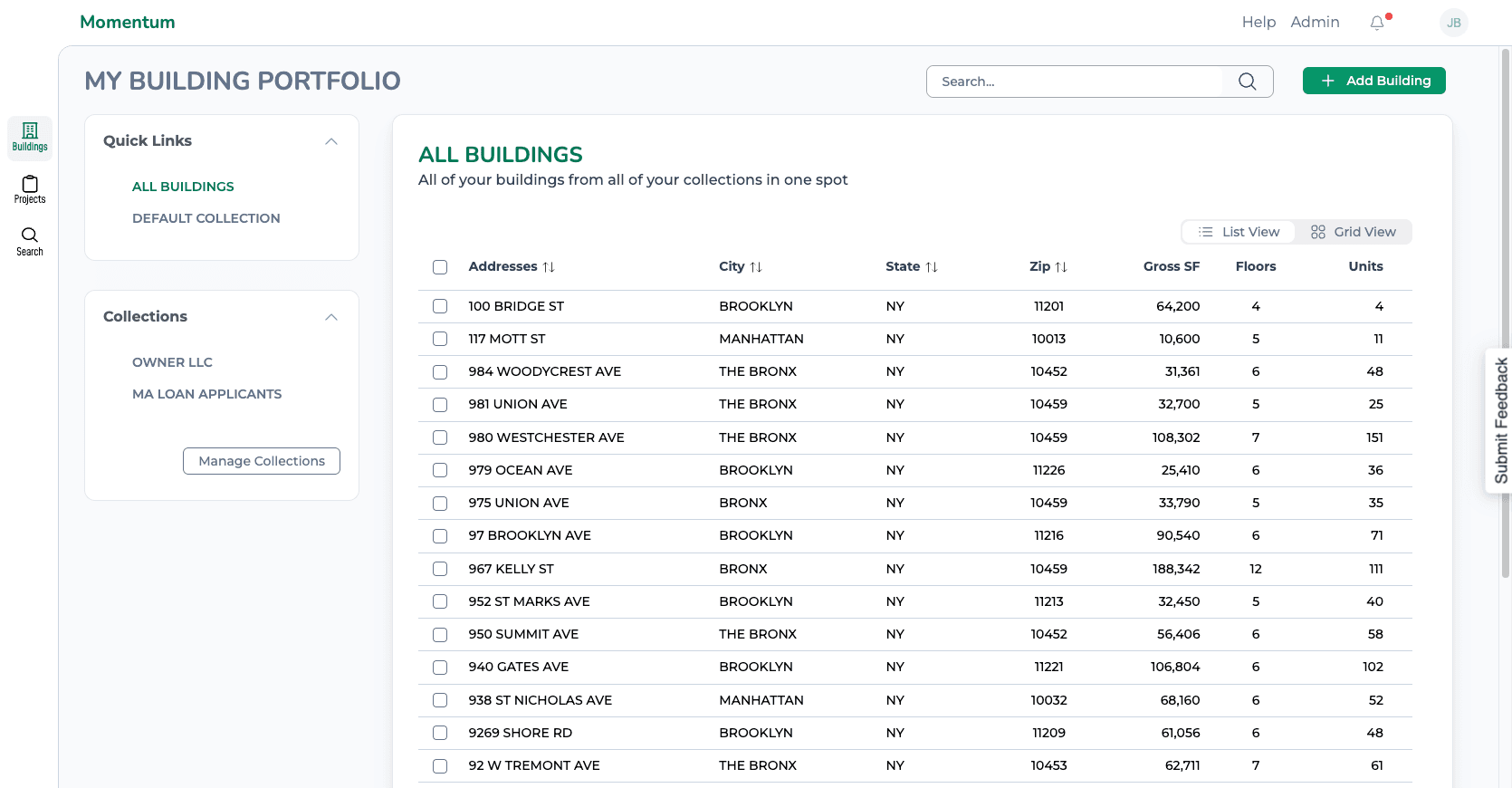
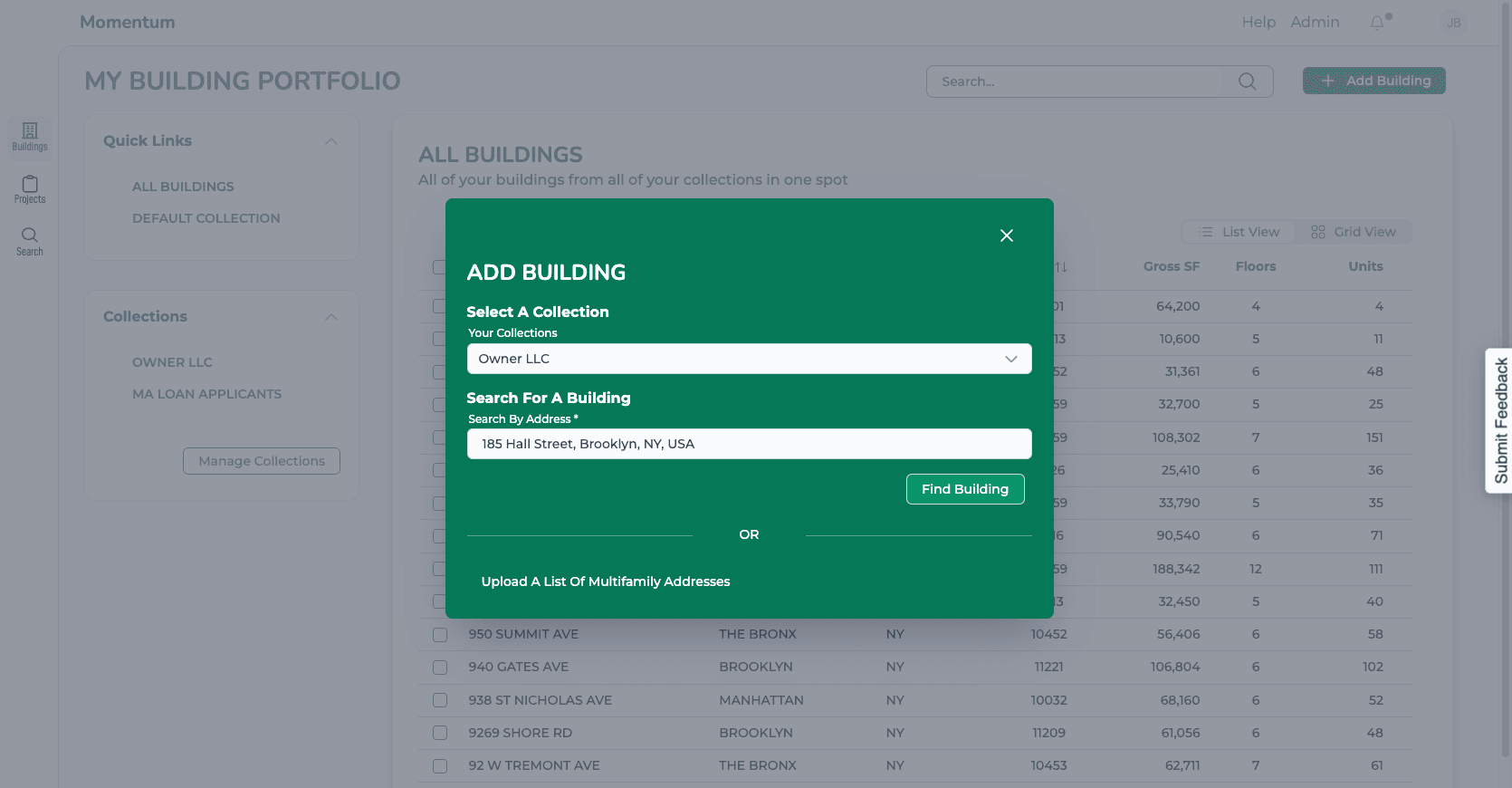
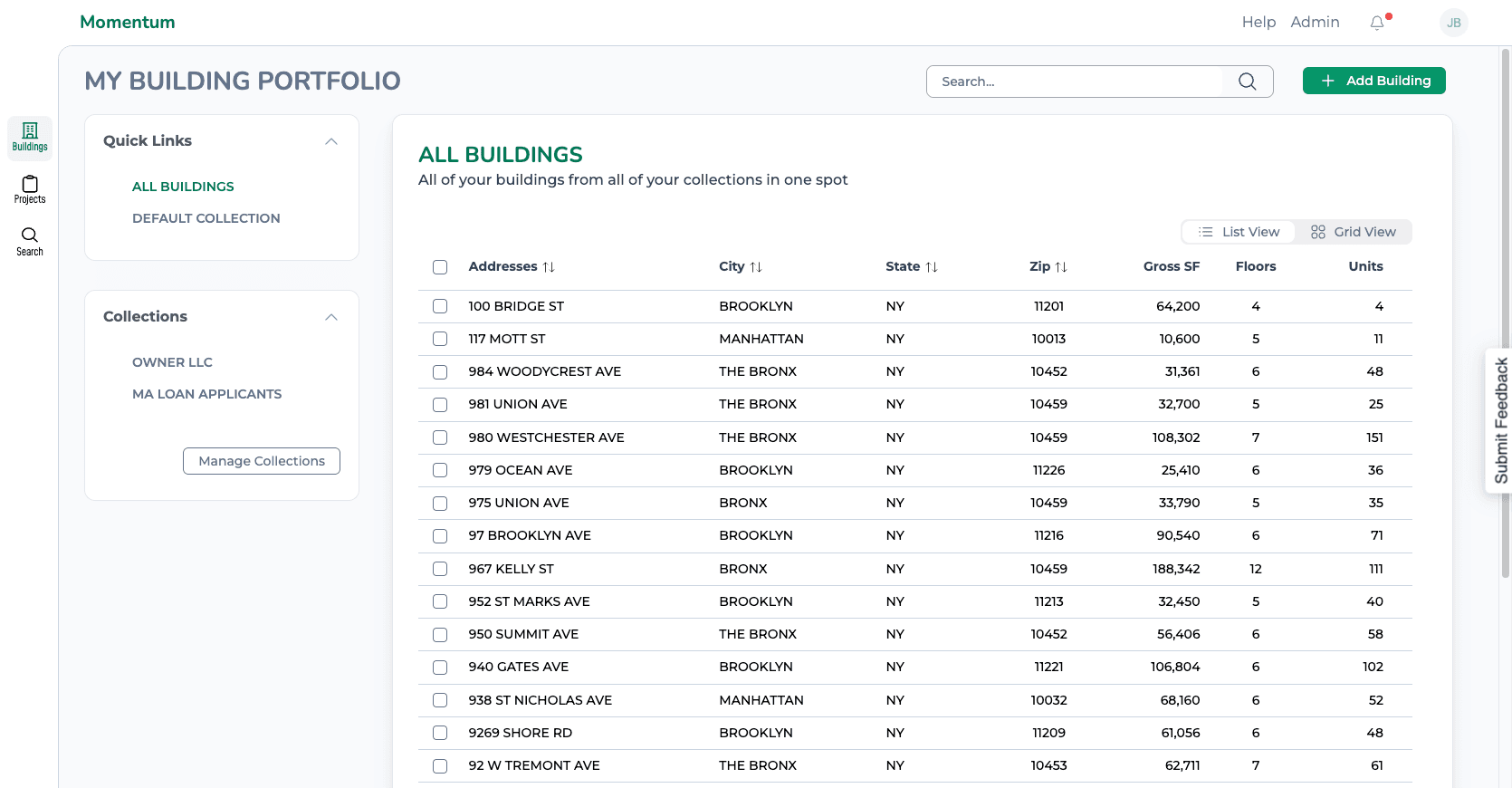
In this tutorial, I will show you how to add a building to your collection in Momentum. From your homepage, click the "Add Building" button.
You can choose which of your collections to add your building to.
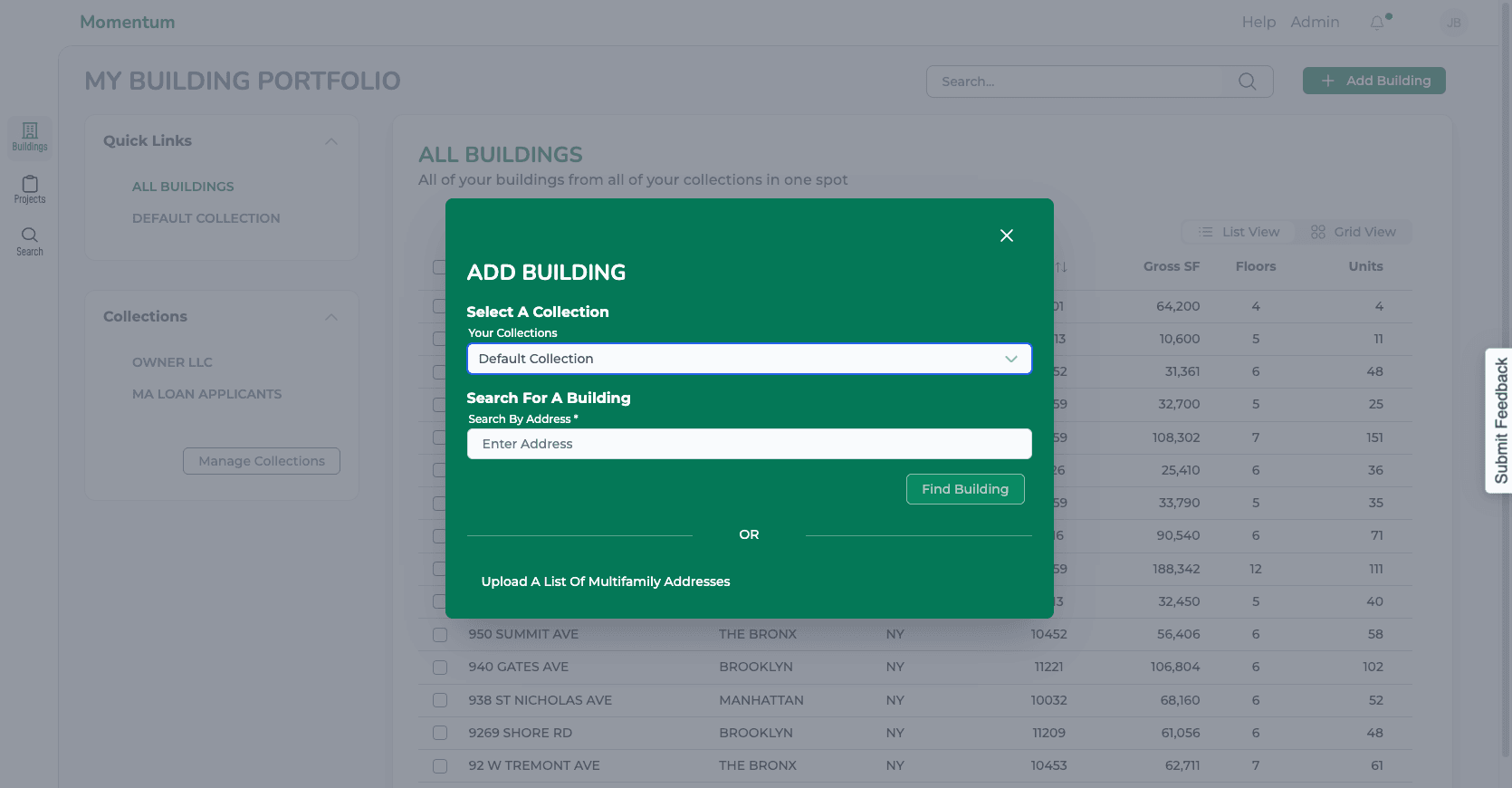
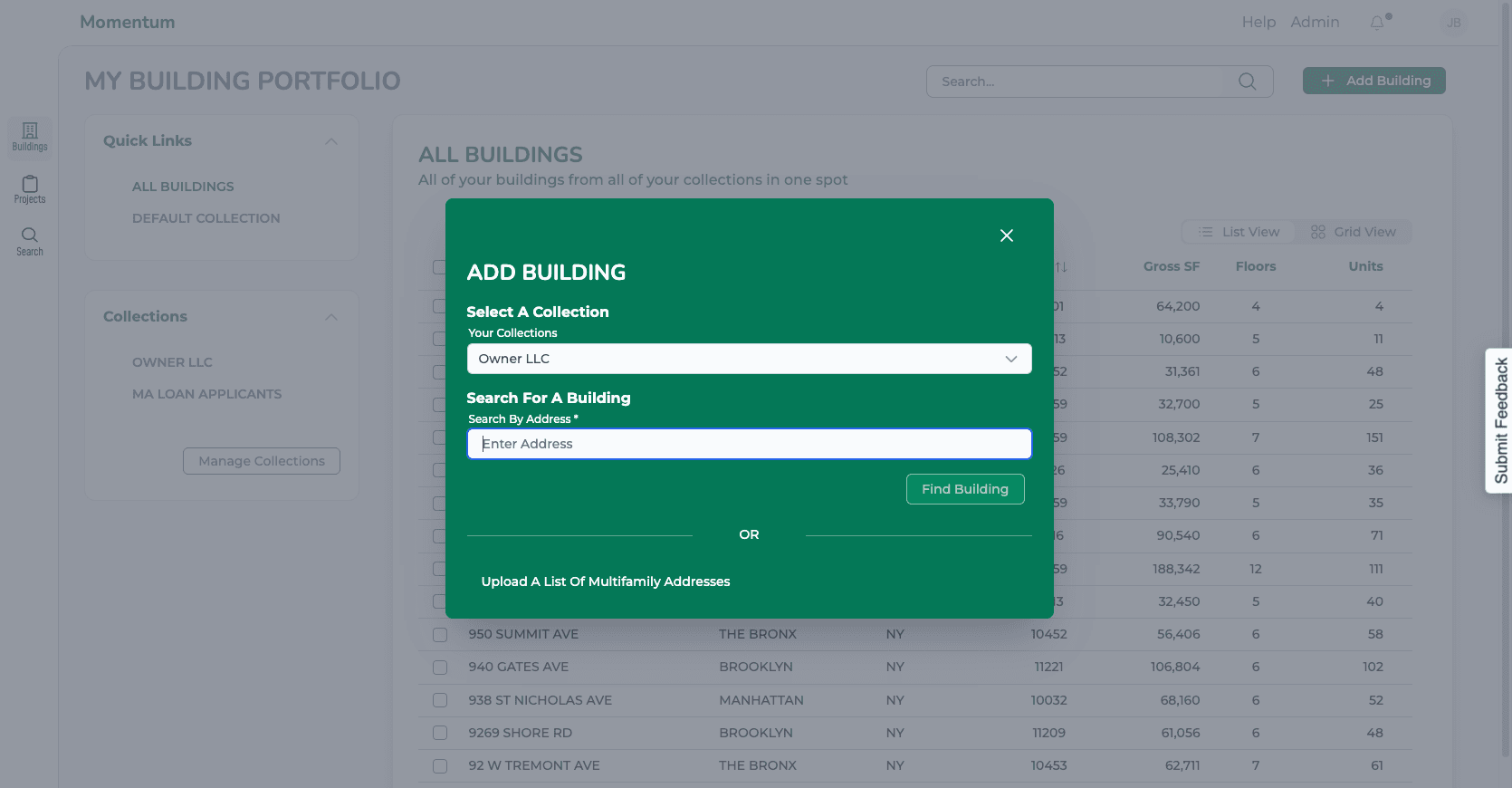
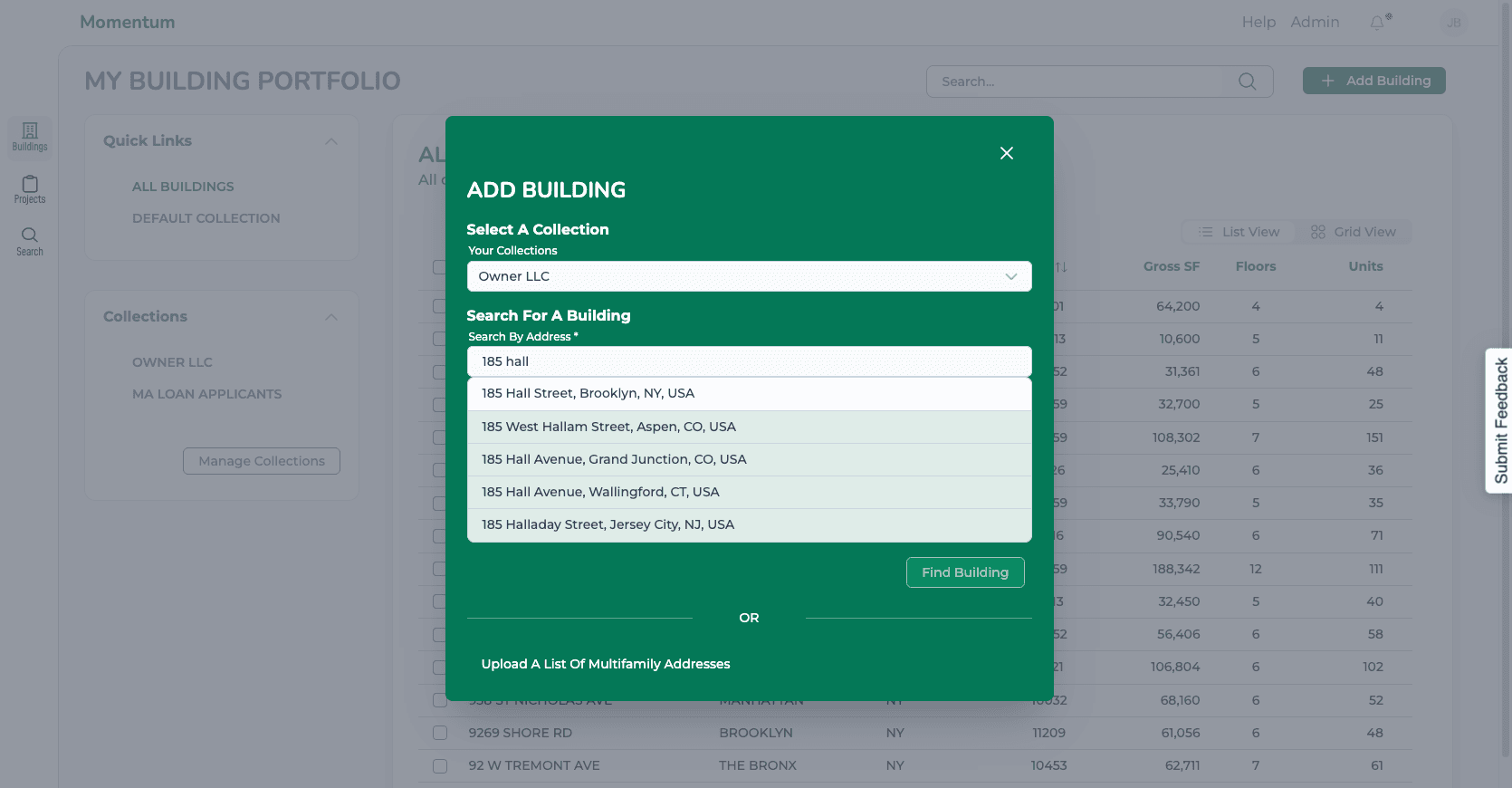
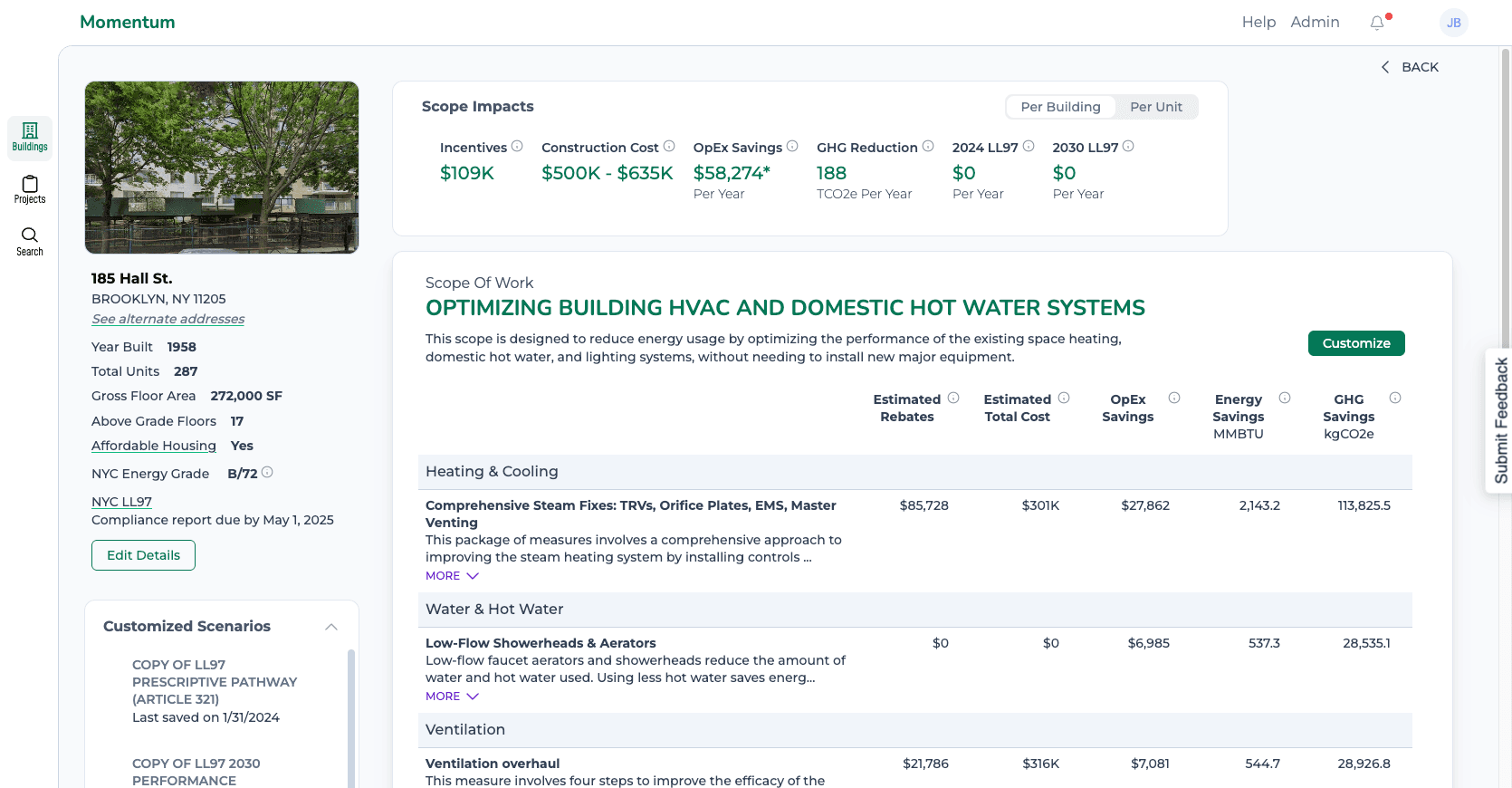
You'll be taken to that building's page. And that building is now in your collection.
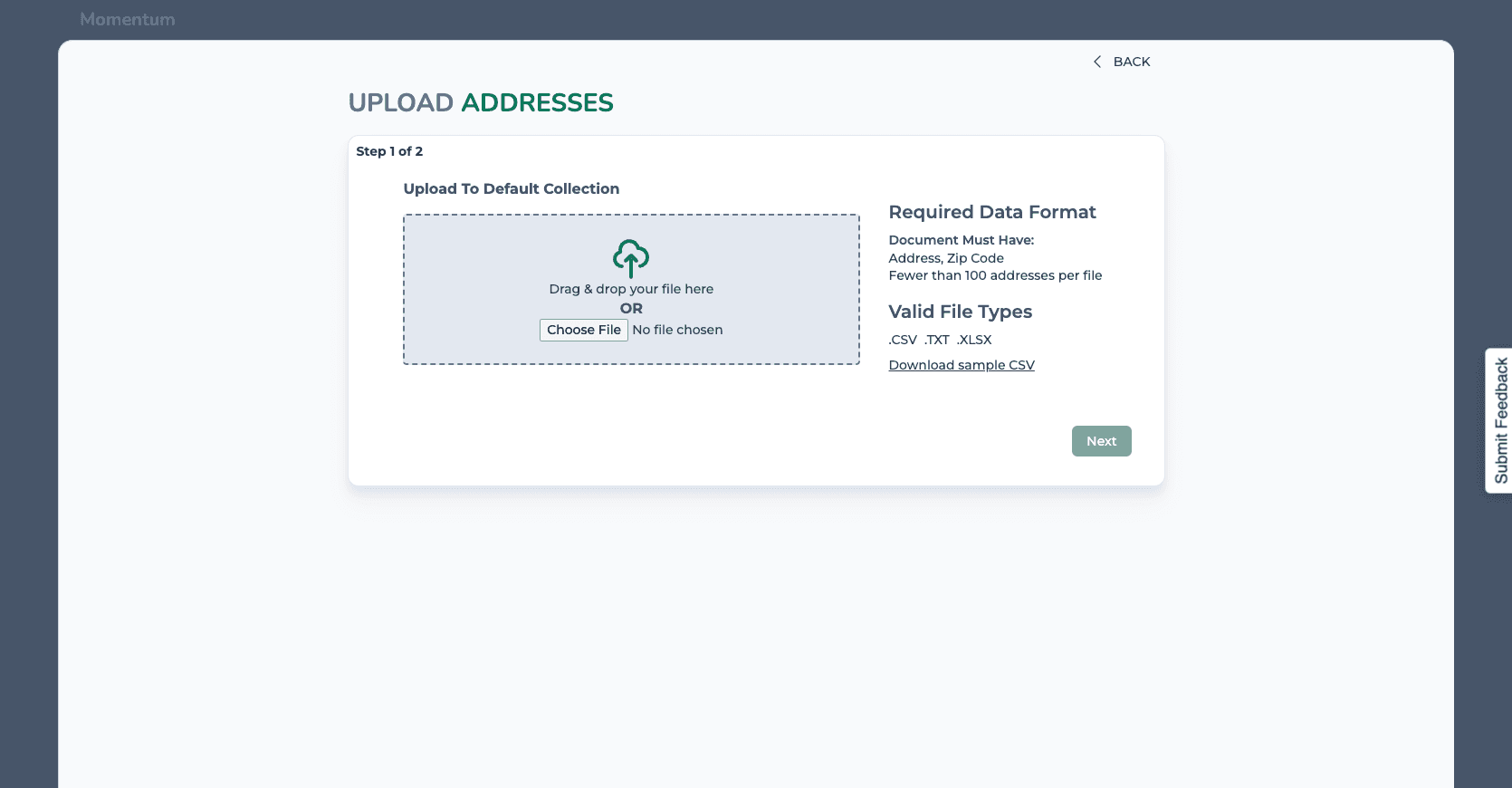
Alternatively you can upload a list of buildings. From your home page, go to "Add Building." You will see an option to upload a list of multi-family addresses.
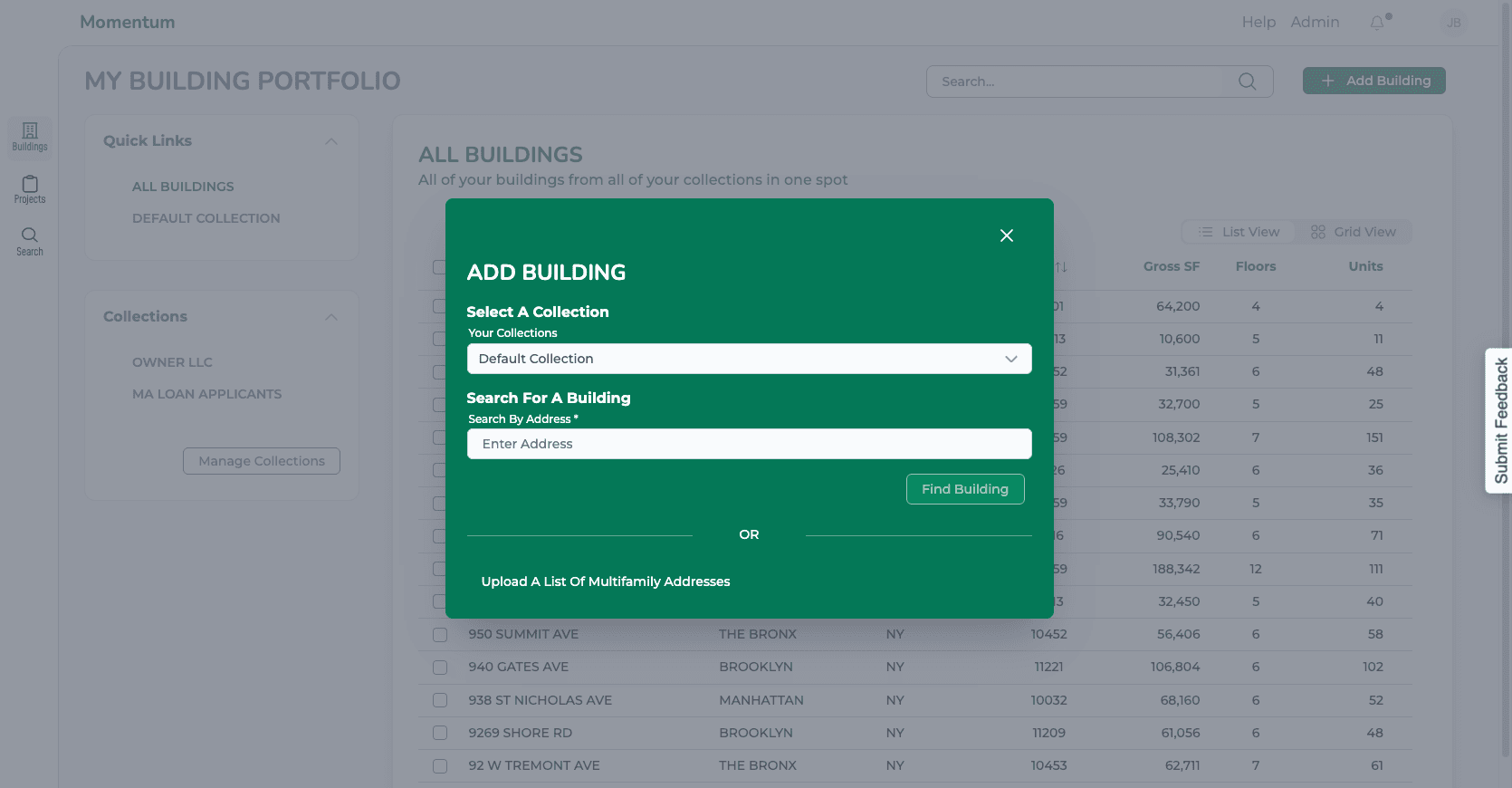
We support CSV, TXT, and XLSX formats. You can also download a sample file to understand the required format. Click on "Choose File" or drag and drop to upload your file.
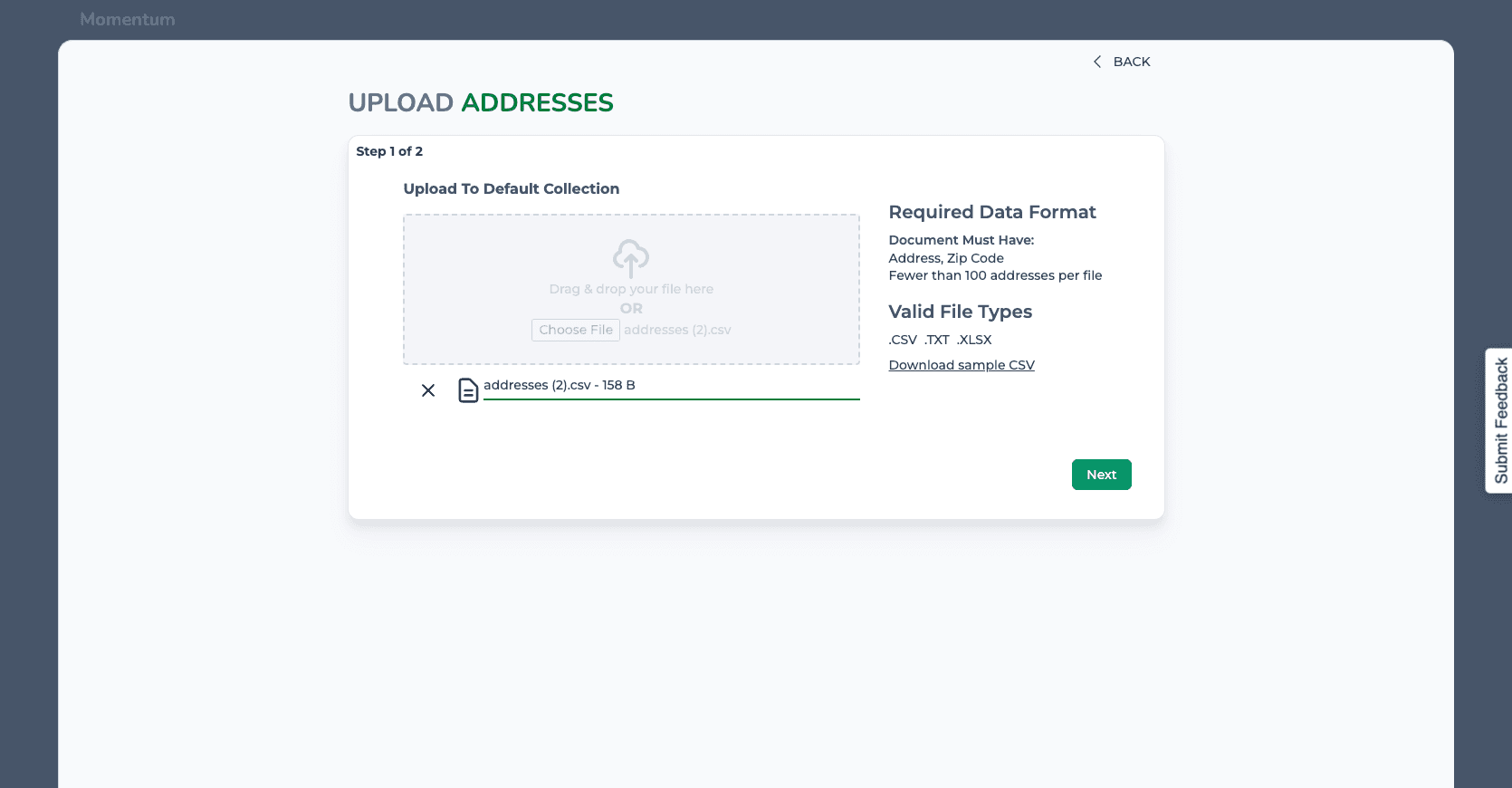
The next screen shows you the addresses found as well as if any of those buildings are already in your collection, preventing duplicates. Select which buildings to add and then click import.
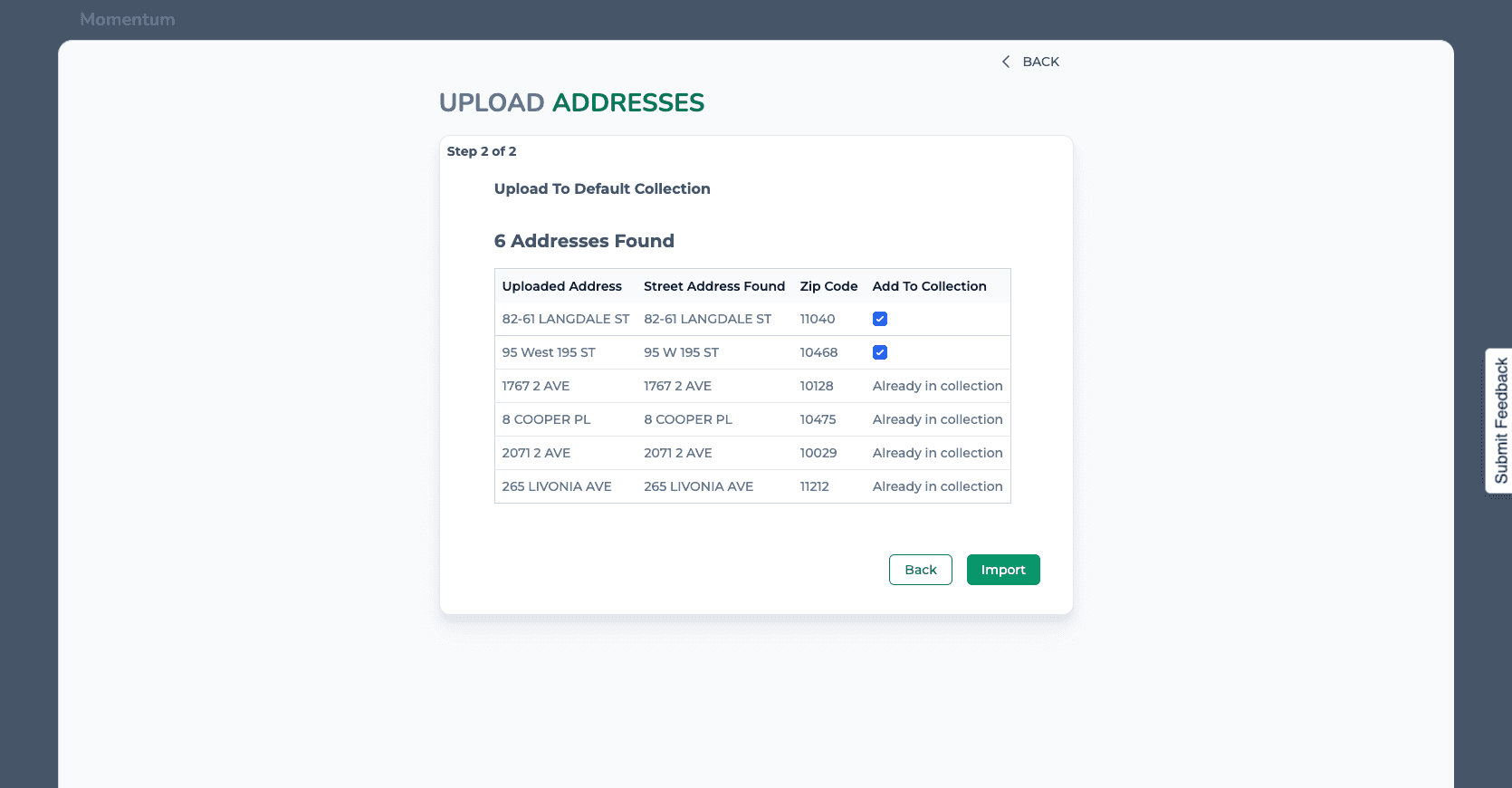
And that's it! The buildings are now in your account.