How to Add a Card Reader to a PC: Step-by-Step Guide
Learn how to add a card reader to your PC with this easy step-by-step guide. Download the NFC keyboard controller, install the software, and configure your card reader for employee attendance and safety tracking.
By Steve Moore
In this guide, we'll learn how to add a card reader to a PC and set up the necessary software to use it. We will cover how to download and install the NFC keyboard controller, extract the files, and create a shortcut for easy access. We will also look at how to use NFC tools to read and write information to cards, which is important for tasks like tracking attendance for safety.
Let's get started
1
Click here
2
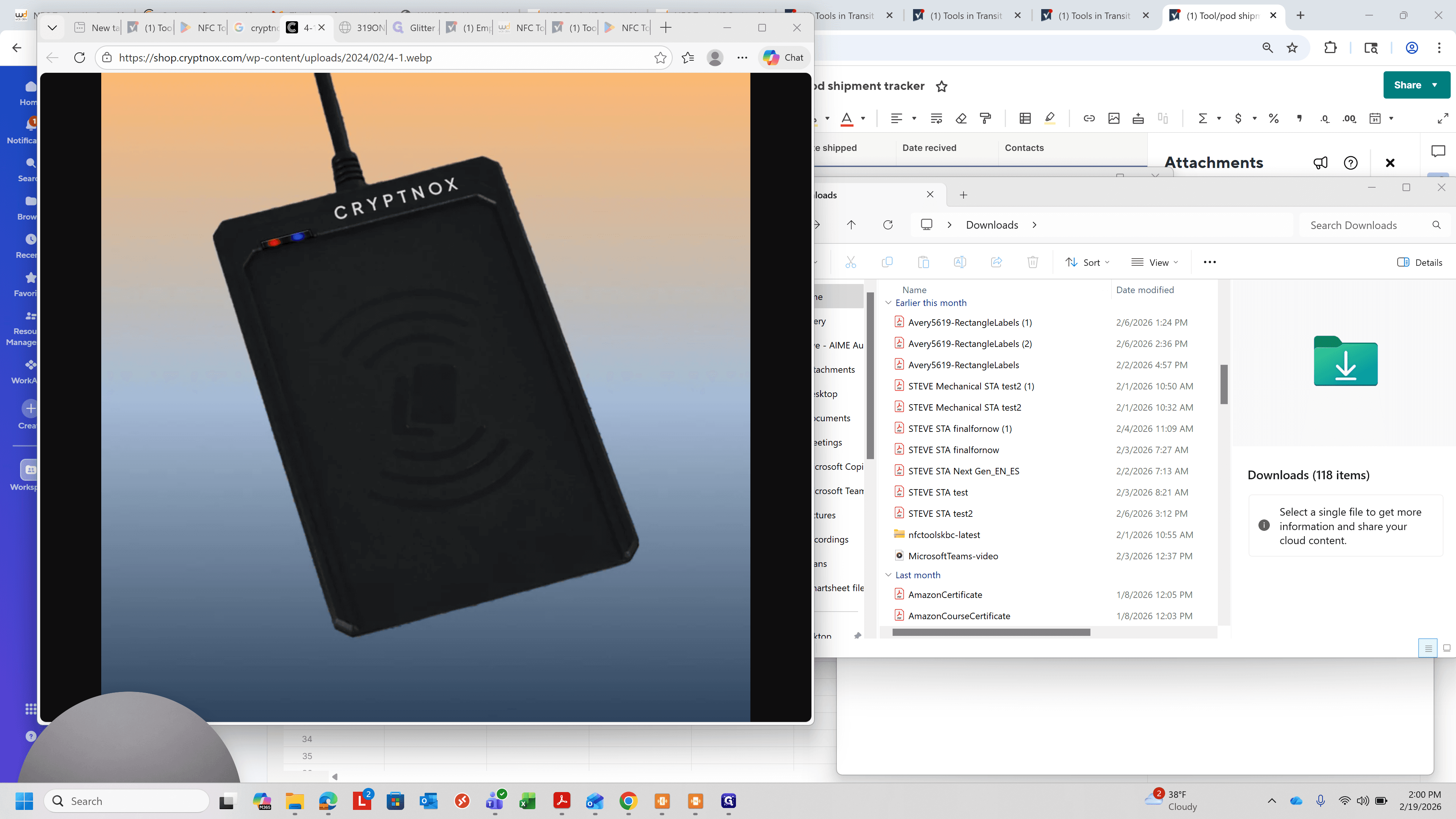
Google NFC KBC to find the software to download. It will be from WakDev The link is https://www.wakdev.com/en/apps/nfc-tools-kbc-pc-mac.html
3
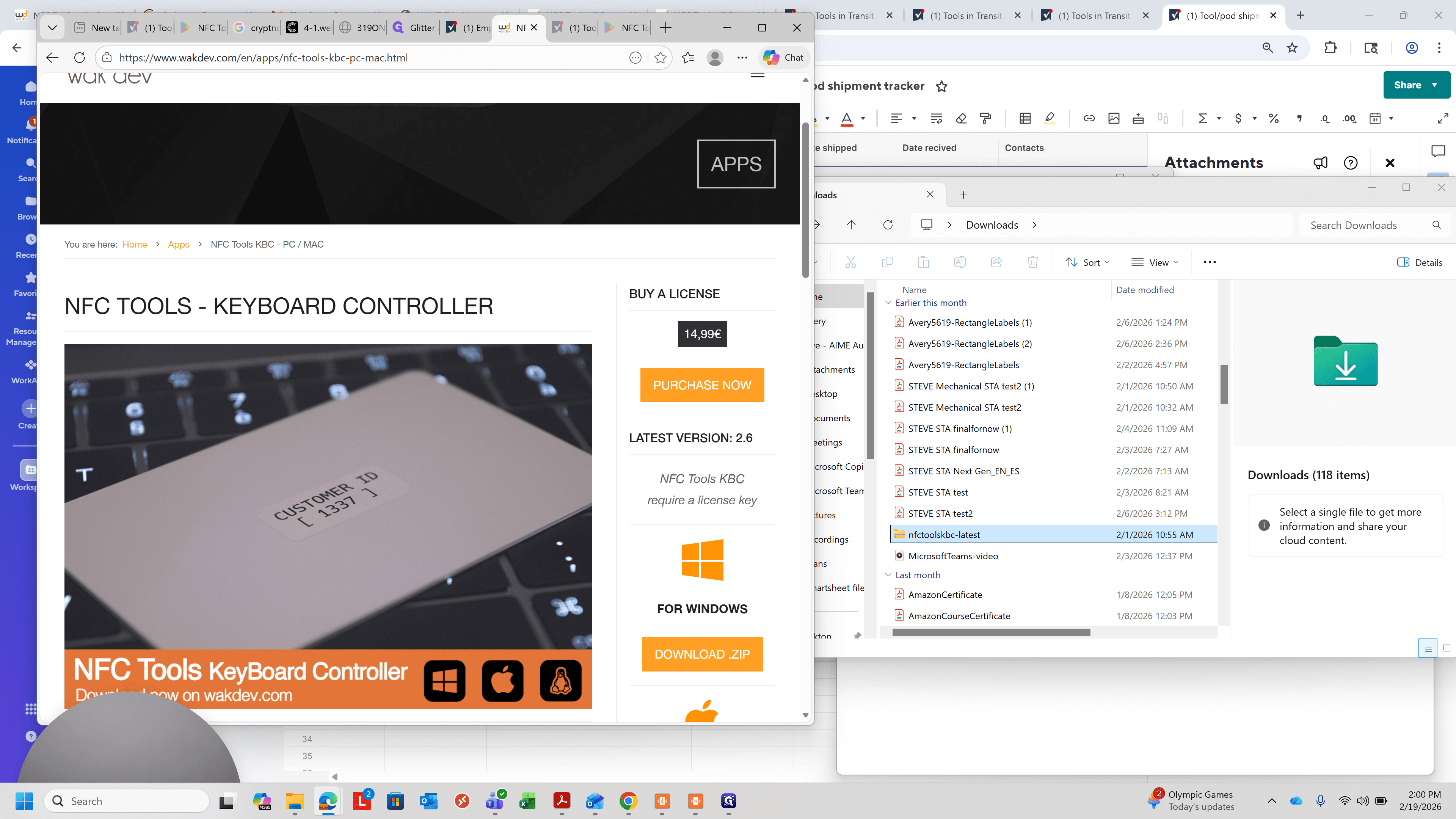
Click on "Download ZIP" for PC
4
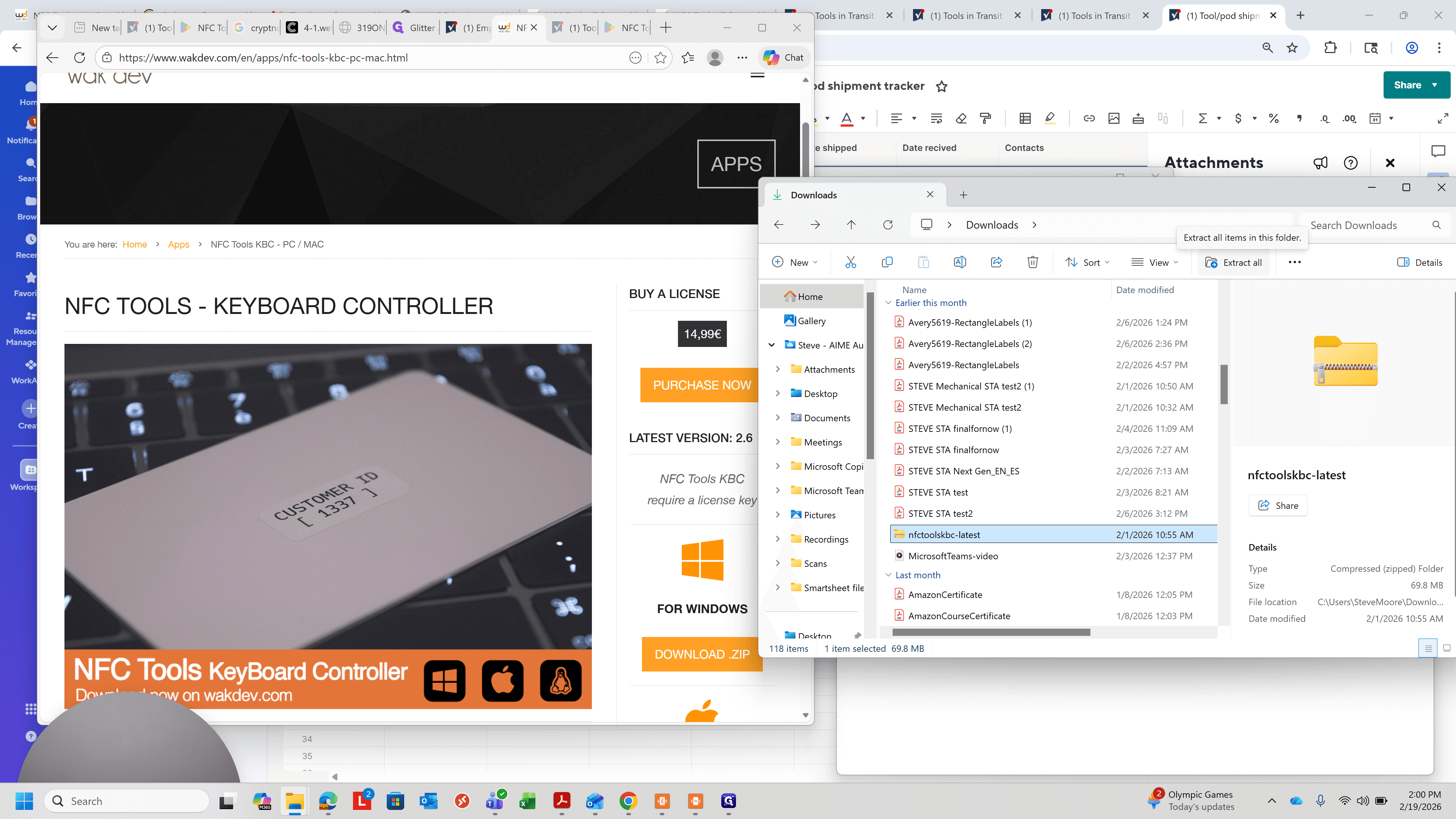
It will download a zip file. Click on "Extract all" with show extracted files when complete checked.
5
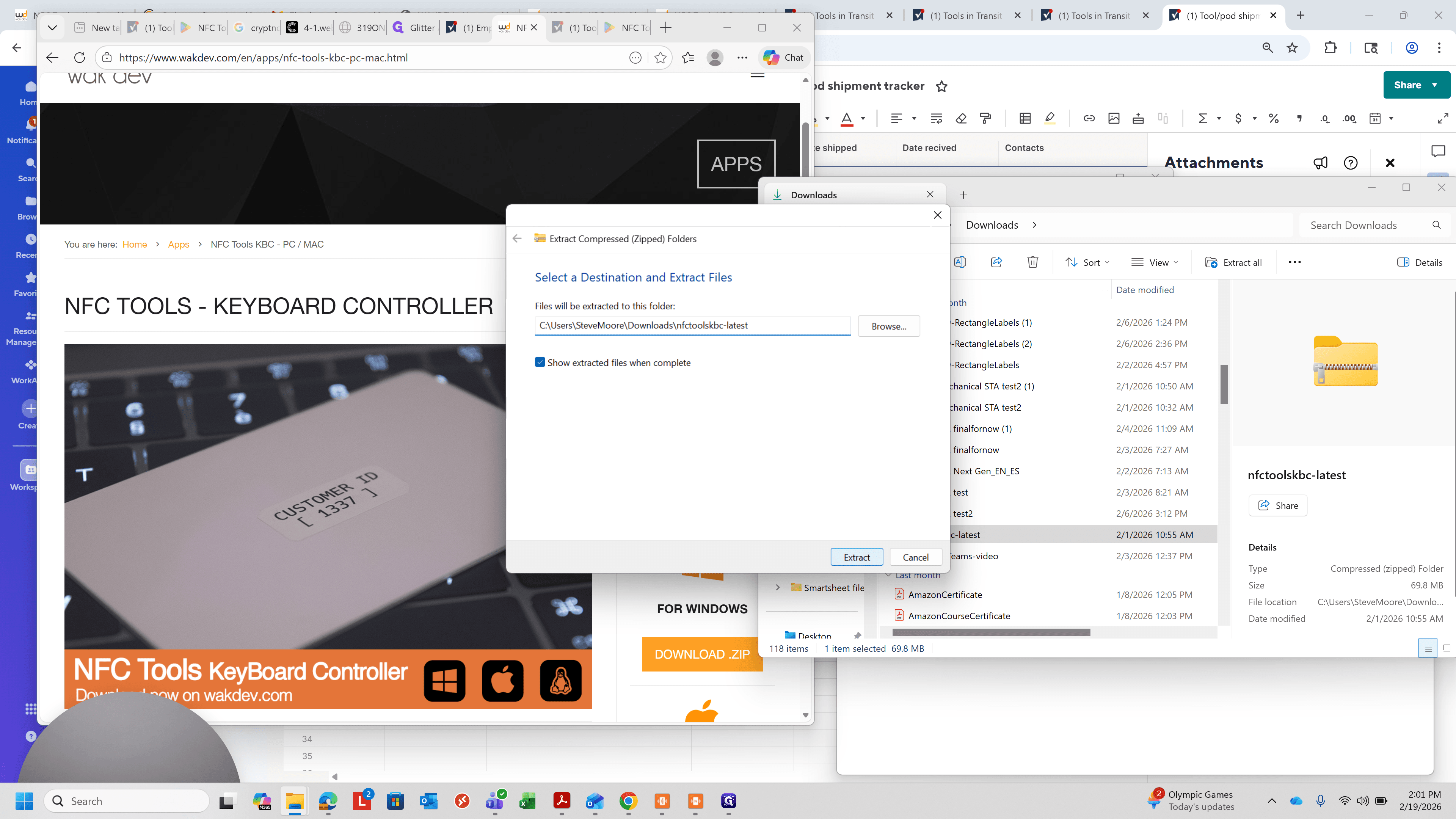
Click on "Extract"
6
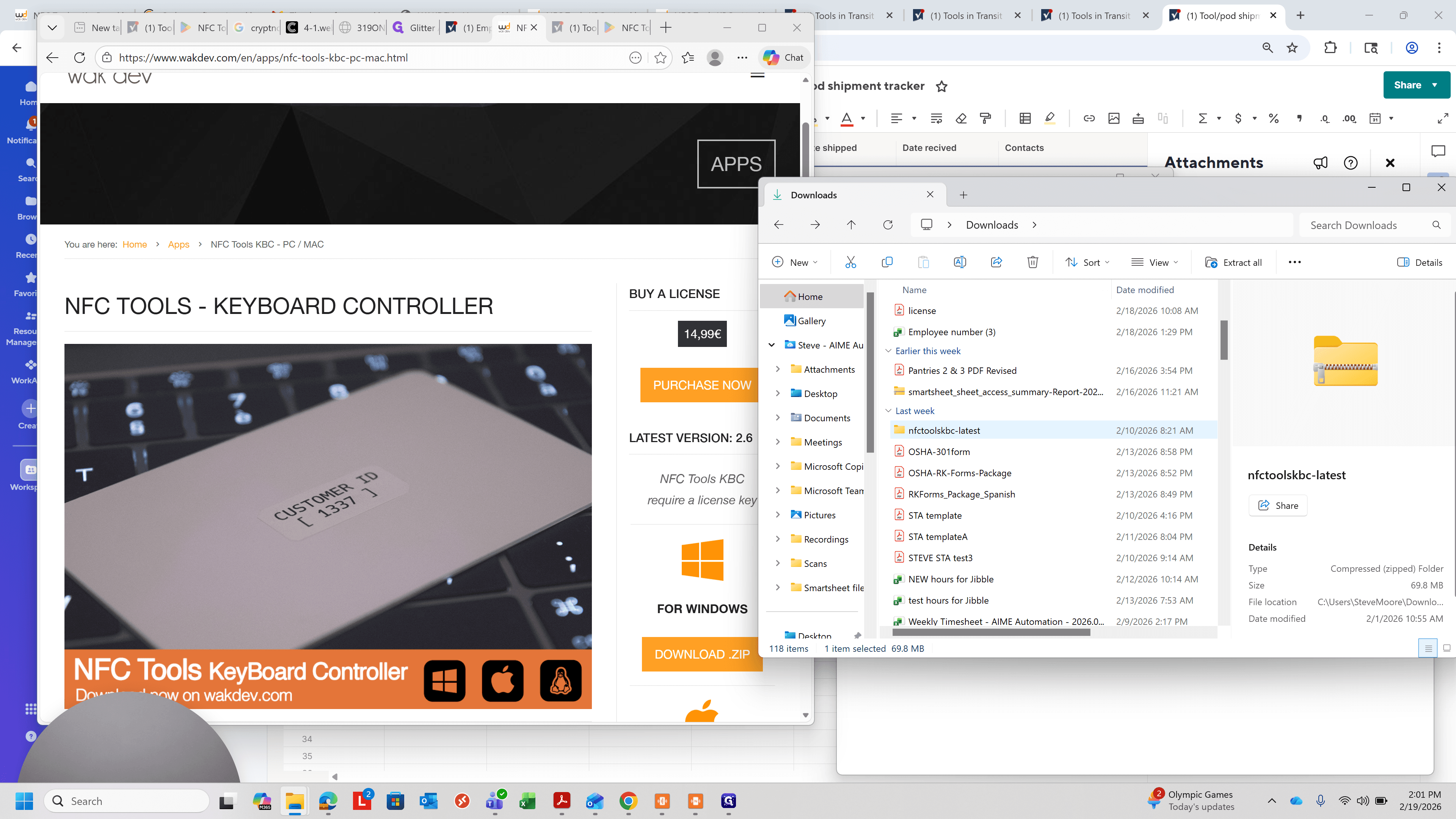
Double-Click on "nfctoolskbc - latest" in the extracted folder, there will be no zipper on the folder icon
7
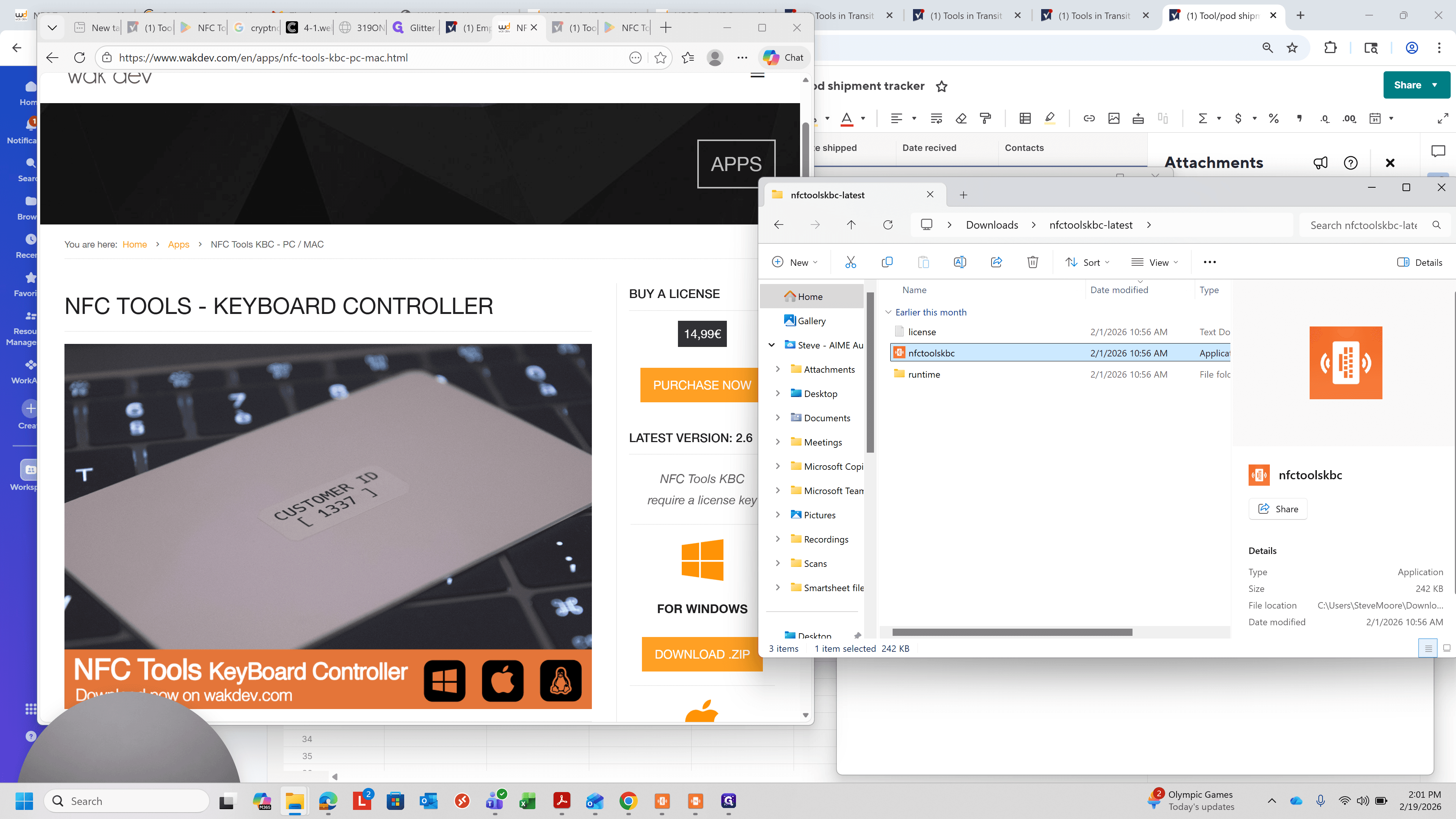
Double-click on "nfctoolskbc"
8
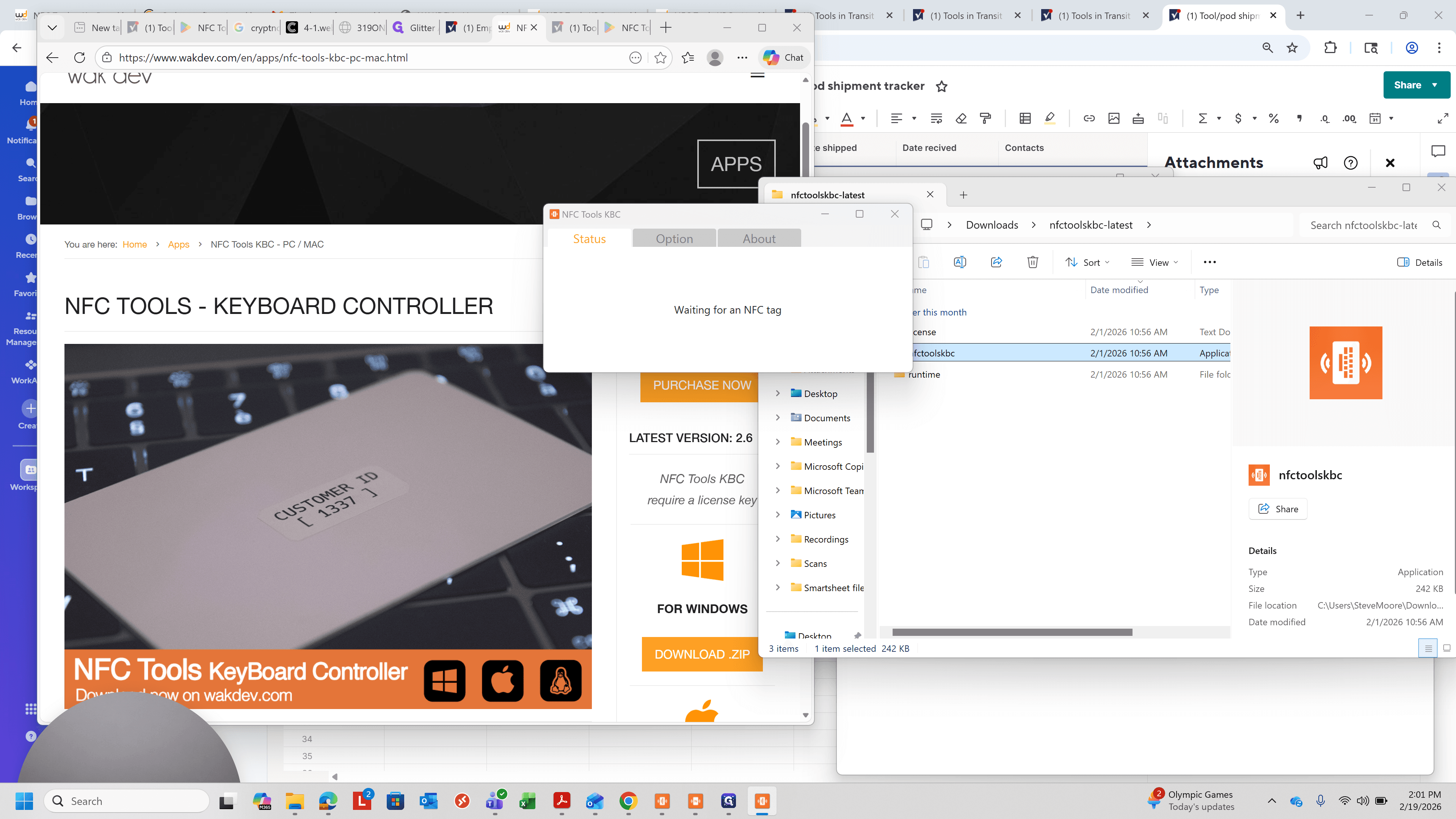
Right-click on "fctoolskbc" and add a shortcut, which you can move to your desktop.
9
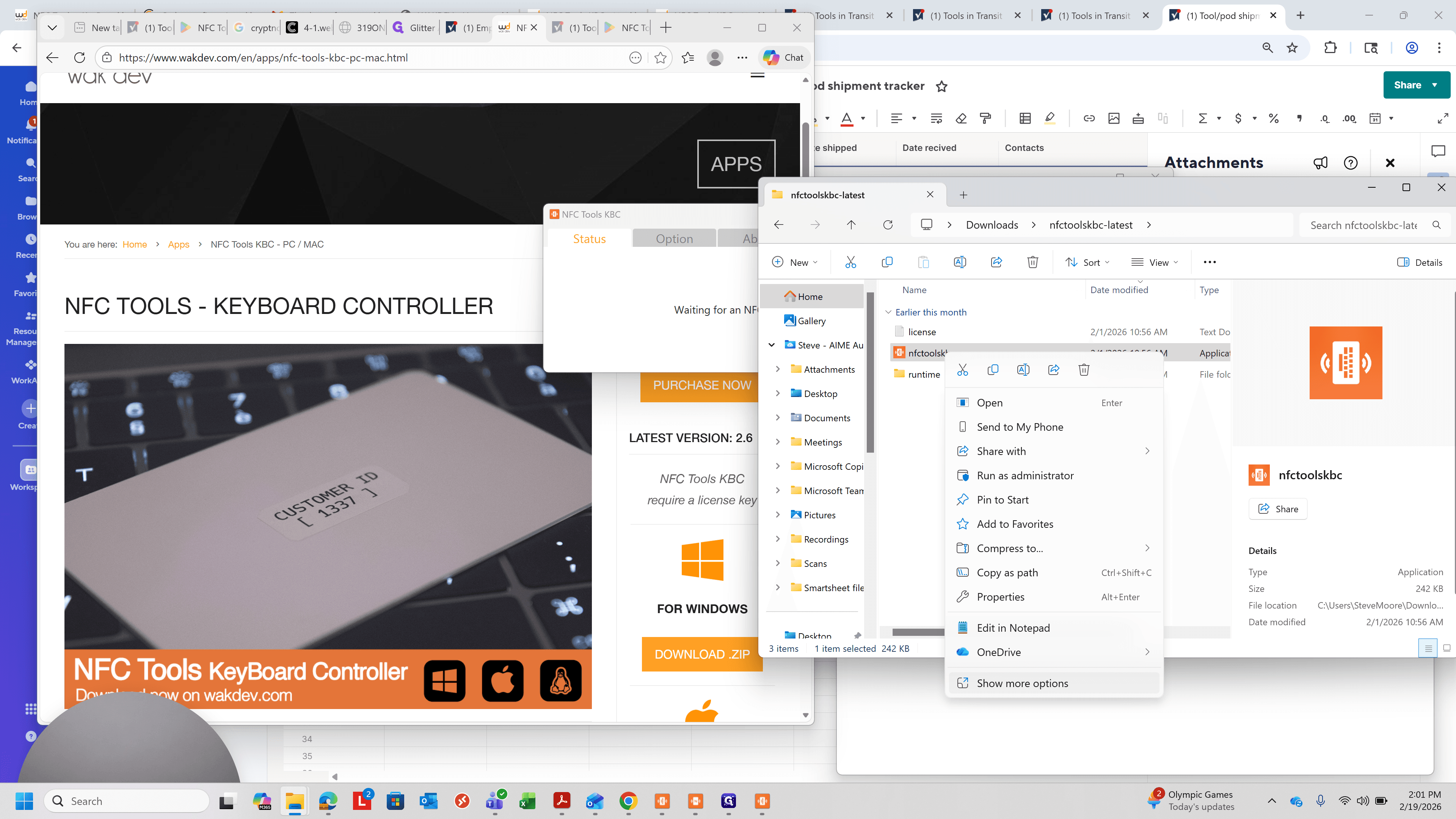
Click on "Show more options" if add a shortcut is not showing
10
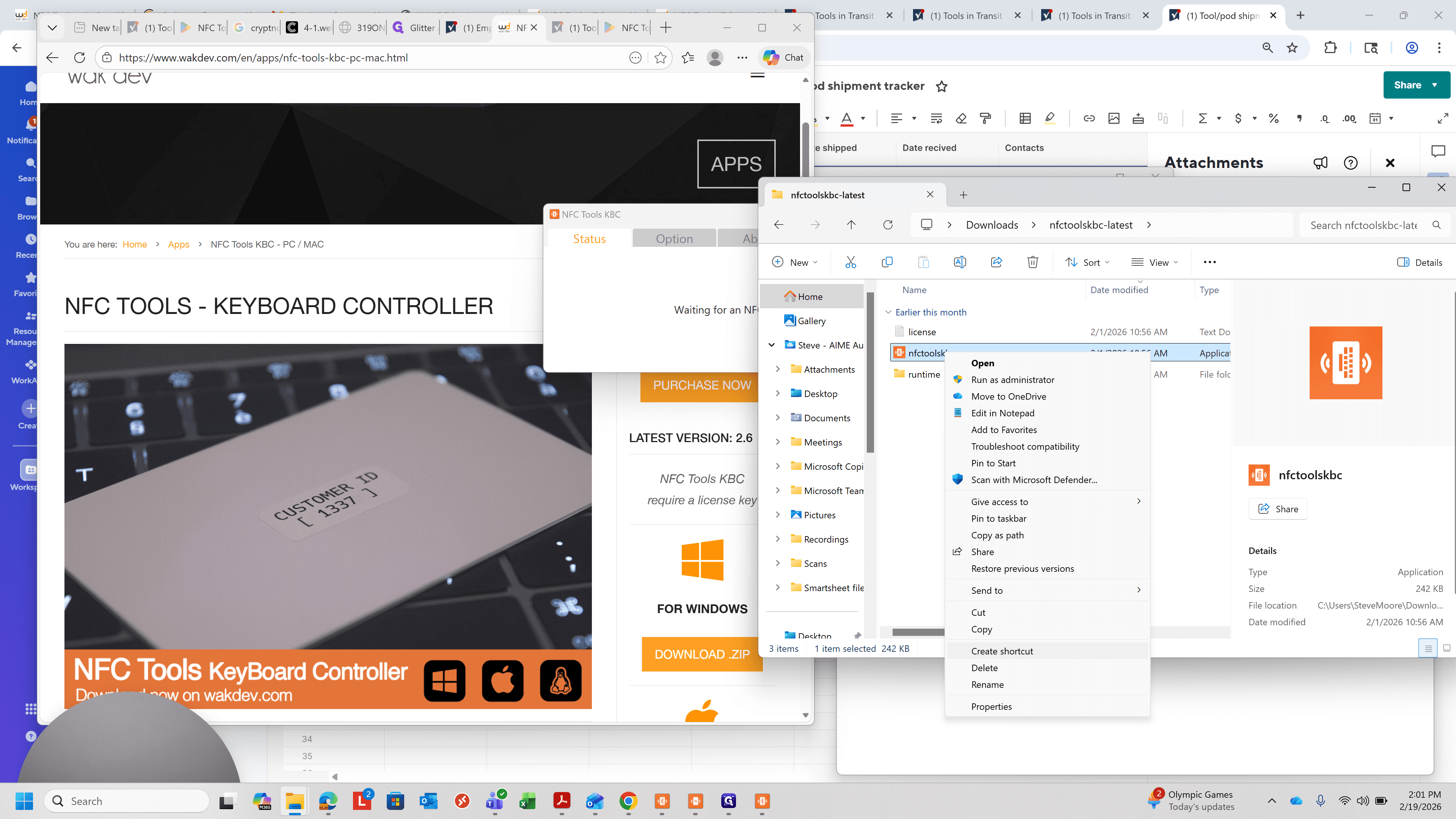
Click on "Create shortcut"
11
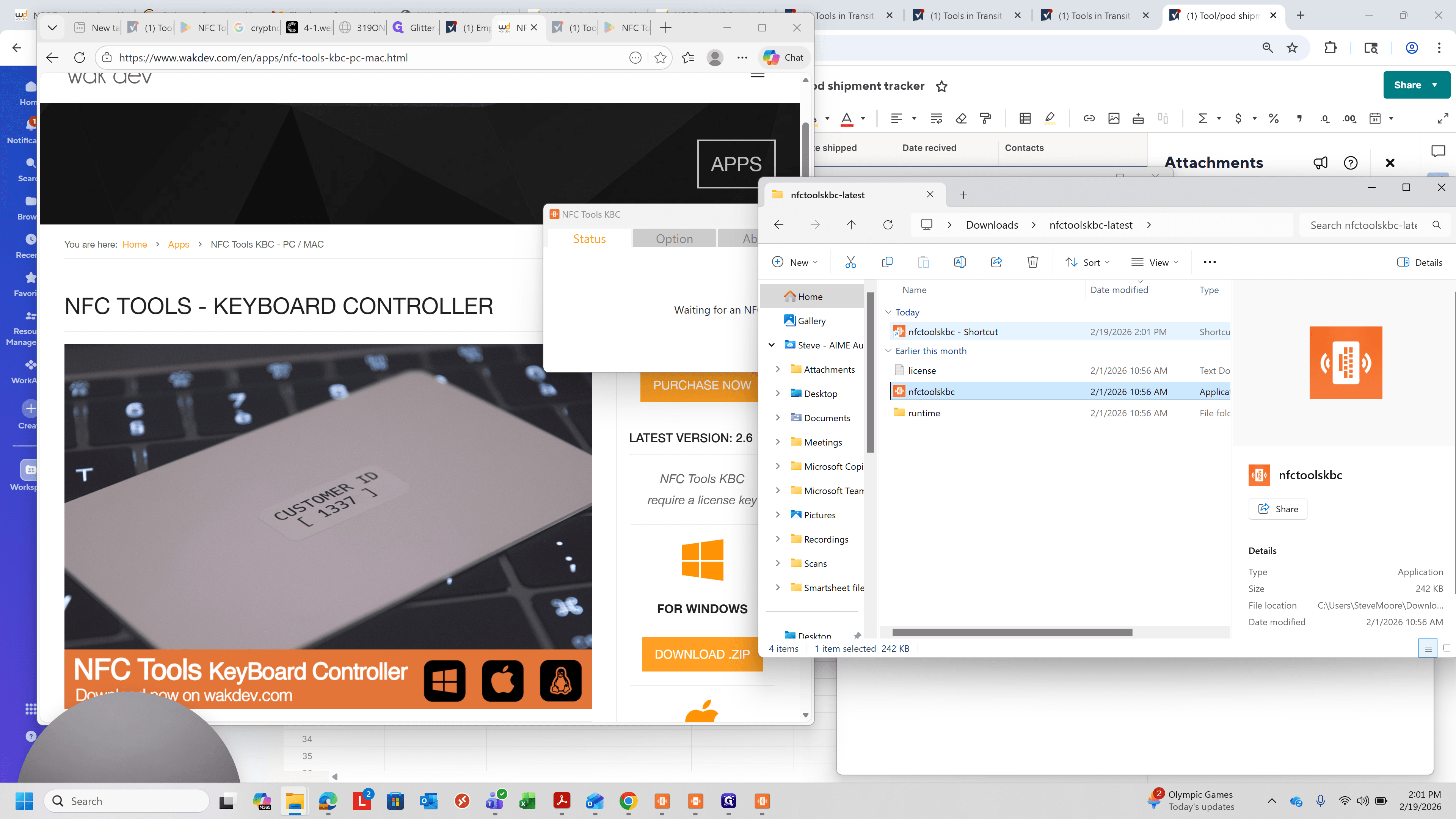
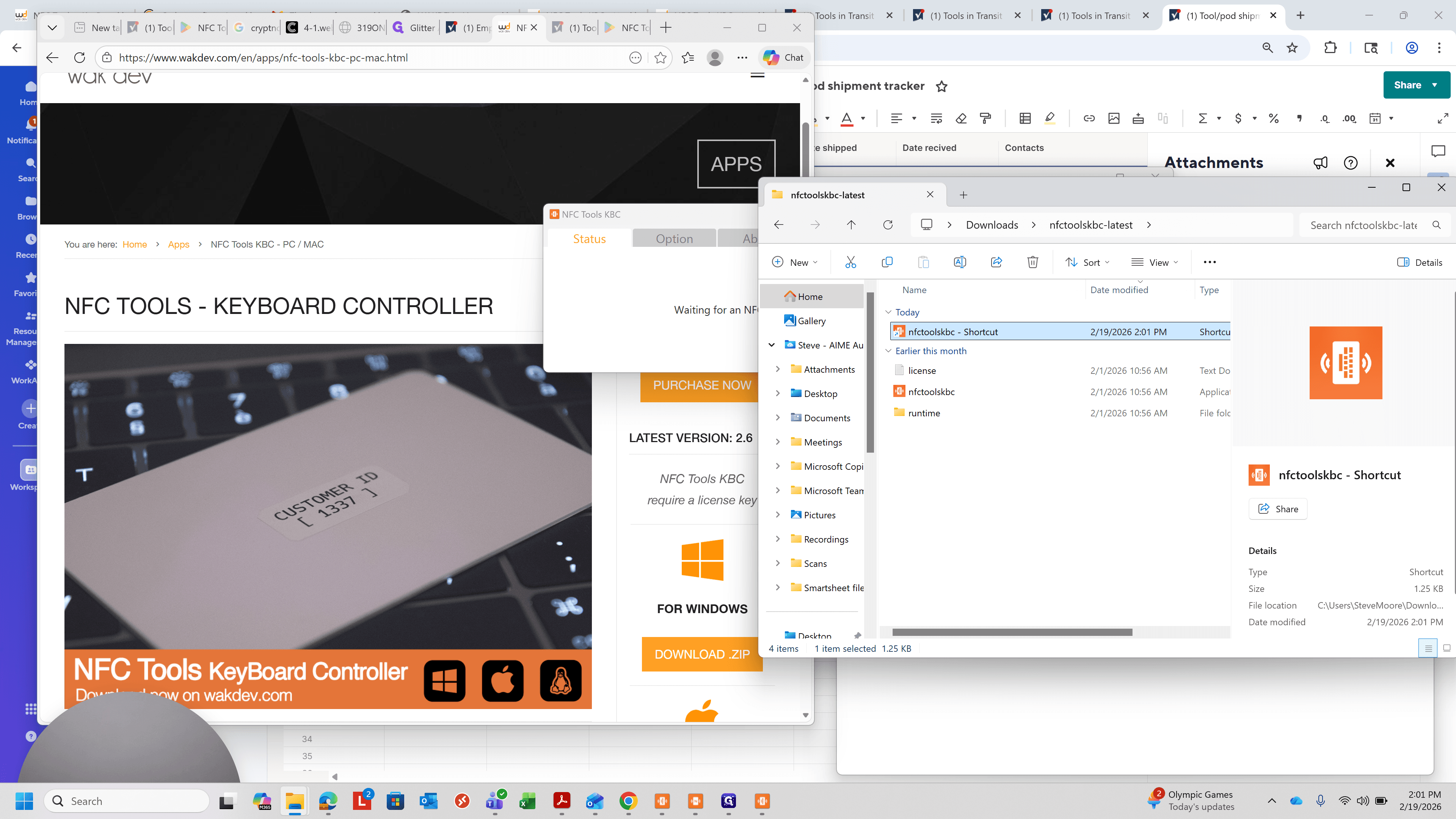
Click on "nfctoolskbc - Shortcut"
12
Drag to your desk top.
13
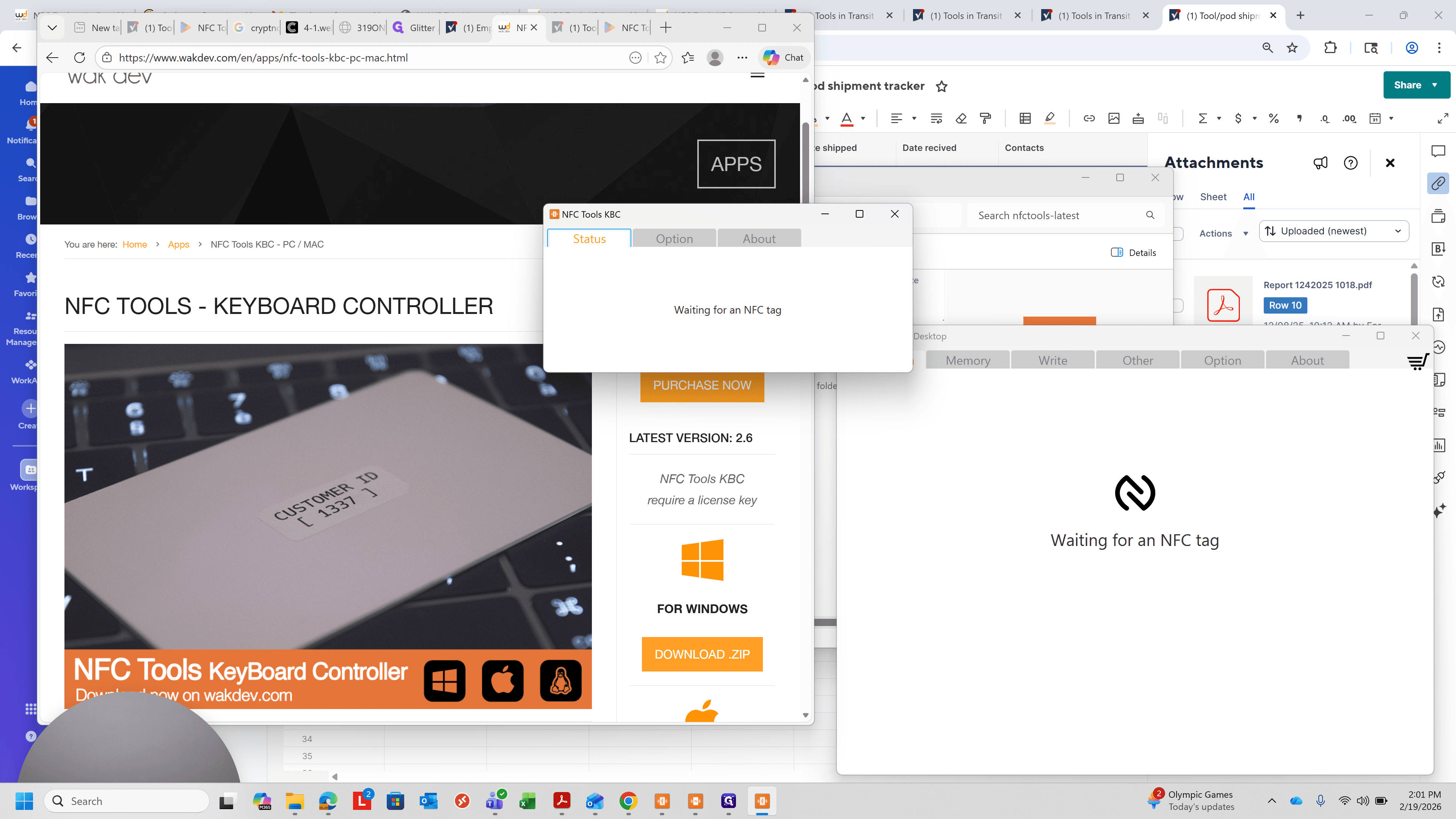
Click on "Option"
14
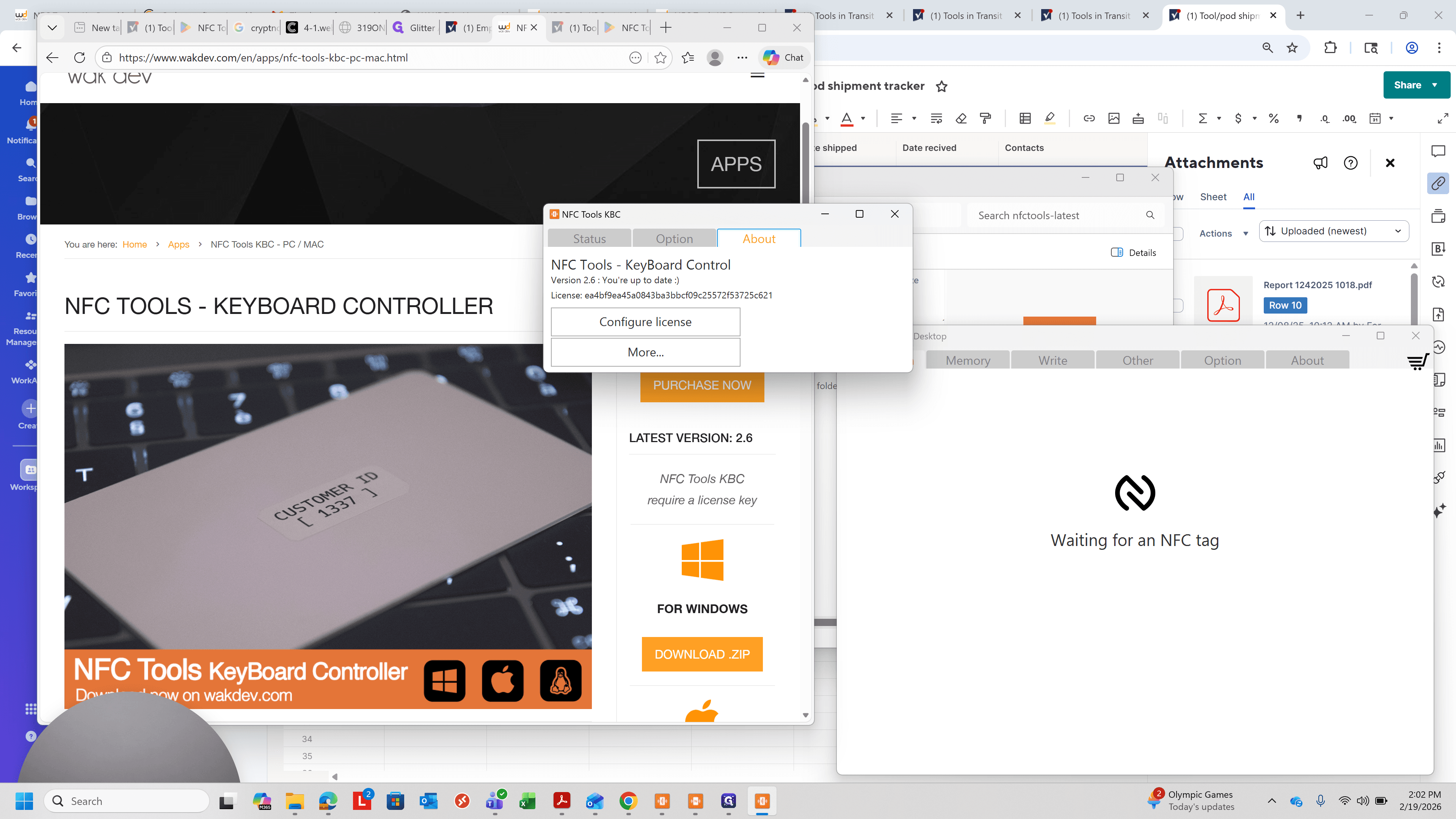
Click on "About"
15
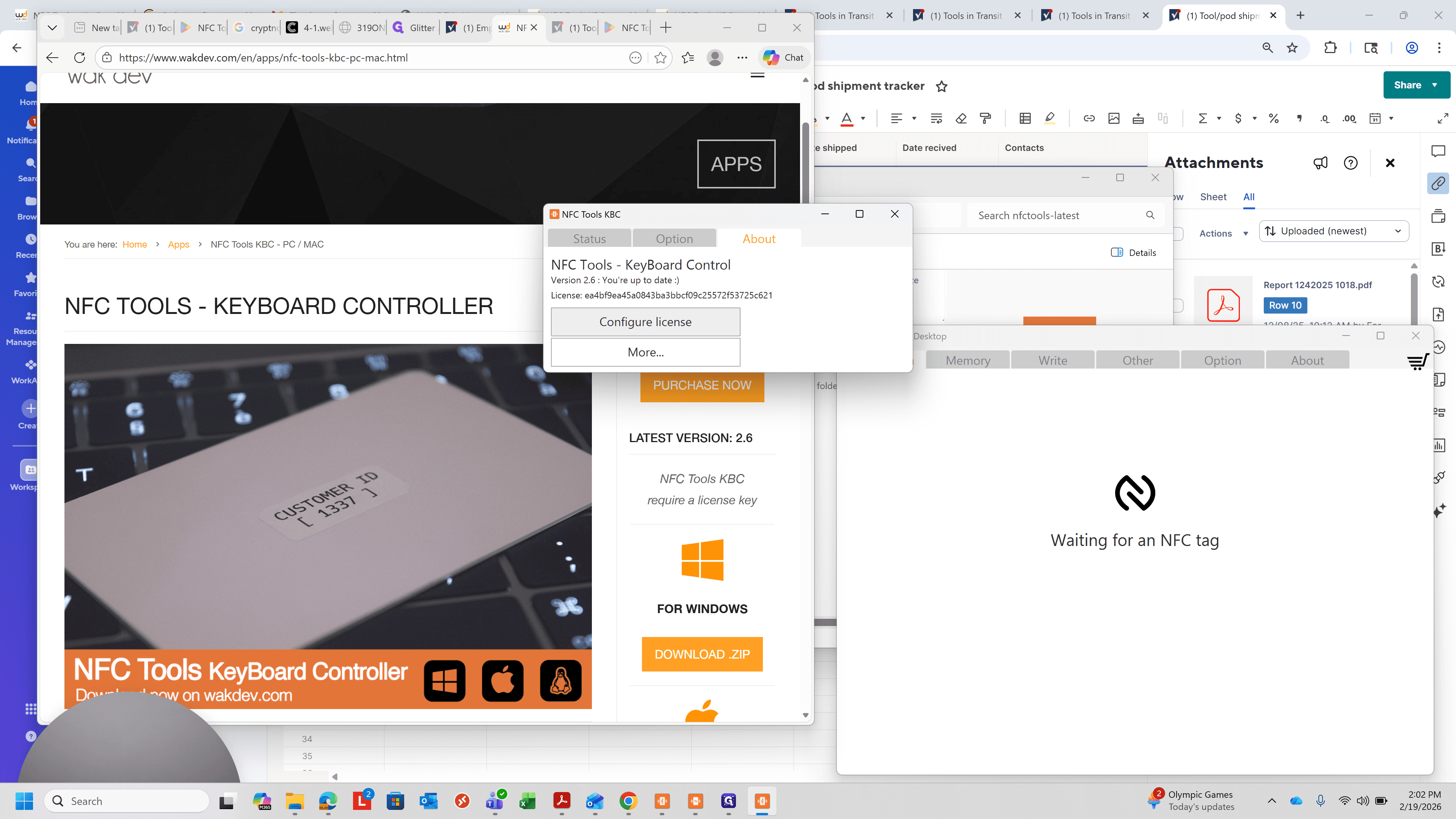
Click on "Configure license"
16
Click on "Cancel"
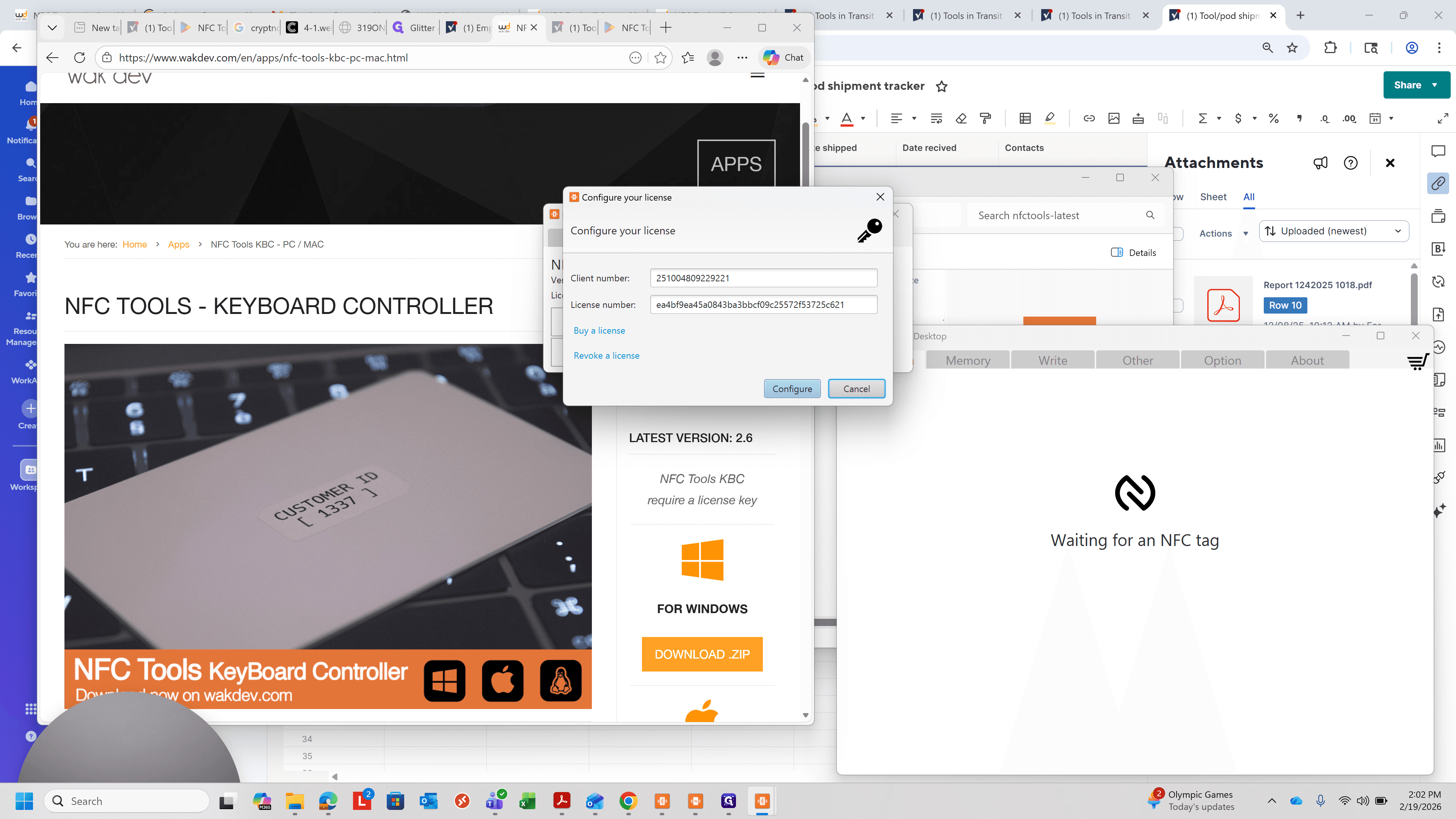
17
Click on "Х"
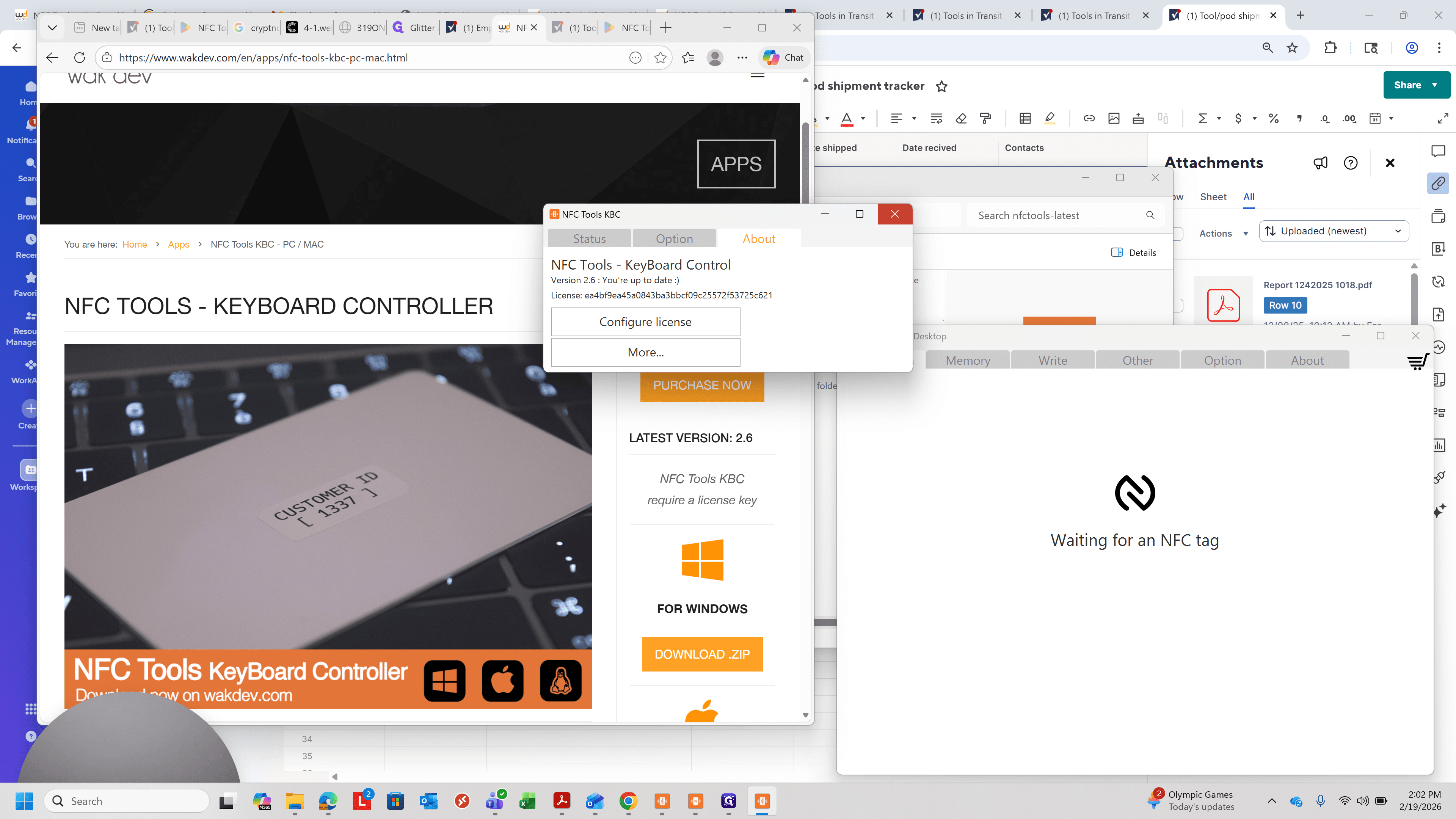
18
Click on "Minimize"
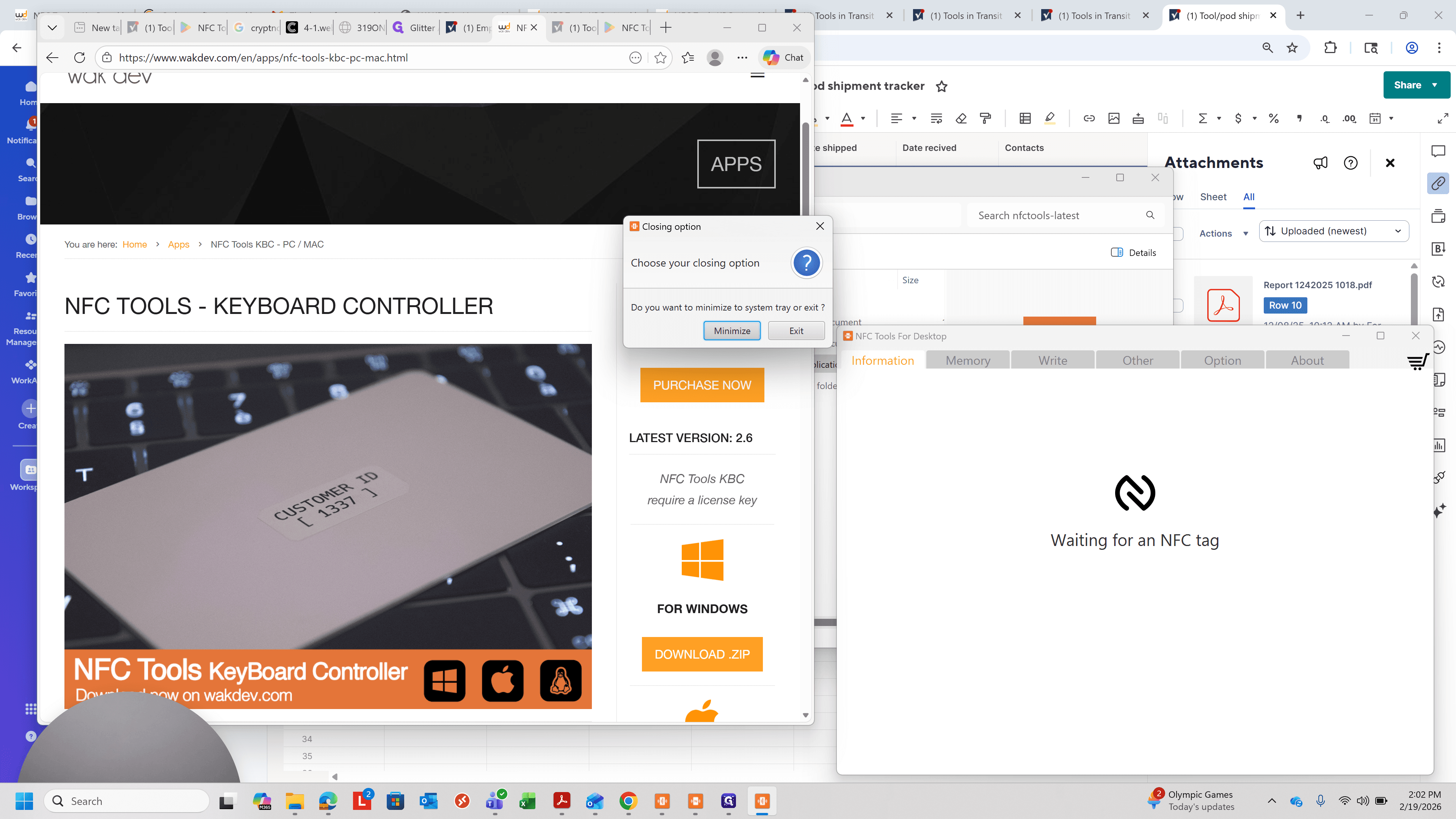
19
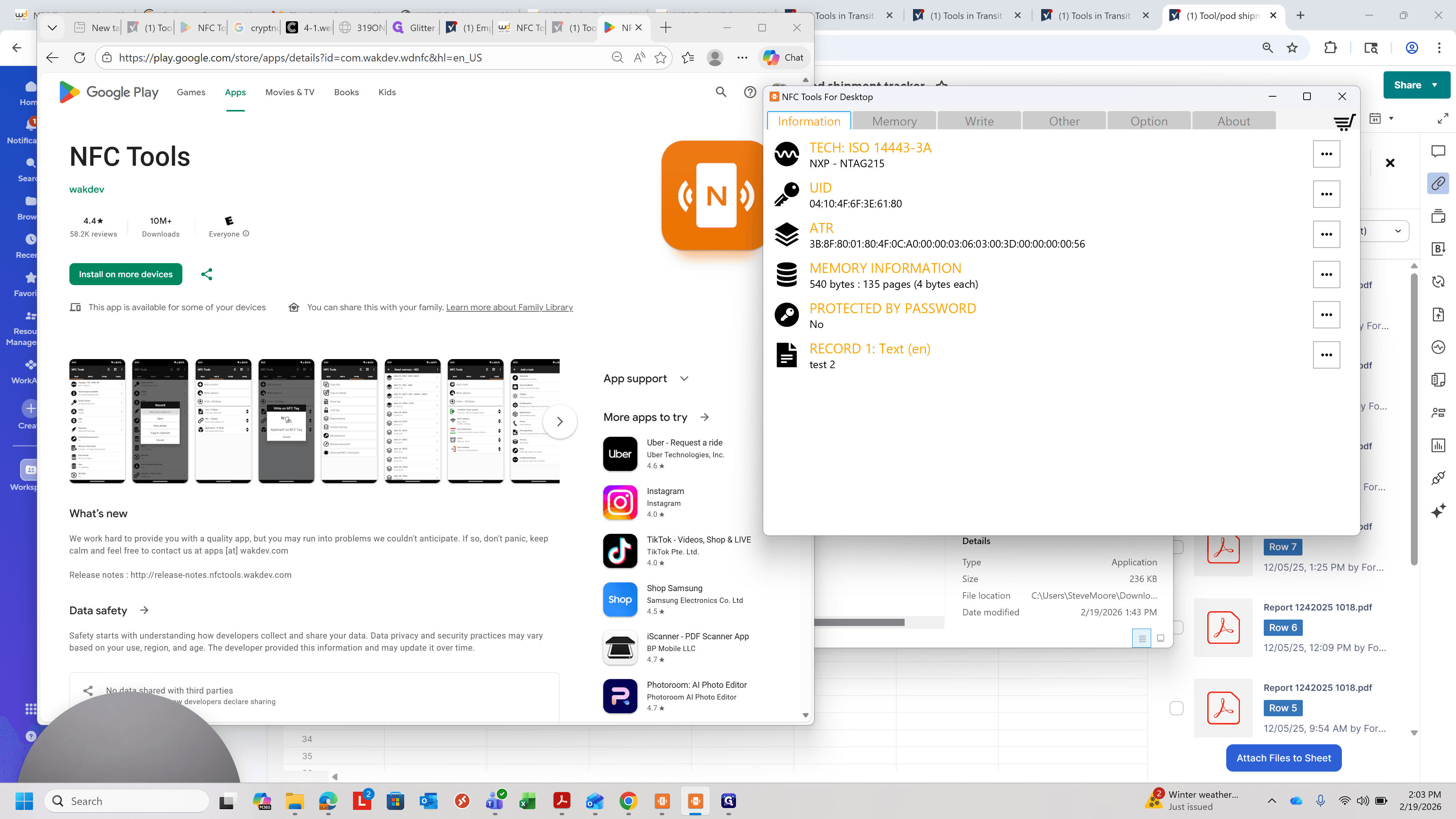
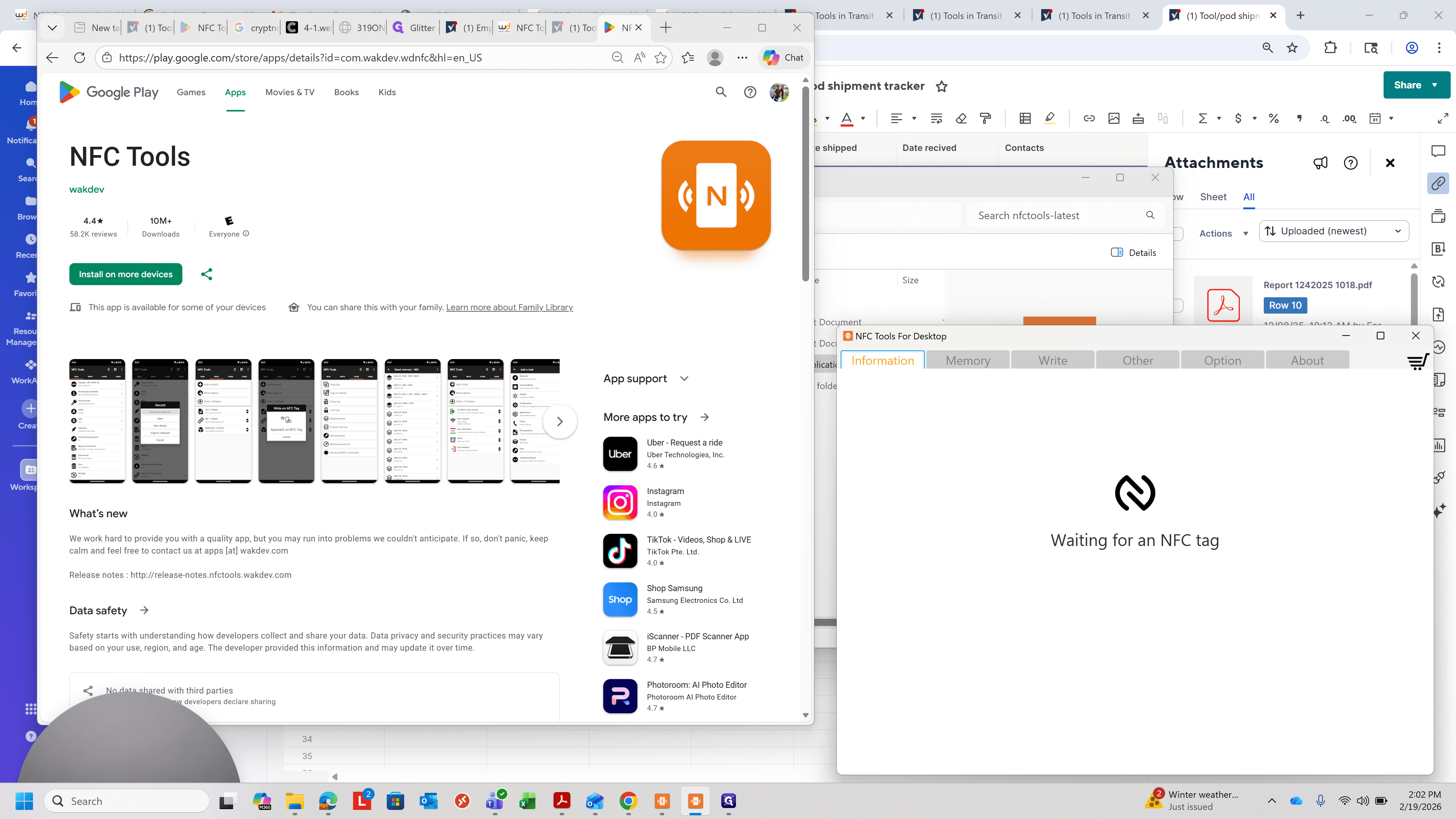
If you don't already have NFC Tools on the jibble tablet you can download it fom the app store. This is the PC version so it looks a little different
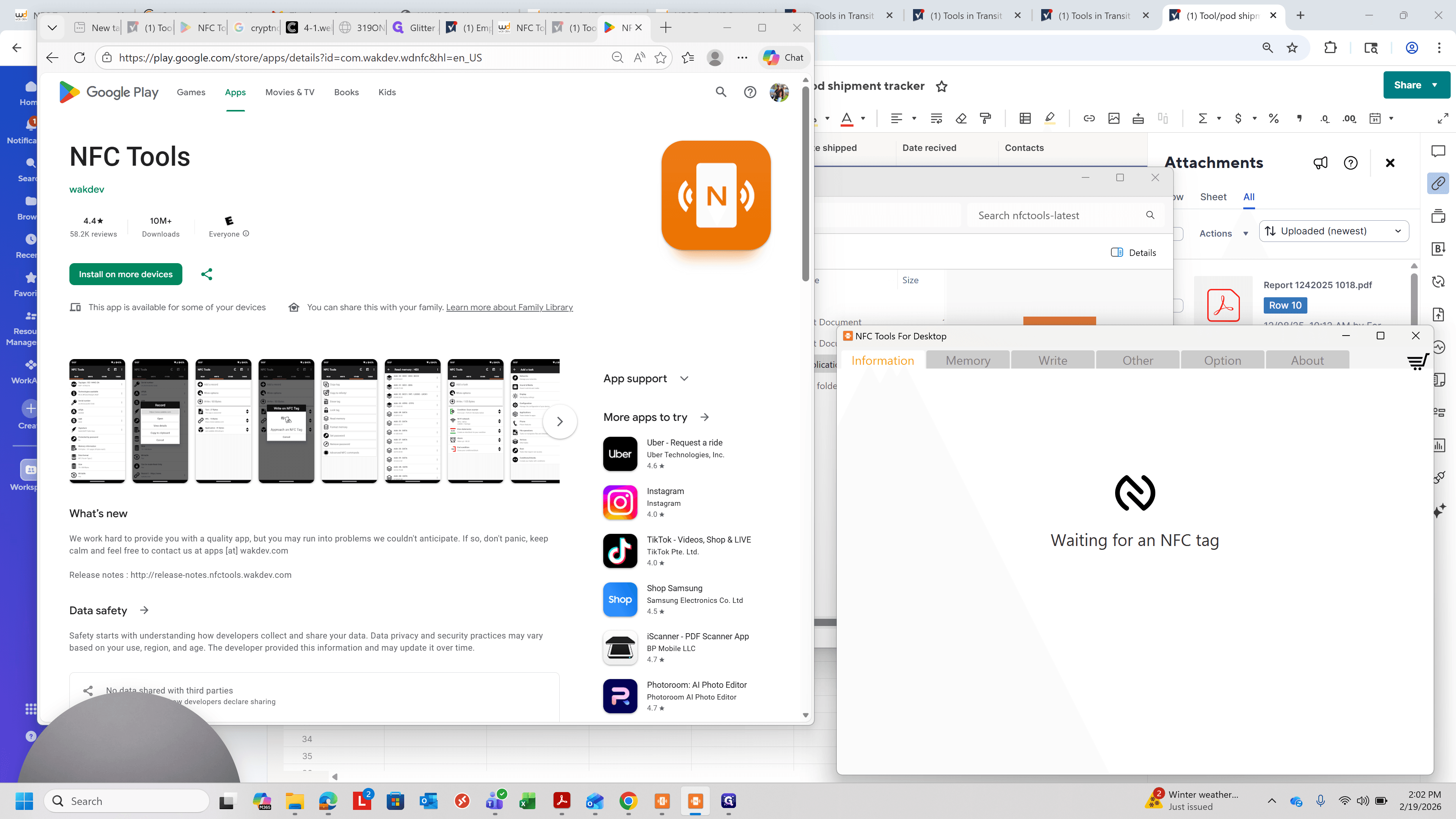
20
on a tablet or phone the first tab is read, which will read the current info on the card.
21
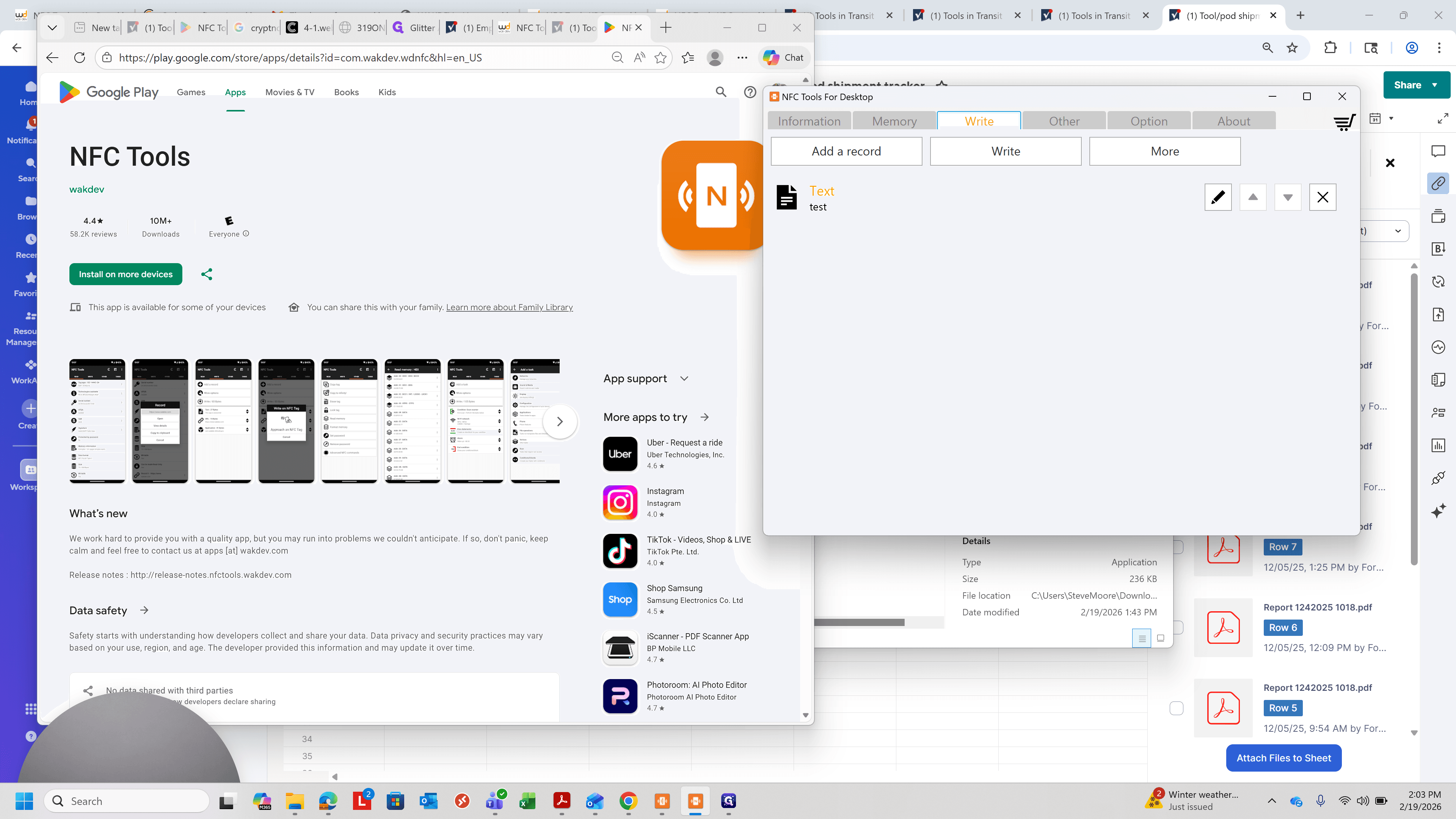
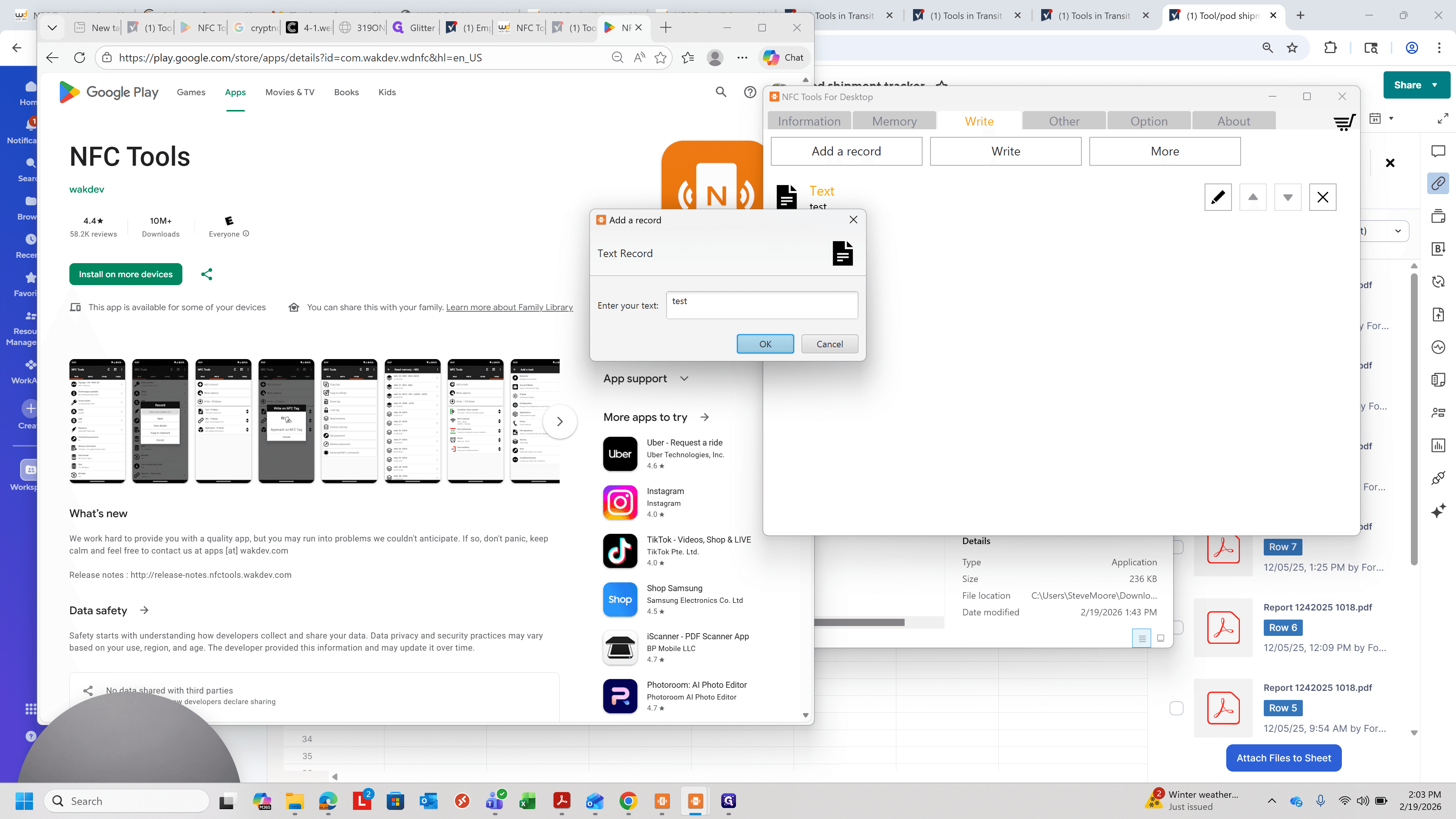
Click on "Write" and then "Add a record" to add a text file with the employee number to the card
22
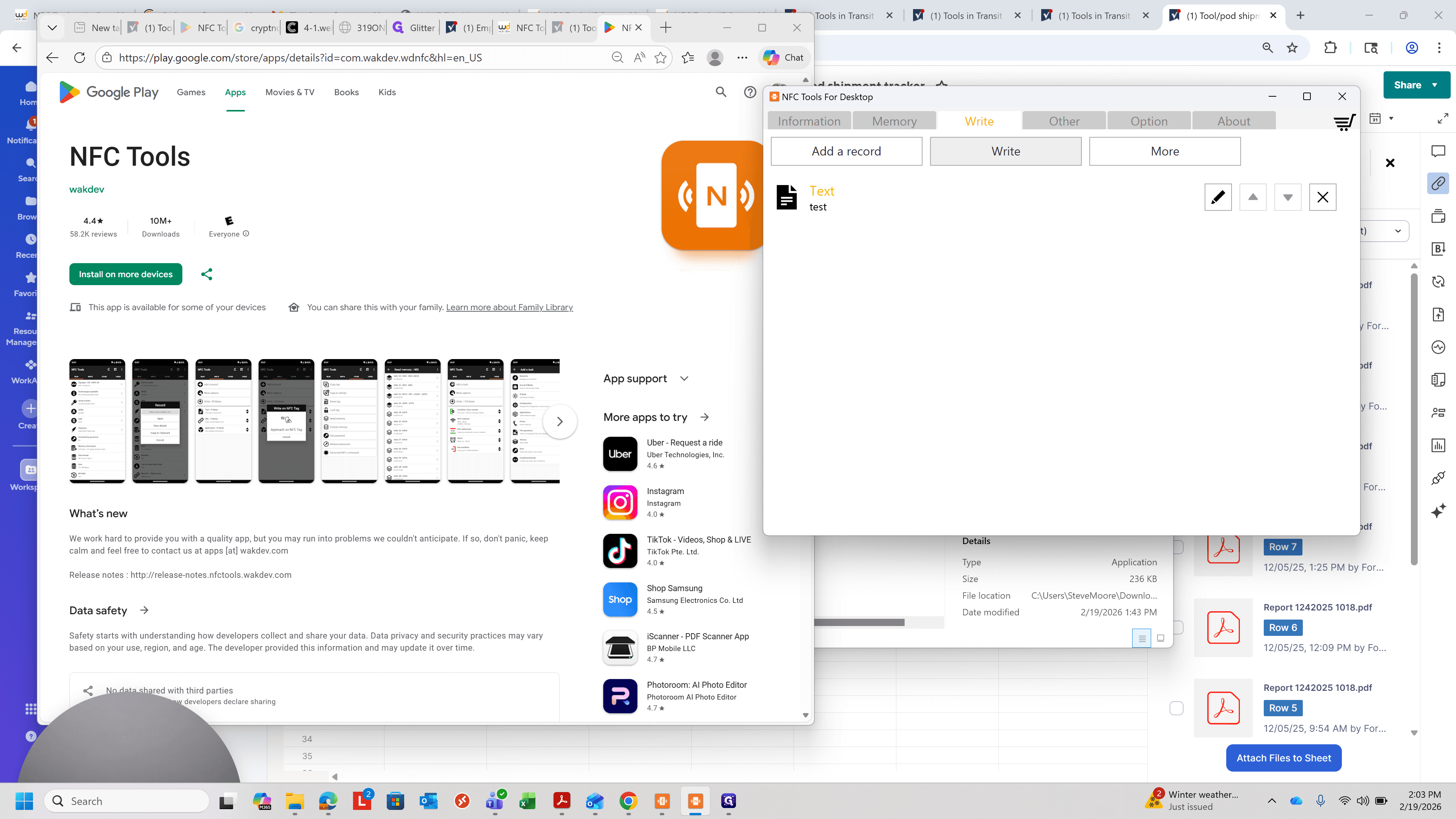
Click on "Write"
23
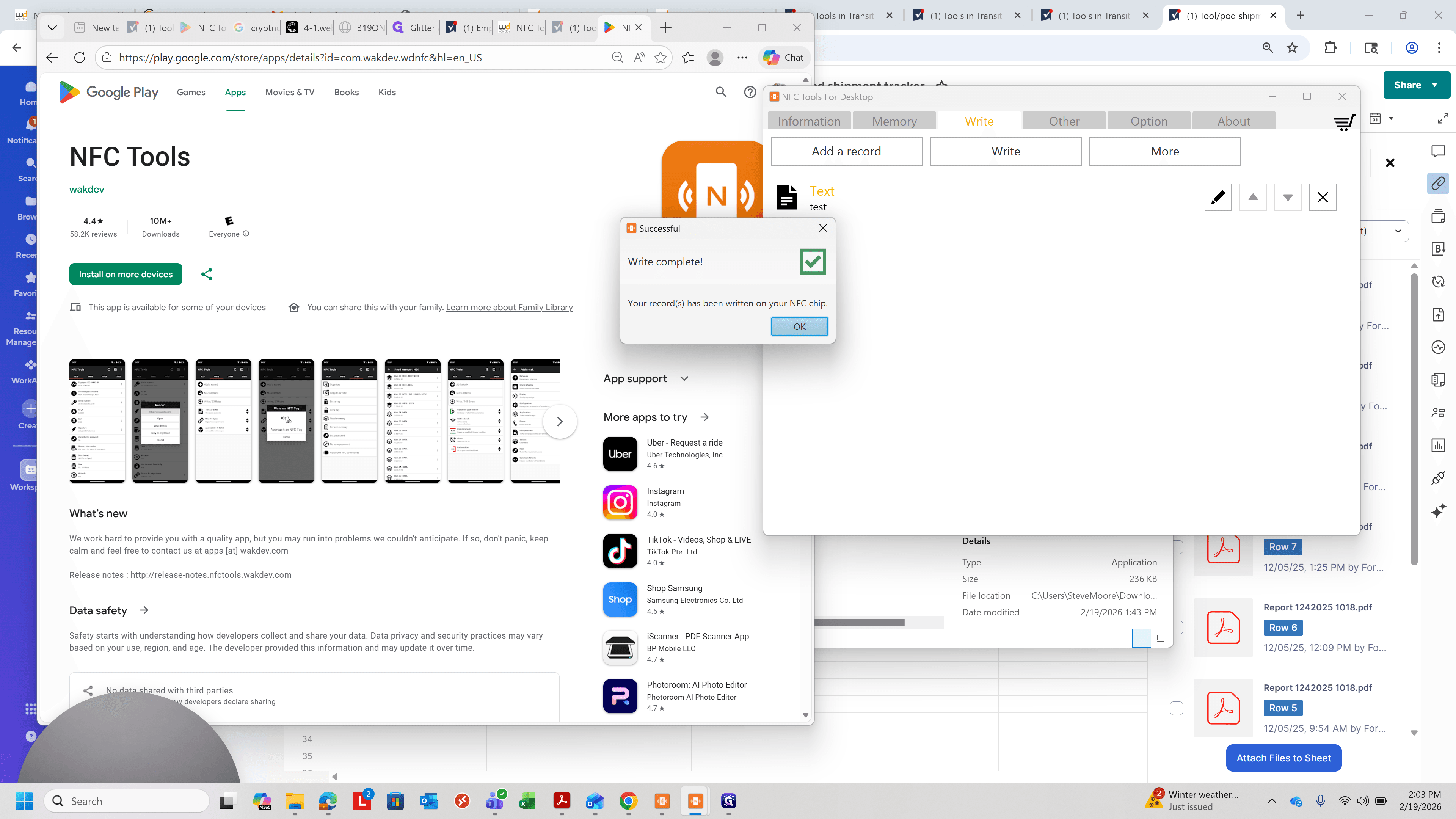
Tap the card on NFC reader on back of tablet.
24
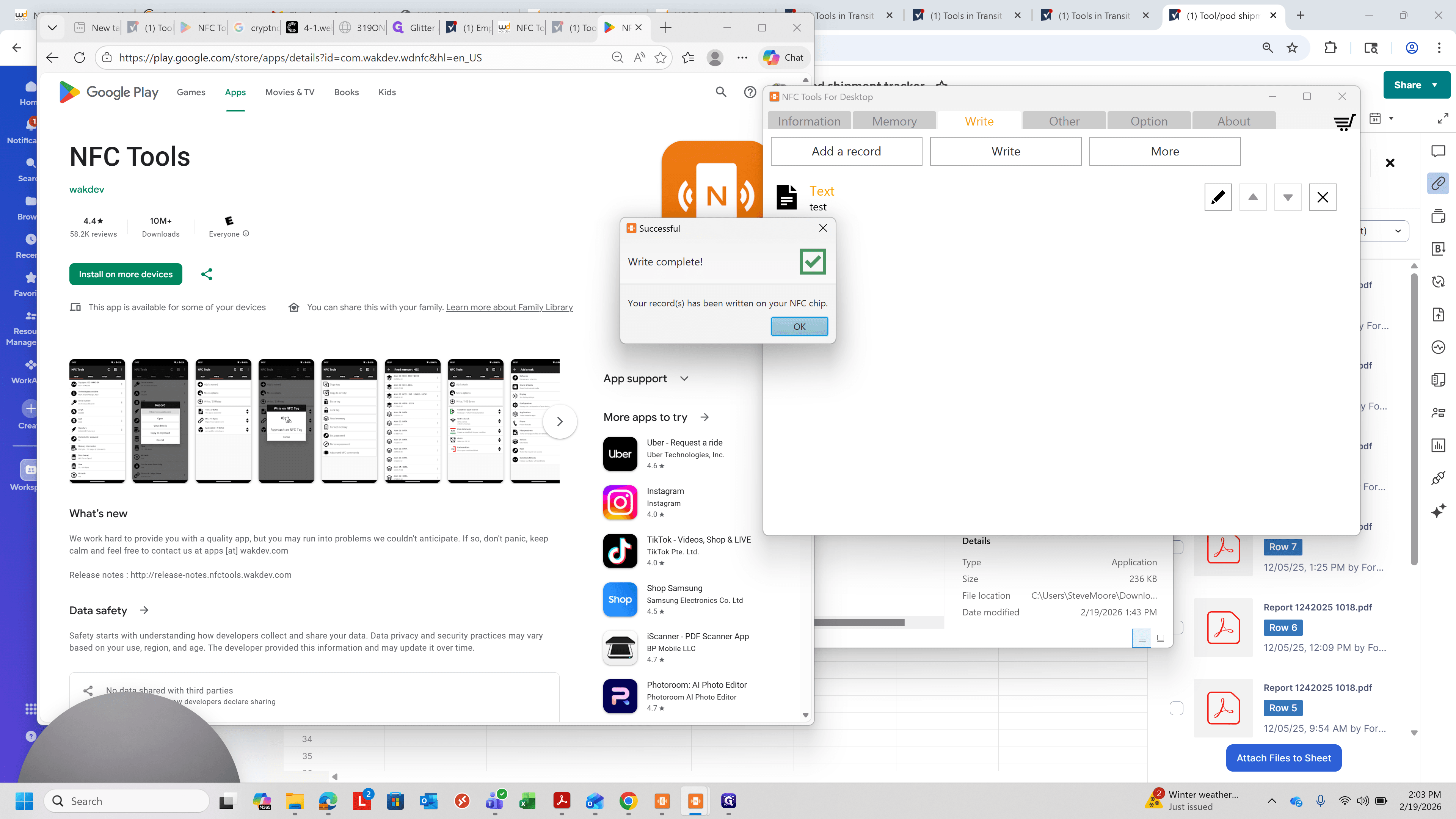
Click on "OK"
25
Edit the text and repeat as needed for additional cards
26
Click on "Information" or on the tablet "Read" and scroll to bottom. the new information should show as a text record