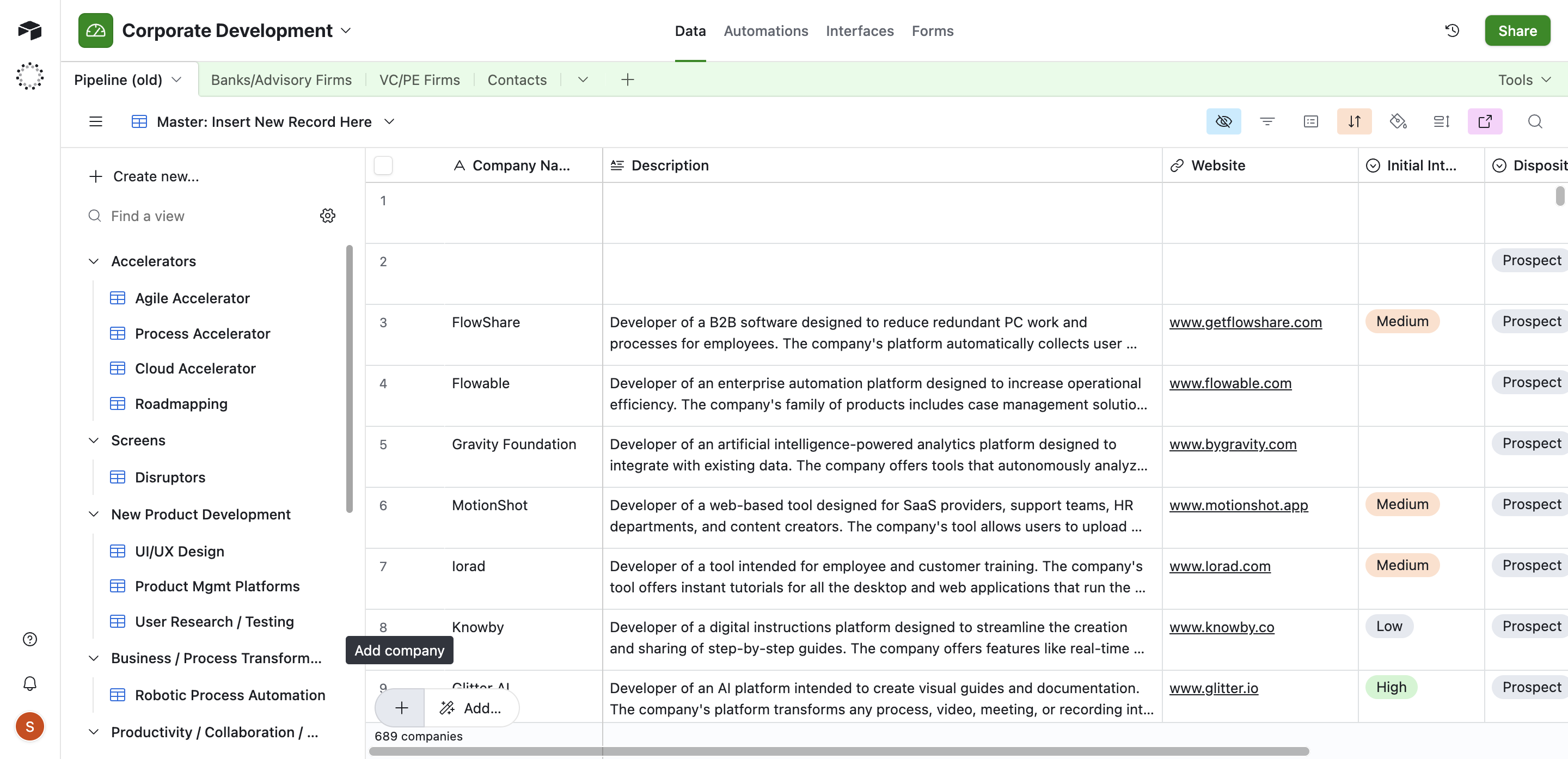
How to Add a New Company to the Corporate Development Pipeline: 100MS Example
Learn step-by-step how to add 100MS to your corporate development pipeline, indicate interest level, and update your Airtable records efficiently.
In this guide, we'll learn how to add a new company to a corporate development pipeline and indicate your interest level for a potential acquisition. We will also cover how to record this information in Airtable for tracking purposes.
This process helps keep your pipeline organized and ensures all relevant details are documented.
Let's get started
All right, I'm going to add a new company to the corporate development pipeline.
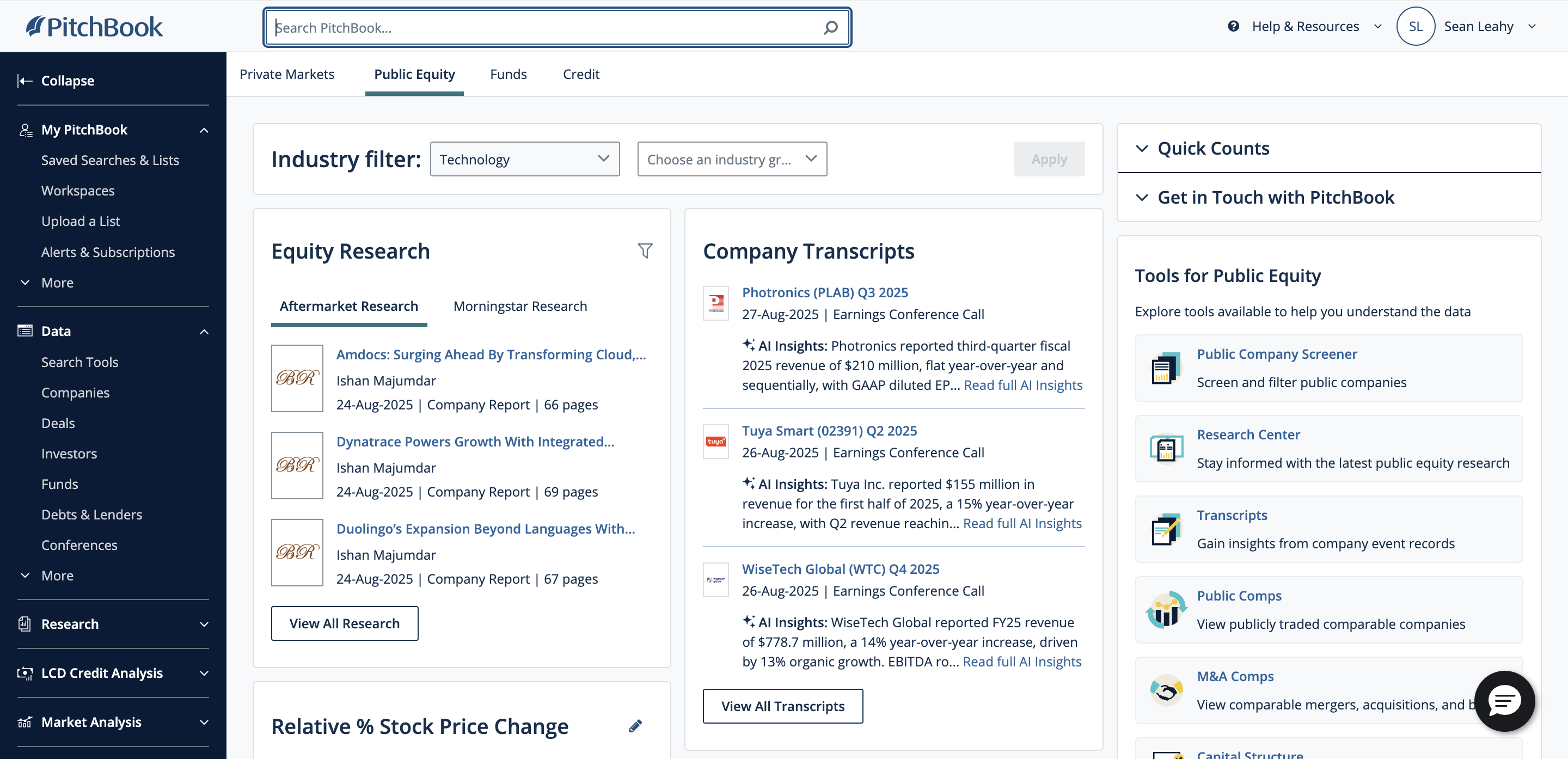
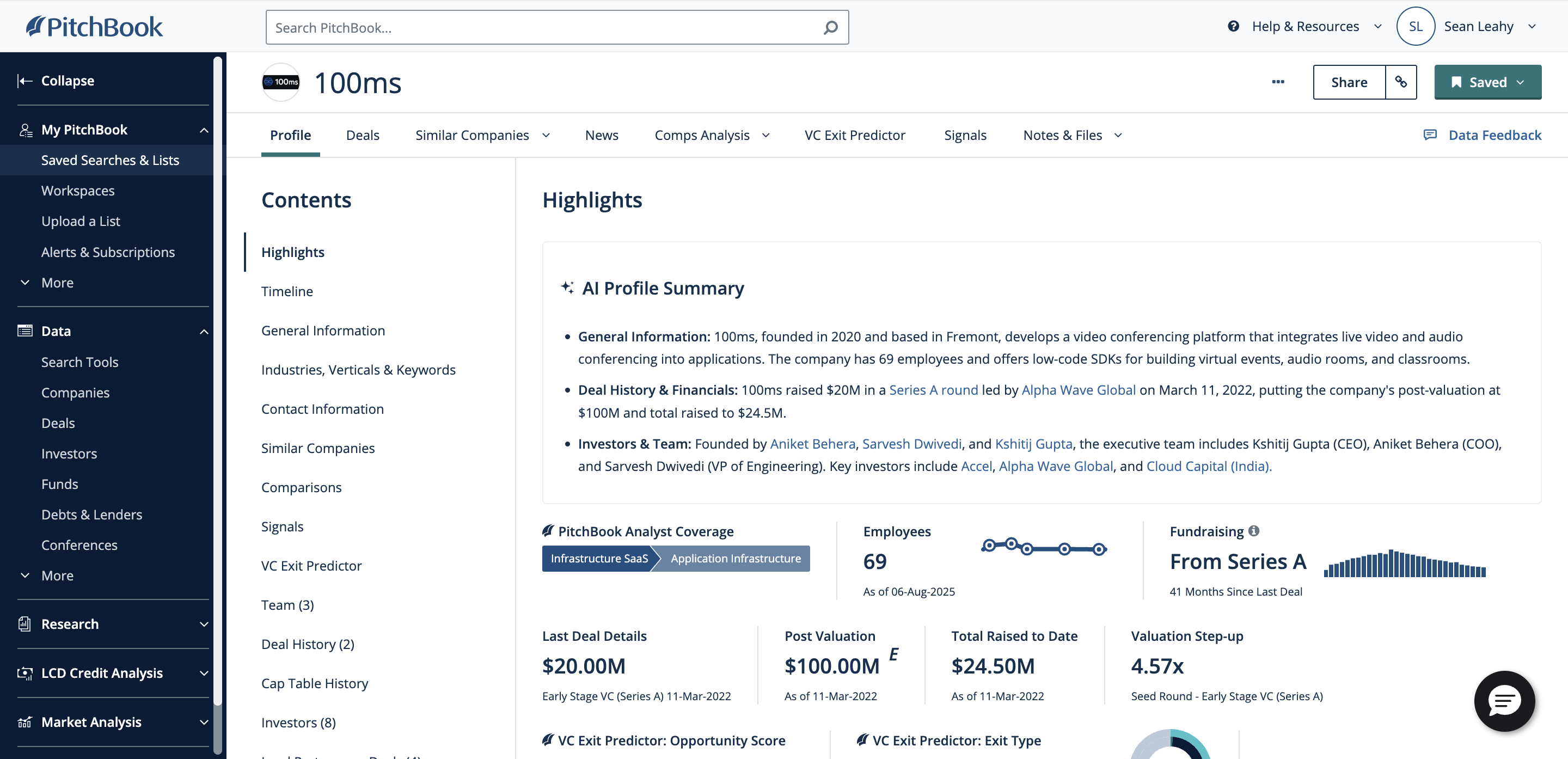
100MS is the company. Type that in the search bar, then click on 100MS.
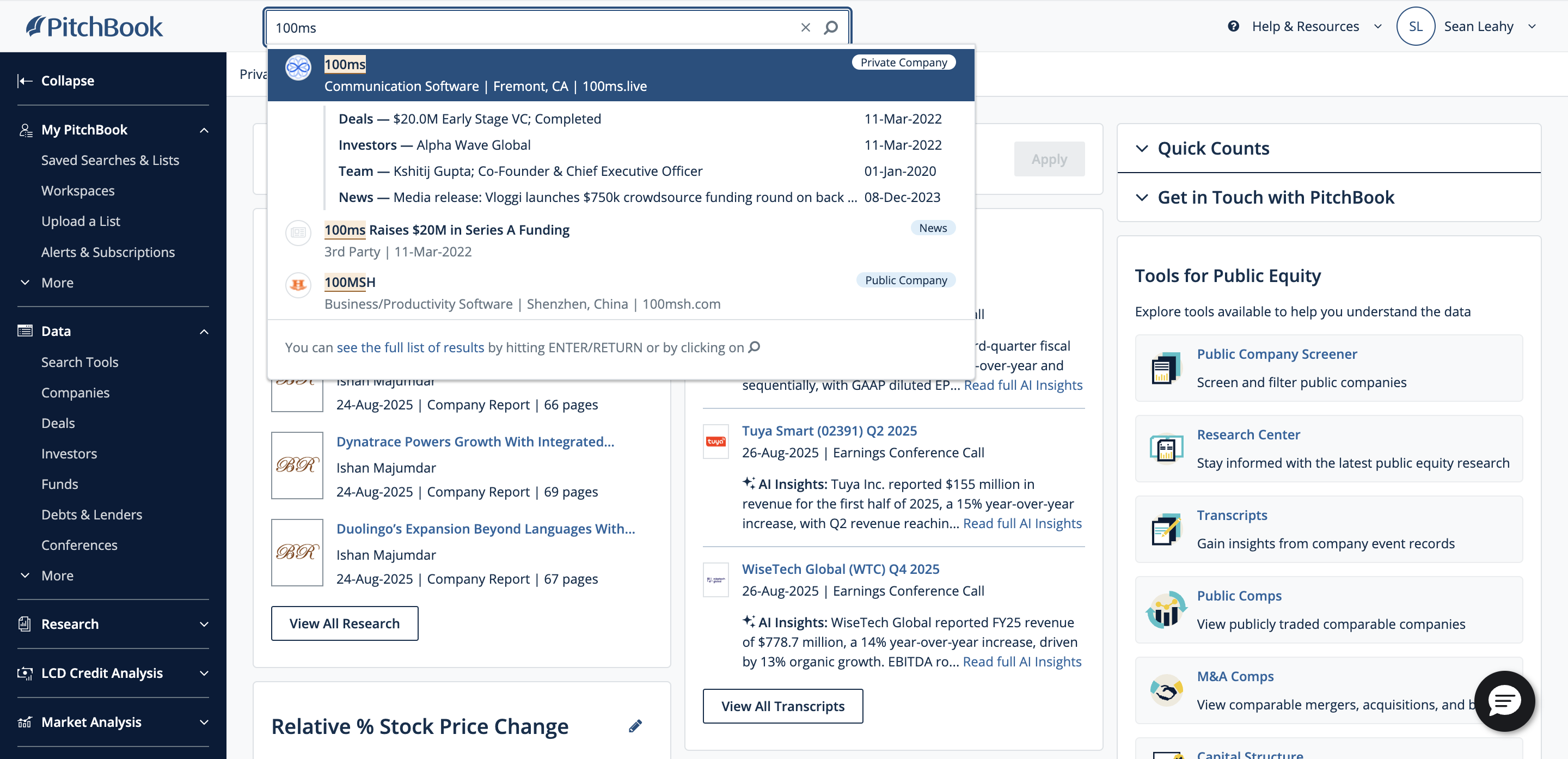
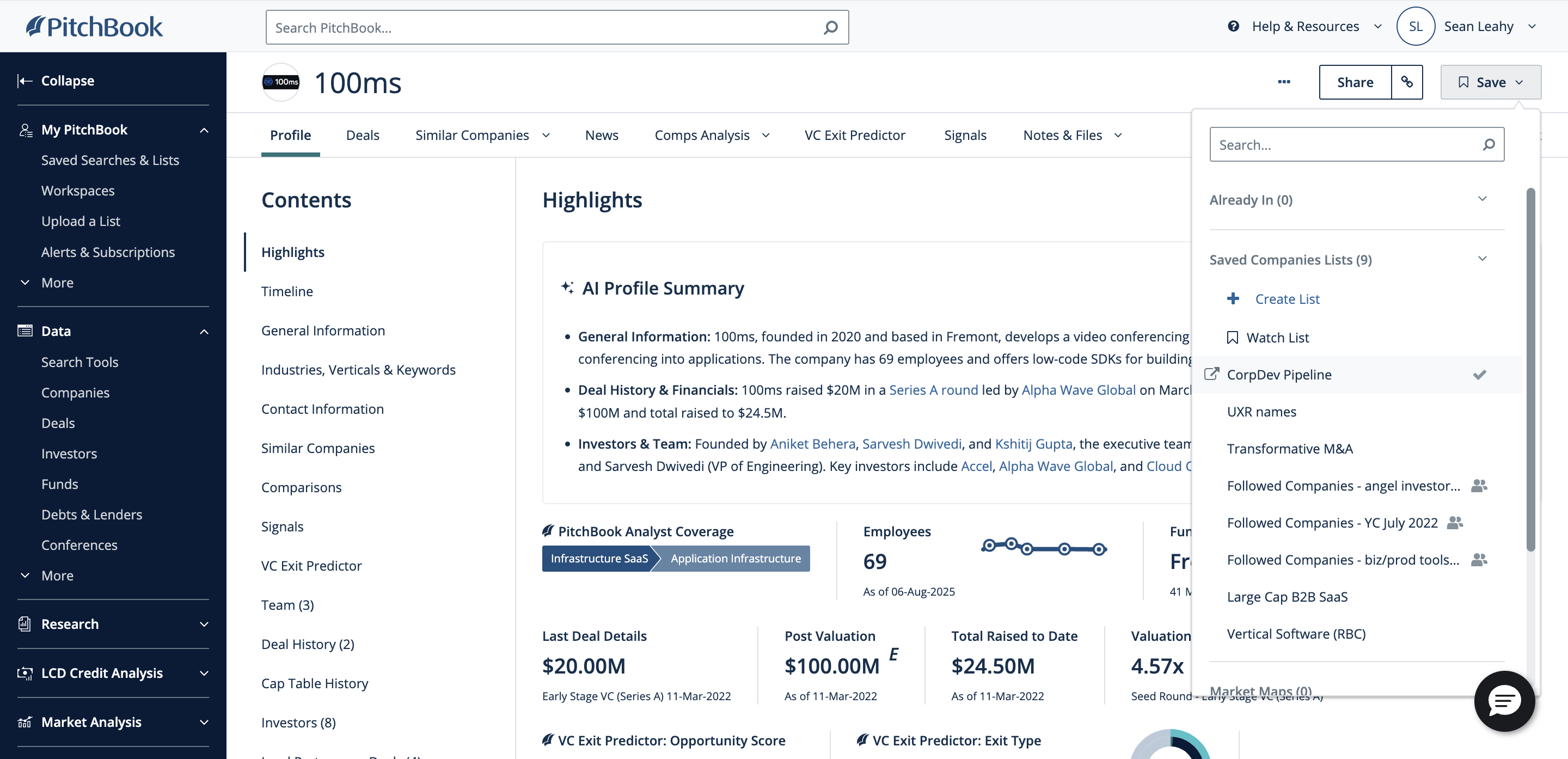
On the right, you can click Save.
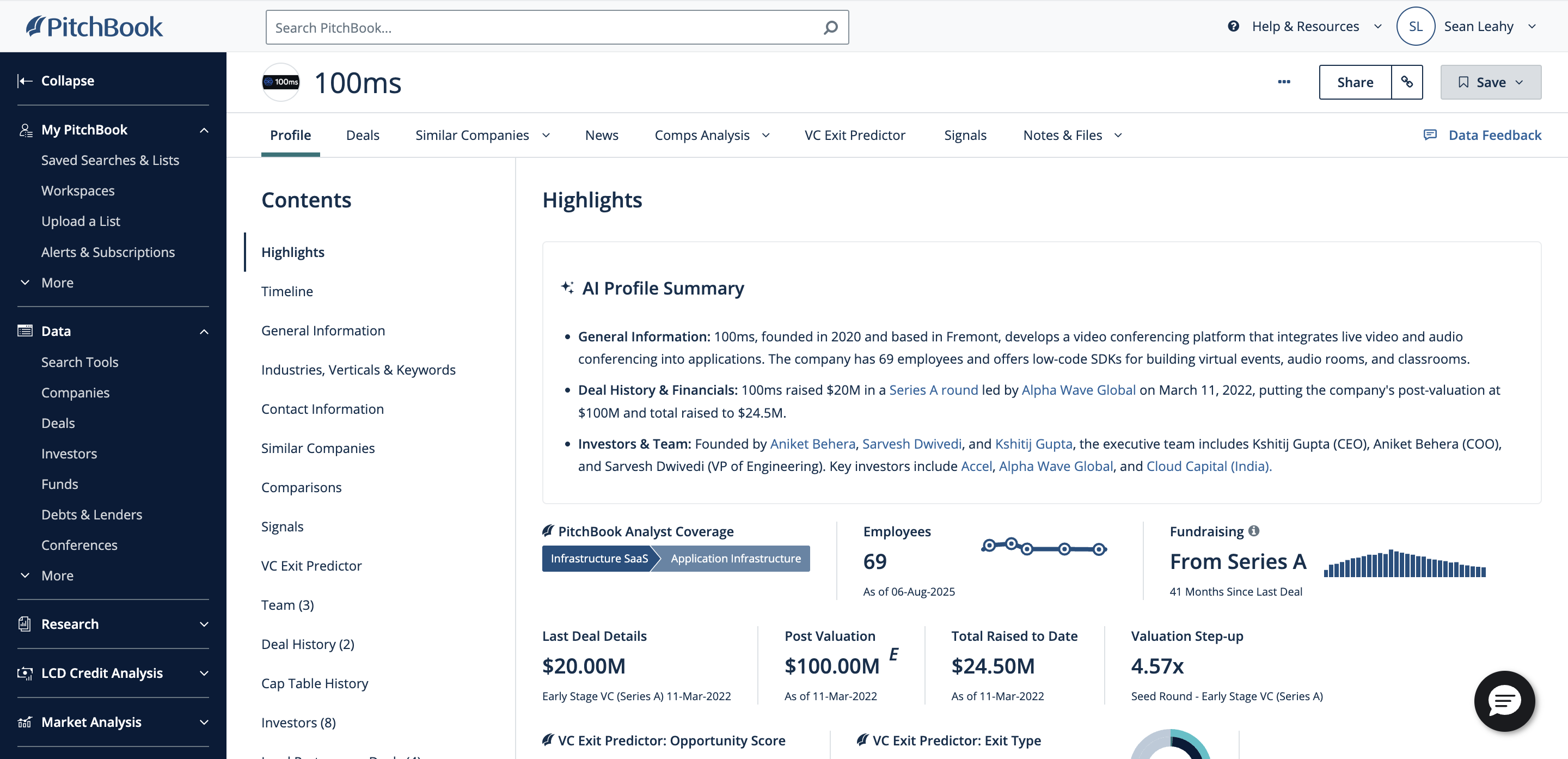
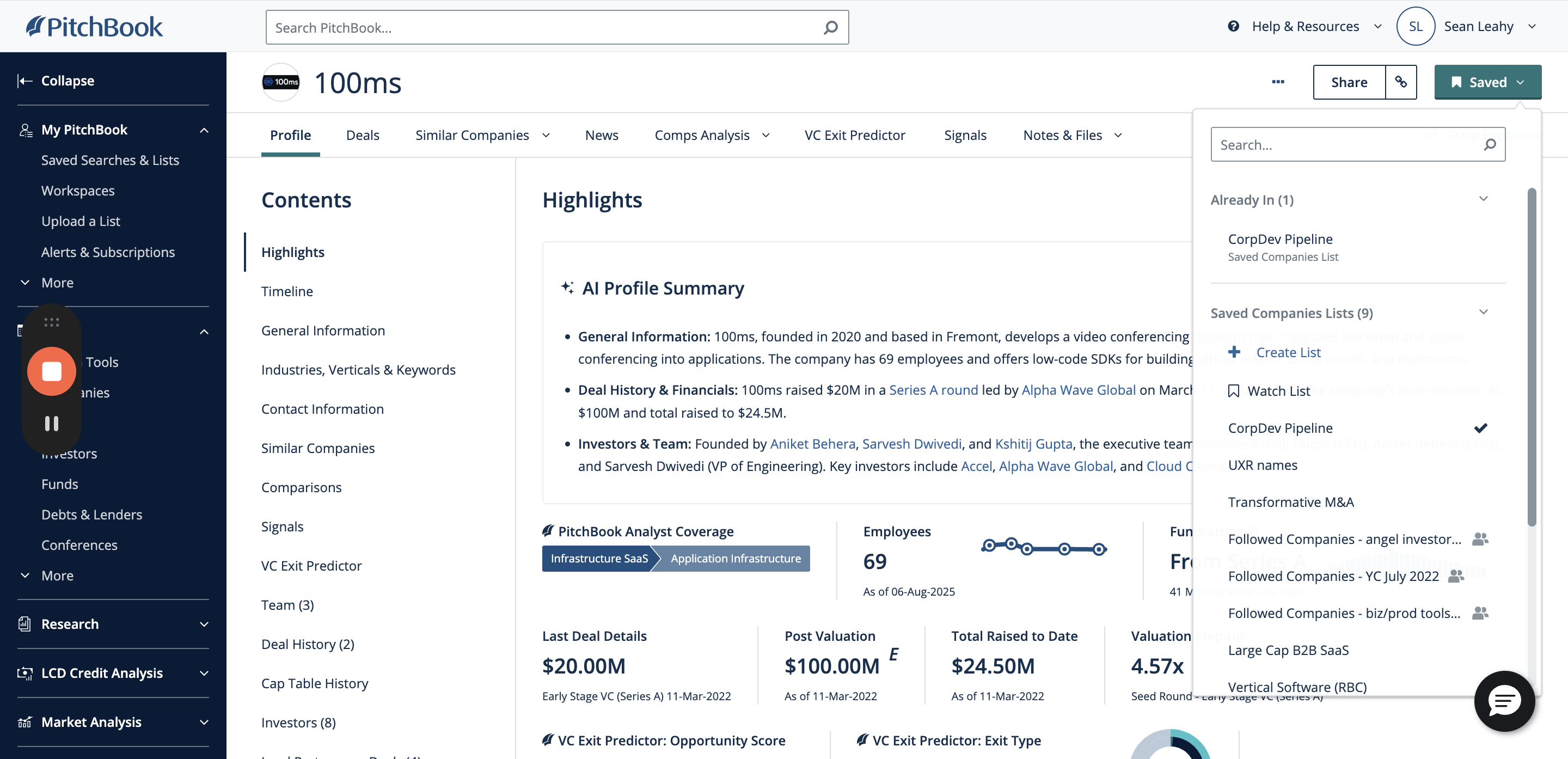
I'll select the corp dev pipeline. I want to indicate my interest level in this potential acquisition, so I'll go to the corp dev pipeline list.
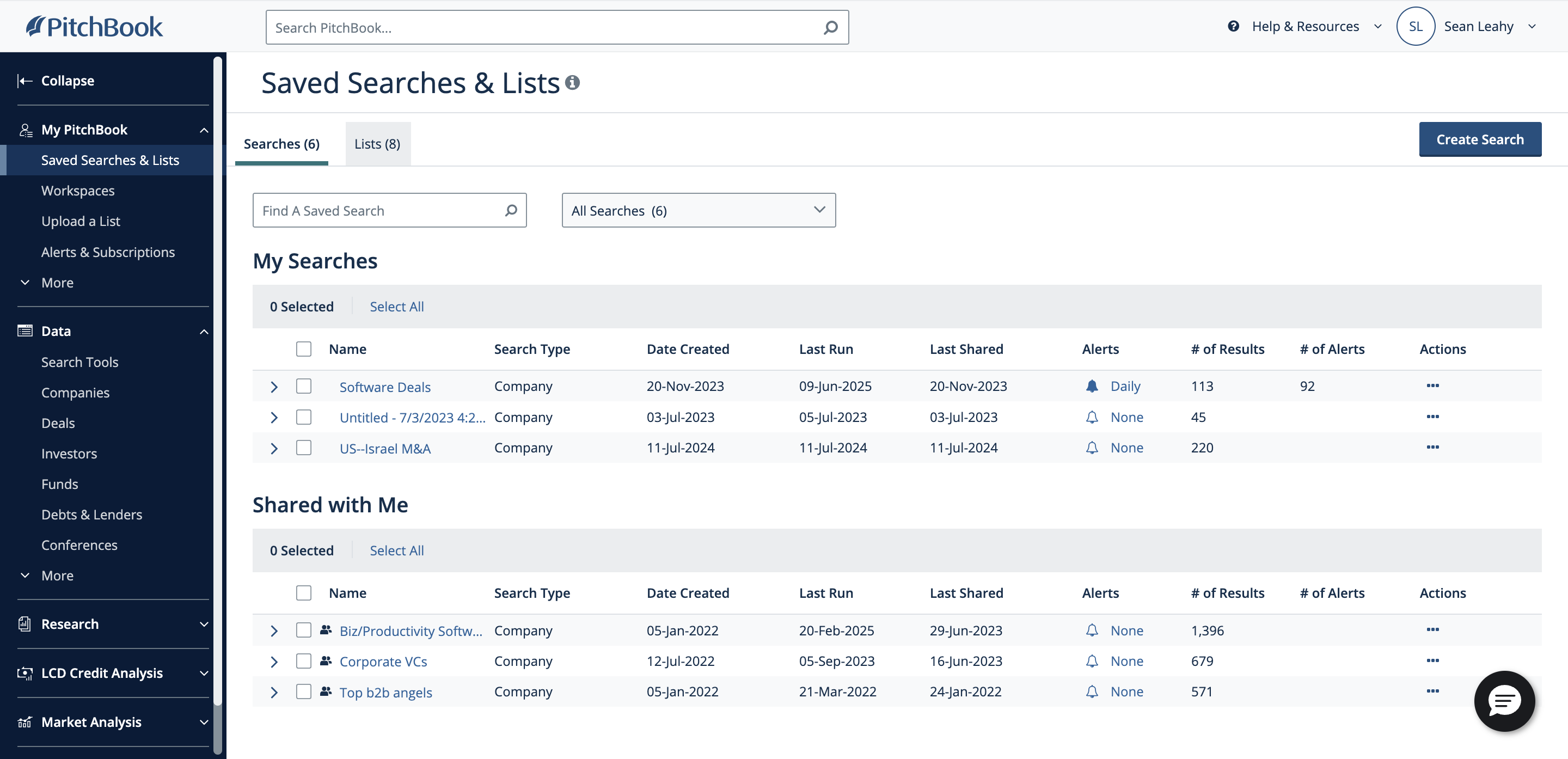
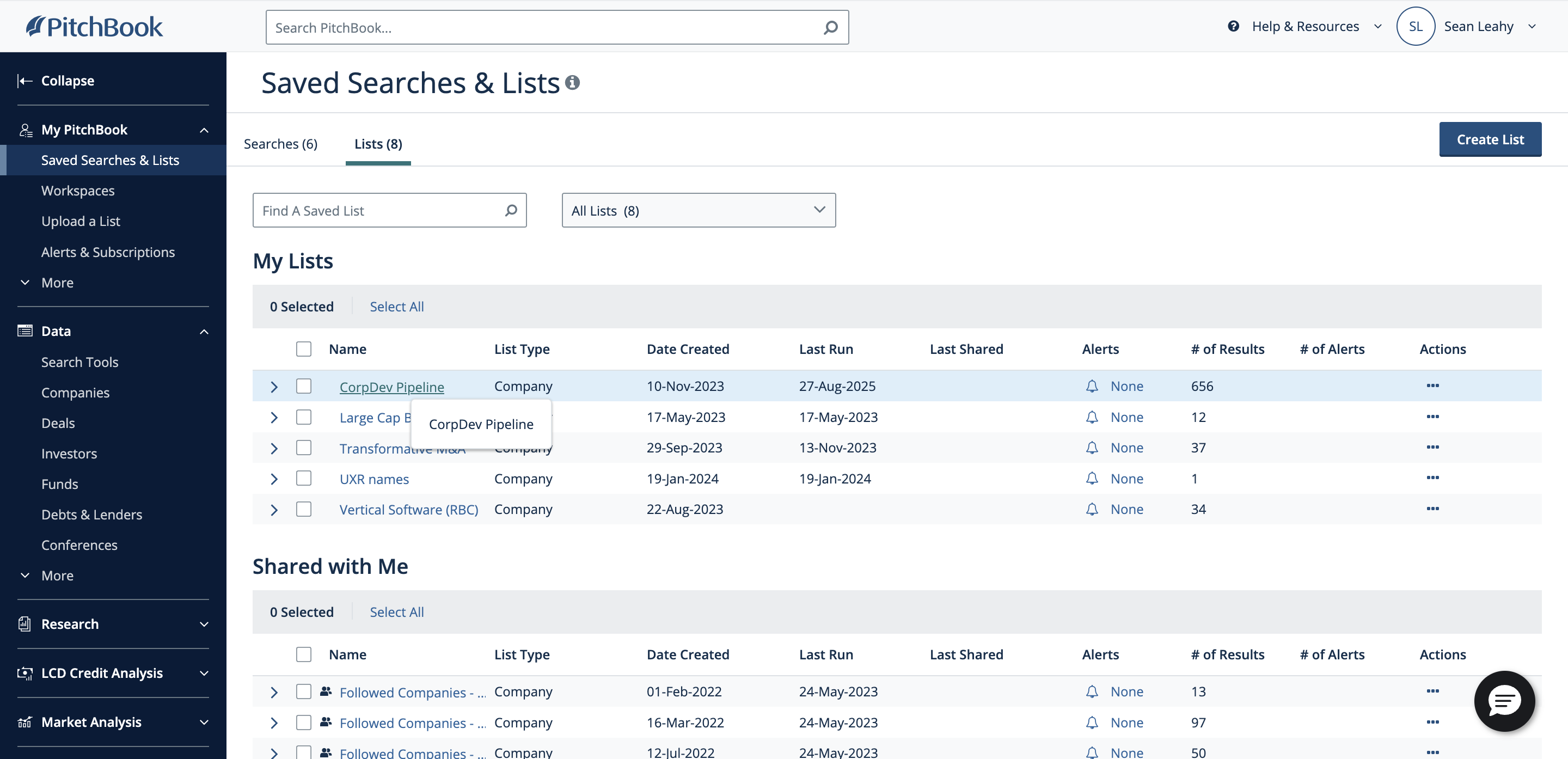
We'll find 100MS...
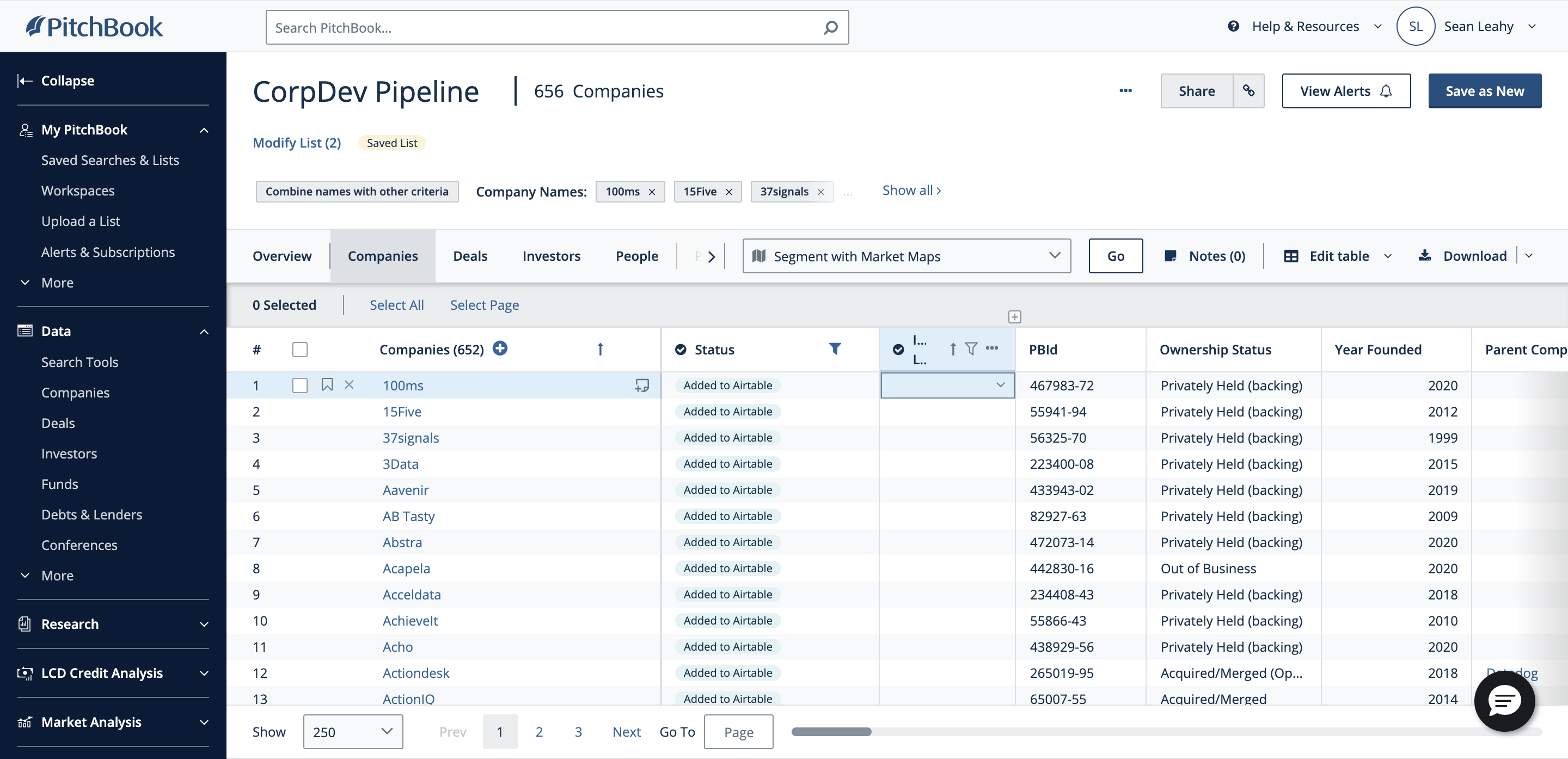
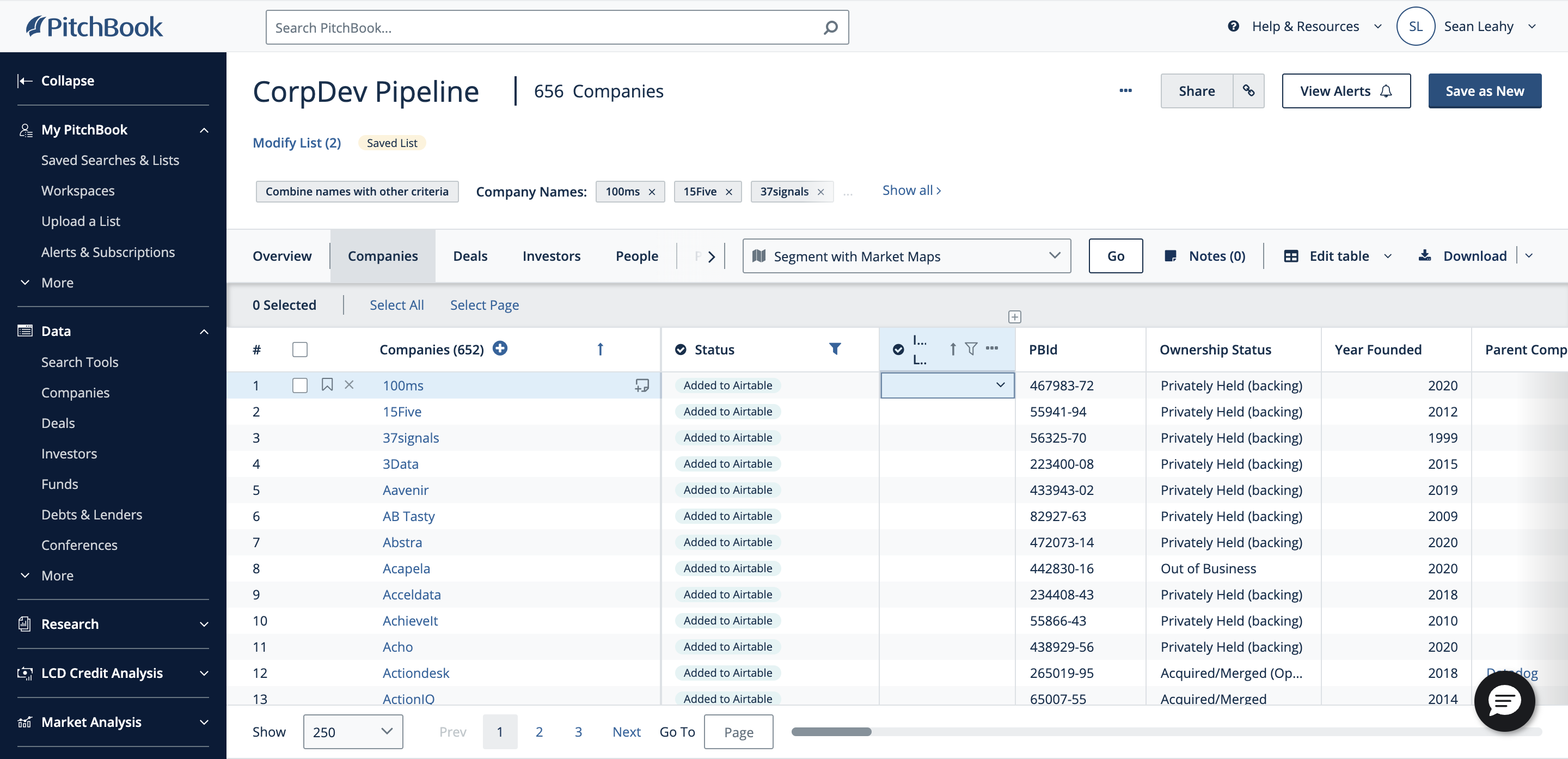
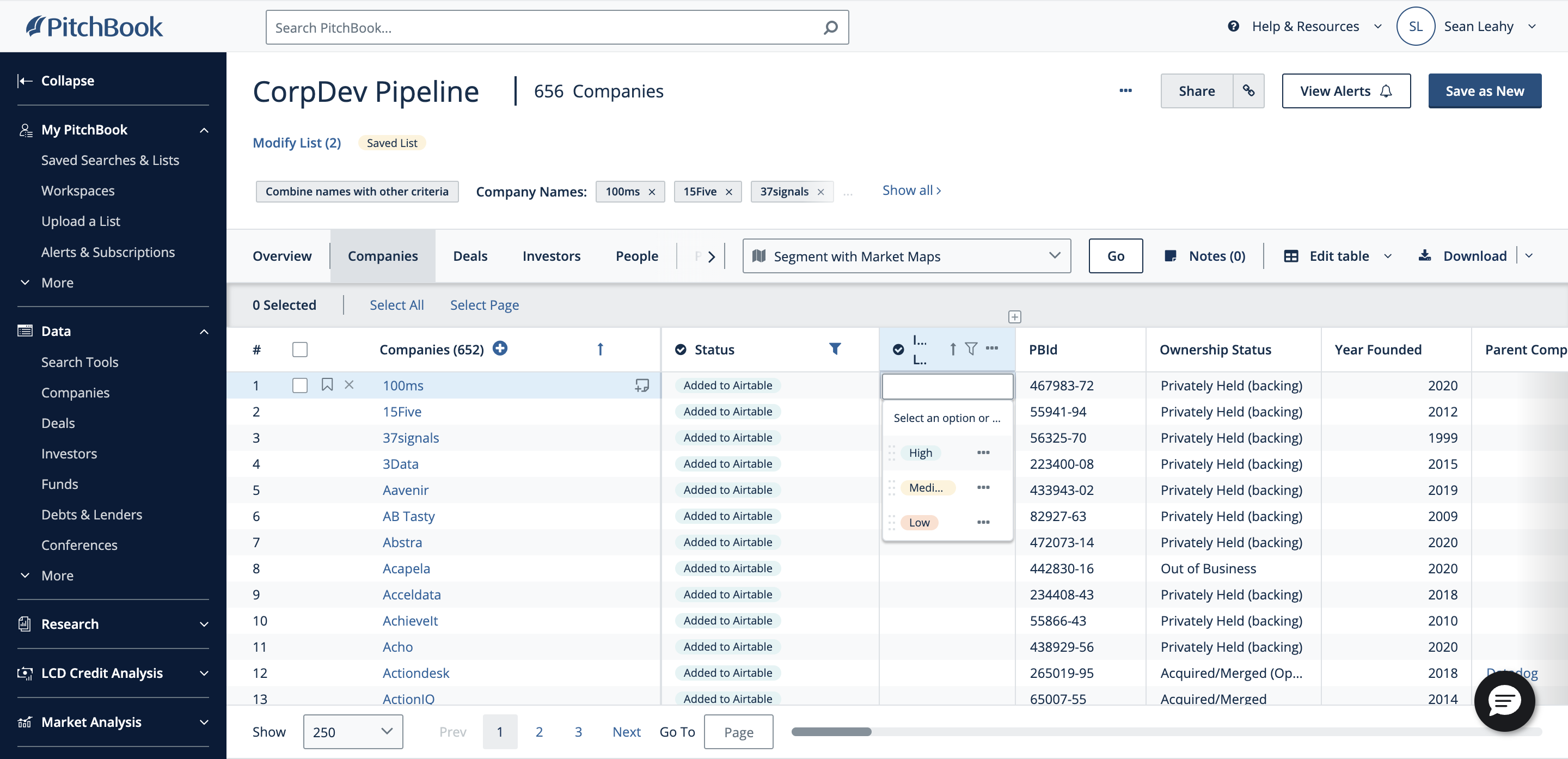
Select "High" because I am interested in this company.
Next, I will go to our pipeline in Airtable and add a new entry for 100MS. That’s it.