
How to Add a New Location Page Using Templates (Step-by-Step Guide)
Learn how to easily add a new location page to your website using templates. This step-by-step guide covers accessing the admin dashboard, setting slugs, choosing templates, and best practices for city and service pages.
In this guide, we'll learn how to add a new location page to your website using templates. This process includes setting the correct title, slug, state, and template, as well as filling in the required fields for the location. We will also cover how to add service-specific pages and ensure your new page follows the correct format.
Let's get started
Hello, everyone. Now that we're using templates, you can easily add a new location page.
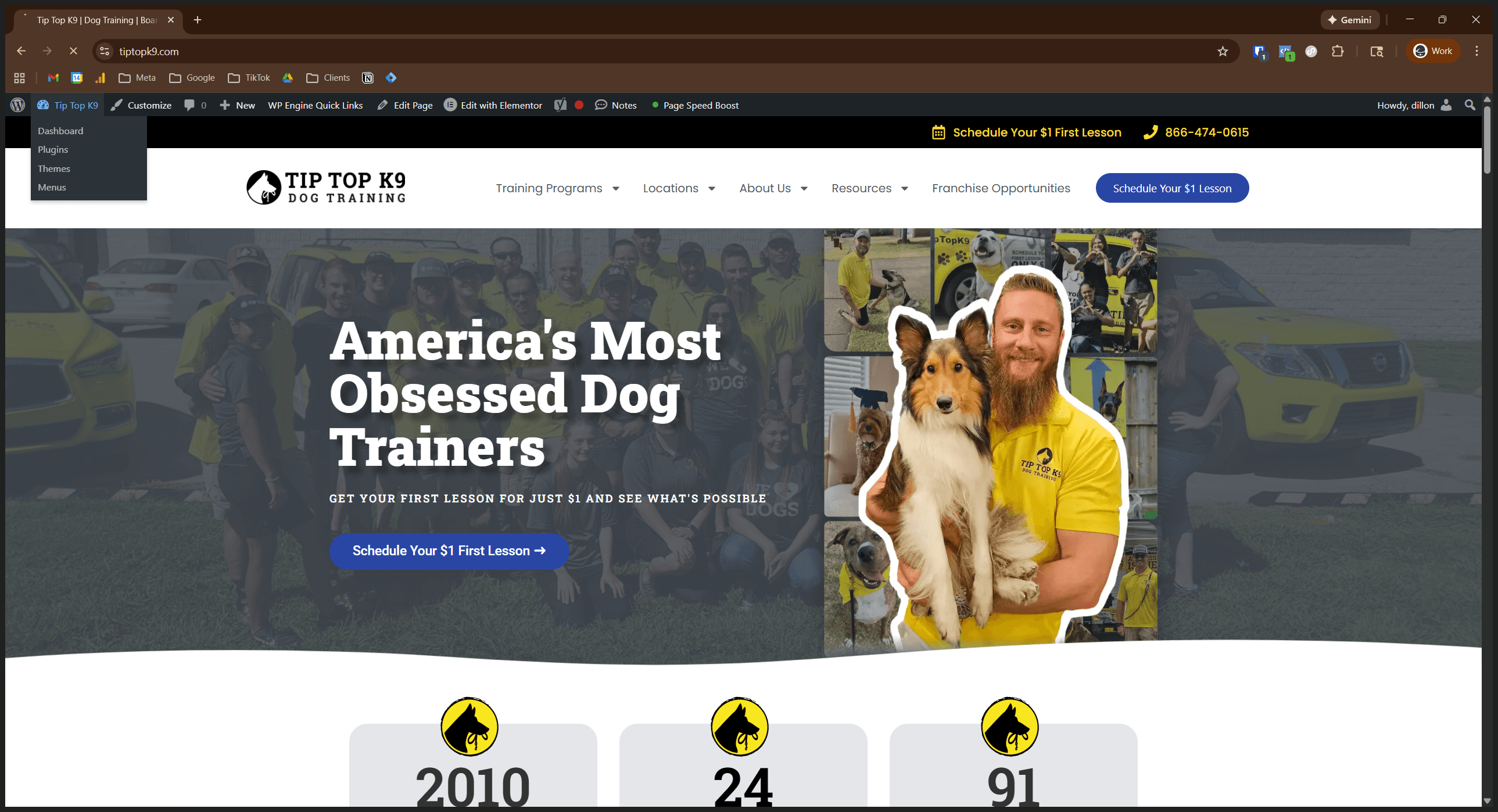
You are logged into the website. You're all set. You can do this in several ways. I will show you how to access the admin dashboard, which is this page. You can also go to "New," then select "Location."
You can also go to Locations and select Add New Location.
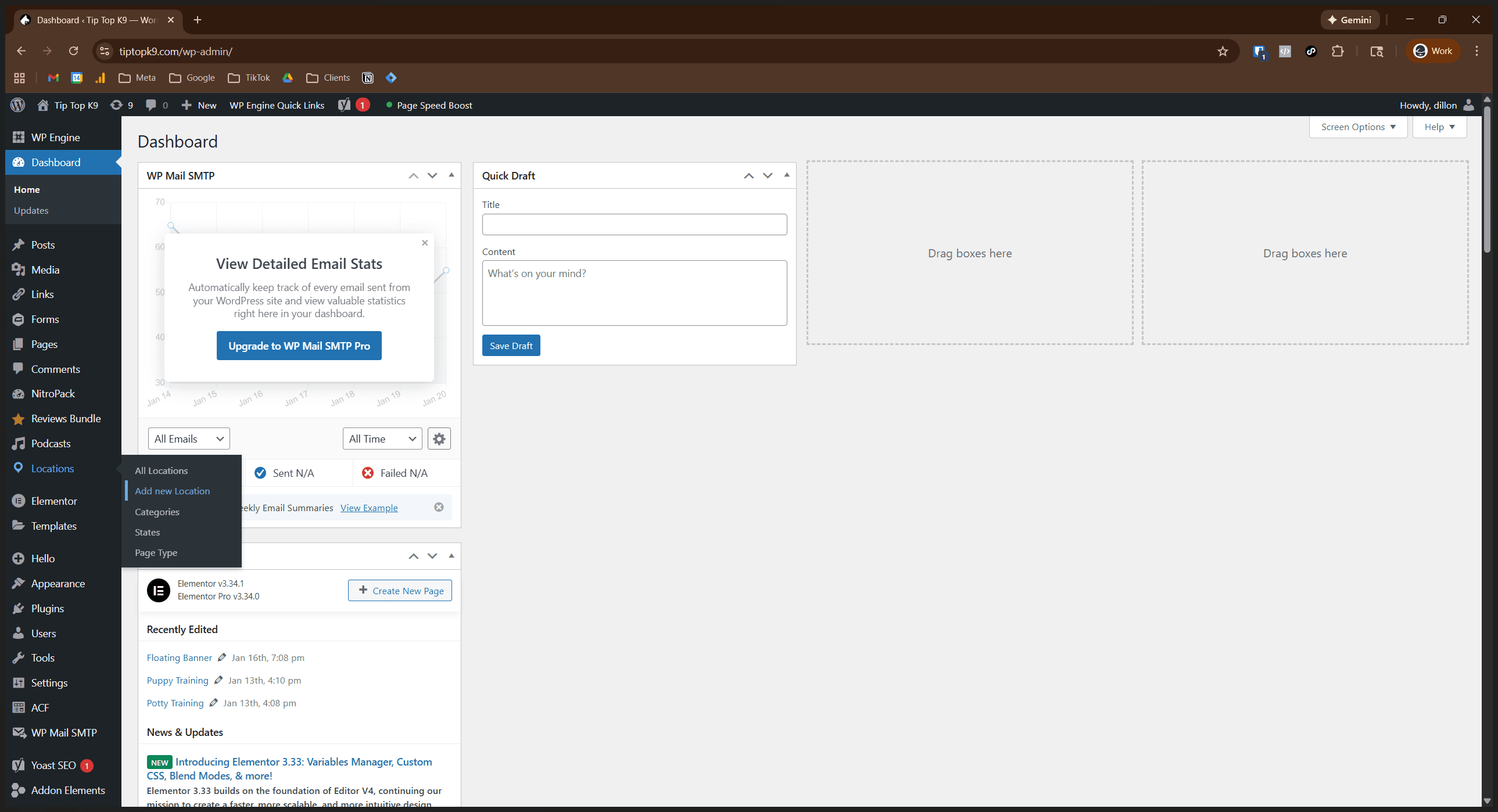
I'll use this method. This assumes we are creating a city overview page.
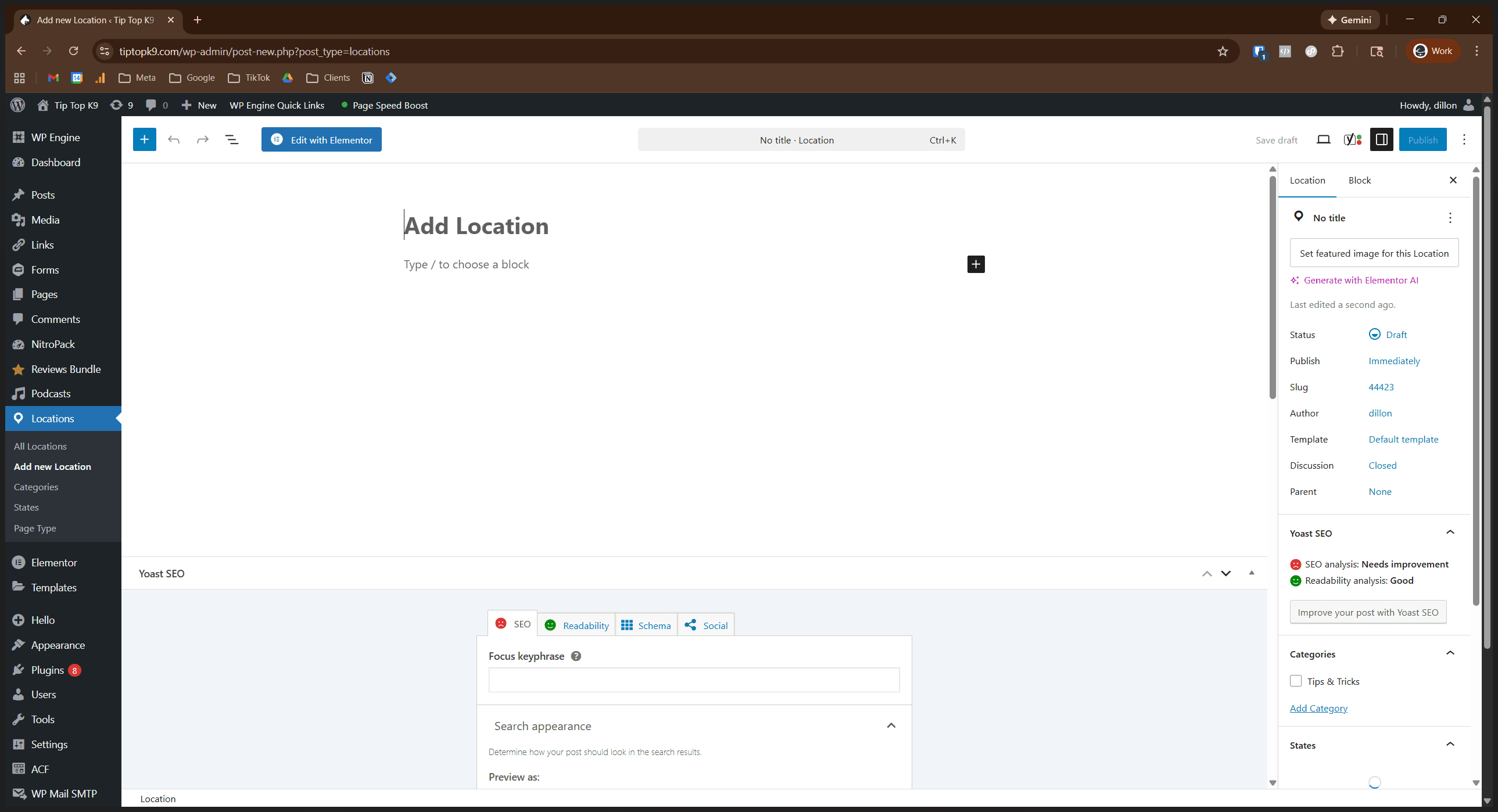
Let's say we're adding my location, Sacramento.
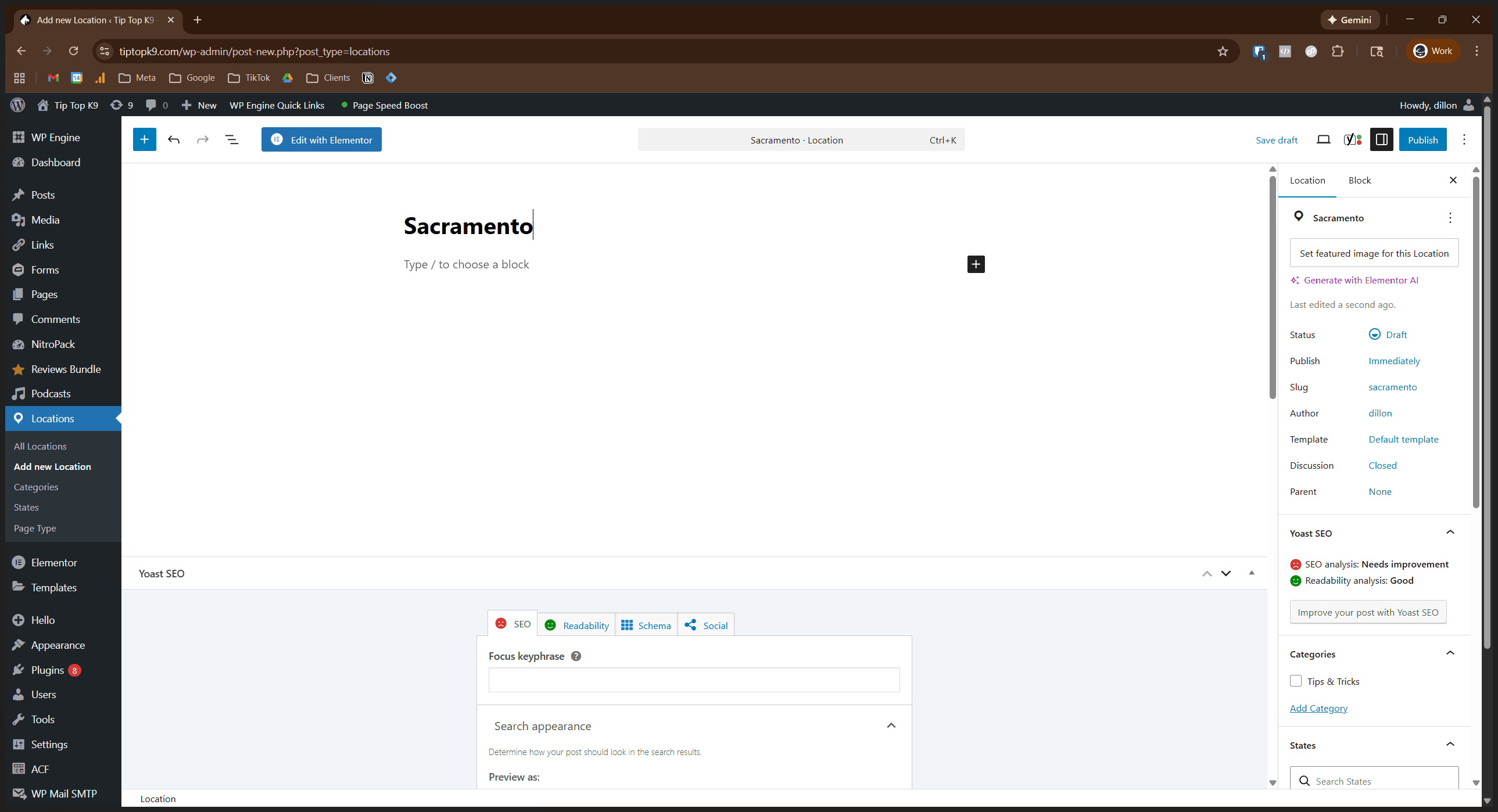
Name the location accordingly. Then, complete a few tasks on the right-hand side.
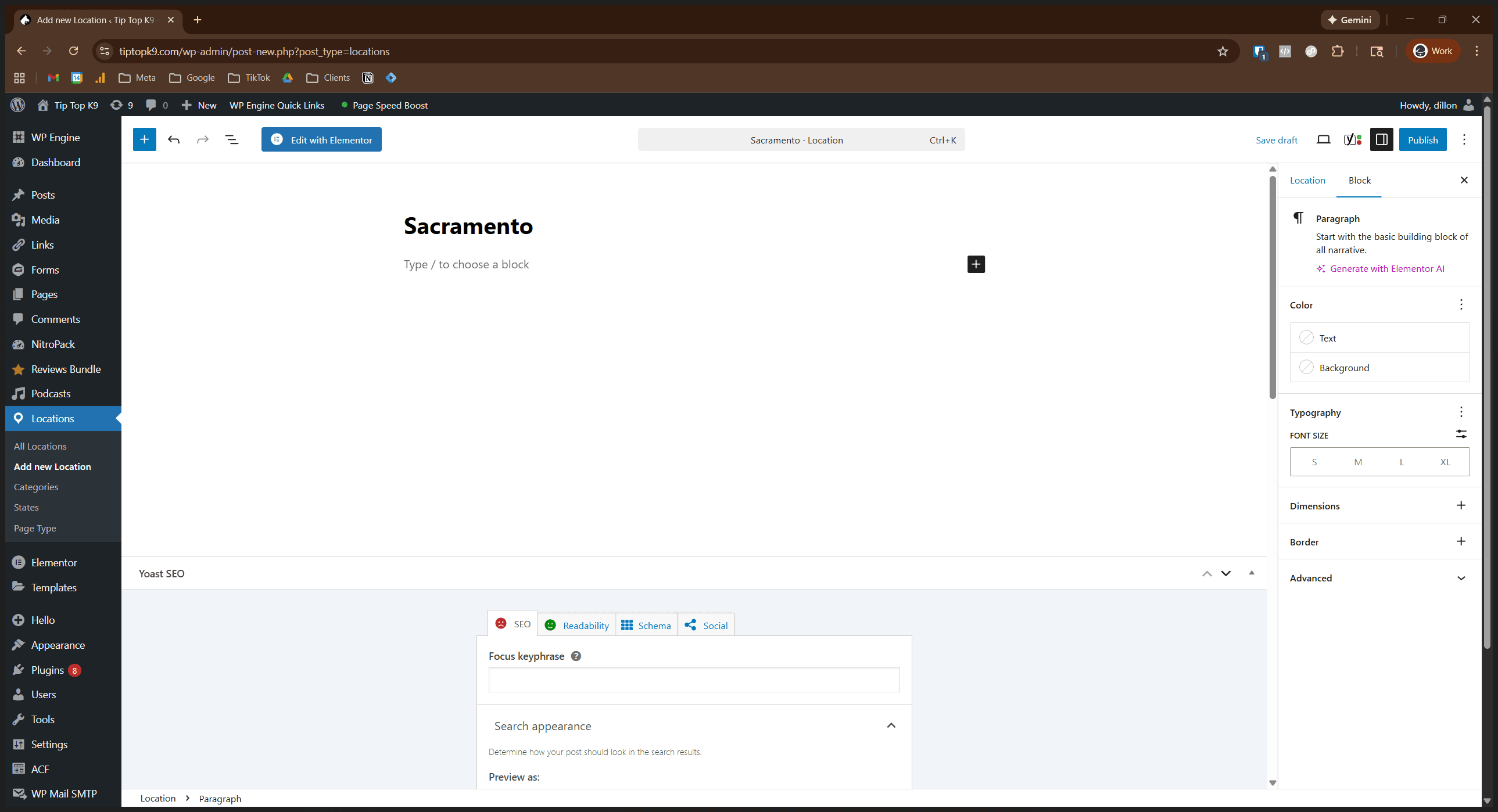
First, make sure the slug is correct. It's just the city name. Go down and select the state it is in.
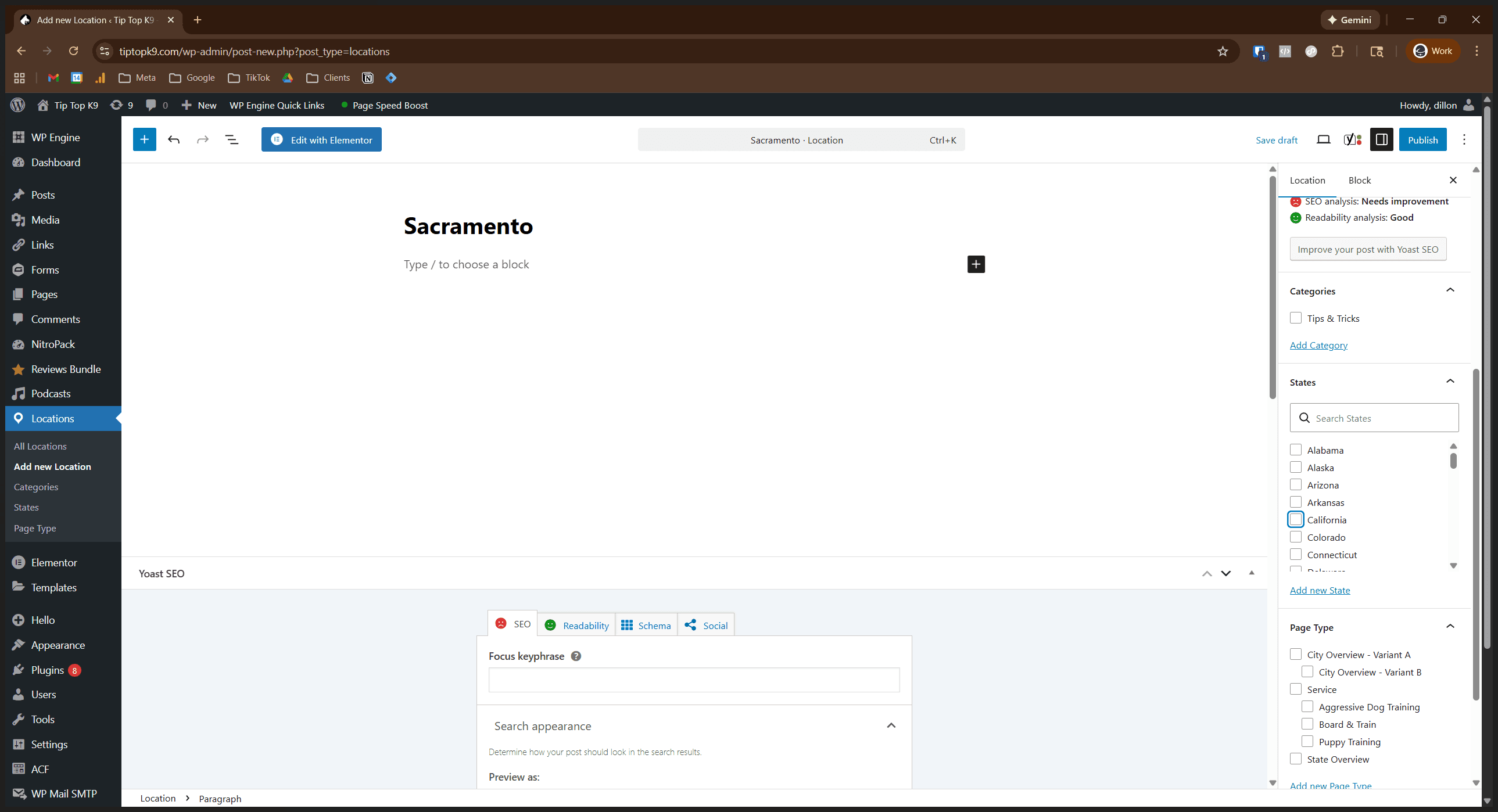
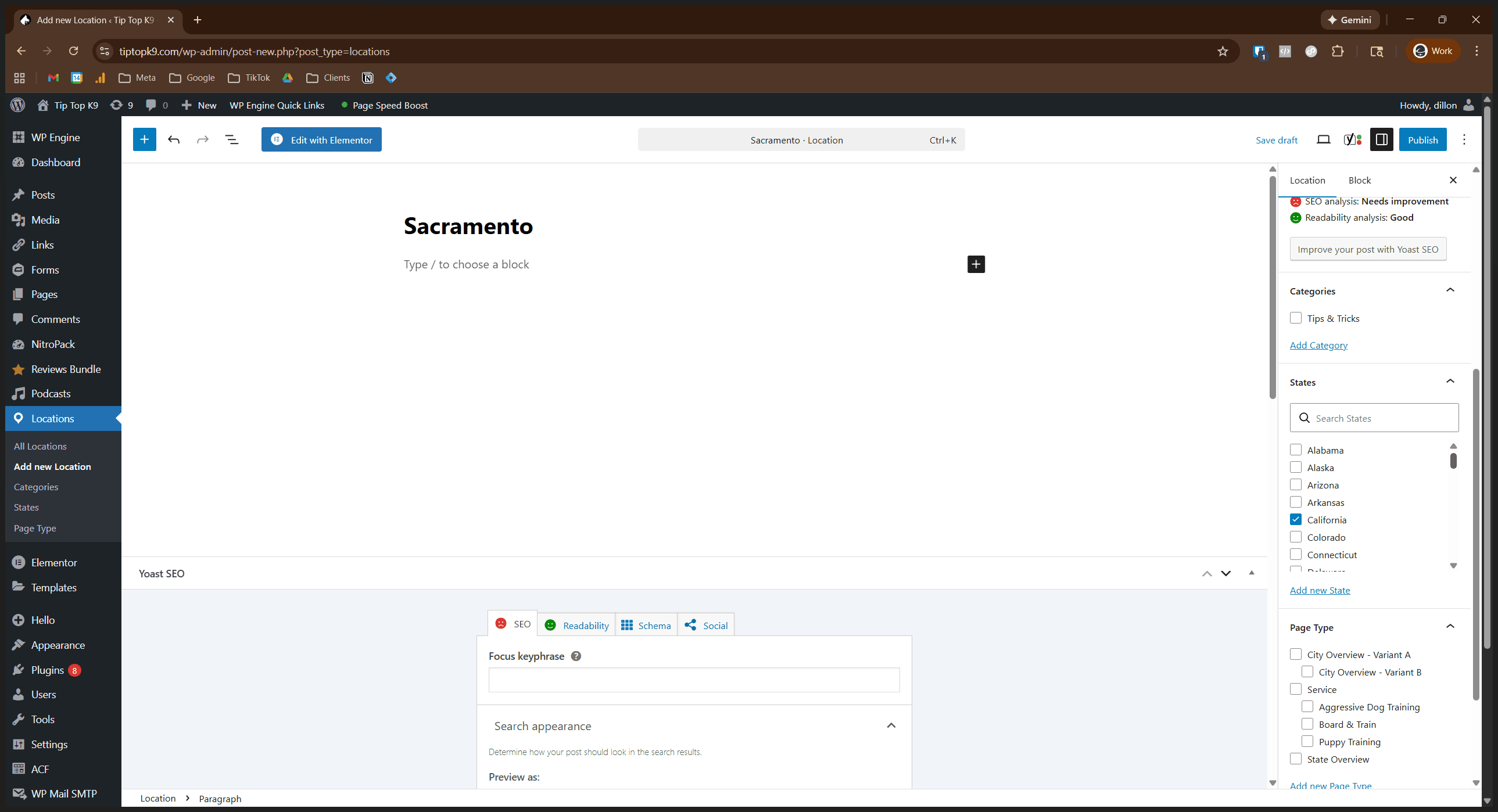
In this case, it is California.
Select the template you want to use. In this case, I'll select B.
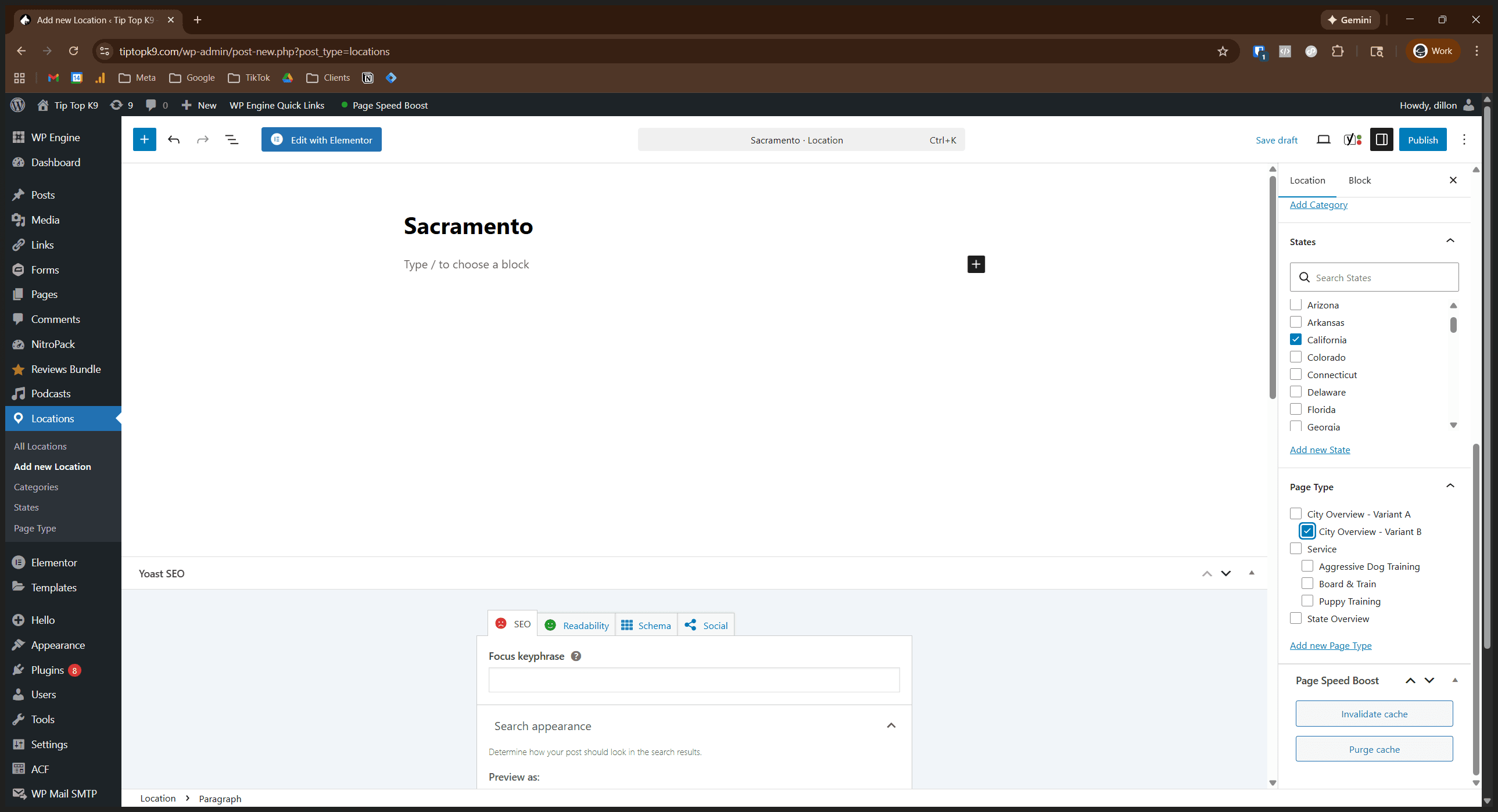
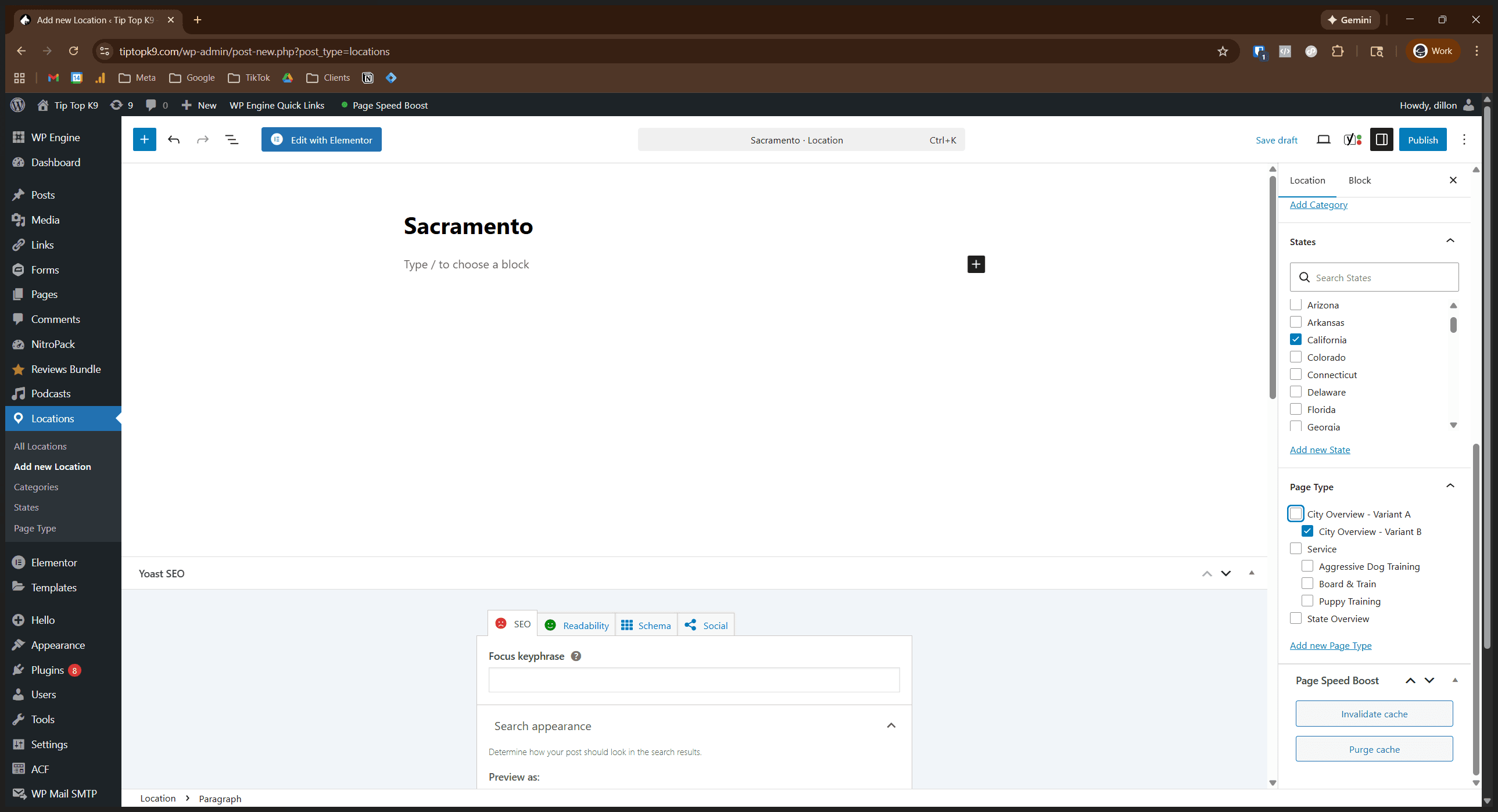
I'll set the default to B. This displays the fields you need to fill in for that specific location. Some are enabled by default, but others are not.
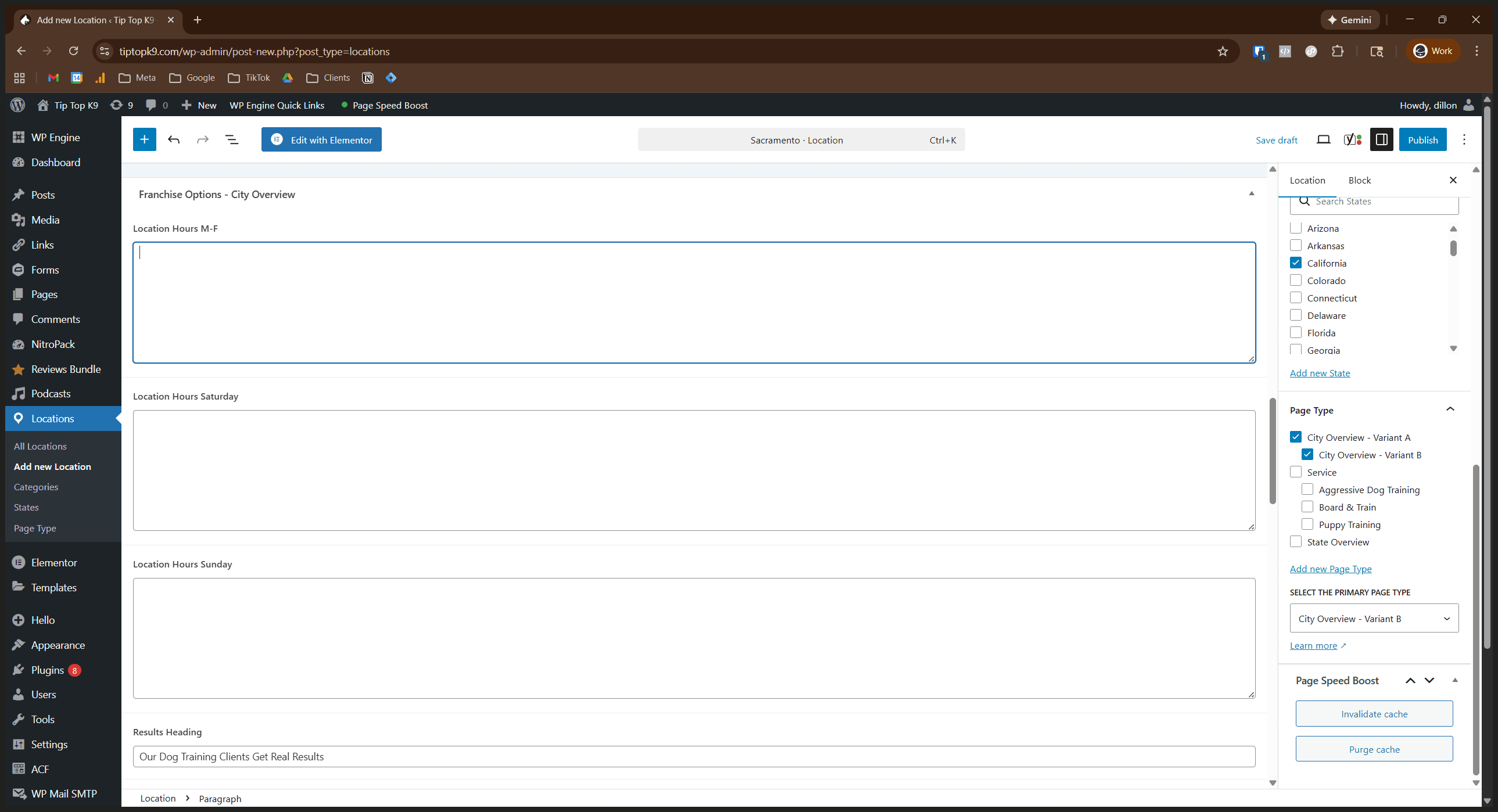
Fill in the fields to be accurate and useful.
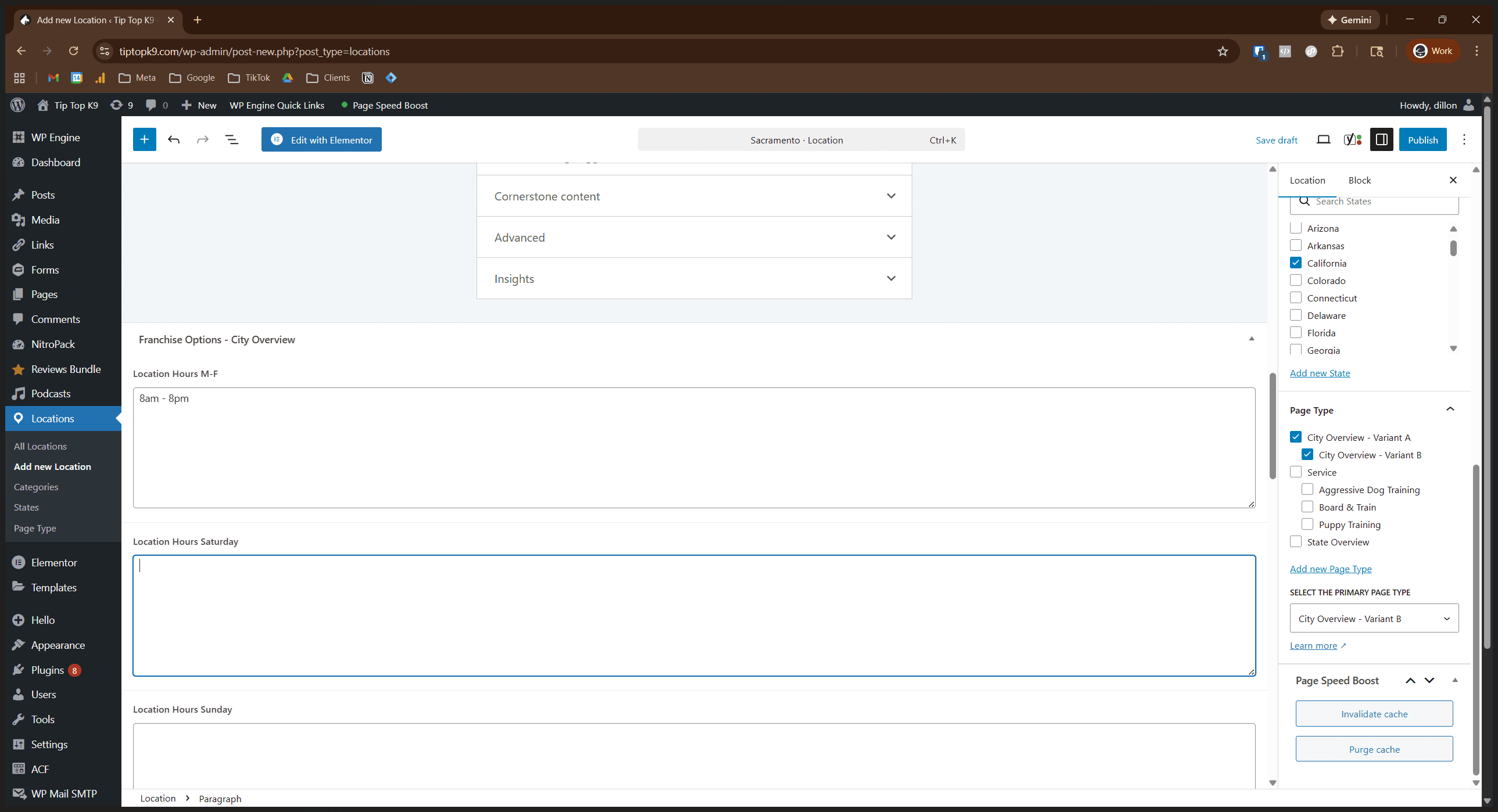
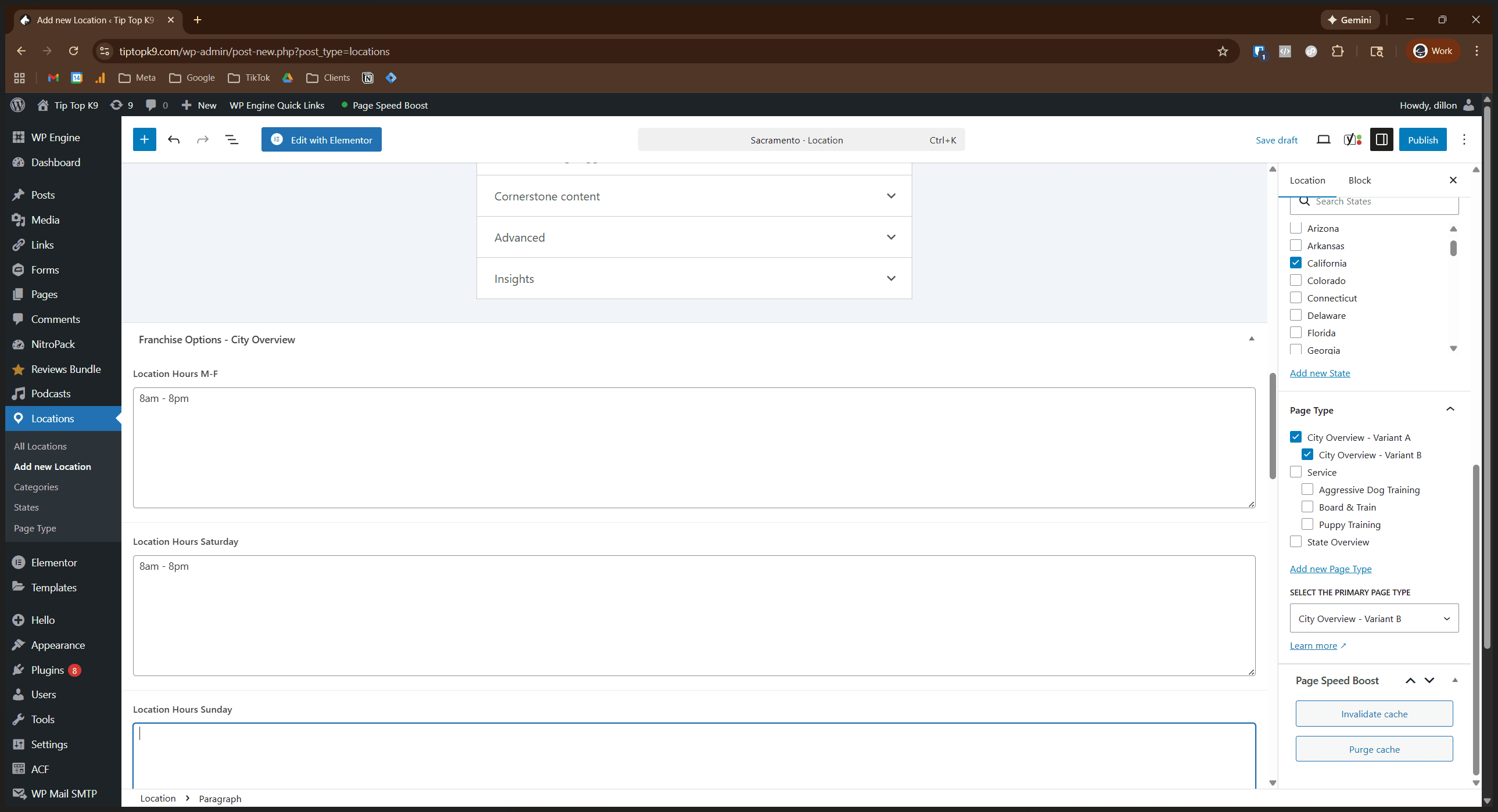
I'll keep these as defaults for this example. However, you can replace them with real values if you prefer.
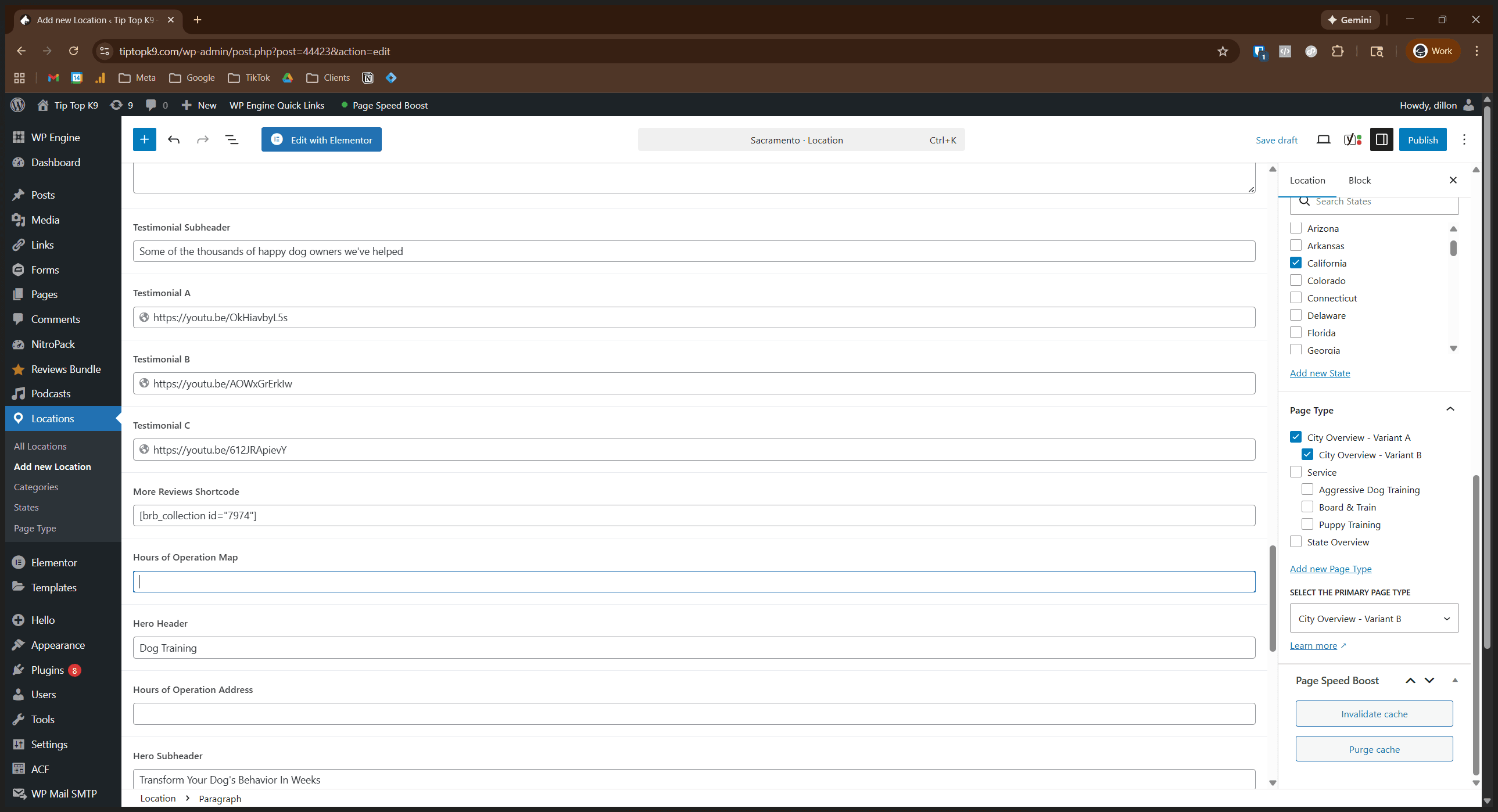
Here, we want to make sure to select California again.
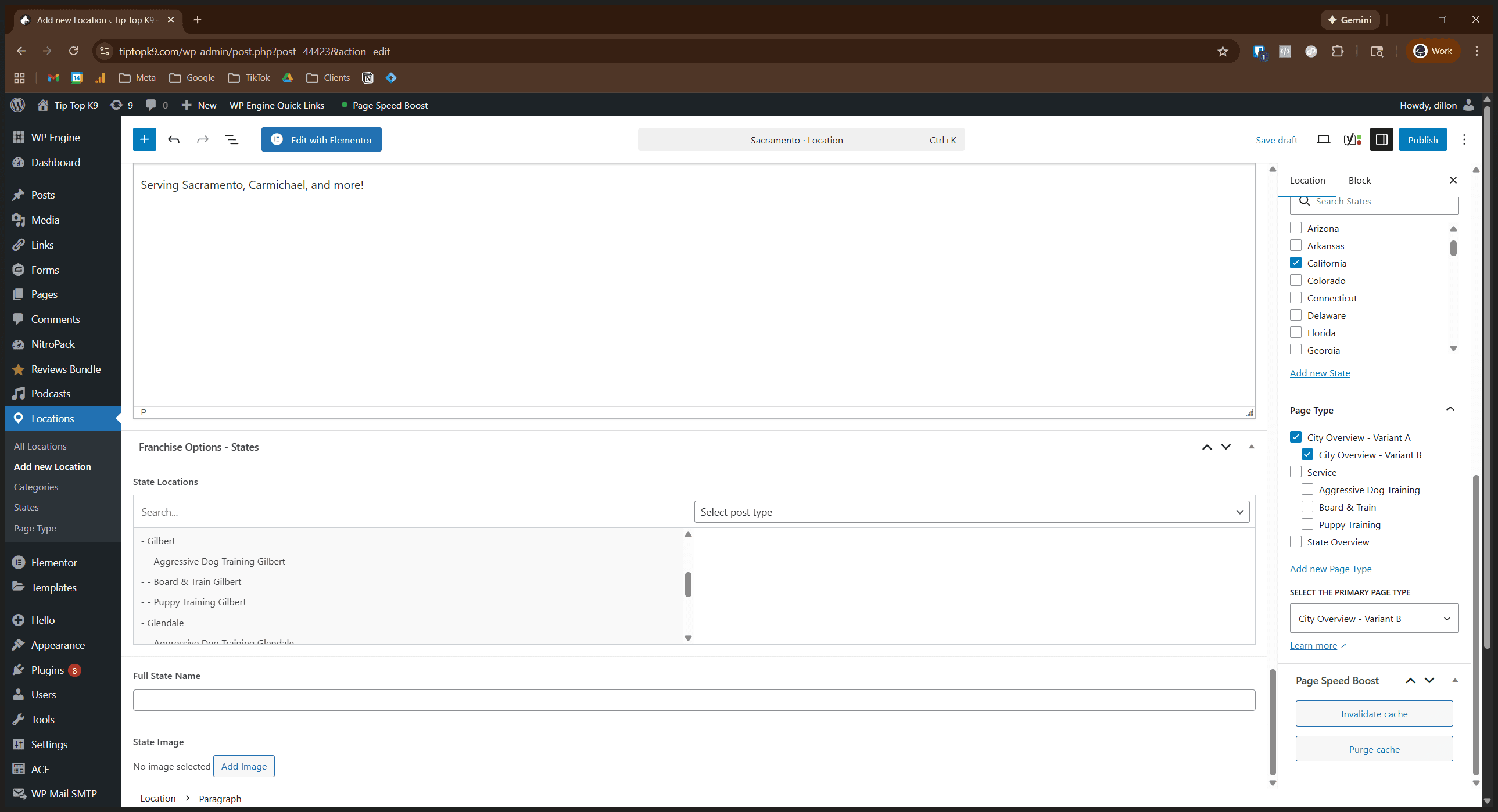
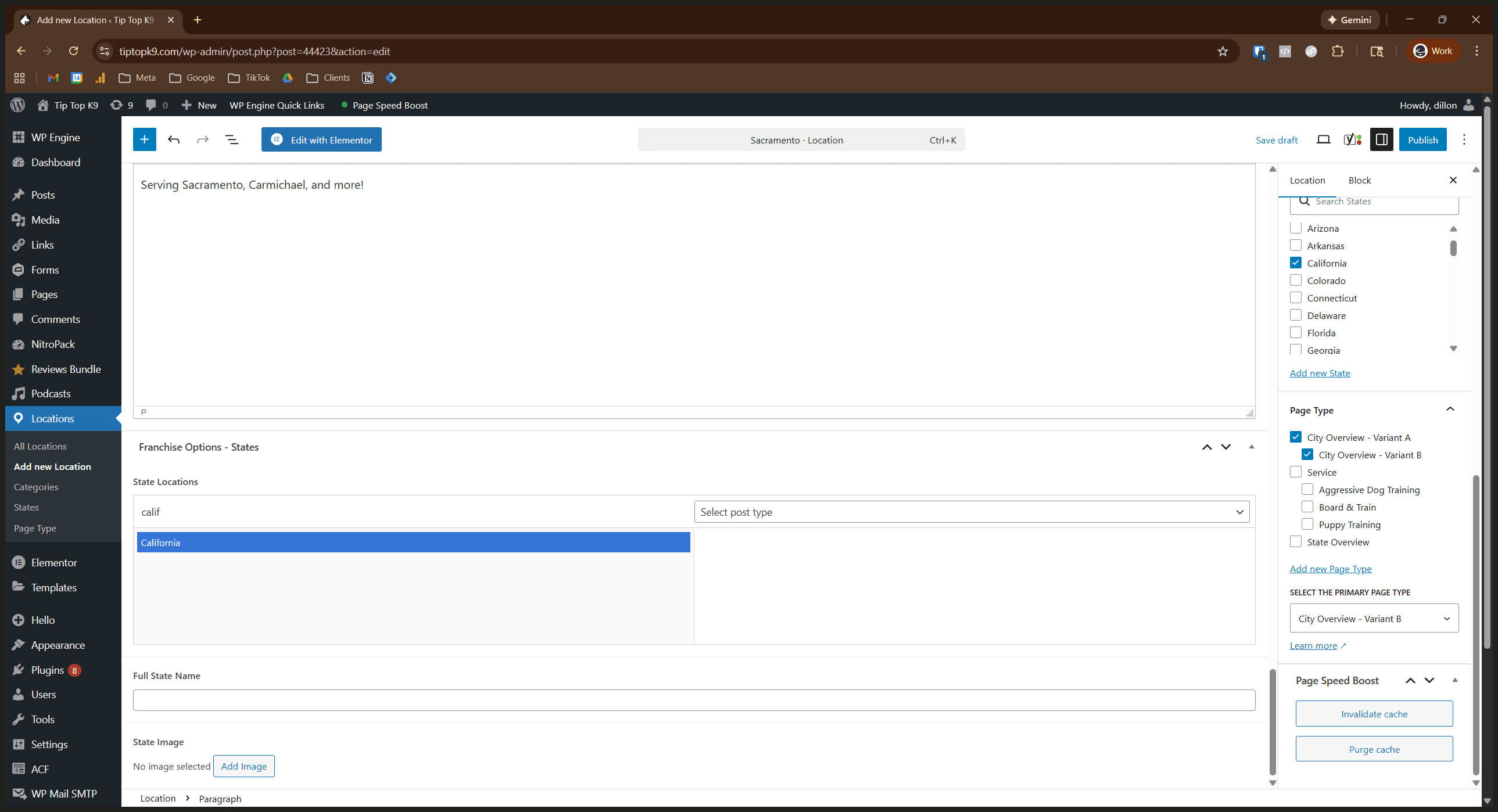
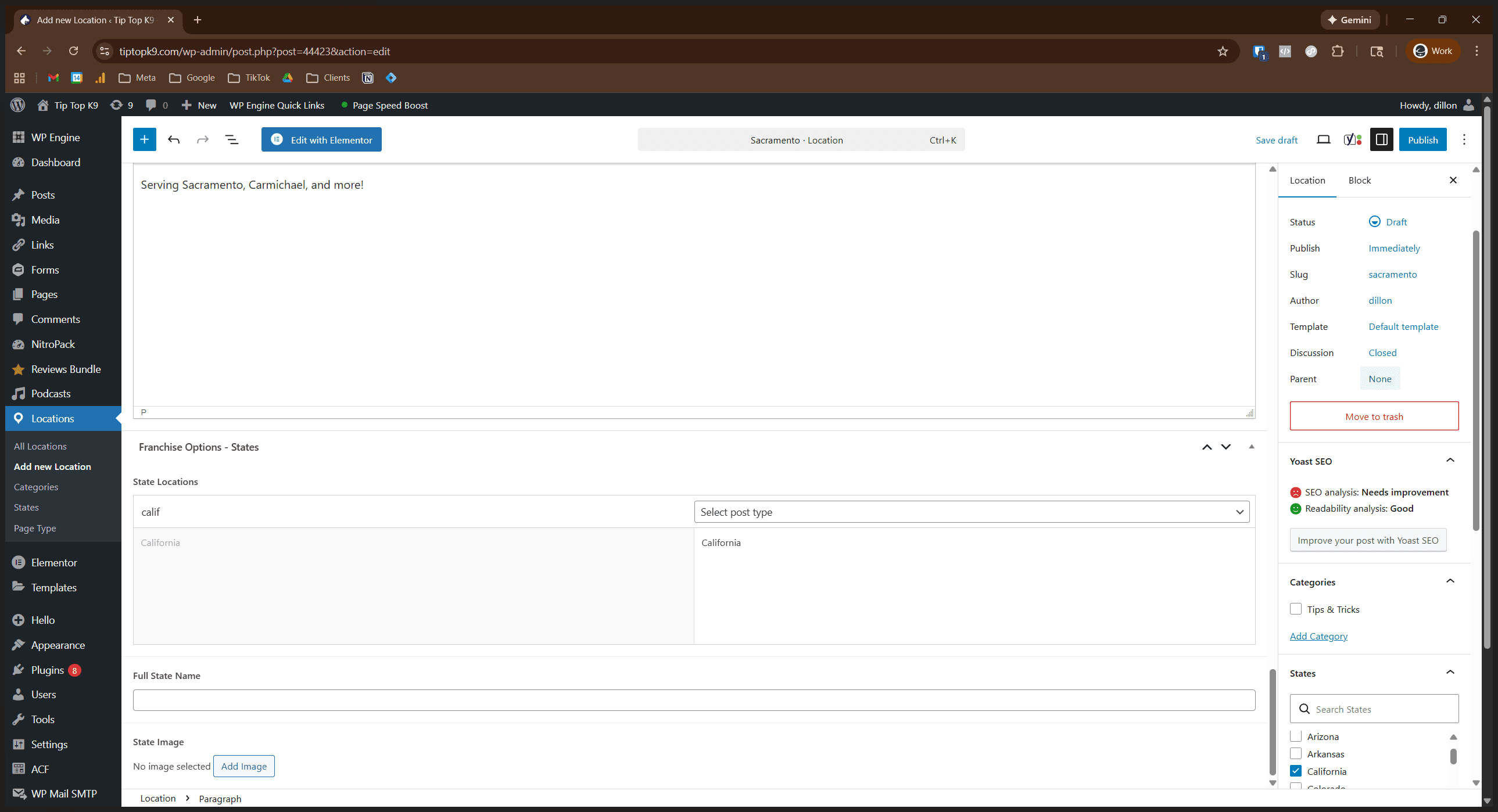
Set the parent page to match the state of the location, like California.
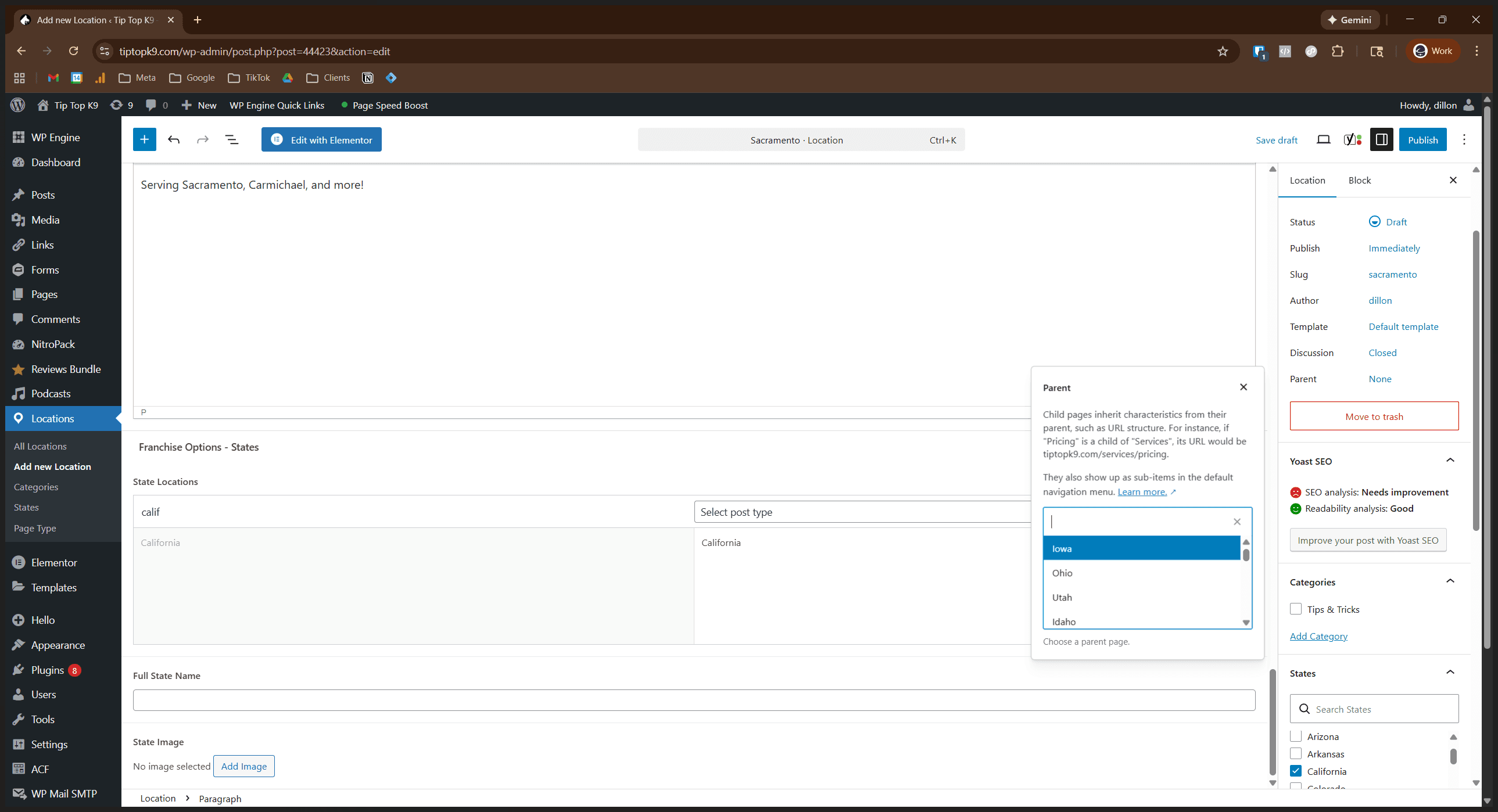
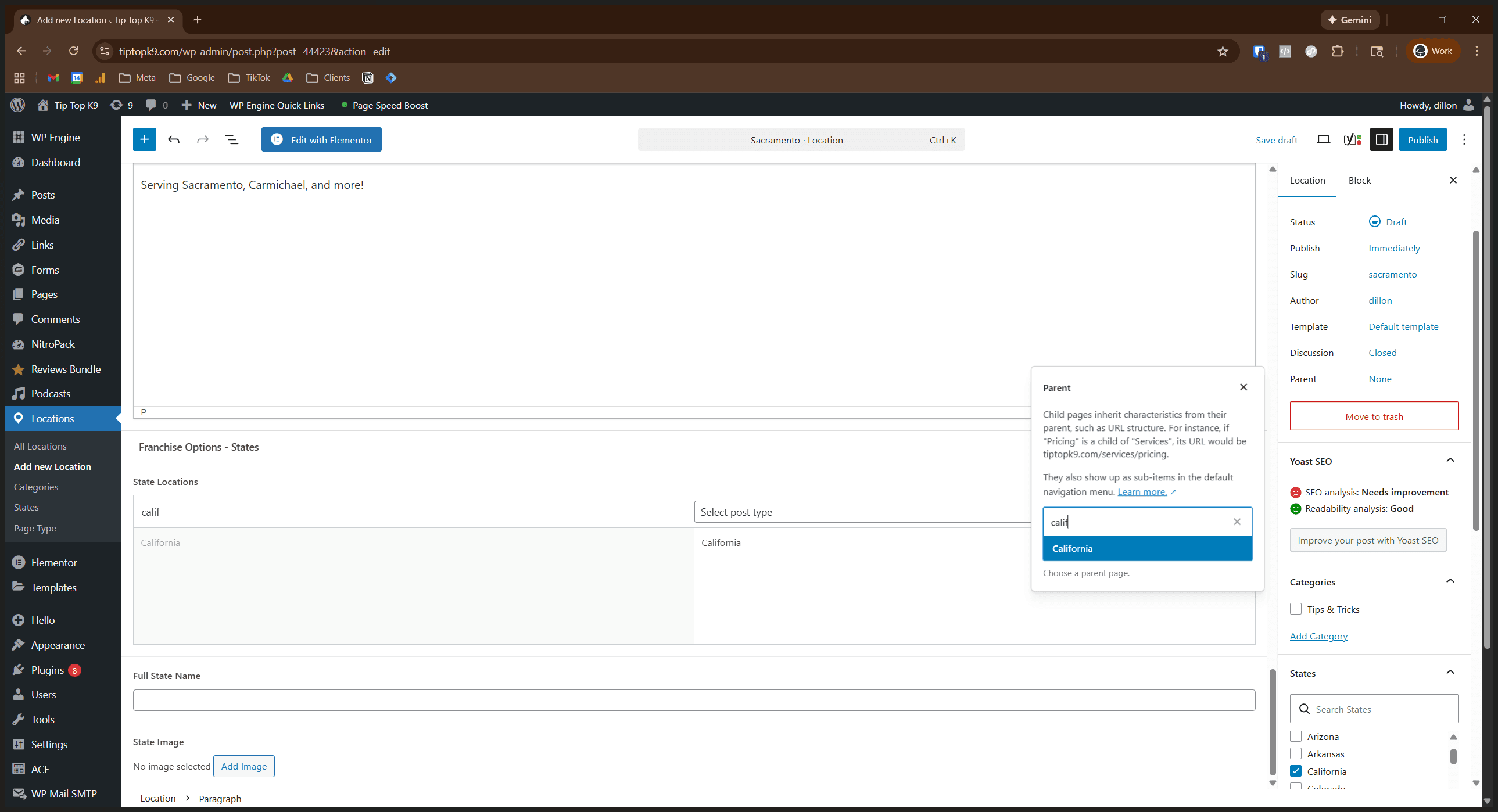
If I preview this, we want to make sure...
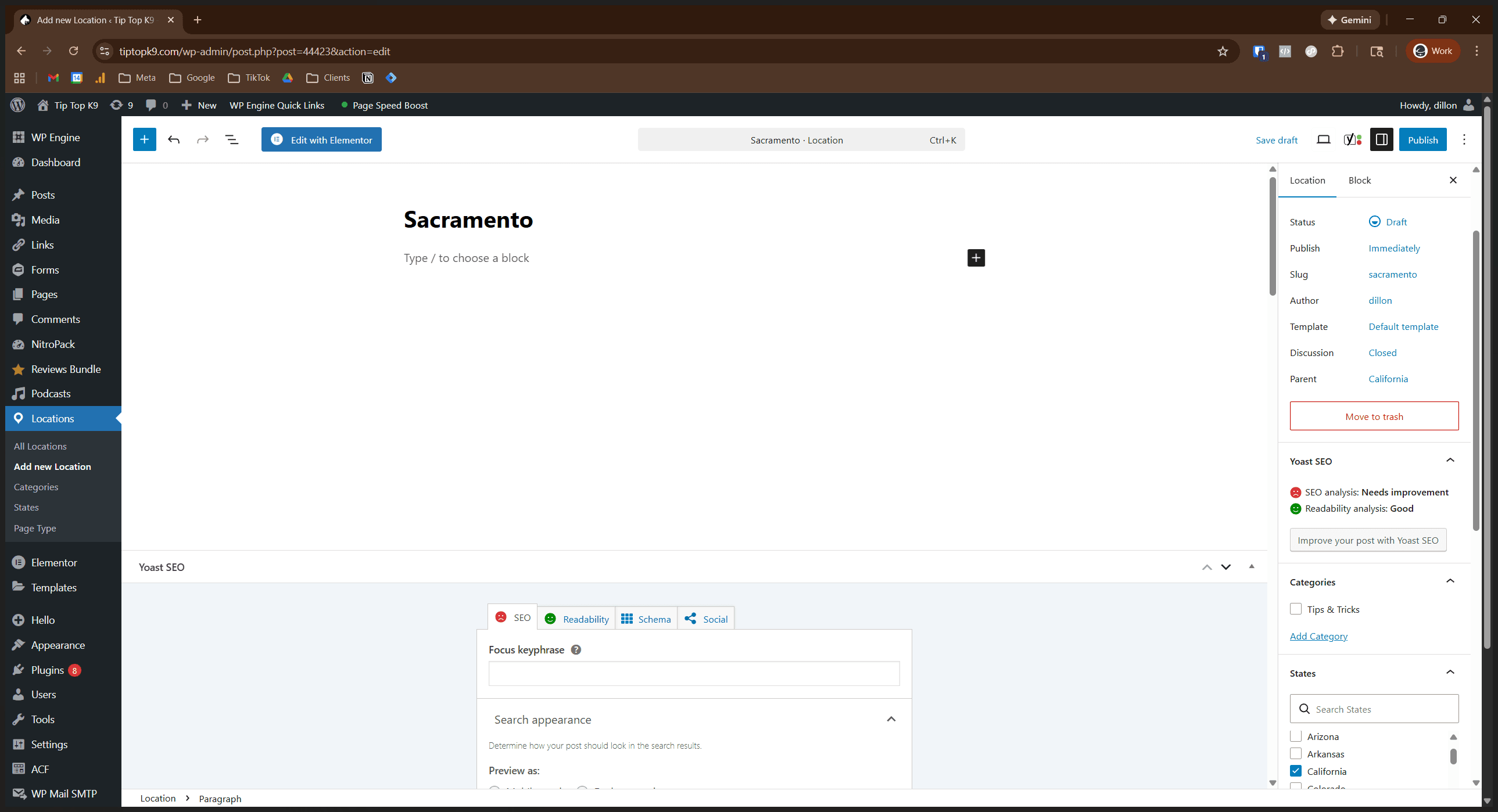
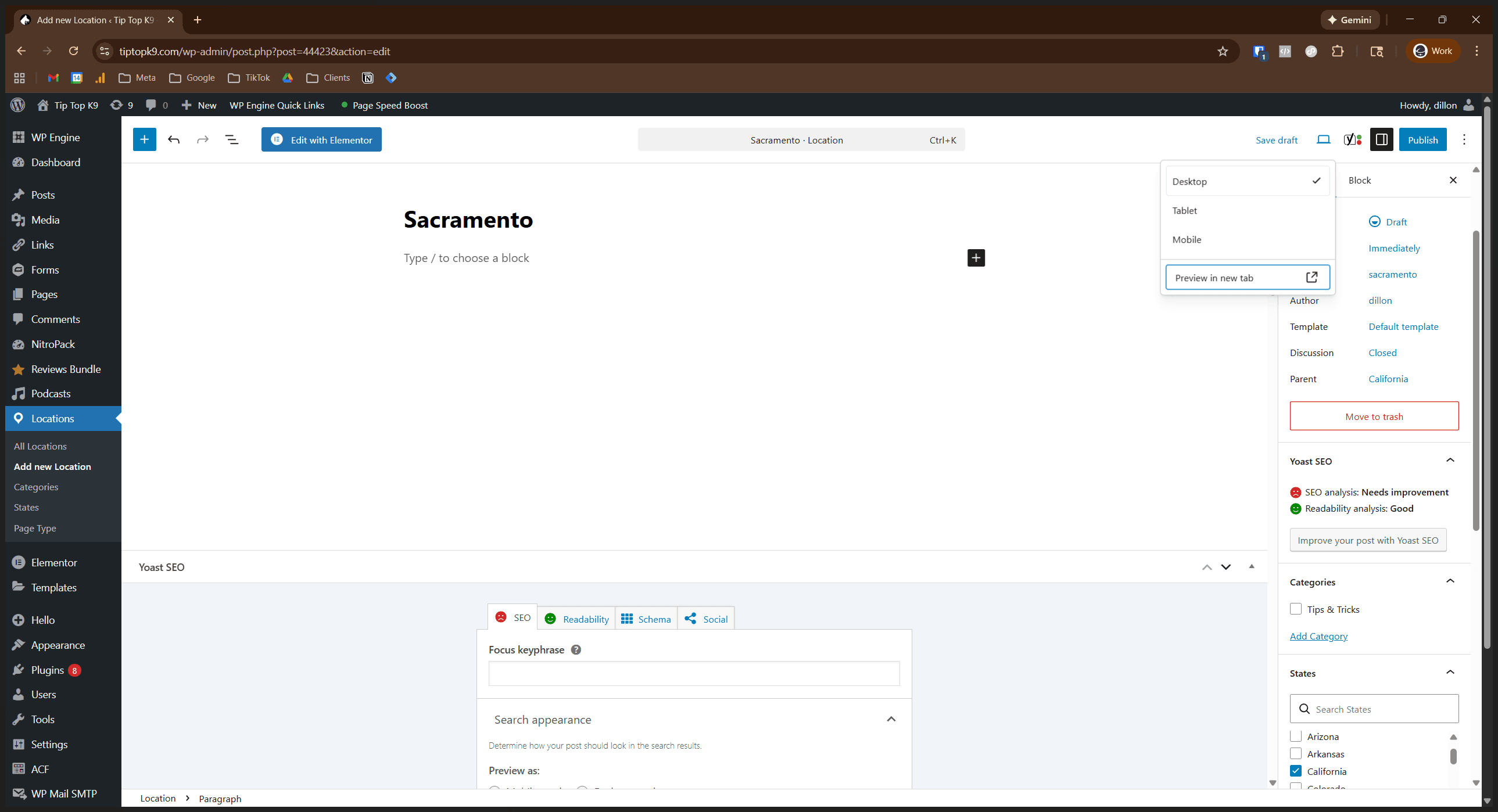
We want to make sure it looks good. We didn't replace any of this copy. However, if we did, we would want to ensure it makes sense in the formatting. Scroll through and make sure everything looks good.
I'm not going to publish it since Sacramento isn't a real place. However, if you were to publish, the final step would be to visit the page and ensure it follows the correct format.
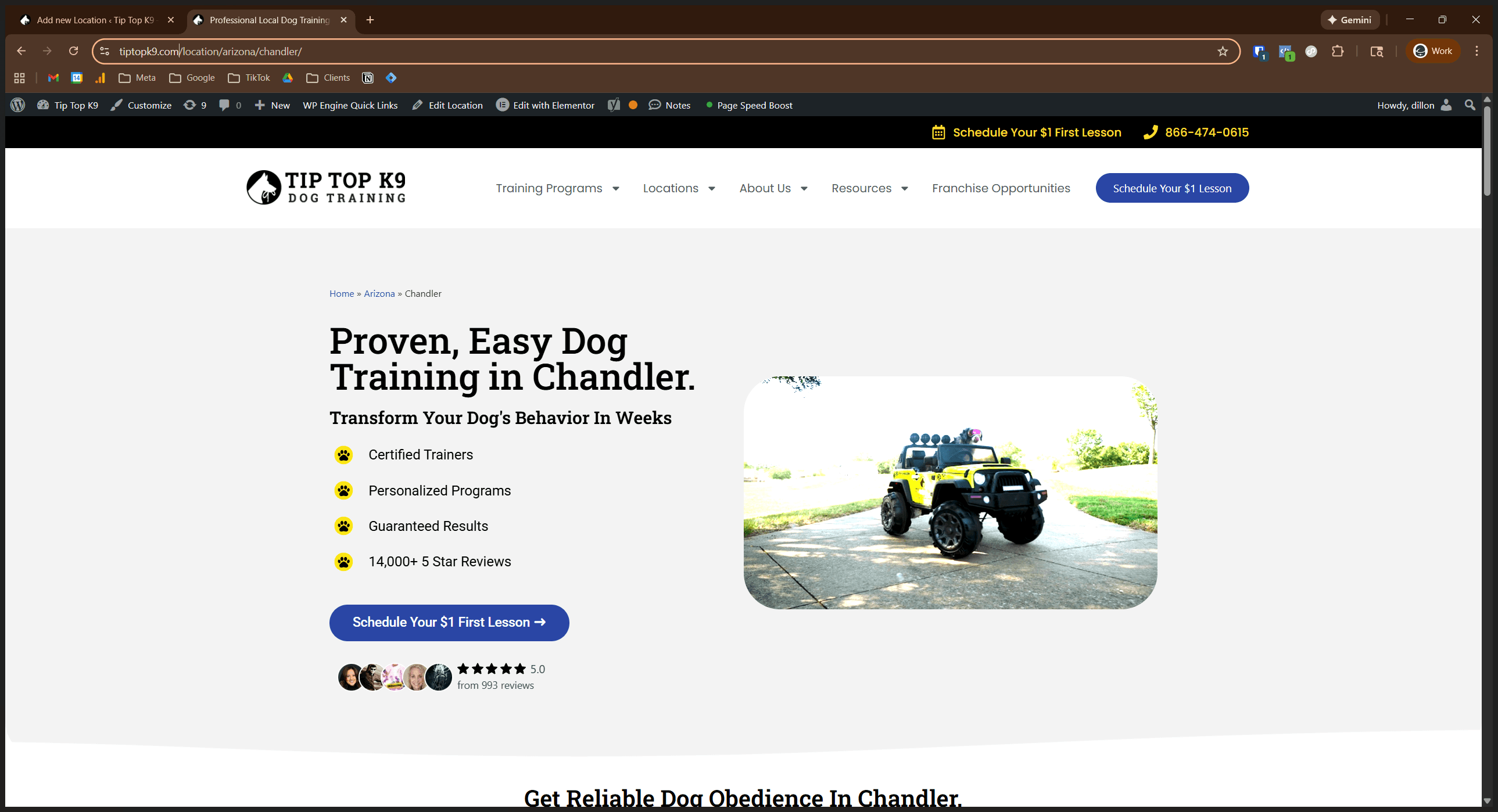
Using Chandler as an example, we want to ensure that the URL for Sacramento follows this format.
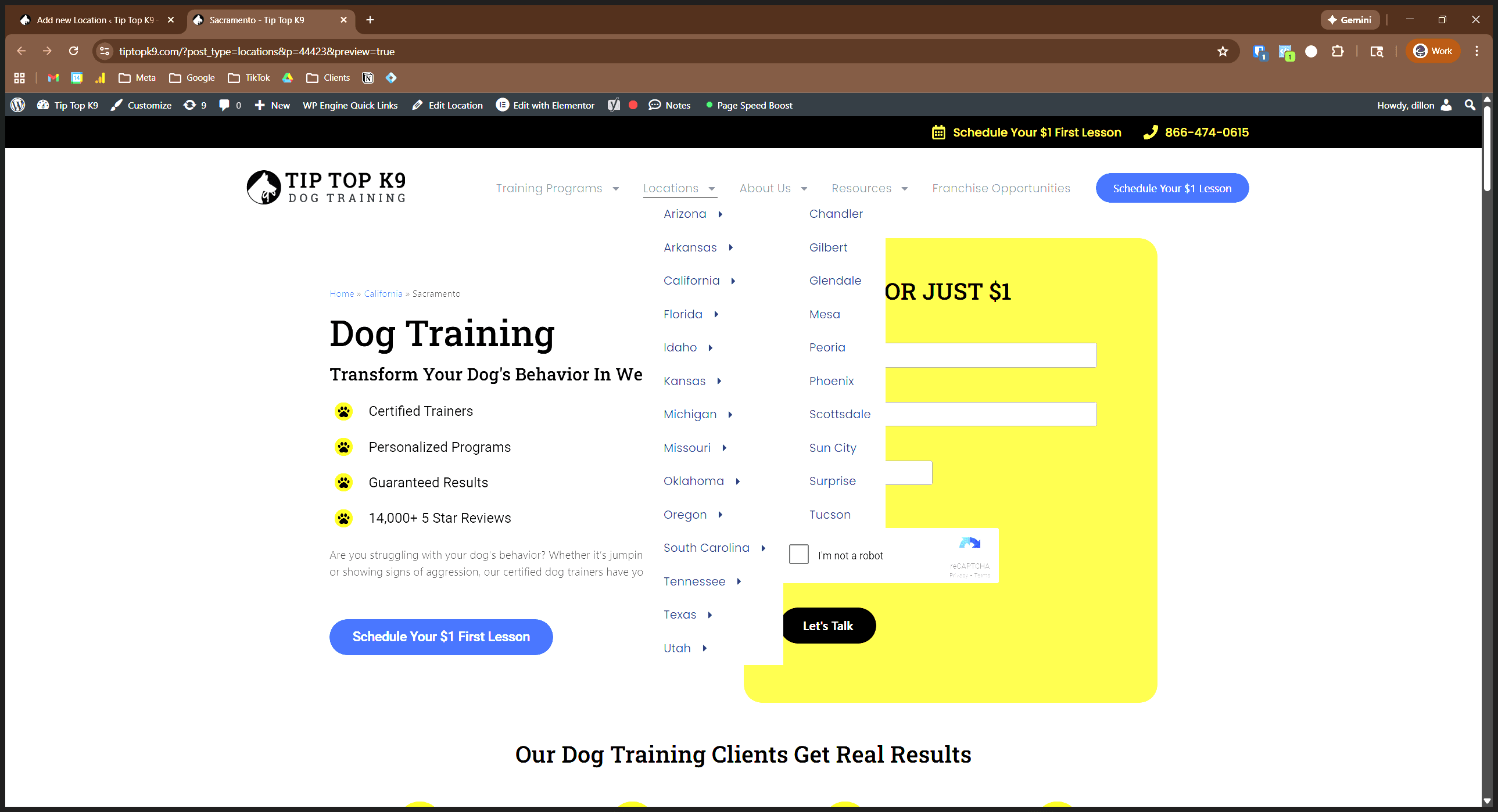
It's a bit slow on the back end today. I'll pause the recording until it's finished. There it is. I just had to threaten it. Make sure it looks like this.
Another option is to add a new services to a location.
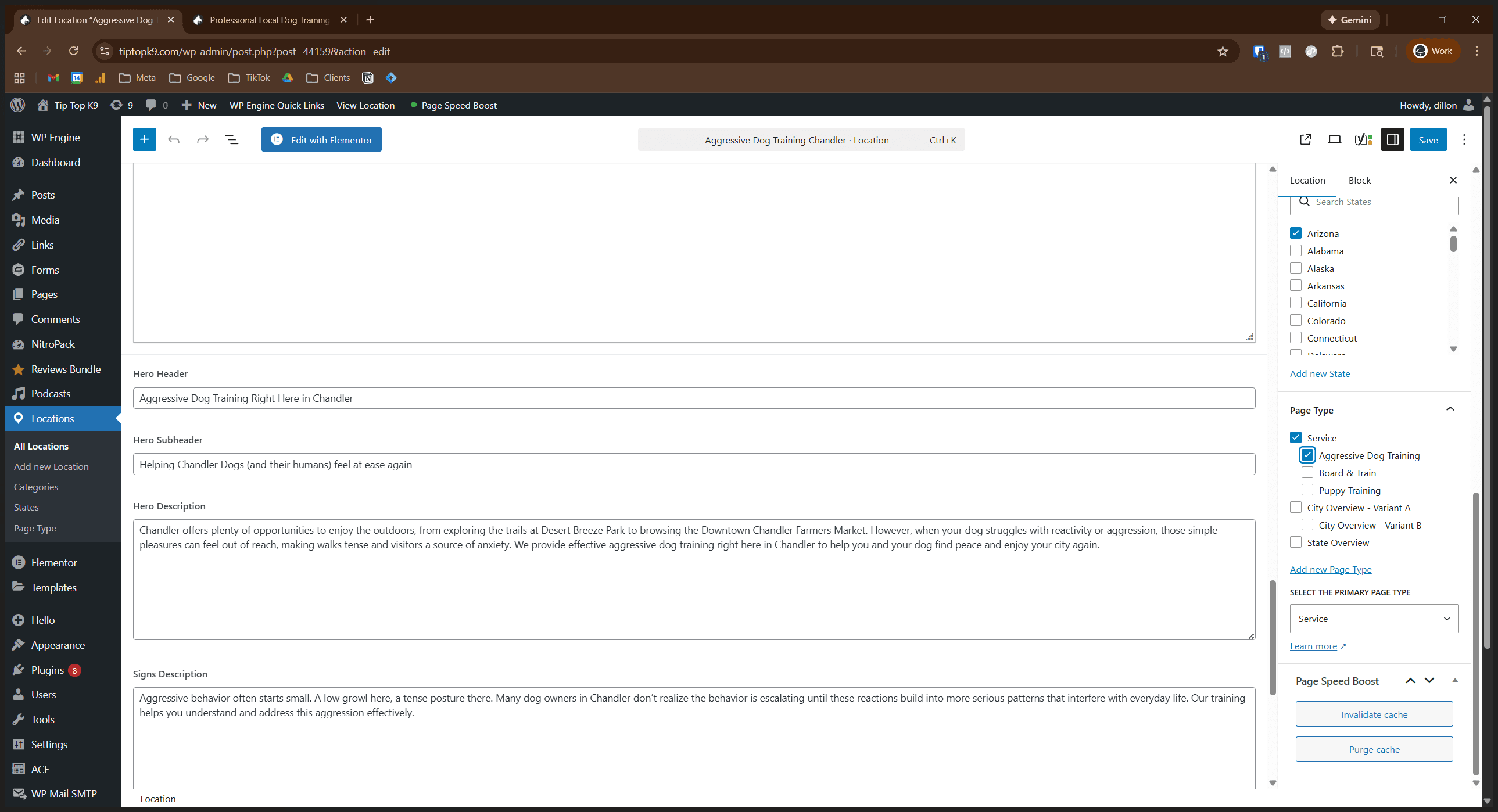
When you do this, you'll see different options available. If you're adding a specific service, like aggressive dog training in Sacramento, create a new location and name it appropriately.
The name here would be Aggressive Dog Training Sacramento. Set the parent as the city. Make sure the slug is "aggressive dog training" or the relevant service. Set the correct state, then change the page type from city overview to the specific service, as shown in the Sacramento example. When you do that, it will show options for copy related to that service template.
There is also a template for a generic service page if you want to add a one-off service.