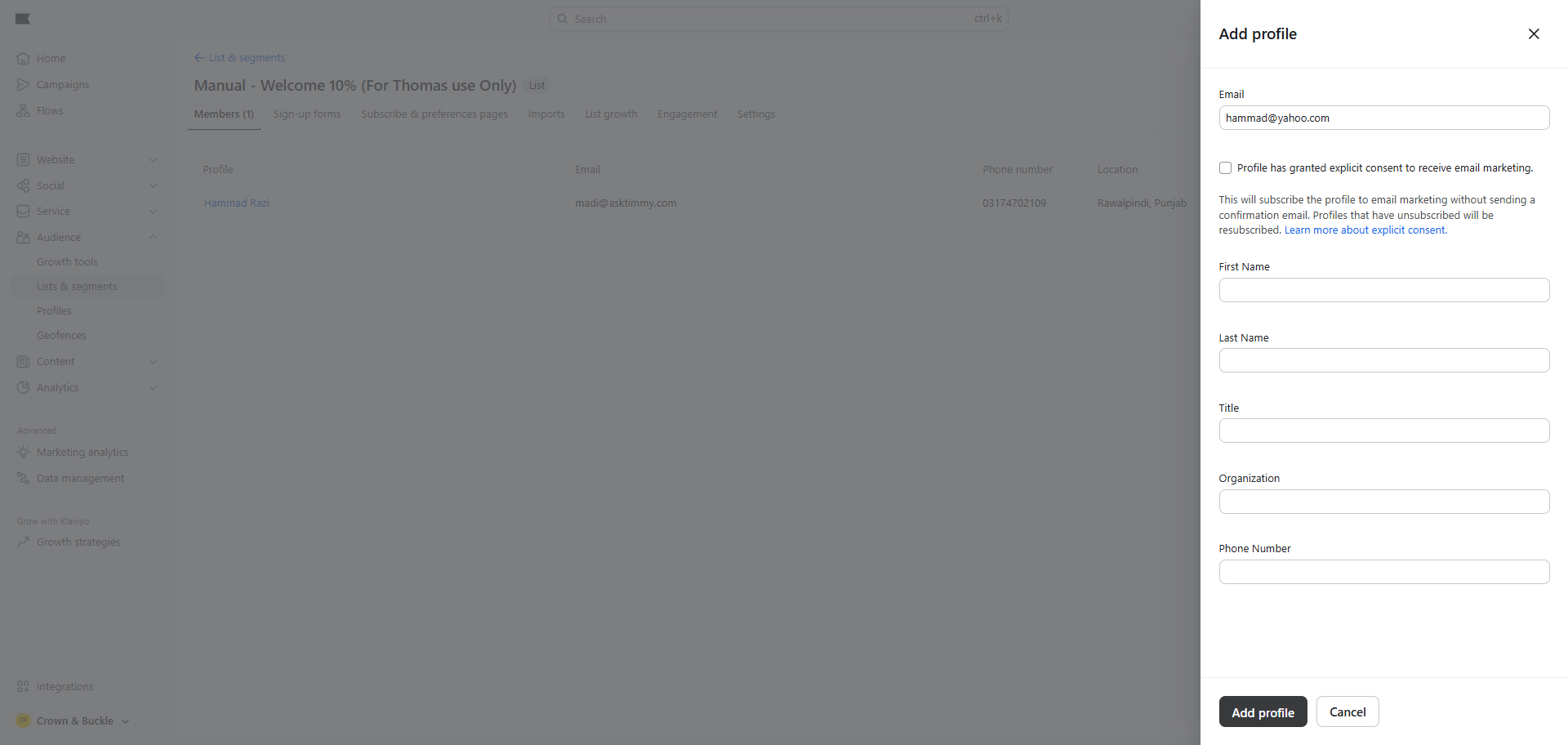
How to Add a Person to the Manual Welcome 10% Off List
Learn step-by-step how to add a person to the 'Manual Welcome 10% Off For Thomas Use Only' list in your Audience dashboard, including navigating to Lists and Segments and adding a new profile.
By Hammad Razi
In this guide, we'll learn how to add a person to a specific list in your audience management tool. This process helps you organize contacts and ensure the right people receive targeted messages or offers.
We'll cover how to select the correct list, add a new profile, and enter the necessary details.
Let's get started
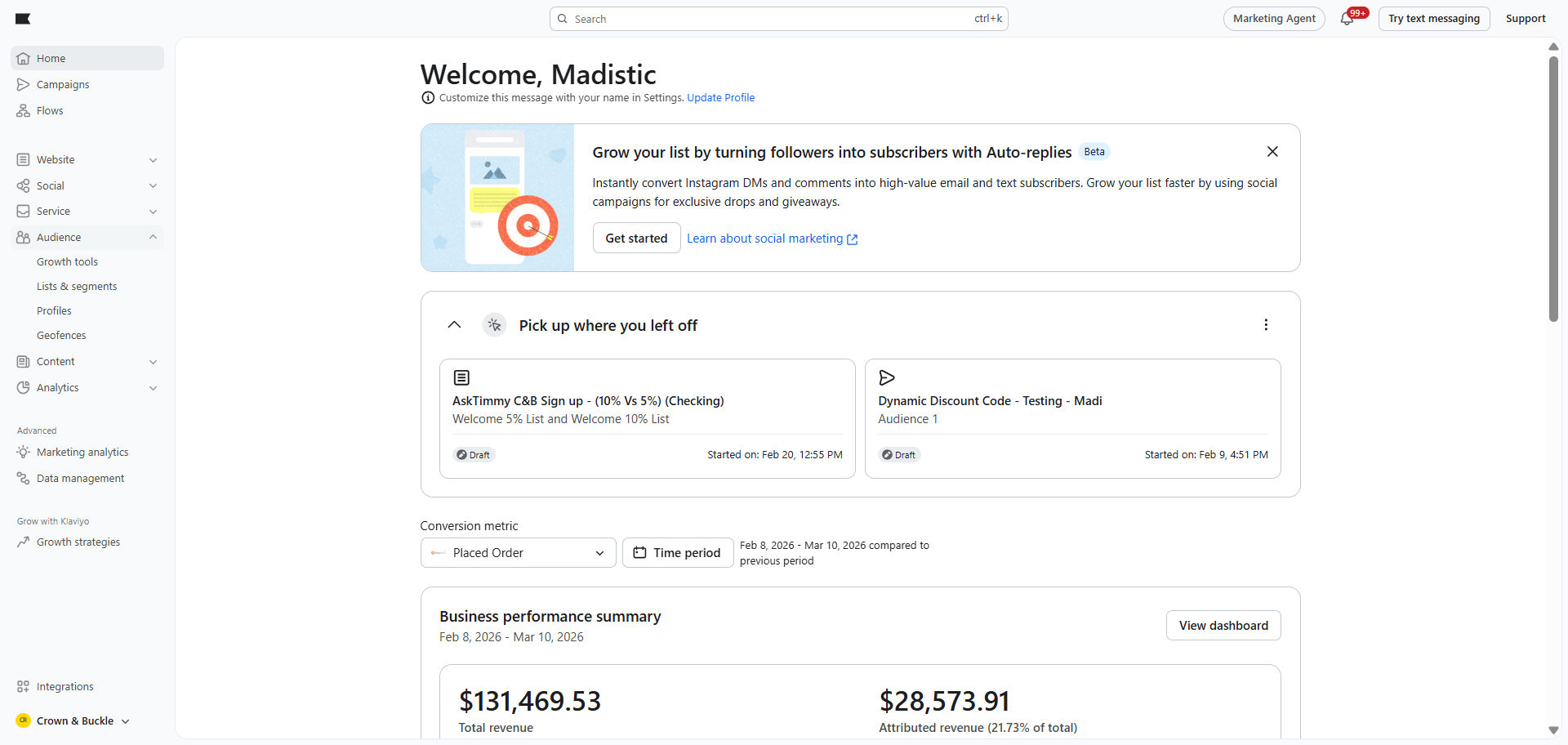
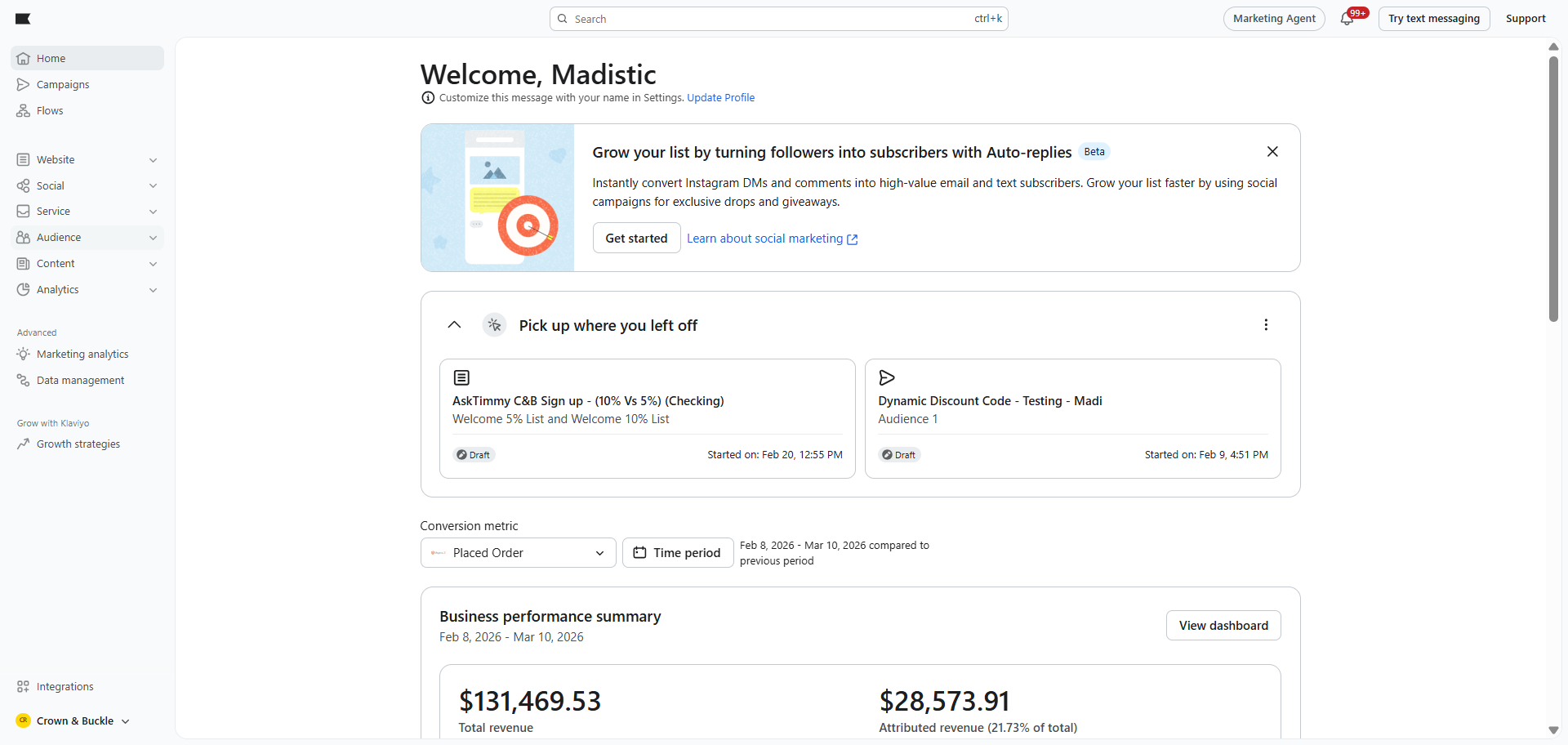
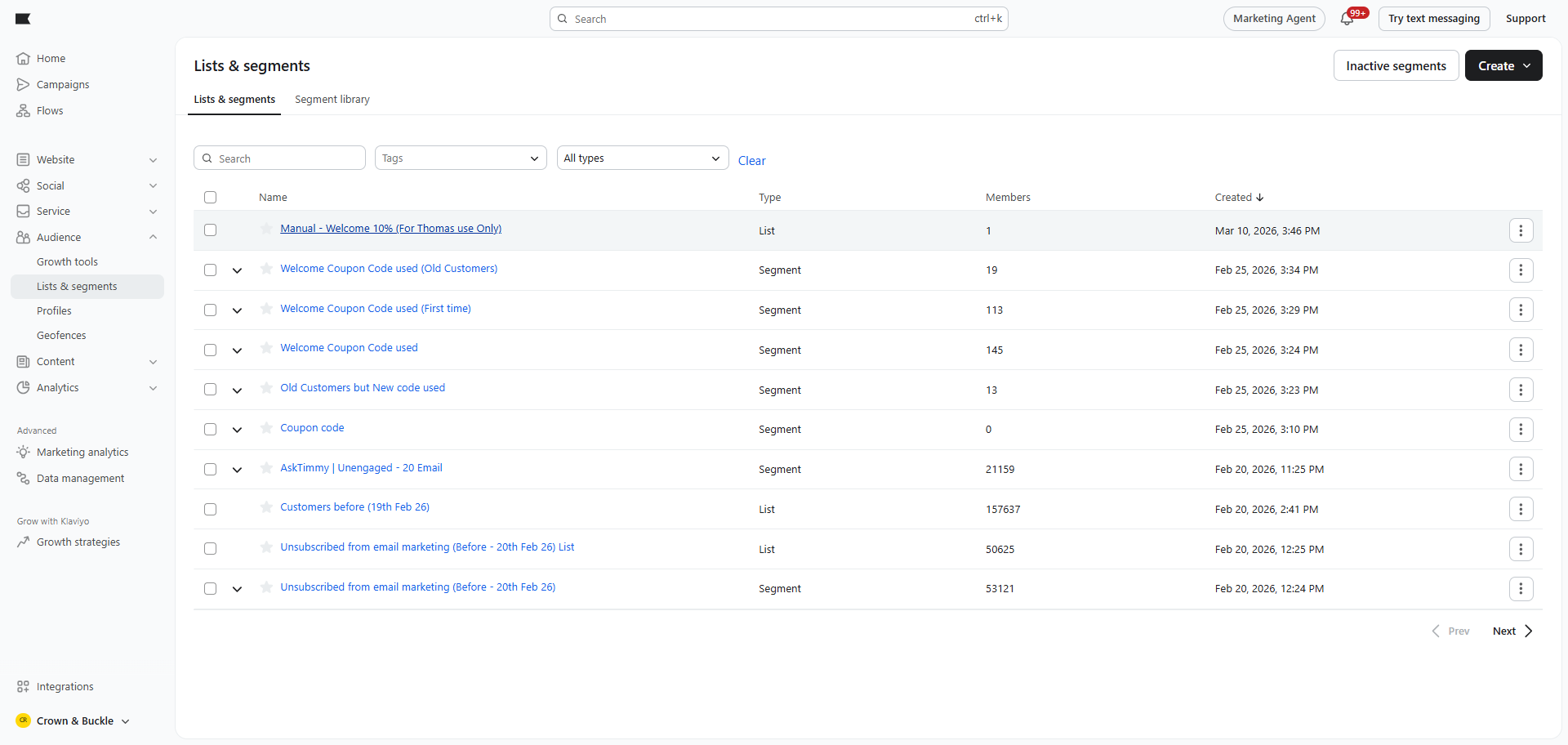
To add a person to the list, go to Audience and click List and Segments.
1
Click here
2
Click here
3
Click here
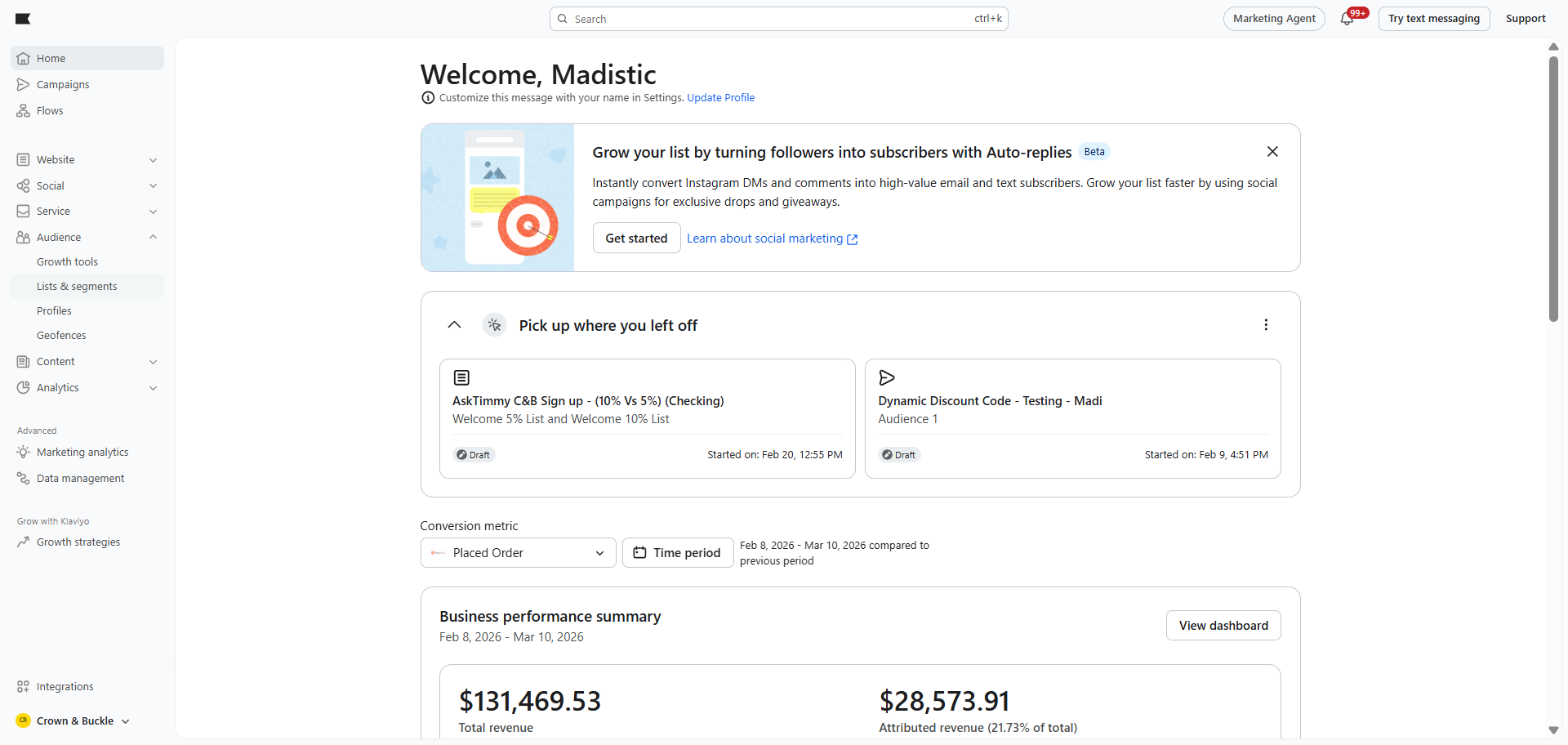
Here, select the "Manual Welcome 10% Off For Thomas Use Only" list.
4
Click here
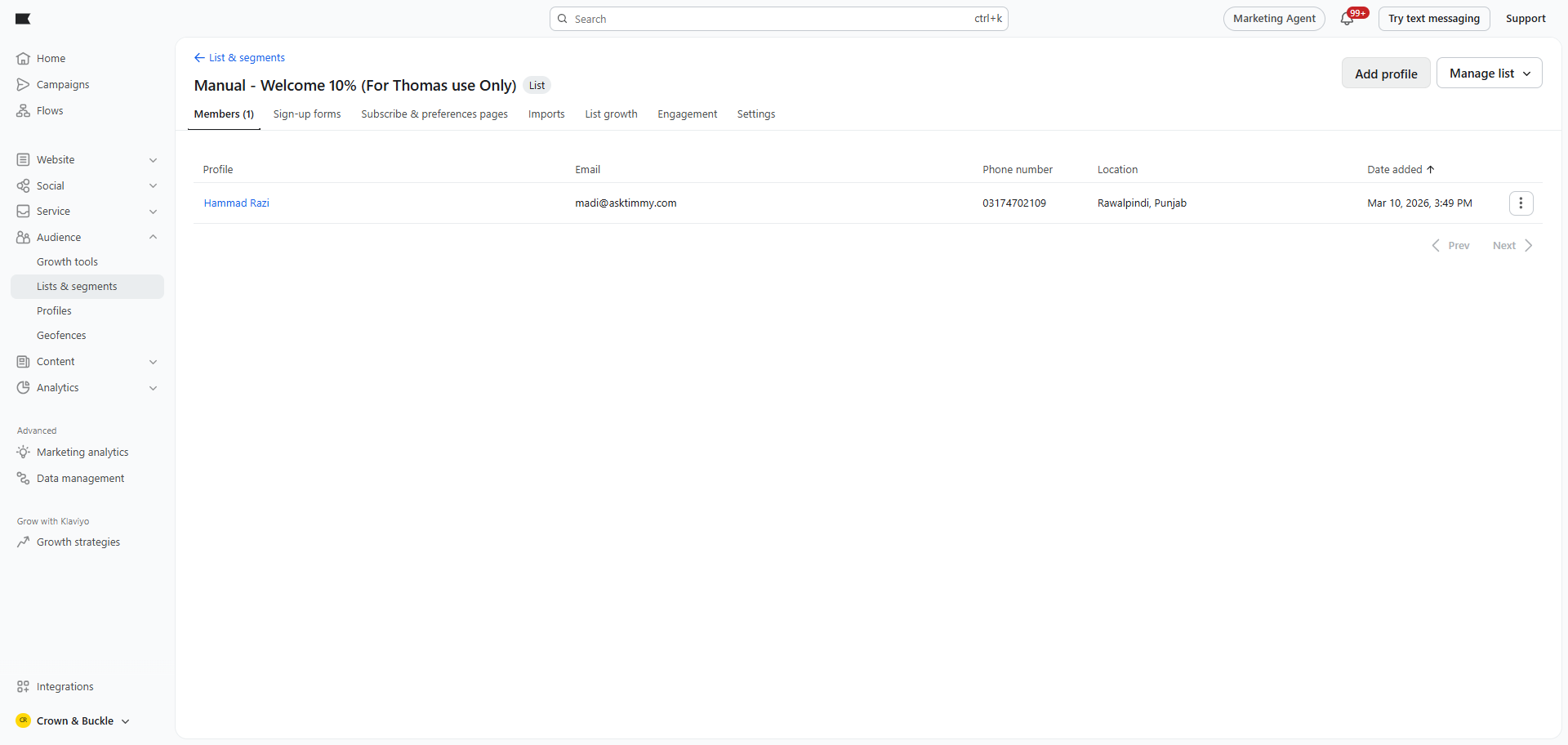
On the top right, click Add Profile.
5
Click on "Add Profile"
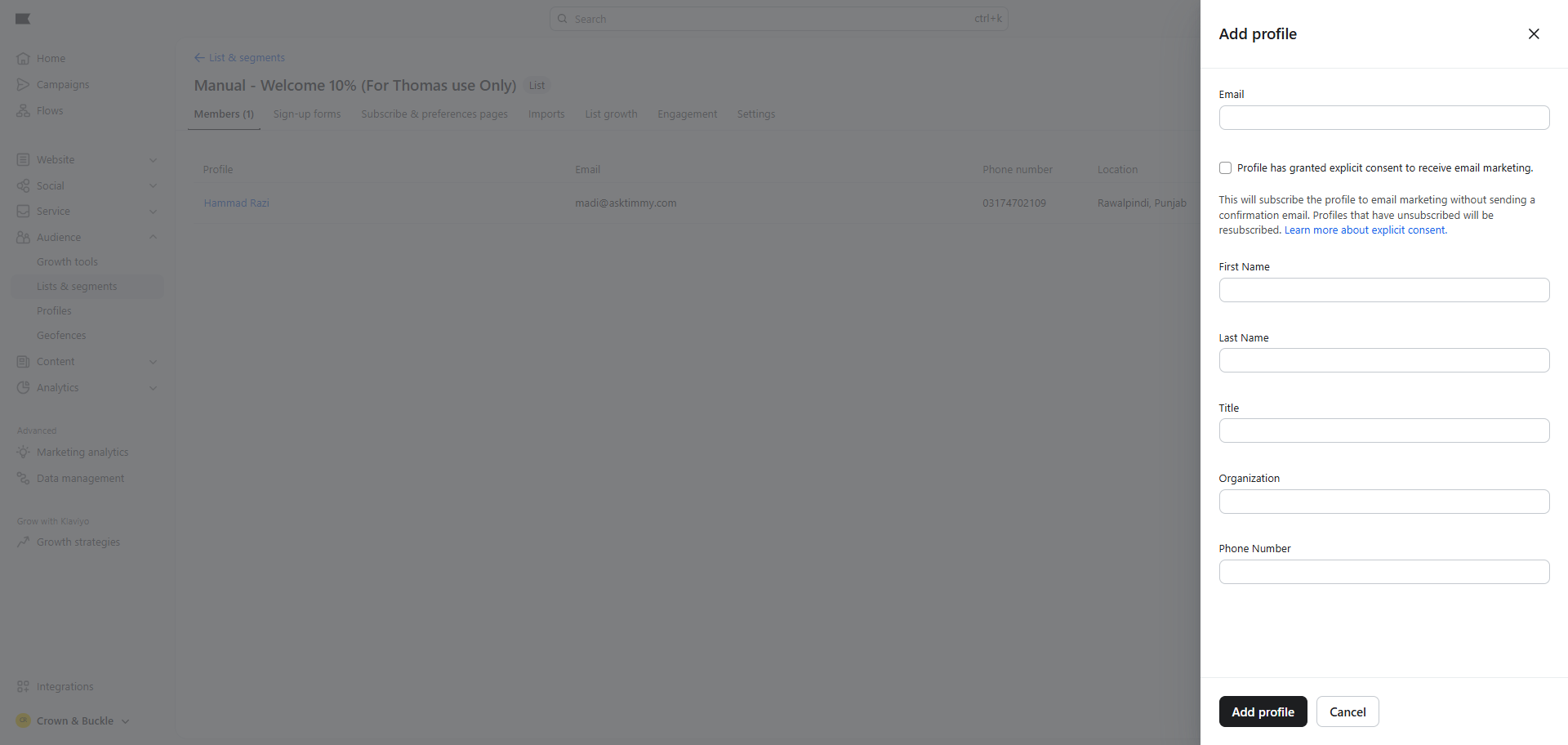
Enter email address.
6
Click here
7
Click here
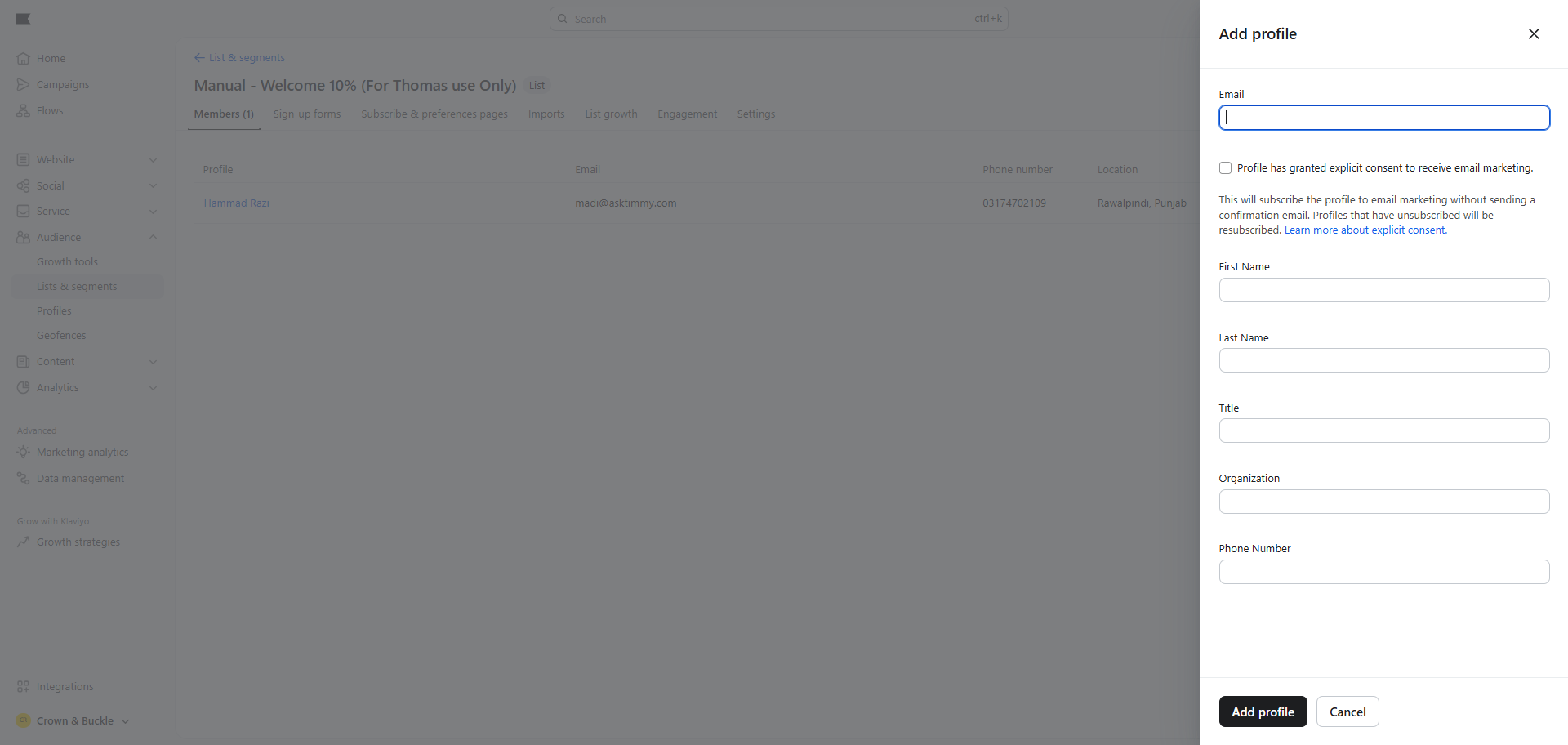
Add a profile.
8
Click here