
How to Add a Second Account to Edge for Managing Multiple Email Accounts
Learn step-by-step how to add a second account to Microsoft Edge, manage multiple email accounts, and create a dedicated profile for your SubMar email. Follow these easy instructions to streamline your workflow.
In this guide, we'll learn how to add a second account to Microsoft Edge so you can manage multiple email accounts. This process helps you keep work and personal information separate and makes switching between accounts easier.
You'll also see how to create a shortcut for your new profile on the taskbar for quick access.
Let's get started
Here's how to add a second account to Edge to manage multiple email accounts. First, go to the top-right corner and click your profile picture.
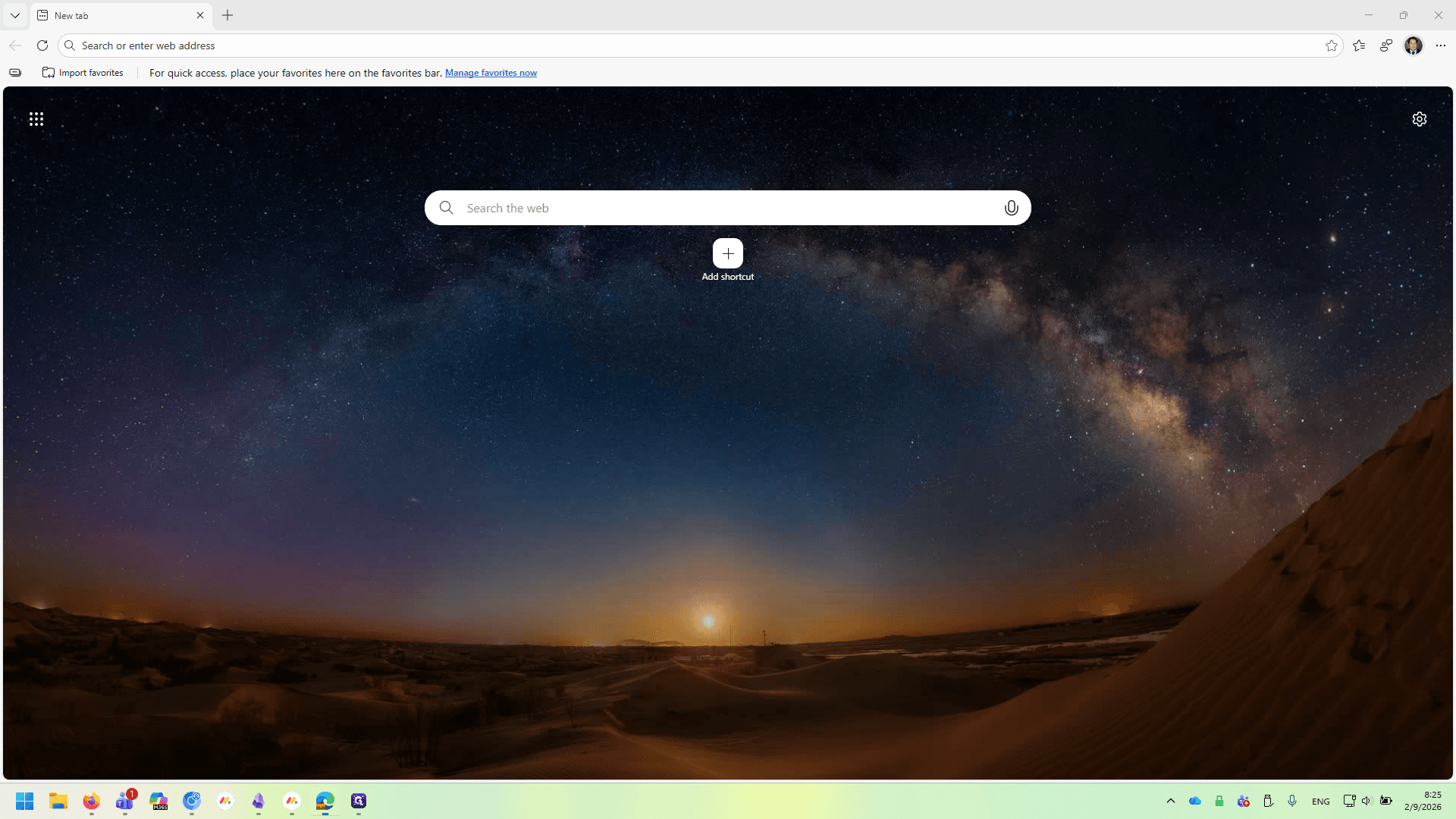
Set up a new profile.
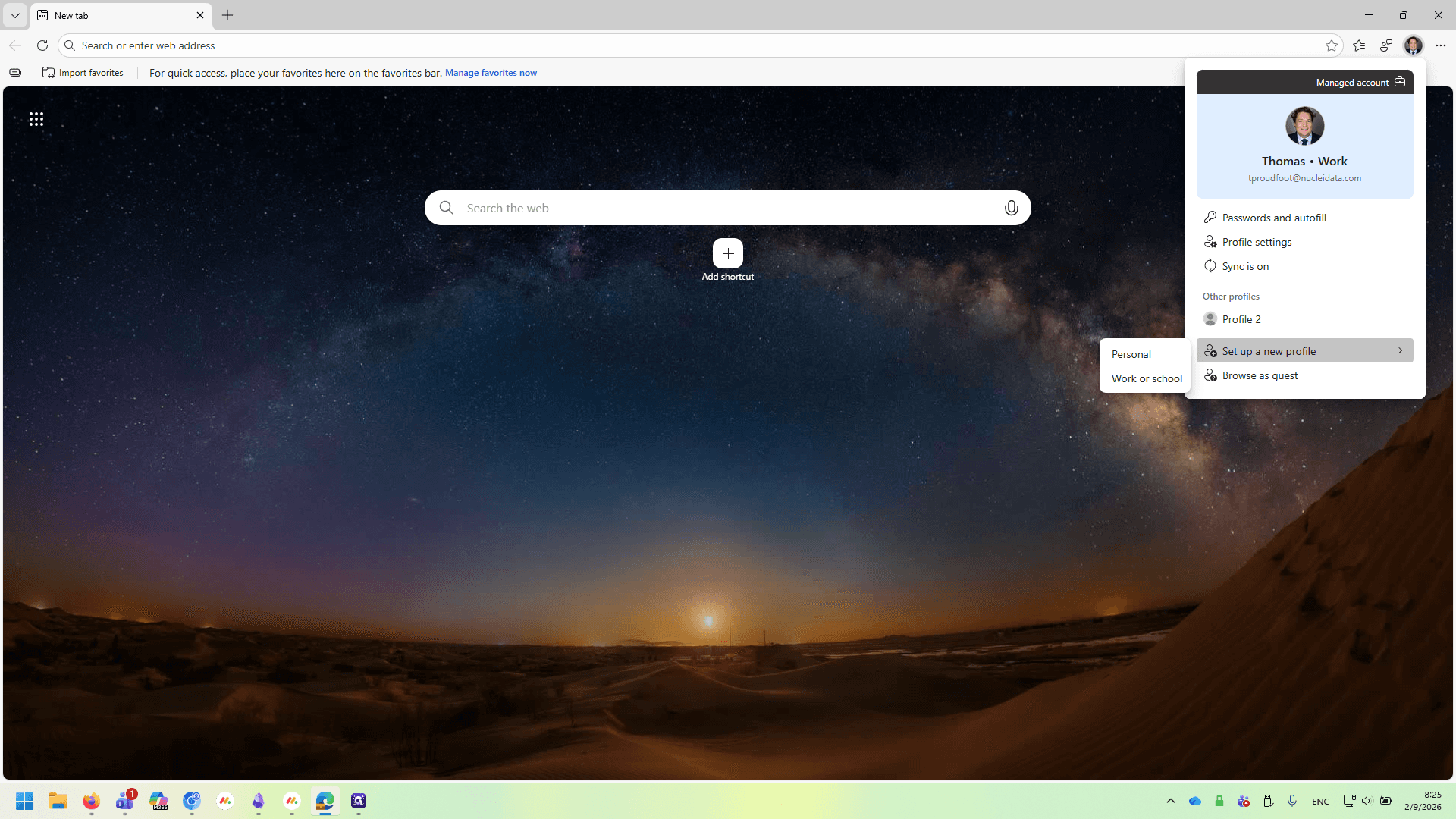
Select Work or School.
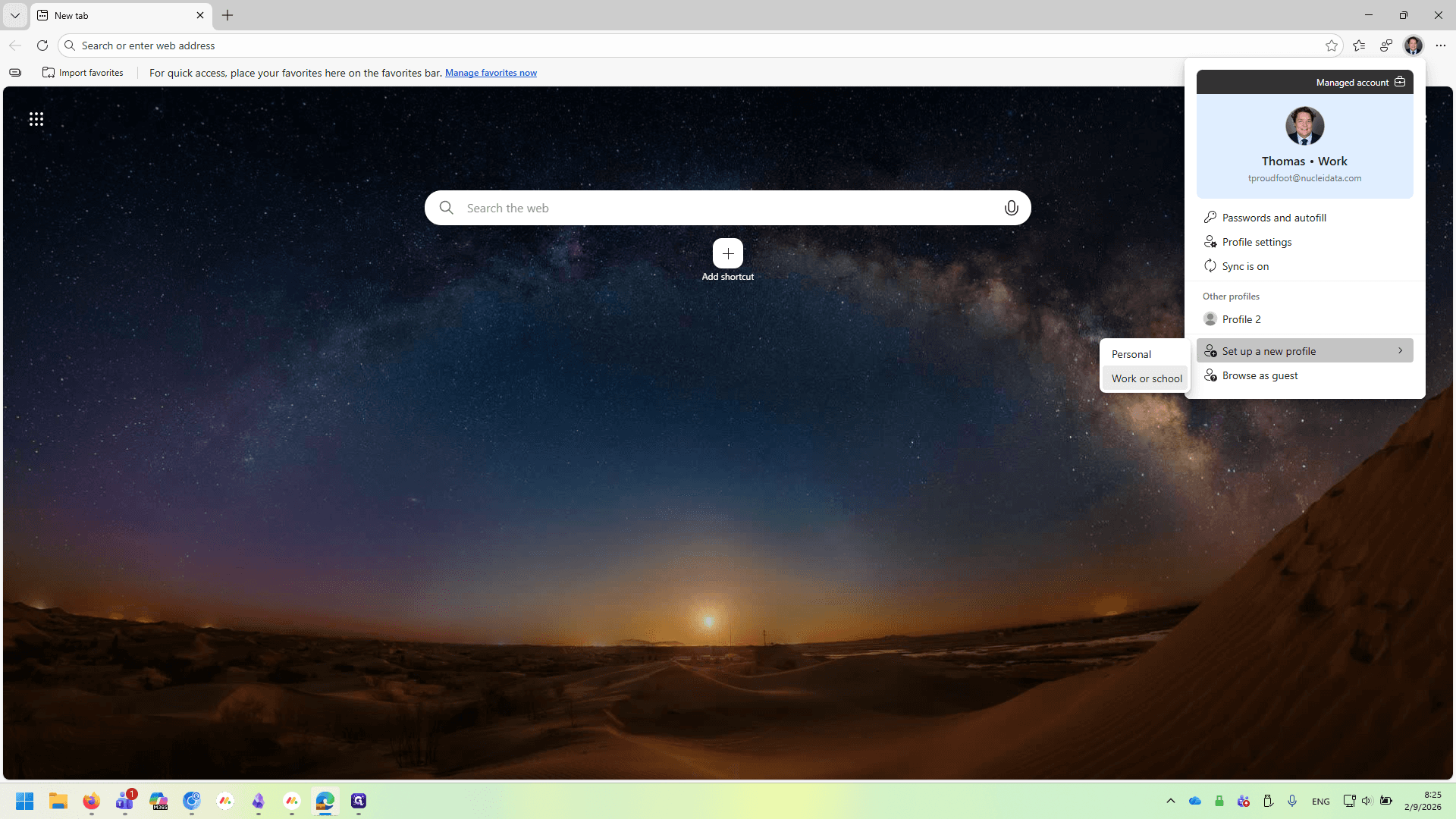
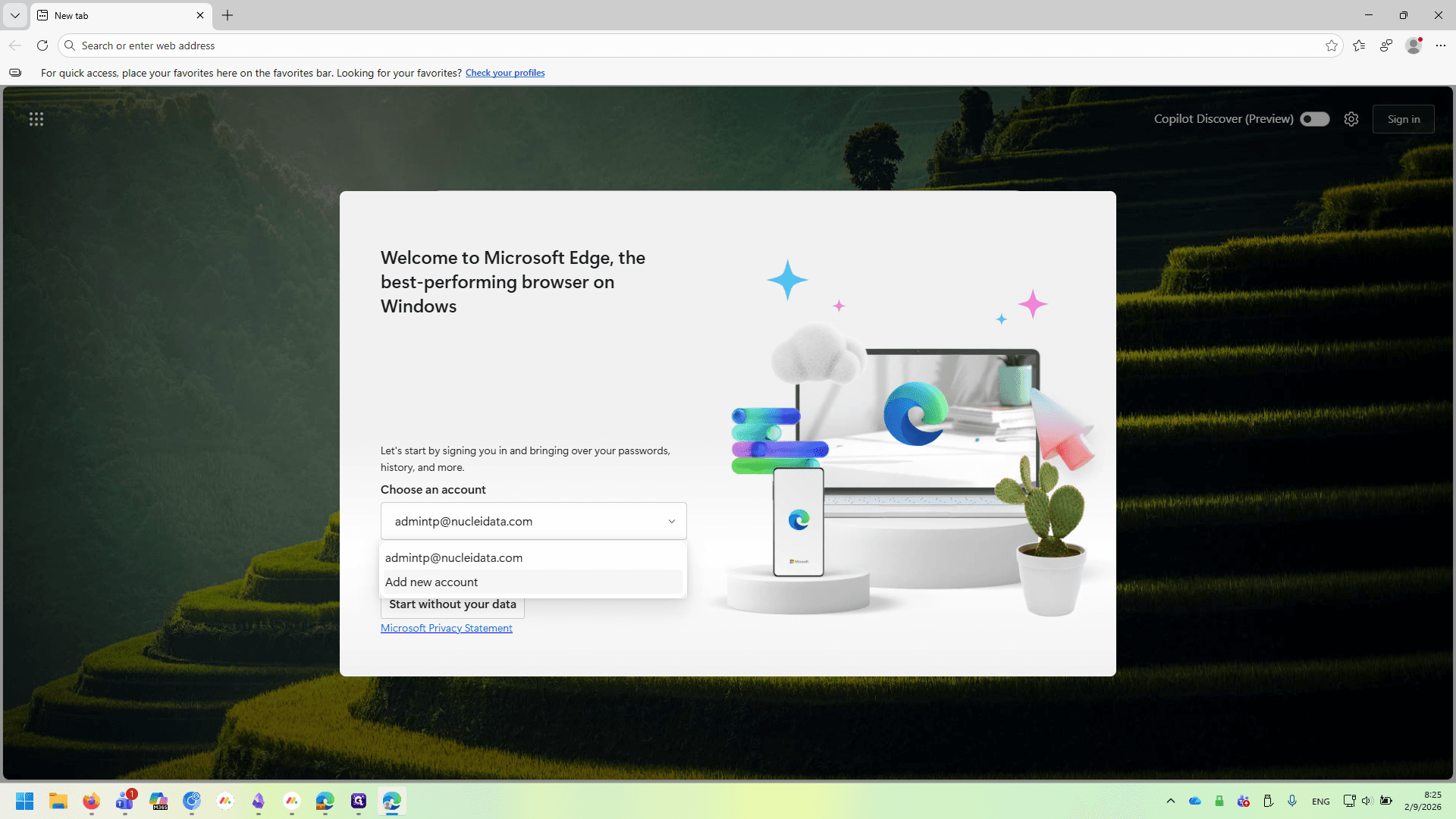
In this field, select Add New Account and sign in to sync your data.
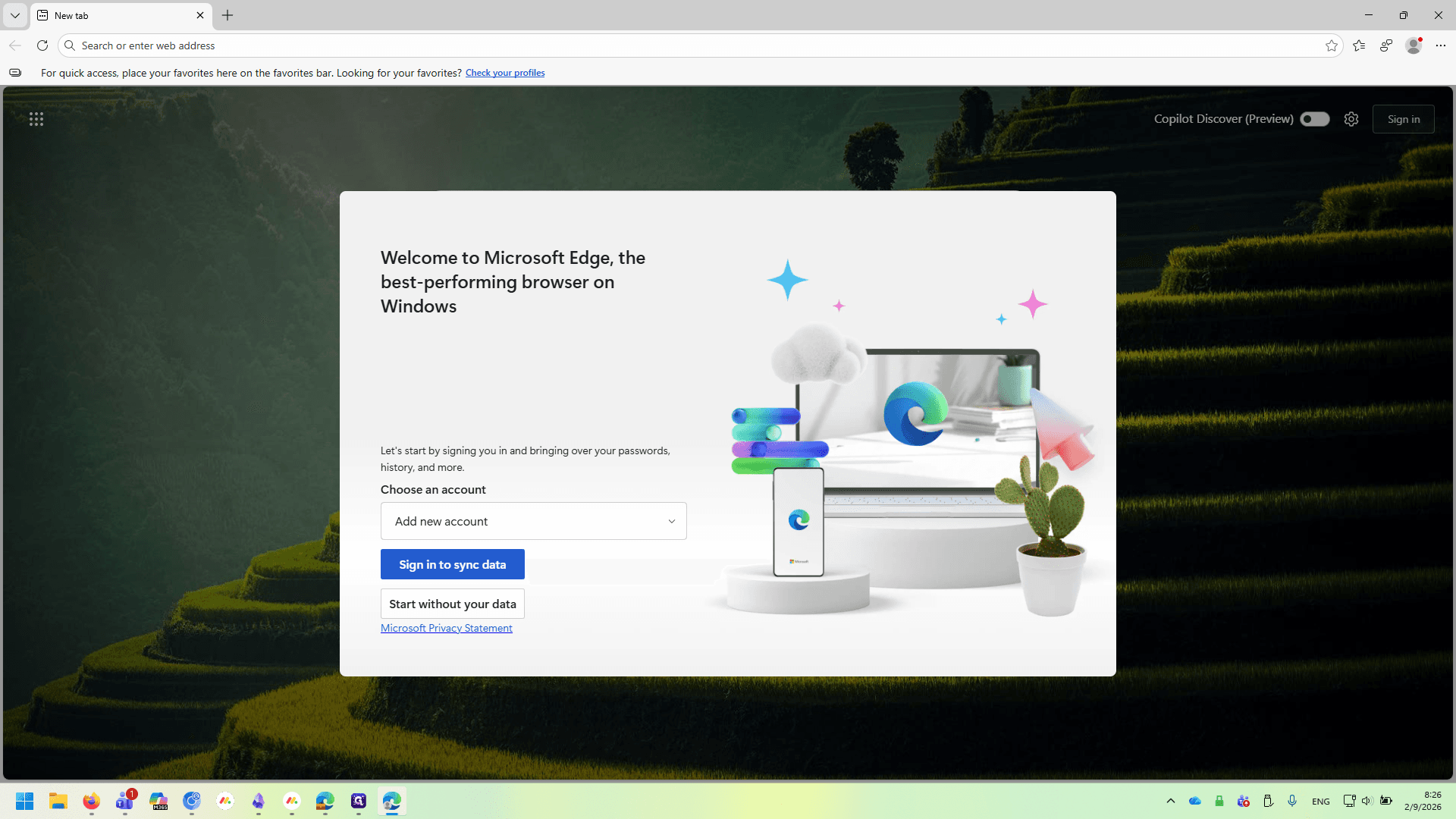
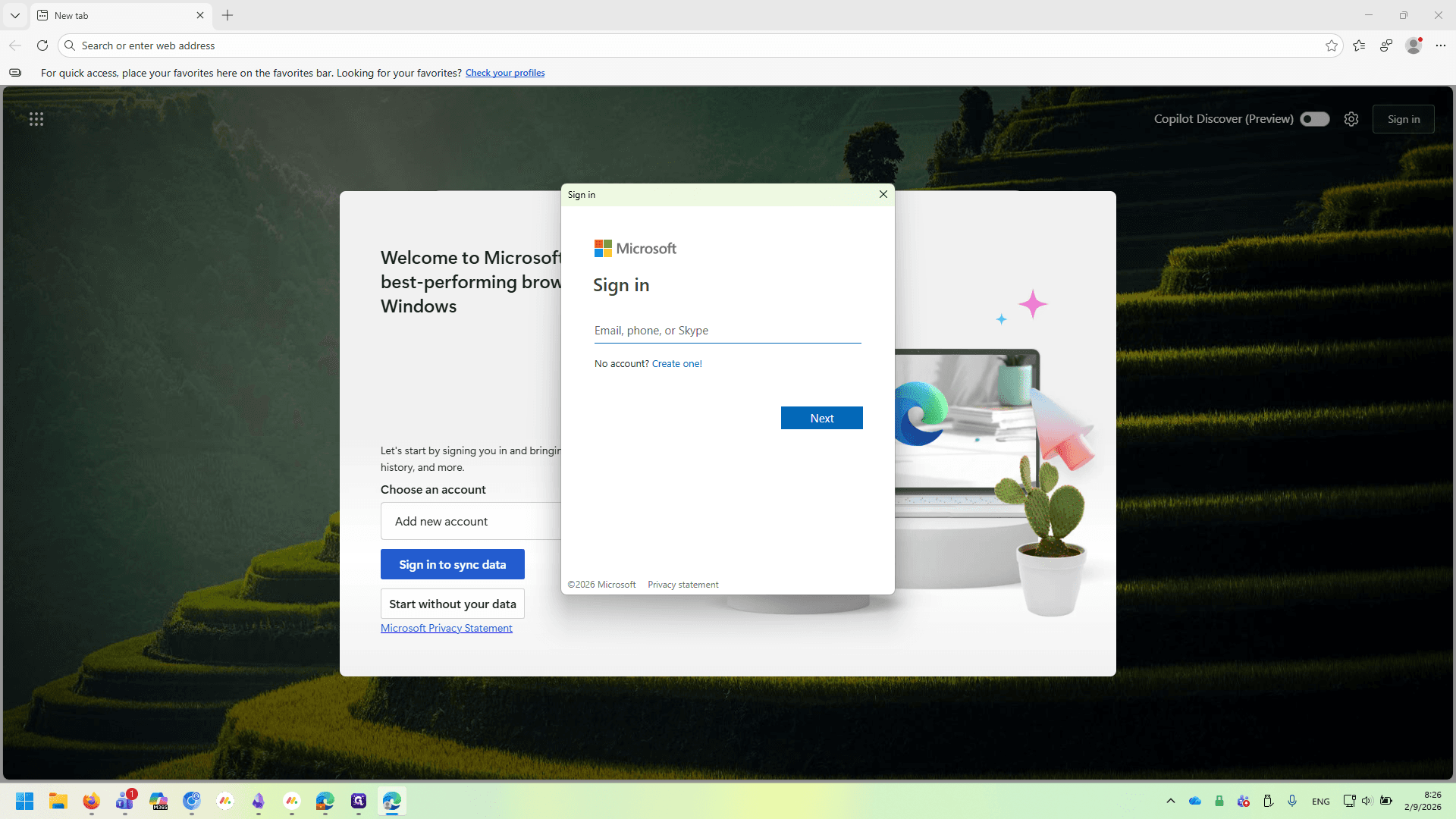
Enter your Submer email address and password in this field, then follow the prompts.
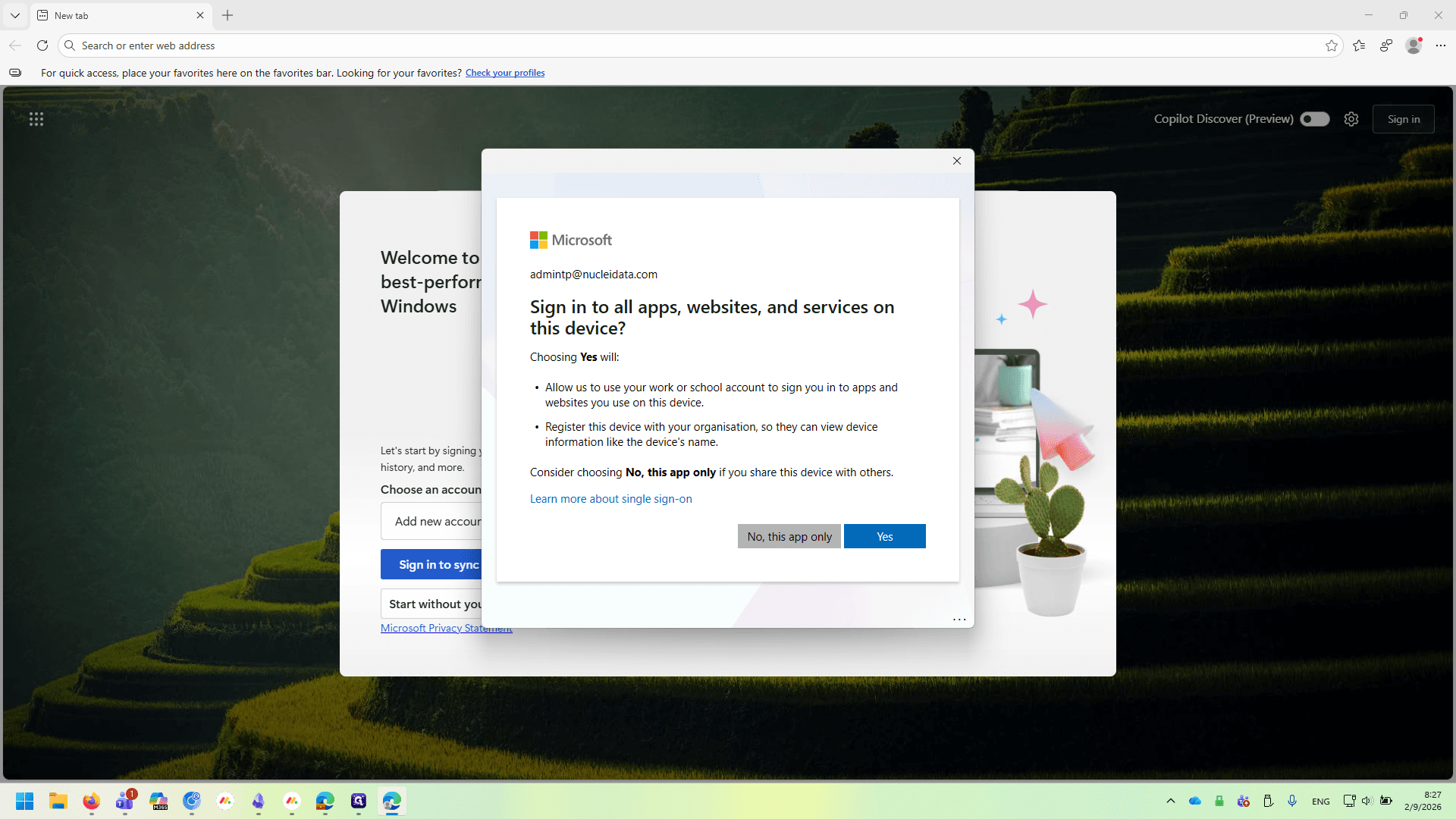
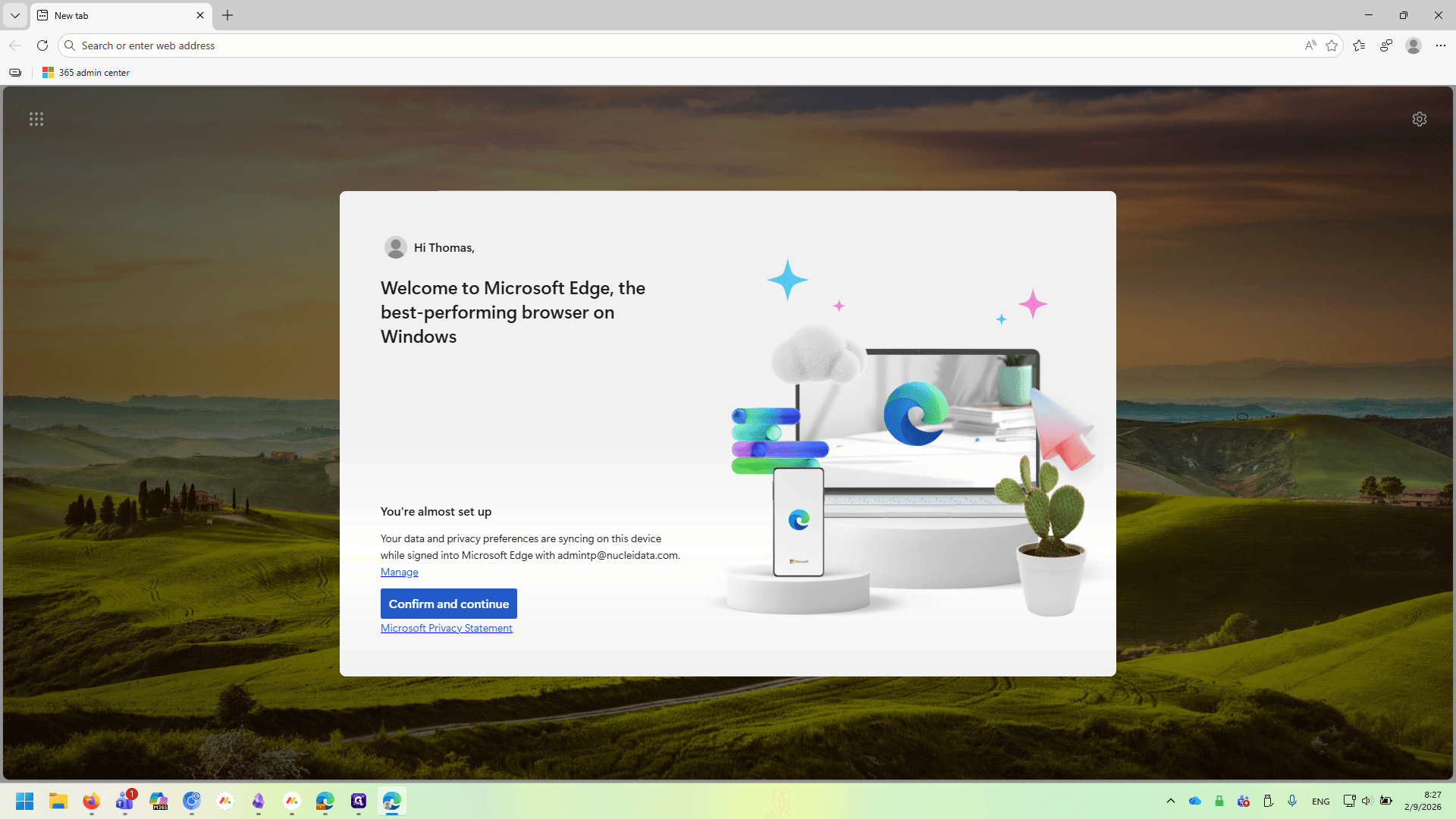
When you close it, you'll see your regular Edge browser and a shortcut for your Submer profile.
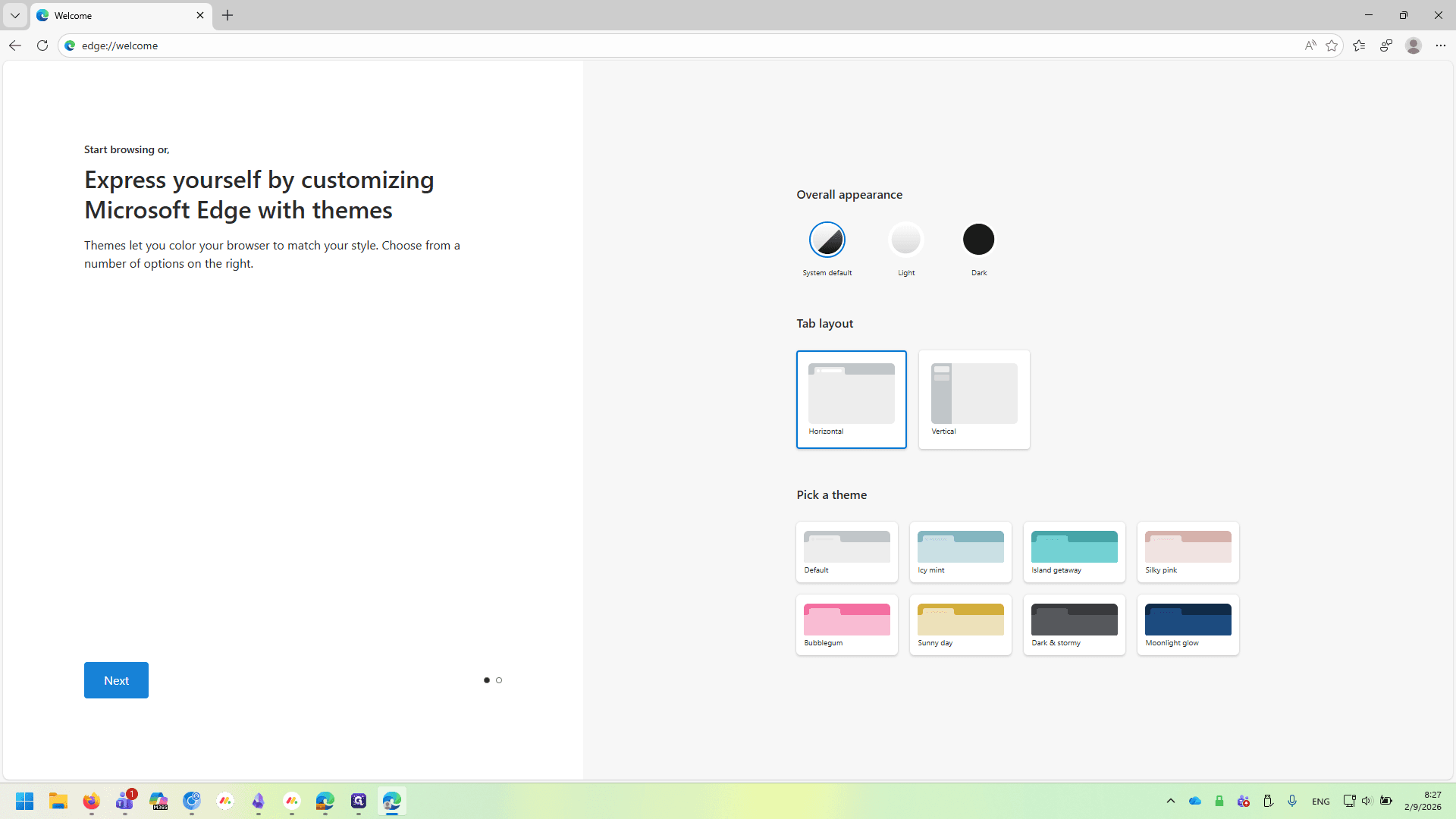
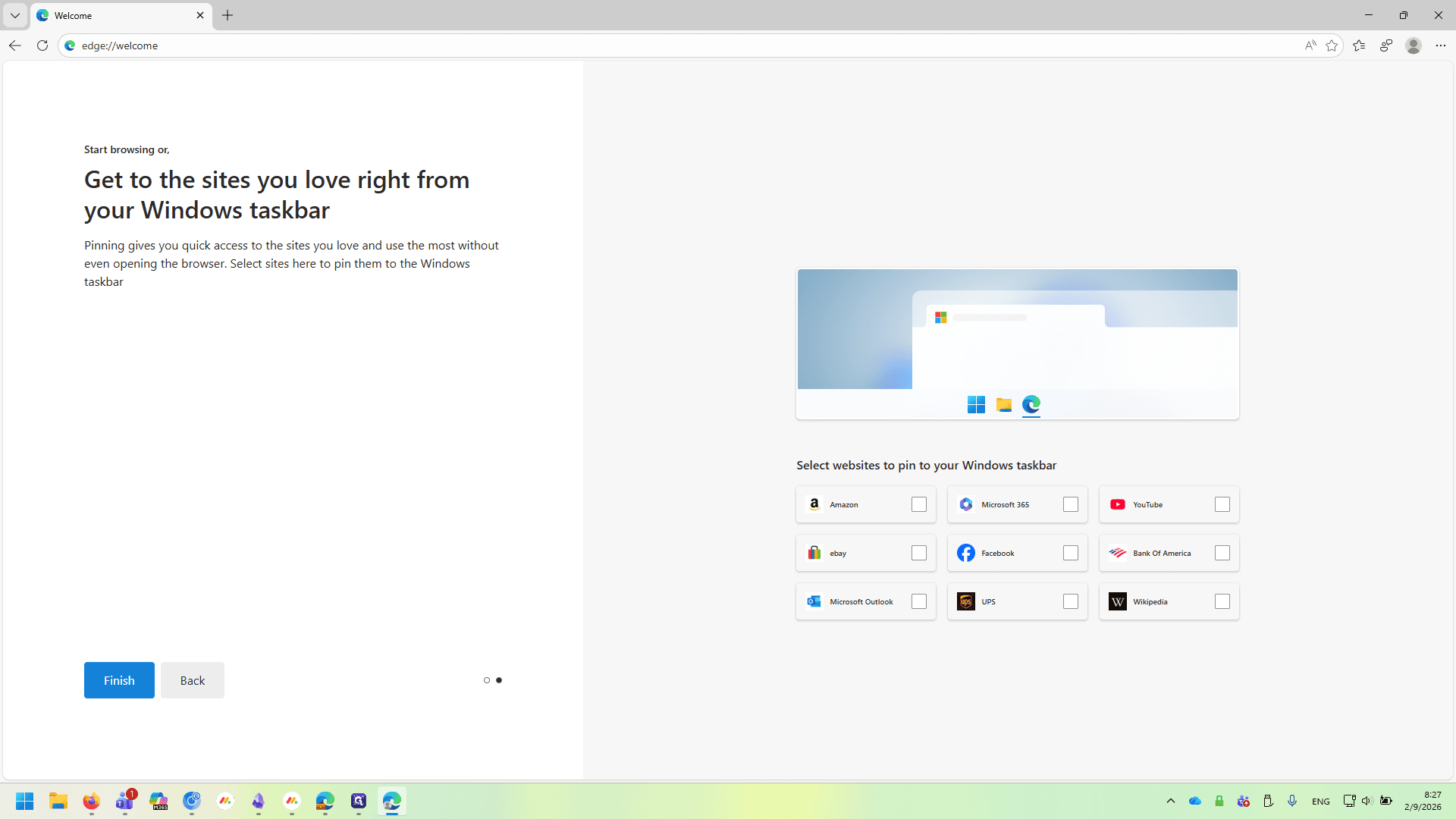

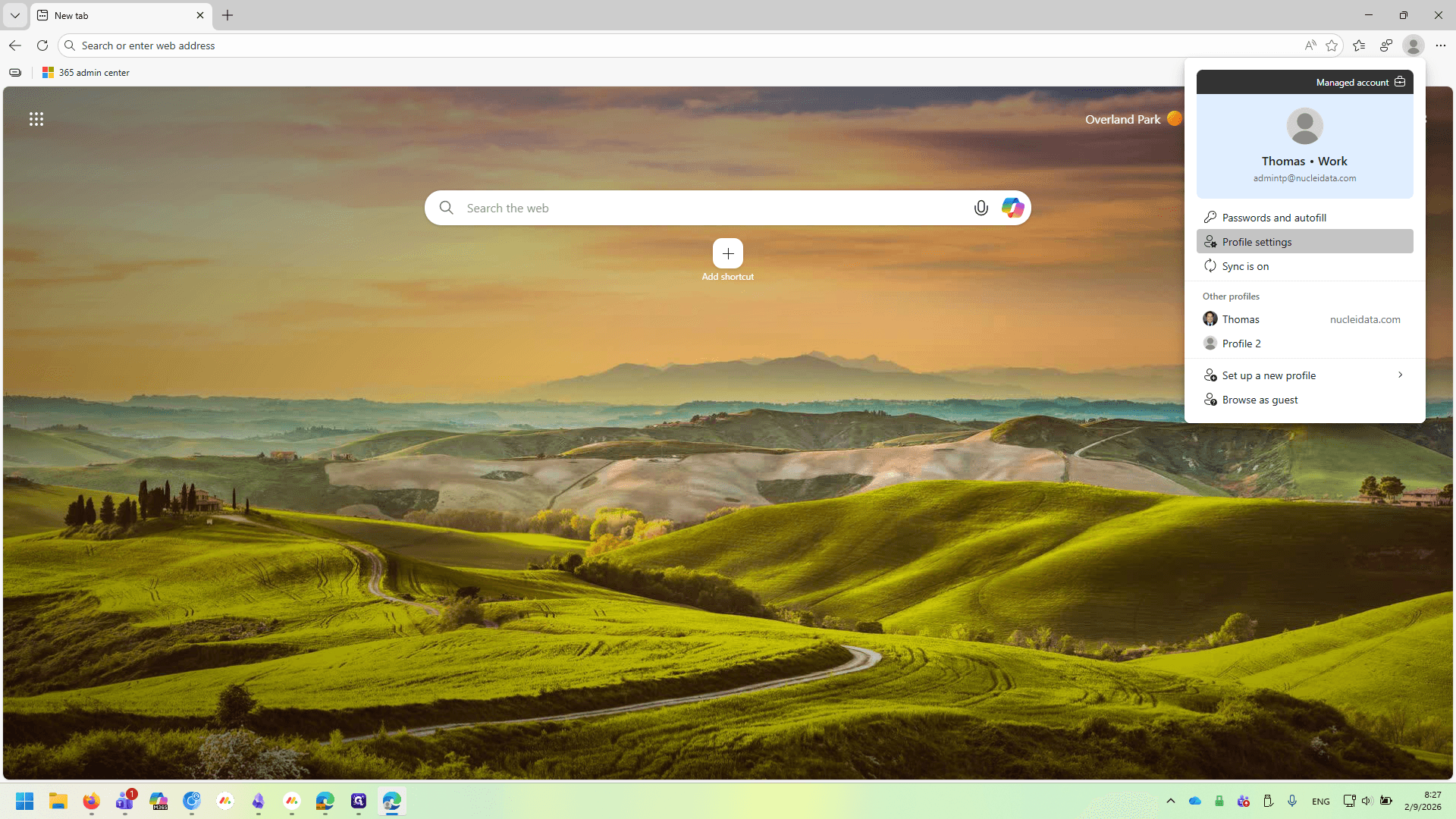
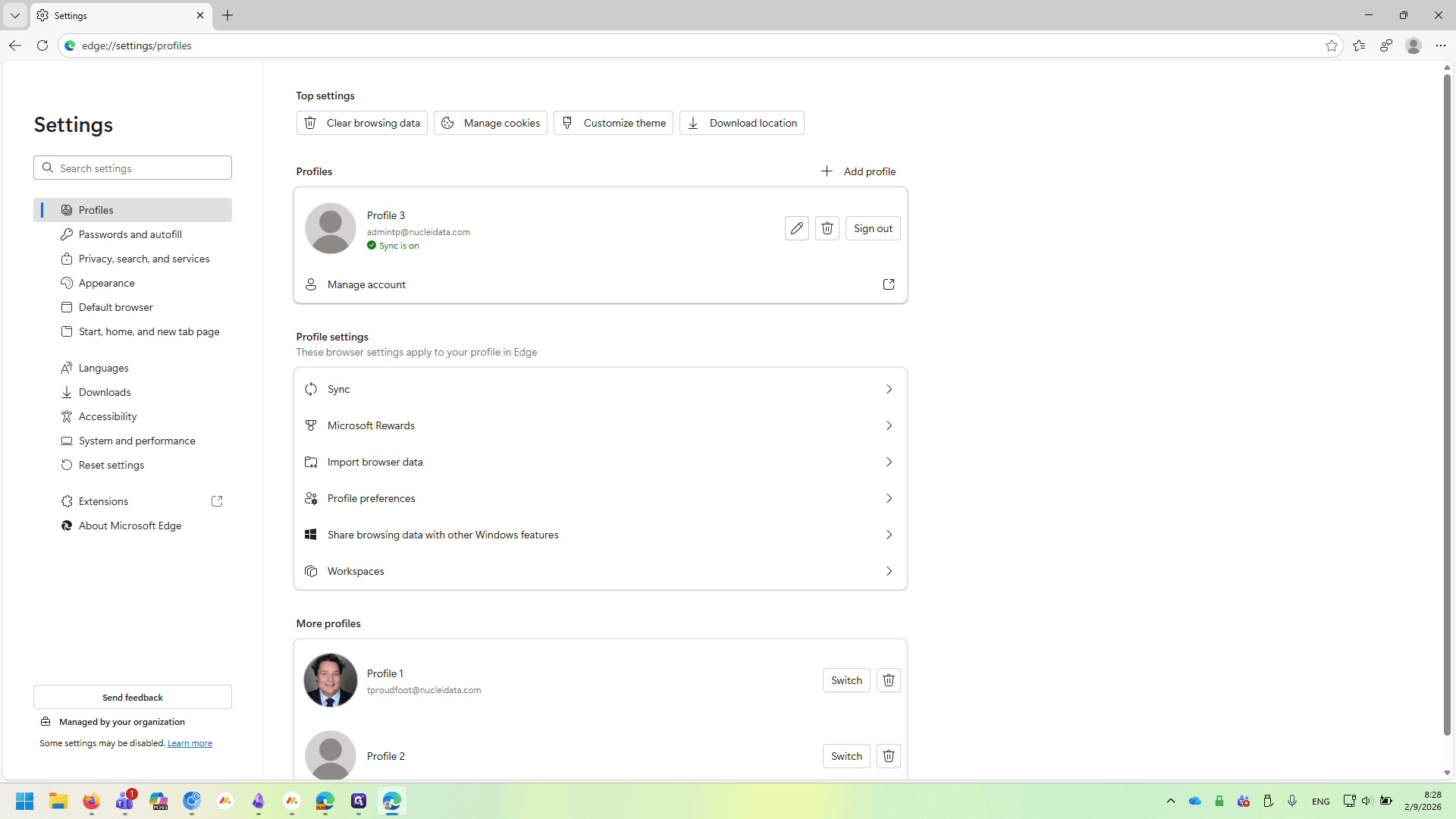
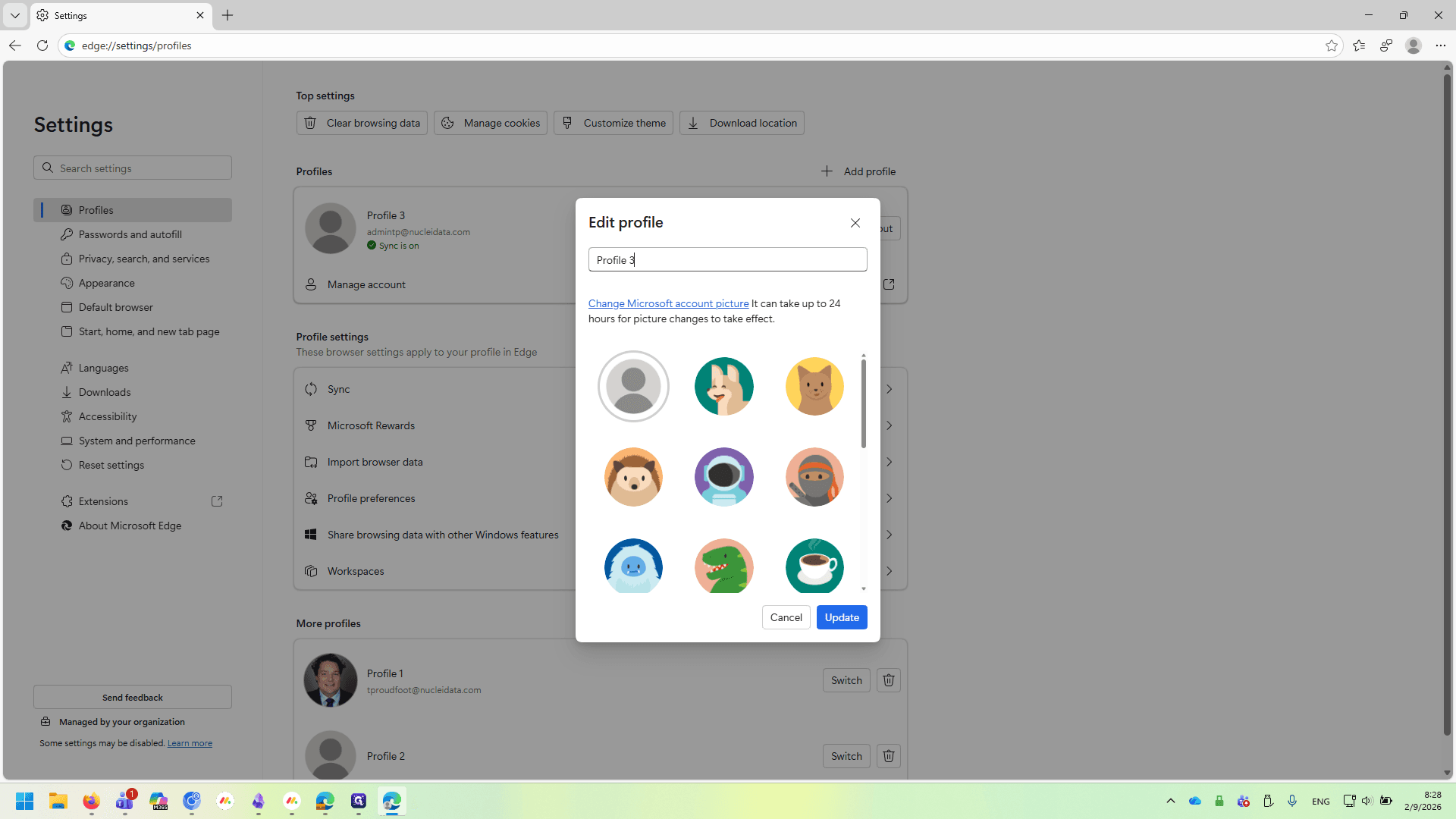
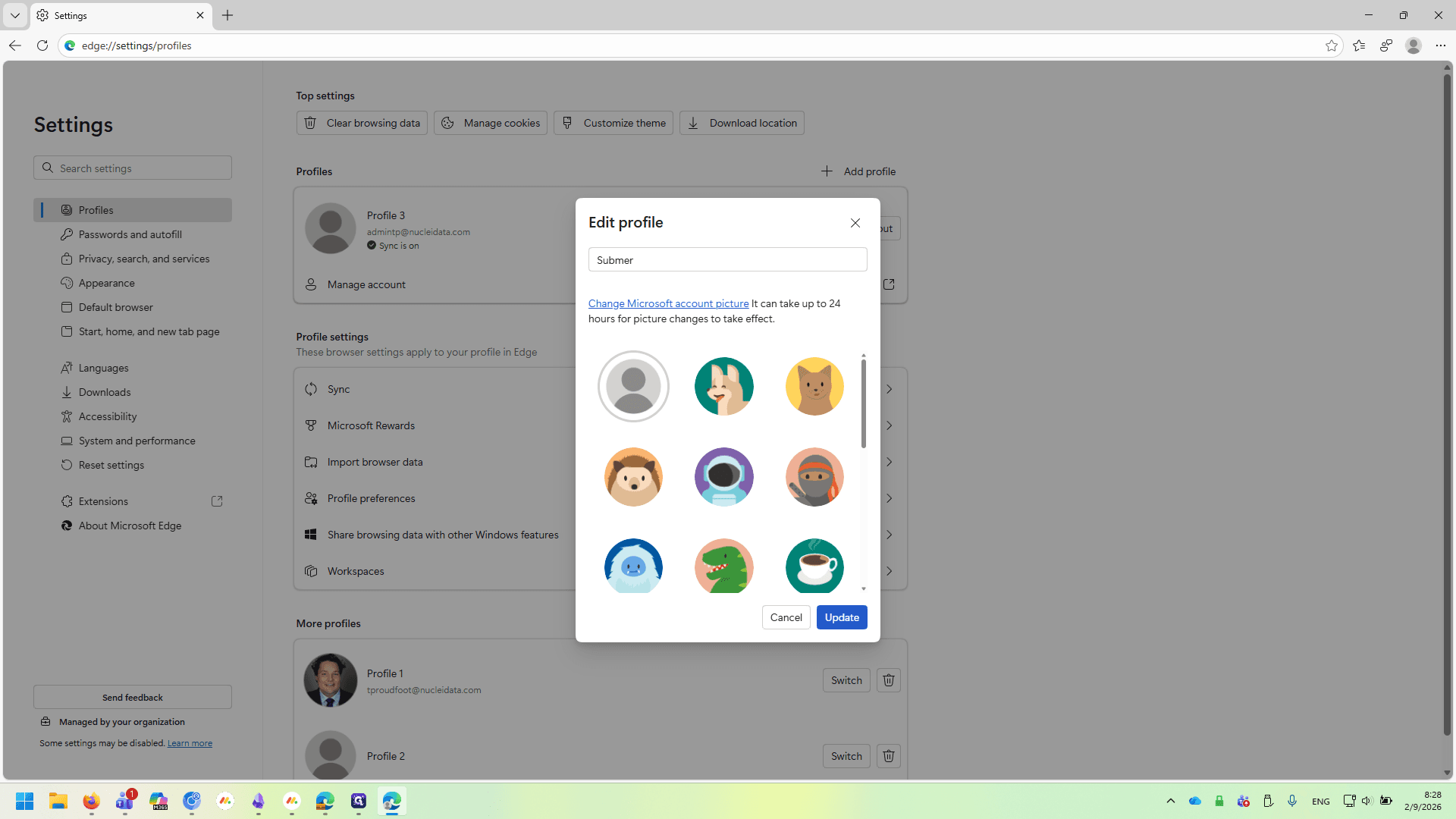
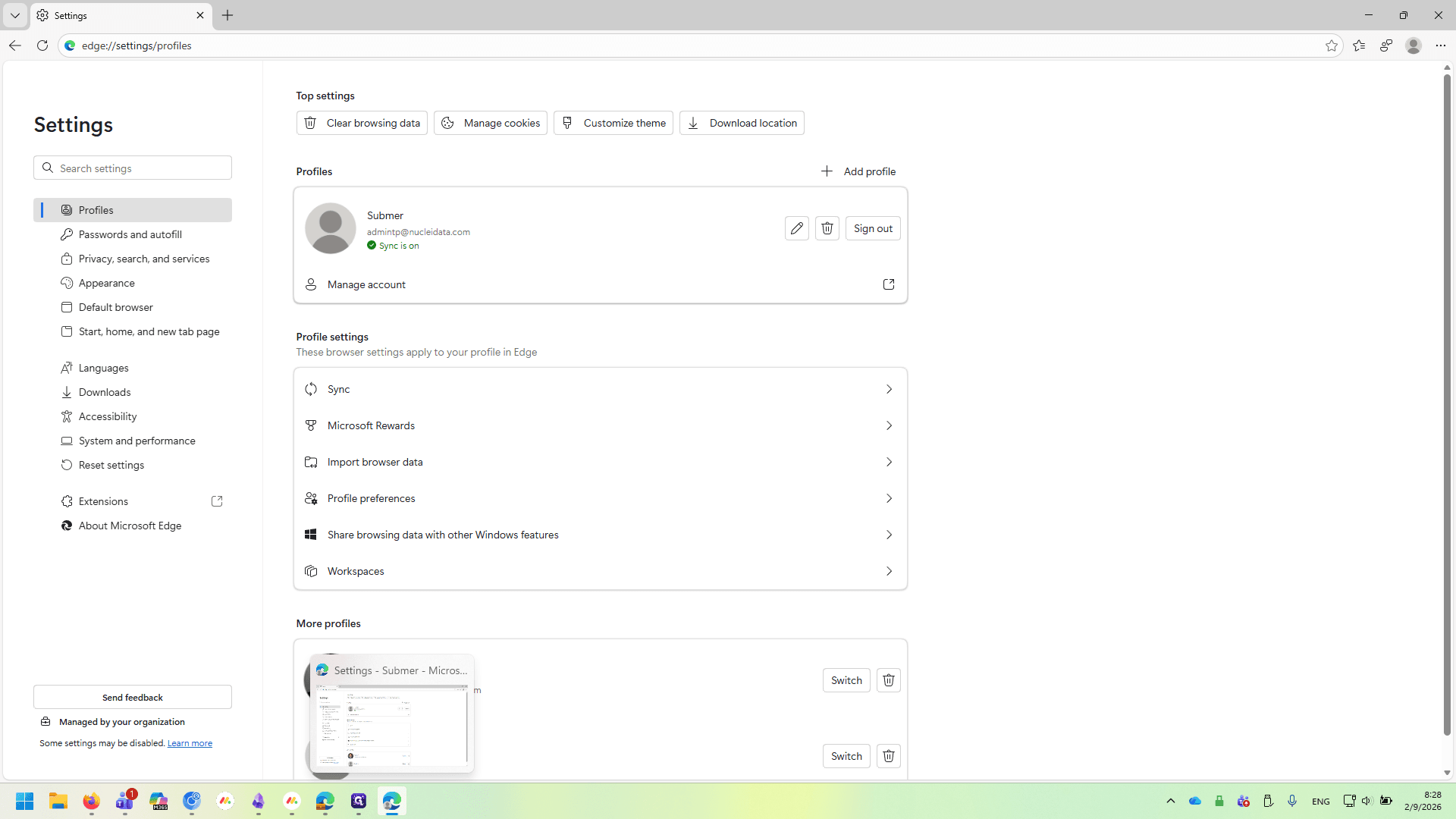
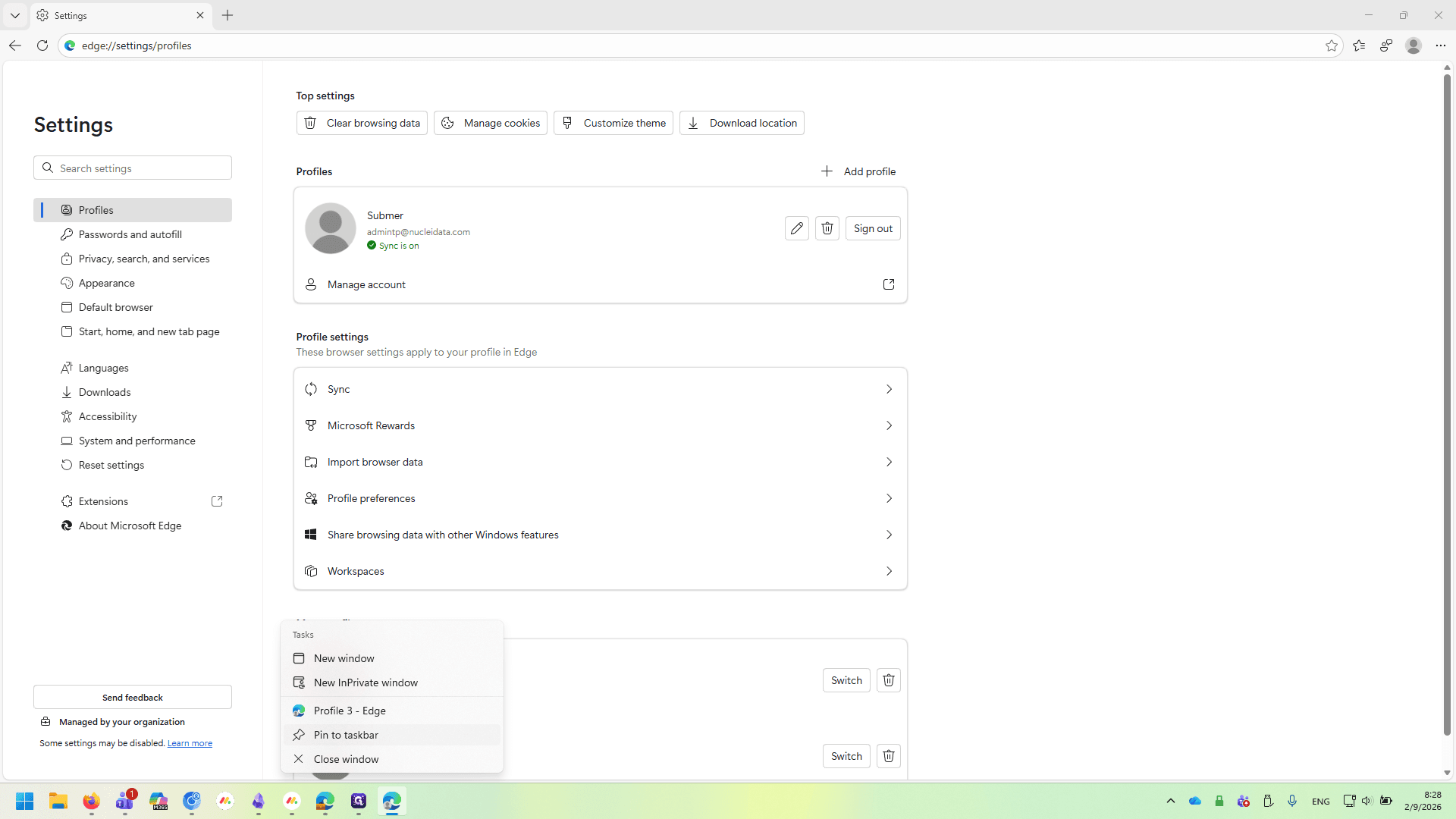
By pinning this to your task bar, you now have a second browser shortcut that opens your Submer profile, siloed off from your nuclei profile. You can use office apps and webmail from here, or you can add your Submer account as a second account in the Outlook app.