
How to Add a Summative Assessment to the TSC Audit Spreadsheet
Learn step-by-step how to add a summative assessment to the TSC audit spreadsheet, including linking files from Google Drive and naming conventions for different subjects and grade levels.
In this guide, we'll learn how to add a summative assessment link to Summative audit spreadsheet. This process involves copying the share link from your Drive, pasting it into the spreadsheet, and naming the summative for easy reference.
You will also see how to indicate that the summative is stored on Google Drive and Toddle.
Let's get started
Okay, I have opened the summative and TSC audit spreadsheet. Right now, I am on the Spanish section. Go to your subject, for example, Music. As you can see, there is nothing here yet.
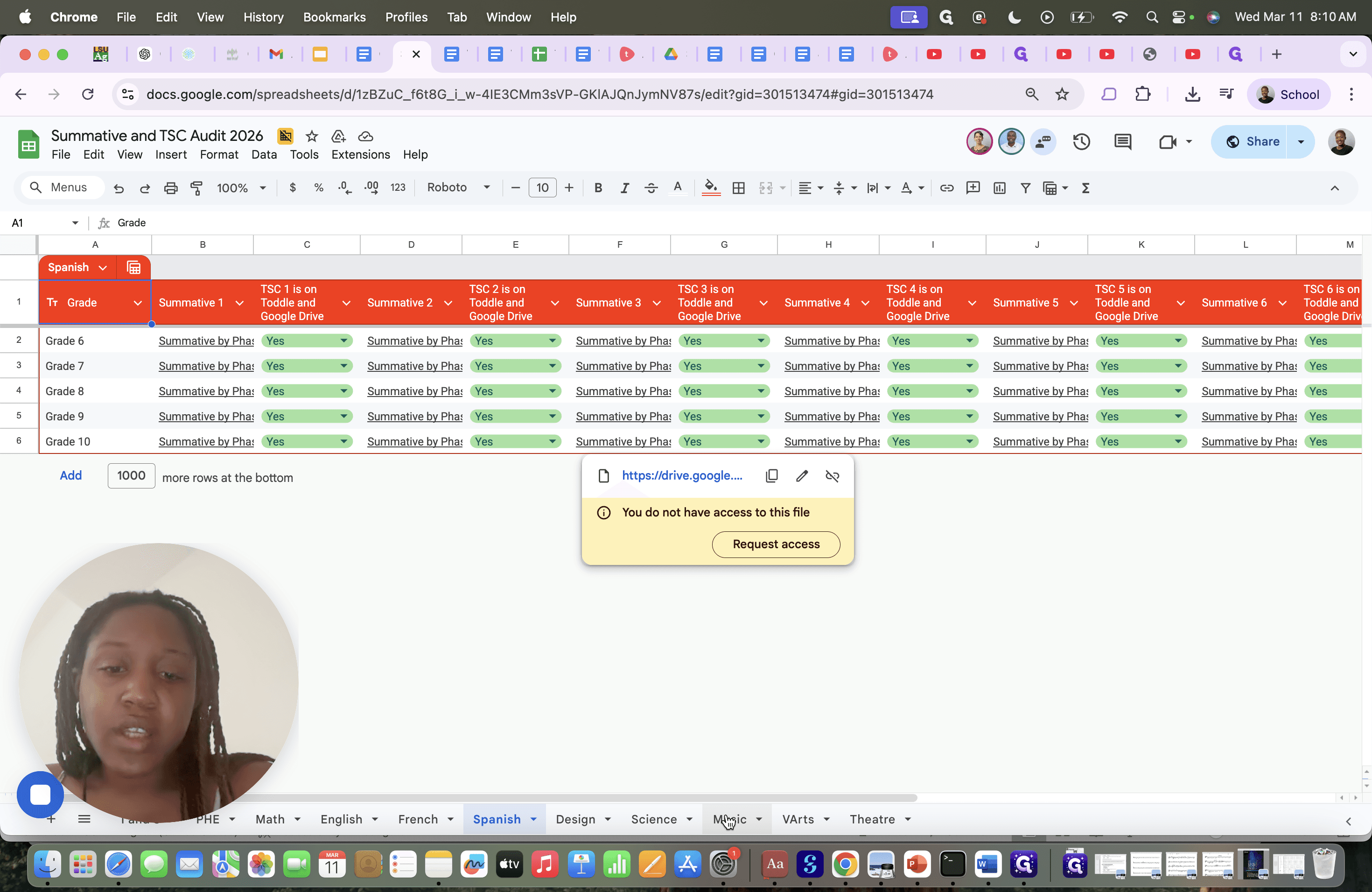
I have a grade eight summative that I want to add. I will link the summative here and show you how to do that.
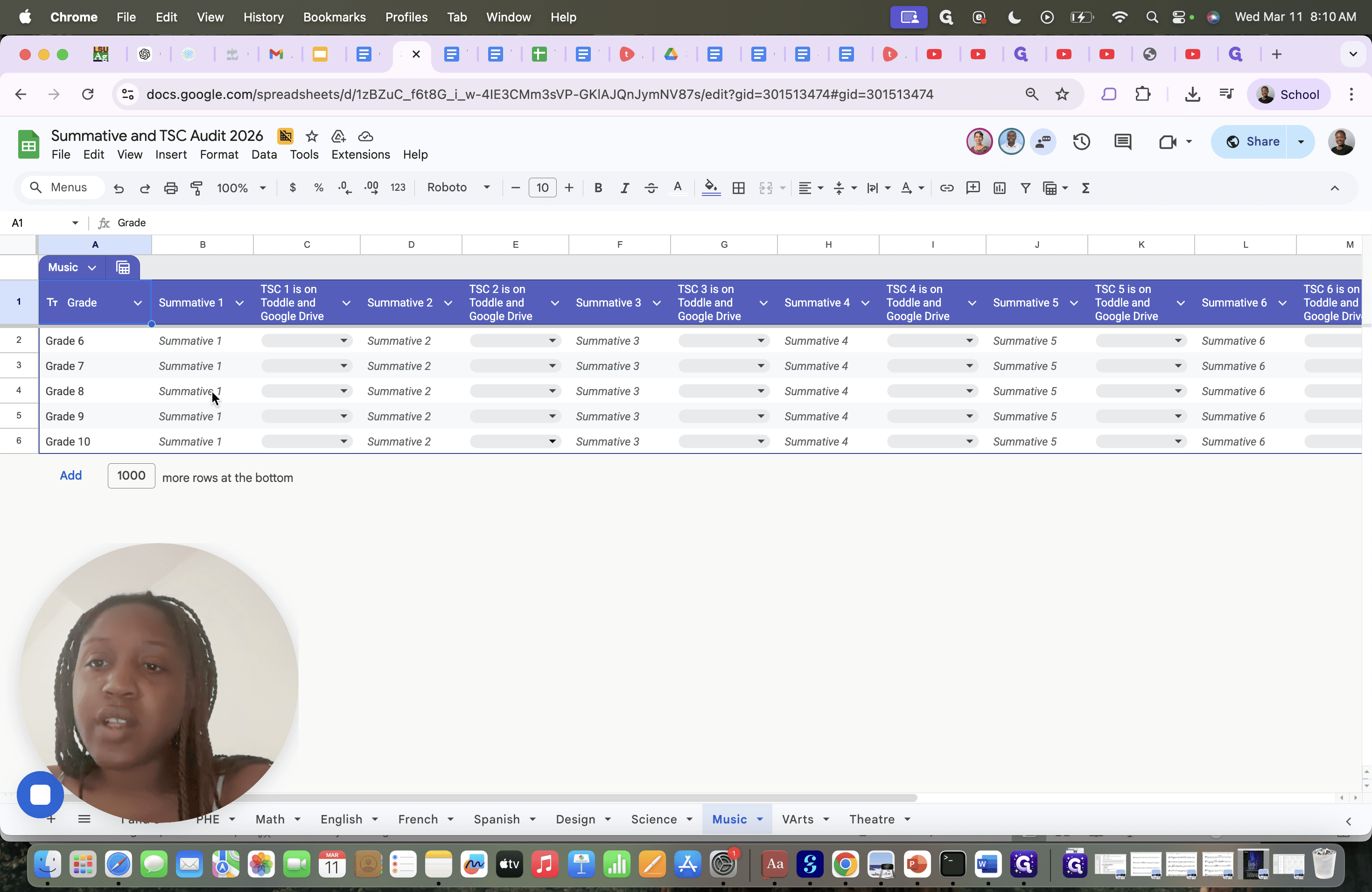
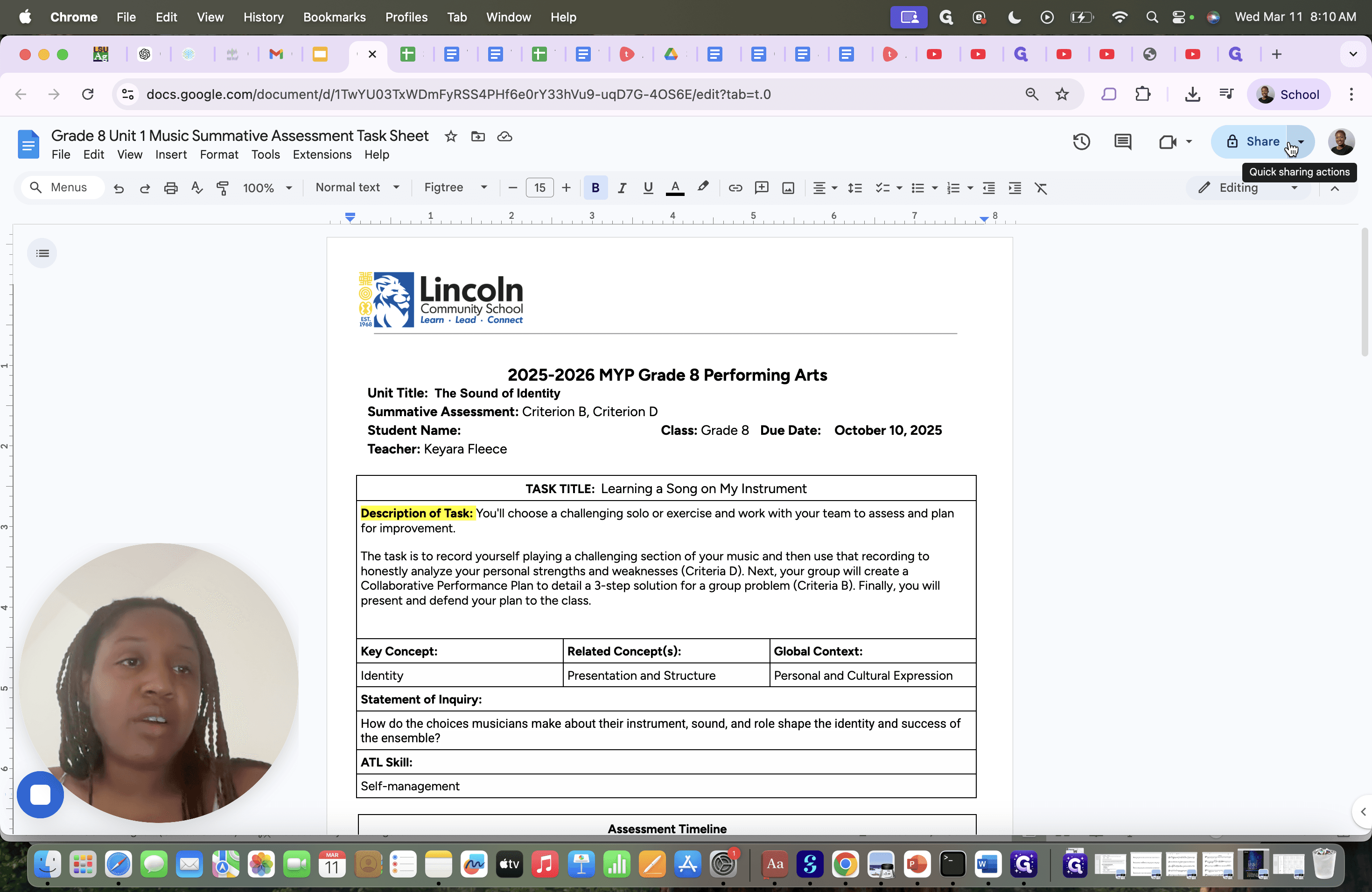
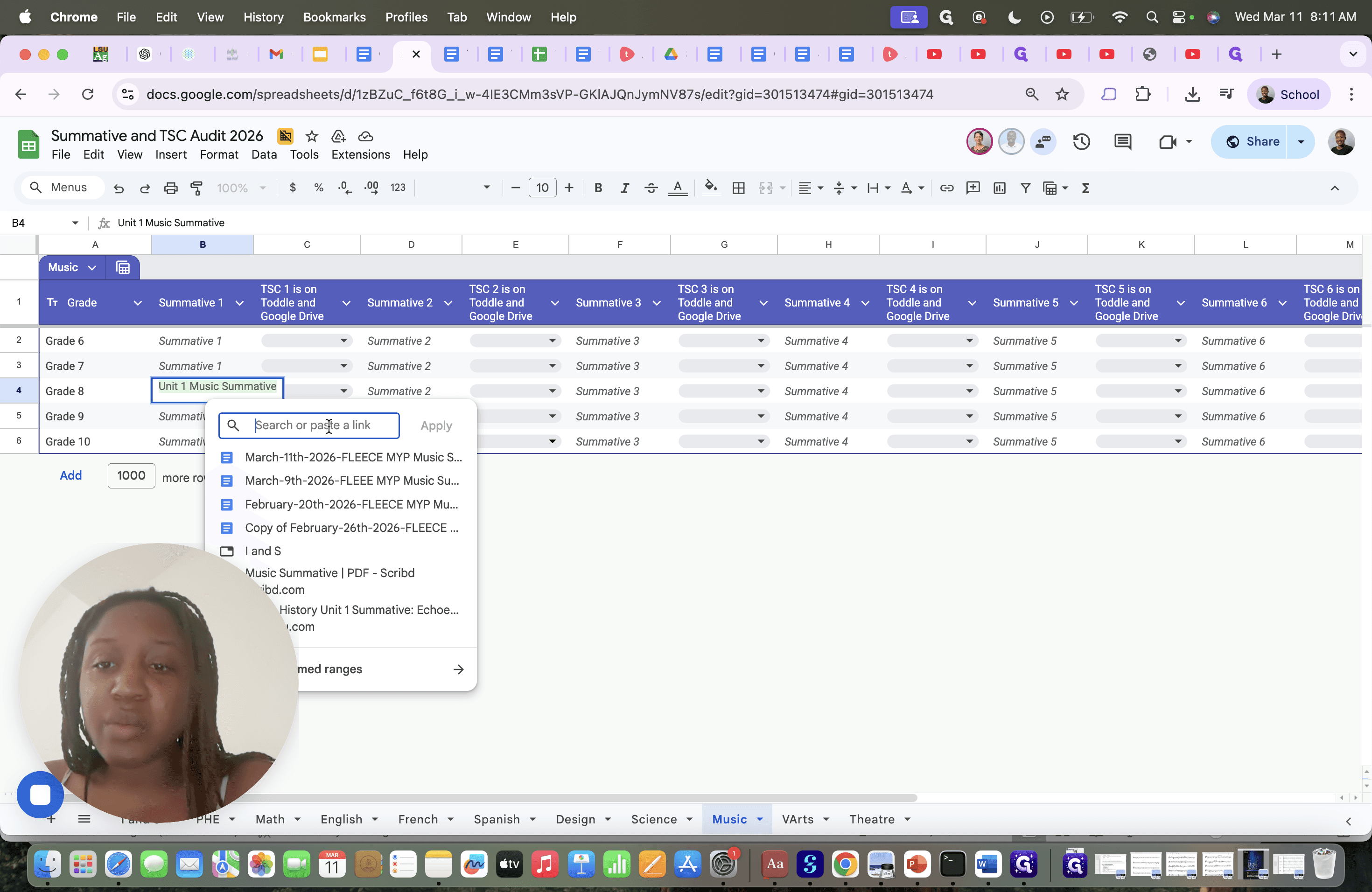
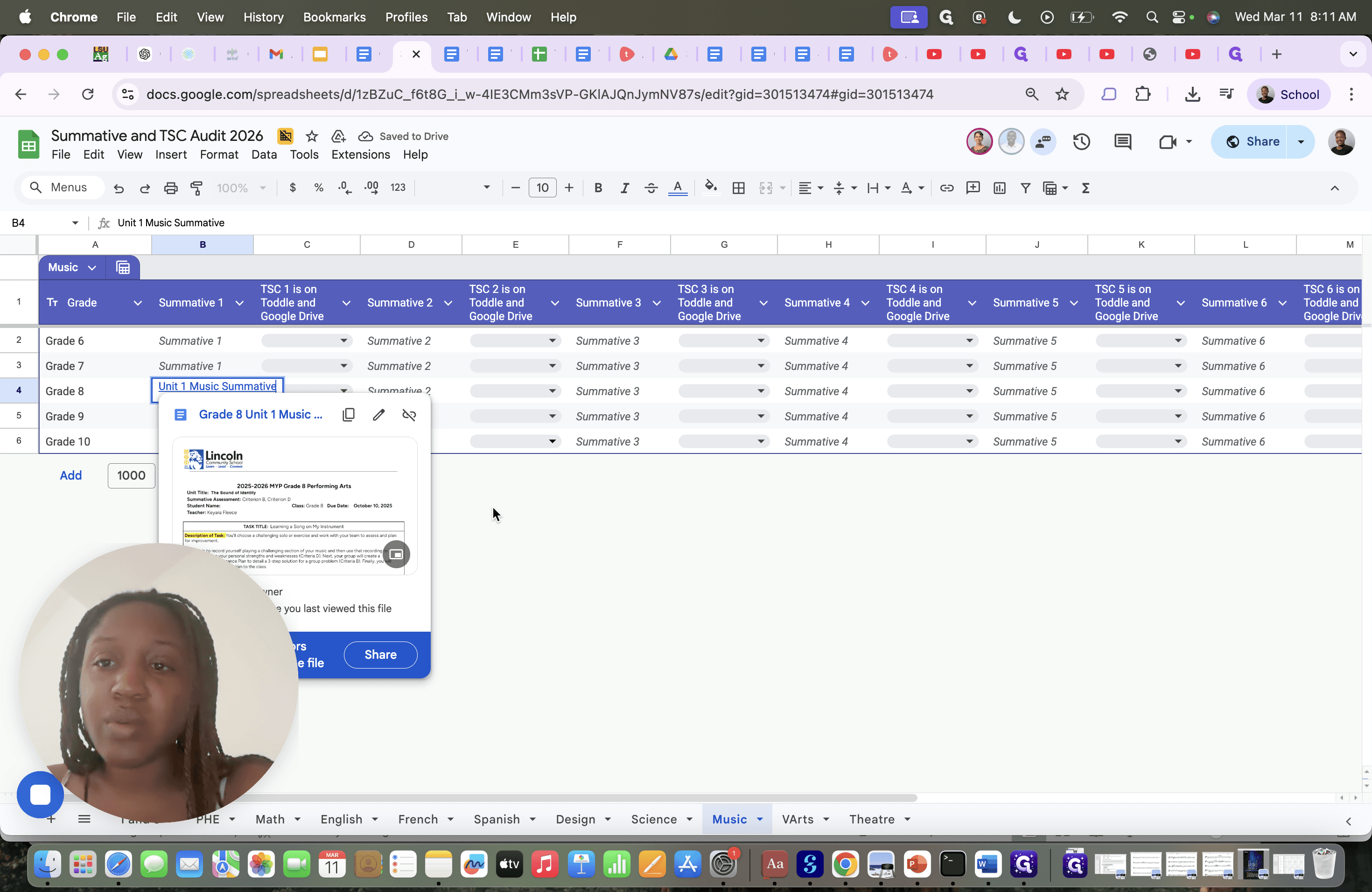
First, go to the summative in Drive and look for the share link. Copy the link, then return here. For this example I'm going to grade eight; this is the first summative for grade eight.
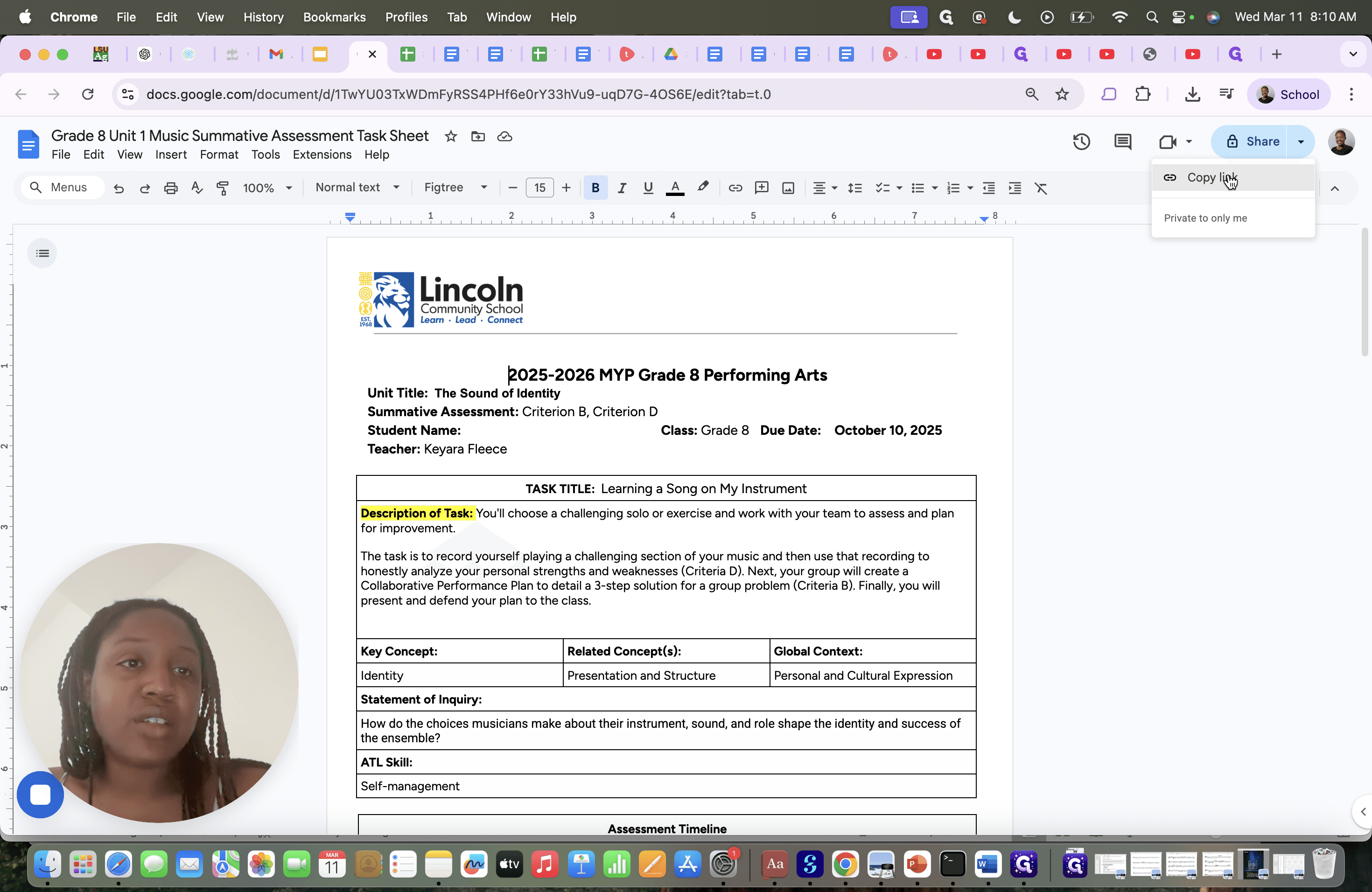
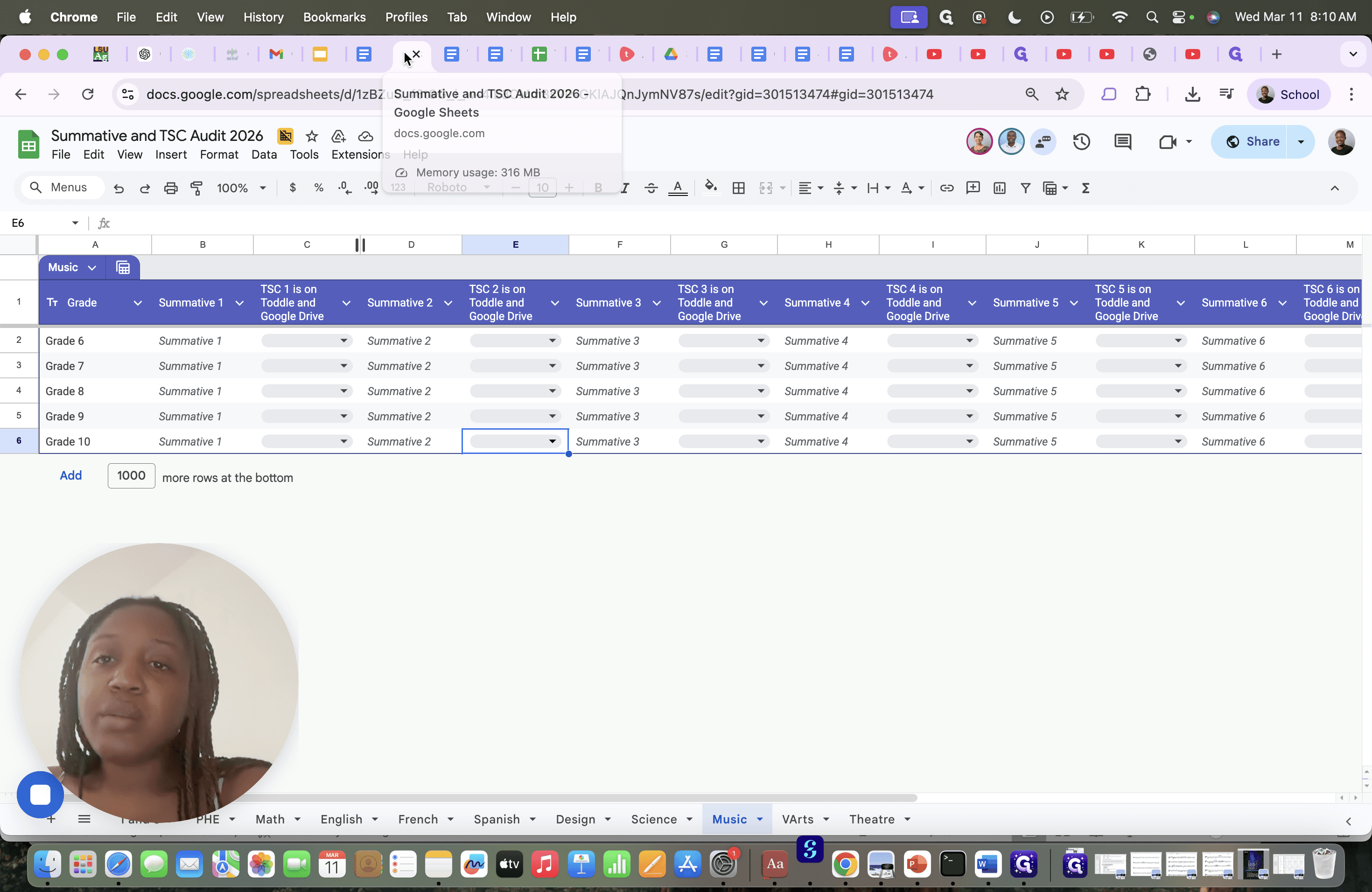
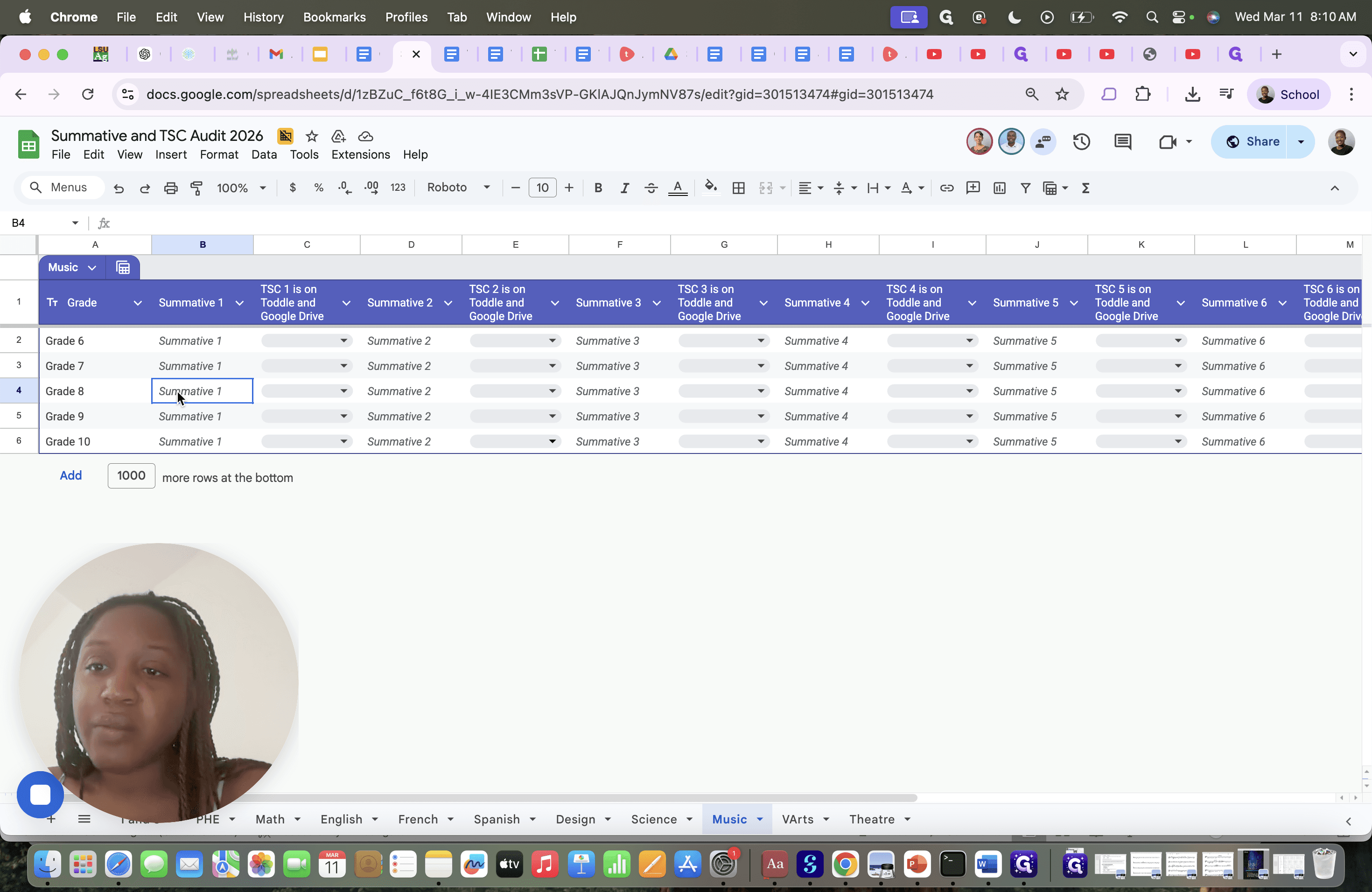
I can rename it to whatever I want, so I'll name it Unit 1 Music Summative.
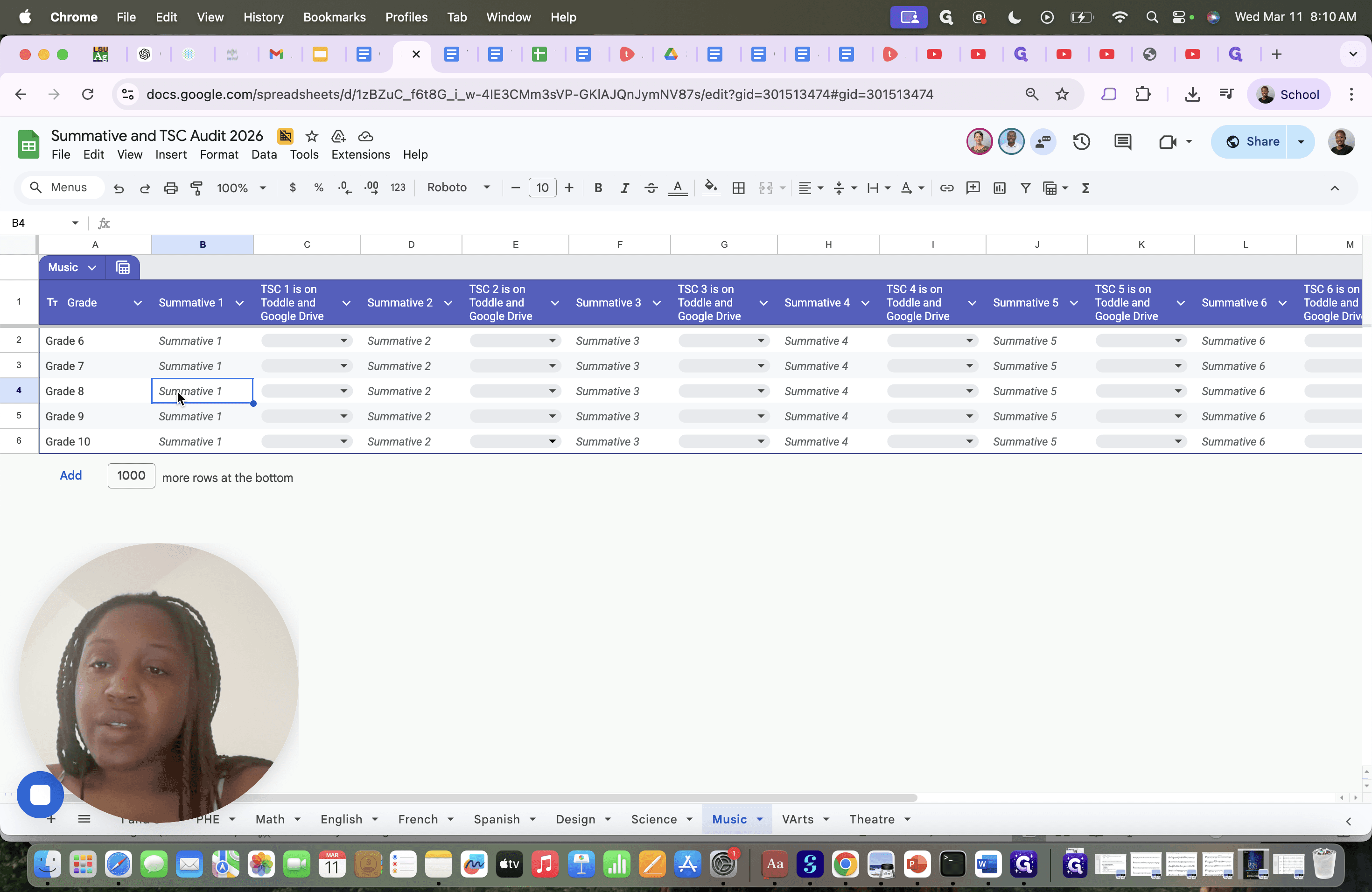
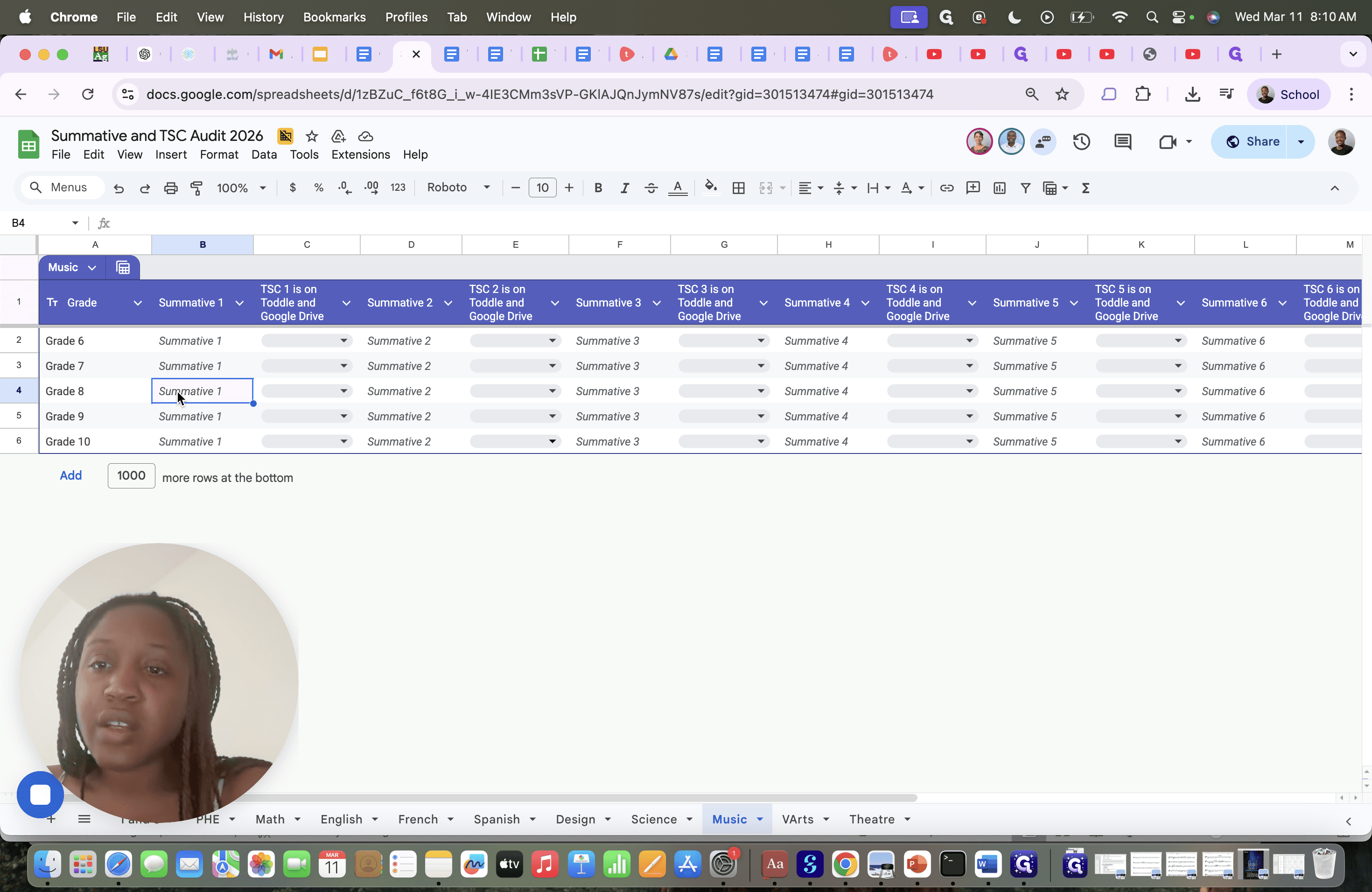
Once you type out the name, you can name it anything you want.
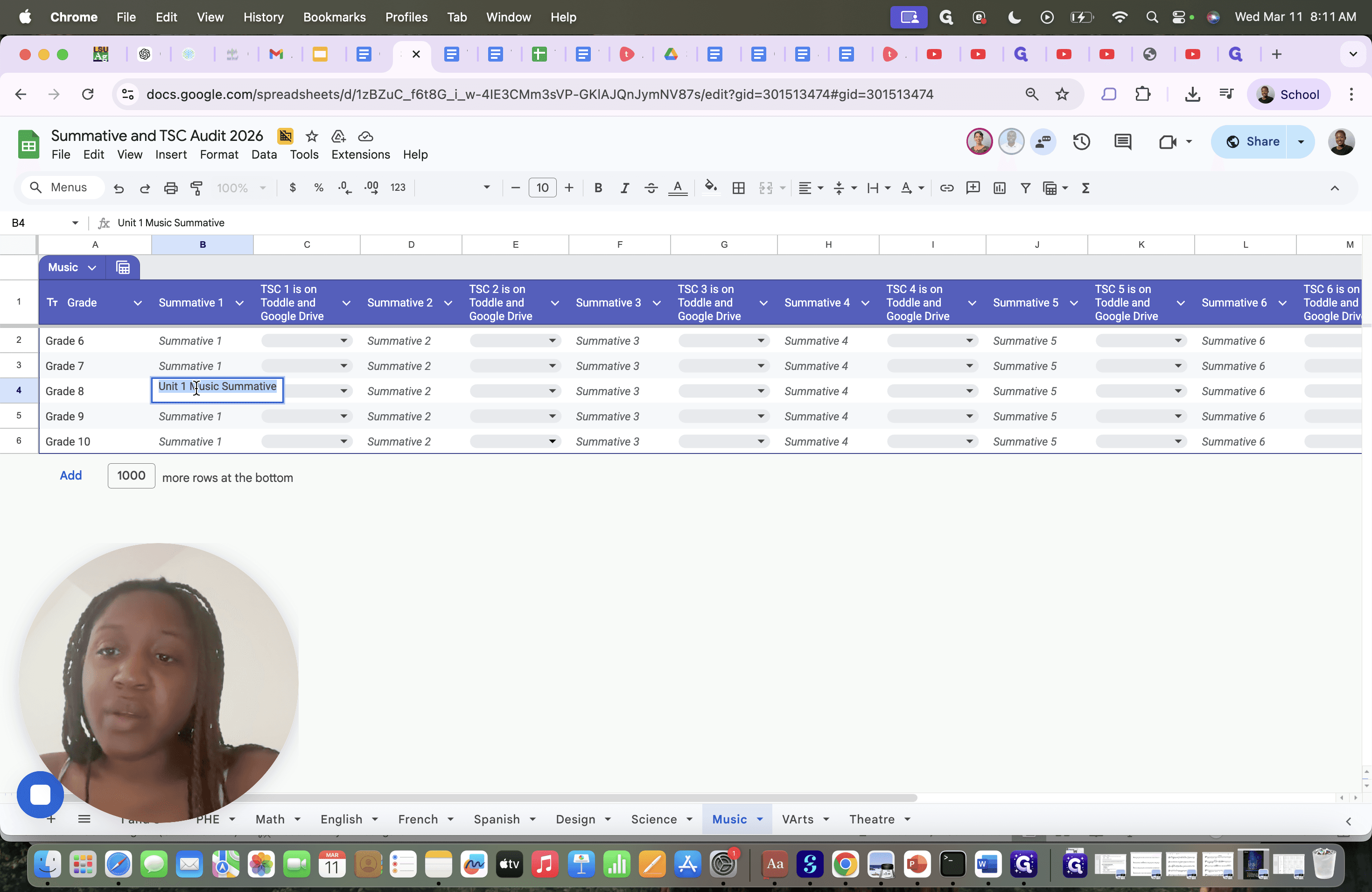
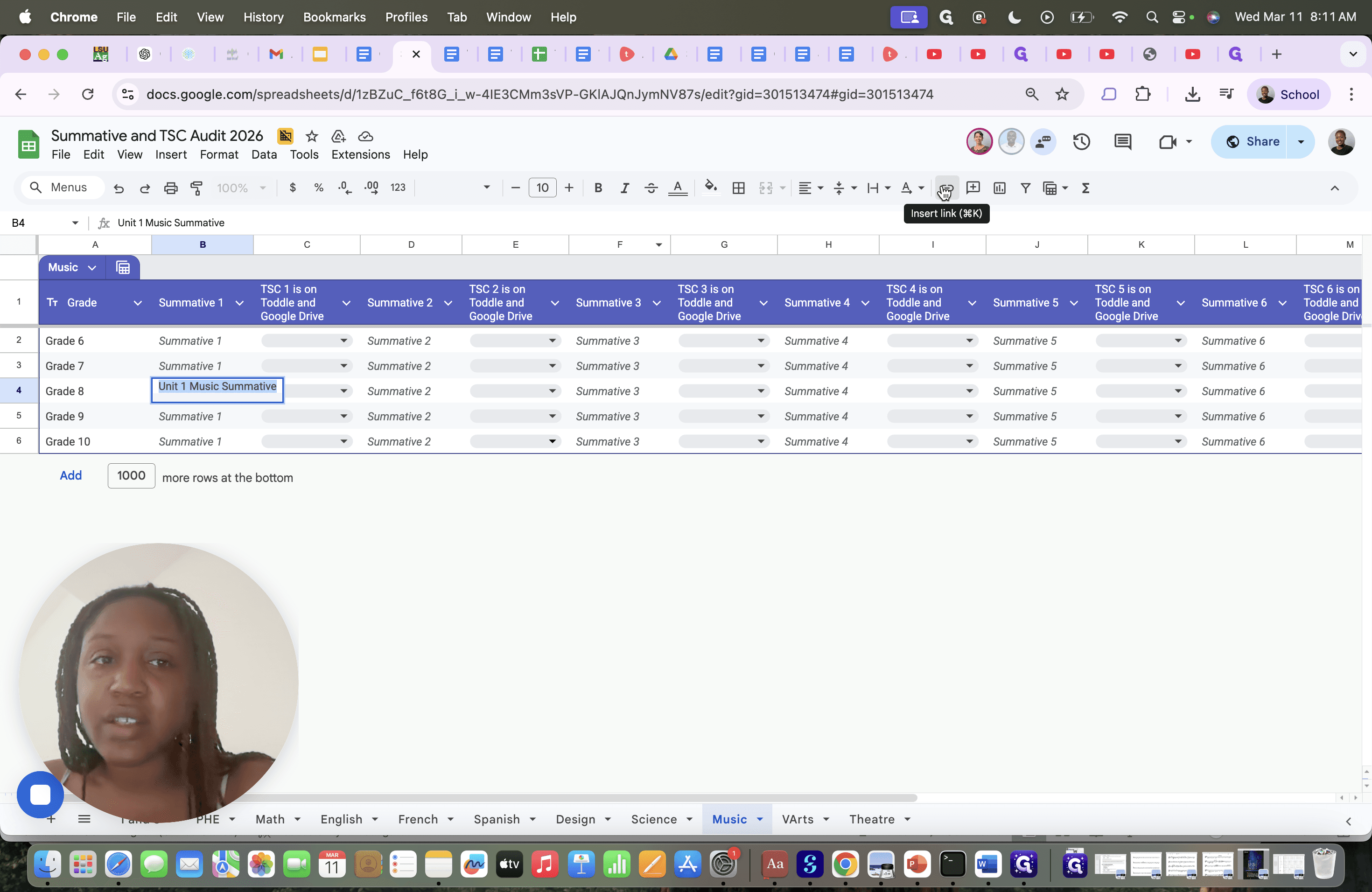
Some people use the same name. If you look at ... You can look at other departments for inspiration. Since many departments have already started, you can see what they have done for their naming, but this doesn't really matter. It's whatever works for you and whatever you can understand. Then go to Insert link. This is where you paste the link you just copied.
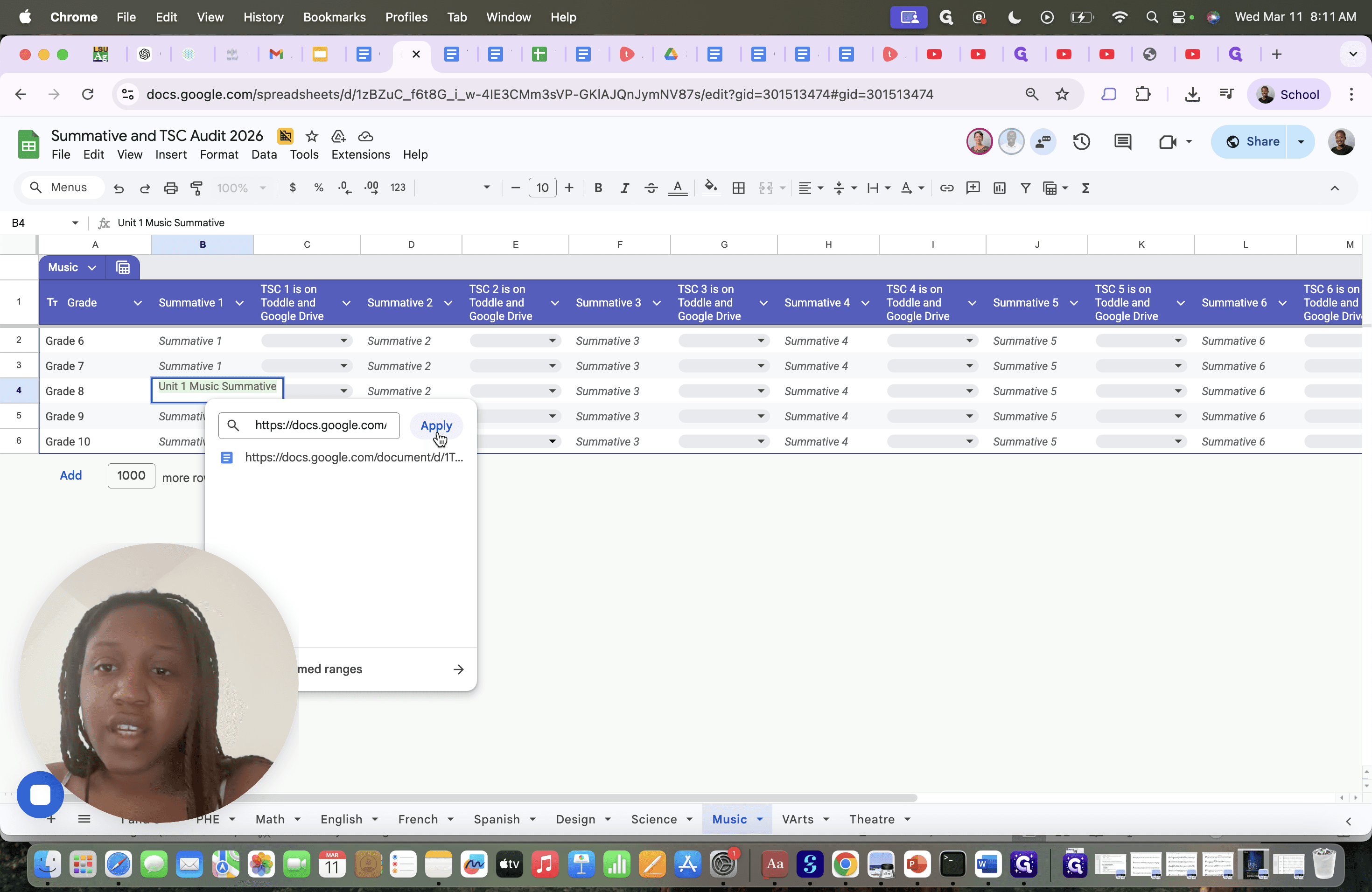
Now it will be linked to your item. You can toggle this to indicate that it is on Toddle and Google Drive.
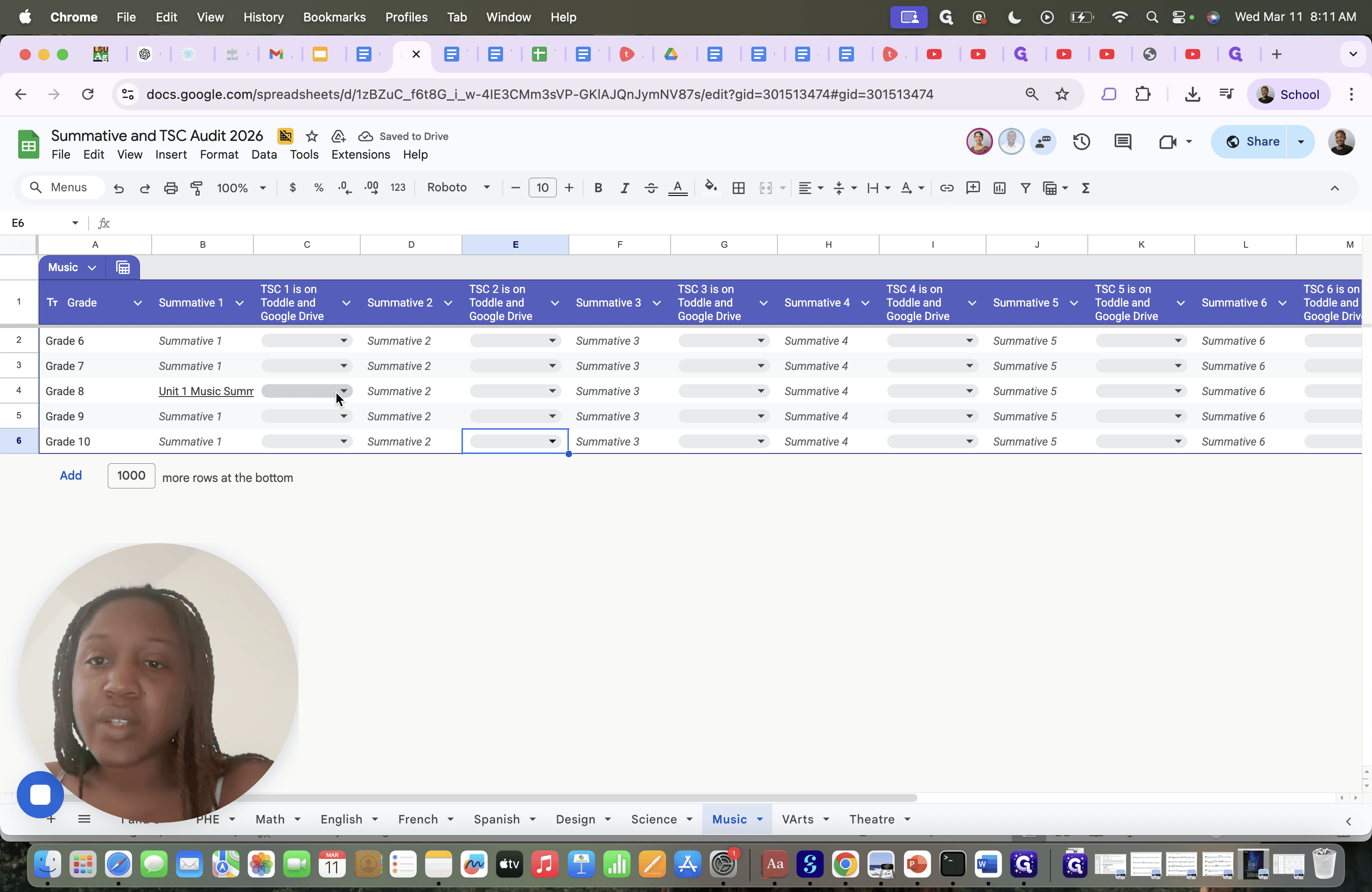
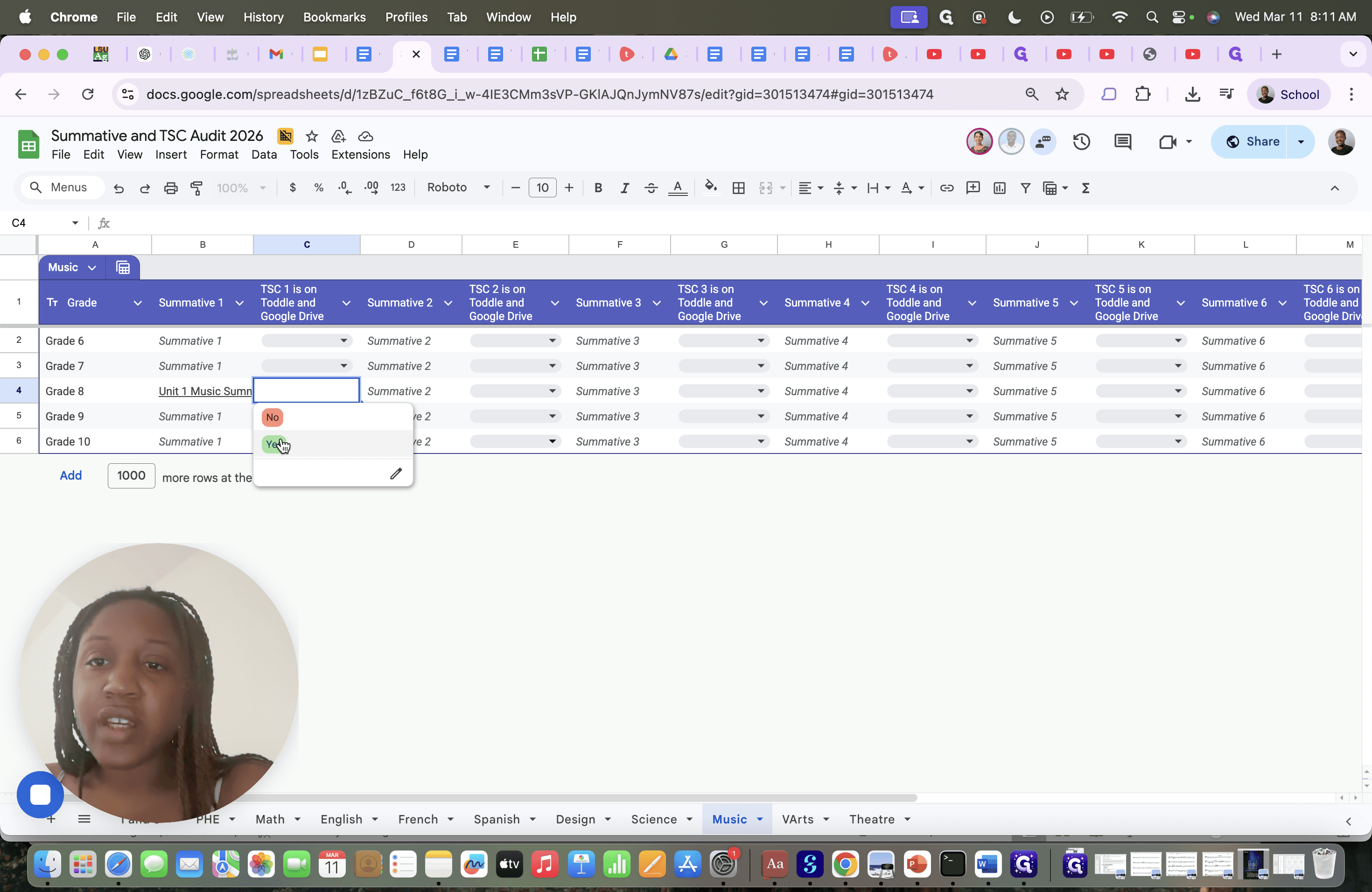
I just completed my first one. That was to show you how to do it. That's all there is to it. If you can do this for just one grade level today, that would be great. As for me, I plan to do all my first and possibly second summatives, but I won't finish by Thursday. I want to show them that I've started.