How to Add a New Chrome Profile to access the Gmail of another Google Workspace Account
Learn the step-by-step process to access another Google Workspace Gmail account by creating a new Chrome profile. Follow these simple instructions to efficiently manage multiple accounts in Google Chrome.
By Mike Crofton-Atkins
In this guide, you'll learn how to add access to another Google Workspace Gmail account by creating a new Chrome profile. This method helps keep your accounts separate and organised. It also makes switching between accounts easier and more secure.
Let's get started
When you want to add a Gmail account or Google Workspace account, or gain access to one, it is best to do so using a new Chrome profile.
To do this:
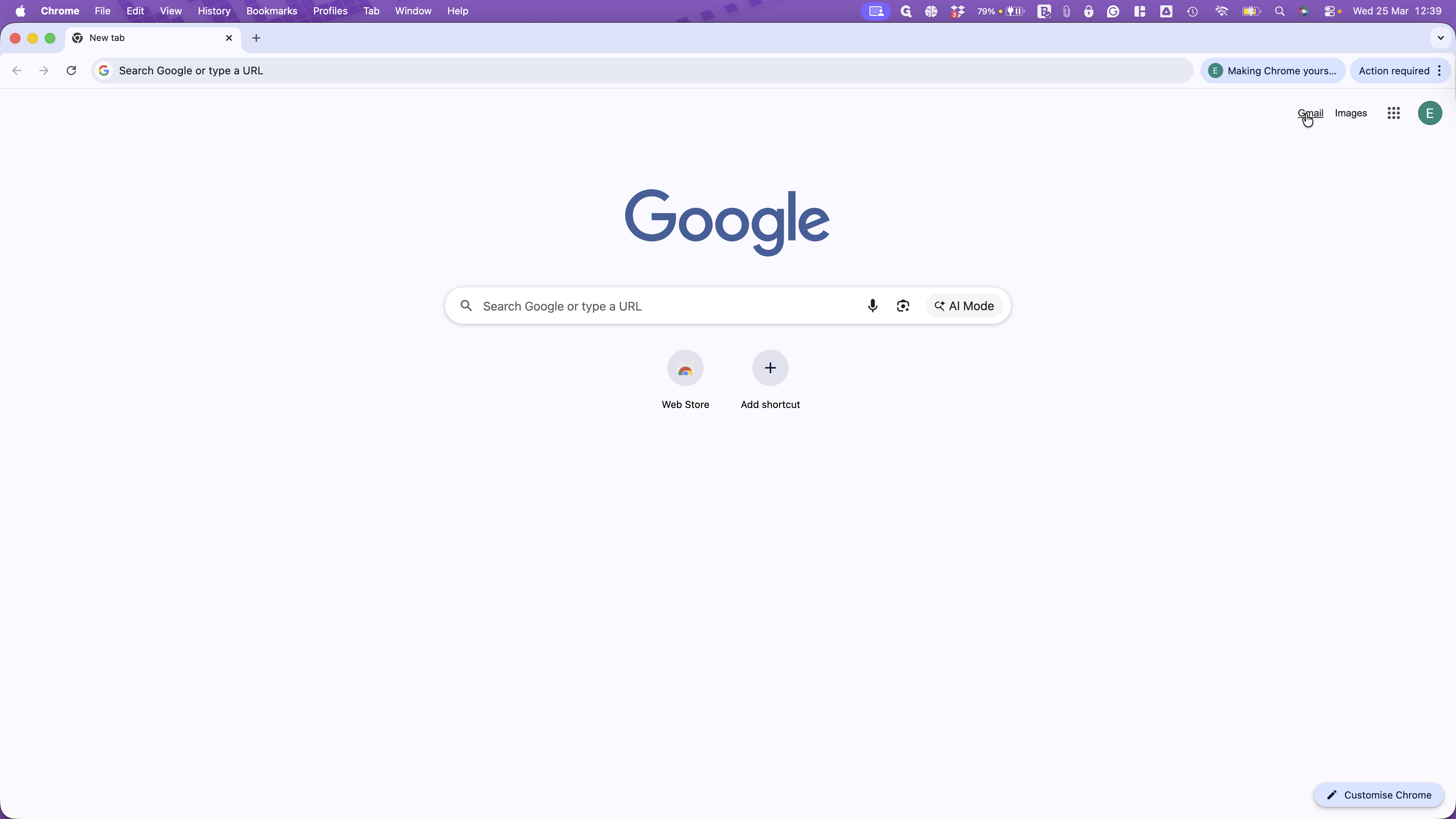
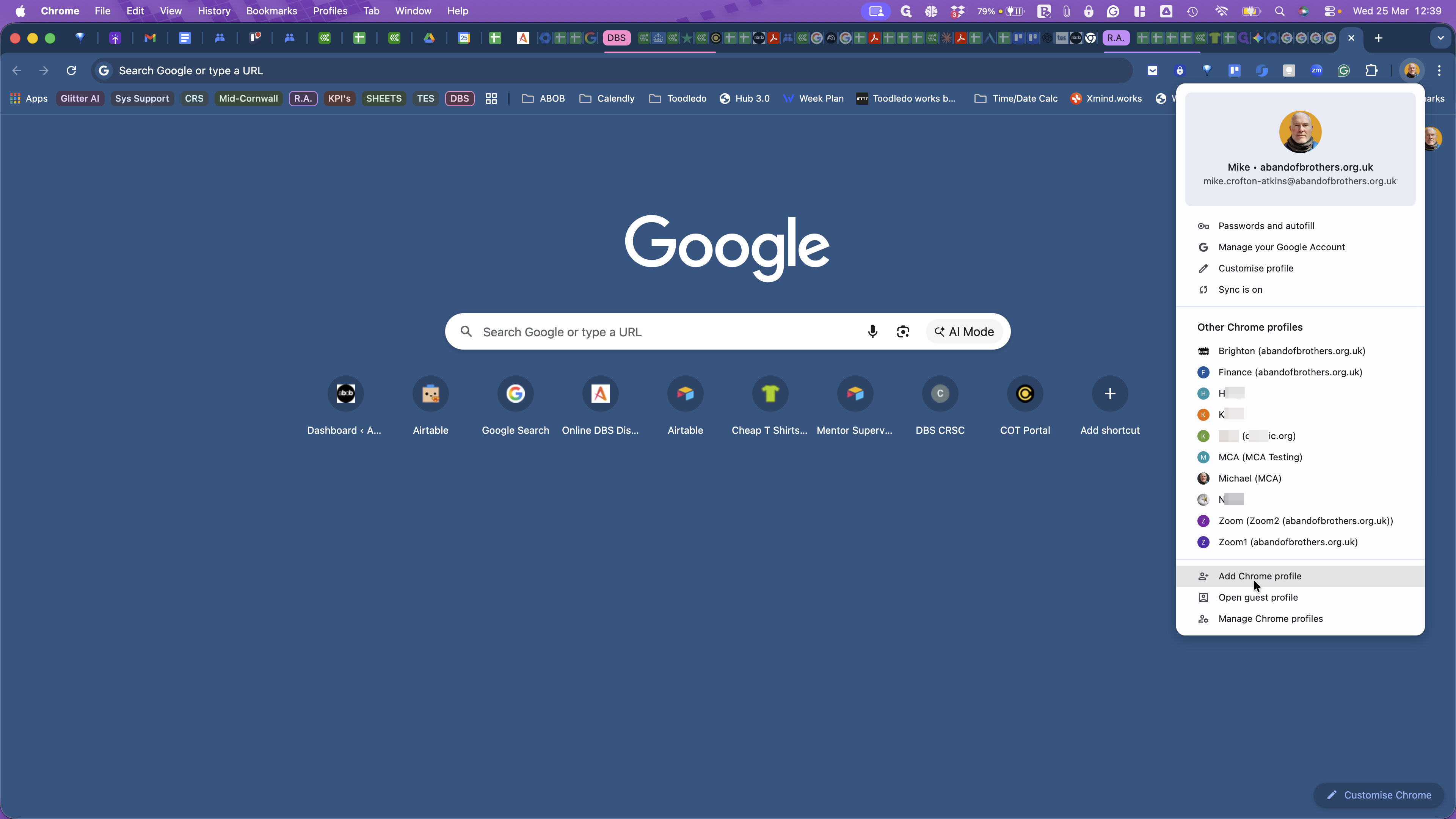
Go to the top-right corner of the Chrome browser window and click your avatar icon (a small, round, coloured icon with your initials, or your photo).
Go to the bottom. Click Add Chrome Profile.
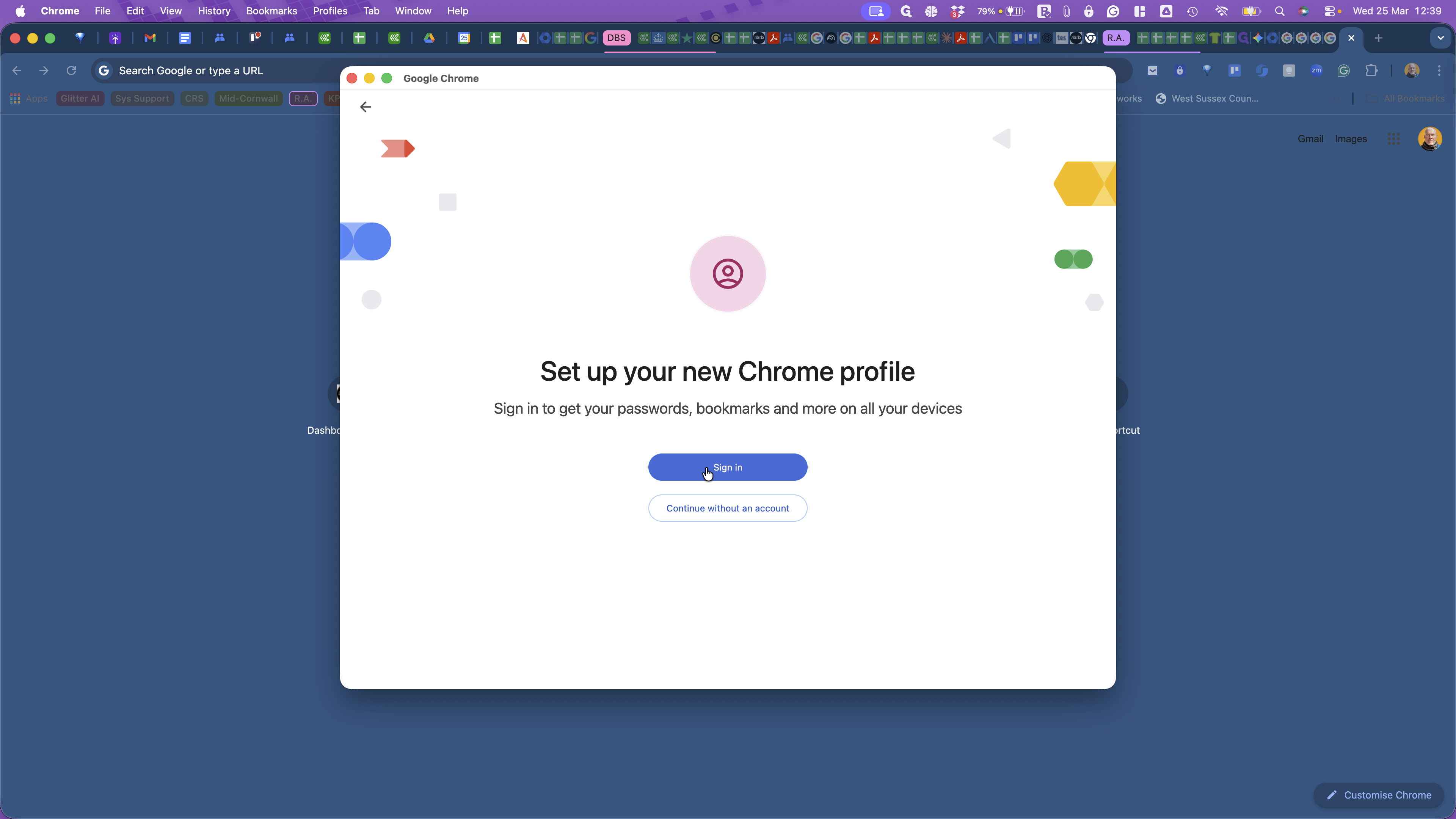
Then click Sign In.
1
Click on "+ Add Chrome profile"
2
Click Sign
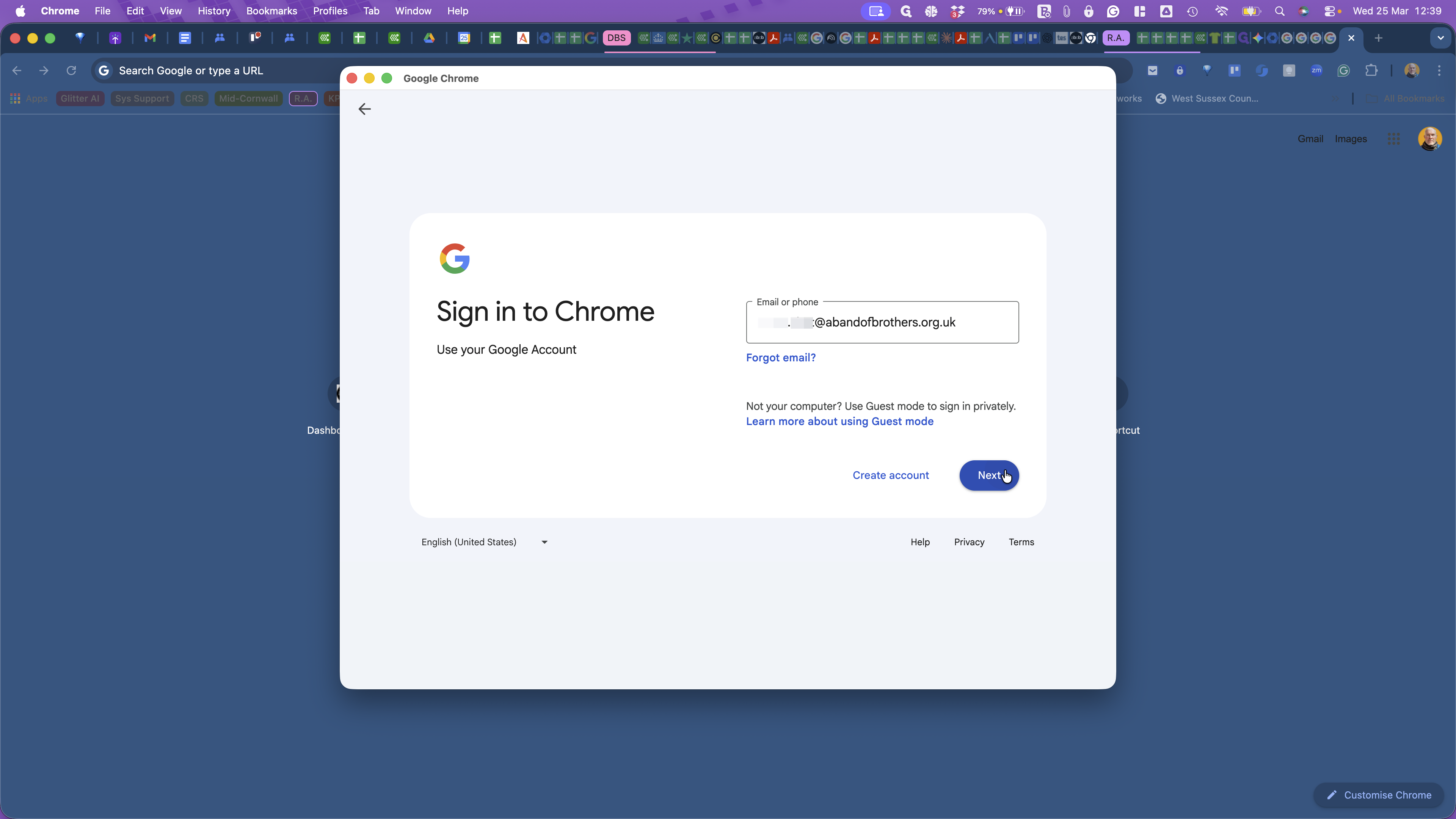
Next enter the email address of the account you want to access.
3
Type "firstname.lastname@abandofbrothers.org.uk" or whatever comes before the @ sign.
4
Click on "Next"
Paste or type in the password.
5
Click on "Next"
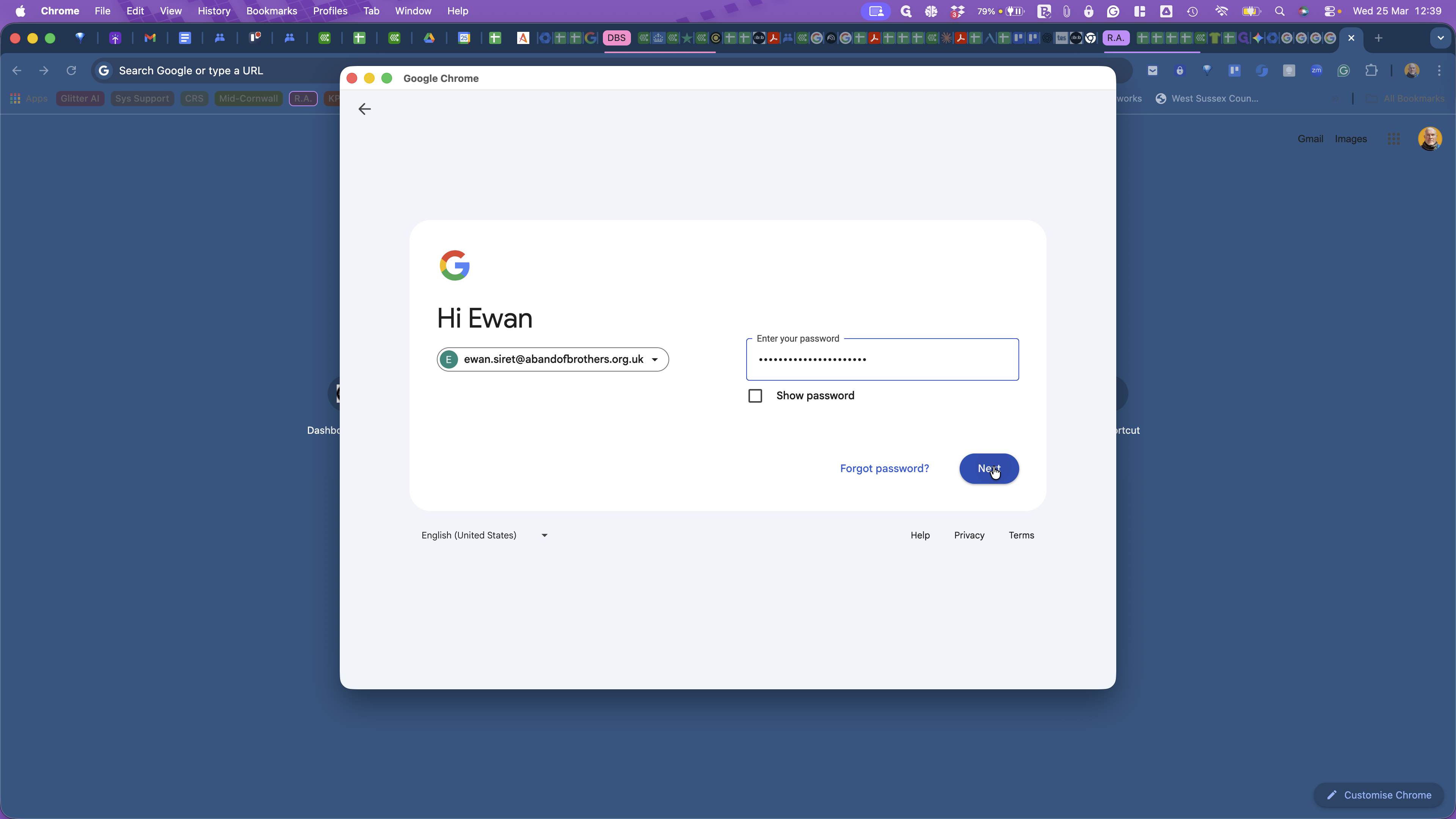
6
Select a colour theme of your choice if you want.
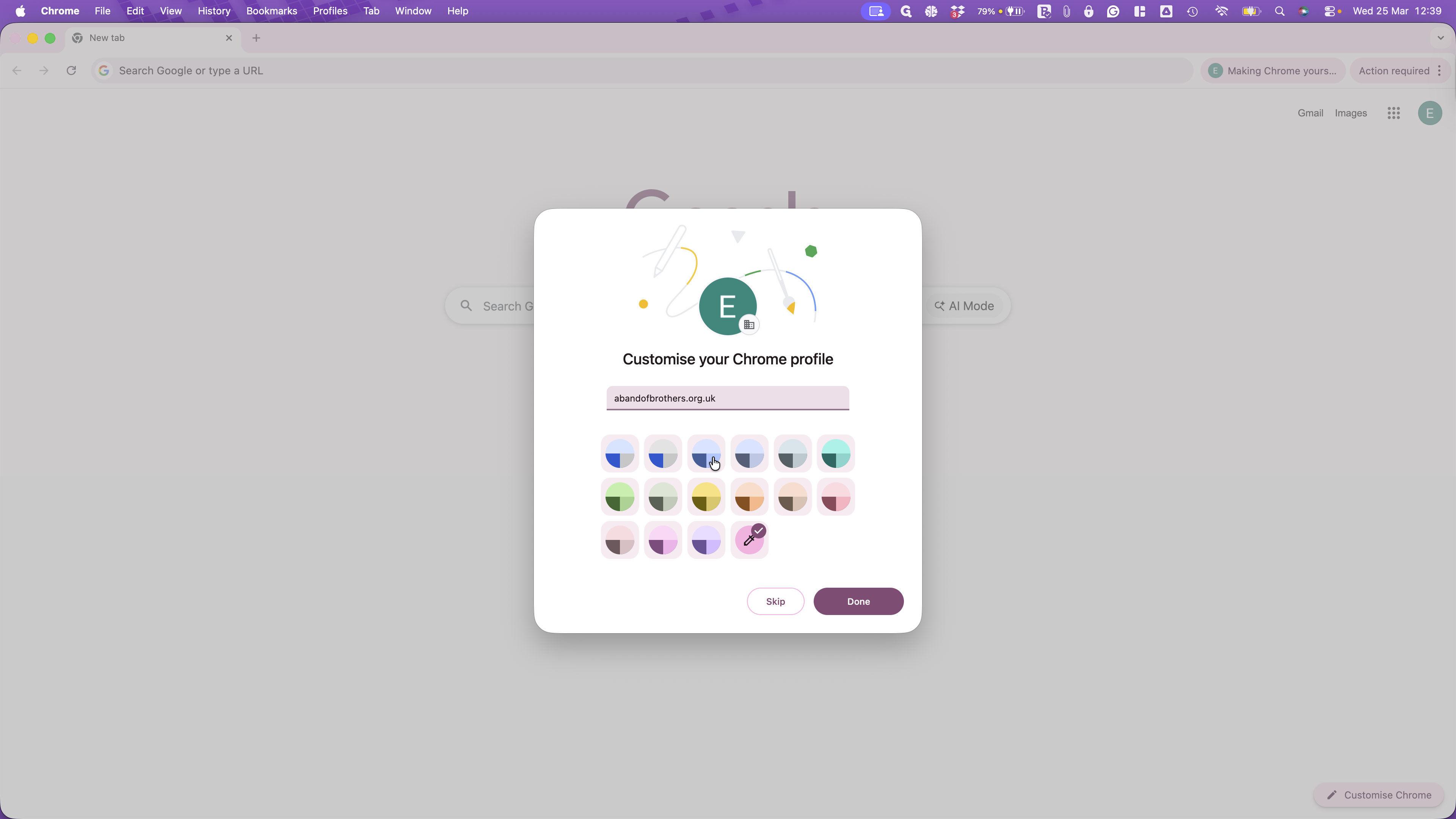
7
Click on "Done"
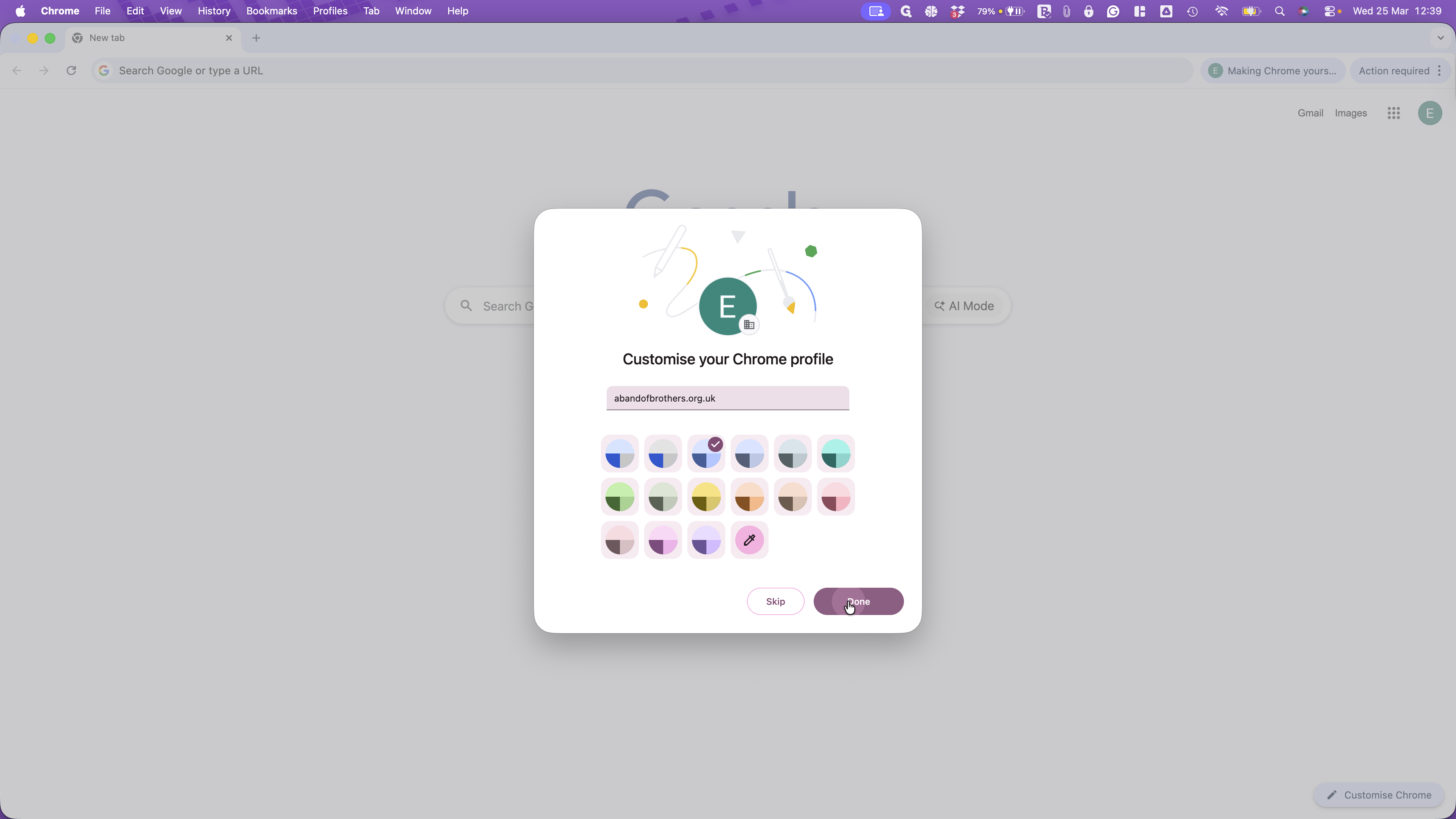
That's all there is to it.
8
Click on "Gmail"